Data Storytelling with Dynamic Zone Visibility

This week’s community challenge was set by Chiaki to showcase how to use dynamic zone visibility to tell a story. We’ll step through each chart and then how it’s all put together.

Building the line chart

Create a new field

Profit Ratio

SUM(Profit)/SUM(Sales)

and format to % with 1 dp.

Add Order Date to Filter and restrict to Years 2023 and 2024 only.

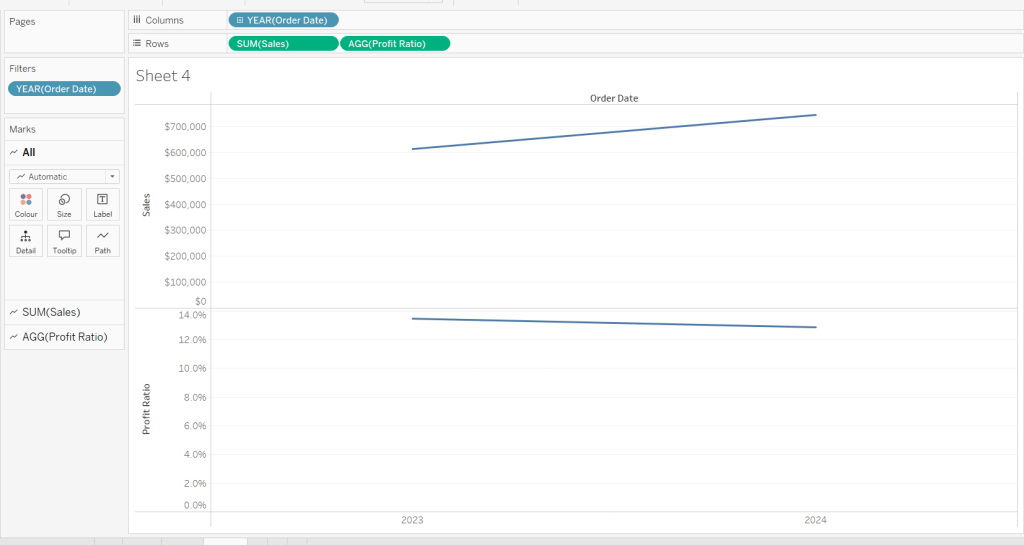
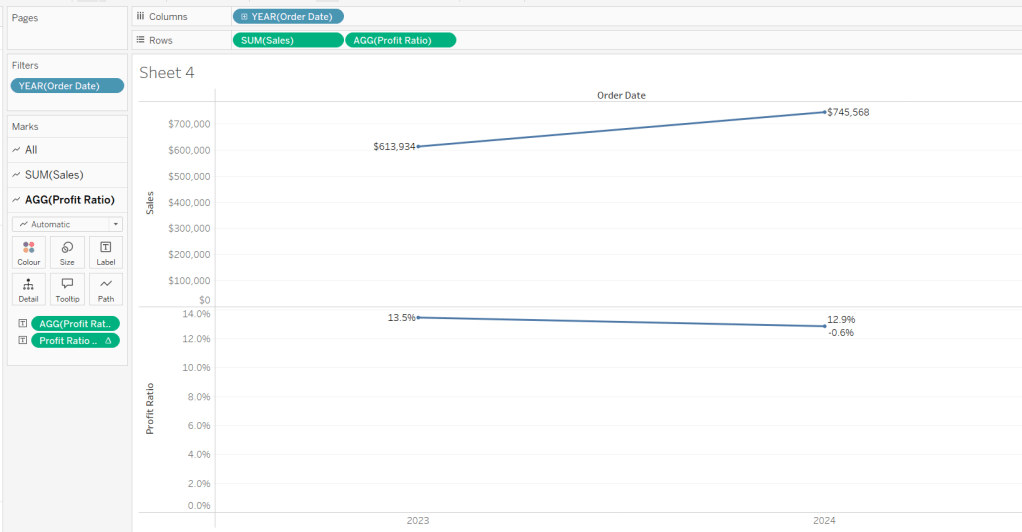
Add Order Date to Columns as a discrete (blue) pill at the year level. Add Sales to Rows and Profit Ratio to Rows. Format Sales to be $ with 0 dp. Set the screen to Fit Width.

Add Sales to the Label shelf of the Sales marks card. Add Profit Ratio to the Label shelf of the Profit Ratio marks card.

Create a new field

Profit Ratio YoY

ZN([Profit Ratio]) – LOOKUP(ZN([Profit Ratio]), -1)

and format to % with 1 dp. Add to the label shelf of the Profit Ratio marks card

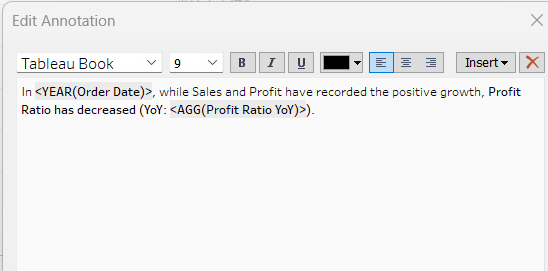
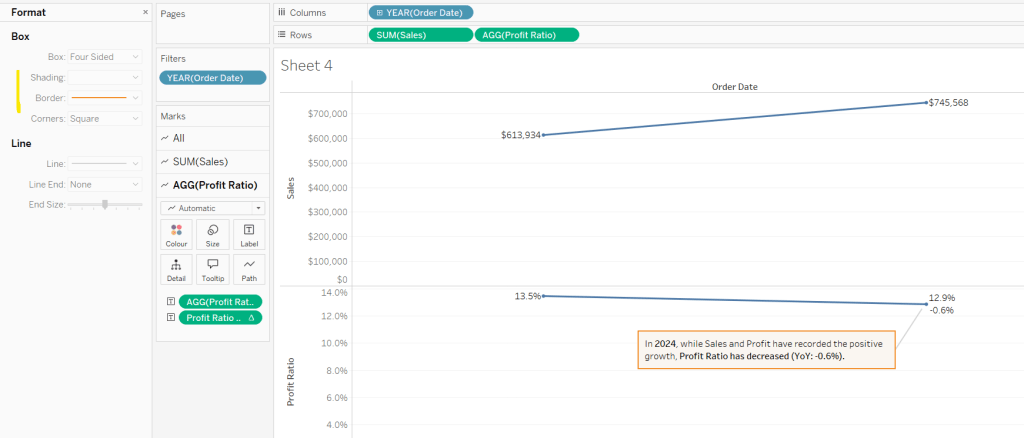
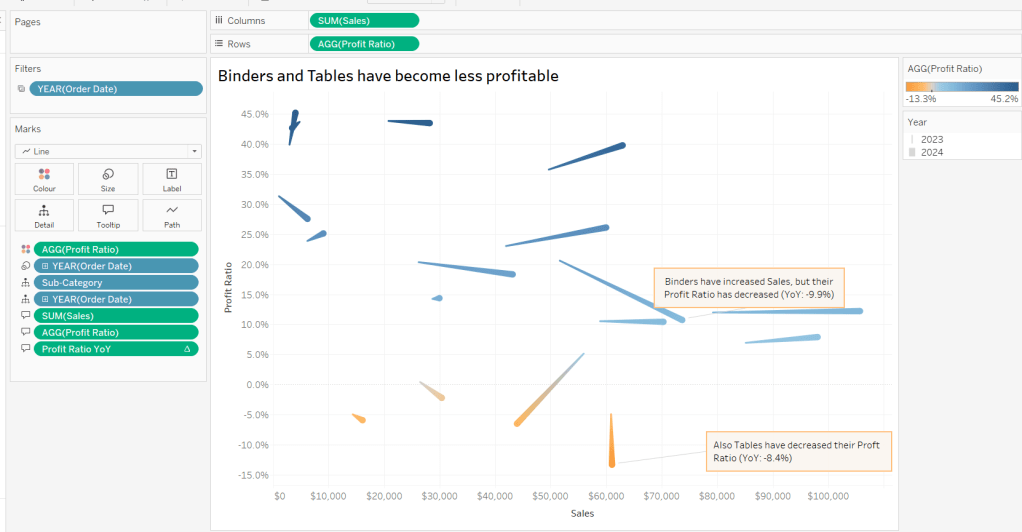
Right click on the 2024 Profit Ratio mark and select Annotate > Mark. Update the text as required and reference the value of Order Date year and the Profit Ratio YoY

Click and drag the annotation to reposition, and then right click on the annotation to format, and adjust the shading to pale orange and add a thick orange border.

Hide the Order Date column heading (right click > hide field names for columns). Add a title and name the sheet Line or similar.

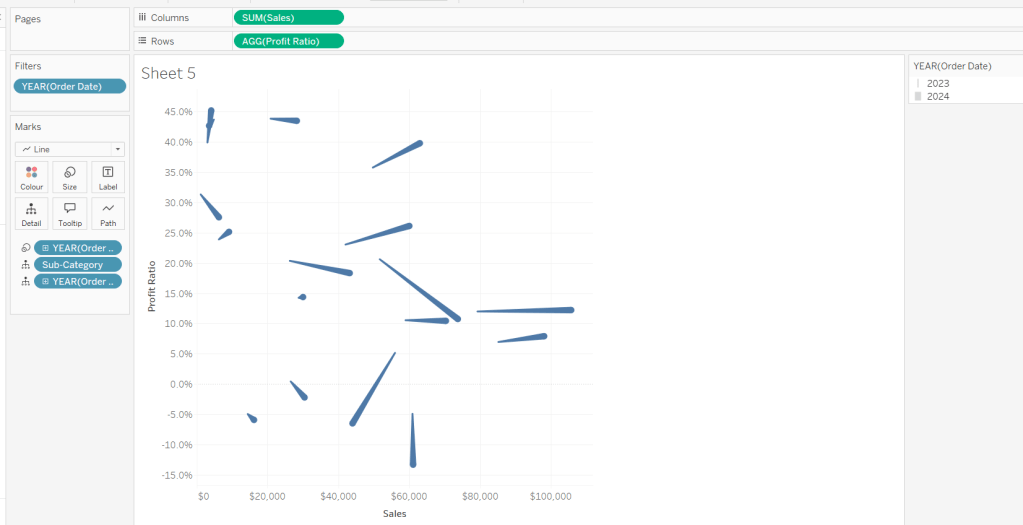
Building the comet chart

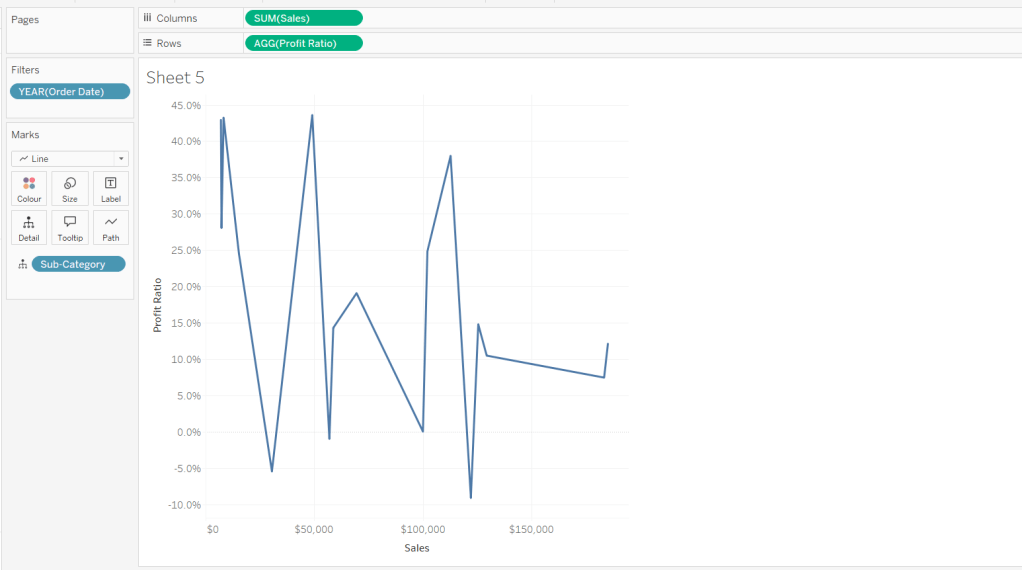
On a new sheet, add Sales to Columns and Profit Ratio to Rows. Add Order Date to Filter and restrict to years 2023 & 2024 only. Add Sub-Category to Detail and change the mark type to Line.

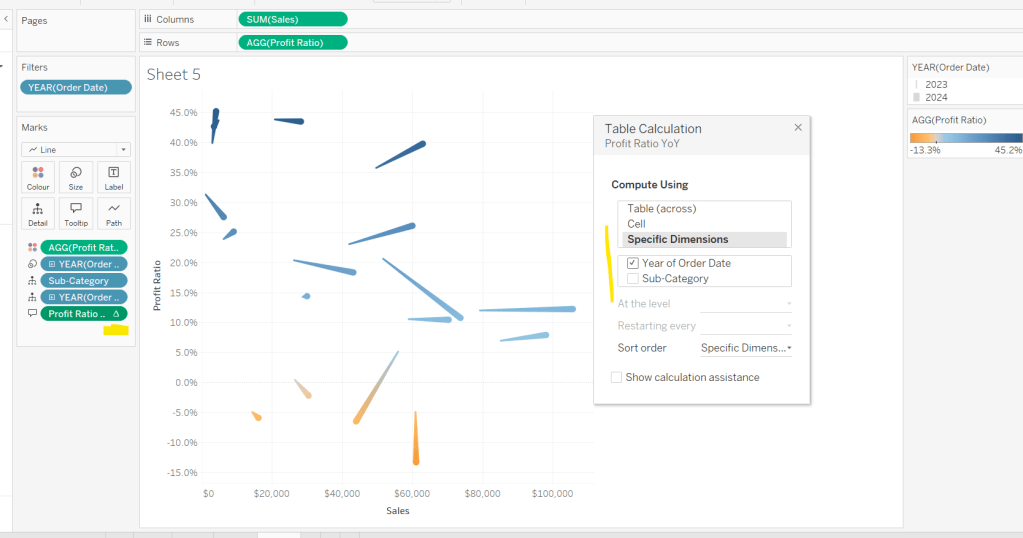
Add Order Date to Detail as a discrete (blue) pill at the Year level, and add another instance of Order Date at the Year level to Size.

Add Profit Ratio to Colour. Add Profit Ratio YoY to Tooltip and adjust the table calculation so it is computing by Year of Order Date only.

Update Tooltip as required and then add annotations to the required marks, again making references to the relevant variables. Format as before, add a title and name the sheet Comet or similar.

Building the Sankey chart

On a new sheet, add Order Date as a discrete (blue) pill to Filter and restrict to years 2023 and 20204. Add Sub-Category and restrict to Tables and Binders only.

Create a new field

Profitable

IF [Profit] >0 THEN ‘Profitable’ ELSE ‘Unprofitable’ END.

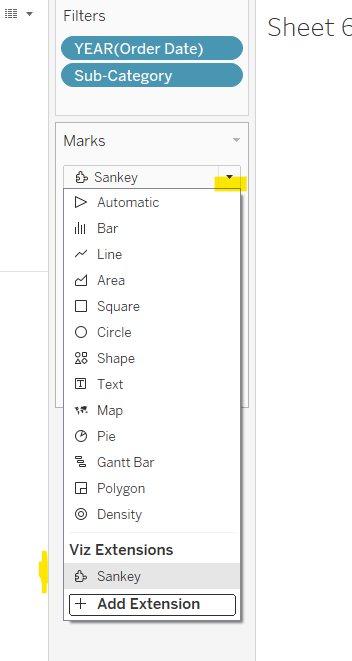
From the dropdown in the marks card, select Sankey

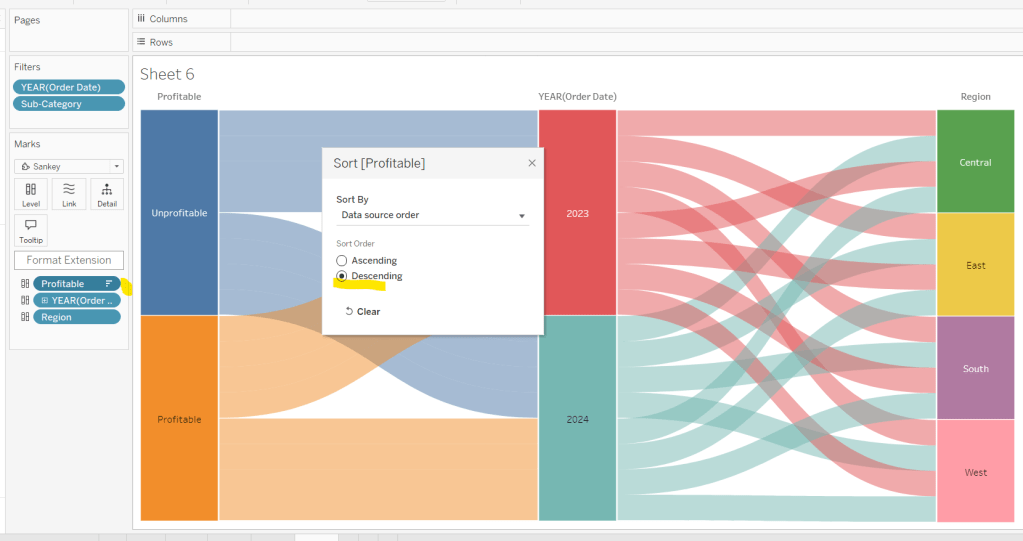
Then add Profitable, Order Date and Region to the Level shelf in that order. Adjust the Sort of the Profitable pill, so its sorted descending and Unprofitable is listed before Profitable.

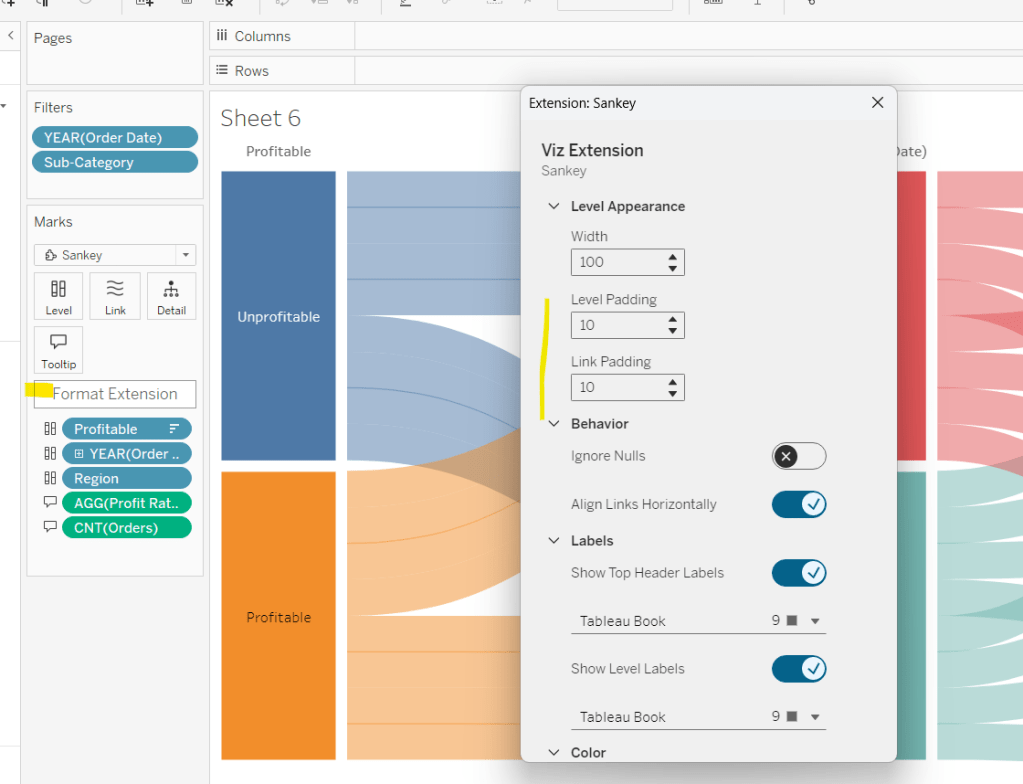
Add Profit Ratio and Orders(Count) to the Tooltip and update accordingly. Click Format Extension and set the Level Padding and the Link Padding to 10 each.

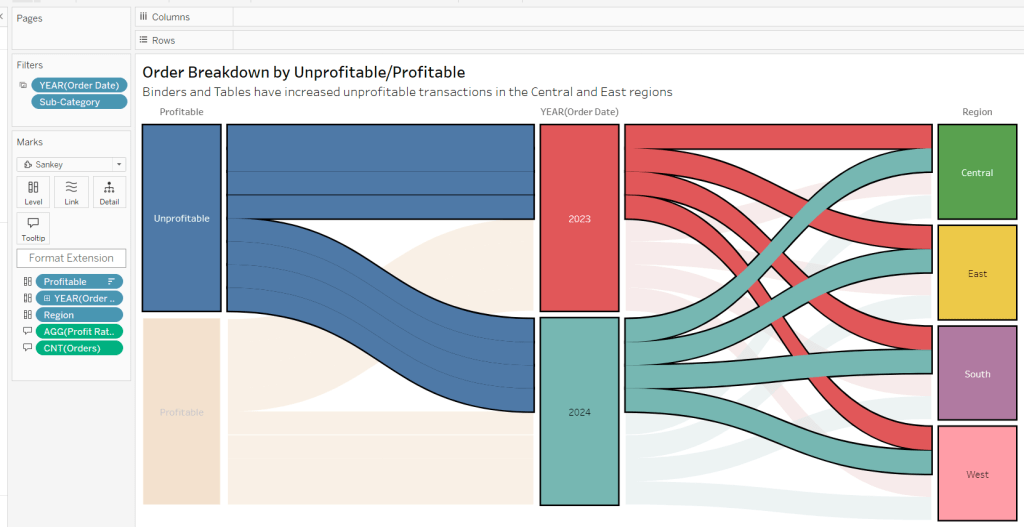
Click on the Unprofitable box to highlight it and the subsequent flow. Add a title and name the sheet Sankey or similar.

Controlling the story

Create a parameter

Page

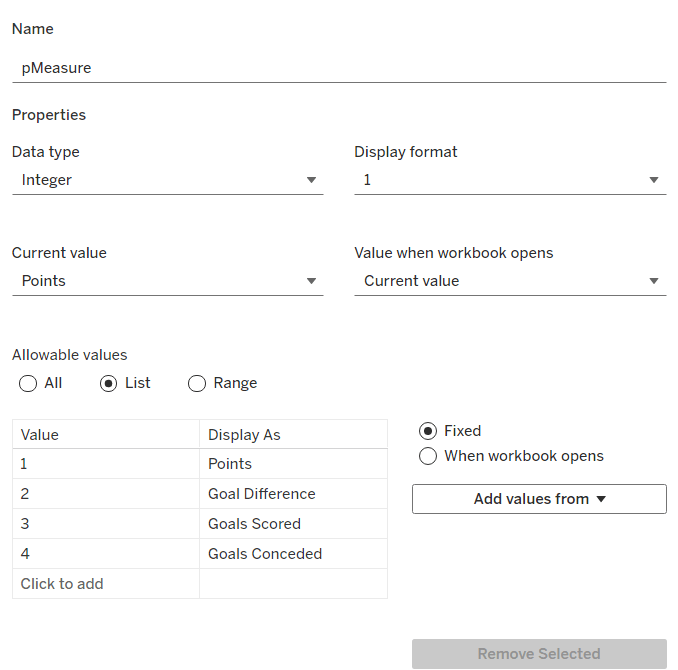
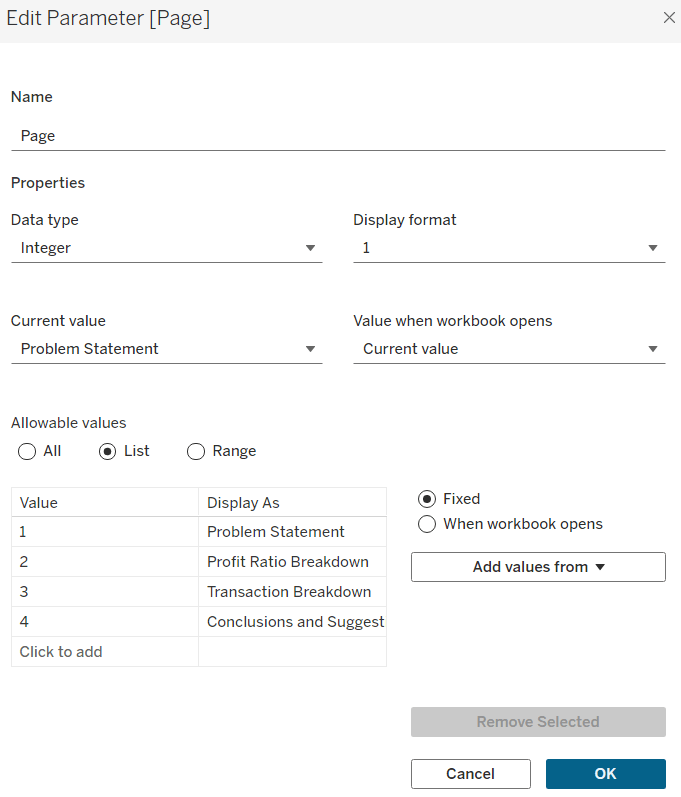
integer parameter from 1-4 where each number is mapped to the relevant text. Default to the text associated to 1.

Create boolean fields

Page >=2

[Page]>=2

Page >= 3

[Page]>=3

Page = 4

[Page]= 4

Building the dashboard

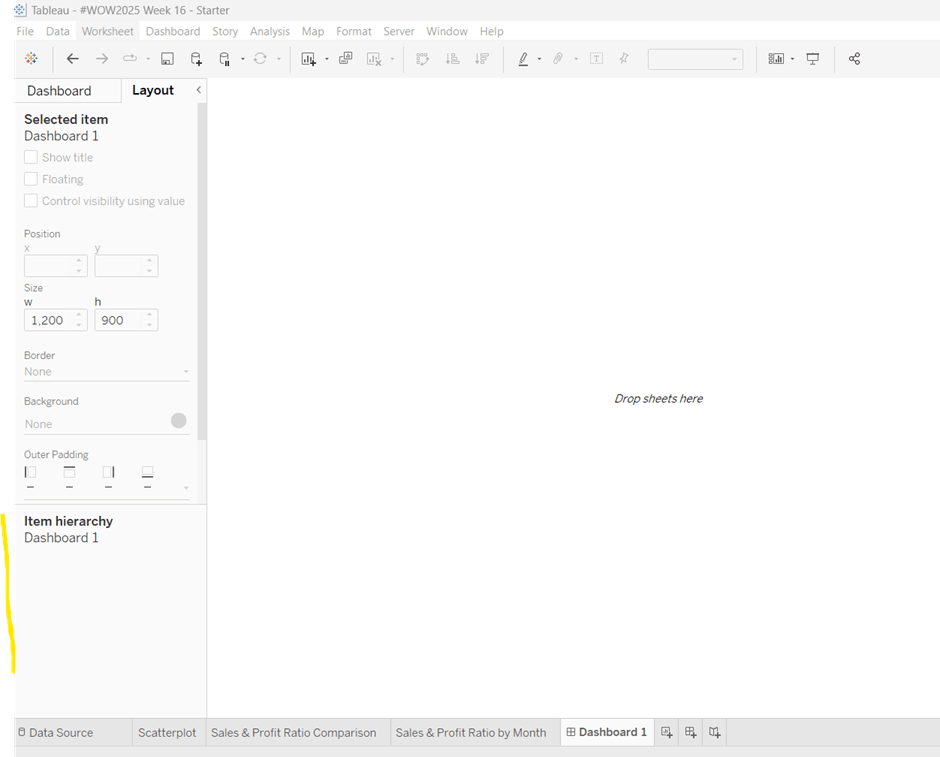
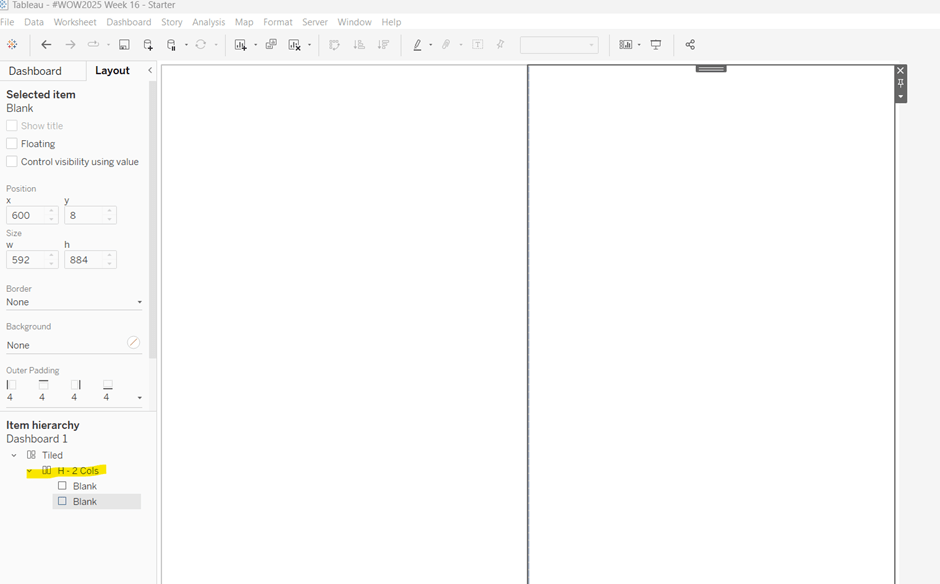
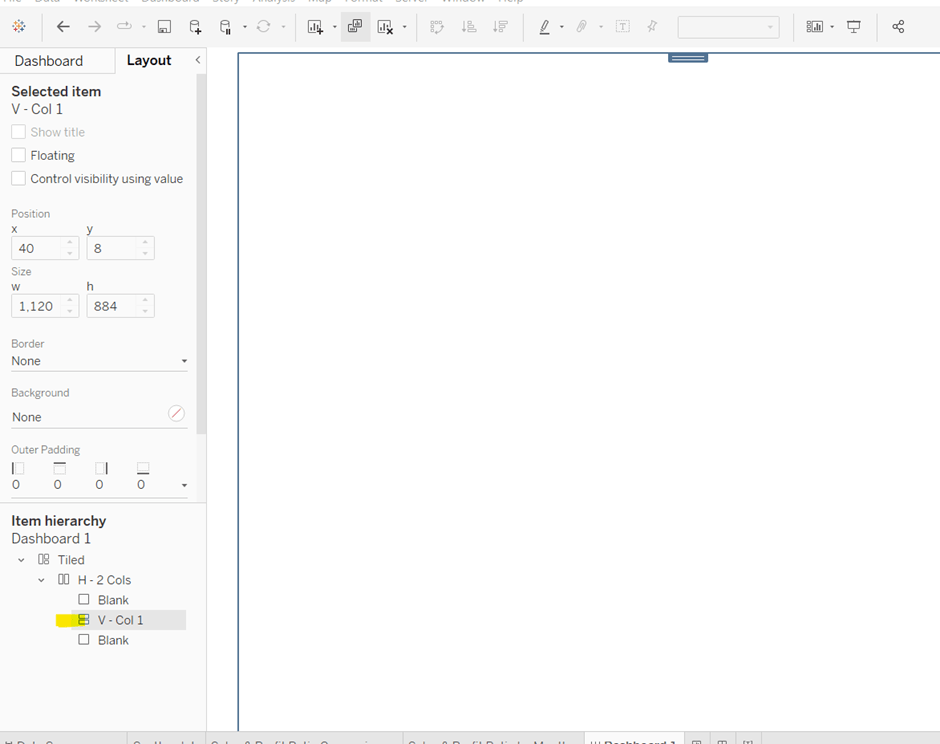
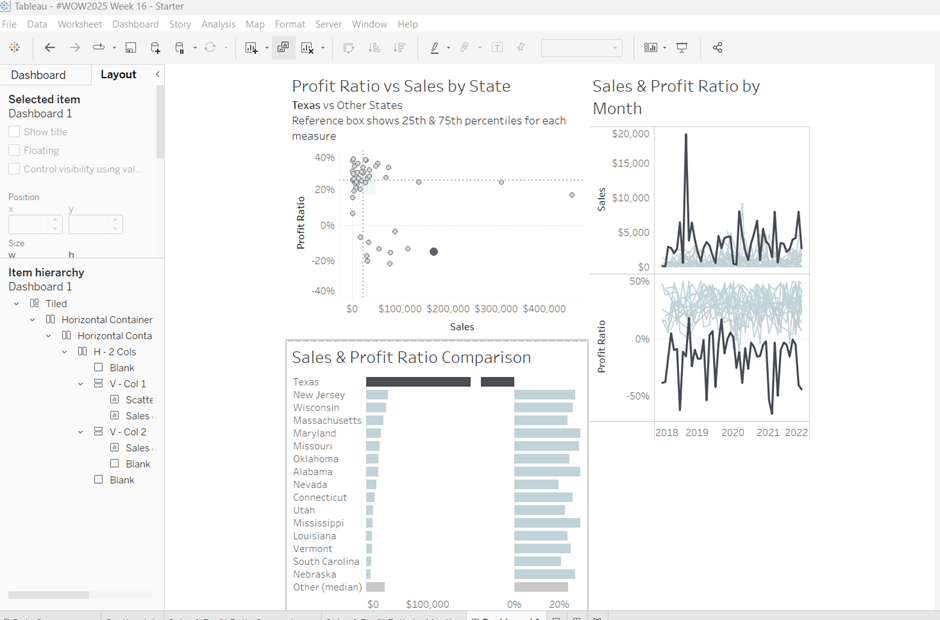
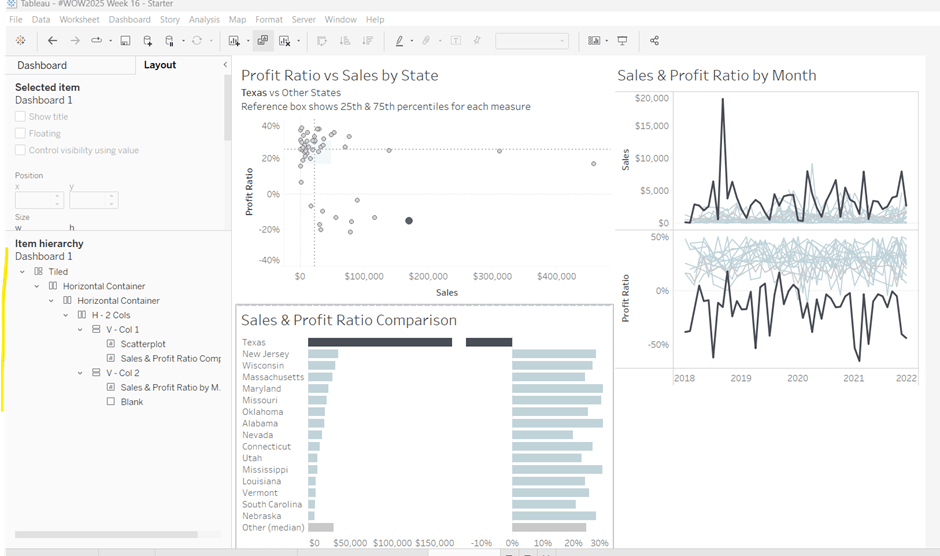
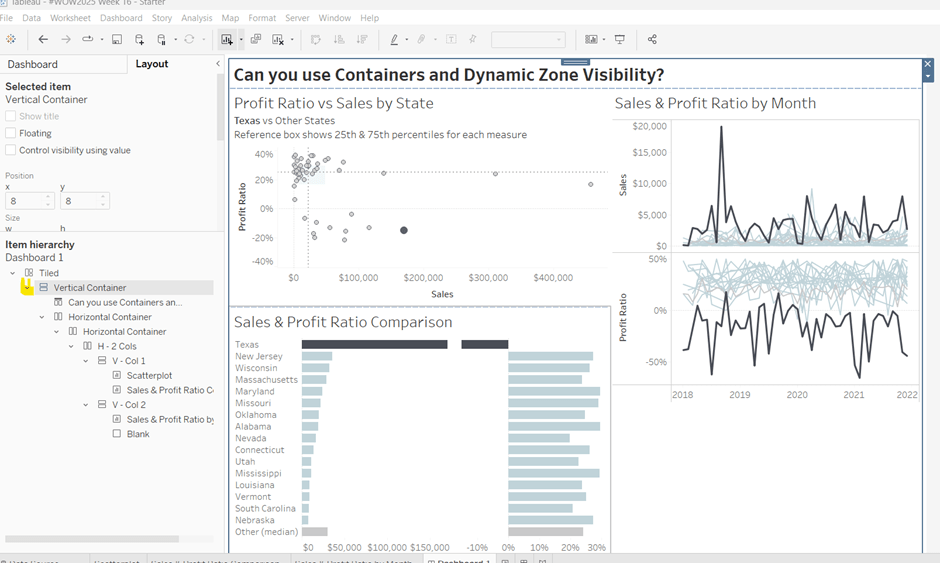
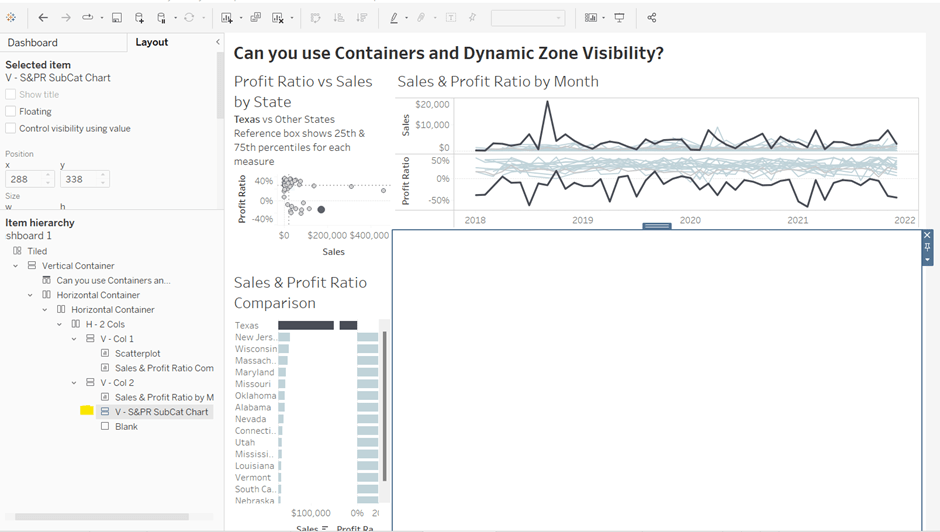
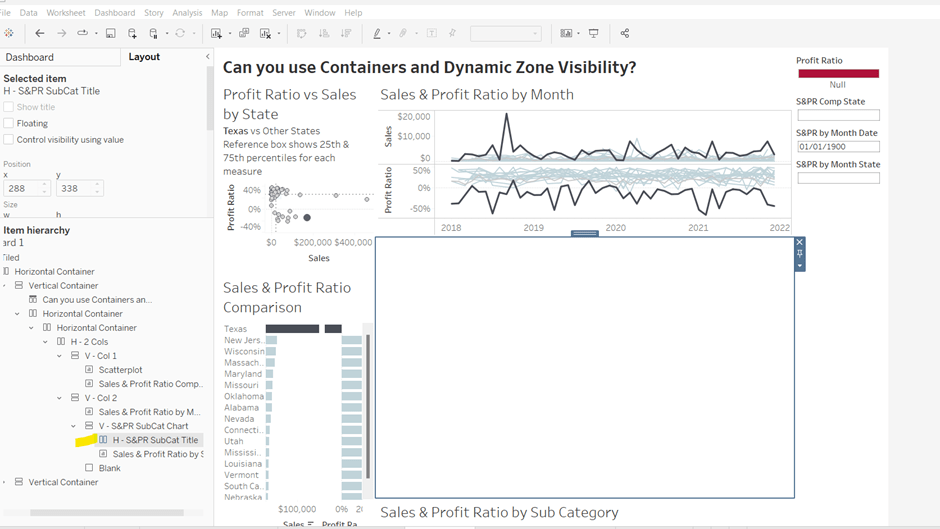
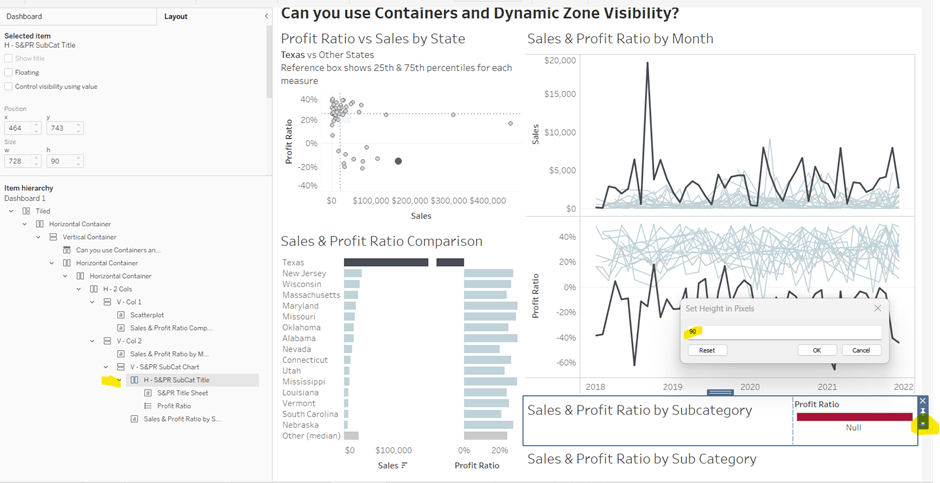
You need to use layout containers to build the dashboard. When using these, it’s often useful to add blank objects to help preserve the type of container you want as you add things in. These then get removed. It can be quite fiddly to get right.

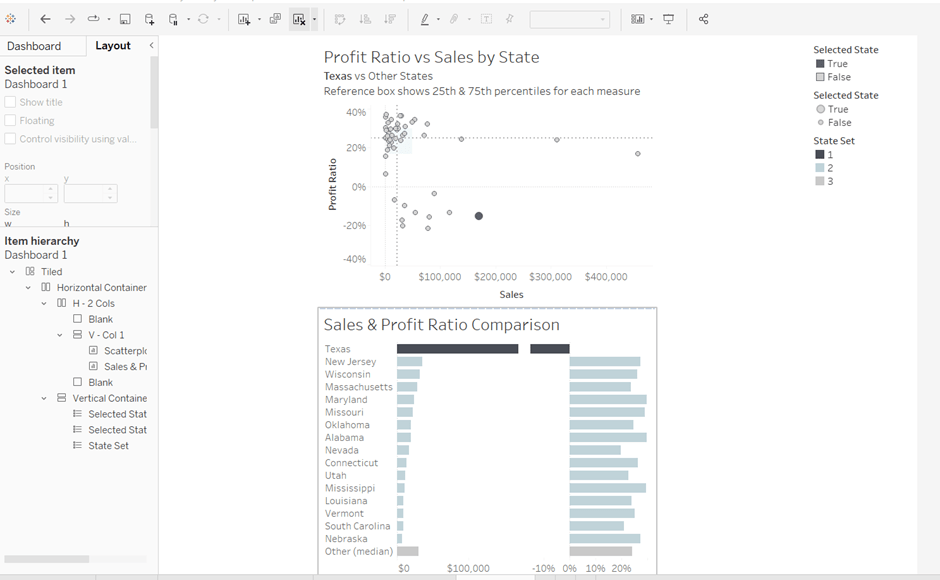
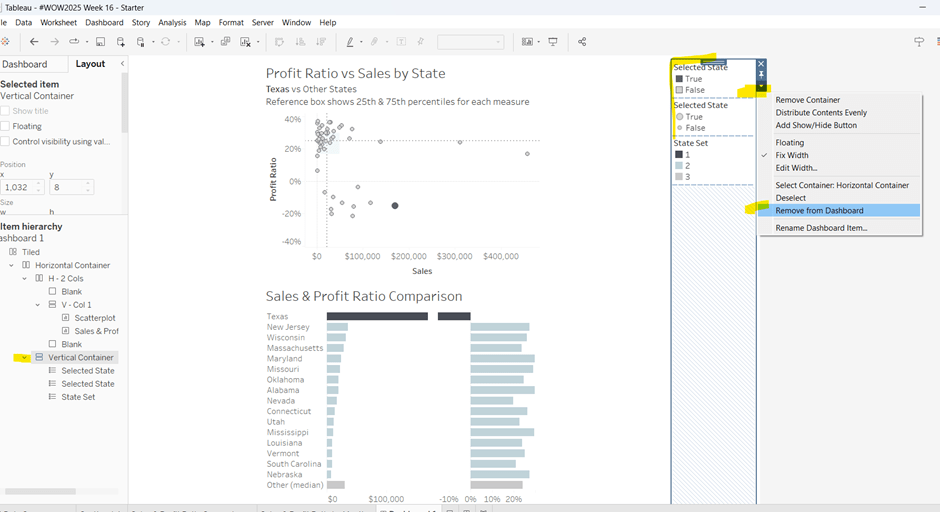
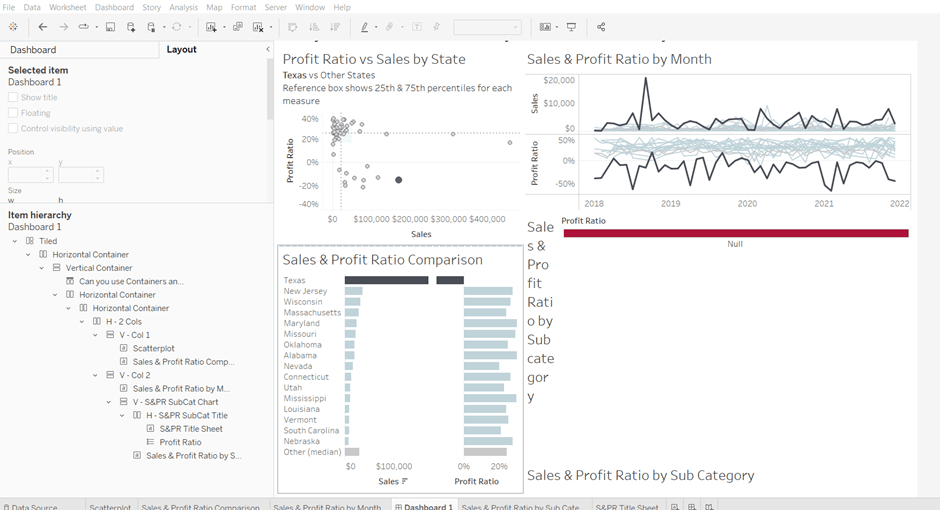
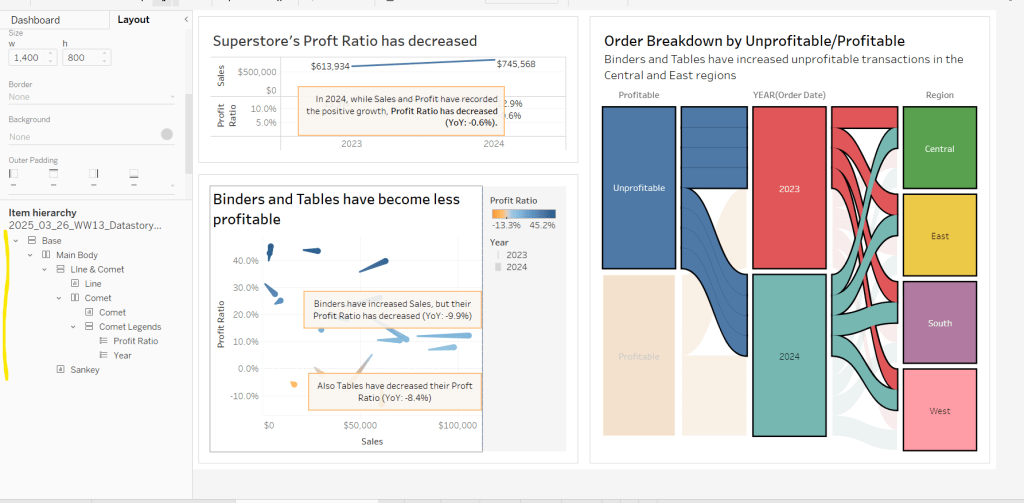
For the main body of the dashboard, the section with the charts in, I started with a horizontal container that then had a vertical container on the left and the Sankey on the right. The left hand vertical container then had the line chart on the top, and another horizontal container beneath it. That horizontal container then had the comet chart on the left and a vertical container on the right, which contained the colour and size legends.

I have a habit of renaming the layout containers in the item hierarchy section, to help me identify each section

The line chart object was formatted to have a grey border, outer padding of 10 and inner padding of 20. The vertical container around the comet chart and it’s legends, was also formatted the same. And the Sankey chart object was also formatted the same.

Add a title section, and show the Page parameter as a single value list. Format this with a grey background.

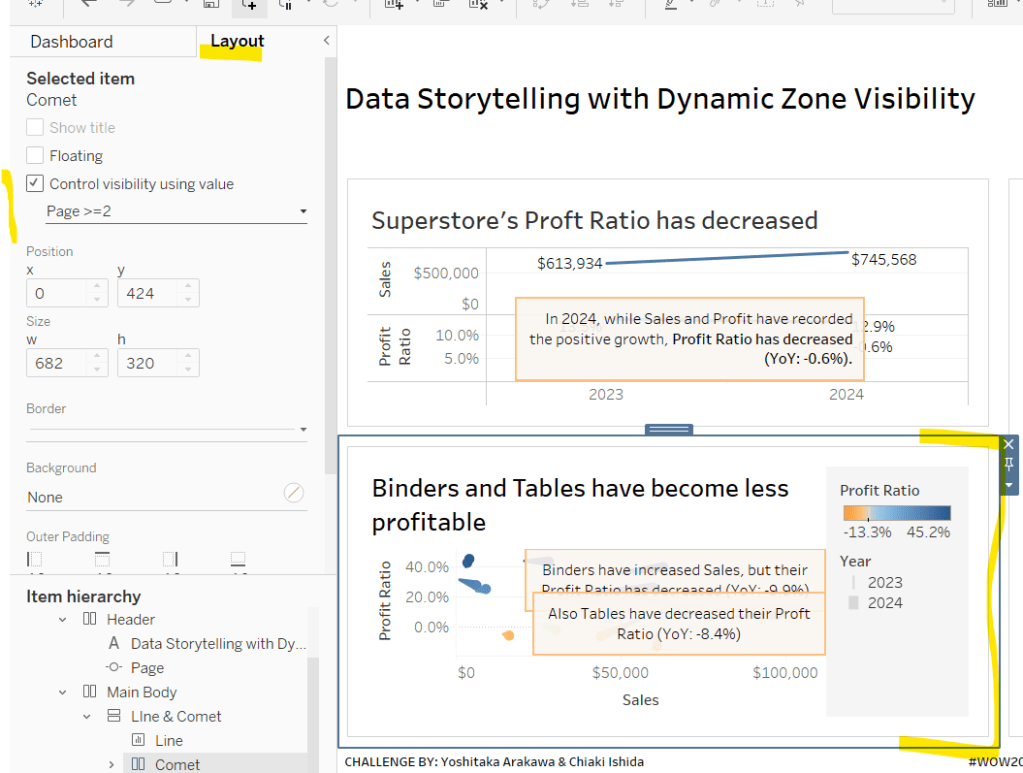
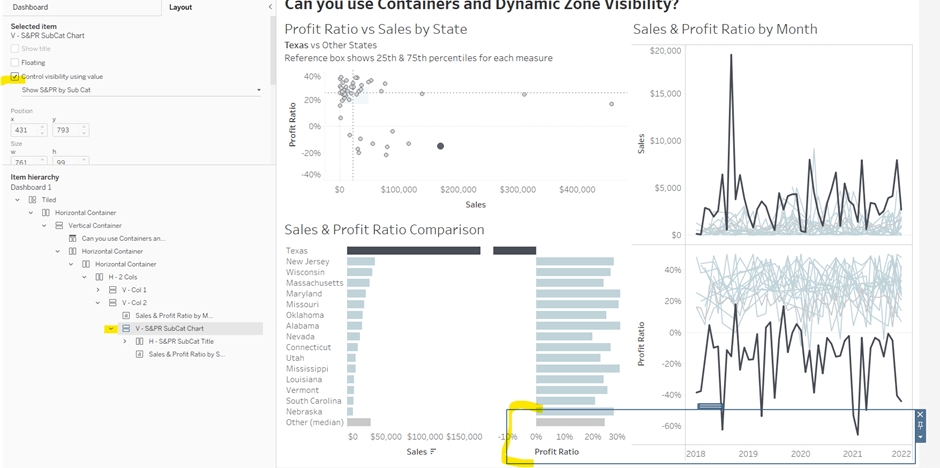
Click on the layout container that contains the comet chart and it’s legends, and then from the layout tab on the left hand side, check the control visibility using value and select the Page >=2 option.

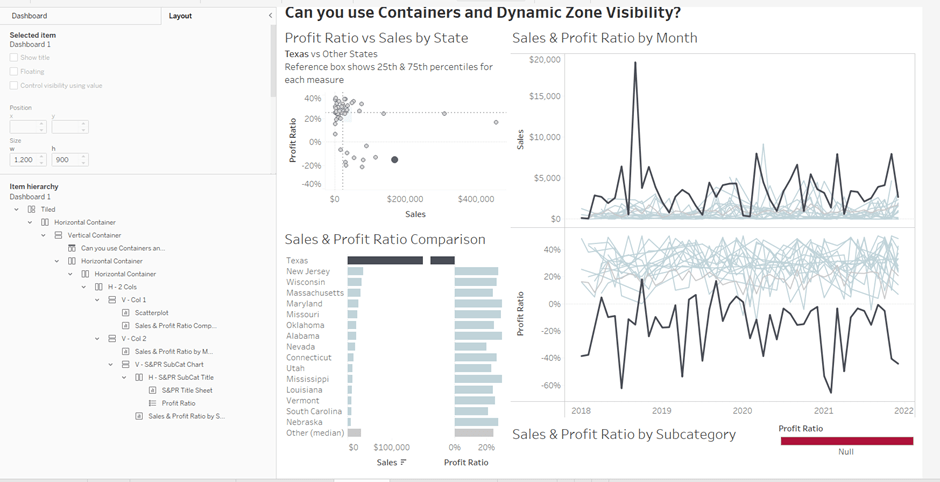
If you page control is set to 1 (Problem Statement), then this section will now disappear. Set it to the next option for it to reappear.

Click on the Sankey object, and do the same, although this time select the Page >=3 option. Again changing through the page control options, the chart will appear and disappear.

With all three charts displaying, and once you’re happy with your layout, add a floating text box and resize to cover the main chart areas. Add the relevant text, set the background colour to grey with a 97% opacity, so the charts underneath can just be seen. Then set the visibility of this to use the Page =4 option.

Cycle through the page options and see how the display changes. My published viz is here.

Happy vizzin’!

Donna

Can you show the top X customers in EACH of the last 3 years and their contributions to Sales?

For Community Month at #WOW2025 towers, Lorna presented a challenge one of her colleagues had brought to her which they solved together. The need is to identify the top X customers in each year (which may not contain the same set of customers each year), and then present the sales contribution, either as a group or individually compared to the rest. Lorna gave a hint in the challenge that sets would help : “Your job is to figure out the best way to SET this up with the last 3 years dynamically”.

It took me a bit of a while to figure out how to make this work, and at the point of writing, haven’t looked at the solution to know if there was a better way. I ultimately ended up creating 3 sets to fulfil this challenge.

Setting up the parameters

This challenge requires 3 parameters

pTop

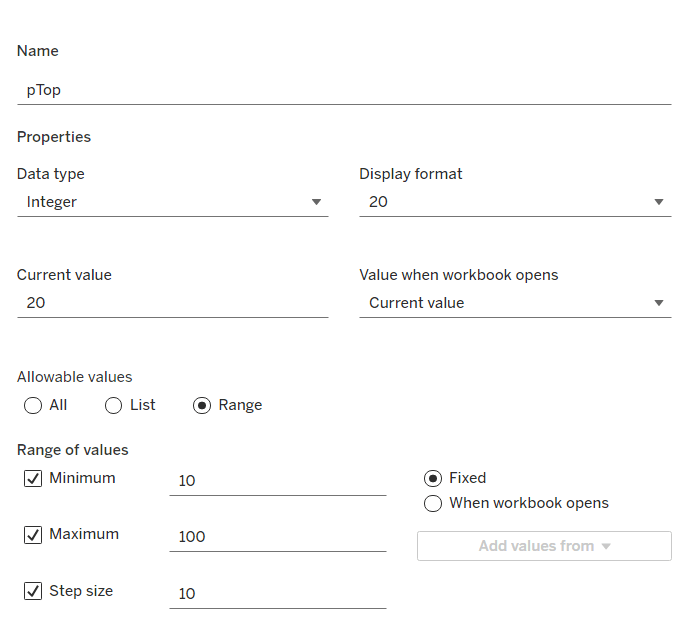
This identifies how many ‘top’ customers we want to consider. Defined as an integer from 10 to 100, defaulted to 20, that increments every 10 units

pShowCustomers

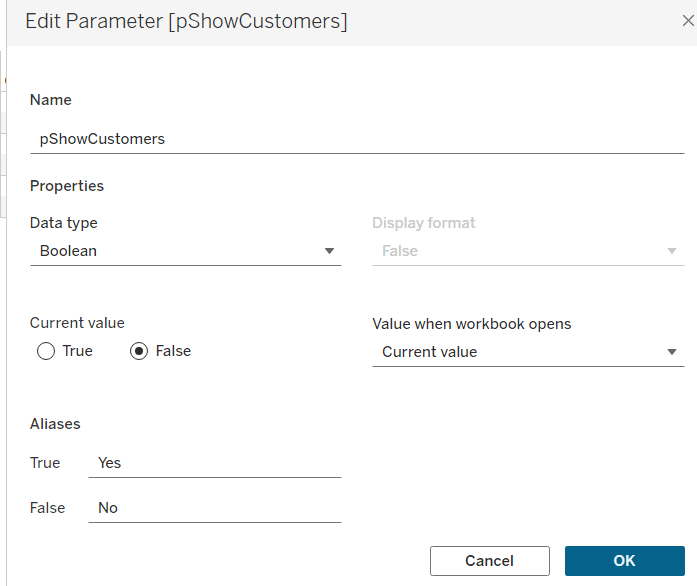
Determine whether the top customers’ contributions are displayed individually or as a group. Defined as a boolean, defaulted to False, and aliased to Yes or No

pPercentofTotal

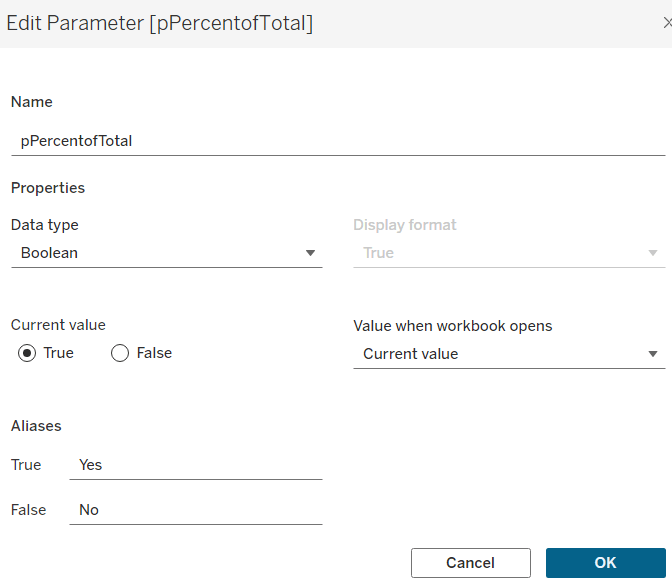
Indicate whether the information is displayed as a % of total sales for that year, or as absolute sales values. Defined as a boolean, defaulted to True, and aliased to Yes or No.

Defining the core calculations

The requirement states to be able to determine the last 3 years ‘dynamically’. For this I created

Max Date

{FIXED: MAX([Order Date])}

to return the maximum Order Date in the whole data set.

We want to be able to restrict the data to the last 3 years, so create

Records to Show

DATEDIFF(‘year’, [Order Date], [Max Date]) <=2

I need to create a set for each of the 3 cohorts – the top customers for the latest year, the top for the previous year and the top for the year before that. For this I first need to determine the Sales for each of those timeframes.

The sales for the current year

Sales – CY

IF YEAR([Order Date]) = YEAR([Max Date]) THEN [Sales] END

The sales for the previous year

Sales – PY

IF YEAR([Order Date]) = YEAR([Max Date])-1 THEN [Sales] END

and the sales for the previous previous year

Sales – PPY

IF YEAR([Order Date]) = YEAR([Max Date])-2 THEN [Sales] END

I can then create the sets of customer I need (right click on Customer ID > Create > Set)

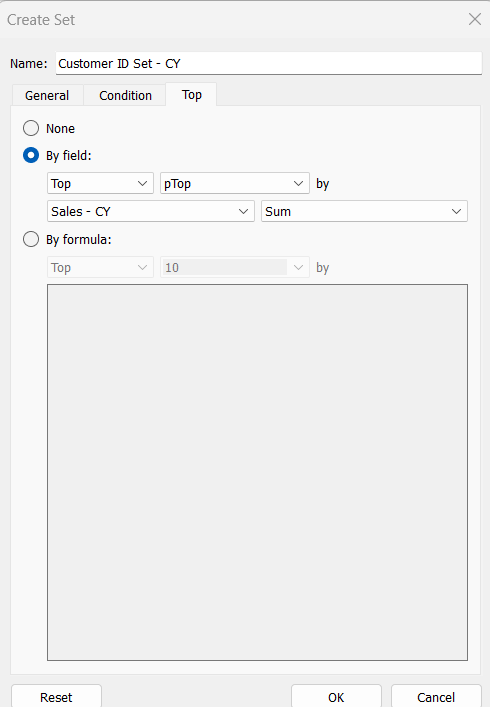
Customer ID Set – CY

get the Top number of records using the pTop parameter, and based on the sum of the Sales – CY field

Repeat the same process to create

Customer ID Set – PY

get the Top number of records using the pTop parameter, and based on the sum of the Sales – PY field

and

Customer ID Set – PPY

get the Top number of records using the pTop parameter, and based on the sum of the Sales – PPY field

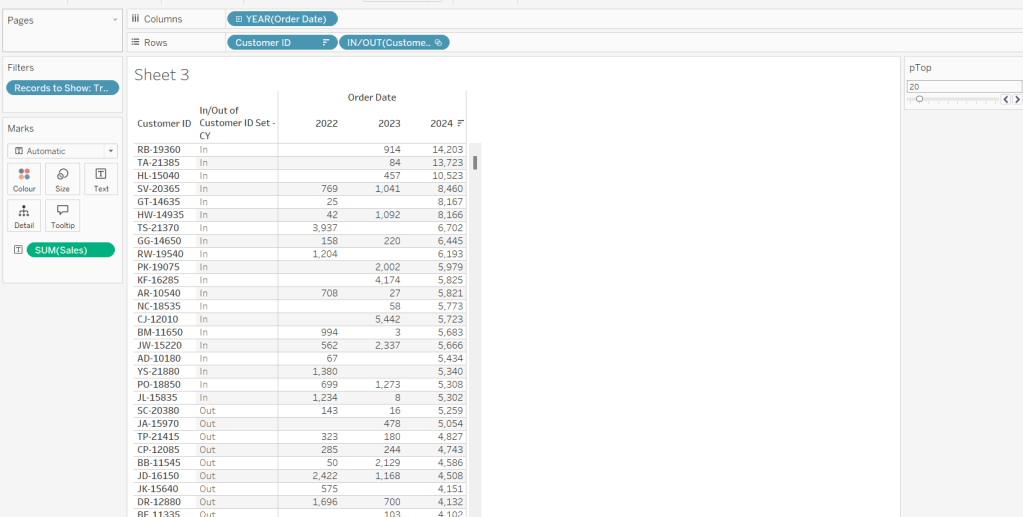
To verify/understand what we’ve created, on a new sheet

  • Add Customer ID to Rows
  • Add Order Date to Columns at the Year level as a discrete (blue) pill
  • Add Records to Show to Filter and set to True.
  • Add Sales to Text.
  • Sort by the 2024 Sales value descending.
  • Add Customer ID Set – CY to Rows.

You should see the first 20 rows (assuming you haven’t changed the pTop value, display as In

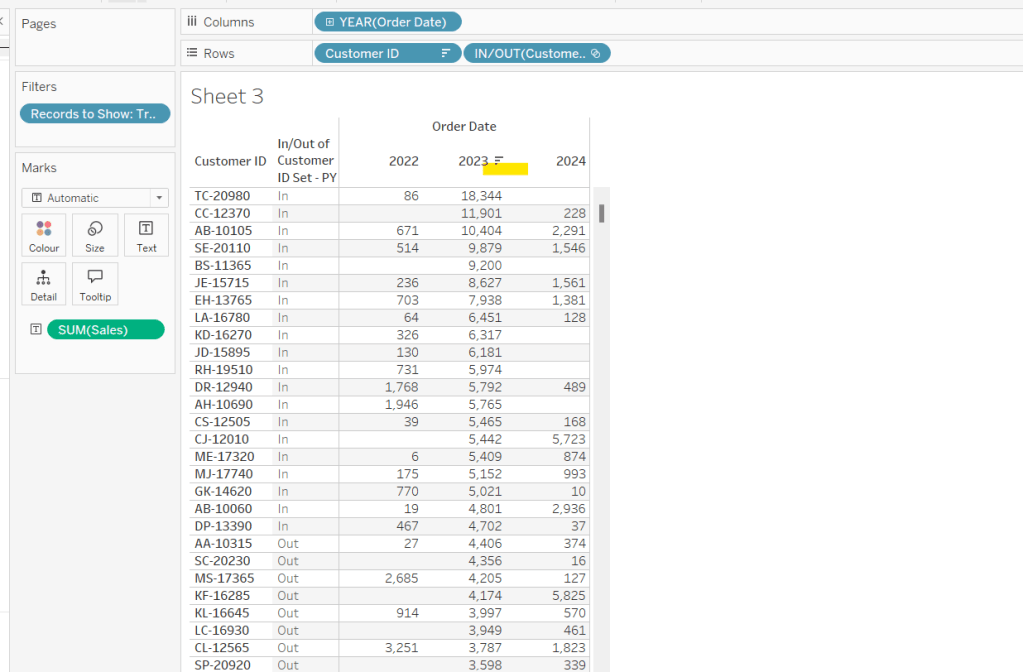
If you now change the sort to sort by 2023 Sales descending, and swap the Customer ID Set – CY with the Customer ID Set – PY, you’ll get the same

So now that’s understood, we want to tag each of our customers based on the year of the order, whether they’re in the top n or not, and whether we want to display the customers individually or not

Group – Detail

IF (YEAR([Order Date]) = YEAR([Max Date]) AND [Customer ID Set – CY]) THEN
IF [pShowCustomers] THEN [Customer ID]
ELSE ‘Top N’
END
ELSEIF (YEAR([Order Date]) = YEAR([Max Date])-1 AND [Customer ID Set – PY]) THEN
IF [pShowCustomers] THEN [Customer ID]
ELSE ‘Top N’
END
ELSEIF (YEAR([Order Date]) = YEAR([Max Date])-2 AND [Customer ID Set – PPY]) THEN
IF [pShowCustomers] THEN [Customer ID]
ELSE ‘Top N’
END
ELSE
‘Other’
END

We’re also going to want to count customers, so need

Count Customers

COUNTD([Customer ID])

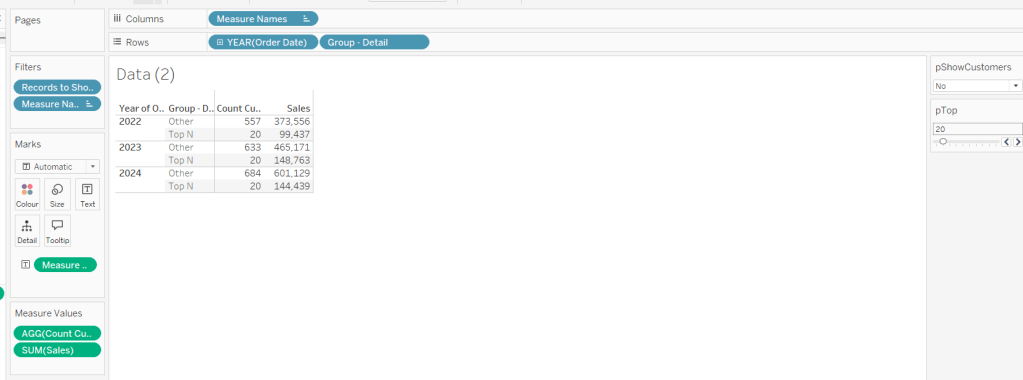
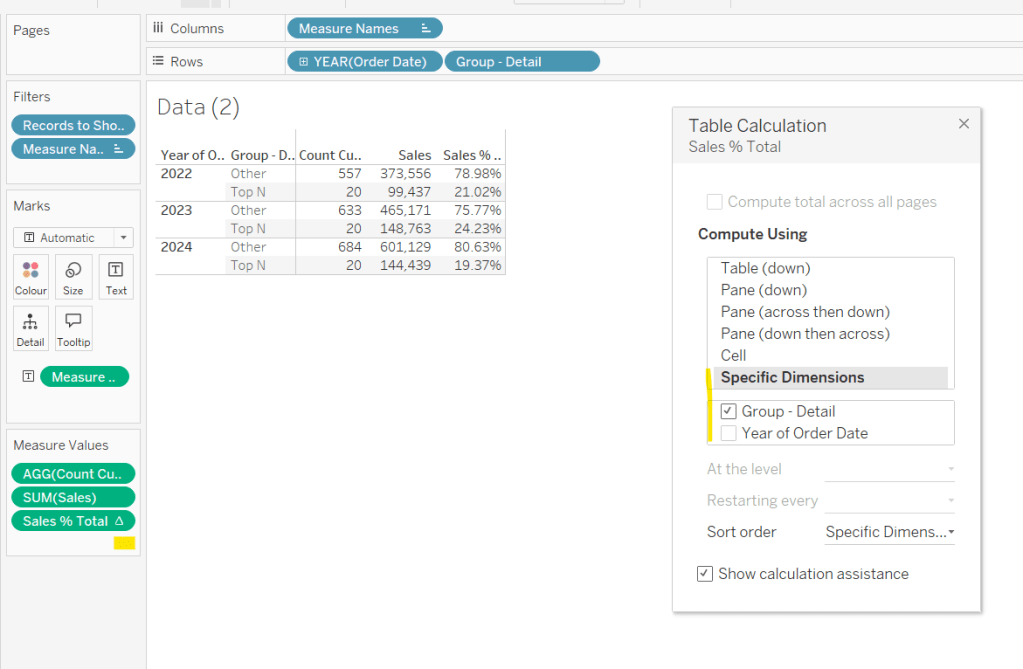
On a new sheet add Order Date at the year level as a discrete (blue) to Rows and add Group Detail to Rows too. Add Records to Display to Filter and set to True. Add Sales and Count Customers into the table. Show the pTop and pShowCustomers parameters

When pShowCustomers is set to No, you should just see 2 groupings per year

When set to Yes, you’ll get the Customer IDs listed

Note – the Sales numbers should reconcile to the solution – the count might not, which I believe is due to the solution counting distinct Customer Names rather than Customer ID.

To finalise the core calculations we need to build the initial viz, we have a different display depending whether we’re displaying the absolute or % Sales values.

Create

Sales % Total

SUM([Sales]) / TOTAL(SUM([Sales]))

format to decimal to 2 dp and add into table, adjusting the table calculation so it is computing by the Group – Detail only, so the percentage per year is being displayed.

Then we need

Measure to Plot

IF [pPercentofTotal] THEN [Sales % Total]
ELSE SUM([Sales])
END

format this to a number to 2 dp (just so you can see it has a value) and add to the table, applying the same table calculation settings. Display the pPercentofTotal parameter and flip between to see the column change.

Building the Viz

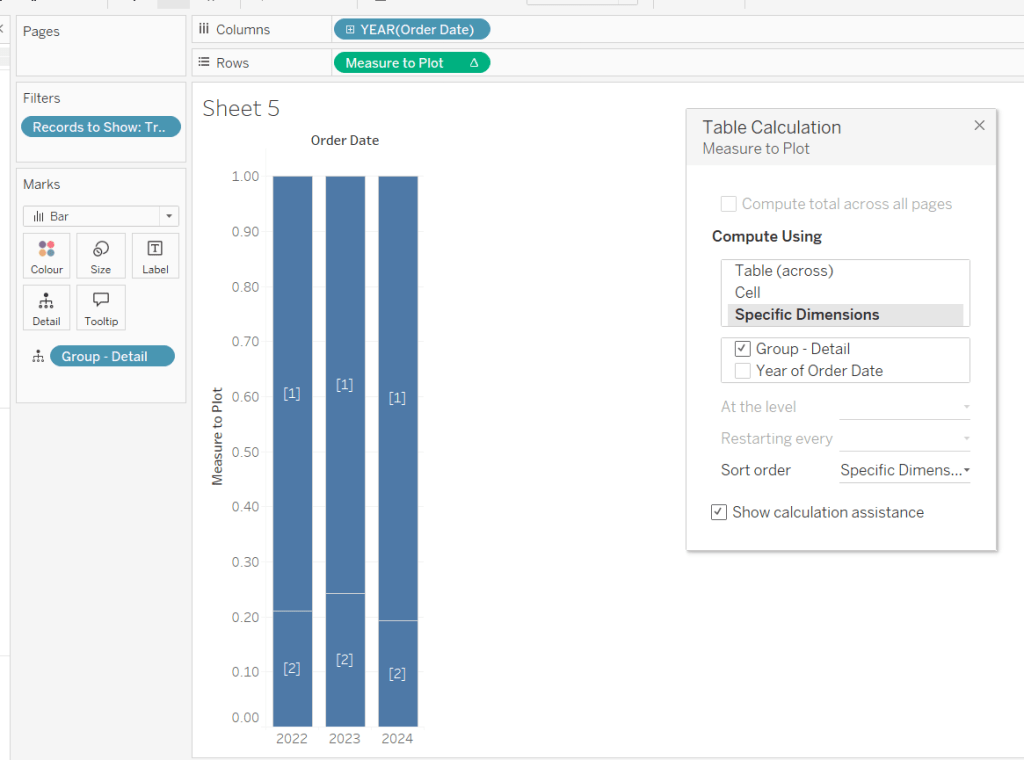
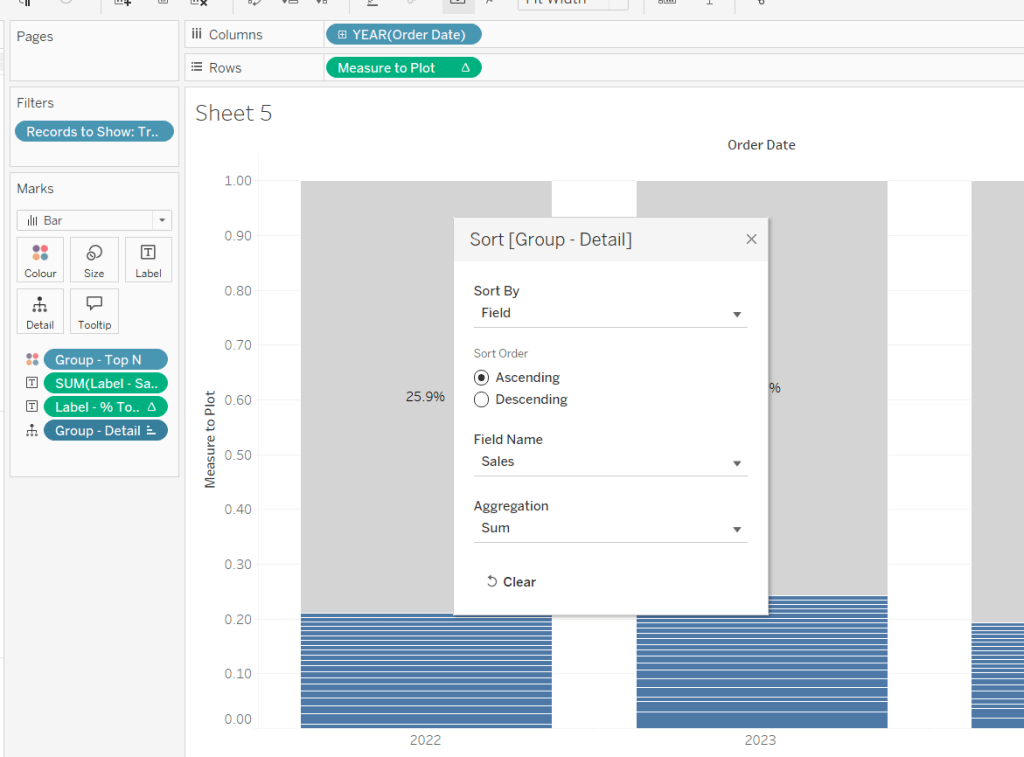
On a new sheet, add Records to Show to filter and set to True. Add Order Date at the year level as a discrete (blue) pill to Rows. Add Group – Detail to Detail. Change the mark type to bar. Add Measure to Plot to Columns and adjust the table calculation, so it’s computing just by Group-Detail.

Ste the sheet to fit width and show the 3 parameters.

Create a new field

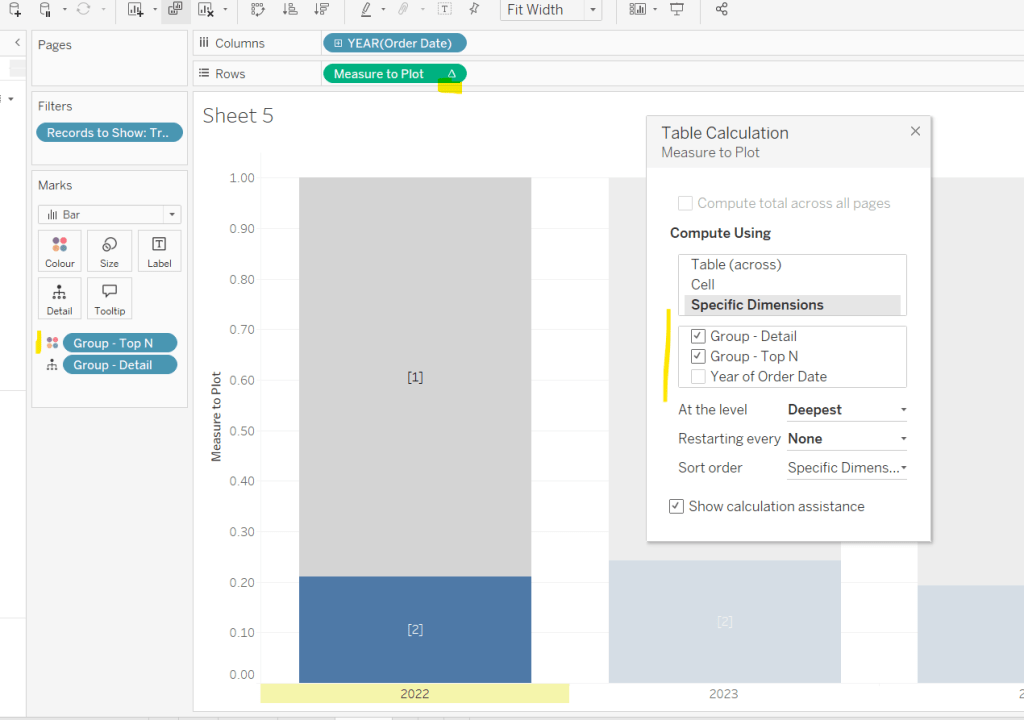
Group – Top N

IF (YEAR([Order Date]) = YEAR([Max Date]) AND [Customer ID Set – CY]) THEN ‘Top N’
ELSEIF (YEAR([Order Date]) = YEAR([Max Date])-1 AND [Customer ID Set – PY]) THEN ‘Top N’
ELSEIF (YEAR([Order Date]) = YEAR([Max Date])-2 AND [Customer ID Set – PPY]) THEN ‘Top N’
ELSE ‘Other’
END

and add to Colour, adjusting the colours to suit. You’ll then need to update the table calculation of the Measure to Plot field to ensure Group – Top N is also checked.

We need to display labels, but these need to differ based what measure we’re showing, and the format is different, so create

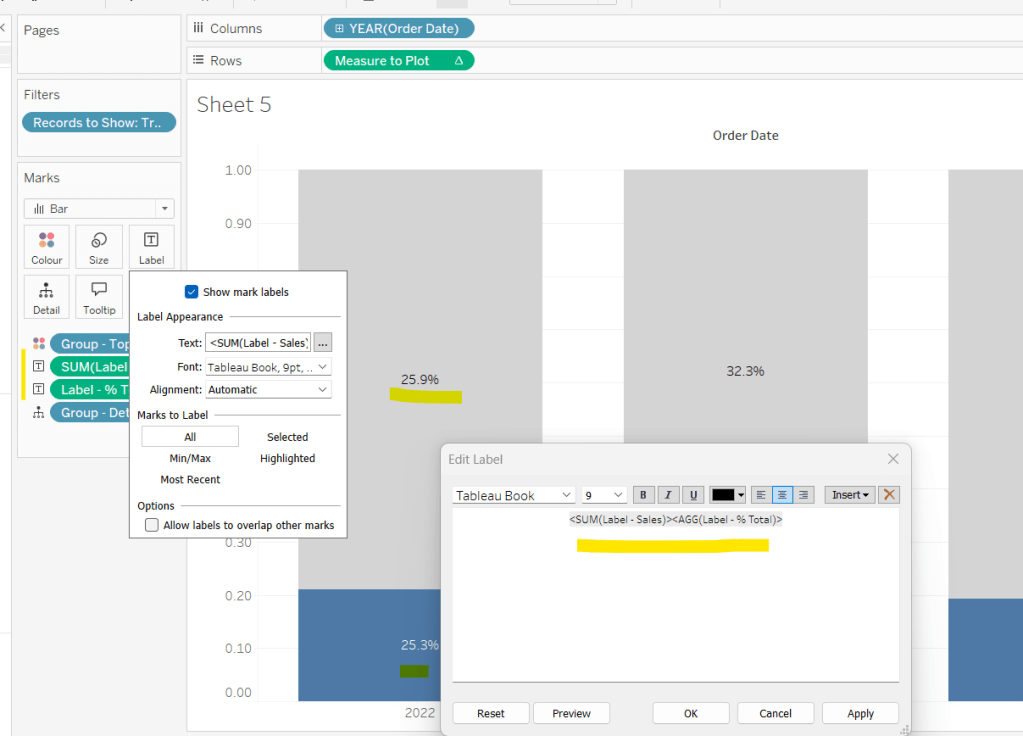
Label – % Total

IF [pPercentofTotal] THEN [Sales % Total] END

format this to % with 1 dp and

Label – Sales

IF NOT([pPercentofTotal]) THEN [Sales] END

format this $ K to 1 dp.

Add both of these to the Label shelf and ensure they are listed directly side by side. Only 1 will ever actually display.

Change the pShowCustomers to Yes, and then add a white border via the Colour shelf. Add a Sort to the Group – Detail pill to sort by Sales ascending.

Add Sales, Sales % Total and Count Customers to the Tooltip shelf. additionally create

Tooltip – Customer

IF [pShowCustomers] AND [Group – Detail] <> ‘Other’ THEN [Customer Name] END

and add this to Tooltip too. Adjust the Tooltip to suit (make sure Sales % Total) is computing by both Group – Top N and Group – Detail so has the correct numbers.

Finally, hide the axis (uncheck show header on the Measure to Plot pill) and hide the Order Date label (right click and hide field label for columns).

Then add the sheet to a dashboard, and arrange the parameters suitably.

My published viz is here.

Happy vizzin’!

Donna

Can you find sales per customer per first purchase cohort?

Kyle set the #WOW2025 challenge this week, using a summarised data set based on Superstore that he included in the challenge page.

Building out the core data fields

I started this challenge, by building out the data in a tabular format, so I could verify the calculations I needed. I focused on the ‘month’ level to start with before tackling the ‘year’ level which had the added requirement of containing ‘complete years only’, which I did find a bit tricky. Anyway, to start we need to determine the number of months between the First Order Date and the Order Date.

Months from 1st Purchase

DATEDIFF(‘month’, [First Order Date], [Order Date])

and we also need to identify the number of customers

Move this pill into the Dimension section of the left hand pane (drag it up to the top section above the line)

Count Customers

COUNTD([Customer ID])

and calculate the sales per customer

Sales per Customer

SUM([Sales])/[Count Customers]

format this to $ with 0 dp. Also format Sales to $ with 0 dp.

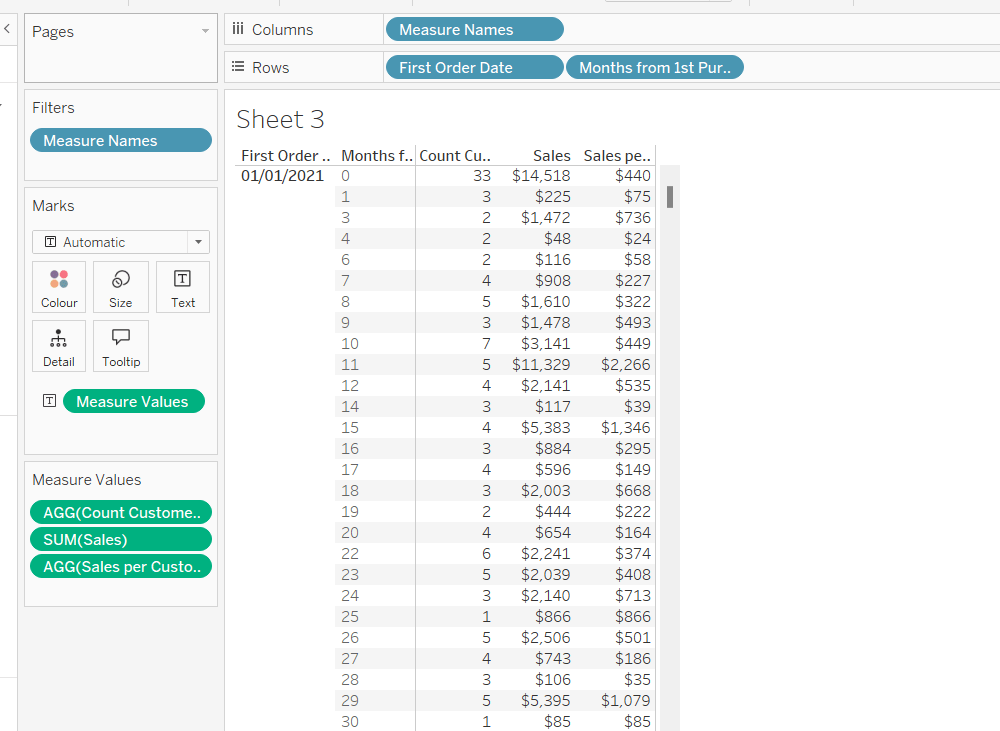
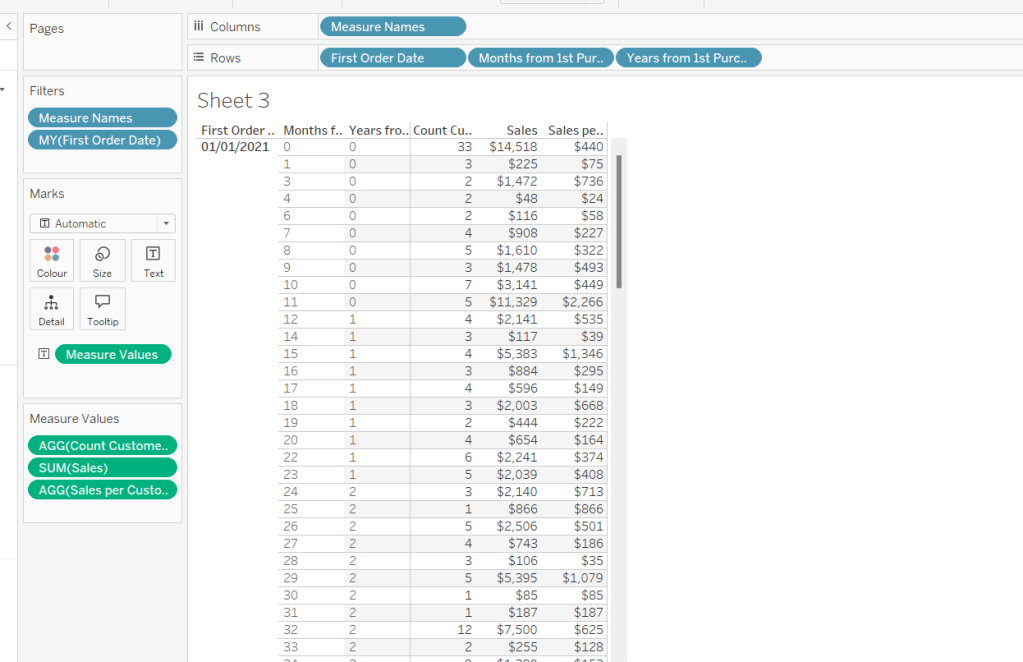
On a new sheet, add First Order Date to Rows as an exact date dimension (blue pill). Add Months from 1st Purchase Date to Rows. Then add Count Customers, Sales and Sales per Customer into the view.

Add First Order Date to the Filter shelf and select the Month/Year format, then select the 4 months Kyle used – Jan 2021, May 2021, Jun 2022, Nov 2023). Show the filter on the sheet.

Building the Month Level Viz

With the information we have, we can build out the viz at the ‘month’ level of granularity.

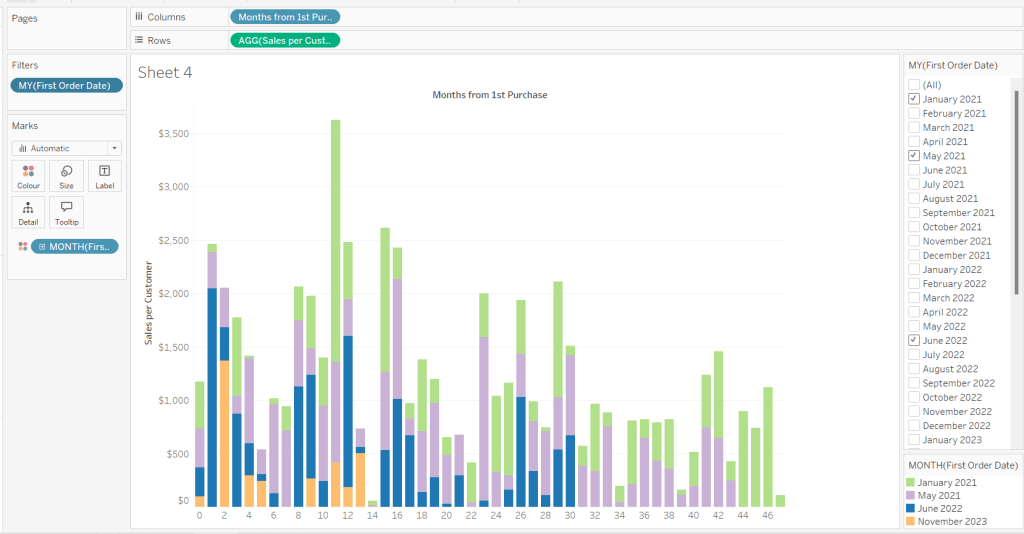
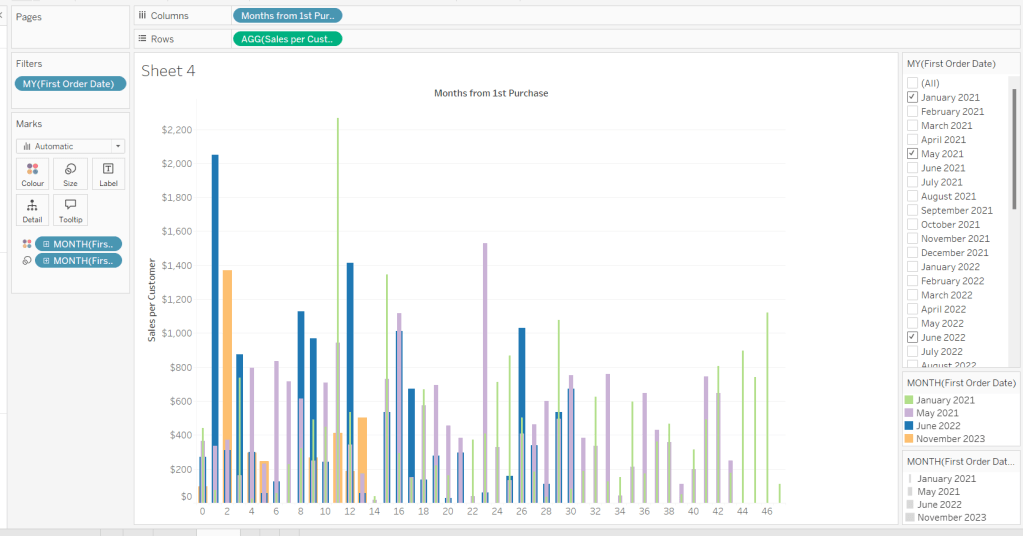
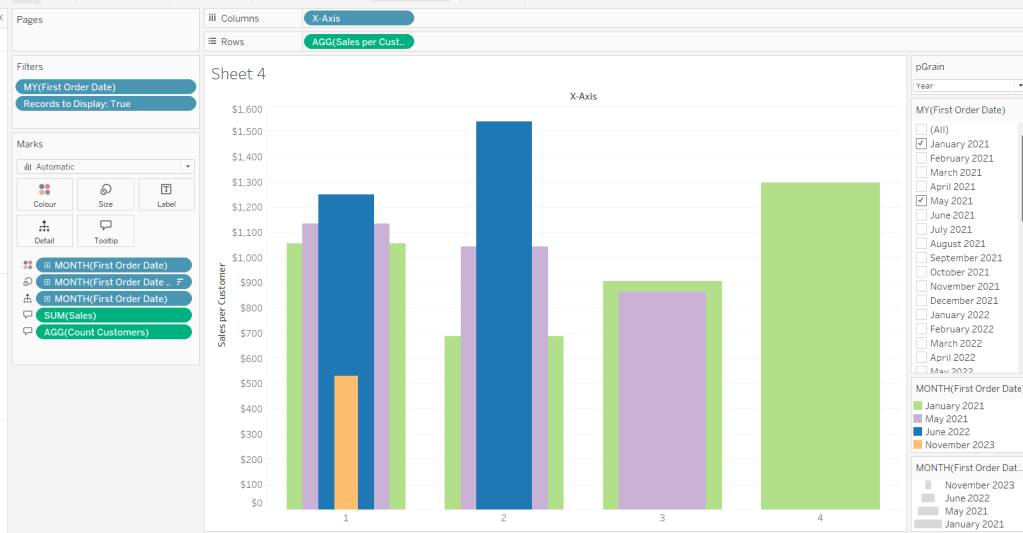
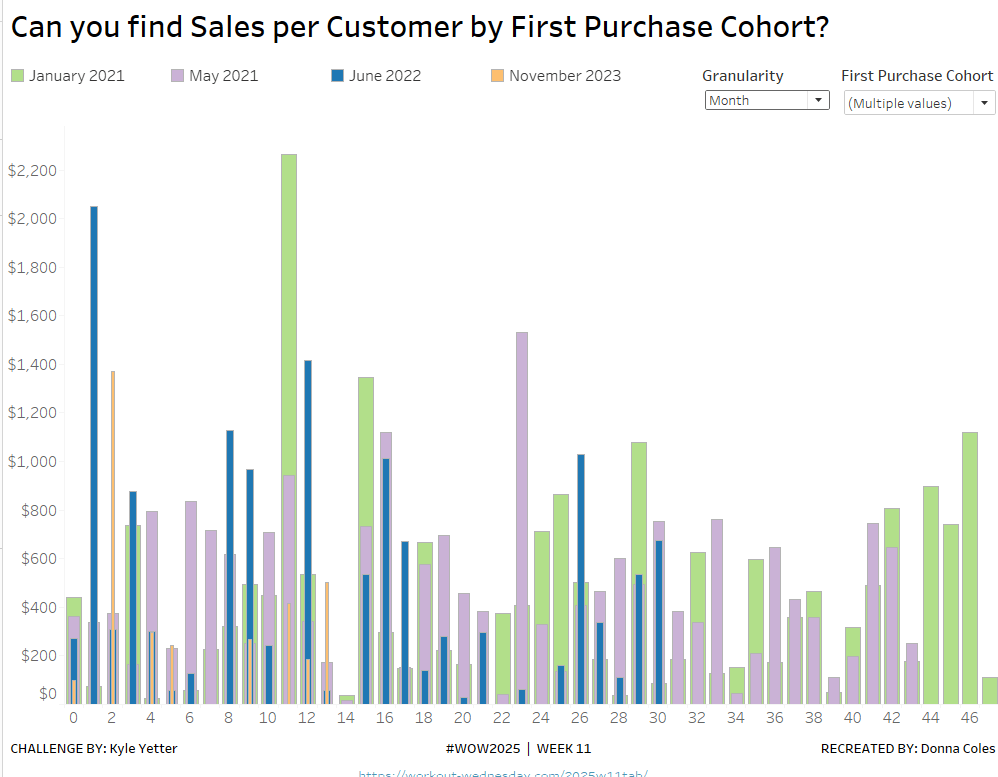
On a new sheet, add Months from 1st Purchase Date to Columns and Sales per Customer to Rows. Add First Order Date to the Filter shelf at the Month/Year level and restrict to the relevant dates. Show the filter control. Add First Order Date to Colour and set to the Month/Year level as a discrete (blue) pill. Adjust the colours to suit. I used colours from a palette called CB_Paired I had installed.

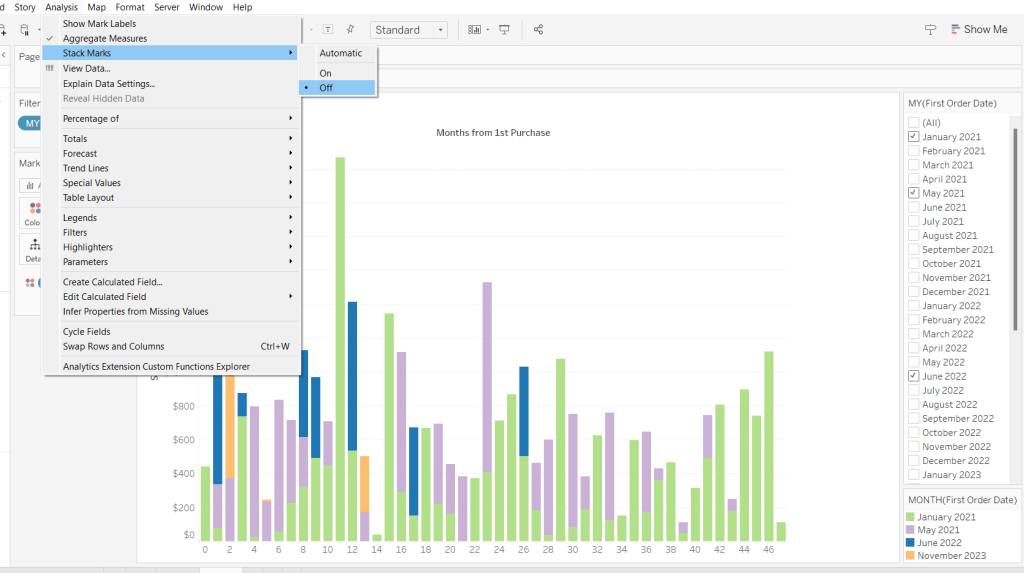
Set Stacked Marks to Off (Analysis Menu > Stack Marks > Off).

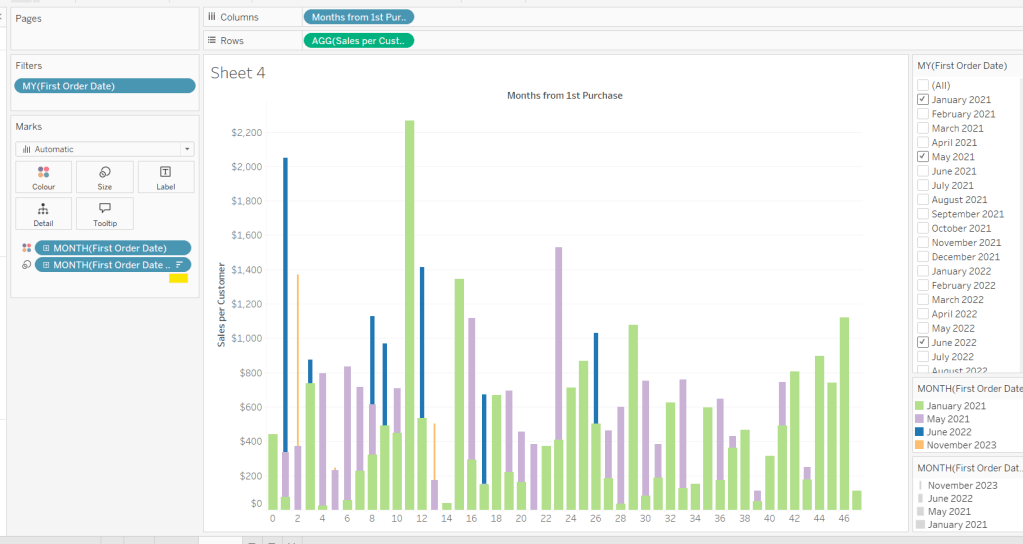
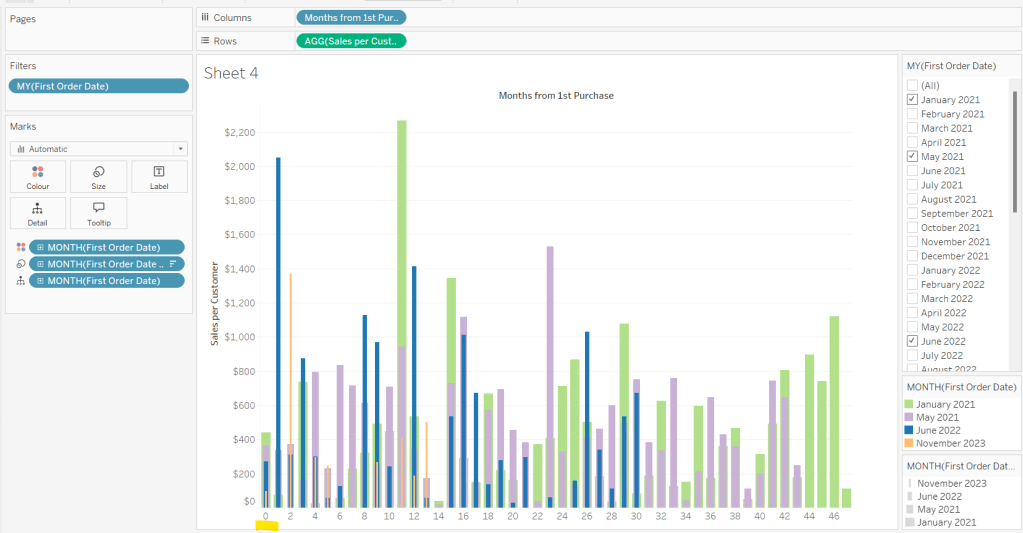
Create another instance of First Order Date (right click the field and select Duplicate) to crate First Order Date (copy). Rename this First Order Date (for Size). Add to the Size shelf, and set it to be at the Month/Year level and discrete (blue) pill.

Adjust the Sort on the First Order Date (for Size) pill to be by Data source order Descending. This now makes January wider than November.

And then add First Order Date to the Detail shelf at the Month/Year level as a discrete (blue) pill. By default this pill is sorted ascending, and has the effect of moving January to the back and November to the front so all the bars (at least for the 0 entry) are visible. This is why we needed a duplicate instance of First Order Date and we needed it to be sorted in one direction to make the correct months at the front, and in another direction to get the required bar widths.

Add Sales and Count Customer to the Tooltip shelf and adjust the Tooltip as required.

Handling the ‘Year’ requirement

Firstly for this, we need a parameter to drive the change in visual.

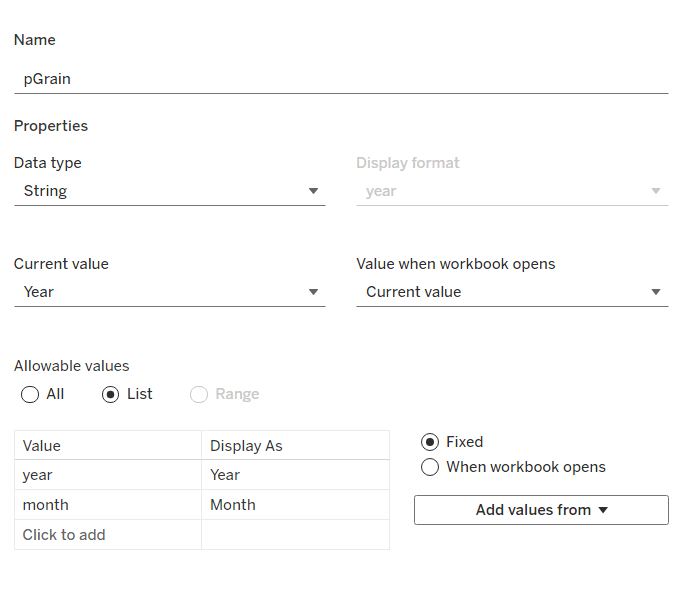
pGrain

string parameter listing ‘month; and ‘year’ and defaulted to ‘year’

Our Columns is currently listing the Months from 1st Purchase. We need this to be reflective of the years from 1st purchase instead based on the parameter selected.

Years from 1st Purchase

FLOOR([Months from 1st Purchase]/12)

this rounds the calculation down to the nearest whole number.

Move this into the dimension section of the data pane, and add to Rows of our tabular display, so you can see what it’s doing.

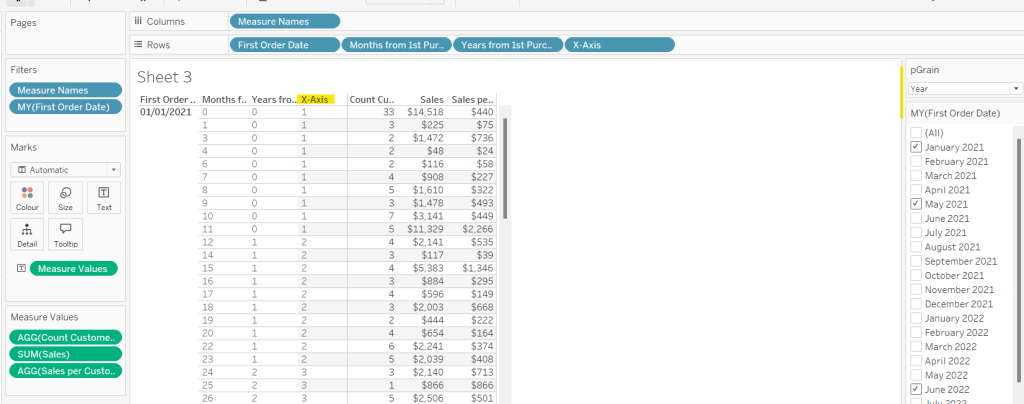
Our X-Axis will then be based on either of these 2 fields

X-Axis

IF [pGrain] = ‘month’ THEN [Months from 1st Purchase]
ELSE [Years from 1st Purchase]+1
END

Add this into the table, and show the pGrain parameter and see the change as you flip the options.

We then need to handle the ‘incomplete year’ requirement. This did take some trial and error, and I’m not totally convinced what I’ve done will work in all scenarios, but it seems to match Kyle’s results for the spot checks I did…

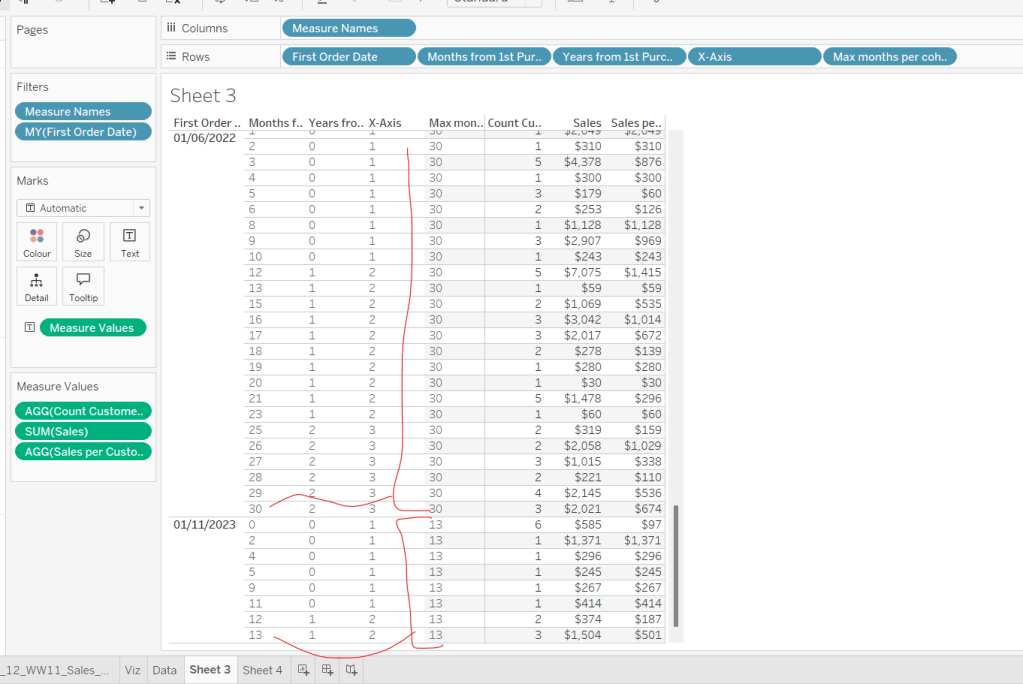
I started by determining the maximum month from 1st purchase in each cohort.

Max months per cohort

{FIXED [First Order Date]: MAX([Months from 1st Purchase])}

Add this into the table as a discrete dimension (blue pill), and each row should match the final Months from 1st Purchase value for each First Order Date

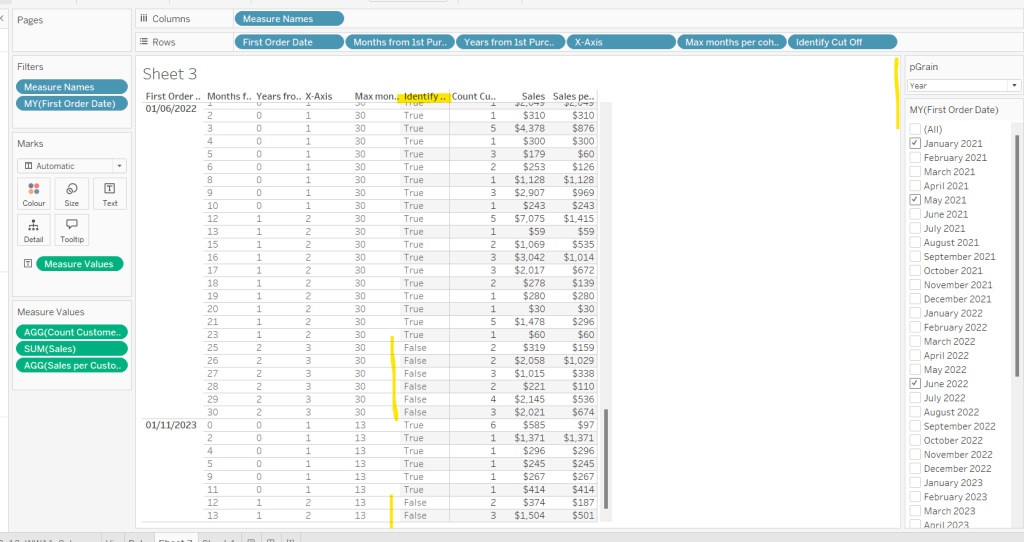
I then created a field to identify which of the rows in the data I wanted to keep. So in the case of the above examples for 01/11/2023, I want the rows where Months from 1st Purchase is from 0 to 11 as these represent a whole year’s worth of data for Years from 1st Purchase = 0 (even though there isn’t a a purchase every month in the year). I ended up doing this with the following calculation

Identify Cut Off

[Months from 1st Purchase] < 12 * (FLOOR(([Max months per cohort]+1)/12))

so based on the above example for 01/11/2023, get me all the rows where Months from 1st Purchase is less than 12 * (FLOOR((13+1)/12) = 12 * (FLOOR(14/12)) = 12 *1 = 12.

Add this into the table

I then created an additional field to filter by

Records to Display

[pGrain] = ‘month’ OR [Identify Cut Off]

and added this to the Filter shelf and set to True.

When we’re at the ‘month’ level, all rows will be included, otherwise, just those we identified will be.

So now we have this, we can adjust the visual (you may choose to take a copy of what was initially built, just in case).

Adjusting the Viz for the Granularity parameter

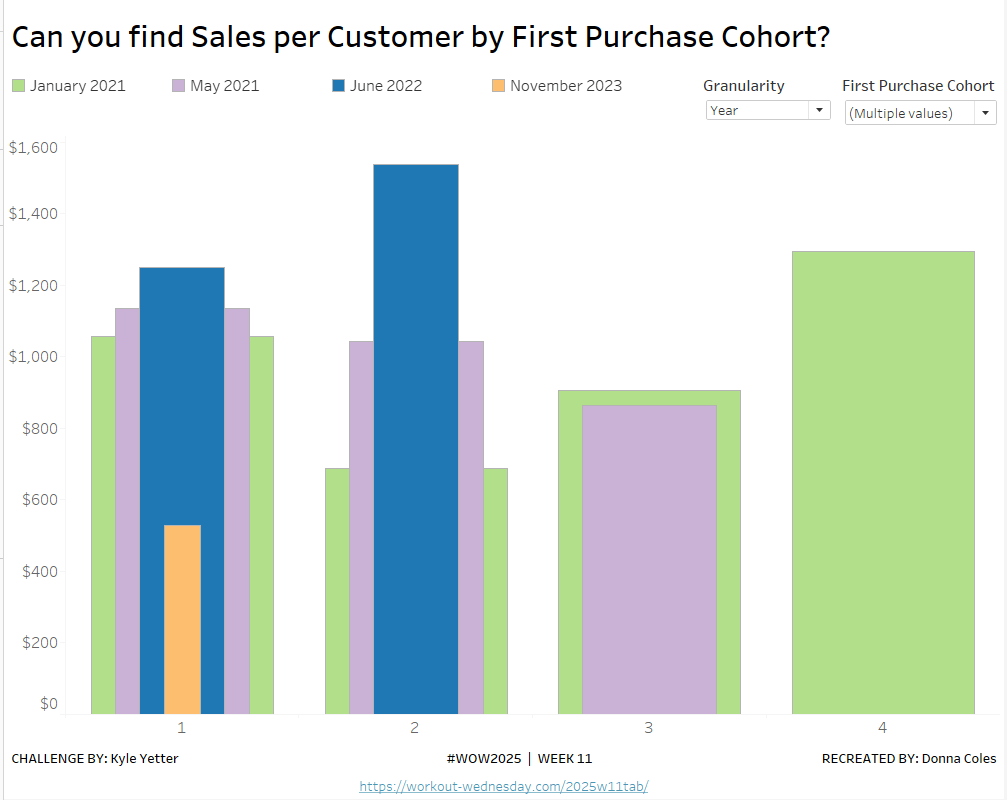
Show the pGrain parameter on the viz sheet and set to Year. Add Records to Display to the Filter shelf and set to True. Add X-Axis to Columns and remove Months from 1st Purchase Date. Set sheet to Fir Width.

Test changing the parameter and altering the selected dates and verify the behaviour is as expected.

Finally tidy up the formatting – remove all gridlines; edit the axis and remove the title; hide the X-Axis label heading (right click > hide field labels for columns). Add to a dashboard and arrange the colour legend in a single row, and set the First Purchase Date filter to be a multi-value dropdown.

My published viz is here.

Happy vizzin’!

Donna

Can you rank by multiple measures?

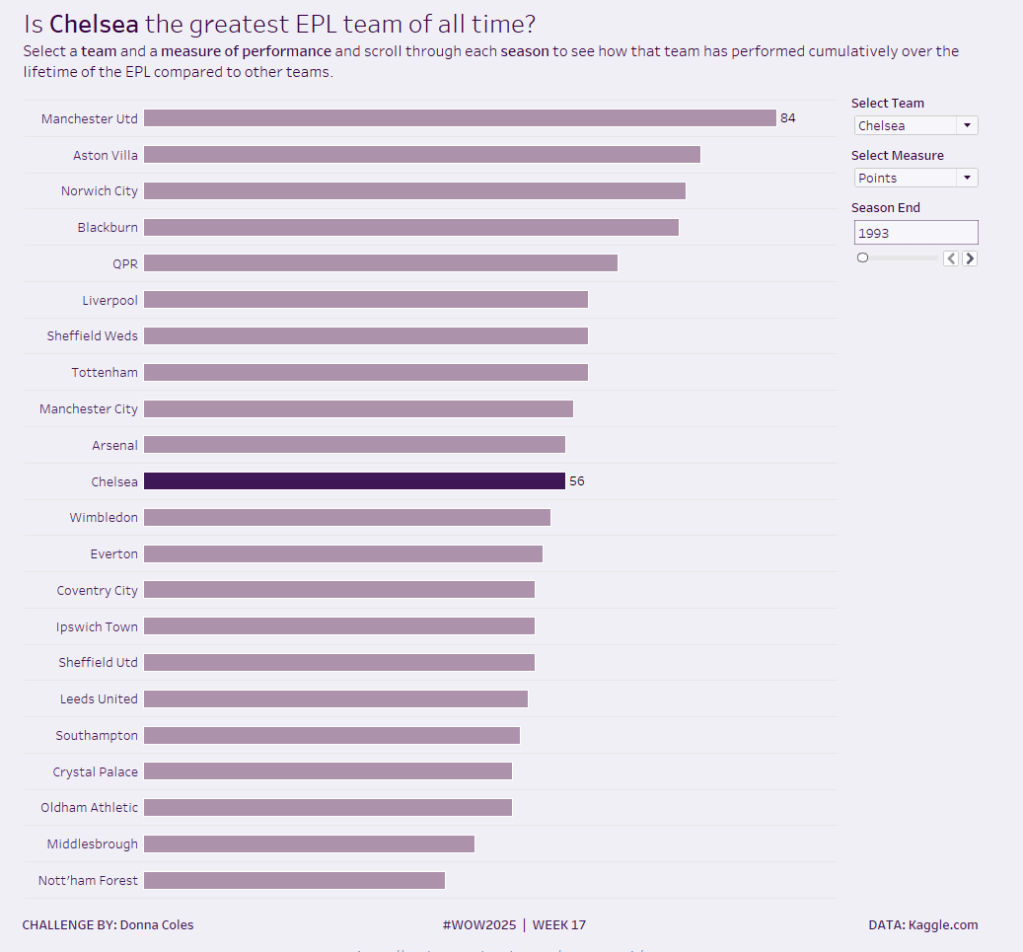
This week’s challenge once again has 3 levels, so I will blog the first solution and then build on/adapt from there. The main requirement is focused on working out how to rank the football teams based on multiple measures, and this is relevant for all the levels. Once again, we’re looking at data related to football teams in the English Premier league, and where they finished each season.

Defining the calculation to rank by

A team’s finishing position is based on a combination of points scored, goal difference and goals scored. But on rare occasions, a team is deducted points in the season, so we need to account for that.

Adjusted Points

SUM([Points]) – ZN(SUM([Points Deducted]))

Putting the key measures (Adjusted Points, Goal Difference and Goals For) per Team into a tabular view for just a single Season (eg 1993), we can see multiple instances of teams ending on the same number of Adjusted Points

Just ranking on this field, won’t necessarily order the teams in the correct order as Goal Difference and Goals For also need to be taken into consideration. We need to create a field we can rank based on a combination of all three fields, and to do this we’ll ‘weight’ each field by multiplying each field by a suitable proportion based on precedence. In the example shared via the community forum post the leading indicator was multiplied by 1000. In my case I’m going to divide.

Adj Points | GD | GF

[Adjusted Points] + (SUM([Goal Difference])/100) + (SUM([Goals For])/10000)

Add this field into the table, and sort by it descending. You can see that for the 3 teams with 52 points, two of those teams have the same Goal Difference too, but are being correctly ordered based on the Goals For due to the result of the Adj Points | GD | GF calculation

Now we’ve got the core calculation nailed, we can start to build the viz.

Building the Beginner viz

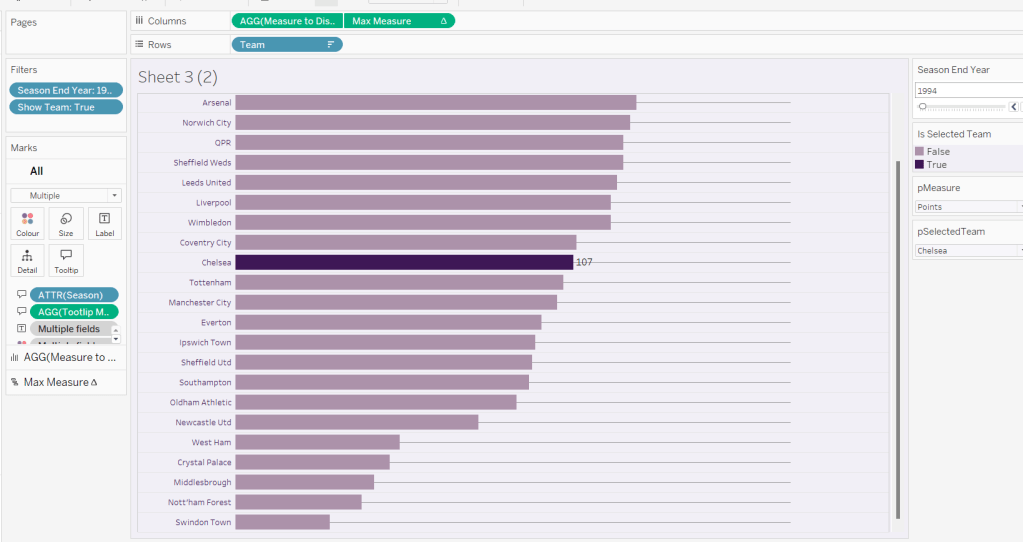
On a new sheet, add Team to Rows and Season End Year to Columns.

We want to be more specific about the season, so create

Label Season

STR([Season End Year]-1) + ‘-‘ + RIGHT(STR([Season End Year]),2)

and add to Columns too.

To make the ‘squares’ rather than use the square mark type which can sometimes be a bit fiddly to get the size just right, I’m going to use a fake axis and a bar mark type.

Double click into Columns and type MIN(1.0) and change the Mark type to Bar. Adjust the Size to be as big as possible. Edit the axis to be fixed from 0-1.

Hide the Season End Year (right click the pill and uncheck Show Header). Rotate the Label Season (right click on the actual label and Rotate Label). Then make each column narrower and widen each row until you’re happy with the sizing.

We want to the Teams to remain listed in alphabetical order, but we want to know the position the team finished in the season, so we create

Rank Desc

RANK([Adj Points | GD | GF], ‘desc’)

Initially add this to Label, and then adjust the table calculation so it is explicitly computing by Team only.

You can verify the number associated to the teams in the 1993 season with the sorted table you made earlier.

But we’re not going to show the rank for every square, so move the Rank Desc from Label to Tooltip.

We do want to label just the team in first though so create

Is First

IF [Rank Desc] = 1 THEN ‘1st’ END

and add this to the Label shelf instead. Again adjust the table calculation as described above.

For the Tooltip we need to create

Tooltip Rank Suffix

IF [Rank Desc] = 1 OR [Rank Desc] = 21 THEN ‘st’
ELSEIF [Rank Desc] = 2 OR [Rank Desc] = 22 THEN ‘nd’
ELSEIF [Rank Desc] = 3 OR [Rank Desc] = 23 THEN ‘rd’
ELSE ‘th’
END

add this to the Tooltip shelf, adjust the table calculation as required. Also create

Tooltip – Note

IF ZN([Points Deducted])<>0 THEN ‘Additionally the team was deducted ‘ + STR([Points Deducted]) + ‘ points due to ‘ + [Notes] END

And then add Adjusted Points and Tooltip – Note to the Tooltip too. Adjust the Tooltip as required.

Finally adjust the look and feel by

  • Set the background colour of the worksheet to pale lilac (#f1eff6)
  • Set the mark colour to purple (#938bc1) and add a pale grey border
  • Set row and column dividers to a thin solid pale grey line (#e6e6e6)
  • Adjust the font colour of the row and column labels to black
  • Hide the Team row heading label (right click > hide field labels for rows).
  • Hide the Label Season column heading label ((right click > hide field labels for columns).
  • Hide the MIN(1.0) axis (right click pill – uncheck show header)
  • Make the mark label bold and centred
  • Set the sheet to fit width
  • Add a title
  • Name the sheet Beginner or similar

Building the Intermediate Viz

The requirement here, is we now need to highlight the teams that won and those that were relegated each season.

For this, we’re going to create another ranking field, but this time ranking in the other direction

Rand Asc

RANK([Adj Points | GD | GF], ‘asc’)

and then determine the team’s position in the season, giving consideration to the fact that in the 1994-95 season, 4 teams were relegated instead of the usual 3.

Position

IF [Rank Desc] = 1 THEN ‘C’
ELSEIF (MIN([Season End Year]) =1995 AND [Rank Asc] <=4) OR ([Rank Asc] <=3) THEN ‘R’
END

Duplicate the Beginner viz. Remove Is First from Label and add Position instead. Add Position to Colour and adjust accordingly.

Building the Advanced Viz

Now we want to extend the colouring, so the teams who were not the champions and who weren’t relegated, are coloured based on their league position.

For this duplicate the Intermediate sheet. Add Rank Desc to the Detail shelf, verifying the table calc is computing by Team only. Change it to be a discrete (blue) pill, and the change the pill so it is also on the Colour shelf, by updating the ‘detail’ icon to the left of the pill.

This will result in 2 pills on the Colour shelf and the Colour Legend listing all the permutations.

Adjust the colour legend, so all the R’s are red, the C is yellow, and the Nulls are set from automatically assigning the BuPu 3 Color Seq Palette. Use ctrl (windows) to select multiple entries in the colour legend, rather than assigning one by one.

Note if you don’t already have the BuPu 3 Color Seq Palette in your preferences file, you will need to add and then reload Tableau. For further information see here.

And that should complete all levels of the challenge. My published viz is here.

Happy vizzin’!

Donna

Binary Parameters

This week’s challenge was a guest post by Felicia Styer, who wanted us to make multiple selections using just a single parameter, rather than any groupings or sets.

We’ll start by focusing on the initial requirement, which was to bucket into Sub-Categories selected and those not.

Setting up the parameter

The main functionality is controlled via a single string parameter which will just contain a string of 0s and 1s. 0 indicates the Sub-Category is not selected, 1 indicates it is. The position of the 1 or 0 in the string represents the associated Sub-Category. There are 17 Sub-Categories in the data set, so we need to create a parameter of 17 characters. Arbitrarily set some entries to 1 and the rest to 0.

Binary Parameter

string parameter containing the string 01000101000010000

Building the Sales by Subcategory viz

Add Sub-Category to Rows and Sales to Columns. Sort by Sales descending.

We want to assign a number for each row. We can use Index() or Rank the rows based on Sales. I chose to to the latter

Sub Cat Rank

RANK_UNIQUE(SUM(Sales), ‘desc’)

Format this to a number with 0dp but prefixed with #

Add this to Rows, change to discrete (blue pill) and then move to be listed before Sub-Category.

We want to colour the bars based on the ‘bucket’ they’re in according to the Binary Parameter.

Bucket

MID([Binary Parameter],[Sub Cat Rank],1)

This returns the character that is in the nth position in the string – ie Tables is ranked fourth, so this calculation will return the 4th character in the Binary Parameter string.

Add this to Colour and adjust accordingly. Show the Binary Parameter on the sheet, and then adjust the values between 1 and 0 to see the bars change colour.

When a bar is clicked, we want to update the parameter. We will use a dashboard parameter action to drive this functionality, but we need to pass a value into the parameter. This value needs to be a 17 character string of 1s or 0s, where only the character at the nth position based on the rank needs to differ.

For example, the string 01000101000010000 indicates Phones is selected – it’s ranked 2nd in the list and the 2nd character of the string is a 1. When Phones is clicked, we want it to become unselected. So the character in the 2nd position needs to change to a 0, while all the other characters remain the same.

Value for Param

IF [Bucket] = “0” THEN
LEFT([Binary Parameter],[Sub Cat Rank]-1) + “1” + MID([Binary Parameter],[Sub Cat Rank]+1)
ELSE
LEFT([Binary Parameter],[Sub Cat Rank]-1) + “0” + MID([Binary Parameter],[Sub Cat Rank]+1)
END

If the row is currently in Bucket 0, then get the portion of the Binary Parameter string before the nth term, concatenate it to 1 and then concatenate that with the portion of the Binary Parameter string after the nth term, otherwise, the row is associated to Bucket 1, so concatenate the preceding and following string with a 0 instead.

Add this to the Detail shelf.

Finalise the display by adding Sales to the Label, removing row & column dividers, updating the Tooltip, hiding the column headers and adjusting the font size.

Adding the selection interactivity

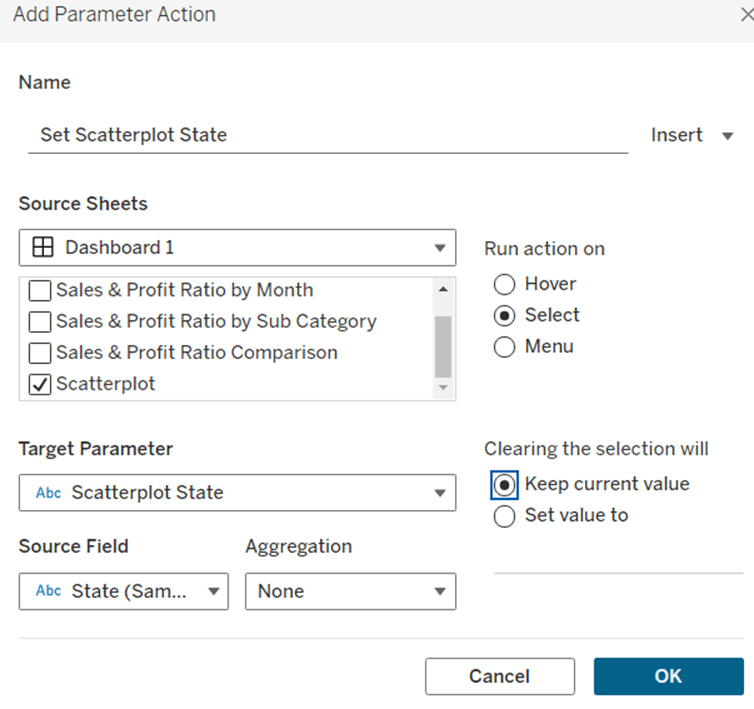
Add the sheet to a dashboard. Add a dashboard parameter action

Set Bucket

On selection of the sheet, set the Binary Parameter parameter passing the value of the Value for Param field. Leave the parameter with the current value when selection is cleared.

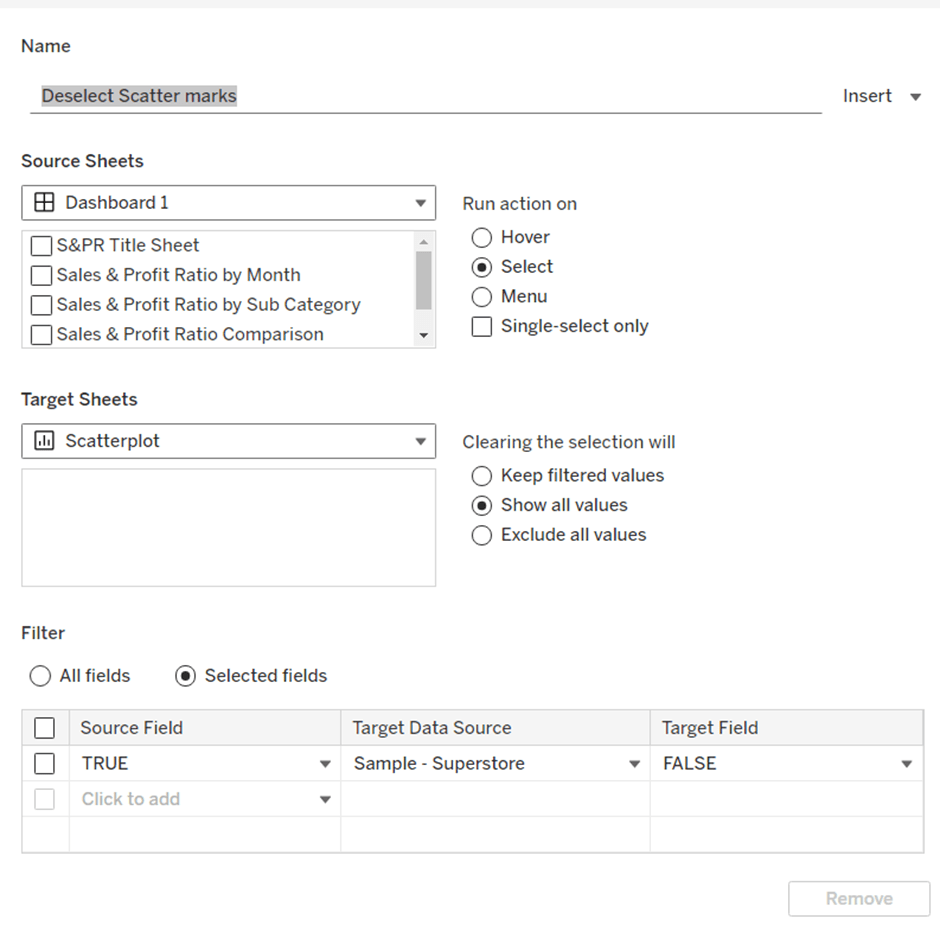
Click a bar to test the functionality. The bars should be changing colour. However, on click, Tableau automatically highlights the selected bar and the others ‘fade’. We’re already using colour to identify what’s been selected, so don’t want this to happen. To resolve this we will apply the True/False method to deselect the marks which is documented here.

You will need to create True and False calculated fields, and add them to the Detail shelf of the viz sheet. Then add a dashboard filter action as below.

Now when you click, the bars immediately change to the right colour with a single click of the mouse.

Building the Sales by Bucket bar chart

On a new sheet, add Sales to Columns, Bucket to Rows and Sub-Category to Detail. Adjust the table calculation setting of the Bucket pill so it is computing explicitly by Sub-Category.

Add Bucket to Colour and again adjust the table calculation as above. When you hover over the bar, you will see it is actually a stacked bar of each Sub-Category. We want these ordered so those with the smallest sales are on the left. Apply a Sort to the Sub-Category field on the Detail shelf to sort by Sales Descending

Widen each row. Add Sales to Label and set the Label to only show when selected (so they only appear when the segment of the bar is clicked on)

Add a Reference line to the Sales axis that shows the Sum of Sales per cell, and displays the Value. Don’t show any line or tooltip, and ensure the reference line isn’t recalculated when the bar chart is clicked.

Format the reference line label so it is positioned right middle, and adjust the font size.

Once again remove any row/column dividers and row headings and adjust the font sizes.

Arrange this chart onto the dashboard with the other chart using layout containers as required.

My version of this challenge is published here.

Bonus Challenge

For the bonus challenge to use more than 2 buckets, there was no example actually published. So I interpreted it as each click added it to the next bucket until you reached the maximum number of buckets allowed, at which point the Sub-Category would become deselected.

For this I created a parameter

# of Buckets

integer parameter from 1 to 5

The expectation in this instance was that rather than a string of 1s and 0s in the parameter, the parameter could contain any number from 0 up to # of Buckets – 1.

So the Value for Parameter field just had to change to become

IF [Bucket] = “0” THEN
//we’ve clicked once so move it to 1st bucket
LEFT([Binary Parameter],[Sub Cat Rank]-1) + “1” + MID([Binary Parameter],[Sub Cat Rank]+1)
ELSEIF [Bucket] = STR([# of Buckets]) THEN
//we’re already at the end, so reset to the starting position of 0
LEFT([Binary Parameter],[Sub Cat Rank]-1) + “0” + MID([Binary Parameter],[Sub Cat Rank]+1)
ELSE
// need to move to the next bucket
LEFT([Binary Parameter],[Sub Cat Rank]-1) + STR(INT([Bucket])+1) + MID([Binary Parameter],[Sub Cat Rank]+1)
END

The Colours associated to the Bucket field also then need to be updated to handle however many buckets you have, which you can set initially by manually updating the Binary Parameter parameter.

Note – as I have both versions in my workbook, I have fields suffixed with ‘bonus’ to represent the calculated fields/parameters needed.

My published version of this viz is here.

Happy vizzin’!

Donna

Can you display a ratio and volume on the same chart?

This week’s #WOW2025 challenge was a guest post by Kieran Adair and had two parts to it; one to show Sales and Profit Ratio for 2024 only on the same chart, and the other to show comparisons to 2023 data on the same chart.

I built the first one way, and had to make changes in order to build the second. I could have chosen to rebuild the first chart using the fields I ended up creating for the second, but I chose not to, so this will ultimately be 2 blogs in one, as for each chart I needed different fields.

Restricting the data

We only need data for 2023 and 2024 for this challenge, so apply a data source filter (right click data source > Add data source filter) and restrict to Years 2023 and 2024 only.

Building the 2024 chart

We will be plotting Profit Ratio so need to create

Profit Ratio

SUM([Profit])/SUM([Sales])

format this to % with 0 dp.

Add Sub-Category to Rows and Profit Ratio to Columns. Add Order Date to Filter and restrict to the Year 2024 only. Sort the bars descending |(just click the icon on the toolbar)

Change the Mark type to circle and set the colour to black. Widen the rows a little.

Add Sales to Columns. Change the mark type of the sales marks card to bar. Set the colour to white and add a black border.

Adjust the Tooltip on the All marks card and verify both measures are displayed whether hovering over a circle or a bar.

Edit the Sales axis and set to custom to ensure it is fixed to start at 0 and end ‘automatic’. Adjust the axis title to include the text [Bars◻].

Make the chart dual axis BUT DO NOT synchronise axis. Remove Measure Names from the Colour shelf of the All marks card. Right click on the Sales axis at the to and Move marks to back.

Edit the title of the Profit Ratio axis so that it includes the text [Circles ●]. Remove all gridlines and zero lines and hide the Sub-Category row heading (right click the text and hide field labels for rows). Update the title and name the sheet RAVE 2024 or similar.

Building the YoY chart

For this version, we need to create some additional calculated fields

Sales – 2024

IF YEAR([Order Date]) = 2024 THEN [Sales] END

Sales 2023

IF YEAR([Order Date]) = 2023 THEN [Sales] END

Profit – 2024

IF YEAR([Order Date]) = 2024 THEN [Profit] END

Profit 2023

IF YEAR([Order Date]) = 2023 THEN [Profit] END

PR – 2024

SUM([Profit – 2024])/SUM([Sales – 2024])

format to % with 0dp

PR – 2023

SUM([Profit – 2023])/SUM([Sales – 2023])

format to % with 0dp

On a new sheet, add Sub-Category to Rows and PR – 2024 to Columns. Sort descending. Change the mark type to circle.

Drag PR – 2023 onto the PR -2024 axis and release the mouse when the 2 green column symbol appears.

This will automatically update the viz to include Measure Names and Measure Values. Adjust the Colour legend so PR 2024 is black and PR 2023 is grey, and PR 2024 is listed first (so black circles are on top when the marks overlap)

Add Sales 2024 to Columns. Change the mark type of the Sales 2024 marks card to bar. Remove Measure Names from the Colour shelf of the Sales 2024 marks card. Set the colour to white and add a black border.

Add Sales – 2023 to the Detail shelf of the Sales 2024 marks card. Right click on the Sales 2024 axis and Add Reference Line per cell referencing the Sales 2023 value as below.

Update the title of the Sales – 2024 axis to Sales [Bars◻] and set the axis to be fixed from 0 to automatic. Update the title of the other axis (Value) to Profit Ratio [Circles ●].

On the All marks card add PR 2023, PR 2024, Sales – 2023 and Sales -2024 to the Tooltip shelf and update to suit.

Make the chart Dual Axis but once again DO NOT synchronise the axis. As before move the marks (bars) of the Sales axis to the back, and remove the Sub-Category label. Remove all gridlines and zero lines and update the title.

And that’s it. I added both my sheets to dashboards, juts to improve the presentation slightly. My published viz is here.

Happy vizzin’

Donna

Can you manually colour a highlight table?

It was Yusuke’s turn for this week’s #WOW2025 challenge, posing a twist on a the creation of a highlight table.

Whenever I start a challenge, I take note of what’s going on – I interact with it, move my mouse around to see if there’s any clues. The main takeaway from this, is that I’d need a dual axis so I could have multiple marks cards to style differently – one to be coloured based on the Profit and one to be coloured based on whether the cell was selected or not. So we need to build a table using an axis.

Building the basic table

Add Order Date to Columns and then click the pill to expand the date hierarchy so Year and Quarter are displayed. Add Sub-Category to Rows.

Double click into Columns and manually type MIN(1.0) to create an axis. Change the mark type to bar, increase the size to as large as possible, and edit the axis to be fixed from 0 to 1. Add Profit to Colour and Profit to Label. Adjust the colour scheme as required (I used red-white-blue diverging and reduced the opacity to 70%). Adjust the label font to be grey text.

Widen each row; shrink each column and adjust the row and column dividers to be dashed grey lines. Update the font of the label headings. Adjust Tooltip to suit.

Storing the selected cells

To store the cells that have been selected, we’re going to use Sets. To build this set, click on a cell in the table, and then in the toolbar of the tooltip that displays, click the venn diagram symbol to create set

Name the set Cells Highlighted

Highlighting the selected cells

Each cell in the table we have built is a bar of length 1. We want to use a dual axis to create bars of length 1 only in the cells selected. So we need

Bar Length – Highlighted Cells

IF [Cells Highlighted] THEN 1 ELSE 0 END

We also only want the profit value to be displayed for these cells

Profit – Highlighted

IF [Cells Highlighted] THEN [Profit] END

Add Bar Length – Highlighted Cells to Columns to make a second axis, and a second marks card. Remove both existing Profit pills from this card. and instead change the Colour to black at 100% opacity, and add Profit – Highlighted to Label. Change colour of the Label text, and update the axis to be fixed from 0 to 1.

Make the chart dual axis and synchronise the axis.
Hide the axis (uncheck show header), and hide the Order Date label (right click -> hide field labels for columns)

Update the title of the sheet with the instructions and then add the sheet to a dashboard.

Adding the interactivity

On click, we want to add the cell (if unselected) to the set. For this we need a dashboard set action

Add to highlight

On select, target the Cells Highlighted set, adding values to the set on click, and keeping set values when cleared.

We also want to remove selected cells via a menu option, so create another dashboard set action

Remove from highlight

Display on the menu of the tooltip, and target the set Cells Highlighted by removing values from the set when the menu option is clicked, and keep values when selection cleared.

While these give us the functionality we need, it isn’t the best user experience – we have to click multiple times to get the display due to the ‘default’ behaviour of selected marks being automatically highlighted / non selected marks being faded out.

To resolve this, we need to utilise a couple of techniques blogged about here.

For the marks coloured by profit, we want to disable highlighting using a dashboard filter action and the true/false method.

Create calculated fields called

True

TRUE

False

FALSE

and add to the Detail shelf of the MIN(1.0) marks card only. Then on the dashboard add a dashboard filter action

Now if you click on an unhighlighted cell it should go black immediately. However, if you click on one of the black already highlighted cells, the other cells still fade.

Now we can’t apply the same method to that cell, as we then lose the hyperlink appearing on the tooltip on click. This is because the true/false method ultimately results in the cell being immediately deselected once selected, so the ‘click’ action, which results in the menu option showing, is cleared .

Instead we will use the dashboard highlight action technique also described in the blog.

Create a new field

Dummy

‘Dummy’

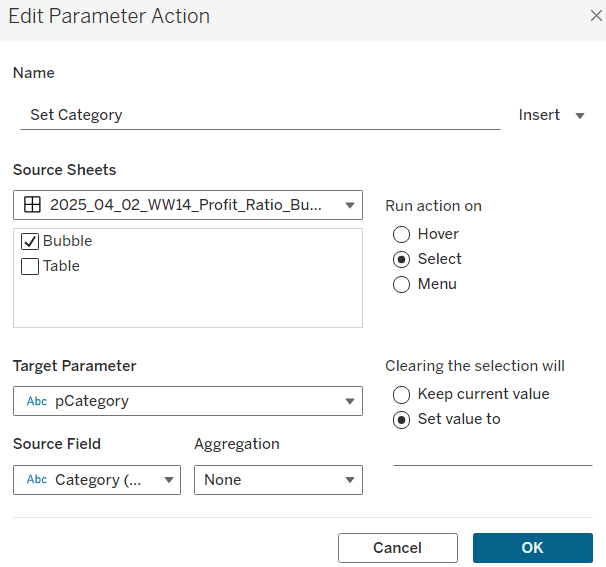
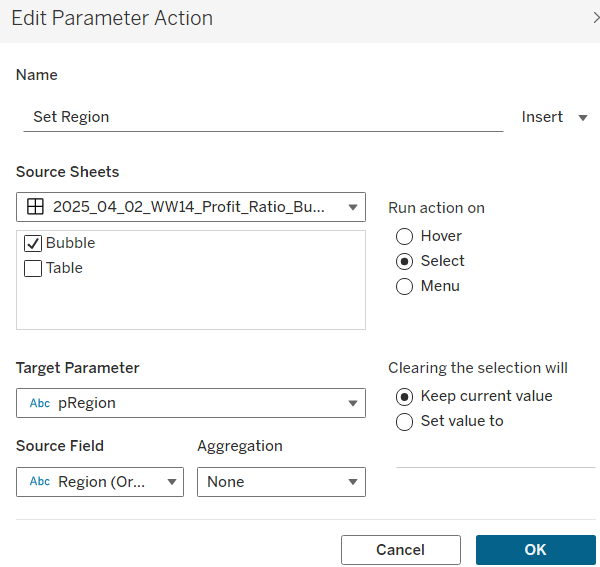
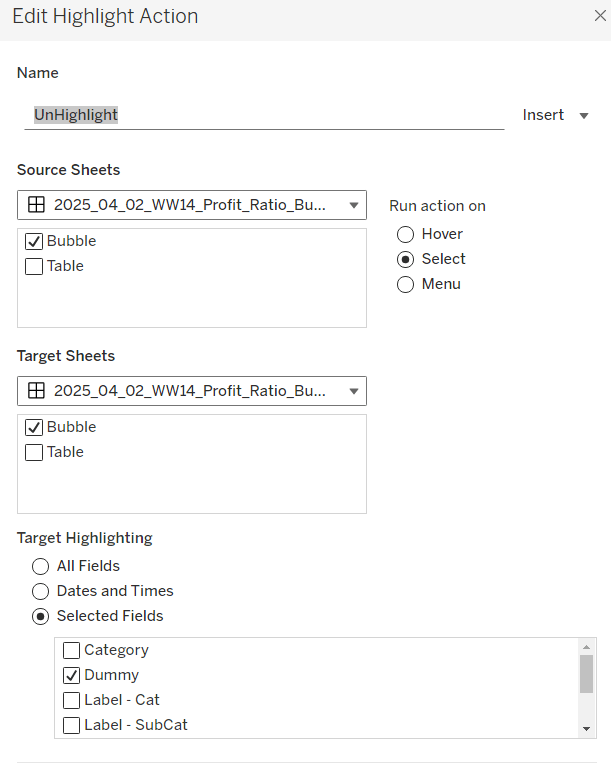
Add this to the Detail shelf of the All marks card (or add to both the MIN(1.0) and the Bar Length – Highlighted Cells marks cards). Then create a dashboard highlight action that just targets the Dummy field only, which as it exists in all cells, essentially selects them all.

Highlighting the word ‘colour’ in the title

I just did this by floating a blank object over the text which I set the background colour to black, and then set the object to move backwards. This did mean once I published to Tableau Public, I had to edit the viz online to ensure the object lined up to where I wanted.

And this should be it. My published viz is here.

Happy vizzin’!

Donna
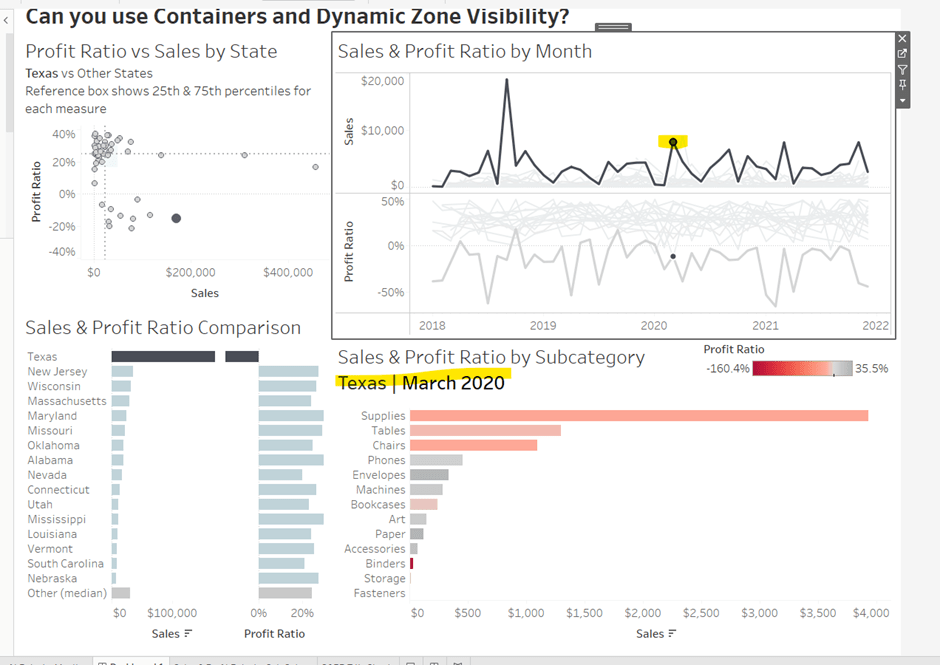
Can You Adjust the Dashboard Design by Filter?

The focus of this week’s challenge, set by Yoshi, is showing “detail on demand” using filters.

Defining the calculations

We’re only concerned about current year and previous year, so to simplify this, after connecting to the data source, I added a data source filter based on Order Date to restrict the information to years 2023 and 2024 only.

I then created the following fields

Latest Year

{MAX(YEAR([Order Date]))}

Previous Year

[Latest Year]-1

Sales – LY

IF YEAR([Order Date]) = [Latest Year] THEN [Sales] END

Format to $ with 0 dp

Sales – PY

IF YEAR([Order Date]) = [Previous Year] THEN [Sales] END

Format to $ with 0 dp

YoY

(SUM([Sales – LY]) – SUM([Sales – PY])) / SUM([Sales – PY])

Custom format to +0%;-0%;0%

Building the Sales KPIs

On a new sheet, add Category to Columns, and Sales – LY and YoY to Text and format/layout the text as required. Adjust the formatting of the column headings too.

Add YoY to Colour too to match the solution (though personally, if I was doing this for a business need, I wouldn’t do this as some of the text becomes quite washed out).

Building the Sub Category Viz

On a a new sheet, add Category and Sales – LY to Columns and Sub-Category to Rows.

However, you can see that as not every Sub-Category exists in every Category, we get ‘blanks’ in the display, so we need use something on rows that exists for every Category.  We can do this using the rank of Sales.

Add Sales -LY to Rows and change it to be a discrete (blue) dimension.

Move Sub-Category to Detail and then apply a quick table calculation of rank to the Sales – LY pill on Rows. Adjust the table calculation so it is computing explicitly by Sub-Category only.

Make the rows a little wider, move Sub-Category to Label. Add Sales -LY to label too. Adjust the format/layout of label and align middle right. Add YoY to Colour.

Add Sales – PY to Detail then add a Reference Line to the Sales – LY axis, that refers to Sales – PY per cell.

Add Latest Year to Tooltip and adjust the text to suit. Finally, hide the Sales – LY Rank row header and the Category column header (uncheck show header) and remove the title of the Sales – LY axis. Add a title.

Building the Product Viz

On a new sheet, add Product Name to Rows and Sales – LY to Columns. Sort by Sales – LY descending. Hide the null value indicator.

Add YoY to Colour. Add Sales – LY to Label. Add Sales – PY to Detail and add a Reference Line as described above. Add Sub-Category to Detail and add Latest Year to Tooltip and adjust. Remove the title of the Sales – LY axis, and hide the Product Name column header title (right click and hide field labels for rows). Add a title.

Filtering the display

The requirement is to be able to ‘filter’ the display based on the Category selected, and in the event not all categories are selected, the Product bar chart should show. Due to this second requirement, just using a standard ‘quick filter’ is a bit tricky – we need a way to understand what has been selected in the filter.

We can use a Set for this. Create a set of categories – right click Category > create > set

Category Set

Select all values

Add this to the Filter shelf of the KPI sheet, and then apply this same filter to the bar chart sheets too (right click the pill on the Filter shelf > apply to worksheets > selected worksheets > select the relevant sheets).

If you select show set, this then displays the input control to select which options are in or out of the set.

To manage the visibility of the Product bar chart, we need to know how many Categories there are in total, and how many Categories are selected. So create

Count Categories

{FIXED: COUNTD([Category])}

And

Count Set Members

{ COUNTD(IIF([Category Set], [Category],NULL))}

Both of these are LODs as we need to reference them in another boolean calculation that will be used to drive dynamic zone visibility.

Not all Categories Selected

{(SUM([Count Categories]) <> SUM([Count Set Members]))}

Building the dashboard

Create a dashboard. The three sheets should be arranged within layout containers. I used a horizontal container, where the left hand column contained a vertical container which in turn contained the KPI sheet on the top and  the Sub Category bar chart underneath. The right hand column of the horizontal container contained the Product bar chart.

To control the visibility of the Product bar chart, select the object, then from the Layout tab on the left hand side, select the control visibility using value checkbox, and choose the Not All Categories Selected field.

The bar will initially disappear, but if you then deselect a value in the Category ‘filter’ control, it will reappear.

Added extra

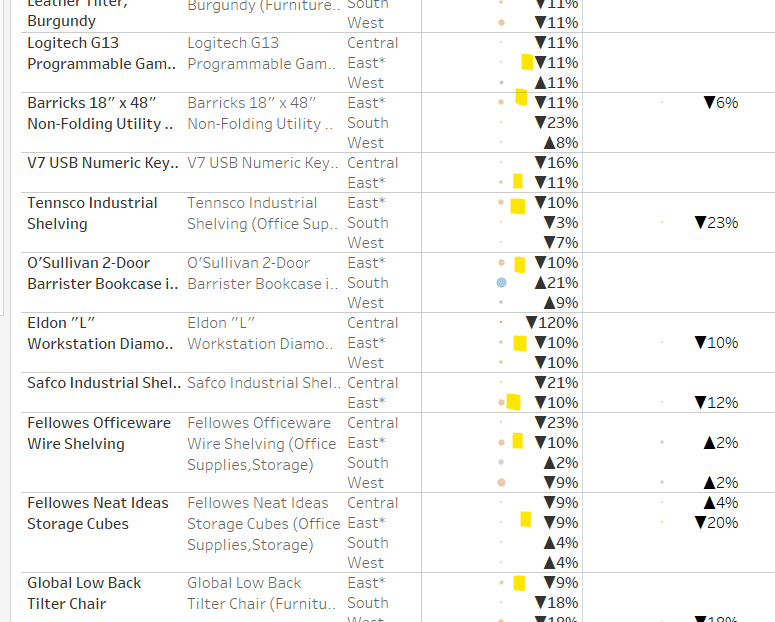
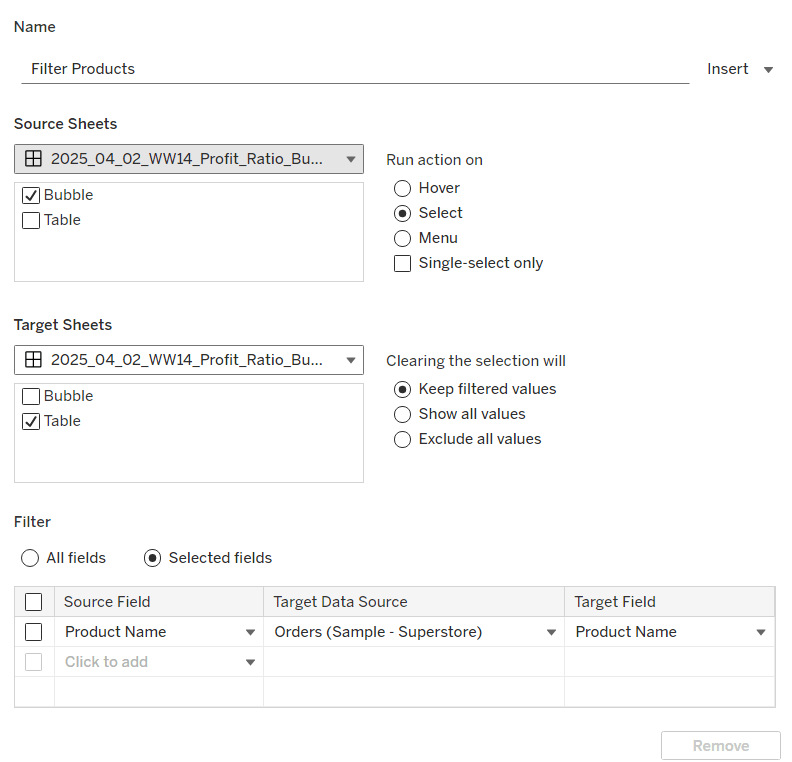
We can also set the Product bar chart to filter if a Sub-Category bar is clicked on. Create a dashboard filter action

Filter Products

On select of the Sub-Category bar chart sheet, target the Product Bar Chart sheet passing all values. Show all values when the selection is cleared.

My published viz is here.

Happy vizzin’!

Donna
Can you use spatial parameters?

This week, Kyle set the challenge to test our use of functionality released in 2024.3 – spatial parameters. I hadn’t used these before, so did have a watch of the video link posted in the challenge, which was really useful.

Accessing the data

Kyle provided two links to web pages for the data. You need to download the zipped Shapefile from each

Once downloaded, extract each zip file. There will be a SHP (shape) file in each set of unpackaged files. In Tableau desktop, you will need to create 2 connections to a spatial file, one to each shp file

Build the State Map

From the School_District_Characteristics data source, double click on Geometry to automatically create a map.

Add Lea Name to the Detail shelf and add Statename to the Filter shelf, and select Washington.

From the Map menu, select Background Maps > Dark to set the background.

Name the sheet State or similar.

Building the District Map

On a new sheet, double click on Geometry from the School_Neighbourhood_Poverty_Estimates data source to automatically create another map.

Add Name to Detail.

On the Map menu, select Background Layers, and then set the Style to dark and tick the Street,Highways etc option.

Name the sheet District or similar.

Create the spatial parameter and filter

Create a new parameter to store the geometric data

pLea

a spatial parameter, defaulted to Empty

In the School_Neighbourhood_Poverty_Estimates data source, create a calculated filed

Filter

INTERSECTS([pLea],[Geometry])

this will return true if the geometric data that represents the state(s) selected from the state map overlap with the geometric data that represents the schools.

Adding the interactivity

Create a dashboard, placing the State and the District sheets side by side in a horizontal layout container.

Create a dashboard parameter action

Set Lea

On select of the State sheet, set the pLea parameter passing in the value from the Geometry field. Set the value to Empty when the selection is cleared.

Click on the State map (which will populate the pLea parameter). Then navigate back to the District sheet and add the Filter calculation to the Filter shelf and select True, which will result in the District map being filtered

Return to the dashboard and click on the State map to see the District map change.

When no states are selected though, the District map is empty, which is the desired behaviour, but we want to fill the display with the State map (ie hide the space where the District map is).

To do this, create a calculated field (in either of the data sources)

State Selected

NOT ISNULL([pLea])

This will return True if there is something in the pLea parameter.

Back on the dashboard, select the District object on the dashboard, then from the Layout tab, check the Control visibility using value checkbox, and select the State Selected field

Remove the title from the District sheet on the dashboard, and now when all states are unselected the State sheet fills the view.

Finalise the dashboard by adding the title and any other information required. Set the background of the dashboard to dark grey and show the State parameter.

My published viz is here.

Happy vizzin’!

Donna
Can you compare to a selected months value?

This week’s challenge by Lorna was to deliver some functionality without using LODs or table calculations. She hinted that parameters and parameter actions would be your friends.

Setting up the parameters

Create a parameter to capture the month selected

pMonth

date parameter defaulted to 01 April 2023

and then create one that will store the value associated to the month selected

pMonthSales

float parameter defaulted to 0

Building the Viz

On a new sheet add Order Date as a continuous (green) pill at the month-year level to Columns. Add Sales to Rows.
Create a new calculated field

Difference from Selected Sales

SUM([Sales]) – [pMonthSales]

and add this to Rows.

Change the mark type of this second marks card to bar and add Difference From Selected Sales to the Colour shelf. Adjust the colour to a diverging scale and centre at 0

Set the Size of the bars to be Manual rather than Fixed and adjust the slider to suit.

Add a reference line to the Order Date axis, that references the pMonth parameter.

Adjust the Tooltips, remove gridlines and add a title.

Adding the interactivity

Add the sheet to a dashboard. Add a dashboard parameter action

Set Date

On select of the viz, update the pMonth parameter with the value from the Month([Order Date]) field.

Add another dashboard action

Set Value

On select of the Viz, update the pMonthSales parameter with the value from the SUM(Sales) field that is aggregated at the SUM level.

Now if you click on a point on the line chart, the bottom bars should alter, but they’ll all appear ‘faded’ initially.

To resolve this, create a new calculated field

HL

“HL”

and add this to the Detail shelf of the All marks card. Then create a dashboard highlight action

Highlight

On select of the viz, highlight the HL field only

When you now click, the bottom marks aren’t faded as they essentially are all ‘highlighted’ too.

And that’s it for this week!

My published viz is here.

Happy vizzin’!

Donna