Let’s visualise #WorkoutWednesday submissions

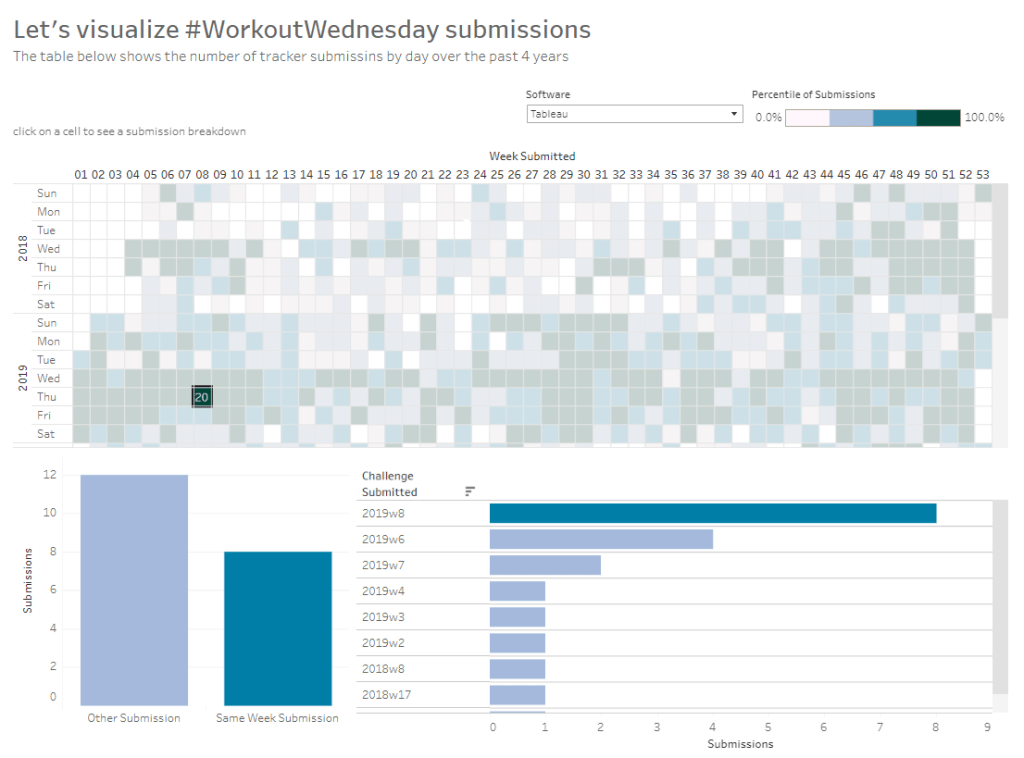
Sean Miller decided to use the data gathered by the #WorkoutWednesday team in this week’s challenge, to visualise how people use the submission tracker. I try to fill it in immediately after publishing and tweeting my solution, which is usually within the same week as when the challenge is set, unless I’m on holiday. Sometimes I do forget and as I know I’ve completed every challenge, I will fill it in if I see gaps in the tracker. However, I do think there’s something a bit awry with my submission data as there’s a few holes that don’t seem to tally properly with the weeks in the month…. there’s probably a typo or duplication in my data (if any of the team happen to read this, could you have a look.. or let me see my data to see if I can find the problem 😉 )

Anyway onto the challenge – we’re going to build a heat map and 2 bar charts and then add some interactivity between the two – nothing majorly taxing this week, so hopefully this blog won’t take too long to write… I’m prepping for Christmas so have lots to do 🙂

Building the heat map

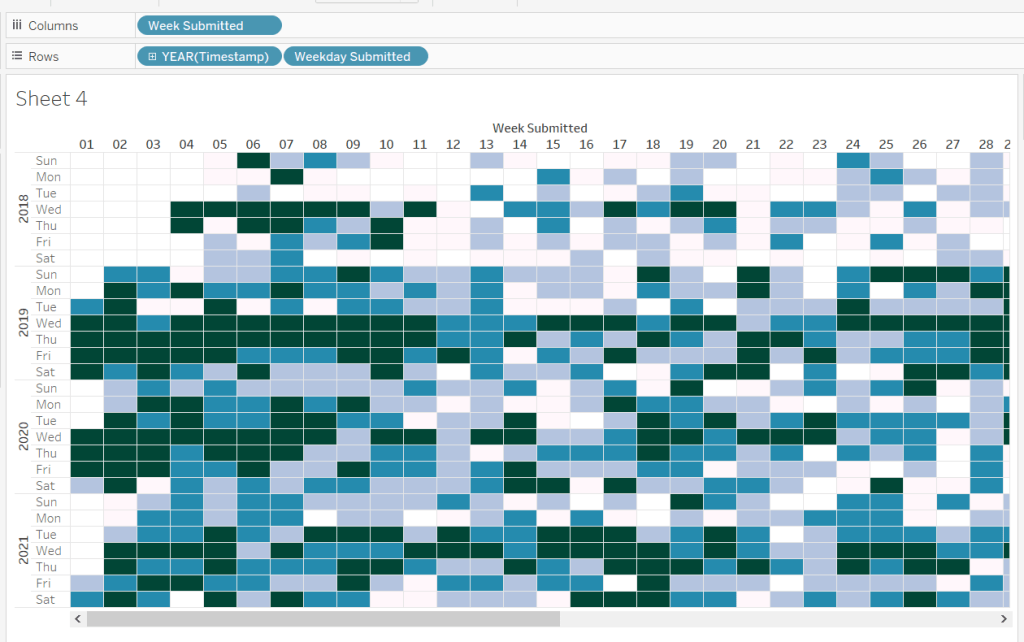
The heat map displays the week number in the year across the top, and year and day of week down the side. We need to create some calculated fields to extract some of these values from the Timestamp date field provided (note if your Timestamp field doesn’t import automatically as a date, then right click > Change Data Type > Date to convert it).

Week Submitted

DATEPART(‘week’,[Timestamp])

Format this to custom format of 00, so you display 01 rather than 1. Drag the pill into the top half of the data pane, so it’s stored as a dimension.

Weekday Submitted

LEFT(DATENAME(‘weekday’,[Timestamp]),3)

Add Week Submitted to Columns and then YEAR(Timestamp) and Weekday Submitted to Rows.

To get the numbers and display to match Sean, you will need to ensure your week starts on a Sunday. If you’re in the UK like me, you may have it set to Monday. To change this right-click on the data source > Date Properties > Week start = Sunday.

To colour the cells, we need

Submissions

COUNT([2021-12-22-WW51-WOW_Challenge_Tracker.txt])

where the field referenced is automatically generated field that is created (ie what used to be Number of Records).

And then we need to calculate the Rank Percentile, which isn’t as scary as it sounds – there’s a handy function…

Percentile of Submissions

RANK_PERCENTILE([Submissions])

Format to a percentage with 1 dp.

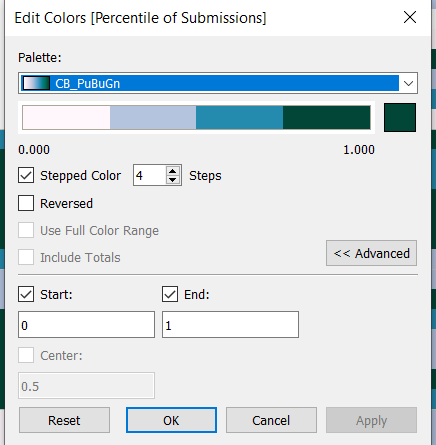
Add this onto the Colour shelf, and adjust the table calculation so it is computing by all the fields.
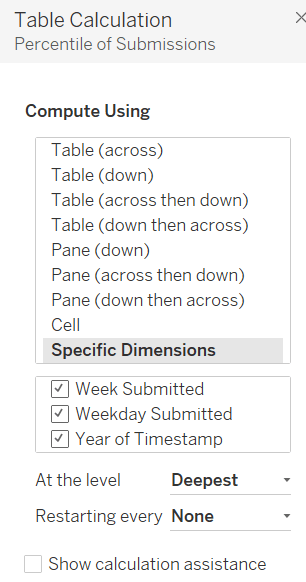
Edit the colour range to use the one specified, and adjust the settings so it only uses 4 colours, and ranges from 0 to 1
Add Software to the Filter shelf and select Tableau
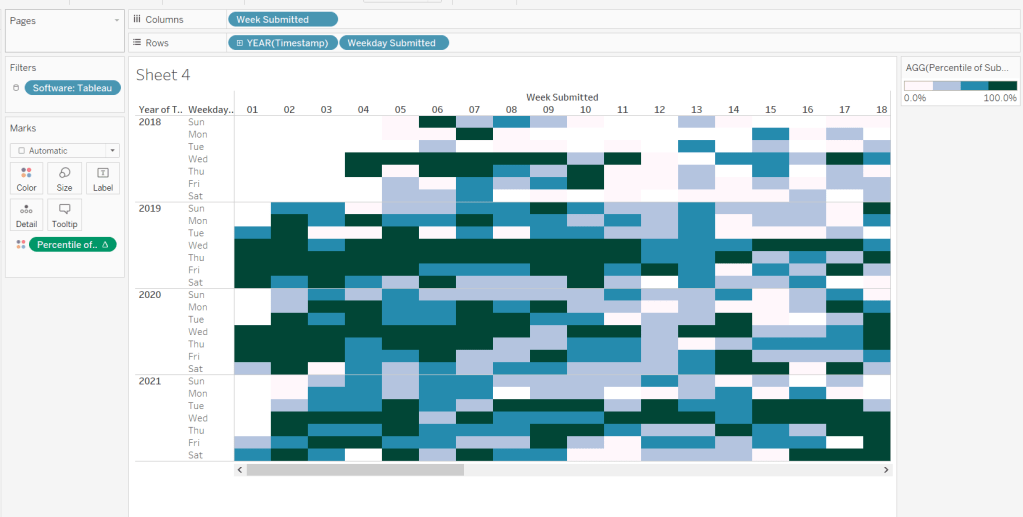
This is the core of the chart complete. Add column and row dividers, rotate the Year headings, narrow the columns and hide the row label headings.
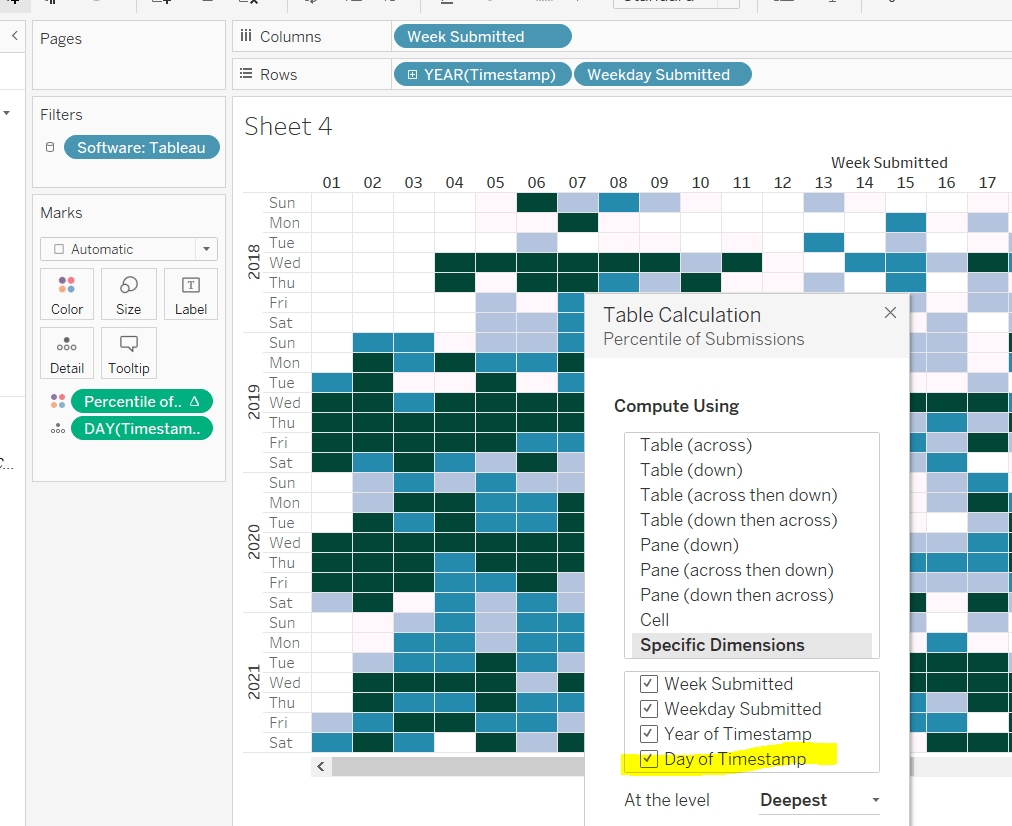
Now we just need to sort the Tooltip. Add Timestamp to the Detail shelf, and change to the Day May 8, 2015 display. This will change the viz, but don’t panic. Re-edit the table calculation so Day of Timestamp is also checked.
Then add Submissions to Tooltip and adjust the tooltip text as required.

Finally, also add Submissions to the Label shelf and edit so the value on shows on selection.

Building the bar charts

Firstly, amend the Software filter on the heatmap so it is set to apply to worksheets > all using this data source.

Next wee need to identify whether the challenge was submitted in the same wee as it was set

Same Week Submission

([Challenge Week]=[Week Submitted]) AND ([Challenge Year]=YEAR([Timestamp]))

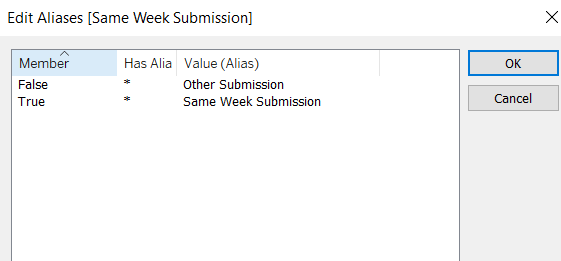
This returns a boolean of true or false, but we can alias these values (right click field > Aliases) to give the displayed options
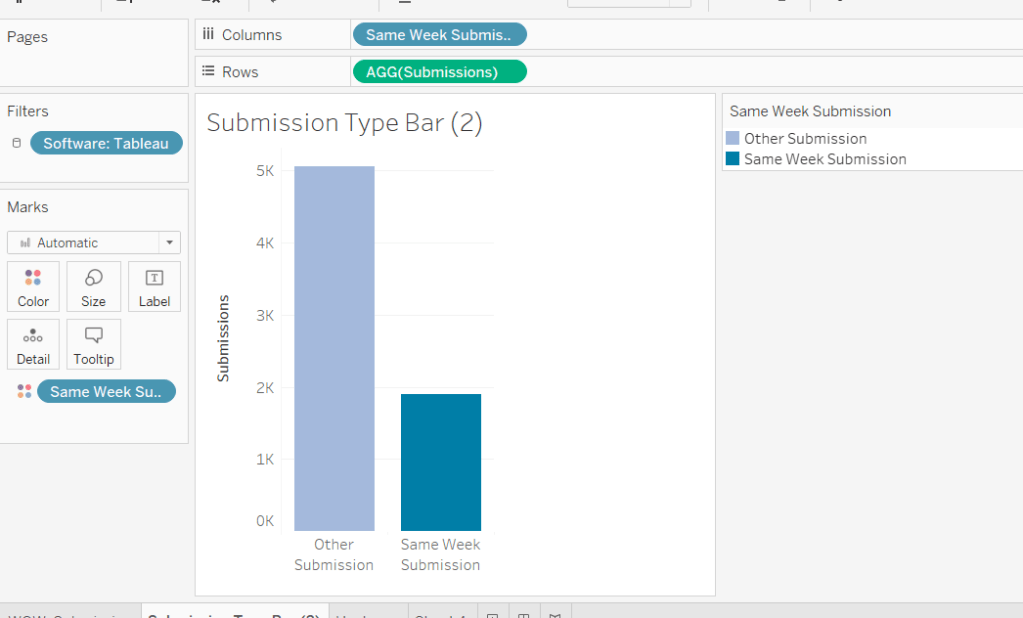
Now add Same Week Submssions to Columns, Submissions to Rows and Same week Submissions to Colour and adjust accordingly. Amend gridelines, borders etc to get the required display format
For the next bar chart we need to build the text for

Challenge Submitted

STR([Challenge Year])+’w’+STR([Challenge Week])

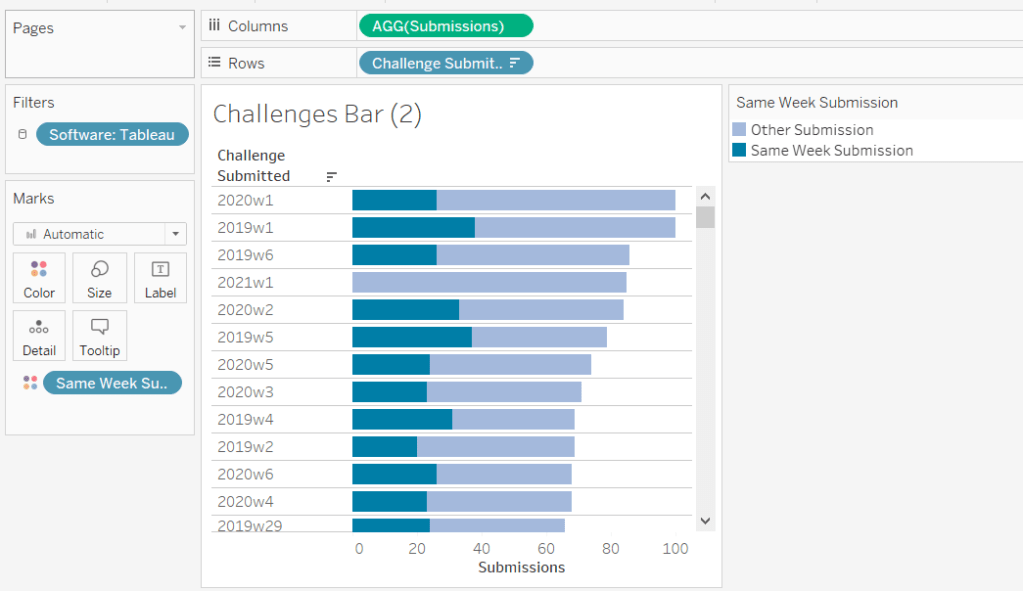
Add this to Rows and Submissions to Columns and add Same Week Submission to Colour. Again adjust formatting accordingly.
Adding the Interactivity

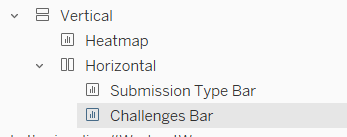
On a dashboard, add a Vertical container. Drop the Heat map into it. Then underneath, still within the Vertical container, add a Horizontal container. Add the two bar charts side by side. You may have other objects, but part of your layout hierarchy should look like
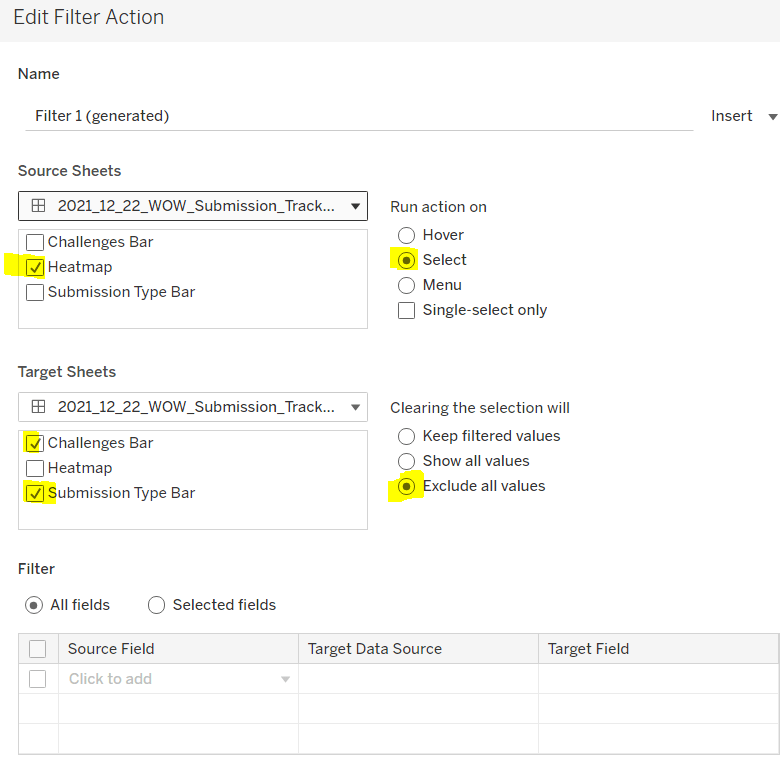
Add a dashboard filter action to the heatmap chart that on select affects the two bar charts, but when unselecting, excludes all values.
As you click on the heatmap and then unclick, the bar charts should disappear and the heat map should fill out the space.

Finalise the dashboard adding a title, supplementary text, the software filter and colour legend.

My published viz is here.

Happy vizzin’!

Donna

Tableau Coaches’ Favourite Challenges Advent Calendar

Candra set this seasonal fun challenge this week. It may not deliver data visualisation best practice, but as a ‘seasoned’ #WOW participant, this provided a chance to use a technique I rarely use (background images) and learn a brand new technique (colouring a bar chart with a gradient).

Getting set up

To start you’ll need to download all the files Candra provided, which will consist of the data (across 2 sheets) and 3 images.

The bauble and star image will need to be saved into your Tableau Shapes repository – I copied them into a new folder I called Xmas in this directory ..\My Tableau Repository\Shapes

The tree image just needs to be saved somewhere you’ll remember.

Building the Tree Chart

Connect to Sheet1 of the downloaded WOW Advent Calendar excel file.

Drag X to Rows and Y to Columns and disaggregate the marks (Analysis -> uncheck Aggregrate Measures)

You should get the basic layout of where the baubles are positioned. You may also notice that the X & Y values in the dataset were labelled wrong. The x-axis is your horizontal axis, but these have been stored in the Y field, while the vertical y-axis values have been stored in the X field. You may wish to rename these to save you getting confused.

Add Day to the Label shelf, and align middle centre.

We need to distinguish the bauble marks from the star mark. The star mark has a NULL value for the Day field, so we can utilise that

Day Is NULL

ISNULL([Day])

Add this onto the Shape shelf, and adjust the shape images to source the new images you saved into your shapes repository (if you can’t find them try clicking ‘reload shapes’). Adjust the initial size of the images via the slider on the Size shelf.

Now add Day Is Null to the Size shelf too. Edit the size and adjust the mark size range to suit, so the star is larger than the baubles.

Adjust the Label of the bauble so the text is larger and white.

To make the tooltip slightly more readable than that in the provided solution, I created my own custom version

Tooltip

IF [Day is Null] THEN “It’s Christmas Day!”
ELSEIF [Day]=1 THEN STR([Day]) + ” day until Christmas”
ELSE STR([Day]) + ” days until Christmas”
END

Add this to the Tooltip shelf, and adjust so it’s just referencing this field.

Add Link to the Detail shelf – this will be needed for the interactivity later.

Now we’ll add the background image via the Maps -> Add Background Image -> <datasource> menu option. Click to add image, then browse to where you’ve saved the Xmas tree image.

We need to define the min/max coordinates for where the tree image should be positioned, and based on this, we want the horizontal X axis (the Y field) to range from 0-4 and the vertical Y axis (the X field) to range from 0 to 6. Press the Apply button and you see whether things look to be placed correctly before you close all the dialog windows.

Next we need to fix the axis, so that when interacting later, we keep the whole tree visible. The vertical axis should be fixed from 0-7, and the horizontal axis should be fixed from 0 to 4.

Then we need to remove all the axis from displaying (uncheck show header), and all row/column borders and gridlines and axis rulers.

The final step is to remove the map options from displaying when you hover over the chart – Map ->Map Options and uncheck all the options displayed in the dialog

Building the Gradient Coloured Bar Chart

Candra provided a hint in her instructions pointing to the Flerlage Twins blog. A quick search on the site for the keyword ‘gradient’, and I landed on this post from 3 years ago https://www.flerlagetwins.com/2019/02/gradient-colors.html.

Since the process is already documented, I don’t have to write all the steps out myself 🙂 I’ll just point out the fields I used/created, since we’re working with a different data set.

Firstly I created a new data source for this chart, which combined Sheet1 with the Range sheet, and used a relationship calculation of 1 = 1 to combine the data (Relationships didn’t exist when the blog post was written).

The equivalent of the Sales Adjusted field is the existing pre-computed Sheet1(Count) field, so we don’t need any calculated field for this.

Max Segments in my solution is

Max Range

WINDOW_MAX(MAX([Range (Range)]))

Note – Range (Range) is referencing the Range field from the Range table. If you just drag the field into the calculation window, it will automatically present in this way.

Total in my solution is

Total Count

TOTAL(COUNT([Sheet1]))

Size in my solution is

Size

[Total Count]/[Max Range]

and finally Color in my solution is

Colour

([Max Range]-[Index]) * [Size]

Add Challenge Year to Rows (rather than Category), change the mark type to bar if it doesn’t change automatically. Reverse the axis so 2018 is listed at the top, then change the Challenge Year pill to be discrete (blue) rather than green.

If you follow the other blog post through, you should hopefully end up with

You then need to show the labels and adjust the tooltip against the CNT(Sheet1) marks card only.

As before, remove all gridlines borders etc.

Adding the interactivity

Add the 2 sheets to a dashboard. We need to allow the tree to filter on click of the bar chart. I used the ‘use as filter’ option on the context menu of the the bar chart object to quickly set this.

This adds a filter action to the dashboard, but is a quick way of getting it created rather than having to manually set it up via the dashboard -> actions menu.

I did use this menu though to add the URL action to the Tree sheet, which just needs to reference the Link to the Challenge field.

So a relatively short blog this week, since the most complicated section is already written up be Ken Flerlage (thanks Ken!). It was a great fun little challenge, which still allowed for plenty of learning opportunities. My published viz is here.

Happy vizzin’! Stay Safe!

Donna