Sean based this week’s challenge on a scenario he’d faced with a client and requires the use of dynamic zone visibility (DMZ) and filter actions.
I’m going to attempt to be relatively brief for the vizzes/views that need building, as the main focus is on the dashboard itself.
Creating the Main KPIs
Connect to the data source and add a data source filter on Country/Region = United States so any data related to Canada gets excluded automatically from everything we build.
Create a new field
Profit Ratio
SUM([Profit])/SUM([Sales])
and format to % to 2 dp
On to a new sheet add Sales, Profit, Profit Ratio and Quantity onto the canvas. I just double-clicked each field and once all added used Show Me to display a Text table.
Move Measure Names to Columns and re-order the measures. Add Measure Names to Text too and modify the text so the Measure Names label is beneath Measure Values, aligned centrally and formatted as required. Set the sheet to Entire View. Format the Sales and Profit pills on this sheet to be formatted to $k to 1 dp.
The KPIs need to filter based on the state that will be selected in the map. We’re going to use a parameter to capture the state
pSelectedState
string parameter defaulted to <empty string?
And then we create
Is Selected State?
[pSelectedState]=” OR [State/Province] = [pSelectedState]
Add this to the Filter shelf and select True.
Format the sheet to remove row/column dividers and hide the Measure Names label header (uncheck show header on the pill).
Name the sheet KPIs-Main or similar.
Creating the Customer KPIs
Although not actually working on Sean’s solution, I believe the intention of showing KPIs on the ‘customer panel’ is to give a summary based on the selected customer. So to do this simply duplicate KPIs-Main and then add Customer Name to the Filter shelf and select all customers. Name the sheet KPIs-Customer or similar.
Creating the Map
ON a new sheet, double click State/Province to automatically create a map and then add Sales to Colour. (if the map doesn’t display the US, then you may need to edit locations – Map > Edit Locations). Adjust the background of the map and remove all city/state labels (Map > Background Layers). Name the sheet Map or similar.
Creating the Customer Orders list
On a new sheet, add Product Name to Rows and then Sales and Quantity as a table. As Is Selected State to Filter and set to True and also add Customer Name to Filter and select all values. Ultimately on click of a state in the map, this list needs to be filtered to just the orders associated to that state , and then additionally be able to be filtered by customer name
Creating the Reset Button
On a new sheet, double click into the space below the marks card and type ‘Reset’ to create a ‘dynamic’ pill. Then change the mark type to square and add this pill onto the Label shelf. Set the size to the largest possible and set the sheet to entire view. Format the label to be centred and larger. Then create a field
State-Reset
”
and add this onto the Detail shelf. This field basically contains an empty string, and we’ll use it later to ‘reset’ the pSelecedState parameter. Call the sheet Reset Button or similar.
Building the dashboard & interactivity
Using layout containers, build out the dashboard as required. I used a horizontal container in the middle of the dashboard which displayed the Map on the left and another Vertical Container on the right. The vertical container is the ‘customer panel’ and it then contained the Customer KPIs, and the Customer Orders sheets along with the Customer Name quick filter (set to a single value dropdown) and reset button in their own horizontal container. My hierarchy is shown below.
Add a dashboard parameter action to select a state
Set State
On select of the Map sheet, set the pSelectedState parameter with the value from the State/Province field. But on clearing the selected keep the current value.
Clicking on a State will now change the KPIs and the list of customer orders
But we also want the list of customers in the filter list to be restricted to those who have orders in the state, so adjust the quick filter settings so that it is set to only relevant values Also customise the control to so the ‘all’ option is not displayed.
Test this behaviour by selecting different States and then checking the values in the Customer Name filter control.
When the Reset button is clicked, we want the State to be deselected and the KPI values all reset, so create another parameter action
Reset State
On select of the Reset Button sheet, set the pSelectedState parameter with the value from the State-Reset field
If you test this out without selecting a Customer Name filter, then the behaviour will work as expected: click a state, KPIs/Orders List and set of customers in the filter change; click reset and KPIs/Orders List and set of customers in the filter all reset .
However if after clicking a state, a customer is then selected in the filter (which filters the Orders List and the Customer KPIs)
If I then click the rest button, the customer panel now shows all the info for the selected customer
and if I now select another state, the customer filter is retained, and if that customer has no orders for the state, I don’t get what I expect
We need to be able to essentially ‘reset’ the customer filter as well when clicking the reset button.
This was the trickiest part of this challenge, and I did try a variety of other ways of displaying the customer filter to see if I could crack it, but I did observe through playing with Sean’s solution and hovering the mouse, that the Customer Name filter was a standard quick filter. Eventually, with the clue being in the challenge title, I got there.
Add a dashboard filter action
Reset Customer Filter
On select of the reset button, target the Customer Orders, KPIs Customer but filter on selected fields where Customer Name = Customer Name
Finally we want the customer panel to only display once the map is clicked. For this, create a new field
State parameter is not empty?
[pSelectedState] <> ”
which will be true when pSelectedState contains the name of a state which happens ‘on click’ of the map. Then back on the dashboard, select the ‘customer panel’ container and on the Layout section, check the control visibility using value option and select the above field
And fingers crossed, you should now have a functioning viz. My published viz is here.
For this week’s challenge, Yusuke asked us to provide a solution to allow charts to be coloured by different dimension, but he sprinkled a few extras in just for good measure 🙂
Defining the parameter
The key driver here is going to be the use of a parameter to define the dimension we need to colour by.
pColourBy
string parameter defaulted to Order Date, listing the 4 options as below
We then need a field that uses this parameter to define the actual dimension we’ll colour by
Colour
CASE [pColourBy] WHEN ‘Order Date’ THEN STR(YEAR([Order Date])) WHEN ‘Region’ THEN [Region] WHEN ‘Category’ THEN [Category] WHEN ‘Segment’ THEN [Segment] END
Building the Order Date chart
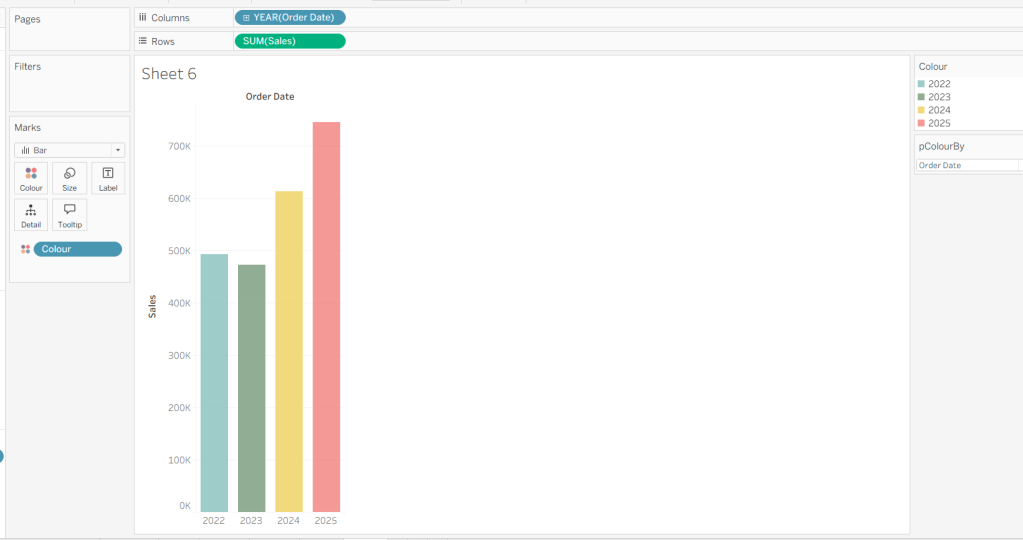
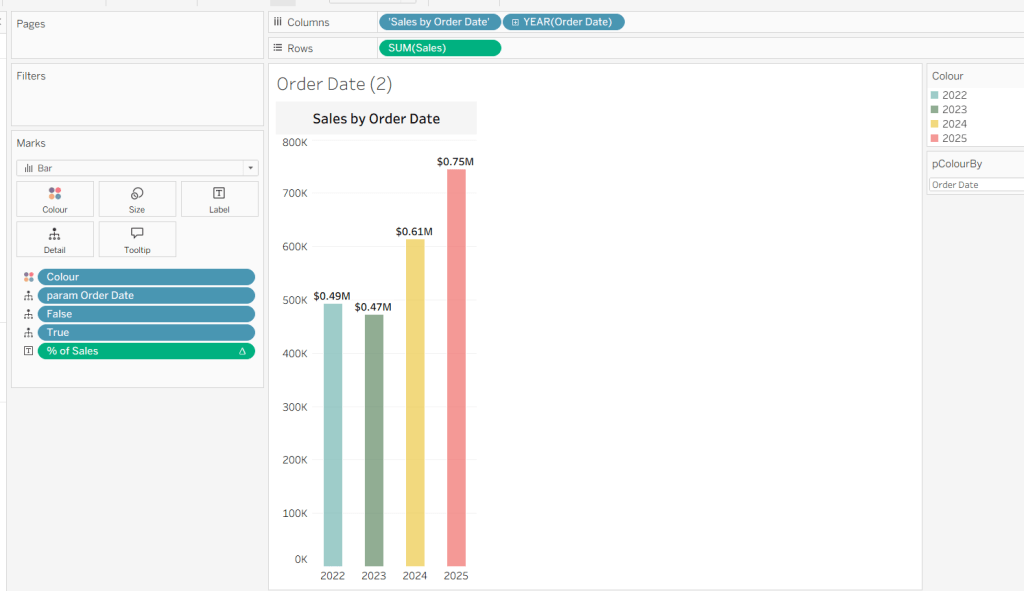
On a new sheet, add Order Date to Columns and Sales to Rows. Change the mark type to Bar and add Colour to the Colour shelf. Adjust the colours to suit, set the opacity to 70% and add a white border. Show the pColourBy parameter.
Change the options in the pColourBy parameter and each time readjust the colours as you wish.
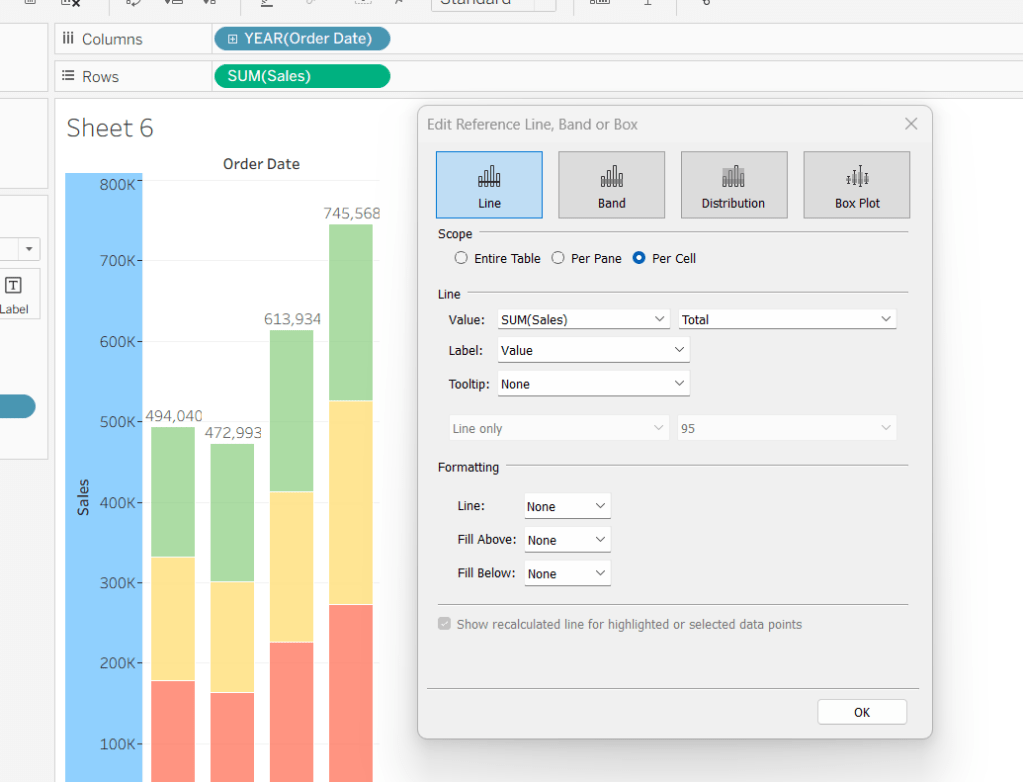
Add a reference line to the Sales axis that displays the value of TotalSales per cell
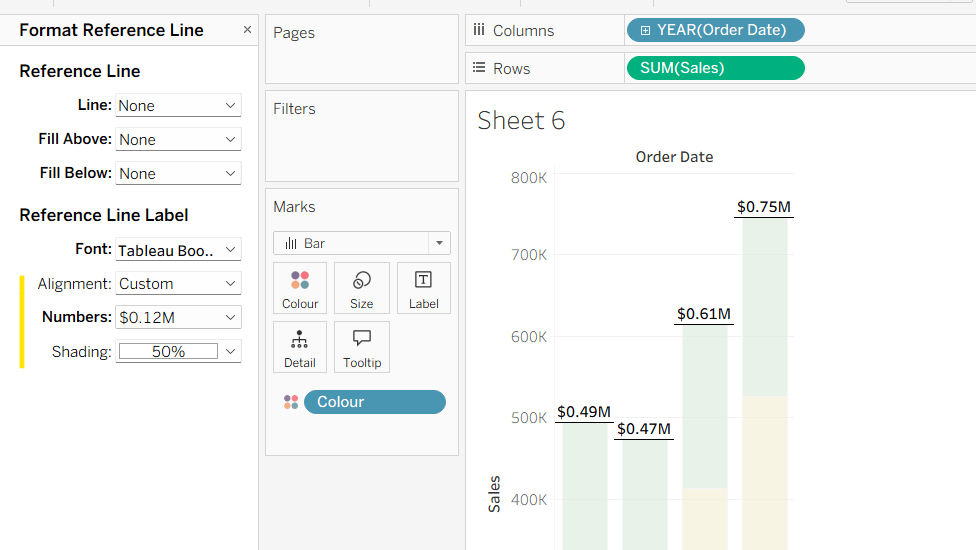
Format the reference line to format the displayed number in $M and bold font, and align top middle.
Create a new field
% of Sales
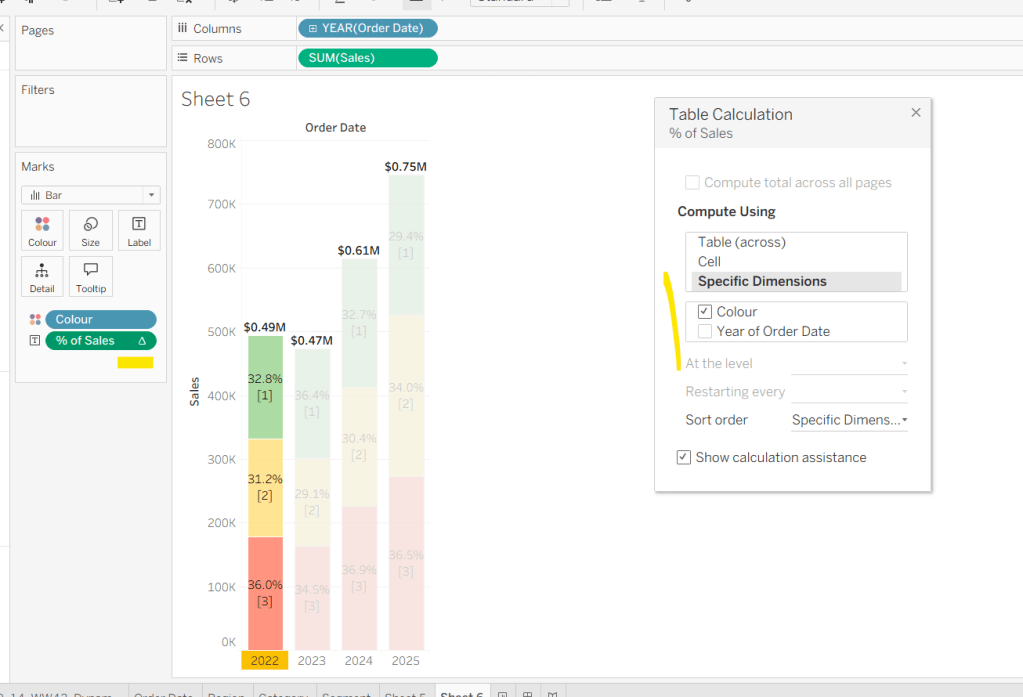
IF SUM([Sales]) / TOTAL(SUM([Sales])) <> 1 THEN SUM([Sales]) / TOTAL(SUM([Sales])) END
and format to % to 1dp. This will only display a value if its not 100%.
Add this to the Label. Adjust the table calculation setting so it is computing by the Colour field only.
Adjust the Label so the font is bold and the label only appears when Highlighted. Then update the Tooltip as required.
Although not explicitly called out in the requirements, I noted that if Yusuke clicked on the chart title, it reset the dimension to colour by. To deal with this we need to create
param Order Date
‘Order Date’
Add this to the Detail shelf.
We also need to ‘fake’ the title to be part of the chart itself (so it’s clickable). Double click into the Columns and manually type ‘Sales by Order Date’ and position the pill created before Order Date.
Right click on the column label (the text in darker font) and hide field labels for columns. Then right click on the column label to format – set the font to 12pt and bold, align left and shade the background to light grey. Increase the width of the column heading.
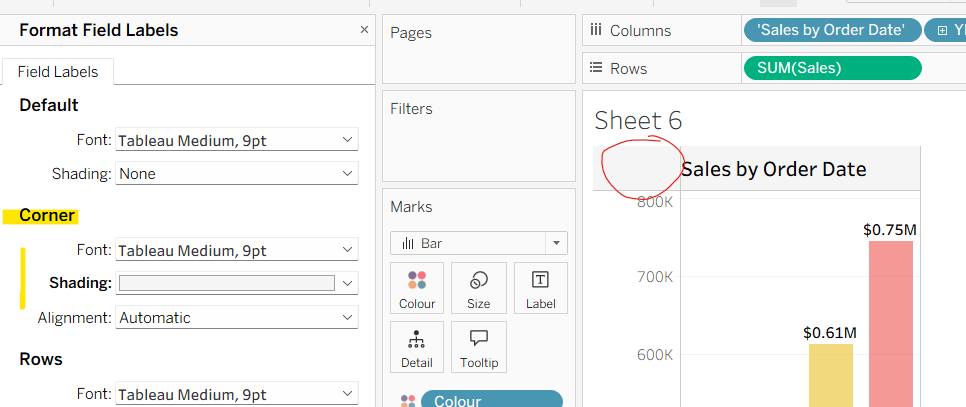
Then right click on the corner whitespace next to the heading just created, and format. Apply a light grey shading to the corner too.
If the ‘title’ is clicked, we don’t want it to be ‘highlighted’/’selected’. For this we will need fields
True
TRUE
False
FALSE
Add both of these to the Detail shelf.
Finally tidy up by removing the axis title, adjusting the font of the axis labels (I made them a bit darker), and removing row & column dividers. Name the sheet Order Date or similar.
Building the Region chart
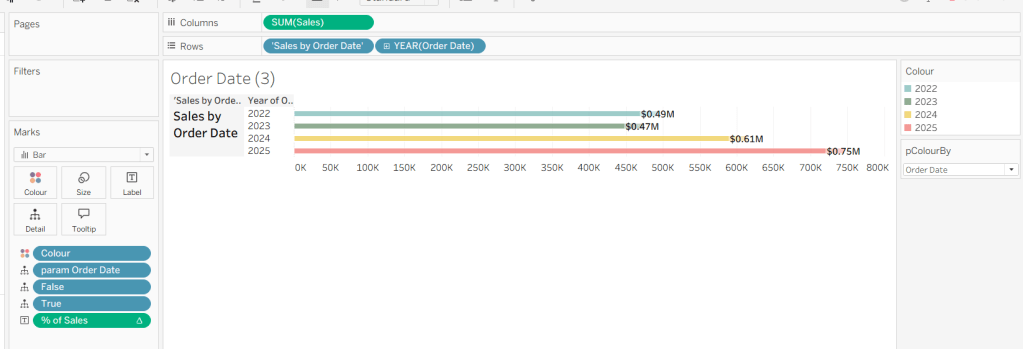
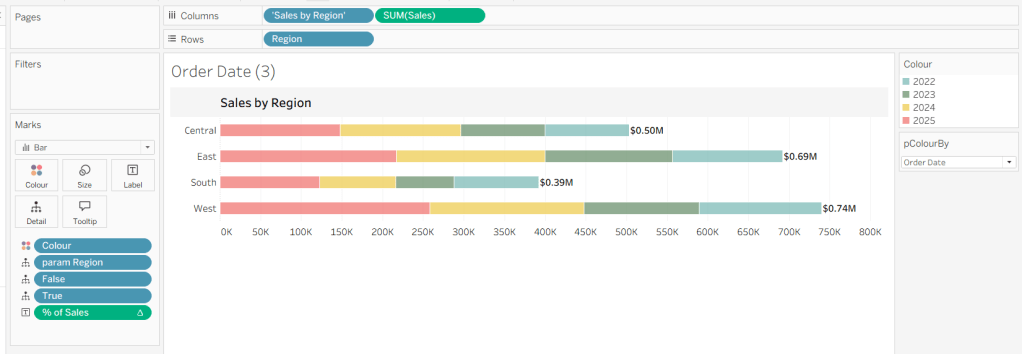
Duplicate the Order Date chart and then click the option in the menu to swap axis so we have a horizontal bar chart.
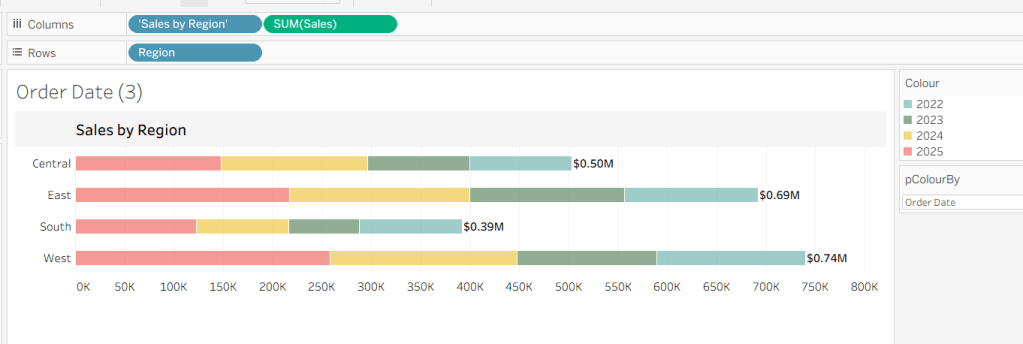
Move the ‘Sales by Order Date’ pill from Rows to Columns and update the text to become ‘Sales by Region’ instead. Drag the Region pill and drop it directly over the Order Date pill on the Rows so it replaces it and all references to the field are replaced too. Widen the rows.
Right click on the ‘Region’ text in the column heading and hide field labels for rows. Format the reference line to align middle right.
Create a new field
param Region
‘Region’
and add this to the Detail shelf instead of the param Order Date field. Name the sheet Region or similar
Building the Category Chart
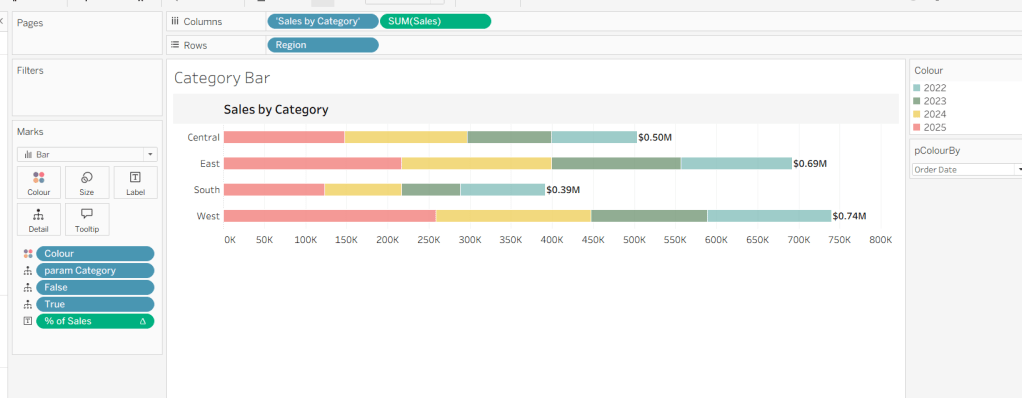
Duplicate the Region chart, and go through similar steps described above so the ‘title’ is Sales by Category and a new field
param Category
‘Category’
replaces param Region on the Detail shelf.
Building the Segment Chart
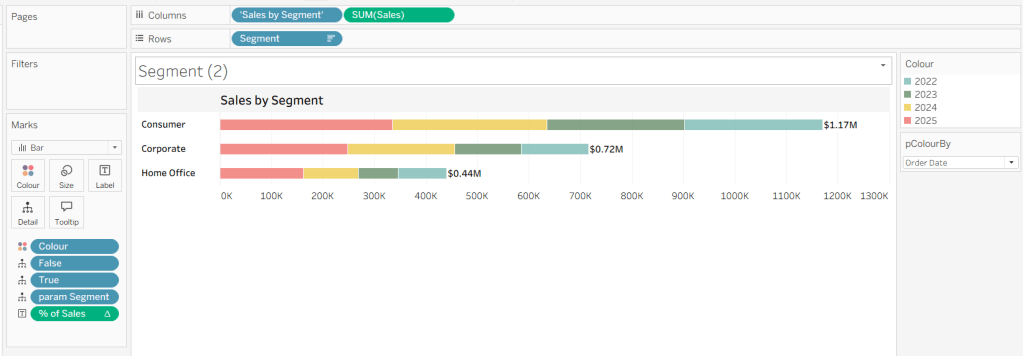
Repeat as above, this time setting the ‘title’ to Sales by Segment and a new field
param Segment
‘Segment’
replaces param Region on the Detail shelf.
Adding the interactivity
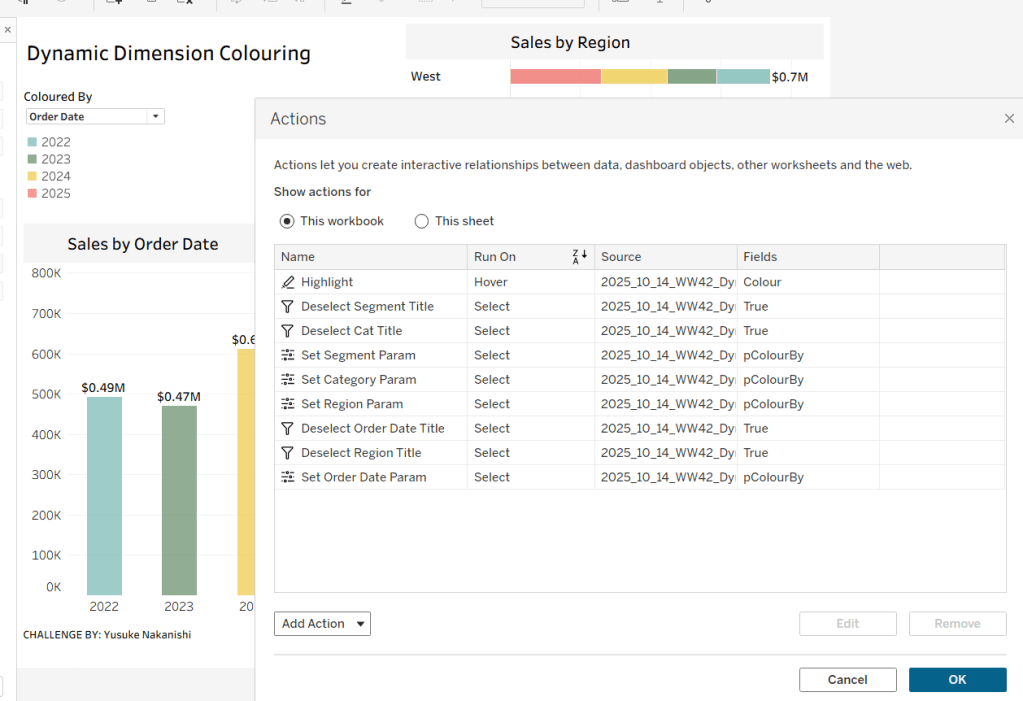
Add the sheets to a dashboard using layout containers and padding to organise as required. Then create the following dashboard actions
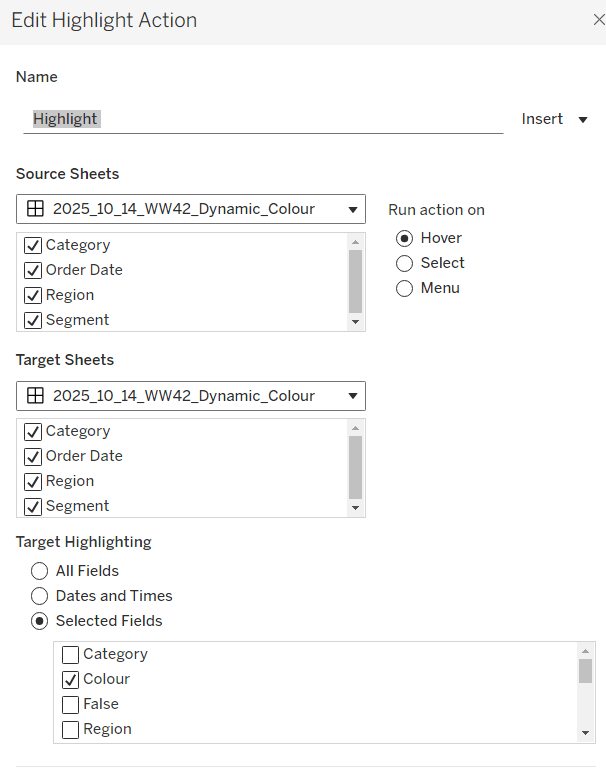
Highlight Action :Highlight
On hover of any of the charts on the dashboard, target all other charts, highlighting based on the Colour field only.
This action makes all the % labels appear when the mouse cursor is moved over the bars.
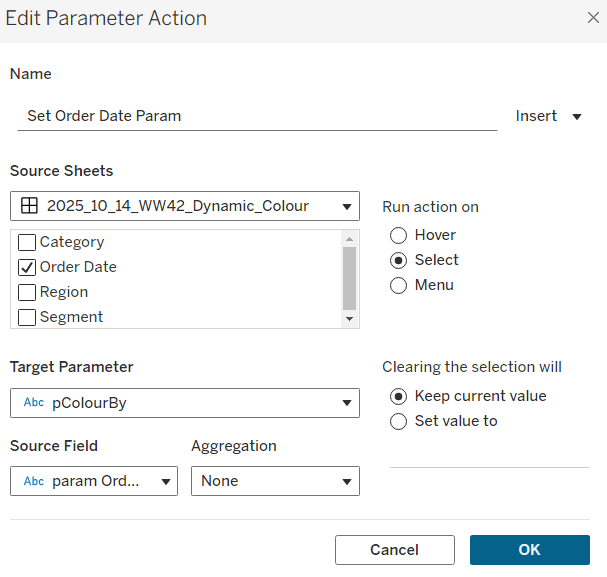
Parameter Action : Set Order Date Param
On Select of the Order Date sheet, set the pColourBy parameter with the value from the param Order Date field.
Parameter Action : Set Region Param
On Select of the Region sheet, set the pColourBy parameter with the value from the param Region field.
Parameter Action : Set Category Param
On Select of the Category sheet, set the pColourBy parameter with the value from the param Category field.
Parameter Action : Set Segment Param
On Select of the Segment sheet, set the pColourBy parameter with the value from the param Segment field.
These actions change the value displayed in the pColourBy parameter when the ‘title’ of the charts is clicked on.
Filter Action: Deselect Order Date Title
On select of the Order Date sheet on the dashboard, target the Order Date worksheet directly, passing the selected values of True = False. Show all values when selection is cleared.
Filter Action: Deselect Region Title
On select of the Region sheet on the dashboard, target the Region worksheet directly, passing the selected values of True = False. Show all values when selection is cleared.
Filter Action: Deselect Category Title
On select of the Category sheet on the dashboard, target the Categoryworksheet directly, passing the selected values of True = False. Show all values when selection is cleared.
Filter Action: Deselect Segment Title
On select of the Segment sheet on the dashboard, target the Segment worksheet directly, passing the selected values of True = False. Show all values when selection is cleared.
And once these have all been applied, you should have a functioning dashboard. My published version is here.
For #WOW2025 Week 25, Kyle challenged us to make use of Set Actions to recreate a viz where the ‘viz in tooltip’ updates based on the option the user interacts with on the base viz.
Modelling the data
The excel file provided contained 3 sheets which needed to be combined to use for this challenge. My data model looks like this
Attendance is related to Divisions on the fields Tm = Team
Attendance is also related to Record on the fields Tm = Tm.
Building the Base Bar Chart
On a new sheet, add Division to Rows and Attend/G to Columns changing the aggregation to AVG.Sort the data descending.
Change the Colour of the bars to dark grey and show mark labels to display the average attendance per game value. Add W-L% and Est.Payroll fields to the Tooltip shelf and set both to be AVG. Format Est. Payroll to be $ with 0dp. Format W-L% to be formatted to 3dp, but then adjust again and use a custom format to remove the leading 0 (,##.000;-#,##.000)
Format the label to be bold and to match mark colour. Format the row labels, remove the row label heading (right click > hide field labels for rows). Hide the axis and remove all gridlines, axis rulers etc. Update the viz title and name the sheet Bar-Division or similar.
Build the Scatter Plot
On a new sheet add W-L% to Columns and Attend/G to Rows, setting both the use an AVG aggregation, and then add Tm (from the Attendance table) to Detail. Adjust the W-L% axis so it doesn’t always include 0 (right click axis > edit axis> uncheck include zero). Adjust the title of the axis too. Adjust the title of the Attend/G axis too. Change the mark type to circle and increase the size.
We need the chart to show a difference between the marks related to a selected Division and those which aren’t. Create a set from the Division field (right click the field > create > and select NL West.
Add Division Set to Colour and adjust accordingly. Add a dark grey border to the circles. Remove all gridlines and name the sheet Scatter or similar.
Build the Attendance by Team Bar Chart
On a new sheet, add Tm (from the Attendance table) to Rows and Attend/G to Columns, setting the aggregation to AVG. Sort descending. Add Division Set to Colour.
Create a new field
Label Attendance
IF [Division Set] THEN [Attend/G] END
and add to the Label shelf. Format the label so it is bold and set to match mark colour. Hide the row label heading and the axis. Hide all gridlines, zero lines et. Name the sheet Bar-Team or similar.
Adding the Viz in Tooltip
Navigate back to the Bar-Division sheet. Update the Tooltip to reference the Division and the other top level measures. I used a double tab between the headings on one line and again on the values on the next line to make the information line up on hover (even though they look misaligned on the tooltip dialog).
To add each sheet to the tooltip, use Insert > Sheets button in toolbar and select the Scatter sheet and then press tab and select the Bar Team sheet.
Then adjust the text inserted so both filtering sections state filter=”None”. This stops the VIT filtering out by default all the data that isn’t associated to the selection you’re coming from. Adjust maxwidth and maxheight to 350 (I had it set larger, but then it didn’t display properly on Tableau Public, so had to adjust there.
Adding the interactivity
Create a dashboard and add the Bar-Divison sheet. At this point showing the tooltip on each bar will always show the information related to NL West since that was the option selected when we created the set. To fix this, create a new dashboard set action
Set Division
On hover of the Bar-Division sheet, target the Division Set, and assign values to the set. When the selection is cleared, keep set values. Only allow this to be run on single-select only
And now as you hover over different bars, the highlighted circles and bars in the viz in tooltip will change.
This week’s #WOW2025 challenge was set live as part of TC25. Unfortunately, this year I couldn’t be there in person to meet everyone, which for the last 3 years has been my conference highlight 😦
Anyway, Kyle set the challenge, and conscious of time, provided a starting workbook, so the focus could be on the container and DZV functionality. For those who nailed this, he added some additional interactivity with dashboard actions.
So the first thing is to download the starter workbook from the challenge page.
I’m going to attempt to build this in the order of Kyle’s requirements.
Layout out the dashboard
So the requirement states that no floating objects are allowed. Typically when I build a dashboard for business purposes or where the layout is a little complicated, I always start by adding a floating container sized to the exact dashboard size and positioned 0,0. I then add tiled objects into it. Doing this means I don’t end up with Tiled container objects on my dashboard (or if any get added when legends/filters get automatically added, I just move any items I want to retain and then delete the Tiled container).
However, as Kyle says ‘no floating’, I will build adding to the ‘default’ dashboard which means there will be containers on there I don’t really want.
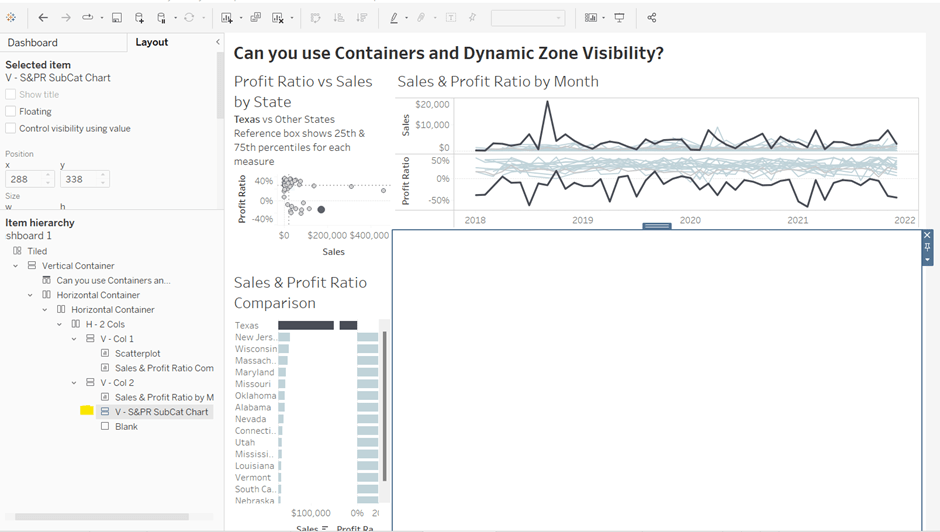
Now blogging about containers is usually very tricky as it’s hard to explain where things need to go. So I’ll be supplementing this with a lot of screen shots – fingers crossed following along works out ok!
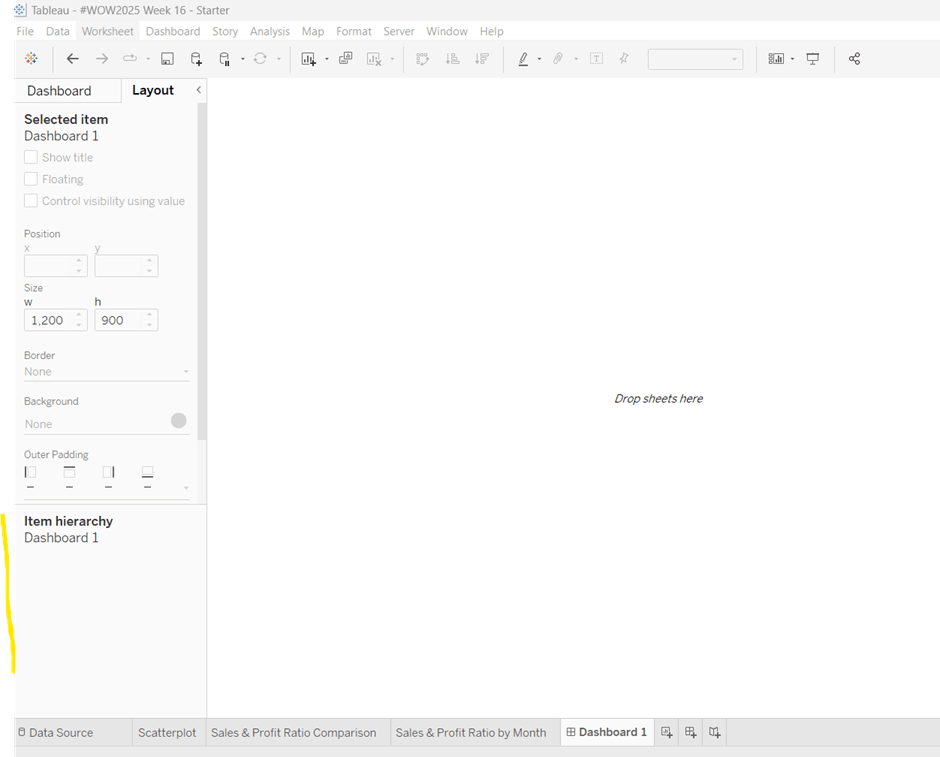
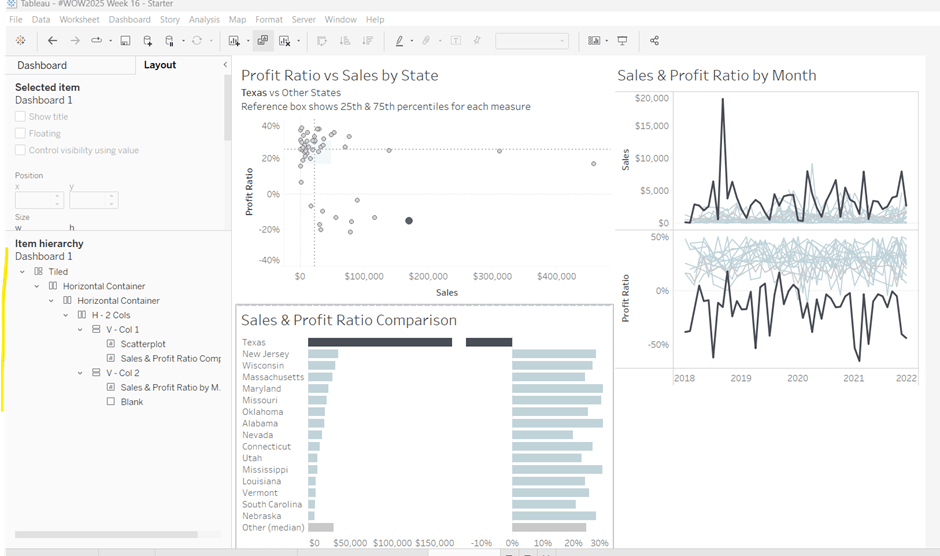
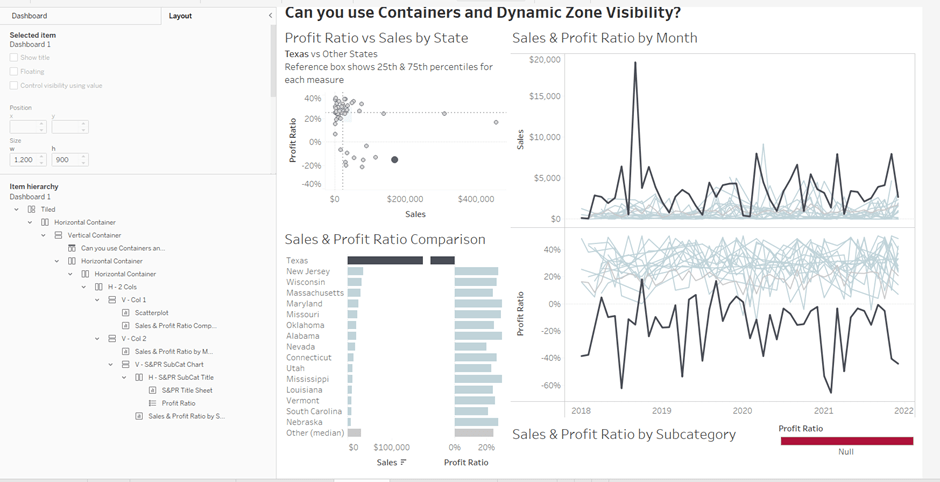
To start, create a dashboard sheet and resize to 1200 x 900 as required. Observe the item hierarchy section of the Layout pane as this is where you’ll see all the containers and objects as we add them to the dashboard.
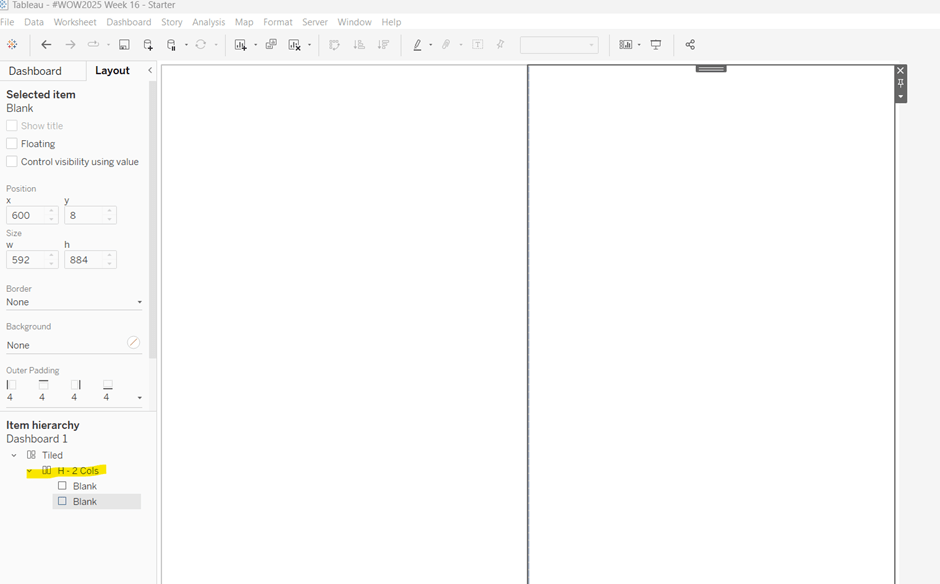
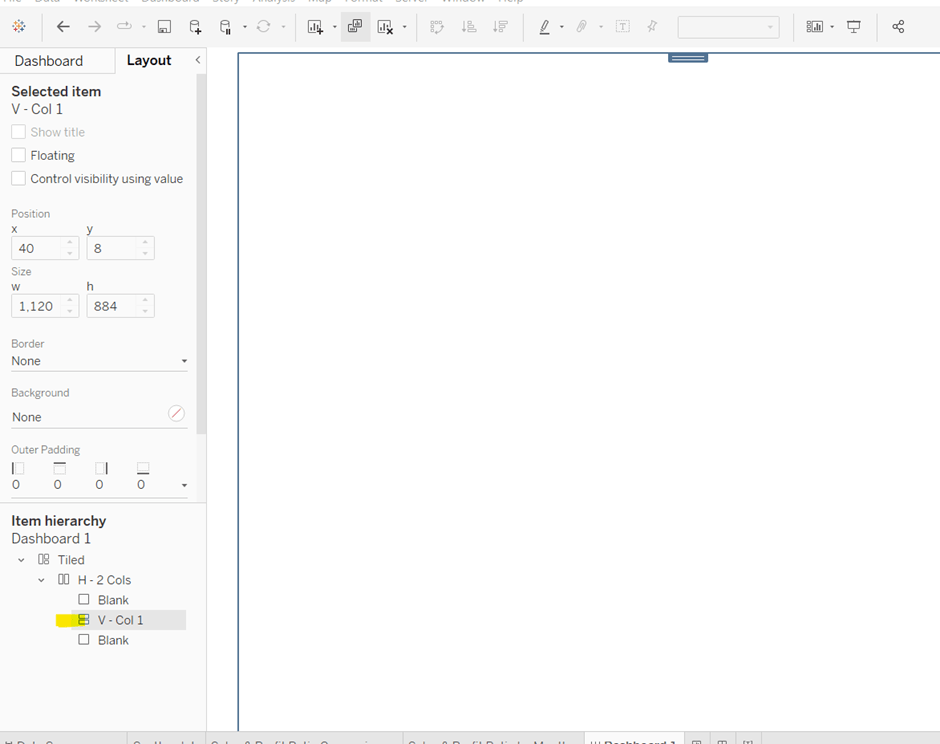
The main structure of the display is split into 2 columns, so start by adding a horizontal layout container to the dashboard. Once added, add 2 blank objects side by side to give the basic layout. Adding blank objects helps when positioning the required objects and is recommended when dealing with layout containers, especially if you’re new to them. They will ultimately be deleted as we go. Rename the horizontal container H – 2 cols or similar (right click on the container in the item hierarchy > rename).
Notice how a Tiled container has now also appeared on the dashboard, even though we only added a horizontal container.
The first column of the dashboard contains 2 charts – the Scatterplot and the Sales & Profit Ratio Comparison sheets – stacked on top of each other. For this, add a vertical layout container between the two blank objects. Rename this V – Col 1.
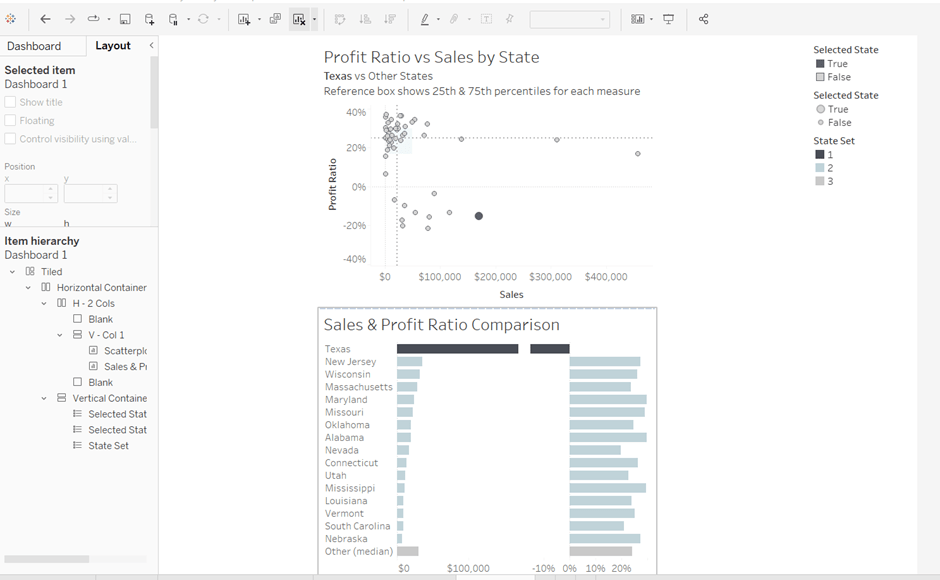
Add the Scatterplot sheet into the vertical container and then add Sales & Profit Comparison underneath it.
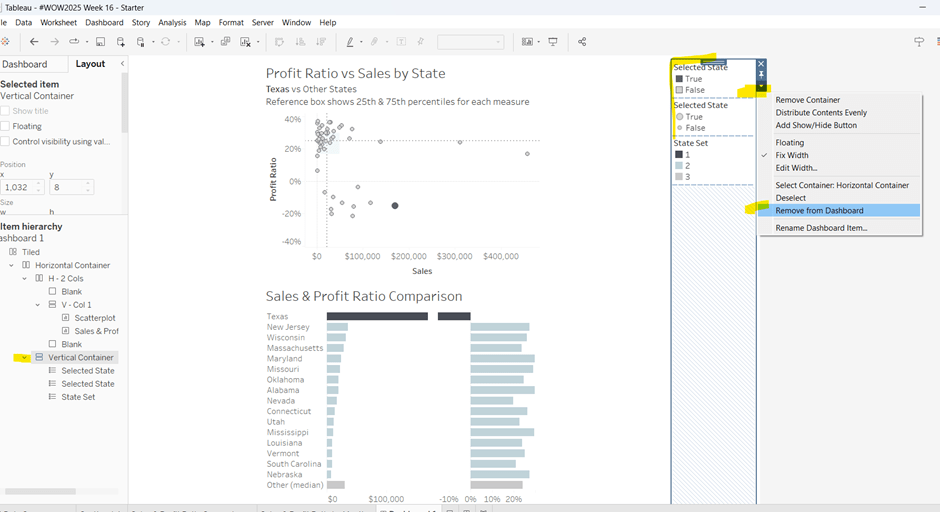
The various legends associated with these 2 sheets, automatically get added into their own vertical container on the right hand side. These aren’t required, so from the item hierarchy, select the Vertical container and then Remove from dashboard.
The right hand column of the display will show the Sales & Profit Ratio by Month sheet and another (hidden) chart that needs to be built.
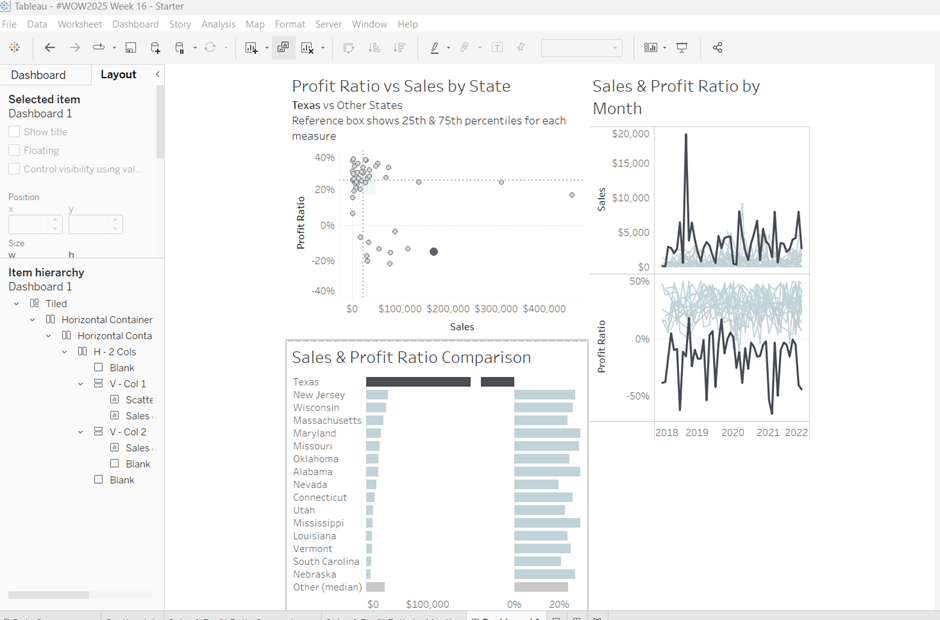
Add another vertical container between the V – Col 1 container and the right hand blank object. Name this V – Col 2, and add the Sales & Profit Ratio by Month sheet and then another blank object underneath it. Once again remove the right hand vertical container that is automatically added with all the legends/filters.
Now we have the ‘core’ layout, the 2 blank objects we added to the horizontal container, H – 2 Cols, right at the start, can be removed, so hopefully you should have a layout organised as below.
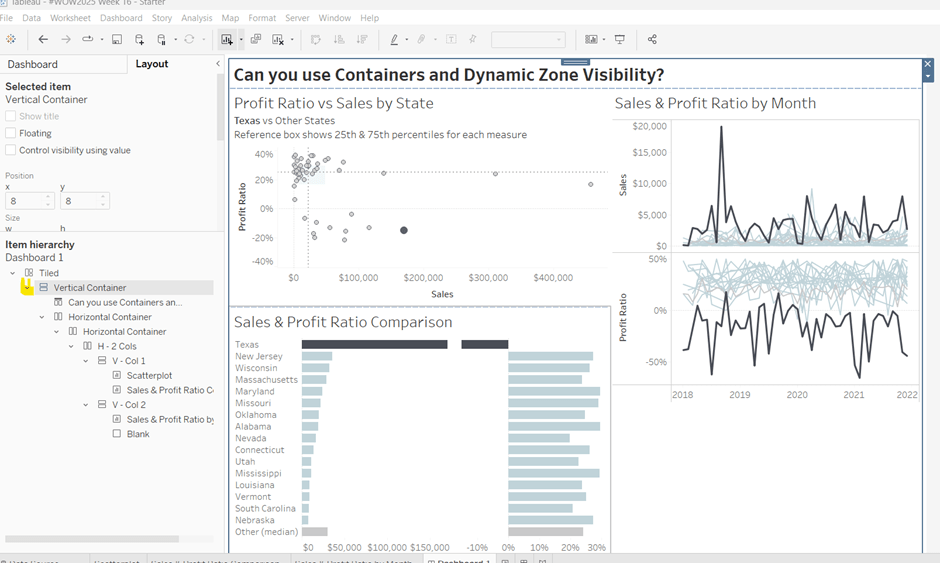
Now add the dashboard title (Dashboard menu > Show Title, and then update the text). This will automatically add a vertical layout container around all the existing contents.
Building the Sales & Profit Ratio by Sub-Category bar chart
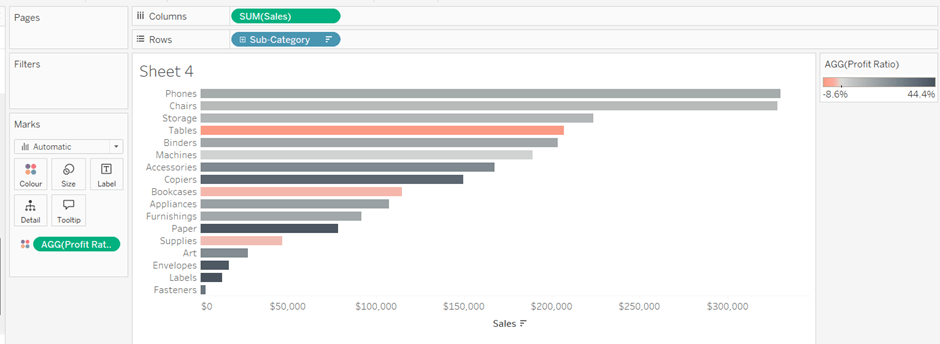
On a new sheet, add Sub-Category to Rows and Sales to Columns. Add Profit Ratio to Colour and adjust the colour legend to use the Red-Black Diverging colour palette. Hide the Sub-Category row label heading (right click > hide field labels for rows).
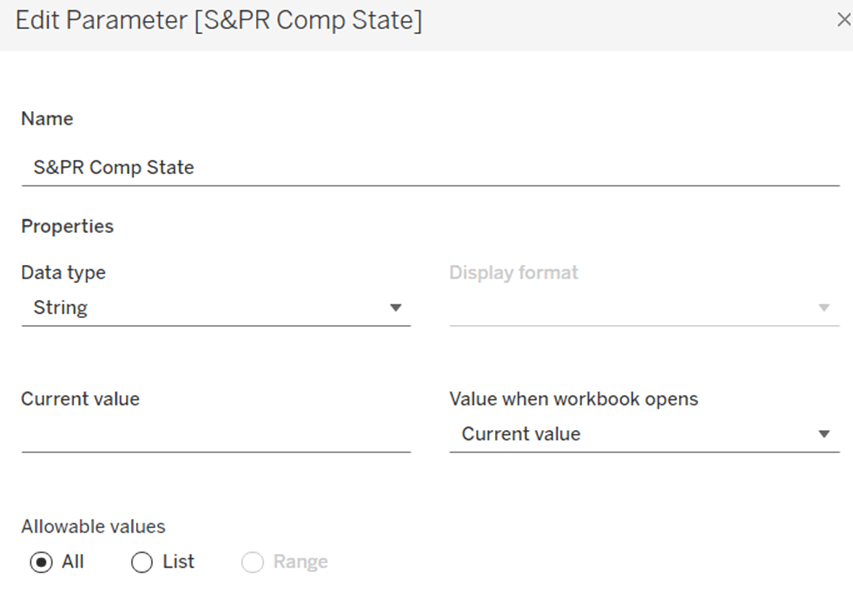
The bar chart needs to be filtered when a State in the Sales & Profit Ratio Comparison chart is clicked on, or when a Date is selected in the Sales & Profit Ratio by Month chart. However, I noticed when clicking around, that when clicking the Sales & Profit Ratio by Month chart, it filtered the above bar chart by both the State and Date. So based on this, create 3 parameters.
S&PR Comp State
String parameter defaulted to empty string
S&PR by Month State
String parameter defaulted to empty string
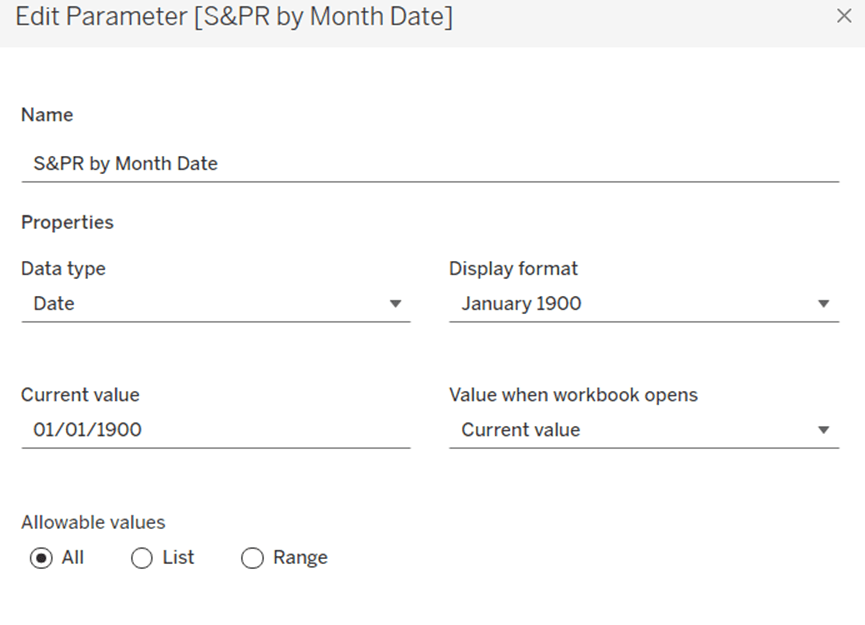
S&PR by Month Date
Date parameter defaulted to 01 Jan 1900 (essentially a null date)
Show these parameters on the sheet.
We want to filter the chart if the S&PR Comp State has a value and the S&PR by Month Date is the ‘null’ date (which means we’ve interacted with the Sales & Profit Ratio Comparison chart), or if the S&PR Monthly State has a value AND the S&PR by Month Date has a value (which means we’ve interacted with the Sales & Profit Ratio by Month chart). So create
Filter – S&PR by SubCat
([State Name] = [S&PR Comp State] AND ([S&PR by Month Date]=#1900-01-01#))
OR
(([State Name] = [S&PR by Month State]) AND (DATETRUNC(‘month’, [Order Date]) = DATETRUNC(‘month’, [S&PR by Month Date])))
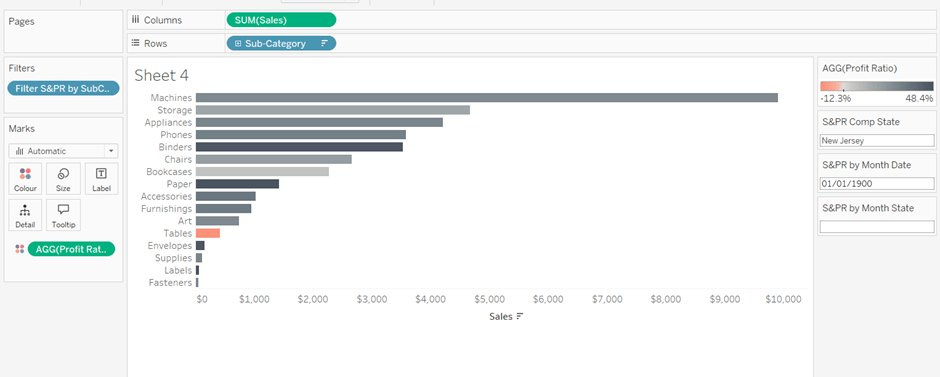
Enter a State name into the S&PR Comp State parameter (eg New Jersey), then add the Filter – S&PR by SubCat field to the Filter shelf and set to True. The chart should change.
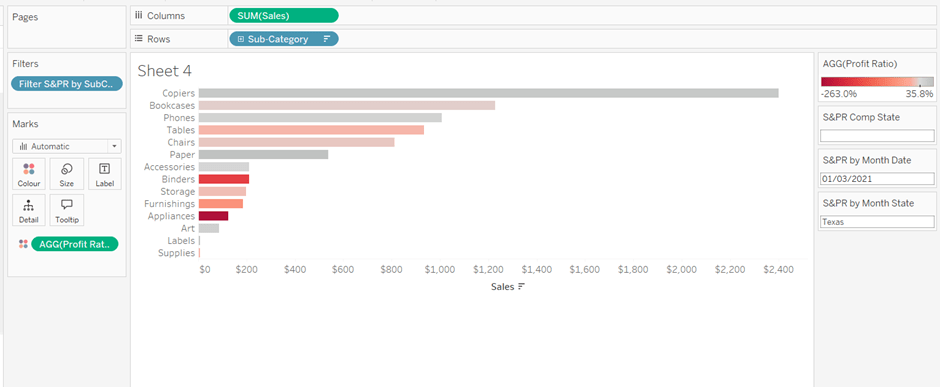
Verify the functionality by adding a state and date into the other parameters eg 01 March 2021 and Texas
Empty the state parameters and set the date back to 01 Jan 1900. Name the sheet Sales & Profit Ratio by SubCat. The chart contents will disappear.
Creating a dynamic title sheet
Originally I hoped to do this without using another sheet and just using the title of the bar chart, but I need the date to show nothing rather than Jan 1900 depending on the user interactivity, so a new sheet is required.
But for it, we need some additional calculated fields.
State for Title
IIF([S&PR by Month State]<>”,[S&PR by Month State], [S&PR Comp State])
We only want to show the name of the state once, and both parameters may have it set.
Date for Title
IF [S&PR by Month Date]=#1900-01-01# THEN ” ELSE DATENAME(‘month’,[S&PR by Month Date]) + ‘ ‘ + STR(YEAR([S&PR by Month Date])) END
Line
IF [S&PR by Month Date]<>#1900-01-01# THEN ‘|’ ELSE ” END
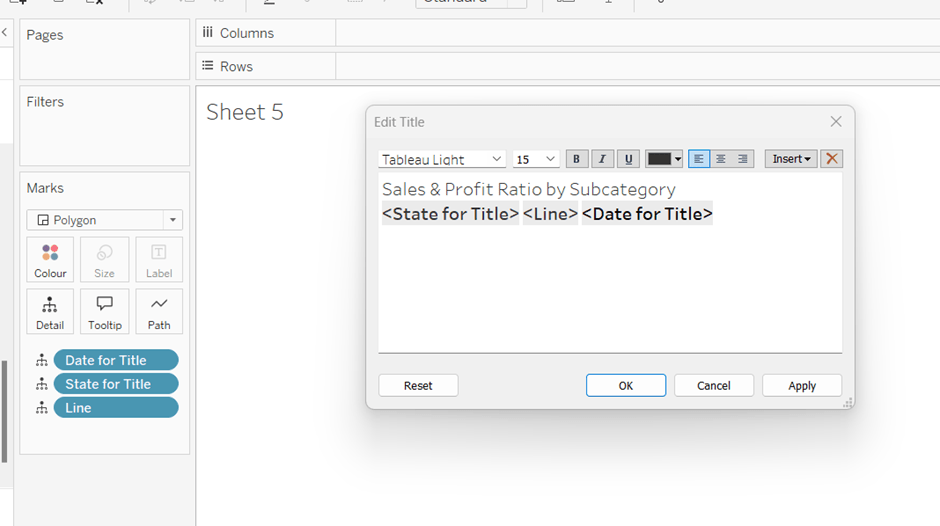
Add all 3 fields to the Detail shelf of a new sheet. Change the mark type to polygon. Update the sheet title as below
Name the sheet S&PR Title Sheet or similar
Adding the bar chart, title & legend to the dashboard
All 3 of these objects – the bar chart, the title sheet and the profit ratio legend need to show or hide based on interactivity. To do this in one step, we can encapsulate the 3 objects within containers within another ‘parent’ container and control the visibility on the ‘parent’ container.
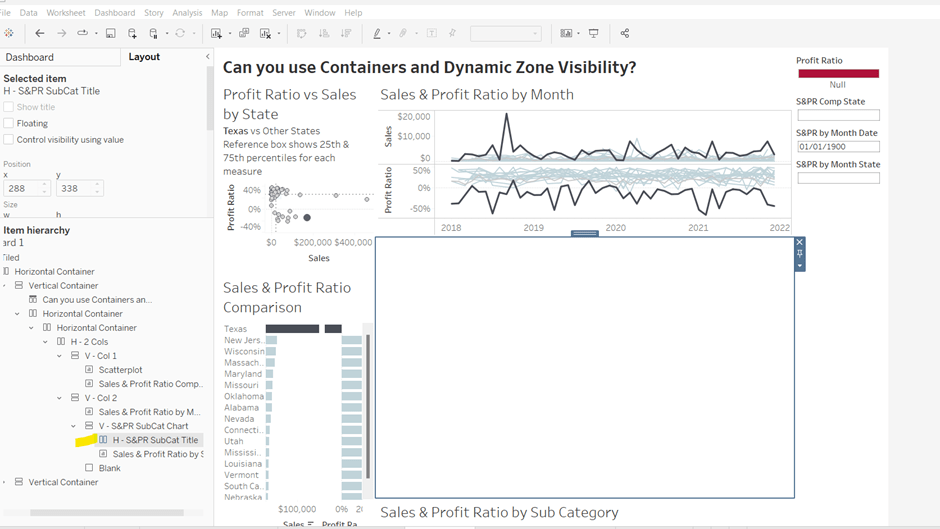
Add a vertical container between the Sales & Profit Ratio by Month chart and the blank object. Name this V – S&PR SubCat Chart
Add the Sales & Profit Ratio by SubCat sheet into this. Then add another horizontal container and place it above the Sales & Profit Ratio by Sub Cat chart (making sure it’s within the V – S&PR Sub Cat Chart container. Rename this H – S&PR Sub Cat Title.
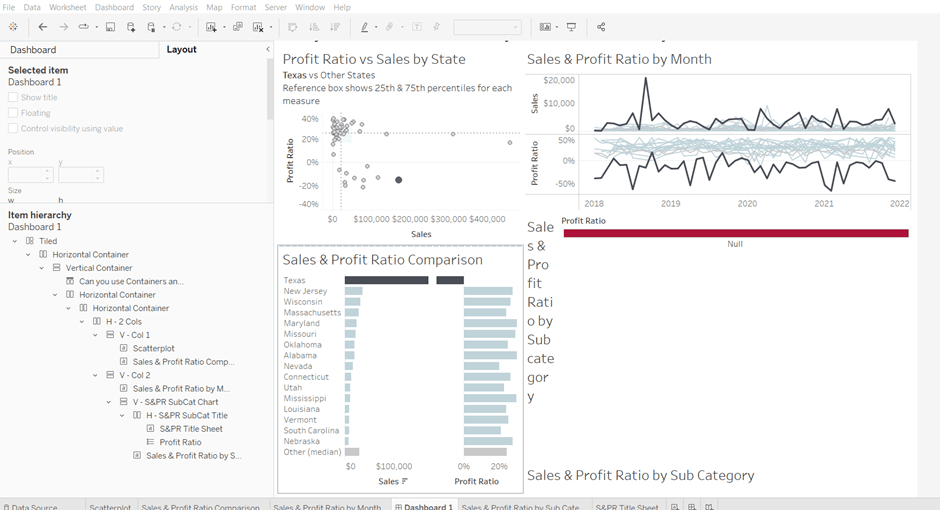
Add the S&PR by Title sheet into this horizontal container, and then click on the Profit Ratiolegend on the right hand side and move this object to sit to the right of the title sheet. Then click on the right hand column containing all the remaining legends, and delete this container from the dashboard. Then remove the blank object that’s sitting beneath the Sales & Profit Ratio by SubCat sheet. You should have something like below…
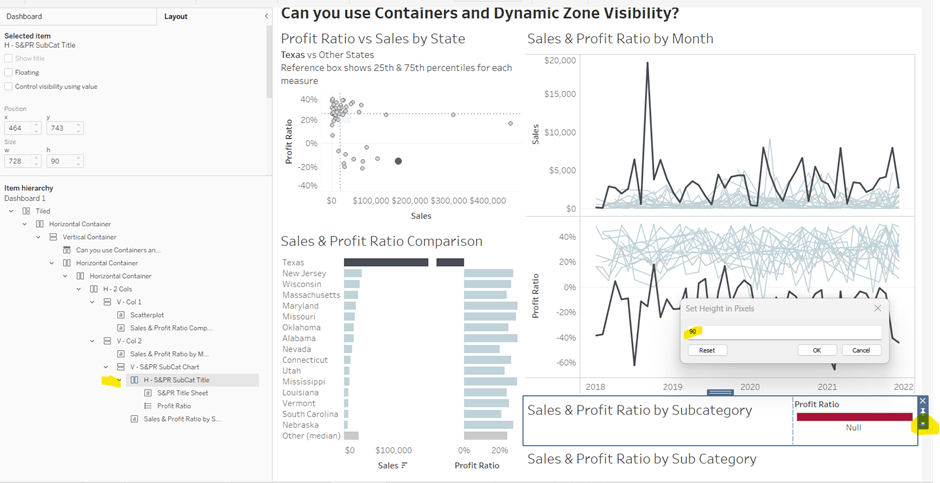
Adjust the width of the S&PR Title sheet so its wider. Set the sheet to Fit Entire View. Then select the H – S&PR SubCat Title container and edit the height to be 90 px.
Hide the title of the Sales &Profit Ratio by SubCat sheet.
Hiding and showing the Sales & Proft Ratio by Sub Category section
Create a new calculated field
Show S&PR by Sub Cat
[S&PR by Month State]<>” OR [S&PR Comp State]<>”
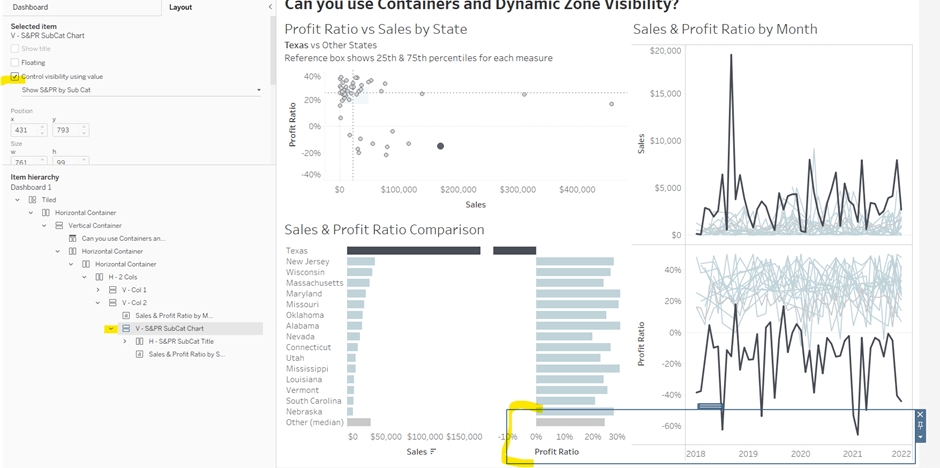
On the dashboard, select the V – S&PR SubCat Chart container and on the Layout pane, check the Control visibility using value checkbox, and select the Show S&PR by Sub Cat field. Assuming all the parameters are set to their default values, then the whole section should disappear, although the container will still be selected.
To make the section show, we need to set the parameters using dashboardparameter actions.
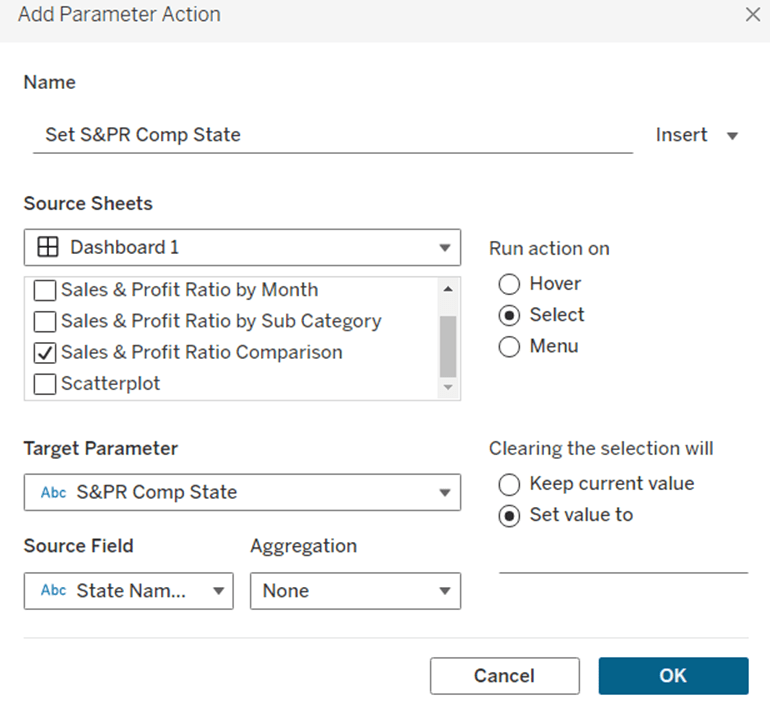
Set S&PR Comp State
On select of the Sales & Profit Ratio Comparison sheet, set the S&PR Comp State parameter passing in the value of the State Name field. When the selection is cleared, set the value back to <emptysrting>
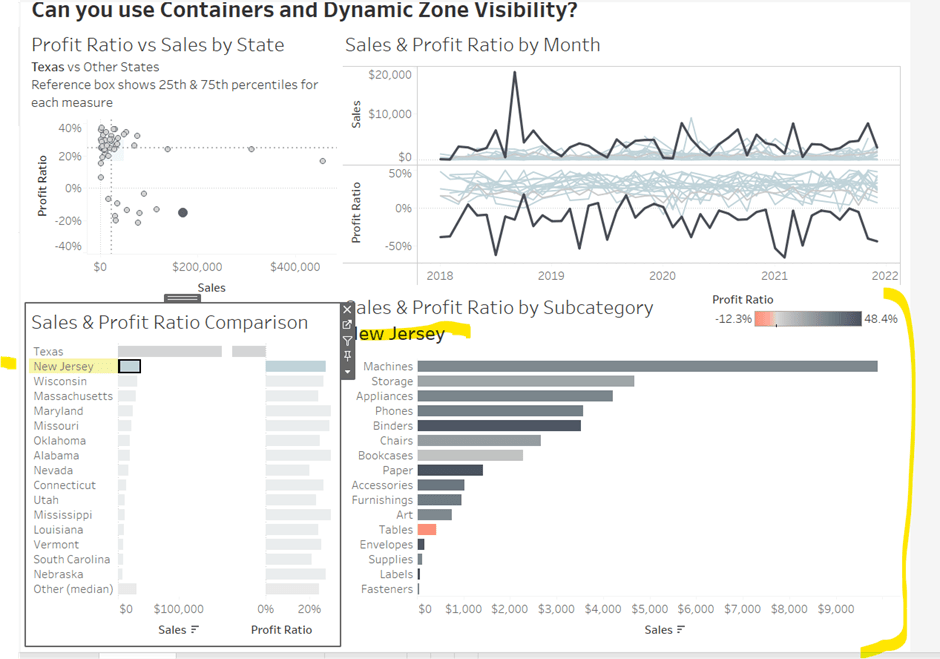
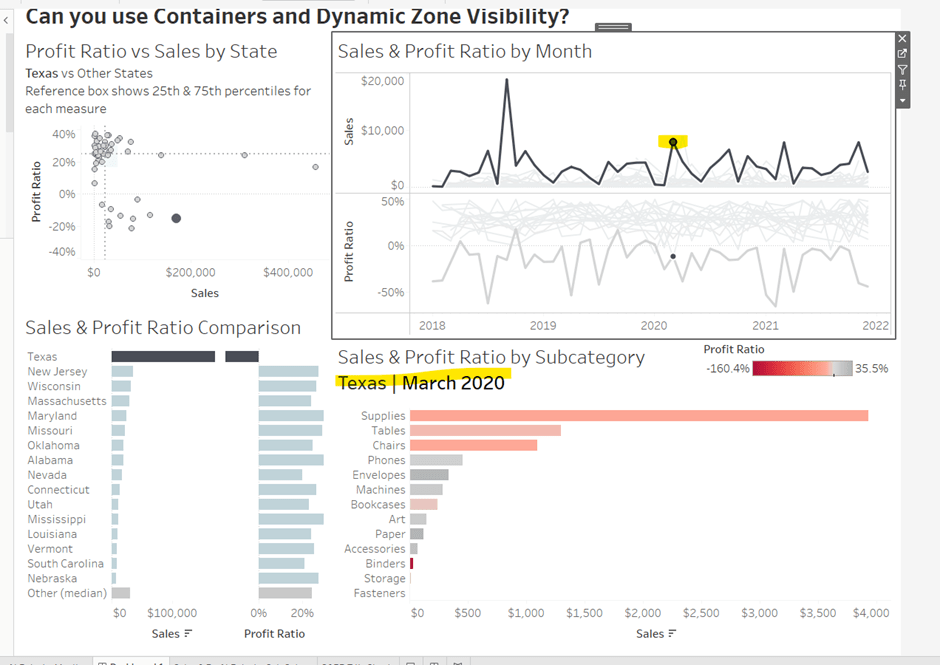
Click on a row in the Sales & Profit Ratio Comparison bar chart, and the Sales & Profit Ratio by SubCat chart should display, filtered to that State, with the selected state name in the title.
Click the state again, and the chart disappears.
Create 2 further dashboard parameter actions
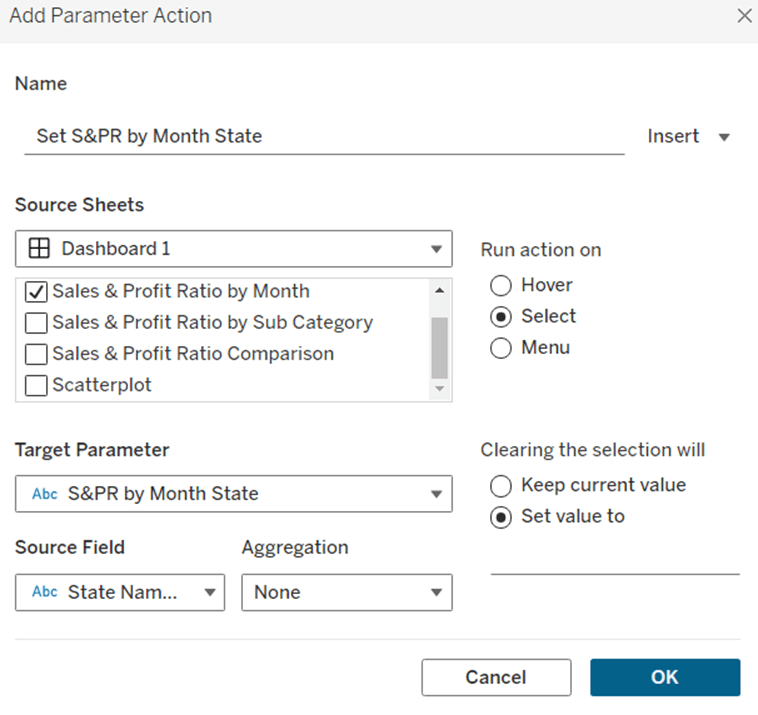
Set S&PR by Month State
On select of the Sales & Profit Ratio by Month sheet, set the S&PR by Month State parameter, passing in the value from the State Name field. When the selection is cleared, set it back to <emptystring>
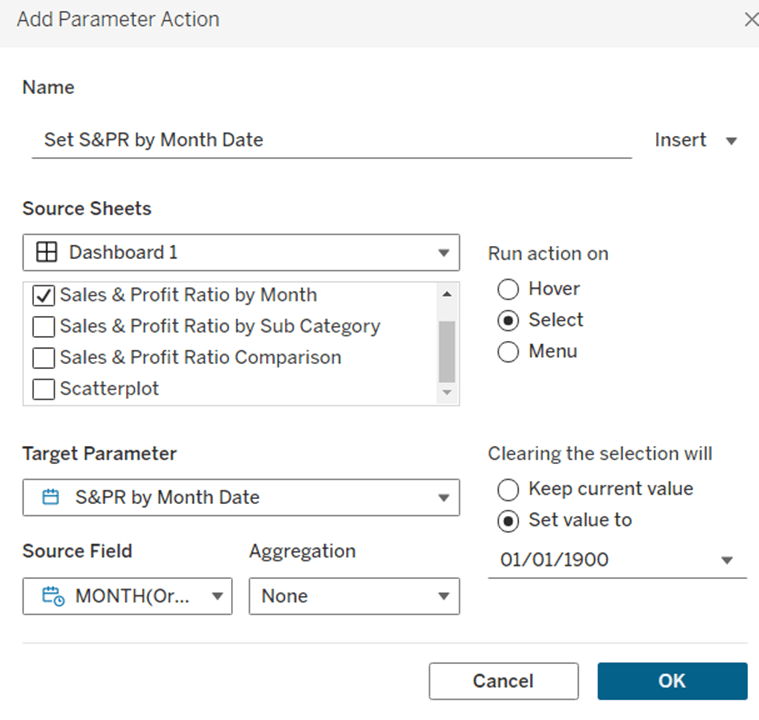
Set S&PR by Month Date
On select of the Sales & Profit Ratio by Month sheet, set the S&PR by Month Date parameter, passing in the value from the Month([Order Date]) field. When the selection is cleared, set it back to 01/01/1900
Now click on a point in the line chart, and the Sales & Profit Ratio by SubCat chart should display filtered to the relevant state and month
Adding the Additional Interactivity
When the Scatterplot is clicked, the State in the existing ScatterplotState parameter should be updated. Create a dashboard parameter action
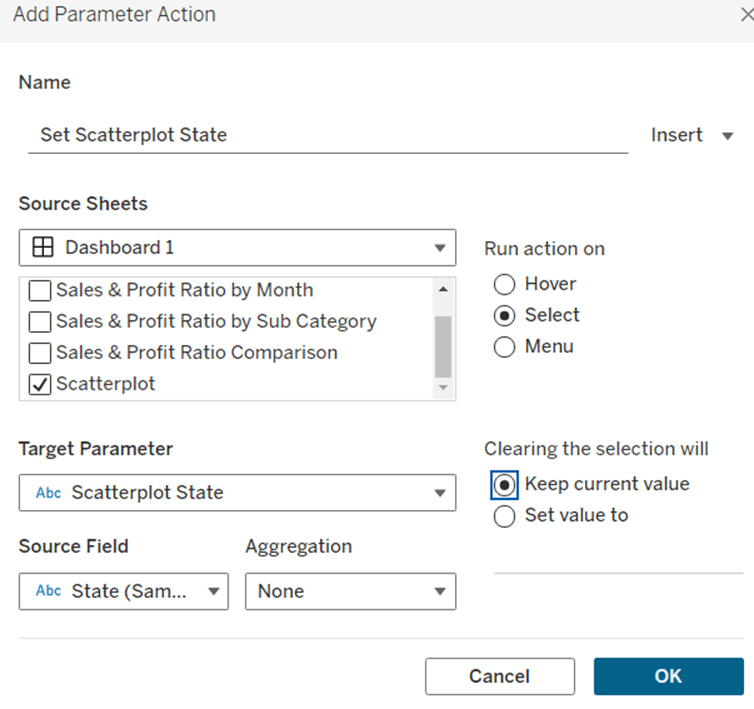
Set Scatterplot State
On select of the Scatterplot sheet, set the Scatterplot State parameter, passing in the value from the State field. When the selection is cleared, retain the value
If you click around the scatterplot, the Sales & Profit Ratio by Month line chart and Sales & Profit Ratio Comparison charts should update.
But we don’t want the other marks on the scatter plot to ‘fade’. To solve this, create a dashboard filter action.
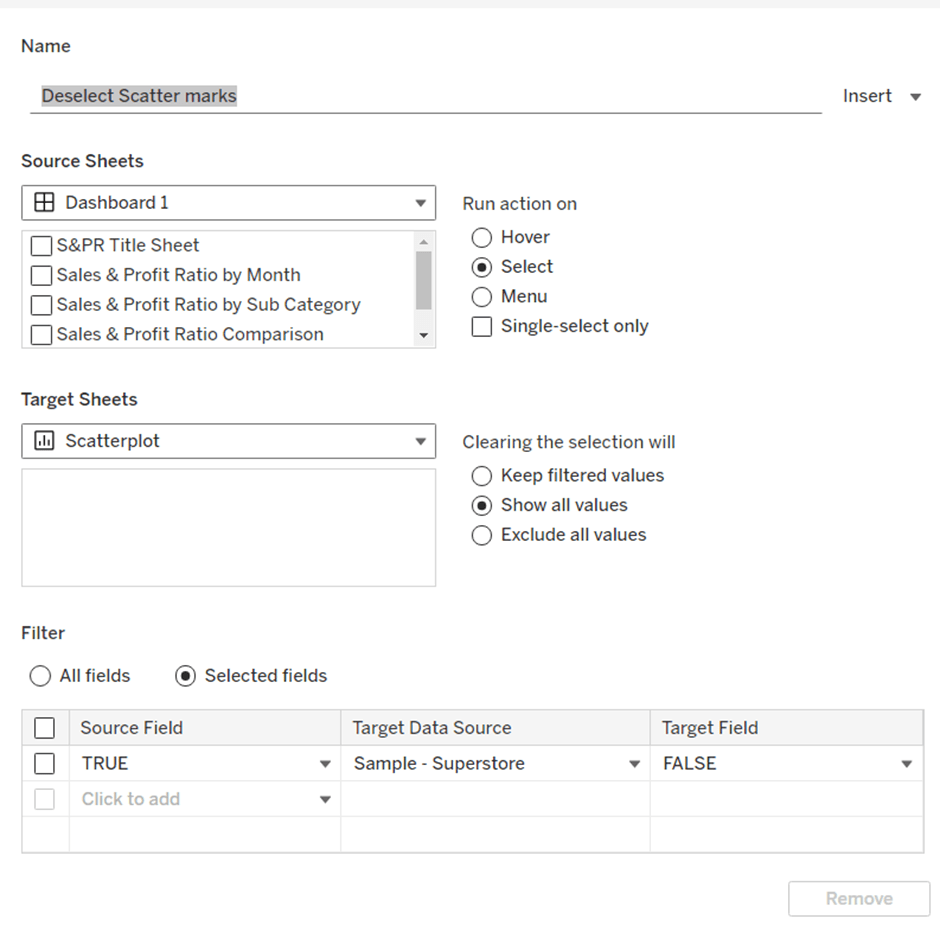
Deselect Scatter marks
On select of the Scatterplot sheet on the dashboard, target the Scatterplot sheet directly, setting the fields TRUE = FALSE. On clearing the selection, show all values.
Finally, the last requirement is to highlight the line in the Sales & Profit Ratio by Month chart associated to the State selected in the Sales & Profit Ratio Comparison chart. For this first create a dashboard set action to capture the selected state
Add State to Set
On select of the Sales & Profit Ratio Comparison sheet, target the State Name Set. Check the single-select only checkbox. Running the action should Assign value to set and clearing the selection should remove all values from set
Then add a dashboard highlight action
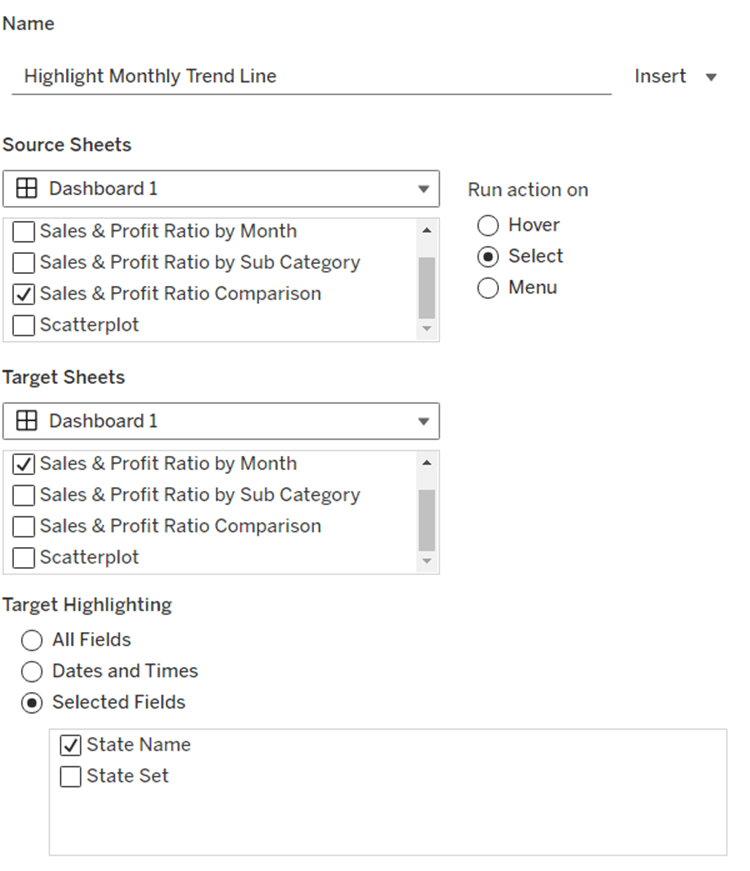
Highlight Monthly Trend Chart
On select of the Sales & Profit Ration Comparison sheet, target the Sales & Profit Ratio by Month sheet targeting the State Name field only
And hopefully, with all this, you should have a fully interactive dashboard. My published viz is here.
Community month continues this week with Yama G posing us this challenge to analyse profit ratio.
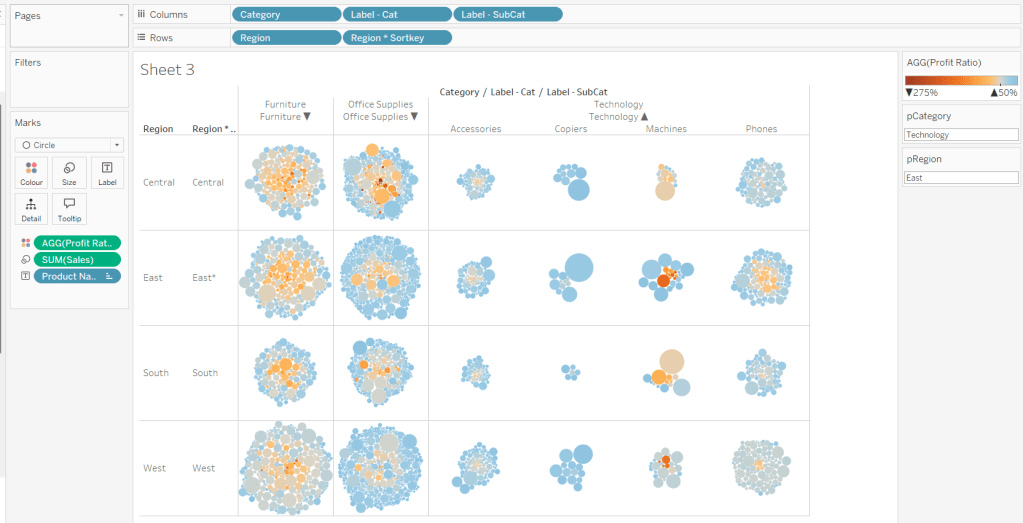
Building the basic bubble chart
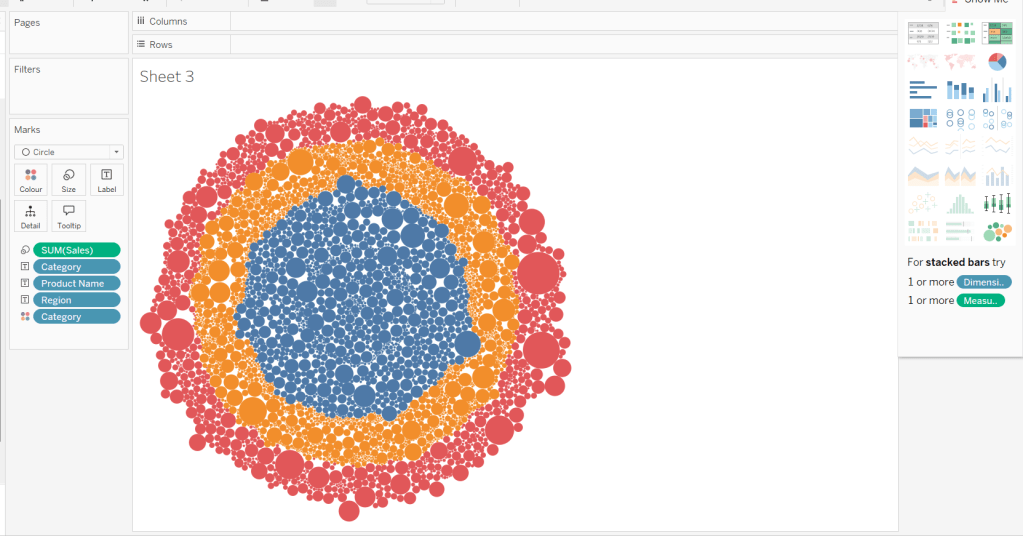
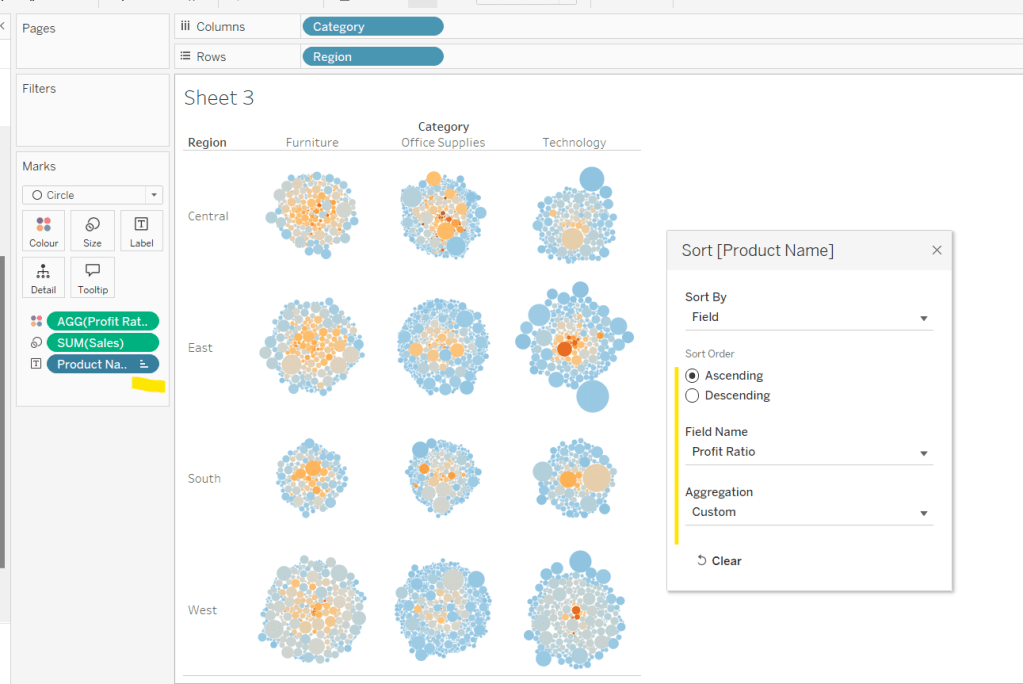
The simplest way I found to start this, was to use ctl-click to multi-select Category, Region, Product Name and Sales from the data pane, and then select the packed bubbles option from the Show Me menu.
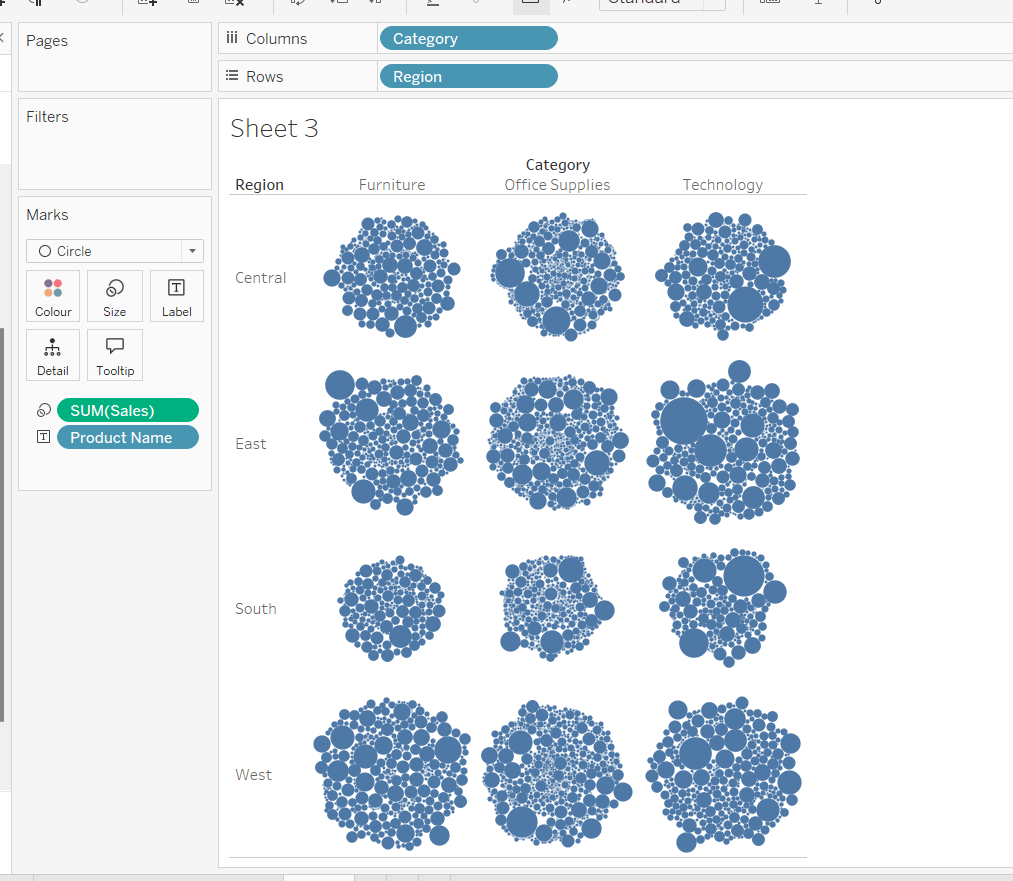
Then move Category from Text to Columns and Region from Text to Rows, and remove Category from Colour.
Create a new field
Profit Ratio
SUM(Profit)/SUM([Sales])
and apply a custom number format of 0%;▲0%;0% (in this instance I think the intention is to use the ▲ as ‘warning’ indicator).
Add this to Colour. To cluster the lower profit ratios towards the centre of the bubbles, add a sort to the Product Name pill on the Text shelf, to sort ascending by Profit Ratio.
Note – you can’t influence quite how the bubbles are arranged, so it’s possible the layout you see may differ slightly from the solution.
Showing details for selected Sub-Category
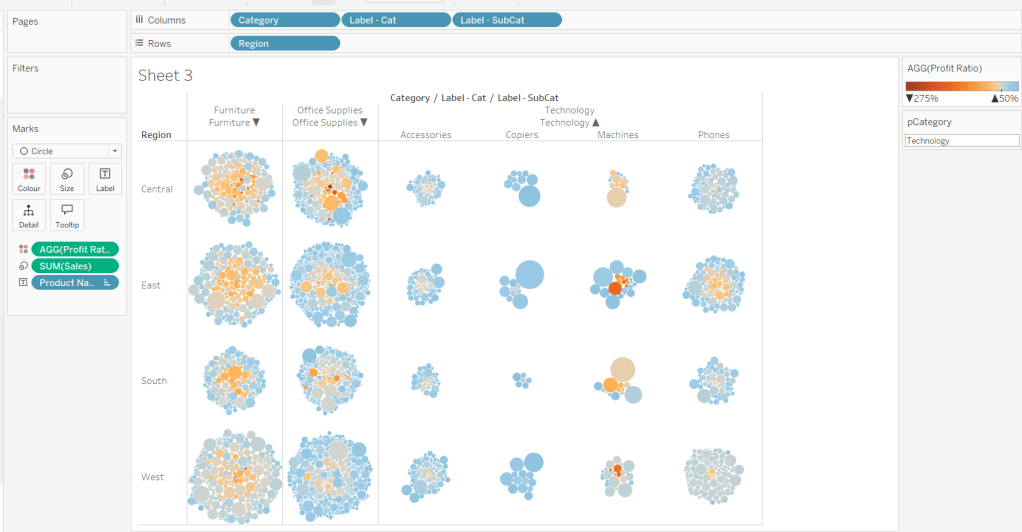
Clicking on a Category in the bubble viz should expand to show the Sub-Categories. To support this we need a parameter
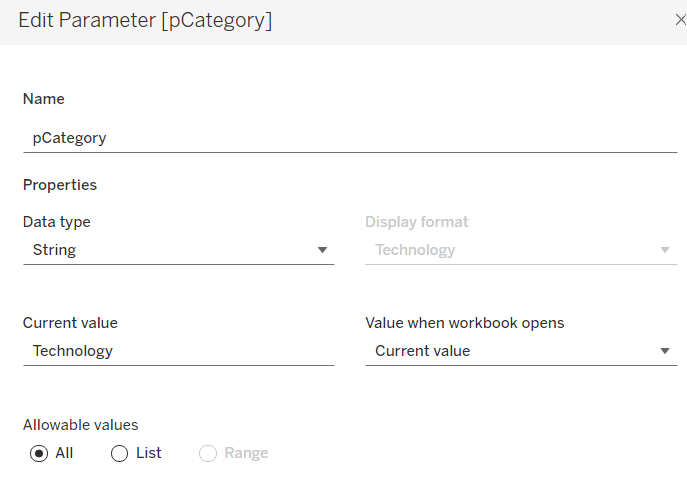
pCategory
string parameter defaulted to Technology
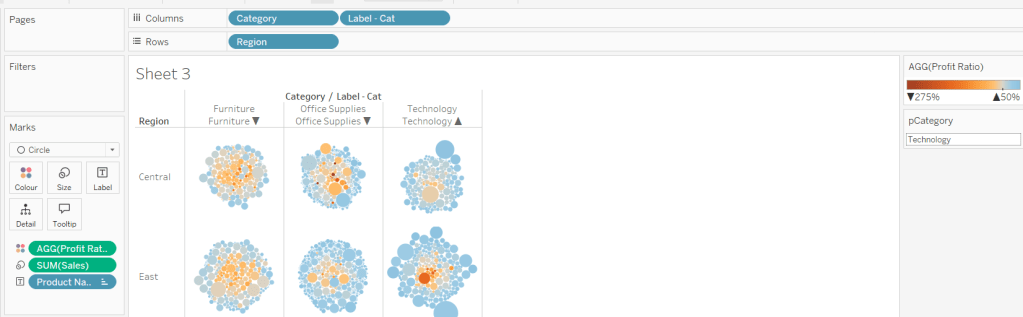
The Category label displayed needs to show an arrow indicator based on whether the Category is selected or not
We want to show Sub-Category details for the selected Category, so create
Label – SubCat
IIF([pCategory]=[Category], [Sub-Category], ”)
Add this to Columns too.
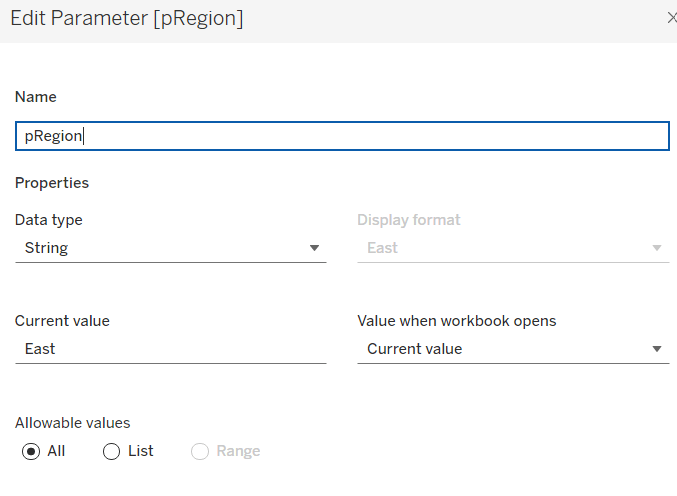
There is a need to capture the Region too, as part of the sorting on the tabular viz. But the Region header label needs to indicate the selected region. We will need a parameter
pRegion
string field defaulted to East
And then a new field
Region * Sortkey
[Region] + IIF([pRegion]=[Region],’*’,”)
Add this to Rows.
Finally tidy up by
adjusting the Tooltip
hide the Region pill (uncheck show header)
hide the Category pill (uncheck show header)
hide the Region * Sortkey row heading label (right click -> hide field labels for rows)
hide the Label – Cat / Label SubCat column heading label (right click -> hide field labels for columns)
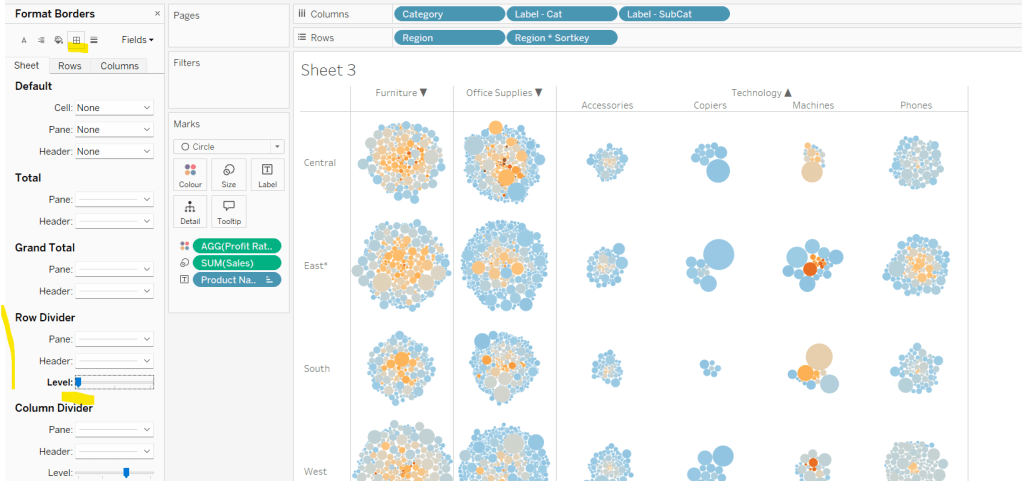
remove the row dividers in the body of the viz (set the Level to 0)
Update the sheet title and name the sheet Bubble or similar.
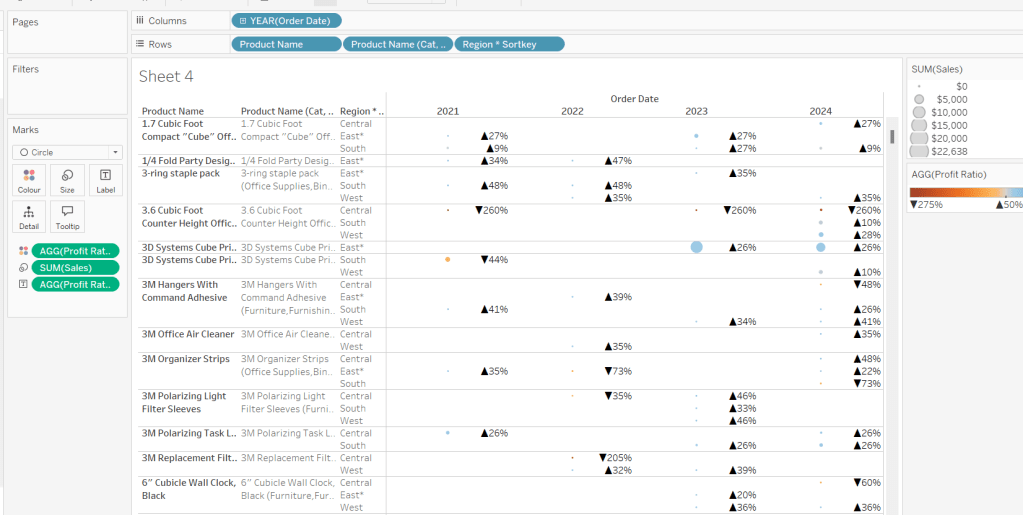
Building the basic Product Detail table
The first column is a combination of fields, so create
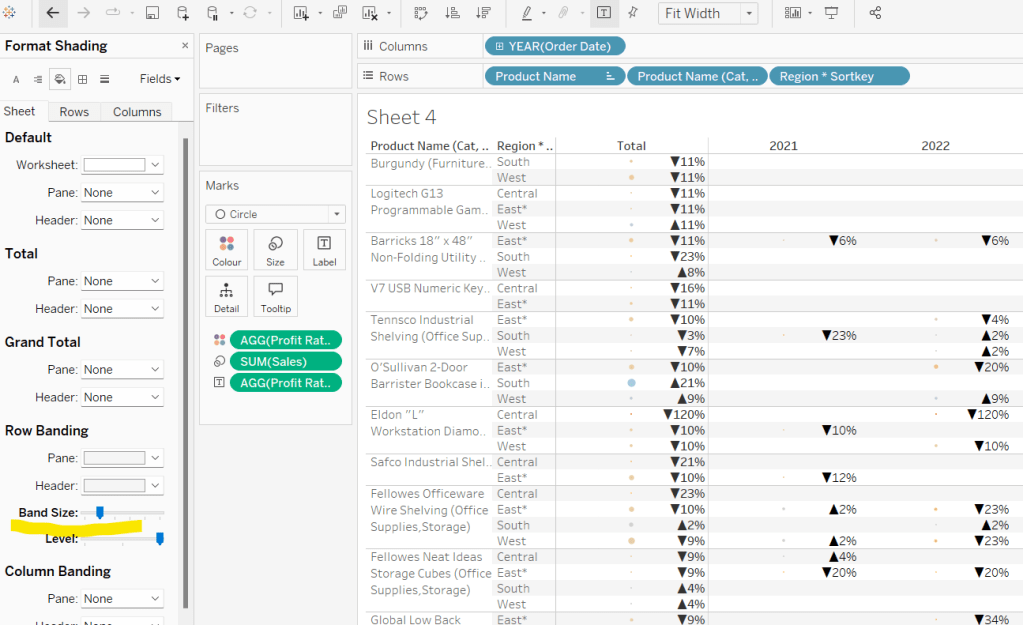
Add Product Name,Product Name (Cat, SubCat) and Region * Sortkey to Rows and Order Date as a discrete (blue) pill at the Year level to Columns. Change the mark type to circle. Add Sales to Size and Profit Ratio to Colour. Add Profit Ratio to Label and align right. Set the table to Fit Width. Increase the Size of the circles a bit.
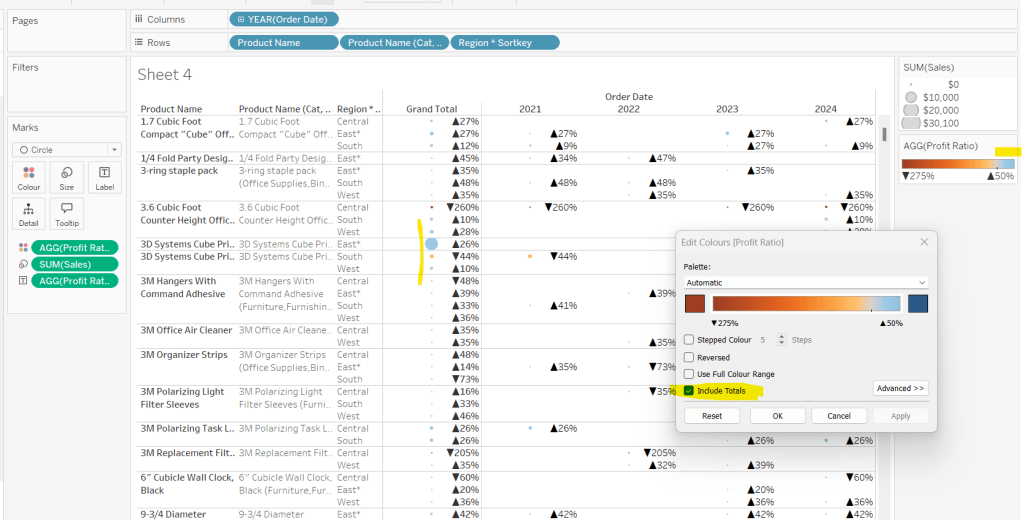
Add totals via Analysis > Totals > Show Row Grand Totals and then via the same menu, select the Row Totals to Left option. Edit the Colour Legend and select the Include Totals option, so the circles in the total column are also coloured.
Applying the table sort
The requirement is to sort each Product Name based on the value of the Profit Ratio associated to the selected Region. The data should be sorted ascending.
This took me a little while to figure out – initially I wanted to use a table calculation, but you can’t apply a sort to a field based on that, and if you then add it as a discrete measure, you can’t have total columns. So I figured it out eventually. Firstly, I need to capture the Profit Ratio for each Product Name and Region (essentially the value listed in the Grand Total column). I can use an LOD for this.
but I then only want the value associated to the selected Region, and I want to ‘spread’ this across every row for the Product Name. So I can use another LOD but just at the Product Name level, which in turn uses a nested IF statement, to just return the value we care about.
Sort
{FIXED [Product Name]: AVG(IIF([Region]=[pRegion],[PR by Product & Region],NULL))}
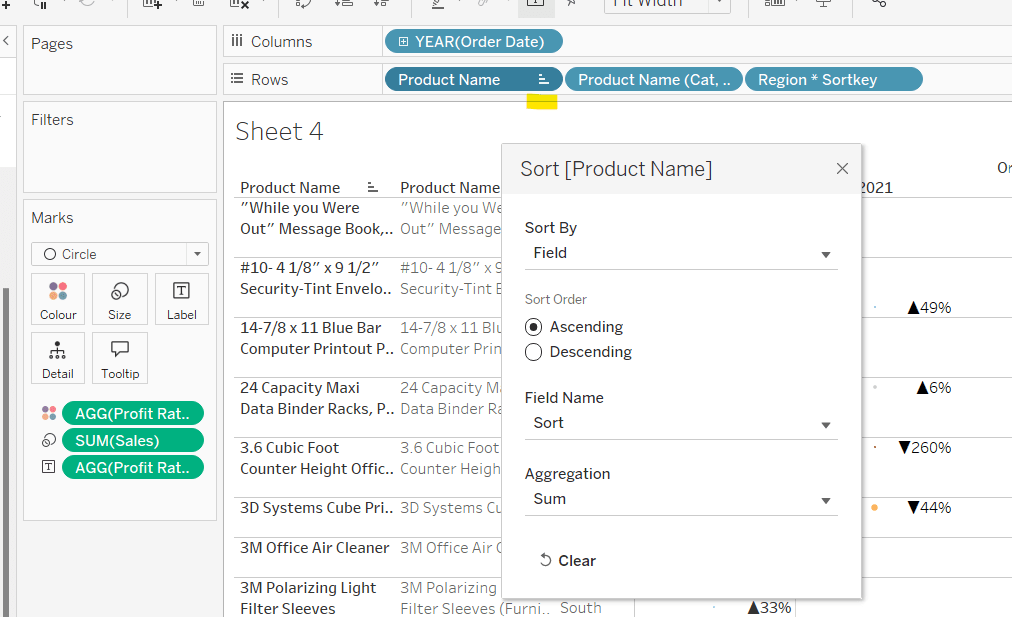
Apply a Sort to the Product Name pill in Rows to sort by the field Sort ascending
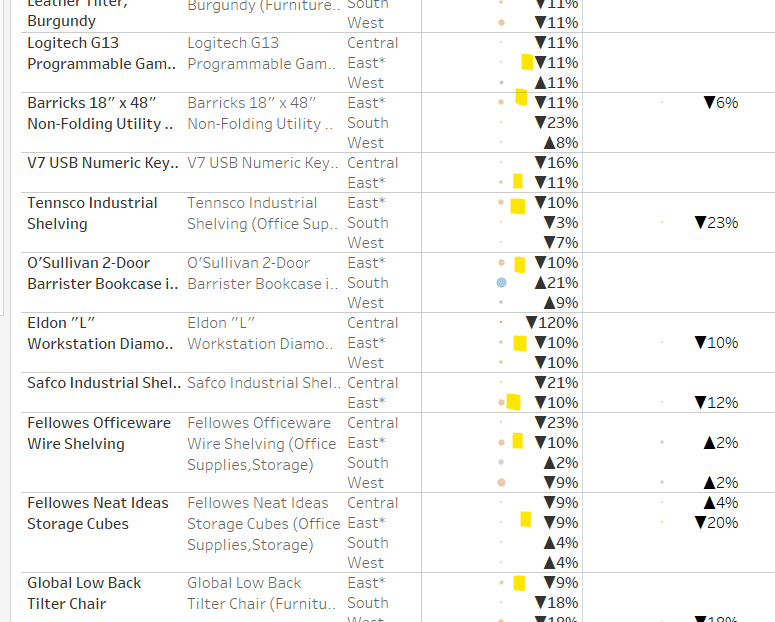
You should find that when you see some Product Names that have sales in the selected region (in this case East), that the products are listed based on this value with the lowest Profit Ratio first (note the East row isn’t listed first if there are sales for the Central region, as the rows within each product are listed alphabetically based on the region name.
Finally tidy up by
Adjusting the Tooltip to suit
Hide the Product Name pill (right click, uncheck show header)
Adjusting the font style of the fields and label headings.
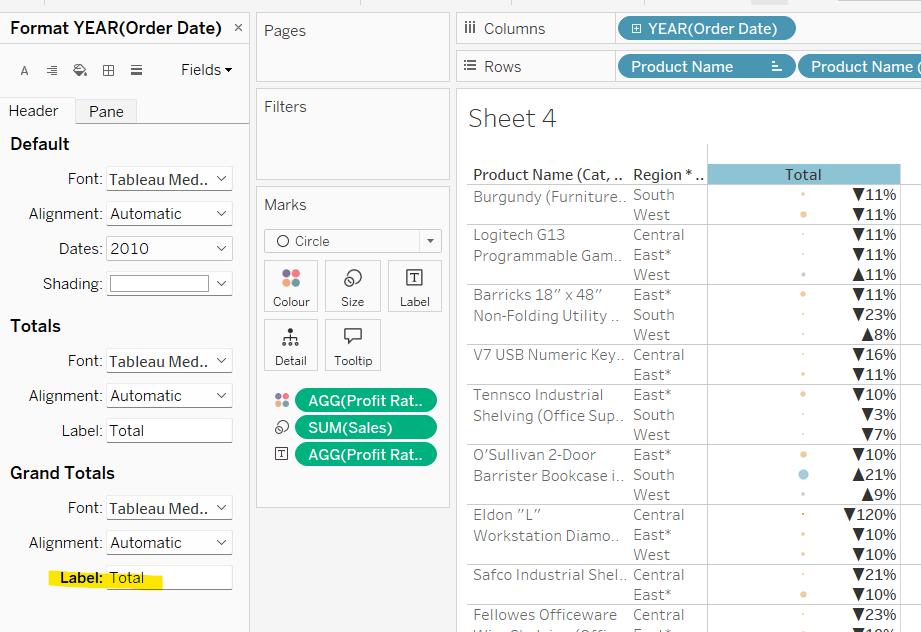
Rename the Grand Total label to Total (right click the label > format and update the Label value)
hide the Order Date column heading label (right click > hide field labels for columns)
add row banding (right click viz to format), then adjust band size to level 1
Update the sheet title and name the sheet Table or similar.
Building the dashboard and adding the interactivity
Using layout containers, add the two sheets onto the dashboard, adding a title and the relevant legends (note I used text objects for the Profit Ratio legend title and the Sales ‘legend’.
We need several dashboard actions:
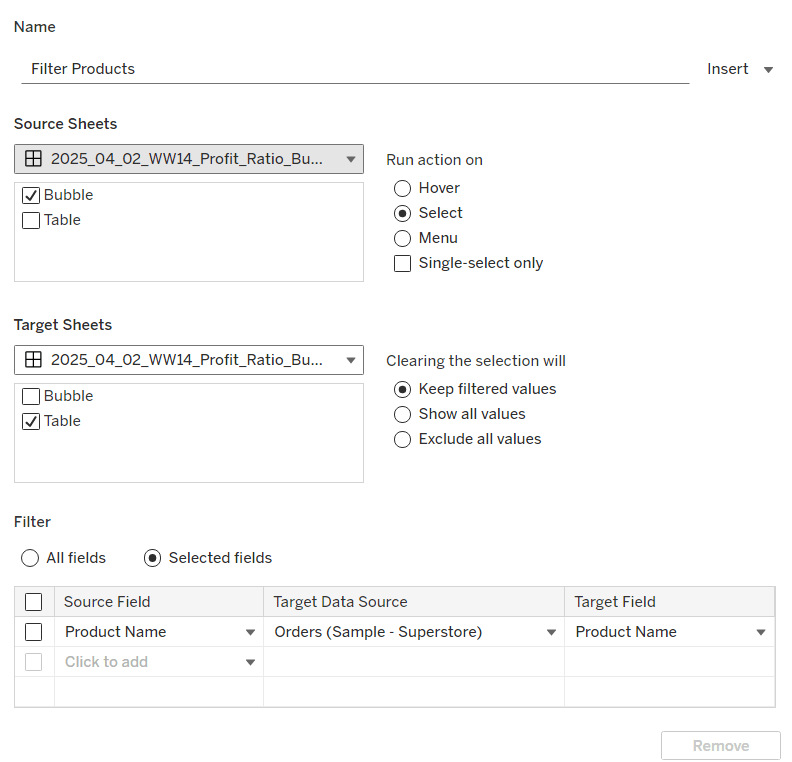
Filter Products
Dashboard filter action, that on select of the Bubble sheet, targets the Table sheet, passing through the Product Name only. The set of products is retained when the selection is cleared.
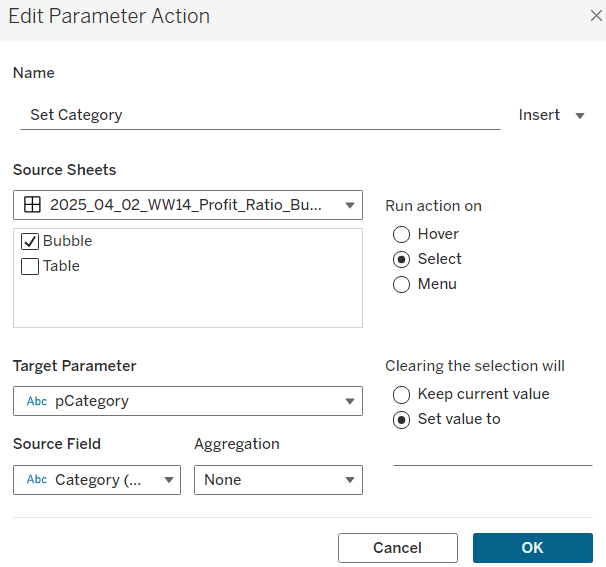
Set Category
Dashboard parameter action, that on select of the Bubble sheet, sets the pCategory parameter with the value from the Category field. When the selection is cleared, the parameter is reset to <empty string>
This action will allow the bubble chart to ‘expand and collapse’ on click.
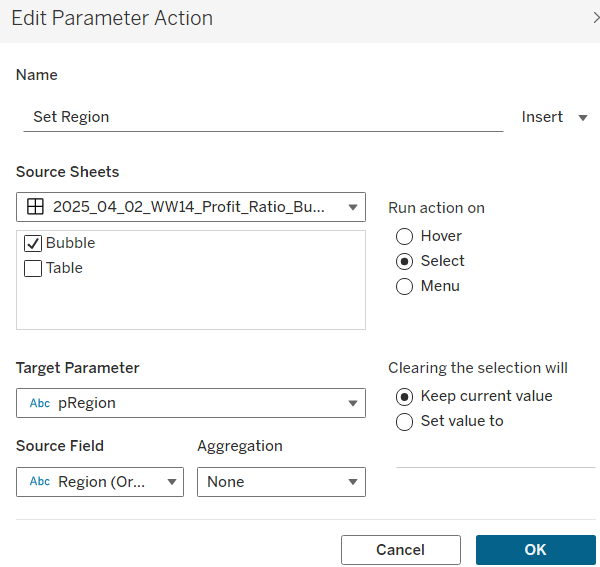
Set Region
Dashboard parameter action, that on select of the Bubble sheet, sets the pRegion parameter with the value from the Region field. When the selection is cleared, the parameter is retained
This action will apply the ‘niche’ sort and the relevant region labels will be updated with an * too.
Finally, on selection of products in the bubble viz, we don’t want the other marks to ‘fade’ To stop this from happening, create a new field
Dummy
‘Dummy’
and add to the Detail shelf on the Bubble sheet.
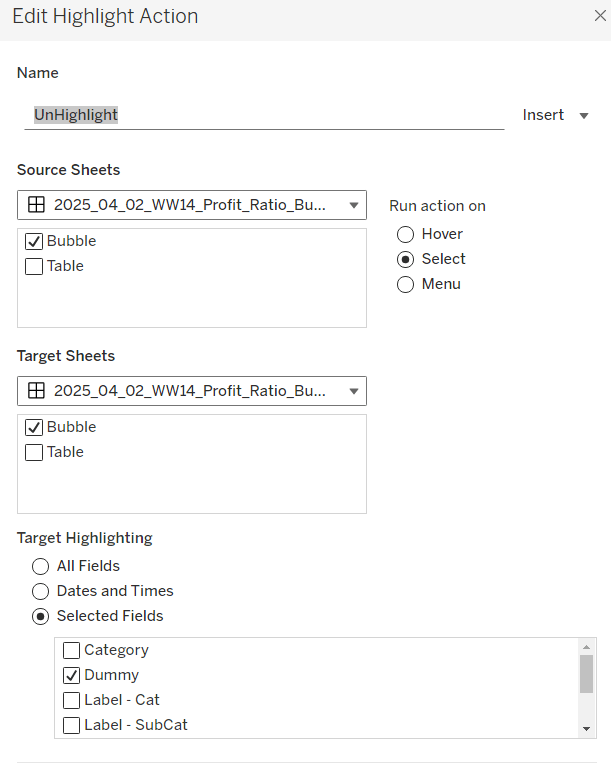
Then add a dashboard highlight action
UnHighlight
On select of the Bubble sheet, target the Bubble sheet selecting the field Dummy only
And with that you should have a functioning dashboard. My published viz is here.
Note, after testing, I did notice a difference in the behaviour of my version to the solution. When I deselect all products from the bubble chart when in an expanded state, the section will collapse. The solution uses a ‘fake header’ sheet to stop this from happening, which is then carefully positioned above the bubble chart sheet. I’m ultimately happy with my 2-sheet solution, but feel free to check out the challenge solution for a better understanding.
It was Yusuke’s turn for this week’s #WOW2025 challenge, posing a twist on a the creation of a highlight table.
Whenever I start a challenge, I take note of what’s going on – I interact with it, move my mouse around to see if there’s any clues. The main takeaway from this, is that I’d need a dual axis so I could have multiple marks cards to style differently – one to be coloured based on the Profit and one to be coloured based on whether the cell was selected or not. So we need to build a table using an axis.
Building the basic table
Add Order Date to Columns and then click the pill to expand the date hierarchy so Year and Quarter are displayed. Add Sub-Category to Rows.
Double click into Columns and manually type MIN(1.0) to create an axis. Change the mark type to bar, increase the size to as large as possible, and edit the axis to be fixed from 0 to 1. Add Profit to Colour and Profit to Label. Adjust the colour scheme as required (I used red-white-blue diverging and reduced the opacity to 70%). Adjust the label font to be grey text.
Widen each row; shrink each column and adjust the row and column dividers to be dashed grey lines. Update the font of the label headings. Adjust Tooltip to suit.
Storing the selected cells
To store the cells that have been selected, we’re going to use Sets. To build this set, click on a cell in the table, and then in the toolbar of the tooltip that displays, click the venn diagram symbol to create set
Name the set Cells Highlighted
Highlighting the selected cells
Each cell in the table we have built is a bar of length 1. We want to use a dual axis to create bars of length 1 only in the cells selected. So we need
Bar Length – Highlighted Cells
IF [Cells Highlighted] THEN 1 ELSE 0 END
We also only want the profit value to be displayed for these cells
Profit – Highlighted
IF [Cells Highlighted] THEN [Profit] END
Add Bar Length – Highlighted Cells to Columns to make a second axis, and a second marks card. Remove both existing Profit pills from this card. and instead change the Colour to black at 100% opacity, and add Profit – Highlighted to Label. Change colour of the Label text, and update the axis to be fixed from 0 to 1.
Make the chart dual axis and synchronise the axis.
Hide the axis (uncheck show header), and hide the Order Date label (right click -> hide field labels for columns)
Update the title of the sheet with the instructions and then add the sheet to a dashboard.
Adding the interactivity
On click, we want to add the cell (if unselected) to the set. For this we need a dashboard set action
Add to highlight
On select, target the Cells Highlighted set, adding values to the set on click, and keeping set values when cleared.
We also want to remove selected cells via a menu option, so create another dashboard set action
Remove from highlight
Display on the menu of the tooltip, and target the set Cells Highlighted by removing values from the set when the menu option is clicked, and keep values when selection cleared.
While these give us the functionality we need, it isn’t the best user experience – we have to click multiple times to get the display due to the ‘default’ behaviour of selected marks being automatically highlighted / non selected marks being faded out.
To resolve this, we need to utilise a couple of techniques blogged about here.
For the marks coloured by profit, we want to disable highlighting using a dashboard filter action and the true/false method.
Create calculated fields called
True
TRUE
False
FALSE
and add to the Detail shelf of the MIN(1.0) marks card only. Then on the dashboard add a dashboard filter action
Now if you click on an unhighlighted cell it should go black immediately. However, if you click on one of the black already highlighted cells, the other cells still fade.
Now we can’t apply the same method to that cell, as we then lose the hyperlink appearing on the tooltip on click. This is because the true/false method ultimately results in the cell being immediately deselected once selected, so the ‘click’ action, which results in the menu option showing, is cleared .
Instead we will use the dashboard highlight action technique also described in the blog.
Create a new field
Dummy
‘Dummy’
Add this to the Detail shelf of the All marks card (or add to both the MIN(1.0) and the Bar Length – Highlighted Cells marks cards). Then create a dashboard highlight action that just targets the Dummy field only, which as it exists in all cells, essentially selects them all.
Highlighting the word ‘colour’ in the title
I just did this by floating a blank object over the text which I set the background colour to black, and then set the object to move backwards. This did mean once I published to Tableau Public, I had to edit the viz online to ensure the object lined up to where I wanted.
It was Kyle’s turn to set the challenge this week. Like him, I don’t have a need to use map / spatial data much, so whenever there’s a WOW challenge involving them it always makes me think a bit harder (and usually refer to some documentation).
Connecting to & modelling the data
I followed the links in the challenge requirements and downloaded the Shapefile option from each page
This downloaded zip files (one did take some time to download). I then extracted the zip files which generated several files.
In Desktop, I then chose to connect to the Spatial file option and when I navigated to the file location where I had unzipped the data, only the .shp file was available for selection.
I connected to the School District Characteristics data source first, then clicked the ‘carrot’ to access the context menu of the data source, and selected open to access the physical layer of the data canvas
I then clicked Add against the connections section to add another spatial file data source, selecting the School Neighbourhood Poverty file this time and changed the join type between the two data source fields to use the intersects option.
Building the bar chart
On a new sheet add Statename to the Filter shelf, and select Washington. Add Lea Name to the Rows. Create a new field
and add this to Columns and sort descending. Widen each row slightly, and increase the width of the Lea Name column a bit. Remove all gridlines, and remove the axis title, and hide the Lea Name column heading. Update the Tooltip as required and update the sheet title.
Building the map
Create a new sheet. Add the Geometry field from the School District Characteristicsset of data to the Detail shelf.
Go back to the bar chart sheet, and update the Satename filter so that it also applies to the sheet you’re building the map on. The map should now be filtered to Washington too. Add Lea Name to the Detail shelf and # Schools to the Tooltip and adjust accordingly.
From the Map > Background Layers menu option, uncheck the options on the Background Map Layers section, so just the Cities and Streets, Highways/Motorways.. options remain selected. Adjust the Colour of the map (via the colour shelf)
Then drag the Geometry field from the School Neighbourhood Poverty data source section onto the canvas and drop it when the Add a Marks Layer section appears
This will add a second marks card. Name this marks card Schools and the other one Districts.
On the Schools marks card, add Name to the Detail shelf and then update the tooltip as required. Remove the row & column dividers.
Adding the interactivity
Add the 2 sheets onto a dashboard side by side and show the Statename filter. Add a dashboard filter action
Filter District
On Select of the bar chart, target the Map passing all fields. Show all values when selection is cleared.
Clicking on a bar should now filter the map and ‘zoom in’ just to that district with the relevant school marks visible.
Hot of the press with the release of 2024.3, Sean set this challenge to focus on the ability to use table extensions. As a result you will need at least v2024.3 of Tableau Desktop or Tableau Desktop Public installed. At the point of writing, this challenge cannot be completed on Tableau Public itself via web authoring though.
Build the scatter plot
Format Sales and Profit to be $ with 2 dp. Add Sales to Columns and Profit to Rows and add Customer Name to Detail. Change the mark type to circle, reduce the opacity to around 30%, add a blue border and increase the size of the marks. Format the zero lines to be more prominent. Add Segment to the Filters , select all options, and set to applyto worksheets > all using this data source
Build the table extension
On a new sheet, choose Add Extension from the marks type drop down, and on the add an Extension dialog, select the built by Tableau + Salesforce option and then select the Tableau Table option
Select Open on the next screen, and then select OK to the next dialog box.
Add Customer Name, Order Date (as a continuous exact date – green pill), Sales and Profit to the Detail shelf.
Move your mouse to be in front of the SUM(Sales) heading text, and then click on the sort icon that appears a couple of times to get the data sorted by Sales descending. Double click on the SUM(Sales) heading label and edit the label to just Sales. Repeat with the SUM(Profit) heading label.
Click on the context menu associated to the Sales column and select Format
Set the Formatting Type to be Data Bars and change the Fill colour to green
Format the Profit column to have a Formatting Type of Colour Scale and select a diverging colour palette
Click the Format Extension button on the Marks card shelf or the Table Settings icon on the formatting toolbar to load the Format Extension dialog
Change the options so Show Toolbar is Off, Show Column Filters is On and Show Excel Download is On
Adding the interactivity
Add the 2 objects into a horizontal container in a dashboard. Float the Segment filter control and verify changing the value affects both the scatter and the table.
Then add a dashboard filter action
Filter Table
On select of the Scatter, target the Table passing all fields. Show all values when selection cleared.
And that should be it. Unfortunately as Tableau Public doesn’t yet support the extension, I don’t have my published version to share.
Note – I did have some issues getting the table to ‘fit’ completely into the dashboard. I found if I used my larger second screen, ensured the application was maximised, then it would fit properly. Using the application on my laptop screen, it was sometimes a bit hit and miss. This has been raised to the development team.
Global Recognition month continued this week for #WOW2023, and I was able to enlist Norbert Borbas to set the challenge this week, which was published in both Norbert’s native Hungarian, as well as English.
Norbert provided a challenge based on a solution he had implemented at his company, and involved the creation of 2 dashboards with interactivity between them both. There’s a fair amount going on with this one, so let’s get cracking.
Building the Sales KPI
For this viz, we need to get information about the latest year sales in conjunction with the previous year. Rather than hardcode any years relating to the data, I created
Latest Year
{MAX(YEAR([Order Date]))}
which for the data set I was using, returns 2022. Drag this field into the ‘dimensions’ section of the left hand data pane (ie above the line).
With this I then created
LY Sales
IF YEAR([Order Date]) = [Latest Year] THEN [Sales] END
to the sales for 2022. Format this to $ with 0 dp.
To get the sale for the previous year (ie 2021) I created
Previous Year
[Latest Year]-1
Drag this field into the ‘dimensions’ section of the left hand data pane (ie above the line), and then create
PY Sales
IF YEAR([Order Date]) = [Previous Year] THEN [Sales] END
Format this to $ with 0 dp.
We then needed the % difference between these values
The line chart needs to change based on whether the Sales KPI or the Profit KPI sheet has been selected. We need a parameter to capture this ‘decision’.
pMeasureToShow
string parameter defaulted to Sales
To the determine which actual value to display we need
Line – Measure to Display
IF [pMeasureToShow] = ‘Sales’ THEN [Sales] ELSE [Profit] END
format this to $ with 0dp.
I also created
Line – Measure to Display Axis (k)
IF [pMeasureToShow] = ‘Sales’ THEN [Sales] ELSE [Profit] END
ie the same field, but this was formatted to $ with 0 dp but display units of Thousands (k).
Having the two fields means that the axis can display in one format while the tooltip can show the more detailed value.
On a new sheet add Order Date to Columns and change to the discrete ‘month’ level (blue pill – May). Add Line – Measure to Display Axis (k) to Rows. Add Order Date to Colour. This will default to the Year level, and show all years from the data set, but we only want the latest 2 years. So create
Filter Years
YEAR([Order Date]) >= [Previous Year]
and add to the Filter shelf and set to True. Adjust colours to suit.
Add Order Date to the Label shelf and change to the Year level. By default the lines should be labelled. Edit the label and set the font to match mark colour. I also set the font to be Tableau Medium and bold. Adjust the order of the years in the colour legend, so 2022 is listed first which makes the line for 2022 sit ‘on top’ of the 2021 line.
Remove all gridlines/row column dividers, and set the axis lines to be bolder. Hide the Order Date label (right click > hide field labels for columns). Adjust the formatting of the Order Date axis, to display the months in an abbreviated form. Adjust the title of the y-axis to reference the pMeasureToShow parameter (right click the axis > edit).
Add Line – Measure to Display to the Tooltip shelf.
Adjust the Tooltip to display as
Finally, to help with the interactivity later, we will need
Month Order Date
DATEPART(‘month’, [Order Date])
This returns the number of the month ie 1 for January, 2 for February etc. Move this to the ‘dimensions’ section of the left hand data pane (drag above the line), and then add this to the Detail shelf. Change the field to be a discrete attribute
Name the sheet Line Chart.
Building the Symbol Chart
On a new sheet add Filter Years to the Filter shelf and set to True. Add Order Date to Columns and change to be at the discrete month level. Double click into the Rows shelf and manually type in MIN(0). Add Month Order Date to the Detail shelf.
We need to display coloured arrows depending on whether the change is up or down. For this we need
Symbol – Difference to Display is +ve
IF [pMeasureToShow] = ‘Sales’ THEN IIF([% Diff Sales From PY]>=0,TRUE,FALSE) ELSE IIF([% Diff Profit From PY]>=0,TRUE,FALSE) END
If the measure to display is Sales, and the difference in Sales from previous year is +ve, then return true, otherwise false, Else if the measure to display is Profit and the difference in Profit from the previous year is +ve, then return true, else false.
Change the mark type to Shape and then add this field to both the Colour shelf and the Shape shelf. Adjust colours and shapes accordingly.
Edit the axis and delete the title and set the major and minor tick marks to None. We need the axis to remain as we will need to ‘line up’ this chart with the line chart, and having a left hand axis will help.
Hide the months from showing (uncheck show header against the pill on Columns. Hide all gridlines, axis lines, zero lines & row/column dividers.
Name the sheet Symbol Chart.
Building the Main dashboard
Using horizontal and vertical layout containers, position the sheets in the required locations along with the title and the instructional text. Use background colours and inner & outer padding to give space between the objects.
For the line chart and symbol chart, these were placed in a vertical container, and the width of the ‘blank’ y-axis on the symbol chart widened to be in line with the axis on the line chart. The hierarchy of objects I used is pictured.
To make the Sales display on the line chart when the Sales KPI sheet is clicked, create a dashboard parameter action
Show Sales Line
On select of the Sales KPI sheet, set the pMeasureToShow parameter, passing in the value from the Sales Label field. When the selection is cleared, keep the parameter set to the current value.
And create a similar action to show the profit
Show Profit Line
On select of the Profit KPI sheet, set the pMeasureToShow parameter, passing in the value from the Profit Label field. When the selection is cleared, keep the parameter set to the current value.
We will need to return to this later, to add more interactivity, but for now we’ll move onto the analysis/drill down sheet.
Building the drill down table
We’re going to need a few more fields to build this type of display. Firstly, for the first bar chart column we need
Bar – LY Measure to Display
IF [pMeasureToShow] = ‘Sales’ THEN [LY Sales] ELSE [LY Profit] END
Bar – PY Measure to Display
IF [pMeasureToShow] = ‘Sales’ THEN [PY Sales] ELSE [PY Profit] END
Format both these fields to $ with 0dp.
Add State/Province to Rows and Bar – LY Measure to Display to Columns. Sort the states by the measure descending. Adjust the colour of the bar to suit. Add Bar – PY Measure to Display to the Detail shelf and add a reference line per cell that displays the average of this measure.
Show mark labels and adjust the font of the labels to be size 8pt. Widen each row, and align the State labels to the left, and change the font to be bold & black. Reduce the Size of the bars. Remove gridlines, but add row dividers.
Double click into the columns shelf and manually type MIN(0) to create a ‘fake’ axis and generate a MIN(0) marks card.
Create a new field
Measure Rank LY
RANK(SUM([Bar – LY Measure to Display]))
and add this to the Label shelf of the MIN(0) marks card. Adjust the table calculation so it is explicitly set to Compute by State/Province. Remove the Bar – PY Measure to Display field from the Detail shelf. Change the mark type to shape.
To determine what type of shape and what colour to apply, we need
Measure Rank PY
RANK(SUM([Bar -PY Measure to Display]))
and then
Measure Rank Change
IF [Measure Rank LY] < [Measure Rank PY] THEN ‘Up’ ELSEIF [Measure Rank LY] > [Measure Rank PY] THEN ‘Down’ ELSEIF ISNULL([Measure Rank LY]) THEN NULL ELSE ‘N/A’ END
Add this field to both the Shape and the Colour shelf, and adjust the table calculation so it is explicitly set to Compute by State/Province.
Adjust the shapes, and use a transparent shape against the Null option (see here for details). Adjust colours to suit. Increase the size of the shape, and align the label to the left.
For the next column, create
Bar – Measure Difference
SUM([Bar – LY Measure to Display]) – SUM([Bar -PY Measure to Display])
and custom format to +”$”#,##0;-“$”#,##0
Add to the Columns shelf, and labels should automatically get added.
Create a field
Bar – Measure Diff is +ve
[Bar – Measure Difference] >=0
and add to the Colour shelf of this marks card. Adjust colours to suit.
For the final column, we need to separately identify the values when the YoY measure difference is positive from those that are negative, and then apply ranking to each of these fields. So we need
+ve Measure Diff
IF [Bar – Measure Diff is +ve] THEN [Bar – Measure Difference] END
-ve Measure Diff
IF NOT([Bar – Measure Diff is +ve]) THEN [Bar – Measure Difference]*-1 END
Note, as the difference in this instance is negative, the values returned will also be negative, but when it comes to ranking, we want the record with the biggest negative difference to be ranked 1st ie if one value had a difference of -10 and another had a value of -100, in typical ranking, -10 is ‘higher’ than -100, so -10 would be ranked 1 and -100 2. But we want -100 to be ranked 1. So by multiplying the values by -1 in the calculation we actually return values 10 and 100. So when we rank them later, 100 is ranked 1 as it is bigger than 10.
Ranke +ve Measure Diff
RANK_UNIQUE([+ve Measure Diff])
Rank -ve Measure Diff
RANK_UNIQUE([-ve Measure Diff])
We will be displaying the information for the positive and negative ranks in separate ‘columns’ which we can do with
Rank YoY X-axis
IIF([Bar – Measure Diff is +ve], 1,2)
Add this field to columns and change the mark type to Circle. Add Bar – Measure Diff is +ve to Colour. Add Rank +ve Measure Diff and Rank -ve Measure Diff to Label. Ensure the table calculations for both fields are explicitly set to Compute by State/Province. Increase the Size of the circle, and align the label to be middle centre using a bold white font.
Now we have all the information displayed, we need to sort the tooltips.
This sheet, will be accessed through interaction and will be ‘filtered’ to just a specific month. For now, we’ll ‘hardcode’ the month by adding Month Order Date to the Filter shelf and selecting 3 (for March).
On the All marks card, add Latest Year, Previous Year,Month Order Date, Measure Rank PY to the Tooltip shelf.
We will also need
TOOLTIP – Rank statement decrease
IF [Measure Rank Change] <> ‘Up’ THEN MIN([State/Province]) + “‘s ” + [pMeasureToShow] + ‘ Rank decreased vs. same month last year.’ END
TOOLTIP – Rank statement increase
IF [Measure Rank Change] = ‘Up’ THEN MIN([State/Province]) + “‘s ” + [pMeasureToShow] + ‘ Rank increased vs. same month last year.’ END
TOOLTIP – Rank YoY Statement Negative
IF NOT([Bar – Measure Diff is +ve]) THEN MIN([State/Province]) + ‘ is a negative (Rank: ‘ + STR([Rank -ve Measure Diff]) + ‘) contributor to the overall YOY increment in the selected month.’ END
TOOLTIP – Rank YoY Statement Positive
IF [Bar – Measure Diff is +ve] THEN MIN([State/Province]) + ‘ is a positive (Rank: ‘ + STR([Rank +ve Measure Diff]) + ‘) contributor to the overall YOY increment in the selected month.’ END
Add all 4 of these fields to the Tooltip shelf of the All marks card. Ensure all the table calculation fields are set to explicitly Compute by State/Province.
Now adjust the tooltip with all the relevant fields, applying colouring as required
Hide the axis and hide the null indicator. Hide the State/Province column label heading. Finally, remove the Month Order Date field from the Filter shelf. The tooltip will look a bit funny at this point, but that will get sorted later.
Name the sheet Drill Down Table.
Building the drill down dashboard
Again using vertical and horizontal containers, arrange the sheet on a dashboard along with the title. Use text boxes arranged in a horizontal container directly above the Drill Down Table sheet to display the column headings.
As I didn’t want to hardcode any years, I created the following parameters
pLatestYear
integer parameter defaulted to 2022 and with a display format that did not include thousand separators.
and
pPreviousYear
integer parameter defaulted to 2021 and with a display format that did not include thousand separators.
and
pMonth
integer parameter defaulted to 3 and with a display format that did not include thousand separators.
When building the column headings, I referenced all these parameters instead.
To ‘set’ these parameters, I added Previous Year and Latest Year to the Detail shelf of both the Line Chart and Symbol Chart sheets.
I then added 3 dashboard parameter actions to the main dashboard which on select of the Line Chart or Symbol Chart sheet, set the relevant parameter with the value from the appropriate field.
To ensure the drill down gets ‘filtered’ to the month selected on the main dashboard, add a dashboard filter action
Drill down
On select of the Line Chart or the Symbol Chart, target the Drill Down Table sheet on the Drill Down dashboard, passing the selected field of MONTH(Order Date) only. Exclude all values when selection is cleared.
The final step is to add a Navigation Button to the drill down dashboard which displays the text ‘Go back to landing page’ and navigates back to the main dashboard.
And hopefully, with all that, you have a completed interactive navigational dashboard! My published version is here.
For this week’s #WOW2023 challenge, Kyle wanted us to build a viz that used selections on the viz rather than a set of filter controls to show how the sales for those selections were distributed.
This concept is referred to as proportional brushing and makes use of set actions to achieve the results. The complexity added here was the multiple selections being made.
6 sheets make up this dashboard – 1 for each bar chart, 1 for the KPI and 1 for the breadcrumb trail.
Building the basic bar charts
Create 4 sheets, one for each of the Region, Segment, Ship Mode and Sub-Category dimensions. The simplest way is to build one sheet, get all the formatting applied etc, then duplicate and replace the dimension on the duplicated sheet with the new one.
When building the first sheet, place the dimension (eg Region) on Rows and Sales on Columns, sorted descending. Adjust the Sales to be formatted to $ with 0dp. Hide the Sales axis, and format to remove all gridlines/axis lines/ zero lines and row/column dividers. Show mark labels and align centrally. Adjust the font label to 8pt. Widen each column if need be. Hide the dimension label from displaying (hide field label for columns). Adjust the tooltip to suit. Name the sheet based on the dimension.
Then duplicate this sheet, and drag the next dimension, eg Segment, and drop it directly on Region. If done properly, everything should seamlessly update. Re-name this sheet accordingly, then repeat the process until you have a sheet for each of the four dimensions.
Applying the proportional brushing
Create a set for each of the relevant dimensions.
Region Set – right click on the Region field in the data pane and select Create > Set. Select all the options to be in the set.
Repeat and do the same for each dimension, so you end up with Segment Set, Ship Mode Set and Sub-Category Set.
We need to determine the combination of all the values selected in each set. So we need
Is Selected Options
[Segment Set] AND [Ship Mode Set] AND [Region Set] AND [Sub-Category Set]
This returns true for all the records in the data which match the combined selections of the individual sets.
On the Region sheet, add Is Selected Options to the Colour shelf. The right click on each set in the data and and select Show Set, so the set of selections are listed on the canvas.
Change the options so only the Segment Consumer and rthe Ship Mode Standard Class are selected, along with all Region and Sub-Category values. Adjust the colours associated to the True and False values that are now presented
If need be, adjust the tooltip so the Is Selected Options is not displaying, then add the Is Selected Options field to the Colour shelf of the Segment, Ship Mode and Sub-Category sheets. Play with the set selections to see how the bars change. Once you’re familiar with the behaviour, reset all the sets so they all contain all the values.
Building the KPI sheet
On a new sheet add Sales to Text. Change the mark type to shape and select a transparent shape (see this blog to get this set up). Adjust the Label to include the text ‘Sales’ and format accordingly. Align middle centre. Add Is Selected Options to the Filter shelf and set to True.
Again, if you adjust the set selections, the value will adjust accordingly.
Building the Dashboard interactivity
Add the sheets onto a dashboard. I used both vertical and horizontal layout containers to get the objects positioned where I wanted. I also used blank objects set to height/width of 1px and with a black background colour to create the horizontal and vertical divider lines. You can see from the item hierarchy in the image below, how I laid out my dashboard (I like to rename my containers to help understanding)
Now add a dashboard change set values action for each of the 4 bar chart sheets.
Select Region
On select of the Region sheet only, target the Region Set. On running the action (ie clicking the bar), assign values to set, and when clearing the selection (clicking the bar again), add all values to the set.
Note – While not specified in the requirements, I noticed that the breadcrumbing functionality in Kyle’s solution didn’t behave if multiple selections of the same dimension were made – eg 2 regions were selected. I decided to add the requirement of only allowing a single dimension to be clicked (ie the single-select only box is checked).
Create a Select Segment, Select Ship Mode and Select Sub-Category set action using the same principals described above.
Creating the breadcrumb
I’ve added this last, so you understand how we can ensure each set only has either all the values in it, or just 1 value.
To create the breadcrumb, we’re going to build up some strings based on what the state of each set looks like. This involved several calculated fields…. I’m not sure if I’ve over complicated this though..
Anyway firstly, we want to capture the values that have been added to each set, so we need
Regions in Set
IF [Region Set] THEN [Region] END
Segments in Set
IF [Segment Set] THEN [Segment] END
Ship Modes in Set
IF [Ship Mode Set] THEN [Ship Mode] END
SubCats in Set
IF [Sub-Category Set] THEN [Sub-Category] END
The image below shows how each of these fields are behaving based on the set selections – if the value is not selected in the set, the Regions in Set field is Null.
Next we have fields to count how many different values exist in each of these fields.
Count Selected Regions
{FIXED: COUNTD([Regions in Set])}
Count Selected Segments
{FIXED: COUNTD([Segments in Set])}
Count Selected Ship Modes
{FIXED: COUNTD([Ship Modes in Set])}
Count Selected SubCats
{FIXED: COUNTD([SubCats in Set])}
Again you can see from the sheet below, this is counting the number of selections, which is ‘fixed’ (ie the same) for every row.
Now, while this is showing 2, as we’ve manually clicked on the set options, in practice when driven from the dashboard, we’re either going to have all values in the set, or just 1. So based on this assumption, we now just want to get the name of the single selection
Selected Region
IF SUM([Count Selected Regions]) = 1 THEN MAX([Regions in Set]) ELSE ” END
If there’s only 1 item in the set, then get it’s value, otherwise return ‘blank’.
Just testing this behaviour, we can see below that with all the Regions selected, the Selected Region field is empty, but with 1 value selected, we show that value.
Create equivalent fields for each dimension
Selected Segment
IF SUM([Count Selected Segments]) = 1 THEN MAX([Segments in Set]) ELSE ” END
Selected Ship Mode
IF SUM([Count Selected Ship Modes]) = 1 THEN MAX([Ship Modes in Set]) ELSE ” END
SelectedSubCat
IF SUM([Count Selected SubCats]) = 1 THEN MAX([SubCats in Set]) ELSE ” END
The order of the dimensions displayed in the breadcrumb is fixed, regardless of the order in which you click the options. That is, if you click a Segment then a Region, the breadcrumb will display the <segment> followed by the <region>. But if you click the Region first and then the Segment, the breadcrumb will still display the<segment> followed by the <region>. Based on this, we can create string values for each dimension that differ depending on whether we know there is a selection made against a subsequent dimension (ie should we include the ‘>’ character or not).
Let’s go through in order. Firstly, no selections made
All Segmentations BC
IF [Selected Segment]=” AND [Selected Ship Mode]=” AND [Selected Region]=” AND [Selected SubCat]=” THEN ‘All Segmentations’ END
If all the ‘selected’ values are empty, then all the sets contain all the values, so display ‘All Segmentations’.
If there are selections made, then the dimensions are ordered as Segment > Ship Mode > Region > Sub-Category
Segment BC
IF [Selected Segment]<>” AND ([Selected Ship Mode]<>” OR [Selected Region]<>” OR [Selected SubCat]<>”) THEN [Selected Segment] + ‘ > ‘ ELSE [Selected Segment] END
If there is only 1 Segment selected and at least 1 of the other dimensions has been selected too, then add the ‘>’ character after the Segment name, otherwise just show the Segment.
Ship Mode BC
IF [Selected Ship Mode]<>” AND ([Selected Region]<>” OR [Selected SubCat]<>”) THEN [Selected Ship Mode] + ‘ > ‘ ELSE [Selected Ship Mode] END
Similar to above, but this time, we only need to compare with the dimensions that are below Ship Mode in the display hierarchy.
Region BC
IF [Selected Region]<>” AND [Selected SubCat]<>” THEN [Selected Region] + ‘ > ‘ ELSE [Selected Region] END
There is only one dimension below Region. As Sub-Category is at the bottom of the ordering, we don’t need anything special – the value of the Selected SubCat field will do.
On a new sheet, add All Segmentations BC, Segment BC, Ship Mode BC, Region BC and Selected SubCat to the Text shelf. Change the mark type to shape and change to use a transparent shape.
Adjust the label, so all the fields are ordered correctly and positioned exactly next to each otherwith no spacing/carriage returns between. Align the label middle left.
Show the set controls, and then test the functionality by altering the selections, ensuring either only 1 value or all values are selected
Once you’ve finished testing, ensure all values are selected in all sets.
The add this sheet to the dashboard – I had the title and the breadcrumb in a vertical container, which was the left hand side of a horizontal container
And hopefully that should be it. My published viz is here.













 Donna + DataViz