
I’m back from my holibobs, so back to solving #WOW2023 challenges and writing up the solutions – it’s tough to get back into things after a couple of weeks of sunshine and cocktails!
Anyway, this week, Sean set this challenge from Felicia Styler to build a scatterplot / heat map combo chart, affectionally termed the ‘scatterbox’.
Phew! This took some thinking… I certainly wasn’t gently eased back into a challenge!
Modelling the data
We were given a hint that the data needed to be unioned to build this viz. I connected to the Sample-Superstore.xls file shipped with 2023.2 instance of Tableau Desktop. After adding the Orders sheet to the canvas, I then added another instance, dragging the second instance until the Union option appeared to drop it on.
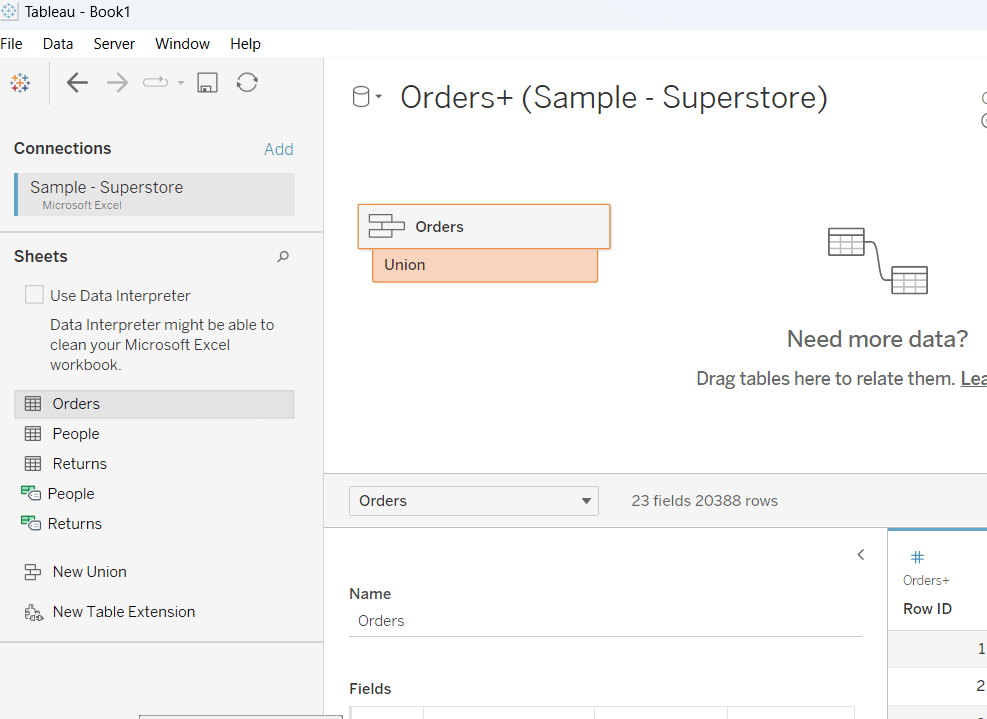
The union basically means the rows in the Orders data set are all duplicated, but an additional column called Table Name gets automatically added
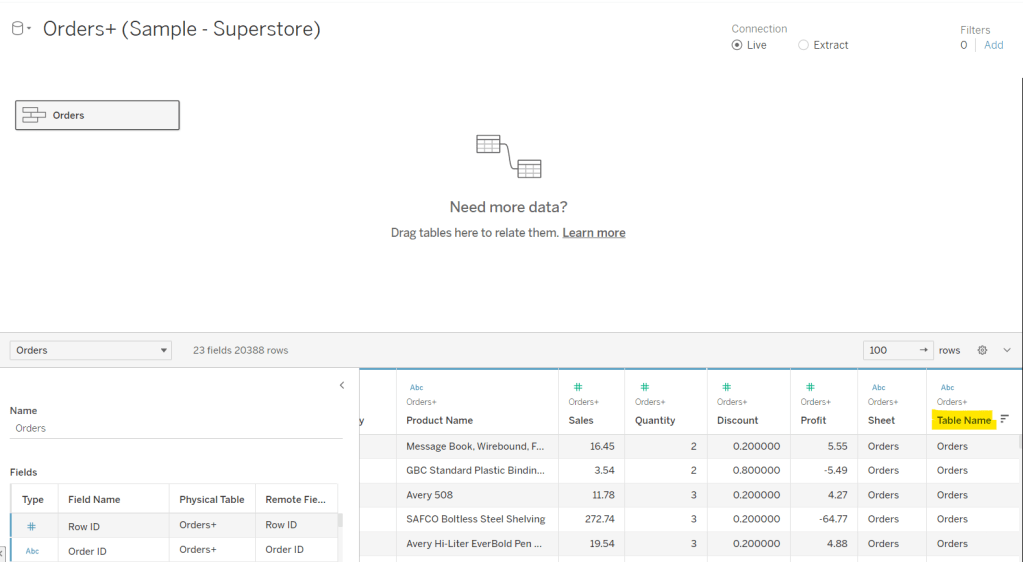
This field contains the value Orders and Orders1 which provides the distinction between the duplicated fields caused by the union. It is this field that will be used to determine which data is used to build the scatter plot and which to build the heat map.
Building out the calculated fields
Let’s start just by seeing how the data looks with the measures we care about.
Onto a sheet add Product ID, Product Name and Table Name to Rows (Note – there are multiple Product Names with the same Product ID, so I’m treating the combination as a unique product). Then add Quantity to Text. The drag Discount and drop onto the table when it says ‘Show Me’, which should automatically add Measure Name/Measure Values into the view. Aggregate Discount to AVG. We can see that we’re getting the same values for each Table Name, which is expected.

When plotting the scatter plot, we’re plotting at the Product level, so the values above is what we’ll want to plot. But when building the heatmap, we need to ‘bin’ the values.
For the Quantity, we’re grouping into bins of size 10, where if the Quantity is from 0-9 the bin value is 0, 10-19, the bin value is 10 etc.
Quantity Bin
FLOOR({FIXED [Product ID], [Product Name], [Table Name]: SUM([Quantity])}/10) * 10
The LoD (the bit between the {} is returning the same values listed above, but we’re using an LoD, as when we build the heat map, we don’t want the Product fields in the view, but we need to calculate the Quantity values at the product level (ie at a lower level of detail than the view we’ll build). Dividing the value by 10, then allows us to get the FLOOR value, which ’rounds’ the value to the integer of equal or lesser value (ie with FLOOR, 0.9 rounds to 0 rather than 1). Then the result is re-multiplied by 10 to get the bin value.
So if the Quantity is 9, dividing by 10 returns 0.9. Taking the FLOOR of 0.9 gives us 0. Multiplying by 10 returns 0.
But if the Quantity is 27, dividing by 10 returns 2.7. The FLOOR of 2.7 is 2, which when multiplied by 10 is 20.
We apply a similar technique for the Discount bins, which are binned into groups of 0.1 instead.
Discount Bin
FLOOR({FIXED [Product ID], [Product Name], [Table Name]: AVG(Discount)}*10) / 10
Add these into the table to sense check the results are as expected.
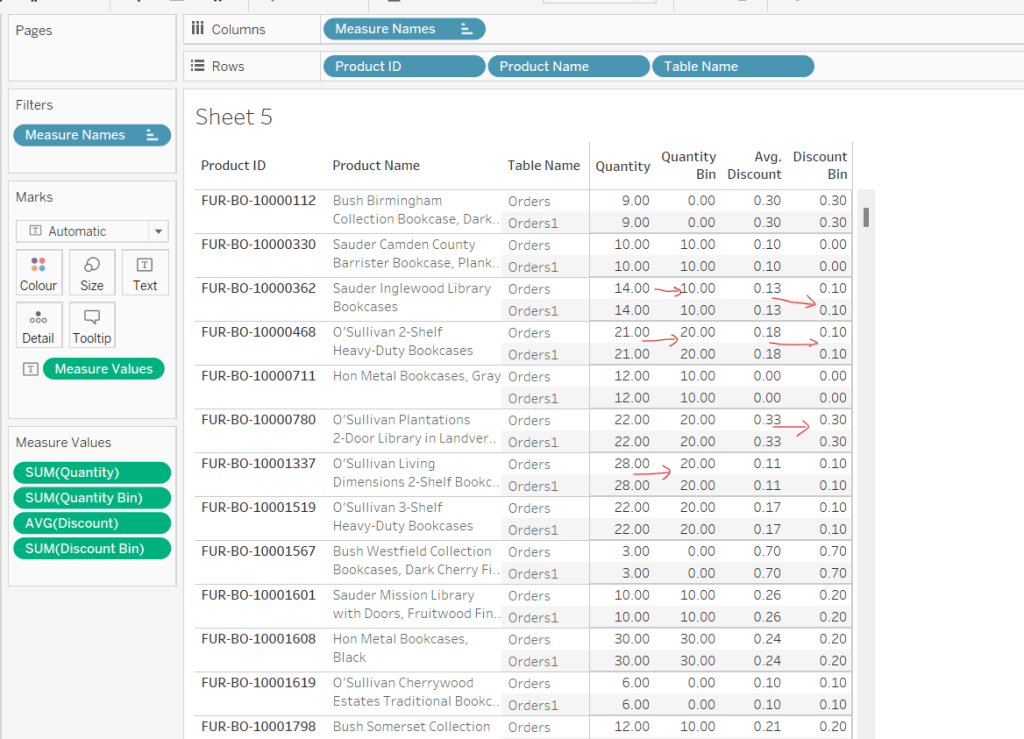
Next we’re going to determine the values we want based on whether we’re building the scatter or the heat map.
Qty – Scatter
IF [Table Name] = ‘Orders’ THEN {FIXED [Product ID], [Product Name], [Table Name]: SUM([Quantity])} END
ie only return the Quantity value for the data from the Orders table and nothing for the data from the Orders1 table.
Qty – Heatmap
IF [Table Name] = ‘Orders1’ THEN [Quantity Bin] + 5 END
so, this time, we’re only returning data for the Orders1 table and nothing for the Orders table. But we’re also adjusting the value by 5. This is because by default, when using the square mark type which we’ll use for the heatmap, the centre of the square is positioned at the plot point. So if the square is plotted at 10, the vertical edges of the square will be above and below 10. However, we need the square to be centred between the bin range points, so we shift the plot point by half of the bin size (ie 5).
Adding these into the table, and aggregating to AVG we can see how these values are behaving.
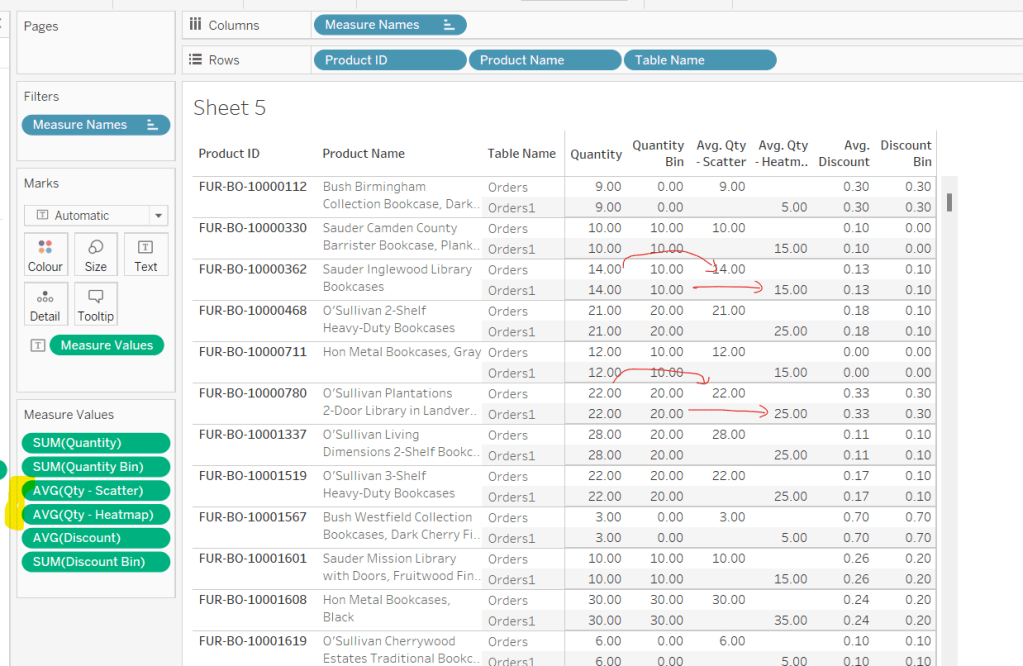
As we’re building a dual axis, one of the axis will need to be combined within a single measure, so we create
Qty to Plot
IF ([Table Name]) = ‘Orders’ THEN ([Qty – Scatter]) ELSE ([Qty – Heatmap]) END
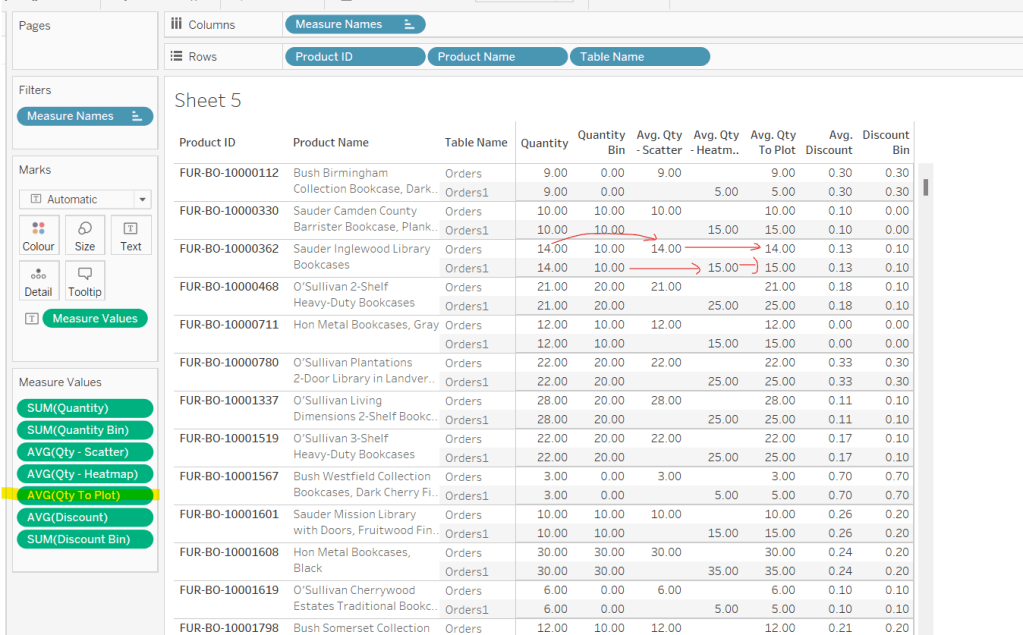
Now we move onto the Discount values, which we apply similar logic to
Discount – Scatter
IF [Table Name] = ‘Orders’ THEN {FIXED [Product ID], [Product Name],[Table Name]: AVG([Discount])} END
Discount – Heatmap
IF [Table Name] = ‘Orders1’ THEN [Discount Bin] + 0.05 END
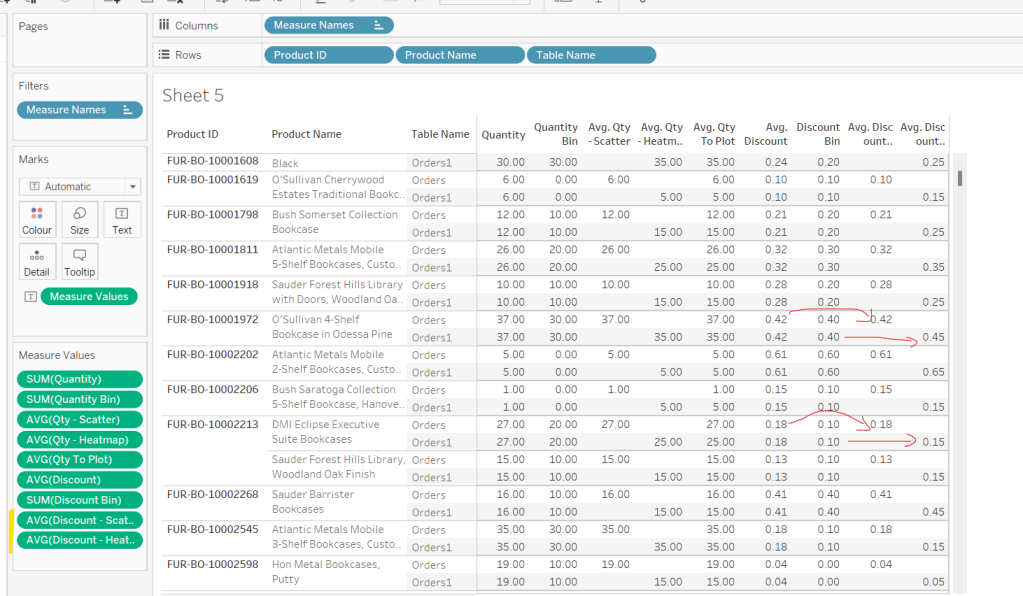
We’ll need is to be able to compute the number of unique products to colour the heatmap by. As mentioned earlier, I’m determining a unique product based on the combination of Product Id and Product Name. To count these we first need
Product ID & Name
[Product ID] + ‘-‘ + [Product Name]
and then we can create
Count Products
COUNTD([Product ID & Name])
The final calculations we need are required for the heatmap tooltips and define the range of the bins.
Qty Range Min
[Qty To Plot] – 5
Qty Range Max
[Qty To Plot] + 5
Discount Range Min
[Discount – Heatmap] – 0.05
Discount Range Max
[Discount – Heatmap] + 0.05
Now we can build the viz
Building the Scatterbox
On a new sheet, add Qty to Plot to Columns and change to be a dimension (so not aggregated to SUM) and Discount – Scatter (set to AVG) to Rows. Add Product ID and Product Name to Detail. Change the mark type to Circle and adjust the size. Adjust the Colour and reduce the opacity (I used #4a9aab at 50%)
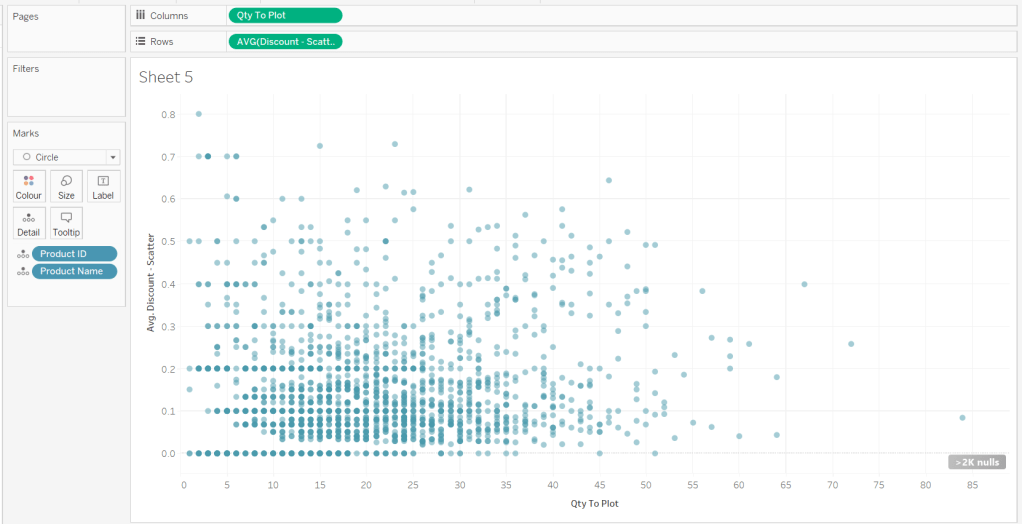
Adjust the Tooltip.
Then add Discount – Heatmap to Rows. This creates a 2nd marks card. Change to be a dimension, and change the mark type to square. Remove Product ID and Product Name from the Detail shelf
Add Count Products to Colour and ensure the opacity is 100%. Adjust the sequential colour palette to suit and set the end of the range to be fixed to 300
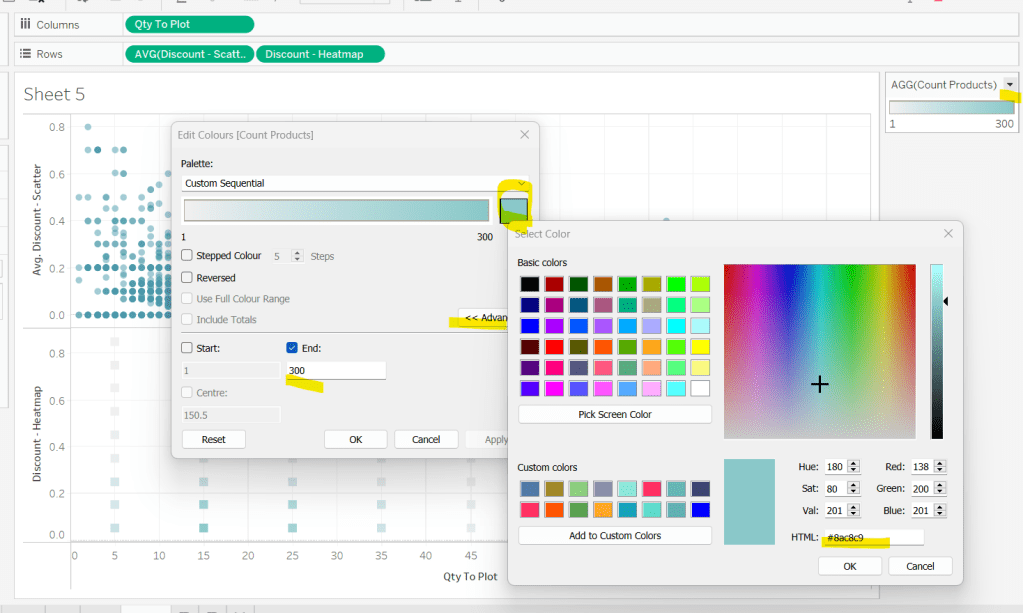
Add Qty Range Min, Qty Range Max, Discount Range Min, Discount Range Max to the Tooltip shelf of the heatmap marks card. Set all to aggregate to AVG and adjust tooltip to suit.
Then make the chart dual axis and synchronise axis. Increase the size of the square heat map marks (note don’t worry how these look at this point, the layout will adjust when added to the dashboard. Right click on the Discount – Heatmap axis on the right and move marks to back. Hide that axis too.
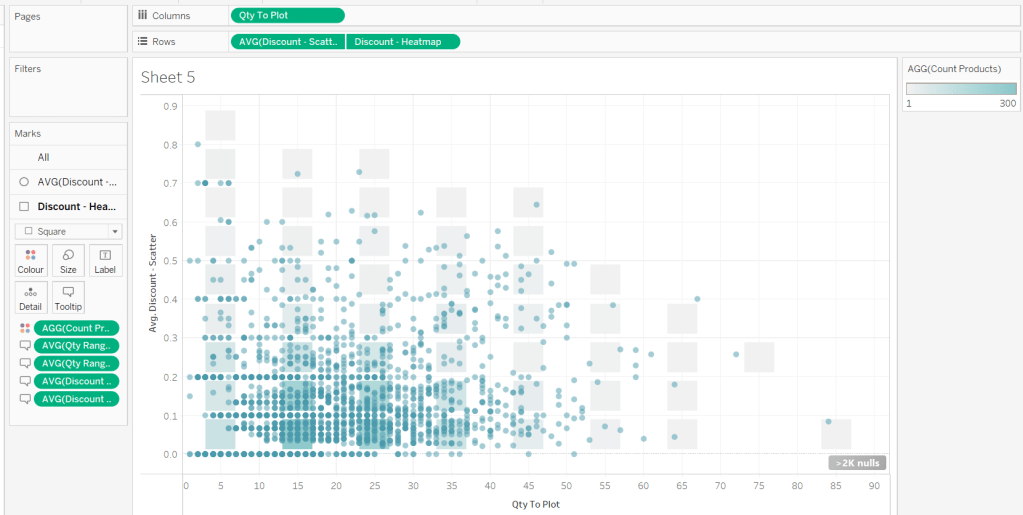
Edit the Qty to Plot axis so the tick marks are fixed to increment every 10 units.
Adjust axis titles, remove row/column dividers and hide the null indicator.
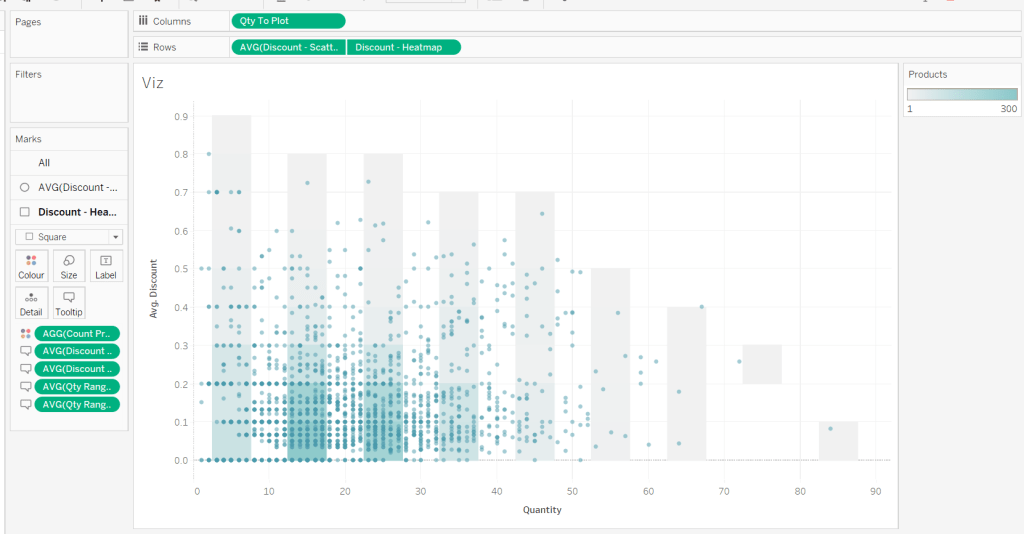
Then add the sheet to an 800 by 800 sized dashboard. You will need to make tweaks to the padding and potentially sizing of the heat map marks again to get the squares to position centrally with white surround. I added inner padding of 60px to the left & right of the chart on the dashboard, to help make the chart itself squarer.

My published viz is here .
Happy vizzin’!
Donna







 Donna + DataViz

