Formatting & Intermediate Tableau Charts

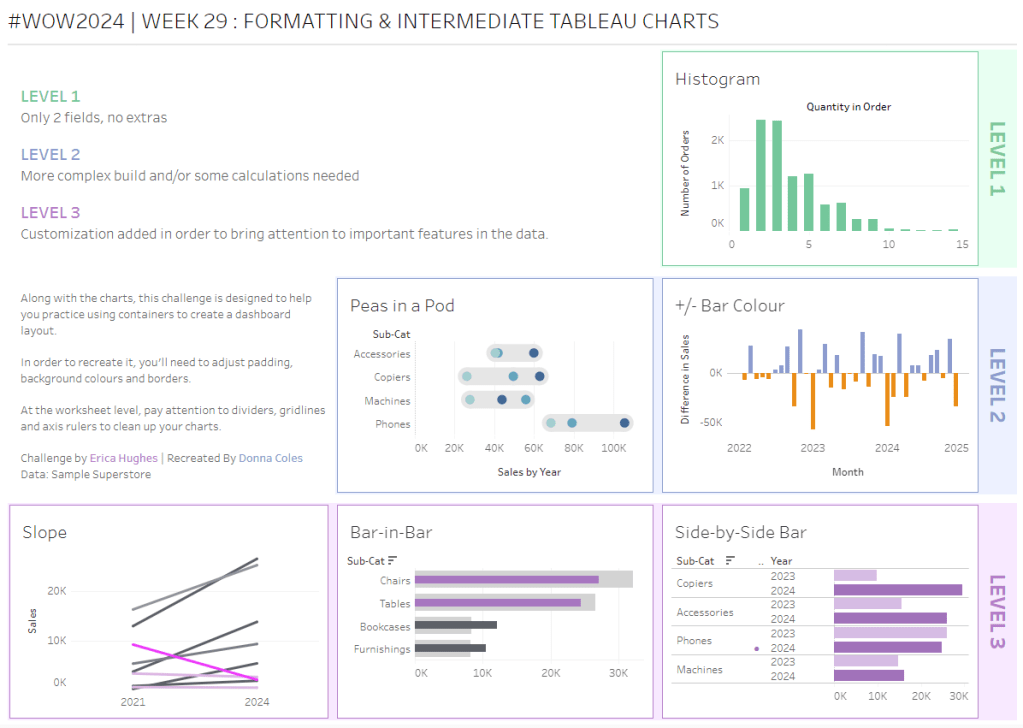
Erica set this challenge primarily aimed at building a beautifully presented dashboard, with the requirement to consider the use of layout containers and padding. She threw in creating some very specific chart types too. The easiest way to blog this, is by chart type.

Building the Histogram

Add Quantity to Columns as continuous dimension (green unaggregated pill) and add Order ID as a measure using the CNT aggregation to Rows. The easiest way to do this is right click and drag Order ID from the left hand date pane and drop onto rows. When you release the mouse, the option to select the aggregation should be available.

Change the mark type to bar and adjust the colour. Edit the title of the y-axis and remove the title from the x-axis. Update the Tooltip.

Double -click into Columns and manually type ‘Quantity in Order’ (including the quotes). Right click on the first text displayed and hide field labels for columns. Adjust the font of the Quantity in Order label that remains.

Remove row and column dividers and column gridlines. Remove Row axis rulers.
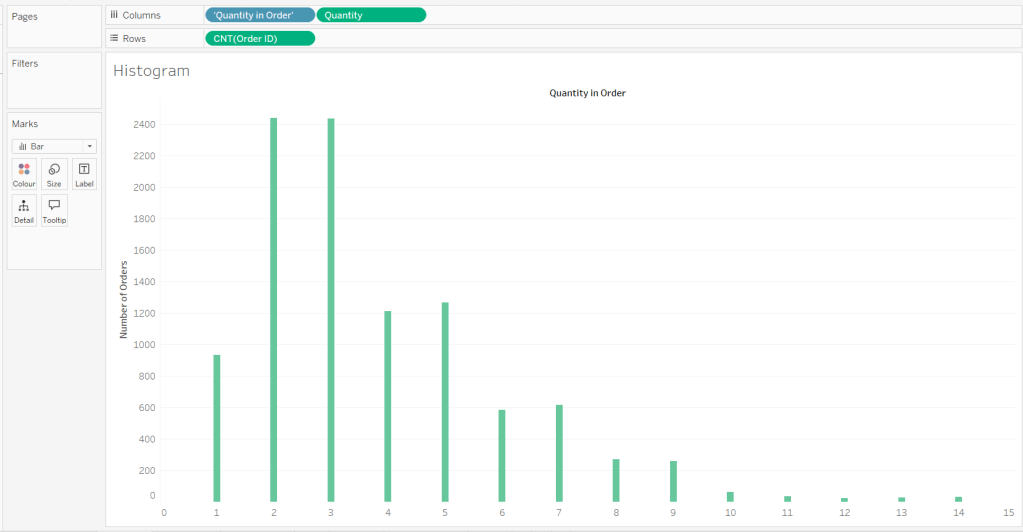
Note, when you add to the dashboard , you may find you want to adjust the Size of the bars.

Building the Peas in a Pod chart

On a new sheet, add Category to Filter and select Technology. Add Order Date to Filter and select Years then choose 2022,2023 and 2024.

Rename the Sub-Category field to Sub-Cat and add to Rows. Add Sales to Columns. Change the mark type to circle. Add Order Date to Colour. By default it should display YEAR(Order Date). Adjust colours to suit. Widen each row a bit.
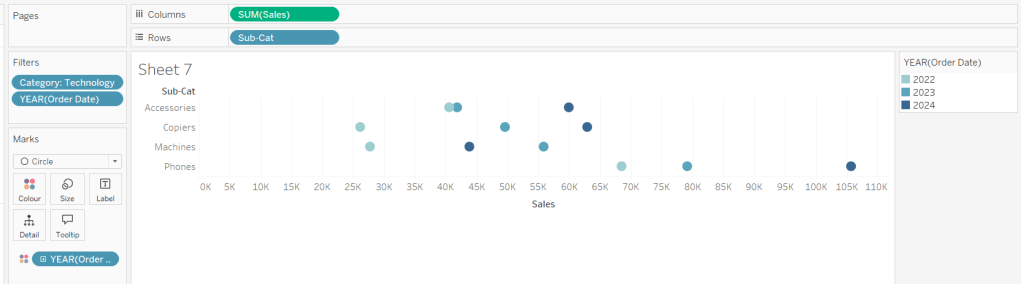
Add another instance of Sales to Columns.

On the Sale (2) marks card change the mark type to line and move YEAR(Order Date) to Path. Increase the size and adjust the colour so it’s a grey lozenge.
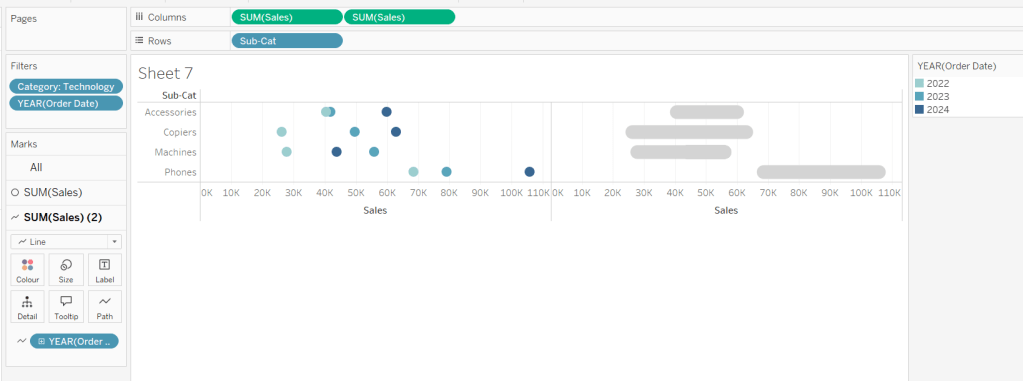
Make the chart dual axis and synchronise the axis. Right click the top axis and move marks to back. Adjust the Tooltip. Edit the title of the x-axis.

Hide the top axis. Remove row and column dividers. Remove row gridlines. Remove axis rulers for both columns and rows.
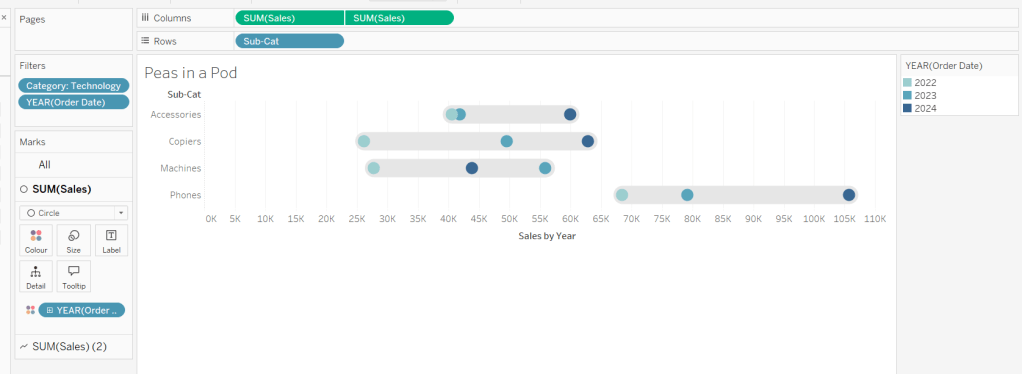
Note, when you add to the dashboard , you may find you want to adjust the Size of the circles and the line. I found it was best adjusted on the web after I published to Tableau Public.

Building the +/- Bar Chart

On a new sheet add Order Date to Filter and select Years then choose 2022,2023 and 2024. Add Order Date to Columns and select to be at the continuous month level (green pill, May 2015 format). Add Sales to Rows and change the mark type to bar.
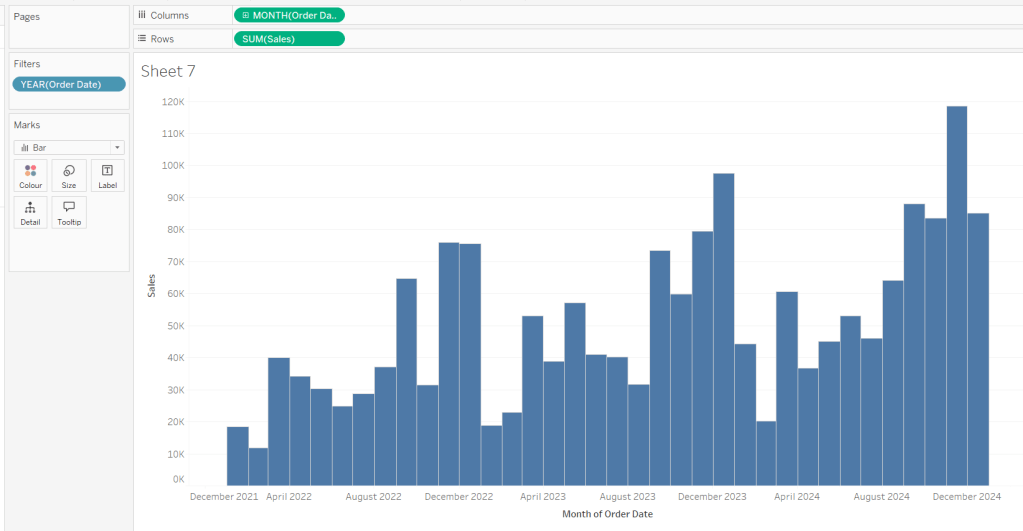
Add a quick table calculation of Difference to the Sales pill.
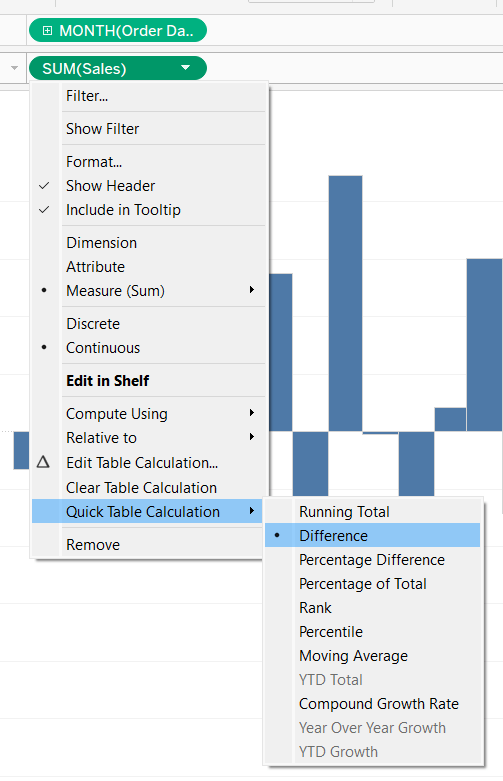
Adjust the size of the bars (select manual over fixed and adjust the slider).

Create a new calculated field

Diff is +ve

ZN(SUM([Sales])) – LOOKUP(ZN(SUM([Sales])), -1) > 0

and add to the Colour shelf. Adjust colours to suit. Hide the null indicator. Adjust the Tooltip. Adjust the title of the x-axis.

Remove all gridlines and axis rulers. Remove the columns zero line. Set the rows zero line to be a continuous unbroken line.
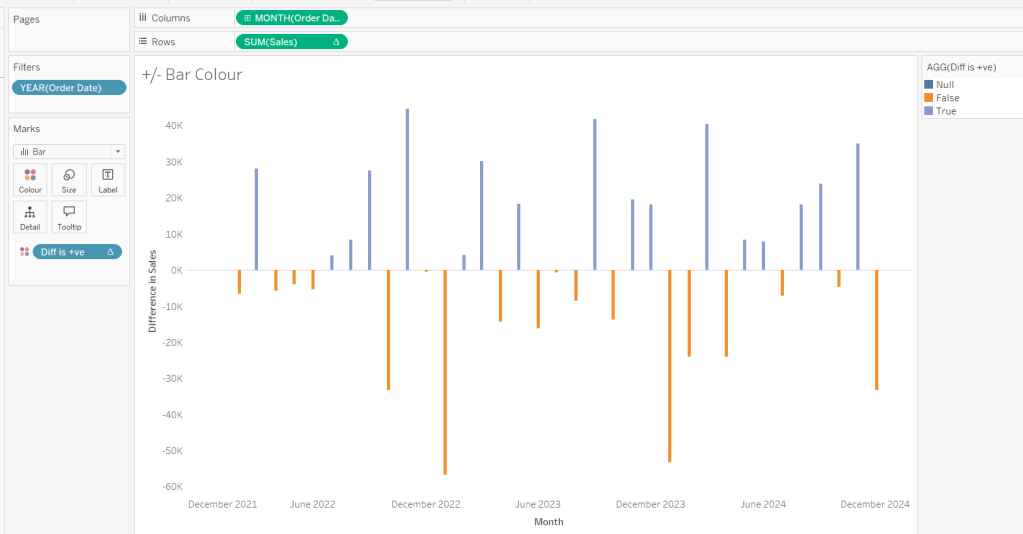
Note – once again the size may need further adjusting once on the dashboard and/or after publishing.

Building the slope chart

Add Category to filter and select Office Supplies. Add Region to filter and select West. Add Order Date to filter and select Years then choose 2021 and 2024 only.

Add Order Date to Columns and Sales to Rows. Add Sub-Cat to Detail.
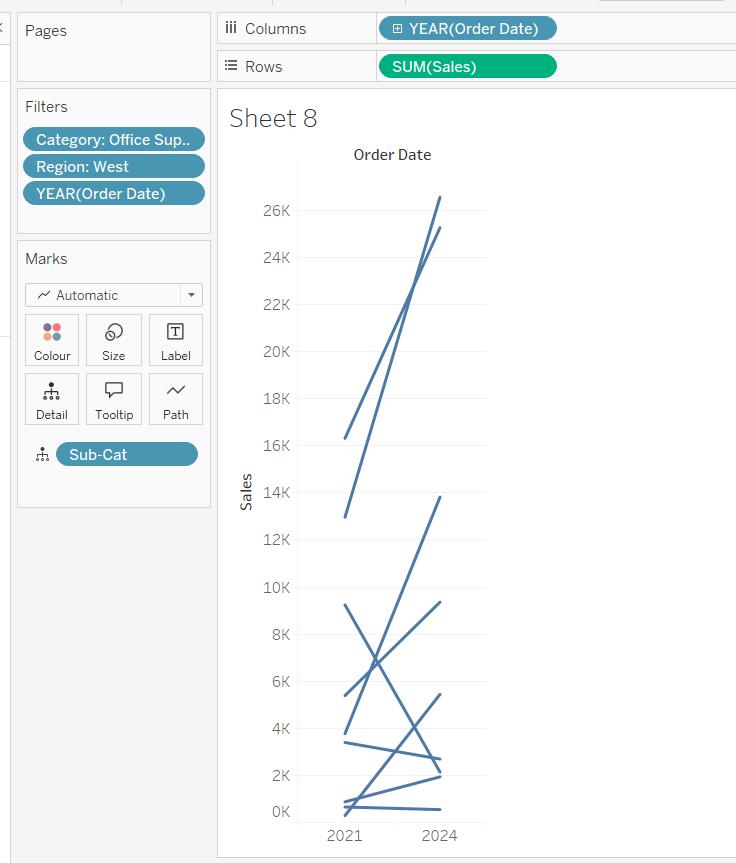
Add Sales to Colour then add a quick table calculation of Percentage Difference. This only sets a value against the 2024 marks though, whereas we want a value for the whole line for each Sub-Cat.

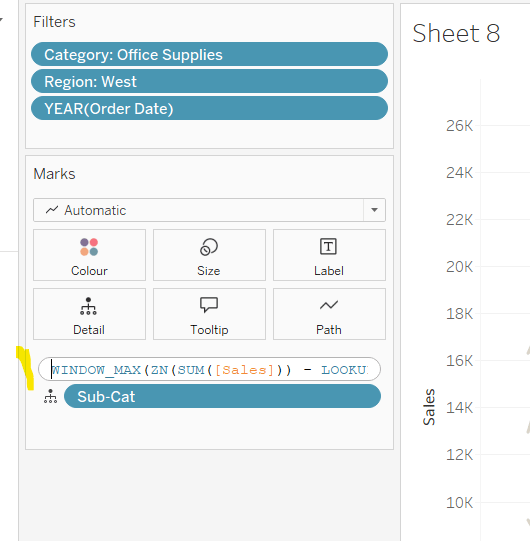
Double-click into the Sales pill on Colour to edit it, and wrap the whole calculation in a WINDOW_MAX() function – the whole calculation should look like

WINDOW_MAX((ZN(SUM([Sales])) – LOOKUP(ZN(SUM([Sales])), -1)) / ABS(LOOKUP(ZN(SUM([Sales])), -1)))
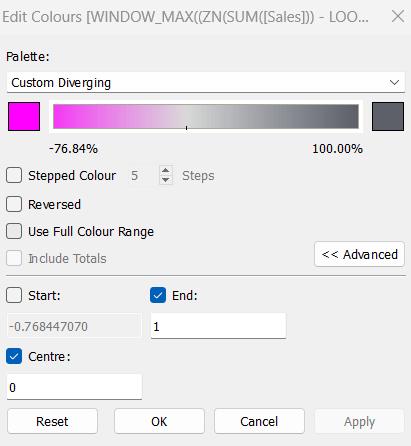
Adjust the colour legend. I set the start & end colours to #ff00ff (hot pink) and #5d6068 (dark grey) and then applied an upper limit to the range and centred at 0 as below.
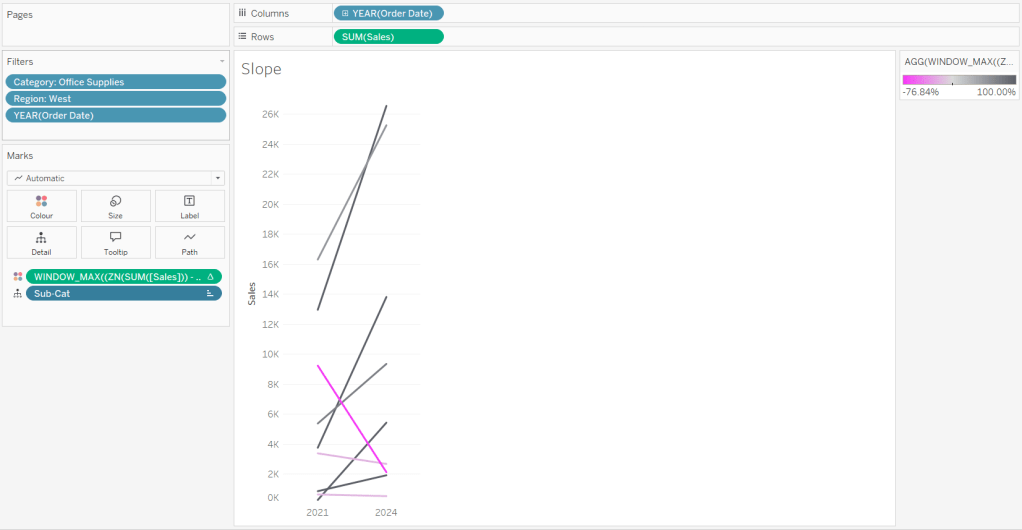
Hide the Order Date heading at the top of the chart. Adjust the Tooltip.

Remove column gridlines, zero lines and axis rulers.

Create new fields

2021 Sales

IF YEAR([Order Date]) = 2021 THEN [Sales] END

and

2024 Sales

IF YEAR([Order Date]) = 2024 THEN [Sales] END

then create

% Difference

(SUM([2024 Sales]) – SUM([2021 Sales]))/SUM([2021 Sales])

Edit the Sort of the Sub-Cat pill on the Detail shelf, so it is sorting by % Difference ascending. This will ensure the lines are displayed overlapping in the expected manner.
Building the Bar-in-Bar Chart

On a new sheet, add Category to filter and select Furniture. Add Region to filter and select West. Add Order Date to filter and select Years then choose 2023 and 2024 only.

Create a new field

2023 Sales

IF YEAR([Order Date]) = 2023 THEN [Sales] END

Add Sub Cat to Rows and 2023 Sales to Columns. Add a sort to the Sub-Cat pill to sort by 2024 Sales descending. Add 2024 Sales to Columns. Make the chart dual axis and synchronise the axis. Change the mark type on the All marks card to bar. Remove Measure Names from the Colour shelf on the All marks card. Set the colour of the 2023 Sales marks card to light grey. Increase the width of each row, then reduce the size of the bar on the 2024 Sales marks card.
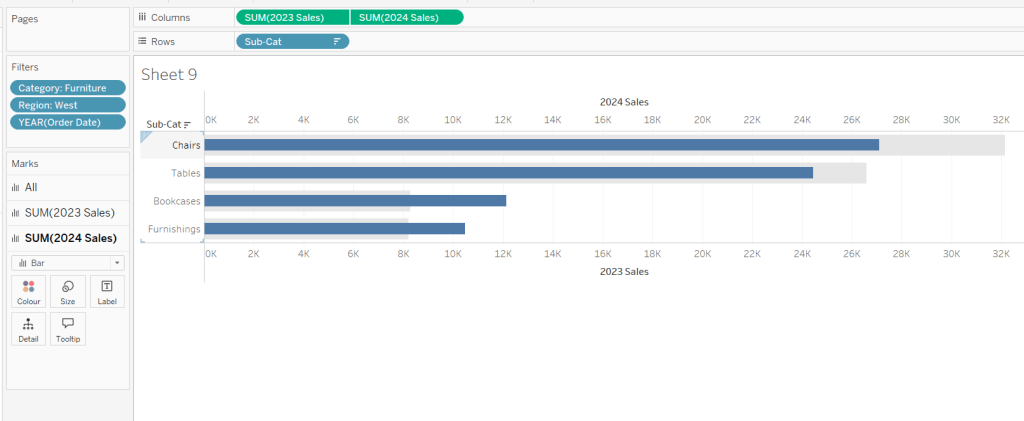
Create a new field

Sales Decreased

SUM([2024 Sales]) < SUM([2023 Sales])

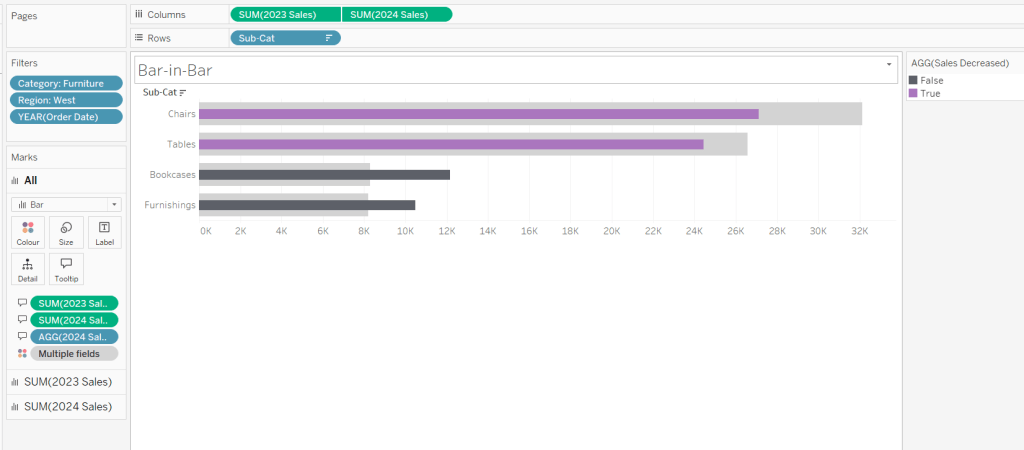
and add to the Colour shelf of the 2024 Sales marks card. Adjust colours to suit.

In the solution, the Tooltip shows an indicator – I’m not sure if this was necessary, but I added it just in case

2024 Sales > 2023 Sales

IF [Sales Decreased] THEN ‘●’ END

Add this to the Tooltip shelf of the All marks card, along with the 2023 Sales and 2024 Sales fields. Adjust the Tooltip accordingly.

Hide the top axis. Remove the title of the x-axis.

Remove row and column dividers. Remove row gridlines and row axis rulers and ticks. Remove all zero lines.
Building the side-by-side bar chart

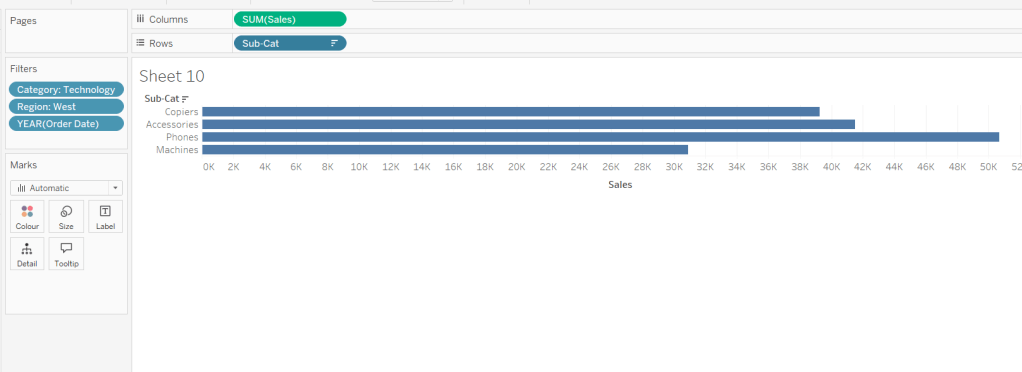
On a new sheet, add Category to filter and select Technology. Add Region to filter and select West. Add Order Date to filter and select Years then choose 2023 and 2024 only.

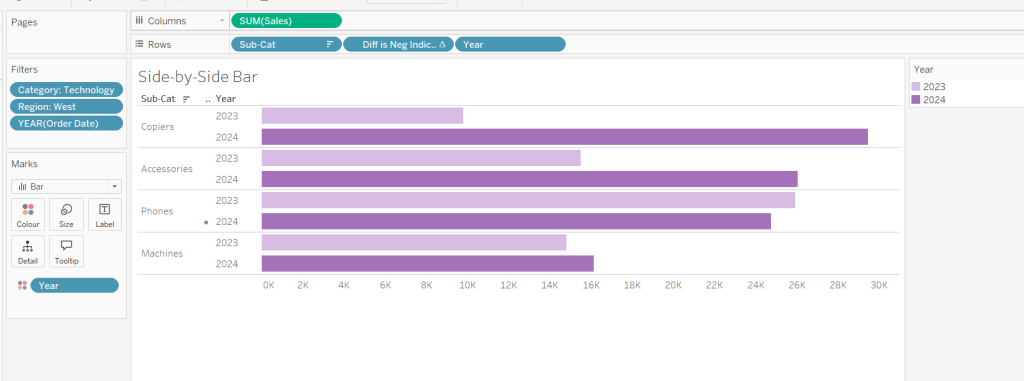
Add Sub Cat to Rows and Sales to Columns. Apply a Sort to Sub-Cat based on 2024 Sales descending.
Create a new field

Year

YEAR([Order Date])

And add to Rows and Colour. Adjust colour to suit. Widen each row.

Create new field

Diff is Neg Indicator

IF NOT([Diff is +ve]) THEN ‘●’ ELSE ” END

Add to Rows before Year and then adjust the table calculation setting so it is just computing by Year only.
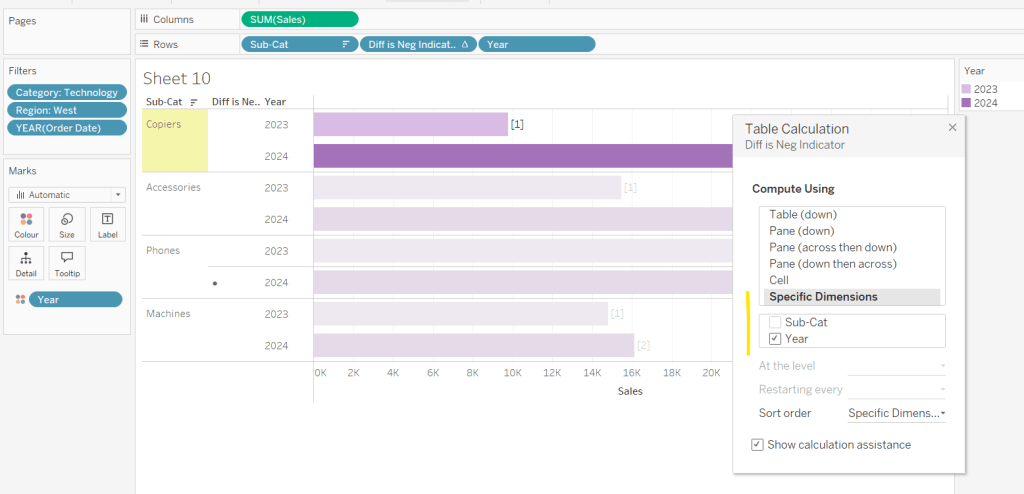
Adjust the alignment of the Sub-Cat column so it is aligned middle right. Narrow the width of the Diff is Neg Indicator column to try to remove all the column heading text. If some still shows, rename the field so it is padded with some spaces at the front. Adjust the Tooltip.

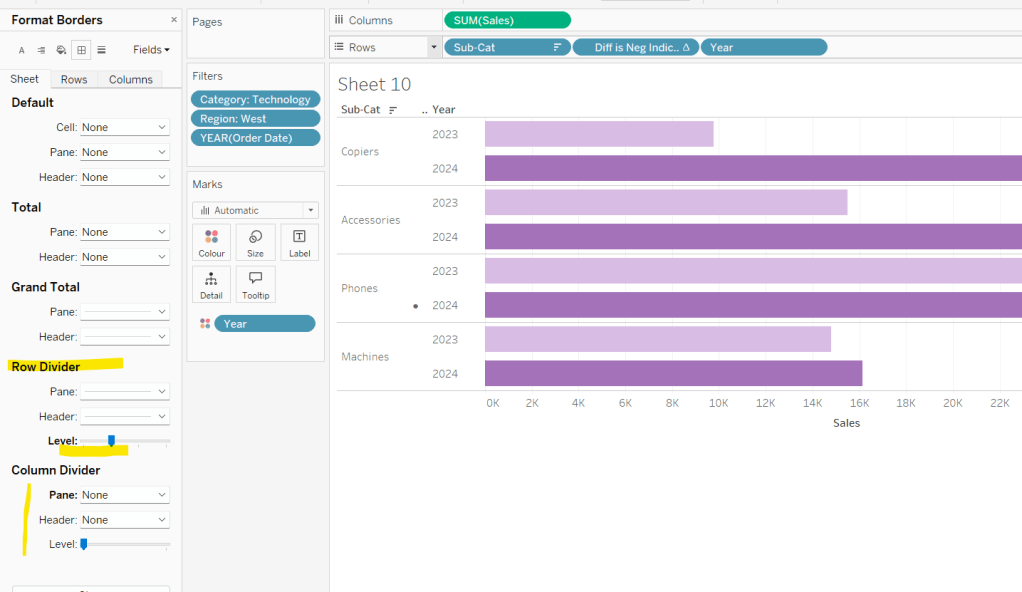
Remove the x-axis title. Remove Column dividers. Adjust the row dividers so they are at level 1 and are partitioning each Sub Cat only and not splitting the Year column.
Remove all gridlines
Building the dashboard

It’s always hard to walk through the steps for placing objects on a dashboard in the specified places. My general rules are

  1. Start with a floating vertical container that is positioned 0,0 and set to the dashboard height and width. I name this Base.
  2. Then add tiled objects such as a text object for the title, blank objects, other containers, charts etc.
  3. When you add a container, add a blank object initially to help get everything into place. Remove once you have at least 2 objects side by side / on top of each other depending on the direction you’re organising.
  4. The item hierarchy shouldn’t have any containers of type Tiled listed.
  5. Try to name your containers to help maintenance in the future

Below is a picture of the item hierarchy I ended up with using this approach
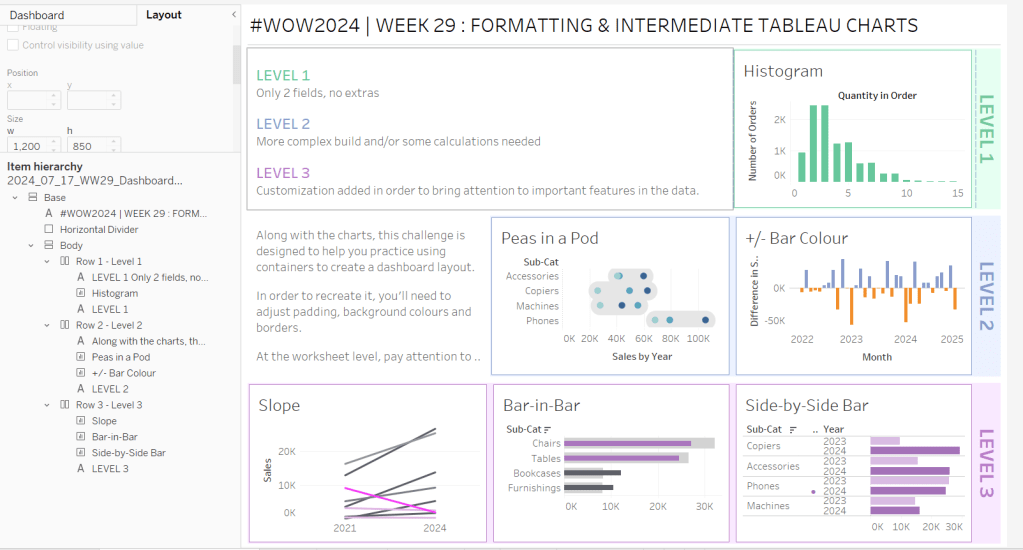
I created a floating vertical container called Base, positioned 0,0 and 1200 x 850. Background set to None, no border and inner and outer padding all 0.

I added a text object to contain the title. Background set to None and no border. Outer padding set to 10 all round, and inner padding 0.

I added a blank object, which I renamed Horizontal divider. Background set to light grey, no border. Outer padding set to left and right 10 and top and bottom 0. Inner padding all 0. Height set to 2.

I added another Vertical container, which I renamed Body. Background set to None, no border and all inner and outer padding set to 0.

I added 3 horizontal containers on top of each other, and set the property of the Body vertical container to distribute contents evenly so each horizontal container was the same height.

1st horizontal container

I named Row 1 – Level 1. I set the background to the pale green. No border. Outer padding set to left & right 10, top & bottom 5. Inner padding all 0.

Into this I added a text field to describe the levels. Background of this was white, no border and outer padding set to 0 (so the green background disappears). Inner padding was set to top: 20 and 10 for the rest.

Next the Histogram chart. Border set to green. Background white. Outer padding right:5, rest 2. Inner padding set to 10 all round. Width of chart fixed to 380 px.

Next the Level 1 text object. No border, no background. Outer padding 4 all round; inner padding 0. Formatted text object to rotate text. Width of object set to 40 px.

2nd horizontal container

I named Row 2- Level 2. I set the background to the pale blue. No border. Outer padding set to left & right 10, top & bottom 5. Inner padding all 0.

Into this I added a text field to describe the challenge. Background of this was white, no border and outer padding set to 0 (so the blue background disappears). Inner padding was set to 10 all round. Width of object set to 380px.

Next the Peas in a Pod chart. Border set to blue. Background white. Outer padding right:5, rest 2. Inner padding set to 10 all round.

Next the +/- bar chart. Border set to blue. Background white. Outer padding right and left 5, top & bottom 2. Inner padding set to 10 all round. Width of object set to 380px.

Next the Level 2 text object. No border, no background. Outer padding 4 all round; inner padding 0. Formatted text object to rotate text. Width of object set to 40 px.

3rd horizontal container

I named Row 3- Level 3. I set the background to the pale purple. No border. Outer padding set to left & right 10, top & bottom 5. Inner padding all 0.

I added the Slope chart. Border set to purple. Background white. Outer padding right:5, rest 2. Inner padding set to 10 all round. Width of object set to 380px.

Next the bar-in -bar chart. Border set to purple. Background white. Outer padding right & left 5, top & bottom 2. Inner padding set to 10 all round.

Next the side-by-side bar chart. Border set to purple. Background white. Outer padding right and left 5, top & bottom 2. Inner padding set to 10 all round. Width of object set to 380px.

Next the Level 3 text object. No border, no background. Outer padding 4 all round; inner padding 0. Formatted text object to rotate text. Width of object set to 40 px.

It was a bit of trial and error to get the spacing as required, and a few calculations to work out how wide I wanted each chart to be, based on the width of the dashboard and the other items in each row.

Anyway, my published viz is here.

Happy vizzin’!

Donna

Can you structure the unstructured?

As soon as I saw that Candra’s challenge for this week was going to involve Regular Expressions (RegEx), I gave a little groan. RegEx just isn’t my thing 😦 I only ever seem to use them for these challenges, and not in my working life, so have minimal experience. I always think I should focus some time on learning them properly, but other things just end up taking priority. Ho Hum…

So most of my time was spent trying to wrangle the info I needed to identify ‘how many bedrooms’ each property had. I did a bit of googling to try to find the right expressions I think I needed, used the regex101 site to test my expression to find certain patterns of text against some of the data in the Description field, and then tried to plug that into a calculated field in Tableau to extract the data I needed.

But I couldn’t get it to work 😦 I could find matching text using the REGEXP_MATCH function, but when I then tried to use the REXP_EXTRACT functions I couldn’t get anything out…

So I ended up having to look at the solutions that had already been published by the time I started, Candra’s, Lorna Brown’s and Sam Epley’s. I just needed to get my head round what I was obviously doing wrong and give me some pointers. All 3 had slightly different approaches. I absorbed, then closed their workbooks and attempted again from memory. With a lot more trial and error I got somewhere… it isn’t perfect and has some mismatches from the others (but they don’t all match each other either…).

Once I’d got a grouping for each property, the actual Tableau stuff was quite straightforward…

  • Identifying the ‘Number of Bedrooms’
  • Building the Histogram
  • Adding the Average Price
  • Building the Map
  • Adding the Interactivity

Identifying the Number of Bedrooms

So the way I approached this, was to try to identify all the various permutations that represented the word ‘bedroom’ and replace it with the word ‘Bedroom’. But one of the options was BR or br, and the Description field contained html markup with the term <br />. I didn’t want all these to become ‘bedroom’, so I got rid of them all first,

Desc with Bedroom

REGEXP_REPLACE(LOWER(REPLACE([Description],'<br />’, ‘ ‘)),’bedroom|br |bdrm|bed|bd|br, |br/|rooms’,’ Bedroom’)

Firstly, replace any occurence of <br /> with a space, then replace any occurrence of the text bedroom or br<space> or bdrm or bed or bd or br<comma> or br<forward slash> or rooms with the word Bedroom.

I basically added more options to the or statement (identified by the | separator), as I went on examining the descriptions that were left. Using the LOWER function meant that bedroom or Bedroom or BedRoom etc would all be covered with one option.

Then I attempted to extract the number of bedrooms or identify as a studio

Studio | Beds

IF CONTAINS(LOWER([Desc with Bedroom]), ‘studio’) THEN ‘Studio’
ELSEIF REGEXP_MATCH(LOWER([Desc with Bedroom]),’\d bedroom’) THEN REGEXP_EXTRACT(LOWER([Desc with Bedroom]),'(\d+) bedroom’)
ELSEIF CONTAINS(LOWER([Desc with Bedroom]), ‘six bedroom’) THEN ‘6’
END

If the revised description contains the word ‘studio’ then assume its a Studio.

Else if the revised description contains a number (\d) followed by 2 spaces then the word ‘bedroom’ then extract the numbers (\d+) that occur before the word bedroom. The brackets around the \d+ is what is used to identify what bit of the matching pattern to extract… this is the bit that I didn’t really know about and why I couldn’t get things to work.

Else if the revised description contains a number (\d) followed by 3 spaces then the word ‘bedroom’ then extract the numbers (\d+) that occur before the word bedroom. This just happened to be another pattern that occurred and meant some records didn’t get picked up by the prior statement. There’s probably a better way of doing this in one statement…

Finally, if the revised description contains the text ‘six bedroom’ then assume the property has 6 rooms.

This logic seemed to get a match against every record although it’s not 100% accurate, but it was close enough given my struggles.

I then wanted to get the rooms grouped

Room Grouping

CASE [Studio | Beds]
WHEN ‘Studio’ THEN ‘Studio’
WHEN ‘1’ THEN ‘1 Bedroom’
WHEN ‘2’ THEN ‘2 Bedrooms’
WHEN ‘3’ THEN ‘3 Bedrooms’
WHEN ‘4’ THEN ‘4 Bedrooms’
ELSE ‘5 or more Bedrooms’
END

I planned to use this field as my filter, but in doing so the value listed alphabetically, so Studio ended up at the bottom of the list.

To resolve this I created a parameter which meant I could define the order I wanted :

pBedroomSelector

And then I created a new field to use for the filter

Filter Room

[pBedroomSelector] = ‘All’ OR
[pBedroomSelector] = [Room Grouping]

I could then add this onto the filter shelf of the sheets I needed to build, setting the value to True.

Building the Histogram

For this chart, we need to ‘bin’ the Price of each property into groups of $100 ranges. However if we use the built in ‘bin’ function, the field created can’t be referenced in other calculations, and I needed to do this. So instead I determined the ‘lower’ value of the range by

Price per Night Min

FLOOR([Price]/100) *100

Divide the price by 100, round down to the nearest whole integer (so 1.9 will round down to 1), then multiply the result by 100.

And given that, I can then calculate

Price per Night Max

[Price per Night Min]+100

I also created a ‘friendlier’ field to store the number of properties

# of Listings

COUNT([listings copy_listings copy])

which is just a reference to the auto generated field created when you connect to the data source.

With these I can plot the histogram

  • Price per Night Min on Columns (set to discrete, continuous)
  • # of Listings on Rows
  • Mark type of Bar
  • Size set to be Fixed with a width of 100
  • Filter Room on the Filter shelf, set to True.
  • Adjust the colour via the Colour shelf and set a white border
  • Show the pBedroomSelector parameter
  • Add Price per Night Max to the Tooltip shelf and set to be an attribute.
  • Set the Tooltip accordingly and format gridlines, axes labels etc

Adding the Average Price

I wasn’t entirely sure what the average price on Candra’s solution represented, so I chose to go for the average price of the properties in the filtered selection; that is of all the 2-bedroom properties for example, find the average price per night, based on the total price per night of all the properties divided by the number of properties. ie I was looking for these values in the 3rd column.

But I couldn’t simply add the Price field aggregated to Avg to the bar chart. Doing so gave me different values per Price per Night Min grouping.

I just want the value on the grand total line spread across the all the data in the chart. So I created

Window Avg Price

WINDOW_SUM(SUM([Price])) / WINDOW_SUM([# of Listings])

This table calculation, set to compute by Price per Night Min gives the value I want across all rows of data

Add Window Avg Price to the Detail shelf of the histogram, set the calc to compute as above. Then you can add a reference line to the Price per Night Min axis.

Building the Map

To build maps you need fields that are geographic data types. For me, the Longitude field was already set, but I had to manually set the Latitude field (right click -> Geographic Role -> Latitude).

Once done, the map could be quickly built by double-clicking the Longitude field, then double clicking the Latitude field, then adding Name and Listing URL to the Detail shelf, and Price to the Tooltip shelf. Finally set Filter Room = True to the Filter shelf.

I then adjusted the colour of the circles, reduced the opacity to 50% and added a border (all via the Colour shelf).

I also added Area Code Boundaries via the Map -> Map Layers menu to get the map style Candra had used.

Adding the Interactivity

Add the 2 sheets to a dashboard. Each chart can be used to filter each other. This functionality can easily be added by clicking on the context menu of the dashboard object, and selecting Use as Filter. A filter dashboard action will automatically be added. Do this for both charts.

The final requirement, is for a link to the actual listing to be available from the map tooltip. This is a dashboard URL Action (Dashboard -> Actions -> Add Action -> Go to URL). Set as below

The words in the Name field will what is displayed on the tooltip.

The layout requires use of containers, background colours and a bit of padding. This is typically a bit of trial and error to get this right. You can check out my published version here.

Happy vizzin’! Stay Safe!

Donna

Can you build a divergent histogram?

It was Ann Jackson’s last #WOW2020 challenge of the year, to build this divergent histogram depicting the average life expectancy by gender, with each bar indicating the number of countries with that life expectancy.

Ann hinted that reshaping the data may help, so I chose to do this by pivoting the data. To do this, in the data pane, I selected both the Life Expectancy Male and Life Expectancy Female columns, then right-clicked and selected Pivot.

This results in the number of rows in the data set being doubled, with a field called Pivot Field Names containing the values Life Expectancy Male and Life Expectancy Female, and then a field called Pivot Field Values which contains the life expectancy value. This field I renamed to Life Expectancy Age and moved it to the top section of the fields pane (above the line), so it is treated like a dimension rather than a measure.

We need to count the countries, so I created

Country Count

COUNTD([Country/Region])

Let’s see what this all looks like

Filtering by Year (2012), adding Life Expectancy Age to Rows, Pivot Field Names to Columns and Country Count to Text we get

Filtering out the Null and we have the basic data we want to plot, which we can do by

  • Year on Filter set to 2012
  • Life Expectancy Age on Filter set to exclude Null
  • Pivot Field Names on Columns
  • Life Expectancy Age on Columns (continuous)
  • Country Count on Rows
  • Mark Type set to Bar
  • Size set to Fixed

If we move Pivot Field Names from Columns to Colour, we get an overlapping bar.

But we want the males to be going down the chart, so let’s change the Country Count field to be

Country Count

IF CONTAINS(ATTR([Pivot Field Names]),’Female’) THEN COUNTD([Country/Region]) ELSE COUNTD([Country/Region])*-1 END

which is basically inverting the values for the male, and is pretty much the crux of the challenge 🙂

We need to label the max bar for each gender, or in this case the max & min. So showing mark labels and setting to just label the max and min values, we have a couple of issues….

… the labels are positioned in the centre, and males is labelled -13, rather than 13. To fix the positioning, we need to turn stacked marks off via the Analysis menu (took a bit of while to figure this one out).

To resolve the negative labelling, I formatted the County Count field to custom format to #,##0;#,##0

The final requirement is to ensure the axis range is identical. To do this I created reference lines based on the maximum value

Max Count Ref Line

WINDOW_MAX([Country Count])

which I then copied

Max Count Ref Line (Copy)

WINDOW_MAX([Country Count]) *-1

Adding both of these to the Detail shelf, and setting the table calculation to compute by the fields below

And apart from some formatting and the tooltips, that should be complete. My published viz is here. When I looked at Ann’s version, she tackled it differently, which is the beauty of these challenges – there’s often more than one solution.

Happy vizzin’! Stay Safe!

Donna

Can you create a clustered histogram?

Ann Jackson returned with this week’s #WOW2020 challenge, to create a ‘clustered histogram’, whereby the orders in 2020 were placed in ‘bins’ based on the sale value.

I found this challenge quite straightforward this week, as its very similar to a previous challenge I’ve already blogged about in week 23, which created a side by side bar chart by month.

So what are the main points for this blog

  • Creating the bins
  • Getting the bars side by side
  • Tooltips

Creating the bins

I first created an LoD to store the total value of the sale for an Order

Order Value

{FIXED [Order ID]: SUM([Sales])}

then I need to ‘bin’ this, but as the sales over $2000 needs to be lumped together, we can’t use the traditional binning functionality. We also don’t want to have a massive case statement to assign the values. Instead we can do a bit of maths…. we want to essentially round each order value to the nearest 100.

Round Up to 100

(CEILING([Order Value]/100) * 100)

So if the Order Value is 39 for example, when divided by 100 this will be 0.39. The CEILING function always rounds up to the nearest whole number, so in this case will return 1, which is then multipled by 100 to give us 100.

Doing this, every order value is then assigned a ‘bin’ of 100, 200, 300 etc

I then created

Sales Bin

IF [Round Up to 100] >2100 THEN 2100 ELSE [Round Up to 100] END

to apply the grouping of all the values which were greater than 2100 (since 1999 would be rounded up to 2000 and 2001 would be rounded up to 2100).

Getting the bars side by side

We have the Sales Bin measure and will also need to plot the count of orders

# Orders

COUNTD([Order ID])

Plotting this out and splitting by Segment we get

but we don’t want the segments stacked, we want them side by side.

The Sales Bin axis is ‘continuous’, which means a value can be plotted at any number along the line, it just happens to be at the ‘100’ marks as that’s where are bins are.

So we use a sort of ‘jittering’ to plot each bar at a slightly different value depending on the segment

SALE AMOUNT

CASE [Segment]
WHEN ‘Consumer’ THEN [Sales Bin] – 75
WHEN ‘Corporate’ THEN [Sales Bin]- 50
ELSE [Sales Bin]- 25
END

So for all the orders in the ‘100’ bin (ie the order value was between 1 and 100), all the Consumer orders will actually get plotted at 25, Corporate at 50 and Home Office at 75.

All this is explained in much more detail in the Week 23 blog post referenced at the top of this post.

Tooltips

The tooltip has different text depending on where you hover.

We need the lower value for the bin range (eg $0-100$), so I created

Round Up to 100 minus 100

[Round Up to 100]-100

And I then created 4 different ‘tooltip’ calculations which I could place on the tooltip to give me the display I needed:

TOOLTIP Upper

IF [SALE AMOUNT]<2000 THEN [Round Up to 100] END

TOOLTIP Lower

IF [SALE AMOUNT]<2000 THEN [Round Up to 100 minus 100] END

TOOLTIP between

IF [SALE AMOUNT]< 2000 THEN ‘ between’ END

TOOLTIP Symbol

IF [SALE AMOUNT]< 2000 THEN ‘ – ‘ ELSE ‘$2000+’ END

The final thing needed is to create a reference band to colour the section at the end, and fix the axis to start after 0 and end at 2099, so you don’t get 0 and 2100 displayed on the axis.

So a relatively short write up today – think this is the quickest blog I’ve written.

My published viz is here.

Happy vizzin’! Stay Safe!

Donna