After a couple of weeks off due to holiday, it was my turn to set the challenge. When browsing around for inspiration, I came across this stem & leaf Power BI WOW challenge by Meagan Longoria, which in turn was inspired by a Tableau WOW challenge set by Yusuke in 2024.
So I thought it would be fun to go ‘full circle’ and see if I could recreate Meagan’s challenge in Tableau, which builds on Yusuke’s challenge, as this requires the ‘leaves’ to be spread across multiple rows.
Defining the calculations
The data set provided contains a rows uniquely identified by a Row ID, and each row defines a Species of Iris and the Petal length, which is a decimal number in cm.
To build the stem and leaf chart, we need to first identify the Stem and then the Leaf. If the length is 4.6cm for example, then the stem is 4 and the leaf is 6.
Stem
INT([Petal length (cm)])
Format this to a number with 0 dp and move to the ‘dimensions’ section of the data pane (above the line).
Leaf
INT(ROUND(([Petal length (cm)] – [Stem])*10,0))
Again, format this to a number with 0 dp and move to the ‘dimensions’ section of the data pane (above the line).
Note – Originally my function was INT(([Petal length (cm)] – [Stem])*10), but I found in some occasions this wasn’t given me the right values eg 4.1 was reporting a Leaf of 0, due to the precision of the original number stored. Using the ROUND function to convert the number to have 0 dp resolved this.
Put all these fields into a table like below, so we can start to sense check the other calculations we’ll need.
The final chart will plot the ‘leaves’ as points on an X and Y axis. The central ‘spine’ of the chart is where X=0, and the leaves are the plotted with the position based on the Stem value and then which row and column the leaf is in. Records associated to the Iris-versicolor Species will be plotted on the left side (negatives) while the Iris-virginica Species will be plotted to the right (positives).
The leaves need to organised into rows of 10 per Stem, per Species, sorted by the Leaf value (smallest first). To manage this, we first need to understand how many leaves are associated with each Stem and Species, and give them a ‘counter’ (ie index) per Stem/Species cohort.
Leaf Index per Stem
/* For each stem per species, index the leaves from 1 to however many there are in the cohort. */
INDEX()
Add this into the table, and adjust the table calculation so it is computing by Leaf and Row ID only and add a Custom Sort by Leafascending
We now want to identify which ‘row’ (per stem) the leaf will sit on based on it’s index number. If there’s more than 10 leaves per stem, then we need to plot on multiple rows, where the row count starts at 1. Dividing Leaf Index per Stem by 10 will help us do this, but as all leaves indexed from 1-10 need to be on the 1st row, we need to subtract 1 from the index before we divide. We can then convert to a whole number with the INT function, but as we want rows to start at 1, we then need to increment.
Leaf Row Number
INT(([Leaf Index per Stem]-1)/10) + 1
Eg
Leaf Index = 4 -> subtract 1 = 3 -> divide by 10 = 0.3 -> apply INT function = 0 -> add 1 = row 1
Leaf Index = 10 -> subtract 1 = 9 -> divide by 10 = 0.9 -> apply INT function = 0 -> add 1 = row 1
Leaf Index = 11 -> subtract 1 = 10 -> divide by 10 = 1.0 -> apply INT function = 1 -> add 1 = row 2
Add this into the table and apply/verify the table calculation settings are as above.
We then want to identify which column each leaf should be in, which should be a number between 1 and 10 for Iris-virginica and -1 to -10 for Iris-versicolor. We can use the modulo (%10) function for this, based on the Leaf Index per Stem value, to find the remainder if the index is divided by 10. Similarly to before, as all leaves indexed from 1-10 need to be in the equivalent numbered column, we first need to subtract 1 from the index before we find the remainder, but then we need to add 1 to the final result, to get the desired result.
This is essentially just taking the Leaf Column Number and making it negative for the Iris-versicolor Species. We’ve wrapped it in a FLOAT to make the number decimal, as we need the axis to be able to handle decimal values later on.
For the Y Axis, we’re going to plot the leaves on rows at intervals of 0.2 related to the stem position
Y Axis
MIN([Stem]) + (0.2 * [Leaf Row Number])
Add these into the table and apply/verify the table calculation settings are as above.
Building the viz
Now we have the core data we need, we can start to build the viz
On a new sheet, add Species, Row ID, Stem and Leaf to Detail. Then add X Axis to Columns and Y Axis to Rows. Adjust the tableau calculation settings as before (remembering to apply the custom sort too!)
Change the mark type to circle. Add Species to Colour and adjust as required, adding a coloured border. Set the sheet to Entire View. Increase the Size a bit, then move Leaf from Detail to Text. Align middle centre and bold and allow labels to overlap. Reverse the Y Axis.
Fix the Y-Axis from 2.5 to 7 and set the tick marks to occur at intervals of 1.
Format Petal length (cm) to be a number with 1 dp, then add to Tooltip and adjust accordingly.
Set the background of the worksheet to pale blue. Remove column gridlines. Set the row gridlines to be a pale blue. Remove zero lines, axis rules & tick marks.
To plot the Stem value, double click into the Columns and manually type MIN(0.0) to create a second axis. Remove all the fields except Stem from the marks card of this axis. Change the mark type to shape and use a transparent shape. Move Stem onto Text and align middle centre and increase font size and make it bold. Clear all the text from the Tooltip associated to this mark.
Make the chart dual axis and synchronise the axis. Then add a Reference Band to the X-Axis which plots at -0.5 to 0.5, formatted with a blue line and a pale yellow fill.
Finally, hide all the axes (uncheck show header) and remove row & column dividers.
Add to a dashboard, using containers to organise the content. Use a horizontal container above the main viz to add text fields to label the parts of the chart. Ensure the chart specific title, the label headings and the chart itself are in a vertical container which can then have formatting applied (border/ curved edges etc). My dashboard item hierarchy is shown below
For this week’s challenge we’re using the Superstore data set to simple averages with weighted averages
Connect to the data and on a new sheet add Order Date to Filter and select the last 3 months in your data set (I had the 2025.3 instance of Superstore, so the data was filtered to Oct, Nov & Dec 2025.
Simple Average
In the data we have, a single Order ID can have multiple order lines (ie Products), and the quantity of each product can differ. Different discounts can be applied to each product. In the example below, we are at the lowest ‘grain’ of the data, ie each row in the table is equivalent to a single row in the raw data set. As a result the SUMs and the AVG values are identical. This order has 5 order lines. (Note, the Discount field has been formatted to a % with 1 dp).
If this data is summarised just at the Order ID level, the SUM and AVG differ, as you would expect.
The AVG([Discount]) is automatically being computed by Tableau as SUM(Discount) / number of rows associated to the Order ID, which is 280/5 = 56%.
This is the ‘simple’ average and is taking no account of the Quantity associated to each order line.
Weighted Average
We need to get the average based on the fact that in this example, there are actually 26 ‘items’ ordered across the 5 order lines, so we need the following
At the raw line level, the Discount is being multiplied by the Quantity (so a weighting is being applied per line as the quantities and discounts can vary). This is then being aggregated (ie summed up) and then the average is determined by dividing by the total number of items ordered. So based on the example we have (2*0.2) + (3*0.8) + (5*0.8) + (9*0.8) + (7*0.2) = 15.4 which is then divided by 26 = 0.592 or 59.2%
Building the Viz
Add Discount to Columns and change the aggregation to Average. Then add Quantity to Rows and change that aggregation to Average too. Add Order ID to Detail. Change the mark type to circle.
Create a new field
Difference from correct metric
ABS([Weighted Avg] – AVG([Discount]))
Add to Tooltip and then create
Is difference?
ROUND([Difference from correct metric],3)<>0
note – I am rounding here as I was getting some anomalies to Erica’s solution due to very very small differences
Add to Colour and adjust to suit. Reduce the opacity and size as desired. Add Discount toLabel (aggregated to Average). Set the Label to display only when highlighted.
Add Difference from correct metric to Filter
Remove row/column dividers and adjust Tooltip as required.
Name the viz Simple Avg or similar and then duplicate the sheet. Replace the AVG(Discount) pills on the Label and Columns shelf with the Weighted Avg pill. Adjust tooltip and rename axis title. Name this sheet Weighted Avg or similar.
Creating the Viz in Tooltip
On a new sheet, add Order ID, Category to Rows and then Quantity and Discount into the table aggregated at the Average level. Remove row banding and column dividers and adjust row dividers. Name the sheet Order Details or similar.
On the Simple Avg sheet, edit the Tooltip and insert the Order Details sheet, adjusting the width if required.
Repeat on the Weight Avg sheet.
Creating the Dashboard
Using layout containers, create the desired arrangement. My hierarchy is below
I used blank objects with a grey background to create the horizontal and vertical ‘lines’, using outer padding to help. Here’s an example of the top horizontal line. The height of the object is 134 pixels, but I’ve added 130 px top padding, making the ‘line’ 4px wide.
Add a highlight dashboard action that applies when a mark is selected
And that should then be done! My published viz is here.
Lorna wanted us to practice layout containers this and also sprinkled in a bit of new functionality – rounded corners! As a result you’ll need to use Tableau Desktop v2026.1 to complete this challenge.
Lorna provided a starter workbook with all the required sheets – we had to build the dashboard.
Describing how to do this is tricky, so I’m going to show a picture of my item hierarchy, and then describe some key points.
Lorna challenged us to use no more than 11 containers. I have 12 as I’ve included my standard ‘footer’ in a horizontal container, which isn’t part of the solution. When working with containers, it’s often useful to add blank objects as placeholders to help ensure the layout. and while you add and position the actual objects. The blank objects then get deleted. Padding is very helpful to reposition objects and add whitespace, but getting the values right can take a bit of trial and error and lots of tweaking.
I have renamed all the containers and numbered them, so you can see the number there are. I’ve named them with an ‘h’ or ‘v’ prefix depending on whether the container is vertical or horizontal.
When dealing with tricky layouts, I always start with a floating container that is positioned at point 0,0 and has the height and width of the dashboard. In this case, this is the container labelled 1.vBase. When I add other containers/objects into this base container, they are set to be tiled. I remove the automatic ’tiled’ container that exists initially, and if any reappear as I’m adding objects, I delete them too.
To generate the bordered shadow effect around the Superstore Overview title, the 2.hHeader container has the following properties:
no border
background set to light grey
corners set to a radius of 5
outer padding all 0
inner padding all 0
The Superstore Overview title Text object that sits inside this container, then has the following properties
no border
background set to white
corner radius all 0
outer padding: left 5, top, bottom, right all 2
inner padding all 15
A similar principal is applied to the 11.hRightPane container and the Scatter plot object contained within. The 11.hRightPane container does additionally have a left outer padding of 5 and a bottom padding of 10.
The 4.vLeftPane container just has a right outer padding of 5. This along with the 5 left outer padding of the 11.hRightPane container above gives the 10 pixel spacing between the 2 columns of data in the main body of the chart. There will ultimately be 3 ‘KPI’ rows within this container, so the 4.vLeftPane should be set to distribute contents evenly (only apply once you’ve built all the rows as described below).
Each KPI ‘row’ is constructed in the following manner; I’ll describe the top row, but just repeat for the other rows:
5.hTopKPI-Outer has the following properties
no border
background of light grey
corner radius of 5 all round
outer padding all 0
inner padding all 0
The 6.hKPI-Inner then has the properties
no border
background is white
corner radius all 0
outer padding: left 5, top, bottom, right all 2
inner padding all 0
Having the 2 horizontal containers set up this way creates the bordered, shadowed effect.
The Total Sales CY vs PY sheet is then set to a fixed width of 140 and inner padding all round of 10.
The Sales % Change sheet is then set with a fixed width of 130, corner radius of 20 all round, and outer padding of left 15, top 80, right 15 and bottom 20. Note, I also reduced the label text on the sheet itself from 20 to 15 pt.
Finally the Sales over Time sheet is set to have inner padding of 15 all round.
Hopefully all this helps, though as mentioned, I can imagine they’ll be a bit of fiddling to get things right. My published viz is here.
This week’s #WOW2025 challenge was set live as part of TC25. Unfortunately, this year I couldn’t be there in person to meet everyone, which for the last 3 years has been my conference highlight 😦
Anyway, Kyle set the challenge, and conscious of time, provided a starting workbook, so the focus could be on the container and DZV functionality. For those who nailed this, he added some additional interactivity with dashboard actions.
So the first thing is to download the starter workbook from the challenge page.
I’m going to attempt to build this in the order of Kyle’s requirements.
Layout out the dashboard
So the requirement states that no floating objects are allowed. Typically when I build a dashboard for business purposes or where the layout is a little complicated, I always start by adding a floating container sized to the exact dashboard size and positioned 0,0. I then add tiled objects into it. Doing this means I don’t end up with Tiled container objects on my dashboard (or if any get added when legends/filters get automatically added, I just move any items I want to retain and then delete the Tiled container).
However, as Kyle says ‘no floating’, I will build adding to the ‘default’ dashboard which means there will be containers on there I don’t really want.
Now blogging about containers is usually very tricky as it’s hard to explain where things need to go. So I’ll be supplementing this with a lot of screen shots – fingers crossed following along works out ok!
To start, create a dashboard sheet and resize to 1200 x 900 as required. Observe the item hierarchy section of the Layout pane as this is where you’ll see all the containers and objects as we add them to the dashboard.
The main structure of the display is split into 2 columns, so start by adding a horizontal layout container to the dashboard. Once added, add 2 blank objects side by side to give the basic layout. Adding blank objects helps when positioning the required objects and is recommended when dealing with layout containers, especially if you’re new to them. They will ultimately be deleted as we go. Rename the horizontal container H – 2 cols or similar (right click on the container in the item hierarchy > rename).
Notice how a Tiled container has now also appeared on the dashboard, even though we only added a horizontal container.
The first column of the dashboard contains 2 charts – the Scatterplot and the Sales & Profit Ratio Comparison sheets – stacked on top of each other. For this, add a vertical layout container between the two blank objects. Rename this V – Col 1.
Add the Scatterplot sheet into the vertical container and then add Sales & Profit Comparison underneath it.
The various legends associated with these 2 sheets, automatically get added into their own vertical container on the right hand side. These aren’t required, so from the item hierarchy, select the Vertical container and then Remove from dashboard.
The right hand column of the display will show the Sales & Profit Ratio by Month sheet and another (hidden) chart that needs to be built.
Add another vertical container between the V – Col 1 container and the right hand blank object. Name this V – Col 2, and add the Sales & Profit Ratio by Month sheet and then another blank object underneath it. Once again remove the right hand vertical container that is automatically added with all the legends/filters.
Now we have the ‘core’ layout, the 2 blank objects we added to the horizontal container, H – 2 Cols, right at the start, can be removed, so hopefully you should have a layout organised as below.
Now add the dashboard title (Dashboard menu > Show Title, and then update the text). This will automatically add a vertical layout container around all the existing contents.
Building the Sales & Profit Ratio by Sub-Category bar chart
On a new sheet, add Sub-Category to Rows and Sales to Columns. Add Profit Ratio to Colour and adjust the colour legend to use the Red-Black Diverging colour palette. Hide the Sub-Category row label heading (right click > hide field labels for rows).
The bar chart needs to be filtered when a State in the Sales & Profit Ratio Comparison chart is clicked on, or when a Date is selected in the Sales & Profit Ratio by Month chart. However, I noticed when clicking around, that when clicking the Sales & Profit Ratio by Month chart, it filtered the above bar chart by both the State and Date. So based on this, create 3 parameters.
S&PR Comp State
String parameter defaulted to empty string
S&PR by Month State
String parameter defaulted to empty string
S&PR by Month Date
Date parameter defaulted to 01 Jan 1900 (essentially a null date)
Show these parameters on the sheet.
We want to filter the chart if the S&PR Comp State has a value and the S&PR by Month Date is the ‘null’ date (which means we’ve interacted with the Sales & Profit Ratio Comparison chart), or if the S&PR Monthly State has a value AND the S&PR by Month Date has a value (which means we’ve interacted with the Sales & Profit Ratio by Month chart). So create
Filter – S&PR by SubCat
([State Name] = [S&PR Comp State] AND ([S&PR by Month Date]=#1900-01-01#))
OR
(([State Name] = [S&PR by Month State]) AND (DATETRUNC(‘month’, [Order Date]) = DATETRUNC(‘month’, [S&PR by Month Date])))
Enter a State name into the S&PR Comp State parameter (eg New Jersey), then add the Filter – S&PR by SubCat field to the Filter shelf and set to True. The chart should change.
Verify the functionality by adding a state and date into the other parameters eg 01 March 2021 and Texas
Empty the state parameters and set the date back to 01 Jan 1900. Name the sheet Sales & Profit Ratio by SubCat. The chart contents will disappear.
Creating a dynamic title sheet
Originally I hoped to do this without using another sheet and just using the title of the bar chart, but I need the date to show nothing rather than Jan 1900 depending on the user interactivity, so a new sheet is required.
But for it, we need some additional calculated fields.
State for Title
IIF([S&PR by Month State]<>”,[S&PR by Month State], [S&PR Comp State])
We only want to show the name of the state once, and both parameters may have it set.
Date for Title
IF [S&PR by Month Date]=#1900-01-01# THEN ” ELSE DATENAME(‘month’,[S&PR by Month Date]) + ‘ ‘ + STR(YEAR([S&PR by Month Date])) END
Line
IF [S&PR by Month Date]<>#1900-01-01# THEN ‘|’ ELSE ” END
Add all 3 fields to the Detail shelf of a new sheet. Change the mark type to polygon. Update the sheet title as below
Name the sheet S&PR Title Sheet or similar
Adding the bar chart, title & legend to the dashboard
All 3 of these objects – the bar chart, the title sheet and the profit ratio legend need to show or hide based on interactivity. To do this in one step, we can encapsulate the 3 objects within containers within another ‘parent’ container and control the visibility on the ‘parent’ container.
Add a vertical container between the Sales & Profit Ratio by Month chart and the blank object. Name this V – S&PR SubCat Chart
Add the Sales & Profit Ratio by SubCat sheet into this. Then add another horizontal container and place it above the Sales & Profit Ratio by Sub Cat chart (making sure it’s within the V – S&PR Sub Cat Chart container. Rename this H – S&PR Sub Cat Title.
Add the S&PR by Title sheet into this horizontal container, and then click on the Profit Ratiolegend on the right hand side and move this object to sit to the right of the title sheet. Then click on the right hand column containing all the remaining legends, and delete this container from the dashboard. Then remove the blank object that’s sitting beneath the Sales & Profit Ratio by SubCat sheet. You should have something like below…
Adjust the width of the S&PR Title sheet so its wider. Set the sheet to Fit Entire View. Then select the H – S&PR SubCat Title container and edit the height to be 90 px.
Hide the title of the Sales &Profit Ratio by SubCat sheet.
Hiding and showing the Sales & Proft Ratio by Sub Category section
Create a new calculated field
Show S&PR by Sub Cat
[S&PR by Month State]<>” OR [S&PR Comp State]<>”
On the dashboard, select the V – S&PR SubCat Chart container and on the Layout pane, check the Control visibility using value checkbox, and select the Show S&PR by Sub Cat field. Assuming all the parameters are set to their default values, then the whole section should disappear, although the container will still be selected.
To make the section show, we need to set the parameters using dashboardparameter actions.
Set S&PR Comp State
On select of the Sales & Profit Ratio Comparison sheet, set the S&PR Comp State parameter passing in the value of the State Name field. When the selection is cleared, set the value back to <emptysrting>
Click on a row in the Sales & Profit Ratio Comparison bar chart, and the Sales & Profit Ratio by SubCat chart should display, filtered to that State, with the selected state name in the title.
Click the state again, and the chart disappears.
Create 2 further dashboard parameter actions
Set S&PR by Month State
On select of the Sales & Profit Ratio by Month sheet, set the S&PR by Month State parameter, passing in the value from the State Name field. When the selection is cleared, set it back to <emptystring>
Set S&PR by Month Date
On select of the Sales & Profit Ratio by Month sheet, set the S&PR by Month Date parameter, passing in the value from the Month([Order Date]) field. When the selection is cleared, set it back to 01/01/1900
Now click on a point in the line chart, and the Sales & Profit Ratio by SubCat chart should display filtered to the relevant state and month
Adding the Additional Interactivity
When the Scatterplot is clicked, the State in the existing ScatterplotState parameter should be updated. Create a dashboard parameter action
Set Scatterplot State
On select of the Scatterplot sheet, set the Scatterplot State parameter, passing in the value from the State field. When the selection is cleared, retain the value
If you click around the scatterplot, the Sales & Profit Ratio by Month line chart and Sales & Profit Ratio Comparison charts should update.
But we don’t want the other marks on the scatter plot to ‘fade’. To solve this, create a dashboard filter action.
Deselect Scatter marks
On select of the Scatterplot sheet on the dashboard, target the Scatterplot sheet directly, setting the fields TRUE = FALSE. On clearing the selection, show all values.
Finally, the last requirement is to highlight the line in the Sales & Profit Ratio by Month chart associated to the State selected in the Sales & Profit Ratio Comparison chart. For this first create a dashboard set action to capture the selected state
Add State to Set
On select of the Sales & Profit Ratio Comparison sheet, target the State Name Set. Check the single-select only checkbox. Running the action should Assign value to set and clearing the selection should remove all values from set
Then add a dashboard highlight action
Highlight Monthly Trend Chart
On select of the Sales & Profit Ration Comparison sheet, target the Sales & Profit Ratio by Month sheet targeting the State Name field only
And hopefully, with all this, you should have a fully interactive dashboard. My published viz is here.
To build anything Tableau, you need to connect to some data. I used Superstore as suggested by Kyle, and within my solution did actually utilise one of the data fields to help build each row.
The challenge relies on the use of some custom shapes that Kyle provided. Refer to this KB to understand how to store the shapes for use in Tableau Desktop.
Building the Star
Create calculated field
Dummy
‘dummy’
Add to the Detail shelf and change the mark type to shape. Select the star shape you have saved. Set the view to Entire View and the format the sheet and set the worksheet background colour to green. Remove the Tooltip.
Name the sheet Star or similar.
Building the Bauble sheets
Duplicate the star sheet. Change the shape to the bauble image. Add Customer ID to the Filter shelf and select 2 records only (doesn’t matter what IDs are selected). Then add Customer ID to Columns.
Uncheck Show Header from the Customer ID pill to hide the column header, then remove all row and column dividers. Name the sheet Bauble 2 or similar.
Then to create the other Bauble sheets, just duplicate the sheet again, and select another entry in the Customer ID filter, and rename the sheet.
Repeat this 6 more times, so you end up with 8 bauble sheets and 1 star sheet.
Building the Christmas Tree
On a dashboard sized to 1000 x 1200, add a vertical layout container, and add all the sheets in the correct order
Remove the title from each sheet and set the outer padding of each object to 0, so everything ‘butts up’ against each other
Add a blank object to the bottom (within the same layout container). Set the background colour to brown and remove all padding.
Select the vertical layout container, and then select the option to Distribute Contents Evenly which will adjust every row within the container to be the same height.
To make the sheet on each row narrower, we use padding for the left and right, with different values on each row. I did some calculations based on how wide the dashboard was (1000) and how wide each ‘image section’ should be – 9 baubles at the widest point, so each section was 1000/9 = 111 px wide.
So for the top row, the padding on each side I calculated to be (1000-111)/2 = 444px each. For the second row, the padding on each side I calculated to be (1000 – (2×111))/2 = 389px and so on.
I then added a title and footer, and my Christmas Tree was complete. My published viz is here.
Erica set this challenge primarily aimed at building a beautifully presented dashboard, with the requirement to consider the use of layout containers and padding. She threw in creating some very specific chart types too. The easiest way to blog this, is by chart type.
Building the Histogram
Add Quantity to Columns as continuous dimension (green unaggregated pill) and add Order ID as a measure using the CNT aggregation to Rows. The easiest way to do this is right click and drag Order ID from the left hand date pane and drop onto rows. When you release the mouse, the option to select the aggregation should be available.
Change the mark type to bar and adjust the colour. Edit the title of the y-axis and remove the title from the x-axis. Update the Tooltip.
Double -click into Columns and manually type ‘Quantity in Order’ (including the quotes). Right click on the first text displayed and hide field labels for columns. Adjust the font of the Quantity in Order label that remains.
Remove row and column dividers and column gridlines. Remove Row axis rulers.
Note, when you add to the dashboard , you may find you want to adjust the Size of the bars.
Building the Peas in a Pod chart
On a new sheet, add Category to Filter and select Technology. Add Order Date to Filter and select Years then choose 2022,2023 and 2024.
Rename the Sub-Category field to Sub-Cat and add to Rows. Add Sales to Columns. Change the mark type to circle. Add Order Date to Colour. By default it should display YEAR(Order Date). Adjust colours to suit. Widen each row a bit.
Add another instance of Sales to Columns.
On the Sale (2) marks card change the mark type to line and move YEAR(Order Date) to Path. Increase the size and adjust the colour so it’s a grey lozenge.
Make the chart dual axis and synchronise the axis. Right click the top axis and move marks to back. Adjust the Tooltip. Edit the title of the x-axis.
Hide the top axis. Remove row and column dividers. Remove row gridlines. Remove axis rulers for both columns and rows.
Note, when you add to the dashboard , you may find you want to adjust the Size of the circles and the line. I found it was best adjusted on the web after I published to Tableau Public.
Building the +/- Bar Chart
On a new sheet add Order Date to Filter and select Years then choose 2022,2023 and 2024. Add Order Date to Columns and select to be at the continuous month level (green pill, May 2015 format). Add Sales to Rows and change the mark type to bar.
Add a quick table calculation of Difference to the Sales pill.
Adjust the size of the bars (select manual over fixed and adjust the slider).
and add to the Colour shelf. Adjust colours to suit. Hide the null indicator. Adjust the Tooltip. Adjust the title of the x-axis.
Remove all gridlines and axis rulers. Remove the columns zero line. Set the rows zero line to be a continuous unbroken line.
Note – once again the size may need further adjusting once on the dashboard and/or after publishing.
Building the slope chart
Add Category to filter and select Office Supplies. Add Region to filter and select West. Add Order Date to filter and select Years then choose 2021 and 2024 only.
Add Order Date to Columns and Sales to Rows. Add Sub-Cat to Detail.
Add Sales to Colour then add a quick table calculation of Percentage Difference. This only sets a value against the 2024 marks though, whereas we want a value for the whole line for each Sub-Cat.
Double-click into the Sales pill on Colour to edit it, and wrap the whole calculation in a WINDOW_MAX() function – the whole calculation should look like
Adjust the colour legend. I set the start & end colours to #ff00ff (hot pink) and #5d6068 (dark grey) and then applied an upper limit to the range and centred at 0 as below.
Hide the Order Date heading at the top of the chart. Adjust the Tooltip.
Remove column gridlines, zero lines and axis rulers.
Edit the Sort of the Sub-Cat pill on the Detail shelf, so it is sorting by % Difference ascending. This will ensure the lines are displayed overlapping in the expected manner.
Building the Bar-in-Bar Chart
On a new sheet, add Category to filter and select Furniture. Add Region to filter and select West. Add Order Date to filter and select Years then choose 2023 and 2024 only.
Create a new field
2023 Sales
IF YEAR([Order Date]) = 2023 THEN [Sales] END
Add Sub Cat to Rows and 2023 Sales to Columns. Add a sort to the Sub-Cat pill to sort by 2024 Sales descending. Add 2024 Sales to Columns. Make the chart dual axis and synchronise the axis. Change the mark type on the All marks card to bar. Remove Measure Names from the Colour shelf on the All marks card. Set the colour of the 2023 Sales marks card to light grey. Increase the width of each row, then reduce the size of the bar on the 2024 Sales marks card.
Create a new field
Sales Decreased
SUM([2024 Sales]) < SUM([2023 Sales])
and add to the Colour shelf of the 2024 Sales marks card. Adjust colours to suit.
In the solution, the Tooltip shows an indicator – I’m not sure if this was necessary, but I added it just in case
2024 Sales > 2023 Sales
IF [Sales Decreased] THEN ‘●’ END
Add this to the Tooltip shelf of the All marks card, along with the 2023 Sales and 2024 Sales fields. Adjust the Tooltip accordingly.
Hide the top axis. Remove the title of the x-axis.
Remove row and column dividers. Remove row gridlines and row axis rulers and ticks. Remove all zero lines.
Building the side-by-side bar chart
On a new sheet, add Category to filter and select Technology. Add Region to filter and select West. Add Order Date to filter and select Years then choose 2023 and 2024 only.
Add Sub Cat to Rows and Sales to Columns. Apply a Sort to Sub-Cat based on 2024 Sales descending.
Create a new field
Year
YEAR([Order Date])
And add to Rows and Colour. Adjust colour to suit. Widen each row.
Create new field
Diff is Neg Indicator
IF NOT([Diff is +ve]) THEN ‘●’ ELSE ” END
Add to Rows before Year and then adjust the table calculation setting so it is just computing by Year only.
Adjust the alignment of the Sub-Cat column so it is aligned middle right. Narrow the width of the Diff is Neg Indicator column to try to remove all the column heading text. If some still shows, rename the field so it is padded with some spaces at the front. Adjust the Tooltip.
Remove the x-axis title. Remove Column dividers. Adjust the row dividers so they are at level 1 and are partitioning each Sub Cat only and not splitting the Year column.
Remove all gridlines
Building the dashboard
It’s always hard to walk through the steps for placing objects on a dashboard in the specified places. My general rules are
Start with a floating vertical container that is positioned 0,0 and set to the dashboard height and width. I name this Base.
Then add tiled objects such as a text object for the title, blank objects, other containers, charts etc.
When you add a container, add a blank object initially to help get everything into place. Remove once you have at least 2 objects side by side / on top of each other depending on the direction you’re organising.
The item hierarchy shouldn’t have any containers of type Tiled listed.
Try to name your containers to help maintenance in the future
Below is a picture of the item hierarchy I ended up with using this approach
I created a floating vertical container called Base, positioned 0,0 and 1200 x 850. Background set to None, no border and inner and outer padding all 0.
I added a text object to contain the title. Background set to None and no border. Outer padding set to 10 all round, and inner padding 0.
I added a blank object, which I renamed Horizontal divider. Background set to light grey, no border. Outer padding set to left and right 10 and top and bottom 0. Inner padding all 0. Height set to 2.
I added another Vertical container, which I renamed Body. Background set to None, no border and all inner and outer padding set to 0.
I added 3 horizontal containers on top of each other, and set the property of the Body vertical container to distribute contents evenly so each horizontal container was the same height.
1st horizontal container
I named Row 1 – Level 1. I set the background to the pale green. No border. Outer padding set to left & right 10, top & bottom 5. Inner padding all 0.
Into this I added a text field to describe the levels. Background of this was white, no border and outer padding set to 0 (so the green background disappears). Inner padding was set to top: 20 and 10 for the rest.
Next the Histogram chart. Border set to green. Background white. Outer padding right:5, rest 2. Inner padding set to 10 all round. Width of chart fixed to 380 px.
Next the Level 1 text object. No border, no background. Outer padding 4 all round; inner padding 0. Formatted text object to rotate text. Width of object set to 40 px.
2nd horizontal container
I named Row 2- Level 2. I set the background to the pale blue. No border. Outer padding set to left & right 10, top & bottom 5. Inner padding all 0.
Into this I added a text field to describe the challenge. Background of this was white, no border and outer padding set to 0 (so the blue background disappears). Inner padding was set to 10 all round. Width of object set to 380px.
Next the Peas in a Pod chart. Border set to blue. Background white. Outer padding right:5, rest 2. Inner padding set to 10 all round.
Next the +/- bar chart. Border set to blue. Background white. Outer padding right and left 5, top & bottom 2. Inner padding set to 10 all round. Width of object set to 380px.
Next the Level 2 text object. No border, no background. Outer padding 4 all round; inner padding 0. Formatted text object to rotate text. Width of object set to 40 px.
3rd horizontal container
I named Row 3- Level 3. I set the background to the pale purple. No border. Outer padding set to left & right 10, top & bottom 5. Inner padding all 0.
I added the Slope chart. Border set to purple. Background white. Outer padding right:5, rest 2. Inner padding set to 10 all round. Width of object set to 380px.
Next the bar-in -bar chart. Border set to purple. Background white. Outer padding right & left 5, top & bottom 2. Inner padding set to 10 all round.
Next the side-by-side bar chart. Border set to purple. Background white. Outer padding right and left 5, top & bottom 2. Inner padding set to 10 all round. Width of object set to 380px.
Next the Level 3 text object. No border, no background. Outer padding 4 all round; inner padding 0. Formatted text object to rotate text. Width of object set to 40 px.
It was a bit of trial and error to get the spacing as required, and a few calculations to work out how wide I wanted each chart to be, based on the width of the dashboard and the other items in each row.
For this week’s challenge, Erica wanted us to be able to set a discount value for a Sub-Category which once set, overwrote the value displayed in the table and applied the discount to the other visuals. She added an additional complexity to display the input field aligned with the selected Sub-Category. She alluded to the fact this last requirement was likely to be tricky, and she wasn’t wrong. I managed to build a solution, and I’ll walk through the principles, but there will be a bit of trial and error involved….
Building the table
We will need to capture the discount value to apply in a parameter, so create
pDiscount
integer parameter defaulted to 5
and we also need capture the Sub-Category to apply the discount to
pSubCat
string parameter defaulted to Art
The discount to display will need to be adjusted for the selected Sub-Category
Discount to Display
IF [Sub-Category] = [pSubCat] THEN [pDiscount]/100 ELSE [Discount] END
format this to % with 1 dp.
Add Category and Sub-Category to Rows. Double-click into rows and manually type in MIN(1). Change the mark type to shape and change the shape to be a transparent shape (see this blog for more details). Add Discount to Display to the Label shelf, and change the aggregation to Average. Align middle centre. You should see that the value associated to Art is 5%.
Note – you may be wondering why this is not being displayed in a standard table – why the need for the fake axis? I can’t recall exactly why I ended up with this, but it will have been borne out of later steps, and the need to try and get the input parameter aligned – by all means feel free to try without and see how it goes 🙂
Hide the MIN(1) axis, remove column dividers and gridlines / zero lines, axis rulers etc. Add subtotals (Analysis menu > Totals > Add all subtotals). Stop the Tooltip from displaying. Adjust the height and width of the cells so you can see all the rows on the screen. Show the parameters, and test the functionality by manually changing the parameters.
Create a new field
Index
INDEX()
Set this to be a discrete field and add to Rows after Sub-Category. Adjust the table calculation so it is set to compute using both Category and Sub-Category, and you show see the rows numbered from 1 to 17 (except for the total rows).
In order to help us position the input parameter, we will need to capture the index of the selected Sub-Category, so create a parameter
pIndex
integer parameter defaulted to 6 (the value associated to Art)
For now, we’ll leave the index displaying in the table. But we will hide it eventually. Name this sheet Table.
Building the line chart
The line chart needs to show the actual Sales and the sales as they would be if the revised discount was applied for the selected Sub-Category. The value stored in the Sales field will already account for the original value stored in the existing Discount field. So to work out what the adjusted Sales will be, we need to determine the full sale price (Sales / (1 – Discount)) and then apply the inputted discount value from pDiscount (multiply by (1- (pDiscount/100))
Adjusted Sales
IF [Sub-Category] = [pSubCat] THEN ([Sales] / (1-[Discount])) * (1- ([pDiscount]/100)) ELSE [Sales] END
format this and the Sales fields to $ with 0do
On a new sheet add Order Date at the continuous Month/Year level (green pill) to Columns. Add Sales to Rows, and then drag Adjusted Sales and drop it on the Sales axis when the green ‘2 column’ icon appears. This will automatically add Measure Values to Rows and Measure Names to Filter and Colour.
Calculate the difference as
Difference
IF [pSubCat]<>” THEN (SUM([Adjusted Sales]) -SUM([Sales])) / SUM([Sales]) END
and apply a custom number format of ▲0.00%;▼0.00%;0%
Format the date axis to display dates as custom format mmm yy, and edit the axis to change the title to Month.
Add Sales, Adjusted Sales and Difference to the Tooltip and update to suit. Show the pDiscount parameter and update it to a really large value, say 10,000. The 2 lines will show more prominently and the Sales axis will adjust its scale.
The requirement is to ensure the grey line (the original sales) doesn’t move, so edit the value axis, adjust the title to Sales and then fix the start from 0, but end ‘automatic’
This will push the Adjusted Sales off the chart. Reset the pDiscount to something more reasonable like 5.
Remove row/column dividers and gridlines, but retain axis rulers. Name the sheet Line.
Building the KPI card
On a new sheet, add Sales to Text. Change the Mark type to shape and select a transparent shape. Align the text middle centre, and set the display to Entire View.
We want to only show the Adjusted Sales if a Sub-Category has been selected, but we need to line chart to display a blue line all the time, so we need another field
Label Sales
IF [pSubCat]<>” THEN [Adjusted Sales] END
format this to $ with 0dp and add to the Label shelf.
Adjust the layout and display of the text as required. Hide the Tooltip. Name the sheet KPI.
Right, we’ve got the key components. Let’s get these all on a dashboard first.
Building the dashboard
Getting all the objects you want on the dashboard (including titles, footers etc) positioned exactly where you want them, with the appropriate padding set is crucial to getting the method I’m going to use to reposition the input parameter. It’s also quite fiddly and I can’t guarantee that even if you follow the steps, you’ll get things looking right…
Anyway, let’s start with the dashboard.
I set the dashboard size to 1100 x 650, then I added a floating vertical container which I positioned 0,0 and sized 1100 x 650. I formatted the dashboard and set the background colour to light grey.
I then switched to Tiled and added a text box for my title. I set the background of this to white, outer padding to 0 and inner padding to 5.
I then added another text box beneath for the instructions. I set the outer padding to 0 and inner padding to 5. I then fixed the height to 70.
Next I added a horizontal container beneath the instructions. I add a blank object to it as a placeholder. Ensuring the horizontal container was selected (blue border), I set the outer padding to 5.
I then added another horizontal container beneath this, and added my standard footer (created by, recreated by etc). I set the outer padding of this container to have 5px on the left and right, and 0 on top and bottom. All the text boxes within I set to have 0 outer padding and 0 inner padding.
I then added another text box beneath to add in the link to the challenge, also part of my ‘standard footer. I set the outer padding for this text box to 0.
I then calculated how high all the ‘rows’ of objects were on the dashboard (the height of the title + the height of the instructions + height of my standard footer and challenge link), and then subtracted this from 650. I then fixed the height of the central horizontal container based on this value
Add the Table sheet into the left side of this container. Remove the title. Set the background to white. Adjust the outer padding to 0. Set the sheet to Fit Width. Very carefully, adjust the width of a row, so the table fills as much of the vertical space as possible without there being a scroll bar. This is really fiddly to do.
The addition of the table will have automatically added some parameters and a Tiled object to the layout. We’ll deal with these shortly, but leave them be for now.
Add a Vertical container to the right hand side. Add the KPI sheet and then then Line sheet underneath. Remove the blank object that was the placeholder. Widen the vertical container so the vizzes have more space. For both the KPI and the Line objects, remove the title, set the background to white, set the outer padding to 0. Set the inner padding of the KPI chart to 20, and the inner padding of the line chart to 10. Adjust the height of the KPI chart so its visible.
If all is well, you should have something like
Adding the interactivity
Create a parameter action
Set Sub Cat
On select of the Table chart, set the pSubCat parameter, passing in the value from the Sub-Category field. Reset to ” when unselected.
Set Index
On select of the Table chart, set the pIndex parameter, passing in the value from the Index field aggregated to None. Reset to 0 when unselected.
If you click different Sub-Categorys, the KPI and line chart will change. Once unselected, no adjusted sales or discount will display.
Getting the parameter to move
Duplicate the Table sheet, and remove all subtotals. On this sheet, we’re only going to display the rows up to the row before the selected Sub–Category. For this we need
Show Top Rows
[pIndex]=0 OR [Index]<[pIndex]
Add this to the Filter shelf and set to True. Verify the table calculation is computing by both Category and Sub-Category. If need be adjust, then recheck the filter is just displaying True still. Show the pIndex parameter and just test the filter is working, by changing the value. Here, with the parameter set to 6, it is showing rows up to 5.
What we’re trying to do is just display the rows necessary so that the parameter input can be added beneath this sheet on the dashboard. The reason we have removed the subtotals, is that if the index is set to 2, we only want to display 1 row above; that for Bookcases. With subtotals included we’d get a row for Bookcases and a Total row. However once we get to a new Category as we have above, we need to show an additional row to accommodate for the subtotal displayed within the original table.
So we need to force additional rows to show in some circumstances but not others.
To help with this I have made use of the Region field. I checked that for two regions, Central & East, there were Sales in both Regions for every Sub-Category.
Add Region to the Filter shelf and set to Central & East only. Add Region to the Detail shelf. Remove Discountto Display from the Label shelf. Create
Extra Row
IF LAST()=0 THEN STR(ATTR([Region]) )
ELSE ''
END
Add this to Rows after Index. Adjust the table calculation so that it is computing by Sub-Category only. With pIndex set to 0, this should just display the two Regions against the last Sub-Categorys in each Category, simulating the subtotal rows.
But set the index to 6 and we just get the additional rows for the Furniture Category
and set to 2 and we just the row for Bookcases
Hide the Category column (uncheck show header). Name the sheet Top. Set the pIndex back to 0, and let’s start seeing how this works on the dashboard.
Add a vertical container between the existing table and the kpi/line chart. Reduce the width. Add the Top sheet into this container. Remove the title and set the inner and outer padding to 0. Set the sheet to fit width. If you’re lucky, all the rows should align. If not you may need to tweak again.
Select a Sub-Category in the original table, and the 2nd table should shrink.
From the Tiled section on the layout item hierarchy, navigate through until you find the pDiscount parameter. Click it to select it on the dashboard, then move that object to sit beneath the shortened table. Then select the Tiled section on the item hierarchy, and right click and remove from dashboard, which will remove all the unnecessary parameters/legends that were being displayed.
For the pDiscount object, remove the title, set the background to white and set the outer padding to 0. Set the background of the vertical container to white too. We only want this discount parameter to show when a Sub-Category has been selected. To manage this, we need
Show pDiscount
[pSubCat]<>”
Select the pDiscount object on the dashboard, and then from the Layout tab, check the Control visibility using value and choose the Show pDiscount field
Unselecting the Sub-Category and the field won’t display
So now we’ve got the basics of what we’re trying to do, we obviously don’t actually want any of the table to be visible. But if we hide all the fields (uncheck show header), we lose the column headings which was helping with the positioning, as we can see below – the input box is no longer aligned with Art.
To fix this, create a new field
Dummy Header
”
and add to the Columns of the Top sheet. If you haven’t already, uncheck show header against all the other blue pills (Category, Sub-Category, Index and Extra Row). The sheet should look like below, and what the Dummy Header has done is create an extra spacing at the bottom of the page, which compensates for the heading we don’t have at the top… and this is the reason for creating a table using a fake axis 🙂
Back on the dashboard, everything is aligned again.
… except when we select Bookcases … argghhh!
Add a blank object above the parameter. Set the padding to 0, and adjust the height to about 18 px – enough to bring the parameter in line. Create a new field
Show Blank
[pIndex]=1
and use this to control the visibility of the blank object – ie we only want the blank object to come into play when Bookcases is selected, and nothing else.
Click around every Sub-Category and hopefully the parameter box is aligned each time.
Final touches
On the Top sheet, remove row dividers, so the sheet just always looks empty.
On the Table sheet, hide the Index field (uncheck show header).
Add left outer padding of 10px to the vertical container that contains the Top sheet and the pDiscount parameter. This should mean some grey spacing appears between the table and the input field.
Adjust the width of the objects to suit BUT DON’T fiddle with the heights at all!
To stop the other discounts from ‘fading’ when a Sub-Category is clicked, create a new field
HL
‘HL’
and add to the Detail shelf on the Table sheet. Then on the dashboard, add a highlight dashboard action that on select of the Table sheet, targets the Table sheet with the HL field only. This essentially has the effect of highlighting all the fields, since the HL field is applicable to every row.
Phew! This took some time and a lot of fiddling to get right, and even then I know there’s every chance that you can’t quite get things to align just right, or publishing to Tableau Public and it all seems to shift … My published viz is here. Fingers crossed you’re successful!
For this week’s challenge I expanded on my challenge from week 13. So for this solution guide, I’ll be starting with the workbook I built for week 13 and adjusting as required. You can either build on your own solution if you took part, start with my workbook, or rebuild from scratch (my solution guide to week 13 is here).
Based on the hint I provided in the challenge, I’m going to build this with 3 sheets; one sheet to display the bar charts per year for the specific Sub-Category, then one sheet to display the segmented bars up to the selected Sub-Category and one sheet to display the segmented bars below the selected Sub-Category.
For this we need to assign an index to each row of data.
Sub-Cat Index
INDEX()
Make this discrete and add it to Rows in front of Sub-Category and adjust the table calculation so that it computes using Sub-Category only. Each row should be numbered from 1 – 17.
Creating the top & bottom bar chart
We will need to be able to identify the name of the Sub-Category selected and the associated index value. We’ll use parameters to store this information
pSelectedSubCat
string parameter defaulted to ” <empty string>
and
pIndex
integer parameter defaulted to a very large number, in this case I chose 10,000 (basically a number higher than the number of dimensions listed.
Show the parameters, and manually type into pSelectedSubCat the word ‘Copiers’ and into the pIndex type 8 (the index associated with Copiers).
We want to display an arrow indicator based on whether a Sub-Category is selected or not. We need
Arrow Indicator
IF [pSelectedSubCat] = [Sub-Category] THEN ‘▼’ ELSE ‘►’ END
Add this onto the Rows after the Sub-Category pill. Readjust the table calculation of the Sub-Cat Index so it is computing by Arrow Indicator as well.
We only want to show up to the selected Sub-Category
Show Top
[Sub-Cat Index]<=[pIndex]
Add this to the Filter shelf and set to True. Verify the table calculation is also computing by Sub-Category and Arrow Indicator only. Hide the Sub-Cat Index column and format the arrows so they are coloured brown and aligned top centre. Name this sheet Top or similar
Duplicate the sheet.
To show the bottom half of the chart create
Show Bottom
[Sub-Cat Index]>[pIndex]
Remove Show Top from Filter and add Show Bottom instead. Set to True. Again verify the table calculation is computing by Sub-Category and Arrow Indicator only. Call this sheet Bottom or similar.
Building the year bar chart
On a new sheet add Order Date to Rows and Sales to Columns. Change mark type to bar. Adjust Colour and size
Create a new field
Is Selected Sub-Cat
[Sub-Category] = [pSelectedSubCat]
Add to Filter and set to True.
Add another copy of Sales to Columns, then double click into the pill, and manually wrap the text with WINDOW_MAX(….. )
On the Window_Max marsk card, reduce the size to as small as possible and add a white border (via the Colour shelf). Add Sales to the Label shelf and adjust the font to be smaller and coloured brown.
Make the chart dual axis and synchronise the axis. Remove measure Names from the All marks card, and right click on the top axis and move marks to back. Hide both axes, remove row/column dividers and gridlines/zero lines. Adjust the font colour and size of the row labels, and remove the row header.
Add Sales to the Tooltip shelf of the All marks card, and add a quick table calculation of percent of total. Format to 1 dp. Add Sub-Category to the Tooltip shelf too, and then adjust the Tooltip of the All marks card to suit. Name the sheet Years or similar.
Building the dashboard
On the existing dashboard, add a vertical container, and then add the Top, Years and Bottom charts within it.
Remove the chart titles.
You’ll notice that the bar for bookcases in the bottom chart is longer than the bar for copiers in the top chart. We don’t want this. To correct we need
Max Sales Axis
{MAX({FIXED [Sub-Category]:SUM([Sales])})}
Navigate to the Top sheet and add Max Sales Axis to the Detail shelf of the All marks card
Create a new parameter
pMaxAxis
float parameter defaulted to 500,000
On the Bottom sheet, show the Sales axis, then edit the axis and adjust so the axis range is Custom from 0 to pMaxAxis
Hide the Sales axis again
Adding the Interactivity
We will use parameter actions to set the various parameters on click, but we need to ensure the viz will ‘expand’ but also fully ‘collapse’. So we need
Sub-Cat to Pass
IF [Is Selected Sub-Cat] THEN ” ELSE [Sub-Category] END
Index to Pass
IF MIN([Is Selected Sub-Cat]) THEN 10000 ELSE [Sub-Cat Index] END
ie if we’re selecting the Sub-Category that’s already been selected then we need to ‘reset’ back to the start state.
Add both of these fields to the Detail shelf of the All marks card on both the Top and Bottom sheets.
Change Sub-Cat to Pass to be an Attribute so that it doesn’t impact the existing table calc settings, and verify Index to Pass is computing by Sub-Category and Arrow Indicator.
Back to the dashboard, and add the following dashboard action
Select SubCategory
On select of the Top or Bottom sheets, set the pSelectedSubCat parameter, passing in the value from the Sub-Cat To Pass field. When clearing the selection, reset to ” <empty string>
Set Index
On select of the Top or Bottom sheets, set the pIndex parameter, passing in the value from the Index To Pass field aggregated at the minimum level. When clearing the selection, reset to 10,000
Set Axis
On select of the Top sheet, set the pMaxAxis parameter passing in the value from the Max Sales for Axis field. When cleared reset to 50,000
You should now have a functioning chart. You may need to adjust padding of the objects and modify width of headers on the charts to get the alignment as required. Update the chart title as required as well.
For this week’s #WOW2023 challenge, Kyle wanted us to build a viz that used selections on the viz rather than a set of filter controls to show how the sales for those selections were distributed.
This concept is referred to as proportional brushing and makes use of set actions to achieve the results. The complexity added here was the multiple selections being made.
6 sheets make up this dashboard – 1 for each bar chart, 1 for the KPI and 1 for the breadcrumb trail.
Building the basic bar charts
Create 4 sheets, one for each of the Region, Segment, Ship Mode and Sub-Category dimensions. The simplest way is to build one sheet, get all the formatting applied etc, then duplicate and replace the dimension on the duplicated sheet with the new one.
When building the first sheet, place the dimension (eg Region) on Rows and Sales on Columns, sorted descending. Adjust the Sales to be formatted to $ with 0dp. Hide the Sales axis, and format to remove all gridlines/axis lines/ zero lines and row/column dividers. Show mark labels and align centrally. Adjust the font label to 8pt. Widen each column if need be. Hide the dimension label from displaying (hide field label for columns). Adjust the tooltip to suit. Name the sheet based on the dimension.
Then duplicate this sheet, and drag the next dimension, eg Segment, and drop it directly on Region. If done properly, everything should seamlessly update. Re-name this sheet accordingly, then repeat the process until you have a sheet for each of the four dimensions.
Applying the proportional brushing
Create a set for each of the relevant dimensions.
Region Set – right click on the Region field in the data pane and select Create > Set. Select all the options to be in the set.
Repeat and do the same for each dimension, so you end up with Segment Set, Ship Mode Set and Sub-Category Set.
We need to determine the combination of all the values selected in each set. So we need
Is Selected Options
[Segment Set] AND [Ship Mode Set] AND [Region Set] AND [Sub-Category Set]
This returns true for all the records in the data which match the combined selections of the individual sets.
On the Region sheet, add Is Selected Options to the Colour shelf. The right click on each set in the data and and select Show Set, so the set of selections are listed on the canvas.
Change the options so only the Segment Consumer and rthe Ship Mode Standard Class are selected, along with all Region and Sub-Category values. Adjust the colours associated to the True and False values that are now presented
If need be, adjust the tooltip so the Is Selected Options is not displaying, then add the Is Selected Options field to the Colour shelf of the Segment, Ship Mode and Sub-Category sheets. Play with the set selections to see how the bars change. Once you’re familiar with the behaviour, reset all the sets so they all contain all the values.
Building the KPI sheet
On a new sheet add Sales to Text. Change the mark type to shape and select a transparent shape (see this blog to get this set up). Adjust the Label to include the text ‘Sales’ and format accordingly. Align middle centre. Add Is Selected Options to the Filter shelf and set to True.
Again, if you adjust the set selections, the value will adjust accordingly.
Building the Dashboard interactivity
Add the sheets onto a dashboard. I used both vertical and horizontal layout containers to get the objects positioned where I wanted. I also used blank objects set to height/width of 1px and with a black background colour to create the horizontal and vertical divider lines. You can see from the item hierarchy in the image below, how I laid out my dashboard (I like to rename my containers to help understanding)
Now add a dashboard change set values action for each of the 4 bar chart sheets.
Select Region
On select of the Region sheet only, target the Region Set. On running the action (ie clicking the bar), assign values to set, and when clearing the selection (clicking the bar again), add all values to the set.
Note – While not specified in the requirements, I noticed that the breadcrumbing functionality in Kyle’s solution didn’t behave if multiple selections of the same dimension were made – eg 2 regions were selected. I decided to add the requirement of only allowing a single dimension to be clicked (ie the single-select only box is checked).
Create a Select Segment, Select Ship Mode and Select Sub-Category set action using the same principals described above.
Creating the breadcrumb
I’ve added this last, so you understand how we can ensure each set only has either all the values in it, or just 1 value.
To create the breadcrumb, we’re going to build up some strings based on what the state of each set looks like. This involved several calculated fields…. I’m not sure if I’ve over complicated this though..
Anyway firstly, we want to capture the values that have been added to each set, so we need
Regions in Set
IF [Region Set] THEN [Region] END
Segments in Set
IF [Segment Set] THEN [Segment] END
Ship Modes in Set
IF [Ship Mode Set] THEN [Ship Mode] END
SubCats in Set
IF [Sub-Category Set] THEN [Sub-Category] END
The image below shows how each of these fields are behaving based on the set selections – if the value is not selected in the set, the Regions in Set field is Null.
Next we have fields to count how many different values exist in each of these fields.
Count Selected Regions
{FIXED: COUNTD([Regions in Set])}
Count Selected Segments
{FIXED: COUNTD([Segments in Set])}
Count Selected Ship Modes
{FIXED: COUNTD([Ship Modes in Set])}
Count Selected SubCats
{FIXED: COUNTD([SubCats in Set])}
Again you can see from the sheet below, this is counting the number of selections, which is ‘fixed’ (ie the same) for every row.
Now, while this is showing 2, as we’ve manually clicked on the set options, in practice when driven from the dashboard, we’re either going to have all values in the set, or just 1. So based on this assumption, we now just want to get the name of the single selection
Selected Region
IF SUM([Count Selected Regions]) = 1 THEN MAX([Regions in Set]) ELSE ” END
If there’s only 1 item in the set, then get it’s value, otherwise return ‘blank’.
Just testing this behaviour, we can see below that with all the Regions selected, the Selected Region field is empty, but with 1 value selected, we show that value.
Create equivalent fields for each dimension
Selected Segment
IF SUM([Count Selected Segments]) = 1 THEN MAX([Segments in Set]) ELSE ” END
Selected Ship Mode
IF SUM([Count Selected Ship Modes]) = 1 THEN MAX([Ship Modes in Set]) ELSE ” END
SelectedSubCat
IF SUM([Count Selected SubCats]) = 1 THEN MAX([SubCats in Set]) ELSE ” END
The order of the dimensions displayed in the breadcrumb is fixed, regardless of the order in which you click the options. That is, if you click a Segment then a Region, the breadcrumb will display the <segment> followed by the <region>. But if you click the Region first and then the Segment, the breadcrumb will still display the<segment> followed by the <region>. Based on this, we can create string values for each dimension that differ depending on whether we know there is a selection made against a subsequent dimension (ie should we include the ‘>’ character or not).
Let’s go through in order. Firstly, no selections made
All Segmentations BC
IF [Selected Segment]=” AND [Selected Ship Mode]=” AND [Selected Region]=” AND [Selected SubCat]=” THEN ‘All Segmentations’ END
If all the ‘selected’ values are empty, then all the sets contain all the values, so display ‘All Segmentations’.
If there are selections made, then the dimensions are ordered as Segment > Ship Mode > Region > Sub-Category
Segment BC
IF [Selected Segment]<>” AND ([Selected Ship Mode]<>” OR [Selected Region]<>” OR [Selected SubCat]<>”) THEN [Selected Segment] + ‘ > ‘ ELSE [Selected Segment] END
If there is only 1 Segment selected and at least 1 of the other dimensions has been selected too, then add the ‘>’ character after the Segment name, otherwise just show the Segment.
Ship Mode BC
IF [Selected Ship Mode]<>” AND ([Selected Region]<>” OR [Selected SubCat]<>”) THEN [Selected Ship Mode] + ‘ > ‘ ELSE [Selected Ship Mode] END
Similar to above, but this time, we only need to compare with the dimensions that are below Ship Mode in the display hierarchy.
Region BC
IF [Selected Region]<>” AND [Selected SubCat]<>” THEN [Selected Region] + ‘ > ‘ ELSE [Selected Region] END
There is only one dimension below Region. As Sub-Category is at the bottom of the ordering, we don’t need anything special – the value of the Selected SubCat field will do.
On a new sheet, add All Segmentations BC, Segment BC, Ship Mode BC, Region BC and Selected SubCat to the Text shelf. Change the mark type to shape and change to use a transparent shape.
Adjust the label, so all the fields are ordered correctly and positioned exactly next to each otherwith no spacing/carriage returns between. Align the label middle left.
Show the set controls, and then test the functionality by altering the selections, ensuring either only 1 value or all values are selected
Once you’ve finished testing, ensure all values are selected in all sets.
The add this sheet to the dashboard – I had the title and the breadcrumb in a vertical container, which was the left hand side of a horizontal container
And hopefully that should be it. My published viz is here.
For this week’s challenge, Kyle got us to look at dashboard layout, specially using containers to arrange the charts and KPIs. He added in a sprinkling of interactivity to make the challenge more complete.
The charts aren’t overly complex, so I won’t go into too much detail on building them all out. I used the latest version of Superstore, v2023.1.
Building the KPIs
When I first did this, I built the KPIs on a single sheet, then realised that wouldn’t work to get the layout required, so I ended up with 3 sheets.
Rename Sales to SALES and format to $ with 0 dp.
Add Measure Names to Filter and select SALES only.
Add Measure Names and Measure Values to the Text shelf.
Align centrally and format the text (I used font size 12pt and 20pt).
Add Category to the Filter shelf, and select all. Set the filter to apply to worksheets > all using this data source
Add Order Date to Filter and select Range of Dates. The Order Date pill will be ‘green’. Click on the context menu of the pill and select the Month (May 2015) option, so the range of dates will change at monthly intervals rather than daily. Set the filter to apply to worksheets > all using this data source
Create a field called True containing the value TRUE and False containing the value FALSE and add both these fields to the Detail shelf. These will be needed later to stop the sheet from remaining highlighted on selection.
Stop the Tooltip from displaying.
Name the sheet Sales
Repeat the steps for the Profit Ratio measure – if this doesn’t exist, create the field
PROFIT RATIO
SUM([Profit])/SUM([Sales])
and format this to % with 1 dp.
For the Orders measure create
ORDERS
COUNTD([Order ID])
If need be, you can simply duplicate the Sales sheet and just change the Measure Names filter to the appropriate measure.
Creating the Line Chart
Create a parameter to store the name of the selected measure.
pSelectedKPI
string parameter defaulted to the word ‘ORDERS’
Create a field to store the measure to display based on the value of the parameter
Measure to Display
CASE [pSelectedKPI] WHEN ‘ORDERS’ THEN [ORDERS] WHEN ‘SALES’ THEN SUM([SALES]) WHEN ‘PROFIT RATIO’ THEN [PROFIT RATIO] END
On a new sheet, add Order Date to Columns and set to be a green (continuous) month level and Measure to Display to Rows.
I wanted to make my tooltips and labels reflect the measure selected (this isn’t actually part of the challenge). I created
Label – Orders
IF [pSelectedKPI] = ‘ORDERS’ THEN [ORDERS] END
format this to a number with 0 dp.
Label – Profit Ratio
IF [pSelectedKPI] = ‘PROFIT RATIO’ THEN [PROFIT RATIO] END
format this to % with 1 dp
Label – Sales
IF [pSelectedKPI] = ‘SALES’ THEN SUM([SALES]) END
format this to $ with 0 dp.
Add all 3 fields to the Tooltip shelf.
Also create
Chart Label
PROPER([pSelectedKPI])
this is a new function introduced in v2023.1 and will convert ‘ORDERS’ to ‘Orders’ and ‘PROFIT RATIO’ to ‘Profit Ratio’ etc. Add this to Tooltip too.
Modify the Tooltip as below – the 3 Label fields should be directly side by side with no spacing. Only one field will have a value at any time.
Remove the titles from the axes, and remove all gridlines. Name the sheet Line.
Building the Bar Chart
Add Category to Rows and Measure to Display to Columns. Sort descending. Add the 3 Label fields to the Label shelf, and arrange side by side.
Add Chart Label to Tooltip and adjust the tooltip.
Hide the axes, remove all gridlines/axis rulers etc and hide the Category label. Adjust the formatting of the fonts as required. Name the sheet Bar.
Building the dashboard
Describing using layout containers can be quite tricky – objects move around as you place things in. I’m going to do my best to describe the set up/structure I have and hope that it gets you what you need.
My preference is to always start with a floating container sized as per the dashboard. I then add tiled objects into that. I also have a habit of trying to rename my containers in the navigation layout pane to help me find the right section.
So let’s start. Create a new dashboard and set it to to 1200 x 900px.
Click the Floating button at the bottom of the left hand pane, and add a Horizontal container. Set the x & y position to be 0,0 and the width to 1200px and height to 900px. Rename the container to Base.
From the Objects list on the Dashboard pane, click Tiled and add a Text object. Enter the text for the dashboard title. Add a blank object beneath the text object.
When working with containers, it’s always good to add blank objects as a ‘starting point’ These all then get removed.
Now add a vertical container between the Title and Blank object. Name this container Main Body. Add a blank object into that container.
Add a vertical container to the left of the blank object in the Main Body container. Name this container Left Nav. Add a Text object into the Left Nav container and enter the instructional text. Add a blank object above the instructional text.
Add another vertical container to the right of the Left Nav container within the Main Body container. Add the Bar and the Line chart into this container, one above the other. Call this container Charts.
At this point a Tiled container object will have been automatically added containing the parameter.
Leave this for now – we’ll address this shortly.
We can remove some of the blanks now too. Remove the blank within the Main Body container, that is to the right of the Charts container. You can select the object on the item hierarchy layout, right click and remove from Dashboard.
You can also remove the blank object at the bottom of the Base container, below the Main Body container. Your item hierarchy should look something like
Now add another Horizontal container to the charts container, above the bar chart. Add the 3 KPI sheets into this container, position side by side. Name the container KPIs. Select the KPIs container, and use the context menu to Distribute Contents Evenly.
If they haven’t already appeared, the select one of the charts/KPIs and from the context menu select Filters > Category and then Filters > Month of Order Date to get the filter controls visible on the dashboard. They should appear on the right hand side, within that Tiled container (underneath the viz).
From the item hierarchy section, expand the Tiled container until you find the controls listed (see how many containers that got automatically added!).
Select the Category filter (easiest to do this by clicking on the object in the item hierarchy), and then move that object and position it above the blank object in the Left Nav container. Then delete the blank object. Select the Month of Order Date filer object and do the same.
Now we’ve got everything we want , we can remove the Tiled container and all of the objects it contains from the dashboard. Just right click on the first Tiled container in the item hierarchy and Remove From Dashboard (say yes/ok to any prompt that appears). You should have something that looks a bit like this – not the item hierarchy layout.
Now you’ve got everything needed on the dashboard in the right containers, we need to tidy it all up.
Fix the width of the Left Nav container to around 205 px.
Change the Category filter to single value dropdown, defaulted to All
Fix the height of the KPIs container to around 175 px
Remove the titles from all the KPI objects, and ensure all set to fit entire view
Amend the titles of the bar and line charts to reference the Chart Label field.
Fix the height of the bar chart to around 340px and set to fit entire view.
Set the background colour of the whole dashboard to grey (Format menu -> Dashboard – Dashboard Shading)
Set the background colour of the bar and line chart to White and add a grey border (slightly darker than the background colour)
Add borders round the 3 KPI charts too.
Set padding around all the objects – I tend to use both inner and outer padding. The key is consistency to ensure the spaces between the objects are the same. I typically start with 10 px outer padding all round, and then adjust as required. Sometimes you may add padding to the container and not to the objects themselves, other times you may set the container padding to 0 and apply to the objects, or a combination of both.
Adding the Interactivity
To set the category bar chart to work as a filter, simply select the object and from the context menu select use as filter. Then go to the Actions list (Dashboard > Actions) and edit the ‘Filter 1 (generated)’ action and rename it to something more useful eg Filter bu Category.
For the bar & line chart to update ‘on click’ of a KPI, add a parameter action
Select KPI
On selection of the Orders, Profit Ratio or Sales sheet, set the pSelected KPI parameter, passing the value from the Measure Names field. Keep current value when selection is cleared.
Finally to prevent the KPIs from remaining highlighted in blue on selection, add 3 filter actions (1 per KPI) set up as follows
Deselect Sales KPI
On selection of the Sales sheet on the dashboard, target the Sales sheet directly, and set the fields as Source = True to Target = False.
Finally, to collapse the left hand nav section, select the Left Nav container and from the context menu, select add Show/hide button. A X button will appear which is floating by default. Move this to where you choose (you might need to add some additional left padding to the title to make space.
Load the dashboard in presentation mode to easily test the hide/show functionality.
Once you’ve grasped the concept of containers, they really are the best way of controlling the behaviour and layout of objects on your dashboard. When I’m building something formal, I personally never want to have a Tiled container on my dashboard – this is an object that gets automatically added, and you can see from above, how many nested containers it ended up adding through a single action I took. If you’re not careful, you can end up with such a nest of containers, that it can get really hard to unpick.


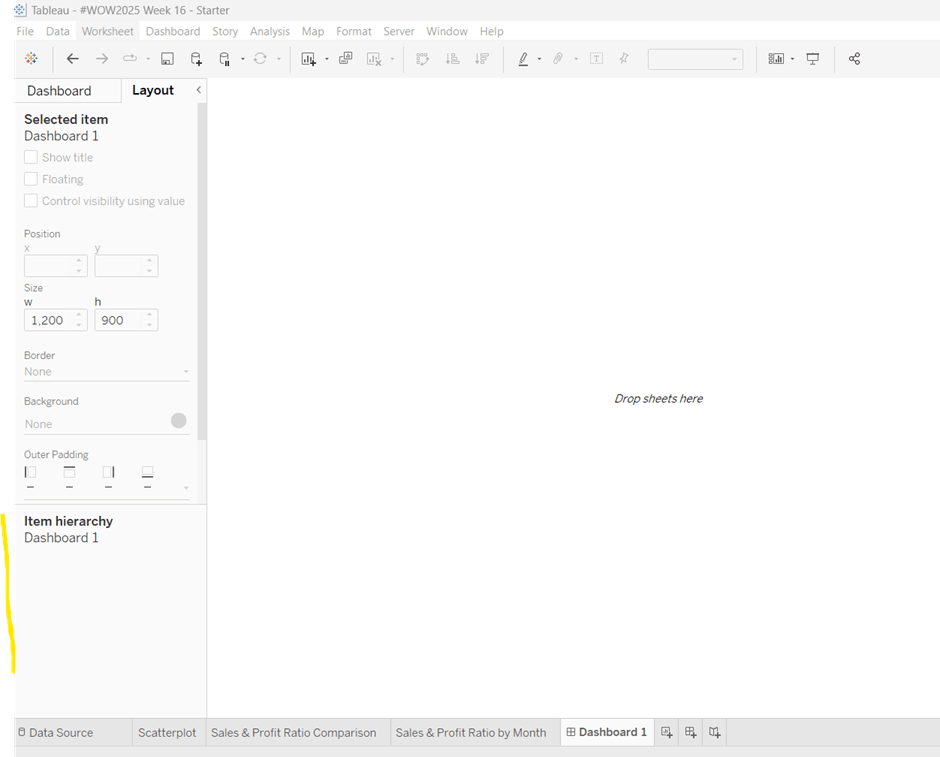
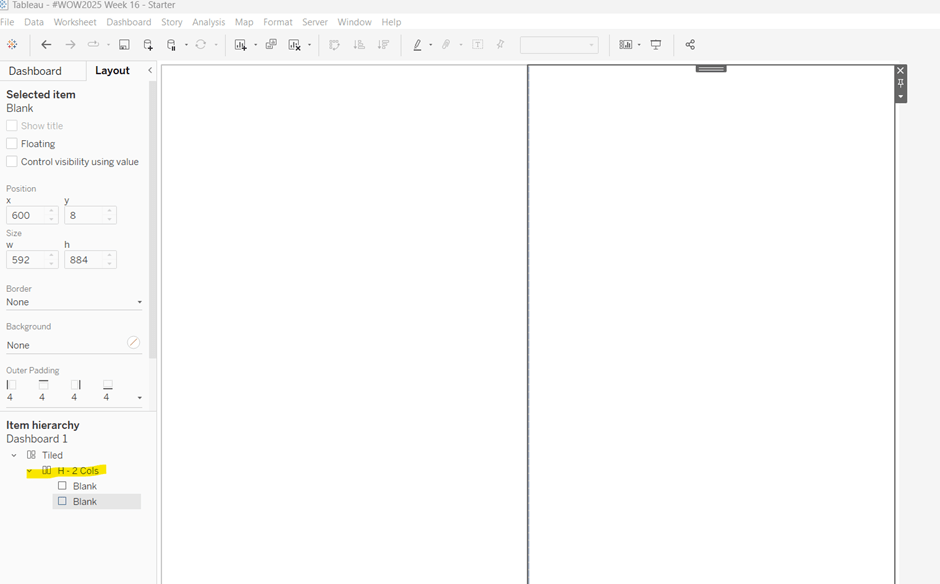
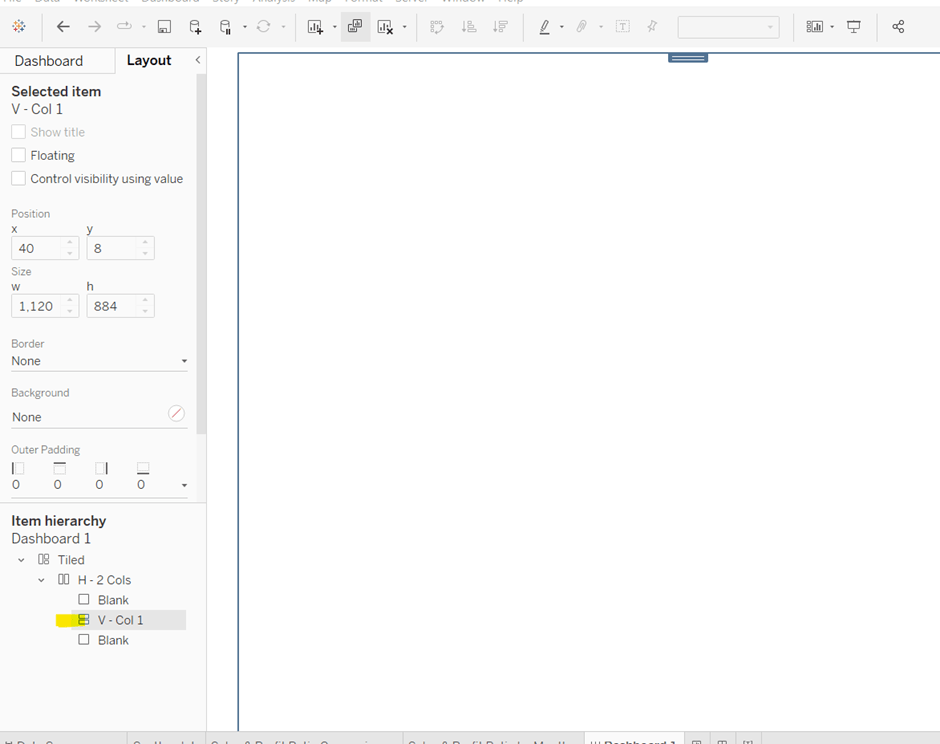
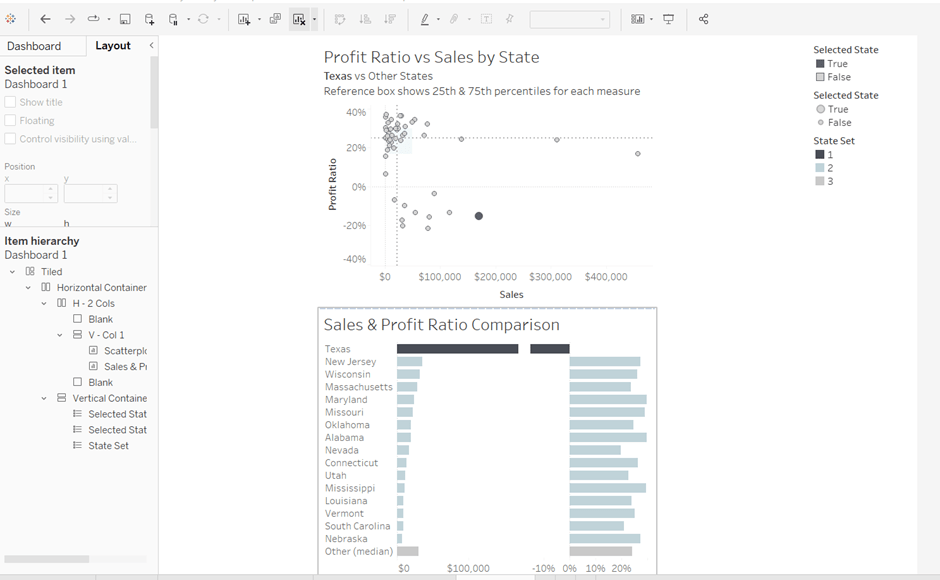
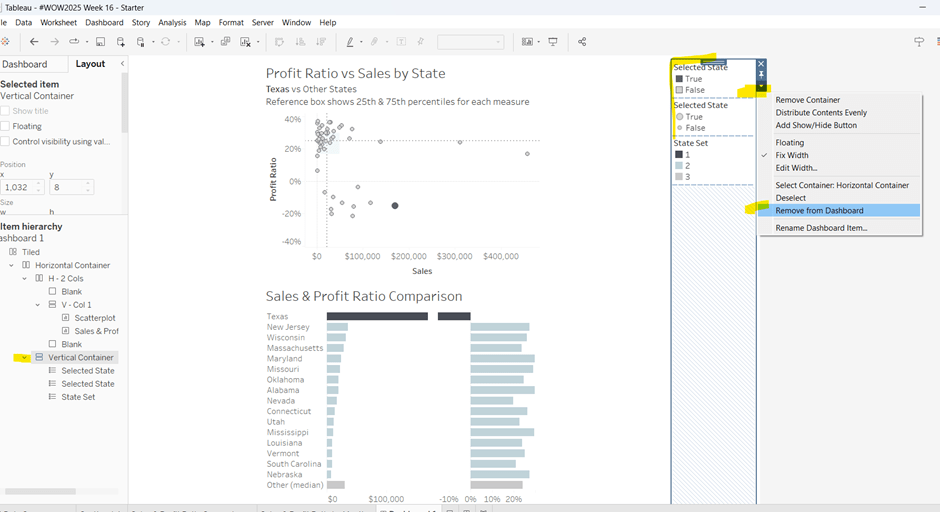
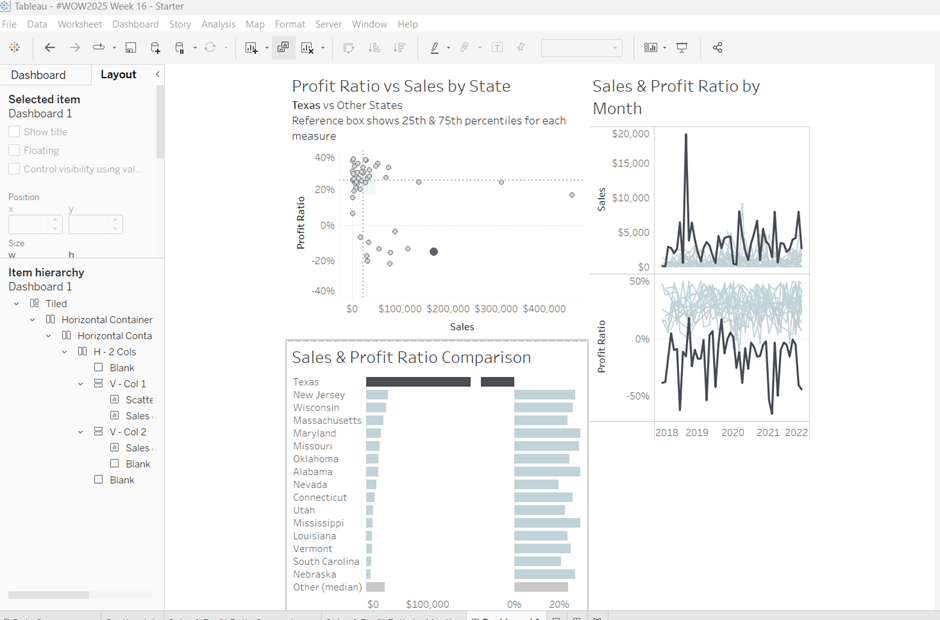
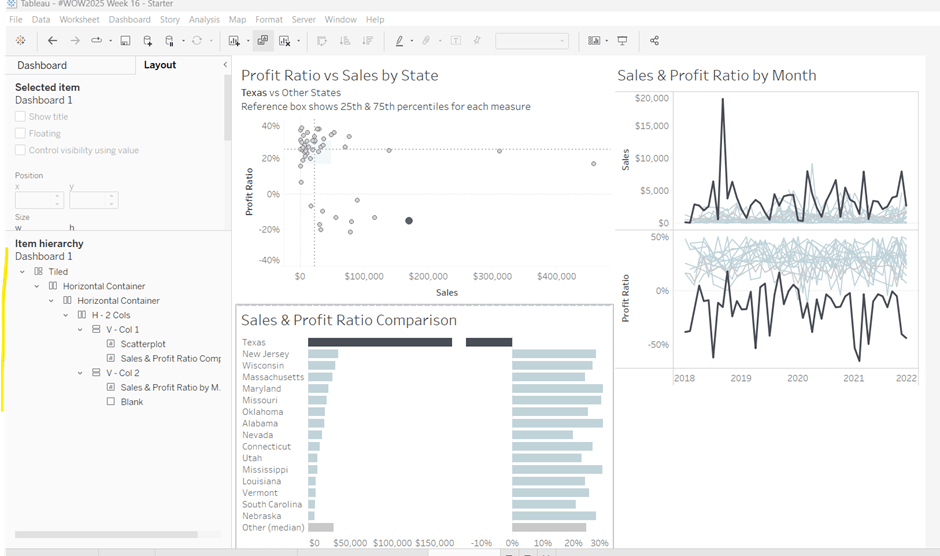
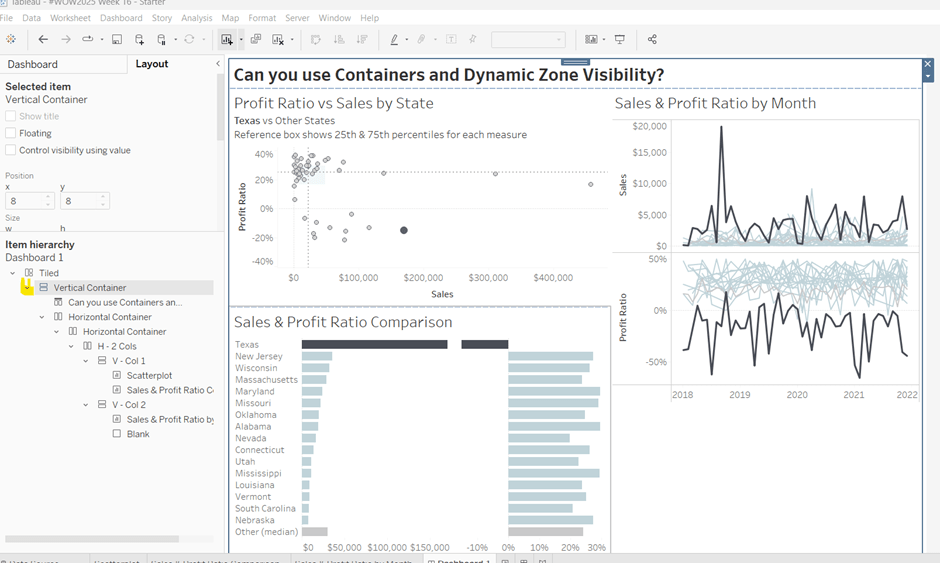
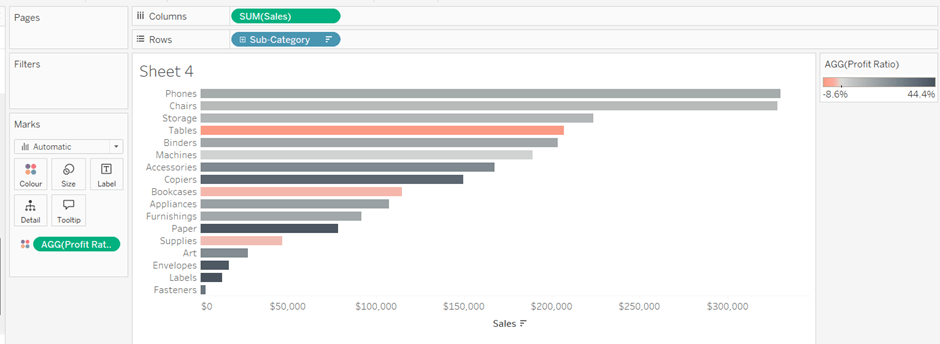
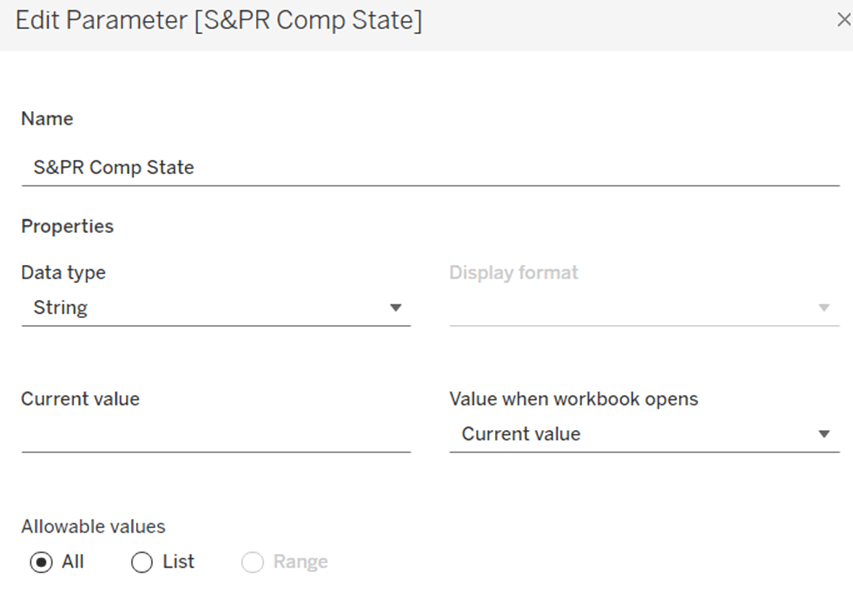
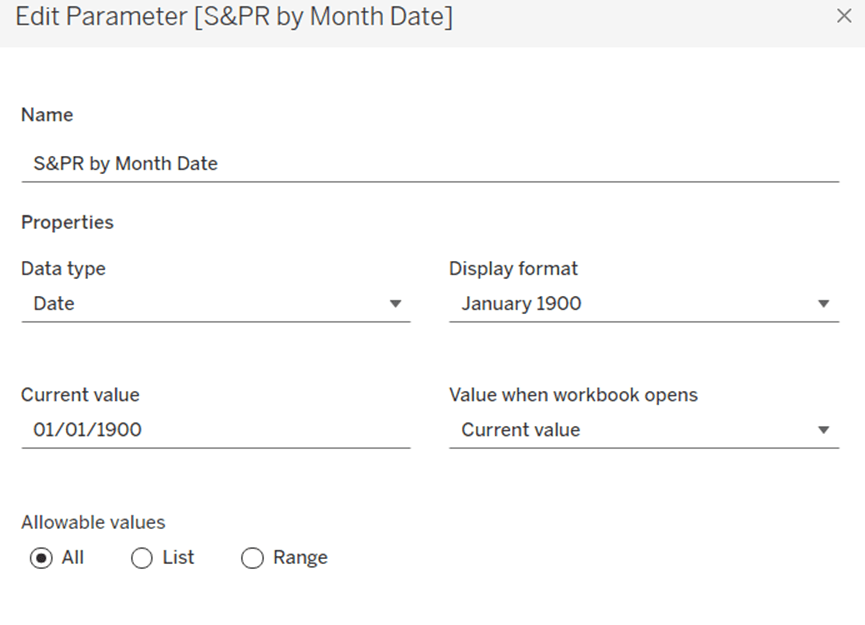
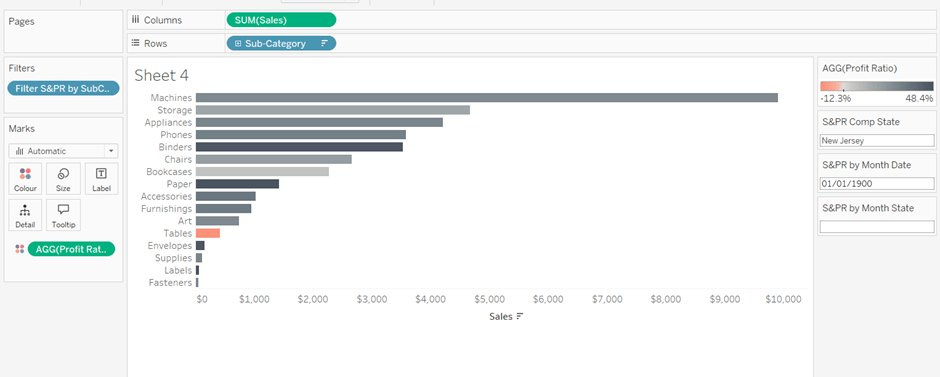
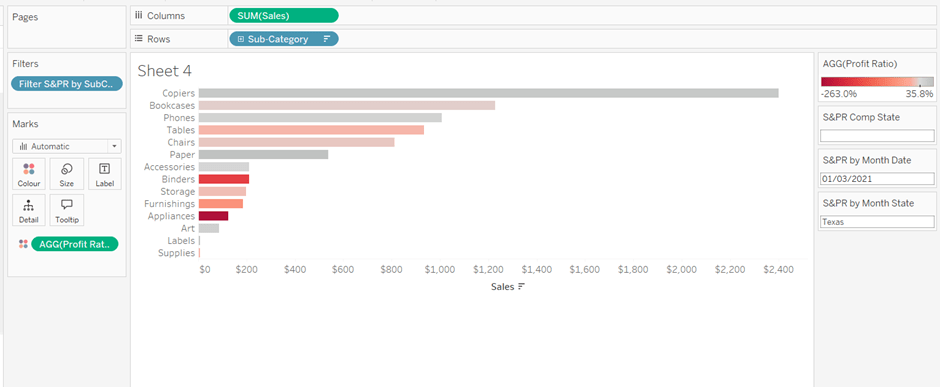
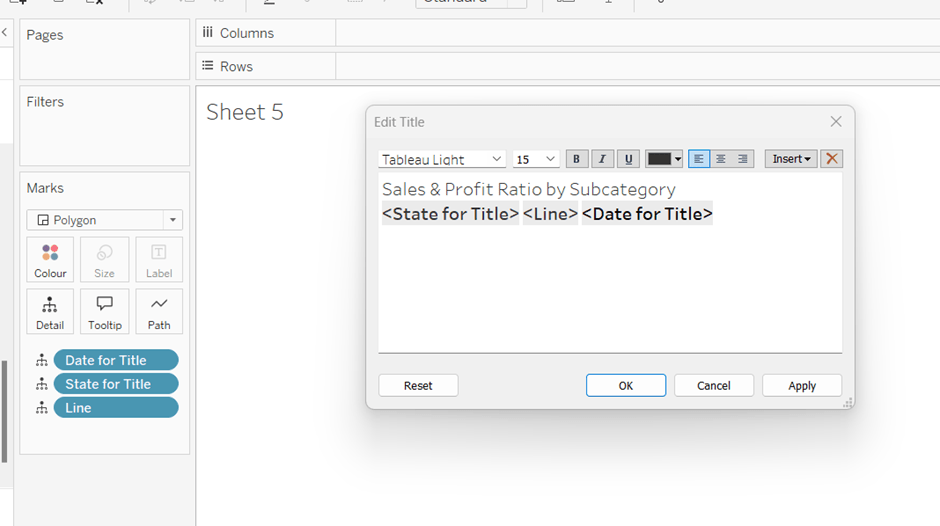
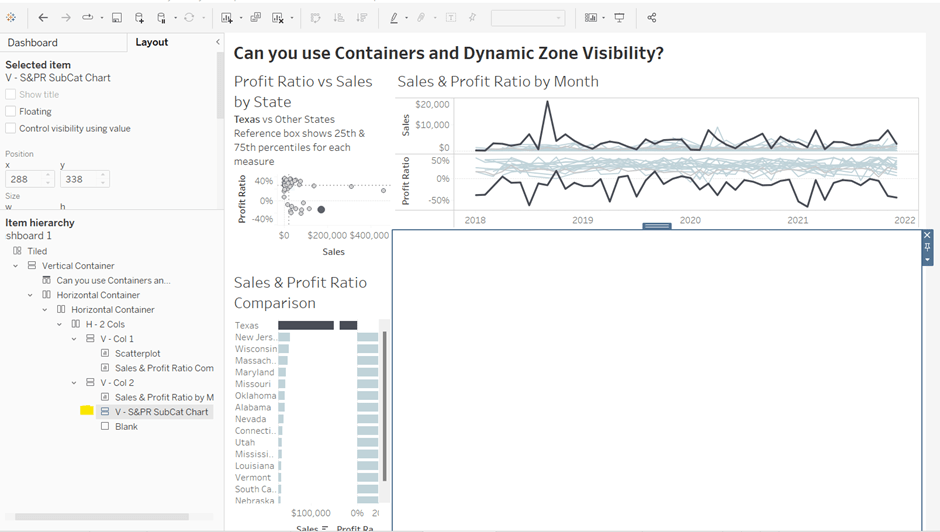
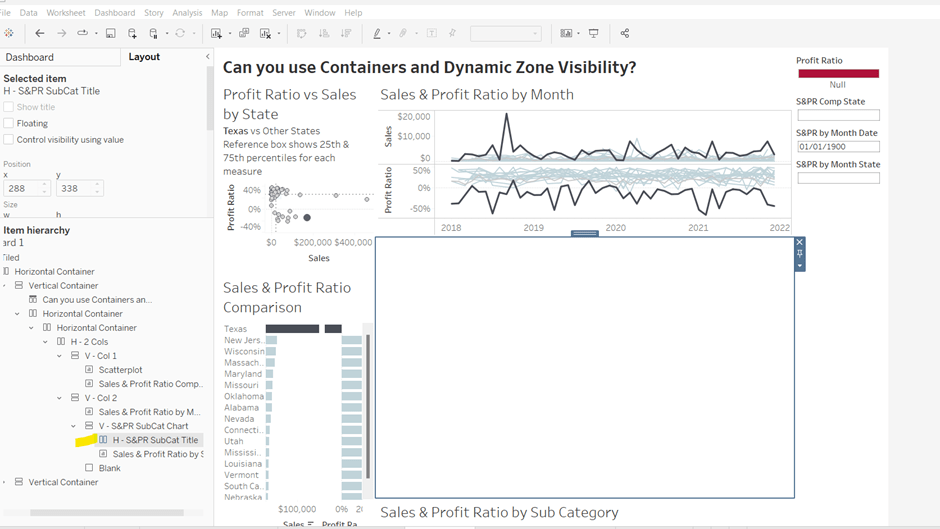
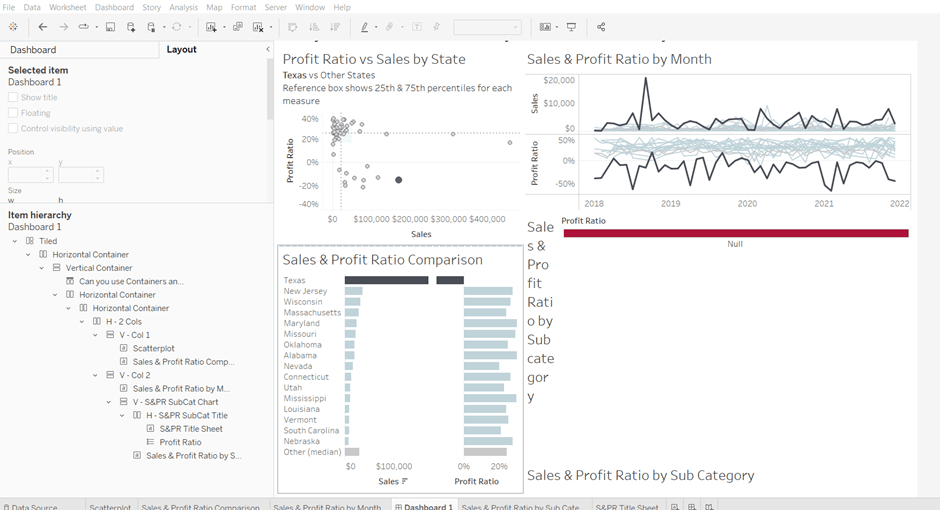
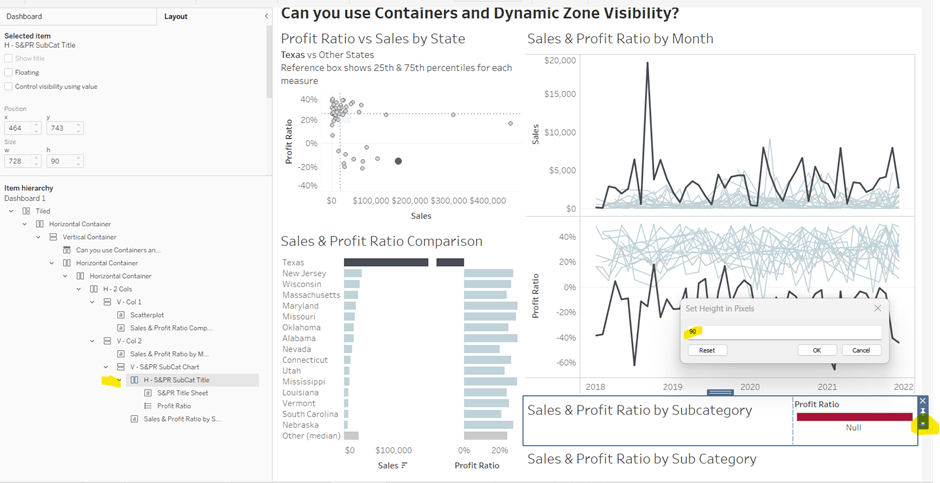
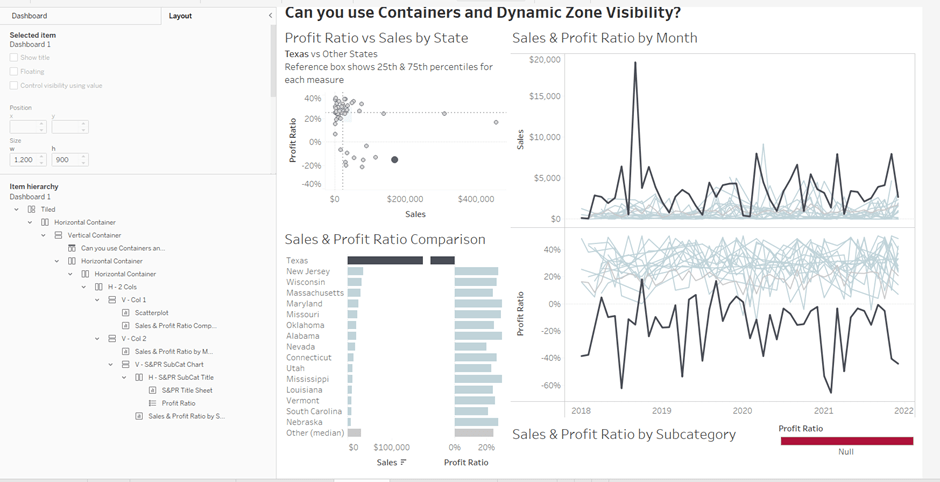
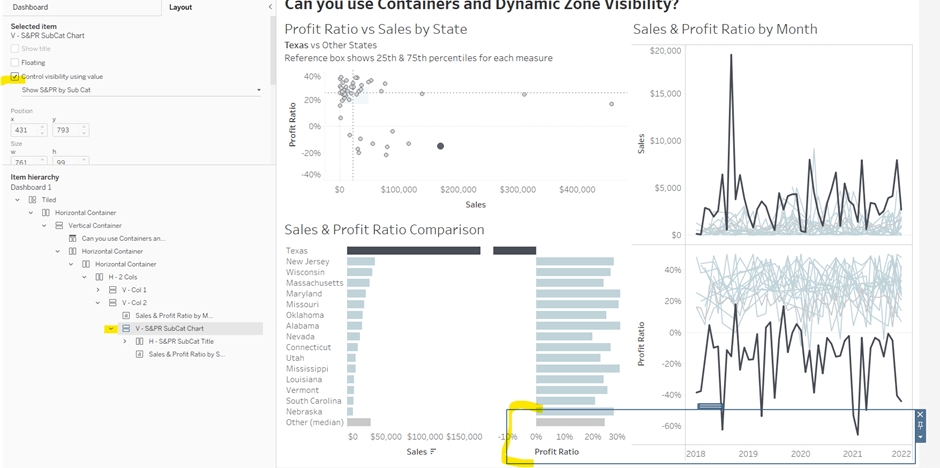
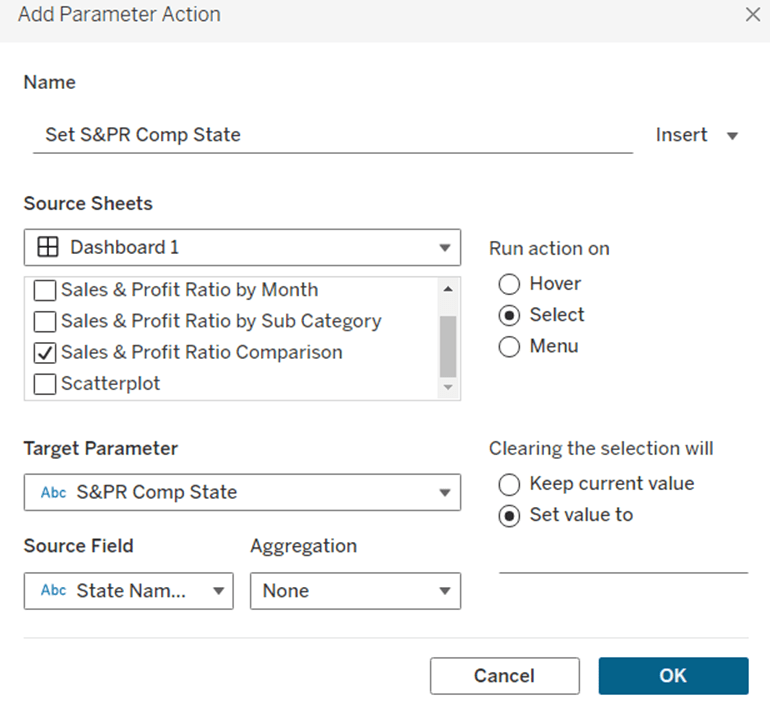
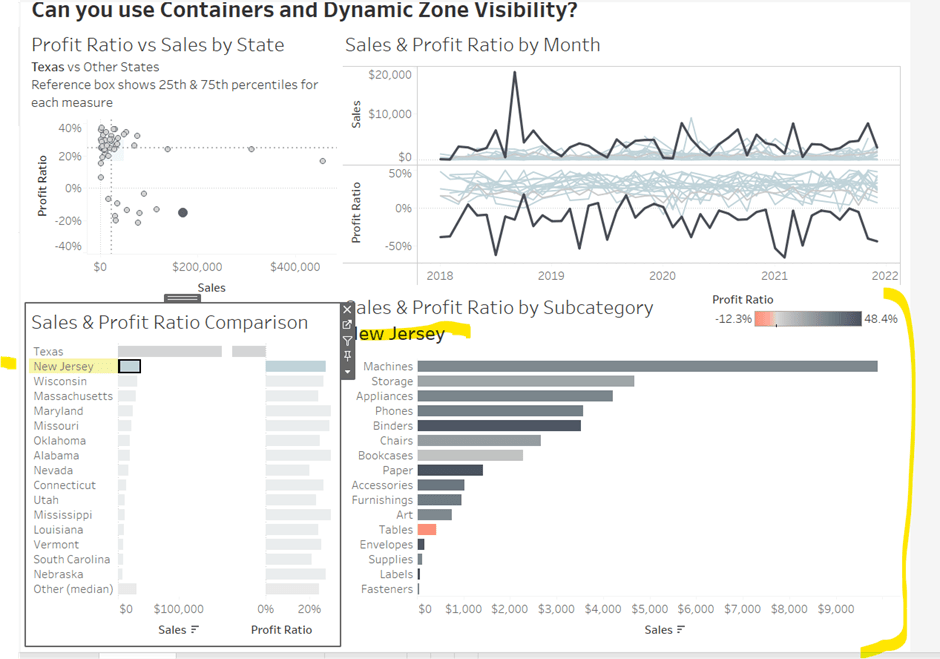
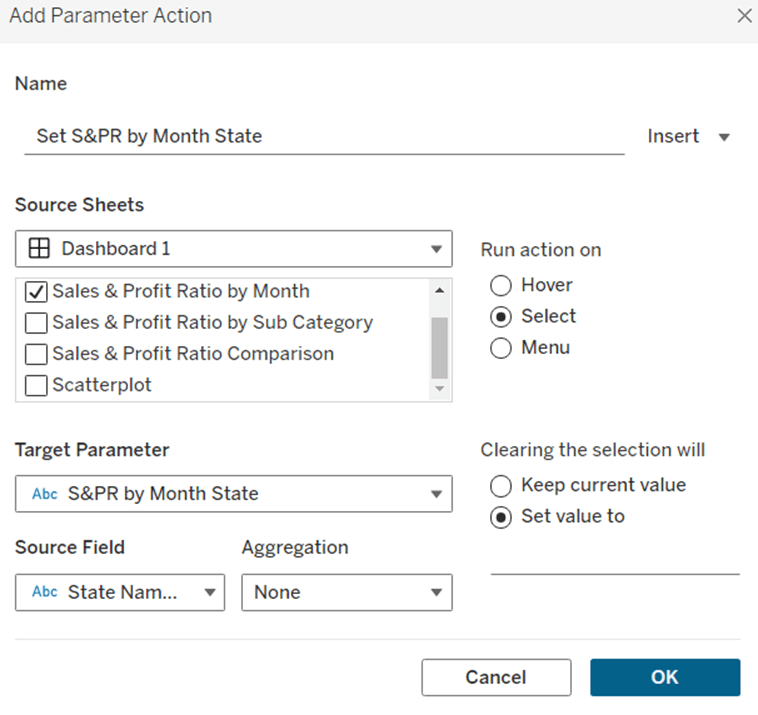
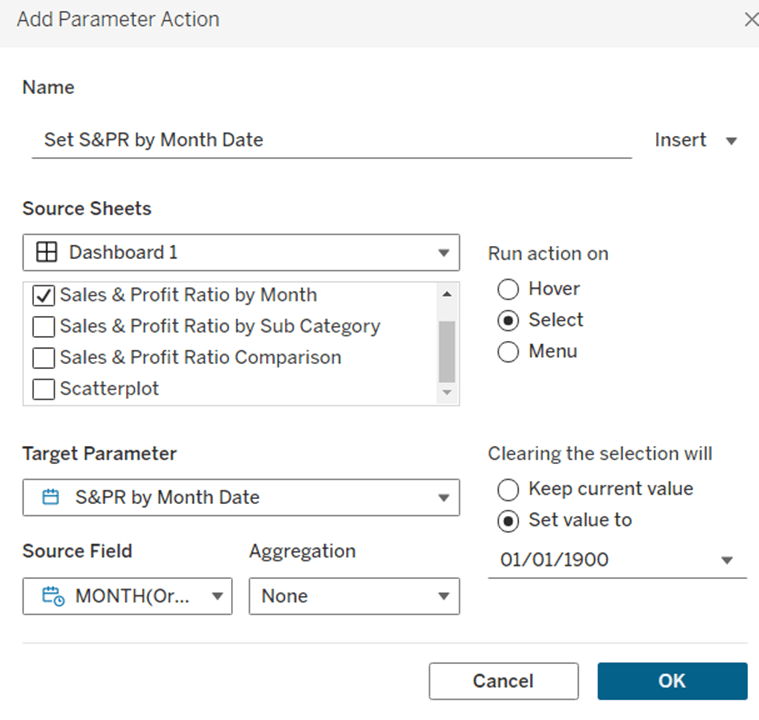
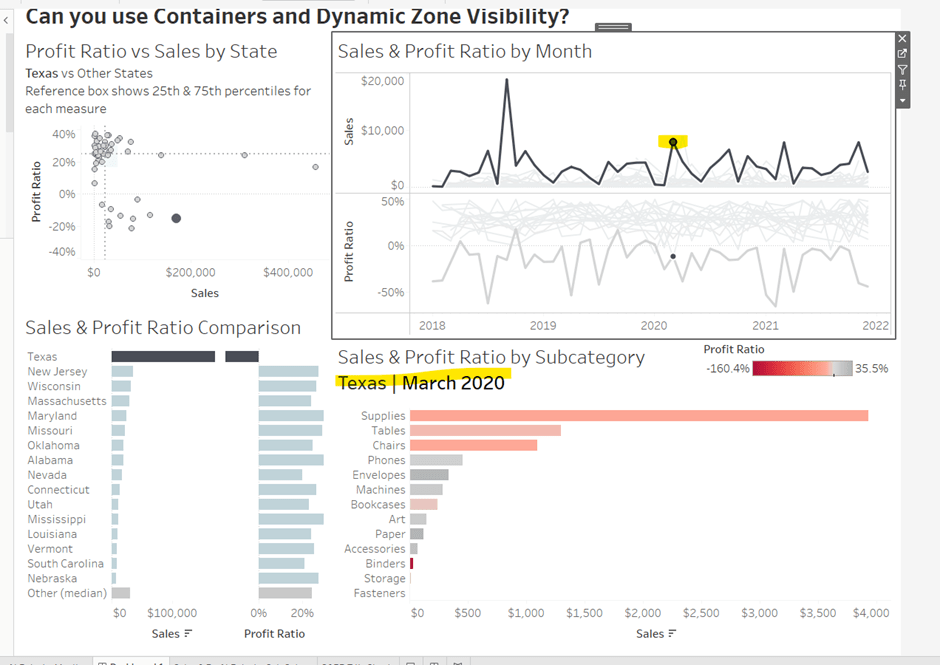
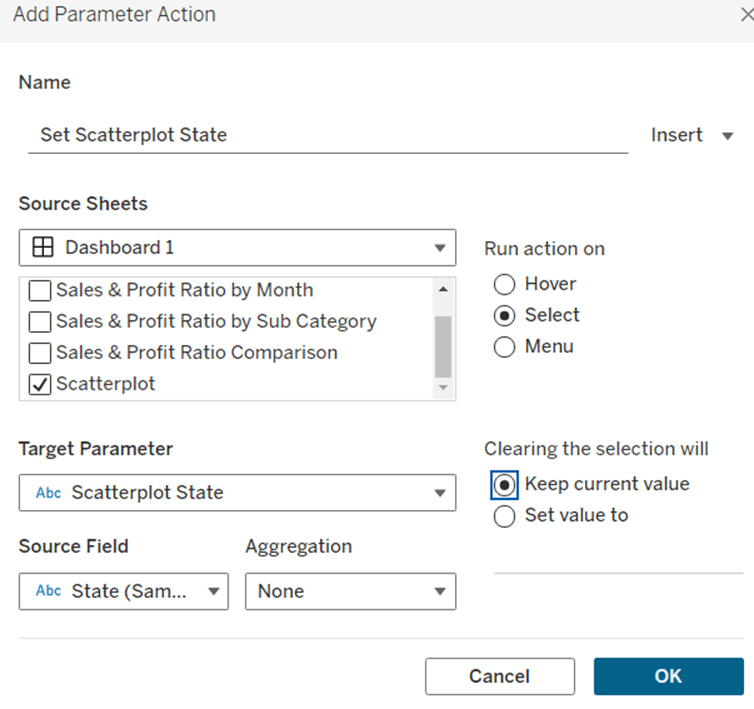
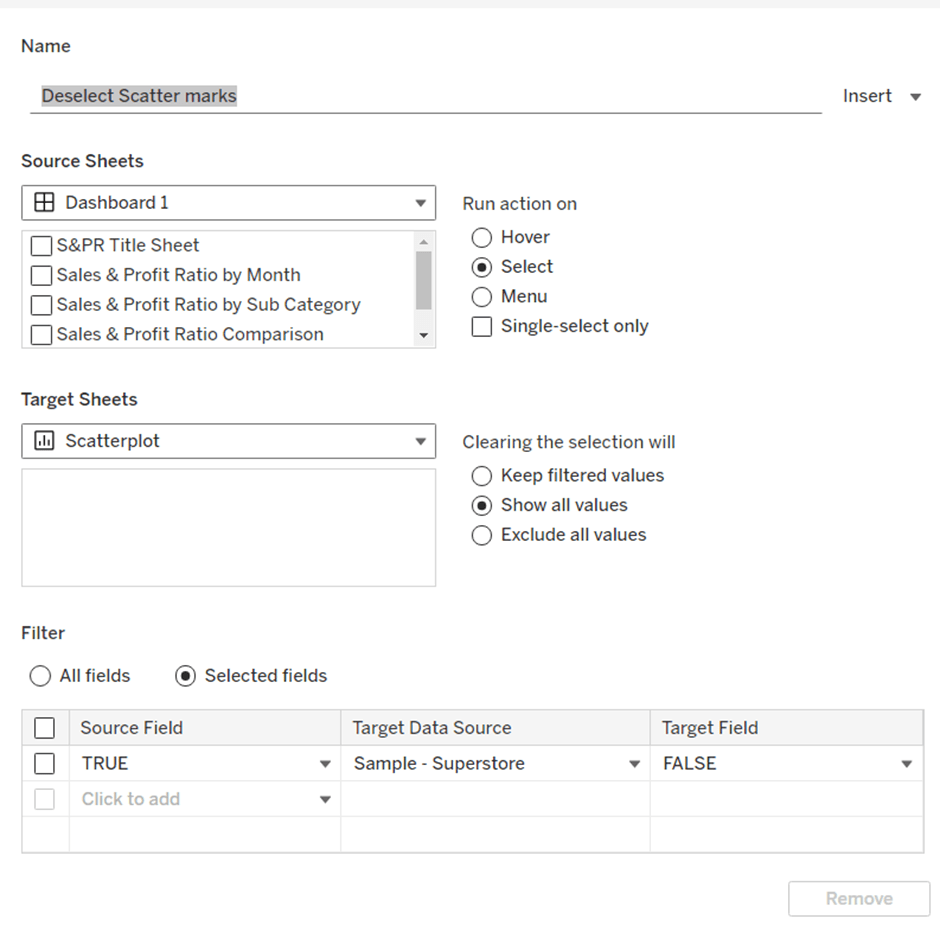

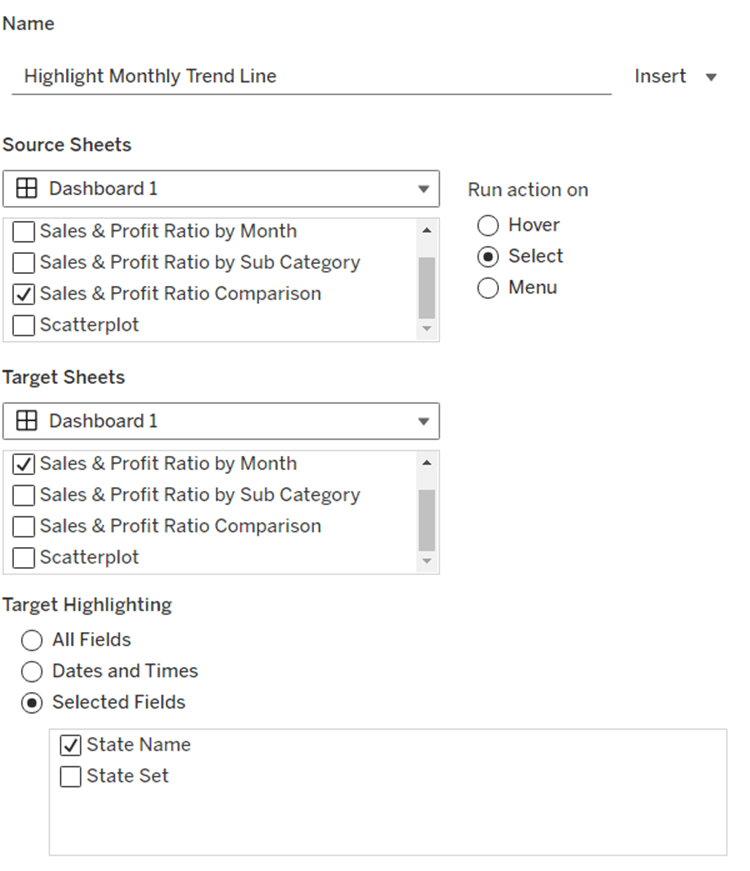


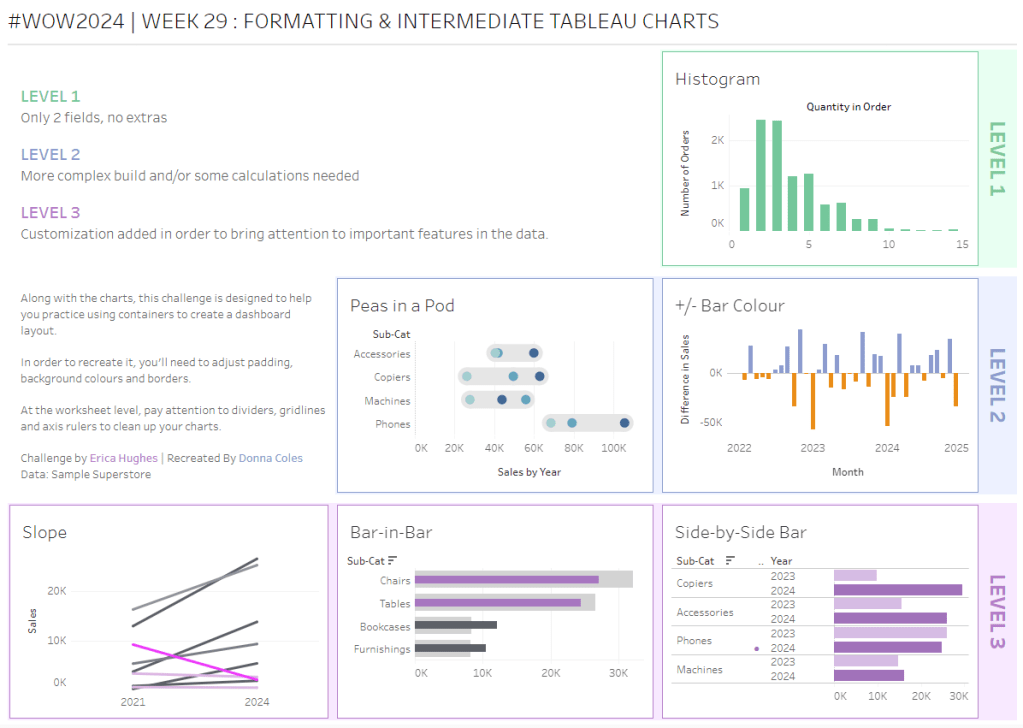
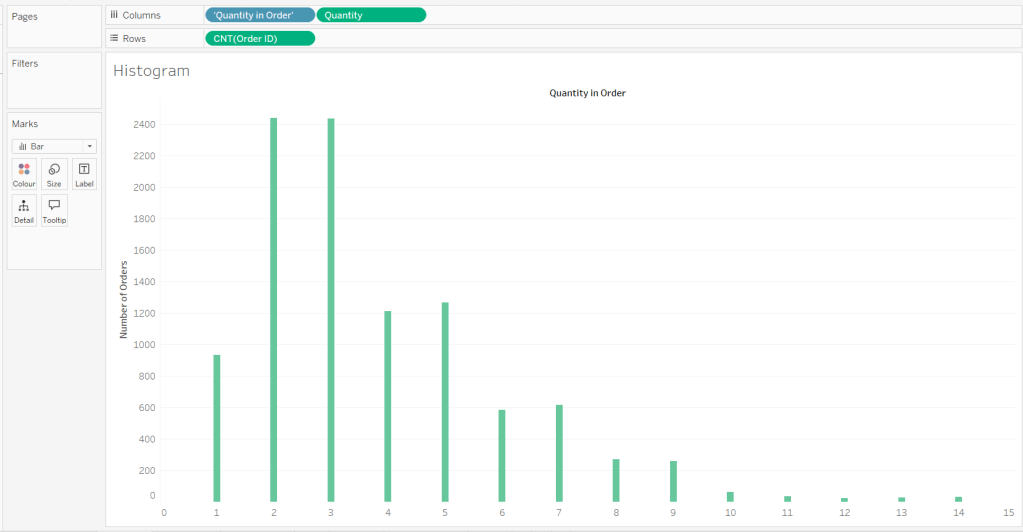
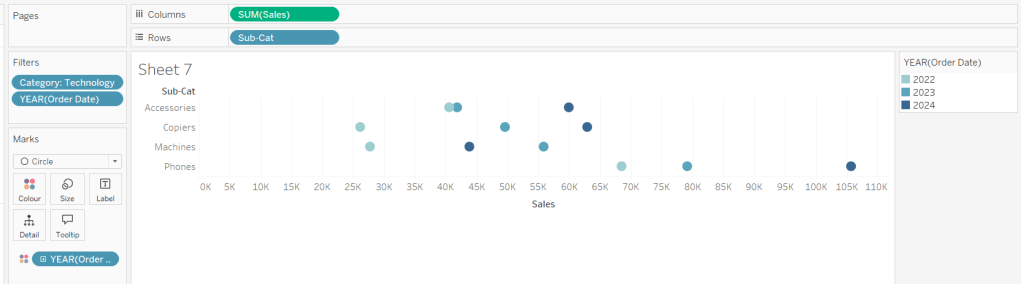
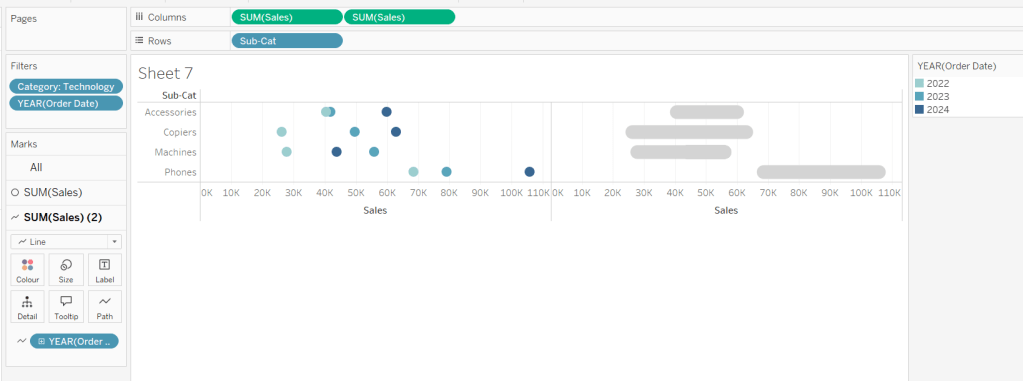
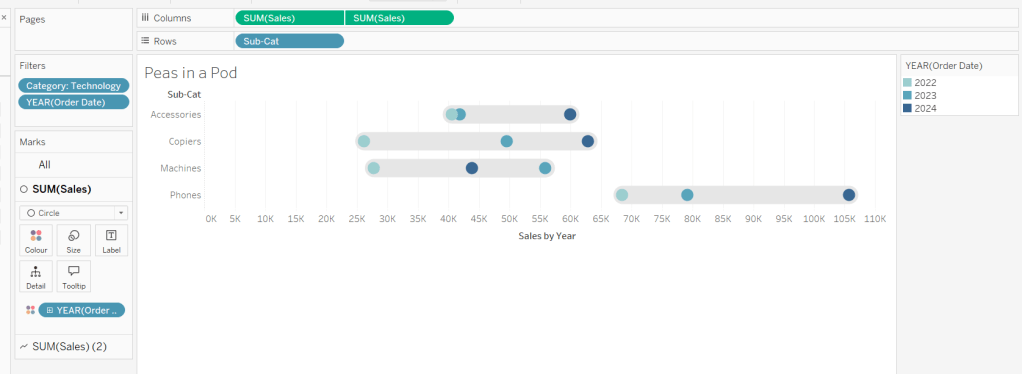
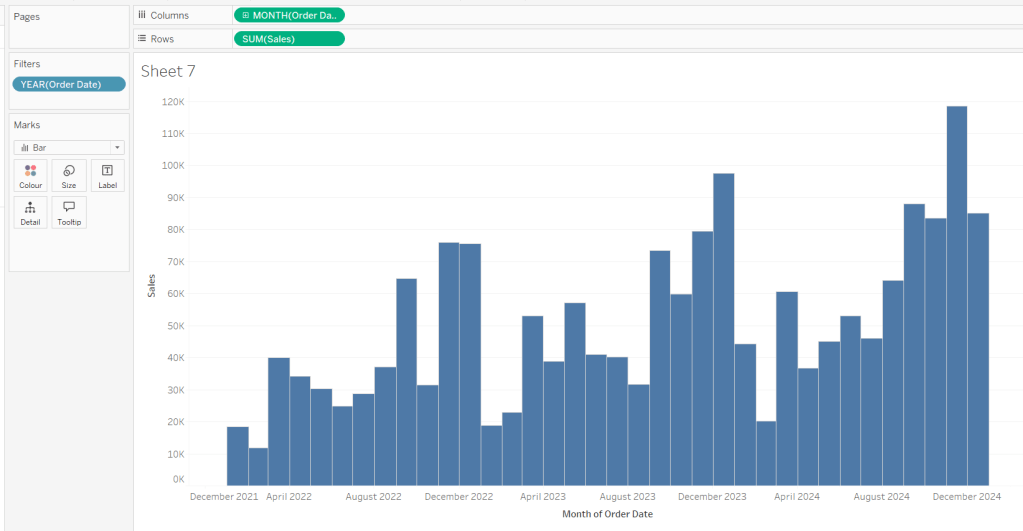
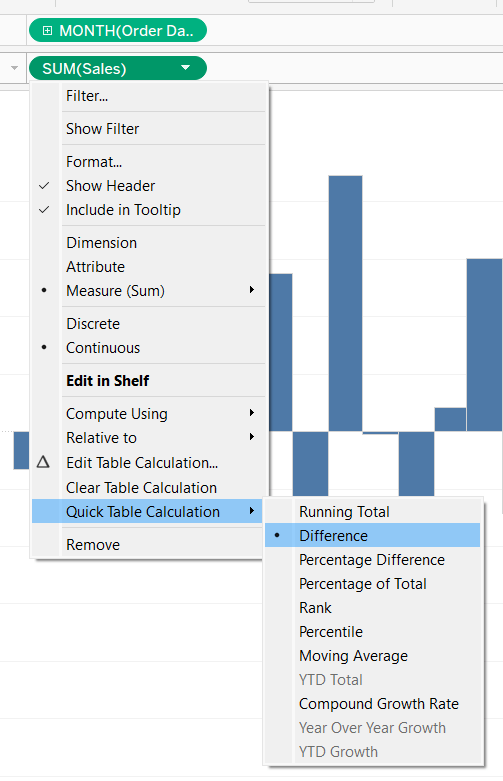
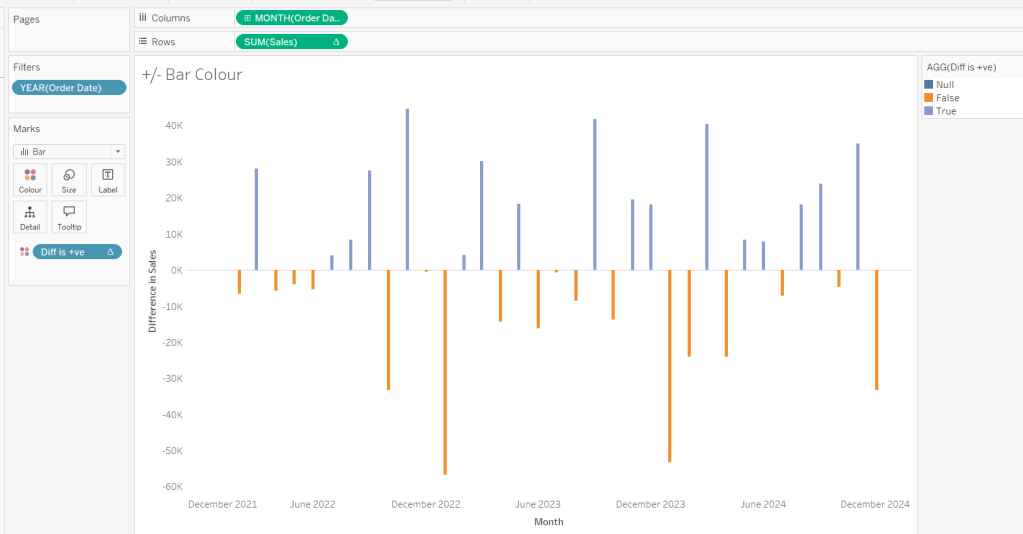
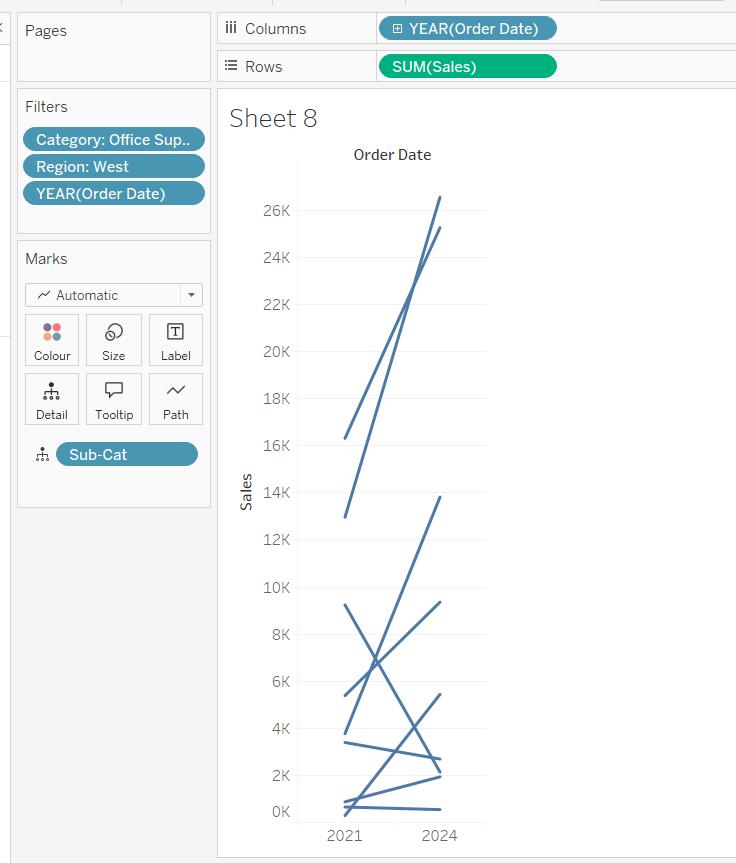
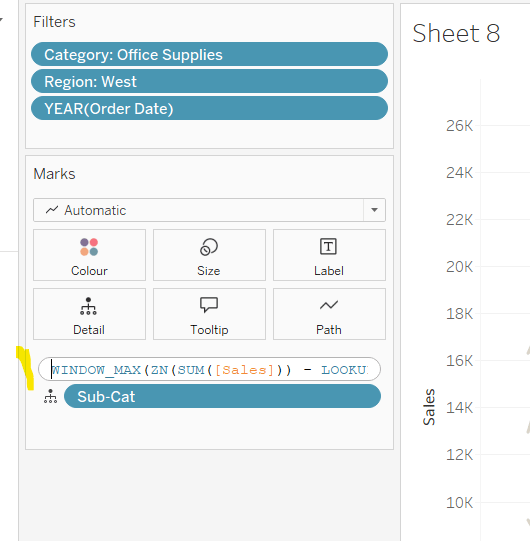
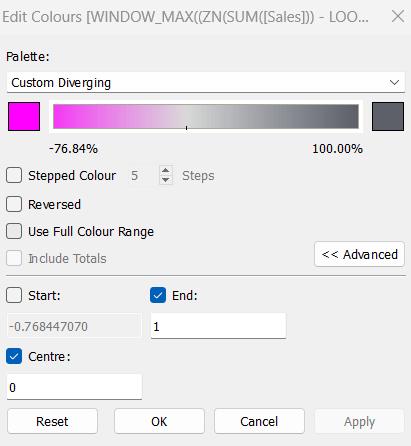
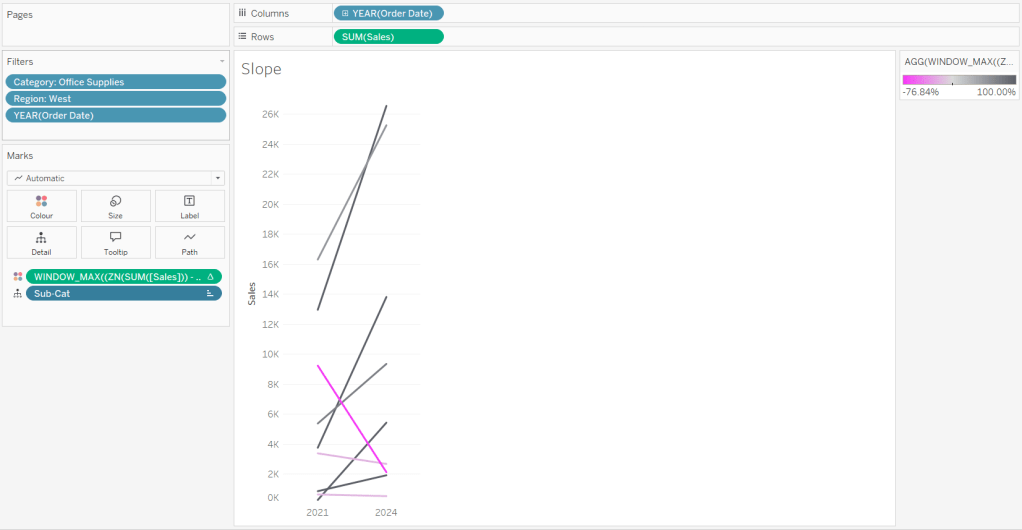
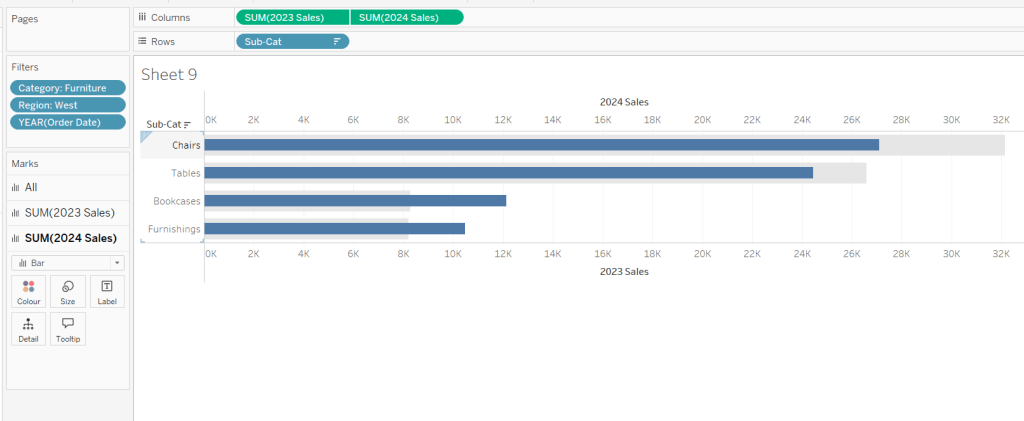
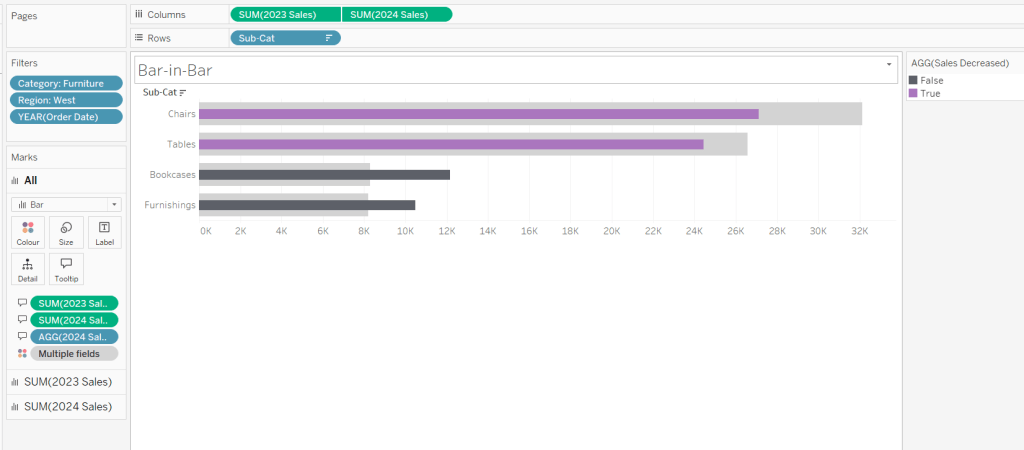
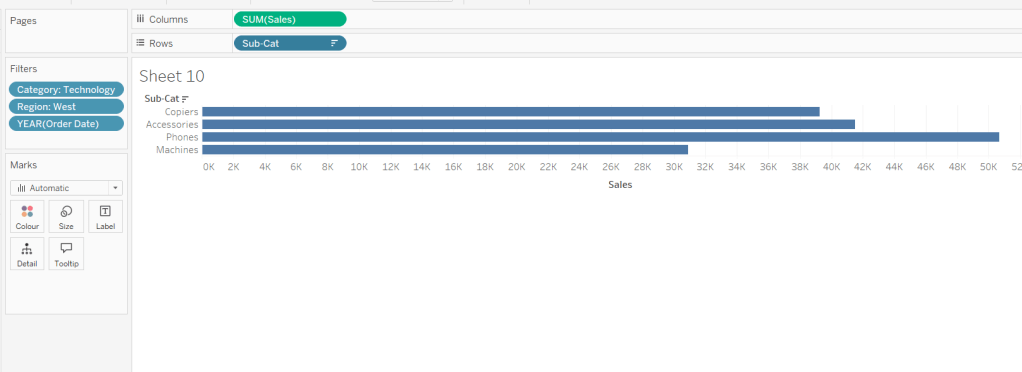
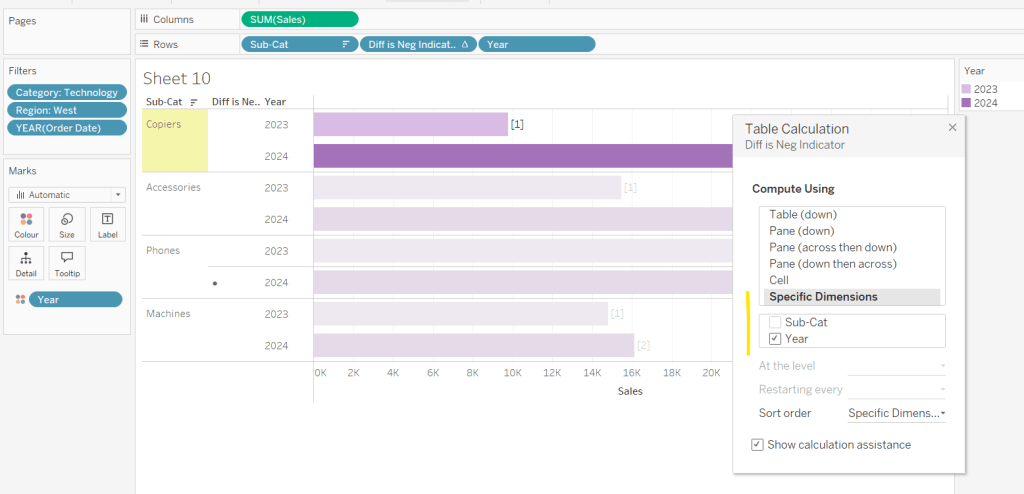
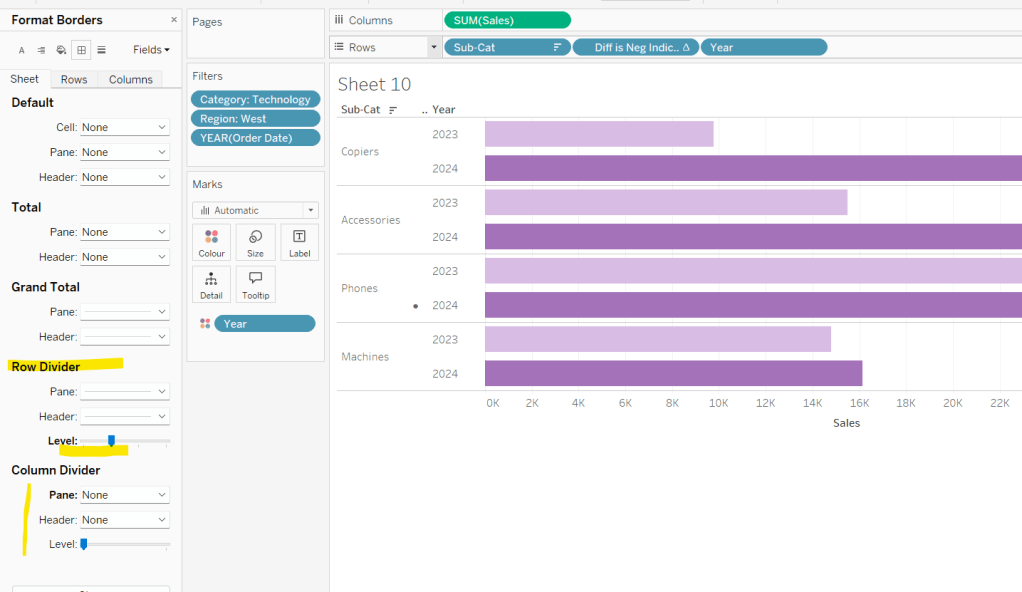
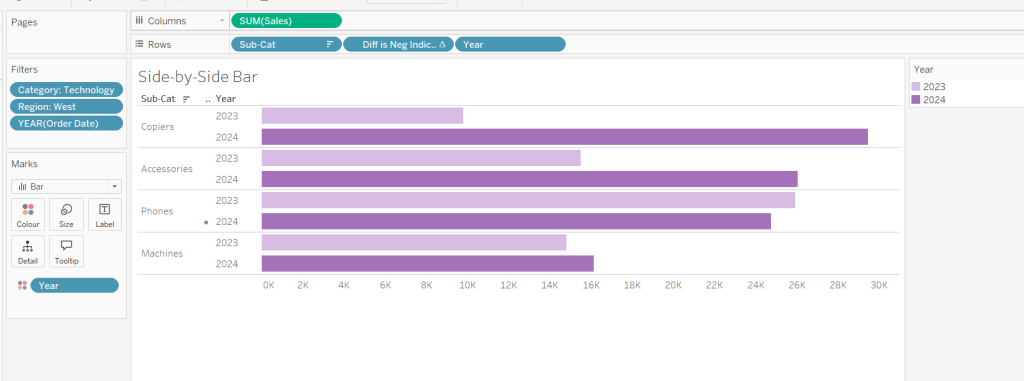
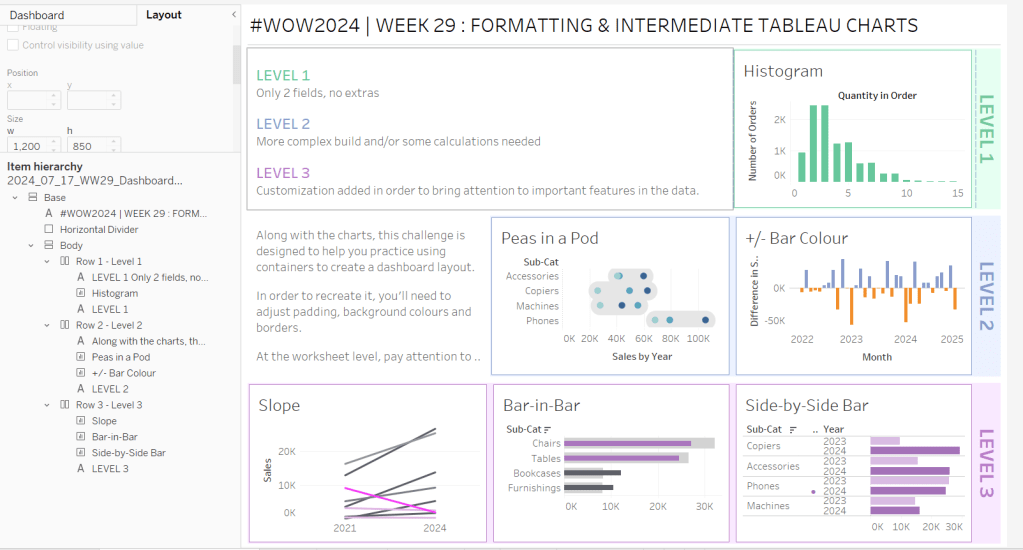


 Donna + DataViz