Can you visualise yearly rank change in Sub-Category sales?

Yusuke set this interesting challenge : to combine a ‘bump’/’slope’ chart visualising the change in rank whilst also visually displaying the Sales value for the relevant Sub-Category in the ranked position.

Defining the calculations

This challenge will involve table calculations, so I’m going to start by building out the various calculations that will be required and displaying in a tabular view.

Add Category to Filter and select Office Supplies. Then add Sub-Category and Order Date at the Year level as a discrete (blue) pill to Rows. Add Sales to Text.

Create a new field

Sales Rank

RANK(SUM([Sales]))

And add to the table, and verify the table calculation is set to compute by Sub-Category only.

We will need to ‘colour’ the viz based on the rank compared to the previous year. For this create

Is Min Year

{MIN(YEAR([Order Date]))} = YEAR([Order Date])

which will return true for the first year in the data (in this instance 2022) and then create

Colour

IF [Sales Rank] = LOOKUP([Sales Rank],-1) OR ATTR([Is Min Year]) THEN ‘Same as last year’
ELSE ‘Different from last year’
END

If the rank is the same as the previous one, or it’s the first year, then treat as the same, otherwise treat as different.

Add the Colour field to the table, and this time make sure the table calculation for Colour is computing by Year of Order Date only (while the nested calc for Sales Rank should still be computed by Sub-Category only)

The labels on the viz only want to show in certain scenarios – if it’s the first record (ie for 2022) or there has been a change in rank. We need

Label : Rank & Sub Cat

IF ATTR([Is Min Year]) OR [Colour] = ‘Different from last year’ THEN STR([Sales Rank]) + ‘ | ‘ + MIN([Sub-Category]) END

and

Label : Sales

IF ATTR([Is Min Year]) OR [Colour] = ‘Different from last year’ THEN SUM([Sales]) END

format this to $ with 0dp

Add these to the sheet, and double check the nested table calculations on each pill are computing as required (Sales Rank by Sub-Category only, Colour by Year Order Date only)

Now we have all this, we can start building

Creating the Viz

On a new sheet, add Category to Filter and select Office Supplies. The add Order Date to Columns, but set to be continuous (green) pill at the Year level. Add Sub-Category to Detail and add Sales Rank to Rows as a discrete (blue) pill. Verify the table calculation setting against the Sales Rank pill is by Sub-Category only.

Change the mark type to line and then add Order Date to Path. By default it should be at the Year level as a discrete pill.

This is the ‘bump’ chart.

Now add another instance of Order Date to Columns as a continuous pill at the Year level to essentially duplicate the display. On the 2nd marks card, change the mark type to Gantt

This gives us the ‘starting point’ for each ‘bar’. But we need to determine the size for each bar. First we’re going to ‘normalise’ the sales values for all the sales being displayed so we get a value between 0 and 1, where 0 is the smallest sale, and 1 is the largest.

Normalised Sales

((SUM([Sales]) – WINDOW_MIN(SUM([Sales]))) / (WINDOW_MAX(SUM([Sales])) – WINDOW_MIN(SUM([Sales]))))

To see what this is doing, format the field to 2dp, then add the field to the tabular view, and ensure the table calculation is computing by both Sub-Category and Year Order Date.

But the ‘axis’ we want to plot the bar length against is in years, so we need to adjust this size to be a proportion of a year (ie 365 days)

Gantt Size

//proportion of a year
[Normalised Sales] * 365

Add this to the Size shelf on the 2nd marks card on the viz. Adjust the table calc setting so it is computing by all the fields listed.

We now have the core concept so now we can start finalising the display.

Make the chart dual axis and synchronise the axis.

Set the view to fit height.

On the 1st marks card (that represents the line)

  • change the line style to dotted (via the Path shelf)
  • reduce the Size to suit
  • change the colour to pale grey
  • Add Label : Sales and Label : Rank & Sub Cat to the Label shelf.
    • Adjust the table calc settings of each so the nested table calcs in each have Sales Ranks by Sub Category only and Colour by both the Year Order Date fields only.
    • Adjust the layout of the text as required
    • Align the font to be top right
    • Change the font style (bold & black)
    • Ensure the Label is set to ‘allow labels to overlap marks’
  • Remove the Tooltip

On the 2nd marks card, the gantt bar

  • Add Colour to the Colour shelf and adjust the colours accordingly.
    • Verify the table calc settings are as expected
    • I chose to reduce the opacity slightly, so I could see the dotted line underneath (set to 70%)
  • Add Sales to Tooltip (format to $ with 0 dp) and the adjust Tooltip as required

Then we just ned to finalise the formatting/display

  • Set the font of the years and rank numbers to black & bold.
  • hide the Sales Rank label heading (right click > hide field labels for rows)
  • remove row & column dividers
  • Add black column gridlines (I set to the 2nd thickness level), and remove any row gridlines
  • Edit the top axis to have a fixed start (use default option) and end at 31/12/2025 so the 2026 label and line disappears.
  • Remove the title from the top axis.
  • Edit the bottom axis – remove the tile, and then set the tick marks to None, so the bottom axis now looks empty.

And that should be it. Now add the sheet to a dashboard and display the category filter as a single select, customising the remove the ‘all’ option.

My published viz is here

Happy vizzin’!

Donna

Can you create this seemingly simple line chart?

Lorna set this week’s #WOW2025 challenge asking us to recreate what looked to be a simple line and area chart combination. I have to admit this was indeed a bit tricksy. I built out the data relatively quickly, but when trying to create the area chart I just wasn’t getting any joy.

After lots of trial and error, attempting various options, I eventually resorted to checking out Lorna’s solution. I found there were two specific areas that were causing the creation of the area chart to fail..why this happens is still a mystery….

Before we get on with the solution, I figured it was worth detailing at the start what I tried that failed, just in case you’ve been banging your head against a brick wall too 🙂

What didn’t work

The solution requires table calculations; for one calculation we need a percent of sales per quarter which means we also need to work out the total sales for the quarter. I originally used a FIXED LOD for this but found I could only get the area chart to work if I used a WINDOW_SUM() table calculation instead.

This challenge also requires all the customers for each quarter to be in the view to identify which are in the top X. I used a sorted INDEX() table calculation to identify the top X, but this too failed to work when it came to actually creating the area chart. Using the RANK() table calculation instead worked.

Like I said before why? I don’t know… but putting down as one of ‘just those things’ and hoping that maybe I’ll remember this post in future if it happens again!

Now back to the solution guide…

Creating the calculations

We’re dealing with table calculations, so I’m going to build out the required data in a tabular format to start with.

Create a parameter

pTop

Integer parameter ranging from 5 to 20 with the step size of 5 defaulted to 20

Show this parameter on the sheet, and then create a calculated field

Order Date (Quarters)

DATE(DATETRUNC(‘quarter’, [Order Date]))

Format to the YYYY QX style.  Add Order Date (Quarters) to Rows as a discrete exact date (blue pill). Add Customer Name to Rows and add Sales to Text.

We need to identify customers who are in the top x for each quarter. Create a new calculated field

Is Top X Customer?

RANK(SUM([Sales]))<=[pTop]

Add to Rows and adjust the table calculation so it is computing by Customer Name only. 

We now want the Sales just for those customers who are in the top x, so create

Top X Sales

IF [Is Top X Customer?] THEN SUM([Sales]) END

Add this field to Rows and we should see that Sales are only displayed for those customers that where Is Top X Customer? = True.

We now need the total of these sales per quarter so create

Total Top X Sales

WINDOW_SUM([Top X Sales])

Add this to the table and adjust the table calculation so both nested calculations are computing by just Customer Name. You should see that the total value is the same for every row for each quarter 

We also need the value of the total sales in the quarter regardless of whether the customer is in the top X or not so create

Total Sales per Quarter 

WINDOW_SUM(SUM([Sales]))

Add this to the table and again adjust the table calculation to compute by Customer Name only.

Now we have these two figures we can calculate the percentage. Create a new calculated field

Sales % per Quarter 

[Total Top X Sales]/[Total Sales per Quarter]

Format this as a % to 1dp. Add to the table.

Duplicate this sheet. I like to do this as I make further changes so I don’t want to lose what I had.

Remove all the surplus field so that only Order Date (Quarters), Customer Name and the Sales % per Quarter fields remain 

Create a new field

Customer Index

INDEX() 

Convert this field to discrete (right click on the field).

Add this field to the Filter shelf and select 1. Adjust the table calculation so that it is computing using Customer Name only and sorted by SUM of Sales 

Re-edit the filter and reselect 1 (making changes to the table calculation resets the filter values). 

If everything has been set properly then you should end up with 1 row per quarter. Move the Customer Name pill from Rows to Detail.

We’ve now got the core fields we need to build the viz.

Building the Viz

Once again start by duplicating this sheet. Move Order Date (Quarters) to Columns and change to be continuous (green pill), then move Sales % per Quarter to Rows.

Add another instance of Order Date (Quarters) to the path shelf and change to be an attribute. You should now have a line chart. Increase the size of the line a little.

Add another instance of Sales % per Quarter to Rows, making sure the table calculation is set exactly as the existing version. Change the mark type of the 2nd marks card to Area.

Make the chart dual axes and synchronise axes .

Finally, tidy up the chart by 

  • Adjusting the Tooltip 
  • Removing gridlines, zero lines and row/column dividers
  • Hide the right hand axis 
  • Fix the left hand axis to end at 1 (so the axis goes to 100%)
  • Edit the left hand axis title
  • Update the sheet title to reference the pTop parameter

Then add the viz to a dashboard. My published viz is here.

Happy vizzin’!

Donna

Can you build a Measure Names Waterfall?

I’ve been on my holibobs, so haven’t blogged a solution for a few weeks. It’s been a bit of a struggled to get my head re-engaged to be honest, as I’m sure you can all relate to.

Anyway this week’s challenge was set by Sean, to produce a waterfall chart depicting specific measures without any pivoting.

I had a little bit of an initial struggle with this… firstly I assumed from the title of the challenge that I would need to be using Measure Names/Measure Values, and secondly, as nothing was mentioned, that I just had to use the data provided. This is how far I got…

but I couldn’t figure out how to get the sizes of the gantt bars inverted for some of the measures…

So I had a bit of a Google, and came across this video by one of our old WOW alumni, Luke Stanke. It made use of a scaffold data source which basically provide placeholders for each of the specific measures we want to display. Sean hadn’t explicitly said we’d need a scaffold, but then he hadn’t explicitly said we couldn’t use one either… so I had a quick peak at his solution, and I found he had used one.

So I went about recreating the challenge just by following Luke’s video. As a result, this blog won’t be as detailed, but I’ll detail the core information needed.

The scaffold data set

I created a simple excel sheet on 1 column called Points with values 1 to 5 listed.

This was then related to the Financials.csv data Sean provided using a relationship calculation of 1=1 as demonstrated in the video.

The calculations

4 calculations are created in the video

Label

CASE [Point]
WHEN 1 THEN ‘Gross Sales’
WHEN 2 THEN ‘Discounts’
WHEN 3 THEN ‘Net Sales’
WHEN 4 THEN ‘COGS’
WHEN 5 THEN ‘Profit’
END

Start

CASE [Point]
WHEN 1 THEN 0
WHEN 2 THEN [Gross Sales]
WHEN 3 THEN 0
WHEN 4 THEN [Gross Sales] – [Discounts]
WHEN 5 THEN 0
END

Value

CASE [Point]
WHEN 1 THEN [Gross Sales]
WHEN 2 THEN [Discounts] * -1
WHEN 3 THEN [Gross Sales] – [Discounts]
WHEN 4 THEN [Cogs] * -1
WHEN 5 THEN [Profit]
END

format this to $, millions with 2 dp.

Colour

SIGN(SUM([Value]))

convert this to discrete

Note on the date field

When I connected to the csv, I found the dates were being displayed to me in the UK format so a date in source of 06/01/2024 was reporting as 6th Jan, when it was intended to represent 1st Jun. There’s probably something I could have done with regional settings etc, but the quickest way for me to resolve as create

Date Adjust

MAKEDATE(YEAR([Date]), DAY([Date]), MONTH([Date]))

which just transposed the month & day and gave me the dates expected.

Building the Viz

Add Date to Filter, select Month-Year and select May 2024. Add Label to Columns and apply a Sort to sort by Point ascending. Add Start to Rows and change the Mark type to Gantt

Add Value to Size and Colour to Colour and adjust colours to suit

Add Value to Label and adjust font to match mark colour and increase size and style, Set the sheet to Entire View. Uncheck Show Tooltip.

Double click into the Rows shelf and type SUM([Start]) + SUM([Value]). This will create a second marks card. Change the mark type of this to line and remove all fields from the marks card shelf. Set the line type (via the Path shelf) to stepped and manually adjust colour to black.

Set the chart to dual axis and synchronise axis, then right click on the right hand axis and move marks to back.

Finally tidy the display up by hiding both axis, removing row & column dividers, hiding the Label title (right click and hide field label for columns) and formatting the Measure Name labels to a larger, darker font style.

Add fields Country, Product and Segment to the Filter shelf, then add to a dashboard.

My published viz is here.

Happy vizzin’!

Donna

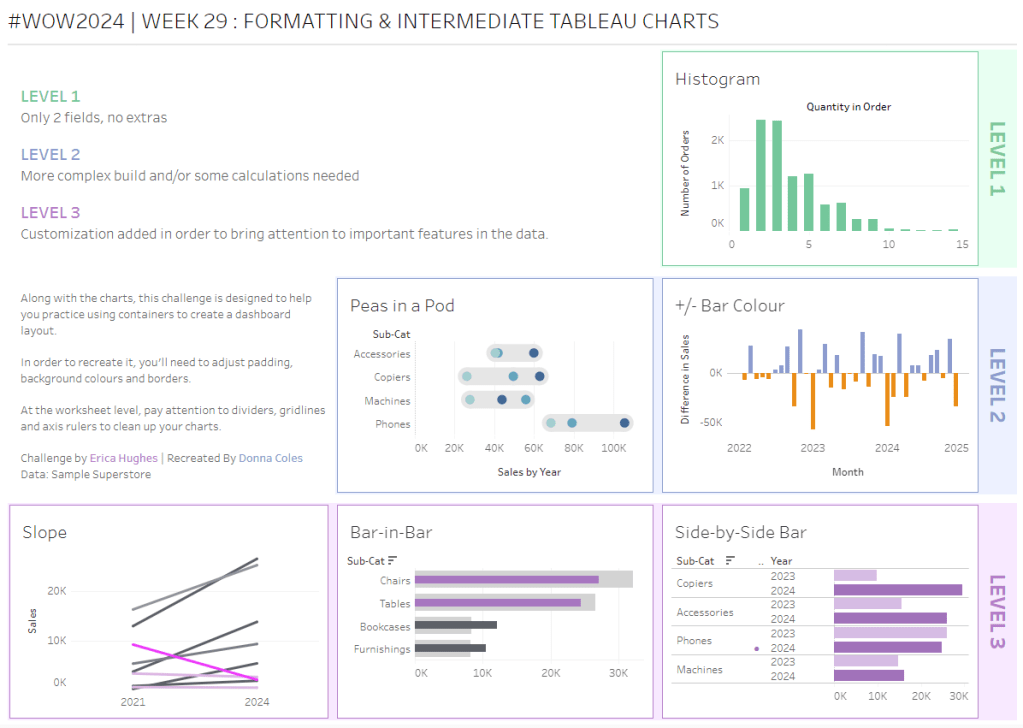
Formatting & Intermediate Tableau Charts

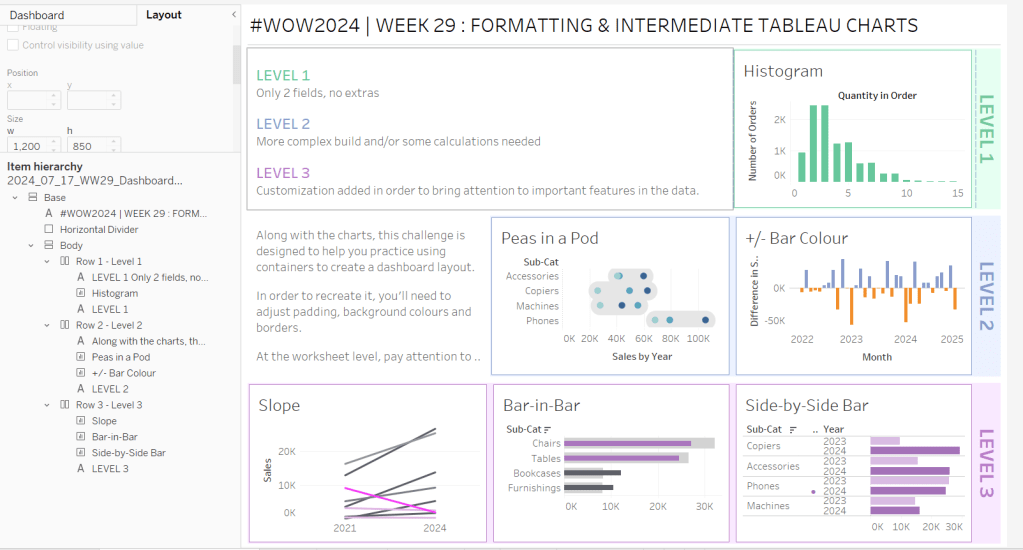
Erica set this challenge primarily aimed at building a beautifully presented dashboard, with the requirement to consider the use of layout containers and padding. She threw in creating some very specific chart types too. The easiest way to blog this, is by chart type.

Building the Histogram

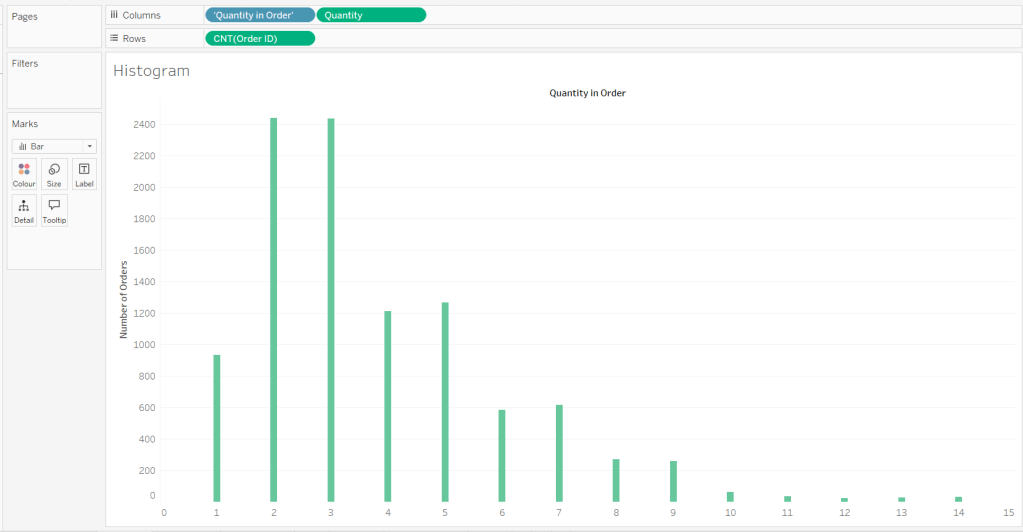
Add Quantity to Columns as continuous dimension (green unaggregated pill) and add Order ID as a measure using the CNT aggregation to Rows. The easiest way to do this is right click and drag Order ID from the left hand date pane and drop onto rows. When you release the mouse, the option to select the aggregation should be available.

Change the mark type to bar and adjust the colour. Edit the title of the y-axis and remove the title from the x-axis. Update the Tooltip.

Double -click into Columns and manually type ‘Quantity in Order’ (including the quotes). Right click on the first text displayed and hide field labels for columns. Adjust the font of the Quantity in Order label that remains.

Remove row and column dividers and column gridlines. Remove Row axis rulers.

Note, when you add to the dashboard , you may find you want to adjust the Size of the bars.

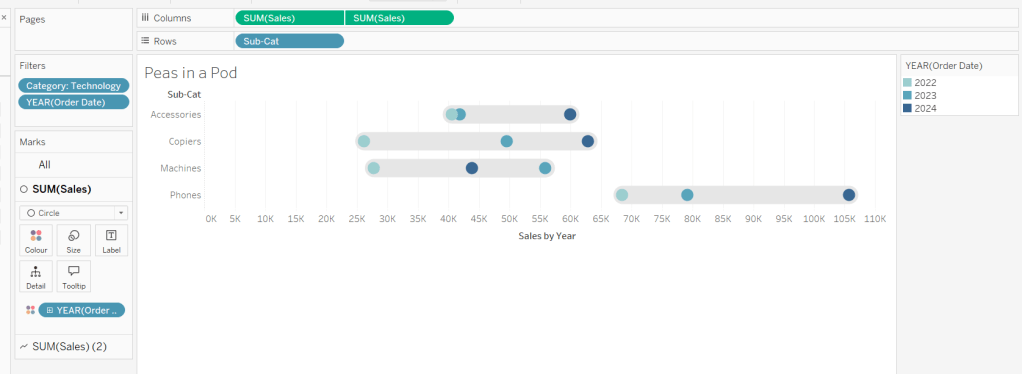
Building the Peas in a Pod chart

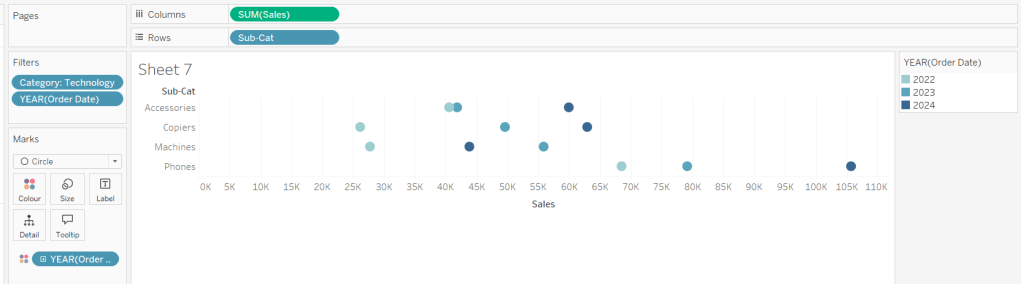
On a new sheet, add Category to Filter and select Technology. Add Order Date to Filter and select Years then choose 2022,2023 and 2024.

Rename the Sub-Category field to Sub-Cat and add to Rows. Add Sales to Columns. Change the mark type to circle. Add Order Date to Colour. By default it should display YEAR(Order Date). Adjust colours to suit. Widen each row a bit.

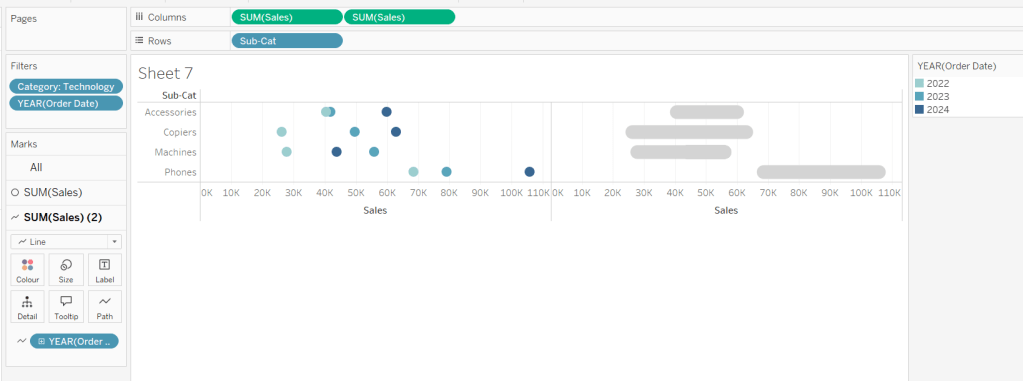
Add another instance of Sales to Columns.

On the Sale (2) marks card change the mark type to line and move YEAR(Order Date) to Path. Increase the size and adjust the colour so it’s a grey lozenge.

Make the chart dual axis and synchronise the axis. Right click the top axis and move marks to back. Adjust the Tooltip. Edit the title of the x-axis.

Hide the top axis. Remove row and column dividers. Remove row gridlines. Remove axis rulers for both columns and rows.

Note, when you add to the dashboard , you may find you want to adjust the Size of the circles and the line. I found it was best adjusted on the web after I published to Tableau Public.

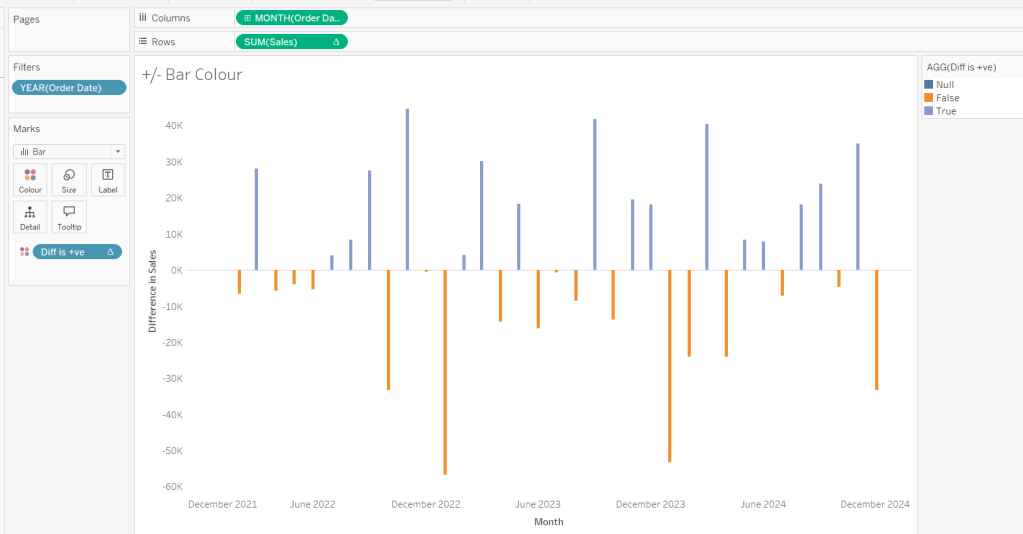
Building the +/- Bar Chart

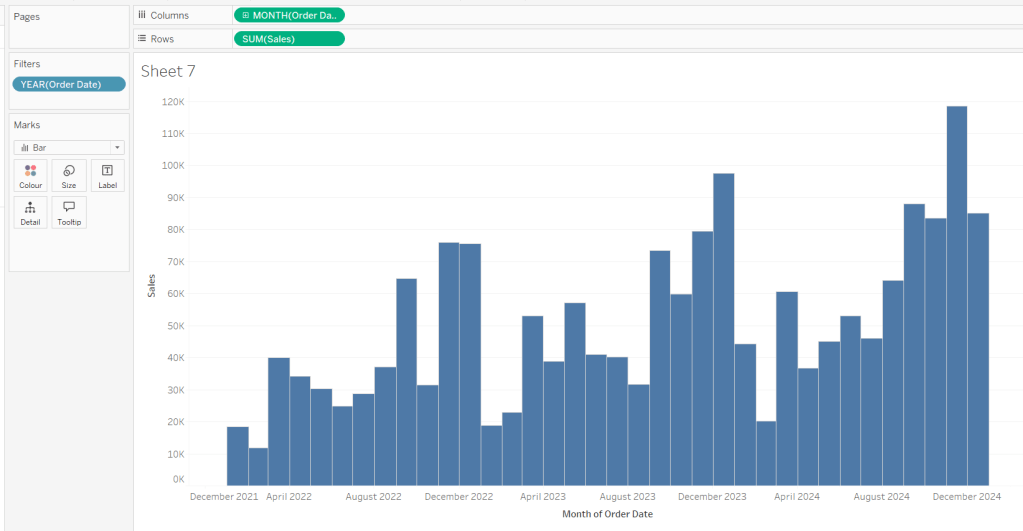
On a new sheet add Order Date to Filter and select Years then choose 2022,2023 and 2024. Add Order Date to Columns and select to be at the continuous month level (green pill, May 2015 format). Add Sales to Rows and change the mark type to bar.

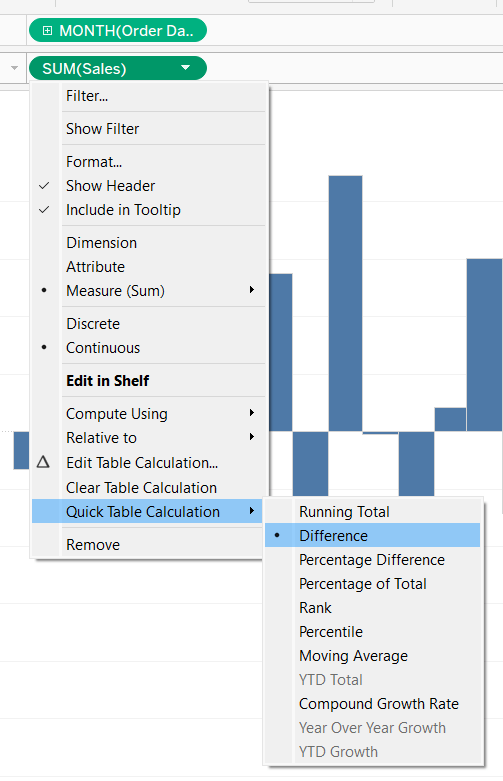
Add a quick table calculation of Difference to the Sales pill.

Adjust the size of the bars (select manual over fixed and adjust the slider).

Create a new calculated field

Diff is +ve

ZN(SUM([Sales])) – LOOKUP(ZN(SUM([Sales])), -1) > 0

and add to the Colour shelf. Adjust colours to suit. Hide the null indicator. Adjust the Tooltip. Adjust the title of the x-axis.

Remove all gridlines and axis rulers. Remove the columns zero line. Set the rows zero line to be a continuous unbroken line.

Note – once again the size may need further adjusting once on the dashboard and/or after publishing.

Building the slope chart

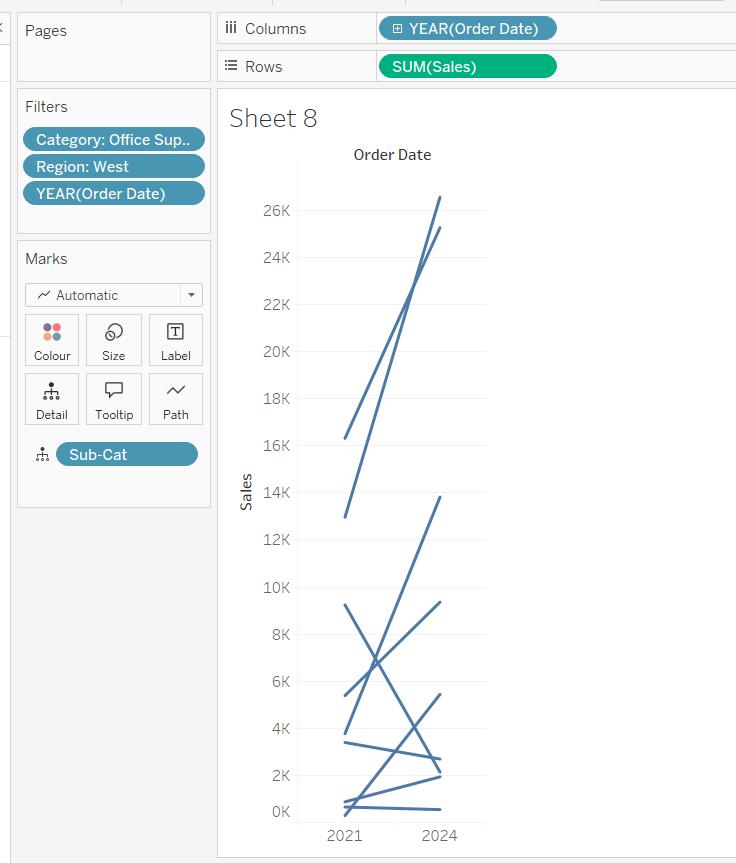
Add Category to filter and select Office Supplies. Add Region to filter and select West. Add Order Date to filter and select Years then choose 2021 and 2024 only.

Add Order Date to Columns and Sales to Rows. Add Sub-Cat to Detail.

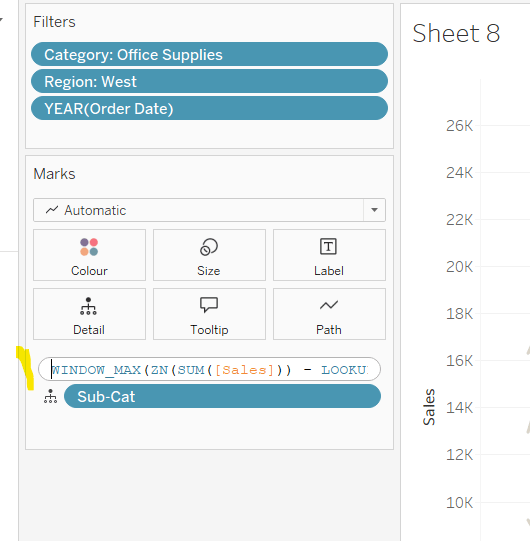
Add Sales to Colour then add a quick table calculation of Percentage Difference. This only sets a value against the 2024 marks though, whereas we want a value for the whole line for each Sub-Cat.

Double-click into the Sales pill on Colour to edit it, and wrap the whole calculation in a WINDOW_MAX() function – the whole calculation should look like

WINDOW_MAX((ZN(SUM([Sales])) – LOOKUP(ZN(SUM([Sales])), -1)) / ABS(LOOKUP(ZN(SUM([Sales])), -1)))

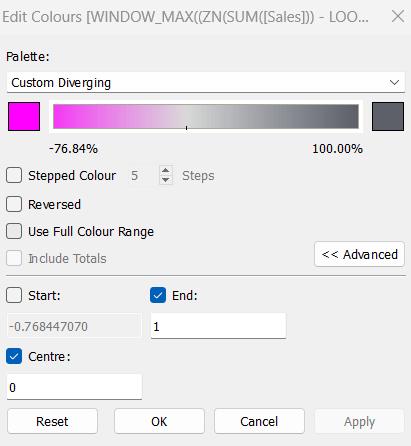
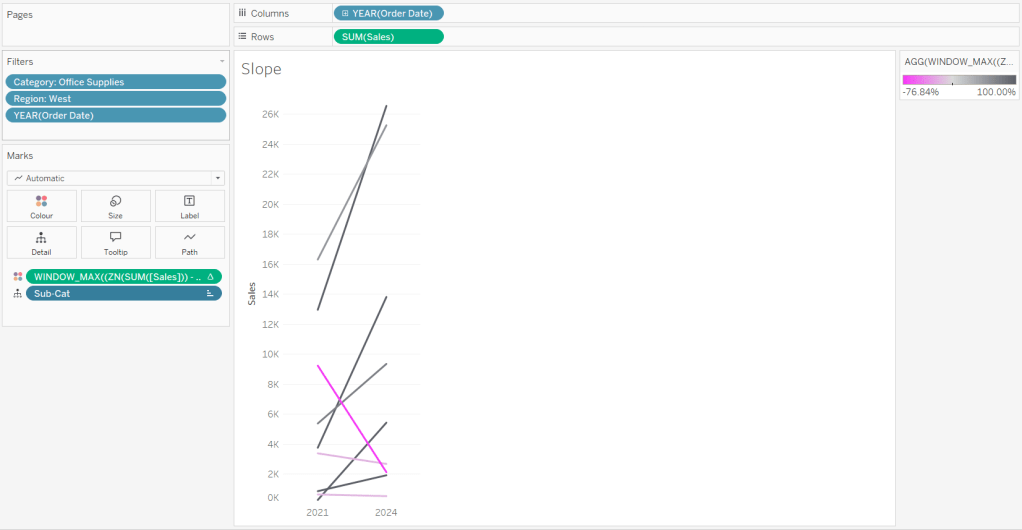
Adjust the colour legend. I set the start & end colours to #ff00ff (hot pink) and #5d6068 (dark grey) and then applied an upper limit to the range and centred at 0 as below.

Hide the Order Date heading at the top of the chart. Adjust the Tooltip.

Remove column gridlines, zero lines and axis rulers.

Create new fields

2021 Sales

IF YEAR([Order Date]) = 2021 THEN [Sales] END

and

2024 Sales

IF YEAR([Order Date]) = 2024 THEN [Sales] END

then create

% Difference

(SUM([2024 Sales]) – SUM([2021 Sales]))/SUM([2021 Sales])

Edit the Sort of the Sub-Cat pill on the Detail shelf, so it is sorting by % Difference ascending. This will ensure the lines are displayed overlapping in the expected manner.

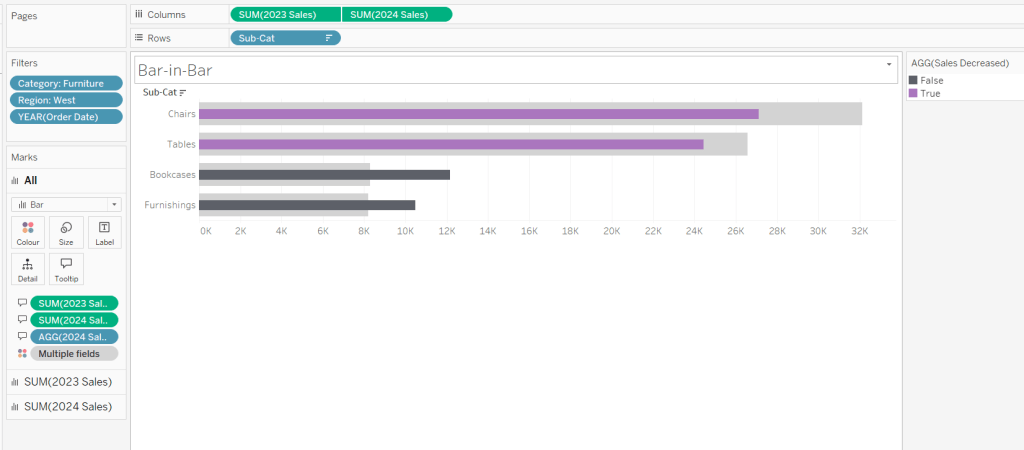
Building the Bar-in-Bar Chart

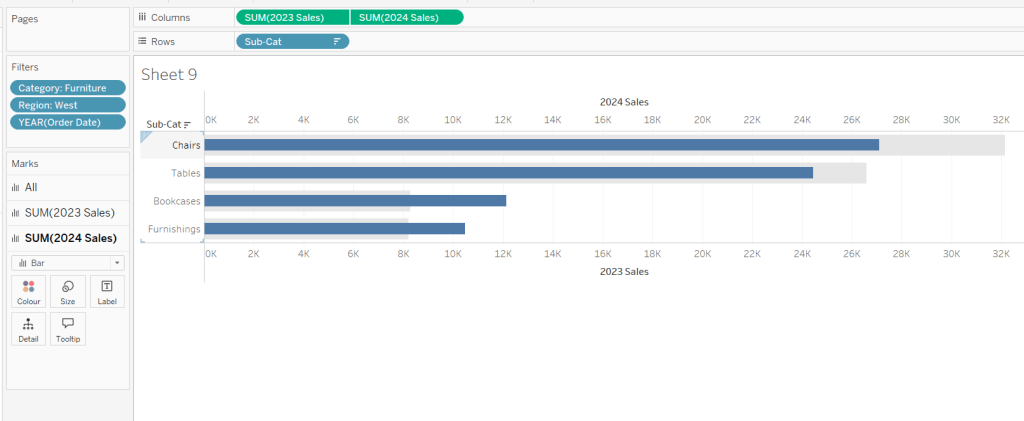
On a new sheet, add Category to filter and select Furniture. Add Region to filter and select West. Add Order Date to filter and select Years then choose 2023 and 2024 only.

Create a new field

2023 Sales

IF YEAR([Order Date]) = 2023 THEN [Sales] END

Add Sub Cat to Rows and 2023 Sales to Columns. Add a sort to the Sub-Cat pill to sort by 2024 Sales descending. Add 2024 Sales to Columns. Make the chart dual axis and synchronise the axis. Change the mark type on the All marks card to bar. Remove Measure Names from the Colour shelf on the All marks card. Set the colour of the 2023 Sales marks card to light grey. Increase the width of each row, then reduce the size of the bar on the 2024 Sales marks card.

Create a new field

Sales Decreased

SUM([2024 Sales]) < SUM([2023 Sales])

and add to the Colour shelf of the 2024 Sales marks card. Adjust colours to suit.

In the solution, the Tooltip shows an indicator – I’m not sure if this was necessary, but I added it just in case

2024 Sales > 2023 Sales

IF [Sales Decreased] THEN ‘●’ END

Add this to the Tooltip shelf of the All marks card, along with the 2023 Sales and 2024 Sales fields. Adjust the Tooltip accordingly.

Hide the top axis. Remove the title of the x-axis.

Remove row and column dividers. Remove row gridlines and row axis rulers and ticks. Remove all zero lines.

Building the side-by-side bar chart

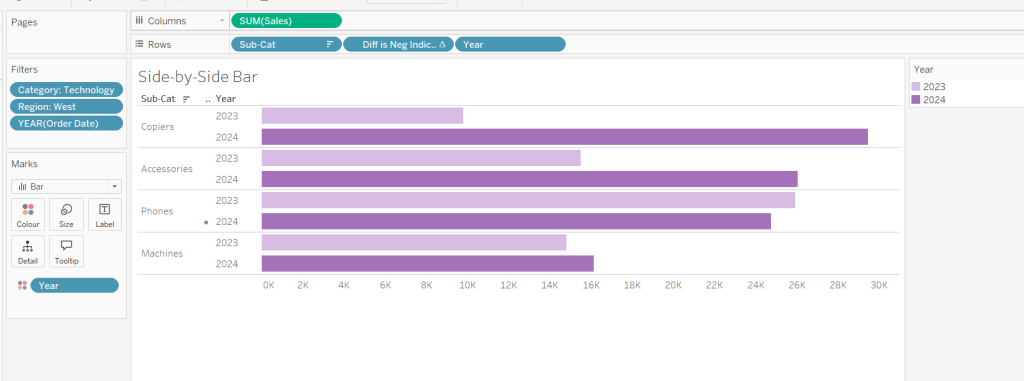
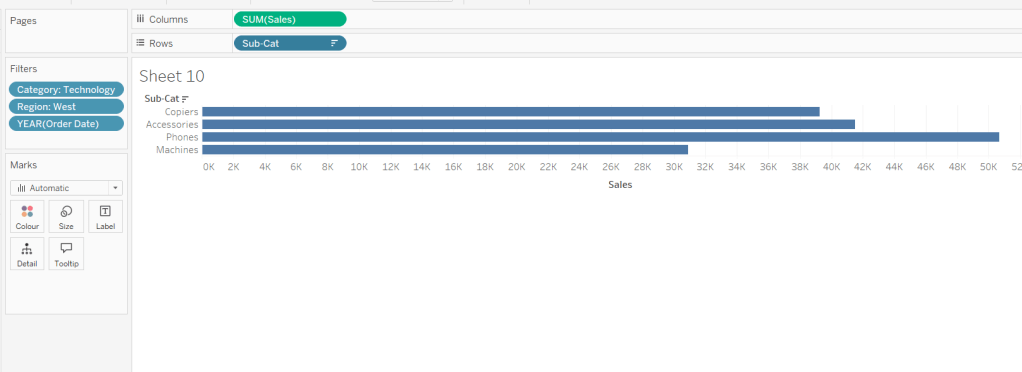
On a new sheet, add Category to filter and select Technology. Add Region to filter and select West. Add Order Date to filter and select Years then choose 2023 and 2024 only.

Add Sub Cat to Rows and Sales to Columns. Apply a Sort to Sub-Cat based on 2024 Sales descending.

Create a new field

Year

YEAR([Order Date])

And add to Rows and Colour. Adjust colour to suit. Widen each row.

Create new field

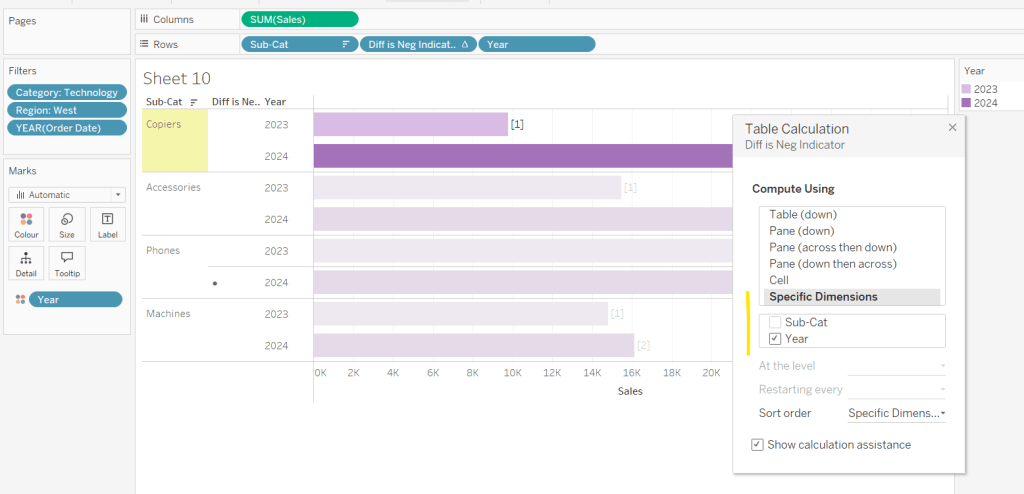
Diff is Neg Indicator

IF NOT([Diff is +ve]) THEN ‘●’ ELSE ” END

Add to Rows before Year and then adjust the table calculation setting so it is just computing by Year only.

Adjust the alignment of the Sub-Cat column so it is aligned middle right. Narrow the width of the Diff is Neg Indicator column to try to remove all the column heading text. If some still shows, rename the field so it is padded with some spaces at the front. Adjust the Tooltip.

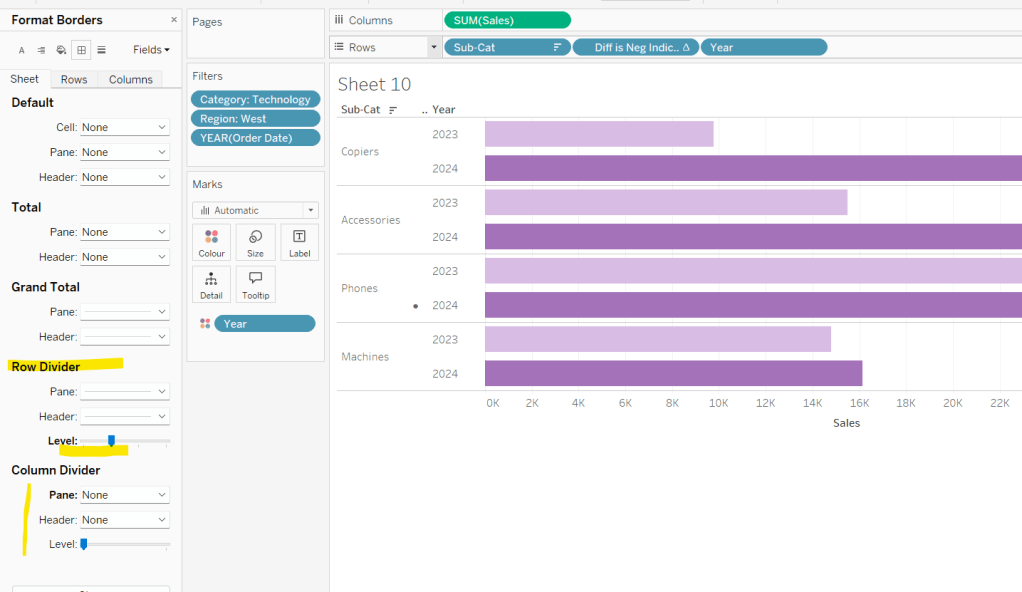
Remove the x-axis title. Remove Column dividers. Adjust the row dividers so they are at level 1 and are partitioning each Sub Cat only and not splitting the Year column.

Remove all gridlines

Building the dashboard

It’s always hard to walk through the steps for placing objects on a dashboard in the specified places. My general rules are

  1. Start with a floating vertical container that is positioned 0,0 and set to the dashboard height and width. I name this Base.
  2. Then add tiled objects such as a text object for the title, blank objects, other containers, charts etc.
  3. When you add a container, add a blank object initially to help get everything into place. Remove once you have at least 2 objects side by side / on top of each other depending on the direction you’re organising.
  4. The item hierarchy shouldn’t have any containers of type Tiled listed.
  5. Try to name your containers to help maintenance in the future

Below is a picture of the item hierarchy I ended up with using this approach

I created a floating vertical container called Base, positioned 0,0 and 1200 x 850. Background set to None, no border and inner and outer padding all 0.

I added a text object to contain the title. Background set to None and no border. Outer padding set to 10 all round, and inner padding 0.

I added a blank object, which I renamed Horizontal divider. Background set to light grey, no border. Outer padding set to left and right 10 and top and bottom 0. Inner padding all 0. Height set to 2.

I added another Vertical container, which I renamed Body. Background set to None, no border and all inner and outer padding set to 0.

I added 3 horizontal containers on top of each other, and set the property of the Body vertical container to distribute contents evenly so each horizontal container was the same height.

1st horizontal container

I named Row 1 – Level 1. I set the background to the pale green. No border. Outer padding set to left & right 10, top & bottom 5. Inner padding all 0.

Into this I added a text field to describe the levels. Background of this was white, no border and outer padding set to 0 (so the green background disappears). Inner padding was set to top: 20 and 10 for the rest.

Next the Histogram chart. Border set to green. Background white. Outer padding right:5, rest 2. Inner padding set to 10 all round. Width of chart fixed to 380 px.

Next the Level 1 text object. No border, no background. Outer padding 4 all round; inner padding 0. Formatted text object to rotate text. Width of object set to 40 px.

2nd horizontal container

I named Row 2- Level 2. I set the background to the pale blue. No border. Outer padding set to left & right 10, top & bottom 5. Inner padding all 0.

Into this I added a text field to describe the challenge. Background of this was white, no border and outer padding set to 0 (so the blue background disappears). Inner padding was set to 10 all round. Width of object set to 380px.

Next the Peas in a Pod chart. Border set to blue. Background white. Outer padding right:5, rest 2. Inner padding set to 10 all round.

Next the +/- bar chart. Border set to blue. Background white. Outer padding right and left 5, top & bottom 2. Inner padding set to 10 all round. Width of object set to 380px.

Next the Level 2 text object. No border, no background. Outer padding 4 all round; inner padding 0. Formatted text object to rotate text. Width of object set to 40 px.

3rd horizontal container

I named Row 3- Level 3. I set the background to the pale purple. No border. Outer padding set to left & right 10, top & bottom 5. Inner padding all 0.

I added the Slope chart. Border set to purple. Background white. Outer padding right:5, rest 2. Inner padding set to 10 all round. Width of object set to 380px.

Next the bar-in -bar chart. Border set to purple. Background white. Outer padding right & left 5, top & bottom 2. Inner padding set to 10 all round.

Next the side-by-side bar chart. Border set to purple. Background white. Outer padding right and left 5, top & bottom 2. Inner padding set to 10 all round. Width of object set to 380px.

Next the Level 3 text object. No border, no background. Outer padding 4 all round; inner padding 0. Formatted text object to rotate text. Width of object set to 40 px.

It was a bit of trial and error to get the spacing as required, and a few calculations to work out how wide I wanted each chart to be, based on the width of the dashboard and the other items in each row.

Anyway, my published viz is here.

Happy vizzin’!

Donna

Can you build an UpSet Plot with just one calculated field?

For this week’s #WOW2023 challenge , guest poster, Venkatesh Iyer asked us to create an UpSet Plot, with the added requirement of using just 1 calculated field.

To start with, I had to read up on what an UpSet plot was and looked through the blog post by Chris Love that was referenced in the challenge introduction. While this post gave me more clarity, it introduced more calculations than I was hoping for, so I started looking a bit wider for a bit of help. This YouTube video set me on my way.

Setting up the data

The requirements stated to limit to the Category of Furniture only, so after connecting to the Superstore data source, I added a Data Source Filter (right click data source > Edit Data Source filters) to restrict the information throughout the workbook just to the Furniture Category.

Doing this means I don’t have to keep adding the Category to the Filter shelf, and any FIXED LoDs I create will only be based on the subset of data that has been ‘pre-filtered’.

There are multiple charts in this challenge, and I used 5 sheets in total. Let’s start with the easy ones.

Building the Customer List

On a new sheet add Customer Name to Rows and Sales to Text. Format Sales to $ with 0dp, and widen each row. Remove row/column dividers and remove the ‘Customer Name’ column heading (right click and hide field labels for rows). Uncheck the Show Tooltips option from the Tooltip shelf. Name the sheet Customer List.

Building the Sub-Category Bar Chart

Add Sub-Category to Rows. Add Customer ID to Columns, then use the context menu to change the field to use the Count (Distinct) measure.

Note – I would typically create a specific calculated field containing the function COUNTD([Customer ID]), but as we only want a single calculated field in the solution, then this is the method to adopt.

Sort the resulting bar chart descending, and add Sub-Category to the Colour shelf and adjust to suit.

Widen each row and then click on the Label shelf and check the Show mark labels tick box. Align the labels middle left and format the font. Hide the axis and the Sub-Category column heading (uncheck show header). Remove all gridlines, row/column dividers/ zero lines etc. Uncheck the Show Tooltips option from the Tooltip shelf. Name the sheet Sub Cat Bar.

Identifying the groupings

Ok, now we’re at the point we need to identify the different ‘cohorts’ of customers based on what Sub-Categories they have purchased. Let’s build out a tabular ‘check’ sheet so we can see what we’re up to…

On a new sheet add Customer Name and Sub-Category to Rows. This simple table shows us that Aaron Bergman has at some point only ever bought Bookcases & Chairs, while Aaron Hawkins has purchased Chairs & Furnishings. These 2 customers are in different cohorts as they haven’t bought exactly the same combination of Sub-Categories. There are 15 different combinations in total.

Based on what I observed in the video, I can create a FIXED LoD calculated field to identify if a customer has bought Bookcases.

BC

{FIXED [Customer ID]: MAX(IIF([Sub-Category] = ‘Bookcases’,1,0))}

Pop this into the view, and we can see that there is a 1 reported against all the rows associated to each customer who bought Bookcases. So Aaron Bergman has a 1 against both rows, and Aaron Hawkins has 0 against both rows.

Creating similar calculated fields, specific for each of the 4 different Sub-Category values, and putting them into the table, we can see we have various combinations of 1s and 0s for each customer. Adam Shillingburg has bought all 4 types, so has 1’s across the board, while Adrian Sharni has only bought Furnishings, so has 3 0’s and a single 1.

Based on our understanding of what these fields are doing, we can combine what each one is doing into a single calculated string field.

Combo

STR({FIXED [Customer ID]: MAX(IIF([Sub-Category] = ‘Furnishings’,1,0))}) + ‘-‘ +
STR({FIXED [Customer ID]: MAX(IIF([Sub-Category] = ‘Chairs’,1,0))}) + ‘-‘ +
STR({FIXED [Customer ID]: MAX(IIF([Sub-Category] = ‘Tables’,1,0))}) + ‘-‘ +
STR({FIXED [Customer ID]: MAX(IIF([Sub-Category] = ‘Bookcases’,1,0))})

Note the order is based on the order of Sub-Category bar chart. Add this into the view on Rows (rejig the order of the measure values to match).

So with this one calculated field Combo, we now have a dimension we can use to count the customers against. The calculated fields I used to demonstrate the concept are now superfluous and can be deleted if you wish, if you remove the check sheet too. I chose to keep mine in for reference.

Building the Combo bar chart

ON a new sheet, add Combo to Columns and then add Customer ID to Rows, but as before, set it to use the COUNTD aggregation.

Sort the bar to be ascending. Check the Show mark labels option on the Label shelf and adjust the alignment to be bottom middle, and the font to be bold. Change the colour of the bar to suit. Hide the axis and the Combo heading (uncheck show header). Remove all gridlines, row/column dividers/ zero lines etc. Uncheck the Show Tooltips option from the Tooltip shelf. Name the sheet Combo Bar.

Building the dot plot

Add Sub-Category to Rows and Combo to Columns. Manually sort the Sub-Category rows so they are listed with Furnishings at the top then Chairs > Tables and Bookcases at the bottom. Sort the Combo field by COUNTD of Customer ID ascending

Double click into Columns and manually type MIN(0) to generate an axis. Change the mark type to circle. Add Sub-Category to Colour. Widen each row.

Add Sub-Category to Label. Then double click into the pill on the label shelf and manually change to add the LEFT function around the pill, so the pill becomes LEFT([Sub-Category],1) to get the initial. Again, this is typically something I would explicitly store in its own calculated field. Manually re-sort the rows again, as this seems to break the sorting.

Align the label middle centre and bold the font. Then add another instance of MIN(0) on Columns to create a 2nd marks card. Change this mark type to Line. Remove the field from the Text shelf, and move the Sub-Category pill from Colour to Path.

Make the chart dual axis and synchronise axis. Right click on the MIN(0) axis title at the top of the chart and move marks to back.

Then hide the axis and the Combo column and Sub-category row (uncheck show header). Remove all gridlines, row/column dividers/ zero lines etc. Adjust the size of the marks as required. Uncheck the Show Tooltips option from the Tooltip shelf. Name the sheet Dot Plot. .

Building the Legend

The quickest way to do this is to duplicate the dot plot sheet. Then remove Combo from the Columns. mark type of the line from line to circle and decrease the size to the smallest possible. Move Sub-Category from Detail to Label and align middle right.

Edit the label and add some spaces in front of the text to push the labels further to the right. Format the font to suit.

Adjust the MIN(0) fields to both be MIN(0.2) instead (just double click into the fields to edit). Then edit the axis to be fixed from 0 to 1. This forces the display to the left.

Hide the axis, and name the sheet Legend.

Adding the interactivity

Arrange the items on a dashboard, using layout containers and padding to organise the 4 main charts and ensure the dot plot aligns both vertically and horizontally with the other two bar charts.. The legend chart is a floating object.

Add a filter dashboard action to filter the customer list

Filter Customers

On select of the Combo Bar or Sub Cat Bar sheets, target the Customer List sheet, showing all values when the selections are cleared.

And that should be it! My published viz is here.

Happy vizzin’!

Donna

Can you build a dumbbell chart?

Week 32 of #WOW2022 and Kyle set this challenge to build a dumbbell chart (also sometimes referred to as a barbell chart, a gap chart, a connected dot plot, a DNA chart). I first built one of these a long time ago, and have built many since, so chose not to refer to Ryan Sleeper’s blog Kyle so generously provided. I figured I’d have a go myself from memory. Looking back now, I actually started by going down the same route a Ryan, but then switched my approach in order to handle the tooltip requirements.

So here’s what I did.

Defining the calculations required

I’m going to start with these, as it’s then easier just to explain how everything then gets built. In reality, some of these calculations came along mid-build.

I decided to create explicit fields to store the Ownership values for the 2015 & 2019 years ie

Ownership 2015

IF [Year]=2015 THEN [Ownership] END

Ownership 2019

IF [Year]=2019 THEN [Ownership] END

Both these fields I formatted to % with 0dp.

Given these, I can then work out the difference

Difference

SUM([Ownership 2019])-SUM([Ownership 2015])

also formatted to % with 0dp

and finally, I can work out whether the change exceeds 20% or not

Difference>0.2

[Difference]>0.2

These are all the fields required 🙂

Building the Dot Plot

Add Age to Columns as a discrete dimension (blue pill) and Ownership 2015 to Rows. This will create a bar chart.

Then drag Ownership 2019 onto the canvas, and release your mouse at the point it is over the Ownership 2015 axis and the 2 green columns symbol appears.

This will have the effect of adding Measure Names and Measure Values to the view.

Change the mark type to Circle and move Measure Names from Columns onto Colour. Adjust colours accordingly.

Show mark labels and adjust so they are formatted middle centre, and are bold. Increase the size of the circles so the label text is completely within the circle, and the font colour should automatically adjust to white on the darker circles and black on the lighter ones.

Add Ownership 2015, Ownership 2019 and Difference onto the Tooltip shelf, and adjust the tooltip to suit. Note – I chose to adjust the wording of the tooltip to not assume there was always an increase. I used the word ‘change’ instead and as a result applied the custom formatting of ▲0%;▼0% to the Difference field that was on the Tooltip shelf.

So my tooltip was

which generated a tooltip that looked like

Connecting the dots

Add another instance of Measure Values to Rows alongside the existing one. This will generate a 2nd Measure Values marks card.

On that marks card, remove Measure Names from Colour and add Difference>0.2 to the Colour shelf instead, and adjust the colours.

Change the mark type to Line and add Measure Names to the Path shelf.

Move the Difference pill from the Tooltip shelf to the Label shelf. Edit the label controls, so the label only displays at the start of the line, which should make the label only show at the bottom. Adjust the label alignment so it is bottom centre.

Delete all the text from the Tooltip of the ‘line’ marks card.

Now make the chart dual axis and synchronise the axis. You’ll notice the bars sit on top of the circles, and the difference text is not displaying under the circles.

To remedy this, first, right click on the right hand axis, and select move marks to back. The lines should now be behind the circles.

Then, on the lines marks card, edit the Label text and just add a single carriage return in the dialog box, so the text is shifted down.

Adding Age to be displayed at the top

The quickest way to do this is to double click in the space on the Columns shelf, next to the Age pill, and type in ‘Dummy’ or just ” if you prefer. This has the affect of adding another ‘dimension’ into the view and as a result the Age values immediately get moved to the top.

Now just remove all axis, all gridlines, all row & column dividers. Then uncheck show header against the Dummy pill and hide field labels for columns for the Age header (right click on the Age label in the view itself to get this option, not the pill). Then format the Age text to be a bit bigger and bolder, and also increase the Size of the lines mark type. And that’s your viz 🙂

Additional Note

If you had followed Ryan’s blog post, then you would still have needed to create separate calculated fields to store the ownership values for 2015 and 2019, but these would have had to been LOD fields eg

Ownership 2015

{FIXED [Age]:SUM(IF [Year]=2015 THEN [Ownership] END)}

and a similar one for Ownership 2019. The other 2 fields related to the difference would then need to reference these instead.

My published viz is here.

Happy vizzin’!

Donna

Prep that and build this!

It’s a double whammy this week – a #PreppinData & #WOW2022 combo! And I’m going to attempt to blog a solution guide to both! Wish me luck… it may take some time!

The #PreppinData & #WOW2022 crew combined with the requirement to prep some Salesforce data with Tableau Prep as per the challenge here, and to then use the output to visualise in Tableau Desktop as per the challenge here.

Prepping the Data

Two files were provided for the input: Opportunity provided 1 row per opportunity, and Opportunity History providing multiple rows per Opportunity, where each row indicated the stage in the lifecycle the opportunity goes through.

The first requirement was to pivot the Opportunity data, to get 2 rows per Opportunity; 1 indicating the date opened, and the other indicating the date closed (or expected to be closed).

After connecting to the Opportunity date and adding a Clean step to view the contents, add a Pivot step to transform Columns to Rows, adding the CloseDate and CreatedDate fields to the pivot.

Before adding any further steps, rename Pivot1 Names to Stage and rename Pivot1 Values to Date.

Add a Clean Step.

Change the CloseDate value in the Stage field to be renamed to ExpectedCloseDate, and the change the CreatedDate value in the Stage field to be renamed to Opened. To do this, simply double click on the value and type in.

We then need to further update this field, based on whether the Opportunity record is closed or not. The requirement said to refer to the StageName field for this, even though there is an IsClosed field. I chose to stick with the requirements.

Create a calculated field

Stage

IF CONTAINS([StageName], ‘Closed’) AND [Stage]=’ExpectedCloseDate’ THEN [StageName] ELSE [Stage] END

Having applied this logic, your Stage field should now contain 4 values rather than 2.

Then remove all fields except for Date, Stage, Id and StageName, and rename the step Opportunity.

We now need to combine with the OpportunityHistory data. This data contains a row for each stage the Oppotrunity goes through. What we’re looking to do is to supplement this with a Stage = Opened record, and, in the event the opportunity hasn’t been closed, a Stage = ExpectedCloseDate record.

For this we’ll need a Union step.

Add in the OpportunityHistory data, and add a Clean step. Rename this step to History. To help with the union step, rename the CreatedDate field to Date. In the Opportunity step above, rename Id to OppID.

Add a Union step to the Opportunity path. Then drag History and add it to the Union. Add a Clean step and view the data. If the renaming worked ok, you should have 6 fields.

Update the SortOrder field by creating a new calculated field

SortOrder

If [Stage]=’Opened’ THEN 0
ELSEIF [Stage]=’ExpectedCloseDate’ THEN 11
ELSE [SortOrder] END

Update the Stage fields for those which have null records.

Stage

IF ISNULL([Stage]) THEN [StageName] ELSE [Stage] END

All the records with SortOrder = null are actually duplicates now, as we have them captured as part of the pivoting step we did initially. All these records can therefore be excluded (click on the null value in the SortOrder field, right click and Exclude).

Now remove the redundant fields of Table Naems, Stage Name, and you should be left with 4 columns and 876 rows of data, which you can output to csv or similar.

Building the Viz

Now we’ve got the data sorted, we can build the viz. If you haven’t done the PreppinData challenge, you will need to download the Opportunity.csv input file and the provided Output.csv files from the website.

Modelling the data

In Tableau Desktop, connect to the file generated in the above process (or download the output file from the PreppinData site if you haven’t built your own). My file was called 2022_06_08_SalesOpps.csv.

Then add an additional connection to the Opportunity.csv file you used in the Prep challenge (or again download from the PreppinData site).

Add a relationship from Opp ID to Id

Building the Open Opportunities chart

We need to work out what Lorna has used to identify an ‘open’ opportunity. After a bit of trial and error, I discovered it was any opportunity that had an ExpectedCloseDate stage. To identify these, create a new calculated field
Has Expected Close Date Stage

{FIXED [Opp ID]: SUM(IF [Stage]= ‘ExpectedCloseDate’ THEN 1 ELSE 0 END)}

This will return the value 1 against all the rows for an Opp ID which have an ExpectedCloseDate Stage, and 0 for those that don’t.

As you can see below, all the rows for the 1st two Opp IDs listed are flagged with 1 as they have at least 1 stage which is ExpectedCloseDate. For the other Opp IDs listed, they are all 0.

Right click this field and drag to the Filter shelf. When you release the mouse, choose the All values option from the dialog displayed, then Next

Then select 1 to filter the sheet just to the the Opportunity records we care about.

Add Opp ID and Name to Rows. Add Date to Columns as a continuous exact date (green pill).

Change the mark type to Circle and add the Stage field to Colour, and adjust accordingly using the relevant colour palette.

To add the grey lozenge marks, add another instance of Date next to itself. This will create a second marks card called Date2. Remove the Stage field from the Colour.

Change the mark type of the Date2 card to line, and adjust the colour to a light grey and the size to be a bit larger.

Make this chart dual axis and synchronise the axis. Move the lozenge marks ‘to the back’ (right click on the top axis and move marks to back.

We need to identify those with a Close Date in the past. For the purposes of this exercise, I hardcoded ‘today’ into a parameter pToday and set it to 8th June 2022. Otherwise in a ‘live’ situation I would refer to the TODAY() function rather than the parameter.

Past Close Date?

IF [Close Date]<[pToday] THEN ‘●’ ELSE ” END

I use this site to get the circle mark.

Add this field to the Rows before the Opp ID field. You won’t get the symbol against every row, but don’t worry about that just yet. Format this circle to be right aligned and red font.

Now we need to mange the sorting. Firstly create a new parameter

pSortBy

an integer containing values 1 and 2, defaulted to 2 where the values displayed are aliased as below

To determine how long an opportunity has been open we need

Days Open

DATEDIFF(‘day’, [Created Date], [Close Date])

We then need a field to utilise this parameter and determine the measure we can use to sort

Sort By

CASE [pSortby]
WHEN 1 THEN SUM([Days Open]) * -1
ELSE INT(MIN([Close Date]))
END

If we’re sorting based on the Longest Open we’ll use the number of days the opportunity has been open. By default the data will ascend from smallest to largest value but we want the opposite, so we multiple by -1.

If we’re sorting based on the Close Date. then we can just use the Close Date field itself, converted into a integer.

Add Sort By to Rows , change it to be discrete (blue) and then move it to be the first pill on the Rows shelf. The data should now be reordered, and you’ll now get a red circle per row.

Add the pSortBy parameter to the sheet and test the sorting. Once happy, hide the Sort By field (right click and uncheck Show Header), then Hide Field Labels for Rows. Remove row & column dividers and make the first column narrow. You should now have your chart.

Building the legend

Lorna’s decided the legend should be circles rather than the ‘out of the box’ squares, so a custom sheet is required.

On a new sheet, add Sort Order discrete dimension (blue pill) and Stage to Rows. Add Stage to Filter and exclude Closed Lost and Closed Won. We’re going to need to organise these Stages into 2 rows and 3 columns, so we need some fields to help.

Row Index

IF [Sort Order] ❤ THEN 1 ELSE 2 END

Column Index

IF [Sort Order] = 0 OR [Sort Order] = 4 THEN 1
ELSEIF [Sort Order]=2 OR [Sort Order]= 8 THEN 2
ELSE 3 END

Note I’m very much ‘hardcoding’ this as this is acceptable for this view I believe.

Add Row Index as discrete dimension to Rows and Column Index as discrete dimension to Columns, and move Stage to Label.

Type in FLOAT(MIN(0)) into Columns to create a fake axis. Change mark type to circle, and add Stage to Colour. Increase the width of each row if all your text isn’t showing.

Edit the axis so it is fixed to start at -0.1 and end at 0.5 – this will shift the circles to the left.

Uncheck Show Header against the Row Index, Column Index and the MIN(0) axis. Then remove all gridlines and row/column dividers. Turn off tooltips.

The Summary View

Now we need to work on the summary values at the top of the screen. We’re focussing on ‘open’ opportunities in the current month, which is June 2022 (based on the pToday parameter). We need Has Expected Close Date Stage = 1 on Filter, and to identify the current month we use

Is This Month?

DATETRUNC(‘month’, [Close Date]) = DATETRUNC(‘month’, [pToday])

Add this to Filter and set to True

Now let’s have closer look at the rows of data we’re got so far.

Add Opp ID, Sort Order (discrete dimension) and Stage to Rows and Amount to Text.

What we’re looking for is to aggregate the Amount by Stage, but if we remove the Opp ID and Sort Order fields, we don’t get the right values

This is because we’ve got multiple rows per Opp ID, so the value is counting in multiple Stages. We want to just limit the rows to the latest Stage before the ExpectedCloseDate stage.

First lets work out the maximum Sort Order value for each Opp ID that isn’t the Expected Close Date row (which has a Sort Order = 11).

Max Stage Sort Order

{FIXED [Opp ID]: MAX(IF [Sort Order]<=10 THEN [Sort Order] END)}

Add this to the tabular view as a discrete dimesion. Hopefully you can see from the image below that we’re getting the value we want.

Now let’s identify the matching row

Stage To Keep

[Sort Order] = [Max Stage Sort Order]

Add this to the Filter shelf and set to True.

Now if we remove Sort Order, Max Stage Sort Order and Stage from Rows, we get the correct summarised values.

Move Stage to Columns and add Stage to Text and Colour. Set to Fit Entire View. Align Text centred and remove all row/column dividers. Uncheck Show Header against the Stage field on Rows. Use the Colour Legend to manually sort the values into the correct order.

Update the sheet title.

Past Close Date

This is a bit simpler… add Past Close Date? to Filter and select ●. Add Stage to Filter and select ExpectedCloseDate. Add Amount to Text and the auto generated field Opportunity.csv (Count) to Text.

Format the text and add a title, and you’re all done You just need to add everything to the dashboard now.

My published version is here.

Happy vizzin’!

Donna