For the challenge this week, Yoshi wanted us to recreate this summary KPI card detailing the latest Profit Ratio, the change from the previous day, and comparisons against equivalent timeframes.
Defining the calculations
In a usual scenario, we would utilise the TODAY() function to base the rest of the measures being displayed. However given the dataset we’re using and the desire to ensure the viz doesn’t eventually display nothing on my Tableau Public page, ‘Today’ will be harded coded in the parameter
pToday
date parameter defaulted to 04 Feb 2025.
We have 3 timeframes we need to visualise, so we need to find the dates these relate to
Today Last Month
DATE(DATEADD(‘month’, -1, [pToday]))
Today Last Year
DATE(DATEADD(‘year’, -1, [pToday]))
I also want to group these ‘timeframes’ and created
Recent | Prior Mth | Prior Yr
IF [Order Date] >= DATEADD(‘day’, -14, [pToday]) AND [Order Date] <= [pToday] THEN ‘Recent’ ELSEIF [Order Date] >= DATEADD(‘day’, -14, [Today Last Month]) AND [Order Date] <= DATEADD(‘day’, 14, [Today Last Month]) THEN ‘Prior Month’ ELSEIF [Order Date] >= DATEADD(‘day’, -14, [Today Last Year]) AND [Order Date] <= DATEADD(‘day’, 14, [Today Last Year]) THEN ‘Prior Year’ ELSE NULL END
Add this to Rows on a sheet , then add Order Date as a discrete exact date (blue pill). Add Recent | Prior Mth | Prior Yr to Filter and exclude Null. All the dates we want to plot will be displayed against their relevant ‘category’
Create a new field
Profit Ratio
SUM([Profit]) / SUM([Sales])
and format to % with 1 dp
Additionaly create fields
PR -Recent
IF MIN([Recent | Prior Mth | Prior Yr]) = ‘Recent’ THEN [Profit Ratio] END
and
PR – Not Recent
IF MIN([Recent | Prior Mth | Prior Yr]) <> ‘Recent’ THEN [Profit Ratio] END
and format these to % with 1dp too.
Add these 3 fields into the table
Finally we need to create the field for the x-axis based on the number of days, so create
X-Axis
CASE [Recent | Prior Mth | Prior Yr] WHEN ‘Recent’ THEN DATEDIFF(‘day’,[pToday],[Order Date]) WHEN ‘Prior Month’ THEN DATEDIFF(‘day’,[Today Last Month],[Order Date]) WHEN ‘Prior Year’ THEN DATEDIFF(‘day’,[Today Last Year],[Order Date]) END
Add this onto Rows
Now we have the core fields needed for the line chart.
Building the Line Chart
On a new sheet, add Recent | Prior Mth | Prior Yr to Filter and exclude NULL. Then add X-Axis as a continuous (green) pill to Columns and PR – Recent to Rows. Add Recent | Prior Mth | Prior Yr to Colour. The add PR-Not Recent to Rows. Make the chart dual axis, synchronise the axis and then remove Measure Names from the All marks card. Adjust the colour legend associated to the Recent | Prior Mth | Prior Yr field.
Reorder the pills on the Rows so PR-Not Recent is first, which makes the ‘recent’ line in front of the others.
On the PR-Not Recent marks card, adjust the Path, to be a dashed line. On the PR-Recent marks card, add circle line markers (via the colour shelf options). Hide the right hand axis, and hide the null indicator
On the All marks card, add Profit Ratio to the Tooltip shelf and also add Order Date as a discrete exact date (blue bill) to Tooltip. Adjust to suit.
The Hide the X-Axis (uncheck show header), remove the title of the Y-axis, remove row & column dividers and vertical gridlines.
Building the KPI Card
Create new fields
PR-Today
{FIXED:SUM(IF [Order Date]=[pToday] THEN [Profit] END)}/{FIXED:SUM(IF [Order Date]=[pToday] THEN [Sales] END)}
format to % with 1 dp
PR-Yesterday
{FIXED:SUM(IF [Order Date]=DATEADD(‘day’, -1,[pToday]) THEN [Profit] END)}/{FIXED:SUM(IF [Order Date]=DATEADD(‘day’, -1,[pToday]) THEN [Sales] END)}
format to % with 1 dp
PR – Difference
[PR – Today] – [PR – Yesterday]
format to % with 1 dp
PR Direction Up
IF [PR Difference]>=0 THEN ‘Up’ END
PR Direction Down
IF [PR Difference]<0 THEN ‘Down’ END
On a new sheet add PR Difference, PR Direction Up, PR Direction Down, PR-Today and pToday to the Text shelf. Set the mark type to shape and use a transparent shape (see here for details on how to set this up). Then adjust the text as required, formatting as necessary and add a title that references pToday
The add these two sheets to a dashboard and you’re done. My published viz is here.
After connecting to the data, add Team to Rows and Timestamp as a continuous (green) pill at the Day level to Columns. Create a new field
Call Count
COUNT([synthetic_call_center_data.csv])
and then add this to Rows.
Add Timestamp to Filter, and select relative date. Set the options to Last 3 weeks, and then additionally check the anchor relative to check box and enter 23 Dec 2024. This is because the data set only goes up to the end of December 2024. Not setting this field will apply the date filter based on ‘today’ so it’s unlikely anything will appear.
(Note – you may also need to update the date properties of the data set to ensure a week starts on a Sunday to get matching numbers: right click the data source and select the date properties option).
To add a marker to the last point, create a field
Call Count – Most Recent
IF LAST()=0 THEN [Call Count] END
Add this to Rows and adjust the table calc setting so it is computing specifically by Day of Timestamp only. By default it was doing this via the Table (across) option, but I tend to always prefer to always explicitly fix what the calculation is computing over, as it won’t then matter where I then move that field too if I choose to change the layout of the viz.
Set the mark type on the Call Count marks card to line, and then adjust the colour to grey and reduce the size. Set the mark type of the Call Count – Most Recent marks card to circle, set the colour to blue and increase the size. Hide the null indicator (right click > hide).
Set the chart to dual axis, synchronise the axis and then remove the Measure Names field from the All marks card.
remove both the axis titles (right click axis > edit axis), hide the right hand axis (right click, untick show header), and format to remove the column divider from the header section only.
Now we’ve got the core display, we need to create the following fields
No. of Calls
WINDOW_SUM([Call Count])
Highest Call Vol
WINDOW_MAX([Call Count])
Lowest Call Vol
WINDOW_MIN([Call Count])
Avg Call Vol
WINDOW_AVG([Call Count])
format this to a number with 0 dp
Calls this period
WINDOW_MAX([Call Count – Most Recent])
the window_max is required here, as the data set we’re displaying at the day level, has 2 values – the latest value and null. We only want to return 1 value, which is the maximum of these.
Previous Period
WINDOW_MAX(IF LAST()=1 THEN [Call Count] END)
LAST()=1 returns the value of the next to last record, and the window_max is again applied, as the nested IF clause will return null for all others records.
Period Var
[Calls this period] – [Previous Period]
Add each of these fields, one by one, to Rows following the steps below
Add to rows (it will automatically display as a green continuous pill).
change to discrete (right click on the pill and select discrete – the pill will turn blue and move to before the green pills)
Explicitly set the table calc to be computing by Timestamp (as above)
Once, you should have something that looks like this
but I noticed, that the display in the solution is sorted based on the total number of calls and not by Team, so add a Sort to the Team pill to sort by Call Count descending
Update the Tooltip if you wish, and then add the viz to a dashboard, floating the Timestamp filter.
Yoshi chose to challenge us this week to try using the multi-fact relationship model, something I hadn’t used before so I was keen to have a go.
I have to admit, I did ultimately find the challenge a bit tricky… I did have to look at the hint in the challenge to see how Yoshi had folded in the additional month data source, and then when building the vizzes, I was getting slightly different numbers on occasion. I wasn’t sure whether this was due to differences in how I’d applied the actual relationship fields between the tables in the model, but can’t actually get to Yoshi’s data model in the solution to tell. I used the information on the help article to determine the linking fields, so I think it’s right…
I also struggled with the final requirement – to always show all the libraries in the display, even when there were no copies of the selected book. As soon as I restricted the display to just show the data for the selected book, the libraries which didn’t stock the book disappeared, which with relationships is what I expected as they act like ‘inner joins’. Even looking at Yoshi’s solution, I can’t see what magic trick has been applied, unless there’s something in the model I haven’t applied..
So I’ll explain what I did, and if you can figure out where I may have gone wrong, or if you concur with my set up, then please let me know 🙂
Modelling the data
Download the 3 data sources from Yoshi’s link.
Connect to the Bookshop excel file. Drag Checkouts onto the canvas first – this is one of the base tables.
Drag Book onto the canvas and verify the tables are related by the Book ID field from each table.
Drag Author onto the canvas after Book and verify the tables are related on the Auth ID fields.
Drag Award onto the canvas after Book and verify the tables are related on the Title fields.
Drag Edition onto the canvas after Book and verify the tables are related on Book ID
Drag Info onto the canvas after Book. This time you’ll need to join Book ID from Book to a relationship calculation from Info of [BookID1]+[BookID2]
Drag Ratings onto the canvas after Book and verify the tables are related on Book ID
Add a new connection to the BookshopLibraries excel file and then drag in Catalog after Edition and verify the tables are related on ISBN
Drag in Library Profile after Catalog and verify the tables are related on Library ID
Next from the Bookshop excel data source, add Sales Q1 onto the canvas and drop when the New BaseTable option appears
Multi select the Sales Q2, Sales Q3 and Sales Q4 tables then drag onto the canvas and drop onto the Sales Q1 table when the Union option appears
Right click on the Sales Q1 unioned object and rename to Sales. Add a relationship from Sales to Edition verifying the tables are related on ISBN.
Add a new connection to the Months csv file, then add the Month.csv object onto the canvas so it is related to the Sales table. This time you’ll need to create a relationship calculation on Sales as DATEPART(‘month’, [Sale Date]) and join to Month
Finally also add a relationship from Checkouts to Month.csv, creating a relationship on Checkout Month to Month.
Now we have a model, we can start building the vizzes.
Building the scatter plot
To start, to verify I’m getting the data I expect, I’ll build out a table
Add BookID (Book) and Title to Rows. We need to indicate if the book has won an award.
Awarded?
COUNT([Award])>0
Add this to Rows.
We will be plotting the average number of checkouts per month against the average number of orders per month., so create
Avg Checkouts per Month
SUM([Number of Checkouts])/COUNTD([Checkout Month])
Then create
Avg Orders per Month
COUNT([Order ID])/COUNTD(MONTH([Sale Date]))
Add into the table. The number won’t be correct though, as we are displaying data from the Checkouts base table and the Sales base table without including any field from any tables that link them. To resolve this add BookID (Edition) onto Rows, and if you spot check some of the numbers against the scatter plot solution, they should match (or be very close). – figures for Portmeirion matched for me.
We also need to highlight which book is selected, so create a parameter
pSelectedBookID
string parameter defaulted to <emptystring>
Then create field
Is Selected Book
[BookID (Edition)] = [pSelectedBookID]
Show the parameter and enter the string PP866 (for Portmeirion). Add Is Selected Book to Rows to verify true is displayed against this row.
On a new sheet, add Avg Checkouts per Month to Columns and Average Orders per Month to Rows. Add Book ID (Edition) to Detail. Add Awarded to Shape and adjust shapes as required. Add Awarded to Size and adjust. Add Is Selected Book to Colour and adjust to suit. Make sure True is listed before False for the Colour legend to ensure the selected book mark is always ‘on top’. Hide the null indicator
Create a new field
Label: Selected Title
IF [Is Selected Book] THEN [Title] END
Add this to Label, adjust the font style, match mark colour and align top centre. Adjust the tooltip. Update the title and name the sheet Scatter or similar.
Building the Ratings Bar
Add Rating as a discrete dimension (blue disaggregated field) to Rows. Add Is Selected Book to Columns and add Ratings (Count) to Text. Exclude the Null column that appears (Filter for Is Selected Book). Add a percent of totalquick table calculation to CNT(Ratings) and adjust to compute using Rating.
Duplicate the sheet. Move CNT(Ratings) to Columns and Is Selected Book to Colour. Adjust colours to suit. Unstack the marks (Analysis menu > stack marks off). Add Is Selected Book to Size. Adjust so that True is listed first on the size legend, so it is both narrower than false, and will also now be ‘in front’. Update the tooltip and hide the Rating label heading (right click > hide field labels for rows).
Create a new field
Selected Book Ratings
IF [Is Selected Book] THEN {FIXED [Title]: COUNT([Ratings])} END
and add to Detail. Then update the title of the sheet adding a reference to this field. Exclude the Null option that now appears (Rating is added to the Filter shelf). Name the sheet Ratings Bar or similar.
Build the trend line
We need to show the average number of books ordered and the average number of books checked out each month. For this we need
Avg Orders per Book
COUNTD([Order ID])/COUNTD([BookID (Edition)])
and
Avg Checkouts per Book
SUM([Number of Checkouts])/COUNTD([BookID (Edition)])
On a new sheet, add Month (from Months.csv) to Rows as a discrete dimension (blue pill) and add Avg Checkouts per Book and Avg Orders per Book into the table text. Then add Is Selected Book to Columns.
This is where some of my numbers don’t align with the values in Yoshi’s solution, but it’s not clear why… Exclude the Null columns (Is Selected Book added to Filter).
We’re going to want to display the month numbers as the month names, so create a new field to create a ‘date’ out of the number
Month Name
//convert to a date, then use month/formatting functions in display MAKEDATE(2000, [Month],1)
On a new sheet add Month Name to Columns as a continuous pill at the month (May) level (green pill). Add Avg Orders per Book and Avg Checkouts per Book to the Rows and add Is Selected Book to the Colour shelf of the All marks card. Adjust colour if needed, and ensure True is listed first (on top).
Adjust the y-axis titles, and update tooltip if required. Remove the title from the x-axis. Format the x-axis so the scale uses abbreviated month names
Add Is Selected Book to Filter and exclude Null. Update the sheet title, Name the sheet Monthly Trend or similar.
Building the Library Bar
Add Library to Rows and Number of Copies to Columns. Add Is Selected Book to Filter and set to True. Show mark labels, and adjust to match mark colour. Hide the x-axis. Hide the Library row header. Apply row banding so every other row is shaded. Update the tooltip and sheet title. Name the sheet Library Bar or similar.
Creating the title sheet
On a new sheet add Is Selected Book to Filter and set to True. Then add Title, First Name, Last Name and Genre to Text. Set the mark type to shape and select a transparent shape (see here for info on how to set this up). Set the sheet to Entire View. Organise the text as required and align middle left. Stop the tooltip from showing. Name the sheet Title or similar.
Building the dashboard and interactivity
Use layout containers to position the objects onto the dashboard, and use padding to provide the relevant spacing between objects.
The Title, Ratings Bar, Monthly Trend and Library Bar sheets should all be in a single vertical container which has a dotted blue border surrounding it.
Create a dashboard parameter action
Set Book
on select of the Scatter sheet, set the pSelectedBookID parameter with the value from the BookID (Editiion) field. When the selection is cleared, retain the value.
The layout of my dashboard including the item hierarchy is below
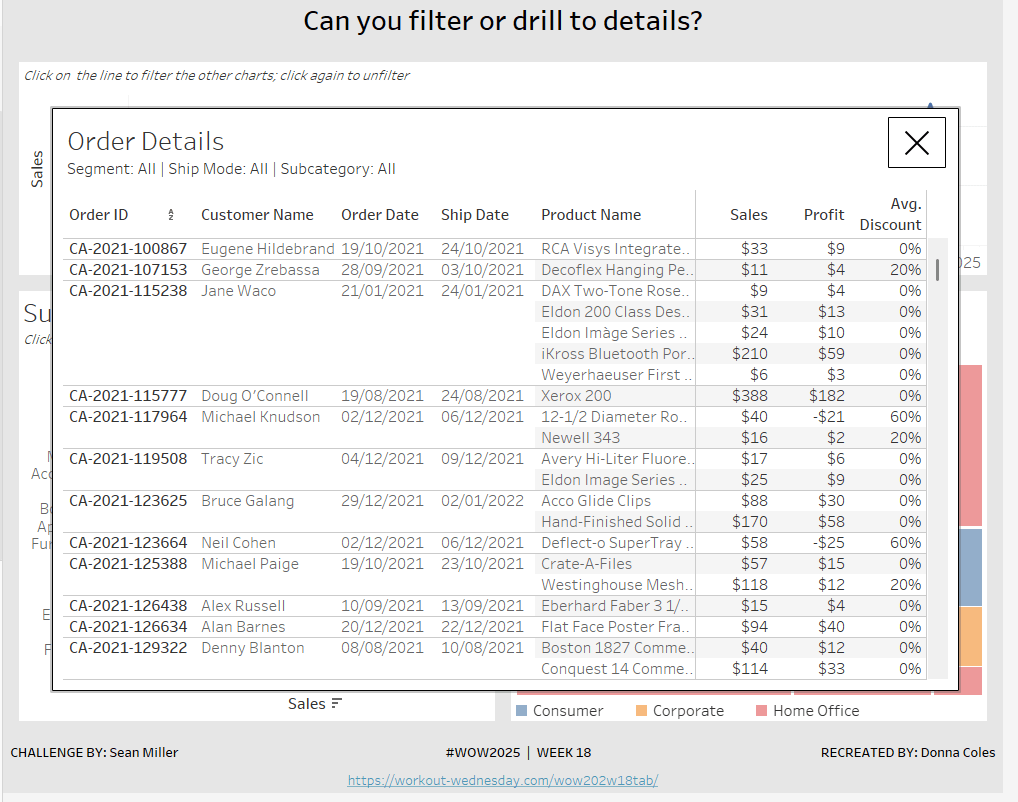
Sean set this week’s challenge to give an alternative solution to displaying a table of details rather than the traditional ‘pancake table’ (his words not mine 🙂 ).
The main crux of the challenge relates to the dashboard actions and interactivity, so I’ll be brief(ish) in describing how to build the charts.
Creating the line chart
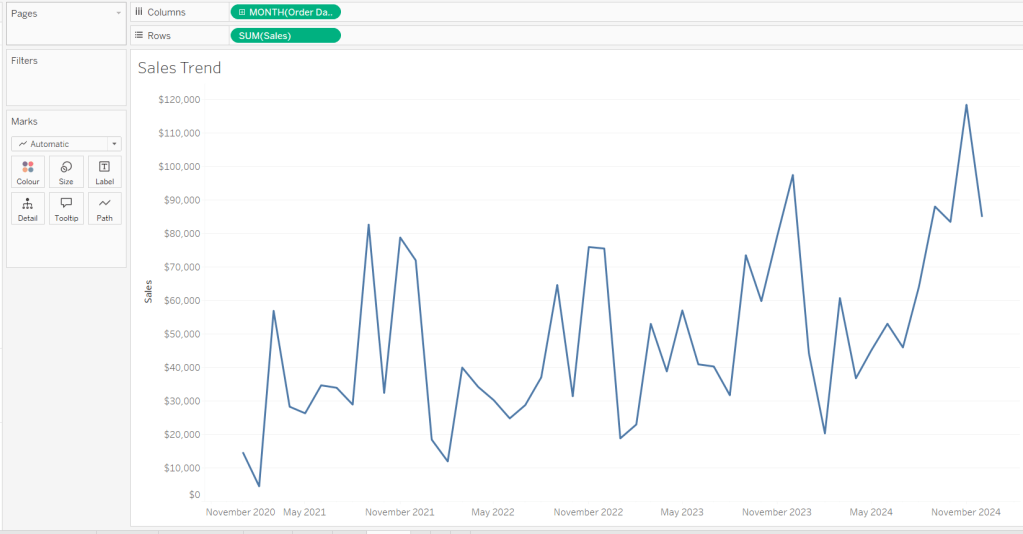
Add Order Date to Columns at the month-yearcontinuous (green pill) level. Add Sales to Rows. Format Sales to $ with 0 dp. Remove the title on the Order Date axis. Update the Tooltip to give an instruction to ‘click the line to filter’. Rename the sheet Sales Trend or similar.
Creating the bar chart
Add Sub-Category to Rows and Sales to Columns. Sort by Sales descending. Hide the Sub-Category row heading label (right click > hide field labels for rows). Update the Tooltip to give an instruction to ‘click the bar to filter’. Rename the sheet Sales by Sub Bar or similar.
Creating the Tree Map
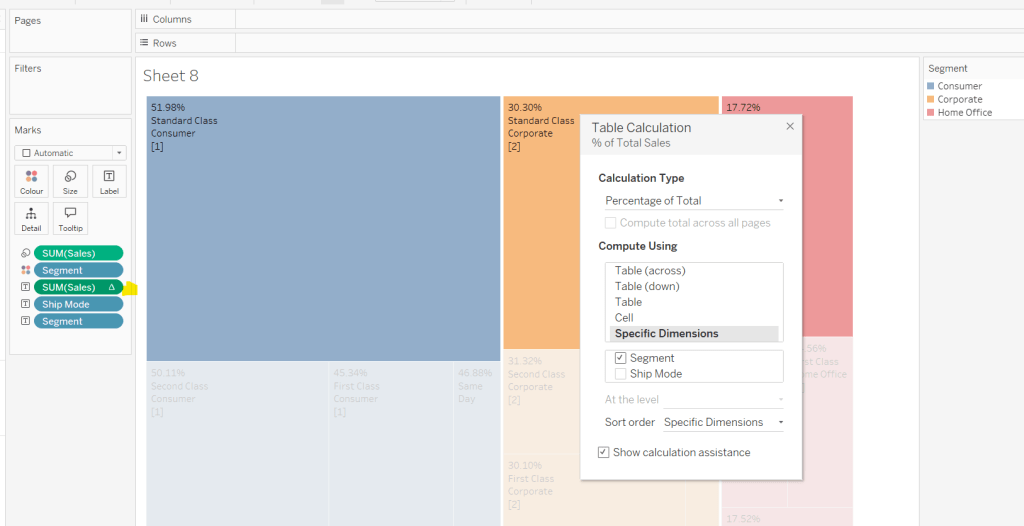
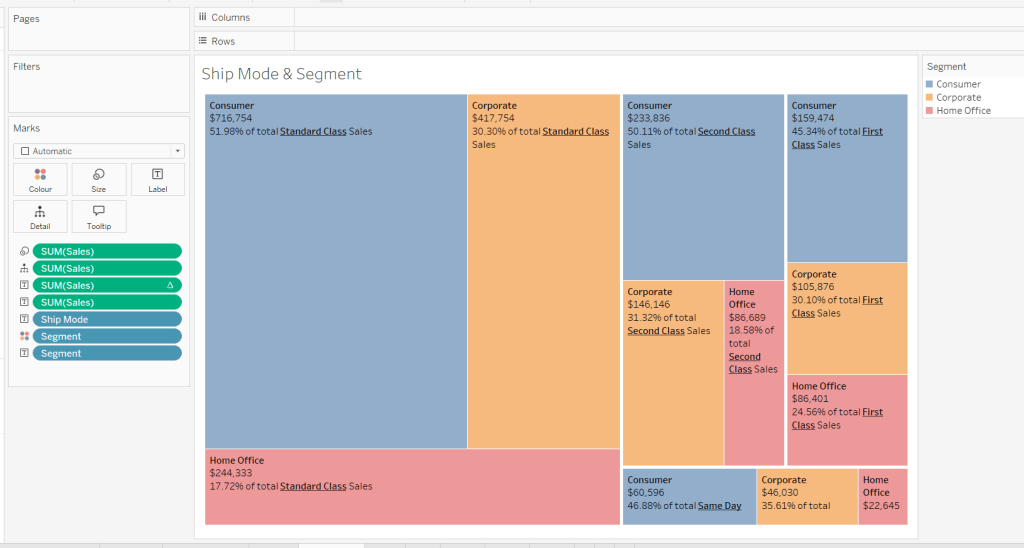
Add Segment and Ship Mode to Detail and Sales to Size. Move Segment to Colour and reduce opacity to about 60%. Move Ship Mode to Label and then add additional Segment and Sales pills to Label. Add a table calculation against the Sales pill on the Label shelf, so it is applying a percentage of Total by Segment only.
Add another instance of the Sales pill to Label and then update the layout of the label.
Move the Segment pills on the marks shelf so they are positioned below the Ship Mode to ensure the tree map is segmented based on the Ship Mode (there should be four blocks divided by the thicker white lines).
Update the Tooltip to give an instruction to ‘click the treemap to filter’. Rename the sheet Treemap or similar.
Build the Details table
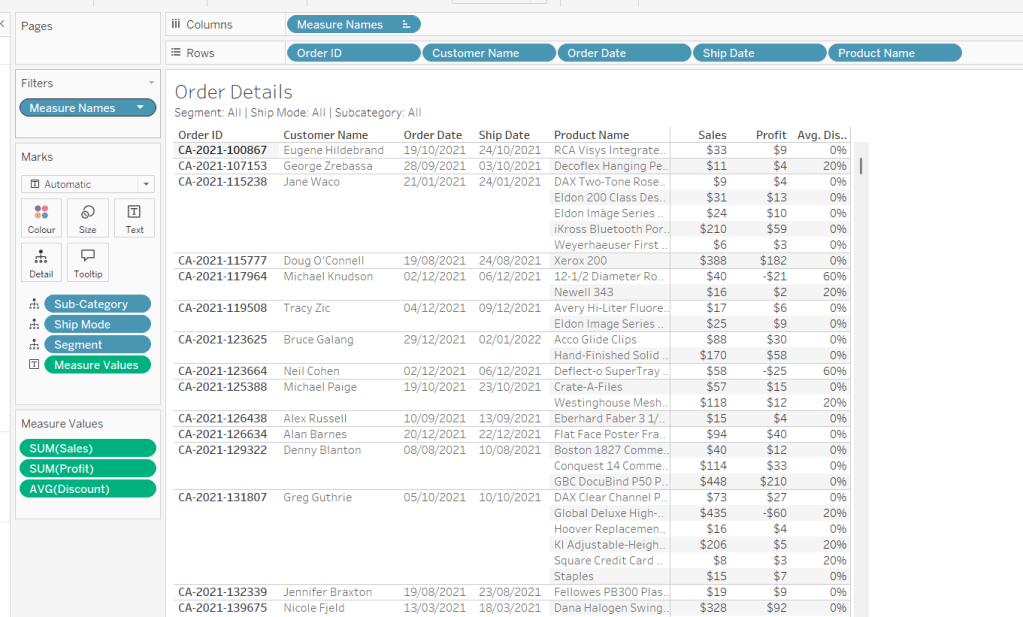
On a new sheet add Order ID, Customer Name, Order Date (as a discrete exact date – blue pill), Ship Date(as a discrete exact date – blue pill) and Product Name to Rows. Add Sales to Text. Format Profit to $ with 0 dp and drag onto the canvas over the columns of Sales numbers, and release the mouse when the Show Me option appears. Add Discount into the Measure Values section. Change the aggregation to Average and then format to be % to 0 dp. Rearrange the order of the pills in the Measure Values section as required. Add Segment, Sub-Category and Ship Mode to the Detail shelf. Update the title to reference these 3 pills. Hide the Tooltip. Rename the sheet Details or similar.
Building the additional calculations needed
In clicking around Sean’s solution, I was finding what I had initially built wasn’t quite doing what Sean did. If I clicked on the bar chart and then the tree map, the details were only filtered based on the tree map and vice versa. There were ways to solve this, but this then resulted in other issues, in that after closing the details table, the charts remained filtered, but it wasn’t obvious as nothing was highlighted. Basically what I’m trying to say, is the filtering seemed like it should be straightfoward, but wasn’t. I ended up using a combination of parameters and filter actions.
So we’ll start by dealing with the parameters we need.
Create the following parameters
pSelectedDate
date parameter defaulted to 01 Jan 1900
pSelectedSegment
string parameter defaulted to <emptystring>
pSelectedShipMode
string parameter defaulted to <emptystring>
pSelectedSubCat
string parameter defaulted to <emptystring>
Then create the following calculated fields
Filter: Date
[pSelectedDate] = #1900-01-01# OR [pSelectedDate]=DATETRUNC(‘month’,[Order Date])
add this to the Filter shelf on the bar chart, tree map and details sheets and set to True.
Filter: SubCat
[pSelectedSubCat]=” OR [pSelectedSubCat]=[Sub-Category]
add this to the filter shelf on the line chart, tree map and details sheets and set to True
Filter: Segment
[pSelectedSegment]=” OR [pSelectedSegment]=[Segment]
add this to the filter shelf on the line chart, bar chart and details sheets and set to True
Filter: Ship Mode
add this to the filter shelf on the line chart, bar chart and details sheets and set to True
We also need a parameter to capture when we want to show the details table.
pClickMade
boolean parameter defaulted to False.
and to supplement it, we need a calculated field to use to set this parameter to true
Click Made
TRUE
Add Click Made to the Detail shelf of the line chart, bar chart and tree map.
We’ll set these parameters later.
Building the Close icon
The ‘close’ cross when the details sheet is displayed is another sheet. On clicking on it, we will want to set the pClickMade parameter to False so the Details will no longer show. For this we will need
Close
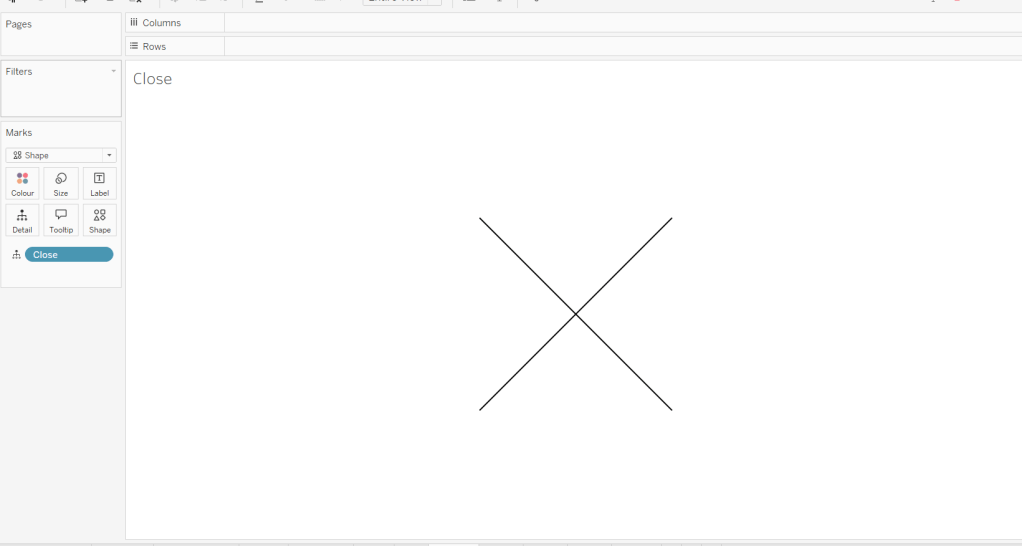
FALSE
Add this field to the Detail shelf on a new sheet. Change the mark type to shape and change the shape to a X. Set the colour to black and set to fit entire view. Hide the Tooltip. Name the sheet Close or similar.
Building the dashboard and interactivity
Using layout containers, arrange the line chart, bar chart and tree map into a dashboard. Use padding and background colours to get the layout as desired.
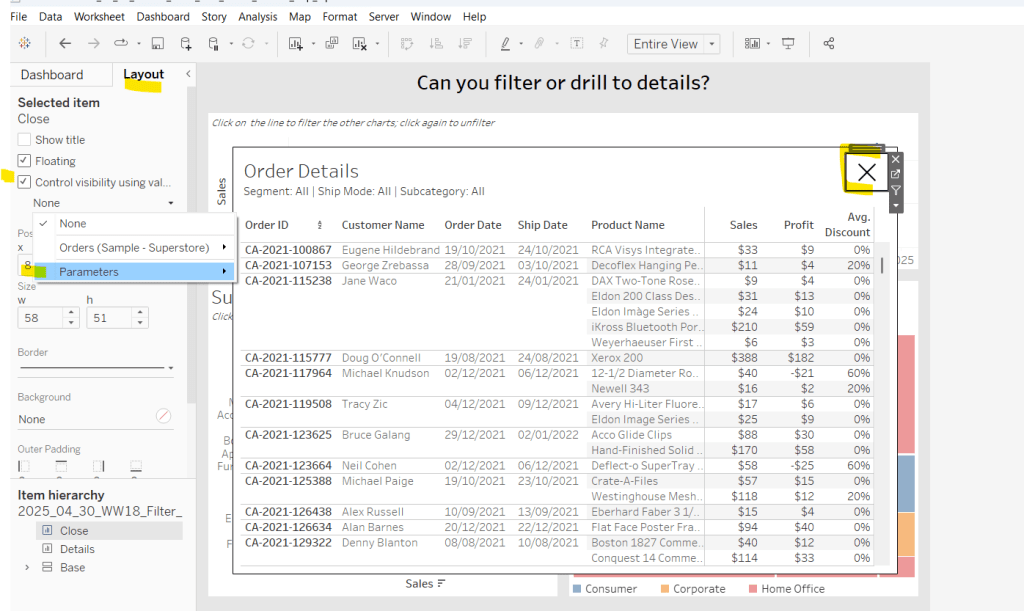
The add the Details sheet as a floating object and position over the top of the other charts. Set the background to white and add a black border. Also float the Close sheet into position too. Hide the title and also add a black border.
Select the Close sheet object, and then from the Layout tab in the left hand nav, check the Control visibility using value checkbox and select the pClickMade parameter
It should disappear if the parameter is still set to false. Repeat the same process with the Detail sheet object.
Now create the following dashboard parameter actions
Filter Month
On select of the Sales Trend sheet, target the pSelectedDate parameter, passing in the value from the Order Date. When the selection is cleared, reset to 01 Jan 1900.
Filter SubCat
On select of the Sales by Sub Bar sheet, target the pSelectedSubCat parameter, passing in the value from the Sub-Category. When the selection is cleared, reset to <emptystring>.
Filter Ship Mode
On select of the Treemap sheet, target the pSelectedShipMode parameter, passing in the value from the Ship Mode. When the selection is cleared, reset to <emptystring>.
Filter Segment
On select of the Treemap sheet, target the pSelectedSegment parameter, passing in the value from the Segment. When the selection is cleared, reset to <emptystring>.
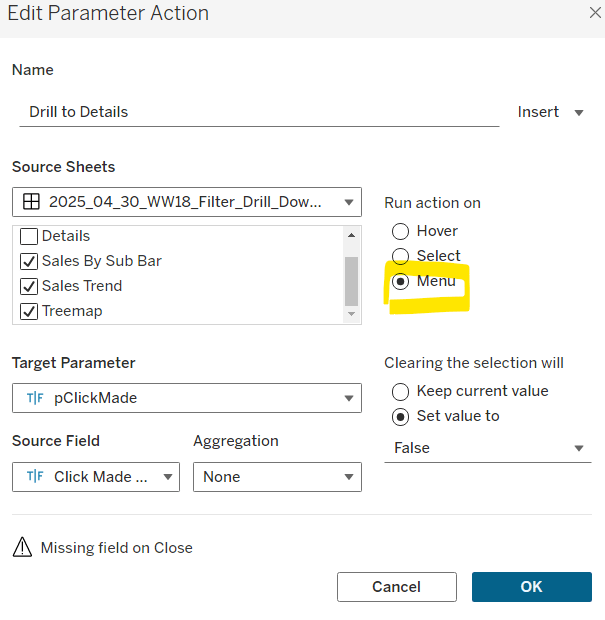
Drill to Details
Via the menu of the Sales by Sub Bar, Sales Trend, and Treemap sheets, target the pClickMade parameter passing in the value from the Click Made field. When the selection is cleared, set the value to False.
Close Details
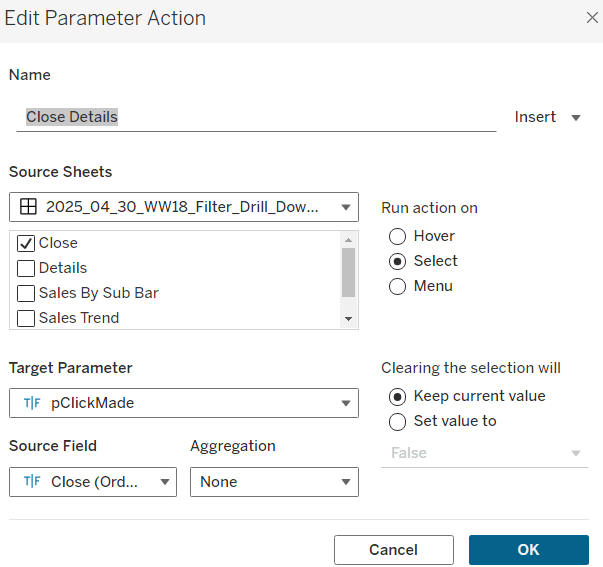
On select of the Close sheet, target the pClickMade parameter, passing in the value from the Close field. When the selection is cleared, keep the value.
If you start clicking around, you should find that all these actions do provide some level of filtering, but if you for example, click on the bar (to filter the line and treemap), and then click on a section in the tree map and use the ‘Drill down to details’ menu option, the details table has lost the filtering of the bar chart as the bar has become unselected when the treemap chart was clicked.
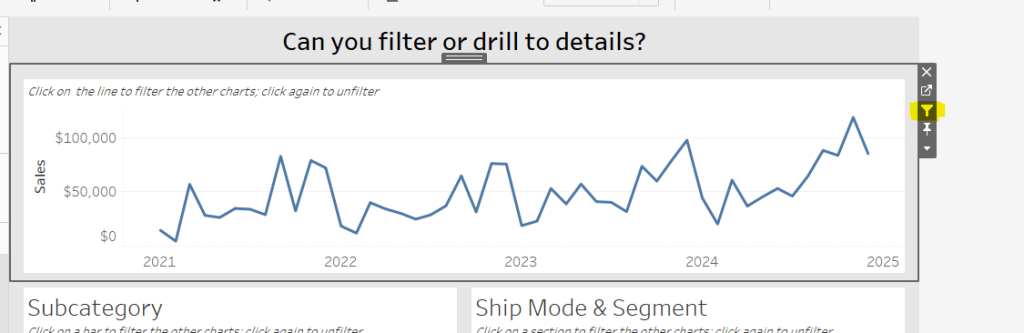
To resolve this, apply filter actions to the line chart, bar chart and tree map objects (the quickest way to do this is just select the object on the dashboard and click the ‘filter’ icon in the context menu.
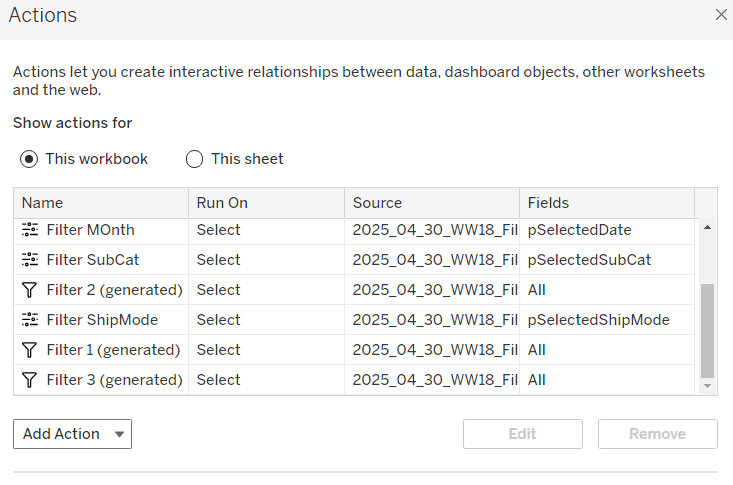
If you do this on all 3 sheets and then look at the list of dashboard actions you’ll see 3 ‘Filter x (generated)’ entries.
By applying this mix of filtering through ‘default’ dashboard filter actions in conjunction with parameters, I think you have a more complete and understandable experience. And you will have to explicitly unselect each of the marks you clicked on to remove that filter. I added instructions on the dashboard to aid with this.
For this week’s challenge, we’re still in community month, so guest poster, Anna Clara Gatti, provided us with this challenge – to represent the spread of population in a pyramid. Anna provided 3 levels to the challenge, so I’m going to write this blog, building on each challenge.
Beginner Challenge
Defining the calculations
To start this we need to create some calculations. Firstly we have measures Male and Female which provide us with the population for each of the associated genders. But we need to ascertain the total population for each Country and Year so we can then calculate a % of total. So we need
These are the core measures we want to plot, but we want to plot this against the Age. But the Age provided is ‘text’ and not a pure number. So to make life easier, we’re going to extract the number out
Age Axis
IF [Age] = ‘Less than 1 year’ THEN 0 ELSEIF [Age]= ‘100+ years’ THEN 100 ELSE INT(LEFT([Age],FIND([Age],’ ‘,1)-1)) END
Move this into the Dimensions section of the data pane (above the line ).
Now we can start to build the required viz.
Building the Pyramid
On a new sheet add Country to the Filter shelf and select Italy. Add Year to the Filter shelf. By default it will add as a green continuous pill. Just click OK to the filter dialog presented.
Then right click on the Year pill in the Filter shelf, and select discrete. Another filter selection dialog will appear. Select 2024.
Add Age Axis to Rows and change to be a continuous (green) pill. Add Male – % of Total Population to Columns, and then add Female – % of Total Population to Columns too.
Change the mark type on the All marks card to bar and reduce the size a bit. Add Measure Names to Colour and adjust accordingly.
Right click on the Male – % of Total Population axis and
Fix the axis from 0 to 0.01
Reverse the scale
Change the axis title
Then edit the Female – % of Total Population axis and fix the scale from 0 to 0.01 and rename the axis title to give you a symmetrical display
Add the following fields to the Tooltip of the All marks card, and then update accordingly :
Male
Female
Female – % of Total Population
Male – % of Total Population
Age
Finally tidy up the display by removing row & column dividers, hiding the Age Axis (right click > uncheck show header) and removing the row gridlines.
Building the KPI
On a new sheet add Total Population to Text. Revert back to the Pyramid sheet, and set the both the filters to also apply to new KPI sheet you’re creating.
Update the text to include the ‘Total Population’ label and adjust size of font and align middle centre. Change the mark type to shape and select a transparent shape (for details on how to do this refer to this blog). Set the sheet to Entire View then apply a grey background. Ensure the Tooltip doesn’t show.
Creating the dashboard
Add the Pyramid chart and the KPI chart to a dashboard. I used a vertical layout container to organise the ‘rows’ , and then placed horizontal containers within, so I had a ‘row’ to show the filter controls, and a ‘row’ to show the KPI and then a ‘row’ to display the chart.
In the ‘row’ showing the KPI I added a text object alongside and used the wingdings character set to display a square symbol which I could then just colour to represent the legend.
For this challenge, I started by simply duplicating the Pyramid built for the Beginner challenge. I then created a new field
Age Bracket
IF [Age Axis] <=14 THEN ‘Young’ ELSEIF [Age Axis] >= 65 THEN ‘Elder’ ELSE ‘Active population’ END
and added this to the Detail shelf of the All marks card. I then added this to be on the Colour shelf as well as Measure Names by updating the symbol to the left of the pill
Adjust the colours on the colour legend accordingly, and then update the Tooltip to include a reference to the Age Bracket.
Building the dashboard
Duplicate the original dashboard you built, then swap the pyramid chart by clicking on the Pyramid chart object in the dashboard. Then on the left hand side in the dashboardpane, click on the 2nd pyramid sheet, and click the ‘swap’ icon to replace the chart..
Remove the title that’s automatically added. Then update the legend text box.
For this challenge, we’re going to need a lot more fields, including the following parameters
Country 1
string parameter, that is a list, and is populated from the Country field when the workbook is opened. Defaulted to Italy.
Country 2
As above but defaulted to Austria
Year 1
integer parameter, that is a list that is populated from the Year field when the workbook is opened. Defaulted to 2024 that is formatted to display as a number with 0 dp and no thousands separator.
Year 2
As above, also defaulted to 2024.
With these parameters, we also need to redefine the the total population values
Total Pop – Year & Country 1
IF [Year] = [Year 1] and [Country] = [Country 1] THEN [Total Population] END
Total Pop – Year & Country 2
IF [Year] = [Year 2] and [Country] = [Country 2] THEN [Total Population] END
and we also need to capture the male and female populations for these parameters
Male Pop – Year & Country 1
[Year] = [Year 1] AND [Country] = [Country 1] THEN [Male] END
Male Pop – Year & Country 2
[Year] = [Year 2] AND [Country] = [Country 2] THEN [Male] END
Female Pop – Year & Country 1
[Year] = [Year 1] AND [Country] = [Country 1] THEN [Female] END
Female Pop – Year & Country 2
[Year] = [Year 2] AND [Country] = [Country 2] THEN [Female] END
and then in turn, we redefine the % of total calculations
Male – % of Total 1
SUM([Male Pop – Year & Country 1])/ SUM([Total Pop – Year & Country 1])
Male – % of Total 2
SUM([Male Pop – Year & Country 2])/ SUM([Total Pop – Year & Country 2])
Female – % of Total 1
SUM([Female Pop – Year & Country 1])/ SUM([Total Pop – Year & Country 1])
Female – % of Total 2
SUM([Female Pop – Year & Country 2])/ SUM([Total Pop – Year & Country 2])
Set all the % of total calcs to be % with 1 dp.
Building the Pyramid
Once again start by duplicating the pyramid chart sheet built for the intermediate solution
Drag Male – % of Total 1 and drop it directly onto the existing Male = % of Total Population pill on the Columns shelf, so it basically replaces it.
Repeat the process by dragging Female – % of Total 1 and dropping it directly over Female – % of Total Population. Adjust the colours if required.
Remove the Country and Year field from the Filter shelf and show the 4 parameters.
Drag Male – % of Total 2 and add to Columns between the two existing pills.
On the Male – % of Total 2 marks card, change the mark type to Line , remove Measure Names from Colour and move Age Bracket to Tooltip. Change the colour to dark grey/black.
Make the % of total male pills dual axis and synchronise the axis.
Repeat the process by adding Female – % of Total 2 to Columns to the right hand side of the existing Female field, adjusting the mark type and colouring and making dual axis.
Right click on the top axis and uncheck show header to hide them. Then right click on the Male – % of Total 1 axis at the bottom, as as before, fix the axis from 0 to 0.01, reverse the axis, and update the title. Repeat for the Female axis (though don’t reverse).
On the All marks card, make sure all the following fields exist on the tooltip, then adjust the tooltip as required, referencing the parameters as well.
Male Pop – Year & Country 1
Male Pop – Year & Country 2
Female Pop – Year & Country 1
Female Pop – Year & Country 2
Male – % of Total 1
Male – % of Total 2
Female – % of Total 1
Female – % of Total 2
Age
Age Bracket
Building the KPI cards
Duplicate the original KPI card
Drag Total Pop – Year & Country 1 directly onto the existing Total Population field. Then add the Country 1 and Year 1 parameters to the Label shelf, and update the text as required. Remove the fields from the Filter shelf.
Repeat this process again but add the appropriate ‘2’ versions of the fields to create the 2nd KPI card.
Building the dashboard
Once again, duplicate the dashboard and swap the pyramid charts. Replace the filter controls (if still present) with a row of parameter controls.
Swap/add the KPI sheets, and add an additional Text object. Update the text to display the ‘legends’ as required.
I chose to add navigation buttons to my dashboard to move between the 3 versions of the challenge.
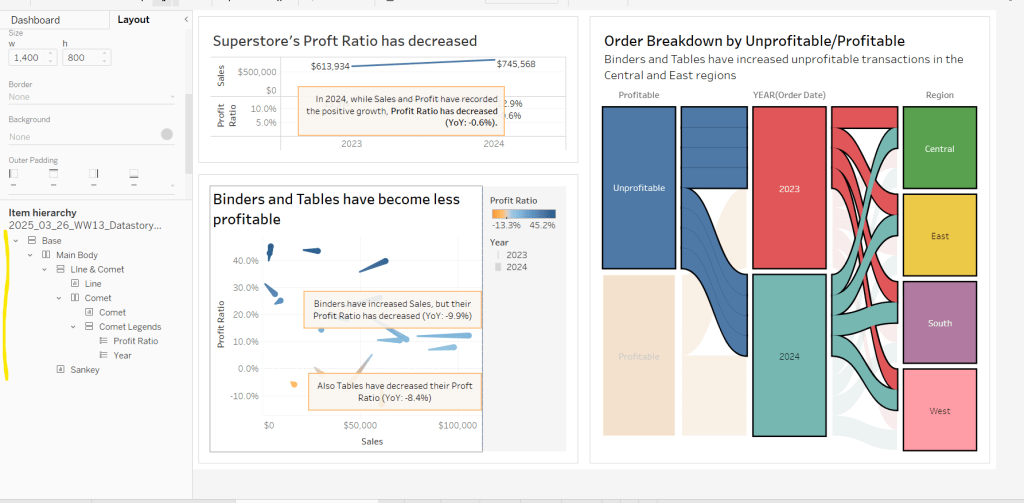
This week’s community challenge was set by Chiaki to showcase how to use dynamic zone visibility to tell a story. We’ll step through each chart and then how it’s all put together.
Building the line chart
Create a new field
Profit Ratio
SUM(Profit)/SUM(Sales)
and format to % with 1 dp.
Add Order Date to Filter and restrict to Years 2023 and 2024 only.
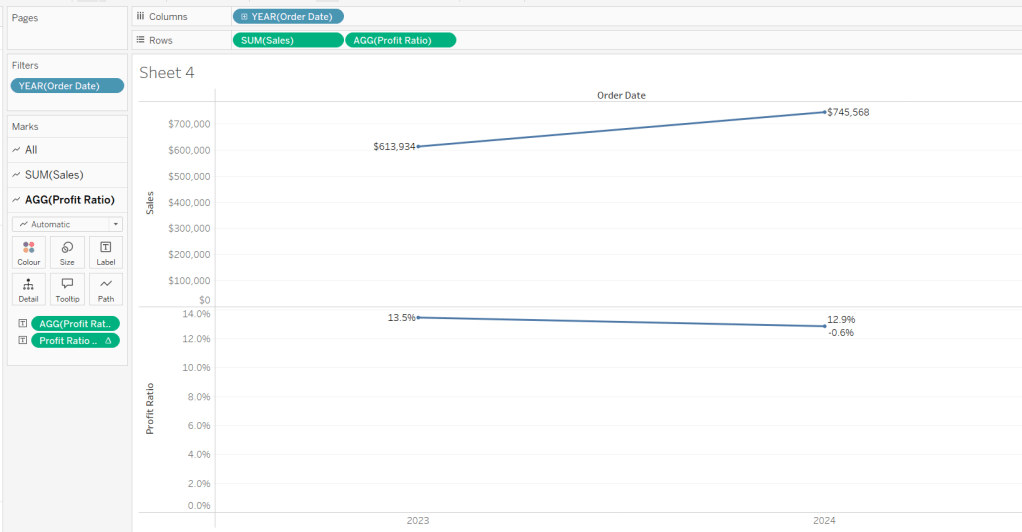
Add Order Date to Columns as a discrete (blue) pill at the year level. Add Sales to Rows and Profit Ratio to Rows. Format Sales to be $ with 0 dp. Set the screen to Fit Width.
Add Sales to the Label shelf of the Sales marks card. Add Profit Ratio to the Label shelf of the Profit Ratio marks card.
and format to % with 1 dp. Add to the label shelf of the Profit Ratio marks card
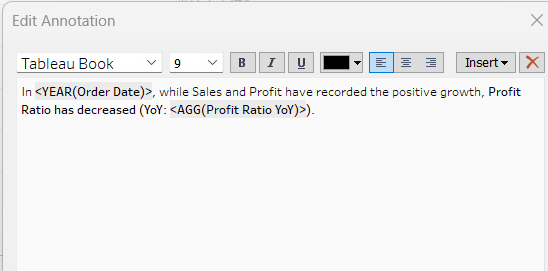
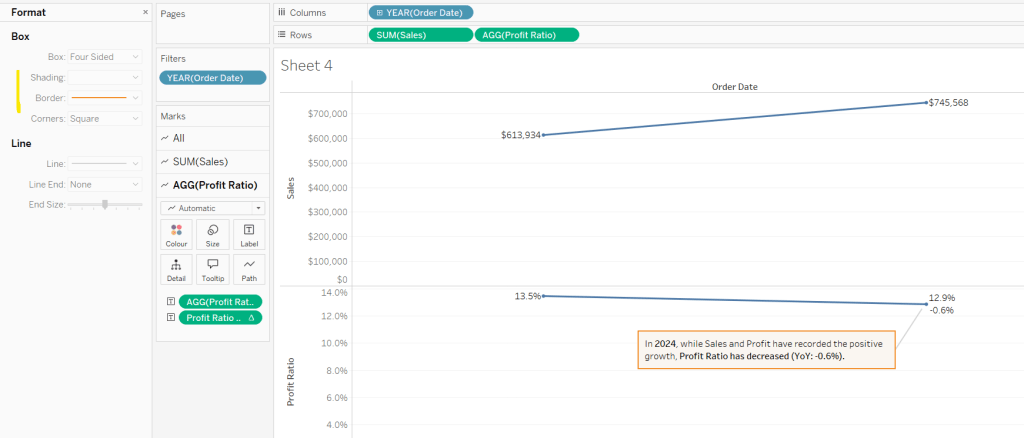
Right click on the 2024 Profit Ratio mark and select Annotate > Mark. Update the text as required and reference the value of Order Date year and the Profit Ratio YoY
Click and drag the annotation to reposition, and then right click on the annotation to format, and adjust the shading to pale orange and add a thick orange border.
Hide the Order Date column heading (right click > hide field names for columns). Add a title and name the sheet Line or similar.
Building the comet chart
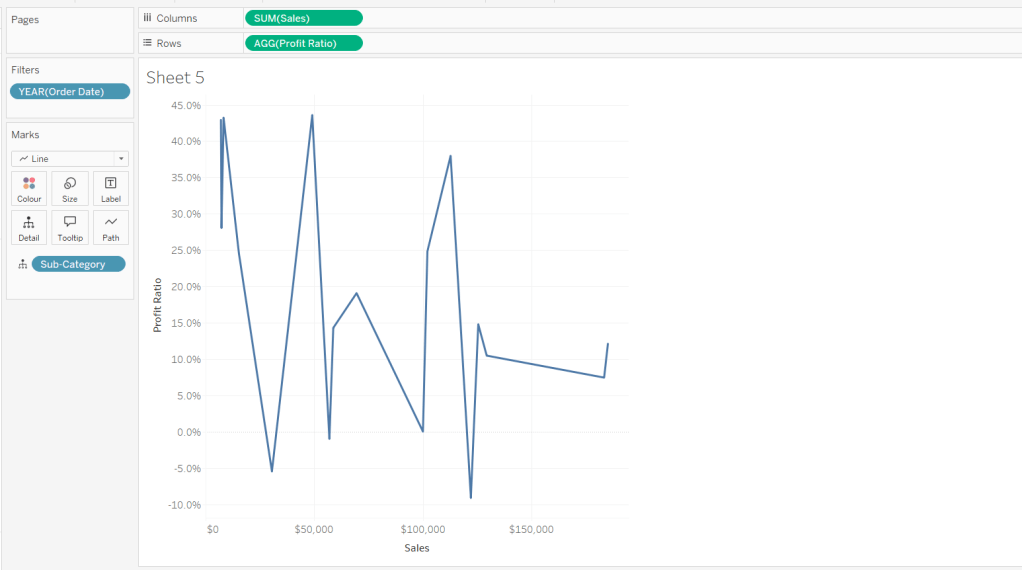
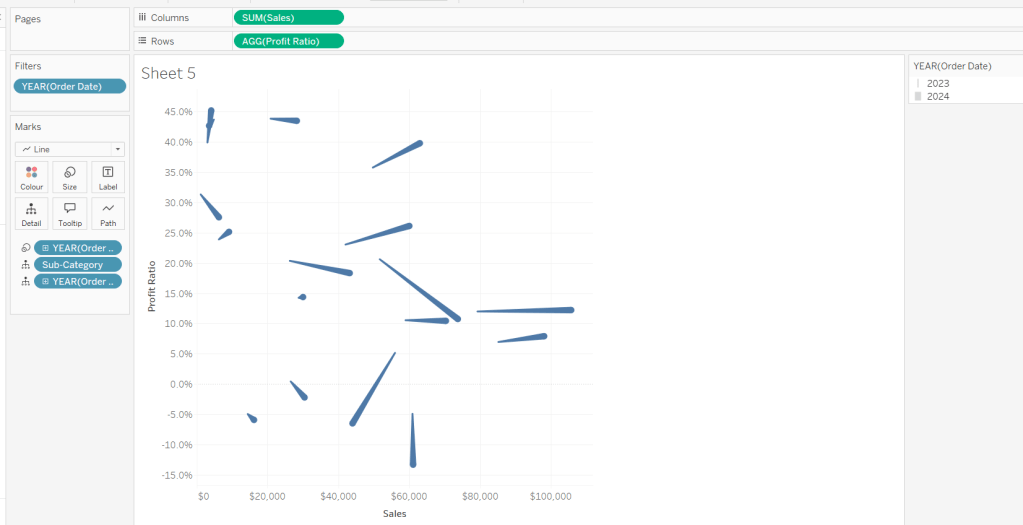
On a new sheet, add Sales to Columns and Profit Ratio to Rows. Add Order Date to Filter and restrict to years 2023 & 2024 only. Add Sub-Category to Detail and change the mark type to Line.
Add Order Date to Detail as a discrete (blue) pill at the Year level, and add another instance of Order Date at the Year level to Size.
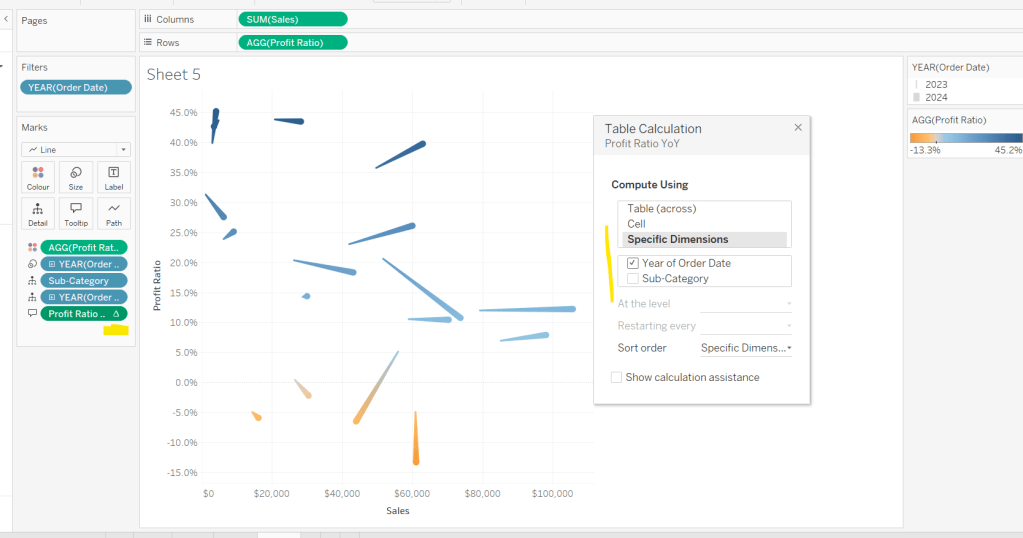
Add Profit Ratio to Colour. Add Profit Ratio YoY to Tooltip and adjust the table calculation so it is computing by Year of Order Date only.
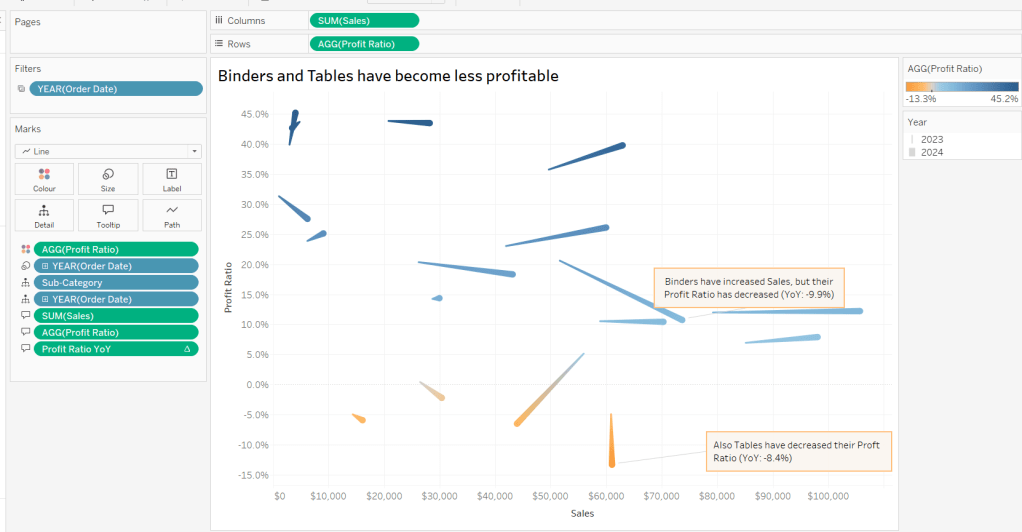
Update Tooltip as required and then add annotations to the required marks, again making references to the relevant variables. Format as before, add a title and name the sheet Comet or similar.
Building the Sankey chart
On a new sheet, add Order Date as a discrete (blue) pill to Filter and restrict to years 2023 and 20204. Add Sub-Category and restrict to Tables and Binders only.
Create a new field
Profitable
IF [Profit] >0 THEN ‘Profitable’ ELSE ‘Unprofitable’ END.
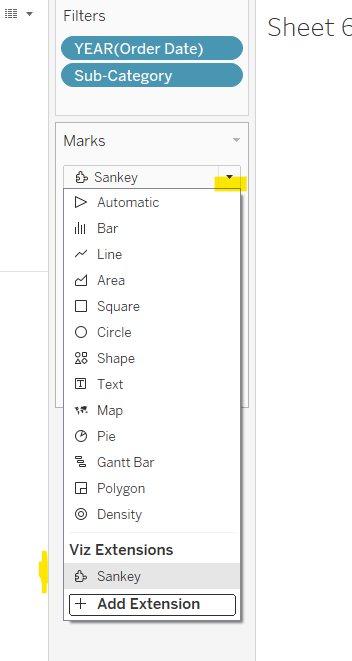
From the dropdown in the marks card, select Sankey
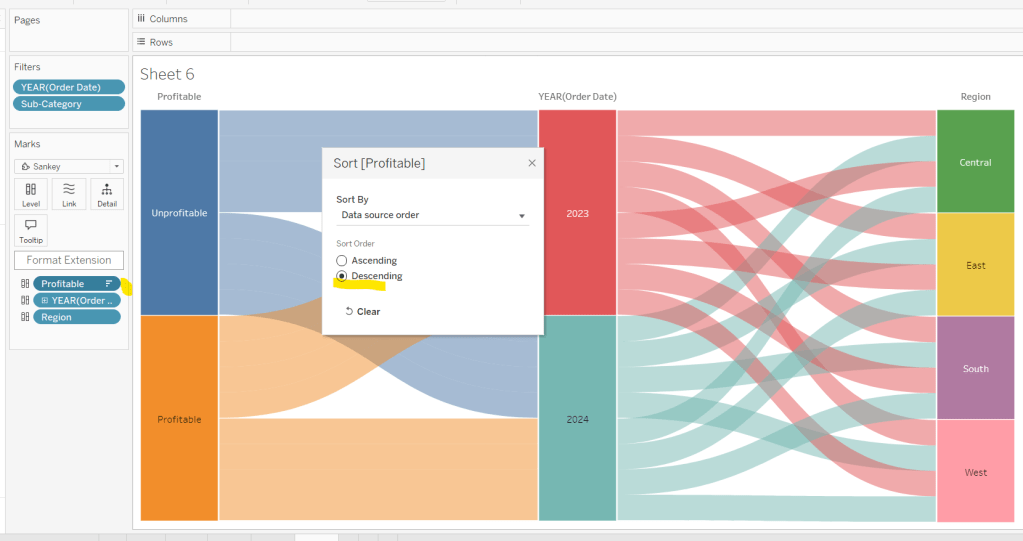
Then add Profitable, Order Date and Region to the Level shelf in that order. Adjust the Sort of the Profitable pill, so its sorted descending and Unprofitable is listed before Profitable.
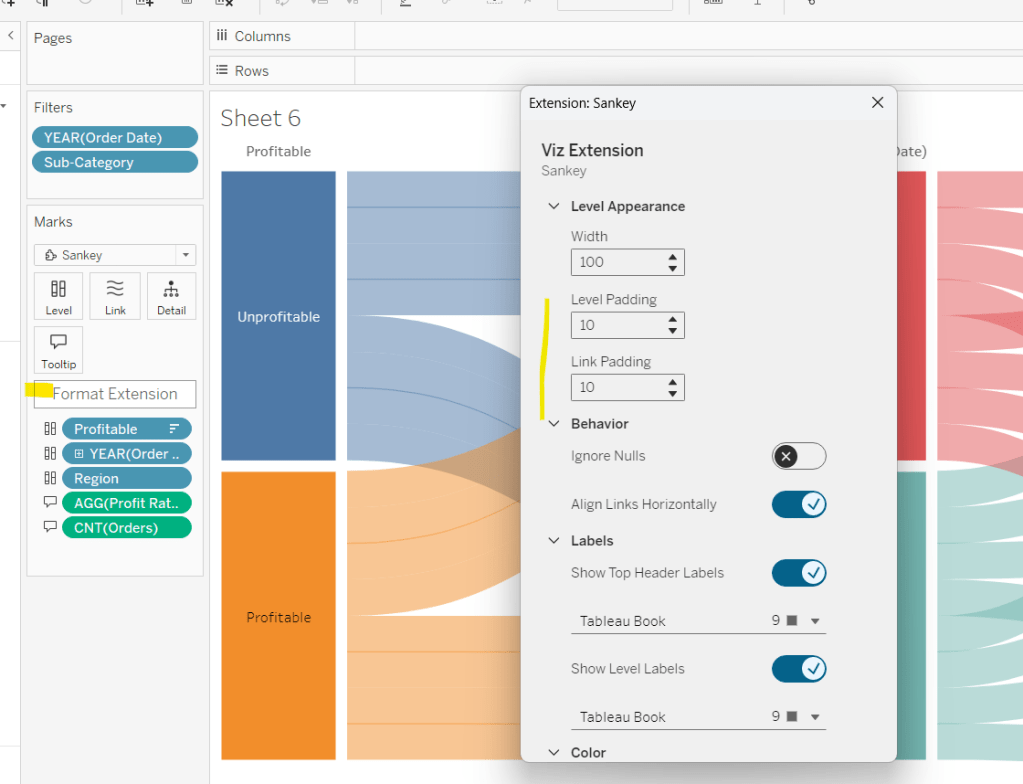
Add Profit Ratio andOrders(Count) to the Tooltip and update accordingly. Click Format Extension and set the Level Padding and the Link Padding to 10 each.
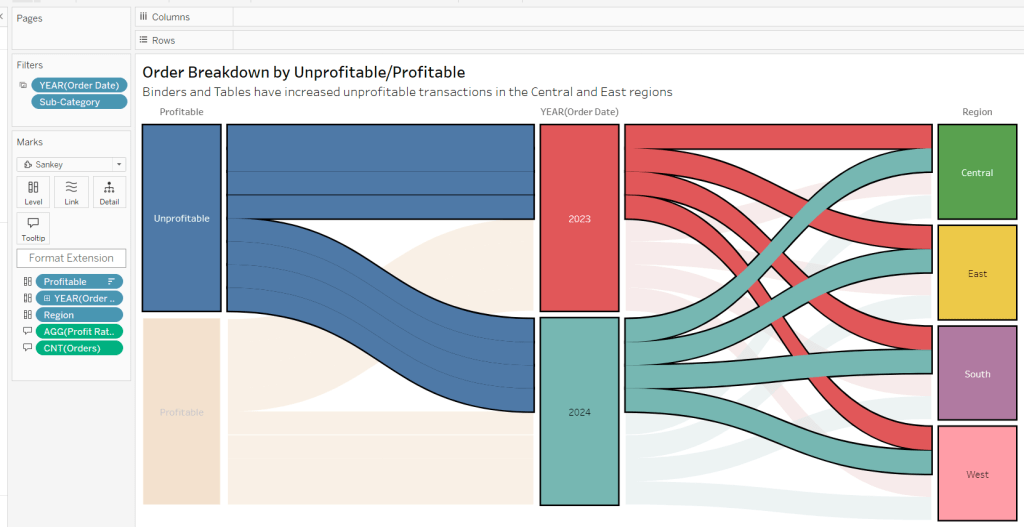
Click on the Unprofitable box to highlight it and the subsequent flow. Add a title and name the sheet Sankey or similar.
Controlling the story
Create a parameter
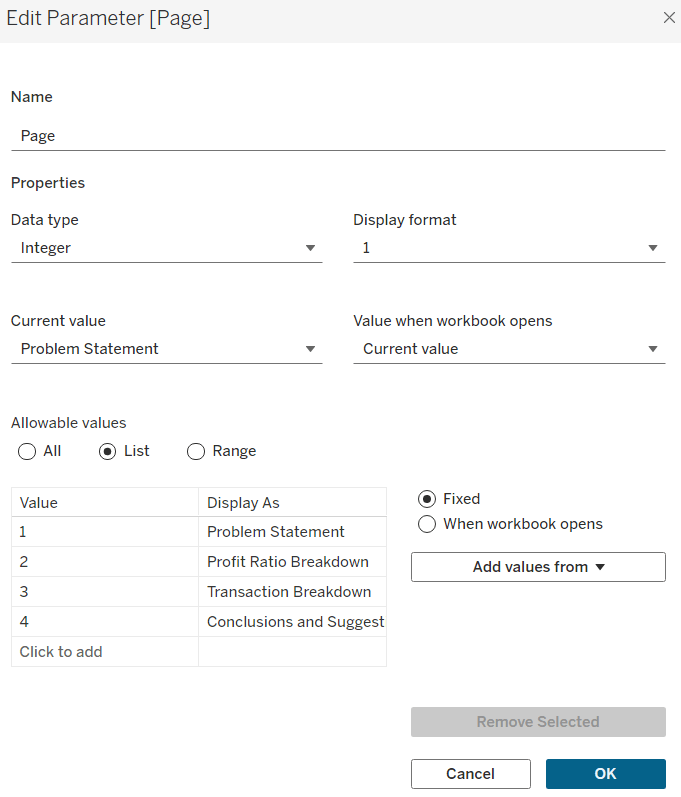
Page
integer parameter from 1-4 where each number is mapped to the relevant text. Default to the text associated to 1.
Create boolean fields
Page >=2
[Page]>=2
Page >= 3
[Page]>=3
Page = 4
[Page]= 4
Building the dashboard
You need to use layout containers to build the dashboard. When using these, it’s often useful to add blank objects to help preserve the type of container you want as you add things in. These then get removed. It can be quite fiddly to get right.
For the main body of the dashboard, the section with the charts in, I started with a horizontal container that then had a vertical container on the left and the Sankey on the right. The left hand vertical container then had the line chart on the top, and another horizontal container beneath it. That horizontal container then had the comet chart on the left and a vertical container on the right, which contained the colour and size legends.
I have a habit of renaming the layout containers in the item hierarchy section, to help me identify each section
The line chart object was formatted to have a grey border, outer padding of 10 and inner padding of 20. The vertical container around the comet chart and it’s legends, was also formatted the same. And the Sankey chart object was also formatted the same.
Add a title section, and show the Page parameter as a single value list. Format this with a grey background.
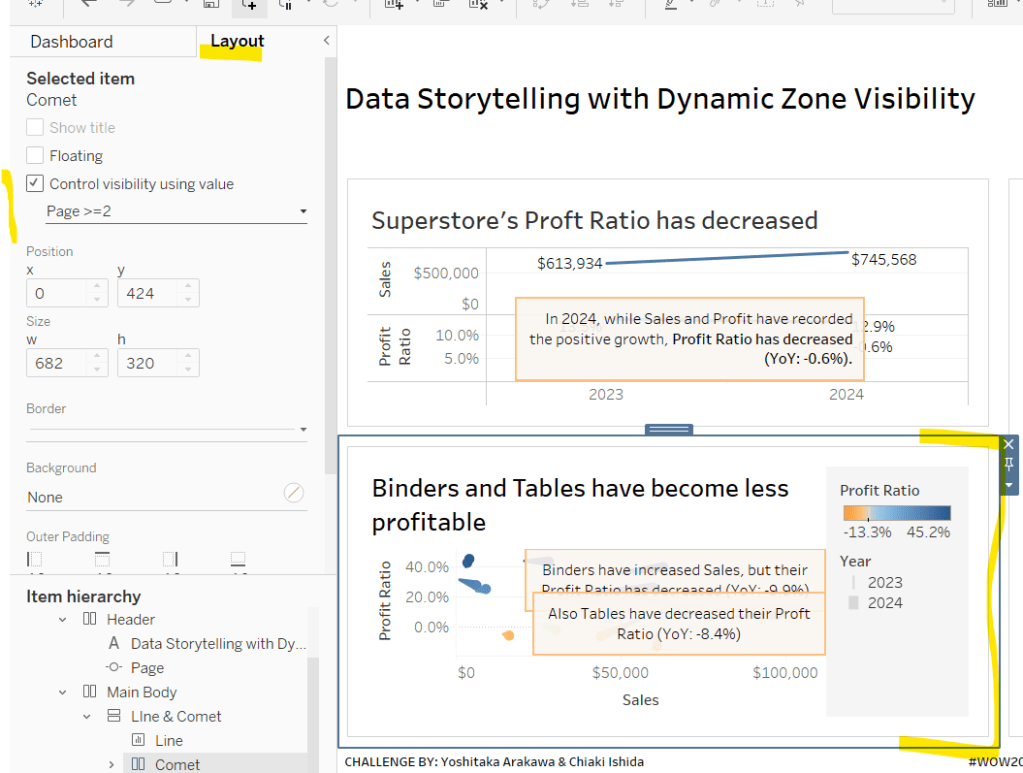
Click on the layout container that contains the comet chart and it’s legends, and then from the layout tab on the left hand side, check the control visibility using value and select the Page >=2 option.
If you page control is set to 1 (Problem Statement), then this section will now disappear. Set it to the next option for it to reappear.
Click on the Sankey object, and do the same, although this time select the Page >=3 option. Again changing through the page control options, the chart will appear and disappear.
With all three charts displaying, and once you’re happy with your layout, add a floating text box and resize to cover the main chart areas. Add the relevant text, set the background colour to grey with a 97% opacity, so the charts underneath can just be seen. Then set the visibility of this to use the Page =4 option.
Cycle through the page options and see how the display changes. My published viz is here.
This week’s challenge by Lorna was to deliver some functionality without using LODs or table calculations. She hinted that parameters and parameter actions would be your friends.
Setting up the parameters
Create a parameter to capture the month selected
pMonth
date parameter defaulted to 01 April 2023
and then create one that will store the value associated to the month selected
pMonthSales
float parameter defaulted to 0
Building the Viz
On a new sheet add Order Date as a continuous (green) pill at the month-year level to Columns. Add Sales to Rows.
Create a new calculated field
Difference from Selected Sales
SUM([Sales]) – [pMonthSales]
and add this to Rows.
Change the mark type of this second marks card to bar and add Difference From Selected Sales to the Colour shelf. Adjust the colour to a diverging scale and centre at 0
Set the Size of the bars to be Manual rather than Fixed and adjust the slider to suit.
Add a reference line to the Order Date axis, that references the pMonth parameter.
Adjust the Tooltips, remove gridlines and add a title.
Adding the interactivity
Add the sheet to a dashboard. Add a dashboard parameter action
Set Date
On select of the viz, update the pMonth parameter with the value from the Month([Order Date]) field.
Add another dashboard action
Set Value
On select of the Viz, update the pMonthSales parameter with the value from the SUM(Sales) field that is aggregated at the SUM level.
Now if you click on a point on the line chart, the bottom bars should alter, but they’ll all appear ‘faded’ initially.
To resolve this, create a new calculated field
HL
“HL”
and add this to the Detail shelf of the All marks card. Then create a dashboard highlight action
Highlight
On select of the viz, highlight the HL field only
When you now click, the bottom marks aren’t faded as they essentially are all ‘highlighted’ too.
This week’s challenge was set by Sean and was a recreation of a PowerBI WOW challenge set a few weeks ago. The data set just contains 2 pieces of information – a datetime field and a glucose measurement.
Creating the calculations
On a new sheet, add Device Timestamp to Rows as a discrete (blue) pill at the hour level.
Then create the following fields, which are aggregations of the glucose levels at each hourly time period.
Minimum
MIN([Glucose mg/dL])
5th Percentile
PERCENTILE([Glucose mg/dL],0.05)
25th Percentile
PERCENTILE([Glucose mg/dL],0.25)
Median
PERCENTILE([Glucose mg/dL],0.5)
75th percentile
PERCENTILE([Glucose mg/dL],0.75)
95th percentile
PERCENTILE([Glucose mg/dL],0.95)
Maximum
MAX([Glucose mg/dL])
Add all these fields to the table and then format the Hour field to use the 12hr format by default
Building the Viz
On a new sheet, add Device Timestamp as a continuous (green) pill at the hour level to Columns. Then add Median to Rows. Set the mark type to line and set the path to be a dashed line and colour black. Format the Device Timestamp pill so the default format on the pane is 12hr format (axis should remain as numeric).
Add Minimum to Rows to create a second marks card. Change the mark type to Area and set the colour to be 100% opacity.
Then drag 5th Percentile to the Minimum axis and drop when the ‘2 green column’ symbol appears.
This will automatically add Measure Values to Rows instead and Measure Names to Colour. Add 25th Percentile, 75th Percentile, 95th Percentile and Maximum to the axis too. Reorder the fields in the Measure Values section so the fields are listed in the appropriate order from Min to Max. Adjust the Colours accordingly. Unstack the marks (Analysis -> Stack Marks -> Off).
Add Measure Names to Label and align middle right. Allow labels to overlap marks.
Add Measure Names to the Label on the Median marks card. Also align middle right and format to be underlined.
Make the chart dual axis, synchronise the axis, and then right click on the right hand axis and move marks to back.
Hide the right hand axis (uncheck show header). Edit the Device Timestamp axis to fix from 0 to 26, set the axis to display a value every 3 hours and remove the title.
Add constant Reference Lines to the left hand axis for the values 80 and 180
Edit the left hand axis title. Remove row and column dividers. Add axis rulers. Add a title.
Add to a dashboard and then publish. My published version is here.
Note – the vertical grid lines that appear on the Tableau Public version are a nuance of Tableau Public. I originally recreated on Desktop thinking it was a requirement of the challenge, by adding multiple constant reference lines for each hour. But when I checked Sean’s solution after publishing, I found he didn’t have any and the intention was not to have any.
Sean provided this week’s #WOW2024 challenge, to produce a dual axis chart which he labelled a ‘candle line’ chart. The line displays the 2024 sales per month, while the candles represent the absolute difference from the previous year.
Setting up the calculations
Rather than ‘hardcode’ to 2024, I decided to use a calculation to get the latest year in the data set
Latest Year
{MAX(YEAR([Order Date]))}
which I formatted to a number with 0dp which did not use thousand separators
and then created
Previous Year
[Latest Year] – 1
I moved both of these up into the ‘dimensions’ section of the data pane (above the line).
To get the latest year sales I created
Latest Year Sales
IF YEAR([Order Date]) = [Latest Year] THEN [Sales] END
and then created
Prev Year Sales
IF YEAR([Order Date]) = [Previous Year] THEN [Sales] END
Both these fields I formatted to $ with 0 dp
We need to know the difference between these values, so I created
Sales Diff
SUM([Latest Year Sales]) – SUM([Prev Year Sales])
which I formatted to $ with 0 dp.
and we also need the percentage difference
% Diff
[Sales Diff] / SUM([Prev Year Sales])
which was formatted to a % with 0 dp.
We need to know if the Sales Diff is positive or negative, so create
Diff is +ve
[Sales Diff]>=0
Finally, when we hover on the tooltip we can see the values are coloured based on whether the difference is +ve or not, so we need some additional fields for the tooltip
Tooltip Sales Diff +ve
IF [Diff is +ve] THEN [Sales Diff] END
and
Tooltip Sales Diff -ve
IF NOT([Diff is +ve]) THEN [Sales Diff] END
both these fields I custom formatted to +”$”#,##0;-“$”#,##0 (essentially this is $ with 0 dp, but positive values are prefixed with an explicit + sign).
And then we also need
Tooltip Sales Diff % +ve
IF [Diff is +ve] THEN ‘(‘ + STR(ROUND([% Diff]* 100,0)) + ‘%)’ END
and
Tooltip Sales Diff % -ve
IF NOT(Diff is +ve]) THEN ‘(‘ + STR(ROUND([% Diff]* 100,0)) + ‘%)’ END
Now we have all the fields, we can build the viz.
Building the viz
On a new sheet, add Order Date at the discrete month level (blue pill) to Columns and add Latest Year Sales to Rows.
Then add another instance of Latest Year Sales to Rows. On the second marks cards, change the mark type to Gantt Bar and add Sales Diff to Size. Reduce the Size to make the bars that display narrower.
Add Diff is +ve to the Colour shelf, and adjust accordingly. Change the colour of the line chart on the other marks card. Make the chart dual axis and synchronise the axis.
On the All marks card, add Latest Year and the four Tooltip xxx fields we created to the tooltip shelf, then update the tooltip to reference all the relevant fields, and colour them accordingly
Add Region, Category and Segment to the Filter shelf, selecting all values.
Then finally, tidy up the sheet by removing all row/column dividers, the right hand axis (uncheck show header), and the Order Date label (right click and hide field labels for columns). Rename the left hand axis Sales.
Add to a dashboard and position as appropriate adding a title and updating the filters to be single value drop downs.
That ultimately is the core of the challenge, but Sean did suggest to use the new Google font Poppins. I’m on Windows and that font isn’t visible by default/installed, so after publishing, I then edited on Tableau Public and changed the fonts throughout via the Format > Workbook menu option and setting All fonts to Poppins.
This week’s #WOW2024 challenge was a guest post from Dan Wade using an alternative custom data set focused on staff resource planning.
Creating the parameters
We need 3 parameters for this challenge
pMeasure
string parameter containing a list of 3 options: Budget, Demand, Supply and defaulted to Supply.
pAttrition_Actual
string parameter containing a list of 2 options: Actuals and Attrition and defaulted to Attrition
pRate
a float parameter containing a list of values from 0.05 to 0.12, defaulted to 0.06 and formatted as % with 0 dp.
Building out the calculations
On a new sheet add Forecast Date as a discrete (blue) pill at the month-year level to Rows and add Budget FTE, Demand FTE and Supply FTE and Actuals FTE to Columns vis Measure Names/Measure Values, so you have a tabular display. Show the 3 parameters.
The first 3 measures will be plotted as 3 of the lines on the chart. The 4th line – the Actuals/Attrition line is a calculation based on the parameter selections.
If the pAttrition_Actual parameter displays ‘Actuals’ then we need to show the Actuals FTE as a constant value across every row. From the above, we can see it’s only set against Jan 2024. We will make use of a FIXED LOD calculation to ‘spread’ this value across every row.
However if the pAttrition_Actual displays ‘Attrition’ then we want to calculate a value which is initially a proportion of the Actual FTE, but then is a proportion of the value calculated against the previous month. The requirements also state the rate in the pRate parameter is an annual attrition rate, so we need to apply 1/12 of this value against each month (assuming a linear decline). The calculation we end up with is
Actuals/AttritionFTE
IF [pAttrition_Actual] = ‘Actuals’ THEN SUM({MAX([Actuals FTE])}) ELSE IF FIRST()=0 THEN SUM([Actuals FTE]) ELSE PREVIOUS_VALUE(0) * (1-([pRate]/12)) END END
{MAX([Actuals FTE])} is the Fixed LOD which spreads the Actuals FTE value across every row. FIRST() is a table calculation which identifies the first row in the table. PREVIOUS_VALUE(0) looks at the previous value compared to the current row we’re on, and then is reducing it by 1/12 of the pRate parameter. Format this to a number with 2 decimal places.
Add this field to the table and explicitly set the table calculation to compute by Forecast Date.
Adjust the values of the pAttrition_Actual and pRate parameters to see the behaviour of the calculation.
Next we need to calculate the actual difference between this value and the value of the measure selected in the pMeasure parameter. To start we need
Selected Measure
CASE [pMeasure] WHEN ‘Supply’ THEN SUM([Supply FTE]) WHEN ‘Demand’ THEN SUM([Demand FTE]) WHEN ‘Budget’ THEN SUM([Budget FTE]) END
and then we can create
FTE Difference
[Selected Measure] – [Actuals / Attrition]
Add this to the table. Verify the setting of the table calculation. Adjust the pMeasure value to see the changes.
In order to colour the bars on the viz, we need to know the % difference
% FTE Difference
[FTE Difference]/[Selected Measure]
format this to % with 2 dp and then create
% Diff > 20%
IF [% FTE Difference] > 0.2 THEN ‘Outside 20% range’ ELSE ‘Within range’ END
Add this to Rows and verify the output.
Building the Viz
On a new sheet add Forecast Date as a continuous (green) pill at the month/year level to Columns. Add Budget FTE, Demand FTE and Supply FTE to the same axis, using Measure Values/Measure Names. Adjust colours accordingly. Edit the y-axis and uncheck Include zero and change the axis title.
Add Actuals/Attrition FTE to the Measure Values section and ensure the table calculation is set to compute by Forecast Date. Adjust colour.
Add Measure Names to the Label shelf. Adjust to align right and central and set the font to match mark colour. Edit the date axis, adjust the axis title, then set the axis to have a fixed end of 31 Jul 2027. This gives some space for the labels to display.
Adjust the Tooltip to suit.
Then add Actuals/Attrition FTE to Rows, making sure the table calculation is set as it should. Change the mark type to Gantt Bar. Remove Measure Names from the Label and Colour shelf of this marks card.
Add FTE Difference to the Size shelf, adjusting the table calc setting. Then add % Diff > 20% to the colour shelf. Set the colours accordingly, and reduce the opacity to 25%.
Add Budget FTE, DemandFTE and Supply FTE to the Tooltip shelf then adjust the tooltip as required, making reference to the parameters to make the tooltip ‘dynamic’
Make the chart dual axis and synchronise the axis.
Show the parameters and adjust to see how the chart behaves with the different settings. Hide the right hand axis, remove row/column dividers, but make the axis lines slightly more prominent than the gridlines. Update the title and again reference the parameters so the text is dynamic.
Then add the chart to a dashboard and edit the parameter/legend titles as required.








 Donna + DataViz