Can you visualise yearly rank change in Sub-Category sales?

Yusuke set this interesting challenge : to combine a ‘bump’/’slope’ chart visualising the change in rank whilst also visually displaying the Sales value for the relevant Sub-Category in the ranked position.

Defining the calculations

This challenge will involve table calculations, so I’m going to start by building out the various calculations that will be required and displaying in a tabular view.

Add Category to Filter and select Office Supplies. Then add Sub-Category and Order Date at the Year level as a discrete (blue) pill to Rows. Add Sales to Text.

Create a new field

Sales Rank

RANK(SUM([Sales]))

And add to the table, and verify the table calculation is set to compute by Sub-Category only.

We will need to ‘colour’ the viz based on the rank compared to the previous year. For this create

Is Min Year

{MIN(YEAR([Order Date]))} = YEAR([Order Date])

which will return true for the first year in the data (in this instance 2022) and then create

Colour

IF [Sales Rank] = LOOKUP([Sales Rank],-1) OR ATTR([Is Min Year]) THEN ‘Same as last year’
ELSE ‘Different from last year’
END

If the rank is the same as the previous one, or it’s the first year, then treat as the same, otherwise treat as different.

Add the Colour field to the table, and this time make sure the table calculation for Colour is computing by Year of Order Date only (while the nested calc for Sales Rank should still be computed by Sub-Category only)

The labels on the viz only want to show in certain scenarios – if it’s the first record (ie for 2022) or there has been a change in rank. We need

Label : Rank & Sub Cat

IF ATTR([Is Min Year]) OR [Colour] = ‘Different from last year’ THEN STR([Sales Rank]) + ‘ | ‘ + MIN([Sub-Category]) END

and

Label : Sales

IF ATTR([Is Min Year]) OR [Colour] = ‘Different from last year’ THEN SUM([Sales]) END

format this to $ with 0dp

Add these to the sheet, and double check the nested table calculations on each pill are computing as required (Sales Rank by Sub-Category only, Colour by Year Order Date only)

Now we have all this, we can start building

Creating the Viz

On a new sheet, add Category to Filter and select Office Supplies. The add Order Date to Columns, but set to be continuous (green) pill at the Year level. Add Sub-Category to Detail and add Sales Rank to Rows as a discrete (blue) pill. Verify the table calculation setting against the Sales Rank pill is by Sub-Category only.

Change the mark type to line and then add Order Date to Path. By default it should be at the Year level as a discrete pill.

This is the ‘bump’ chart.

Now add another instance of Order Date to Columns as a continuous pill at the Year level to essentially duplicate the display. On the 2nd marks card, change the mark type to Gantt

This gives us the ‘starting point’ for each ‘bar’. But we need to determine the size for each bar. First we’re going to ‘normalise’ the sales values for all the sales being displayed so we get a value between 0 and 1, where 0 is the smallest sale, and 1 is the largest.

Normalised Sales

((SUM([Sales]) – WINDOW_MIN(SUM([Sales]))) / (WINDOW_MAX(SUM([Sales])) – WINDOW_MIN(SUM([Sales]))))

To see what this is doing, format the field to 2dp, then add the field to the tabular view, and ensure the table calculation is computing by both Sub-Category and Year Order Date.

But the ‘axis’ we want to plot the bar length against is in years, so we need to adjust this size to be a proportion of a year (ie 365 days)

Gantt Size

//proportion of a year
[Normalised Sales] * 365

Add this to the Size shelf on the 2nd marks card on the viz. Adjust the table calc setting so it is computing by all the fields listed.

We now have the core concept so now we can start finalising the display.

Make the chart dual axis and synchronise the axis.

Set the view to fit height.

On the 1st marks card (that represents the line)

  • change the line style to dotted (via the Path shelf)
  • reduce the Size to suit
  • change the colour to pale grey
  • Add Label : Sales and Label : Rank & Sub Cat to the Label shelf.
    • Adjust the table calc settings of each so the nested table calcs in each have Sales Ranks by Sub Category only and Colour by both the Year Order Date fields only.
    • Adjust the layout of the text as required
    • Align the font to be top right
    • Change the font style (bold & black)
    • Ensure the Label is set to ‘allow labels to overlap marks’
  • Remove the Tooltip

On the 2nd marks card, the gantt bar

  • Add Colour to the Colour shelf and adjust the colours accordingly.
    • Verify the table calc settings are as expected
    • I chose to reduce the opacity slightly, so I could see the dotted line underneath (set to 70%)
  • Add Sales to Tooltip (format to $ with 0 dp) and the adjust Tooltip as required

Then we just ned to finalise the formatting/display

  • Set the font of the years and rank numbers to black & bold.
  • hide the Sales Rank label heading (right click > hide field labels for rows)
  • remove row & column dividers
  • Add black column gridlines (I set to the 2nd thickness level), and remove any row gridlines
  • Edit the top axis to have a fixed start (use default option) and end at 31/12/2025 so the 2026 label and line disappears.
  • Remove the title from the top axis.
  • Edit the bottom axis – remove the tile, and then set the tick marks to None, so the bottom axis now looks empty.

And that should be it. Now add the sheet to a dashboard and display the category filter as a single select, customising the remove the ‘all’ option.

My published viz is here

Happy vizzin’!

Donna

Data Normalisation Methods

Erica set this fun and incredibly useful challenge this week, based on the TC25 talk by Lorna Brown & Robbin Vernooij, to showcase different methods of normalising data when comparing measures which have drastically different scales.

Building the Raw Values chart

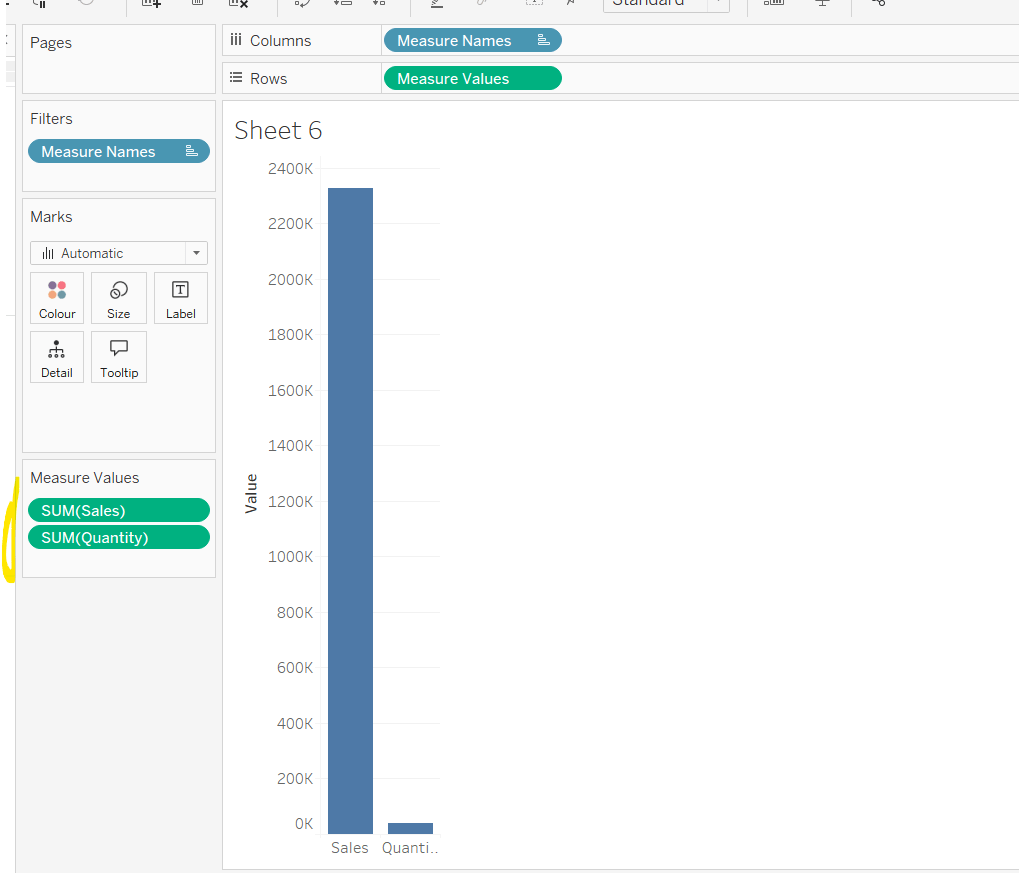
Add Sales to Rows. Then drag Quantity on to the canvas and drop the pill on the Sales axis (when you see the ‘2 column’ icon appear). This has the affect of adding the fields onto a shared axis, and the sheet will update to automatically reference Measure Names and Measure Values. Swap Quantity so it is displayed below Sales in the Measure Values section.

Add Region and Category to Detail and change the Mark type to Circle.

I’m going to incorporate the last requirement at this stage, as it helps with the build, so create parameters

pSelectedRegion

string parameter, defaulted to West

pSelectedCategory

string parameter, defaulted to Furntiture

show both these parameters on the sheet.

Create a new field

Is Selected Region & Category

[pSelectedCategory]=[Category] AND [pSelectedRegion]=[Region]

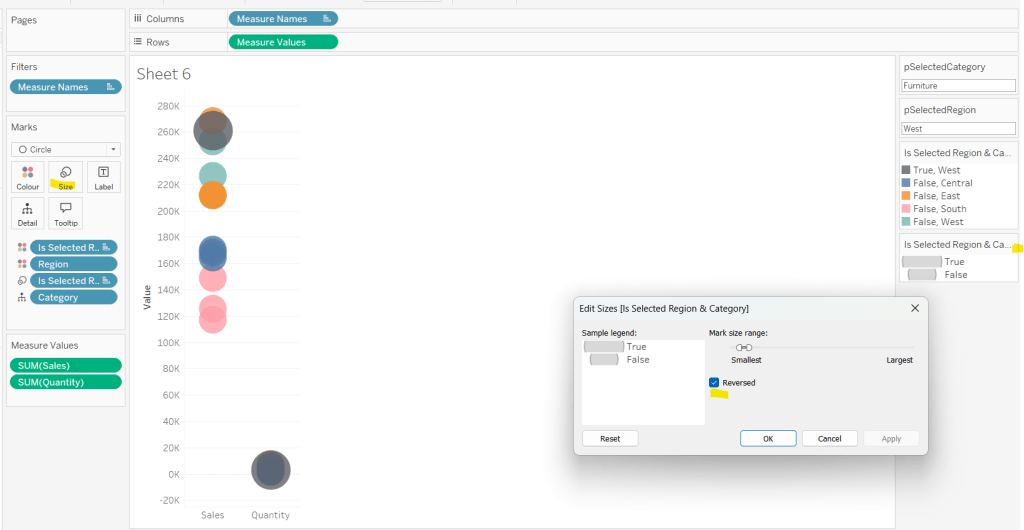
Add this field to Colour, and swap the values in the legend, so True is listed first. Then change the Region on the Detail shelf, so it is also on colour, by adjusting the icon to the left of the pill. Adjust the colours as required and then reduce the opacity on colour to 80%.

Manually update the entry in the pSelectedRegion parameter to each Region, so the True-<Region> colour combination can be updated to the dark grey.

Add Is Selected Region & Category to Size. Edit the size so they are reversed and the range in size is closer than the default. Once done, then manually adjust the dial on the Size shelf.

Show mark labels, selecting the option to only show the min & max values per cell and aligning middle right

Update the Tooltip. Then create fields True = TRUE and False = FALSE and add both of these to the Detail shelf. We’ll need these to disable the default highlighting later (adding now, as for all the other sheets, we’ll duplicate this one, so makes things easier).

Show the caption (Worksheet menu > show caption) and update the caption to reference the website Erica refers to. Then update the title of the sheet, and name the tab Raw or similar.

Building the Decimal Normalisation chart

Duplicate the Raw sheet, and name Decimal or similar. Update the title.

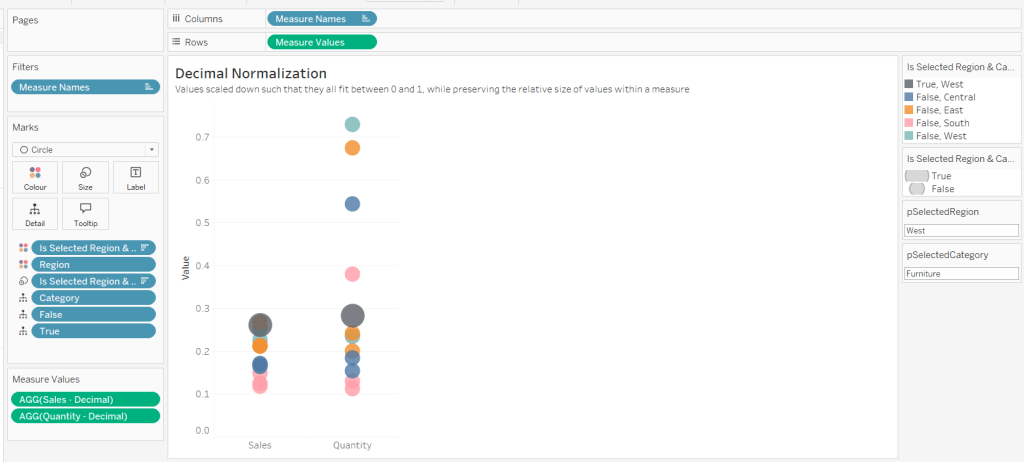
Create new fields

Sales – Decimal

SUM([Sales]) / 10^6

Quantity – Decimal

SUM([Quantity]) / 10^4

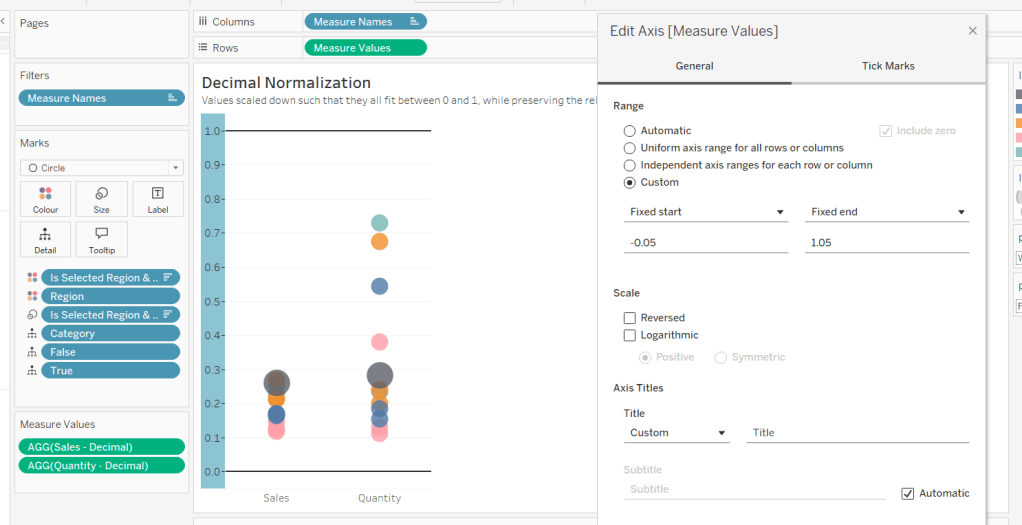
Drag Sales – Decimal onto the canvas and drop directly over the existing Sales pill in the Measure Values section, so it replaces it. Do the same with the Quantity – Decimal pill. Uncheck Show Labels.

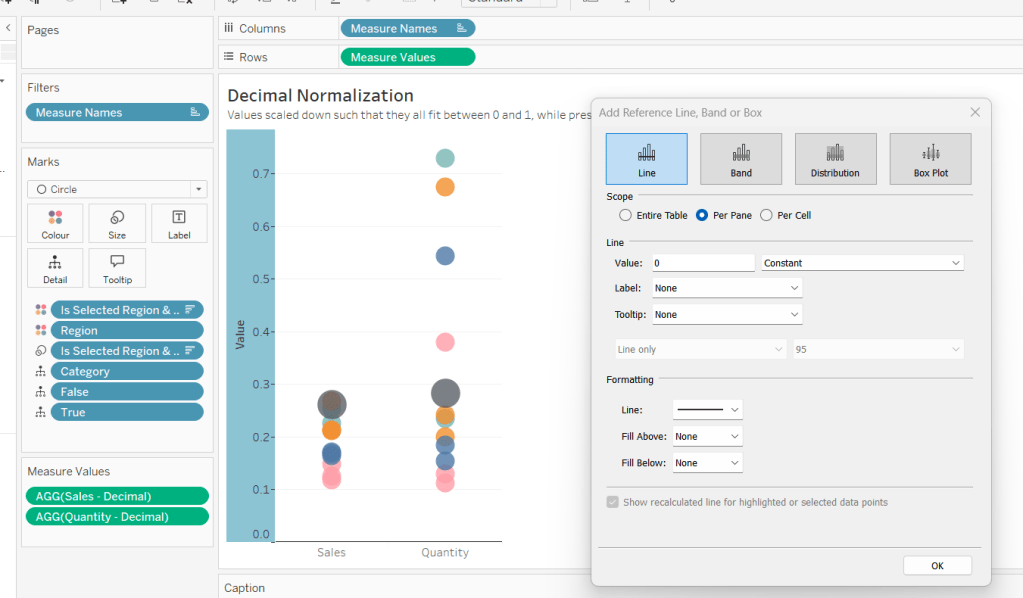
Add constant reference line of 0 that displays as a black solid line at 100% opacity

Repeat and create a constant reference line with value of 1. Edit the axis and fix from -0.05 to 1.05 and remove the axis title.

Update the text in the caption.

Building the Max-Min Normalisation Chart

Duplicate the Decimal sheet and rename Max-Min or similar. Update the title.

Create new fields

Sales – Max-Min

(SUM([Sales])- WINDOW_MIN(SUM(Sales))) / (WINDOW_MAX(SUM(Sales)) – WINDOW_MIN(SUM(Sales)))

Quantity – Max-Min

(SUM([Quantity])- WINDOW_MIN(SUM([Quantity]))) / (WINDOW_MAX(SUM([Quantity])) – WINDOW_MIN(SUM([Quantity])))

Drag Sales – Max-Min onto the canvas and drop directly over the existing Sales – Decimal pill in the Measure Values section, so it replaces it. Do the same with the Quantity – Max-Min pill.

Adjust the table calculation setting for each of the measures so they are computing by Category, Region and Is Selected Region & Category.

Adjust the Tooltip if required. Right click on the bottom column headings and Edit Alias to update the text- you may not be able to rename Sales – Max-Min along xyz… just to ‘Sales’, so you may need to be creative and add spaces eg ‘ Sales ‘ or similar. Update the caption.

Building the Z-Score Normalisation Chart

Duplicate the Max-Min sheet, and name Z-Score or similar. Update the title.

Create new fields

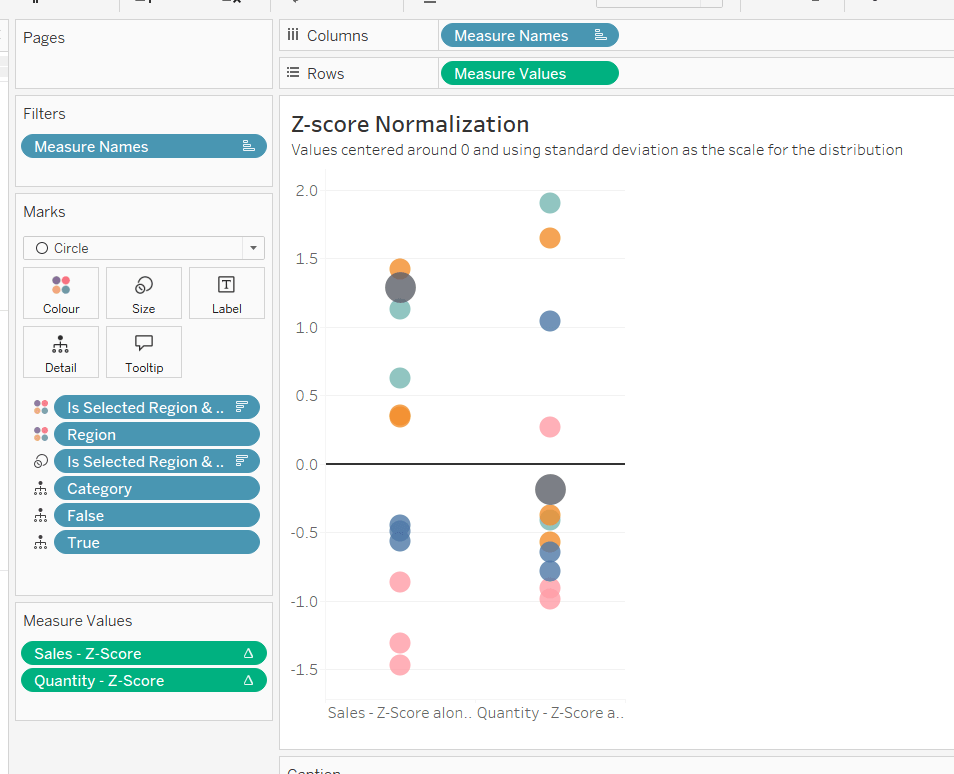
Sales – Z-Score

(SUM([Sales]) – WINDOW_AVG(SUM([Sales]))) / WINDOW_STDEV(SUM([Sales]))

Quantity – Z-Score

(SUM([Quantity]) – WINDOW_AVG(SUM([Quantity]))) / WINDOW_STDEV(SUM([Quantity]))

Drag Sales – Z-Score onto the canvas and drop directly over the existing Sales – Max-Min pill in the Measure Values section, so it replaces it. Do the same with the Quantity – Z-Score pill.

Adjust the table calculation setting for each of the measures so they are computing by Category, Region and Is Selected Region & Category. Remove the reference line for the constant value of 1. Edit the axis, so the range is now Automatic rather than fixed.

As before, adjust the Tooltip again if required, edit the column labels using the alias feature, and update the caption.

Creating the dashboard and adding the interactivity

Add all 4 charts onto a dashboard, using a horizontal container to arrange the charts side by side. From the object context menu on the dashboard, select the option to show the caption

To disable the default highlighting ‘on click’ create a dashboard filter action based on the True/False method described here – you’ll need to create an action per sheet.

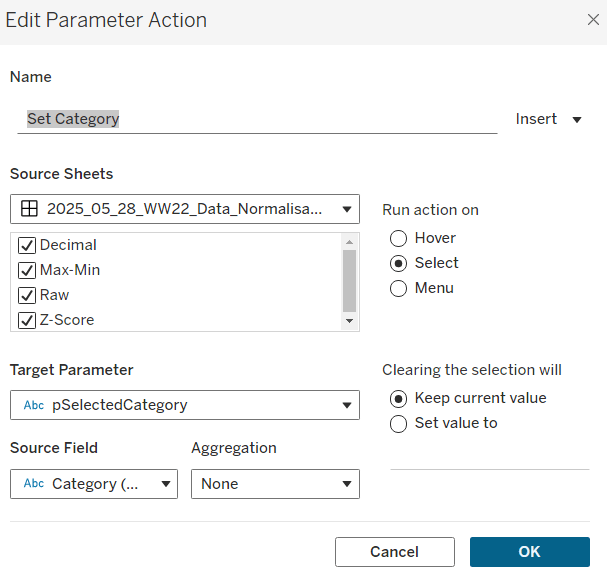
To set the parameters, create a parameter action

Set Category

On select of all the sheets, set the pSelectedCategory parameter passing in the value from the Category field.

Create another similar action called Set Region which sets the pSelectedRegion parameter with the value from the region field.

Finally, add a text section to the top right of the dashboard that references the pSelectedRegion and pSelectedCategory parameters.

And that should be it. My published via is here.

Happy vizzin’!

Donna