Which products have low profit ratio?

Community month continues this week with Yama G posing us this challenge to analyse profit ratio.

Building the basic bubble chart

The simplest way I found to start this, was to use ctl-click to multi-select Category, Region, Product Name and Sales from the data pane, and then select the packed bubbles option from the Show Me menu.
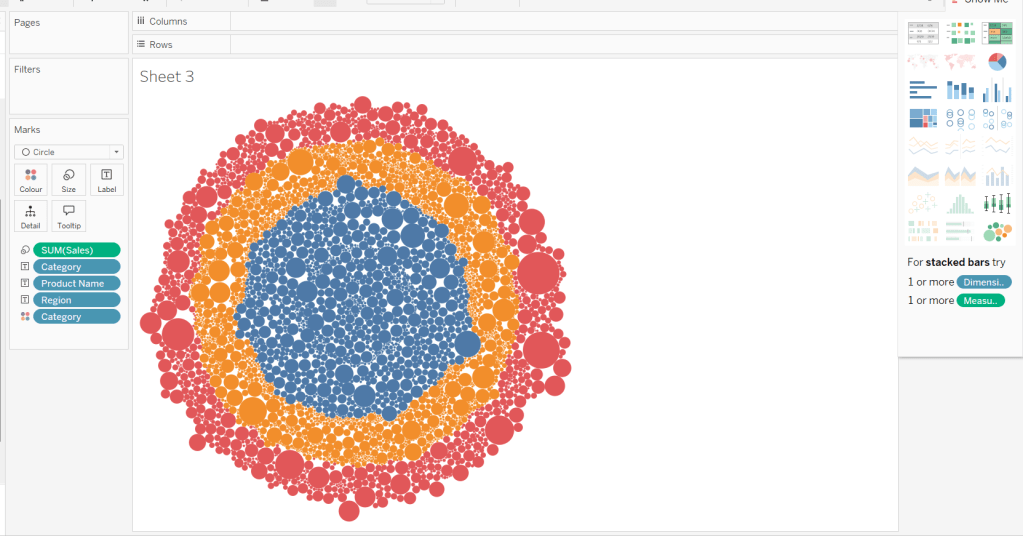
Then move Category from Text to Columns and Region from Text to Rows, and remove Category from Colour.
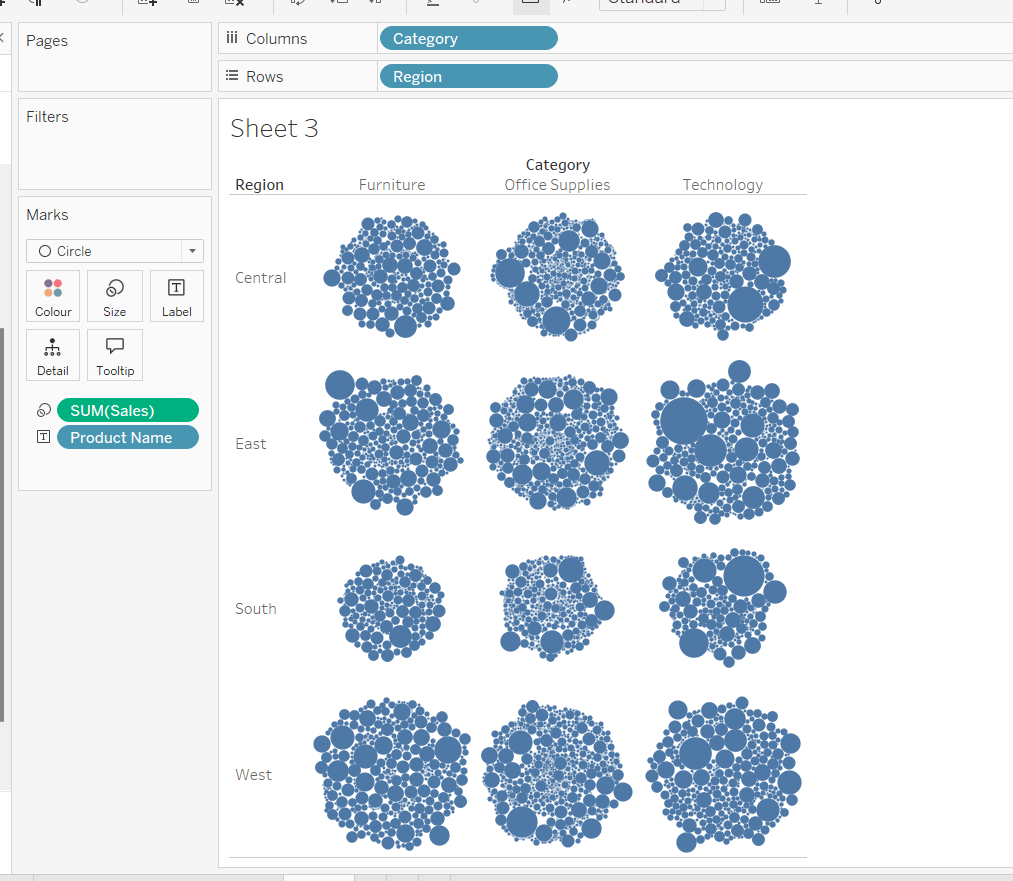
Create a new field

Profit Ratio

SUM(Profit)/SUM([Sales])

and apply a custom number format of 0%;▲0%;0% (in this instance I think the intention is to use the ▲ as ‘warning’ indicator).

Add this to Colour. To cluster the lower profit ratios towards the centre of the bubbles, add a sort to the Product Name pill on the Text shelf, to sort ascending by Profit Ratio.
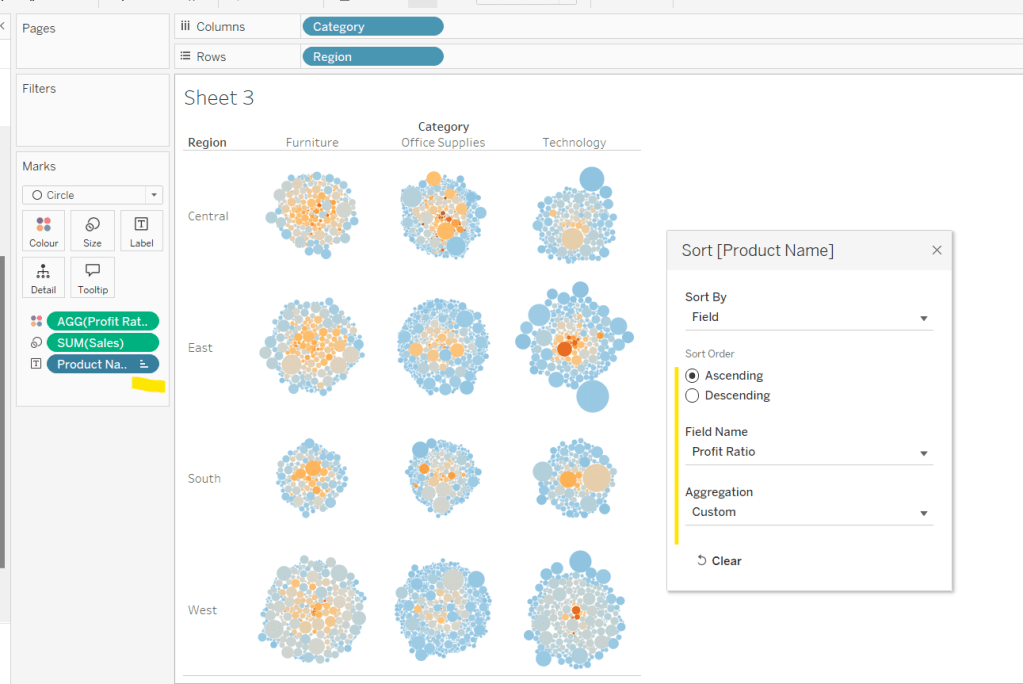
Note – you can’t influence quite how the bubbles are arranged, so it’s possible the layout you see may differ slightly from the solution.

Showing details for selected Sub-Category

Clicking on a Category in the bubble viz should expand to show the Sub-Categories. To support this we need a parameter

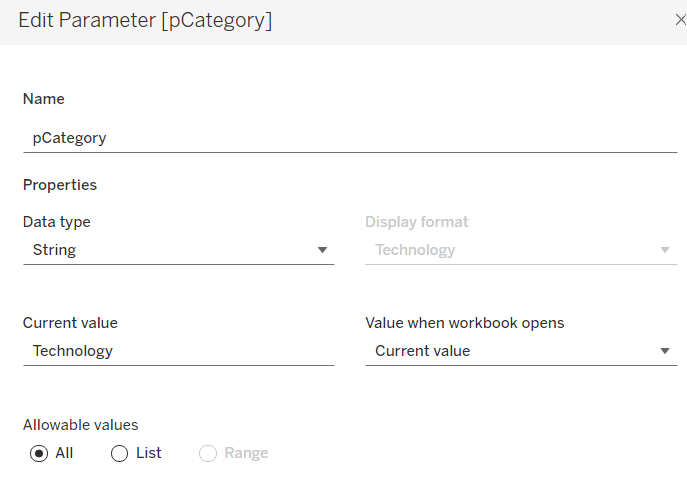
pCategory

string parameter defaulted to Technology
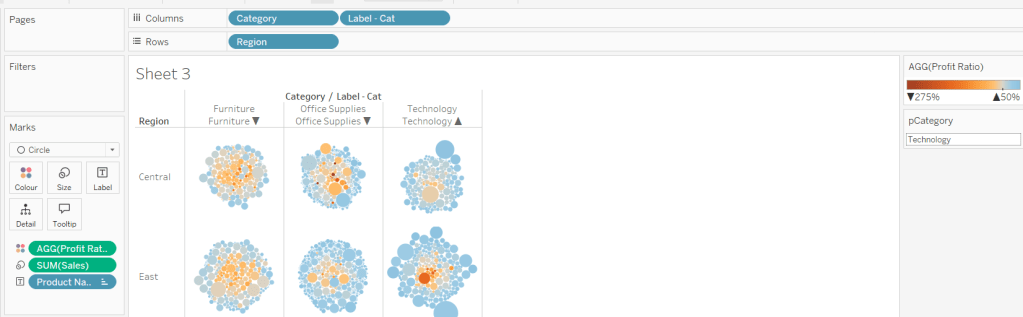
The Category label displayed needs to show an arrow indicator based on whether the Category is selected or not

Label – Cat

[Category] + ‘ ‘ + IIF([Category]=[pCategory],’▲’,’▼’)

Add this to Columns
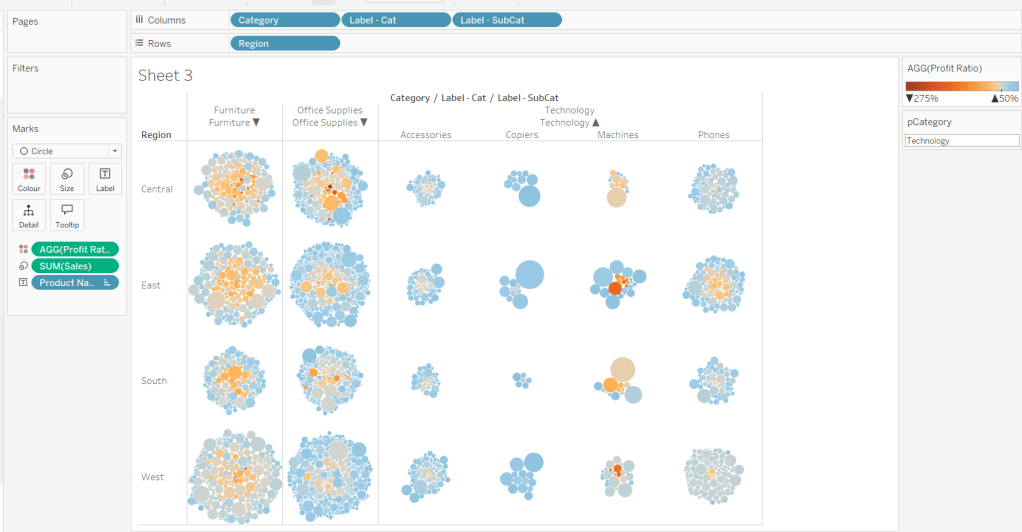
We want to show Sub-Category details for the selected Category, so create

Label – SubCat

IIF([pCategory]=[Category], [Sub-Category], ”)

Add this to Columns too.
There is a need to capture the Region too, as part of the sorting on the tabular viz. But the Region header label needs to indicate the selected region. We will need a parameter

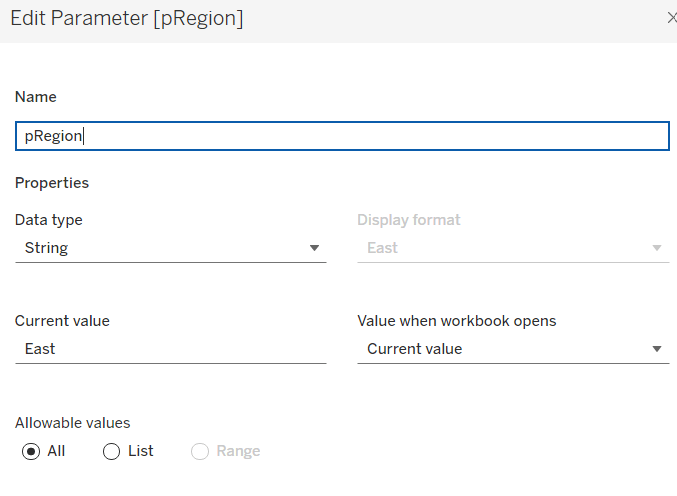
pRegion

string field defaulted to East
And then a new field

Region * Sortkey

[Region] + IIF([pRegion]=[Region],’*’,”)

Add this to Rows.
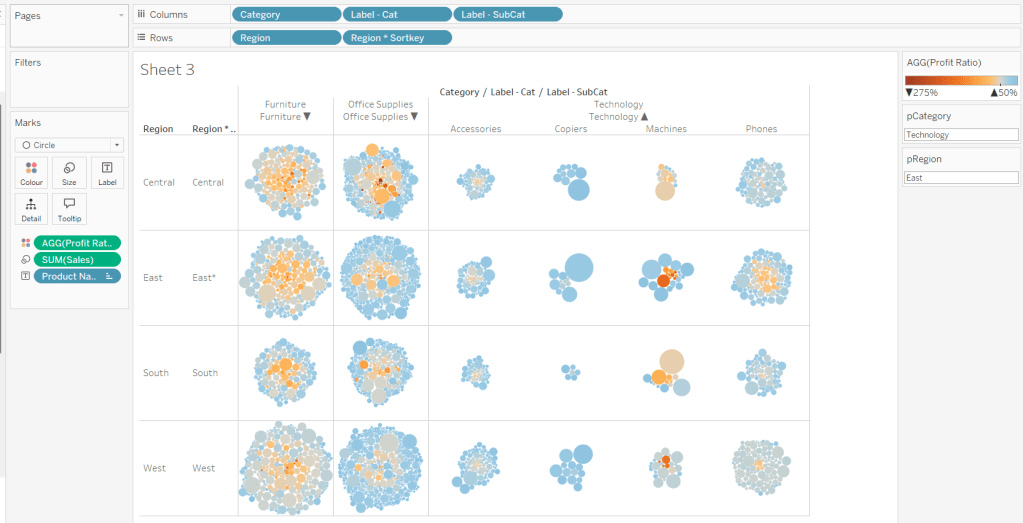
Finally tidy up by

  • adjusting the Tooltip
  • hide the Region pill (uncheck show header)
  • hide the Category pill (uncheck show header)
  • hide the Region * Sortkey row heading label (right click -> hide field labels for rows)
  • hide the Label – Cat / Label SubCat column heading label (right click -> hide field labels for columns)
  • remove the row dividers in the body of the viz (set the Level to 0)
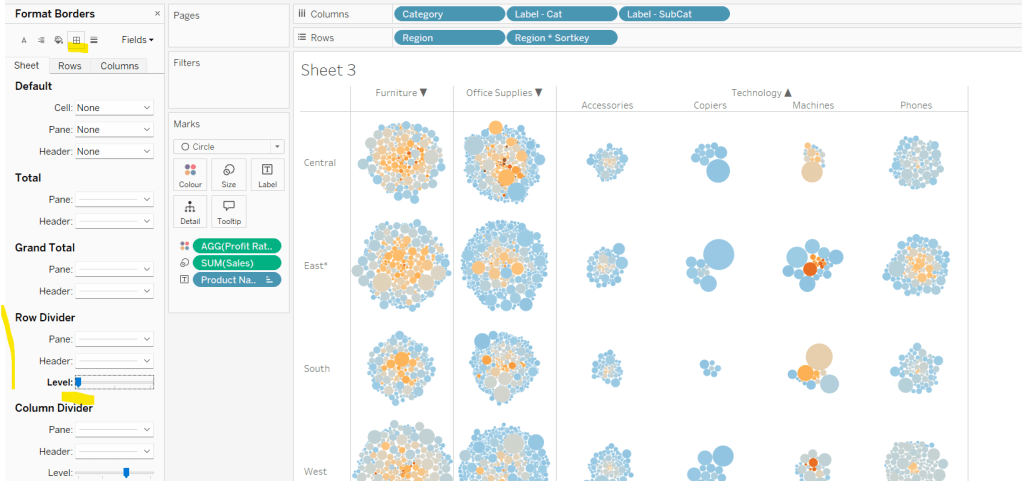
Update the sheet title and name the sheet Bubble or similar.

Building the basic Product Detail table

The first column is a combination of fields, so create

Product Name (Cat, SubCat)

[Product Name] + ‘ (‘ + [Category] + ‘,’ + [Sub-Category] + ‘)’

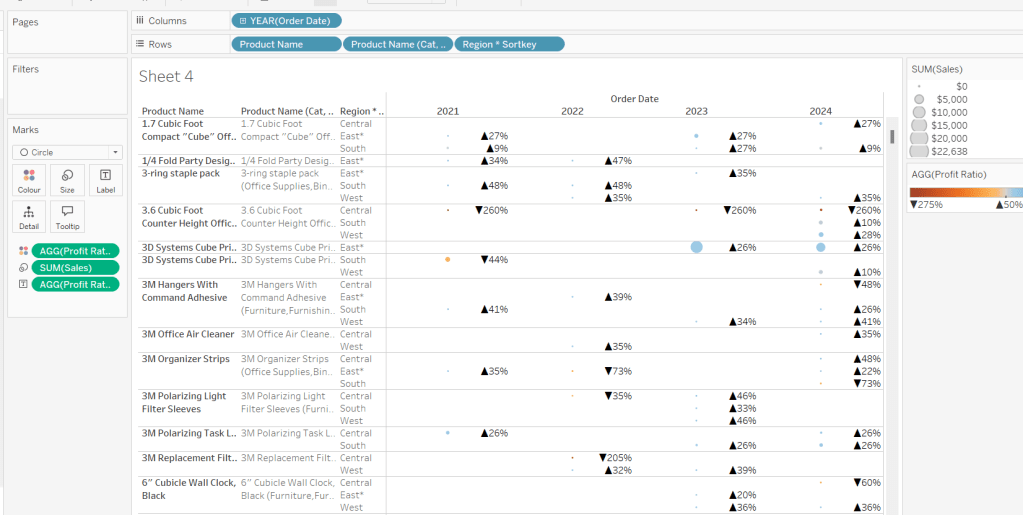
Add Product Name, Product Name (Cat, SubCat) and Region * Sortkey to Rows and Order Date as a discrete (blue) pill at the Year level to Columns. Change the mark type to circle. Add Sales to Size and Profit Ratio to Colour. Add Profit Ratio to Label and align right. Set the table to Fit Width. Increase the Size of the circles a bit.
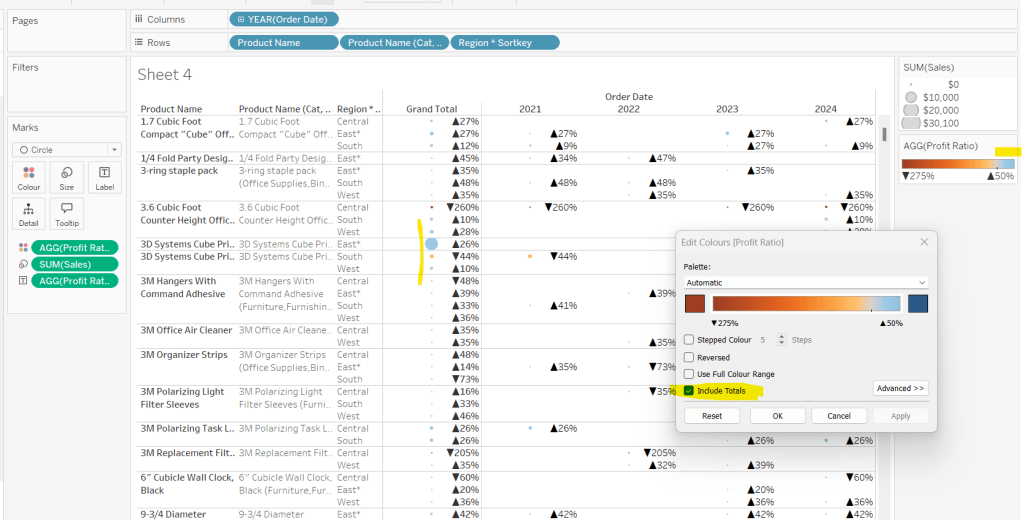
Add totals via Analysis > Totals > Show Row Grand Totals and then via the same menu, select the Row Totals to Left option. Edit the Colour Legend and select the Include Totals option, so the circles in the total column are also coloured.
Applying the table sort

The requirement is to sort each Product Name based on the value of the Profit Ratio associated to the selected Region. The data should be sorted ascending.

This took me a little while to figure out – initially I wanted to use a table calculation, but you can’t apply a sort to a field based on that, and if you then add it as a discrete measure, you can’t have total columns. So I figured it out eventually. Firstly, I need to capture the Profit Ratio for each Product Name and Region (essentially the value listed in the Grand Total column). I can use an LOD for this.

PR by Product & Region

{FIXED [Product Name], [Region]: SUM([Profit])/SUM([Sales])}

but I then only want the value associated to the selected Region, and I want to ‘spread’ this across every row for the Product Name. So I can use another LOD but just at the Product Name level, which in turn uses a nested IF statement, to just return the value we care about.

Sort

{FIXED [Product Name]: AVG(IIF([Region]=[pRegion],[PR by Product & Region],NULL))}

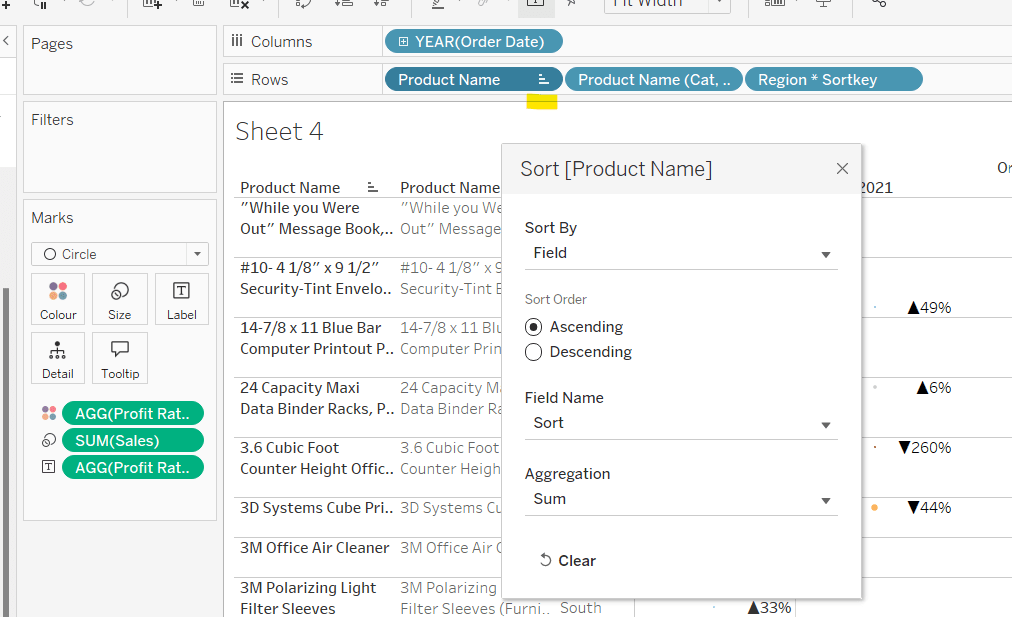
Apply a Sort to the Product Name pill in Rows to sort by the field Sort ascending
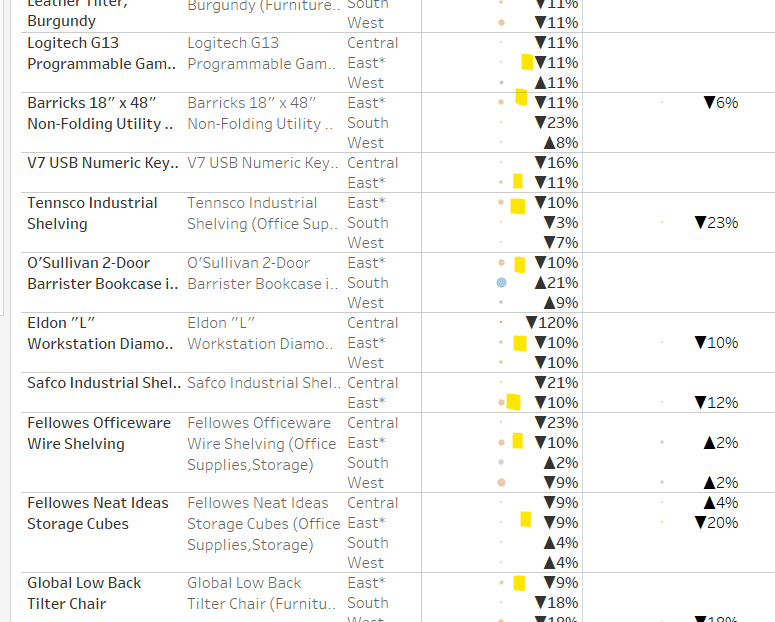
You should find that when you see some Product Names that have sales in the selected region (in this case East), that the products are listed based on this value with the lowest Profit Ratio first (note the East row isn’t listed first if there are sales for the Central region, as the rows within each product are listed alphabetically based on the region name.
Finally tidy up by

  • Adjusting the Tooltip to suit
  • Hide the Product Name pill (right click, uncheck show header)
  • Adjusting the font style of the fields and label headings.
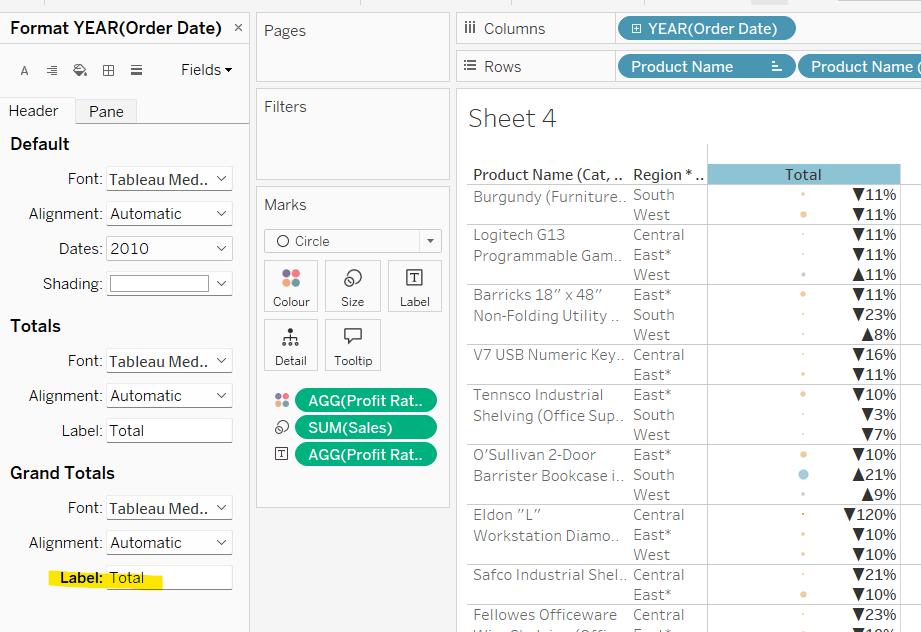
  • Rename the Grand Total label to Total (right click the label > format and update the Label value)
  • hide the Order Date column heading label (right click > hide field labels for columns)
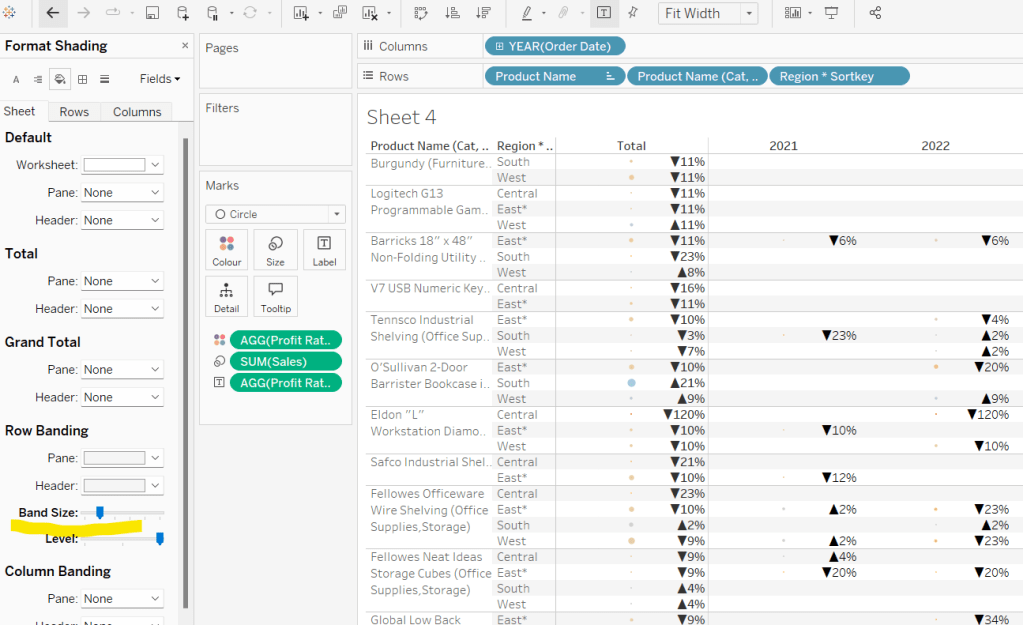
  • add row banding (right click viz to format), then adjust band size to level 1
Update the sheet title and name the sheet Table or similar.

Building the dashboard and adding the interactivity

Using layout containers, add the two sheets onto the dashboard, adding a title and the relevant legends (note I used text objects for the Profit Ratio legend title and the Sales ‘legend’.

We need several dashboard actions:

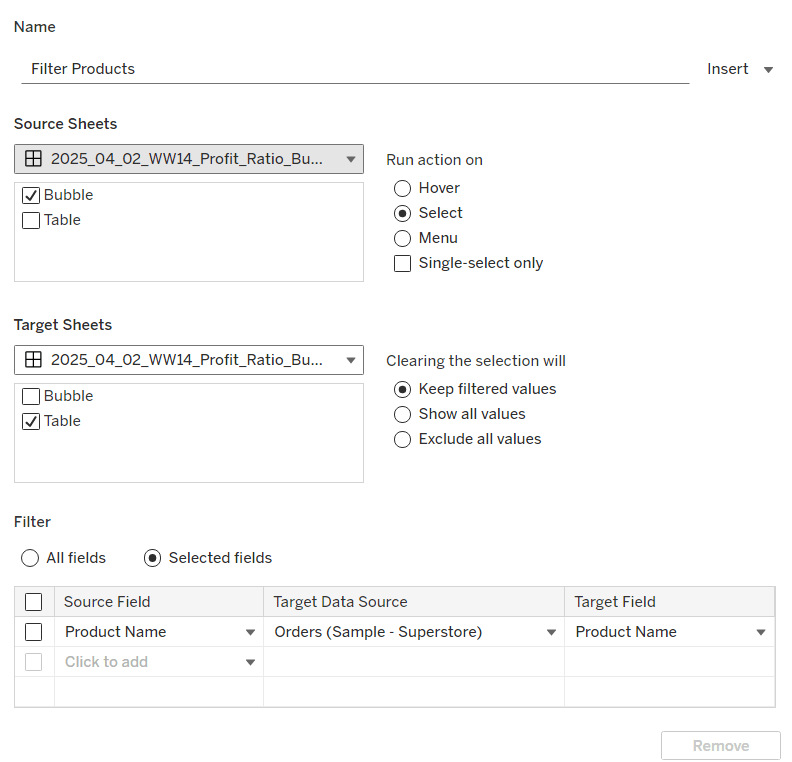
Filter Products

Dashboard filter action, that on select of the Bubble sheet, targets the Table sheet, passing through the Product Name only. The set of products is retained when the selection is cleared.
Set Category

Dashboard parameter action, that on select of the Bubble sheet, sets the pCategory parameter with the value from the Category field. When the selection is cleared, the parameter is reset to <empty string>
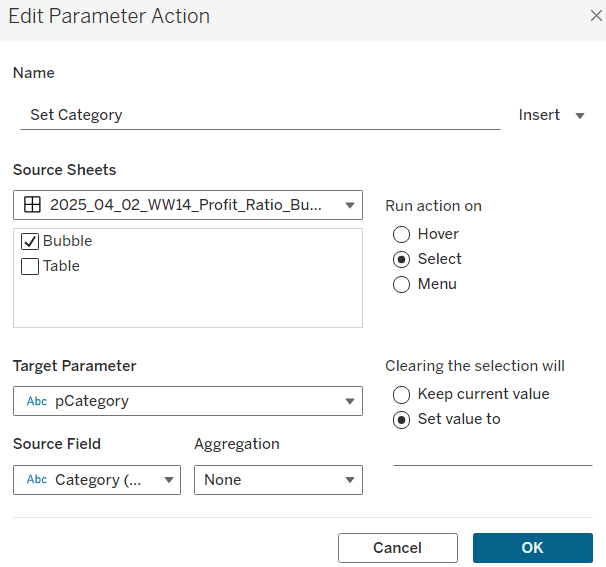
This action will allow the bubble chart to ‘expand and collapse’ on click.

Set Region

Dashboard parameter action, that on select of the Bubble sheet, sets the pRegion parameter with the value from the Region field. When the selection is cleared, the parameter is retained
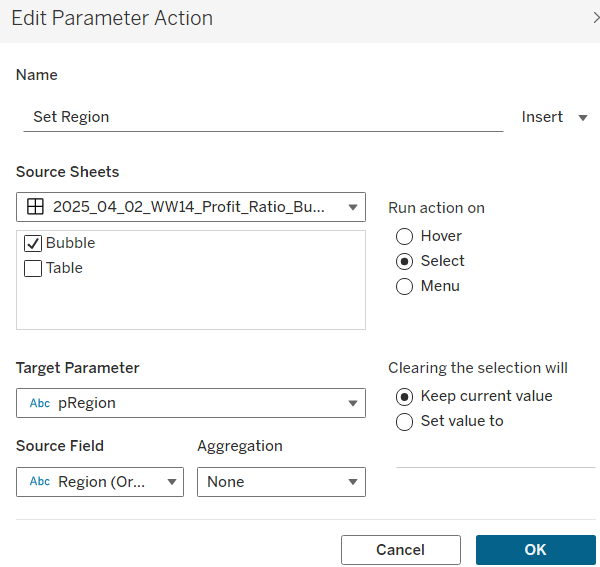
This action will apply the ‘niche’ sort and the relevant region labels will be updated with an * too.

Finally, on selection of products in the bubble viz, we don’t want the other marks to ‘fade’ To stop this from happening, create a new field

Dummy

‘Dummy’

and add to the Detail shelf on the Bubble sheet.

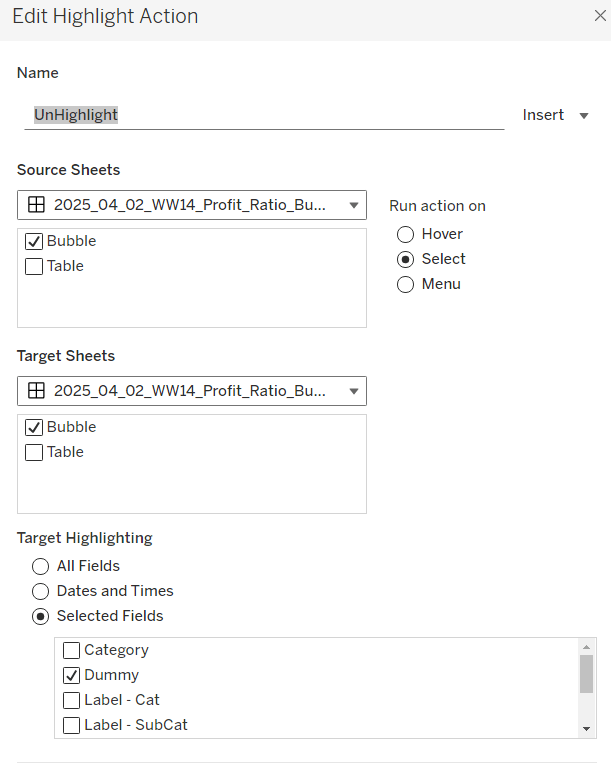
Then add a dashboard highlight action

UnHighlight

On select of the Bubble sheet, target the Bubble sheet selecting the field Dummy only
And with that you should have a functioning dashboard. My published viz is here.

Note, after testing, I did notice a difference in the behaviour of my version to the solution. When I deselect all products from the bubble chart when in an expanded state, the section will collapse. The solution uses a ‘fake header’ sheet to stop this from happening, which is then carefully positioned above the bubble chart sheet. I’m ultimately happy with my 2-sheet solution, but feel free to check out the challenge solution for a better understanding.

Happy vizzin’!

Donna

Can you add candlesticks to bar charts?

For the final week of global recognition month, Shunta Nakjima set this challenge inspired by one of the ‘founders’ of #WorkoutWednesday, Andy Kriebel.

Let’s get stuck in, by starting with the selector sheets.

Building the Measure Selector

The measure selector will be used to set a parameter which will store the particular measure selected, so we need

pSelectedMeasure

string parameter defaulted to the value Sales

We also need a field to help us ‘draw’ the 3 selection boxes onto a viz, in such a way that we then have a measure value to pass into the parameter on selection. You could build this with its own separate dataset, but I’m going to utilise another field to ‘fake this’, and drive it off the Segment dimension as we don’t need this in the rest of the viz.

Measure Selector Alias

CASE [Segment]
WHEN ‘Consumer’ THEN ‘Sales’
WHEN ‘Corporate’ THEN ‘Profit’
ELSE ‘Quantity’
END

Add Segment to Columns. Then double click into Columns and manually type MIN(1). Widen the row and then add Measure Selector Alias onto Label.

Edit the axis, and fix the range to run from 0 to 1. Adjust the label font and align centrally. Hide the axis and the Segment header.

We need to identify which measure has been selected, both through colour and an arrow indicator. So we need

Is Measure Selected

[Measure Selector Alias] = [pSelectedMeasure]

Add to the Colour shelf and adjust to suit.

Then create

Measure Selected Arrow

IF [Is Measure Selected] THEN ‘►’ END

I use this site to get the characters I need.

Add this to the Label shelf and adjust so the fields are side by side and the arrow text is coloured red.

Finally, stop the Tooltip from displaying, then hide all gridlines, zero lines, axis and row dividers. Set the column dividers to be thick white lines and make the Size as large as possible.

Name the sheet Measure Selector.

Building the Year Selector

In order to not ‘hardcode’ the latest year, we need

Current Year

{FIXED:MAX(YEAR([Order Date]))}

format this to be a number with 0dp and not to show the thousands separator.

From this we can create

Comparison Year

IIF(YEAR([Order Date])<>[Current Year],YEAR([Order Date]),NULL)

On a new sheet, add Comparison Year to Filter and exclude NULL. Then add Comparison Year to Columns and sort descending, so the latest year is listed first. Double click into Columns and manually type MIN(1).

As before widen the rows, and then add Comparison Year to Label. Edit the axis, and fix the range to run from 0 to 1. Adjust the label font and align centrally. Hide the axis and the Comparison Year header.

We’re going to need a parameter which will capture the year selected

pSelectedYear

integer parameter defaulted to 2022 with the display format set to not include the thousand separator

We need to identify which year has been selected, both through colour and an arrow indicator. So we need

Is Selected Year

[Comparison Year] = [pSelectedYear]

Add to the Colour shelf and adjust to suit.

Then create

Year Selected Arrow

IF [Is Selected Year] THEN ‘►’ END

Add this to the Label shelf and adjust so the fields are side by side and the arrow text is coloured red.

Finally, stop the Tooltip from displaying, then hide all gridlines, zero lines, axis and row dividers. Set the column dividers to be thick white lines and make the Size as large as possible. Name the sheet Year Selector.

Building the Current Year ‘card’

Double click into Columns and manually type MIN(1). Add Current Year to Label. Widen the row. Edit the axis, and fix the range to run from 0 to 1. Adjust the label font and align centrally. Hide the axis. Adjust the Colour to suit. Stop the Tooltip from displaying, then hide all gridlines, zero lines, axis and row dividers. Make the Size as large as possible. Name the sheet Curr Year.

Building the bar chart

Based on the measure selected, we need to get the value of the relevant measure for the current year and for the comparison year, so we need

Measure to Display – Curr Year

IF YEAR([Order Date]) = [Current Year] THEN
CASE [pSelectedMeasure]
WHEN ‘Sales’ THEN [Sales]
WHEN ‘Profit’ THEN [Profit]
ELSE [Quantity]
END
END

and

Measure to Display – Comp Year

IF YEAR([Order Date]) = [pSelectedYear] THEN
CASE [pSelectedMeasure]
WHEN ‘Sales’ THEN [Sales]
WHEN ‘Profit’ THEN [Profit]
ELSE [Quantity]
END
END

On a new sheet, add Sub-Category to Rows and Measure to Display – Curr Year to Columns. Sort descending. Then click and drag Measure to Display – Comp Year to the axis and release when the two green columns display. This will automatically add Measure Names and Measure Values into the view.

Reorder the pills in the Measure Values box, so the current year values are listed first. Add Measure Names to Colour and adjust to suit. Add Current Year, Measure to Display – Curr Year and Measure to Display – Comp Year to Tooltip, and adjust the tooltip so it is referencing those 3 fields along with the pSelectedMeasure and pSelectedYear parameters

So we have the bars, but now we need to add the ‘candlestick’, which we’re going to crate using a gantt bar. We need another ‘measure’ row to show, and need another instance of Measure to Display – Comp Year for this – we can’t use the existing measure, as it will put data on the same ‘row’. So simply duplicate the Measure to Display – Comp Year field, to get the Measure to Display – Comp Year (copy) field. Add this to Columns.

Change the mark type of this to a gantt bar. To get the size and the information we need for the labels and to colour the gantt, we need some more fields.

Difference

SUM([Measure to Display – Curr Year]) – SUM([Measure to Display – Comp Year])

custom format this to +#,##0;-#,##0 and add this field to both the Size and the Label shelf.

% Difference

IF (SUM([Measure to Display – Curr Year])>=0 AND SUM([Measure to Display – Comp Year])>=0)
OR (SUM([Measure to Display – Curr Year])<0 AND SUM([Measure to Display – Comp Year])<0) THEN
[Difference]/ABS(SUM([Measure to Display – Comp Year]))
ELSE 0
END

If both the values are positive or both the values are negative, then calculate the difference, otherwise return 0, and then custom format to ▲0.0%;▼0.0%;- . The first section up to the ; formats the number when it’s positive, the next section formats when negative, and the last section formats when the number is 0, so in this case we’re replacing any 0 with a ‘-‘. Add this to the Label shelf.

Diff is +ve

[Difference]>0

Add this to the Colour shelf (remove Measure Names) and adjust accordingly.

Reduce the Size of the gantt bar, adjust the label so the font is smaller, organised as required, and aligned to the right. Remove all the text from the Tooltip. Then make the chart dual axis and synchronise the axis. Explicitly set the mark type of the Measure Names marks card to a bar.

Finally tidy up by hiding both axis, removing all gridlines, axis lines, zero lines and column dividers. Format the Sub-Category label headings and align middle left. Hide the Sub-Category row heading (hide field labels for rows) and hide the Measure Names field (uncheck show header). Name the sheet Chart.

Adding the interactivity

Using vertical and horizontal containers, arrange the objects on the dashboard. I used a horizonal container to align the Curr Year, Year Selector and Measure Selector sheets, adding blank objects in between. I edited the title of the 3 objects to display the required text. I then floated a blank object over the Current Year box, so it couldn’t be clicked.

To select the year and the measure, I needed parameter actions

Select Year

on select of the Year Selector sheet, set the pSelectedYear parameter, passing in the value from the Comparison Year field

and

Select Measure

on select of the Measure Selector sheet, set the pSelectedMeasure parameter passing in the value from the Measure Selector Alias field

Finally to stop the years and measure boxes being ‘highlighted’ on click, create fields

True

TRUE

and

False

FALSE

and add both to the Detail shelf of the Year Selector and Measure Selector sheets. Then add dashboard filter action

Deselect Years

On select of the Year Selector sheet on the dashboard, target the Year Selector sheet itself, passing the values True = False.

Create another similar filter action for the Measure Selector sheet, and that should then be it!

My published workbook is here.

Happy vizzin!

Donna

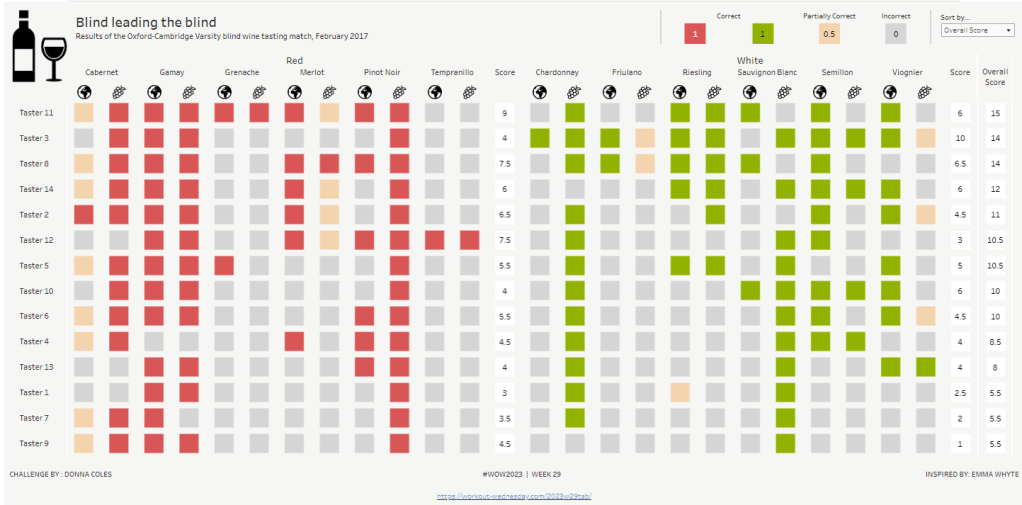
Re-Viz : Blind leading the blind

This week, it was my turn to set the #WOW2023 challenge for ‘retro’ month, and I chose to revisit a challenge from May 2017, that was originally set by one of the original ‘founders’ of WorkoutWednesday, Emma Whyte.

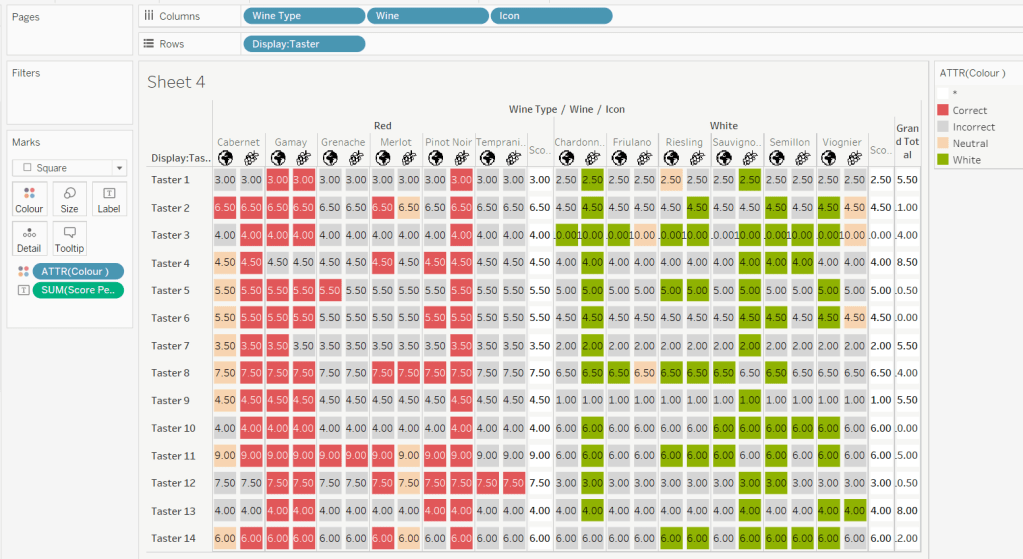
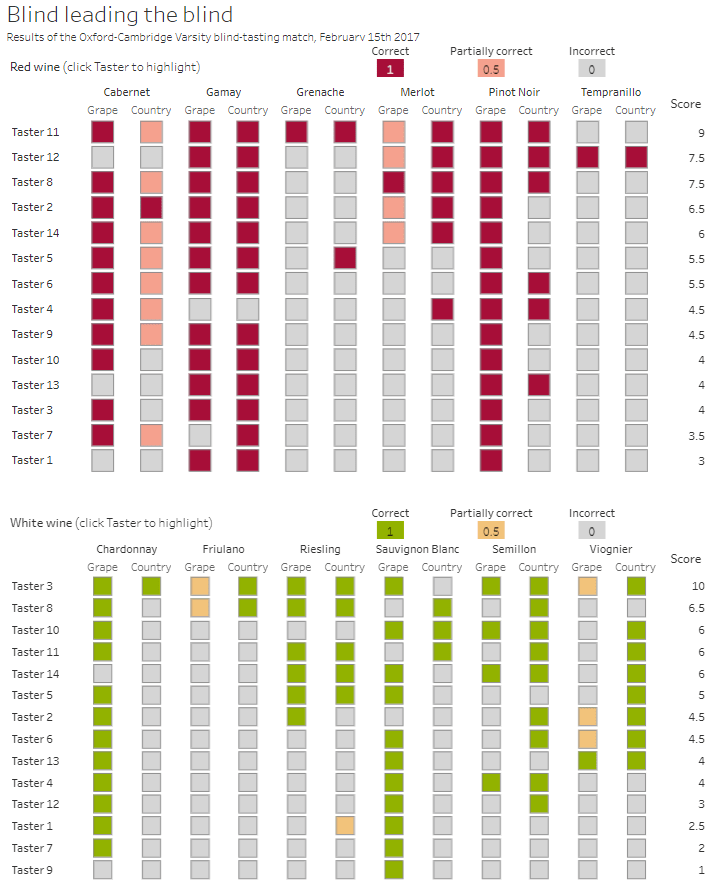
The original challenge looked like this :

As I said in the challenge post, I chose this I this challenge as it’s a different type of visual we don’t often see in WOW; it uses a different dataset that interests me – wine!; and as Emma’s website, where she hosted the original requirements for her challenges, is no longer active, it’s possible many won’t know of the existence of this challenge (it pre-dates the current WOW tracking data we have).

Building the core viz

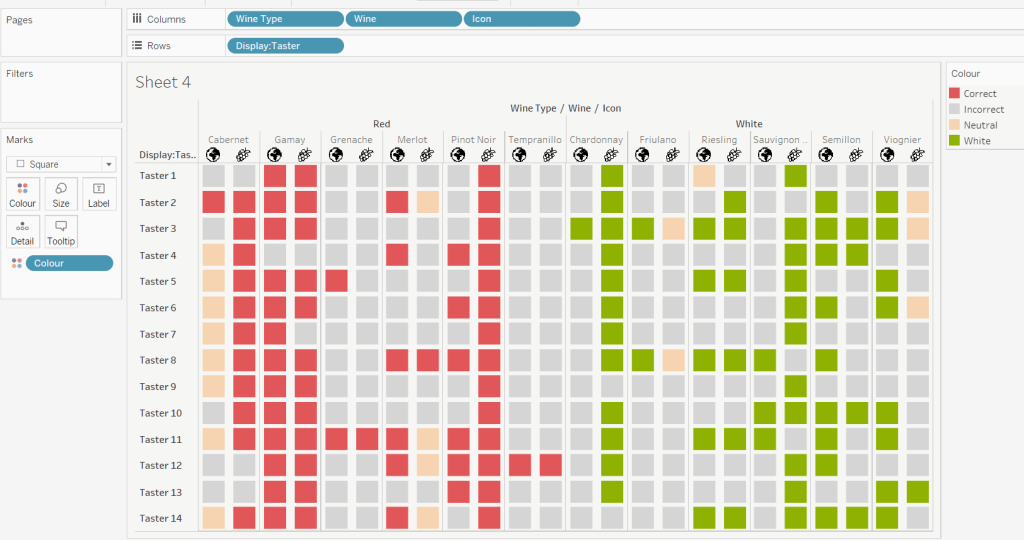
Firstly, we want to build out the basic grid. For that we need a couple of calculated fields

Display:Taster

‘Taster ‘ + STR([Taster])

and

Icon

IF [Score Type] = ‘Grape’ THEN “https://workout-wednesday.com/wp-content/uploads/2023/07/Grapes.png&#8221;
ELSE “https://workout-wednesday.com/wp-content/uploads/2023/07/Globe.png&#8221;
END

Right click on the Icon field and select Image Role > URL

Add Wine Type, Wine and Icon to Columns and Display:Taster to Rows

Change the mark type to square.

Here we’re making use of the image role functionality in the header of the table to display images stored on the web, without the need to download them locally.

Create a new field

Colour

IF [Score] = 1 THEN [Wine Type]
ELSEIF Score = 0 THEN ‘Grey’
ELSE ‘Neutral’
END

Add this to the Colour shelf and adjust colours accordingly. Increase the size of the squares so they fill the space better, but still have separation between them.

Set the background colour of the worksheet to the grey/beige (#f6f6f4).

Note – I noticed later on that the colour legend in the screen shots has the words ‘correct’ and incorrect’ rather than ‘red’ and ‘grey’. This was due to an un-needed alias I had set against the field, so please ignore

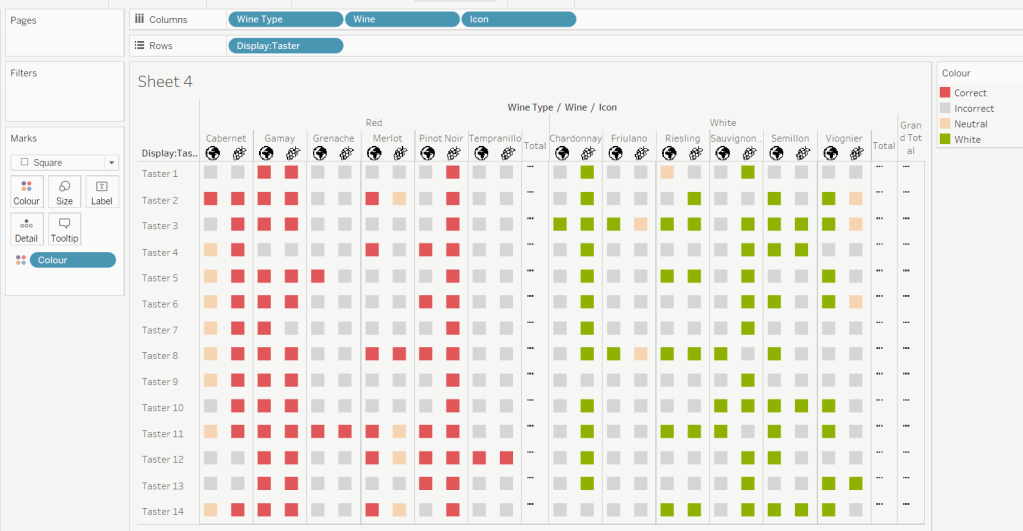
Via the Analysis -> Totals menu, add all subtotals & also show row grand totals. This will make the display look a bit odd initially.

Right-click on the Wine pill in the Columns and uncheck the Subtotals option. This should mean there are 3 additional columns only – a total for each wine type and the grand total.

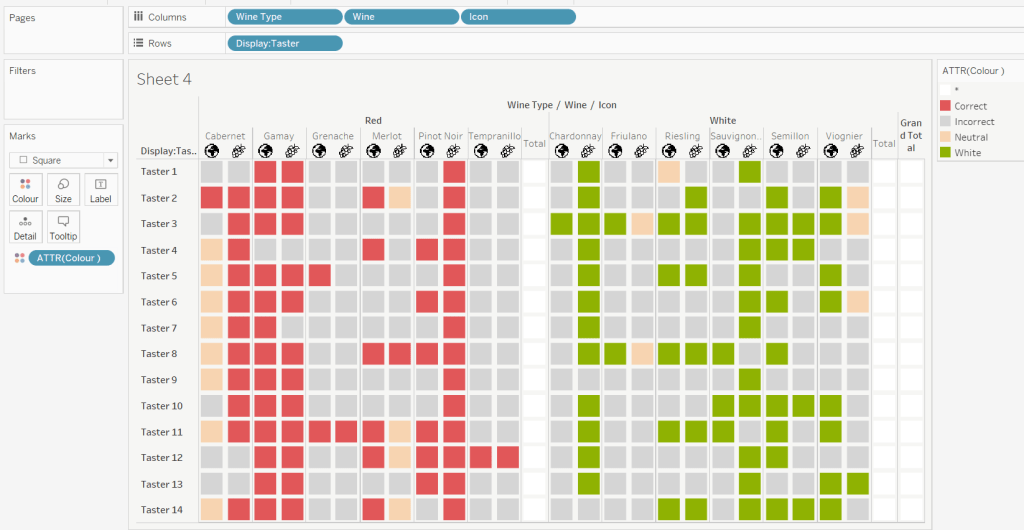
To get a single square to display in the totals columns, right-click on the Colour field in the marks card area, and change from a dimension to an attribute. The field will change from displaying Colour to ATTR(Colour) and an additional option for * will display in the colour legend – set this to be white

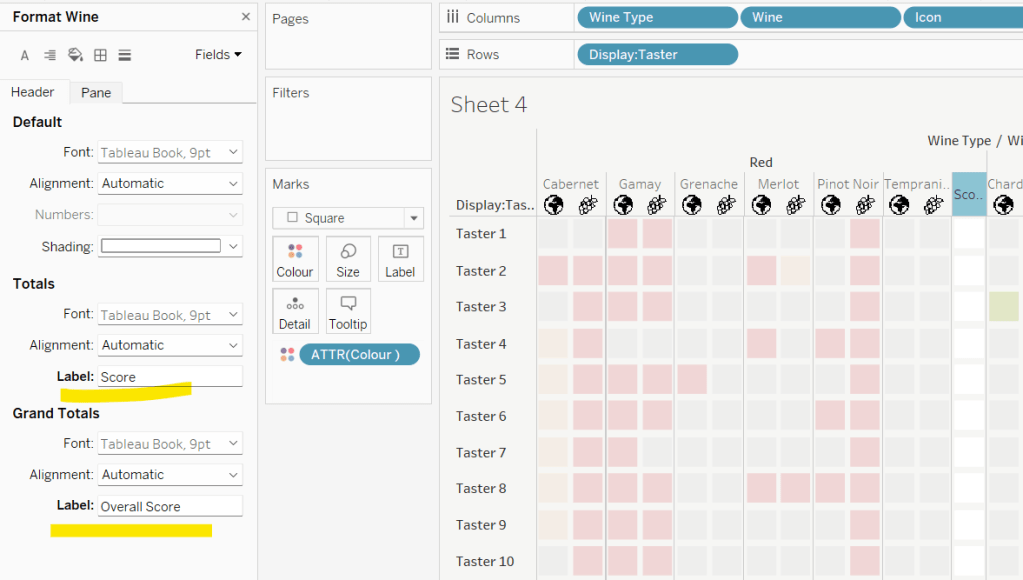
To change the word ‘Total’ in the heading to ‘Score’, right click on the word ‘Total’ and select format. In the left hand pane, change the Label of the Totals section to Score. Repeat for the ‘Grand Totals’ by right clicking on ‘Grand Totals’ in the table, selecting format and changing the label for that too to ‘Overall Score’.

We need to label the totals with the score. For this we first need to get a score for each taster per wine

Score Per Taster

{FIXED [Taster], [Wine Type]:SUM([Score])}

If we just added this to the Label shelf, every square gets labelled with the total, which isn’t what we want.

We need to work out a way to just show the label on the total columns only. For this we can make use of the SIZE() table calculation.

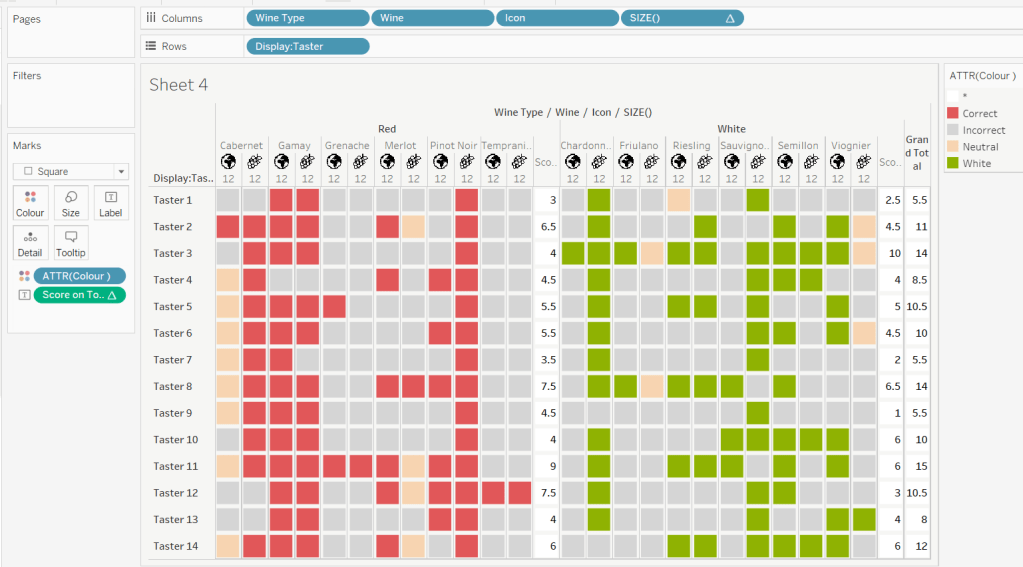
To see how we’re going to use this, double click into the Columns and type SIZE(), then change the field to be a blue discrete pill. Edit the table calculation and set the field to compute by Wine and Icon only.

You’ll see that the SIZE() field in the Columns has added the number 12 as part of the heading, which is the count of wines associated to the wine type (ie 12 red wines and 12 white wines). There is no SIZE() value displayed under the total columns, but these actually have a size of 1, so we’re going to exploit this to display the labels (note – this approach wouldn’t work if where was only 1 wine for one of the wine types).

Score on Total

IF SIZE() = 1 THEN SUM([Score Per Taster]) END

Set the default number format of this field to be Standard, which means the result will display either whole or decimal numbers.

Add this onto the Label shelf instead of the other field, and adjust the table calculation as described above to compute by Wine and Icon only.

You can now remove the SIZE() field from the Columns.

Align the scores centrally.

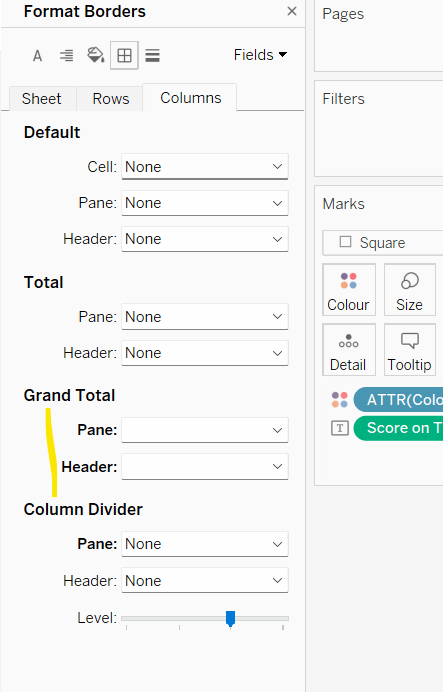
Remove row & column dividers from each cell, and the totals, but set a white column divider for both the pane & header of the Grand Total column.

Format the text for the Wine Type and Wine and Totals fields. Align the text for the Wine field to the Top.

Hide field labels for rows and columns.

Applying the Tooltip

The text when hovering over each square needs to display different wording depending on the score.

Tooltip – Score Text

IF [Score] = 1 THEN ‘correctly identified’
ELSEIF [Score] = 0.5 THEN ‘partially identified’
ELSE ‘was unable to identify’
END

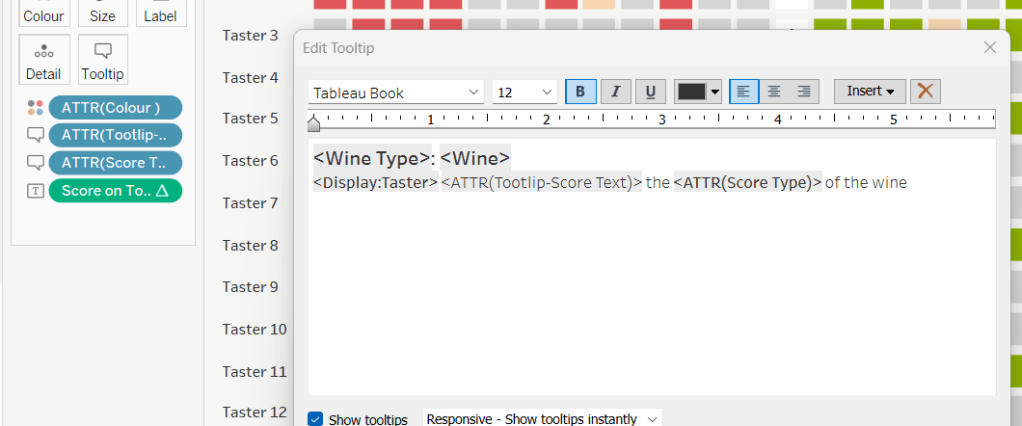
Add this to the Tooltip shelf along with the Score Type field. Modify the text accordingly

Applying the sort

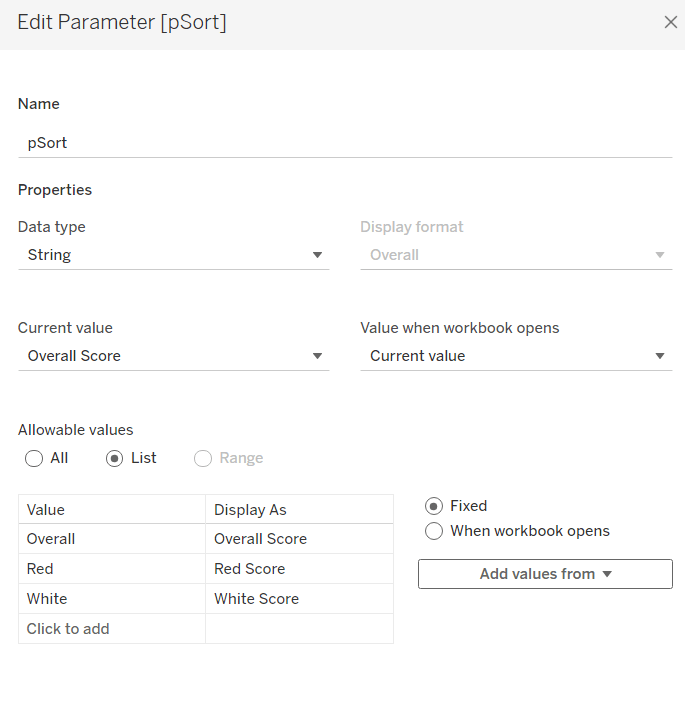
To control the sorting, we need a parameter

pSort

string parameter with list options, defaulted to ‘Overall Score’

and we also need fields to capture the different scores for each type of wine per taster

Red Score

{FIXED [Taster]:SUM( IF [Wine Type] = ‘Red’ THEN [Score] END)}

White Score

{FIXED [Taster]:SUM( IF [Wine Type] = ‘White’ THEN [Score] END)}

Overall Score

[White Score] + [Red Score]

Then we need a calculated field to drive sorting based on the option selected and the fields above

Sort By

CASE [pSort]
WHEN ‘Overall’ THEN [Overall Score]
WHEN ‘Red’ THEN [Red Score]
ELSE [White Score]
END

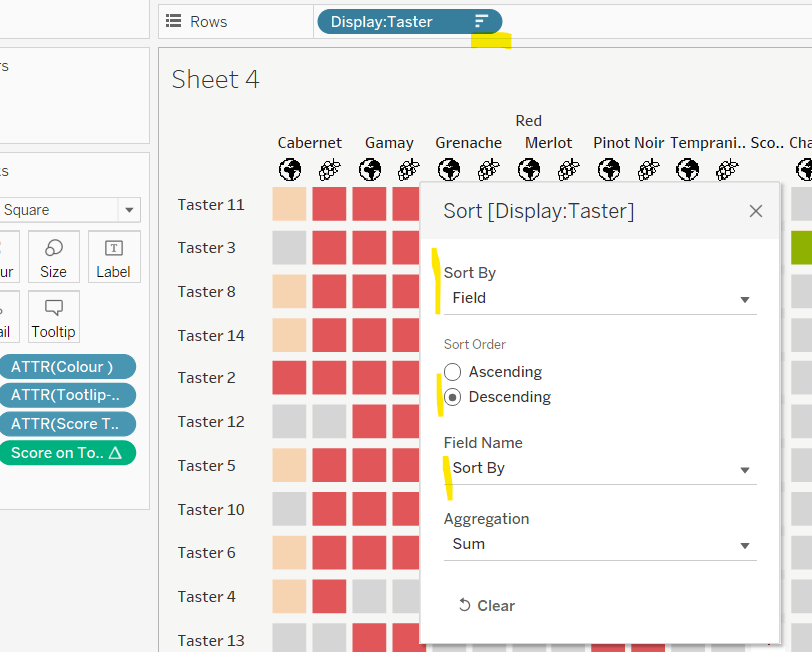
Then right click on the Display:Taster field on the Rows and select Sort, and amend the values to sort by field Sort By descending

Building the legend

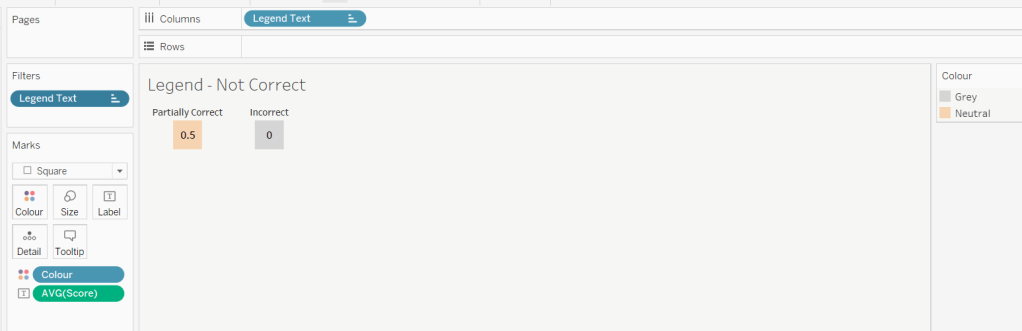
I did this using 2 sheets. First I created a new field

Legend Text

IF [Score] = 1 THEN ‘Correct’
ELSEIF Score = 0 THEN ‘Incorrect’
ELSE ‘Partially Correct’
END

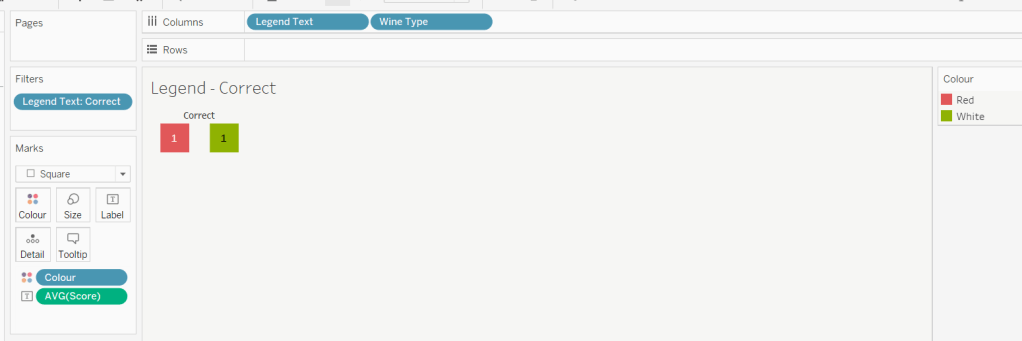
Then I create a viz as follows

  • Add Legend Text and Wine Type to Columns
  • Add Legend Text to Filter and set to ‘Correct’
  • Change Mark type to Square and increase size
  • Add Colour to Colour shelf
  • Add Score as AVG to Label and format to number standard. Align centrally
  • Uncheck show header against the Wine Type field , and hide field labels for columns against the ‘legend Text’ column heading.
  • Remove all column/row dividers and set the worksheet background colour.
  • Turn off tooltips

Duplicate the sheet, and edit the filter so it excludes Correct instead. Remove Wine Type from the columns shelf. Reorder the columns.

Building the dashboard

When building the dashboard, I just used a floating image object to add the bottle & glass image in the top left of the dashboard.

I set the background colour of the whole dashboard to match that I’d set on the worksheets too.

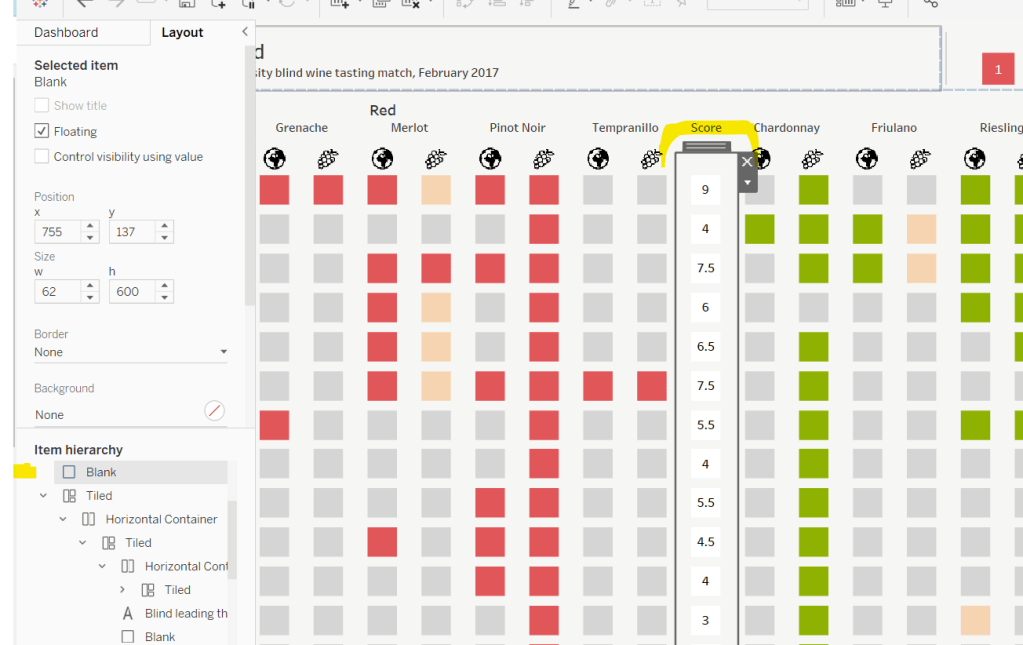
To stop the tooltips from displaying when hovering over the Scores, I simply placed floating blank objects over the score columns – this is a simple, but effective trick – you just need to be mindful of the placement if you ever revisit the dashboard and move objects around. I placed a floating blank over the legends too to stop them being clicked on.

My published viz is here!

Happy vizzin’!

Donna

Can you create a jitterfly chart?

This week it’s the Tableau Conference edition – and as I was at #data23, I’m a bit delayed in getting the challenge and solution posted – too much going on and too much sleep to catch up on over the weekend 🙂

It was great to catch up with the #WOW crew in person and to meet so many participants at the social nights out and at the hands on live session too. And thank you for all those who complimented me on this blog – it really does make the time and effort I put into it worthwhile, when I get to hear how much it has helped you all!

Here’s a few pics from the Tableau Conference, and a massive shout out to Chris McClellan, who made me a custom WOW t-shirt!

Ok, enough of the pre-amble, onto the challenge and solution. Lorna set this challenge to recreate what she referred to as a ‘jitterfly’ chart.

Modelling the data

The data needs to be downloaded from data world. This contains multiple files and it was expected to connect to the central_trend_2017_base.xslx file. This file contains multiple sheets. The Population – Females and Population – Males sheets need to be unioned together in the data source canvas.

Drag Population – Females onto the canvas, then drag Population- Males on too, and drop it when the Union option appears beneath the Population – Females

You’ll know you’ve done it right, if you only have a single object in the canvas and the union symbol is displayed

The data displays all years in separate columns – we need to transpose this, so we have a column for Year and a column for the population value.

Click on the first year column (2011), then scroll across to the last year column (2050). Hold down shift and click the last column, and all the columns in between should be highlighted/selected. Right-click on any of the selected columns and select Pivot.

Rename the Pivot Field Names column to Year and rename Pivot Field Values to Population.

To tidy things up a bit, hide the following fields (right click on column and hide) : Sheet, Table Name, Gss Code, Component. Also, change the data type of the Year field to be a number rather than a string. This should leave you with 5 columns

Navigate to Sheet 1 and in the left hand data pane, drag Age from the lower ‘measures’ section to above the line and into the dimensions section. Age isn’t going to be something we aggregate (sum/avg) etc – it is simply a categorical property of the record. This step isn’t critical, but I just like things to be neat :-).

Finally, though it isn’t stated in the requirements, the data relating to District = London needs to be excluded, as it is a summarised total of the other rows. To handle this I added this exclusion as a Data Source Filter, so once applied, I didn’t have to worry about it when I built the chart. Right click on the data source listed on the top left, and select Edit Data Source Filters, then add a condition to exclude the London District.

Creating the calculations

The chart requires a user to select two years to compare – I’ll refer to these as the Primary and Secondary year. We’ll create parameters to enable the selections.

pPrimaryYear

Integer parameter, defaulted to 2033 and displayed in ‘2033’ format (ie no commas). It should allow all other years to be selected (easiest way to get this populated is to right-click on the Year field in the data pane, and Create > Parameter). If you don’t do this, then use the Add values from button to select the Year field to populate the list.

pSecondaryYear

as above, but default to 2023 (the easiest way to create this parameter is to duplicate the first and just amend the name and default value).

With these parameters, we can then create the calculated fields needed to present the relevant values for each year and gender (as hinted by Lorna).

Population – Primary Male

IF [Year] = [pPrimaryYear] AND [Sex] = ‘male’ THEN [Population] END

format this to K with 1 dp

Population – Primary Female

IF [Year] = [pPrimaryYear] AND [Sex] = ‘female’ THEN [Population] END

format this to K with 1 dp

Population – Secondary Male

IF [Year] = [pSecondaryYear] AND [Sex] = ‘male’ THEN [Population] END

format this to K with 1 dp

Population – Secondary Female

IF [Year] = [pSecondaryYear] AND [Sex] = ‘female’ THEN [Population] END

format this to K with 1 dp

popping these into a table as below, you can see the results

The final calculation we need is for the age banding. We can’t use the in-built ‘bins’ function as the final ‘bin’ contains the ‘rest’ and not just 10 values. Also if we used ‘bins’ the ‘labels’ would be based on the data values and not a custom display as we have here.

Age Bracket

IF [Age] <= 10 THEN ‘<=10’
ELSEIF [Age] <=20 THEN ’11-20′
ELSEIF [Age] <=30 THEN ’21-30′
ELSEIF [Age] <=40 THEN ’31-40′
ELSEIF [Age]<=50 THEN ’41-50′
ELSEIF [Age]<=60 THEN ’51-60′
ELSEIF [Age]<=70 THEN ’61-70′
ELSEIF [Age]<=80 THEN ’71-80′
ELSE ’80+’
END

Note – I altered the calculation and label to be <=10 rather than just <10 as is shown in the solution

Building the Viz

On a new sheet, add Age Bracket to Rows, Population Primary Male to Columns and District to Detail. Change the mark type to circle. Manually re-sort the Age Bracket values so <=10 is listed at the top (just drag the value from the bottom to the top).

Drag Population Primary Female onto the canvas and drop it on the Population Primary Male axis when the double green column symbol appears

This will make the values for both male & female display on the same axis, and Measure Names and Measure Values automatically gets added to the viz. But the values are all displaying in the same direction (the positive axis).

To resolve this, double click into the Population Primary Female pill that is in the Measure Values box underneath the marks card and type in *-1 to the end of the pill and press return

The female values will then be displayed in the opposite direction. Adjust the colours of the Measure Names legend to suit.

To make the dots ‘jitter’, that is appear in a random vertical position, we need a measure (green pill) on the Rows so we generate a y-axis.

Now typically when I am creating jitter plots I use the undocumented RANDOM() function which generates a random number between 0 and 1. The function is undocumented, as it only works for some data sources (excel being one). Using RANDOM() was something I mentioned to several attendees of the Live WOW session at Tableau Conference.

However, due to a later requirement, you’ll need to use a different function instead – in this case INDEX(). For clarity I created an explicit calculated field for this

Jitter

INDEX()

INDEX()is a table calculation that creates a unique sequence number from 1 to n for each record in the table partition. In this case the partition is each Age Bracket. Add Jitter to Rows and adjust the table calculation setting so it is computing by District only. Set the fit of the chart to Fit Width to ensure you can see the display better.

Adjust the colour of the marks to 50% opacity.

To handle the detail displayed on the Tooltip we need to create some additional fields for the population values, these ones not split based on gender.

Population – Primary Year

IF [Year] = [pPrimaryYear] THEN [Population] END

format to K with 1 dp

Population – Secondary Year

IF [Year] = [pSecondaryYear] THEN [Population] END

format to K with 1 dp

Then

Population Change

(SUM([Population – Primary Year]) – SUM([Population – Secondary Year]))/SUM([Population – Primary Year])

custom format this as ▲0.0%;▼0.0%;0.0%

Add Sex, Population – Secondary Year, Population – Primary Year and Population Change to the Tooltip and adjust accordingly.

The coloured bands are based on the average for the ‘primary’ year and sex. Add Population Primary Female and Population Primary Male to the Detail shelf. Double click on Population Primary Female and type in *-1 to ensure you get the relevant negative value.

Right click on the ‘value’ x-axis and Add Reference Line.

Change the option to be a reference band per pane, and set a band to go from Population Primary Female *-1 : Average to a Constant of 0. Ensure no labels/tooltips display, and set the fill colour of the band accordingly.

Add another reference band for the which goes from constant 0 to the Average of Population Primary Male. Adjust fill colour to suit.

Add Population Secondary Male and Population Secondary Female to the Detail shelf. Double click into the Population Secondary Female pill and add *-1 to the end.

Right click on the ‘value’ x-axis and Add Reference Line.

Add a reference line that is the Average of the Population Secondary Female * -1 field. Adjust colour and thickness of line to suit (I used the middle thickness and line coloured at 80% transparency).

Repeat the same to add an average reference line for the Population Secondary Male field.

The final step is to add the age banding label into the centre of the viz.

Double click into the Columns shelf and type MIN(0). This will create a secondary axis with a new marks card. Remove all the pills except District from the MIN(0) marks card. Add Age Bracket to the Label shelf. Adjust the label properties as below – to label the Min/Max per pane; at the District field level, and label the maximum value only.

This positions the label in the same place on each age banding. This works because we have used INDEX() to control the jittering which means the maximum value is always the same for each bracket. If we had used RANDOM() to define the jittering, there would be no guarantee the same maximum value would have existed for every banding.

Reduce the opacity to 0% and size of the circle to be as small as possible on the MIN(0) marks card, and then make the chart dual axis and synchronise the axis.

Finally format the chart by

  • Hide the Age Bracket column (uncheck show header)
  • Hide the Jitter axis (uncheck show header)
  • Hide the MIN(0) axis (again uncheck show header)
  • Format the Value axis so the title is Population, and the scale is in 0K format and positive in both directions (custom format ,##0,”K”;#,##0,”K”) NOTE wrapping the K in “” ensures the display is retained when publishing to Tableau Public – thank you Deborah for the tip!)
  • Hide the nulls indicator (right click – hide indicator)
  • Remove all gridlines, zero line, axis ticks etc
  • Remove column dividers
  • Set Row dividers to white with the widest thickness
  • Set the chart to fit entire view

Add the sheet to a dashboard. Use a text object to display the title and sub-tile which should reference the pPrimaryYear and pSecondaryYear parameters. Float the parameter controls and resize to give the appearance of just the drop down option – this will take a bit of tweaking to get just right, and you may need to edit via Tableau Public to get the positioning right.

My published viz is here.

Happy vizzin’!

Donna
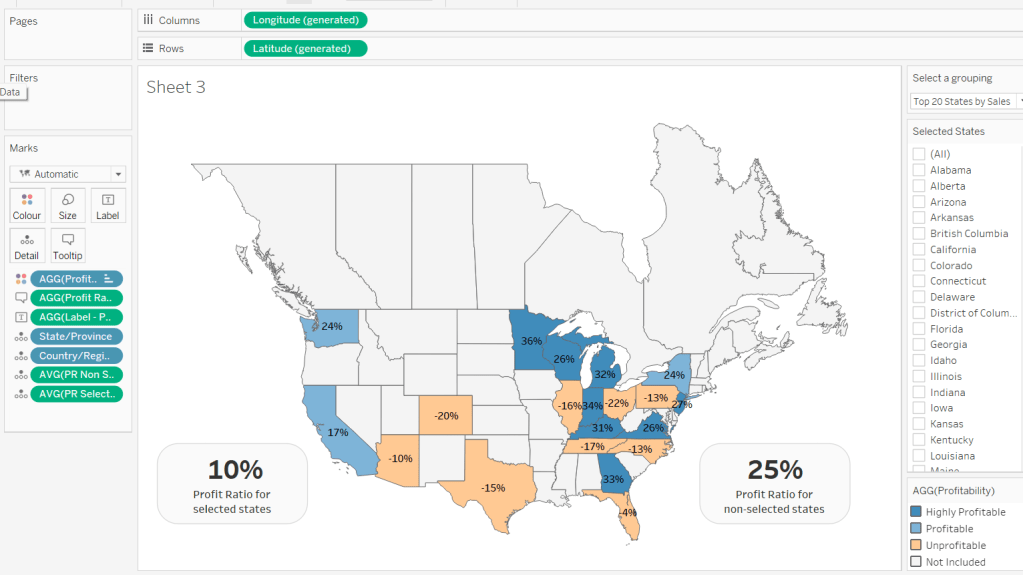
Custom Map Analysis

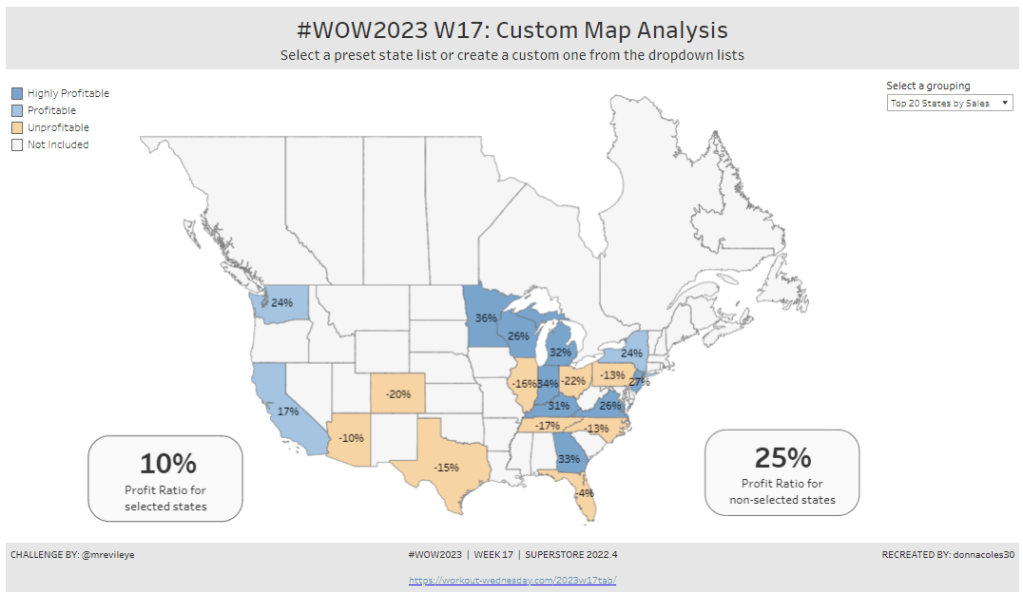
For the final week of Community Month, my colleague, Nik Eveleigh, posed this challenge to apply some tricky filters to a map. Let’s dive straight in!

Identifying the States and Profitability

The core functionality of the map display is driven by a parameter allowing the user to select which set of states they want to analyse, so let’s set this up first.

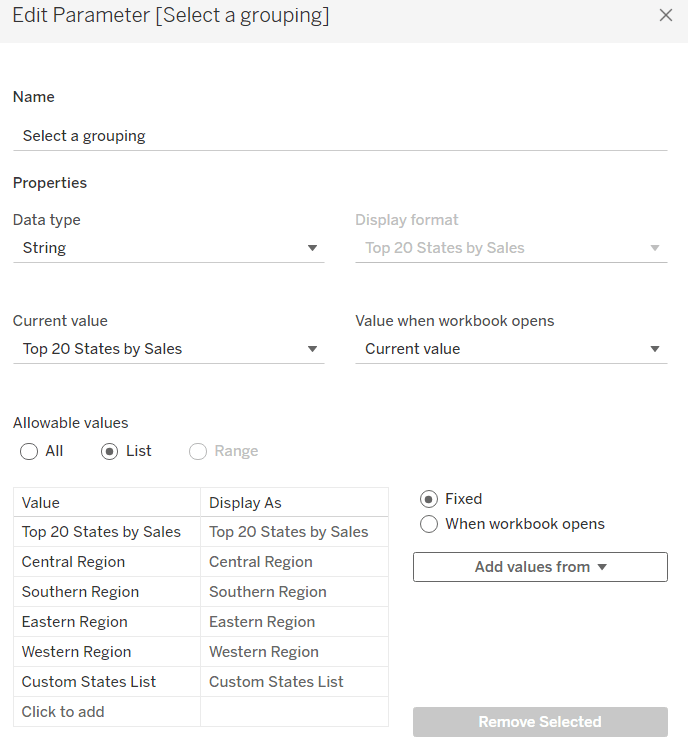
Select a grouping

string parameter containing 6 entries in the list and defaulted to ‘Top 20 States by Sales’

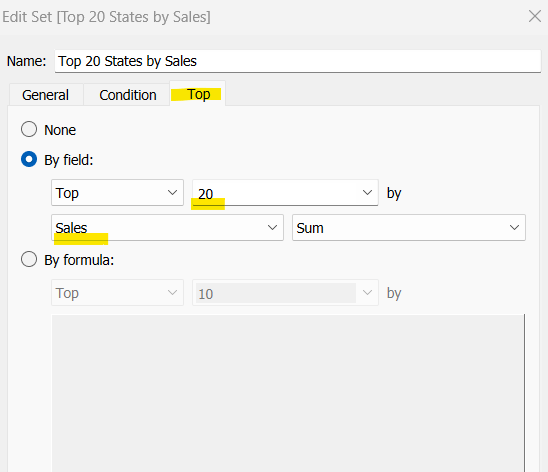
To identify the top 20 States by Sales, we need to create a Set. Right click on State/Province > Create > Set and use the ‘Top’ option to create the set based on top 20 sum of Sales.

Top 20 States by Sales

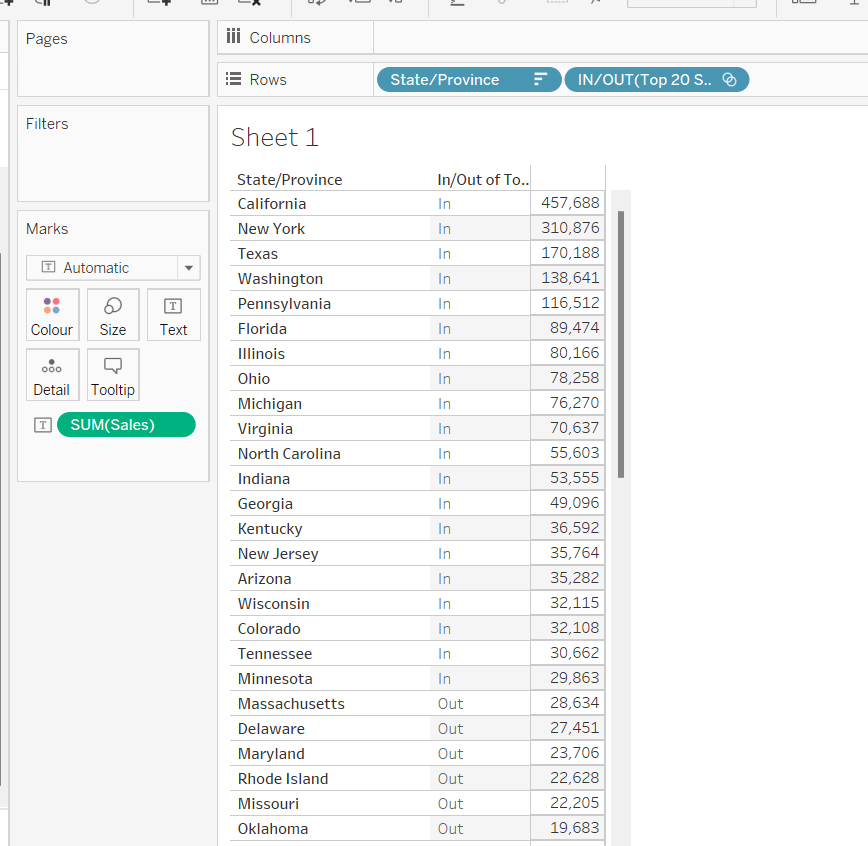
To verify this is working as expected, add State/Province to Rows, Sales to Text and sort descending. The add Top 20 States by Sales to Rows and you should see the first 20 rows with In and the rest listed as Out.

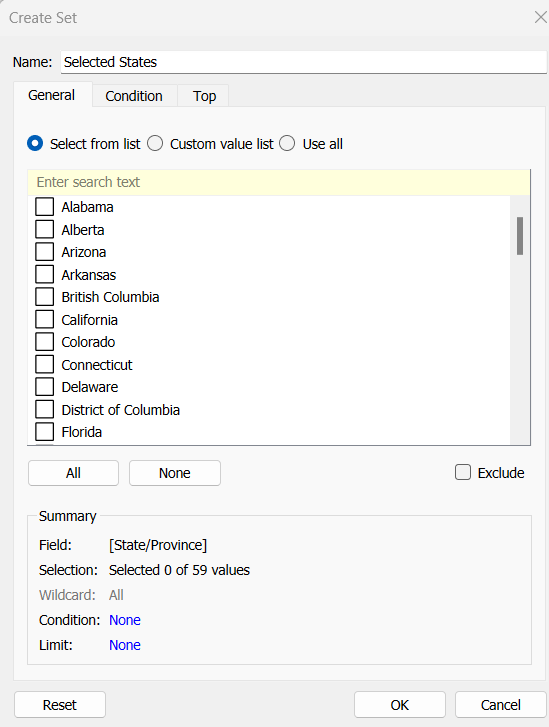
To identify the states selected when the ‘Custom States List’ option is selected, we’ll also need another set to store the selections. Right click on State/Province > Create > Set, leave the list of states all unselected and rename the set

Selected States

To verify this is working, on a new sheet add State/Province to Rows and Selected States to Rows too. Then on the context menu of the Selected States pill, choose Show Set to get the list of States displayed. Select the first couple in the list and see the value in the table change from Out to In.

It is this set control filter list that will be used to provide the selection when the appropriate value in the Select a grouping parameter is chosen.

While the sets display In or Out when shown in the table, they are actually booleans with the equivalent of a True or False. We now need to build a boolean field which will encapsulate all the relevant states included based on the parameter option selected.

Filter States

CASE [Select a grouping]
WHEN ‘Top 20 States by Sales’ THEN [Top 20 States by Sales]
WHEN ‘Central Region’ THEN IF [Region] = ‘Central’ THEN TRUE ELSE FALSE END
WHEN ‘Southern Region’ THEN IF [Region] = ‘South’ THEN TRUE ELSE FALSE END
WHEN ‘Eastern Region’ THEN IF [Region] = ‘East’ THEN TRUE ELSE FALSE END
WHEN ‘Western Region’ THEN IF [Region] = ‘West’ THEN TRUE ELSE FALSE END
WHEN ‘Custom States List’ THEN [Selected States]
END

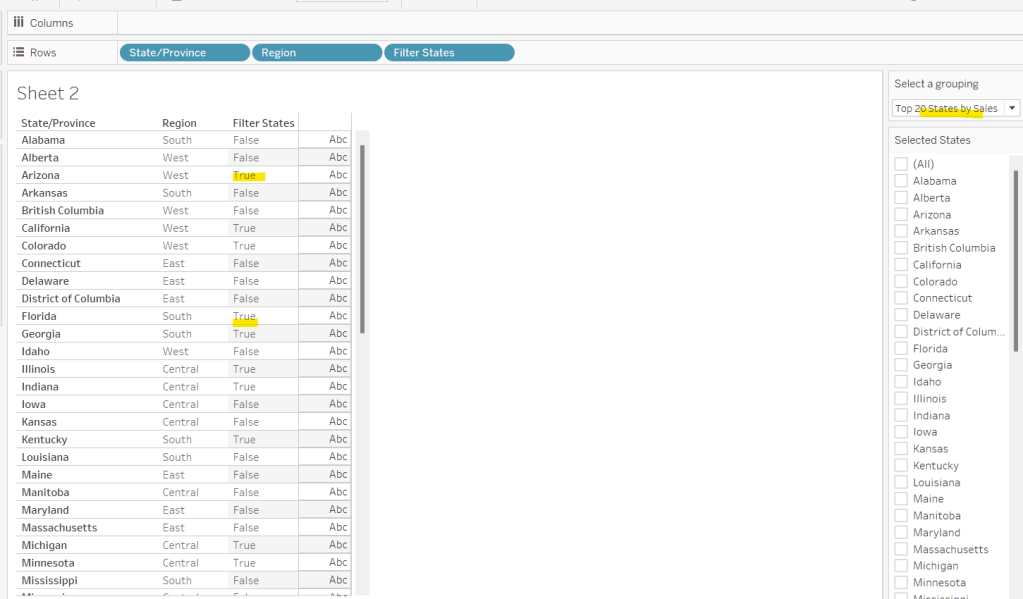
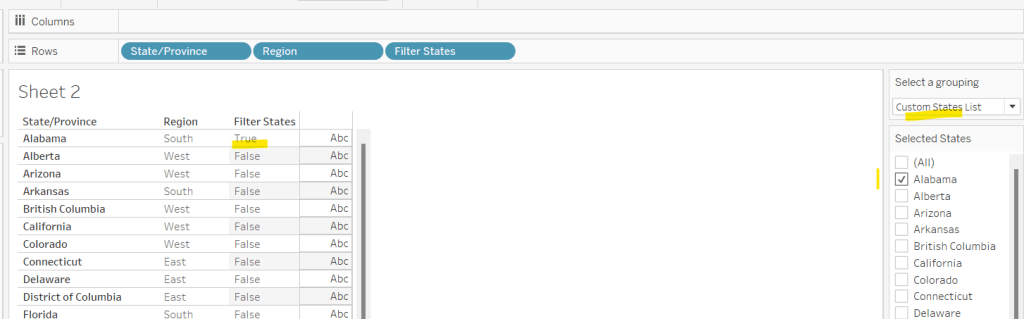
Let’s sense check the workings of this too. On a sheet add State/Province, Region and Filter States to Rows. Show the Select a grouping parameter. Also click on the Selected States field in the left hand data pane and Show Set, so the list of states shows. Ensure all are unchecked. Depending on the option selected in the Select a grouping parameter, then Filter States column should display true or false.

If you select a state from the list, this should only present as True when the Custom States List option is selected

Right, now we know how to identify the states we want, we can start to look at understanding their profitability. Firstly we need to get the profit ration

Profit Ratio

SUM([Profit])/SUM([Sales])

format this to % with 0 dp.

Profitability

IF ATTR([Filter States]) THEN

IF [Profit Ratio] < -0.25 THEN ‘Highly Unprofitable’

ELSEIF [Profit Ratio] >= -0.25 And [Profit Ratio] < 0 THEN ‘Unprofitable’

ELSEIF [Profit Ratio] >=0 AND [Profit Ratio] < 0.25 THEN ‘Profitable’

ELSE ‘Highly Profitable’

END

ELSE ‘Not Included’
END

If the states is one of the filtered ones then work out isn’t profitability ‘bracket’ otherwise report as ‘Not Included’.

Building the Map

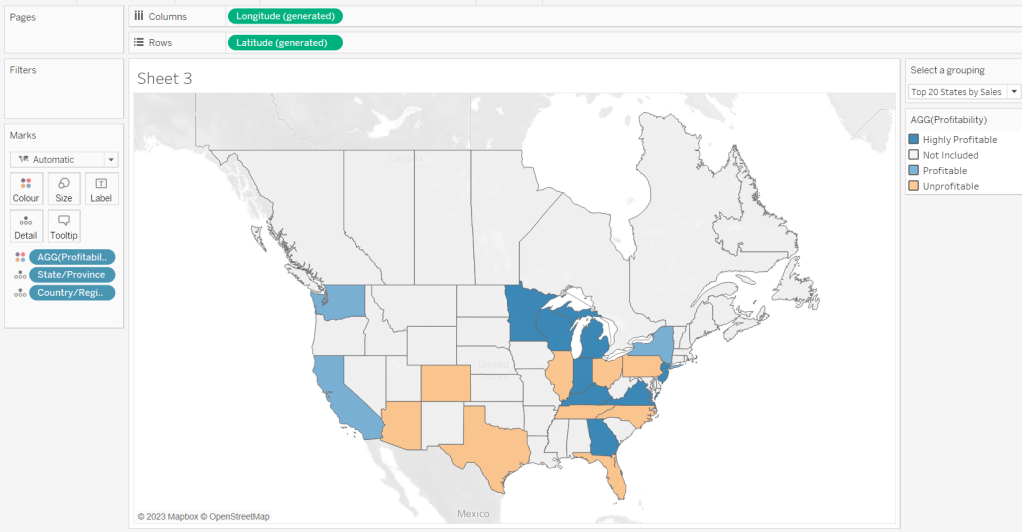
On a new sheet double-click on State/Province to automatically generate the map. If the map doesn’t display with US and Canada Edit Locations (via the Map menu) and ensure your settings are as below

Display the Show a grouping parameter and have it set to Top 20 States by Sales. Add Profitability to Colour and adjust colours accordingly.

Click on the Selected States field in the left hand data pane and Show Set, so the list of states shows, then test changing the values in the Select a grouping parameter and see the display change.

Clean the map up by clicking Map -> Background Layers, and then unchecking all the options in the Background Map Layers section displayed on the left hand side.

To label the highlighted state we need

Label – PR

IF ATTR([Filter States]) THEN [Profit Ratio] END

format to % with 0 dp and then add to the Label shelf and set the font to bold.

Add Profit Ratio to the Tooltip shelf and adjust the tooltip.

To display the summary Profit Ratio values for all the filtered states vs those not selected, we need

PR by Filter State

{FIXED [Filter States]: [Profit Ratio]}

and then

PR Selected States

ZN({FIXED:AVG(IF [Filter States] THEN [PR by Filter State] END)})

Custom format this with 0%;-0%;–

This formatting with show values with 0dp for positive and negative values and — when no values exists.

Repeat the process to create

PR Non Selected States

ZN({FIXED:AVG(IF NOT([Filter States]) THEN [PR by Filter State] END)})

and apply the same formatting above.

Add both PR Selected States and PR Non Selected States to the Detail shelf and change the aggregation to Average.

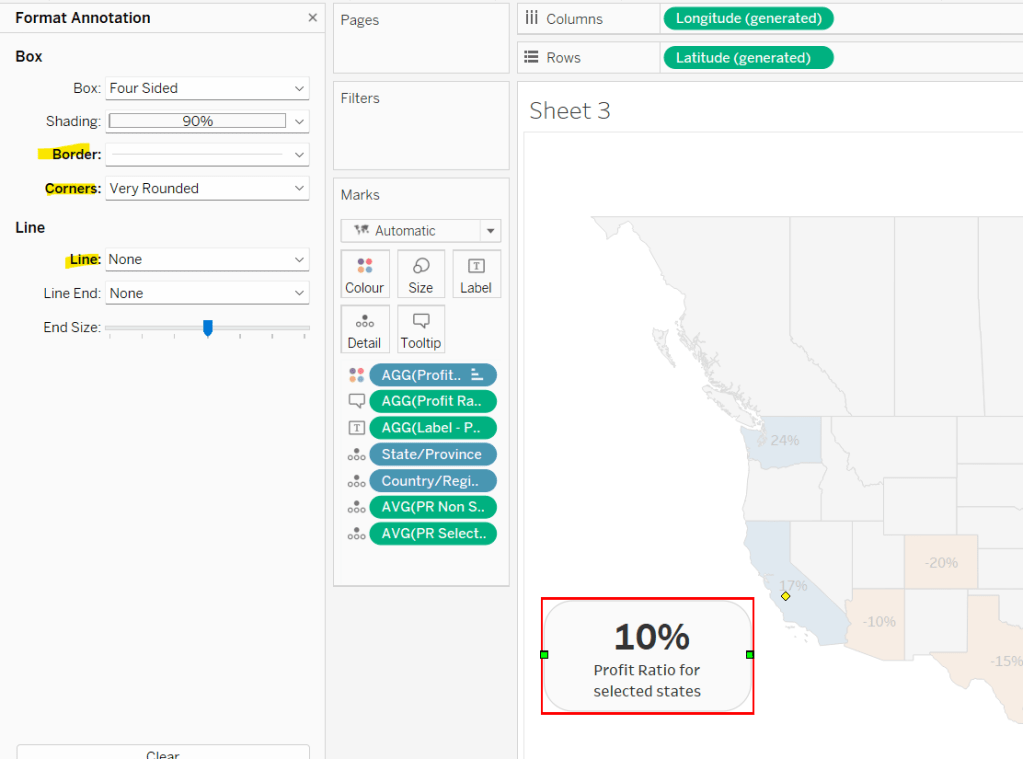
Then click on a state on the bottom left of the map (I chose California) and select Annotate > Mark. Add the reference to the PR Selected States and supporting text into the annotation dialog. The when completed, manually move the annotation to the space to the left of the map. Format the annotation to add a border, round the edges and remove the line. You many need to re-edit the annotation to rec-centre the text.

Repeat a similar process, by annotating a state on the right hand side and referencing the PR Non Selected States field instead.

Finally remove all row & column dividers and hide the map options (Map -> Map Options -> uncheck all selections)

Hiding the Selected States control

In order to control visibility of the Selected States list, we need a boolean field

Custom States Selected

[Select a grouping] = ‘Custom States List’

Once all objects have been added to the dashboard and arranged where you want, click on the Selected States control, so it is selected via a grey border, then on the left hand Layout pane, select the Control visibility using value checkbox and choose the Custom States Selected field

The State list will now only display when the Select a grouping parameter contains the ‘Custom States List’ value.

And that should be it. My published viz is here.

Happy vizzin’!

Let’s Build a KPI Dashboard

Sean set this fun and very relevant challenge this week displaying key measures (KPIs) along with further details for a selected measure displayed in a horizontal layout rather than the more traditional long-form, using ranking. The ‘gotcha’ part of this challenge was ensuring the tooltips displayed the measures in the right format, ie $ for Sales and Profit, % for Profit Ratio and a standard number to 0 dp for # of Orders.

We’ll start by

Building the KPI sheet

The data source I connected to already had Profit Ratio included, but if yours doesn’t, you’ll need to create as

Profit Ratio

SUM([Profit])/SUM([Sales])

You’ll also need to create

# of Orders

COUNTD([Order ID])

On a new sheet, double-click Sales and then double-click Profit to add them both to a sheet, and then use Show Me to display the fields as a text table.

Move Measure Names from Rows to Columns, then add Profit Ratio and # of Orders into the Measure Values section under the marks card. Re-order the measures into the required order.

Modify the format of each pill in the Measure Values section to the relevant format (millions, thousands, %)

Add Measure Names to the Text shelf, and adjust the text to be aligned middle centre and resize the fonts.

Hide the header (uncheck Show Header against the Measure Names in the Columns, and remove row dividers. Set the Tooltip not to show.

Building the Ranked Chart

The value to display in this chart is dependent on the KPI measure clicked on. We’re going to use a parameter to help drive this behaviour, so start by creating

Measure to Display

string parameter defaulted to ‘Sales’ containing 4 options: Sales, Profit, Profit Ratio, # of Orders

Based on the parameter, we need to determine which value to display

Selected Value

CASE [Measure to Display]
WHEN ‘Sales’ THEN SUM([Sales])
WHEN ‘Profit’ THEN SUM([Profit])
WHEN ‘Profit Ratio’ THEN [Profit Ratio]
WHEN ‘# of Orders’ THEN [# of Orders]
END

On a new sheet, add Sub-Category to Rows and Selected Value to Text and sort by Sub-Category descending. Show the Measure to Display parameter on the sheet and play around with the different options to see how the viz changes. When you’re happy it’s working as expected, reset back to ‘Sales’.

We’ll need to display the rank value, so create

Rank Value

RANK_UNIQUE([Selected Value])

and format this to be a number with 0dp but pre-fixed by #

Add this into the table.

Now, to display this information, we need to distribute each Sub-Category across 5 rows and 4 columns which is based on the Rank Value. So let’s work out which row and column each entry should be in

Rows

IF [Rank Value]%5 = 0 THEN 5 ELSE [Rank Value]%5 END

If the rank is divisible by 5, then place in the 5th row, otherwise place in the row associated to the remainder when divided by 5.

Cols

IF [Rank Value] <=5 THEN 1
ELSEIF [Rank Value] <=10 THEN 2
ELSEIF [Rank Value] <=15 THEN 3
ELSE 4
END

Add these fields to the table, so you can see how they’re working.

The Rank Value, Rows and Cols fields are all table calculations, and should be set to explicitly compute using Sub-Category.

On a new sheet, add Sub-Category to Detail, Cols to Columns as a blue discrete pill and Rows to Rows as a blue discrete pill. Add Selected Value to Columns. Drag Sub-Category from Detail on to Label and adjust to align the labels left. Widen each row slightly, so the text is visible. Adjust the Colour of the bars to be a pale grey.

Change the Measure to Display parameter to ‘Profit’, and notice what happens to the bars & labels associated to those with a negative profit. They’re positioned where you’d expect, on the negative axis, but this doesn’t match Sean’s solution.

Sean has chosen to display the values as absolute values (although the tooltips display the negative values). This means we need

Abs Value to Display

ABS([Selected Value])

Drag this field and drop directly on top of the Selected Value pill on the Columns shelf – this will replace the measure being displayed.

Now that’s sorted, we can get the ranking added.

Double click in the space next to Abs Value to Display on Columns and type in MIN(0) to create an additional axis and create a 2nd marks card.

On the MIN(0) marks card, move Sub-Category to the Detail shelf and then add Rank Value to the Label shelf. Make sure the table calc is set to compute by Sub-Category as before.

Change the mark type of the MIN(0) card to Gantt Bar, set the size to the smallest possible, and colour opacity to 0. The change of the mark type, will have changed the position of the rank label to be aligned to the left of the mark.

Make the chart dual axis, synchronise the axis and change the mark type of the Abs Value to Display back to Bar. Remove Measure Names from both of the marks cards.

Hide both axis and the headers and remove grid lines and divider lines. Make the zero line on the columns a solid line, slightly thicker.

Formatting the Tooltips

The tooltips display the selected measure name and associated value, formatted appropriately. As we’re using a ‘generic’ field to display the value, we can’t format this field as we’d usually do. Instead, I chose to resolve this using dedicated fields to store each value based on the measure selected.

Tooltip: Sales

IF [Measure to Display]=’Sales’ THEN [Sales] END

format this to $ with 0dp.

Tooltip: Profit

IF [Measure to Display]=’Profit’ THEN [Profit] END

format this to $ with 0dp.

Tooltip: Profit Ratio

IF [Measure to Display]=’Profit Ratio’ THEN [Profit Ratio] END

format this to 5 with 2 dp

Tooltip: #Orders

IF [Measure to Display]=’# of Orders’ THEN [# of Orders] END

format this to a number with 0 dp.

Add all these fields to the Tooltip shelf on the Abs Value to Display marks card, and then amend the tooltip so all these fields are listed side by side with no spacing. As only one of the fields will only ever contain a value, the correctly formatted figure will display. The Tooltip will also need to reference the Measure to Display parameter to act as the ‘label’ for the value displayed.

Finally adjust the title of the sheet to also reference the Measure to Display parameter,

Adding the interactivity

Add the sheets to a dashboard, then add a parameter action

Select Measure

On select of the KPI sheet, update the Measure to Display parameter, passing through the Measure Names value. When the measure is unselected, revert the display back to ‘Sales’.

Bonus – Colour the bars

As an added extra to call out the fact the negative values were being displayed on the positive axis, my fellow #WOW participant, Rosario Gauna, chose to colour the bars.

Colour Bar

[Selected Value] < 0

Add this to the Colour shelf of the Abs Value to Display marks card and adjust colours according.

My published viz is here. Enjoy!

Happy vizzin’!

Donna
Can you maintain rank?

Kyle set a challenge this week inspired by a chart Ann Jackson demoed at #data22 as part of her Advanced Speed Tips session with Lorna Brown. This was both an in person presentation and available virtually (hence the link to the video above). I couldn’t attend the in person session due to a clash, but I had already watched the session prior to this challenge being set, so I attempted to build from memory without referring back. To find out what to do, you can either watch Ann herself demonstrate via the link above, or read on 🙂

Building the WAR chart

Build a basic bar chart by adding Name to Rows and WAR to Columns

Whilst we could sort the data at this point, we’re going to leave for now, as we want the ‘ranking’ field to define the sort.

Now rather than use the RANK table calculation option, the essence of this being included in a tipping session, is to utilise the INDEX table calculation instead. By using INDEX, we don’t need to create as many fields as if we used RANK. We can reuse the INDEX across all the charts.

So, let’s create that field

Index

INDEX()

Format this to be a number with 0dp and prefixed by #

The INDEX() table calculation simply lists your rows or columns of data from 1 to however many entries there are. The Index can span the whole width/length of the table or can restart at intervals depending how you choose to partition/structure your table. You can also control how the data will be indexed based on how you want it sorted.

Add Index to Rows, then change it to be discrete (blue), and position in front of Name. Edit the table calculation setting so that it is computing using Name and is sorted by WAR descending.

We need to capture the name of a player, so we’ll create a parameter for this

pSelectedPlayer

String parameter defaulted to Ken Giffey Jr.

Show this parameter on the view.

We also need a field to identify whether the row matches the parameter

Is Selected Player?

[pSelectedPlayer] = [Name]

Add this to the Colour shelf and adjust accordingly.

Then re-edit the table calculation so it is computing by Is Selected Player as well.

Note – to prevent having to change the table calculation, the alternative is to make the Is Selected Player field on the Colour shelf an Attribute (just choose this setting from the context menu when you click on the pill).

Additionally add Is Selected Player to Rows before Index., the manually sort that field so True is listed first. This will move the relevant record to the top of the scree, but the rank number will be preserved.

Hide the Is Selected Player field (uncheck Show Header), and Hide Field Labels for Rows.

Adjust row dividers, so the divider is at level 1, and the header is dotted line, while the pane is solid.

Remove column gridlines, but add a column axis ruler.

Show mark labels, set them to be left aligned and the colour to match mark colour. You may need to widen the rows to see the labels display.

Add a border to the bars via the Colour shelf.

Format the Index and Name fields displayed – I used Tableau Regular font size 12, and right aligned the Index field.

Update the tooltip and add a header.

The final step, which we’ll do now, is to add a couple of fields to stop the rows from being highlighted when selected on the dashboard.

Create a field True = TRUE and False = FALSE, and add these fields to the Detail shelf.

Building the Batting Average chart

Create a basic bar chart with Name on Rows and BA on Columns. Add Is Selected Player to Colour and apply border.

Format the BA field using custom formatting of .000;-.000 then show mark labels, and left align and format as you did above.

Add Index to Rows, make discrete and move to be in front on Name. Adjust the table calculation to compute by Name and Is Selected Player and this time adjust the sort to use BA descending.

We now need to filter the data to only show the 5 rows above & below the selected index. First we need to identify them.

Selected Player Index

WINDOW_MAX(IF ATTR([Is Selected Player]) THEN INDEX() END)

The inner IF statement returns the index associated to the selected player. The WINDOW_MAX function then ‘spreads’ this value across all the rows in the data. So we can then identify the records we need

Records to Keep

[Index] >= [Selected Player Index]-5 AND
[Index] <= [Selected Player Index]+ 5

Add this to the Filter shelf and initially select all the values.

Now edit the table calculation settings of this field. It will now contain nested calculations – one related to Index and one related to Selected Player Index. Ensure both are computing by Name and Is Selected Player and both are sorting by BA descending.

Then edit the filter and just select True.

Now apply the tooltip, set the heading and format the headers, remove gridlines, row dividers etc.

Then follow the same steps to create similar charts of the OPS and HR measures, remembering to apply the sorts on the table calculations to the relevant field.

Adding the interaction

Once you have all four sheets built, add to a dashboard. Then create a parameter action to select the player from the WAR sheet.

Select Player

On select of the WAR sheet, set the pSelectedPlayer parameter passing in the Name field.

Then create a filter action to prevent the selection on the WAR sheet from remaining highlighted.

Unhighlight WAR

On selection of the WAR sheet on the dashboard, target the WAR sheet directly and use Selected fields, setting True = False.

Fingers crossed and you should now have a working dashboard. My published version is here.

Happy vizzin’!

Donna

Can you recreate this difference chart?

Lorna created this challenge for #WOW2021 this week incorporating tips from the Speed Tipping session she and fellow WOW leader Ann Jackson had presented at TC21.

Defining the calculations

The requirements were to ensure there were only 7 calculated fields used, and no date hardcoding (including in the title – a feature I missed to start with). So let’s start by just going through the required calculations.

We need to identify the latest year in the data set

Current Year

YEAR({FIXED:MAX([Order Date])})

This uses an LoD (Level of Detail) calculation to identify the maximum date in the whole data set, which is 31st Dec 2021, and then extracts the Year of this ie 2021.

From this, we work out

Previous Year

[Current Year] – 1

Both of these fields return numbers, so automatically sit in the measures section of the left hand data pane (ie under the horizontal line). I want to treat these as dimensions, so I just drag the fields above the line.

We now need to create dedicated fields to store the Sales values for both years

CY Sales

IF YEAR([Order Date])=[Current Year] THEN [Sales] END

PY Sales

IF YEAR([Order Date])=[Previous Year] THEN [Sales] END

and with both of these, we can work out the

Difference

SUM([CY Sales])-SUM([PY Sales])

[TIP] This is custom formatted to △#,##0;▽#,##0.

I googled ‘UTF 8 triangles’ and used this link to find the suitable shapes which I just copied and pasted into the number format field.

We’re going to need to determine whether the difference is positive or not.

Is Loss?

MAX(0,[Difference]) =0

This is another [TIP] making use of the array function. If the Difference is negative, it will return 0 as this is the maximum of the two numbers. I’m not entirely sure if this is more efficient than simply writing Difference<=0, but I wanted to incorporate another of the tips presented.

The final calculation we need is another of the PY Sales field, as we need another distinct Measure Name value to display. I simply chose to duplicate the existing field to have a PY Sales (copy) field.

Building the viz

Add Category to Columns, Segment to Rows and then add CY Sales to Columns, which will create a horizontal bar chart. Then drag PY Sales to the CY Sales axis, and when the ‘two columns’ icon appears, drop the field.

This will automatically change the pills so Measure Values is on Columns and Measure Names is on Rows.

Swap the order of the pills on the Measure Values section on the left hand side, so PY Sales is listed before CY Sales.

Add Measure Names to the Colour shelf and adjust. Increase the width of the rows.

Check the Show Mark Labels option on the Label shelf and adjust alignment to display the text to the left

Increase the Size of the bars to the maximum size, and add a white border (via option on Colour shelf)

Add PY Sales (Copy) to Columns, and change the mark type to Gantt Bar. Remove Measure Names from the Colour shelf of this marks card, as it will automatically have been added. Instead add the Is Loss? field to Colour and adjust.

Add Difference to the Size shelf, then click on Size, and reduce it to as small as possible. Set the border of this mark to Automatic (it should become a little thicker).

Next add the Difference field to the Label shelf, align right and set the font colour to match mark colour.

Now make the chart dual axis, synchronise axis, and set the mark type of the Measure Names mark type back to a bar.

On the All marks card, add CY Sales, PY Sales and Difference to the Tooltip shelf. And add Current Year and Previous Year to the Detail shelf.

Adjust the Tooltip against the All marks card, so it is the same when you hover on all of the marks. And edit the title of the chart, referencing the Current Year and Previous Year fields.

The challenge has a ‘space’ between each Segment, and this is the final TIP I used.

On the Measure Values section on the left below the marks card, type in MIN(NULL). This will initially create a new ‘blank’ row between the bars and the gantt marks, which isn’t where we want the blank row to be.

To resolve this, simply click on the MIN(NULL) text in the chart and drag the text below the PY Sales (copy) text

And now you just need to uncheck Show Header against the Measure Names pill on Rows, and the Measure Values and PY Sales (copy) fields on the Columns. Then remove all row and column borders and gridlines and hide labels for rows and columns.

Hopefully you’ve got the final viz which you can now add to a dashboard. My published version is here.

Happy vizzin’! Stay Safe!

Donna
Can you use set actions to create a reference date range?

There’s a lot packed into the challenge this week, which was “set” by Lorna Brown and Erica Hughes to test our Set Action skills. How detailed this blog will go, I have yet to decide… I’ve got a couple of hours to get this nailed, so it could get quite brief as we get towards the end 🙂

I’ve got 6 sheets/charts making up this dashboard, so my intention is to summarise each one, and I’ll define the various calculations that are going to be needed as we go.

  • The overall summary table
  • The selected months summary table
  • The trend line
  • The donut chart
  • The top 3 states table
  • The map
  • Adding the interactivity

The overall summary table

This challenge is focused on understanding the Sales per month. Whilst its possible to use the built in aggregation features of a date field, I often prefer to create explicit date fields at the level I require, so it’s easier to reference. Therefore, the first field I created for this challenge was

Order Date To Plot

DATETRUNC(‘month’, [Order Date])

This essentially ‘groups’ every order placed in a month to be tagged with the 1st of the month. I custom formatted this field to MMM yyyy (ie Oct 21).

For the overall summary table, I need to capture the total sales of the whole data set, and I use a Fixed LoD calculation for this.

Total Sales

{FIXED: SUM([Sales])}

This field is formatted to $0.00M

NOTE – I actually named this field <space>Total Sales<space> as I want to display the name of the field (the measure name) in the summary table, but the ‘selected months’ summary table also has a Total Sales measure which is a different calculation (see later). Adding the <spaces> is a sneaky way to get two fields with what appears to be the same name. As this field when displayed will be centred, the <spaces> aren’t noticeable.

We also need to get the monthly average sales for the whole data set

Average Sales by Month

AVG({FIXED [Order Date To Plot]: SUM([Sales])})

Format this to to $0.0K

We can now build the summary table by adding Measure Names to the Filter shelf and selecting these 2 fields. The placing Measure Names on Rows and Measure Names and Measure Values on Text. Reorder the measures as required, hide Measure Names on Rows and format the Text as required.

Change the title of the sheet to Superstore Sales, ensure the tooltip doesn’t display and remove all gridlines / row banding etc.

The selected months summary table

The core requirement of this challenge is to make use of set actions, so we’re obviously going to need a set which will contain the dates (months) the user will select on the chart. This set will be based off of Order Date To Plot. Right click on the field > Create > Set. Name it Order Dates To Plot Set and by default, select all the months between Oct 20 to Jun 21 inclusive.

Later I’ll describe how the values of this set will get updated, but for now, we need to get some information relating to the sales in these selected months.

Firstly, we want the total sales for the months in this set.

Total Sales

IF [Order Date To Plot Set] THEN [Sales] END

The default format for this field is set to $ with 0 dp.

Note – this is the other ‘total sales’ field mentioned earlier. This field name has no leading/trailing spaces.

To get the average, I needed a field just to store each member of the set (ie each selected month)

Selected Dates

IF [Order Date To Plot Set] THEN [Order Date To Plot] END

and with this I can then work out

Average Sales

AVG({FIXED [Selected Dates]: SUM([Total Sales])})

The final measure required for this section is the change within the date range, which is basically comparing the value of sales at the first month in the selection with the sales in the final month selected. We need a few fields to get to this.

Firstly, we want to identify the first and last months

Min Selected Date

{FIXED:MIN(IF [Order Date To Plot Set] THEN [Order Date To Plot] END)}

If the date is in the set, then return the date and then take the minimum of all the dates, and store against all the rows in the data. Similarly we have

Max Selected Date

{FIXED:MAX(IF [Order Date To Plot Set] THEN [Order Date To Plot] END)}

Putting this info into a table, you can see how the calculations are working. The values for the Min & Max dates are the same across every row.

Next we need to get the Sales at the min & max points, and spread that value across all rows

Sales at Min Date

{FIXED: SUM(IF [Order Date To Plot]=[Min Selected Date] THEN [Sales] END)}

Sales at Max Date

{FIXED: SUM(IF [Order Date To Plot]=[Max Selected Date] THEN [Sales] END)}

Now we can work out the difference

Change within Date Range

([Sales at Max Date]-[Sales at Min Date])/[Sales at Min Date]

format this to a percentage set to 1 dp

Finally, we need to know the number of months in the set, which is displayed in the title of the monthly summary sheet.

Months in Set

{FIXED: COUNTD(IF [Order Date To Plot Set] THEN [Order Date To Plot] END)}

If the date is within the set, then capture the date, and the count the distinct set of dates captured.

Make this a discrete field (move from the measures section at the bottom of the data pane to the dimensions section at the top (above the line), and add to the tabular view

Now we can build the summary sheet.

Add Measure Names to the Filter shelf and this time filter by Total Sales, Average Sales and Change within Date Range. Add Measure Names to Rows and Measure Values to Text. Reorder the measures.

Format the Total Sales to be in $K, by selecting the Format option from the context menu of the Total Sales pill on the Measure Values shelf (hover on the pill and click the carrot/down arrow that appears – by formatting this way, we’re changing the display of this field for this sheet only).

Add Min Selected Date and Max Selected Date to the Detail shelf and set to be Exact Date. Format both these fields via the pill context menu to be the ‘March 2001’ format

Also add Months in Set to the Detail shelf.

Adjust the title of the sheet as below

Finally you need to set the background of the worksheet to the relevant purple (I used #8074a8), adjust the colours of all the fonts to white and adjust the size/style of the fonts in the table. Remove all gridlines/row banding etc, and you should have something like below

The Trend Line

By this point we’ve built all the calculated fields we need for this chart. This is a dual axis line chart, as we want the colour of the line for the selected dates to be different from the non selected ones, and we want to display a label for the highest sales in the selected timeframe.

  • Add Order Date to Plot to Columns, and set as a Continuous (green) pill set to Exact Date
  • Add Sales to Rows
  • Add Total Sales to Rows
  • Make the chart dual axis, and synchronise axis.
  • Adjust the colours of the Measure Names colour legend
  • On the Label shelf of the Total Sales marks card, set to label the maximum value only
  • On the All Marks Card, add Min Selected Date and Max Selected Date to the Detail shelf and set to Exact Date.
  • Right click on the Order Date To Plot axis and Add Reference Line
  • Create a reference band that starts at the constant Min Selected Date, ends at the constant Max Selected Date, is bounded by dotted lines and shaded between
  • Hide the Sales and Total Sales axis, format tooltips and adjust the row & column dividers.
  • Change the title and you should get to

The donut chart

Donut charts are 2 different sized pie charts on top of each other, created using a dual axis chart. On the Rows shelf type in MIN(0). Then type the same next to it. This gives you two axis and two marks cards.

We only care about information related to the selected dates for this chart, so we can add Order Date To Plot Set to the Filter shelf, which by default will just restrict the information to the data ‘in’ the set.

Change the mark type of the 1st MIN(0) marks card to Circle and add Sales to the Tooltip shelf. Adjust the size of the charts/mark.

Change the mark type of the 2nd MIN(0) marks card to Pie and add Sales to the Angle shelf. Add State to the Detail shelf. Sort the State field by Sales descending.

Note – the circles might look the same at this point, but if you hover over the bottom one, you should see that it’s segmented by State.

We need some new fields now to help us identify the top ranking states.

Sales Rank

RANK(SUM([Sales]))

This is a table calculation, so it’s best to see how this field will work in a table view – build one out as below, and set the table calculation on the Sales Rank field as shown

We’re now going to ‘group’ the ranks into the top 3 and everything else

Sales Rank Group

IF [Sales Rank]<=3 THEN [Sales Rank] ELSE 10 END

We can now use this Sales Rank Group field to colour the pie chart. On the 2nd MIN(0) marks card, add Sales Rank Group to the Colour shelf. Adjust the table calculation to compute using State as above, then change the field to be Discrete (blue). Adjust the colours to suit.

Now make the chart dual axis, and synchronise the axis. Adjust the size of the 1st MIN(0) circle to be smaller than the pie. If it’s not showing, right click on the right hand axis and move marks to back. Colour the circle white. Adjust tooltips to suit and hide axis, column/row dividers etc. Update the title. You should have

The top 3 states table

  • Add Order Date To Plot Set to Filter
  • Add State to Rows and Sales to Text and sort descending.
  • Add Sales Rank to Filter and set to At Most is 3. This will just show the top 3 states.
  • Add State to Text
  • Add a Percent of Total Quick Table Calculation to the existing Sales field that’s on the Text shelf (via the context menu of the pill)
  • Add another instance of Sales back onto the Text shelf
  • Adjust / format the font size and layout of the fields on the Text shelf
  • Add Sales Rank to the Size shelf and set to be discrete (blue) and set the mark type to be Text. Adjust the size of the marks – it’s likely it’ll need to be reversed and the range adjusted.
  • Hide the State field on Rows, adjust the font colours, remove row banding and row/column dividers. You should end up with…

The map

  • Add Order Date To Plot Set to the Filter shelf
  • Add State to Detail – this should create a map (edit locations to be US if need be – Map -> Edit Locations menu)
  • Add Sales to the Colour shelf
  • Edit the colour range to a suitable purple range ( I set the darkest colour of the range to #6c638f)
  • Adjust the map layers (Map -> Map Layers) so only the option highlighted below is selected.

Adding the interactivity

Add all the sheets to the dashboard, using vertical and horizontal containers to arrange the relevant layout. Then add a Set Action (Dashboard > Actions > Add Action > Change Set Values). The Set Action should be configured as below :

And fingers crossed, you should now be able to select marks on the trend line and see all the other charts, except the initial summary table, all update. My published viz is here.

Happy vizzin’! Stay Safe!

Donna
Can you find the top and bottom performers?

The challenge this week came from Candra McRae, where the focus was to use statistics to identify the top & bottom performers, rather than the more common ‘top n’ and ‘bottom n’. By statistics, we’re specifically looking records within the top 25th percentile and the bottom 25th percentile.

So let’s dive in.

  • Identify Current date
  • Defining the calculations
  • Building the chart
  • Month Selector and interaction

Identify Current date

The data we’re using is the Superstore Sales data from 2021.1 which includes data up to 31st Dec 2021. The requirement talks about the current rolling x months worth of data compared to the previous x months worth of data.

This means we need a way to determine what ‘current’ is. Typically, in a real sales environment, you’d probably only have data up to ‘today’, and I did consider working up a solution based on ‘today’, but equally I like to deliver a solution that I know matches the challenger, as it helps to validate my workings, and also I like to have a solution that I can look back on in the future and know there’s data.

So I took Candra’s hint and based ‘current’ off of the maximum date in the data set, derived by

Max Date

DATE({FIXED:MAX([Order Date])})

Defining the calculations

If you’re a regular reader of my blogs, you’ll know when I can, I like to build the data out into a tabular form, so I can verify the calculations, and then I’ll build out the viz.

First up, we want to get a value for the ‘current rolling n months’.

To define ‘n’ we need a parameter.

pRollingMonth

An integer defaulted to 12. It doesn’t need to be a list, as this will be populated via a parameter action from another sheet – more on that later.

Current Rolling Sales

IF [Order Date]>= DATEADD(‘month’, -1 * [pRollingMonth] ,DATETRUNC(‘month’,[Max Date])) AND [Order Date] <= [Max Date] THEN [Sales] END

let’s break this down… DATETRUNC(‘month’,[Max Date]) truncates the Max Date which is 31st Dec 2021 to the 1st of the month ie it returns 01 Dec 2021.

DATEADD(‘month’, -1 * [pRollingMonth] ,DATETRUNC(‘month’,[Max Date])) , is then going back to the 12 months prior (-1×12=-12) , so is 01 Dec 2020.

So we’re only going to get a sales value if the Order Date is >= 01 Dec 2020 and <= 31 Dec 2021 (essentially 13 months of sales data).

For the previous sales, we first need

Prev Month

DATEADD(‘month’, -1, [Max Date])

so in our current example, this will be 30 Nov 2021.

and then to get the previous rolling 12 month sales, we can apply similar logic using Prev Month instead of Max Date

Previous Rolling Sales

IF [Order Date]>= DATEADD(‘month’, -1 * [pRollingMonth] ,DATETRUNC(‘month’,[Prev Month])) AND [Order Date] <= [Prev Month] THEN [Sales] END

Both these fields can be formatted to 1 decimal place, $ prefix and format in thousands (k).

And then we also need a difference to display on the tooltip

Difference

SUM([Current Rolling Sales]) – SUM([Previous Rolling Sales])

This needs to be additionally formatted so that negatives are displayed in brackets ().

Add all these into a table and sort by the Current Rolling Sales descending

So we’ve got the data needed for the bar, the line and the tooltip. We now need to work on the crux of the challenge – the calculations needed to identify the top & bottom.

We’re looking to identify the 25th percentile value based on Current Rolling Sales values displayed on screen

25th Percentile

WINDOW_PERCENTILE(SUM([Current Rolling Sales]),0.25)

and also we need the 75th percentile

75th Percentile

WINDOW_PERCENTILE(SUM([Current Rolling Sales]),0.25)

If you pop these table calcs into the table, you’ll see the values for each field are the same for each row

and with these we can now identify where each row falls

Colour

IF SUM([Current Rolling Sales]) >= [75th Percentile] THEN ‘Top’
ELSEIF SUM([Current Rolling Sales]) <= [25th Percentile] THEN ‘Bottom’
ELSE ‘Middle’
END

Finally we need to identify the rows with a negative difference and flag with a circle.

Sales Contraction Indicator

IF [Difference]<0 THEN ‘●’ ELSE ” END

I use this site to get the symbols for these types of requirements,

Pop these two fields in to the table, and you’ve got all the data needed to build the chart:

Building the chart

Candra states that we can’t use a reference line to display the previous sales data, so for the core chart we need to build a dual axis chart plotting Sub-Category against Current Rolling Sales (bar chart) and Previous Rolling Sales (gantt chart).

Current Rolling Sales is coloured by Colour. I created a Label:Current Rolling Sales field just based on Current Rolling Sales but formatted to 0dp to add to the Label shelf.

To get the circles displayed, and to retain the order of the display, duplicate the Sub-Category field so you have a Sub-Category (copy) field. Add this to Rows alongside the existing Sub-Category field.

Then add the Sales Contraction Indicator field between these 2 fields, and format the font of that field so it is in red text (getting a coloured circle, was the part of this challenge I struggled most over, yet it really was very simple once the penny dropped!).

Then hide the first Sub-Category field (uncheck Show Header) so it no longer displays.

Apply various formatting to remove the row & column lines, gridlines etc, and adjust the tooltip and you should be done.

Month Selector and Interaction

A separate sheet is needed for this. We need to build a basic viz that has 12 data points with values 1-12. And we can get this from the Order Date field

Month Order Date

MONTH([Order Date])

will return the month number

Add this field as a discrete (blue) pill to the Columns shelf, set the mark type to square, and add Month Order Date to the Label shelf too. Colour the mark pale grey, and remove all borders etc, and hide the headers

When you add the 2 sheets onto the dashboard, you need to set a parameter action from the Month Selector sheet that sets the pRollingMonth parameter, using the value from the Month Order Date field. When unselecting, the value should default back to 12.

Hopefully there’s enough here to get you to the end! My published viz is here.

Happy vizzin’! Stay Safe!

Donna