Dynamic Dimension Colouring

For this week’s challenge, Yusuke asked us to provide a solution to allow charts to be coloured by different dimension, but he sprinkled a few extras in just for good measure 🙂

Defining the parameter

The key driver here is going to be the use of a parameter to define the dimension we need to colour by.

pColourBy

string parameter defaulted to Order Date, listing the 4 options as below

We then need a field that uses this parameter to define the actual dimension we’ll colour by

Colour

CASE [pColourBy]
WHEN ‘Order Date’ THEN STR(YEAR([Order Date]))
WHEN ‘Region’ THEN [Region]
WHEN ‘Category’ THEN [Category]
WHEN ‘Segment’ THEN [Segment]
END

Building the Order Date chart

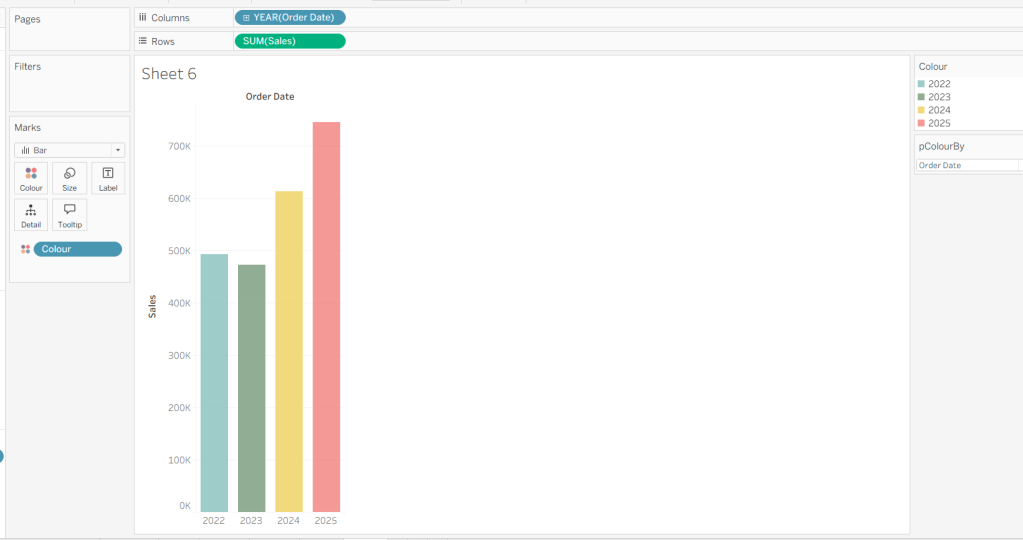
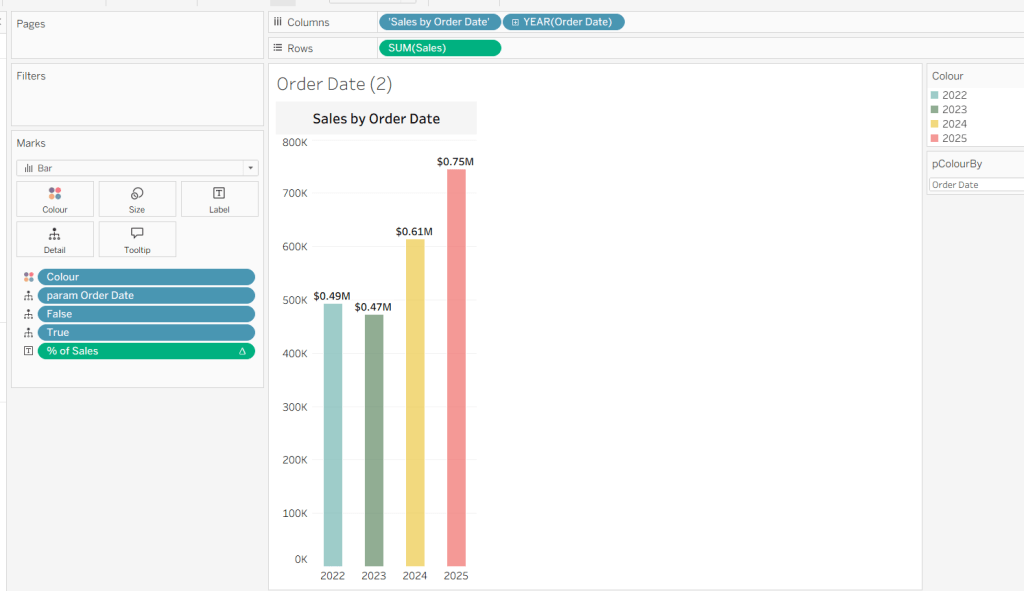
On a new sheet, add Order Date to Columns and Sales to Rows. Change the mark type to Bar and add Colour to the Colour shelf. Adjust the colours to suit, set the opacity to 70% and add a white border. Show the pColourBy parameter.

Change the options in the pColourBy parameter and each time readjust the colours as you wish.

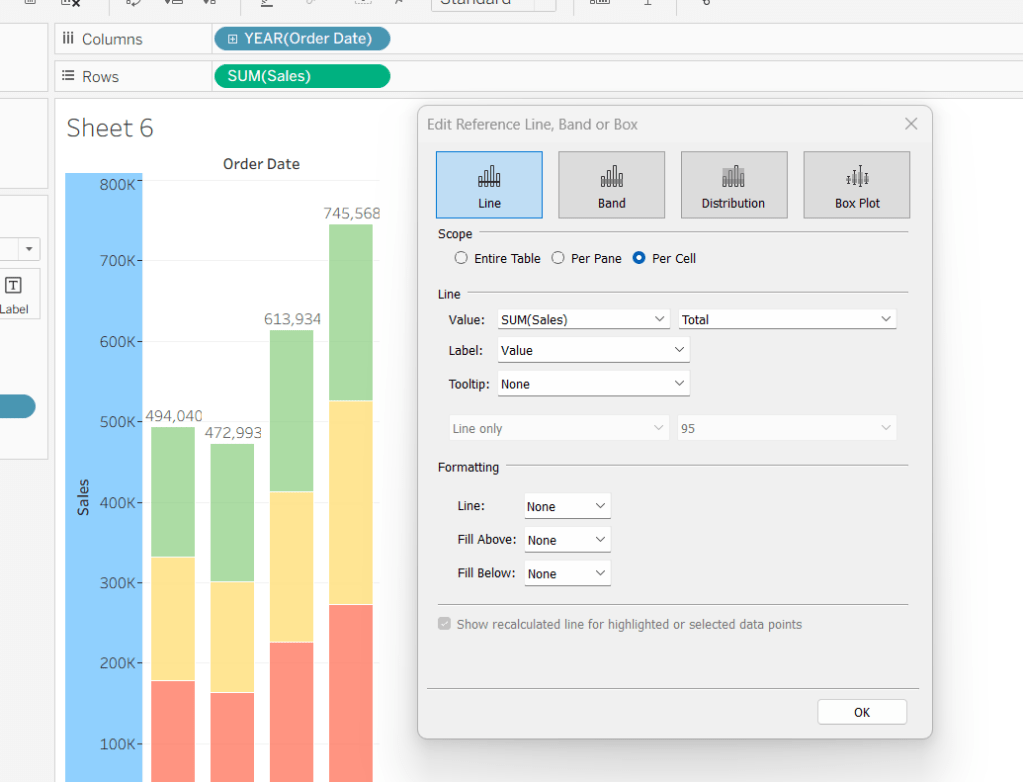
Add a reference line to the Sales axis that displays the value of Total Sales per cell

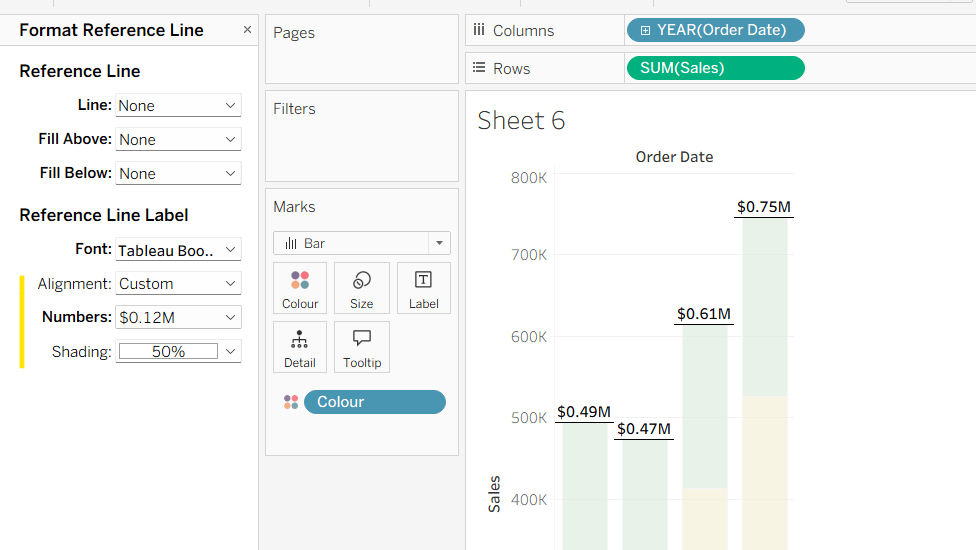
Format the reference line to format the displayed number in $M and bold font, and align top middle.

Create a new field

% of Sales

IF SUM([Sales]) / TOTAL(SUM([Sales])) <> 1 THEN SUM([Sales]) / TOTAL(SUM([Sales])) END

and format to % to 1dp. This will only display a value if its not 100%.

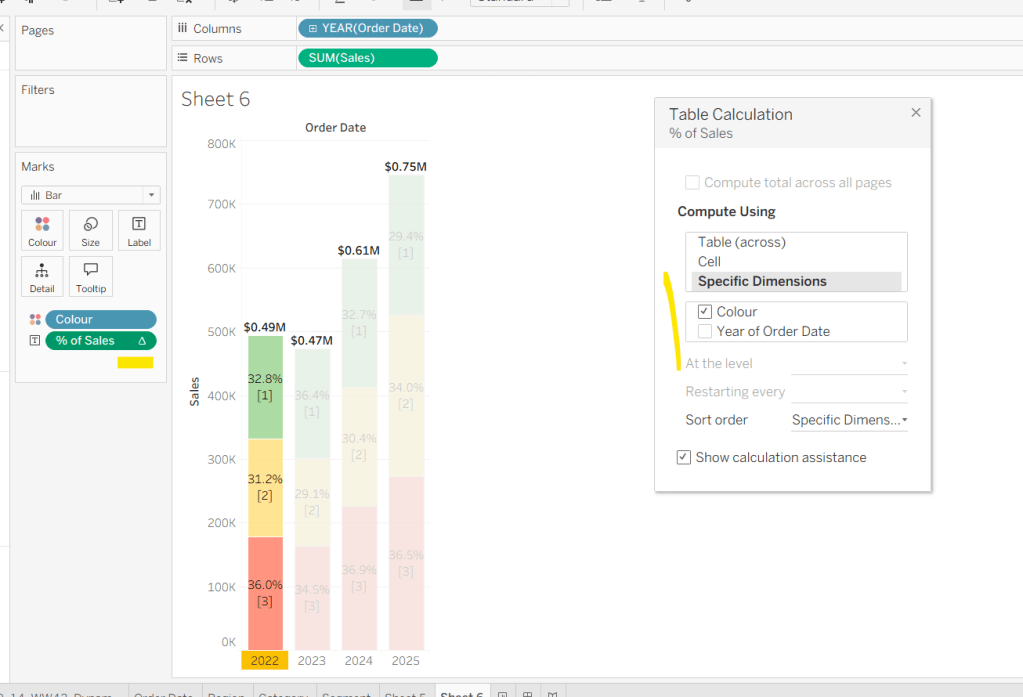
Add this to the Label. Adjust the table calculation setting so it is computing by the Colour field only.

Adjust the Label so the font is bold and the label only appears when Highlighted. Then update the Tooltip as required.

Although not explicitly called out in the requirements, I noted that if Yusuke clicked on the chart title, it reset the dimension to colour by. To deal with this we need to create

param Order Date

‘Order Date’

Add this to the Detail shelf.

We also need to ‘fake’ the title to be part of the chart itself (so it’s clickable). Double click into the Columns and manually type ‘Sales by Order Date’ and position the pill created before Order Date.

Right click on the column label (the text in darker font) and hide field labels for columns. Then right click on the column label to format – set the font to 12pt and bold, align left and shade the background to light grey. Increase the width of the column heading.

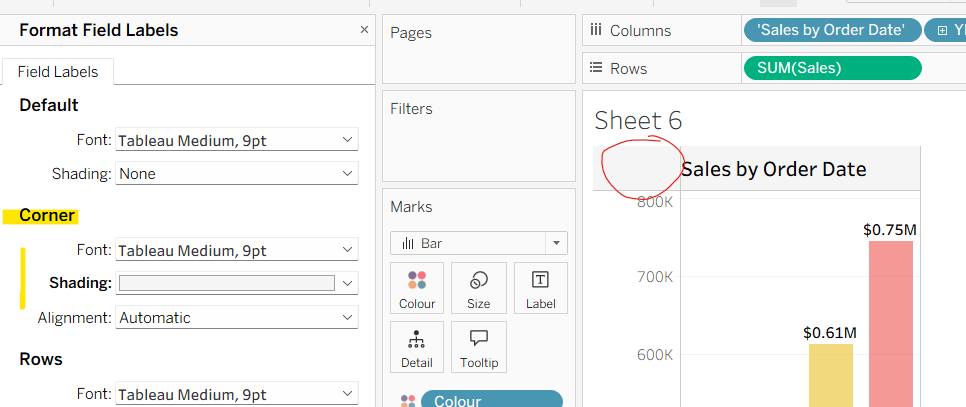
Then right click on the corner whitespace next to the heading just created, and format. Apply a light grey shading to the corner too.

If the ‘title’ is clicked, we don’t want it to be ‘highlighted’/’selected’. For this we will need fields

True

TRUE

False

FALSE

Add both of these to the Detail shelf.

Finally tidy up by removing the axis title, adjusting the font of the axis labels (I made them a bit darker), and removing row & column dividers. Name the sheet Order Date or similar.

Building the Region chart

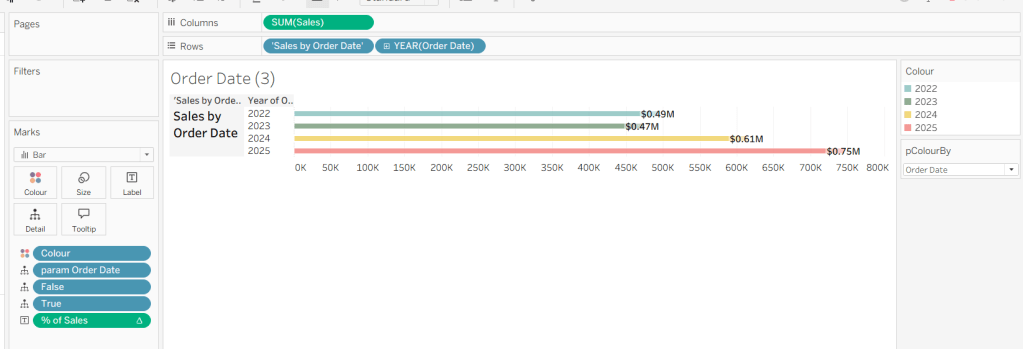
Duplicate the Order Date chart and then click the option in the menu to swap axis so we have a horizontal bar chart.

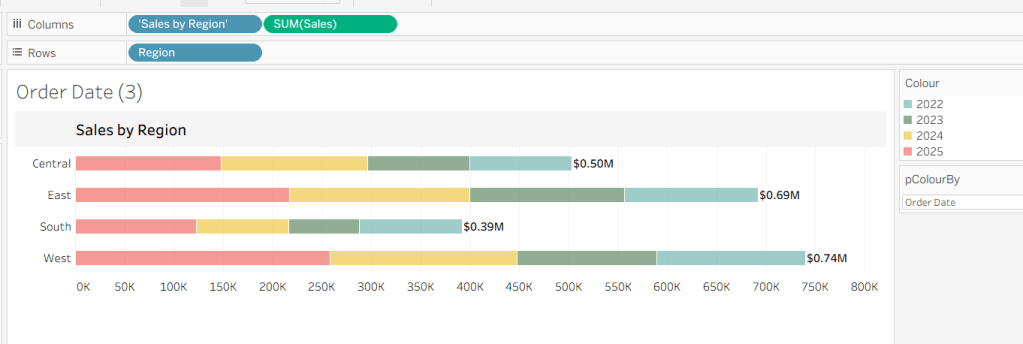
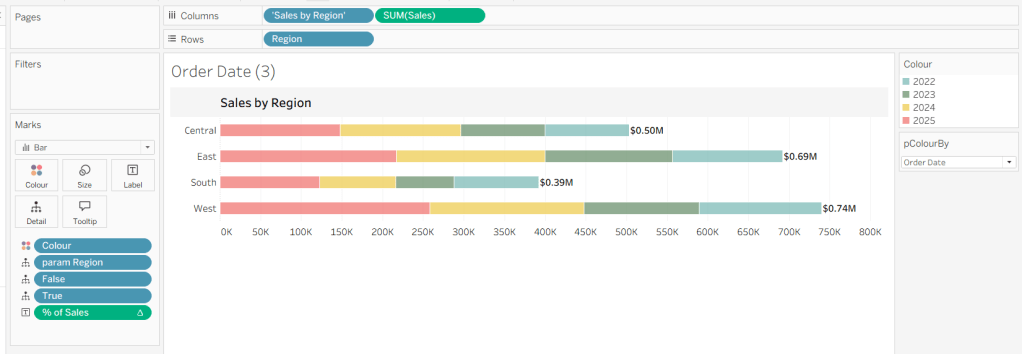
Move the ‘Sales by Order Date’ pill from Rows to Columns and update the text to become ‘Sales by Region’ instead. Drag the Region pill and drop it directly over the Order Date pill on the Rows so it replaces it and all references to the field are replaced too. Widen the rows.

Right click on the ‘Region’ text in the column heading and hide field labels for rows. Format the reference line to align middle right.

Create a new field

param Region

‘Region’

and add this to the Detail shelf instead of the param Order Date field. Name the sheet Region or similar

Building the Category Chart

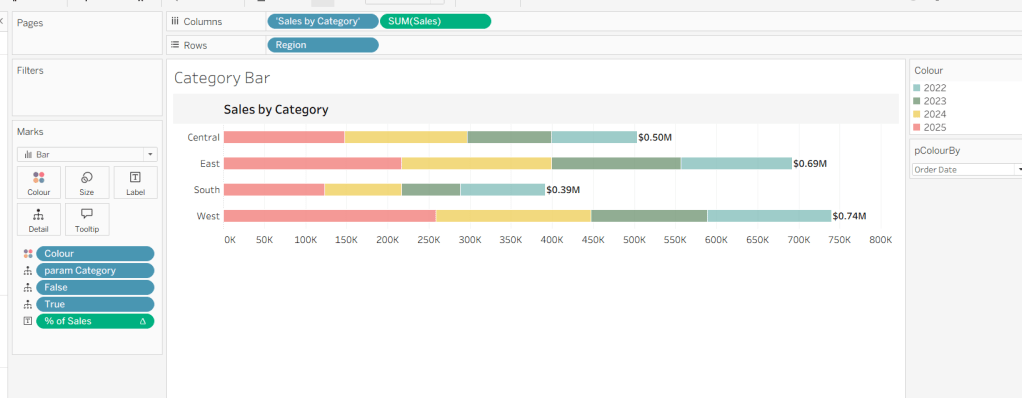
Duplicate the Region chart, and go through similar steps described above so the ‘title’ is Sales by Category and a new field

param Category

‘Category’

replaces param Region on the Detail shelf.

Building the Segment Chart

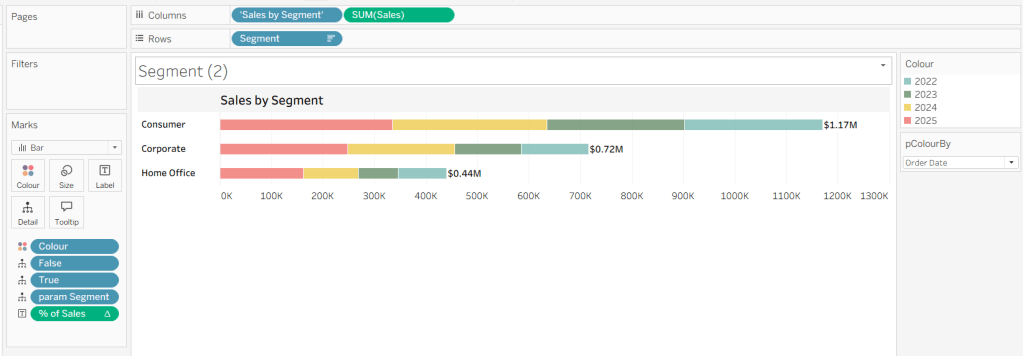
Repeat as above, this time setting the ‘title’ to Sales by Segment and a new field

param Segment

‘Segment’

replaces param Region on the Detail shelf.

Adding the interactivity

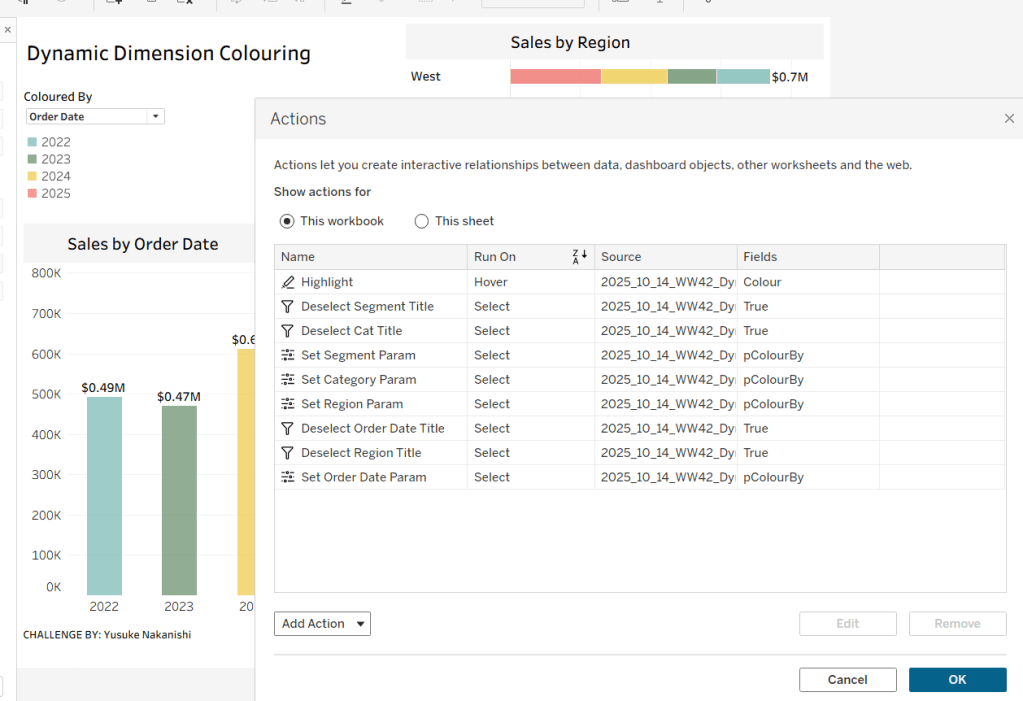
Add the sheets to a dashboard using layout containers and padding to organise as required. Then create the following dashboard actions

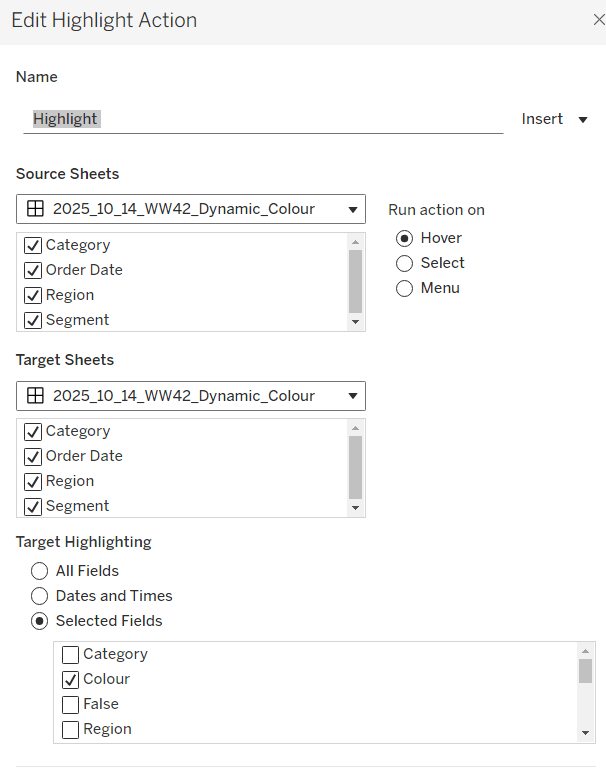
Highlight Action : Highlight

On hover of any of the charts on the dashboard, target all other charts, highlighting based on the Colour field only.

This action makes all the % labels appear when the mouse cursor is moved over the bars.

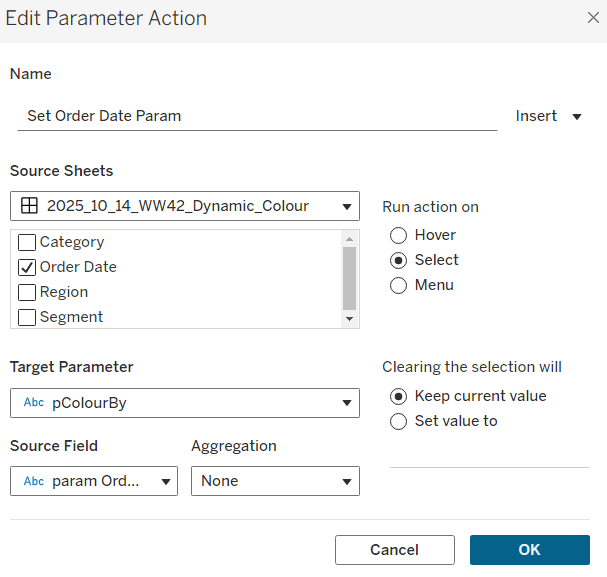
Parameter Action : Set Order Date Param

On Select of the Order Date sheet, set the pColourBy parameter with the value from the param Order Date field.

Parameter Action : Set Region Param

On Select of the Region sheet, set the pColourBy parameter with the value from the param Region field.

Parameter Action : Set Category Param

On Select of the Category sheet, set the pColourBy parameter with the value from the param Category field.

Parameter Action : Set Segment Param

On Select of the Segment sheet, set the pColourBy parameter with the value from the param Segment field.

These actions change the value displayed in the pColourBy parameter when the ‘title’ of the charts is clicked on.

Filter Action: Deselect Order Date Title

On select of the Order Date sheet on the dashboard, target the Order Date worksheet directly, passing the selected values of True = False. Show all values when selection is cleared.

Filter Action: Deselect Region Title

On select of the Region sheet on the dashboard, target the Region worksheet directly, passing the selected values of True = False. Show all values when selection is cleared.

Filter Action: Deselect Category Title

On select of the Category sheet on the dashboard, target the Category worksheet directly, passing the selected values of True = False. Show all values when selection is cleared.

Filter Action: Deselect Segment Title

On select of the Segment sheet on the dashboard, target the Segment worksheet directly, passing the selected values of True = False. Show all values when selection is cleared.

And once these have all been applied, you should have a functioning dashboard. My published version is here.

Happy vizzin’!

Donna

Can you create this ‘zoom and reset’ scatter plot?

For this week’s #WOW challenge we’re focusing on parameter driven axes ranges.

Building the basic viz

After connecting to the dataset, add Sales to Columns and Profit to Rows. Add Customer Name to Detail and change the mark type to circle.

The chart is divided by reference lines which I chose to define as parameters (but these were additional to the ones mentioned in the challenge requirements).

pProfitRef

integer parameter defaulted to 0

pSalesRef

integer parameter defaulted to 5000

Add both parameters to the Detail shelf, the add a reference line on the Sales axis that refers to the pSalesRef value.

and then repeat and add a reference line to the Profit axis referencing the pProfitRef field.

To colour the 4 segments of the chart, create new fields

Sales per Customer

{FIXED [Customer Name]:SUM([Sales])}

and

Profit per Customer

{FIXED [Customer Name]: SUM([Profit])}

These capture the total sales / profit at the customer level, and we can then determine which quadrant each customer is in by

Cohort

IF [Sales per Customer]>=[pSalesRef] THEN
IF [Profit Per Customer]>=[pProfitRef] THEN ‘High Sales, High Profit’
ELSE ‘High Sales, Low Profit’
END
ELSE
IF [Profit Per Customer]>=[pProfitRef] THEN ‘Low Sales, High Profit’
ELSE ‘Low Sales, Low Profit’
END
END

Add this to the Colour shelf and adjust colours to suit. Then set the opacity to 50% and increase the size of the marks a bit.

To add matching coloured borders around the marks, add another instance of Profit to Rows. Change the mark type of the 2nd Profit marks card to Shape and change the shape to be an open circle. Set the opacity to 100%. Set the chart to dual axis and synchronise the axis.

Adjust the Tooltip and hide the right hand axis (uncheck show header).

Dynamically adjust the axis

The axes will change by adjusting them to refer to parameters. By default we need the axis to try to replicate what it gets set to automatically. For this we need to capture the maximum and minimum sales and profit values and add a ‘buffer’ to give the extra space. I played around with a few options for the buffer, so created a parameter to store this until I got the value that seemed to work best (again this was an additional parameter that I added to just help not having to change multiple calculated fields as I got the value I wanted.)

pBuffer

integer parameter defaulted to 2000

Then create 4 fields to define the max & min of the two measures +/- buffer

Min Sales + Buffer

{MIN([Sales per Customer]) – [pBuffer]}

Max Sales + Buffer

{MAX([Sales per Customer]) + [pBuffer]}

Min Profit + Buffer

{MIN([Profit Per Customer]) – [pBuffer]}

Max Profit + Buffer

{MAX([Profit Per Customer]) – [pBuffer]}

Then create 4 parameters which will define the values we ca use to set the axis

pX-Min

float parameter that is set to the Min Sales + Buffer field when workbook opens (selecting this will then populate the value)

Create further parameters

pX-Max

float parameter that is set to the Max Sales + Buffer field when workbook opens

pY-Min

float parameter that is set to the Min Profit + Buffer field when workbook opens

pY-Max

float parameter that is set to the Max Profit + Buffer field when workbook opens

Once all the parameters exist, edit the Sales Axis and change the axis to use a custom range that references the pX-Min and pX-Max parameters

Do the same for the Profit axis, but reference the pY-Min and pY-Max parameters instead.

Finally while we’re still on the workbook, create two new fields

True

TRUE

and

False

FALSE

and add these to the Detail shelf. We’ll need these later to stop marks highlighting when we click.

Name the sheet Scatter or similar.

Building the Reset button

This actually requires another sheet (even through the requirements says 1 sheet).

Create a new field

Reset Axis

‘Reset Axis’

Add this to the Text shelf of a new sheet. Change the mark type to shape and select a transparent shape (refer to this blog to understand how to create this).

Set the view to Entire View and align the font middle centre and increase the font size. Set the background of the whole worksheet to black. Adjust the tooltip. Add Min Sales + Buffer, Max Sales + Buffer, Min Profit + Buffer and Max Profit + Buffer to the Detail shelf, along with the True and False fields.

Name the sheet Reset or similar

Adding the interactivity

Add the Scatter and Reset sheets to a dashboard, removing any parameters/legends etc that get added. Create dashboard parameter actions to set the axis parameters when selections are made on the scatter plot:

Set X Max

On select of the Scatter sheet, set the pX-Max parameter, passing in the maximum value of the Sales field.

Set X Min

On select of the Scatter sheet, set the pX-Min parameter, passing in the minimum value of the Sales field.

Set Y Min

On select of the Scatter sheet, set the pY-Min parameter, passing in the minimum value of the Profit field.

Set Y Max

On select of the Scatter sheet, set the pY-Max parameter, passing in the maximum value of the Profit field.

Also create dashboard parameter actions to ‘reset’ the axis parameters when the Reset button is clicked:

Reset X Min

On select of the Reset sheet, set the pX-Min parameter, passing in the minimum value of the Min Sales + Buffer field.

Reset X Max

On select of the Reset sheet, set the pX-Max parameter, passing in the maximum value of the Max Sales + Buffer field.

Reset Y Min

On select of the Reset sheet, set the pY-Min parameter, passing in the minimum value of the Min Profit + Buffer field.

Reset Y Max

On select of the Reset sheet, set the pY-Max parameter, passing in the maximum value of the Max Profit + Buffer field.

All these 8 actions should now combine to drive the ‘zoom & reset’ functionality.

Finally, the last step to make the display ‘nicer’ is to deselect the marks from being highlighted when selected. Add a dashboard filter action

Deselect Scatter

on select of the scatter object on the dashboard, target the scatter sheet directly, passing the selected fields of True = False. Show all values when the selection is cleared.

Repeat an create a similar action for Deselect Reset.

And that should be it. My published viz is here.

Happy vizzin’!

Donna

Can you build a colour-coded filter?

Erica collaborated with Giulio D’Errico for this week’s #WOW2025 challenge, which contained lots of features, though the main challenge was to display filter on Region, which along with the Region name also displayed a KPI indicator that could change based on selection from other parameters.

Defining the parameters

We need 3 parameters for this challenge

pMeasure

strig parameter that lists the two options Profit and Sales; defaulted to Profit.

pProfitThreshold

integer parameter that lists the specified values, defaulted to 2,000

pSalesThreshold

integer parameter that lists the specified values, defaulted to 30,000

Building the core scatter plot

Add Sales to Columns and Profit to Rows and Sub-Category to Detail. Show the 3 parameters.

When pMeasure = Profit, we need to display horizontal reference lines against the Profit axis, and when Sales is selected we need to display vertical reference lines against the Sales axis. We need the following fields to return the user defined thresholds:

Ref – Profit Threshold

IF [pMeasure] = ‘Profit’ THEN [pProfitThreshold] END

Ref – Sales Threshold

IF [pMeasure] = ‘Sales’ THEN [pSalesThreshold] END

We also need to define the average per measure for each region:

Sales Avg Per Region

{FIXED [Region]: SUM([Sales])} / {FIXED: COUNTD([Sub-Category])}

Profit Avg Per Region

{FIXED [Region]: SUM([Profit])} / {FIXED: COUNTD([Sub-Category])}

and then we can create

Ref – Profit Avg

IF [pMeasure] = ‘Profit’ THEN [Profit Avg Per Region] END

Ref – Sales Avg

IF [pMeasure] = ‘Sales’ THEN [Sales Avg Per Region] END

Add the 4 Ref – XXX fields to the Detail shelf. Then add 2 reference lines to the Sales axis; one referencing Ref – Sales Avg (coloured as a purple dashed line at 100% opacity) and one referencing Ref – Sales Threshold (coloured as a black dashed line at 50% opacity). Display a custom label and then format the label to be aligned vertically and coloured based on the relevant line, and with a 0% shading. Set the pMeasure to Sales to make these display.

Then repeat, adding 2 reference lines to the Profit axis instead. Change pMeasure to Profit for these to appear.

Change the mark type to square. Each mark needs to be coloured whether it is above or below the average for the measure selected.

Colour

IF [pMeasure] = ‘Profit’ THEN
IIF(SUM([Profit]) >= SUM([Profit Avg Per Region]),1,0)
ELSE
IIF(SUM([Sales]) >= SUM([Sales Avg Per Region]),1,0)
END

Set this to be discrete and then add to the Colour shelf and adjust accordingly.

Creating the colour-coded filter

The viz needs to be filtered by Region, but the filter displayed needs to show the region name along with an indicator based on whether the average for the region is above the threshold or not. This took a bit of an effort, but I finally managed it.

We need a field to capture the ‘KPI indicator’ based on which measure was selected. It also needs to be computed per region. We need a FIXED LoD for this, and I made use of coloured unicode characters from this site.: https://unicode-explorer.com/ (large yellow circle and large green circle which you can just ‘copy and paste’ into the calculation)

Region Indicator

{FIXED [Region]: (

IF [pMeasure] = ‘Profit’ THEN
IIF(SUM([Profit Avg Per Region])>=[pProfitThreshold],’🟢’,’🟡’)
ELSE
IIF(SUM([Sales Avg Per Region])>=[pSalesThreshold],’🟢’,’🟡’)
END
)}

I then created

Filter – Region

[Region Indicator] + ‘ ‘ + [Region]

Add this to the Filter shelf, select all values and show the filter. If you change the pProfitMeasure to Profit and pProfitThreshold to 6,000, you’ll see the KPI indicators change.

Format the Tooltip

The tooltip requires several calculated fields to be created. Certain fields only need a value based on the pMeasure and others have conditional formatting (different colours) applied. For the tooltip, I created all these fields:

Tooltip – Measure Value

IIF([pMeasure]=’Profit’,[Profit],[Sales])

Tooltip -Threshold

IIF([pMeasure]=’Profit’, [pProfitThreshold], [pSalesThreshold])

Tooltip – Measure Value Above Avg

IF [Colour] = 1 THEN SUM([Tooltip – Measure Value]) END

Tooltip – Measure Value Below Avg

IF [Colour] = 0 THEN SUM([Tooltip – Measure Value]) END

Tooltip – Above text

IF [Colour] = 1 THEN ‘above’ END

Tooltip – Below text

IF [Colour] = 0 THEN ‘below’ END

Label – Region

IIF(COUNTD([Region])>1, ‘All regions’, MIN([Region]))

Add all these fields to the Tooltip. Update the Tooltip to reference the fields and the pMeasure parameter, colouring the text as required. Some of the fields will only display based on the filters selected, so they get places side by side with no spacing.

Finalise the viz by updating the title to reference the pMeasure and the Label – Region field. Remove all gridlines, axis rulers, zero lines etc. Colour the background of the sheet to pale blue.

Building the Overall Indicator

For the bonus challenge, we need to display an indicator that is green if all the regions are green and yellow if at least 1 region is yellow.

On a new sheet, add Region and Region Indicator to Rows and show the 3 parameters.

We’re going to create a field that will return 1 if the Region Indicator is yellow and 0 otherwise.

Region Indicator – Is Below

IIF( [Region Indicator] = ‘🟡’,1,0)

Set to be discrete and add to Rows. Change the pProfitThreshold to 6000 to see the flag change.

Create

Overall Region Indicator

IIF(WINDOW_MAX(MAX([Region Indicator – Is Below]))=1,’🟡’, ‘🟢’)

This says, if the maximum value of the rows ‘in the window’ is 1, then display a yellow indicator, else green. Add to Rows, and adjust the pProfitThreshold to see the behaviour.

Create a field

Filter – Index = 1

INDEX() = 1

Add to Filter shelf and set to True

Move Region to Detail. Remove Region Indicator and Region Indicator – Is Below. Adjust the table calculation setting of Overall Region Indicator to compute using Region only, and do the same for the tableau calculation on Filter – Index = 1 (re-edit the filter after changing, so only True is selected).

Note – originally I used a transparent shape mark type and displayed the indicator as a label, but after publishing to Tableau Public, the indicator became distorted, so I adjusted how this was built.

Set the mark type to circle and add Overall Region Indicator to Colour. Adjust to be green or yellow, depending on the colour of the KPI indicator (you’ll need to change the pProfitThreshold value to ensure you set the colour for both the yellow and green options).

Finally create

Tooltip – Overall Indicator

IIF([Overall Region Indicator]=’🟢’,’All regions meet the ‘ + [pMeasure] + ‘ target’, ‘At least one region does NOT meet the ‘ + [pMeasure] + ‘ target’)

Add this to Tooltip and then set the background colour to pale blue.

Building the dashboard & adding dynamic zone visibility

Using layout containers, add the viz to a dashboard. Use a horizontal layout container to arrange the parameters, the Region filter and the Overall Indicator sheet. I used a floating text object to display the ‘legend key’ again copying come unicode characters from the website referenced earlier.

Then create 2 new boolean calculated fields

Is Profit

[pMeasure] = ‘Profit’

Is Sales

[pMeasure] = ‘Sales’

Select the Sales Threshold parameter object, then update the visibility so it only displays if Is Sales is true (via the Layout > Control visibility using value option)

Repeat the same for the Profit Threshold object, but reference the Is Profit field instead.

Now as you switch the measure between Sales and Profit, the relevant threshold parameter will display. My published viz is here.

Happy vizzin!

Donna

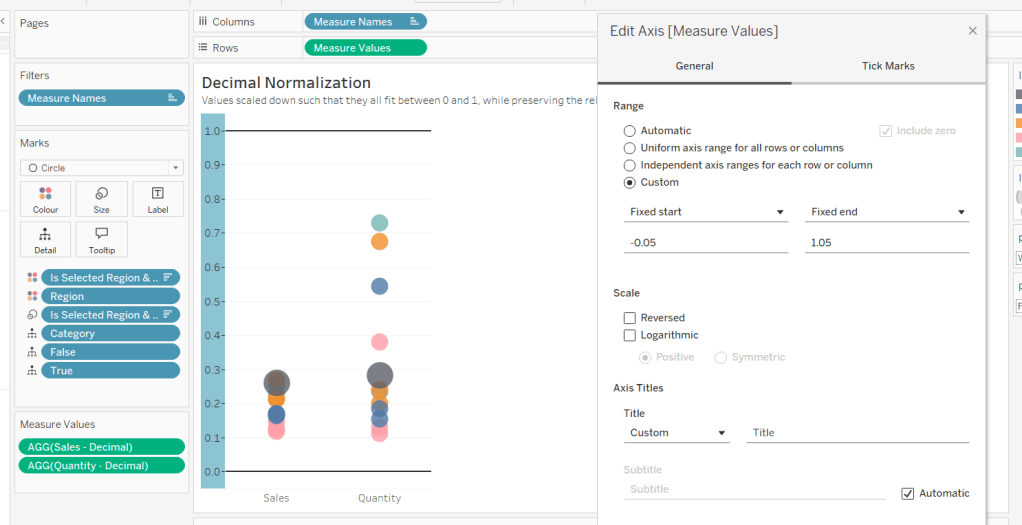
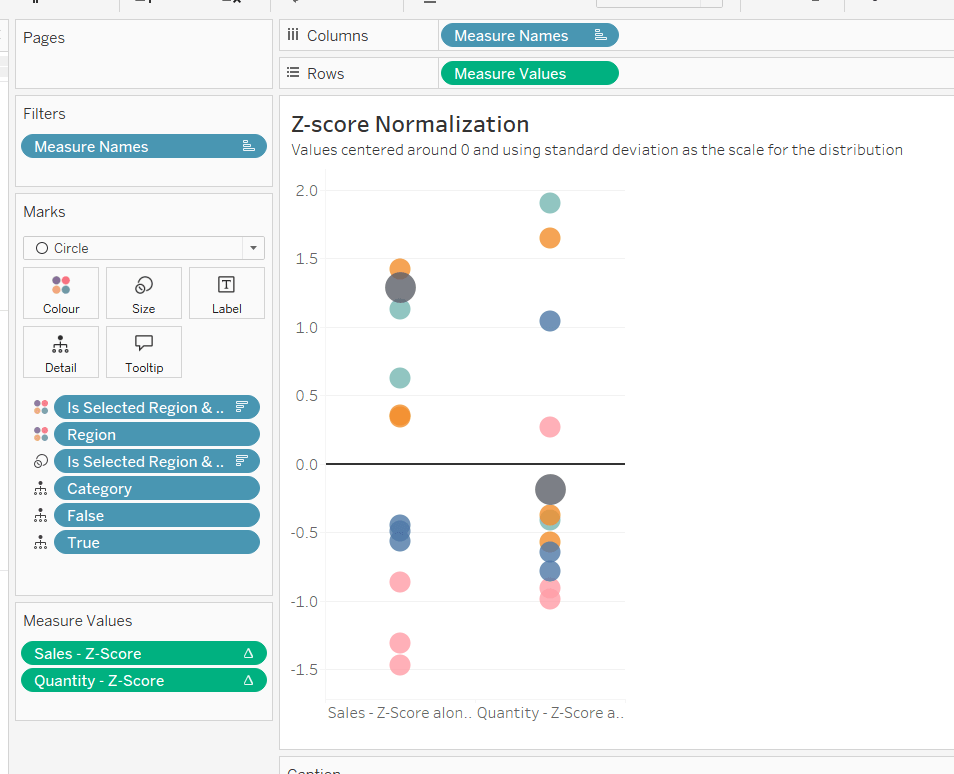
Data Normalisation Methods

Erica set this fun and incredibly useful challenge this week, based on the TC25 talk by Lorna Brown & Robbin Vernooij, to showcase different methods of normalising data when comparing measures which have drastically different scales.

Building the Raw Values chart

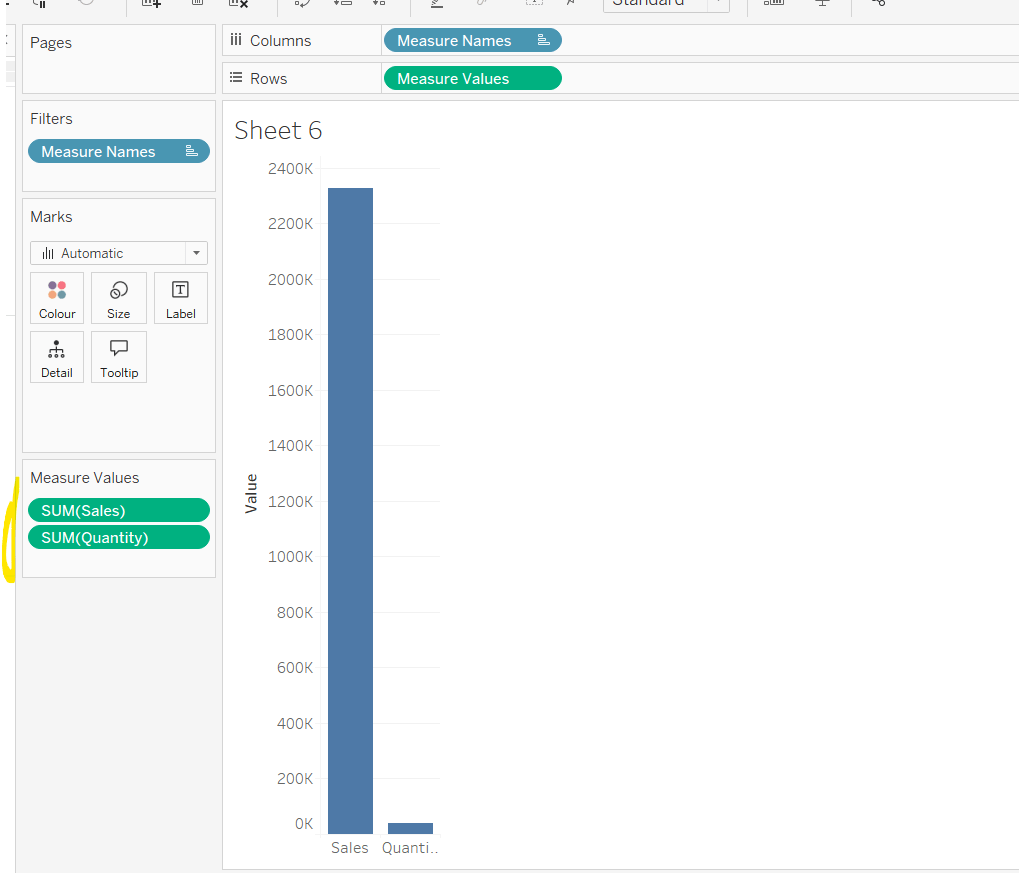
Add Sales to Rows. Then drag Quantity on to the canvas and drop the pill on the Sales axis (when you see the ‘2 column’ icon appear). This has the affect of adding the fields onto a shared axis, and the sheet will update to automatically reference Measure Names and Measure Values. Swap Quantity so it is displayed below Sales in the Measure Values section.

Add Region and Category to Detail and change the Mark type to Circle.

I’m going to incorporate the last requirement at this stage, as it helps with the build, so create parameters

pSelectedRegion

string parameter, defaulted to West

pSelectedCategory

string parameter, defaulted to Furntiture

show both these parameters on the sheet.

Create a new field

Is Selected Region & Category

[pSelectedCategory]=[Category] AND [pSelectedRegion]=[Region]

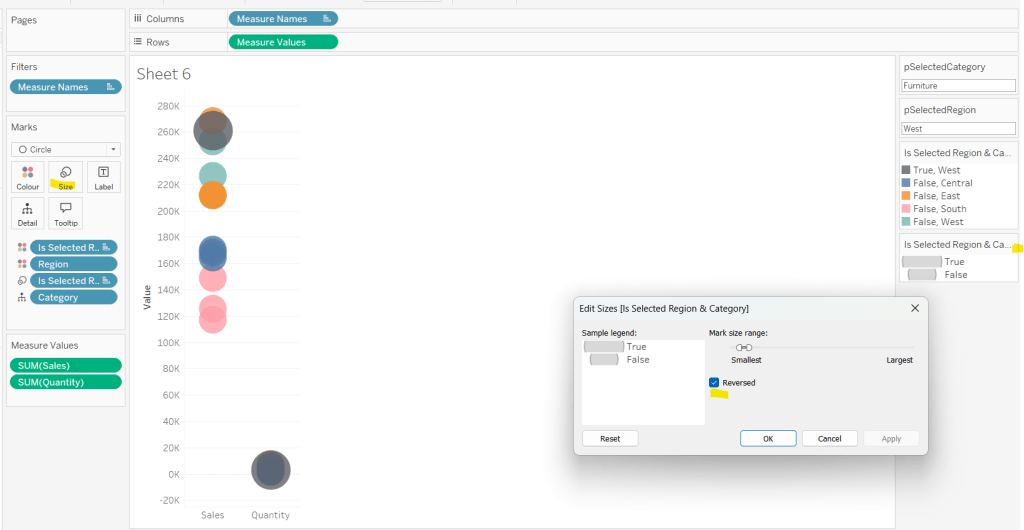
Add this field to Colour, and swap the values in the legend, so True is listed first. Then change the Region on the Detail shelf, so it is also on colour, by adjusting the icon to the left of the pill. Adjust the colours as required and then reduce the opacity on colour to 80%.

Manually update the entry in the pSelectedRegion parameter to each Region, so the True-<Region> colour combination can be updated to the dark grey.

Add Is Selected Region & Category to Size. Edit the size so they are reversed and the range in size is closer than the default. Once done, then manually adjust the dial on the Size shelf.

Show mark labels, selecting the option to only show the min & max values per cell and aligning middle right

Update the Tooltip. Then create fields True = TRUE and False = FALSE and add both of these to the Detail shelf. We’ll need these to disable the default highlighting later (adding now, as for all the other sheets, we’ll duplicate this one, so makes things easier).

Show the caption (Worksheet menu > show caption) and update the caption to reference the website Erica refers to. Then update the title of the sheet, and name the tab Raw or similar.

Building the Decimal Normalisation chart

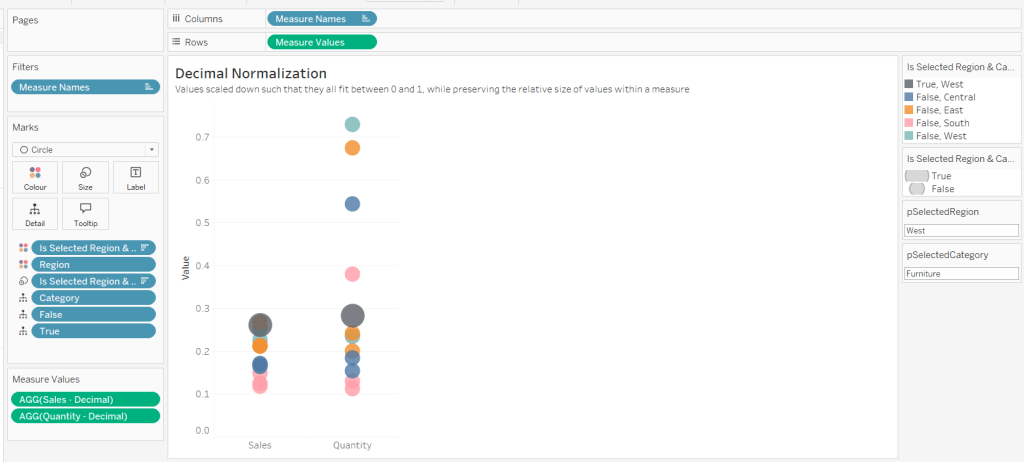
Duplicate the Raw sheet, and name Decimal or similar. Update the title.

Create new fields

Sales – Decimal

SUM([Sales]) / 10^6

Quantity – Decimal

SUM([Quantity]) / 10^4

Drag Sales – Decimal onto the canvas and drop directly over the existing Sales pill in the Measure Values section, so it replaces it. Do the same with the Quantity – Decimal pill. Uncheck Show Labels.

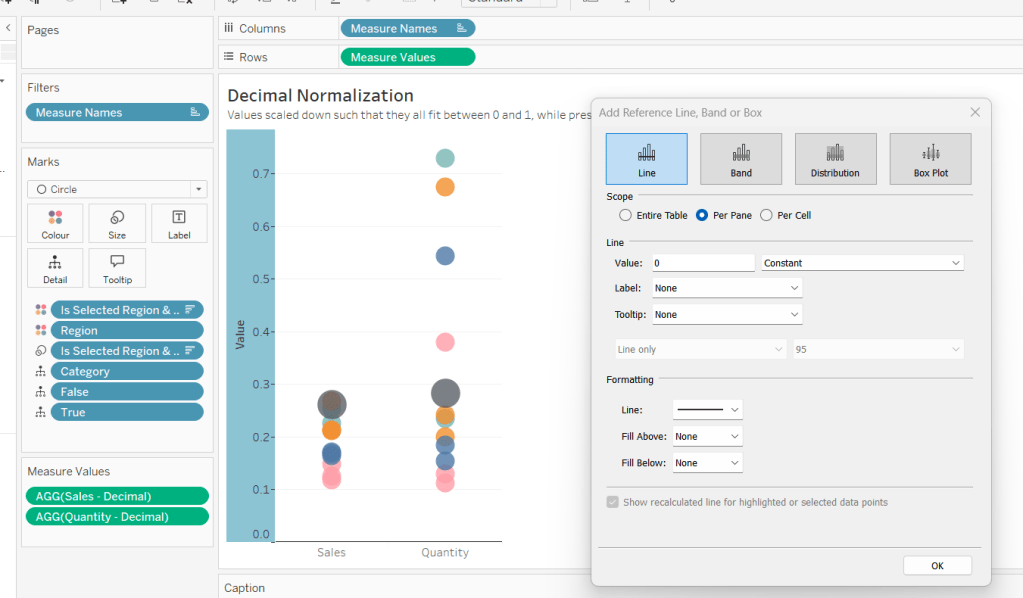
Add constant reference line of 0 that displays as a black solid line at 100% opacity

Repeat and create a constant reference line with value of 1. Edit the axis and fix from -0.05 to 1.05 and remove the axis title.

Update the text in the caption.

Building the Max-Min Normalisation Chart

Duplicate the Decimal sheet and rename Max-Min or similar. Update the title.

Create new fields

Sales – Max-Min

(SUM([Sales])- WINDOW_MIN(SUM(Sales))) / (WINDOW_MAX(SUM(Sales)) – WINDOW_MIN(SUM(Sales)))

Quantity – Max-Min

(SUM([Quantity])- WINDOW_MIN(SUM([Quantity]))) / (WINDOW_MAX(SUM([Quantity])) – WINDOW_MIN(SUM([Quantity])))

Drag Sales – Max-Min onto the canvas and drop directly over the existing Sales – Decimal pill in the Measure Values section, so it replaces it. Do the same with the Quantity – Max-Min pill.

Adjust the table calculation setting for each of the measures so they are computing by Category, Region and Is Selected Region & Category.

Adjust the Tooltip if required. Right click on the bottom column headings and Edit Alias to update the text- you may not be able to rename Sales – Max-Min along xyz… just to ‘Sales’, so you may need to be creative and add spaces eg ‘ Sales ‘ or similar. Update the caption.

Building the Z-Score Normalisation Chart

Duplicate the Max-Min sheet, and name Z-Score or similar. Update the title.

Create new fields

Sales – Z-Score

(SUM([Sales]) – WINDOW_AVG(SUM([Sales]))) / WINDOW_STDEV(SUM([Sales]))

Quantity – Z-Score

(SUM([Quantity]) – WINDOW_AVG(SUM([Quantity]))) / WINDOW_STDEV(SUM([Quantity]))

Drag Sales – Z-Score onto the canvas and drop directly over the existing Sales – Max-Min pill in the Measure Values section, so it replaces it. Do the same with the Quantity – Z-Score pill.

Adjust the table calculation setting for each of the measures so they are computing by Category, Region and Is Selected Region & Category. Remove the reference line for the constant value of 1. Edit the axis, so the range is now Automatic rather than fixed.

As before, adjust the Tooltip again if required, edit the column labels using the alias feature, and update the caption.

Creating the dashboard and adding the interactivity

Add all 4 charts onto a dashboard, using a horizontal container to arrange the charts side by side. From the object context menu on the dashboard, select the option to show the caption

To disable the default highlighting ‘on click’ create a dashboard filter action based on the True/False method described here – you’ll need to create an action per sheet.

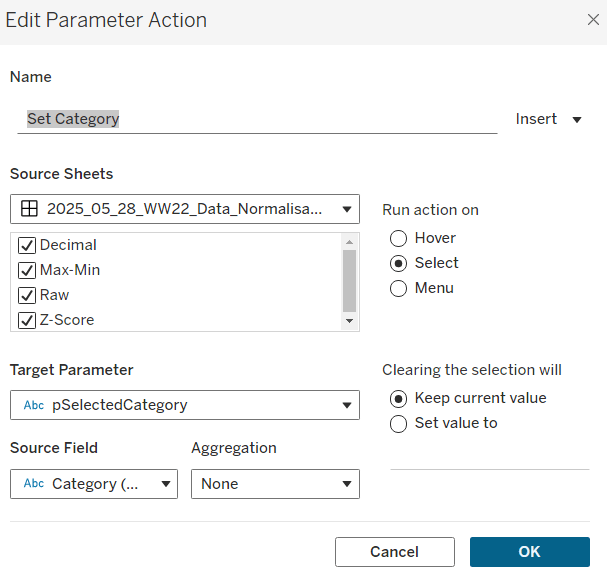
To set the parameters, create a parameter action

Set Category

On select of all the sheets, set the pSelectedCategory parameter passing in the value from the Category field.

Create another similar action called Set Region which sets the pSelectedRegion parameter with the value from the region field.

Finally, add a text section to the top right of the dashboard that references the pSelectedRegion and pSelectedCategory parameters.

And that should be it. My published via is here.

Happy vizzin’!

Donna

Can you display a ratio and volume on the same chart?

This week’s #WOW2025 challenge was a guest post by Kieran Adair and had two parts to it; one to show Sales and Profit Ratio for 2024 only on the same chart, and the other to show comparisons to 2023 data on the same chart.

I built the first one way, and had to make changes in order to build the second. I could have chosen to rebuild the first chart using the fields I ended up creating for the second, but I chose not to, so this will ultimately be 2 blogs in one, as for each chart I needed different fields.

Restricting the data

We only need data for 2023 and 2024 for this challenge, so apply a data source filter (right click data source > Add data source filter) and restrict to Years 2023 and 2024 only.

Building the 2024 chart

We will be plotting Profit Ratio so need to create

Profit Ratio

SUM([Profit])/SUM([Sales])

format this to % with 0 dp.

Add Sub-Category to Rows and Profit Ratio to Columns. Add Order Date to Filter and restrict to the Year 2024 only. Sort the bars descending |(just click the icon on the toolbar)

Change the Mark type to circle and set the colour to black. Widen the rows a little.

Add Sales to Columns. Change the mark type of the sales marks card to bar. Set the colour to white and add a black border.

Adjust the Tooltip on the All marks card and verify both measures are displayed whether hovering over a circle or a bar.

Edit the Sales axis and set to custom to ensure it is fixed to start at 0 and end ‘automatic’. Adjust the axis title to include the text [Bars◻].

Make the chart dual axis BUT DO NOT synchronise axis. Remove Measure Names from the Colour shelf of the All marks card. Right click on the Sales axis at the to and Move marks to back.

Edit the title of the Profit Ratio axis so that it includes the text [Circles ●]. Remove all gridlines and zero lines and hide the Sub-Category row heading (right click the text and hide field labels for rows). Update the title and name the sheet RAVE 2024 or similar.

Building the YoY chart

For this version, we need to create some additional calculated fields

Sales – 2024

IF YEAR([Order Date]) = 2024 THEN [Sales] END

Sales 2023

IF YEAR([Order Date]) = 2023 THEN [Sales] END

Profit – 2024

IF YEAR([Order Date]) = 2024 THEN [Profit] END

Profit 2023

IF YEAR([Order Date]) = 2023 THEN [Profit] END

PR – 2024

SUM([Profit – 2024])/SUM([Sales – 2024])

format to % with 0dp

PR – 2023

SUM([Profit – 2023])/SUM([Sales – 2023])

format to % with 0dp

On a new sheet, add Sub-Category to Rows and PR – 2024 to Columns. Sort descending. Change the mark type to circle.

Drag PR – 2023 onto the PR -2024 axis and release the mouse when the 2 green column symbol appears.

This will automatically update the viz to include Measure Names and Measure Values. Adjust the Colour legend so PR 2024 is black and PR 2023 is grey, and PR 2024 is listed first (so black circles are on top when the marks overlap)

Add Sales 2024 to Columns. Change the mark type of the Sales 2024 marks card to bar. Remove Measure Names from the Colour shelf of the Sales 2024 marks card. Set the colour to white and add a black border.

Add Sales – 2023 to the Detail shelf of the Sales 2024 marks card. Right click on the Sales 2024 axis and Add Reference Line per cell referencing the Sales 2023 value as below.

Update the title of the Sales – 2024 axis to Sales [Bars◻] and set the axis to be fixed from 0 to automatic. Update the title of the other axis (Value) to Profit Ratio [Circles ●].

On the All marks card add PR 2023, PR 2024, Sales – 2023 and Sales -2024 to the Tooltip shelf and update to suit.

Make the chart Dual Axis but once again DO NOT synchronise the axis. As before move the marks (bars) of the Sales axis to the back, and remove the Sub-Category label. Remove all gridlines and zero lines and update the title.

And that’s it. I added both my sheets to dashboards, juts to improve the presentation slightly. My published viz is here.

Happy vizzin’

Donna

Can you compare to a selected months value?

This week’s challenge by Lorna was to deliver some functionality without using LODs or table calculations. She hinted that parameters and parameter actions would be your friends.

Setting up the parameters

Create a parameter to capture the month selected

pMonth

date parameter defaulted to 01 April 2023

and then create one that will store the value associated to the month selected

pMonthSales

float parameter defaulted to 0

Building the Viz

On a new sheet add Order Date as a continuous (green) pill at the month-year level to Columns. Add Sales to Rows.

Create a new calculated field

Difference from Selected Sales

SUM([Sales]) – [pMonthSales]

and add this to Rows.

Change the mark type of this second marks card to bar and add Difference From Selected Sales to the Colour shelf. Adjust the colour to a diverging scale and centre at 0

Set the Size of the bars to be Manual rather than Fixed and adjust the slider to suit.

Add a reference line to the Order Date axis, that references the pMonth parameter.

Adjust the Tooltips, remove gridlines and add a title.

Adding the interactivity

Add the sheet to a dashboard. Add a dashboard parameter action

Set Date

On select of the viz, update the pMonth parameter with the value from the Month([Order Date]) field.

Add another dashboard action

Set Value

On select of the Viz, update the pMonthSales parameter with the value from the SUM(Sales) field that is aggregated at the SUM level.

Now if you click on a point on the line chart, the bottom bars should alter, but they’ll all appear ‘faded’ initially.

To resolve this, create a new calculated field

HL

“HL”

and add this to the Detail shelf of the All marks card. Then create a dashboard highlight action

Highlight

On select of the viz, highlight the HL field only

When you now click, the bottom marks aren’t faded as they essentially are all ‘highlighted’ too.

And that’s it for this week!

My published viz is here.

Happy vizzin’!

Donna

Visualising Ranges

This week’s challenge was set by Sean and was a recreation of a PowerBI WOW challenge set a few weeks ago. The data set just contains 2 pieces of information – a datetime field and a glucose measurement.

Creating the calculations

On a new sheet, add Device Timestamp to Rows as a discrete (blue) pill at the hour level.

Then create the following fields, which are aggregations of the glucose levels at each hourly time period.

Minimum

MIN([Glucose mg/dL])

5th Percentile

PERCENTILE([Glucose mg/dL],0.05)

25th Percentile

PERCENTILE([Glucose mg/dL],0.25)

Median

PERCENTILE([Glucose mg/dL],0.5)

75th percentile

PERCENTILE([Glucose mg/dL],0.75)

95th percentile

PERCENTILE([Glucose mg/dL],0.95)

Maximum

MAX([Glucose mg/dL])

Add all these fields to the table and then format the Hour field to use the 12hr format by default

Building the Viz

On a new sheet, add Device Timestamp as a continuous (green) pill at the hour level to Columns. Then add Median to Rows. Set the mark type to line and set the path to be a dashed line and colour  black. Format the Device Timestamp pill so the default format on the pane is 12hr format (axis should remain as numeric).

Add Minimum to Rows to create a second marks card. Change the mark type to Area and set the colour to be 100% opacity.

Then drag 5th Percentile to the Minimum axis and drop when the ‘2 green column’ symbol appears.

This will automatically add Measure Values to Rows instead and Measure Names to Colour. Add 25th Percentile, 75th Percentile, 95th Percentile and Maximum to the axis too. Reorder the fields in the Measure Values section so the fields are listed in the appropriate order from Min to Max. Adjust the Colours accordingly. Unstack the marks (Analysis -> Stack Marks -> Off).

Add Measure Names to Label and align middle right. Allow labels to overlap marks.

Add Measure Names to the Label on the Median marks card. Also align middle right and format to be underlined.

Make the chart dual axis, synchronise the axis, and then right click on the right hand axis and move marks to back.

Hide the right hand axis (uncheck show header). Edit the Device Timestamp axis to fix from 0 to 26, set the axis to display a value every 3 hours and remove the title.

Add constant Reference Lines to the left hand axis for the values 80 and 180

Edit the left hand axis title. Remove row and column dividers. Add axis rulers. Add a title.

Add to a dashboard and then publish. My published version is here.

Note – the vertical grid lines that appear on the Tableau Public version are a nuance of Tableau Public. I originally recreated on Desktop thinking it was a requirement of the challenge, by adding multiple constant reference lines for each hour. But when I checked Sean’s solution after publishing, I found he didn’t have any and the intention was not to have any.

Happy vizzin’!

Donna

Can you replicate quick table calcs?

Erica kicked off the 1st year of #WOW2025 with a table calculation based challenge asking us not to just use quick tableau calculations, to avoid the use of the RUNNING_SUM table calculation and to just create 2 calculated fields.

Defining the calculations

On a new sheet, add Order Date to Rows as a discrete (blue) pill at the Month-Year format and add Sales to Text.

For the running total, we want

Running Total

SUM([Sales]) + PREVIOUS_VALUE(0)

which takes the Sales from the current row, and adds it to the value of the cumulative Sales (ie this calculation) in the previous row

For the moving average, we want

3 Month Moving Average

WINDOW_AVG(SUM([Sales]), -2, 0)

which averages the Sales for the current row plus the previous 2 rows (ie 3 rows in total)

Building the Viz

ON a new sheet add Order Date as a continuous (green) pill at the Month-Year format to Columns and Running Total to Rows.

Change the mark type to Area, and set the Colour to #a16eaf with a 25% Opacity.

Add Order Date to Tooltip, and set to the MIN aggregation. Format the pill on the Tooltip shelf to have the <month year> format when displayed on the pane.

Add another instance of Running Total to Rows. Set the Mark type to be Line and reset the opacity on the colour shelf to be 100%. Make the chart dual axis and synchronise the axis.

Add 3 Month Moving Average to Rows. Set the Colour to be #67c79c at 25% opacity.

The add another instance of 3 Month Moving Average to Rows. Set the colour to #67c79c and the mark type to line and increase opacity to 100%. Make dual axis and synchronise the axis.

Update the Tooltip on the All Marks card, referencing the MIN(Order Date) pill and adding $ before the values

Edit the Order Date axis, to start from 01 Jan 2021 and end on 31 Dec 2024. Remove the axis title.

Format the Order Date axis, and set the Dates on the scale to be formatted with the MMMMM notation to just show the first letter of the month

Add a reference line to the Order Date axis, set to be a constant value of 01 Jan 2021, with a custom label of 2021 and the line is formatted to be a white dashed line of 100%

Then format the reference line so the label is aligned top right

Repeat this step 3 more times, adding Reference Lines for 01 Jan 2022 (labelled 2022), 01 Jan 2023 (labelled 2023) and 01 Jan 2024 (labelled 2024).

Finally, hide the right hand axis (uncheck show header), remove column dividers, but show the axis rules on the rows.

And that should complete the challenge – just pop the viz onto a dashboard and publish. My published version is here.

Happy vizzin’!

Donna
Top 5 Product Sales vs Other Products

Erica set this week’s challenge and provided multiple levels specifically aimed a newer users of Tableau. My solution is for Level 3.

Setting up the calculations

First, create a parameter to capture the Sub-Category we care about

pSelectedSubCat

string parameter defaulted to Tables

Create a new field

Is Selected SubCat

[pSelectedSubCat]= [Sub-Category]

then create another field

Product to Display – Step 1

IIF([Is Selected SubCat], [Product Name], ”)

On a new sheet add Sub-Category and Product to Display – Step 1 to Rows. Show the pSelectedSubCat parameter. You will see that the Product rows only show for the Sub Category entered in the pSelectedSubCat parameter

We want to show the average of the product sales for each Sub-Category, so we can create

Sales by Sub Cat & Product

{FIXED [Sub-Category], [Product Name]: SUM([Sales])}

Add this to Text. By default it will aggregate this value to SUM, change it to AVG. For the rows associated to the selected Sub-Category the value of this field is the same whether its SUM or AVG, as it has been calculated at the level of detail being displayed on the row (Sub-Category and Product Name). For the other rows, by changing the aggregation to AVG we are getting the required value, which is essentially the sum of all sales associated to the Sub-Category divided by the number of distinct products. Sort the Sub-Category pill by the Average of the Sales by Sub Cat & Product field descending

Additionally, sort the Product to Display – Step 1 field the same way

We need to identify the top 5 records for the products associated to the selected Sub-Category. We will use a set for this. Right click on Product to Display – Step 1 > Create > Set

Product to Display Set

Select the Top tab and select the top 5 by formula

AVG(IF [Is Selected SubCat] THEN [Sales by Sub Cat & Product] END)

Add this to Rows and you should get In displayed against the product rows with the highest values

With this we can start to think about the ‘other’ text we need to display, but for this we need a handle on the number of products in each Sub-Category. Create

Count Products Per Sub-Category

{FIXED [Sub-Category]: COUNTD([Product Name])}

Add to Text so you can see the value, and then subsequently we can create

Product to Display – Step 2

IF NOT([Is Selected SubCat]) THEN ”
ELSEIF [Product to Display Set] THEN [Product Name]
ELSE ‘Other: ‘ + STR([Count Products Per Sub-Category] – 5) + ‘ Products’
END

Add to Rows to see the behaviour

The viz also needs to show an index value against the top 5 rows, so create

Index to Display

IF MIN([Is Selected SubCat]) AND MIN([Product to Display Set]) THEN STR(INDEX())
ELSE ” END

Add this to Rows as a blue discrete pill in front of the Product to Display – Step 2 field. Adjust the table calculation setting so the Sub-Category field is unchecked.

Next, we’re going to need to display a reference line that is the overall average product sales for the Sub-Category. This may sound like it’s what we already have, but that field is at the Sub-Category and Product Name level of detail, and we need to aggregate this back up to be at the Sub-Category level, so we create

Avg Sales by Sub Cat and Product

{FIXED [Sub-Category]: AVG([Sales by Sub Cat & Product])}

which is the average of the field we previous created but per Sub-Category. Pop this into the table to see what is happening. For the rows where the Products aren’t showing, the values match, but for the rows where the Products are displayed, you get the overall average, which is the same for all the rows.

If we now remove Product to Display – Step 1 from Rows (and amend the Index to Display table calc so it is not longer computing by this field too), we should have the data we expect. Format the Sales by Sub Cat & Product field to be $ with 0 dp.

Building the Viz

On a new sheet add Sub-Category, Product to Display Set, Index to Display and Product to Display – Step 2 to Rows and Sales by Sub Cat & Product to Columns and aggregate to AVG.

Sort the Sub-Category pill by the Average of the Sales by Sub Cat & Product field descending and apply the same sort to the Product to Display – Step 2 field. Edit the table calculation of the Index to Display field so it is not computing by Sub-Category.

Create a new field

Colour

IF [Is Selected SubCat] AND [Product to Display Set] THEN ‘Dark’
ELSEIF [Is Selected SubCat] THEN ‘Light’
ELSE ‘Grey’
END

Add this to Colour shelf and adjust accordingly.

Add Avg Sales by Sub Cat & Product to the Detail shelf, then add a reference line based on the Average of this field

Widen each row and from the Label shelf check Show mark labels. From the Tooltip shelf uncheck Show tooltips.

Hide the In/Out Product to Display Set field in Rows (uncheck show header). Format the font and style of the header columns, then hide the header field labels and hide the axis. Adjust the row banding and set all gridlines, zero lines, axis rulers and column dividers to none. Change the title of the sheet.

Test the behaviour by manually changing the value of the parameter.

Adding the interactivity

Add the sheet to a dashboard, then create a parameter dashboard action

Set SubCat

On select of the viz, update the pSelectedSubCat parameter passing in the value from the Sub-Category field.

My published viz is here

Happy vizzin’!

Donna
Can you visualise headcount distribution in multiple ways on a single sheet?

This week’s challenge focuses on allowing the user flexibility in both how they want to ‘slice’ the measure being reported (actual headcount), and how they want the results displayed to meet the needs of the question they are trying to answer. Whilst the above could be built using multiple sheets and ‘sheet swapping’ using dynamic zone visibility, the aim is to try to build within a single sheet.

Let’s get cracking.

Enhancing the data

Not all the fields we need to slice the data by are included initially in the data provided, so we need to define some additional calculated fields, as stated in the requirements.

Contract Type

IF [FTE] = 1 THEN ‘Full Time’ ELSE ‘Part Time’ END

To determine the Age Bracket an employee belongs to, we first need to know their age. Usually this would be based on today’s date (using the TODAY() function), but as this data is static, we’re going to pretend today is 01 Dec 2022, by capturing this in a parameter.

pToday

date parameter defaulted to 01 Dec 2022

We can then work out how old the employee is (in complete years) on 01 Dec 2022

Employee Age

IF DATEPART(‘dayofyear’, [Birth Date])<=DATEPART(‘dayofyear’,[pToday]) THEN
DATEDIFF(‘year’, [Birth Date], [pToday])
ELSE
DATEDIFF(‘year’, [Birth Date], [pToday])-1
END

The ‘dayofyear’ parameter of the DATEPART function returns as it suggests the day of the year, so is a number from 1 to 365 (or 366 in a leap year). So this calculation is basically saying, if the birthday falls before ‘Today’, then they’ve had their birthday in that year, so a simple difference between the years suffices, otherwise the birthday hasn’t happened yet, so take one off the difference in years.

We can then create

Age Bracket

IF [Employee Age] < 20 THEN ‘Under 20’
ELSEIF [Employee Age] < 30 THEN ’20-29′
ELSEIF [Employee Age] < 40 THEN ’30-39′
ELSEIF [Employee Age] < 50 THEN ’40-49′
ELSEIF [Employee Age] < 60 THEN ’50-59′
ELSE ‘Over 60’
END

Setting up the parameters

All the user interactivity is driven through selection of parameters.

pDisplayType

string parameter defaulted to Butterfly Chart with a list of values Stacked, Side by Side, Butterfly which each have a slightly different Display As value (up to you whether you want to do this).

pDisplayRowsBy

string parameter defaulted to Age Bracket with required options listed.

pSplitBarsBar

string parameter defaulted to Contract Type with required options listed

Building the Viz

The pDisplayRowsBy parameter defines the field that we want to display on the Rows shelf. The parameter is just a string value though which we need to map to a proper field from the data set

Dimension – Rows

CASE [pDisplayRowsBy]
WHEN ‘Age Bracket’ THEN [Age Bracket]
WHEN ‘Contract Type’ THEN [Contract Type]
WHEN ‘Department’ THEN [Department]
WHEN ‘Gender’ THEN [Gender]
WHEN ‘Nationality’ THEN [Nationality]
END

The pSplitBarsBy parameter defines the field that will be used to colour the bars. Again we need to map this to fields in the data set

Dimension – Colour

CASE [pSplitBarsBy]
WHEN ‘Gender’ THEN [Gender]
WHEN ‘Contract Type’ THEN [Contract Type]
END

The existing Employees(Count) field that is automatically included is just a counter for the number of rows in the data set, so is essentially our headcount number. However, we need to think about how the display needs to look for the different types of chart, specially the butterfly chart.

When building a butterfly chart, the bars to the right of the middle axis are plotted as positive numbers, while the bars to the left are plotted as negative numbers (so the middle is actually 0). So in the event the display type of Butterfly Chart is selected, we need to make some adjustments, so that some of the values are plotted on the negative axis. This means our calculation looks like

Headcount

IF [pDisplayType] = ‘Butterfly’ THEN
IF MIN([Dimension – Colour]) IN (‘Part Time’, ‘Female’) THEN COUNT([Employees]) * -1
ELSE COUNT([Employees])
END
ELSE
COUNT([Employees])
END

If it’s a Butterfly chart, then if the values associated to the field we’re colouring the bars by are ‘Part Time’ (pSplitBarsBy = Contract Type) or ‘Female’ (pSplitBarsBy = Gender), then negate the count of employees, otherwise just return the count of employees.

Let’s start putting some of this into a viz to see what we’ve got…

On a sheet, add Dimension-Rows to Rows and Headcount to Columns. Add Dimension-Colour to Colour. Show the 3 core parameters and adjust the colours to suit.

Change the pSplitBarsBy to Gender, and adjust colours again. Change to ‘N/A’ and adjust again, so all possible options for the Dimension-Colour field have been set. Change pSplitBarsBy back to Contract Type.

Now change pDisplayType to Stacked Bar.

We want Full Time segment of the bar to appear first against the zero line of the axis, so manually re-order the options in the colour legend, so Part Time is listed first.

Change pSplitBarsBy to Gender and verify that the Male segment of the bars are displaying first against the zero line of the axis. Change pSplitBarsBy back to Contract Type.

For the side by side bar chart, we need another dimension on Rows that is essentially the Dimension -Colour field. However, we only want the value when the pDisplayType is Side by Side. So we need

Dimension – Side by Side

IF [pDisplayType]=’Side By Side’ THEN [Dimension – Colour] ELSE ” END

Add this to Rows after the Dimension-Rows field.

This adds an additional column to the display. While we’re in side by side or butterfly ‘mode’ , nothing is displayed. Change pDisplayType to Side by Side and we get the separation required.

Since the Colour legend is defining what the bar relates to, we can hide this field (right click on the Dimension – Side by Side pill and uncheck show header.

We want to also show the % of Total headcount split for each row. Create a new field

Total Employees Per Row

{FIXED [Dimension – Rows] : COUNT([Employees])}

then create

% Total Headcount

[Headcount]/SUM([Total Employees Per Row])

and format to a custom number format of 0%;0%. This is a % with 0 decimal places, but the custom format is used as we want negative numbers (caused by the butterfly chart type) to be displayed as +ve percentages.

Add % Total Headcount to Columns and verify the display for the different display types. Hint – if the calc is working as expected, the Stack Bar option should show 100% 🙂

Labelling the Viz

We can’t simply add labels using the usual method (show mark labels) and adjusting the positioning, as it won’t always show what we want, where we want for all the different display types. So we need to employ different techniques based on the chart being displayed.

Let’s start with the stacked bar chart. For the Headcount bars, we want to display the total number of employees at the end of the bar, and for the % Total Headcount, we want the % displayed in the middle of the bar.

Create a new field

Ref Line – Stacked

IF [pDisplayType] = ‘Stacked’ THEN [Headcount] END

Add this to Detail shelf of the Headcount marks card, then add a reference line to the Headcount axis (right click axis > Add Reference Line) that for each pane references the Sum of the Ref Line – Stacked field, and just displays the Value on the Label. No line or tooltip is displayed.

Format the reference line (right click the ‘invisible’ line) to adjust the colour and alignment of the font.

Add % Total Headcount to the Label shelf of the % Total Headcount marks card. You may need to adjust the width of the bars so you can see the values. Adjust the font to be white.

Change the pDisplayType parameter to Side by Side. No labels should be displayed. This is because the label we used for the headcount bar was based on the display type, and the label we used for the % total has been coloured white and is therefore invisible on a white background (set it to black and you’ll see it displayed). So again we need more fields

Ref Line – Side By Side

IF [pDisplayType] = ‘Side By Side’ THEN [Headcount] END

Add this to the Detail shelf of the Headcount marks card, and again add a reference line to the Headcount axis, this time setting the scope at the cell level.

Once again format the reference line to set the font and alignment.

Create

Label – % of Total Side by Side

IF [pDisplayType] = ‘Side By Side’ THEN [% Total Headcount] END

Format to a % with 0 dp and add this to the Label shelf of the % Total Headcount marks card, and then adjust the Label so this field is appropriately coloured and listed before the other label (which is coloured white).

Change the pDisplayType parameter to Butterfly chart. The % labels should already display. We just need to sort the labelling for the actual headcount. For this we need

Ref Line – Butterfly Pos

IF [pDisplayType] = ‘Butterfly’ THEN
IF [Headcount] >= 0 THEN [Headcount] END
END

and

Ref Line – Butterfly Neg

IF [pDisplayType] = ‘Butterfly’ THEN
IF [Headcount] < 0 THEN [Headcount] END
END

Add both these fields to the Detail shelf of the Headcount marks card. Then add reference lines for each of the two fields

Then format both the reference lines so the font and alignment is set as required (in the case of the Ref Line – Butterfly Neg reference line, it needs to be left aligned)

Add Headcount and % Total Headcount to the Tooltip shelf of the All marks card, and then adjust the tooltip. Finally tidy up by

  • Adjusting format of the Dimension – Rows values and aligning middle left.
  • Hide field labels for rows
  • Remove column dividers
  • Adjust row dividers to be more subtle
  • Remove gridlines, zero lines, axis ticks & rulers
  • Remove the Headcount & % Total Headcount axis.

Add the viz to a dashboard. I used a horizontal container placed above the viz to add text objects to represent the headings. The first text box just the referenced the pDisplayRowsBy parameter value, so it was dynamic.

My published viz is here.

Happy vizzin’!

Donna