Filter for One Value OR All Others

Erica set the latest challenge, testing us on our ability to master tricky filter scenarios – in this case either show the info for one specific value of a field, or only show the other values, but allow them to be filtered themselves too. The challenge had two parts – the main challenge and a bonus option. I managed to complete both, so will blog both too.

Main challenge – Building the basic viz

On a new sheet add Region and Category to Rows and Sales to Columns. Add Region to Colour and adjust accordingly.

Sort Region by Sales descending

and then click the descended sort button on the toolbar to sort the Category field by Sales too.

Format Sales to be $ with 0 dp. Remove column dividers, and widen each row slightly.

Main challenge – Apply the filtering

Create a parameter

pRegionType

string parameter with 2 options : Not West and West, defaulted to Not West

Create a calculated field to determine whether to display the West Region only, or the other Regions

Filter Region West or Not v1

([pRegionType] = ‘West’ AND [Region] = ‘West’)
OR
([pRegionType] = ‘Not West’ AND [Region] <> ‘West’)

Add this to the Filter shelf and set to True. This is essentially the ‘first level’ filter. Show the parameter and switch between the two values to see the behaviour

Now we need a ‘second’ filter, to allow the relevant Regions to be selected. For this, add Region to the Filter shelf, but select the Use all option

and then show the Region filter list on the canvas, and adjust the settings so only relevant values are displayed

This means when the pRegionType parameter is West, only West will be displayed in the Region filter, but when Not West is selected, all regions except West will display, and the filter can be interacted with in the normal manner.

Main challenge – Building the dashboard

Arrange the viz and the parameters on the dashboard as required, using layout containers, padding and background colours to help organise the content and display required.

We only want the Region selection filter to display when the pRegionType parameter is set to Not West. We can use dynamic zone visibility for this. Create a calculated field

DMZ – Display Filter Control

[pRegionType] = ‘Not West’

and then on the dashboard, select the Region filter and check the Control visibility using value option and select the DMZ – Display Filter Control field.

Bonus Challenge – Building the Viz

Recreate the viz as described above (or duplicate the sheet of the original viz, and remove all the pills from the Filter shelf.

Bonus challenge – Apply the filtering

Create a parameter

pSelectedRegion

string parameter, defaulted to <empty string>

This parameter is going to contain a string that can contain one or more Regions in a delimited format eg | East | or |East||South| etc. The contents of this string will determine how we filter the chart to mimic the required behaviour.

Firstly, we want the ‘1st level’ filter to determine whether we’re displaying just the West Region or all the other Regions.

Filter Region West or Not v2

(CONTAINS([pSelectedRegion],’West’) AND [Region] = ‘West’)
OR
(NOT CONTAINS([pSelectedRegion], ‘West’) AND [Region] <> ‘West’)

Add this to the Filter shelf and set to True. Show the pSelectedRegion parameter. With the parameter empty, the West Region should not display.

Type the word West into the parameter. Now the just the West Region should display.

And if you enter additional text alongside the word ‘West’, still the ‘West’ Region should display

But if you remove the ‘West’ text, all the Regions should display whatever the text is contained.

This behaviour is essentially simulating that of the ‘West’ | ‘Not West’ parameter selection in the previous version.

Now we want to control the 2nd level of filtering where the same parameter is used to drive which of the ‘other’ Regions display.

Filter Other Regions v2

CONTAINS([pSelectedRegion], ‘West’) OR
NOT CONTAINS([pSelectedRegion],[Region])

Set the pSelectedRegion parameter to empty so all Regions are displayed. Add Filter Other Regions v2 to the Filter shelf and set to True.

Enter the text East into the parameter. The East option should disappear.

Add the text ‘South’. That too should disappear

Add the text ‘West’ and only the West Region will show

Play around entering multiple combinations of Regions. Ultimately if the text ‘West’ is present anywhere in the parameter string, only the West Region will display. If West is not present, then any other Region in the string will not be presented in the display. All sounds a bit backwards, but it works 🙂

So now we need to actually control how the pSelectedRegion parameter will get populated. And this will be via a parameter action fired from the selection made from a ‘custom’ legend sheet.

Bonus challenge – Building the filter control

On a new sheet, add Region to Rows and manually type in MIN(0.0) into Columns. Change the mark type to shape. Add Region to Label and show the labels (widen each row slightly). Edit the MIN(0.0) axis to be fixed from -0.1 to 0.5 which will shift the display to the left.

Sort the Region field by Sales descending.

Hide the axis, stop the Tooltip from displaying, hide the Region header, remove all gridlines/ axis rulers/ zero lines, row/column dividers. Set the background colour to light grey.

The Colour and the Shape (filled or unfilled) is determined based on the entries we have captured in the pSelectedRegion parameter, but the logic for each attribute is different.

Colour v2

If [pSelectedRegion] = ‘|West|’ THEN ‘West’ ELSE [Region] END

Show that parameter and make it empty. Add Colour v2 to the Colour shelf. Adjust colour to suit if not already set.

Then enter the text |West| – all the symbols should now all be Navy (or whatever colour you have chosen for West).

For the shape, create

Shape v2

IF CONTAINS([pSelectedRegion] , ‘West’) AND [Region] = ‘West’ THEN ‘Fill’
ELSEIF CONTAINS([pSelectedRegion], ‘West’) AND [Region] <> ‘West’ THEN ‘Empty’
ELSEIF ([Region] <> ‘West’) AND [pSelectedRegion]=” THEN ‘Fill’
ELSEIF ([Region] <> ‘West’) AND NOT CONTAINS([pSelectedRegion],[Region]) THEN ‘Fill’
ELSE ‘Empty’
END

and add to the Shape shelf. Note – this logic took a lot of trial and error to get the desired result.

Whenever the text West exists in the parameter, then the West Region should be a filled circle and all the other regions should be empty (the first 2 lines of the logic statement). If the parameter is empty, we want all the regions (except West) to be filled (so West will be empty). And if the parameter contains a Region(s) that isn’t West, we want that Region to be empty as well – only non-West Regions that aren’t in the parameter should be filled.

To control the text being passed into the pSelectedRegion parameter, we need a field

Region for Param

IF CONTAINS([pSelectedRegion],’West’) THEN ” //West has been selected again so reset parameter to empty
ELSEIF CONTAINS([pSelectedRegion], [Region]) THEN REPLACE([pSelectedRegion], ‘|’ + [Region] + ‘|’ ,”) //selected region is already in the parameter, so remove it ”
ELSE [pSelectedRegion]+ ‘|’ + [Region] + ‘|’ //append current region selected to the existing parameter string
END

Add this to the Detail shelf.

Finally, we will want to ensure the marks aren’t highlighted on selection, so create fields

True

TRUE

False

FALSE

and add these to the Detail shelf too.

Bonus challenge – adding the interactivity

Build the dashboard again using layout containers and background colours and padding

Create a dashboard parameter action

Set Region

On selection of the Filter Control viz, set the pSelectedRegion parameter passing in the value from the Region for Param field. Set the field to <empty string> when deselected

Create a dashboard filter action

Deselect Marks

On select of the Filter Control viz on the dashboard, target the Filter Control sheet itself, passing in the specific fields of True = False.

And this should complete the required elements. My published viz is here.

Happy vizzin’!

Donna

Can you show YTD and PYTD, whilst also being able to change the date range and switch between Month & Week?

It was Lorna’s turn to set the challenge this week – to compare YTD with Previous YTD while also filtering date ranges which updated based on the year of focus. She hinted it was a great use case for an INCLUDE LoD and I have to admit that seemed to fry my brain! I spent a couple of hours trying various concepts and then put it to bed as I wasn’t progressing.

When Rosario Gauna published her solution, I had a quick look and realised that there was no need for an LOD after all, and I shouldn’t have got hung up on the hint. So thanks Rosario!

Setting up the data

The data set provided contains 4 complete years worth of data from 1st Jan 2021 to 31st Dec 2024. In order to simulate ‘YTD’ for 2024 and ensure my workbook would always show the concept of a partial year, I created a parameter

pToday

date parameter defaulted to 3 July 2024

and then I created

Records to Keep

[Order Date]<= [pToday]

In a typical business scenario, the pToday parameter would simply be replaced by the TODAY() function.

I then added this as a data source filter (right click data source > add data source filter) and set to True to restrict the data from 01 Jan 2021 through to 03 July 2024.

Setting up the calculations

Before building the Viz, we’re going to work through what calculations are needed to drive the behaviour we require. We’ll do this in a tabular view. First up we will need a couple of parameters

pYear

integer parameter defaulted to 2024 containing a list of values from 2021 to 2024. The display value should be formatted to a whole number without the , separators.

pDatePart

string parameter defaulted to Month containing a list of 2 values Month and Week.

Show these parameters on a sheet.

On the sheet, add Order Date as a discrete exact date (blue pill) to Rows.

The first thing we will do is identify the set of Order Dates that we need to consider based on the pYear parameter. That is if pYear is 2024, we want to consider the Order Dates in 2024 and the Order Dates in 2023. But if the pYear is 2023, we want to consider all Order Dates in 2023 and 2022. When we do identify these dates, we will ‘baseline’ them to all align to the focus year (ie the pYear value).

Date Baseline

DATE(IF YEAR([Order Date]) = [pYear] THEN [Order Date]
ELSEIF YEAR([Order Date]) = [pYear]-1 THEN DATEADD(‘year’, 1, [Order Date])
ELSE NULL
END)

Add this as a discrete exact date (blue pill) to Rows.

If you scroll through, you should see how the Date Baseline field is behaving as you change the pYear value.

Now we only want to include rows with dates, and in the case of 2024 v 2023, we only want dates up to ‘today’.

Filter Dates

IF [pYear] = YEAR([pToday]) THEN
[Date Baseline] <= [pToday]
ELSE
[Date Baseline] <= MAKEDATE([pYear], 12, 31)
END

If the pYear parameter matches the year of ‘Today’, then only include dates up to ‘Today’, otherwise include dates up to 31 Dec of the selected year.

Add this to the Filter shelf and set to True.

When pYear is 2024, you can see that we have Order Dates from 01 Jan 2023 to 03 Jul 2023 and then 01 Jan 2024 to 03 Jul 2024. But changing pYear to 2023, you get all dates through from 01 Jan 2022 to 31 Dec 2023.

Add Date Baseline to the Filter shelf, and select Range of Dates, then choose the Special tab and verify All dates is selected and select Apply to commit this option.

Show the Date Baseline filter to display the range control filter.

Changing the pYear parameter will change the start & end dates in the Date Baseline filter to match the year selected. But with 2024 selected, the range ends at 31 Dec 2024. We don’t want this – we only have data up to 3rd July 2024. To resolve this, set the property of the filter control to Only Relevant Values

Adjust the date ranges and the records in the table should adjust too. If you change the pYear parameter after you’ve adjusted the date range, you’ll need to reset/clear the date range filter.

The next thing we need to handle is the switch between months and weeks. For this create

Date to Display

DATE(CASE [pDatePart]
WHEN ‘month’ THEN DATETRUNC(‘month’,[Date Baseline])
ELSE DATETRUNC(‘week’, [Date Baseline])
END)

Add this as a discrete exact date to Rows and you can see how this field works when the pDatePart field is altered.

So now we have the core filtering functionality working, we need to get the measures we need

YTD Sales

IF YEAR([Order Date]) = [pYear] THEN [Sales] END

PYTD Sales

IF YEAR([Order Date]) = [pYear]-1 THEN [Sales] END

format both of these to $ with 0 dp

% Diff

(SUM([YTD Sales]) – SUM([PYTD Sales]))/SUM([PYTD Sales])

custom format this to ▲0%;▼0%;0%

Building the KPI

On a new sheet, double click into Columns and type MIN(0), then repeat, so there are 2 instances on MIN(0) on Columns and 2 marks cards.

Change the mark type on the All marks card to shape, and select a transparent shape (see here for details). Set the sheet to Entire View.

On the 1st MIN(0) marks card, add YTD Sales to Label. Then adjust the label font and text and align middle centre.

On the 2nd MIN(0) add PYTD Sales and % Diff to Label and adjust the layout and formatting as required. Align middle centre.

On the tabular worksheet we were using to test things out, set both the filters to ‘apply to worksheets > all using this data source’, so persist the changes made on one sheet to all others.

On the All marks card, add Date Baseline to Tooltip and adjust to use the MIN aggregation. Then add another instance of Date Baseline to Tooltip and adjust to use the MAX aggregation. Update the Tooltip accordingly.

Remove all row/column dividers, gridlines, zero lines. Hide the axis. Name the sheet KPI or similar.

Building the line chart

ON a new sheet add Date to Display as a continuous exact date (green pill) to Columns and YTD Sales to Rows. Show the pYear and pDatePart parameters. The Date Baseline and Filter Date fields should have automatically been added to the Filter shelf. Show the Date Baseline filter.

Drag the PTYD Sales field from the data pane onto the YTD Sales axis and drop it when the cursor changes to a double green column icon.

This will automatically adjust the pills to include Measure Names and Measure Values onto the view. Adjust the colours of the lines and ensure the YTD Sales line is displayed on top of the PYTD Sales line (just reorder the values in the colour legend if need be).

Add YTD Sales and PYTD Sales to Tooltip and adjust accordingly. Edit the Value axis and adjust the title of the axis to Sales. Remove the title from the Date to Display axis.

Building the dashboard

Use a combination of layout containers to add the objects onto a dashboard. I started with a horizontal container, with a vertical container in each side.

My published viz is here.

Happy vizzin’!

Donna

Can you build a dashboard for pre-aggregated metrics?

For the challenge this week, Kyle asked us to recreate the visualisation above using an adapted version of Superstore which had a customer count metric for 3 dimensions (Category, Segment and Region) along with ‘no’ dimension (null) pre-aggregated at a Yearly or Monthly Level.

By this I mean that, at a Yearly level, when the date was 1st Jan 2019 say, a row of data existed for the (distinct) customer count of all the combinations of the 3 dimensions and null. In total 80 rows for the one date.

As the data was pre-aggregated, it made no sense to say the customer count for Technology is the sum of all the rows where Category = Technology and this would mean data was being double counted.

Pivoting the data also wouldn’t yield the desired result. So the aim of this challenge was to be able to identify the relevant rows of data that needed to be displayed based on the options selected by the user.

Building the calculations

Parameters will be driving the user selections, so these need to be set up

pDateGrain

string parameter with a list of 2 options: Monthly and Yearly. Defaulted to Monthly.

pColour

string parameter with a list of 4 options : Category, Region, Segment, None. Defaulted to Segment

Similarly, create pXAxis and pYAxis parameters similar to above, but default both to None.

On a new sheet build a tabular view with

  • Table Names, Category, Segment and Region on Rows
  • Order Date set to discrete (blue pill) exact date on Columns
  • Customer Count on Text
  • Show all 4 parameters created

The rows of data need to be filtered by Table Name (as defined by the pDateGrain parameter) and a combination of Category, Segment and Region based on the options selected in the other 3 parameters.

To filter by the Table Name we need

Filter – Date Grain

[pDateGrain] = [Table Names]

Add this to the Filter shelf and set to True.

Change the pDateGrain parameter to Yearly as there is less data to see/check.

Based on the options selected in any of the other 3 parameters, we need to find matching rows.

For example, if pColour is Segment and the other parameters are None, we are looking for the rows where the Segment column is not null, but the Region and Category columns are (we would be after the same rows if pXAxis was set to Segment, and the other parameters were None or, if pYAxis is Segment and the other parameters were None).

In this case, we’re looking for 3 rows of data – those highlighted below

If instead any two of the parameters were set to Segment and Category and the other None, then we’d be looking for rows where Segment is not null, Category is not null and Region is null. This would be 9 rows in total (a snippet of which is shown below).

We also need to deal with scenarios where all three parameters were set to something different, or all set to None as well as handle if multiple parameters are set to the same thing.

Now to do this, I ended up building a single field to use as filter that contains all the scenarios. As I was building it up, I figured there should be a slicker way, and there is (check out Kyle’s solution), but if your brain is wired the same way as mine, then you’ll end up with this

Filter Rows to Include

IF [pColour] = ‘None’ AND [pXAxis] = ‘None’ AND [pYAxis] = ‘None’ THEN
//no options selected
IF ISNULL([Region]) AND ISNULL([Category]) AND ISNULL([Segment]) THEN TRUE END
ELSEIF (([pColour] <> ‘None’ AND [pXAxis] = ‘None’ AND [pYAxis] = ‘None’) OR
([pColour] = ‘None’ AND [pXAxis] <> ‘None’ AND [pYAxis] = ‘None’) OR
([pColour] = ‘None’ AND [pXAxis] = ‘None’ AND [pYAxis] <> ‘None’)) THEN
// one of the 3 options selected, so work out which dimension
IF [pColour] = ‘Category’ OR [pXAxis] = ‘Category’ OR [pYAxis] = ‘Category’ THEN
IF ISNULL([Region]) AND ISNULL([Segment]) AND NOT ISNULL([Category]) THEN TRUE END
ELSEIF [pColour] = ‘Segment’ OR [pXAxis] = ‘Segment’ OR [pYAxis] = ‘Segment’ THEN
IF ISNULL([Region]) AND NOT ISNULL([Segment]) AND ISNULL([Category]) THEN TRUE END
ELSEIF [pColour] = ‘Region’ OR [pXAxis] = ‘Region’ OR [pYAxis] = ‘Region’ THEN
IF NOT ISNULL([Region]) AND ISNULL([Segment]) AND ISNULL([Category]) THEN TRUE END
END
ELSEIF (([pColour] <> ‘None’ AND [pXAxis] <> ‘None’ AND [pYAxis] = ‘None’) OR
([pColour] <> ‘None’ AND [pXAxis] = ‘None’ AND [pYAxis] <> ‘None’) OR
([pColour] = ‘None’ AND [pXAxis] <> ‘None’ AND [pYAxis] <> ‘None’)) THEN
// two options selected, so work out which dimensions we need
IF ([pColour] = ‘Category’ OR [pXAxis] = ‘Category’ OR [pYAxis] = ‘Category’) AND ([pColour] = ‘Segment’ OR [pXAxis] = ‘Segment’ OR [pYAxis] = ‘Segment’) THEN
IF ISNULL([Region]) AND NOT ISNULL([Segment]) AND NOT ISNULL([Category]) THEN TRUE END
ELSEIF ([pColour] = ‘Category’ OR [pXAxis] = ‘Category’ OR [pYAxis] = ‘Category’) AND ([pColour] = ‘Region’ OR [pXAxis] = ‘Region’ OR [pYAxis] = ‘Region’) THEN
IF NOT ISNULL([Region]) AND ISNULL([Segment]) AND NOT ISNULL([Category]) THEN TRUE END
ELSEIF ([pColour] = ‘Segment’ OR [pXAxis] = ‘Segment’ OR [pYAxis] = ‘Segment’) AND ([pColour] = ‘Region’ OR [pXAxis] = ‘Region’ OR [pYAxis] = ‘Region’) THEN
IF NOT ISNULL([Region]) AND NOT ISNULL([Segment]) AND ISNULL([Category]) THEN TRUE END
//or the two options selected are the same dimension
ELSEIF ([pColour] = ‘Category’ OR [pXAxis] = ‘Category’ OR [pYAxis] = ‘Category’) AND ([pColour] = ‘Category’ OR [pXAxis] = ‘Category’ OR [pYAxis] = ‘Category’) THEN
IF ISNULL([Region]) AND ISNULL([Segment]) AND NOT ISNULL([Category]) THEN TRUE END
ELSEIF ([pColour] = ‘Segment’ OR [pXAxis] = ‘Segment’ OR [pYAxis] = ‘Segment’) AND ([pColour] = ‘Segment’ OR [pXAxis] = ‘Segment’ OR [pYAxis] = ‘Segment’) THEN
IF ISNULL([Region]) AND NOT ISNULL([Segment]) AND ISNULL([Category]) THEN TRUE END
ELSEIF ([pColour] = ‘Region’ OR [pXAxis] = ‘Region’ OR [pYAxis] = ‘Region’) AND ([pColour] = ‘Region’ OR [pXAxis] = ‘Region’ OR [pYAxis] = ‘Region’) THEN
IF NOT ISNULL([Region]) AND ISNULL([Segment]) AND ISNULL([Category]) THEN TRUE END
END
ELSE //all three selected, but they could be all the same dimension or 2 of the three the same
IF ([pColour] = ‘Category’ OR [pXAxis] = ‘Category’ OR [pYAxis] = ‘Category’) AND ([pColour] = ‘Segment’ OR [pXAxis] = ‘Segment’ OR [pYAxis] = ‘Segment’) AND ([pColour] = ‘Region’ OR [pXAxis] = ‘Region’ OR [pYAxis] = ‘Region’) THEN
//all three different
IF NOT ISNULL([Region]) AND NOT ISNULL([Segment]) AND NOT ISNULL([Category]) THEN TRUE END
ELSEIF ([pColour] = ‘Category’ OR [pXAxis] = ‘Category’ OR [pYAxis] = ‘Category’) AND ([pColour] = ‘Region’ OR [pXAxis] = ‘Region’ OR [pYAxis] = ‘Region’) THEN
IF NOT ISNULL([Region]) AND ISNULL([Segment]) AND NOT ISNULL([Category]) THEN TRUE END
ELSEIF ([pColour] = ‘Category’ OR [pXAxis] = ‘Category’ OR [pYAxis] = ‘Category’) AND ([pColour] = ‘Segment’ OR [pXAxis] = ‘Segment’ OR [pYAxis] = ‘Segment’) THEN
IF ISNULL([Region]) AND NOT ISNULL([Segment]) AND NOT ISNULL([Category]) THEN TRUE END
ELSEIF ([pColour] = ‘Region’OR [pXAxis] = ‘Region’ OR [pYAxis] = ‘Region’) AND ([pColour] = ‘Segment’ OR [pXAxis] = ‘Segment’ OR [pYAxis] = ‘Segment’) THEN
IF NOT ISNULL([Region]) AND NOT ISNULL([Segment]) AND ISNULL([Category]) THEN TRUE END
ELSEIF [pColour] = ‘Category’ OR [pXAxis] = ‘Category’ OR [pYAxis] = ‘Category’ THEN
IF ISNULL([Region]) AND ISNULL([Segment]) AND NOT ISNULL([Category]) THEN TRUE END
ELSEIF [pColour] = ‘Segment’ OR [pXAxis] = ‘Segment’ OR [pYAxis] = ‘Segment’ THEN
IF ISNULL([Region]) AND NOT ISNULL([Segment]) AND ISNULL([Category]) THEN TRUE END
ELSEIF [pColour] = ‘Region’ OR [pXAxis] = ‘Region’ OR [pYAxis] = ‘Region’ THEN
IF NOT ISNULL([Region]) AND ISNULL([Segment]) AND ISNULL([Category]) THEN TRUE END
END

END

Blimey! A bit monolithic I know, but it just grew organically as I tried out the different scenarios step by step. Unfortunately the above doesn’t copy over the formatting nicely, as there are nested (tabbed) IF statements which makes it (a bit) easier to read.

Suffice to say, I’m not going to walk through step by step, but it’s checking for all the different permutations are discussed above, and marking the relevant rows as True. This field can then be added to the Filter shelf and set to True.

Kyle’s solution, essentially replaces this one calculated field, with 3 calculated fields – 1 per parameter – which are all then added to the filter shelf. It’s much neater 🙂

So now we’ve identified the rows we want based on parameters, but there is also the ability to filter the rows further based on the values of the Category, Segment or Region.

Add each of the 3 fields to the Filter shelf and select the All option, then show the filters on the view. For each of the Category, Segment and Region filters, set the option to show Only Relevant Values. This will prevent the NULLs from showing as an option when the relevant dimension is listed as one of the parameter selections

As you can see from the above image though, Region is only showing Null, and this is because in the example above, Region isn’t selected as an option for the pColour, pXAxis or pYAxis parameters. When it comes to the dashboard, we don’t want the Region filter to be visible in this case. To help with this, we need 3 further calculated fields.

Show Filter – Region

[pColour] = ‘Region’ OR [pXAxis] = ‘Region’ OR [pYAxis] = ‘Region’

This returns True if one of the 3 parameters contains the value ‘Region’. Similarly, create Show Filter – Category and Show Filter – Segment fields.

The final calculated fields we need are to help build the ‘cross tab’ view.

X-Axis

CASE [pXAxis]
WHEN ‘Category’ THEN [Category]
WHEN ‘Region’ THEN [Region]
WHEN ‘Segment’ THEN [Segment]
ELSE ”
END

Y-Axis

CASE [pYAxis]
WHEN ‘Category’ THEN [Category]
WHEN ‘Region’ THEN [Region]
WHEN ‘Segment’ THEN [Segment]
ELSE ”
END

Colour

CASE [pColour]
WHEN ‘Category’ THEN [Category]
WHEN ‘Region’ THEN [Region]
WHEN ‘Segment’ THEN [Segment]
ELSE ”
END

Now we’ve got all the fields needed to build the viz.

Building the viz

The quickest way is to duplicate the sheet we’ve built, as all the filters need to apply, so

  • Duplicate the sheet
  • Remove all the fields from Rows
  • Change the Order Date field on Columns to be continuous (green pill)
  • Add X-Axis to Columns
  • Add Y-Axis to Rows
  • Move Customer Count to Rows
  • Add Colour to the Colour shelf.
    • Adjust the colours to suit.
    • Change the value of the option in the pColour parameter, and readjust the colours. Repeat so that colours are set for Category, Segment and Region.
  • Add Colour to the Label shelf

Remove all gridlines, axis and zero lines. Remove the Y-Axis and X-Axis row/column labels by right clicking the text and selecting Hide field labels for rows/columns. Edit the Order Date axis (right click axis -> Edit) and remove the axis title.

Add Order Date to Tooltip and format it to the ‘March 2001’ date format. Adjust the tooltip as below

Hiding the filters

Add the viz to a dashboard and arrange the parameters and filter controls in the relevant location. I used layout containers to help with the organisation.

Select the Category filter and on the Layout tab, select the Control visibility using value checkbox and select the Show Filter – Category field.

Repat the same steps for the Region and Segment filters, selecting the equivalent calculated fields.

And that should be it. My published viz is here.

Happy vizzin’!

Donna

Can you show the Year-on-Year Trend?

It’s Community Month over at #WOW HQ this month, which means guest posters, and Kyle Yetter kicked it all off with this challenge. Having completed numerous YoY related workbooks both through work and previous #WOW challenges, this looked like it might be relatively straight forward on the surface. But Kyle threw in some curve balls, which I’ll try to explain within this blog. The points I’ll be focussing on

  • YoY % calculation for colouring the map
  • Displaying the circles on the map
  • Restricting the Date parameter to 1st Jan – 14th July only
  • Showing Daily or Weekly dates on the viz in tooltip
  • Restricting to full weeks only (in weekly view)

YoY % calculation

The data provided includes dates from 1st Jan 2019 to 21st July 2020. We need to be able to show Current Year (CY) values alongside Previous Year (PY) values and the YoY% difference. I built up the following calculations for all this

Today

#2020-07-15#

This is just hardcoded based on the requirement. In a business scenario where the data changes, you may use the TODAY() function to get the current date.

Current Year

YEAR([Today])

simply returns 2020, which I could have hardcoded as well, but I prefer to build solutions as if the data were more dynamic.

CY

IF YEAR([Subscription Date]) = [Current Year] THEN [Subscription] END

stores the value of the Subscription field but only for records associated to 2020

PY

IF YEAR([Subscription Date]) = [Current Year]-1 THEN [Subscription] END

stores the value of the Subscription field but only for records associated to 2019 (ie 2020-1)

YoY%

(SUM([CY])- SUM([PY]))/SUM([PY])

format this to a percentage with 0 decimal places. This ultimately is the measure used to colour the map. CY, PY & YoY% are also referenced on the Tooltip.

Displaying circles on the map

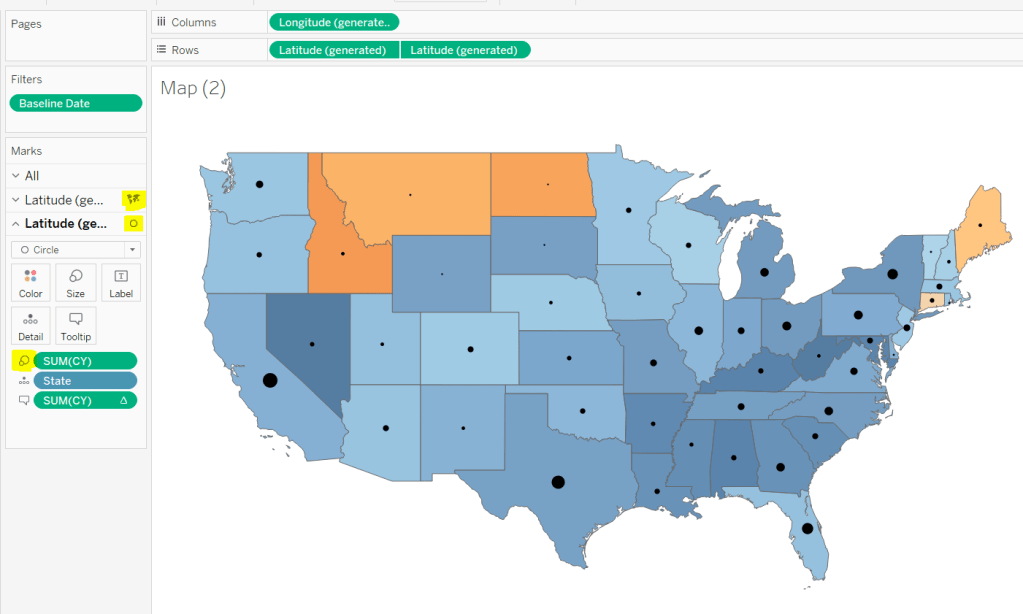
This is achieved using a dual axis map (via a second instance of the Latitude pill on Rows). One ‘axis’ is a map mark type coloured by the YoY% and the other is a circle mark type, sized by CY, explicitly coloured black.

The Tooltip for the circle mark type also shows the % of Total subscriptions for the current year, which is a Percent of Total Quick Table Calculation

Restricting the Date parameter to 1st Jan – 14th July only

As mentioned the Subscription Date contains dates from 01 Jan 2019 to 21 July 2020, but we can’t simply add a filter restricting this date to 01 Jan 20 to 14 Jul 20 as that would remove all the rows associated to the 2019 data which we need available to provide the PY and YoY% values.

So to solve this we need a new date field, and we need to baseline / normalise the dates in the data set to all align to the same year.

Baseline Date

//set all dates to be based on current year
MAKEDATE([Current Year], MONTH([Subscription Date]), DAY([Subscription Date]))

So if the Subscription Date is 01 Jan 2019, the equivalent Baseline Date associated will be 01 Jan 2020. The Subscription Date of 01 Jan 2020 will also have a Baseline Date of 01 Jan 2020.

We also want to ensure we don’t have dates beyond ‘today’

Include Dates < Today

[Baseline Date]< [Today]

Add Include Dates < Today to the Filter shelf, and set to True.

Add Baseline Date to the Filter shelf, choose Range of Dates , and by default the dates 01 Jan 2020 to 14 Jul 2020 should be displayed

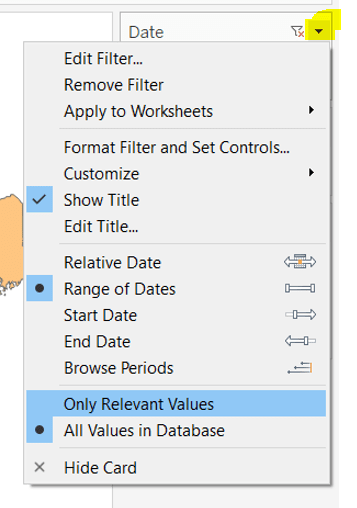
Select to Show Filter, and when the filter displays, select the drop down arrow (top right) and change to Only Relevant Values

Whilst you can edit the start and end dates in the filter to be before/after the specific dates, this won’t actually use those dates, and the filter control slider can only be moved between the range we want.

The Baseline Date field should then be custom formatted to mmmm dd to display the dates in the January 01 format.

Showing Daily or Weekly dates on the viz in tooltip

The requirements state that if the date range selected is <=30 days, the trend chart shown on the Viz in Tooltip should display daily data, otherwise it should be weekly figures, where the week ‘starts’ on the minimum date selected in the range.

There’s a lot going on to meet this requirement.

First up we need to be able to identify the min & max dates selected by the user via the Baseline Date filter.

This did cause me some trouble. I knew what I wanted, but struggled. A FIXED LOD always gave me the 1st Jan 2020 for the Min Date, regardless of where I moved the slider, whereas a WINDOW_MIN() table calculation function caused issues as it required the data displayed to be at a level of detail that I didn’t want.

A peak at Kyle’s solution and I found he’d added the date filters to context. This means a FIXED LOD would then return the min & max dates I was after.

Min Date

{MIN([Baseline Date])}

Note this is a shortened notation for {FIXED : MIN([Baseline Date])}

Max Date

{MAX([Baseline Date])}

With these, we can work out

Days between Min & Max

DATEDIFF(‘day’,[Min Date], [Max Date])

which in turn we can categorise

Daily | Weekly

IF [Days between Min & Max]<=30 THEN ‘Daily’ ELSE ‘Weekly’ END

We also need to understand the day the weeks will start on.

Day of Week Min Date

DATEPART(‘weekday’,[Min Date])

This returns a number from 1 (Sunday) to 7 (Saturday) based on the Min Date selected.

Using this we can essentially ‘categorise’ and therefore ‘group’ the Baseline Date into the appropriate week.

Baseline Date Week

CASE [Day of Week Min Date]
WHEN 1 THEN DATETRUNC(‘week’,([Baseline Date]),’Sunday’)
WHEN 2 THEN DATETRUNC(‘week’,([Baseline Date]),’Monday’)
WHEN 3 THEN DATETRUNC(‘week’,([Baseline Date]),’Tuesday’)
WHEN 4 THEN DATETRUNC(‘week’,([Baseline Date]),’Wednesday’)
WHEN 5 THEN DATETRUNC(‘week’,([Baseline Date]),’Thursday’)
WHEN 6 THEN DATETRUNC(‘week’,([Baseline Date]),’Friday’)
WHEN 7 THEN DATETRUNC(‘week’,([Baseline Date]),’Saturday’)
END

Ideally we want to simplify this using something like DATETRUNC(‘week’, [Baseline Date], DATEPART(‘weekday’, [Min Date])), but unfortunately, at this point, Tableau won’t accept a function as the 3rd parameter of the DATETRUNC function.

Let’s just have a look at what we’ve got so far

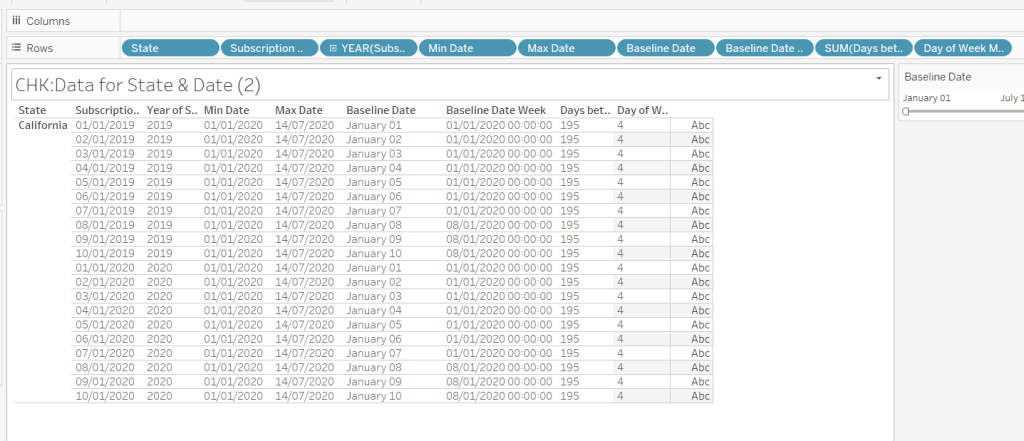
Rows for California only showing the Subscription Dates from 01 Jan 2019 – 10 Jan 2019 and 01 Jan 2020 to 10 Jan 2020. Min & Max date for all rows are identical and matches the values in the filter. The Baseline Date field for both 01 Jan 2019 and 01 Jan 2020 is January 01. The Baseline Date Week for 01 Jan 2019 – 07 Jan 2019 AND 01 Jan 2020 – 07 Jan 2020 is 01 Jan 2020. The other dates are associated with the week starting 08 Jan 20202.

So now we have all this information, we need yet another date field that will be plotted on the date axis of the Viz in Tooltip.

Date to Plot

IF [Days between Min & Max] <=30 THEN ([Baseline Date]) ELSE [Baseline Date Week] END

If you add this field to the tabular display I built out above, you can see how the value changes as you move the filter dates to be within 30 days of each other and out again.

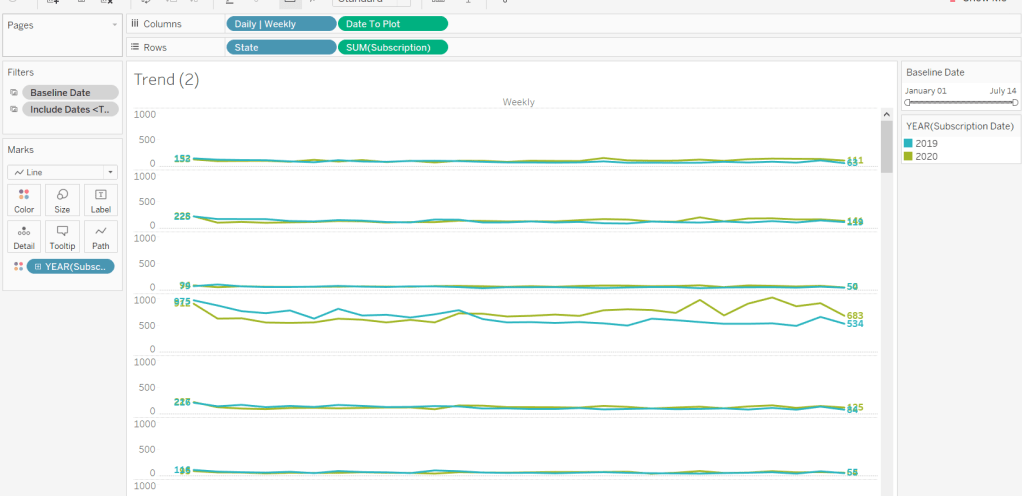
When added to the actual viz, this field is formatted to dd mmm ie 01 Jan, and then is plotted as a continuous, exact date (green pill) field on the Columns alongside the Daily | Weekly field, with State & Subscription on Rows. The YEAR(Subscription Date) provides the separation of the data into 2 lines.

Restricting to full weeks only (in weekly view)

The requirements state only full weeks (ie 7 days of data) should be included when the data is plotted at a weekly level. For this we need to ascertain the ‘week’ the maximum date falls in

Max Date Week

CASE [Day of Week Min Date]
WHEN 1 THEN DATETRUNC(‘week’,([Max Date]),’Sunday’)
WHEN 2 THEN DATETRUNC(‘week’,([Max Date]),’Monday’)
WHEN 3 THEN DATETRUNC(‘week’,([Max Date]),’Tuesday’)
WHEN 4 THEN DATETRUNC(‘week’,([Max Date]),’Wednesday’)
WHEN 5 THEN DATETRUNC(‘week’,([Max Date]),’Thursday’)
WHEN 6 THEN DATETRUNC(‘week’,([Max Date]),’Friday’)
WHEN 7 THEN DATETRUNC(‘week’,([Max Date]),’Saturday’)
END

so if the maximum date selected is a Thursday (eg Thurs 11th June 2020) but the minimum date happens to be a Tuesday, then the week starts on a Tuesday, and this field will return the previous Tuesday date (eg Tues 9th June 2020).

And then to restrict to complete weeks only…

Full Weeks Only

IF [Daily | Weekly]=’Weekly’ THEN
[Date To Plot]< [Max Date Week]
ELSE TRUE
END

If we’re in the ‘weekly’ mode, the Date To Plot field will be storing dates related to the start of the week, so will return true for all records where the field is less than the week of the max date. Otherwise if we’re in ‘daily’ mode we just want all records.

This field is added to the Filter shelf and set to true.

Hopefully that covers off all the complicated bits you need to know to complete this challenge. My published solution is here.

Happy vizzin’! Stay Safe!

Donna