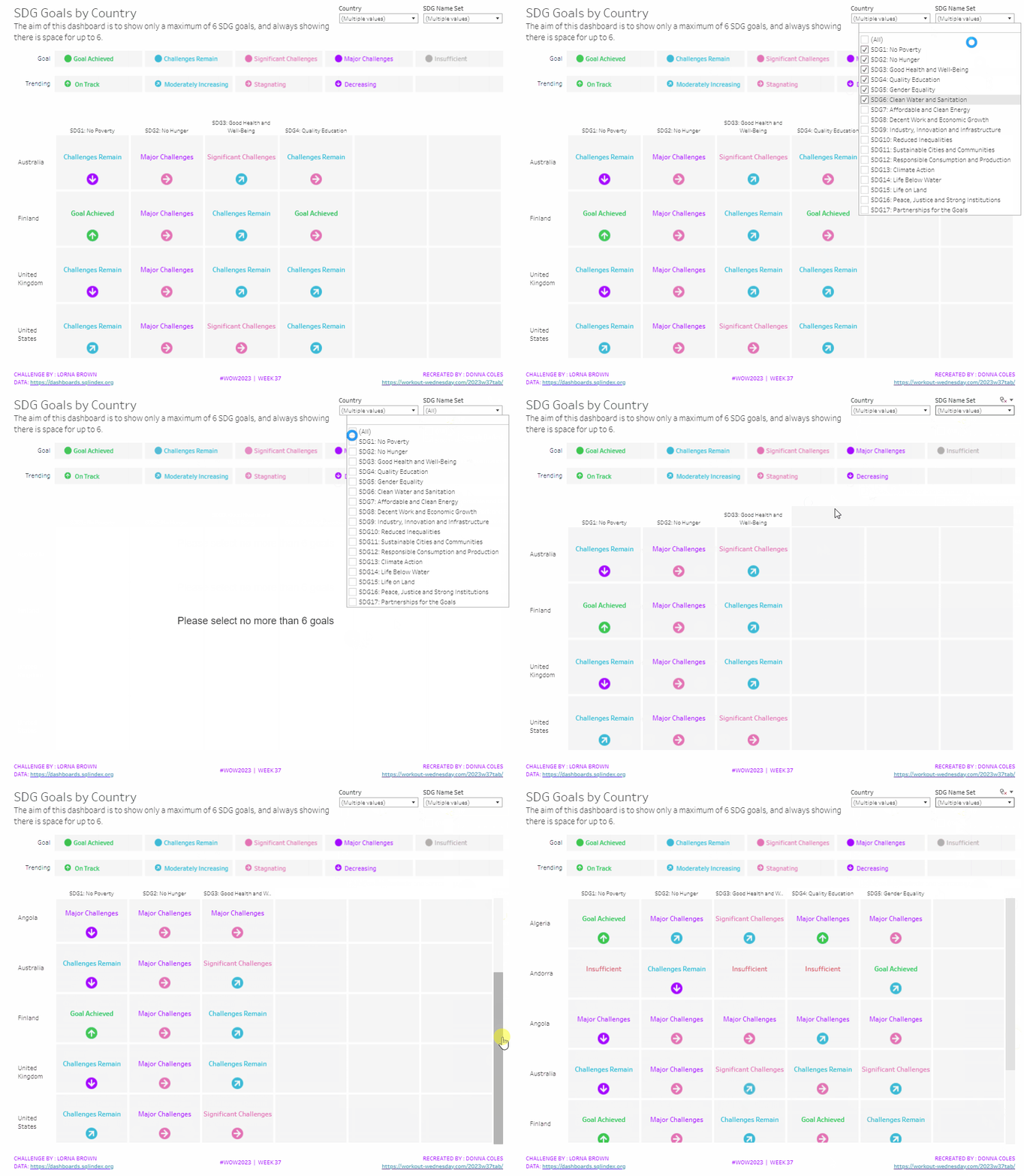
Can you show placeholders for a maximum of 6 goals?

It was Lorna’s turn to set the challenge this week, based on a real world scenario she’s encountered with a colleague. The premise was to be able to show the progress, by country, against a maximum of 6 goals selected by the user. Placeholders for the 6 options had to remain visible at all times (unless the user selected more than 6, in which case a message should appear).

Building the core viz

As Lorna alludes to in the requirements, we will use sets to capture the goals the user can select.

SDG Name Set

Right click on SDG Name > Create > Set. Select up to 4 options.

On a new sheet, add SDG Name Set and SDG Name to Columns, Country to Rows and add Country to the filter shelf, and limit to Australia, Finland, UK & USA. Right click on the SDG Name Set field in the data pane and select Show Set

We need the SDG Name value to only display for the values selected

SDG Name Header Label

IF [SDG Name Set] THEN [SDG Name] ELSE ” END

Add this to Columns before the SDG Name field.

Now we need to always display 6 columns of data, ie in this case, all the SDG Name values In the set and the first SDG Name values not in the set. We will use the INDEX() function to help us label the columns position.

INDEX

INDEX()

Right click this field and Convert to discrete, then add it to the Columns after SDG Name.

Edit the table calculation (click on the triangle symbol on the blue INDEX pill), and adjust so it is computing by Specific Dimensions. This should be all the fields except Country. The columns should be labelled sequentially from 1 to 17.

Add INDEX to the Filter shelf as well. Initially just select 1. Then adjust the table calculation of this field to match above, and once done, edit filter and select values 1 through to 6. This should leave you with 6 columns

Now we have the structure, we can start building the core contents of the table. For this we’ll be using what I refer to as ‘fake axis’.

Double click in the Rows shelf and manually type in MIN(0.2), then double click again and manually type in MIN(0.6). This results in the creation of a MIN(0.2) and a MIN(0.6) marks card on the left hand side.

The MIN(0.2) marks card is going to be used to show the information about how the goal is trending (ie the arrow symbol), while the MIN(0.6) marks card will be used to show the status of the goal (the text displayed). We need new fields for this, so the values only display for the selected goals.

Trend

IF [SDG Name Set] THEN [SDG Trend] END

Goal

IF [SDG Name Set] THEN [SDG Value] END

Click on the MIN(0.2) marks card. Change the mark type to shape. Add Trend to the Shape card. Right click on the Trend pill and change the field from a Dimension to an Attribute.

Doing this stops the field from impacting the table calculation, and you should get back to having 6 columns displayed.

Adjust the shapes using the Arrows shape palette. For the Null value, I set it to use a transparent shape, a custom shape added to my shape palette. See this blog for more information on doing this.

Also add Trend to the Colour shelf. Once again, adjust the pill to be Attribute and then adjust the colours.

Now click on the MIN(0.6) marks card. Adjust the Mark Type to be Text. Add Goal to the Text shelf and change to be and Attribute. Add Goal to the Colour shelf, change to be Attribute and adjust colours to suit. I also adjusted the font to be bold & size 10pt.

Set the chart to be dual axis and synchronise the axis. Edit the axis (Right click on the left hand axis) and fix the axis from 0 to 1.

Hide the axis, the IN/OUT SDG Name Set pill, the SDG Name and INDEX pills (right click the pills and uncheck Show header).

Right click on the Country row label and the SDG Name Header Label column label in the viz and hide field labels for rows/columns.

Right click within the viz to format. Set the background colour of the pane to light grey.

Remove all gridlines, axis rules, zero lines. Set the column and row dividers to thick white lines

Click the Tooltip button on the All marks card, and uncheck show tooltips. Set the viz to Fit width.

Building the Goal legend

On a new sheet, add SDG Value to Columns. Change the mark type to Circle then add SDG Value to Label and Colour. Manually re-order the columns and adjust the colours as required.

Double click in the Columns shelf and type in MIN(0.0). Edit the axis and fix from -0.1 to 0.5 – this will shift the symbols and text to the left.

Adjust the size of the circle shape to suit, and set the font of the label to match mark colour. I also set it to be bold.

Remove all gridlines, axis ruler, zero lines. Set the background of the pane to be grey and the row/column dividers to be thick white lines. Hide the axis and the column headers, and uncheck show tooltips.

Double click into the Rows shelf, and type the text ‘Goal’ (including the quotation marks). Hide the ‘Goal’ label that then displays.

Building the Trend legend

Repeat similar steps for above but add the SDG Trend field to the Colour, Label and Shape shelf. Adjust the shape & colours to those used before.

Handling more than 6 selections

For this requirement, we need to determine the number of items in the set.

Count Set Members

{COUNTD(IF [SDG Name Set] THEN [SDG Name] END)}

and then use this to create some boolean fields

More than 6 Selected

[Count Set Members] > 6

Less than 6 Selected

[Count Set Members] <= 6

Ensuring that less than 6 items are selected, add the Less than 6 Selected field to the Filter shelf of the main table viz and set to True.

If you select more than 6 goals, the viz should disappear.

On a new sheet, double click into the space beneath the marks card where the pills usually sit, and type ‘Dummy’ (with quotes). Change the mark type to shape and set to use the transparent custom shape. Move the Dummy pill to the label shelf, then edit the label and change the text to the error message.

Align the text middle centre and fit to entire view. Uncheck show tooltips. Add More than 6 Selected to the filter shelf and select true (if true isn’t an option, go back to the main viz, and select more options sp the viz disappears, then come back to this sheet and try again).

All the sheets can now be added to the dashboard. Ensure the core table viz and the error sheets are added to a vertical container without the title showings – the charts should expand and collapse as the selections are made – this can be a bit tricky to get right.

My published viz is here.

Happy vizzin’!

Donna

Filtering and Highlighting

It was Sean’s turn to set the challenge this week which included a lots of little details to provide a wealth of different ‘views’ on the same data within a single chart, specifically the change of measure and the change of date granularity.

Building a viz showing the timeline at different levels of granularity based on user selection, is something I’ve done several times in the past, both for other WOW challenges and also in real work situations. So I immediately headed down my ‘usual route’, creating a parameter to identify the level of the date to report at, and a calculated field to display the appropriate level based on the parameter. However, then I noticed that in Sean’s viz, if I changed the date level, the date axis display also changed, sometimes showing <Month Year> format, sometimes <Year Q> etc. Having the axis change like this isn’t something that would work with my ‘usual’ solution. I did ponder this for some time, and the only thought I had was multiple sheets – one for each date part. Sean hadn’t stated how many sheets were needed for the challenge, and it made me wonder if the omission was perhaps deliberate…

Building the Month chart

To start we need to define a parameter to identify the level of date to select

pDateGranularity

string parameter defaulted to ‘month’ with a list of options, which have an alternative display name

We also need to identify the measure we want to show. Before we can define this, we need

Profit Ratio

SUM([Profit])/SUM([Sales])

and

#Orders

COUNTD([Order ID])

We also need to be able to capture the selected measure in a parameter

pMeasure

string parameter, defaulted to PROFIT (note case). A list isn’t needed as the value will be set via an action on the dashboard

so we can then build

Measure to Display

CASE [pMeasure]
WHEN ‘SALES’ THEN SUM([Sales])
WHEN ‘PROFIT’ THEN SUM([Profit])
WHEN ‘PROFIT RATIO’ THEN [Profit Ratio]
WHEN ‘ORDERS’ THEN [#Orders]
END

On a new sheet, add Order Date to Filters and set as a relative date filter to the last 4 years. Add Order Date to Columns as a continuous (green) pill set at the month level, and add Measure to Display to Rows.

Add the Order Date filter to ‘context’ (right click > Add to context) and set it to apply to worksheets > all using this data source. The context is necessary as when it comes to the option to select a date to highlight, only the dates within the timeframe selected should be visible. Show the pMeasure and pDateGranularity parameters.

Edit the Measure to Display axis to change the title to reference the pMeasure parameter instead (right click and edit axis).

Test the values change as expected by changing the text in the pMeasure parameter to SALES or ORDERS or PROFIT RATIO.

To identify a month to highlight, I created

Order Date – month

DATE(DATETRUNC(‘month’,[Order Date]))

and formatted this to a custom format of yyyy-mm

I then created a set off of this field (right click > create > set) and selected a single date 2021-11

Order Date – month Set

In order to make use of the set and its values, the set needs to be on the view. Add Order Date – month Set to the filter shelf. If it doesn’t happen by default, change the option on the pill to Show In/Out of set and then select both In and Out as the filter options (ie all possible values so nothing is actually being filtered).

Then click on the Order Date – month Set pill on the filter shelf and select show set. The list of values in the set should display.

Change the input type of the Set control to be a single value drop down, where the (All) option doesn’t show (via customise) and the option All values in Context is selected

We need to capture the value associated with the date selected

Month Measure to highlight

IF ATTR([Order Date – month Set]) THEN [Measure to Display] END

Add this to the Rows shelf, then make the chart dual axis and synchronise the axis. Adjust the colours of the Measure Names and then make the mark type of the Month Measure to Highlight marks card, a circle, and increase the size.

Hide the right hand axis, remove the title of the bottom axis and remove all row & column dividers. Right click on the nulls indicator and hide indicator.

Call this sheet month chart or similar.

Building the Quarter chart

Go through similar steps to build a chart to display the information at a quarterly level. The field on the Columns shelf should be Order Date set at the continuous (green) quarter level.

You will need a field

Order Date – quarter

DATE(DATETRUNC(‘quarter’,[Order Date]))

and format this to a custom format of yyyy-“Q”q

Use this to create a set off of this field (right click > create > set) and Order Date – quarter Set

You’ll also need

Quarter Measure to highlight

IF ATTR([Order Date – quarter Set]) THEN [Measure to Display] END

Building the week chart

Repeat again.

The field on the Columns shelf should be Order Date set at the continuous (green) week level.

You will need a field

Order Date – week

DATE(DATETRUNC(‘week’,[Order Date]))

and format this to a custom format of yyyy-“W”ww

Use this to create a set off of this field (right click > create > set) and Order Date – week Set

You’ll also need

Week Measure to highlight

IF ATTR([Order Date – week Set]) THEN [Measure to Display] END

Creating the BANs

To start with, we need to create some calculated fields to store the total values for each measure and the ‘highlighted’ vallues

Total Sales

{FIXED: SUM([Sales])}

format to $ with 0 dp

Total Profit

{FIXED: SUM([Profit])}

format to $ with 0dp

Total Profit Ratio

{FIXED: [Profit Ratio]}

format to % with 0 dp

Total Orders

{FIXED:COUNTD([Order ID])}

format to number with 0 dp

and we’ll also need values for the highlighted date

Highlighted Sales

IF ([pDateGranularity]=’quarter’ AND ([Order Date – quarter Set])) OR
([pDateGranularity] = ‘week’ AND ([Order Date – week Set])) OR
([pDateGranularity] = ‘month’ AND ([Order Date – month Set]))
THEN ([Sales])
END

format to $ with 0dp

Highlighted Profit

IF ([pDateGranularity]=’quarter’ AND ([Order Date – quarter Set])) OR
([pDateGranularity] = ‘week’ AND ([Order Date – week Set])) OR
([pDateGranularity] = ‘month’ AND ([Order Date – month Set]))
THEN ([Profit])
END

format to $ with 0 dp

Highlighed Profit Ratio

SUM([Highlighted Profit])/SUM([Highlighted Sales])

format to % with 0 dp

Highlighted Orders

COUNTD(IF ([pDateGranularity]=’quarter’ AND ([Order Date – quarter Set])) OR
([pDateGranularity] = ‘week’ AND ([Order Date – week Set])) OR
([pDateGranularity] = ‘month’ AND ([Order Date – month Set]))
THEN [Order ID]
END)

format to number with 0 dp.

On a new sheet, double click into columns and manually type MIN(0.0). Repeat this 3 more times, so there are 4 instances of MIN(0.0) on the Columns shelf.

On the All marks card, add Measure Names to the Label shelf.

Now right click on Measure Names in the left hand data pane and select Aliases. Alias each of the MIN(0.0) measures to SALES, PROFIT, PROFIT RATIO, ORDERS

The labels on the viz should change

Create a new field

Sales Selected

[pMeasure] = ‘SALES’

On the 1st MIN(0.0) marks card, change the mark type to shape and add Sales Selected to the shape shelf. Use a transparent shape (see here for details) for the False value, and use the provided sparkline image (which you need to add to your shape palette) for the True value (change the pMeasure parameter to SALES for the True option to show). Increase the Size of the shape to around the 3/4 mark.

Add Total Sales and Highlighted Sales to the Label shelf, and then adjust the font position, size and colour accordingly. This is what my label dialog looked like – Measure Names is centred, while the other two fields are right aligned, and the overall alignment is right too.

Adjust the MIN(0.0) axis to be fixed from -0.2 to 1 to give the mark and the text enough space to breathe.

Now repeat the exercise for the other 3 marks cards. You will need the fields

Profit Selected

[pMeasure] = ‘PROFIT’

Profit Ratio Selected

[pMeasure] = ‘PROFIT RATIO’

Orders Selected

[pMeasure] = ‘ORDERS’

and you’ll need to change the value in the pMeasure parameter to get the relevant shape to show or not for each measure

Finally, create fields

True

TRUE

False

FALSE

and add these both to the Detail shelf of the All marks card. We’ll use these to stop the BANs from being ‘highlighted’ on click on the dashboard.

Then remove all row/column dividers and gridlines & zero lines

Building the dashboard

Create the dashboard, and arrange all the objects so the controls/filters are listed in a row at the top, and the 3 charts are arranged side by side underneath.

If you’ve got dates selected for your quarter & week, then in the data pane, right click on the relevant set, edit set and uncheck any option. This should then give you (None) in the dropdowns.

We will use dynamic zone visibility to control which charts & highlight date controls to display. For this we need fields

Show Monthly

[pDateGranularity] = ‘month’

Show Quarterly

[pDateGranularity] = ‘quarter’

Show Weekly

[pDateGranularity] = ‘week’

On the dashboard, select the monthly chart, and then from the Layout tab, select Control visibility using value and choose the Show Monthly field. Set the control visibility for the highlight a month object to also use the Show Monthly field.

Set the control visibility for the Quarterly chart and highlight a quarter object to use the Show Quarterly field, and set the control visibility for the Weekly chart and highlight a week object to use the Show Weekly field.

Create a dashboard parameter action to set the pMeasure parameter on click of the BANs sheet, passing in the Measure Names to the parameter

Set measure

Create a dashboard filter action to stop the BANs from being highlighted ‘on click’

Deselect BANs

And that should be it. My published viz is here.

Happy vizzin’!

Donna

Can you build a “must include” filter?

Ann Jackson set this week’s challenge inspired by a business requirement she’d encountered, which was to be able to filter the data based on a user selection, and then additionally apply another filter to narrow down the required data.

The task ‘splash’ page had already indicated the challenge would involve sets, and the requirements additionally stated you’d need version 2020.2 or higher, which added an additional hint that set controls would be involved. Examining Ann’s solution, I could also see that the tell-tale set icon displayed when hovering near the input control, which confirmed the ‘filters’ were indeed using the set control functionality.

  • Building the bar chart
  • Viz in Tooltip
  • BANs

Building the bar chart

Let’s start by focusing on the bar chart. The first thing to do is to rename several fields. Ann likes capital letters, so the following fields just need to be renamed so they’re all in uppercase: Sales, Quantity, Product, Order ID and Customer (Name). Sales can also be formatted to $ with 0dp.

We create the first set we need by simply right-clicking on the PRODUCT field -> Create -> Set. I named this 1st Products and set to the Use All condition.

Lets build out a basic table and then we can play with how we need to use this set. Put

  • ORDER ID on Rows
  • CUSTOMER on Rows
  • Add Sales to Text
  • Drag Quantity over the Sales column, so Measure Names gets added to Columns and Measure Values is on Text
  • Sort by Sales descending

If we now add the 1st Products set to the Filter shelf and choose the Show Set option, the list of products in the set will be displayed for selection.

Choose the 1st item in the list, and the data will be filtered to just those customers who have ordered that product

But, while this list matches the names if you do the same on the solution, the Sales and Quantity values differ. This is because, we have actually filtered the data just to the lines containing the selected product. If you bring PRODUCT onto Rows, you’ll see you have 1 line per customer.

Now, while you can use LOD calculations to compute the total sales/quantity at an order id level, to resolve this, it won’t solve the next step of the puzzle, to filter the data further by other products on the same orders, as we’ve already filtered out all the other data. So we need to do something else.

To demonstrate, we just want to keep a handle on these specific ORDER IDs so ctrl-click to select them all, and then Include to add them to the Filter shelf. Now remove the 1st Products set from the Filter shelf, then re-add back to the Rows.

You’ll see we now have all the product lines on each order, with an In or Out displayed against each row. The rows which match the PRODUCT selected in the set, is marked as In. This is essentially what the filter is doing if 1st Products is on the Filter shelf – it is filtering the rows to those which return as In (the set).

We basically want a way to be able to identify all the rows on an order which have at least 1 In row, so we can filter on that instead. For this we can create a new field,

Order has 1st Products

{FIXED [ORDER ID]: MAX([1st Products])}

What this is doing is saying for each ORDER ID, get the maximum 1st Products value, which is then ‘stored’ against each row for the same ORDER ID. This may look odd, as 1st Products from the display is showing an ‘In’ or an ‘Out’, so how does the MAX work? Well, whilst the display is In or Out, under the bonnet this is actually a boolean field of 1 = True = In or 0 = False = Out, so the MAX is actually returning either a 1 (true) or a 0 (false).

If you add Order has 1st Products to Rows, you can now see every row in this restricted data set is listed as True

Remove the ORDER ID from the Filter shelf, and you should observe all the other orders listed have False listed against every row.

So we can now add Order Has 1st Product = True to the Filter shelf, and we can remove 1st Products from Rows too.

So we’ve mastered the 1st product filter, time for the 2nd. Once again right-click on PRODUCT and create another set with the Use All condition. This time I called the set 2nd Product.

Just as before, we want to identify all orders that contain this 2nd product selected, so we’ll create another calculated field

Order has 2nd Product

{FIXED [ORDER ID]: MAX([2nd Product])}

Add this field to the Filter shelf and select True. Now click on the 2nd Product set in the Dimesions pane, and selected Show Set, to display the list of products

You’ll notice though that all products are listed, and not just the ones that are associated to the set of orders already filtered. To fix this, we need to add the Order Has 1st Products field to context (click on the Order Has 1st Products pill on the Filter shelf and Add to Context). This will change the pill to a grey colour, and you can now restrict the values in the 2nd Products set to only show All Values in Context.

The add to context function allows us to dictate the order in which the filtering is applied, so the data is primarily filtered based on our 1st Products set and then filtered based on the 2nd Product.

You should now be able to play around with the filtering and see how the rows for complete orders are retained.

Removing PRODUCT from the Rows, and we get back to the total order value / quantity values we’re expecting.

From this, you should now be able to build out the viz. Firstly, duplicate the sheet so we retain the original table, then move SALES & QUANTITY to the Columns, add Measure Names to Colour, add Labels to match mark colour, and format accordingly.

Viz in Tooltip

As an ‘added extra’ Ann added the ability to hover on a bar and see the details of the order in a simple table. We can use the original table we built above to demonstrate the functionality. Add PRODUCT to Row, and replace the QUANTITY field, with a new field you need to create called QTY, which is just based on QUANTITY ie

QTY

[QUANTITY]

Then hide the ORDER ID & CUSTOMER fields (uncheck Show Header) on the pill. You could remove completely, but I like to retain just in case we need to debug if things don’t work.

We will need to show some totals, but this isn’t the Grand Total. Grand Totals will work, but the background of the row will always be a fixed colour. Either white, by default, or set to grey if you choose. However I noticed that depending on the order id I hovered on, the Grand Total row may display grey or white depending on the existing banding. For this we need to use subtotals instead (Analysis menu -> Totals -> Add All Subtotals).

Because we have multiple (hidden) dimensions on the rows, multiple Total rows will display. We can remove by unchecking the Subtotals option against the ORDER ID pill.

And finally, we need to relabel the row. Right-click on the Total row and select Format. Change the label of the Totals section from ‘Total’ to ‘Grand Total’.

With additional formatting to change the font size etc, this sheet can now be added as a ‘Viz in Tooltip’ to the bar chart. On the Tooltip shelf associated to the bar chart, you can Insert -> Sheets -> <Select Sheet>

Hovering over a bar should now automatically filter the tabular display to the appropriate CUSTOMER & ORDER ID.

BANs

For the BANs, we need several additional calculated fields

# ORDERS

COUNTD([ORDER ID])

simply counts the number of distinct Order IDs in the filtered view.

Total Orders

{FIXED:COUNTD([ORDER ID])}

an LOD calculation that counts the overall number of distinct Order IDs, regardless of any filters applied.

% OF TOTAL ORDERS

[# ORDERS]/SUM([Total Orders])

formatted as a % to 1 dp.

AVG ORDER AMOUNT

SUM([SALES]) / [# ORDERS]

formatted to $ 0 dp.

AVG ORDER QUANTITY

SUM([QUANTITY])/[# ORDERS]

formatted to a number with 0 dp.

Add Measure Names to the Filter shelf, and filter to the relevant 4 measures. Add Measure Values and Measure Names to the Text shelf, and Measure Names on Columns. Add the Order Has 1st Products = true and Order has 2nd Product = true to the Filter shelf, but this time don’t add anything to context. If you do, it will affect the Total Orders measure, and the % of orders calc will be wrong. Hide the Measure Names on the columns (uncheck show header), and format the text appropriately.

To get the thick lines, format and set the Row Divider on the sheet to be a thick coloured line.

And you should now have all the core building blocks needed to add onto a dashboard.

My published viz is here.

Happy vizzin’! Stay safe!

Donna