Can you use set actions to create a reference date range?

There’s a lot packed into the challenge this week, which was “set” by Lorna Brown and Erica Hughes to test our Set Action skills. How detailed this blog will go, I have yet to decide… I’ve got a couple of hours to get this nailed, so it could get quite brief as we get towards the end 🙂

I’ve got 6 sheets/charts making up this dashboard, so my intention is to summarise each one, and I’ll define the various calculations that are going to be needed as we go.

  • The overall summary table
  • The selected months summary table
  • The trend line
  • The donut chart
  • The top 3 states table
  • The map
  • Adding the interactivity

The overall summary table

This challenge is focused on understanding the Sales per month. Whilst its possible to use the built in aggregation features of a date field, I often prefer to create explicit date fields at the level I require, so it’s easier to reference. Therefore, the first field I created for this challenge was

Order Date To Plot

DATETRUNC(‘month’, [Order Date])

This essentially ‘groups’ every order placed in a month to be tagged with the 1st of the month. I custom formatted this field to MMM yyyy (ie Oct 21).

For the overall summary table, I need to capture the total sales of the whole data set, and I use a Fixed LoD calculation for this.

Total Sales

{FIXED: SUM([Sales])}

This field is formatted to $0.00M

NOTE – I actually named this field <space>Total Sales<space> as I want to display the name of the field (the measure name) in the summary table, but the ‘selected months’ summary table also has a Total Sales measure which is a different calculation (see later). Adding the <spaces> is a sneaky way to get two fields with what appears to be the same name. As this field when displayed will be centred, the <spaces> aren’t noticeable.

We also need to get the monthly average sales for the whole data set

Average Sales by Month

AVG({FIXED [Order Date To Plot]: SUM([Sales])})

Format this to to $0.0K

We can now build the summary table by adding Measure Names to the Filter shelf and selecting these 2 fields. The placing Measure Names on Rows and Measure Names and Measure Values on Text. Reorder the measures as required, hide Measure Names on Rows and format the Text as required.

Change the title of the sheet to Superstore Sales, ensure the tooltip doesn’t display and remove all gridlines / row banding etc.

The selected months summary table

The core requirement of this challenge is to make use of set actions, so we’re obviously going to need a set which will contain the dates (months) the user will select on the chart. This set will be based off of Order Date To Plot. Right click on the field > Create > Set. Name it Order Dates To Plot Set and by default, select all the months between Oct 20 to Jun 21 inclusive.

Later I’ll describe how the values of this set will get updated, but for now, we need to get some information relating to the sales in these selected months.

Firstly, we want the total sales for the months in this set.

Total Sales

IF [Order Date To Plot Set] THEN [Sales] END

The default format for this field is set to $ with 0 dp.

Note – this is the other ‘total sales’ field mentioned earlier. This field name has no leading/trailing spaces.

To get the average, I needed a field just to store each member of the set (ie each selected month)

Selected Dates

IF [Order Date To Plot Set] THEN [Order Date To Plot] END

and with this I can then work out

Average Sales

AVG({FIXED [Selected Dates]: SUM([Total Sales])})

The final measure required for this section is the change within the date range, which is basically comparing the value of sales at the first month in the selection with the sales in the final month selected. We need a few fields to get to this.

Firstly, we want to identify the first and last months

Min Selected Date

{FIXED:MIN(IF [Order Date To Plot Set] THEN [Order Date To Plot] END)}

If the date is in the set, then return the date and then take the minimum of all the dates, and store against all the rows in the data. Similarly we have

Max Selected Date

{FIXED:MAX(IF [Order Date To Plot Set] THEN [Order Date To Plot] END)}

Putting this info into a table, you can see how the calculations are working. The values for the Min & Max dates are the same across every row.

Next we need to get the Sales at the min & max points, and spread that value across all rows

Sales at Min Date

{FIXED: SUM(IF [Order Date To Plot]=[Min Selected Date] THEN [Sales] END)}

Sales at Max Date

{FIXED: SUM(IF [Order Date To Plot]=[Max Selected Date] THEN [Sales] END)}

Now we can work out the difference

Change within Date Range

([Sales at Max Date]-[Sales at Min Date])/[Sales at Min Date]

format this to a percentage set to 1 dp

Finally, we need to know the number of months in the set, which is displayed in the title of the monthly summary sheet.

Months in Set

{FIXED: COUNTD(IF [Order Date To Plot Set] THEN [Order Date To Plot] END)}

If the date is within the set, then capture the date, and the count the distinct set of dates captured.

Make this a discrete field (move from the measures section at the bottom of the data pane to the dimensions section at the top (above the line), and add to the tabular view

Now we can build the summary sheet.

Add Measure Names to the Filter shelf and this time filter by Total Sales, Average Sales and Change within Date Range. Add Measure Names to Rows and Measure Values to Text. Reorder the measures.

Format the Total Sales to be in $K, by selecting the Format option from the context menu of the Total Sales pill on the Measure Values shelf (hover on the pill and click the carrot/down arrow that appears – by formatting this way, we’re changing the display of this field for this sheet only).

Add Min Selected Date and Max Selected Date to the Detail shelf and set to be Exact Date. Format both these fields via the pill context menu to be the ‘March 2001’ format

Also add Months in Set to the Detail shelf.

Adjust the title of the sheet as below

Finally you need to set the background of the worksheet to the relevant purple (I used #8074a8), adjust the colours of all the fonts to white and adjust the size/style of the fonts in the table. Remove all gridlines/row banding etc, and you should have something like below

The Trend Line

By this point we’ve built all the calculated fields we need for this chart. This is a dual axis line chart, as we want the colour of the line for the selected dates to be different from the non selected ones, and we want to display a label for the highest sales in the selected timeframe.

  • Add Order Date to Plot to Columns, and set as a Continuous (green) pill set to Exact Date
  • Add Sales to Rows
  • Add Total Sales to Rows
  • Make the chart dual axis, and synchronise axis.
  • Adjust the colours of the Measure Names colour legend
  • On the Label shelf of the Total Sales marks card, set to label the maximum value only
  • On the All Marks Card, add Min Selected Date and Max Selected Date to the Detail shelf and set to Exact Date.
  • Right click on the Order Date To Plot axis and Add Reference Line
  • Create a reference band that starts at the constant Min Selected Date, ends at the constant Max Selected Date, is bounded by dotted lines and shaded between
  • Hide the Sales and Total Sales axis, format tooltips and adjust the row & column dividers.
  • Change the title and you should get to

The donut chart

Donut charts are 2 different sized pie charts on top of each other, created using a dual axis chart. On the Rows shelf type in MIN(0). Then type the same next to it. This gives you two axis and two marks cards.

We only care about information related to the selected dates for this chart, so we can add Order Date To Plot Set to the Filter shelf, which by default will just restrict the information to the data ‘in’ the set.

Change the mark type of the 1st MIN(0) marks card to Circle and add Sales to the Tooltip shelf. Adjust the size of the charts/mark.

Change the mark type of the 2nd MIN(0) marks card to Pie and add Sales to the Angle shelf. Add State to the Detail shelf. Sort the State field by Sales descending.

Note – the circles might look the same at this point, but if you hover over the bottom one, you should see that it’s segmented by State.

We need some new fields now to help us identify the top ranking states.

Sales Rank

RANK(SUM([Sales]))

This is a table calculation, so it’s best to see how this field will work in a table view – build one out as below, and set the table calculation on the Sales Rank field as shown

We’re now going to ‘group’ the ranks into the top 3 and everything else

Sales Rank Group

IF [Sales Rank]<=3 THEN [Sales Rank] ELSE 10 END

We can now use this Sales Rank Group field to colour the pie chart. On the 2nd MIN(0) marks card, add Sales Rank Group to the Colour shelf. Adjust the table calculation to compute using State as above, then change the field to be Discrete (blue). Adjust the colours to suit.

Now make the chart dual axis, and synchronise the axis. Adjust the size of the 1st MIN(0) circle to be smaller than the pie. If it’s not showing, right click on the right hand axis and move marks to back. Colour the circle white. Adjust tooltips to suit and hide axis, column/row dividers etc. Update the title. You should have

The top 3 states table

  • Add Order Date To Plot Set to Filter
  • Add State to Rows and Sales to Text and sort descending.
  • Add Sales Rank to Filter and set to At Most is 3. This will just show the top 3 states.
  • Add State to Text
  • Add a Percent of Total Quick Table Calculation to the existing Sales field that’s on the Text shelf (via the context menu of the pill)
  • Add another instance of Sales back onto the Text shelf
  • Adjust / format the font size and layout of the fields on the Text shelf
  • Add Sales Rank to the Size shelf and set to be discrete (blue) and set the mark type to be Text. Adjust the size of the marks – it’s likely it’ll need to be reversed and the range adjusted.
  • Hide the State field on Rows, adjust the font colours, remove row banding and row/column dividers. You should end up with…

The map

  • Add Order Date To Plot Set to the Filter shelf
  • Add State to Detail – this should create a map (edit locations to be US if need be – Map -> Edit Locations menu)
  • Add Sales to the Colour shelf
  • Edit the colour range to a suitable purple range ( I set the darkest colour of the range to #6c638f)
  • Adjust the map layers (Map -> Map Layers) so only the option highlighted below is selected.

Adding the interactivity

Add all the sheets to the dashboard, using vertical and horizontal containers to arrange the relevant layout. Then add a Set Action (Dashboard > Actions > Add Action > Change Set Values). The Set Action should be configured as below :

And fingers crossed, you should now be able to select marks on the trend line and see all the other charts, except the initial summary table, all update. My published viz is here.

Happy vizzin’! Stay Safe!

Donna

How much do top sub-categories contribute to sales?

A colourful #WorkoutWednesday challenge this week, courtesy of Ann Jackson incorporating pie charts, top N functionality and interactivity and a highlight table. Pie charts can cause much debate amongst the data viz community and if this one was just representing the multitude of sub-categories, it certainly wouldn’t be ideal. But when the core aim is to simply present 2 key measures (those in the top N against the rest), the pie is a familiar and effective visual. In this instance, the outer ring segmenting all the sub-categories provides additional context without detracting from the main purpose of the viz.

So lets build…

  • Creating the core calculations
  • Building the Pie Chart
  • Building the Highlight Table
  • Adding the Interactivity

Creating the core calculations

First up, we’re going to need a parameter to define the ‘Top N’. Create an integer parameter with a range from 1 to 17, that steps every 1 interval, and is defaulted to 5.

pTopN

Next we’re going to use a Set to capture the Sub-Categories that are in the Top N Sales. Right click on Sub-Category -> Create ->Set. Use the Top tab to define a set captures the Sum of Sales that is based on the pTopN parameter.

Now, we want to create a grouping of those in and out of the set, which will be used as part of the highlight table

Sub-Cat Group

IF [Sub-Category Set] THEN ‘IN TOP ‘ + STR([pTopN])
ELSE ‘ALL ELSE’
END

Pop all these fields out into a table so you can see what’s going on as you change the pTopN parameter. Sort the Sub-Category by Sales descending.

Now we need to identify the % value of Sales for the Sub-Categories that are in the Top N (this is the label on the darker segment of the central pie chart), so for that we need

Total Sales

{FIXED:SUM([Sales])}

Top N Sales (in hindsight, this should have been named Sales per Group or similar)

{FIXED [Sub-Category Set] : SUM([Sales])}

Top N Sales %

IF ATTR([Sub-Category Set]) THEN
SUM([Top N Sales])/SUM([Total Sales])
END

Format this to percentage with 0 dp.

Adding to the table, we can see the values

The final field we need in order to build the pie, is an additional one to store the label text

Label:SubText

IF [Sub-Category Set] THEN ‘TOP ‘ + STR([pTopN]) END

Building the Pie Chart

To achieve this we’re going to build a dual axis pie chart, where one pie is used to define the In/Out of Top N segmentation in the centre, and the other pie is used to create the outer ring.

Create an axis by typing in MIN(0) onto the Rows shelf, and then adding another instance of MIN(0) next to it. This will generate 2 marks cards, which is where the fields to build the pie charts will be placed.

In the first MIN(0) marks card, change the mark type to Pie, then add Top N Sales to the Angle shelf and Sub-Category Set to the Colour shelf. Adjust colours to suit. Then add Top N Sales % and Label:SubText to the Label shelf. Adjust size of the view and the chart to suit. Also remove all text from the Tooltip.

Positioning the text is a bit fiddly. If you click on the text so the cursor changes to a cross symbol, you can then drag it to a better location. However, when you change the Top N parameter, the text will move. You can go through each parameter value and reposition the text each time (which I did.. it wasn’t too onerous for 17 values), however I found when published to Tableau Public, the positioning wasn’t honoured. Ann’s solution was the same, so I didn’t get too hung up on this, although if anyone resolved it, I’d love to know!

Now on the 2nd MIN(0) marks card, again change the mark type to Pie, and this time add Sales to the Angle shelf and Sub-Category to Colour. Sort the Sub-Category field by Sales descending. Additionally add Sub-Category Set to the Detail shelf (this will be needed later on to make the interactivity work). Edit the colour palette to use the Hue Circle options. Adjust the size of the pie chart. Adjust the tooltip too.

Now make the chart dual axis and synchronize the axis. If the colourful chart is displayed ‘on top’, then right click on the right hand axis and select move marks to back. Adjust the sizes of both pies, so the colour wheel is slightly larger than the other one.

Now hide the axis, and remove all borders and gridlines.

Building the Highlight Table

I’ve built the highlight table as a bar chart. Start off by adding Sub-Category Set, Sub-Cat Group and Sub-Category to Rows. Sort Sub-Category by Sales descending. Then type in MIN(1) into the Columns shelf.

Now add subtotals via the Analysis > Totals > Add all Subtotals menu. This adds 2 additional rows to each section

But we don’t want the ‘grand total’, so click on the Sub-Category Set context menu, and uncheck Subtotals

To position the totals at the top, go to Analysis > Totals > Column Totals To Top

Then add Sub-Category to the Colour shelf, and adjust the colour of the Total bar to white

We now need to get some text onto those bars, but we need some additional calculations to help up with this. Firstly, we want to get the rank of the Sub-Category. We’ll use a table calculation for this

Sales Rank

RANK(SUM([Sales]))

We also need a way to identify the Total rows differently from the main Sub-Categories. I referred to this Tableau KB for help here, and subsequently created

Size

SIZE()

To see what this is doing, add Size to the Label shelf, and adjust the table calculation setting to compute by all fields except the Sub-Category Set. The size of the total rows is 1.

Based on this logic, we can then create

LABEL:Bar

IF [SIZE]=1 THEN ‘SUBTOTAL FOR GROUP’
ELSE ‘#’+STR([Sales Rank]) + ‘ ‘ + ATTR([Sub-Category])
END

Add this to the Label shelf instead of the Size field and adjust the table calc settings as above. Align left. Then add Sales to the Label shelf too and adjust so its on the same row. Adjust the tooltip too.

Now hide the Sub-Category Set and the Sub-Category fields. Right click on the ‘IN TOP x’ text and Rotate Label, then click on Sub-Cat Group text and Hide Field Labels for Rows. Format the header text to suit.

Hide the MIN(1) axis, and set columns and gridlines to None. Adjust the Row dividers to be darker

Adding the Interactivity

Add the 2 sheets onto a dashboard, and add a Highlight Dashboard Action, that on Hover of either of the charts, it highlights the other chart based on the Sub-Category Set only.

I think that’s covered everything. My published viz is here.

Happy vizzin’! Stay Safe!

Donna

Can you create a moving average chart with a focus on selected subcategories?

Following the #WOW survey where practice in table calculations was the most requested feature, Lorna continues with the theme in this challenge, where the focus is on the moving average table calculation, plus a couple of extra features thrown in.

Moving average

This is based on the values of data points before and after the ‘current’ point, as defied by the parameters which will need to be created.

pPrior

Integer parameter ranging from 1 to 6 and defaulted to 3. You need to explicitly set the Step size to 1 to ensure the step control slider appears when you add the parameter to the dashboard. This will be used to define the number of data points prior to the current to use in the calculation.

Create an identical parameter pPost to define the number of data points to use after the current one.

With these parameters, we can now create the core calculation

Moving Avg

WINDOW_AVG(SUM([Sales]), (-1*[pPrior])+1, [pPost])

As the requirement states that the ‘prior’ parameter needs to include the ‘current’ value, then we need to adjust the calculation – ie if the parameter is 3, we actually only want to include 2 prior data points, as the 3rd will be the current point itself. This is what the +1 is doing in the 2nd argument of the function.

Lorna has stated that 3 Sub-Categories are grouped to form a Misc category, so we need to create a group off of Sub-Category (right click Sub-Category -> Create -> Group).

Multi-select the 4 options that need to be grouped (hold down Ctrl as you select), and then group, and rename the group Misc.

Now we can check what the calculation is doing. If you add the fields onto the view as below, and set the Moving Avg table calculation to compute using Month of Order Date only (see further below), you should be able to see that each month’s moving avg value is calculated based on the sales value of the set of previous & post months as defined by your parameters. In the image below the Moving Avg for Accessories in June 2018, is the average of the Sales values from April 2018 – Sept 2018.

With this you can start the beginnings of the viz – don’t forget to set the table calc as above.

Colouring the lines

This will be managed by using a set.

Right click on the Sub-Category (group) field -> Create -> Set. Initially select all values. Add this field to the Colour shelf. Additionally, click the Detail symbol (…) to the left of the Sub-Category (group), and select the Colour symbol, so this field is also added to the Colour shelf.

The resulting colour legend will look something like this
Edit the colour legend, then choose Hue Circle and select Assign Palette to randomly assign colours to all the options

To show the set values, click on the context menu of the Sub-Category (Group) field on the Colour shelf, and Show Set.

This will add the list of options for selection

Uncheck All so none are selected, which will change the colour legend to read ‘Out, xxx’. Edit the colour legend again, and control-click to multi select all options, then set to a single grey

Now if you select a few options, the ones selected will be coloured, while the others remain grey

Additionally add the set field onto the Size shelf and make the In option bigger than the Out.

Shading the background

For this we need to create an unstacked area chart with one measure representing the maximum moving average value for the month, and the other representing the minimum moving average value for the month. We’ll need new calculated fields for this:

Window Max Avg

WINDOW_MAX([Moving Avg])

Window Min Avg

WINDOW_MIN([Moving Avg])

If you’ve still got your data sheet available, then move Sub-Category (Group) onto Rows, then add the two newly created fields.

In this case there are ‘nested’ table calcs. You need to ensure the setting related to the Moving Avg is computing by Month Order Date only, but the setting related to the Window Max Avg (or Window Min Avg) is computing by Sub-Category (Group).

If set properly, you should see that for each month the max / min values are displayed against every row.

Back to your chart viz sheet, and add Window Max Avg to Rows. Set the table calc settings as described above, then remove the Sub-Category (group) Set field from the Colour shelf of this measure, and change the Sub-Category (group) to be on the Detail rather than Colour shelf.

Change the mark type to Area, set the Opacity of the colour to 100% and set stack Marks to be Off (Analysis Menu -> Stack Marks -> Off).

Now drag Window Min Avg onto the Window Max Avg axis and drop it when the ‘2 columns’ image appears.

This will change the view so Measure Values is now on the Rows shelf and Window Min Avg is now displayed in the Measure Values section on the left hand side.

Adjust the table calc setting of Window Min Avg to be similar to how we set the Max field. And now drag the fields so Window Min Avg is listed before Window Max Avg. Measure Names will now be on the Colour shelf of this marks card, so adjust so Window Min Avg is white and Window Max Avg is pale grey.

Now make the chart dual axes, synchronise the axes, and set the Measure Values axis to the ‘back’.

Everything else is now just formatting and adding onto a dashboard. My published viz is here.

Happy vizzin’! Stay Safe!

Donna

Can you find the needle in the haystack?

It was Candra’s turn to ‘set’ the #WOW2021 challenge this week providing a hint in the challenge description that the solution would involve sets.

As with many challenges, I built the data out in tabular format to start with to verify I had all the components and calculations correct. The areas of focus are

  • Identify number of distinct customers per product
  • Identify overall average number of distinct customers per product
  • Identify if product above or below average distinct customers
  • Identify Top 50 products by Sales
  • Identify Unprofitable Products
  • Identify products that are both in the top 50 AND unprofitable
  • Building the viz

Identify number of distinct customers per product

To start off, add Product Name, Sub-Category, Category to the Rows shelf to begin building out a table. Add Sales (formatted to $k 0dp) and Profit (formatted to $k 0dp with negative values as () ) to Text and sort by Sales descending.

To identify the distinct customers per product, we can create

Customer Count per Product

{FIXED [Product Name] : COUNTD([Customer ID])}

Add this to the view.

Identify overall average number of distinct customers per product

What we’re looking for here is the average of all the values we’ve got listed in the Customer Count per Product column. Ie we want to sum up those values displayed and divide by the number of rows.

The number of rows is equivalent to the number of products, which we can get from

Count Products

{FIXED : COUNTD([Product Name])}

And so to get the overall average we calculate

Avg Overall Customer Count

{FIXED: SUM([Customer Count Per Product])} / [Count Products]

Add these fields to the view as well, so you can see how the values work per row. The last two calculations give you the same value across all rows.

Identify if product above or below average distinct customers

Given the above display, this is just a case of comparing values in 2 columns

Higher than Avg Customer Count

AVG([Customer Count Per Product]) > SUM([Avg Overall Customer Count])

this returns true or false – add this to the view too.

Identify Top 50 products by Sales

We can create a set for this. Right click on Product Name > Create > Set. Name the set something suitable eg Top 50 Products, and on the Top tab, state the number (50) and the field (Sales) and the aggregation (Sum)

Add this to the view, and if you’ve sorted by the sales, you should find the top 50 rows are all In the set, and the rest are Out.

Identify Unprofitable Products

We can use another set for this. Again create a set off of Product Name, call it Unprofitable Products, and on the Condition tab, set the condition so that the Sum of Profit is less than 0

Add this onto the view too.

Identify products that are both in the top 50 AND unprofitable

For this, we’re explicitly looking for the rows that are both In the Top 50 Products set and In the Unprofitable Products set.

We can use the Combined Set functionality to do this.

In the left hand data pane, select both the Top 50 Products and the Unprofitable Products sets (hold down ctrl to multi select), then right click and Create Combined Set. I called the set Products to Include, and select to combine the sets by including Shared members in both sets

If you then add this field to the Filter shelf, you will be left with just the 13 Products that match

This is the single filter field you can use as per Candra’s requirements.

Building the viz

To get the text to display to the left of the bar, you actually need to create a ‘fake’ bar chart.

  • Add Products to Include to Filter
  • Add Product Name to Rows
  • On the Columns shelf, double click and type in MIN(1)
  • Add Sales to Columns to the right of MIN(1)
  • Sort by Sales descending

Against the MIN(1) marks card

  • Change the Size to small
  • Set the Opacity of the Colour to 0% and the border to None
  • Add Product Name, Sub-Category and Category to the Label shelf and adjust accordingly, aligning left
  • Increase the height of each row to make the text visible

On the Sales marks card

  • Add Higher than Avg Customer to the Colour shelf and adjust
  • Show mark labels
  • Create a new field Profit Ratio : SUM([Profit])/SUM([Sales]) Format to % with 0dp and add to Tooltip
  • Add Profit, and Customer Count by Product to Tooltip and adjust accordingly

Finally, uncheck Show Header against Product Name and MIN(1) and Sales and format the borders/gridlines etc. Add the title, then add to the dashboard.

All done (I hope…)! My published version is here.

Happy vizzin’! Stay Safe!

Donna

Can you build a “must include” filter?

Ann Jackson set this week’s challenge inspired by a business requirement she’d encountered, which was to be able to filter the data based on a user selection, and then additionally apply another filter to narrow down the required data.

The task ‘splash’ page had already indicated the challenge would involve sets, and the requirements additionally stated you’d need version 2020.2 or higher, which added an additional hint that set controls would be involved. Examining Ann’s solution, I could also see that the tell-tale set icon displayed when hovering near the input control, which confirmed the ‘filters’ were indeed using the set control functionality.

  • Building the bar chart
  • Viz in Tooltip
  • BANs

Building the bar chart

Let’s start by focusing on the bar chart. The first thing to do is to rename several fields. Ann likes capital letters, so the following fields just need to be renamed so they’re all in uppercase: Sales, Quantity, Product, Order ID and Customer (Name). Sales can also be formatted to $ with 0dp.

We create the first set we need by simply right-clicking on the PRODUCT field -> Create -> Set. I named this 1st Products and set to the Use All condition.

Lets build out a basic table and then we can play with how we need to use this set. Put

  • ORDER ID on Rows
  • CUSTOMER on Rows
  • Add Sales to Text
  • Drag Quantity over the Sales column, so Measure Names gets added to Columns and Measure Values is on Text
  • Sort by Sales descending

If we now add the 1st Products set to the Filter shelf and choose the Show Set option, the list of products in the set will be displayed for selection.

Choose the 1st item in the list, and the data will be filtered to just those customers who have ordered that product

But, while this list matches the names if you do the same on the solution, the Sales and Quantity values differ. This is because, we have actually filtered the data just to the lines containing the selected product. If you bring PRODUCT onto Rows, you’ll see you have 1 line per customer.

Now, while you can use LOD calculations to compute the total sales/quantity at an order id level, to resolve this, it won’t solve the next step of the puzzle, to filter the data further by other products on the same orders, as we’ve already filtered out all the other data. So we need to do something else.

To demonstrate, we just want to keep a handle on these specific ORDER IDs so ctrl-click to select them all, and then Include to add them to the Filter shelf. Now remove the 1st Products set from the Filter shelf, then re-add back to the Rows.

You’ll see we now have all the product lines on each order, with an In or Out displayed against each row. The rows which match the PRODUCT selected in the set, is marked as In. This is essentially what the filter is doing if 1st Products is on the Filter shelf – it is filtering the rows to those which return as In (the set).

We basically want a way to be able to identify all the rows on an order which have at least 1 In row, so we can filter on that instead. For this we can create a new field,

Order has 1st Products

{FIXED [ORDER ID]: MAX([1st Products])}

What this is doing is saying for each ORDER ID, get the maximum 1st Products value, which is then ‘stored’ against each row for the same ORDER ID. This may look odd, as 1st Products from the display is showing an ‘In’ or an ‘Out’, so how does the MAX work? Well, whilst the display is In or Out, under the bonnet this is actually a boolean field of 1 = True = In or 0 = False = Out, so the MAX is actually returning either a 1 (true) or a 0 (false).

If you add Order has 1st Products to Rows, you can now see every row in this restricted data set is listed as True

Remove the ORDER ID from the Filter shelf, and you should observe all the other orders listed have False listed against every row.

So we can now add Order Has 1st Product = True to the Filter shelf, and we can remove 1st Products from Rows too.

So we’ve mastered the 1st product filter, time for the 2nd. Once again right-click on PRODUCT and create another set with the Use All condition. This time I called the set 2nd Product.

Just as before, we want to identify all orders that contain this 2nd product selected, so we’ll create another calculated field

Order has 2nd Product

{FIXED [ORDER ID]: MAX([2nd Product])}

Add this field to the Filter shelf and select True. Now click on the 2nd Product set in the Dimesions pane, and selected Show Set, to display the list of products

You’ll notice though that all products are listed, and not just the ones that are associated to the set of orders already filtered. To fix this, we need to add the Order Has 1st Products field to context (click on the Order Has 1st Products pill on the Filter shelf and Add to Context). This will change the pill to a grey colour, and you can now restrict the values in the 2nd Products set to only show All Values in Context.

The add to context function allows us to dictate the order in which the filtering is applied, so the data is primarily filtered based on our 1st Products set and then filtered based on the 2nd Product.

You should now be able to play around with the filtering and see how the rows for complete orders are retained.

Removing PRODUCT from the Rows, and we get back to the total order value / quantity values we’re expecting.

From this, you should now be able to build out the viz. Firstly, duplicate the sheet so we retain the original table, then move SALES & QUANTITY to the Columns, add Measure Names to Colour, add Labels to match mark colour, and format accordingly.

Viz in Tooltip

As an ‘added extra’ Ann added the ability to hover on a bar and see the details of the order in a simple table. We can use the original table we built above to demonstrate the functionality. Add PRODUCT to Row, and replace the QUANTITY field, with a new field you need to create called QTY, which is just based on QUANTITY ie

QTY

[QUANTITY]

Then hide the ORDER ID & CUSTOMER fields (uncheck Show Header) on the pill. You could remove completely, but I like to retain just in case we need to debug if things don’t work.

We will need to show some totals, but this isn’t the Grand Total. Grand Totals will work, but the background of the row will always be a fixed colour. Either white, by default, or set to grey if you choose. However I noticed that depending on the order id I hovered on, the Grand Total row may display grey or white depending on the existing banding. For this we need to use subtotals instead (Analysis menu -> Totals -> Add All Subtotals).

Because we have multiple (hidden) dimensions on the rows, multiple Total rows will display. We can remove by unchecking the Subtotals option against the ORDER ID pill.

And finally, we need to relabel the row. Right-click on the Total row and select Format. Change the label of the Totals section from ‘Total’ to ‘Grand Total’.

With additional formatting to change the font size etc, this sheet can now be added as a ‘Viz in Tooltip’ to the bar chart. On the Tooltip shelf associated to the bar chart, you can Insert -> Sheets -> <Select Sheet>

Hovering over a bar should now automatically filter the tabular display to the appropriate CUSTOMER & ORDER ID.

BANs

For the BANs, we need several additional calculated fields

# ORDERS

COUNTD([ORDER ID])

simply counts the number of distinct Order IDs in the filtered view.

Total Orders

{FIXED:COUNTD([ORDER ID])}

an LOD calculation that counts the overall number of distinct Order IDs, regardless of any filters applied.

% OF TOTAL ORDERS

[# ORDERS]/SUM([Total Orders])

formatted as a % to 1 dp.

AVG ORDER AMOUNT

SUM([SALES]) / [# ORDERS]

formatted to $ 0 dp.

AVG ORDER QUANTITY

SUM([QUANTITY])/[# ORDERS]

formatted to a number with 0 dp.

Add Measure Names to the Filter shelf, and filter to the relevant 4 measures. Add Measure Values and Measure Names to the Text shelf, and Measure Names on Columns. Add the Order Has 1st Products = true and Order has 2nd Product = true to the Filter shelf, but this time don’t add anything to context. If you do, it will affect the Total Orders measure, and the % of orders calc will be wrong. Hide the Measure Names on the columns (uncheck show header), and format the text appropriately.

To get the thick lines, format and set the Row Divider on the sheet to be a thick coloured line.

And you should now have all the core building blocks needed to add onto a dashboard.

My published viz is here.

Happy vizzin’! Stay safe!

Donna

Can you toggle between AND|OR filtering logic?

Week 49 of #WOW2020 was a guest challenge by Sam Epley to demonstrate the ability to toggle between filtering using AND logic and filtering using OR logic. Sam stated that it had been something he and colleagues had been pondering for a while but v2020.2 provided a possible solution.

So the first thing I did was a quick check on what functionality had been released in v2020.2 which included set controls. I also noticed when examining the published solution, that if I hovered over the Select Values filter controls, a small set icon would appear, which indicated these filters were indeed based on set controls

This blog will focus on

  • Select a Field for Slicer x parameter
  • Select Values for Slicer x filter
  • Building the Logic

Select a Field for Slicer x parameter

I had a slight ‘moment’ with this, until I realised I just had to copy the ╚ character and paste it into the parameter list I created

You’ll need to create 3 instances of this parameter (or create once, duplicate and rename).

Select Values for Slicer x filter

Note – what I describe here will need to be duplicated for each slicer.

There’s a chance I may well have been a bit long-winded in how I went about this, but it worked for me…

First up, I extracted the value selected in the Select a Field parameter, only returning a value if it contained the special ╚ character. So this would return the word ‘Region’ or ‘Segment’ but would return NULL if ‘Location’ or ‘Customer’ had been selected.

Selected Slicer 1

IF CONTAINS([Select a Field for Slicer 1:],’╚ ‘) THEN REPLACE([Select a Field for Slicer 1:],’╚ ‘,”)
ELSE NULL
END

I then needed to ‘map’ this value to the actual field in the data source, so I could get a handle on the actual values associated to the field

Selected Slicer 1 Values

IF [Selected Slicer 1] = ‘Region’ THEN [Region]
ELSEIF [Selected Slicer 1] = ‘State’ THEN [State]
ELSEIF [Selected Slicer 1] = ‘Category’ THEN [Category]
ELSEIF [Selected Slicer 1] = ‘Sub-Category’ THEN [Sub-Category]
ELSEIF [Selected Slicer 1] = ‘Segment’ THEN [Segment]
ELSEIF [Selected Slicer 1] = ‘Ship Mode’ THEN [Ship Mode]
ELSE ‘No Selection’
END

From this I could create a set to store the values, by right-clicking on the Selected Slicer 1 Values field and choosing Create -> Set, and selecting the Use all option.

The values in the set can then be accessible on the sheet foe selection by right-clicking on the set field and choosing Show Set

Building the Logic

To help with this, you can build out a basic view by Region that returns In or Out for each of the sets

As you can see when everything is set to ‘None Selected’, everything is In.

As we change the filter options, you can see the values change to be In and Out

For the AND logic to work, we’re looking for the rows of data where every In/Out column is In.

For the OR logic to work, we’re looking for the rows of data where In exists in at least one column.

However, when there is a No Selection option selected, all values are In the set, and when we’re using the OR logic, we don’t want these.

So we need to identify when No Selection is selected in the filter

Slicer 1 is Not Selected?

[Selected Slicer 1 Values] = ‘No Selection’

and we need this for the other slicers too.

Then we need to build a new calculated field that is going to handle all this logic, which is driven by a pLogic parameter which simply contains the values of AND and OR.

In Combined Set

IF [pLogic]=’AND’ THEN [Select Values for Slicer 1:] AND [Select Values for Slicer 2:] AND [Select Values for Slicer 3:]
ELSE //It’s OR
IF [Slicer 2 Is Not Selected?] AND [Slicer 3 Is Not Selected?] THEN [Select Values for Slicer 1:]
ELSEIF [Slicer 1 Is Not Selected?] AND [Slicer 3 Is Not Selected?] THEN [Select Values for Slicer 2:]
ELSEIF [Slicer 1 Is Not Selected?] AND [Slicer 2 Is Not Selected?] THEN [Select Values for Slicer 3:]
ELSEIF [Slicer 3 Is Not Selected?] THEN [Select Values for Slicer 1:] OR [Select Values for Slicer 2:]
ELSEIF [Slicer 2 Is Not Selected?] THEN [Select Values for Slicer 1:] OR [Select Values for Slicer 3:]
ELSEIF [Slicer 1 Is Not Selected?] THEN [Select Values for Slicer 2:] OR [Select Values for Slicer 3:]
ELSE [Select Values for Slicer 1:] OR [Select Values for Slicer 2:] OR [Select Values for Slicer 3:]
END
END

This field returns a true or false against each row in the data set, and can be used to build the bar chart display.

This covers the most ‘complex’ bit of this challenge – below shows what one of the charts looks like

If you’re not familiar with how to use measure swapping, which is another feature of this challenge, then check out a previous blog I wrote.

I also created a field to add to the Tooltip to show a $ symbol in the event the measure selected was Sum of Sales.

My published solution is here.

Happy vizzin’! Stay Safe!

Donna

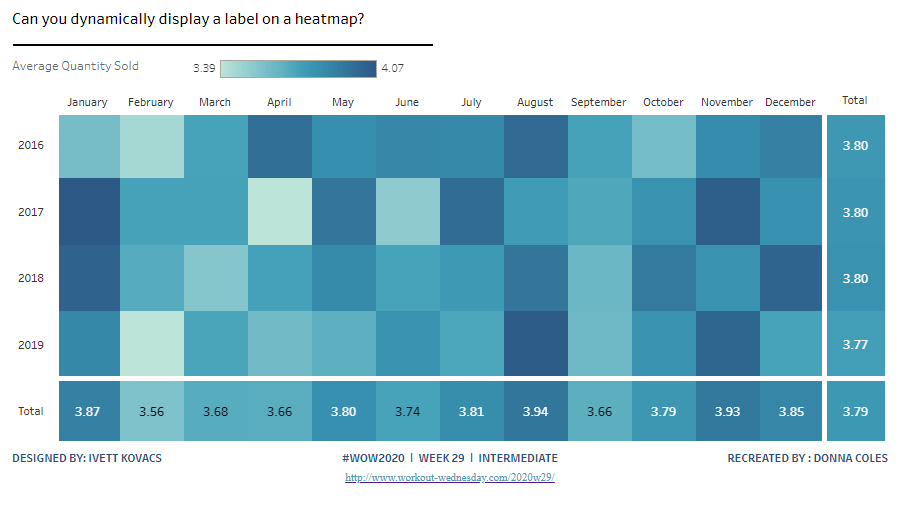
Can you dynamically display a label on a heat map?

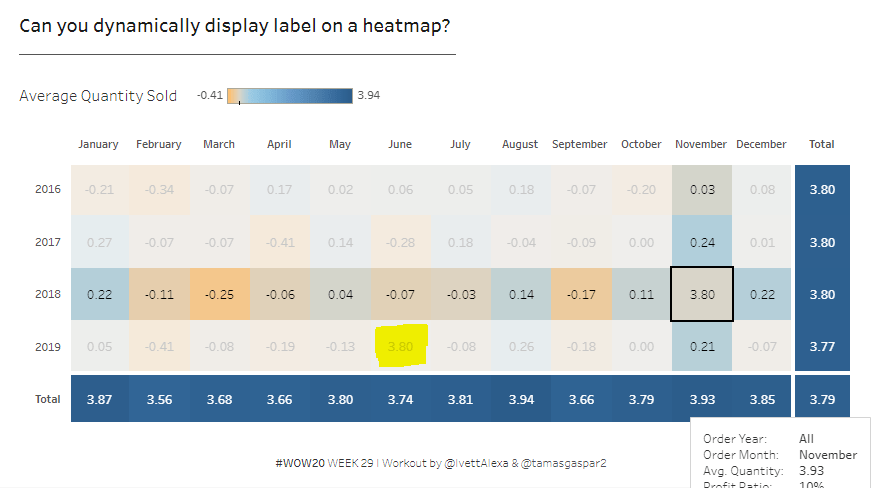
Ivett Kovacs returned with the #WOW challenge for this week, providing 2 versions. She provided some hints in the requirements which helped. With a bit of head scratching I managed to deliver an advanced version too. It didn’t exactly match what Ivett had delivered, but I was quite happy with my version. Until my follow #WOW participant Rosario Guana pointed out that the display ‘on click’ of a row or column total didn’t work properly 😦

I’ve spent A LOT of time trying to figure out what’s required but can’t resolve it. I’ve checked out Ivett’s solution and noticed a slight flaw in her logic too, so I feel uncomfortable changing my flaw for another. I’ve also looked at other solutions, and all are showing slightly different behaviour when you click on a column or row cell total. As a result, I’ve decided to blog based on the Intermediate version only. Others have posted blogs about their Advanced versions, so I’m going to save some time today, and reference them instead.

Building the basic heat map

The core of this challenge is going to involve Sets, and we’re going to use Set Actions to identify which cell is being interacted with.

For the intermediate version, we’re interacting based on hover actions.

The heatmap displays a grid of months by years, and we need to build sets based off of these. So we’ll start by creating dedicated calculated fields storing these values

Month Order Date

DATENAME(‘month’,[Order Date])

Year Order Date

YEAR([Order Date])

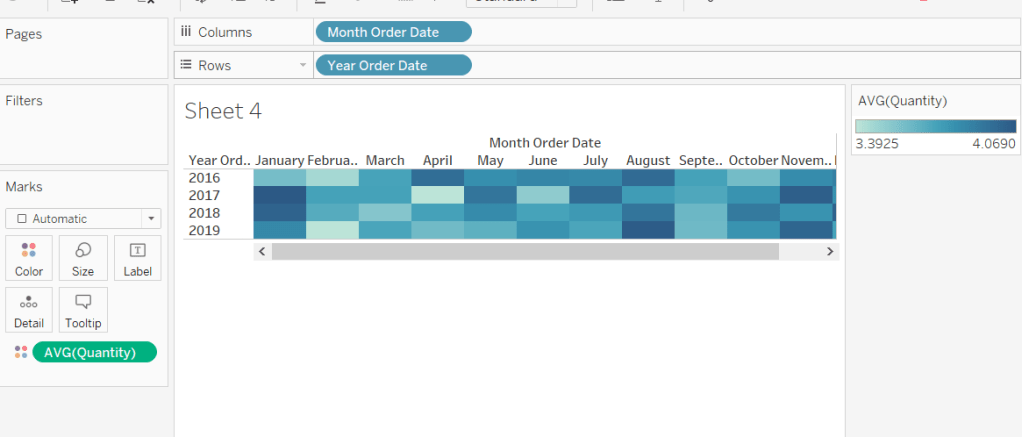
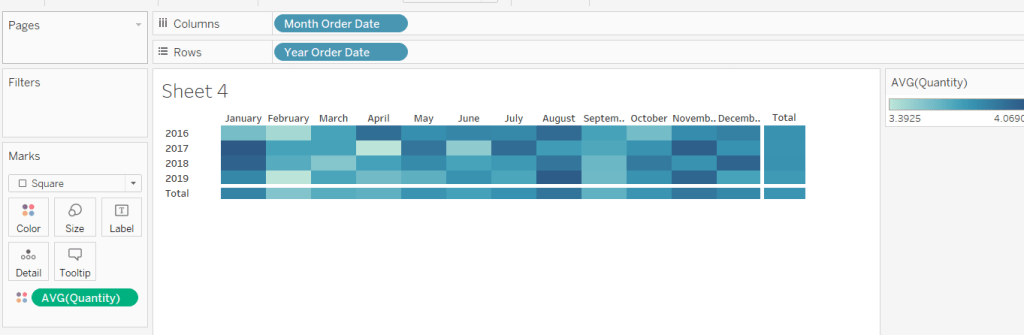
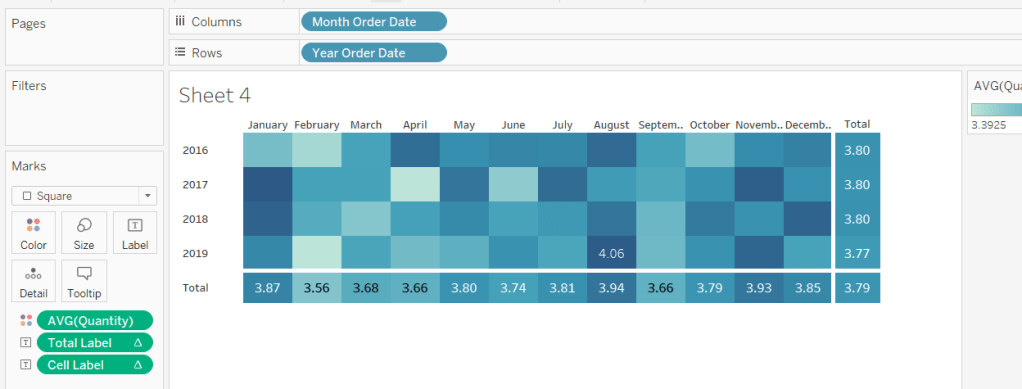
Add Month Order Date to Columns and Year Order Date to Rows, then drag Quantity onto Colour and change to AVG. You should have your basic heatmap.

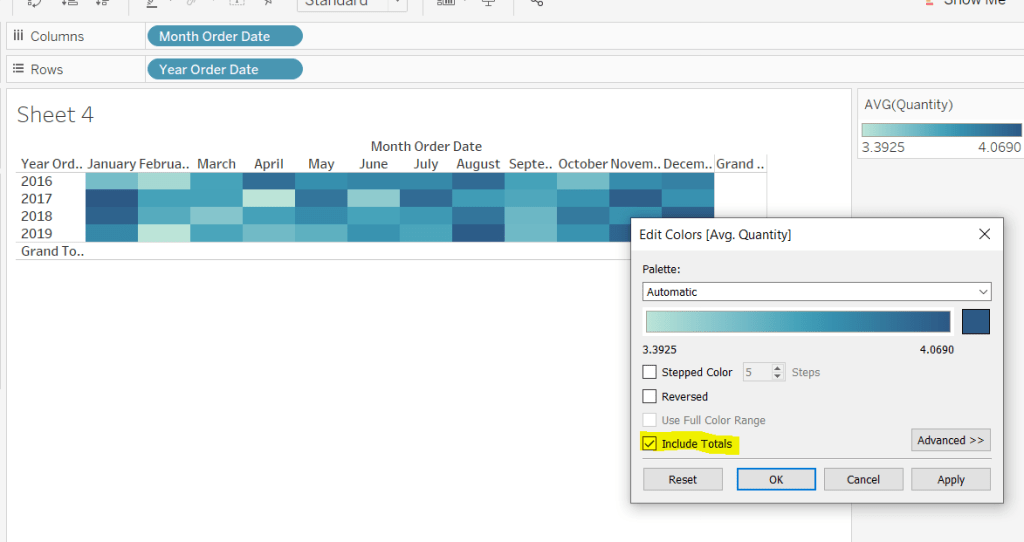
From the Analysis -> Totals menu, select to shoe row & column grand totals. They will initially display as white cells, so you need to Edit Colours on the colour legend and select Include Totals/

Let’s sort some formatting out at this point.

Set the mark type to Square

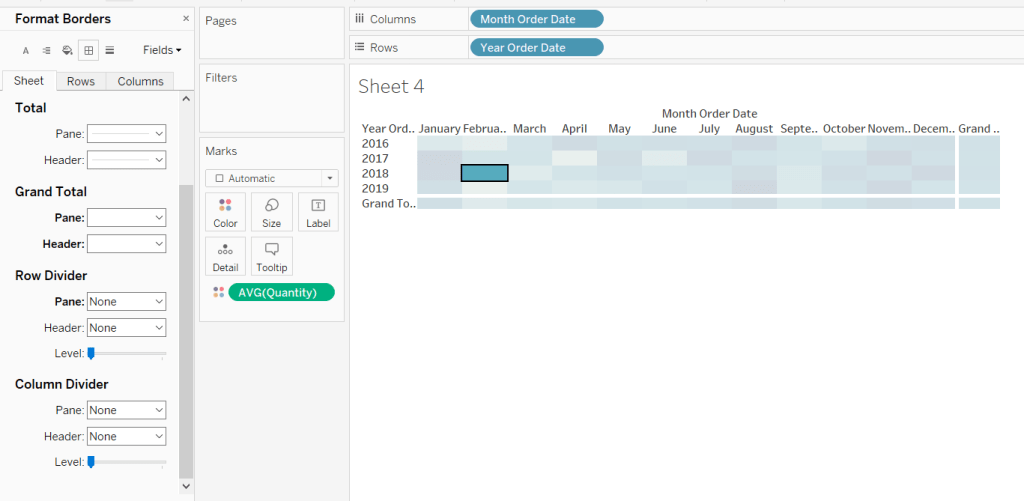
Format the borders by setting the row & column dividers to none, but setting the Grand Total pane & header to be thick, white lines

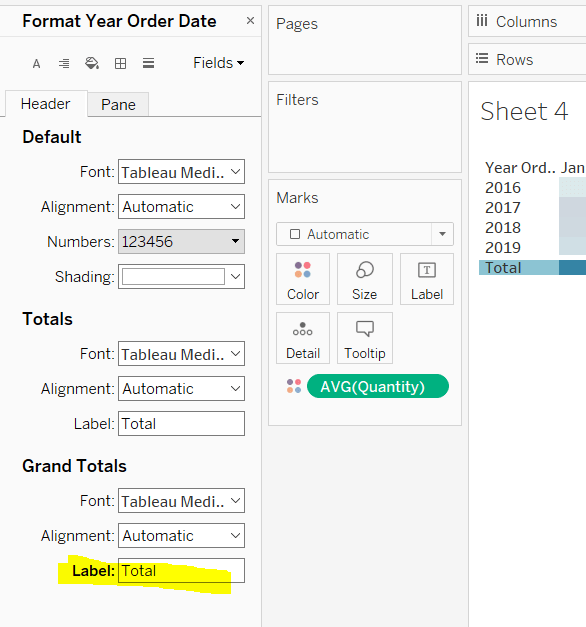
And change the word Grand Total, by right clicking -> format on each cell and changing the Grand Total label.

Adjust the size of the Month & Year labels and remove header labels from displaying and you have

Labelling the total cells

We need to permanently display the label on the total row/column, and only show the label on the cells ‘on hover’.

We need a way to identify when we’re on a total cell. Ivett gave a hint “What is the Size() of the totals and the cells?“. This is a trick I’ve read about and discussed here. Basically the size() of the grand total row or column will be 1, so this is what we’re going to base some logic on.

Size of Months

SIZE()

Size of Years

SIZE()

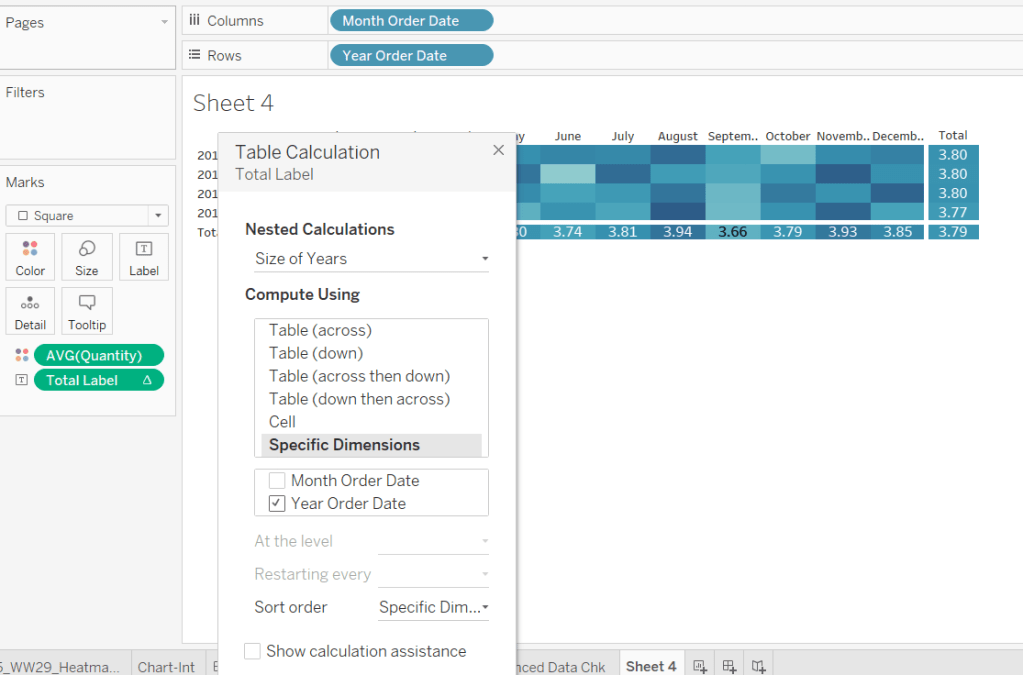
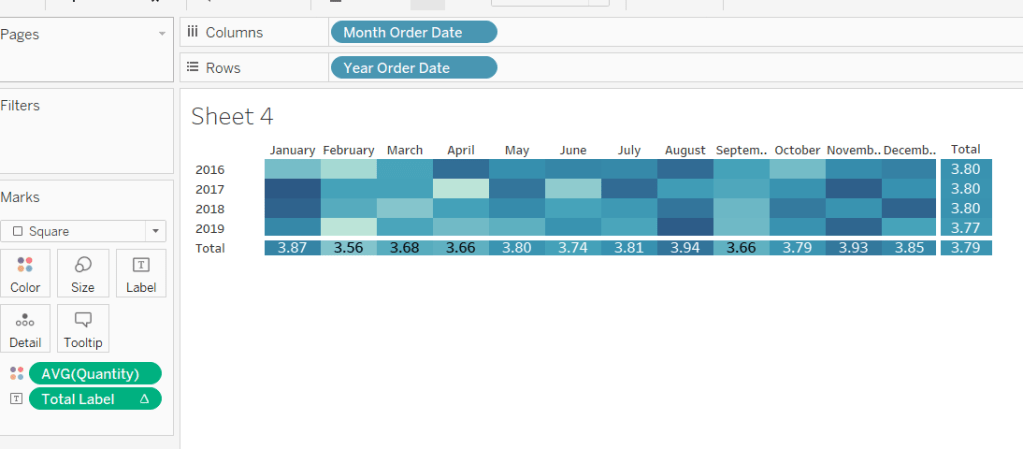
Total Label

IF [Size of Years]= 1 OR [Size of Months] = 1 THEN AVG([Quantity]) END

If we’re on a row or column grand total, then show the AVG(Quantity). Add this onto the Label shelf, and edit the table calculation so the Size of Years nested calc is computing by Year Order Date, and the Size of Months nested calc is computing by Month Order Date.

Labelling the central cells

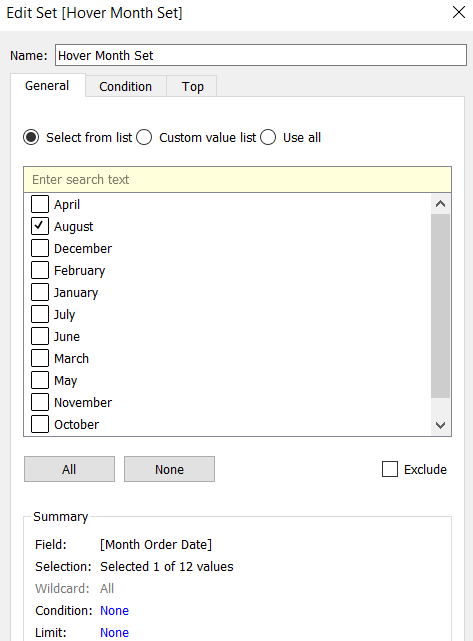
We need to create some sets, as these are going to determine whether we are hovering on a cell or not. The dashboard action will add values to a set on hover.

Right click on Month Order Date and Create Set, selecting an arbitrary month.

Hover Month Set

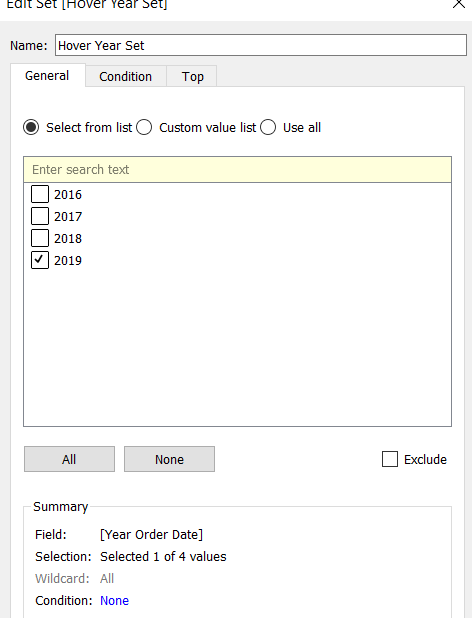
Do the same with Year Order Date

Hover Year Set

We then need a field to label the cell

Cell Label

IF ATTR([Hover Month Set]) AND ATTR([Hover Year Set]) AND [Size of Months]>1 AND [Size of Years]>1 THEN AVG([Quantity])
END

If something has been selected in the Hover Month Set and something has been selected in the Hover Year Set, and we’re not on a grand total row/column, then show the AVG(Quantity).

Add this to the Label shelf, and edit the table calculation settings as above.

Tooltip

The tooltip displays the Profit Ratio

SUM([Profit])/SUM([Sales])

so you’ll need to create this field, add to the tooltip and adjust the display accordingly.

Add the interactivity

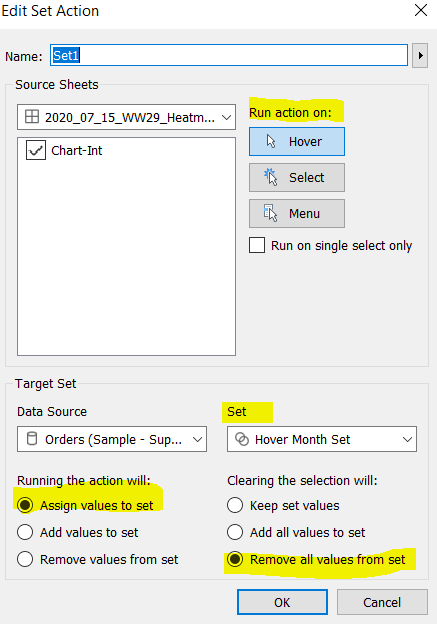
Add the above sheet onto a dashboard, then create a dashboard action to Change Set Values, which is set to

  • run on Hover
  • Target the Hover Month Set
  • Assign values to the set when run and remove values from the set when cleared

Repeat to create a set action to target the Hover Year Set.

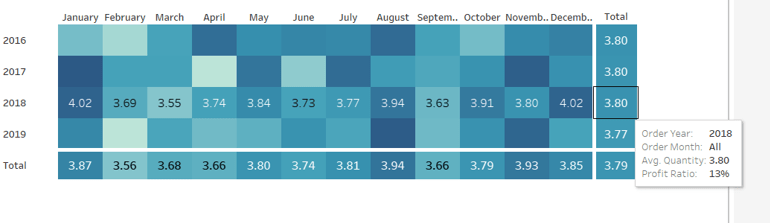
Test it out – hover your mouse over the cells. If you hover on a total, you should get the values displayed for all the values in the row or column

Advanced Version

As I stated in the intro, I didn’t end up with something I was entirely happy with. While writing this up, I’ve tried to rebuild using ideas from other published solutions, but I still have got anything ‘perfect’.

Ivett’s solution is obviously the closest to what we’re aiming for, since that is the challenge. The minor flaw I found in that though was that in some of the labelling logic there’s a step which compares the ‘average of the selected cell’ with the ‘average of the current cell’, and if they match, display the AVG(Quantity), otherwise show the difference. This logic is basically trying to work out ‘if current cell = selected cell’, but it doesn’t fully work, as there are other cells where the values match – it’s subtle as the displayed values are faded out with the cell highlighting, as I’ve shown in the example below.

Kyle Yetter has blogged his solution here, but if you click on a row or a column total in his solution, the values are all the same, and not showing a difference.

Rosario Guana has blogged her solution here. Rosario has adapted her solution slightly and displays both the average values and the difference ‘on select’, so the logic I was struggling with, isn’t being used in the same way here.

No doubt with a bit more time, I might finally crack this one, but for now, I need to ‘put it to bed’ 🙂

Happy vizzin’! Stay safe!

Donna

Can you design for an automatic phone layout?

Designing for mobile isn’t something I inherently think about when building a viz, so, this week’s #WOW challenge from Lorna was a useful reminder on the inbuilt functionality Tableau has to make a display typically aimed at a laptop user, also render well on a mobile display with minimal effort.

Tableau allows you to choose a variety of device layouts and define specific instances of how the sheets should display on each, but this challenge was focused on the Automatic Phone Layout option, where the aim was to build a 1200×800 dashboard, which automatically rendered vertically when viewed on mobile. Lorna referenced this Tableau blog as a starting point, which is definitely worth a read.

YTD Summary by Sales

In the requirements, Lorna mentions ‘last 2 years YTD’, but given the dataset used contains years 2016-2019, and the challenge wasn’t really focused on this area, I just presented sales for the whole year as follows :

  • YEAR(Order Date) to Rows sorted by Order Date descending (so 2019 is listed first)
  • SUM(Sales) on Text with a Quick Table Calculation of Percent Difference. By default, this calculation will work ‘down’ the table, so we need to edit the table calc so it is relative to the Next record, rather than Previous.
  • Format this field using custom formatting of â–²0%;â–¼0% ( I use this site to copy & paste the shape images from)
  • Add another copy of SUM(Sales) to Text and then modify the text to format as required.
  • To only display Years 2018 & 2019 either
    • Filter the Order Date to exclude 2016, and additional filter the SUM(Sales) % difference table calculation to only show non-null values
  • or select year 2016 and 2017, right-click and choose Hide
  • Add YEAR(Order Date) to Colour and adjust to suit
  • Apply formatting to remove row/column/grid lines/ row banding. hide labels and rotate headings
  • Change the title of the sheet to YTD

Repeat all of this to create a version for Profit.

Sales Trend Line

This is pretty much Desktop 101 – one of the first charts you’re likely to build when training on Desktop 🙂 So here’s just the picture 🙂

Again repeat to create a version for Profit.

Top 10 Products by Sales Bar Chart

In the requirement Lorna stated (and displayed a title for) Top 10 Customers by Sales, but the chart displayed in her solution showed Products.

I chose therefore to show the same as Lorna (with a corrected title). The instruction in the requirements was also to use Sets. So to do this

Top 10 Products by Sales

Right click on Product Name, select Create -> Set and adjust as below

Then to build the chart

  • Add Sales to Rows
  • Product Name to Columns, sorted by Sales descending
  • Sales to Text
  • Order Date to Filter set to 2018 & 2019 only
  • Top 10 Products by Sales to Filter

At this point you might find you only have 9 rows displayed, and this is because the 10 largest product sales are considering all years, before then filtering by the years. We need to set the Order Date filter to be Added to Context (right-click on pill). This will force Tableau to filter the data by the relevant years. and then work out the Top 10. When added to context the pill will be grey rather than blue on the filter shelf.

Apply formatting as required

Top & Bottom 10 Products by Profit

Similar to above, I created a Top 10 Products by Profit set and also a Bottom 10 Products by Profit set ( just change the ‘Top’ drop down to select Bottom).

Top & Bottom Products by Profit

To the get a Top 10 & Bottom 10 set, you can create a combined set. I can’t recall if I’ve ever come across this before… I think it was probably part of some #WoW a long time ago… it certainly isn’t something I use regularly.

Right click on one of the Profit sets created and select Create Combined Set and choose your sets in the presented dialog. In this instance we want all members from both sets.

To build the chart

  • Add Profit to Rows
  • Product Name to Columns, sorted by Profit descending
  • Profit to Text
  • Order Date to Filter set to 2018 & 2019 only and added to context
  • Top & Bottom Products by Profit to Filter

We need a ‘header’ to label the Top & Bottom. I added Top 10 Products By Profit to Rows, and placed it in front of Product Name. This works since the sets are mutually exclusive – no product can be in both the top 10 and the bottom 10. This will display header values of In or Out, which I then aliased to display Top 10 or Bottom 10 (right clicked on ‘In’ and Edit Alias). Then just format to suit.

Building the Dashboard

We’ve got all the component parts , so now we want to add to the dashboard in such a way that the sheets will display vertically when viewed on mobile, even though the requirements stipulate a 1200 x 800 ‘desktop’ type layout.

The requirements also state to use the Automatic Phone Layout option only, which means you shouldn’t have a need to ‘fiddle’ with how the components are displayed when in mobile view.

Basically you’re building on the Default view

but when you click the Phone option, the padlock remains ‘locked’ ie the ‘automatic’ view, and all the objects display in the right order on top of each other.

The key to this, is knowing the fact that the automatic phone layout follows an A-Z approach – across the page from left to right, then down and across from left to right again.

I arranged my objects in rows as

  • Row 1 = Title
  • Row 2 = Heading
  • Row 3 = Sales YTD, Sales Trend, Top 10 Products
  • Row 4 = Heading
  • Row 5 = Profit YTD, Profit Trend, Top & Bottom 10 Products

All charts were set to Fit Entire View, and I didn’t spend any time creating specific layout containers – I just dropped the objects in the places I wanted.

This subsequently presented as below when I clicked the Phone option on the Dashboard tab

The part I found most tricky was getting the Top & Bottom 10 Products chart to display the detail I could see when viewing Lorna’s solution. I simply ended up needing to adjust the font sizes to be size 6 on the labels and the displayed product names, and moving the column sizer so I had enough of the bar to display.

My published version is here.

Happy vizzin’! Stay safe!

Donna

Which products are most profitable?

I’m starting to write this blog with a bit of uncertainty today as I’m not ultimately sure where I’m going to end up….

I wasn’t even sure I was going to pen an entry this week…. I found Luke’s challenge tough, and the path I took full of multiple wrong turns, that meant trying to write out a comprehensible ‘how I did it’ quite tricky, as reviewing now I’m questioning ‘what did I do that for…’.

Whilst with perseverance and a bit of inspiration from Rob Saunders, I did manage to post a working solution, I knew I wasn’t overly happy with it, particularly because my expand and collapse functions didn’t behave as I saw others do… I had to click twice to collapse.

Before starting to write, I decided to check out Luke’s workbook which he’d finally published to see if I could understand where I was going wrong.

I’d used both a set action and parameter action in my attempt; Luke had just a parameter action. In trying to understand why I ended up with a set action and see if I could do without it, my solution gradually started unravelling, as various calculated fields needed changing.

So, I think the best way to approach this blog is to rebuild my solution from scratch, using only my existing workbook as a reference, and I will attempt to write and screen shot as I build. This could take some time, and I have no idea how successful I’ll be…. I may well get to a point where I’ve taken a wrong turn again, and everything I’ve written needs to be scrapped… at which point I may just have to say ‘sorry, I tried!’……

Ok, let’s get cracking.

Top N Sub-Categories

At the ‘first’ level of the table, we need to display the top n sub-categories ordered by Profit. Those not in the top n should be displayed under an ‘All Others’ grouping, and always displayed at the bottom. The top n can vary based on the user input.

We need a parameter to define the value of the top n.

SUB-CATEGORIES TO SHOW

This is an integer parameter ranging from 1-10, defaulted to 3. I’ve titled it exactly as displayed on the output, so it’s one less change to make later (hence the capitals).

The easiest way to group the sub-categories into those in the top n, is to use a set. Right click Sub-Category and Create -> Set.

Top N SubCats by Profit

Use the Top tab to define the rules for which Sub-Category to include, referencing the SUB-CATEGORIES TO SHOW parameter and the Profit field as shown below.

SubCat Group

IF [Top N SubCats by Profit] THEN [Sub-Category] ELSE ‘All Others’ END

If the Sub-Category is in the set then the name will display, otherwise it will be grouped under the ‘All Others’.

Add SubCat Group to Rows and change the sort on the pill to sort by Field = Profit desc

This will result in All Others being listed at the top, but to resolve that, drag the Top N SubCats by Profit set onto the Rows an place in front of the SubCat Group.

Let’s get some of the measures we need out onto the canvas.

Margin

SUM([Profit])/SUM([Sales])

format to percentage with 0dp.

Add Margin, Profit & Sales onto the sheet.

Top N Products

The next level in the table displays the Top N products per SubCat Group based on their margin. For those not in the Top N, the products should be grouped under ‘All Others’, and listed at the bottom. The Top N is once again defined by a user input via a parameter.

PRODUCTS TO SHOW

Once again an integer parameter ranging from 1-10 but defaulted at 5 this time.

Unfortunately, this time we can’t use a set to define our Top N grouping. This is because the set will only consider the Top N across all Products and will not consider the fact the Products are nested per Sub-Category grouping. So we need to come up with an alternative. I did do a bit of research to find ideas, and found this article by Emma Whyte at The Information Lab to get me started : Showing a Nested Top N with Other in Tableau.

The Top N needs to be based on the order of the Margin, or the rank.

Margin Rank

RANK_UNIQUE([Margin])

Change this to be a Discrete field.

This will give us a unique ‘number’ per row displayed based on the value of Margin. If records have the same Margin value, using RANK_UNIQUE will mean they get a different rank number (as opposed to how other ranking functions work). The table calculation of INDEX() could work just as well. NOTE – there is potential though that when the Margin values are the same for different products, what makes the Top N and what doesn’t may differ, so you might find you get a slightly different list from some of the solutions you see.

Add Margin Rank and Product Name onto the sheet, and edit the table calculation on Margin Rank, to compute by Product Name only

We now want to group the Product Name based on the Top N products.

Product Name Group

IF [Margin Rank] <= MIN([PRODUCTS TO SHOW])
THEN ATTR([Product Name])
ELSE ‘All Others’ END

We also only want to show (PRODUCTS TO SHOW + 1) rows per SubCat Group ie if PRODUCTS TO SHOW = 5, we want to display 6 rows per SubCat Group, where the 6th row displays ‘All Others’. The 6th row also needs to show the Profit, Sales and Margin values associated to all the Products in the ‘All Others’ Product Name Group.

So we need to calculate some new fields that will store a revised value for Proft, Sales and Margin, depending what row we’re working with.

Sales For Others

WINDOW_SUM(IF [Margin Rank] > [PRODUCTS TO SHOW] THEN SUM([Sales]) END)

If the Product Name isn’t in the Top N, then get it’s Sales value, and then sum all of those rows that meet the same condition.

If you put this onto the sheet, and set the table calculation for each of the nested calculations (Sales for Others & Margin Rank) to be by Product Name only, you’ll see that the value displayed in every row for each SubCat Group is the sum of the values associated to the rows in the ‘All Others’ group.

So now we need a field that’s either going to display the Sales for the 1 product or the sales for the group of products, depending on what row we’re on.

Grouped Sales

IF [Margin Rank]<= MIN([PRODUCTS TO SHOW]) THEN SUM([Sales]) ELSE [Sales For Others] END

Again the table calculation settings need to be set to compute by Product Name only. This is the field we ultimately want to display, so it needs to be formatted accordingly. The Sales and Sales For Others fields can be removed.

Along similar lines, we need

Profit For Others

WINDOW_SUM(IF [Margin Rank] > [PRODUCTS TO SHOW] THEN SUM([Profit]) END)

Grouped Profit

IF [Margin Rank]<= MIN([PRODUCTS TO SHOW]) THEN SUM([Profit]) ELSE [Profit For Others] END

Margin For Others

IF [Margin Rank] > [PRODUCTS TO SHOW] THEN [Profit For Others]/[Sales For Others] END

Grouped Margin

IF [Margin Rank] <= MIN([PRODUCTS TO SHOW]) THEN [Margin] ELSE [Margin For Others] END

When added to the sheet, once again make sure all the table calculation properties for all the nested calculations are set to compute by Product Name only.

As mentioned above, we only want to show PRODUCTS TO SHOW + 1 rows, so let’s create a field we can filter by :

Show?

[Margin Rank] <= MIN([PRODUCTS TO SHOW]) + 1

Add this to the Filter shelf and set to True. Once again the table calculation needs to be set to compute by Product Name only.

Add Totals

We want a grand total and subtotals only at the level of SubCat Group. Add the totals by Analysis -> Totals -> Show Column Grand Totals to get the overall total. Then on the SubCat Group pill, click and add SubTotals

We’ve now got the main components of the table. We now need to get the interactivity working to allow the expand / contract on arrow selection.

Expand / Contract All Others Product Group

First up, we’ll just tidy up our table display

  • Hide the In/Out Top N SubCats By Profit field
  • Hide the Margin Rank field
  • Hide the Product Name field.
  • Remove the Margin field
  • Alias the Grouped Margin, Grouped Profit, Grouped Sales fields
    • Right click and Edit Alias. Name the field ‘ Margin ‘ (note the trailing and leading spaces. You can’t alias just as Margin as a field already exists with that name, but the spaces make it think it’s a new name.

We need an additional field that will store our ‘arrow’ icon. We’re going to revisit this field. For starters

Product Group Header

IF [Margin Rank] <= [PRODUCTS TO SHOW] THEN ”
ELSE ‘â–º’
END

I use this site to get my icon characters from. Add this field to the sheet after the SubCate Group pill, once again setting the table calculation to compute by Product Name.

In the dashboard, the aim is to click on an arrow associated to a single SubCat Group, which will expand the Product Group Name field to display the actual Product Name (rather than ‘All Others’) with their associated Margin, Sales & Profit values, and also show a â–¼ icon.

This will be achieved using Parameter Actions, for which we need a parameter :

Selected Sub Category Group

String parameter defaulted to ”

Display this parameter on the sheet, as we can start to test the interactivity ‘manually’ without the need for the dashboard. What the dashboard action will do is on ‘click’, it will be set to populate the value of this parameter with the associated SubCat Group value. We can then do some checks based off of this and set various fields accordingly. It means we need to revisit some of the fields.

First up let’s set the arrow….

Edit Product Group Header to be

IF [Selected SubCat Group] = MIN([SubCat Group]) THEN
IF [Margin Rank] > [PRODUCTS TO SHOW] THEN ‘â–¼’ ELSE ” END
ELSEIF [Margin Rank] <= [PRODUCTS TO SHOW] THEN ”
ELSE ‘â–º’
END

Test this by entering the value of ‘Copiers’ into the Selected SubCat Group parameter. The arrow against ‘All Others’ should change.

We also need to change the value of the Product Name Group to show the actual Product Name on selection, so

edit the Product Name Group

IF [Margin Rank] <= MIN([PRODUCTS TO SHOW])
THEN ATTR([Product Name])
ELSE
IF [Selected SubCat Group] = MIN([SubCat Group])
THEN ATTR([Product Name])
ELSE ‘All Others’ END
END

Again test this out by changing the value in the parameter.

But we need to make more rows show too, so

edit Show?

([Margin Rank] <= MIN([PRODUCTS TO SHOW]) + 1) OR (MIN([SubCat Group]) =[Selected SubCat Group])

The values of our measures are still the totals though, so we need to edit these fields to

Grouped Sales

IF ([Margin Rank]<= MIN([PRODUCTS TO SHOW]) OR ([Selected SubCat Group] = MIN([SubCat Group])) ) THEN SUM([Sales]) ELSE [Sales For Others] END

Grouped Profit

IF ([Margin Rank]<= MIN([PRODUCTS TO SHOW]) OR ([Selected SubCat Group] = MIN([SubCat Group])) ) THEN SUM([Profit]) ELSE [Profit For Others] END

Grouped Margin

IF ([Margin Rank] <= MIN([PRODUCTS TO SHOW]) OR ([Selected SubCat Group]=MIN([SubCat Group]))) THEN [Margin] ELSE [Margin For Others] END

However while this works if you play with setting and clearing the parameter on the sheet, it won’t quite fully work if added as a dashboard action, as while the action can set the parameter we can’t ‘clear it’.

We need to ‘tie’ the parameter action to another field

SubCat Group for Reset

IF [Selected SubCat Group] = MIN([SubCat Group]) THEN ”
ELSE MIN([SubCat Group])
END

Add this to the Detail shelf (if you want to see how it changes based on the parameter value, add it to the Rows and test changing the parameter).

It needs to be on the sheet so it can be referenced from the dashboard action.

Adding the Action

Add the sheet to a dashboard, then add Parameter Action as below where the Target Parameter is Selected SubCat Group and the field it references is SubCat Group for Reset

And after all that, you should have a working solution. Phew!

Pretty pleased I got there without taking a detour 🙂 The table just now needs various formatting applied, which I’m going to leave to you to do 🙂 Just tweet me if you’re having problems!

The parameter action may be confusing you a bit – it took a while to really get my head round it, so I’ve tried to explain this a bit more below…

How the parameter action works

On initial load of the sheet, the Selected SubCat Group parameter is blank. So for the SubCat Group = Copiers, the SubCat Group for Reset will also be Copiers as SubCat Group is not the same as Selected SubCat Group parameter. Other fields are also set based on the fact these two fields aren’t the same (like the arrow pointing to the right etc).

When the right arrow is clicked on the dashboard, the value of SubCat Group for Reset is used to populate the Selected SubCat Group parameter. So in this example, Selected SubCat Group will now contain the value Copiers. As the Selected SubCat Group parameter is now the same as the SubCat Group, various fields change their behaviour (like the arrow now points down, and more rows are displayed). But also, the value of the SubCat Group for Reset is also changed; as the SubCat Group is the same as the Selected Sub Cat Group parameter, SubCat Group for Reset now contains a blank string.

So at the point the down arrow is now clicked again on the dashboard, the value of the SubCat Group for Reset is again used to populate the Selected SubCat Group parameter. As SubCat Group for Reset is blank, then the parameter will now be populated with a blank value, and so all the login in the fields will be based on the fact that SubCat Group is not the same as the Selected SubCat Group parameter, and the table will display just as it did on first load.

Hope that helps to demystify what’s going on… it’s certainly helped me!

Thanks for sticking with me if you got this far 🙂

The version of the challenge I built while writing this (my 3rd published version) is here.

Happy vizzin’! Stay Safe!

Donna

Can you build a bar chart that automatically combines small contributions?

Yes you can! By following this guide 🙂

If you attended / watched Ann & Laura’s Speed Tip Session at TC this year, then you’ll have seen how to complete the core part of this challenge. I watched the session after I’d completed it, and found I’d approached it slightly differently from Ann. I’ll walk through what I did.

So the core requirement of this challenge was to

  1. Identify % of Sales per State
  2. Group those with a value less than a threshold defined by the user, into an ‘Other’ pot, and colour the ‘Other’ pot differently.
  3. Sort the display based on % Sales descending, except the ‘Other’ pot should always be at the bottom
  4. Label each bar with State/’Other’ pot and % sales, positioning the label above the bar, and colour accordingly
  5. Add tooltips for each bar, coloured accordingly
  6. Incorporate a summary of the number of states in and out of the group within the chart title (since it all needed to be created on a single sheet).

As I often do with these challenges, I played around with Ann’s published solution; changing the parameter and seeing how the viz altered, and hovering my mouse over various points, to see if it would give me a clue as to how it had been built – in this case I was mainly interested in the labels.

What I found from doing this was there was another mark at the 0 point of the axis; it looked like a gantt bar mark. This suggested dual axis would be involved.

So armed with that information, let’s crack on…

Identify % Sales Per State

Total Sales

{FIXED:SUM([Sales])}

This simply stores the sum of all the sales against each row in the data source

% Sales Per State

{FIXED [State]:SUM([Sales]) / SUM([Total Sales])}

The sum of the sales per State is determined as a proportion of all sales

Group those with a value less than a threshold

A [Threshold Percent] parameter was created to store the user defined variable (defaulted to 3%), and then this was used to determine how the State should be grouped for display

State Grouping

IF [% Sales Per State] >= [Threshold Percent] THEN [State]
ELSE ‘All Other States’
END

Sort the display based on % Sales descending

Whilst the States needed to be sorted with the largest % first, the ‘Other’ pot always had to display at the end. To do this I created a new calculated field

State Order

IF [State Grouping] = ‘All Other States’ THEN 1 ELSE 0 END

With the basic components now defined, we can start to build the chart

The [State Order] field placed at the front, meant that the States are listed first, and forces ‘All Other States’ to the bottom.

Setting the Sort on the [State Grouping] field to be sorted based on the [% Sales Per State] desc, gives the required result:

Colouring based on [State Order] gives the split required too.

Label the Bar

As stated above, a dual axis is needed for this, utilising our old friend, MIN(0) on the columns. The Mark Type of MIN(0) is set to Gantt Bar, with the [State Grouping] and [% Sales Per State] added to the Label, with the font adjusted to Match Mark Colour, and aligned top right. The Colour of the Gantt Bar mark is also set to 0 transparency so it looks invisible.

To make the label appear when the axis is ‘dualled’ and synchronised, requires a bit of ‘jiggery pokery’ with the row height and bar size. I found this to be very much trial and error, even publishing a couple of times, as while it looked overlapped on my laptop screen, the view did render ok on public.

Note – what I found with this solution is that changing the parameter could make the labels overlap again, which wasn’t ideal. Ann’s solution also suffered from this. I’ve been trying to figure out an alternative, but haven’t got there yet.

Tooltips

The tooltips on the bars look straightfoward, but the State ‘label’ is coloured based on the bars, so requires a couple of calculated fields

Label : State

IF [State Order]=0 THEN [State] END

Label : Other States

IF [State Order] = 1 THEN ‘All Other States’ END

Both these fields are added to the Tooltip side by side and coloured accordingly. As only one will ever be true per row, only one will display :

Count of States for chart title

To count the states based on which group they were in, required a couple of table calcs :

Count States Listed

WINDOW_SUM(IF ATTR([State Order]) = 0 THEN COUNTD([State]) END)

Count States Grouped

WINDOW_SUM(IF ATTR([State Order]) = 1 THEN COUNTD([State]) END)

These were added to the Detail shelf, so could then be referenced in the title of the Viz. The table calc needed to be applied per State Grouping

Then it was just a case of hiding various pills, and formatting to remove row lines and gridlines. A reference line for the selected parameter was also added.

My published version is here. The main difference to Ann’s solution is that she used Sets to group the States together.

Happy vizzin’

Donna