Competitor Comparison

Erica set this week’s challenge, focusing on the ability to compare specific entities against themselves and ‘the whole’ without resulting in a mess of coloured spaghetti. 3 levels of difficulty were provided. As it stated the levels didn’t necessarily follow on from each, I just built (and am therefore blogging about) level 3 – the advanced challenge.

Defining the core parameters

For the user to select the main element they want to analyse we need

pPrimarySubCat

string parameter, that is sourced from a List based on the Sub-Category field when the workbook opens. Default to Binders.
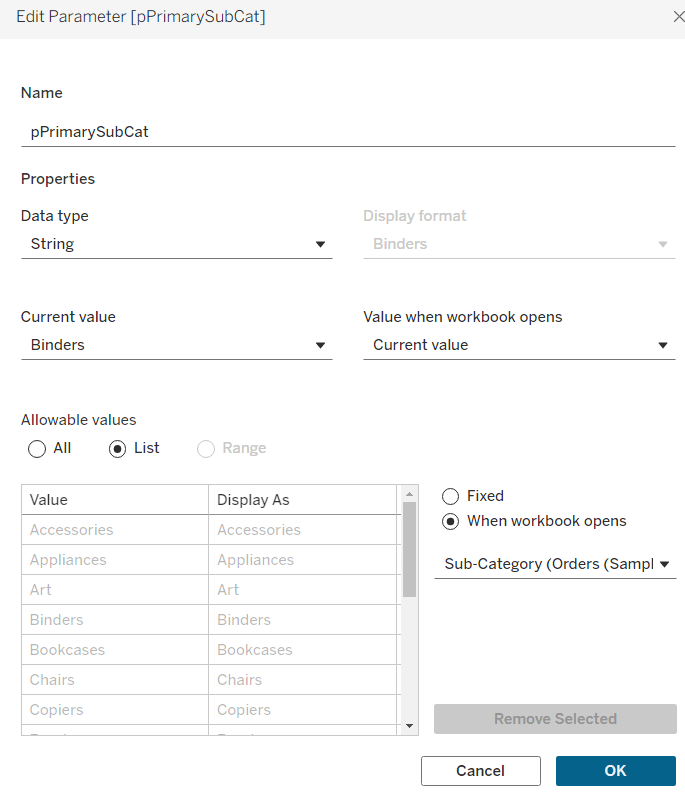
This parameter will be visible to the user to select from a drop down list control.

To capture the secondary element to compare against, we need

pSecondarySubCat

string parameter defaulted to Bookcases.
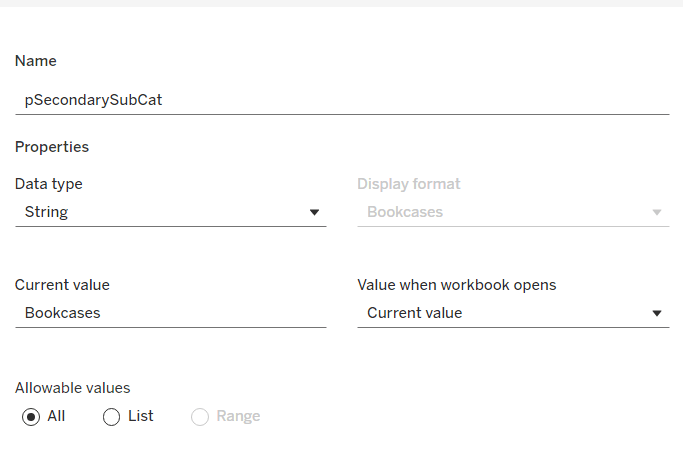
This is just a ‘type in’ field, that won’t ultimately be displayed to the user, but populated via a dashboard parameter action on select of a line in the chart.

To control the different type of display options, we need

pDisplay

integer parameter sourced from a manual list which aliases the integer values for the displayed text strings. Defaulted to 2 (Difference from Primary)
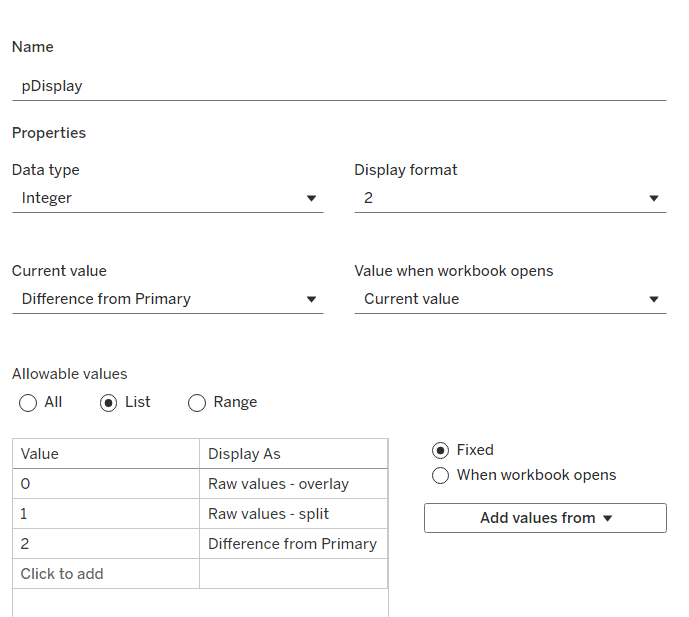
Defining the additional calculations

As I often do, we’ll build out a tabular display to determine all the calcs required. On a new sheet, add Region and Sub-Category to Rows, then add Order Date at the Quarter level as a discrete (blue) pill to Columns. Add Sales to Text. Show the 3 parameters created above.
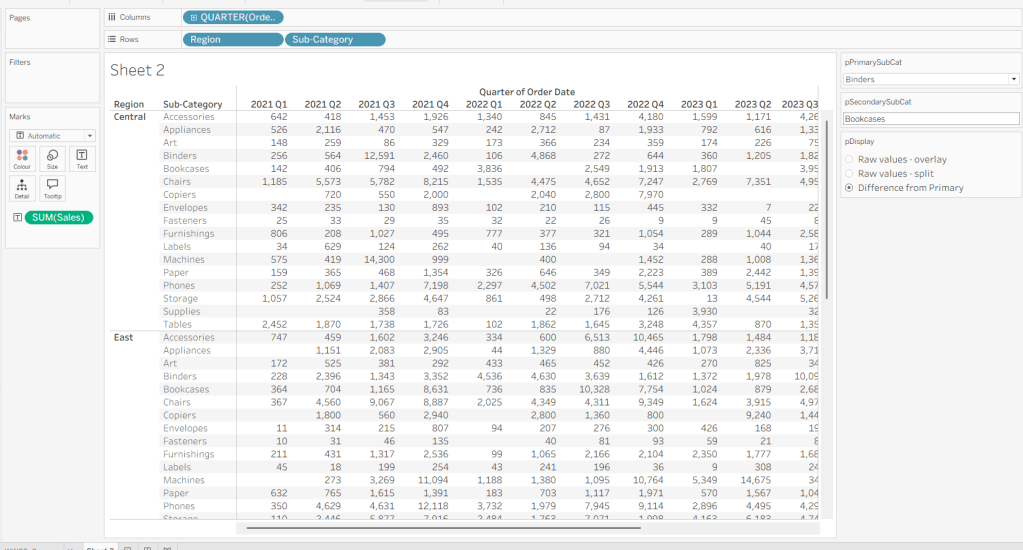
We need to identify which Sub-Categories will be coloured. This is based on whether they are a primary or secondary Sub-Category.

Is Primary or Secondary Sub Cat

[pPrimarySubCat] = [Sub-Category] OR [pSecondarySubCat] = [Sub-Category]

Add this to Rows. Based on existing selections, the rows for Binders and Bookcases should be set to True.

We will also need to identify which is the the Primary Sub-Category only to help determine how many rows are displayed, so create

Is Primary SubCat?

[pPrimarySubCat] = [Sub-Category]

Add to rows. In this case just Binders should be True at this point.
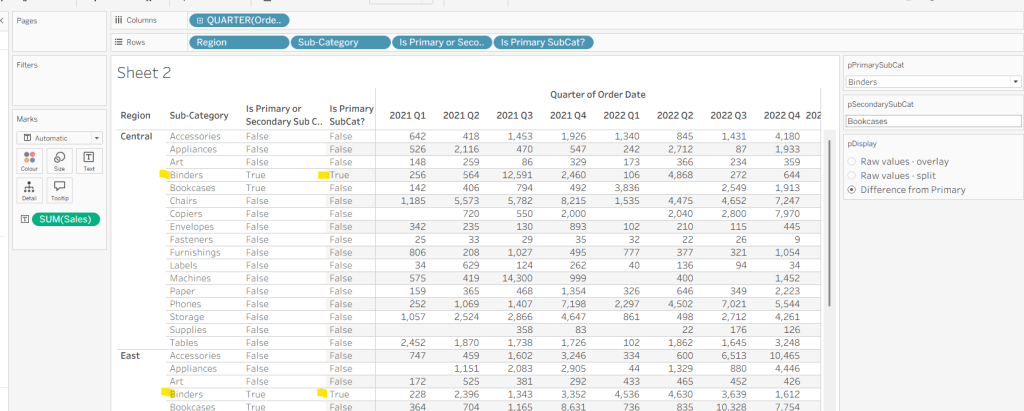
With this field, we can then work out how many ‘rows’ are going to be in our final viz display.

Display Row

IIF([pDisplay] = 0, TRUE, [Is Primary SubCat?])

ie, if the pDisplay parameter is ‘Raw values – overlay’ , then we’ll just display 1 row (so all rows set to True), otherwise there will be 2 rows, split based on whether the Sub-Category is the selected value in the pPrimarySubCat parameter or not.

Add this to Rows, and change the pDisplay parameter to see how this field changes.
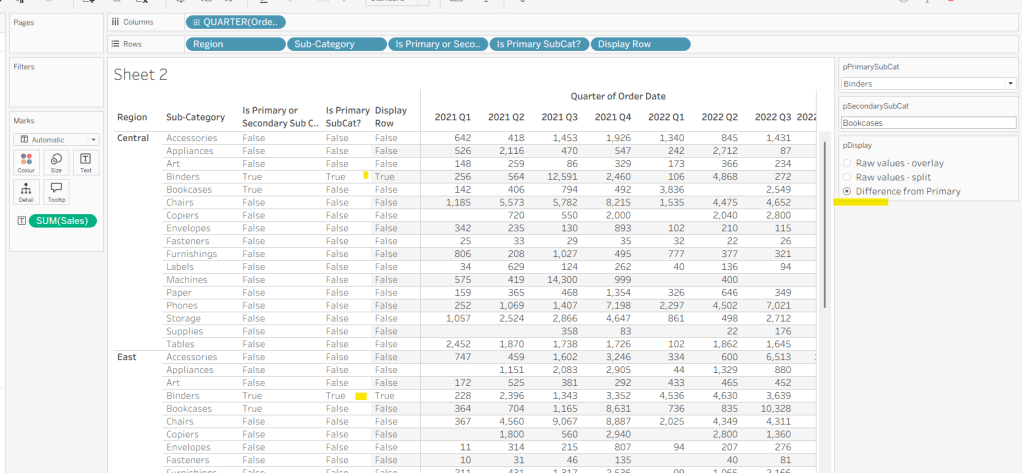
We also need to display different values depending on what pDisplay option is selected. When the ‘Difference from Primary’ option is selected, then we need to show the Sales value for the primary Sub Category, but the difference from this value for all others. For this we first need to capture just the sales for the primary Sub-Category

Sales For Primary Sub Cat

IF [Is Primary SubCat?] THEN [Sales] END

Add to the table and adjust Measure Names so it is displayed after the Order Date field. Rows for this column will only have values when the Sub-Category is the primary one selected.
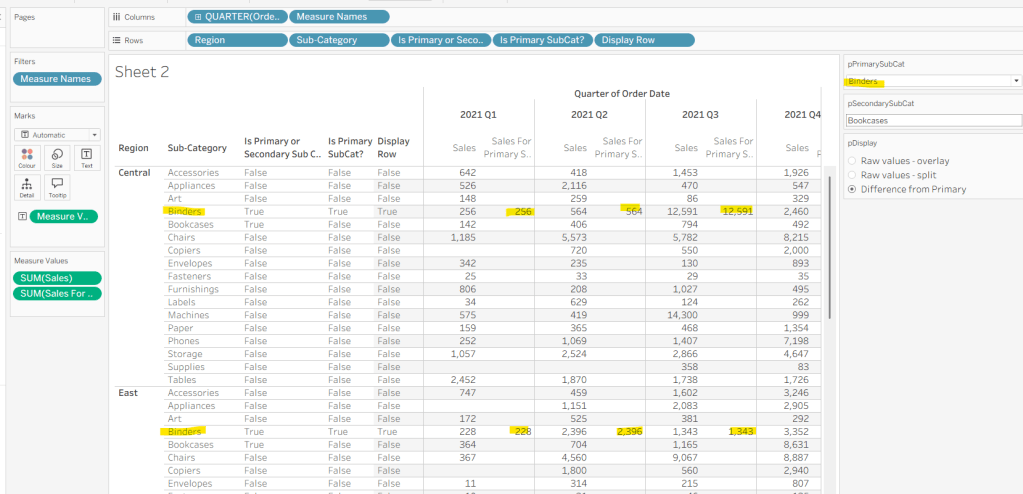
Now we calculate the difference, but only if it’s not the primary Sub-Category; we want Sales in that instance

Sales Difference

IF MIN([Is Primary SubCat?]) THEN SUM([Sales])
ELSE SUM([Sales]) – WINDOW_MAX(SUM([Sales For Primary Sub Cat]))
END

Here we’re using a WINDOW_MAX table calc to essentially ‘spread’ the value in the Sales for Primary Sub Cat column across all rows associated to the Region. Add this to the table, and adjust the table calculation setting of the pill, so it is computing by all fields except Region and Order Date
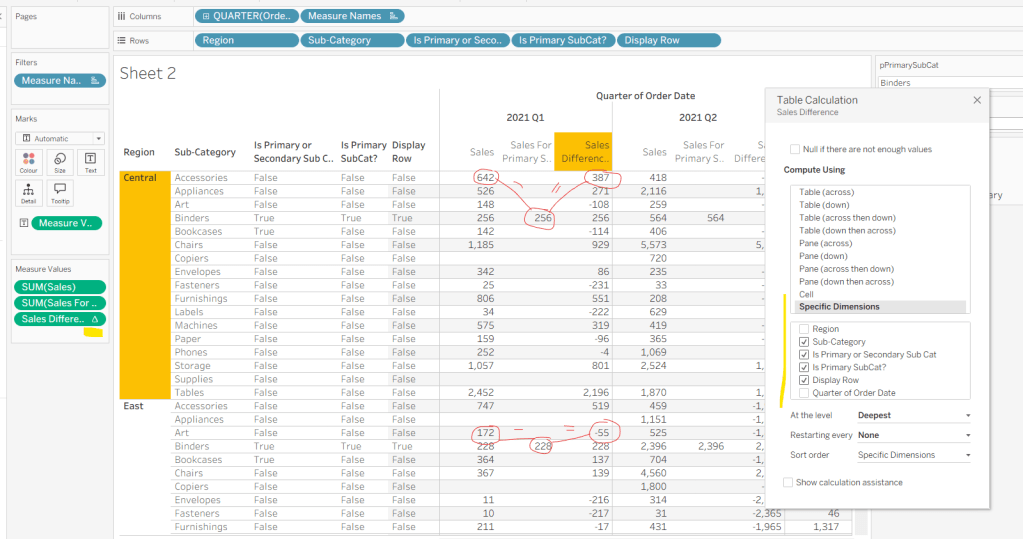
Finally, we need a field that will decide whether we’re displaying Sales or Sales Difference based on the pDisplay selection

Value to Display

IIF([pDisplay]=2, [Sales Difference ], SUM([Sales]))

Again, add to the table, adjust the table calc as above and then test the output of the field, as you adjust the pDisplay parameter.
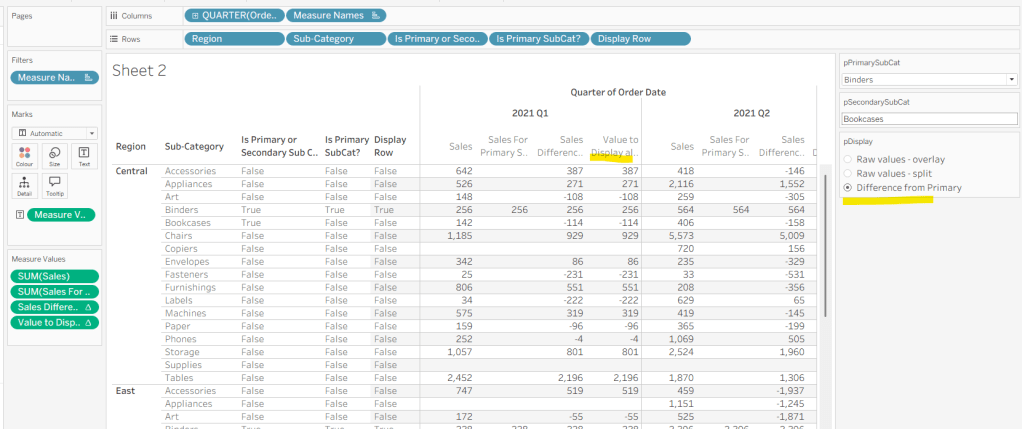
While we’re here, we’ll just define another couple of calcs needed for the viz

Label Sub Cat

IF [Is Primary or Secondary Sub Cat] THEN [Sub-Category] END

Used to only display a label for either of the two selected Sub-Categories.

Tooltip – Value Label

IIF([pDisplay]=2 AND NOT([Is Primary SubCat?]), “Difference from ” + [pPrimarySubCat] + ” Sales”, “Sales”)

Will be used on the Tooltip to ensure the correct text is displayed depending on type of display selected.

Building the Viz

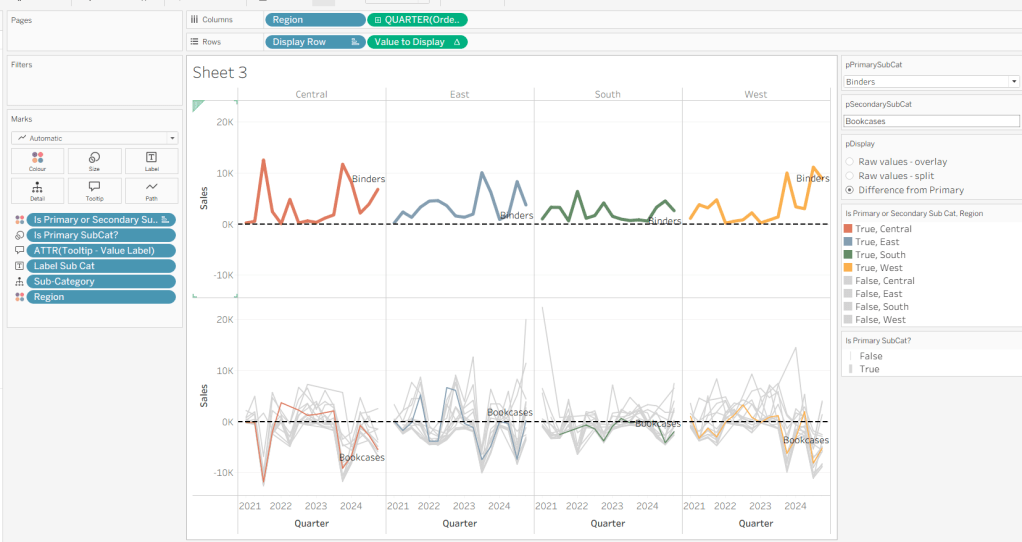
On a new sheet, show the 3 parameters and set them to the defaults (ie Binders, Bookcases and Difference from Primary).

Add Region to Columns, then add Order Date at the Quarter level as a continuous (green) pill to Columns. Add Display Row to Rows and adjust the Sort on the pill to be a manual sort, where True is listed first. Add Sub-Category to Detail, then add Value to Display to Rows and adjust the table calc so all fields except from Region and Order Date are selected.
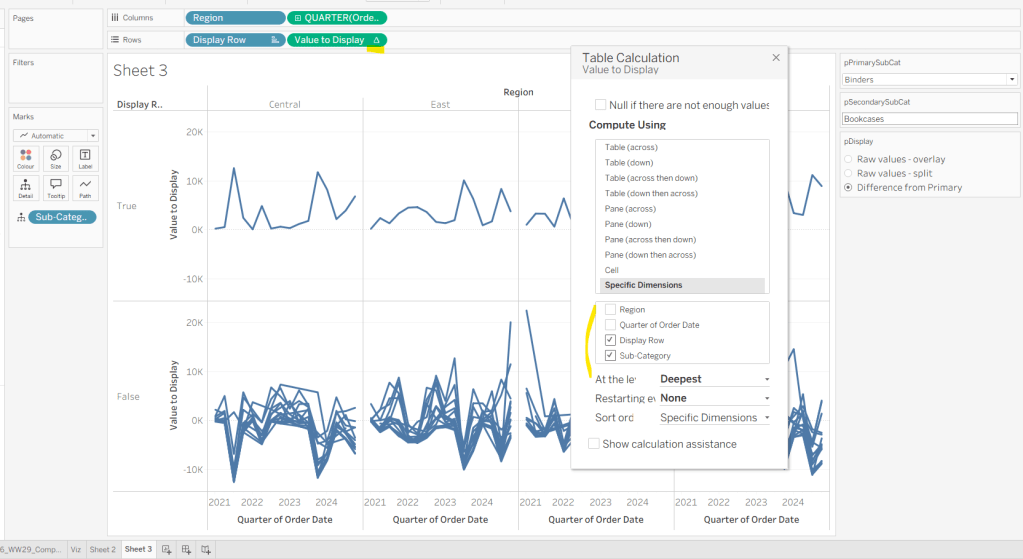
Add Is Primary or Secondary Sub Cat to Colour. Some lines will disappear, but don’t worry. Then add Region to Detail, and then select the ‘detail’ icon to the left of the pill on the marks shelf, and change it to Colour so 2 pills are now on the Colour shelf. Adjust the table calculation setting of the Value to Display pill to ensure the Is Primary or Secondary Sub Cat field is also now checked – this should make all the lines reappear.

Then adjust the colours in the colour legend so all the entries that start ‘False’ are grey and the others are as required.
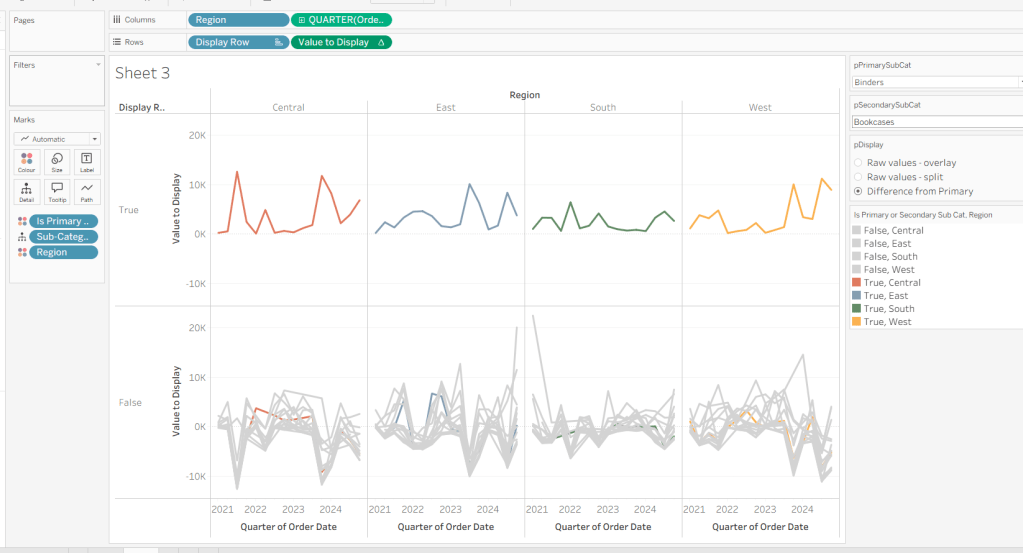
Adjust the sort on the Is Primary or Secondary Sub Cat pill on the marks card, so it is manually sorted with True first. This ensures the coloured lines are ‘on top’ and always visible. Add Is Primary SubCat? to Size shelf. Readjust the table calc on Value to Display again, and then adjust the Size so it is visibly thicker than the rest of the lines, which will probably be by adjusting both the range in the Size legend, and adjusting the slider on the Size shelf.
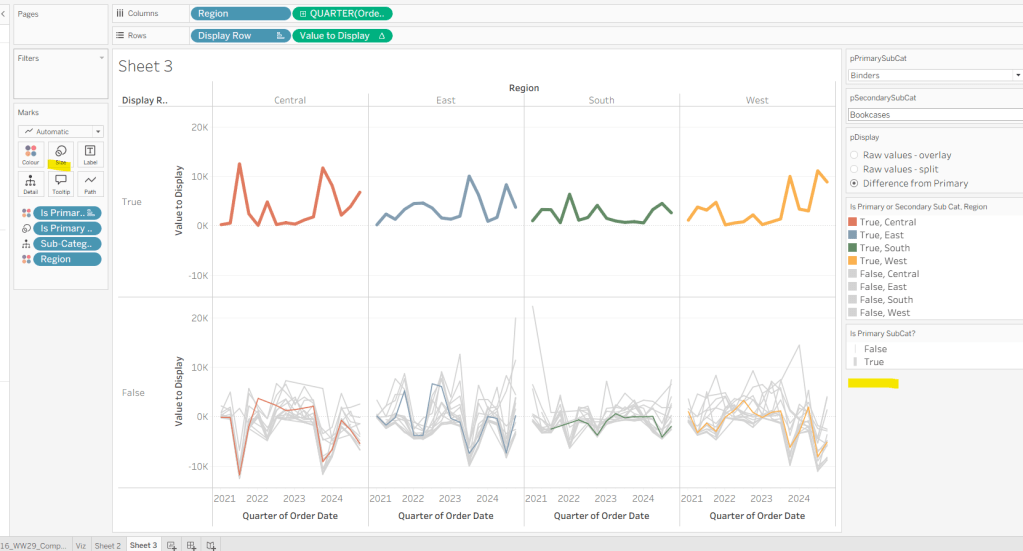
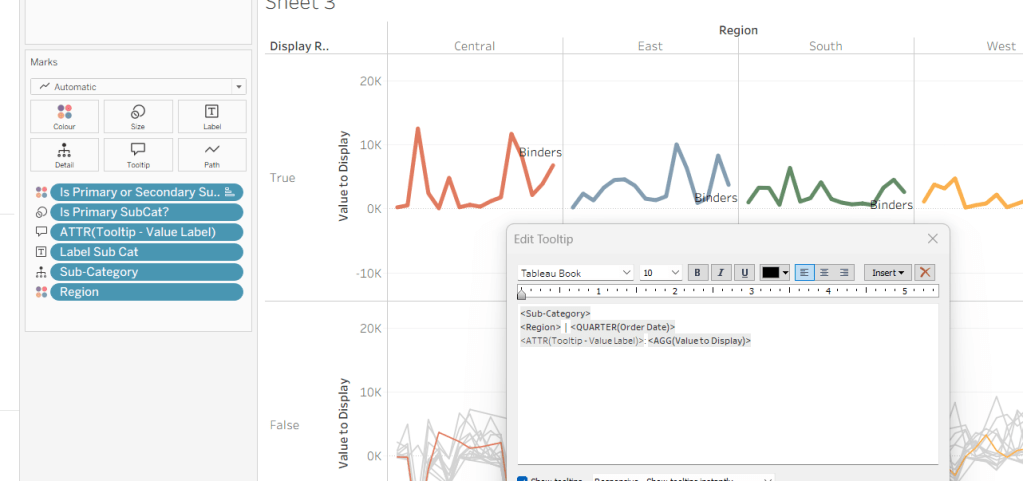
Add Label Sub Cat to the Label shelf (adjust table calc again), and set label to allow labels to overlap other marks. Add Tooltip – Value Label to tooltip and update the Tooltip as required
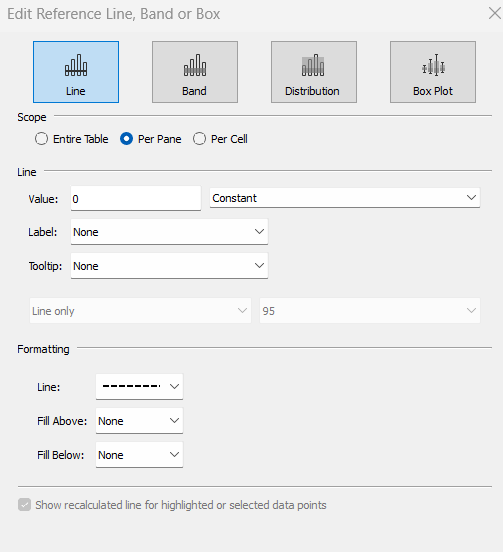
Add a reference line to the Value to Display axis, and set to be a constant of 0 displayed as a black dashed line
Edit both axis to update the axis titles on each, hide the Display Row pill (uncheck show header on the pill) and hide the Region column label (right click > hide field labels for columns).
Building the dashboard

Use layout containers to construct the dashboard as required

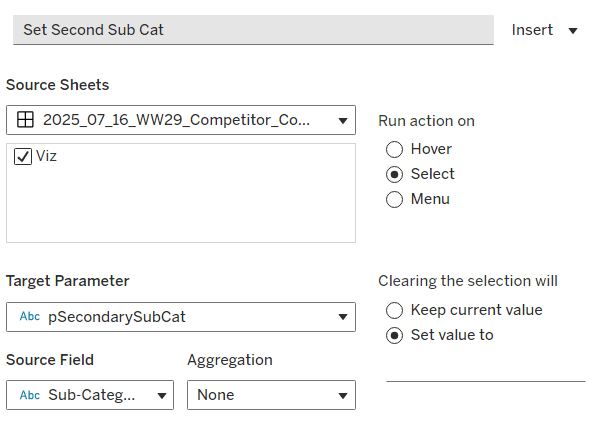
Create a dashboard parameter action to capture the value of the secondary Sub-Category

Set Second Sub Cat

On select of the Viz, set the pSecondarySubCat parameter with the value sourced from the Sub-Category field. When selection is cleared, set it <none>
Clicking one of the grey lines should now change the comparison Sub-Category. But you’ll notice the rest of the unselected lines are ‘faded’ and your selection is ‘highlighted’. We don’t want this to happen. To resolve, create new calculated field

HL

‘Dummy’

and add to the Detail shelf on the viz sheet itself.

Then add a dashboard highlight action

Un-Highlight

On selection of the Viz sheet on the dashboard, target the viz sheet on the dashboard, selecting the HL field only.

As all the marks have the HL ‘dummy’ field associated to them, they all become ‘highlighted’, giving the appearance of nothing actually being highlighted.

Finally, we need to make the title of the dashboard ‘dynamic’ and reflective of the selections made in the primary and secondary Sub-Category parameters. But the secondary one can be empty, so the text needs to handle this. An additional ‘ and ‘ needs to display if the secondary Sub-Category is set. I chose to use a parameter to help with this, as text objects on a dashboard can reference parameters.

Create a new parameter

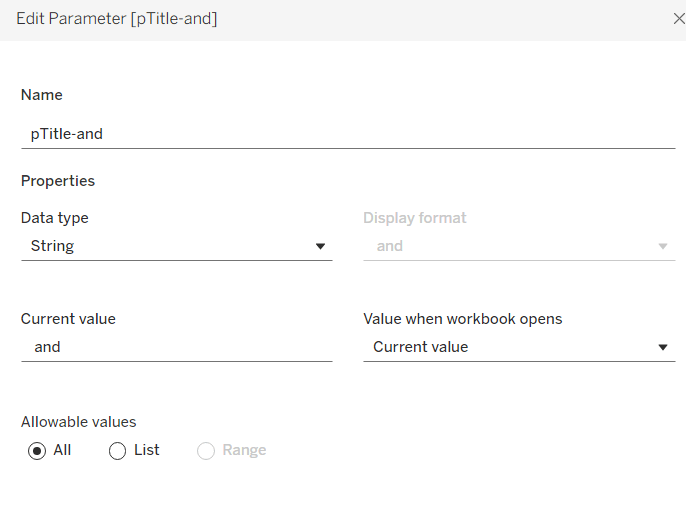
pTitle-and

string field defaulted to the text <space>and<space>
Create a calculated field

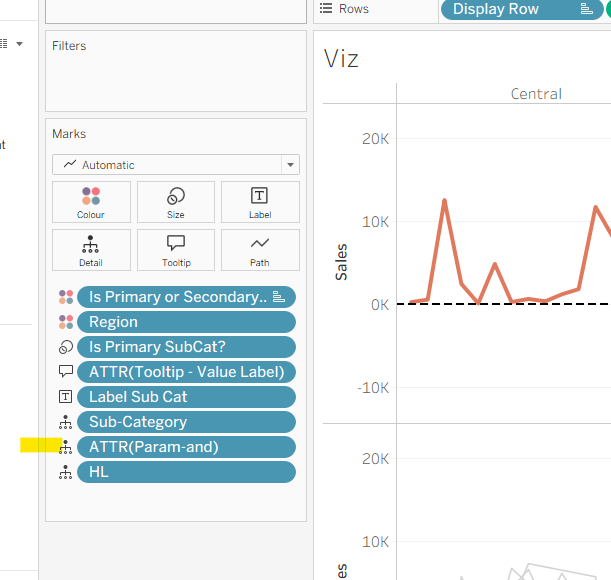
Param-and

‘ and ‘

and add to the Detail shelf on the viz. Set it to be an attribute (this won’t impact the table calc).
Back on the dashboard, create another dashboard parameter action

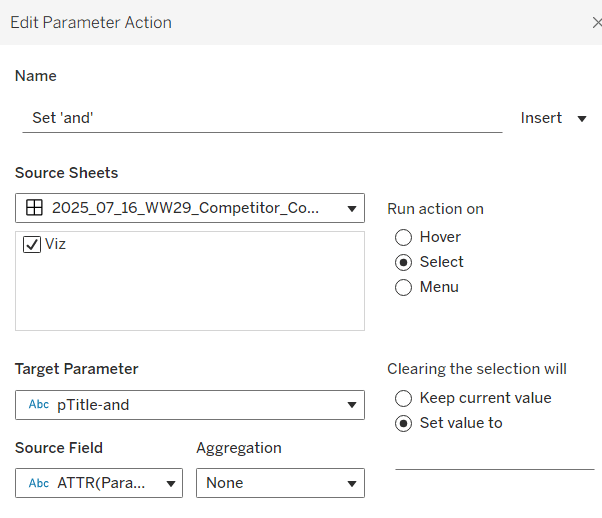
Set ‘and’

on select of the Viz, set the pTitle-and parameter passing in the value from the Param-and field. When the selection is cleared, set to <none>.
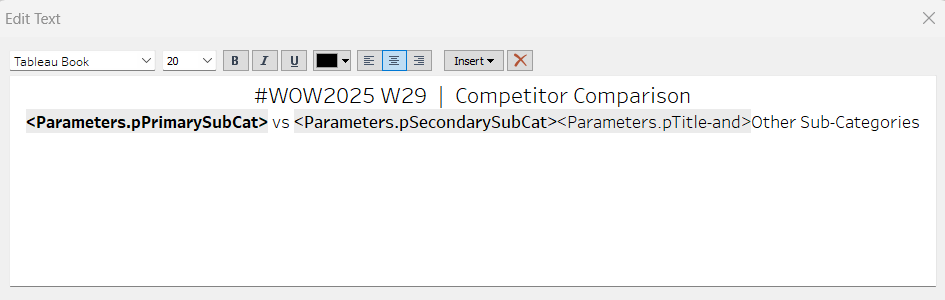
Then create (or adjust) the title text object so it references the relevant parameters (notice the spacing – or lack of – between some of the fields)
And that should be it. My published viz is here.

Happy vizzin’!

Donna

Help me choose my wine!

As we continue global recognition month for #WOW2023, Flavio Matos introduced this challenge which displays a unit chart of wines by type.

An added twist was to provide the ability for the user to switch between English (UK) and Portuguese (Brazil) languages, and the excel data set provided a sheet with the data per language.

After completing my solution, I checked out Flavio, and found he built the chart for each language (and so data source) in 2 separate sheets, added to 2 different dashboards and used navigation button with a flag image to switch between 2 dashboards. I chose to go a different route, one that didn’t mean duplicating the viz. This means that if I had to alter the viz in future for some reason, I’m only doing it once.

Modelling the data

To build in a single sheet, I needed to have the data for two languages combined into one table. Connect to the excel workbook and add the Wine sheet to the canvas, then add a relation to the Vinho sheet and set the relationship to match on the Wine field from each sheet.

Building the Viz

We need a parameter to manage the language selection

pCountry

string parameter defaulted to ‘UK’

This parameter is then used to determine which of the fields we need to use on the viz, and these are determined through calculated fields.

Country to Display

IIF([pCountry]=’UK’, [Category],[Family])

Add this to Rows then add Abreviation to the Detail shelf. Sort the Country To Display field by the count of the Abbreviation field descending.

Change the Mark type to Square then add Abreviation to the Label shelf. Adjust the sheet to Entire View and then align the label to be middle centre.

Create a parameter to store the list of English options that can be selected

pOptions-UK

string parameter containing the list of options (taken from the requirements page), with All listed first. Default to All.

Then create a version to store the Portuguese options

pOptions-Portuguese

string parameter containing the list of options (taken from the requirements page), with Todos listed first. Default to Todos.

To flag the wines that are related to the options selected, we need

Wine has Tag

IF [pCountry] = ‘UK’ THEN
IF [pOptions-UK] = ‘All’ THEN TRUE
ELSEIF CONTAINS([Tags],[pOptions-UK]) THEN TRUE
ELSE FALSE
END
ELSE
IF [pOptions-Portuguese]=’Todos’ THEN TRUE
ELSEIF CONTAINS([Tags (Vinho)],[pOptions-Portuguese]) THEN TRUE
ELSE FALSE
END
END

This returns true or false based on what country has been selected, and in turn what country specific option has been selected. If the wine is tagged with that option, or all wines have been selected then true is returned, otherwise false.

And then using this field we can determine how to colour the squares.

Colour

IF [Wine has Tag] THEN
IF [pCountry]=’UK’ THEN [Type]
ELSE
IF [Type] = ‘Red’ THEN ‘Tinto’
ELSEIF [Type] = ‘Sparkling’ THEN ‘Espumante’
ELSEIF [Type] = ‘White’ THEN ‘Branco’
ELSE [Type]
END
END
ELSE
IIF([pCountry]=’UK’, ‘No Highlight’,’Nao Harmoniza’)
END

This is slightly more detailed as the Type field in each of the excel sheets are both stored in English, but the legend in the viz shows the types in Portuguese when that language is selected. Ideally the Type should have just come straight from the data source.

Add the 3 parameters to the view, and then add Colour to the Colour shelf. Set the pCountry parameter to UK, and choose Appetizers from the pOptions-UK parameter. Adjust the colours to suit. Manually sort the colour legend options, so the colours are listed Red > Rose > Sparkling > White > No Highlight.

Then clear the pCountry parameter (or set it to any value other than UK) and set the pOptions-Portuguese parameter to Aperitivos. Once again adjust colours as required and re-order.

The tooltips need to be language specific, and only display for the wines that match the options chosen. For these we need the following calculated fields

Tooltip – Wine

IF [Wine has Tag] THEN [Wine (Wine)] ELSE ” END

Tooltip – Food Pairing

IF [Wine has Tag] THEN
IIF([pCountry]=’UK’,[Food pairing],[Food pairing (Vinho)])
ELSE ”
END

Tooltip – Food Pairing Label

IF [Wine has Tag] THEN
IIF([pCountry]=’UK’,’Food pairing:’, ‘Harmoniza com:’)
ELSE ”
END

Tooltip – Notes

IF [Wine has Tag] THEN
IIF([pCountry]=’UK’,[Notes],[Notes (Vinho)])
ELSE ”
END

Add all four of these fields to the Tooltip shelf and adjust accordingly

Finally tidy up the formatting by removing row dividers and hiding the Country to Display column heading (hide field labels for rows).

Building the Country Selector

For this I needed to add the UK and Brazilian flags a custom shapes to my Tableau repository. I just sourced some images via my favourite search engine and added them to my repository as per the instructions here.

On a new sheet I then added Abreviation to Columns and also to Filter and just filtered to the first 2 options Ab and Ag. I changed the mark type to shape. I then created the field

Country Selector

IIF([Abreviation]=’Ab’,’UK’,’Brazil’)

and added this to the Shape shelf, and selected the two flags.

Remove the row dividers and hide the header (uncheck show header on the Abreviation pill).

Building the dashboard

Add the sheets to your dashboard and display both the options parameter and the colour legend. I used layout containers for most of the arrangement, but floated the colour selector viz. I then added the title in English and Portuguese in two separate text boxes. I also hid the title of the colour legend, and add 2 different text boxes with the colour legend title in English and Portuguese. My layout looked like

To only show the sections based on the language selected, we need the following fields

Country is UK

[pCountry]=’UK’

Country is Brazil

[pCountry]<>’UK’

On the dashboard, select the text box which contains the English title, then on the Layout tab, select the Control visibility using value checkbox, and choose the Country is UK field.

Repeat this for all the other objects – the other title, the food selector parameters and the colour legend titles, choosing the Country is UK or the Country is Brazil option as appropriate.

To switch the language, we need to add a dashboard parameter action

Select Country

On selection of the Country Selector viz, set the pCountry parameter by passing in the value from the Country Selectior field.

The final step is to stop the country flags from being ”greyed out’ ‘highlighted’ when one is selected (ie the other flag ‘greying out’).

Create a fields

True

TRUE

False

FALSE

and add these 2 fields to the Detail shelf of the Country Selector worksheet.

The back on the dashboard, add a dashboard filter action

Country Selector – Unhighlight

on selection of the Country Selector sheet on the dashboard, target the Country selector sheet directly, passing the fields True = False. Show all values if the selection is cleared.

And with that, the viz should be complete. My published version is here.

Happy vizzin’!

Donna

Can you build an app to visualise wildfires?

Ann Jackson’s husband Josh (@VizJosh) set the challenge this week, to build an ‘application’ to help visualise the scale of wildfires; that is when a fire is said to be 5000 acres, you can use the app to view how that compares to an area of the world you may know, so you can really appreciate just how large (or small) the fire is.

I have to hold my hand up here, and say that after reading the requirements several times, I was absolutely stumped as to where to start. We were provided with some ‘data’ to copy which consisted of 5 rows, which I duly copied and pasted into Desktop, but I then like ‘what now….?’ I knew I needed something geographic to build a map, but couldn’t understand the relevance of the 5 rows… I’ve said before I don’t use maps that often, so was unsure whether there was something I needed to do with this data. After staring at the screen for what seemed like an age, I ended up looking at the solution.

The data is just ‘dummy’ data and is just something to allow you to ‘connect’ Tableau to. You can’t build anything in Tableau without a data source. It could just have been 1 row with a column headed ‘Dummy’ and a value of 0. If it had been that, it might have been more obvious to me 🙂

  • Defining the parameters
  • Building the map
  • Apply button
  • Dashboard Actions

Defining the parameters

Ultimately the ‘data’ being used to build the viz is driven by parameters – the Location selector and the Latitude & Longitude inputs.

pLocation

An integer list parameter that stores values, but displays worded locations – wherever you choose. I opted for my hometown of Didcot in the UK alongside locations Josh had used, mainly so I could validate how the rest of the ‘app’ would work when I came to build it.

pLongitude

Float input, defaulted to the longitude of location 1 (ie Didcot) above.

I just googled Didcot Latitude and Longitude to find the relevant values

Note – Longitude W means an input of -1 * value. Similarly for Latitude S needs to be a negative input.

Then I created

pLatitude

Since we’re talking about parameters, there’s a couple more required, so lets create them now

Acres

Integer parameter defaulted to 5000

pZoom

Integer, list parameter with the values below, defaulted to 2.

Building the map

Now we have some lat & long values (in the pLatitude and pLongitude parameters), we can create some geographic data needed to build a map.

Location

MAKEPOINT([pLatitude], [pLongtitude])

This gives us the centre point which we want to build the ‘fire size’ buffer around. For this we need the calculation JOsh kindly provided :

Acres to Feet

SQRT(([Acres]*43560)/PI())

and then we can create the buffer

Fire Size

BUFFER([Location],[Acres to Feet],’ft’)

Double click on this field and it should automatically create you a ‘map’

Adjust the map ‘format’ via the Map > Map Layers menu option. I chose to set it to the dark style at 20% washout, then ticked various selections to give the details I needed (I added and removed options as I was testing against Josh’s version). I also set the colour of the mark via the Colour shelf to be pale red.

Also, as per the requirement, turn off the map options via Map > Map Options menu, and unchecking all the selections.

So this is the basic map, and you can input different lats & longs into the parameters to test things out.

Now we need to deal with the zoom requirement.

I wasn’t entirely sure about this, so had a bit of a search and found Jeffrey Shaffer’s blog post How to create a map zoom with buffer calculation in Tableau – bingo!

The zoom had to be x times the size of the circle on the map, so achieved by

Zoom

BUFFER([Location],[pZoom] * [Acres to Feet],’ft’)

Add this a map layer (drag field onto the map and drop onto the Add a Marks Layer section that displays)

This has generated a 2nd circle and consequently caused the background map to zoom out. We don’t want this circle to show, nor to be selected, so on the Colour shelf, set the Opacity to 0%, and the Border and Halo to None. To prevent the circle from showing when you hover your mouse on the map, you need to Disable Selection of the Zoom marks card

Apply Button

On a separate sheet, double click into the space below the Marks card, and type ‘Apply’ into the resulting ‘text pill’ that displays, and then press return.

This will create a blue pill, which you can then add to the Label/Text shelf. Align the text to be middle centre

This view is essentially going to act as your ‘Apply’ button on the dashboard. When it is clicked on, we want it to take the Lat & Long values associated to the place listed in the pLocation parameter, and update the pLatitude & pLongitude parameter values.

For this, we need a couple of extra calculated fields

Location Lat

CASE [pLocation]
WHEN 1 THEN 51.6080
WHEN 2 THEN 40.7812
WHEN 3 THEN 51.5007
WHEN 4 THEN 48.8584
END

Note – as before, all these values were worked out via Google as shown above.

Location Long

CASE [pLocation]
WHEN 1 THEN -1.2448
WHEN 2 THEN -73.9665
WHEN 3 THEN 0.1246
WHEN 4 THEN 2.2945
END

Add both these fields to the Detail shelf of the Apply sheet.

Dashboard Actions

When you add the 2 sheets to the dashboard, you then need to add parameter actions to set the values of the pLongitude & pLatitude parameters on click of the Apply button

Set Lat

A parameter action that runs on Select of the Apply sheet, setting the pLatitude parameter with the value from the Location Lat field.

You need another action Set Long which does a similar thing by passing the Location Long field into the pLongitude variable.

Finally, you don’t want the ‘Apply’ button to look ‘selected’ (ie highlighted pale blue) once clicked. Create calculated fields True = True and False = False and add both of these to the Detail shelf on your Apply button sheet.

Then add a dashboard filter action that uses Selected Fields and maps True to False

Hopefully, this should provide you with all the core features to get the functionality working as required. Ultimately once I got out of the starting blocks, it wasn’t too bad…

My published viz is here.

Happy vizzin’! Stay Safe!

Donna

Can you visualise the Cholera Outbreak?

Lorna delivered an exciting map based challenge this week, to recreate one of the most famous visualisations ever created. If you’re part of the data viz community and never heard of John Snow and his cholera map, then I suggest you go and google now 🙂

While I love map based challenges, as its an area I don’t get to use regularly, they’re also the ones that can give me the most frustrations/take the longest to complete, as the functions and concepts I need to use don’t come as readily as with other challenges. I had to refer back to my own blogs on previous map based challenges (specifically this one and this one), to help me out. However these were written before map layers were introduced, so not everything was applicable.

  • Modelling the data
  • Building the Avg Distance to Pump bar chart
  • Building the Total Deaths within Avg Distance bar chart
  • Building Map
  • Adding the dashboard interactivity

Modelling the data

3 sets of data was provided

  • Pumps – 1 row per pump with its location
  • Deaths – 1 row per death and its location (can be multiple rows for the same location)
  • Deaths aggregated – 1 row per location where at least 1 death was recorded, including the count of deaths at that location

This all needed to be ‘combined’ so we can work across all 3 sets of data and compare the locations. I used relationship calculations to create a relationship of 1=1 between the related data sets, which means all the aggregated deaths are mapped to each pump, and all the individual deaths are mapped to each pump too.

Building the Avg Distance to Pump bar chart

I chose to start building the bar charts first so I could get better acquainted with how the data was working together, and I knew the maps would take more effort.

To start we need to figure out the distance from each pump to each death, so we need to get the location of each pump, and the location of each death

Pump Location

MAKEPOINT([Pump Lat],[Pump Lon])

Individual Death Location

MAKEPOINT([Death Lat],[Death Lon])

These will both create calculated fields of a geographic data type as indicated by the globe icon to the left of the field.

And with these fields, we can then work out the distance between them in metres

Distance Pump to Death

DISTANCE([Pump Location], [Individual Death Location],’m’)

Now we want the average distance per pump

Avg Distance

{FIXED [Pump ID]: AVG([Distance Pump to Death])}

I formatted this to 0 dp and added a suffix of ‘m’

And with this, we can build the first bar chart – Pump ID on Rows and Avg Distance on Columns. You need to apply formatting

  • Change the font – I set the font to Times New Roman at the Workbook level, to make life easier (Format menu > Workbook).
  • Set the worksheet background colour. I used #f5f1f0
  • Add a black border to each bar (via the Colour shelf)
  • Show labels on bars (via Label shelf)
  • Hide Avg Distance axis (uncheck show header on the Avg Distance pill)
  • Remove all row & column borders
  • Set the Axes Ruler on Rows to black
  • Set the Tooltips

A parameter is needed to store the selected pump

pSelectedPump – an integer defaulted to 1

With this, we can then create a field to indicate which pump is selected

Is Selected Pump?

[Pump ID]=[pSelectedPump]

Add this field to the Colour shelf and set the True option to black and the false option to match the background colour you used.

Building the Total Deaths within Avg Distance bar chart

We now need to identify if the death occurred within the average distance that has been calculated.

Number Deaths within Avg Distance

SUM(INT([Distance Pump to Death] <= [Avg Distance]))

This is a bit of short hand instead of writing IF [Distance Pump to Death] <= [Avg Distance] THEN 1 ELSE 0, and summing up the result. It relies on the the fact that the equation [Distance Pump to Death] <= [Avg Distance] returns a boolean of true or false, which can be converted to an integer as true =1 and 0 = false.

At a row level, the field just returns 1 or 0, but just plot this field against Pump ID, you get the desired count

And the easiest way to build this bar chart, is to duplicate the one created above (on the worksheet tab, right click & duplicate sheet), then replace the Avg Distance pill with the Number Deaths within Avg Distance pill (simply drag the latter from the data pane and drop directly onto the former in the columns shelf). Then adjust tooltips etc to suit. Doing it this way preserves (most of) the formatting.

Building the Map

We’re going to use 4 layers in creating the map, and I’m documenting from the bottom upwards (although this isn’t the order in which I actually built the viz in practice – I shuffled things round afterwards).

We’ll start with the density layer – the blue coloured area on the map.

On a new sheet, add Individual Death Location and Death ID to the Detail shelf. This should automatically create a map view with the auto generated lat & long fields. Then

  • Change the mark type to Density
  • Change the colour to Density Blue-Teal Light
  • Alter the Intensity to 75%, the Opacity to 60%
  • Increase the Size to maximum
  • Delete the info in the tooltip

We need to set the background map

Via the Map > Map Layers menu option, set the Style to Normal and uncheck all options and set Streets, Highways, Routes

Then set the worksheet background to the colour we’ve used before

Onto Layer 2 – the pump buffer circle.

We’ve already identified the selected pump, but now we need to get it’s location, and for that we need the lat and long of the selected pump.

Selected Pump Lat

{FIXED: MIN(IIF([Is Selected Pump?],[Pump Lat],NULL))}

This essentially gets the latitude of the selected pump and sets that value across all the rows in the data.

Selected Pump Long

{FIXED: MIN(IIF([Is Selected Pump?],[Pump Lon],NULL))}

And with these we can get

Selected Pump Location

MAKEPOINT([Selected Pump Lat],[Selected Pump Long])

We also need to get the average distance of the selected pump spread across every row

Selected Pump Avg Distance

{FIXED :SUM( IF [Is Selected Pump?] THEN [Avg Distance] END)}

Now we have this, we can build the buffer field

Pump Buffer

BUFFER([Selected Pump Location],[Selected Pump Avg Distance],’m’)

Drag this Pump Buffer field onto the map and drop it onto the ‘Add a Marks Layer’ section that should appear. This will create an additional marks card.

Set the colour to the same background colour previously used, and drop the opacity to around 5%. Add Pump ID to Detail and Selected Pump Avg Distance to the Tooltip shelf. Adjust tooltip to match.

Onto Layer 3 – the pumps

Drag Pump Location onto the map and Add a Marks Layer.

Add Pump ID to Text and Location to Tooltip to the relevant marks card. Change mark type to circle, increase the size and change colour to red and add a dark grey border. Adjust text to be centred, and set the tooltips accordingly.

Onto the final layer now, the aggregated death locations. We need a further location field

Death Location

MAKEPOINT([DeathLat (deaths aggregate.csv)], [DeathLon (deaths aggregate.csv)])

Drag this onto the map to Add a Marks Layer then on the subsequent marks card add Loc ID to the Detail shelf. Change the mark type to circle, and add Deaths to the Size shelf – adjust accordingly. Change the colour to black with a white border. Adjust tooltip.

Adding the dashboard interactivity

Add the 3 sheets onto a new dashboard sheet. Create a new dashboard action to Change Parameter, that runs on select of any of the 3 charts, and targets the pSelectedPump parameter by setting it with the value from the Pump ID field.

Now if you select a pump on the map, or a bar on either of the bar charts, all the charts will reflect the selection made.

The other interactvity you may notice, is that on click, of the bars, or the pumps, the other data ‘fades’ (or the selected data is highlighted). We don’t want this.

To resolve, create a calculated field

True

True

and another

False

False

Add both these fields to the Detail shelf on both bar chart sheets and to the Detail shelf on the Pumps marks card.

Then on the dashboard, create a dashboard filter action which filters on selected fields setting True = False (see below). You’ll need to create one of these actions for each of the 3 sheets.

And hopefully, you now have a working viz. My published version is here.

Happy vizzin’! Stay Safe!

Donna

Can you do Comparative Quantity Analysis?

For this week’s challenge, Sean wanted to test us on a particular aspect of Tableau – the use of INCLUDE & EXCLUDE LOD expressions, although he then finished off the challenge intro with the statement “You can complete this challenge however you like but just DON’T USE A FIXED LOD”.

Like many, I am pretty comfortable using a straightforward FIXED LoD, but rarely get INCLUDE & EXCLUDE ‘out of my toolbox’. I usually end up using them because I’ve followed an example online to achieve a specific task. With this challenge, I had every intention of trying to make use of these ‘lesser used’ LoDs when I started out.

However I did struggle. I got to a point where I knew what I’d do with table calculations, but however I tried with various LoD statements, I couldn’t get the behaviour I desired. And at this point, I had a working solution that hadn’t used FIXED LoDs either, so based on Sean’s closing statement, I had achieved a result. When doing these challenges, I do have to consider how much of my time to devote to them (although COVID restrictions does mean my home/family/social life if not as busy at the moment), so I chose to publish so I could feel content I had completed the challenge. However, there was a niggle, that I hadn’t managed to apply the functions the challenge was really testing for.

A twitter post the next day from a fellow #WOW participant Nik Eveleigh, calling out how helpful Tim Ngwena‘s Include LoD YouTube video was, piqued my interest, and that evening I set about watching the video, and subsequently managing to create another solution using the required INCLUDE & EXCLUDE LoDs, without any table calculations either.

So for this blog, you’re gonna get two solutions 🙂 I’ll explain the various fields required for each solution, and build out a tabular view to demonstrate. Building the view is then pretty much the same.

  • Getting Started
  • The Table Calculation Solution
  • The LoD Solution
  • Building the Viz
  • Adding the dashboard interactivity

Getting Started

First up, just a note about the data set. You need to use the Superstore dataset, but need a version that includes the Manufacturer field. This doesn’t seem to exist by default in the excel file included as part of Tableau’s install. So I used the data provided by Sean on data.world.

Secondly, once connected to the data source, we’re going to need a parameter that is ultimately going to be used to drive the dashboard interactivity later on. The parameter needs to store the value of the Sub-Category the user has selected on the chart. The parameter is required regardless of which solution you choose to follow.

pSelectedSubCat

This is a string parameter that contains the text Fasteners by default. Create this and then show it on the view.

The Table Calculation Solution

The first measure being displayed on the viz is the average Quantity by Manufacturer for each Sub-Category; that is for the total quantity of goods sold against each sub-category, how much on average did each manufacturer order?

Count Manufacturer

COUNTD([Manufacturer])

Identifies the distinct number of manufacturers

Avg Qty

SUM([Quantity])/[Count Manufacturer]

Lets put these fields out into a table, so we can see the values. I’ve sorted the rows by Avg Qty descending, and you can see the values match the required output.

Now we need to identify the Avg Qty associated to the selected Sub-Category.

Selected Avg

IF [pSelectedSubCat]=MIN([Sub-Category]) THEN [Avg Qty] ELSE 0 END

This will return the value we want for the row that matches the value of the parameter, and 0 otherwise. The Sub-Category dimension is wrapped in MIN as Avg Qty is an aggregated value, so the dimensions also need to be aggregated. MAX or ATTR will work as well.

Pop this field onto the table.

For the next step, we need to find a way to ‘replicate’ this 152 value across all the rows displayed. When building, I knew exactly what I would do next with a table calc, but I thought this is where the LoD needed to be used, and despite my best efforts I just couldn’t figure it, but more on that later. For now, we’re going to use a table calculation to replicate the value across the whole ‘window’.

Avg of Selected Sub Cat

WINDOW_MAX([Selected Avg])

This is basically looking for the maximum value of the Selected Avg field, which is 152 (as all the other values are 0).

Add this to the view, and set the table calculation to compute using Sub-Category. This is just good practice when using table calcs, as it means wherever the pill gets moved to in the view, it will retain the same computation.

Variance

[Avg Qty]-[Avg of Selected Sub Cat]

Add this onto the table, and again set the table calculation to compute by Sub-Category.

If you change the value in the pSelectedSubCat parameter, you’ll see the last 3 columns change.

So now we’ve just got a few more fields to create that we’ll need on the viz.

We need to be able to identify the selected Sub-Category which will be used to colour the bars.

Is Selected Sub Cat?

[Sub-Category]=[pSelectedSubCat]

The tooltip also shows the text ‘more’ or ‘less’ when describing the display, so we need a field for this

TOOLTIP: more or less

IF [Variance] <= 0 THEN ‘less’ ELSE ‘more’ END

And finally, the tooltip displays the variance as an absolute number, so we need a field for this too

TOOLTIP:Variance

ABS([Variance])

So this is all the core fields you’ll need to build the solution, so if you’re not interested in the LoD route, skip over the next bit 🙂

The LoD Solution

After watching Tableau Tim’s video, I realised why I had struggled to get an LoD solution to work. I needed to revisit my approach to calculating the average quantity, a step I hadn’t originally considered.

Now in the interest of time, I’m not going to write out why the calculation below works in detail when Tim demonstrates it so eloquently in his video 🙂

Qty Inc Manufacturer

{INCLUDE [Manufacturer] : SUM([Quantity])}

This field is going to help us get our ‘average quantity’ value.

Add Sub-Category, Quantity and Qty Inc Manufacturer into a tabular view, and change the aggregation of the Qty Inc Manufacturer pill from SUM to AVG. Order by this field descending, and you can see we have the same values as the Avg Qty field I created in the above solution.

This time, I’m going to start with the field to identify the selected Sub Category.

Is Selected Sub Cat

[pSelectedSubCat]=[Sub-Category]

Then we need to identify the value associated to the selected sub category, and will do this with two fields

Selected Qty

IF [Is Selected SubCat] THEN [Quantity] END

Selected Qty Inc Manufacturer

{INCLUDE [Manufacturer] :SUM([Selected Qty])}

Add these onto the view, and you can see the behaviour. Note this time I chose not to bother with an ‘Else 0’ statement (it wasn’t necessary for the above either).

Now we want to be able to ‘spread’ this value across all rows, and the Comparative Sales Analysis example in this Tableau blog post helps here (and I’ve just seen that Tableau Tim has produced an EXCLUDE LoD video too, which I’m sure will explain things very well).

Overall Selected Qty Inc Manufacturer

{EXCLUDE [Sub-Category], [Is Selected SubCat]: AVG([Selected Qty Inc Manufacturer])}

Note – I found I needed to add the Is Selected SubCat dimension into the statement, to get the tooltips working on both the bar charts.

And once again, we can now compute the variance, and the variance required for the tooltip, and the more or less values:

Variance

AVG([Qty Inc Manufacturer]) – MIN([Overall Selected Qty Inc Manufacturer])

TOOLTIP:Variance

ABS([Variance])

TOOLTIP : more or less

IF [Variance] <= 0 THEN ‘less’ ELSE ‘more’ END

Building the Viz

To build the viz

  • Add Sub-Category to Rows
  • Add Avg Qty (or Qty Inc Manufacturer set to AVG) to Columns. Sort by the field descending.
  • Add Variance to Columns
  • On the Avg Qty marks card, add Is Selected Sub Cat to the Colour shelf and adjust accordingly
  • On the Variance marks card, add Variance to the Colour shelf, and notch down the transparency to about 75%
  • Add TOOLTIP:Variance and TOOLTIP:more or less to the Tooltip shelf of the All marks card
Then it’s just a case of formatting the display and the tooltips.

Remember – if you’re working with the table calc solution, make sure all the table calculation fields in the display (those with the triangle symbol) have all been set to compute by Sub-Category.

Adding the dashboard interactivity

When you click on a Sub-Category, the variance needs to change. This is managed via a Parameter Dashboard Action. Once the viz has been added to a dashboard then add a dashboard action that on select of the viz, sets the pSelectedSubCat parameter, with the value of the field from the Sub-Category dimension.

There’s also an additional feature in this dashboard that stops the selected field from being highlighted on click. To stop this from happening, create 2 new fields

True

True

False

False

Add both of these to the Detail shelf on the All marks card of the chart viz.

Then on the dashboard, add a dashboard filter action, which on select targets the chart sheet, and maps True to False. As this is never a match ie ‘true’, the filter doesn’t apply.

Hopefully I’ve covered everything. My published vizzes are here

Happy vizzin’! Stay Safe!

Donna

Can you build a Control Chart?

Lorna Brown returned this week to set another table calculation based challenge involving a line chart which ‘on click’ of a point, exposed the ability to ‘drill down’ to view a tabular view of the data ‘behind’ the point. This is classic Tableau in my opinion – show the summarised data (in the line chart) and with ‘drill down on demand’. Lorna added some additional features on the dashboard; hiding/showing filter controls to change how the data is displayed in the chart, and a back navigational button on the ‘detail’ list.

The areas I’m going to focus on in this blog are

  • Setting up the parameters
  • Defining the date to plot on the chart
  • Restricting the data to the relevant years
  • Defining the reference bands
  • Colouring the marks
  • Working out the date range for the tooltip
  • Building the table
  • Drill down from chart to table
  • Un-highlight selected marks
  • Hide/Show filter controls
  • Add navigation button

Setting up the parameters

This challenge requires 3 parameters.

Select a Date

a string parameter containing the 2 options available (Date Submitted & Date Selected) for selection, which when displayed on the dashboard will be set to a single value list control (ie radio buttons)

Latest X Years

an integer parameter, defaulted to 3, which allows a range of values from 1 to 5.

NOTE – Ensure the step size is set to 1, as this is what allows the Show buttons option to be enabled when customising the Slider parameter control type.

STD

another integer parameter, defaulted to 1, that allows a range of values from 1 to 3

Defining the date to plot on the chart

The Select a Date parameter is used to switch the view between different dates in the data set. This means you can’t plot your chart based on date field that already exists in the data set. We have to create a new field that determines which date field to select based on the parameter

Date to Plot

DATE(DATETRUNC(‘week’, IIF([Select a Date]=’Date Submitted’,[Date sent to company], [Date received])))

The nested IIF statement, is basically saying, if the parameter is ‘Date Submitted’ then use the Date sent to company field, else use the Date received field. This is all wrapped within a DATETRUNC statement to reset all the dates to the 1st day of the week (since the requirement is to report at a weekly level).

Note – there was some confusion which field the parameter option should map to. I have chosen the above, but you may see solutions with the opposite. Don’t get hung up on this, as the principal of how this all works is most important.

Restricting the data to the relevant years

The requirement is to show ‘x’ years worth of data, where 1 year’s worth of data is the data associated to the latest year in the data set (ie from 01 Jan to latest date, rather than 12 months worth of data). So to start with I calculated, rather than hardcoded, the maximum year in the data

Year of Latest Date

YEAR({MAX([Date to Plot])})

Then I could work out which dates I wanted via

Dates to Include

[Date to Plot]>= MAKEDATE([Year of Latest Date] – ([Latest X Years]-1),1,1)

In the MAKEDATE function, I’m building a date that is the 1st Jan of the relevant based on how many years we need to show.

So if Year of Latest Date is 2020 and Latest X Years =1 then Year of Latest Date – (Latest X Years -1) = 2020 – (1-1) = 2020 – 0 = 2020. So we’re looking for dates >= 01 Jan 2020.

So if Year of Latest Date is 2020 and Latest X Years =3 then Year of Latest Date – (Latest X Years -1) = 2020 – (3-1) = 2020 – 2 = 2018. So we’re looking for dates >= 01 Jan 2018.

This field is added to the Filter shelf and set to true.

So at this point, our basic chart can be built as

  • Year on Columns (where Year = YEAR([Date to Plot])), and allows the Year header to display at the top
  • Date to Plot on Columns, set to Week Number display via the pill dropdown option, and also set to be discrete (blue pill). This field is ultimately hidden on the display.
  • Number of Complaints on Rows (where Number of Complaints = COUNT([XXXX.csv], the auto generated field relating to the name of the datasource).

To get the line and the circles displayed, this needs to become a dual axis chart by duplicating the Number of Complaints measure on the Rows, synchronising the axis and setting one instance to be a line mark type, and the other a circle.

Defining the reference bands

The reference bands are based on the number of standard deviations away from the mean/ average value per year.

Avg Complaints Per Year

WINDOW_AVG([Number of Complaints])

Once we have the average, we need to define and upper and lower limit based on the standard deviations

Upper Limit

[Avg Complaints Per Year] + (WINDOW_STDEV([Number of Complaints]) * [STD])

Lower Limit

[Avg Complaints Per Year] + (WINDOW_STDEV([Number of Complaints]) * -1 * [STD])

Add both these fields to the Detail shelf of the chart viz (at the All marks card level) and set the table calculation of each field to Compute By Date to Plot

This ‘squashes’ everything up a bit, but we’ll deal with that later.

Add a Reference Band (right click on axis – > Add Reference Line) that ranges from the Lower Limit to Upper Limit.

If an Average Line also appears on the display, then remove it, by right clicking on the axis -> Remove Reference Line – > Average

Colouring the marks

I created a boolean field based on whether the Number of Complaints is within the Upper Limit and Lower Limit

Within STD Limits?

[Number of Complaints]<[Upper Limit] AND [Number of Complaints]>[Lower Limit]

Add this to the Colour shelf of the circle mark type, and set to Compute Using Date to Plot. The values will be True, False or Null. Right click on the Null option in the Colour Legend, and select Exclude. This will add the Within STD Limits? to the Filter shelf, and the chart will revert back to how it was. Adjust the colours accordingly.

The Tooltip doesn’t show true or false though, so I had another field to use on that

In or Out of Upper or Lower Limits?

If [Within STD Limits?] THEN ‘In’ ELSE ‘Out’ END

Working out the date range for the tooltip

The Tooltip shows the start and end of the dates within the week. I simply built 2 calculated fields to show this.

Date From

[Date to Plot]

This 2nd instance is required as Date to Plot is formatted to dd mmm yyyy format and also used in the Tooltip. Whereas Date From is displayed in a dd/mm/yyyy format.

Date To

DATE(DATEADD(‘day’, 6, [Date to Plot]))

Just add 6 days to the 1st day of the week.

Building the table

Create a new sheet and add all the relevant columns required to Rows in the required order. For the last column, Company response to consumer, add that to the Text shelf instead (to replace the usual ‘Abc’ text). The in the Columns shelf, double click and type in ‘Company response to consumer’ which creates a ‘fake’ column heading. Format all the text etc to make it all look the same.

Add the Dates to include = true filter.

Also add the WEEK(Date to Plot) field to the Rows shelf, as a blue discrete field (exactly the same format as on the line chart). But hide this field (uncheck Show Header). This is the key linking field from the chart to the detail.

Drill down from chart to table

Create one dashboard (Chart DB) that displays the chart viz. And another dashboard that displays the table detail (Table DB). On the Chart dashboard, add a Filter Dashboard Action (Dashboard menu -> Actions -> Add Action -> Filter), that starts from the Chart sheet, runs as a Menu option, and targets the Detail sheet on the Detail dashboard. Set the action to exclude all values when no selection has been made. Name the action Click to Show Details

On the line chart, if you now click a point on the chart, the tooltip will display, along with a link, which when clicked on, will then take you to the Detail dashboard and present you with the list of complaints. The number of rows displayed should match the number you clicked on

Un-highlight selected marks

What you might also notice, is when you click on a point on the chart, the other marks will all ‘fade’ out, leaving just the one you selected highlighted. It’s not always desirable for this to happen. To prevent this, create a new field called Dummy which just contains the text ‘Dummy’. Add this onto the Detail shelf of the All marks card on the chart viz.

Then on the chart dashboard, add another dashboard action, but this time choose a highlight action. Set the action to run on select and set the source & target sheets to be the same sheet on the same dashboard. But target highlighting to selected fields, and select the Dummy field only

Hide/Show filter controls

Check out this post by The Data School that explains very simply how to work with floating containers to show/hide buttons. When creating in Desktop, the ‘onclick’ interactivity won’t work, you’ll have to manually select to show and hide, but once published to Tableau Public, it’ll behave as desired.

You have options to customise what the button looks like when the container contents are hidden, and what it looks like when they’re shown, via the Button Appearance

Add Navigation Button

On the Detail dashboard, simply add a Navigation object to the dashboard

and edit the settings to navigate back to the chart dashboard, as well as customise the appearance

Hopefully I’ve covered all the key features of this challenge. My published viz is here.

Happy vizzin’! Stay safe!

Donna