This week’s challenge was set by Sean and was a recreation of a PowerBI WOW challenge set a few weeks ago. The data set just contains 2 pieces of information – a datetime field and a glucose measurement.
Creating the calculations
On a new sheet, add Device Timestamp to Rows as a discrete (blue) pill at the hour level.
Then create the following fields, which are aggregations of the glucose levels at each hourly time period.
Minimum
MIN([Glucose mg/dL])
5th Percentile
PERCENTILE([Glucose mg/dL],0.05)
25th Percentile
PERCENTILE([Glucose mg/dL],0.25)
Median
PERCENTILE([Glucose mg/dL],0.5)
75th percentile
PERCENTILE([Glucose mg/dL],0.75)
95th percentile
PERCENTILE([Glucose mg/dL],0.95)
Maximum
MAX([Glucose mg/dL])
Add all these fields to the table and then format the Hour field to use the 12hr format by default
Building the Viz
On a new sheet, add Device Timestamp as a continuous (green) pill at the hour level to Columns. Then add Median to Rows. Set the mark type to line and set the path to be a dashed line and colour black. Format the Device Timestamp pill so the default format on the pane is 12hr format (axis should remain as numeric).
Add Minimum to Rows to create a second marks card. Change the mark type to Area and set the colour to be 100% opacity.
Then drag 5th Percentile to the Minimum axis and drop when the ‘2 green column’ symbol appears.
This will automatically add Measure Values to Rows instead and Measure Names to Colour. Add 25th Percentile, 75th Percentile, 95th Percentile and Maximum to the axis too. Reorder the fields in the Measure Values section so the fields are listed in the appropriate order from Min to Max. Adjust the Colours accordingly. Unstack the marks (Analysis -> Stack Marks -> Off).
Add Measure Names to Label and align middle right. Allow labels to overlap marks.
Add Measure Names to the Label on the Median marks card. Also align middle right and format to be underlined.
Make the chart dual axis, synchronise the axis, and then right click on the right hand axis and move marks to back.
Hide the right hand axis (uncheck show header). Edit the Device Timestamp axis to fix from 0 to 26, set the axis to display a value every 3 hours and remove the title.
Add constant Reference Lines to the left hand axis for the values 80 and 180
Edit the left hand axis title. Remove row and column dividers. Add axis rulers. Add a title.
Add to a dashboard and then publish. My published version is here.
Note – the vertical grid lines that appear on the Tableau Public version are a nuance of Tableau Public. I originally recreated on Desktop thinking it was a requirement of the challenge, by adding multiple constant reference lines for each hour. But when I checked Sean’s solution after publishing, I found he didn’t have any and the intention was not to have any.
It was Kyle’s turn to set the challenge this week, and took inspiration from a work based scenario he had encountered. As a result 3 fictitious data sets were provided, and a viz was required to be built against each of them.
Building the Marketing Campaigns Gantt chart
All 3 vizzes are tied together by 2 parameters – the highlight date and number of days, so lets’ start with defining those
pHighlightDate
date parameter defaulted to 01 Dec 2023
and
pDays
integer parameter defaulted to 120
On a new sheet, show both of these parameters.
Using the Campaign data source, add Campaign to Rows and Start Date to Columns as a continuous exact date (green pill).
To define the width of each mark, we need
Duration
DATEDIFF(‘day’, [Start Date], [End Date])
Add this to the Size shelf, then add Category to the Colour shelf and adjust accordingly.
Add Start Date as a discrete exact date (blue pill) to Rows and position in front of the Campaign pill. This will order each row based on the Start Date ascending.
Hide the Start Date pill on Rows (uncheck Show Header). Add End Date as a continuous attribute to Tooltip, and amend the tooltip as required.
Add pHighlightDate to Detail, then right click on the Start Date axis and Add Reference Line. Add a dotted line for the entire table based on the pHighlightDate field.
Remove all row and column dividers; delete the axis title (right click > edit axis) and hide the Campaign column heading (right click > hide field labels for rows). Format the Campaign numbers so they are aligned right.
Update the title of the sheet, and include the details for the legend title within
Finally, we need to filter the rows shown based on whether the campaign was running within the window based on the number of days before/after the highlight date. We need
Add Campaigns to Include to the Filter shelf and set to True. Test the viz changes as the parameters are changed.
Building the Experiments Gantt Chart
This is built in very much the same way as the above using the Experiments data source instead. In this case, Start Time and Experiment ID will be on Rows, Start Time on Columns and Status on Colour,
A Duration field should be on Size, but the calculation needs to be slightly different to handle those records where there is a start but not an end. In this case, we assume the experiment is still ongoing, so set the end to ‘today’.
should be added to the Filter shelf, and set to True – at this point all the experiments that didn’t have a start date either will disappear. Add a title and the reference line and format as before
Building the Emails bar chart
On a new sheet, using the CRM data source, add Date as a continuous exact date (green pill) to Columns and Sent to Rows. Change the mark type to bar chart. Click on the Size button, and change to be Fixed.
Add Email Type to Colour and adjust. Update the Tooltip.
Create fields Window Start and Window End as before, then create
Emails to Include
[Date] > [Window Start] AND [Date] < [Window End]
and add to the Filter shelf, set to True.
Add pHighlightDate to the Detail shelf, and add a reference line as before.
Remove all row/column dividers, gridlines & axis lines; delete the axis titles; add a sheet title including the legends.
The add all 3 sheets to a dashboard – I placed them all in their own vertical container, so I could then distribute contents evenly.
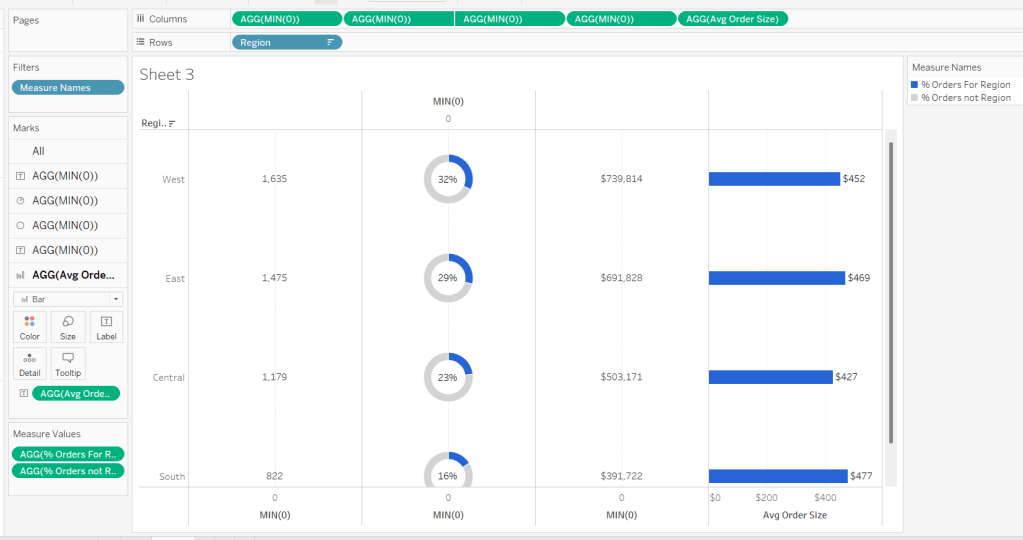
For Luke’s first challenge of 2023, he asked us to recreate this visualisation which showed multiple chart types (donut charts and bar charts) within a tabular layout, all built on a single sheet.
As with most challenges, I’m going to first work on building out the calculations needed to provide the data being presented.
Building the calculations
Firstly we need to identify the number of orders, based on unique Order IDs
Total Orders
COUNTD([Order ID])
and then to get the average order value we need
Avg Order Size
SUM([Sales]) / [Total Orders]
format this to $ with 0 dp.
In order to build the donut chart, we will need two measures for each region; one which shows the % number of orders for that region, and one which shows the % number of orders across the remaining regions.
% Orders for Region
[Total Orders]/SUM({FIXED:COUNTD([Order ID])})
Format this to % with 0 dp
and then
% Orders for not Region
1 – [% Orders For Region]
format this to % with 0 dp.
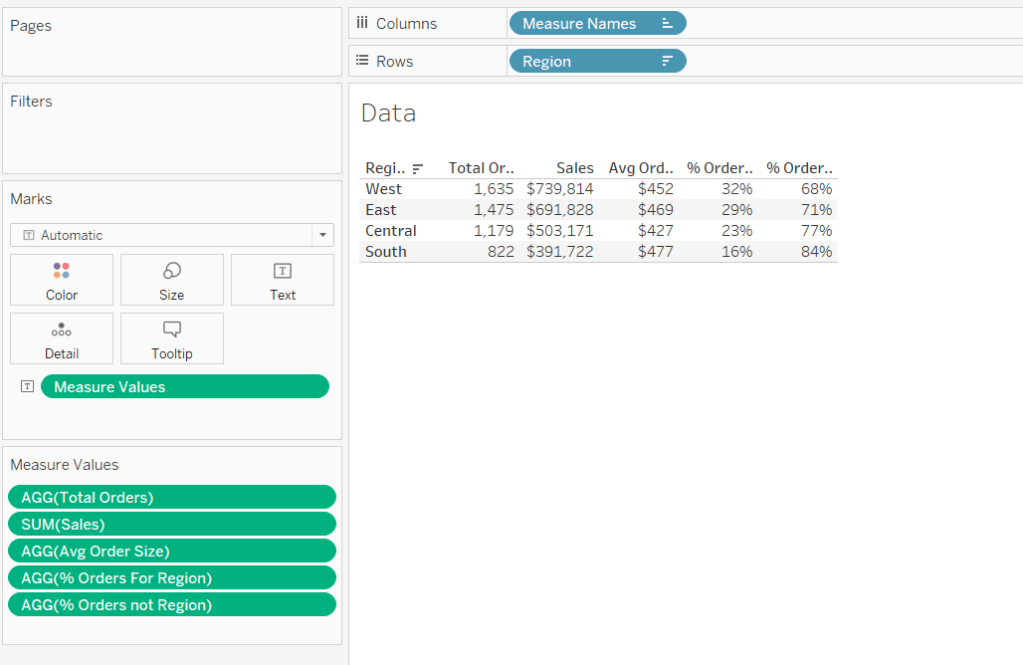
Pop all these out in a table along with Sales formatted to $ with 0 dp, and Sort the Region field based on Total Orders descending.
Building the table view
Add Region to Rows and sort by Total Orders descending.
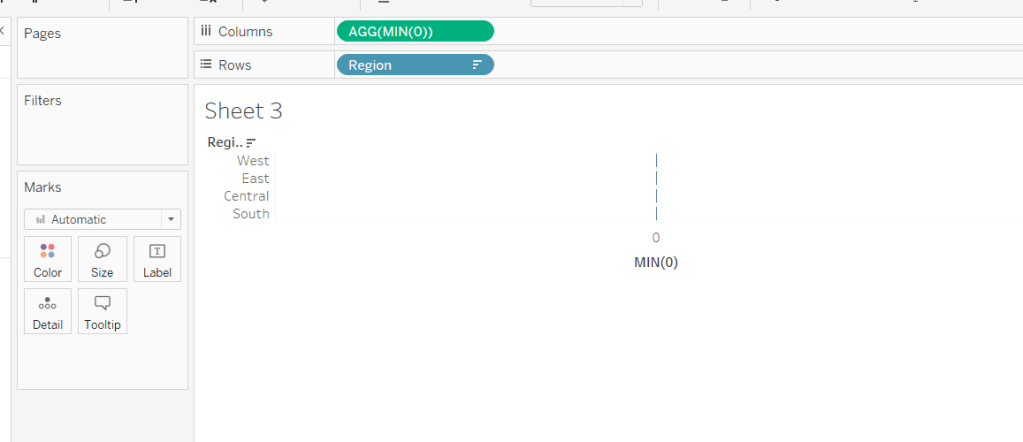
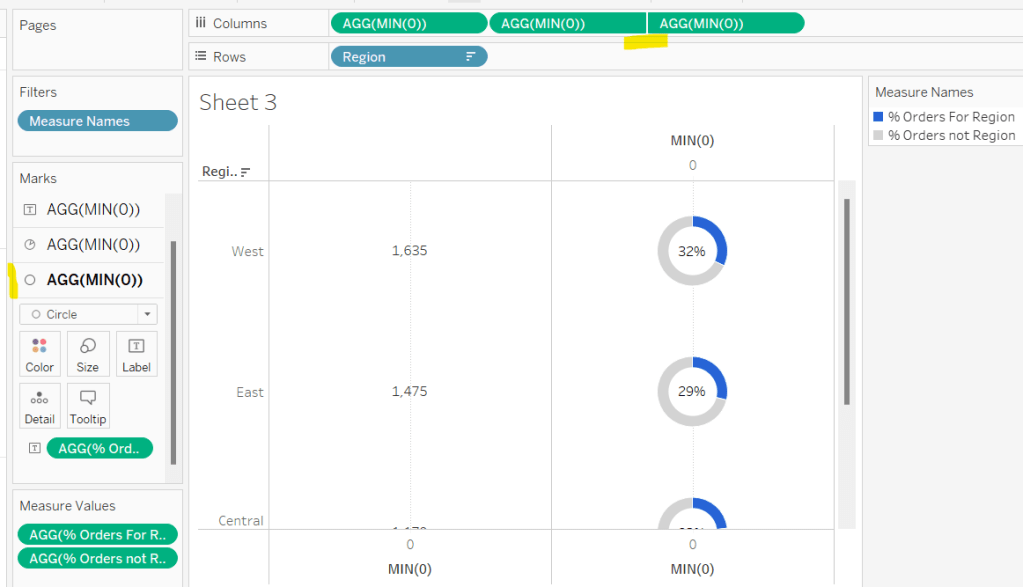
All the columns are going to be managed by what I refer to as a ‘fake axis’. Double click into the Columns shelf and type in MIN(0). This will create an axis.
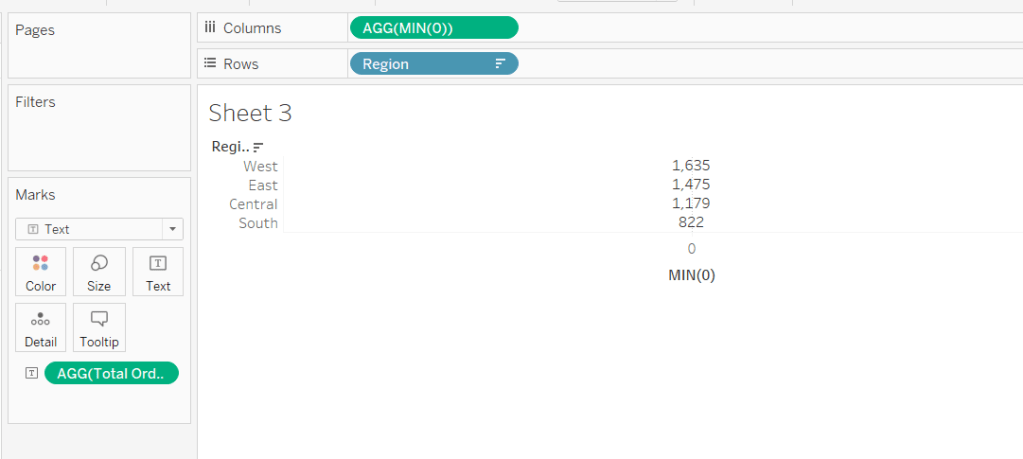
Change the mark type to Text and add Total Orders to the Text shelf. Remove all the text from the Tooltip dialog box.
This is our 1st ‘column’ in the table.
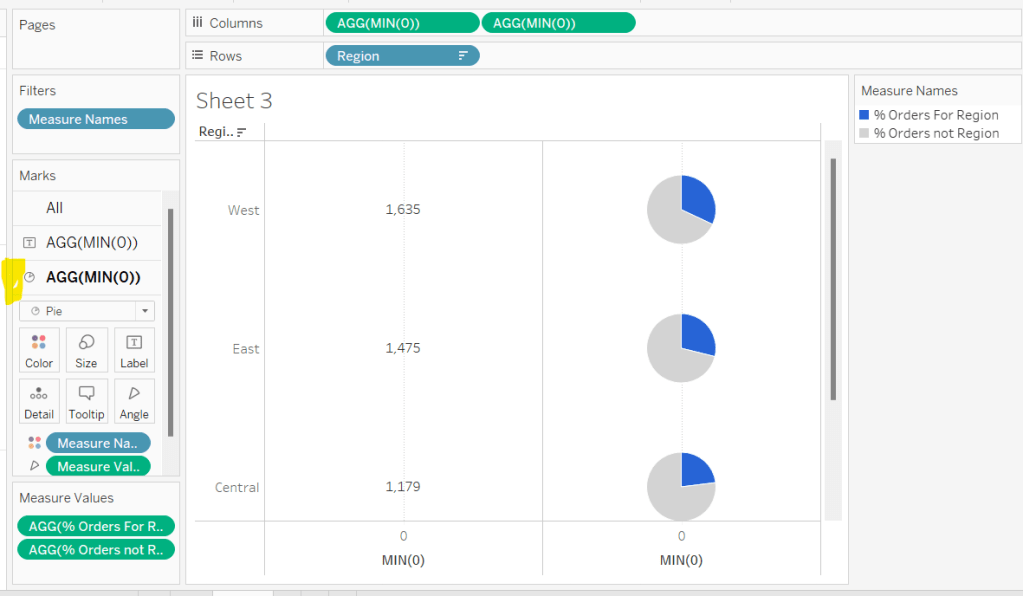
Create another column by adding another instance of MIN(0) to Columns.
Change the mark type of this 2nd MIN(0) marks card to Pie Chart and remove Total Orders from the text shelf.
Add Measure Names to the Filters shelf, and ensure only % Orders for Region and % Orders for not Region are selected.
Add Measure Values to the Angle shelf of the pie chart, and add Measure Names to Colour. Adjust the colours to suit and ensure a white border is added (via the Colour shelf options). Again remove all the text in the Tooltip dialog.
Now add another instance of MIN(0) to Columns.
Change the mark type of this marks card to Circle and set the colour to white. Add % Orders for Region to the Label and align centre.
Now make this Min(0) pill to be dual axis and synchronise the axis. Reduce the size of the circle mark type marks card, so some of the pie chart is visible. Remove Tooltip text again.
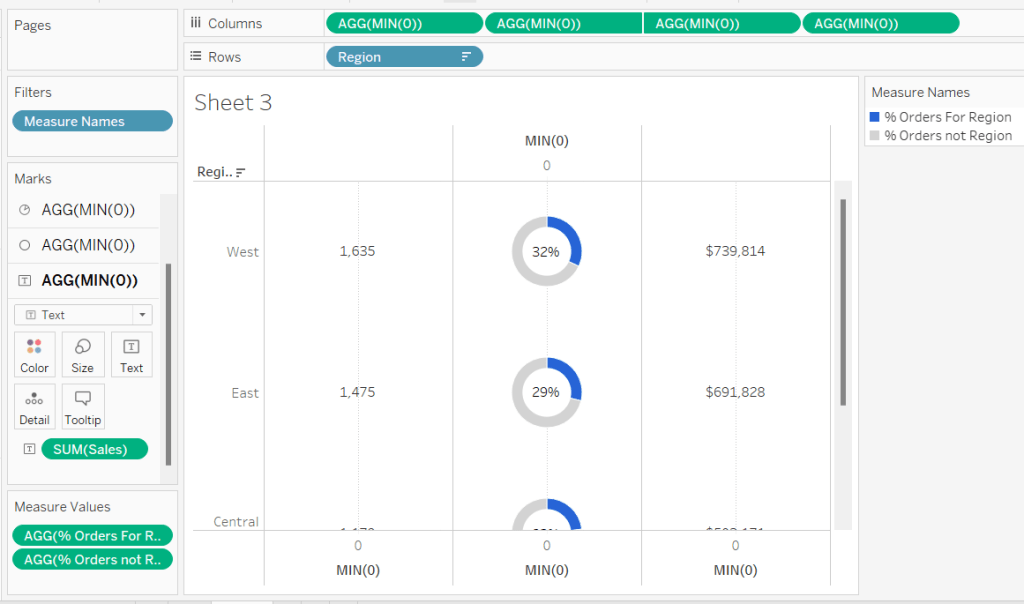
Add another instance of MIN(0) for our ‘3rd’ column. Set the mark type to Text and add Sales to the Text shelf, and remove the tooltip text.
For the final column, add Avg Order Size to Columns. Change the mark type to bar. Reduce the size and adjust the Colour to suit. Add Avg Order Size to the Label and remove all tooltip text.
Remove all gridlines zero lines and column dividers. Add row dividers at the highest level so you have a divider per row. Uncheck Show Header on the first MIN(0) pill to hide the axes, and right click the Region column label and Hide field labels for rows.
This gives you the viz you need to add to a dashboard. Use a horizontal container with a blank and 4 text boxes positioned above the viz to provide the label heading to the columns.
OR…
you can do what I did, and having not noticed the comment about the textboxes, used further instances of MIN(0) to make every ‘column’ a dual axis so I could use the axis label for the secondary axis displayed at the top to provide the required labels.
I set the mark type of these additional MIN(0) axis to polygon, and ensured no other pills existed on the marks shelf. The tick marks on all the top and bottom axes had to be set to none, and the title on all the bottom axis had to be deleted.
The benefit of using the text boxes option is that you aren’t left with a ‘blank’ space underneath the chart. However wide your axis is at the top to display the labels, will be repeated as ‘blank space’ underneath the chart too (vote up this idea to prevent this).
Week 2 of #WOW2022 was Kyle Yetter’s first challenge as official WOW coach. On first glance when it was posted on Twitter, I thought it didn’t look too bad… I figured they’d be some ‘baselining’ of dates that I’d need to do to get the axis to display.
However, it was a little trickier than I first anticipated, mainly in trying to ensure I got the right values to match with Kyle’s posted solution (which at one point seemed to change while I was building). I’ve also realised since clicking on the link to the challenge again, that it was tagged as an LoD challenge, although there was nothing specific in the requirements indicating this was a requirement. I don’t think I used any LoDs…
Anyway onto the build, and I’m going to start by getting the dates all sorted, as this I found was the trickiest part.
Firstly connect to the data, then verify that the date properties of the data source are set to start the week on a Monday (right click data source > Date Properties
Build a basic view that displays Sales by the week of Order Date and the year of Order Date. Exclude 2018 since we’re only focussing on up to the last 2 years of data.
Examining this data compared to the solution, the first points of each line relate to the data shown against the 7 Jan 2019, 6 Jan 2020 and 4 Jan 2021. Ie the first point for each line is the first Monday in the year.
For simplicity, to make some of the calculations easier to read , I’m going to store the start date of the order date week in a field.
Order Date Week Start
DATE(DATETRUNC(‘week’, [Order Date]))
This means I can easily work out the last day of the week
Order Date Week End
DATE(DATEADD(‘day’,6,[Order Date Week Start]))
Add these fields as discrete exact dates (blue pills) onto the table and remove the existing WEEK(Order Date) field since this is the same as Order Date Week Start
When we examine the end points of each line in the solution, the points relate to the data shown against the week starting 30 Dec 2019 to 5 Jan 2020, 28 Dec 2020 to 3 Jan 2021 and 22 Nov to 28 Nov 2021. For the first 2 points, we can see the data is ‘spread’ across 2 years (ie 2 columns), which means when categorising the data ‘by year’, using the Year associated to the Order Date itself isn’t going to work. We need something else
Year Group
YEAR([Order Date Week Start])
Move this field into the Dimensions pane (above the line), then add to the table, replacing the existing YEAR(Order Date) field. 2018 will appear due to the very first row of data, but don’t worry about this for now.
If you scroll down to the week starting 30 Dec 2019, all the data is now aggregated in a single Year Group.
So things are starting to take shape. We can now work on how to filter the data.
The requirements indicate we should imagine ‘today’ is 1st Dec 2021, so we’ll use a parameter to hold this value.
Today
Date parameter defaulted to 1 Dec 2021
We only want to show data for the last 2 years and for complete weeks up to today
Core Data to Include
[Order Date Week End] < [Today] AND YEAR([Order Date Week Start]) >= YEAR([Today])-2
Remove the existing filter and add this field instead, set to True. You should now have just 3 columns and the data starting and ending at the right points.
The next area of focus is to think about how the data is going to be presented – the lines are all plotted against a single continuous (green) date axis, so we need to ‘baseline’ the dates, that is adjust the dates so they are all on the same year.
Date To Plot
MAKEDATE(2021, MONTH([Order Date Week Start]), DAY([Order Date Week Start]))
this is basically setting the week start dates to the equivalent date in 2021.
In the table we’ve been building, add Date To Plot to Rows and set to the week level and be discrete (blue). Remove the Order Date Week Start pill and move the Order Date Week End to the Tooltip as this is where this pill will be relevant in the final viz.
We’re starting to now see how the data comes together, but we’ve still got some steps to go.
I’m going to adjust the Year Group, so we can present the Current, Previous, Last 2 Yrs labels. Change as follows
Year Group
YEAR([Order Date Week Start]) – YEAR([Today])
This returns values -2, -1, 0 which means the values will be consistent even if the ‘Today’ value changes. The values can then be aliased (right click Year Group > Aliases
Next focus is on the % difference in sales. Add a Percent Difference quick table calculation to the existing Sales pill. The vales will change to those we can see when hovering over the points in the solution.
Edit the table calculation and modify to explicitly compute by Year Group, which is important to understand as, when we build the viz, whether the data is going across or down may change, so ‘fixing’ like this ensures we retain the values we know are correct.
In order to manage the custom colour formatting in the tooltip, we’re going to ‘bake’ this field as a calculated field. Press CTRL, then click and drag the pill into the data pane and name the field accordingly. If you examine the field, it’ll probably look quite complex
I’m going to start building the viz now, and then we’ll add the final calcs needed for the formatting later.
On a new sheet
Add Core Data to Include to Filter and set to True
Add Date to Plot to Columns and set to a continuous week level (green pill)
Add Sales to Rows
Add Year Group to Colour and adjust accordingly
Reorder the values in the Year Group colour legend, so the ‘current’ line in the chart is displayed on the top, and the ‘2 yrs ago’ line is at the bottom
Format the WEEK(Date To Plot) field to be a custom date of dd mmm (ie 10 Jan)
Format the Sales axis to be $ with 0 dp
Add Order Date Week End to the Tooltip shelf and format the field to custom date format of mmm dd (ie Jan 10).
Now we need a couple of additional calcs to help format the % sales difference displayed on the tooltip.
% Sales Diff +ve
IF [% Sales Diff] >= 0 THEN [% Sales Diff] END
% Sales Diff -ve
IF [% Sales Diff] < 0 THEN [% Sales Diff] END
Format both these fields with a custom number format as ▲0.0%;▼0.0%
Add both these fields onto the Tooltip and adjust the table calculation settings of each to compute using by Year Group only
The 2 yrs ago line has no % Sales Diff value, and also no label, so we need a field to help this too
TOOLTIP: Label YoY%
IF NOT(ISNULL([% Sales Diff])) THEN ‘YoY%:’ END
This means the text ‘YoY%’ will only display if there is a % Sales Diff value.
Add this field onto the Tooltip too, and again adjust the table calculation settings.
Now format the text and tooltip as below, setting the two % Sales Diff pills to be side by side and colouring accordingly.
Hopefully, this means you now have a completed viz
My published viz is here. And nope… no LODs used 🙂 There are a few more calculated fields than what Kyle mentioned, but I could have condensed these by not having so many ‘building blocks’, but this may have made it harder to read.
I’m now off to check out Kyle’s solution and see whether I really over complicated anything…
Ann Jackson challenged us this week to build this matrix depicting the average worth of customer cohorts during their lifetime.
This challenge involves a mix of LoDs (Level of Detail calculations) and table calculations.
First up , we need to define our customer cohorts (ie group the customers), which for this challenge is based on identifying the quarter they placed their first order in. This will involve an LoD calculation. For a good introduction to LoDs with some worked examples (including a similar cohort analysis example), check out this Tableau blog post.
The 2nd part of the formula in the { … } returns the earliest Order Date associated to the Customer ID, which is then truncated to the 1st day of the quarter that date falls in ie 23 Feb 2019 is truncated to 01 Jan 2019.
For the ‘quarters since birth’ field, we need to calculate the difference in quarters, between the ACQUISITION QUARTER and the ‘quarter’ associated to the Order Date of each order in the dataset.
Drag this field into the ‘dimensions’ area of the left hand data pane (above the line if you’re using later versions of Tableau).
Lets sense check what this looks like, by adding
ACQUISITION QUARTER to Rows (Discrete, Exact Date)
ORDER DATE to Rows, set to Quarter (quarter year ie May 2015 format which will make a green pill), then set to discrete to change to blue
QUARTERS SINCE BIRTH to Rows
You can see that while the first row against each cohort starts with a different quarter, the QUARTERS SINCE BIRTH always starts at 0 and counts sequentially down the table.
Next we want to count the number of distinct customers in each cohort, and we’ll use another LOD for this.
Once again move this field into the Dimensions section of the data pane.
Add this onto the Rows of the above data table, and you should get every row for the same cohort displaying the same number
Add Sales onto Text to get the value of sales made by the customer in each cohort in each quarter. The ‘customer lifetime value’ we need is defined as the total sales so far / number of customers in the cohort.
Remove the QUARTER(Order Date) field from the table, as we’re not going to need this for the display, and it’ll affect the next steps if it’s left.
To get the cumulative sales, we need a Running Total Quick Table Calculation. Click on the Sales pill on the Text shelf and select Quick Table Calculation -> Running Total. The click again and Compute By -> QUARTERS SINCE BIRTH. Add Sales back into the table, so you can see the quarterly Sales value and how it’s cumulating until it reaches the next cohort.
We’ve now got the building blocks we need for the CLTV value we need to plot
Avg Lifetime Value
RUNNING_SUM(SUM([Sales])) / SUM([CUSTOMERS])
Note – I purposefully haven’t called this field what you might expect, as I’m going to ‘fill in the gaps’ that Ann describes in the requirements, and I’ll use that name then.
Pop this field into the table above, again setting the table calculation to compute by QUARTERS SINCE BIRTH
You can now use the data table above to validate the calculation is what you expected.
Now let’s build the viz out.
On a new sheet
QUARTERS SINCE BIRTH to Columns
ACQUISITION QUARTER (exact date, discrete blue pill) to Rows
Avg Lifetime Value to Text, setting the table calculation to Compute ByQUARTERS SINCE BIRTH
From this basic text table, you can see the ‘blank’ fields, Ann mentioned. In the data table view, it’s not so obvious. The blank is there because there are no sales in those quarters for those cohorts. To fix we need another table calculation
CUSTOMER LIFETIME VALUE (CLTV)
IF ISNULL([Avg Lifetime Value]) AND NOT ISNULL(LOOKUP([Avg Lifetime Value],-1)) AND NOT ISNULL(LOOKUP([Avg Lifetime Value],1))
THEN LOOKUP([Avg Lifetime Value],-1) ELSE [Avg Lifetime Value] END
This says, if the Avg Lifetime Value field is NULL but neither the previous or the subsequent values are NULL, then use the Avg Lifetime Value value from the previous column (LOOKUP).
Replace the Avg Lifetime Value with the CUSTOMER LIFETIME VALUE (CLTV) field (setting the Compute By again), and the empty spaces have disappeared.
If you hover over the cells in the lower right hand side of the view, you’ll see tooltips showing, indicating that a mark has been drawn on the viz with Null data. To fix this, add CUSTOMER LIFETIME VALUE (CLTV) to the Filter shelf and specify non-null values only to show via the Special tab.
Now if you hover over that area you don’t get any tooltips displaying, as there aren’t any marks there.
Now it’s just a case of formatting the viz a bit more
Add CUSTOMERS to Rows
Add CUSTOMER LIFETIME VALUE (CLTV) to the Colour shelf by holding down the Ctrl key then clicking on the field that’s already on the Text shelf, and dragging via the mouse onto the Colour shelf. Using Ctrl in this way has the effect of copying the field including the table calculation settings, so you don’t need to apply them again. This will change the colour of the Text.
Then change the mark type to Square, which will then fill out the background based on the colour.
Then edit the colour legend to the relevant palette (which you may need to install via Ann’s link).
Set the border of the mark via the Colour shelf to white
Remove the row & column dividers
Set the row Axis Ruler to a dark black/grey line
Format the 1st 2 columns so the font is the same and centred. Widen the columns if required.
Update the tooltip
And then you should be ready to add the viz to your dashboard. My published version is here.
This blog is a bit more detailed that my recent posts, but I’m also conscious I’ve skipped over some bits that if you’re brand new to Tableau, you may not be sure how to do. Feel free to add comments if you need help!