Competitor Comparison

Erica set this week’s challenge, focusing on the ability to compare specific entities against themselves and ‘the whole’ without resulting in a mess of coloured spaghetti. 3 levels of difficulty were provided. As it stated the levels didn’t necessarily follow on from each, I just built (and am therefore blogging about) level 3 – the advanced challenge.

Defining the core parameters

For the user to select the main element they want to analyse we need

pPrimarySubCat

string parameter, that is sourced from a List based on the Sub-Category field when the workbook opens. Default to Binders.
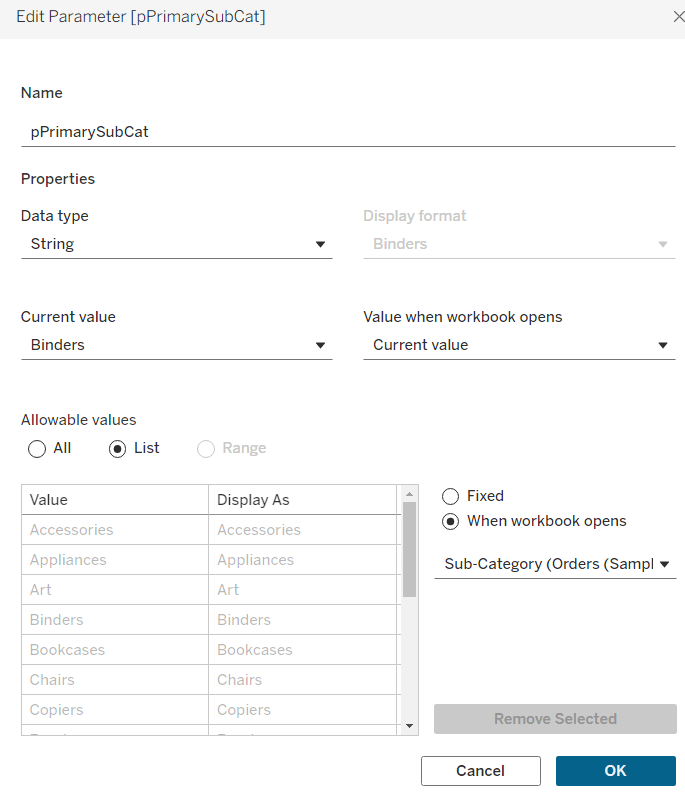
This parameter will be visible to the user to select from a drop down list control.

To capture the secondary element to compare against, we need

pSecondarySubCat

string parameter defaulted to Bookcases.
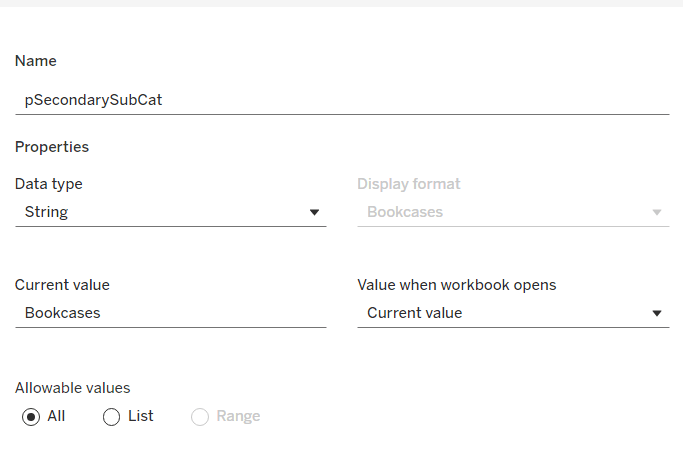
This is just a ‘type in’ field, that won’t ultimately be displayed to the user, but populated via a dashboard parameter action on select of a line in the chart.

To control the different type of display options, we need

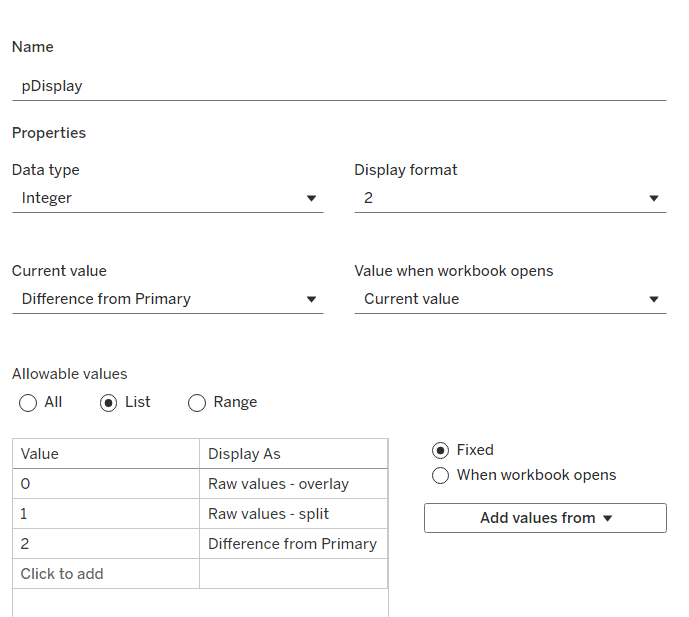
pDisplay

integer parameter sourced from a manual list which aliases the integer values for the displayed text strings. Defaulted to 2 (Difference from Primary)
Defining the additional calculations

As I often do, we’ll build out a tabular display to determine all the calcs required. On a new sheet, add Region and Sub-Category to Rows, then add Order Date at the Quarter level as a discrete (blue) pill to Columns. Add Sales to Text. Show the 3 parameters created above.
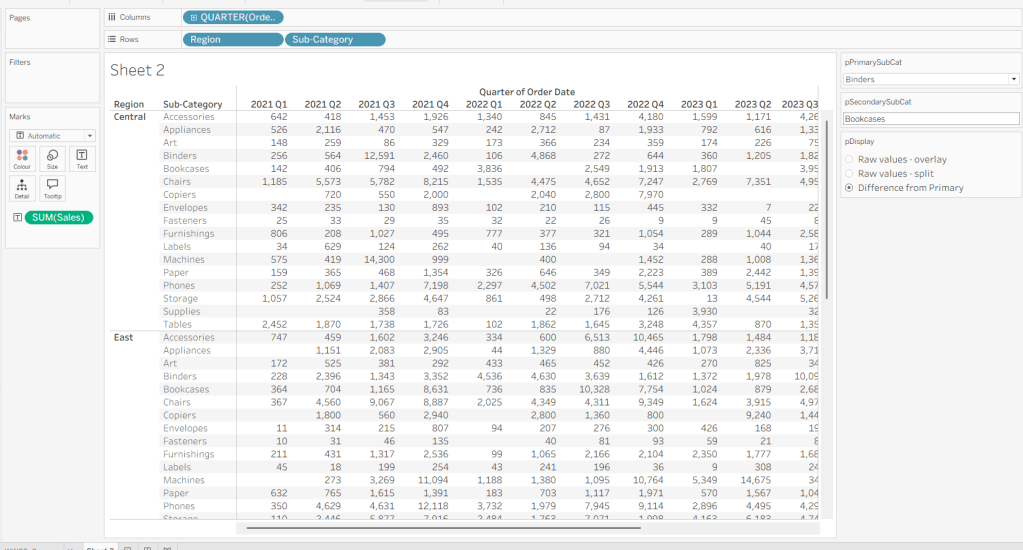
We need to identify which Sub-Categories will be coloured. This is based on whether they are a primary or secondary Sub-Category.

Is Primary or Secondary Sub Cat

[pPrimarySubCat] = [Sub-Category] OR [pSecondarySubCat] = [Sub-Category]

Add this to Rows. Based on existing selections, the rows for Binders and Bookcases should be set to True.

We will also need to identify which is the the Primary Sub-Category only to help determine how many rows are displayed, so create

Is Primary SubCat?

[pPrimarySubCat] = [Sub-Category]

Add to rows. In this case just Binders should be True at this point.
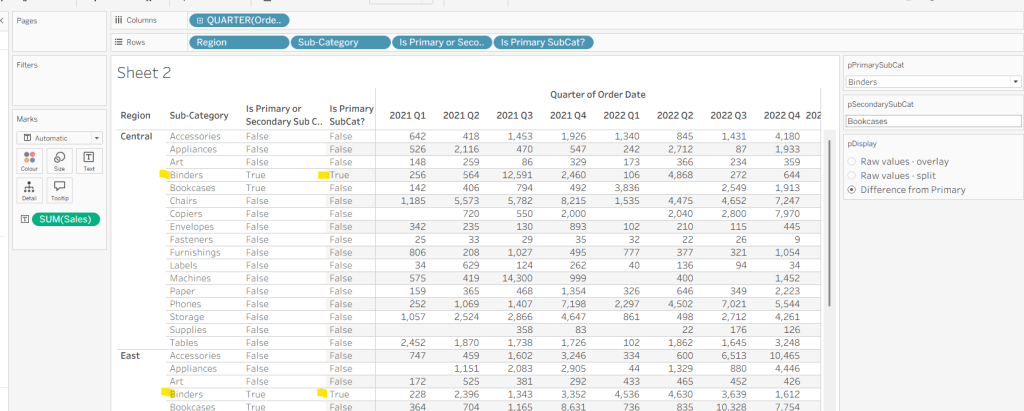
With this field, we can then work out how many ‘rows’ are going to be in our final viz display.

Display Row

IIF([pDisplay] = 0, TRUE, [Is Primary SubCat?])

ie, if the pDisplay parameter is ‘Raw values – overlay’ , then we’ll just display 1 row (so all rows set to True), otherwise there will be 2 rows, split based on whether the Sub-Category is the selected value in the pPrimarySubCat parameter or not.

Add this to Rows, and change the pDisplay parameter to see how this field changes.
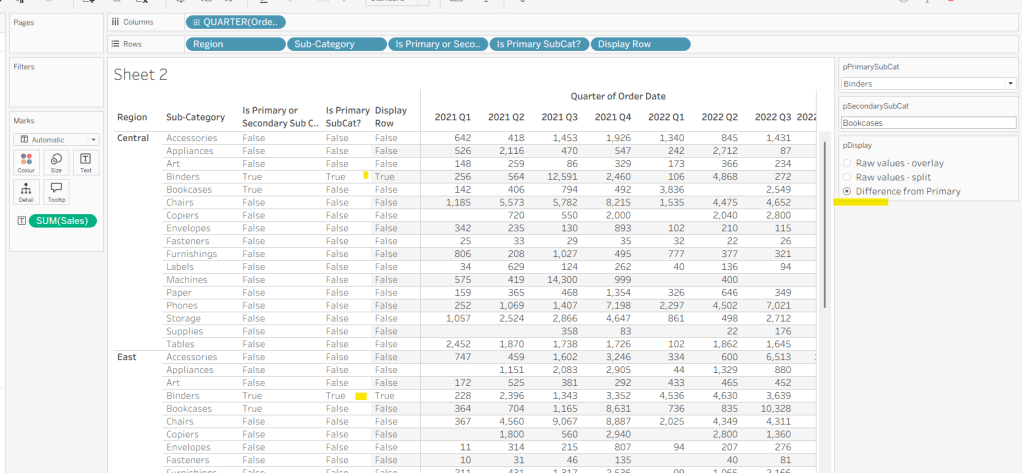
We also need to display different values depending on what pDisplay option is selected. When the ‘Difference from Primary’ option is selected, then we need to show the Sales value for the primary Sub Category, but the difference from this value for all others. For this we first need to capture just the sales for the primary Sub-Category

Sales For Primary Sub Cat

IF [Is Primary SubCat?] THEN [Sales] END

Add to the table and adjust Measure Names so it is displayed after the Order Date field. Rows for this column will only have values when the Sub-Category is the primary one selected.
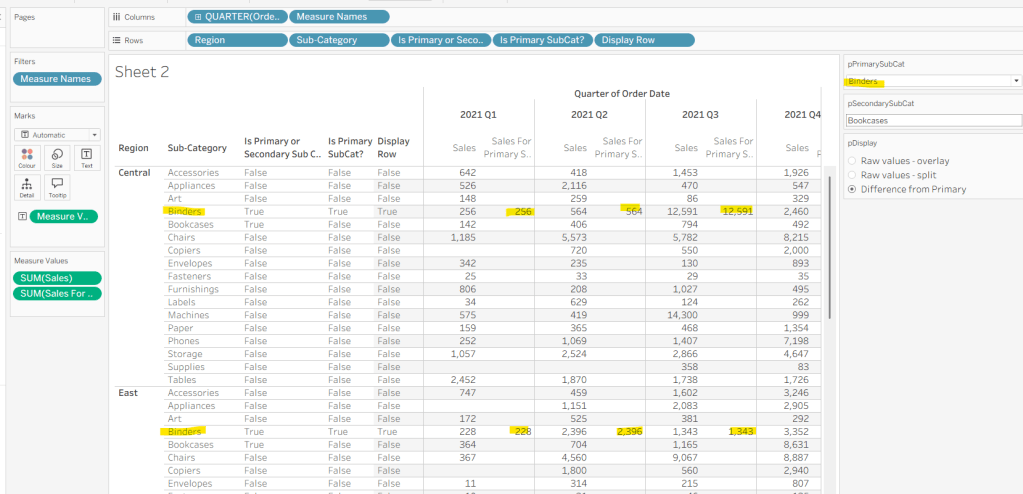
Now we calculate the difference, but only if it’s not the primary Sub-Category; we want Sales in that instance

Sales Difference

IF MIN([Is Primary SubCat?]) THEN SUM([Sales])
ELSE SUM([Sales]) – WINDOW_MAX(SUM([Sales For Primary Sub Cat]))
END

Here we’re using a WINDOW_MAX table calc to essentially ‘spread’ the value in the Sales for Primary Sub Cat column across all rows associated to the Region. Add this to the table, and adjust the table calculation setting of the pill, so it is computing by all fields except Region and Order Date
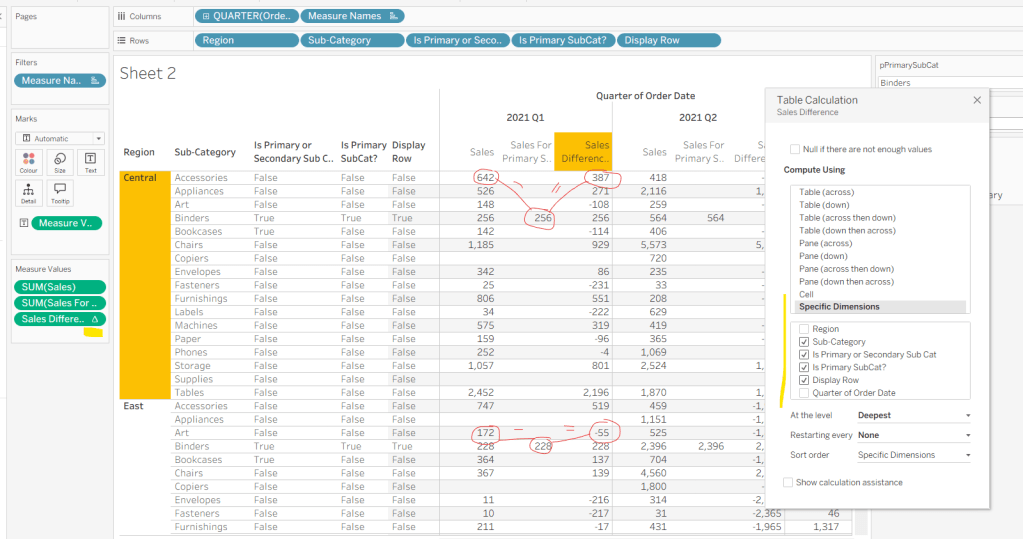
Finally, we need a field that will decide whether we’re displaying Sales or Sales Difference based on the pDisplay selection

Value to Display

IIF([pDisplay]=2, [Sales Difference ], SUM([Sales]))

Again, add to the table, adjust the table calc as above and then test the output of the field, as you adjust the pDisplay parameter.
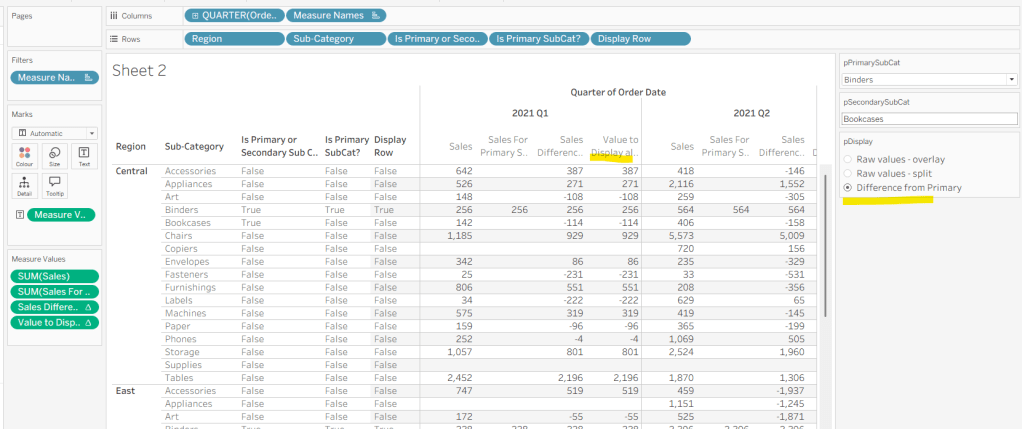
While we’re here, we’ll just define another couple of calcs needed for the viz

Label Sub Cat

IF [Is Primary or Secondary Sub Cat] THEN [Sub-Category] END

Used to only display a label for either of the two selected Sub-Categories.

Tooltip – Value Label

IIF([pDisplay]=2 AND NOT([Is Primary SubCat?]), “Difference from ” + [pPrimarySubCat] + ” Sales”, “Sales”)

Will be used on the Tooltip to ensure the correct text is displayed depending on type of display selected.

Building the Viz

On a new sheet, show the 3 parameters and set them to the defaults (ie Binders, Bookcases and Difference from Primary).

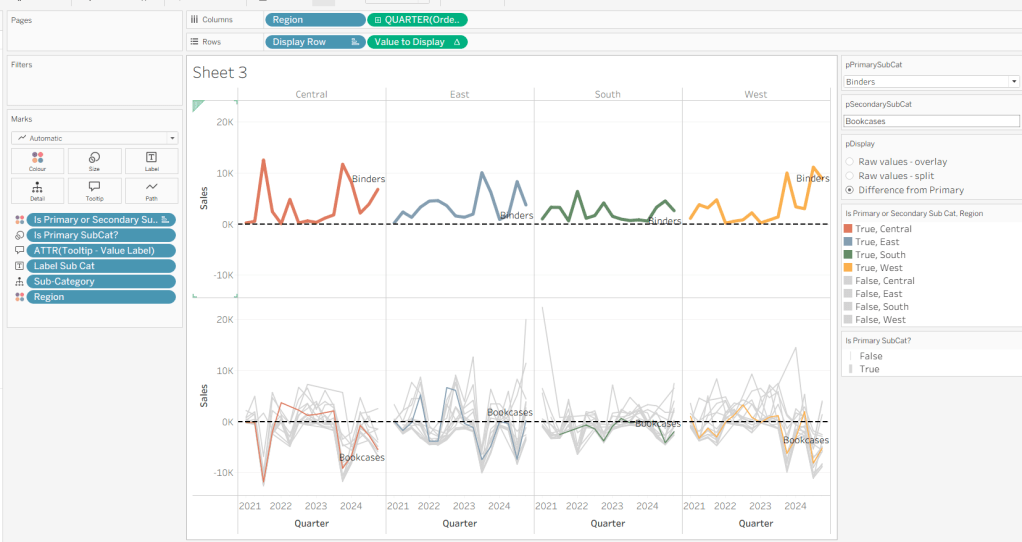
Add Region to Columns, then add Order Date at the Quarter level as a continuous (green) pill to Columns. Add Display Row to Rows and adjust the Sort on the pill to be a manual sort, where True is listed first. Add Sub-Category to Detail, then add Value to Display to Rows and adjust the table calc so all fields except from Region and Order Date are selected.
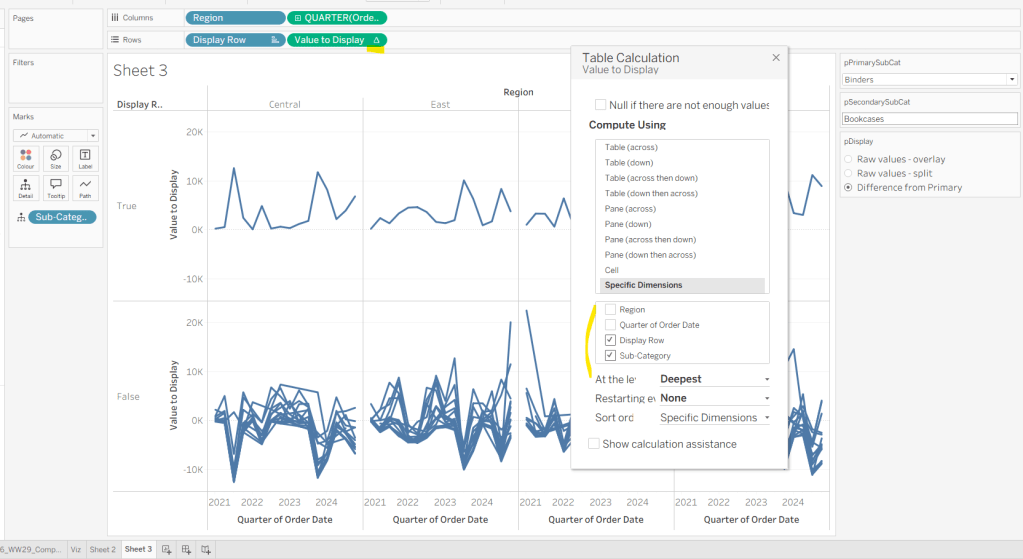
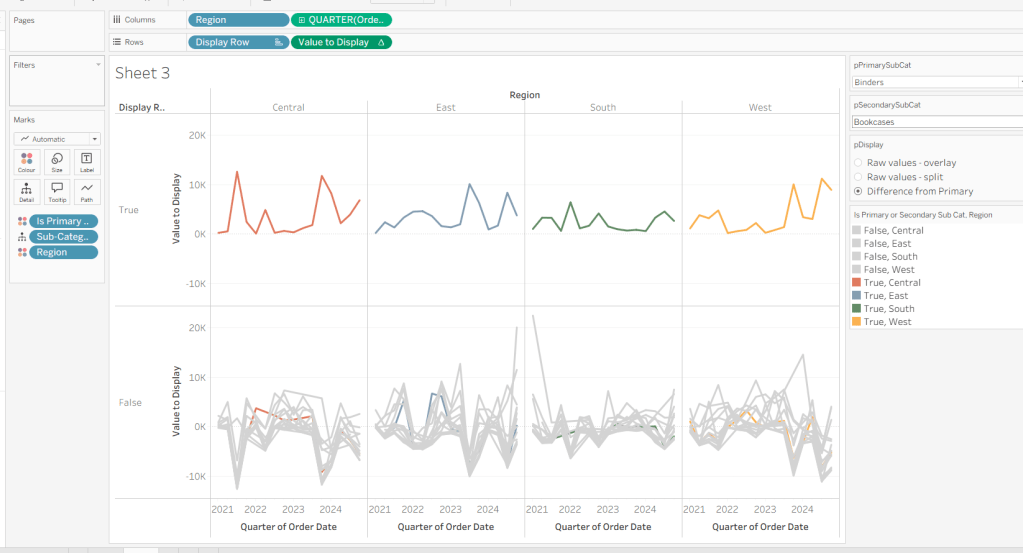
Add Is Primary or Secondary Sub Cat to Colour. Some lines will disappear, but don’t worry. Then add Region to Detail, and then select the ‘detail’ icon to the left of the pill on the marks shelf, and change it to Colour so 2 pills are now on the Colour shelf. Adjust the table calculation setting of the Value to Display pill to ensure the Is Primary or Secondary Sub Cat field is also now checked – this should make all the lines reappear.

Then adjust the colours in the colour legend so all the entries that start ‘False’ are grey and the others are as required.
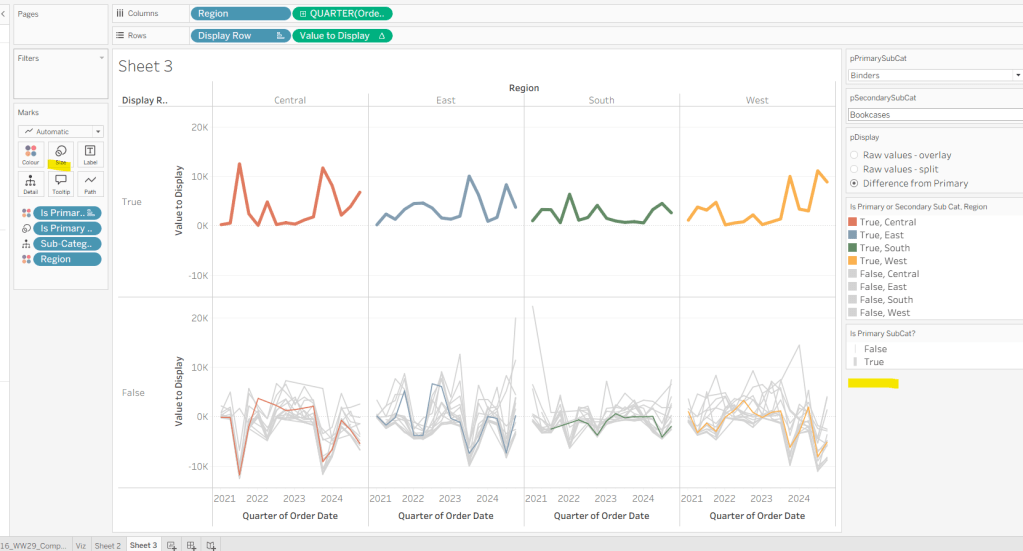
Adjust the sort on the Is Primary or Secondary Sub Cat pill on the marks card, so it is manually sorted with True first. This ensures the coloured lines are ‘on top’ and always visible. Add Is Primary SubCat? to Size shelf. Readjust the table calc on Value to Display again, and then adjust the Size so it is visibly thicker than the rest of the lines, which will probably be by adjusting both the range in the Size legend, and adjusting the slider on the Size shelf.
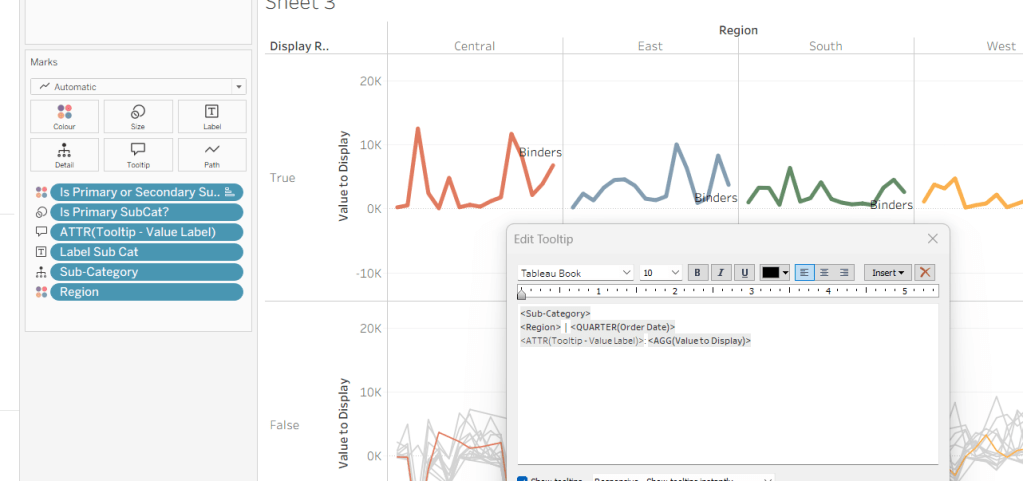
Add Label Sub Cat to the Label shelf (adjust table calc again), and set label to allow labels to overlap other marks. Add Tooltip – Value Label to tooltip and update the Tooltip as required
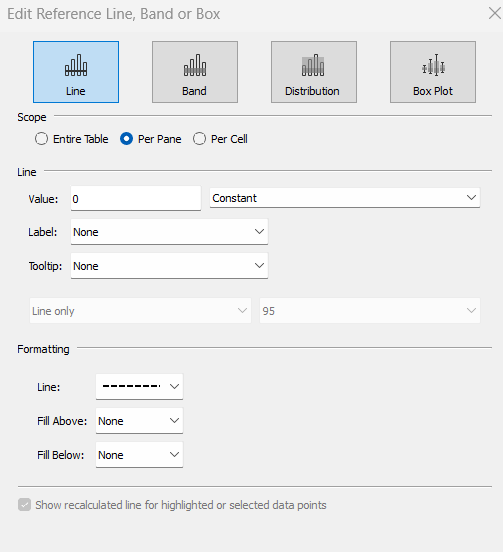
Add a reference line to the Value to Display axis, and set to be a constant of 0 displayed as a black dashed line
Edit both axis to update the axis titles on each, hide the Display Row pill (uncheck show header on the pill) and hide the Region column label (right click > hide field labels for columns).
Building the dashboard

Use layout containers to construct the dashboard as required

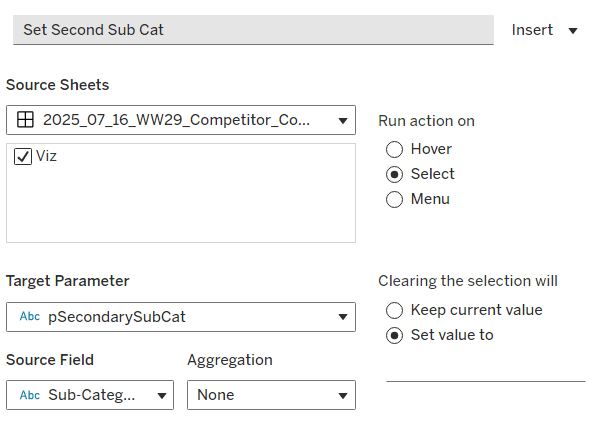
Create a dashboard parameter action to capture the value of the secondary Sub-Category

Set Second Sub Cat

On select of the Viz, set the pSecondarySubCat parameter with the value sourced from the Sub-Category field. When selection is cleared, set it <none>
Clicking one of the grey lines should now change the comparison Sub-Category. But you’ll notice the rest of the unselected lines are ‘faded’ and your selection is ‘highlighted’. We don’t want this to happen. To resolve, create new calculated field

HL

‘Dummy’

and add to the Detail shelf on the viz sheet itself.

Then add a dashboard highlight action

Un-Highlight

On selection of the Viz sheet on the dashboard, target the viz sheet on the dashboard, selecting the HL field only.

As all the marks have the HL ‘dummy’ field associated to them, they all become ‘highlighted’, giving the appearance of nothing actually being highlighted.

Finally, we need to make the title of the dashboard ‘dynamic’ and reflective of the selections made in the primary and secondary Sub-Category parameters. But the secondary one can be empty, so the text needs to handle this. An additional ‘ and ‘ needs to display if the secondary Sub-Category is set. I chose to use a parameter to help with this, as text objects on a dashboard can reference parameters.

Create a new parameter

pTitle-and

string field defaulted to the text <space>and<space>
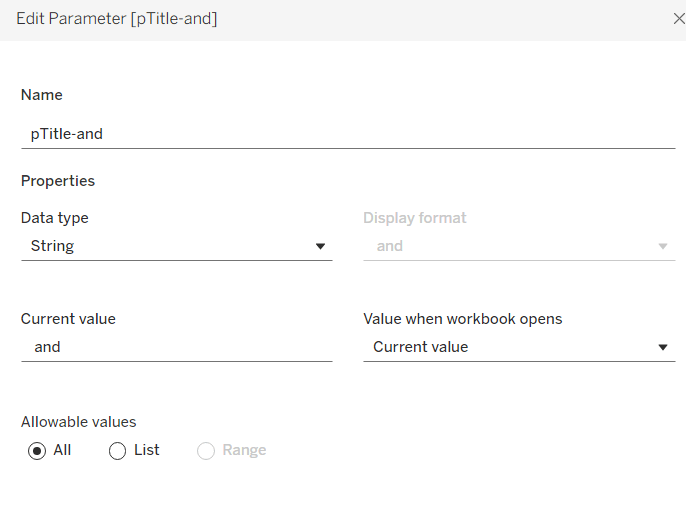
Create a calculated field

Param-and

‘ and ‘

and add to the Detail shelf on the viz. Set it to be an attribute (this won’t impact the table calc).
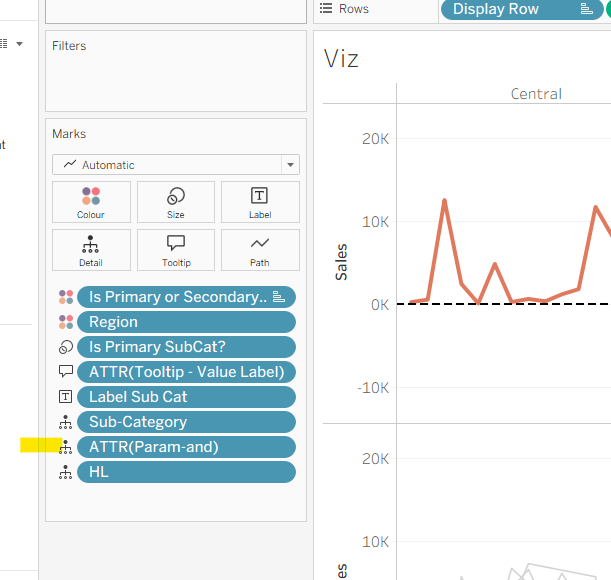
Back on the dashboard, create another dashboard parameter action

Set ‘and’

on select of the Viz, set the pTitle-and parameter passing in the value from the Param-and field. When the selection is cleared, set to <none>.
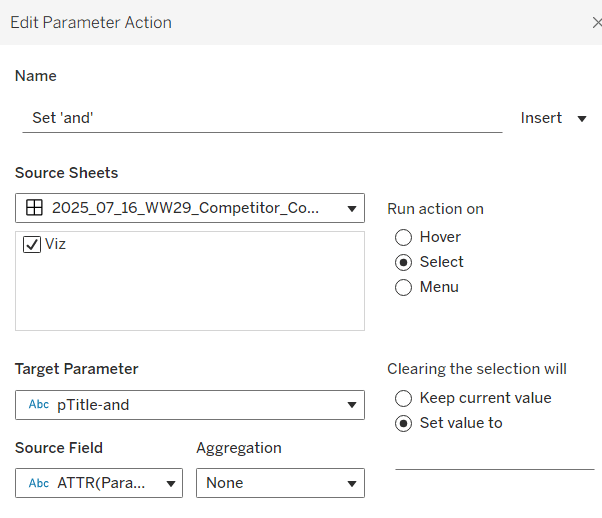
Then create (or adjust) the title text object so it references the relevant parameters (notice the spacing – or lack of – between some of the fields)
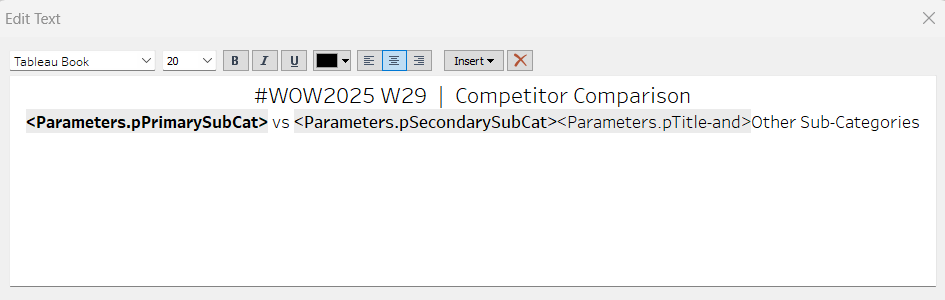
And that should be it. My published viz is here.

Happy vizzin’!

Donna
Formatting & Intermediate Tableau Charts

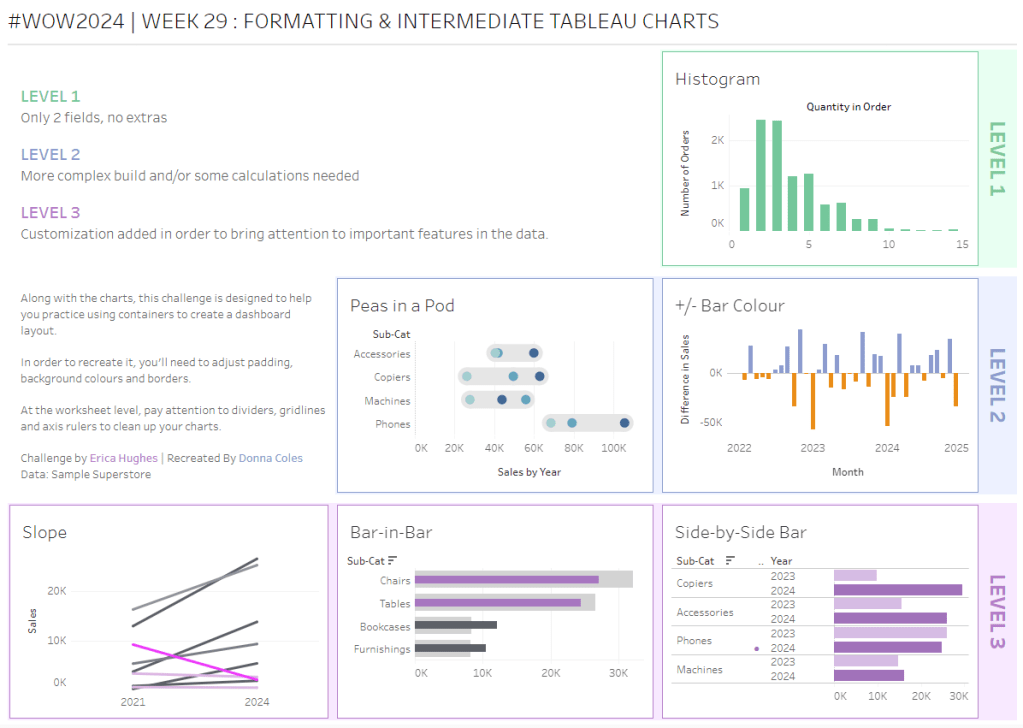
Erica set this challenge primarily aimed at building a beautifully presented dashboard, with the requirement to consider the use of layout containers and padding. She threw in creating some very specific chart types too. The easiest way to blog this, is by chart type.

Building the Histogram

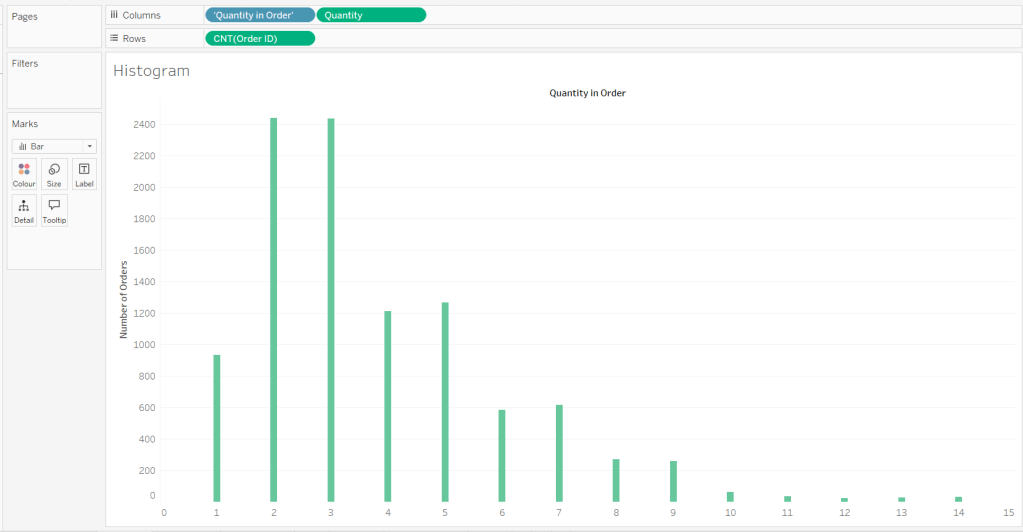
Add Quantity to Columns as continuous dimension (green unaggregated pill) and add Order ID as a measure using the CNT aggregation to Rows. The easiest way to do this is right click and drag Order ID from the left hand date pane and drop onto rows. When you release the mouse, the option to select the aggregation should be available.

Change the mark type to bar and adjust the colour. Edit the title of the y-axis and remove the title from the x-axis. Update the Tooltip.

Double -click into Columns and manually type ‘Quantity in Order’ (including the quotes). Right click on the first text displayed and hide field labels for columns. Adjust the font of the Quantity in Order label that remains.

Remove row and column dividers and column gridlines. Remove Row axis rulers.

Note, when you add to the dashboard , you may find you want to adjust the Size of the bars.

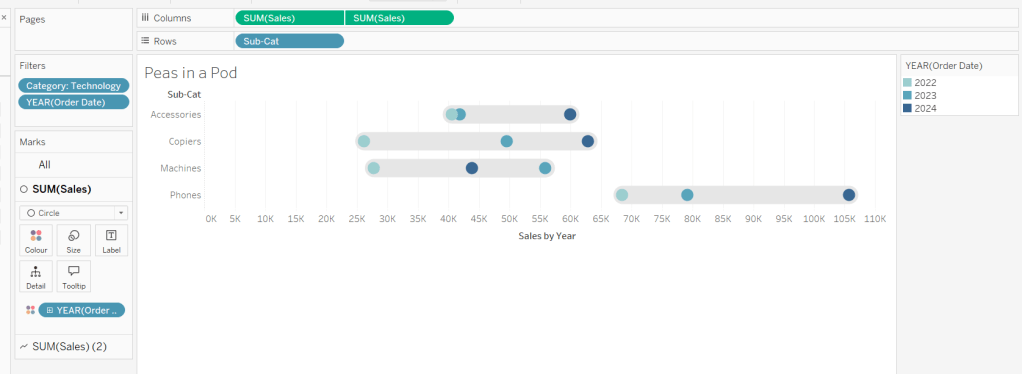
Building the Peas in a Pod chart

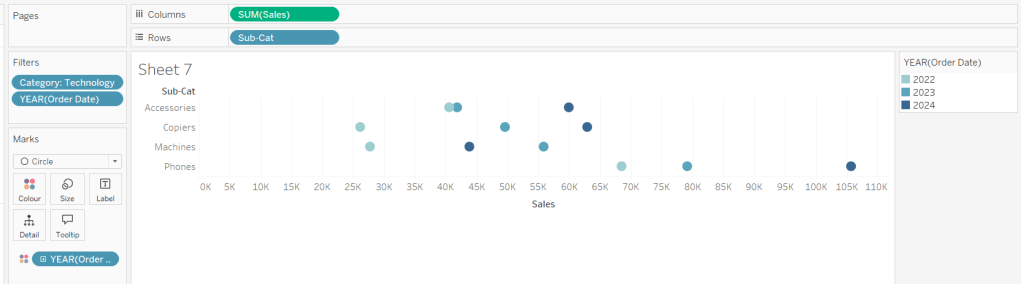
On a new sheet, add Category to Filter and select Technology. Add Order Date to Filter and select Years then choose 2022,2023 and 2024.

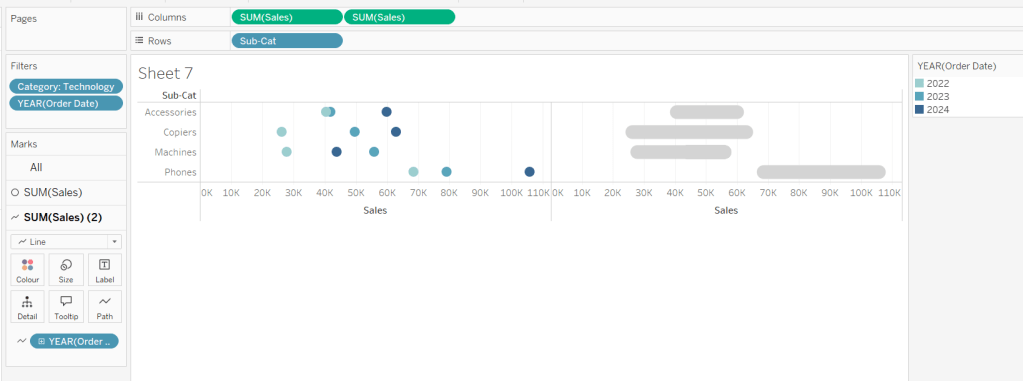
Rename the Sub-Category field to Sub-Cat and add to Rows. Add Sales to Columns. Change the mark type to circle. Add Order Date to Colour. By default it should display YEAR(Order Date). Adjust colours to suit. Widen each row a bit.

Add another instance of Sales to Columns.

On the Sale (2) marks card change the mark type to line and move YEAR(Order Date) to Path. Increase the size and adjust the colour so it’s a grey lozenge.

Make the chart dual axis and synchronise the axis. Right click the top axis and move marks to back. Adjust the Tooltip. Edit the title of the x-axis.

Hide the top axis. Remove row and column dividers. Remove row gridlines. Remove axis rulers for both columns and rows.

Note, when you add to the dashboard , you may find you want to adjust the Size of the circles and the line. I found it was best adjusted on the web after I published to Tableau Public.

Building the +/- Bar Chart

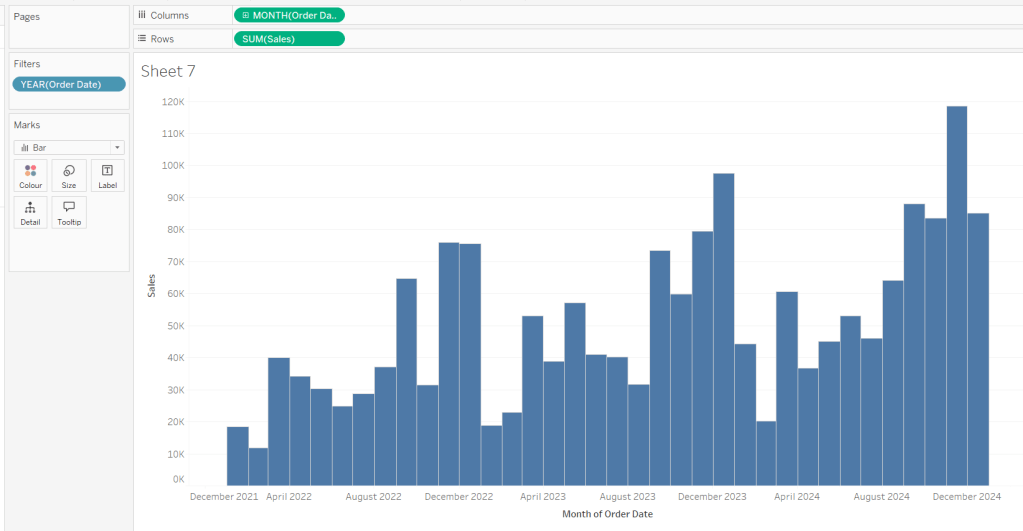
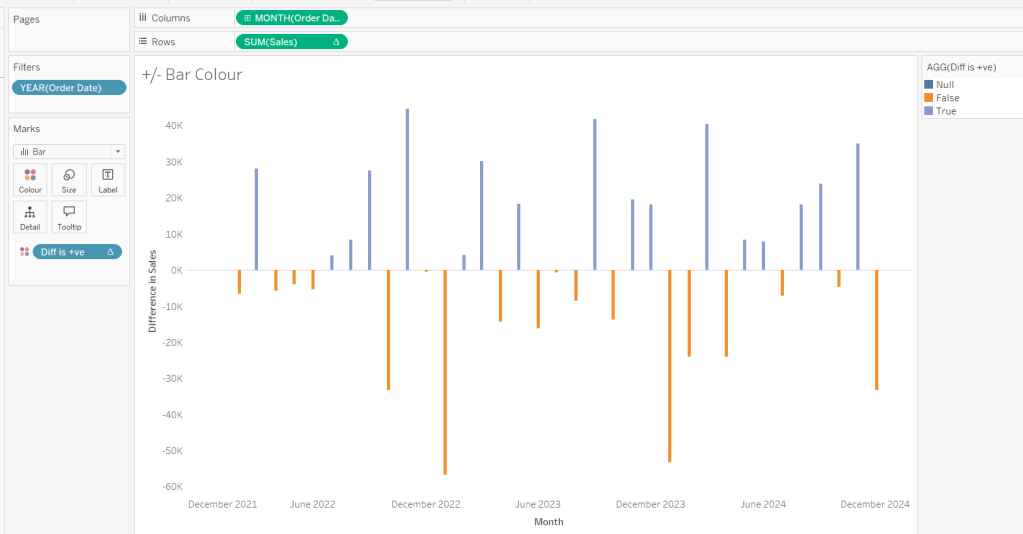
On a new sheet add Order Date to Filter and select Years then choose 2022,2023 and 2024. Add Order Date to Columns and select to be at the continuous month level (green pill, May 2015 format). Add Sales to Rows and change the mark type to bar.

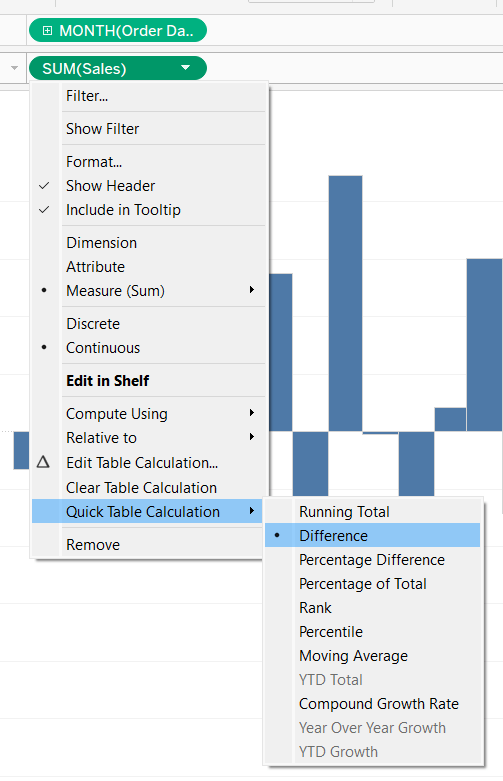
Add a quick table calculation of Difference to the Sales pill.

Adjust the size of the bars (select manual over fixed and adjust the slider).

Create a new calculated field

Diff is +ve

ZN(SUM([Sales])) – LOOKUP(ZN(SUM([Sales])), -1) > 0

and add to the Colour shelf. Adjust colours to suit. Hide the null indicator. Adjust the Tooltip. Adjust the title of the x-axis.

Remove all gridlines and axis rulers. Remove the columns zero line. Set the rows zero line to be a continuous unbroken line.

Note – once again the size may need further adjusting once on the dashboard and/or after publishing.

Building the slope chart

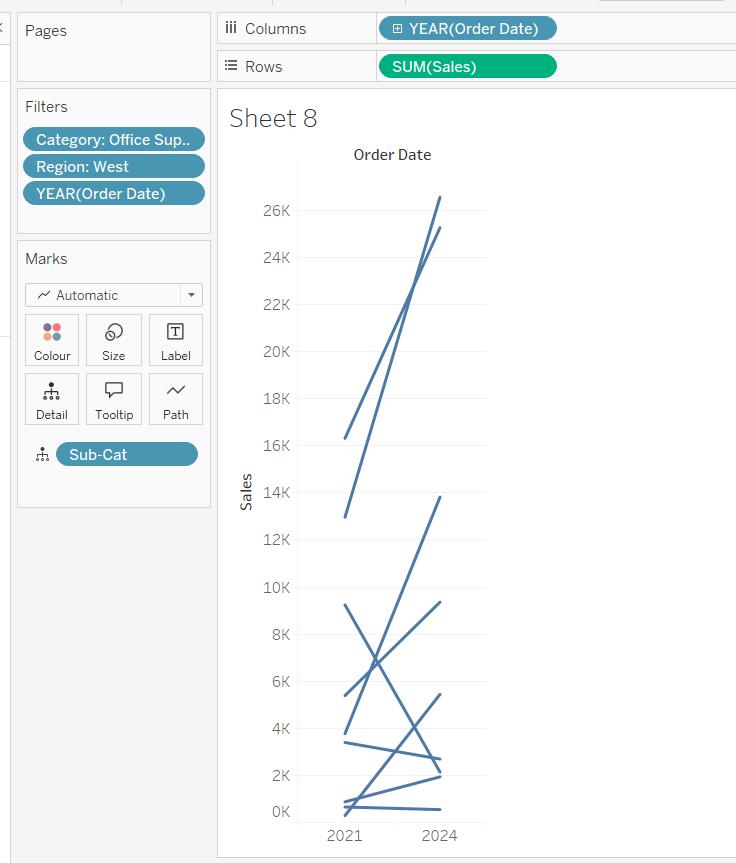
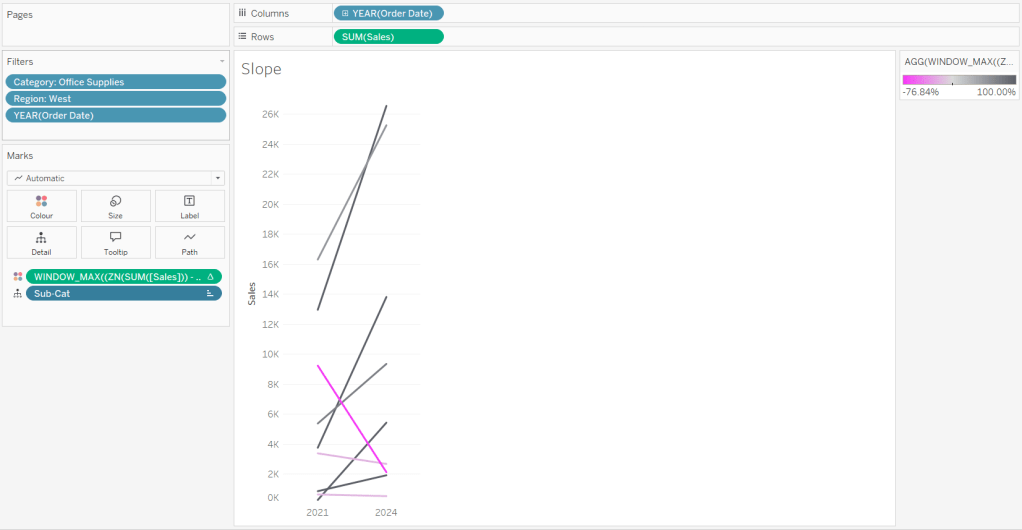
Add Category to filter and select Office Supplies. Add Region to filter and select West. Add Order Date to filter and select Years then choose 2021 and 2024 only.

Add Order Date to Columns and Sales to Rows. Add Sub-Cat to Detail.

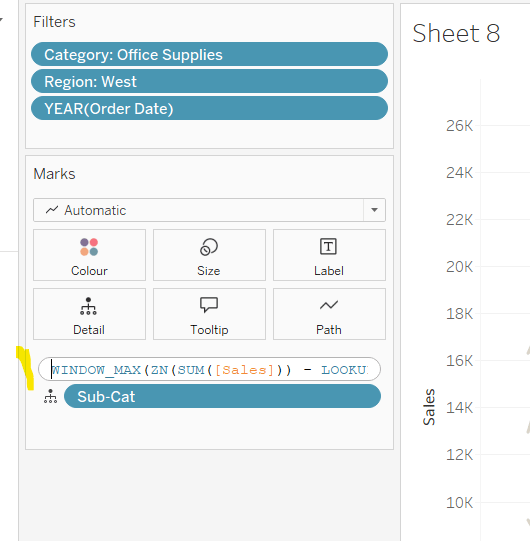
Add Sales to Colour then add a quick table calculation of Percentage Difference. This only sets a value against the 2024 marks though, whereas we want a value for the whole line for each Sub-Cat.

Double-click into the Sales pill on Colour to edit it, and wrap the whole calculation in a WINDOW_MAX() function – the whole calculation should look like

WINDOW_MAX((ZN(SUM([Sales])) – LOOKUP(ZN(SUM([Sales])), -1)) / ABS(LOOKUP(ZN(SUM([Sales])), -1)))

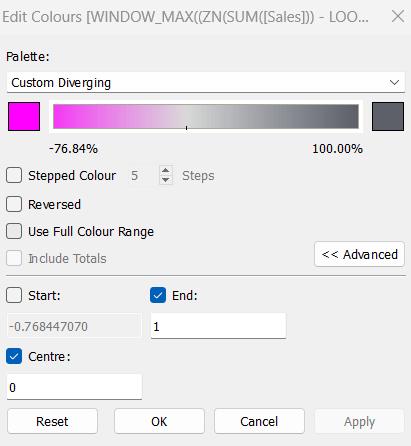
Adjust the colour legend. I set the start & end colours to #ff00ff (hot pink) and #5d6068 (dark grey) and then applied an upper limit to the range and centred at 0 as below.

Hide the Order Date heading at the top of the chart. Adjust the Tooltip.

Remove column gridlines, zero lines and axis rulers.

Create new fields

2021 Sales

IF YEAR([Order Date]) = 2021 THEN [Sales] END

and

2024 Sales

IF YEAR([Order Date]) = 2024 THEN [Sales] END

then create

% Difference

(SUM([2024 Sales]) – SUM([2021 Sales]))/SUM([2021 Sales])

Edit the Sort of the Sub-Cat pill on the Detail shelf, so it is sorting by % Difference ascending. This will ensure the lines are displayed overlapping in the expected manner.

Building the Bar-in-Bar Chart

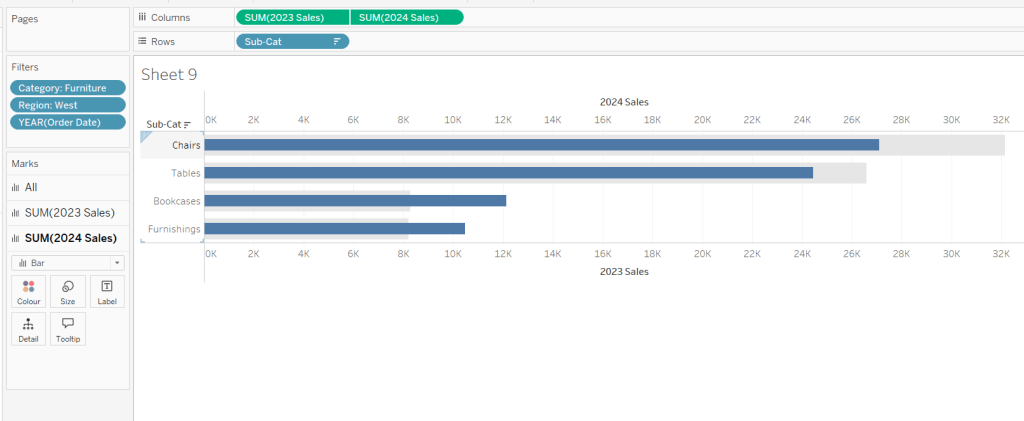
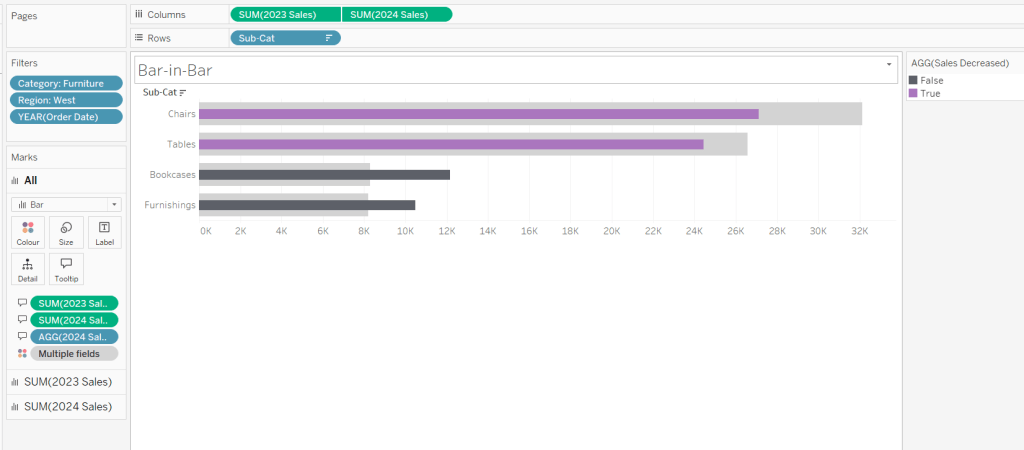
On a new sheet, add Category to filter and select Furniture. Add Region to filter and select West. Add Order Date to filter and select Years then choose 2023 and 2024 only.

Create a new field

2023 Sales

IF YEAR([Order Date]) = 2023 THEN [Sales] END

Add Sub Cat to Rows and 2023 Sales to Columns. Add a sort to the Sub-Cat pill to sort by 2024 Sales descending. Add 2024 Sales to Columns. Make the chart dual axis and synchronise the axis. Change the mark type on the All marks card to bar. Remove Measure Names from the Colour shelf on the All marks card. Set the colour of the 2023 Sales marks card to light grey. Increase the width of each row, then reduce the size of the bar on the 2024 Sales marks card.

Create a new field

Sales Decreased

SUM([2024 Sales]) < SUM([2023 Sales])

and add to the Colour shelf of the 2024 Sales marks card. Adjust colours to suit.

In the solution, the Tooltip shows an indicator – I’m not sure if this was necessary, but I added it just in case

2024 Sales > 2023 Sales

IF [Sales Decreased] THEN ‘●’ END

Add this to the Tooltip shelf of the All marks card, along with the 2023 Sales and 2024 Sales fields. Adjust the Tooltip accordingly.

Hide the top axis. Remove the title of the x-axis.

Remove row and column dividers. Remove row gridlines and row axis rulers and ticks. Remove all zero lines.

Building the side-by-side bar chart

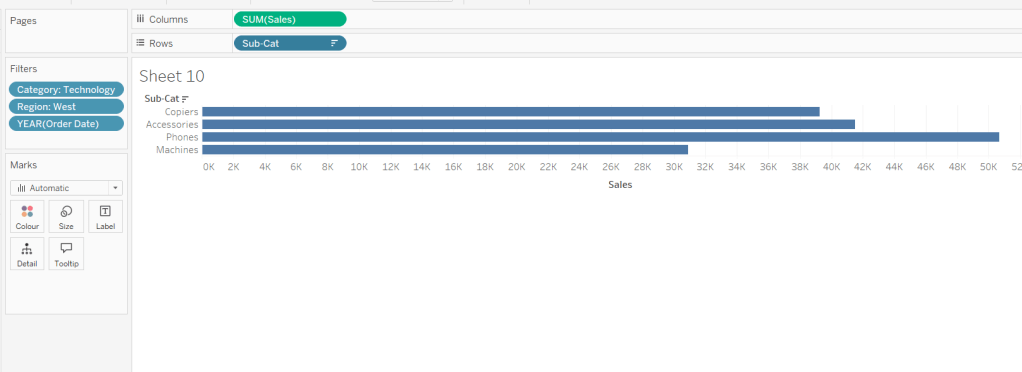
On a new sheet, add Category to filter and select Technology. Add Region to filter and select West. Add Order Date to filter and select Years then choose 2023 and 2024 only.

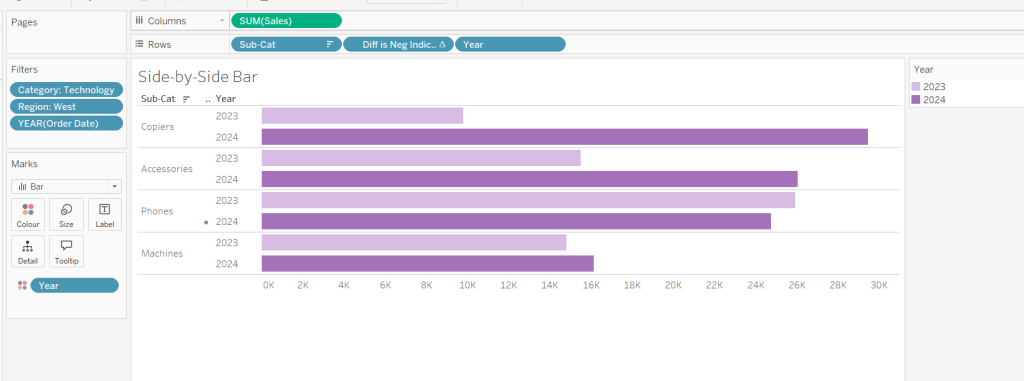
Add Sub Cat to Rows and Sales to Columns. Apply a Sort to Sub-Cat based on 2024 Sales descending.

Create a new field

Year

YEAR([Order Date])

And add to Rows and Colour. Adjust colour to suit. Widen each row.

Create new field

Diff is Neg Indicator

IF NOT([Diff is +ve]) THEN ‘●’ ELSE ” END

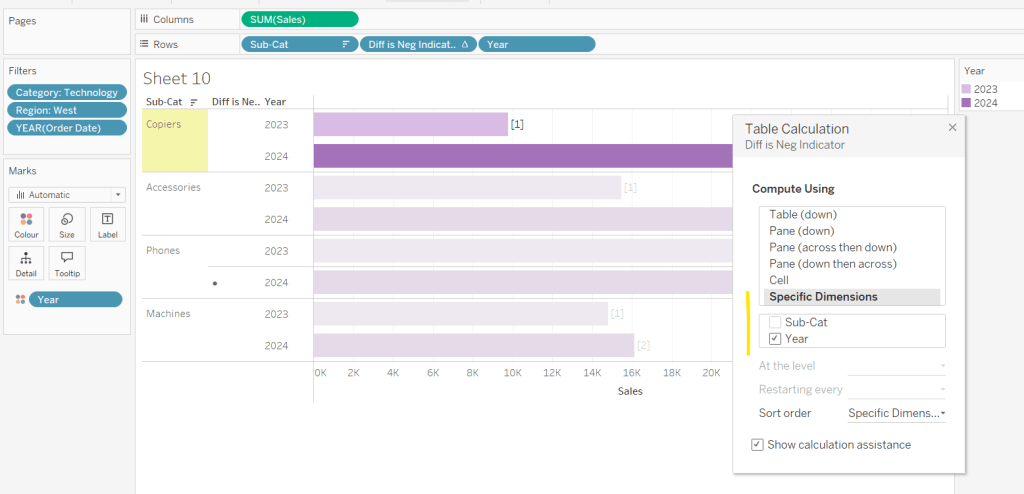
Add to Rows before Year and then adjust the table calculation setting so it is just computing by Year only.

Adjust the alignment of the Sub-Cat column so it is aligned middle right. Narrow the width of the Diff is Neg Indicator column to try to remove all the column heading text. If some still shows, rename the field so it is padded with some spaces at the front. Adjust the Tooltip.

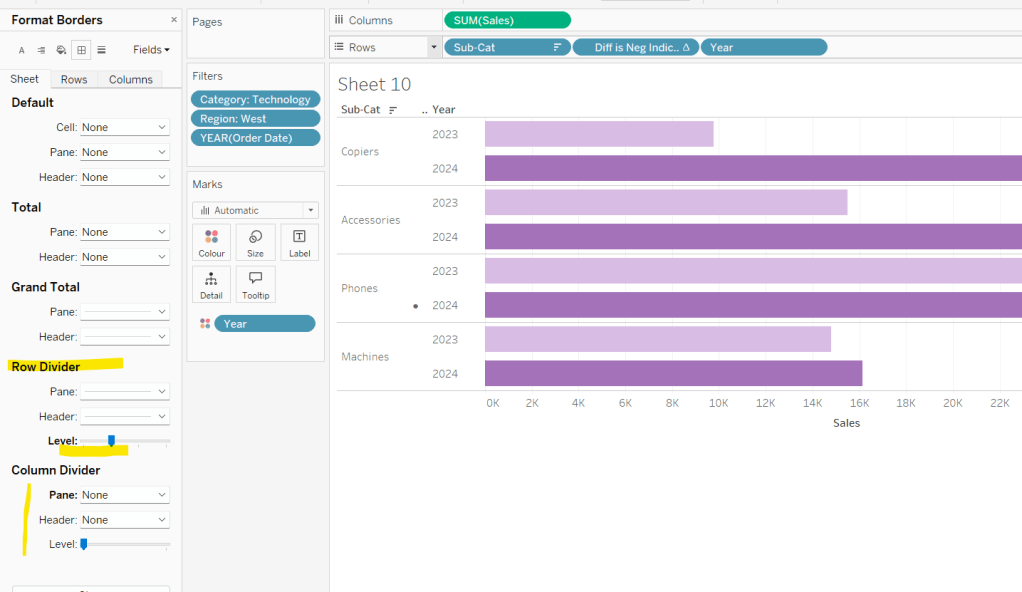
Remove the x-axis title. Remove Column dividers. Adjust the row dividers so they are at level 1 and are partitioning each Sub Cat only and not splitting the Year column.

Remove all gridlines

Building the dashboard

It’s always hard to walk through the steps for placing objects on a dashboard in the specified places. My general rules are

  1. Start with a floating vertical container that is positioned 0,0 and set to the dashboard height and width. I name this Base.
  2. Then add tiled objects such as a text object for the title, blank objects, other containers, charts etc.
  3. When you add a container, add a blank object initially to help get everything into place. Remove once you have at least 2 objects side by side / on top of each other depending on the direction you’re organising.
  4. The item hierarchy shouldn’t have any containers of type Tiled listed.
  5. Try to name your containers to help maintenance in the future

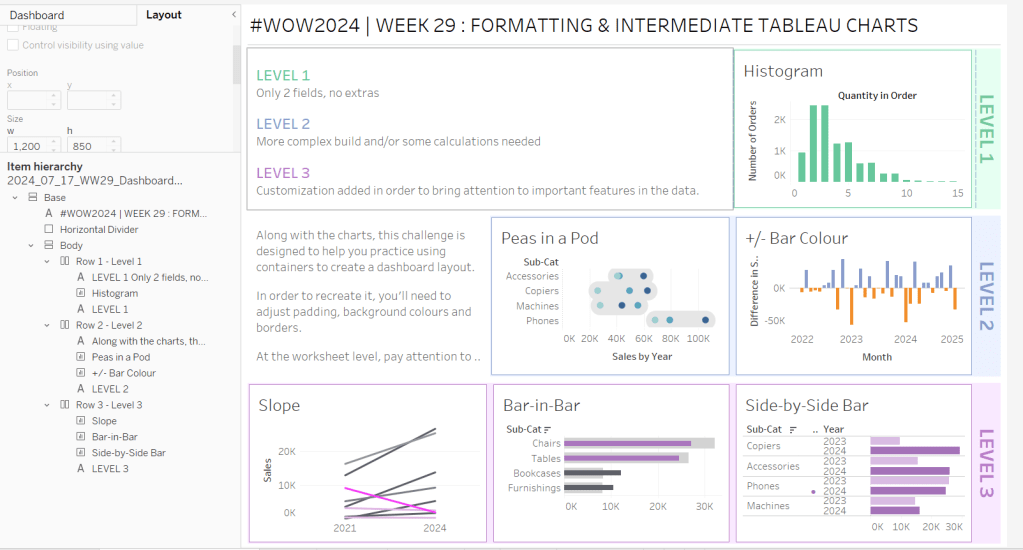
Below is a picture of the item hierarchy I ended up with using this approach

I created a floating vertical container called Base, positioned 0,0 and 1200 x 850. Background set to None, no border and inner and outer padding all 0.

I added a text object to contain the title. Background set to None and no border. Outer padding set to 10 all round, and inner padding 0.

I added a blank object, which I renamed Horizontal divider. Background set to light grey, no border. Outer padding set to left and right 10 and top and bottom 0. Inner padding all 0. Height set to 2.

I added another Vertical container, which I renamed Body. Background set to None, no border and all inner and outer padding set to 0.

I added 3 horizontal containers on top of each other, and set the property of the Body vertical container to distribute contents evenly so each horizontal container was the same height.

1st horizontal container

I named Row 1 – Level 1. I set the background to the pale green. No border. Outer padding set to left & right 10, top & bottom 5. Inner padding all 0.

Into this I added a text field to describe the levels. Background of this was white, no border and outer padding set to 0 (so the green background disappears). Inner padding was set to top: 20 and 10 for the rest.

Next the Histogram chart. Border set to green. Background white. Outer padding right:5, rest 2. Inner padding set to 10 all round. Width of chart fixed to 380 px.

Next the Level 1 text object. No border, no background. Outer padding 4 all round; inner padding 0. Formatted text object to rotate text. Width of object set to 40 px.

2nd horizontal container

I named Row 2- Level 2. I set the background to the pale blue. No border. Outer padding set to left & right 10, top & bottom 5. Inner padding all 0.

Into this I added a text field to describe the challenge. Background of this was white, no border and outer padding set to 0 (so the blue background disappears). Inner padding was set to 10 all round. Width of object set to 380px.

Next the Peas in a Pod chart. Border set to blue. Background white. Outer padding right:5, rest 2. Inner padding set to 10 all round.

Next the +/- bar chart. Border set to blue. Background white. Outer padding right and left 5, top & bottom 2. Inner padding set to 10 all round. Width of object set to 380px.

Next the Level 2 text object. No border, no background. Outer padding 4 all round; inner padding 0. Formatted text object to rotate text. Width of object set to 40 px.

3rd horizontal container

I named Row 3- Level 3. I set the background to the pale purple. No border. Outer padding set to left & right 10, top & bottom 5. Inner padding all 0.

I added the Slope chart. Border set to purple. Background white. Outer padding right:5, rest 2. Inner padding set to 10 all round. Width of object set to 380px.

Next the bar-in -bar chart. Border set to purple. Background white. Outer padding right & left 5, top & bottom 2. Inner padding set to 10 all round.

Next the side-by-side bar chart. Border set to purple. Background white. Outer padding right and left 5, top & bottom 2. Inner padding set to 10 all round. Width of object set to 380px.

Next the Level 3 text object. No border, no background. Outer padding 4 all round; inner padding 0. Formatted text object to rotate text. Width of object set to 40 px.

It was a bit of trial and error to get the spacing as required, and a few calculations to work out how wide I wanted each chart to be, based on the width of the dashboard and the other items in each row.

Anyway, my published viz is here.

Happy vizzin’!

Donna
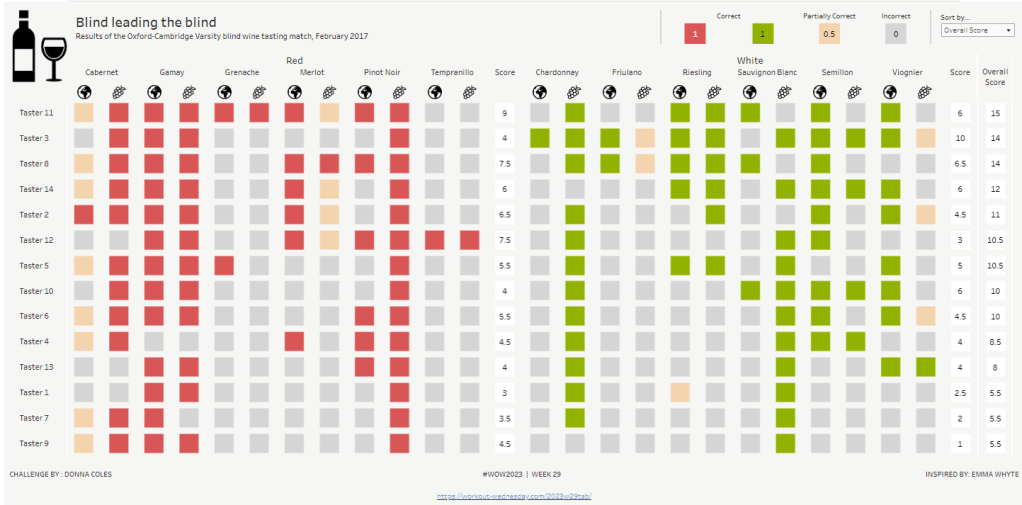
Re-Viz : Blind leading the blind

This week, it was my turn to set the #WOW2023 challenge for ‘retro’ month, and I chose to revisit a challenge from May 2017, that was originally set by one of the original ‘founders’ of WorkoutWednesday, Emma Whyte.

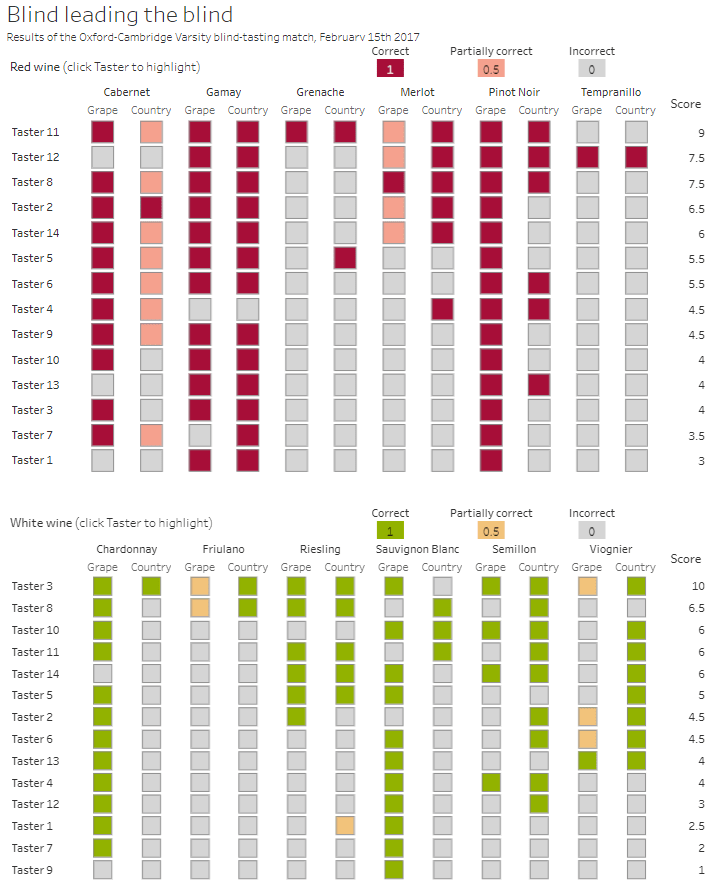
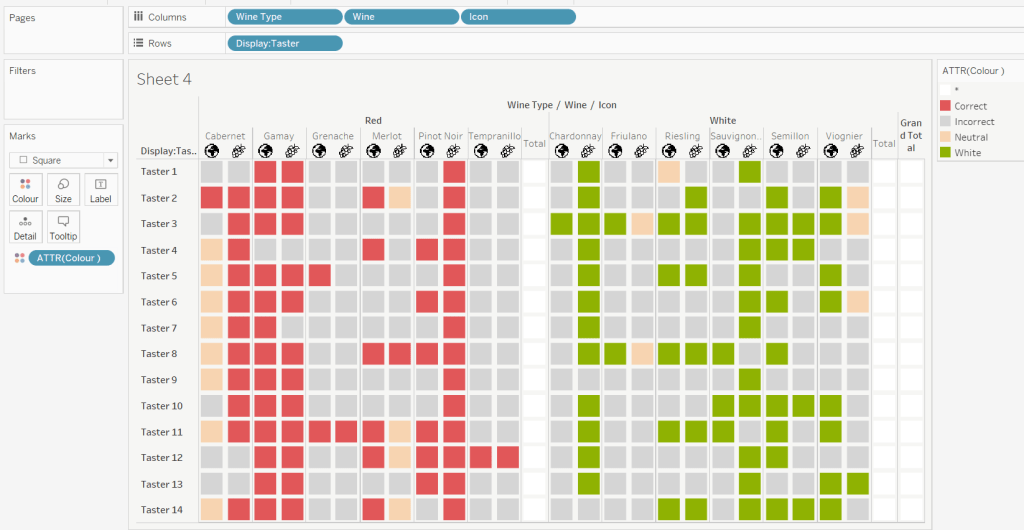
The original challenge looked like this :

As I said in the challenge post, I chose this I this challenge as it’s a different type of visual we don’t often see in WOW; it uses a different dataset that interests me – wine!; and as Emma’s website, where she hosted the original requirements for her challenges, is no longer active, it’s possible many won’t know of the existence of this challenge (it pre-dates the current WOW tracking data we have).

Building the core viz

Firstly, we want to build out the basic grid. For that we need a couple of calculated fields

Display:Taster

‘Taster ‘ + STR([Taster])

and

Icon

IF [Score Type] = ‘Grape’ THEN “https://workout-wednesday.com/wp-content/uploads/2023/07/Grapes.png&#8221;
ELSE “https://workout-wednesday.com/wp-content/uploads/2023/07/Globe.png&#8221;
END

Right click on the Icon field and select Image Role > URL

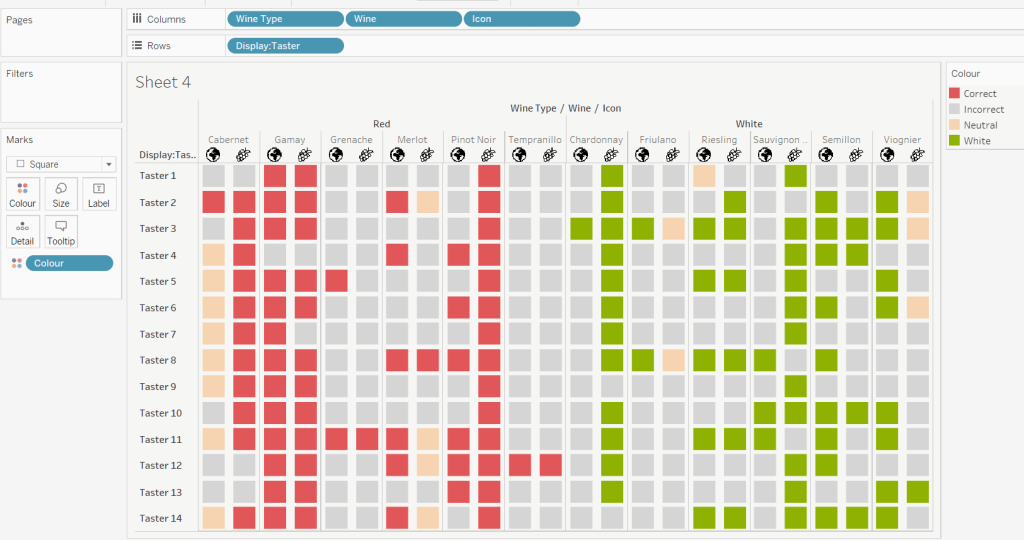
Add Wine Type, Wine and Icon to Columns and Display:Taster to Rows

Change the mark type to square.

Here we’re making use of the image role functionality in the header of the table to display images stored on the web, without the need to download them locally.

Create a new field

Colour

IF [Score] = 1 THEN [Wine Type]
ELSEIF Score = 0 THEN ‘Grey’
ELSE ‘Neutral’
END

Add this to the Colour shelf and adjust colours accordingly. Increase the size of the squares so they fill the space better, but still have separation between them.

Set the background colour of the worksheet to the grey/beige (#f6f6f4).

Note – I noticed later on that the colour legend in the screen shots has the words ‘correct’ and incorrect’ rather than ‘red’ and ‘grey’. This was due to an un-needed alias I had set against the field, so please ignore

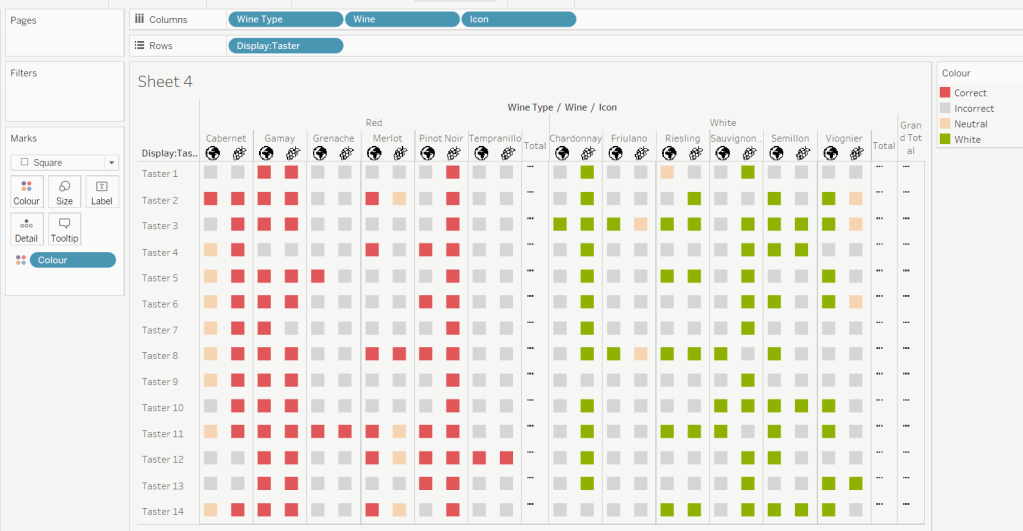
Via the Analysis -> Totals menu, add all subtotals & also show row grand totals. This will make the display look a bit odd initially.

Right-click on the Wine pill in the Columns and uncheck the Subtotals option. This should mean there are 3 additional columns only – a total for each wine type and the grand total.

To get a single square to display in the totals columns, right-click on the Colour field in the marks card area, and change from a dimension to an attribute. The field will change from displaying Colour to ATTR(Colour) and an additional option for * will display in the colour legend – set this to be white

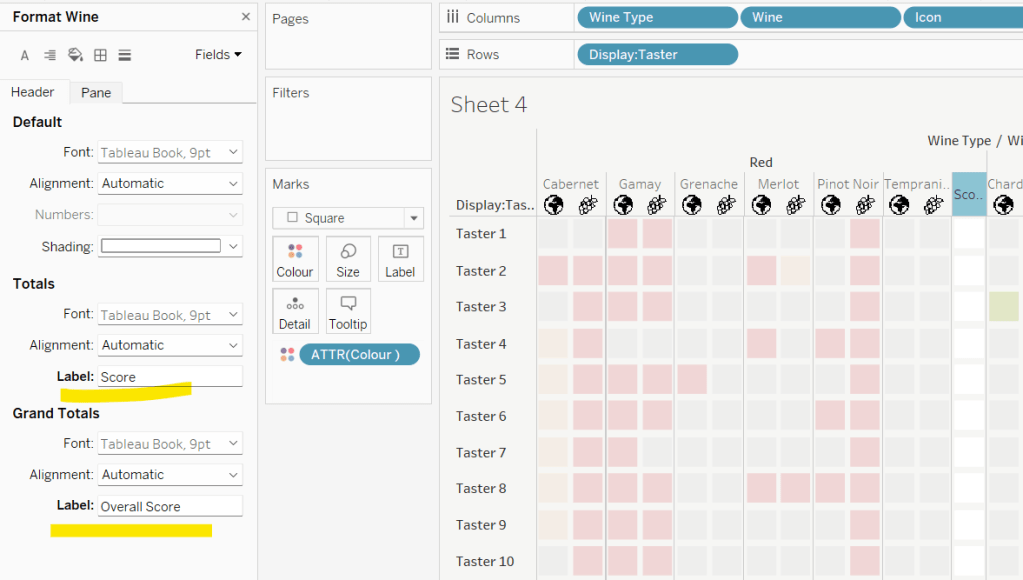
To change the word ‘Total’ in the heading to ‘Score’, right click on the word ‘Total’ and select format. In the left hand pane, change the Label of the Totals section to Score. Repeat for the ‘Grand Totals’ by right clicking on ‘Grand Totals’ in the table, selecting format and changing the label for that too to ‘Overall Score’.

We need to label the totals with the score. For this we first need to get a score for each taster per wine

Score Per Taster

{FIXED [Taster], [Wine Type]:SUM([Score])}

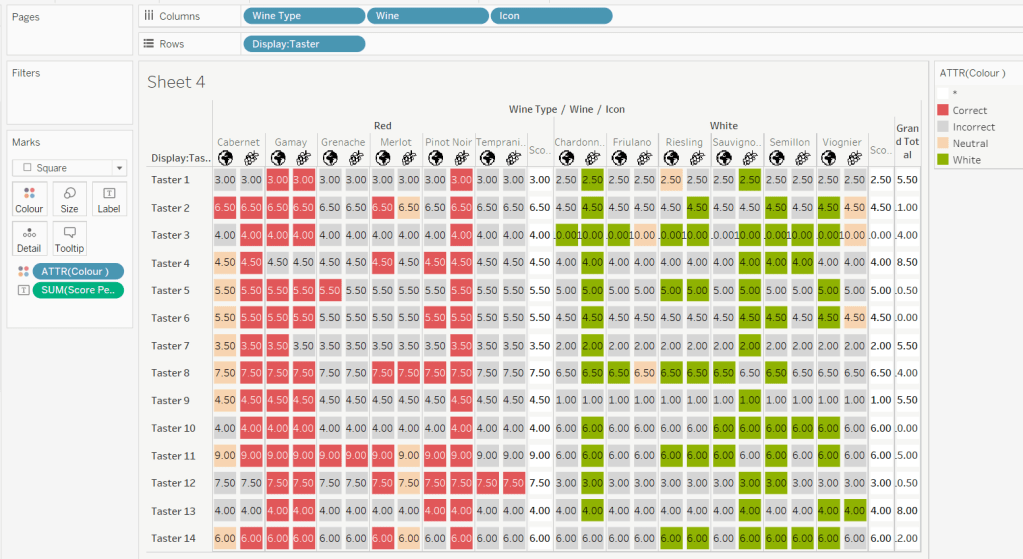
If we just added this to the Label shelf, every square gets labelled with the total, which isn’t what we want.

We need to work out a way to just show the label on the total columns only. For this we can make use of the SIZE() table calculation.

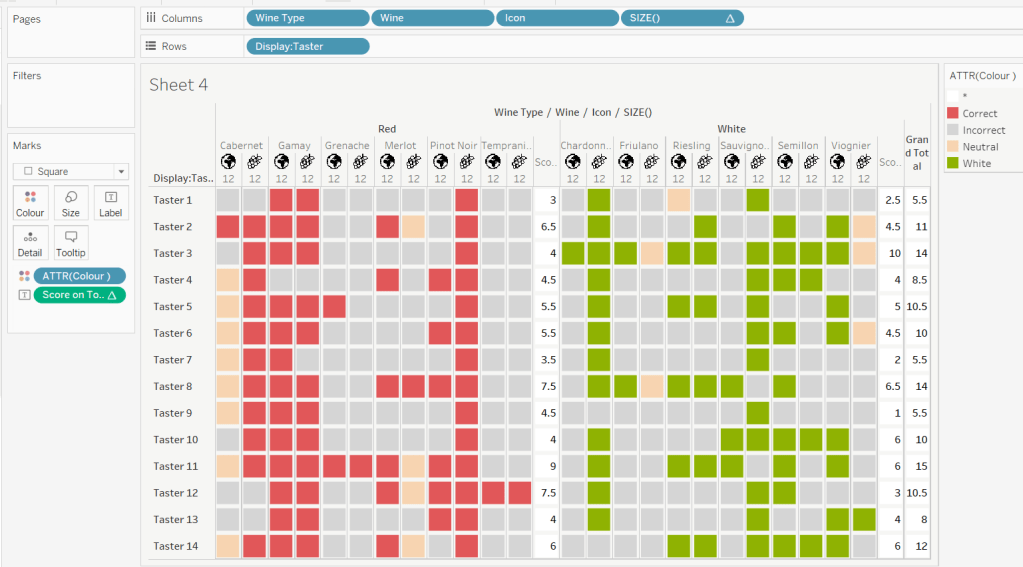
To see how we’re going to use this, double click into the Columns and type SIZE(), then change the field to be a blue discrete pill. Edit the table calculation and set the field to compute by Wine and Icon only.

You’ll see that the SIZE() field in the Columns has added the number 12 as part of the heading, which is the count of wines associated to the wine type (ie 12 red wines and 12 white wines). There is no SIZE() value displayed under the total columns, but these actually have a size of 1, so we’re going to exploit this to display the labels (note – this approach wouldn’t work if where was only 1 wine for one of the wine types).

Score on Total

IF SIZE() = 1 THEN SUM([Score Per Taster]) END

Set the default number format of this field to be Standard, which means the result will display either whole or decimal numbers.

Add this onto the Label shelf instead of the other field, and adjust the table calculation as described above to compute by Wine and Icon only.

You can now remove the SIZE() field from the Columns.

Align the scores centrally.

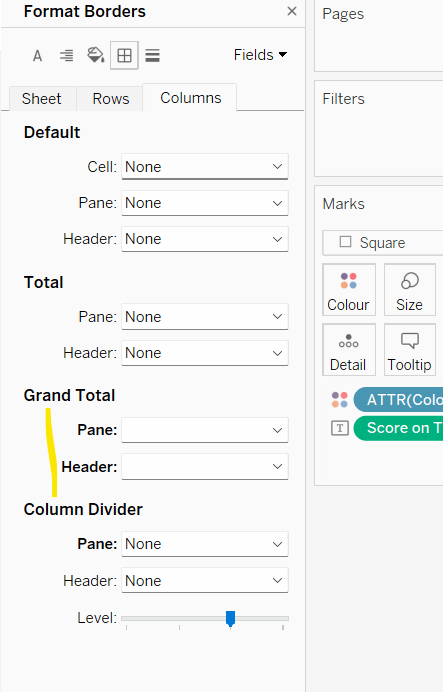
Remove row & column dividers from each cell, and the totals, but set a white column divider for both the pane & header of the Grand Total column.

Format the text for the Wine Type and Wine and Totals fields. Align the text for the Wine field to the Top.

Hide field labels for rows and columns.

Applying the Tooltip

The text when hovering over each square needs to display different wording depending on the score.

Tooltip – Score Text

IF [Score] = 1 THEN ‘correctly identified’
ELSEIF [Score] = 0.5 THEN ‘partially identified’
ELSE ‘was unable to identify’
END

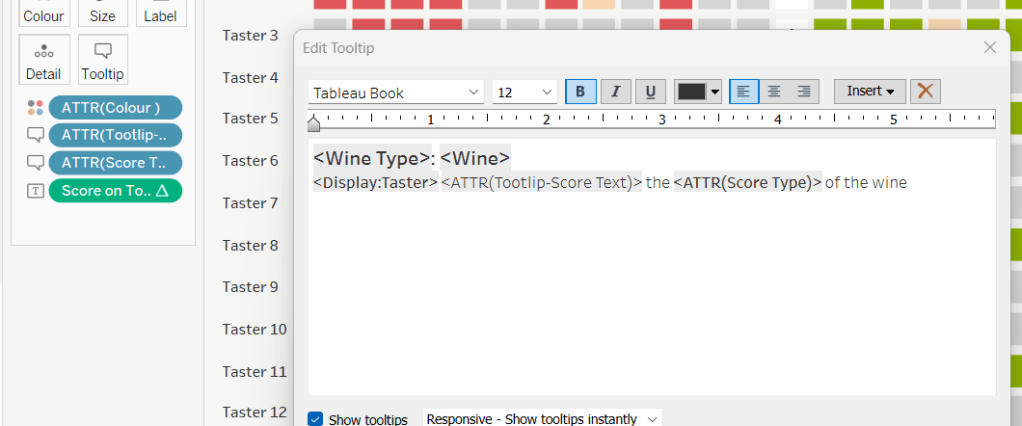
Add this to the Tooltip shelf along with the Score Type field. Modify the text accordingly

Applying the sort

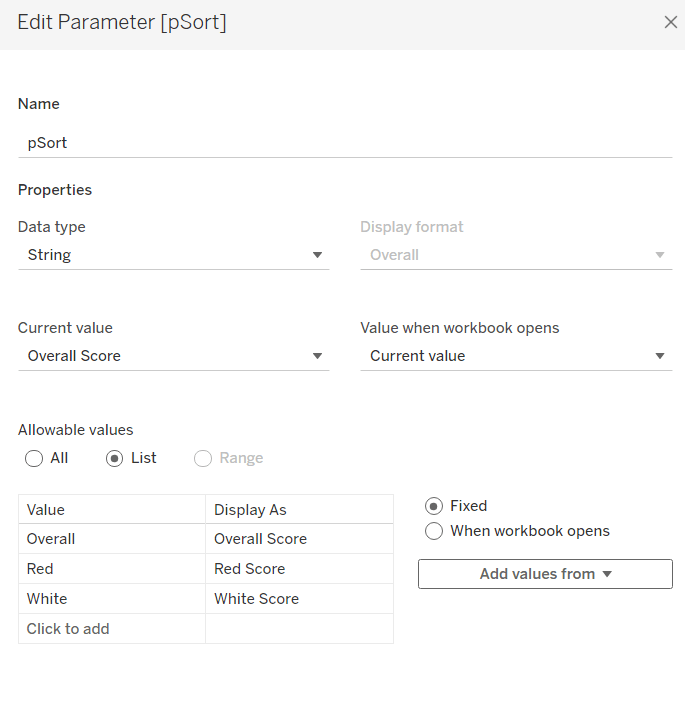
To control the sorting, we need a parameter

pSort

string parameter with list options, defaulted to ‘Overall Score’

and we also need fields to capture the different scores for each type of wine per taster

Red Score

{FIXED [Taster]:SUM( IF [Wine Type] = ‘Red’ THEN [Score] END)}

White Score

{FIXED [Taster]:SUM( IF [Wine Type] = ‘White’ THEN [Score] END)}

Overall Score

[White Score] + [Red Score]

Then we need a calculated field to drive sorting based on the option selected and the fields above

Sort By

CASE [pSort]
WHEN ‘Overall’ THEN [Overall Score]
WHEN ‘Red’ THEN [Red Score]
ELSE [White Score]
END

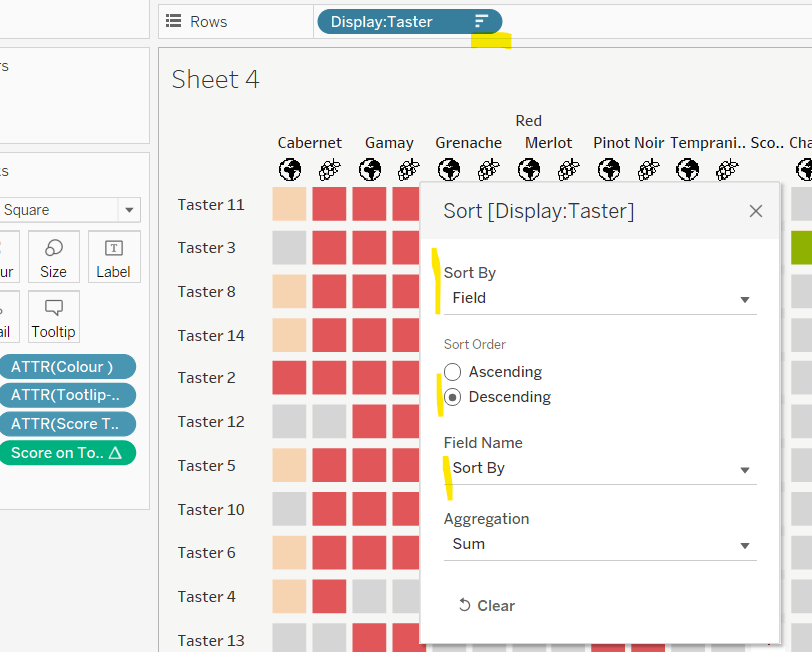
Then right click on the Display:Taster field on the Rows and select Sort, and amend the values to sort by field Sort By descending

Building the legend

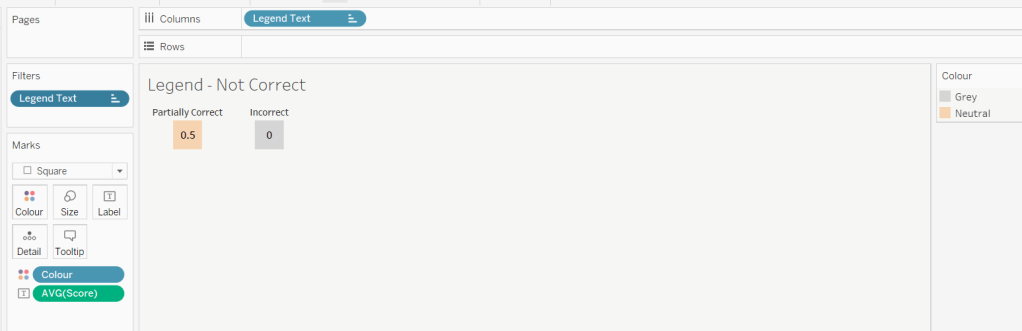
I did this using 2 sheets. First I created a new field

Legend Text

IF [Score] = 1 THEN ‘Correct’
ELSEIF Score = 0 THEN ‘Incorrect’
ELSE ‘Partially Correct’
END

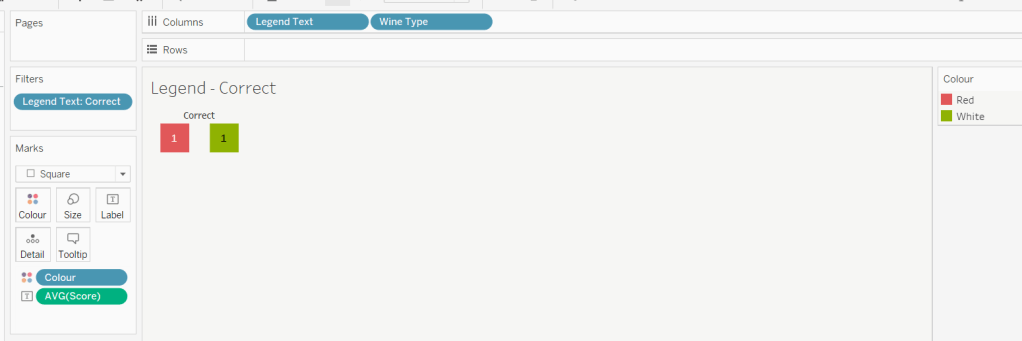
Then I create a viz as follows

  • Add Legend Text and Wine Type to Columns
  • Add Legend Text to Filter and set to ‘Correct’
  • Change Mark type to Square and increase size
  • Add Colour to Colour shelf
  • Add Score as AVG to Label and format to number standard. Align centrally
  • Uncheck show header against the Wine Type field , and hide field labels for columns against the ‘legend Text’ column heading.
  • Remove all column/row dividers and set the worksheet background colour.
  • Turn off tooltips

Duplicate the sheet, and edit the filter so it excludes Correct instead. Remove Wine Type from the columns shelf. Reorder the columns.

Building the dashboard

When building the dashboard, I just used a floating image object to add the bottle & glass image in the top left of the dashboard.

I set the background colour of the whole dashboard to match that I’d set on the worksheets too.

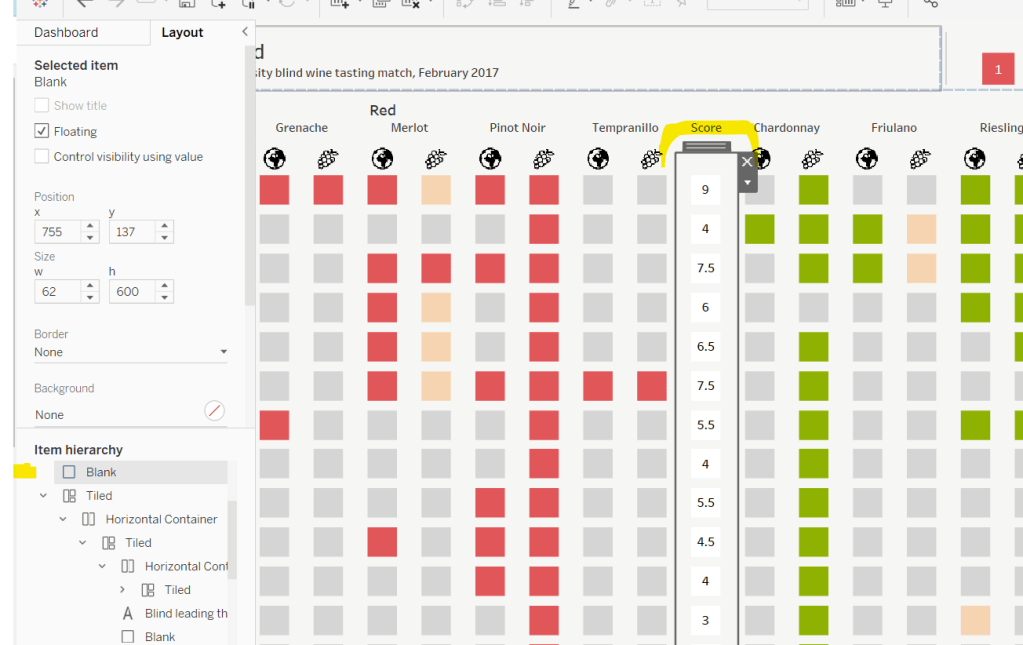
To stop the tooltips from displaying when hovering over the Scores, I simply placed floating blank objects over the score columns – this is a simple, but effective trick – you just need to be mindful of the placement if you ever revisit the dashboard and move objects around. I placed a floating blank over the legends too to stop them being clicked on.

My published viz is here!

Happy vizzin’!

Donna

What is the time-weighted return?

Indeed! What is the time-weighted return? It’s not a term I’d ever heard of until Luke set the challenge this week. Fortunately he provided a link to a web page to explain all about it – phew!

I actually approached the challenge initially by downloading the data source, copying the contents of sheet2 into a separate excel workbook, and then stepping through the example in the web page, creating new columns in the excel sheet for each part of the calculation. I didn’t apply any rounding and ended up with slightly different figures from Luke. However after a chat with my fellow WOW participant Rosario Gauna, we were both aligned, so I was happy. I’d understood the actual calculation itself, so I then cracked open Desktop to begin building. This bit didn’t really take that long – most of the time on this challenge was actually spent in Excel, but shhhhh! don’t tell anyone 🙂

Building the calculations

I’m going to build lots of calculated fields for this, primarily because I like to do things step by step and validate I’m getting what I expect at each stage. You could probably actually do this in just 2 or 3 calcs. As I built each calc, I added it into a tabular view of the data. I’m not going to screen shot what the table looks like after every calc though.

To start though, I chose to rename some of the existing fields as follows :

  • Flows -> A: Flows
  • Start Value -> B: Start Value
  • End Value -> C: End Value

I did this because I have several new fields to make, and coming up with a meaningful name for each was going to be tricky – you’ll understand as you read on 🙂

First up, create a sheet and add Reporting Date as an exact date discrete blue pill to Rows then add the above 3 fields.

Now onto the calculations, and this all just comes from the website. Each calc builds on from the previous. I chose to add inline comments as a reminder. After I built each calc I added to the table.

D: A+B

//sum flow + start point
SUM([A: Flows]) + SUM([B: Start Value])

E: C-D

//difference between end value and (flow+start)
SUM([C: End Value]) – [D: A+B]

F: E/D

//Difference as a proportion of (start + flow)
[E: C-D]/ [D: A+B]

I formatted this one to 3 decimal places so the figure showed on screen, but ‘under the bonnet’ Tableau will use the full number in the onward calcs.

At this point now, F: E/D stores what the article describes as the ‘HP’ value for each date. Now we need to start building the calcs we need to compute the TWR value.

G: 1+F

1+[F: E/D]

formatted to 3 dp

H: Multiply G values

//Running Product of column G
[G: 1+F]*PREVIOUS_VALUE(1)

This is the core calculation for this challenge. This takes the value of the G: 1+F field in each row, and multiples it by the value of the G: 1+F field in the previous row. As each row ends being the product of itself and the former row, this ultimately builds up a ‘running product’ value.

Add these fields onto the table and explicitly set the table calculation of the H: Multiply G values field to compute using Reporting Date.

And finally we can create

I: TWR

//subtract 1 from the running product -1
[H: Multiply G values]-1

format this to be a % with 0dp. Add to the table and again ensure the table calc (and all nested calcs) are set to compute using Reporting Date

The final calculation needed is one to use to display the TWR value for the last date.

J: Latest TWR Value

//get the last value computed
WINDOW_MAX([I:TWR])

format this to be a % with 0dp.

This function looks for the highest number across the whole table, and spreads that value across every row. Since the I: TWR field is cumulative, the highest number will be the last value. Add this onto the table and verify all the tab calcs are set to compute by Reporting Date.

And now you can build the viz

Building the Viz

Add Reporting Date as an exact date continuous green pill to Columns and I:TWR to Rows, setting the compute by of the table calculation as described above. Add J:Latest TWR Value to Detail, and again set the compute by.

Then update the title of the sheet to reference the J:Latest TWR Value field, amend the tooltips and update the label on the y-axis. Add to a dashboard and you’re done 🙂

My published viz is here.

Happy vizzin’!

Donna
Can you rebuild the Olympic Schedule?

This week’s #WOW challenge was a joint one with the #PreppinData crew, with the intention to use the #PreppinData challenge to create the data set needed for the Tableau challenge. I completed the Prep challenge, but decided to use the output provided by the #PreppinData crew as the input to this challenge (just in case I had inadvertently ended up with discrepancies).

  • Sport Selector
  • Adjusting the time
  • The Schedule Viz
  • Event Counts in Tooltip
  • Event listing Viz in Tooltip
  • Other Sports bar chart Viz in Tooltip
  • Dashboard interactivity

Sport Selector

This is a simple chart that lists the Sport Groups. I chose to build a bar chart using MIN(1) on the Columns and Sport Group on Rows. The axis was then fixed from 0-1.

Create a set based on Sport Group and select a few values to be ‘in’ the set (eg Boxing, Gymnastics, Martial Arts).

Add the Sport Group Set to the Colour shelf to identify the selected sports. Adjust colours accordingly.

Adjusting the Time

Create a parameter pTimeAdjust which is an integer paramater, defaulted to 0 and ranges from -12 to +12. Set the step value to 1 as this will ensure when you add the parameter to the dashboard, the prev/next buttons can be displayed alongside the slider.

Create a calculated field to store the time of the event based on the ‘timezone’ selected via the above parameter

Date Time Adjust

DATEADD(‘hour’, [pTimeAdjust], [UK Date Time])

This field will be used to display the full event date & time on the event listing viz in tooltip, along with building the schedule viz itself.

Additionally, create a field based on the above, which just stores the day of the adjusted datetime field above

Day of Adjusted Date

DATE(DATETRUNC(‘day’,[Date Time Adjust]))

This field is needed to help with the filtering required for the viz in tooltips to display.

The Schedule Viz

Add Date Time Adjust set to the Month datepart (blue pill) to the Columns shelf, and alongside it add the same field set to the Day datepart (blue pill). On the Rows, add Sport Group and Sport. Add the Sport Group Set to the Filter shelf. This will give you the ‘bones’ of the schedule

In viewing the provided solution, there was a bit of a discrepancy between when a ‘medal’ icon should show or not, compared to the Medal Ceremony? field provided in the data. It transpired Lorna had made an adjustment, as there were some events that had a ‘final’, but did not include a gold medal or ceremony event.

So to try to match up with Lorna’s output, I too made adjustments, but I can’t guarantee it matches any published solution.

First up I identify the Victory Ceremony events

Is Victory Ceremony?

CONTAINS([Event],’Victory Ceremony’)

I chose to exclude all these events from the schedule, so this field is added to the Filter shelf and set to False.

I also identify the events which appear to be a ‘final’

Is Final?

CONTAINS([Event],’Gold Medal’) OR CONTAINS([Event],’ Final’)

This field will separate the events into two types. Change the Mark Type to Shape, then add this field onto that shelf. Set the shapes accordingly. Note – to add the medal shape, save the image Lorna provided to your machine, then follow these instructions so it’s available for selection.

I chose to add the Is Final? to the Size shelf too, so the shapes can be adjusted to something more suitable.

If you add the rows and columns dividers, you’ll notice the single circles aren’t centred. To resolve this, we’re going to need some axis.

Add MIN(1) to the Rows shelf (y-axis). This will give us some vertical headspace.

Now we need to manage the horizontal space, and ensure the marks don’t overlap each other. When there’s no finals, we want the circle to be plotted in the middle. When there’s both non-final and final ‘events’ we want the two marks to be off-centre, one to the left and one to the right.

We need some calculations to help with this.

#Events by Sport Per Day

{FIXED [Day of Adjusted Date], [Is Victory Ceremony?],[Sport]: COUNT([Event Schedule])}

This helps us count the number of of events per day for a specific sport

#Event Finals By Sport By Day

{FIXED [Day of Adjusted Date], [Is Victory Ceremony?],[Sport]: SUM(IIF([Is Final?],1,0))}

This basically helps us count the number of finals for each sport on a day.

With this we can build

X-Axis

IF [#Event Finals by Sport Per Day] =0 THEN 5
ELSEIF [#Event Finals by Sport Per Day]-[#Events by Sport Per Day] =0 THEN 5
ELSEIF [Is Final?] THEN 7
ELSE 3
END

If there’s no final, plot at 5, if there’s only a final, plot at 5 otherwise plot a final at 7 and a non-final at 3.

Add this to the Columns shelf (set to be a dimension ie not SUM), and edit the axis to be fixed from 0-10.

Events Count in Tooltip

I was also a bit puzzled by some of the numbers being displayed in the tooltip, so chose to compute and show the following 3 measures

  • Number of Events for Sport on that day (this is the #Events by Sport per Day already calculated)
  • Number of Event Finals for Sport on that day (this is the #Event Finals by Sport by Day already calculated)
  • Total Number of events for all other sports on that day (ie the selected sport is excluded from the count).

For this last measure we need

#Events per Day

{FIXED [Day of Adjusted Date], [Is Victory Ceremony?] : COUNT([Event Schedule])}

#Events per Day of Other Sports

SUM([# Events Per Day]) – SUM([#Events by Sport Per Day])

Pop all these on the Tooltip shelf and format appropriately.

You’ll also need to add the Day of Adjusted Date to the Tooltip. This should be set to exact date and discrete (blue pill).

Event Listing in Tooltip

Build out a data listing view of Sport Group, Sport, Date Time Adjust and add Event (I renamed the Event Split field) to the Text shelf. Add Day of Adjusted Date to the Detail shelf. Hide Sport Group and format.

On the schedule viz, add this worksheet to the tooltip, passing Sport and Day of Adjusted Date as filters on the string

Other Sports bar chart Viz in Tooltip

Once again this is a relatively simple chart to build out, with the Day of Adjusted Date field hidden in the display (but necessary for the VIT to filter properly).

However, this will display all sports, and we need this chart to not show the sport that has been initially selected (hovered).

Create a parameter pSportToExclude which is a string parameter. For the purpose of demonstration, enter the text Football.

Create a field

Excluded Sport?

[Sport]=[pSportToExclude]

Add this field to the Filter shelf and set to False, and the sport will disappear from the list

Add a reference to this sheet from the tooltip of the schedule viz, this time passing just Day of Adjusted Date as the filter.

Dashboard Interactivity

Hide / Show Sport Selector

When adding the Sport Selector sheet and the Schedule viz to the dashboard, you need to make sure they exist side by side in the same horizontal container.

Then, providing you are using v2021.2, you can set the Sport Selector object to Hide/Show. See this video for help.

Add remove sports

You will need 2 dashboard set actions for this. They should run on ‘menu’, and one will add items to the set, and the other remove

Set the selected sport to exclude

We’ll use a parameter action for this to run on hover and set the pSportToExclude parameter

Stop Sport Selector highlighting

Create a new field Dummy containing the text “Dummy” and add this to the Detail shelf of the Sport Selector viz.

The add a highlight action against this sheet only

Hopefully I’ve ticked off all the core elements here. There was a fair bit going on, and I’m conscious I’ve drafted this blog fairly quickly in comparison. My published viz is here .

Note, there are a couple of elements in my viz that I added which weren’t on the original solution. I’ve chosen not to include in the blog as the images/characters I chose to use didn’t render on Tableau Public. If you download the workbook, you’ll be able to see what my intention was.

I did also create an alternative view ‘heatmap’ style view as well which you can see here.

Happy vizzin’! Enjoy the Olympics! Stay Safe!

Donna
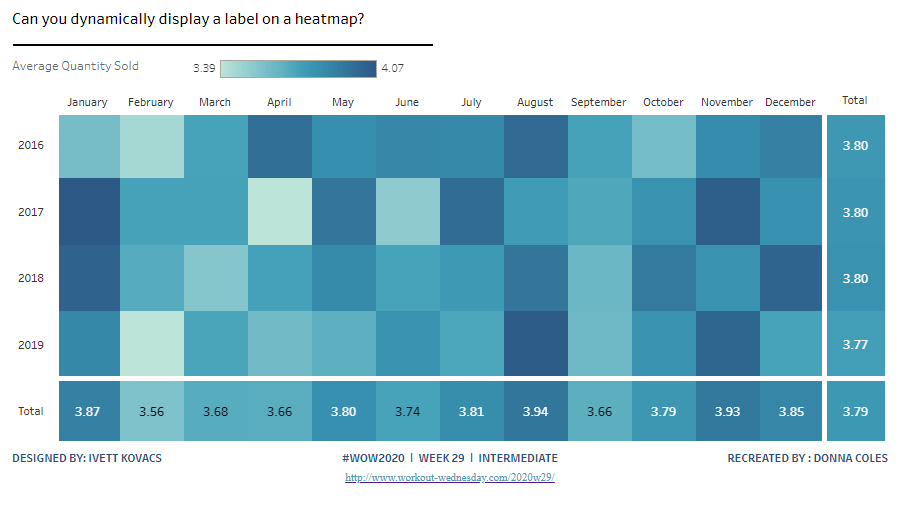
Can you dynamically display a label on a heat map?

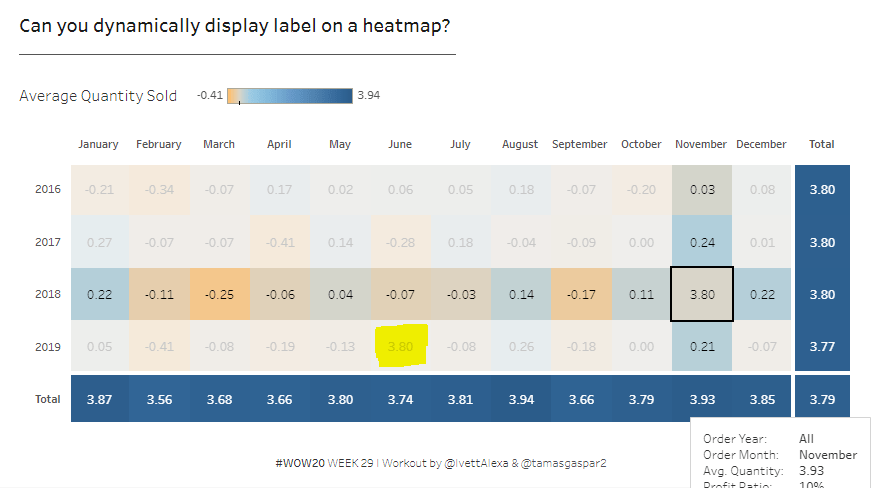
Ivett Kovacs returned with the #WOW challenge for this week, providing 2 versions. She provided some hints in the requirements which helped. With a bit of head scratching I managed to deliver an advanced version too. It didn’t exactly match what Ivett had delivered, but I was quite happy with my version. Until my follow #WOW participant Rosario Guana pointed out that the display ‘on click’ of a row or column total didn’t work properly 😦

I’ve spent A LOT of time trying to figure out what’s required but can’t resolve it. I’ve checked out Ivett’s solution and noticed a slight flaw in her logic too, so I feel uncomfortable changing my flaw for another. I’ve also looked at other solutions, and all are showing slightly different behaviour when you click on a column or row cell total. As a result, I’ve decided to blog based on the Intermediate version only. Others have posted blogs about their Advanced versions, so I’m going to save some time today, and reference them instead.

Building the basic heat map

The core of this challenge is going to involve Sets, and we’re going to use Set Actions to identify which cell is being interacted with.

For the intermediate version, we’re interacting based on hover actions.

The heatmap displays a grid of months by years, and we need to build sets based off of these. So we’ll start by creating dedicated calculated fields storing these values

Month Order Date

DATENAME(‘month’,[Order Date])

Year Order Date

YEAR([Order Date])

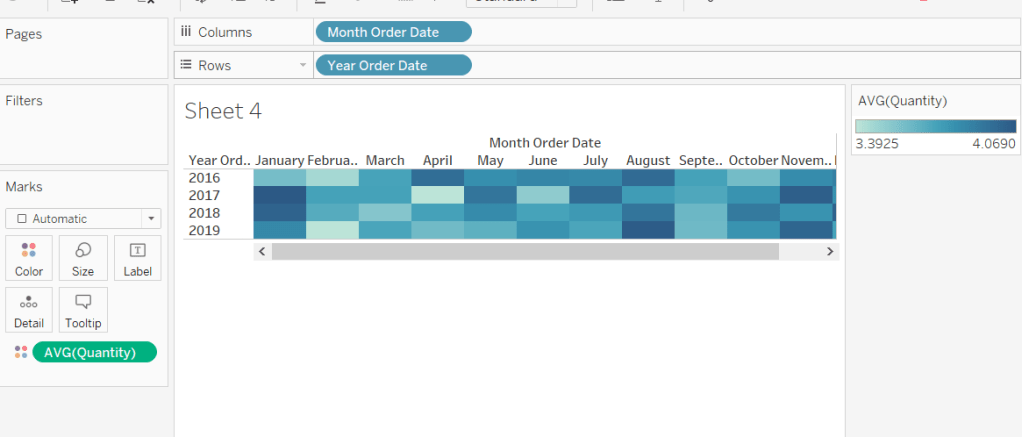
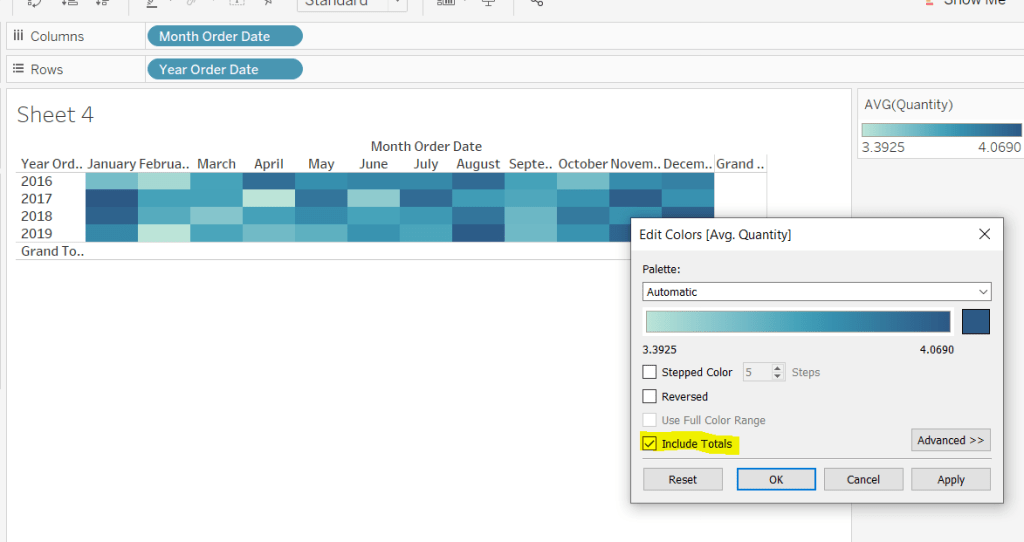
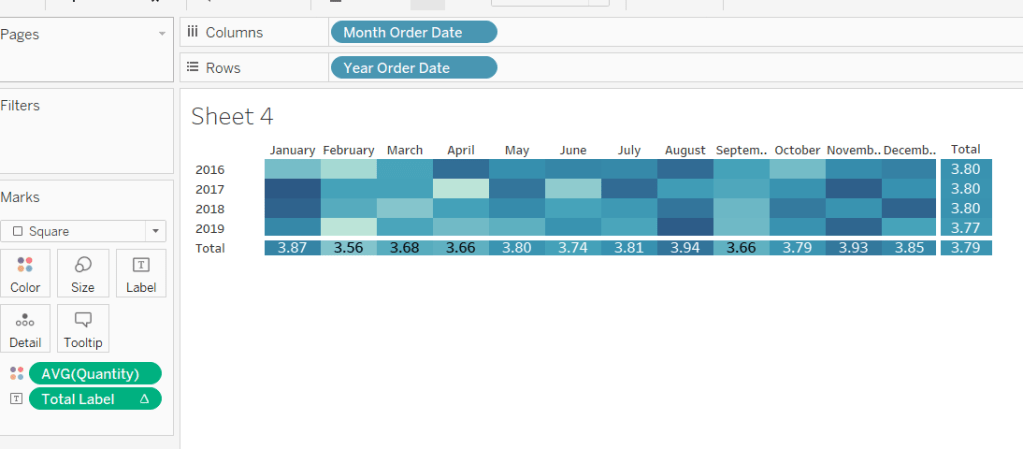
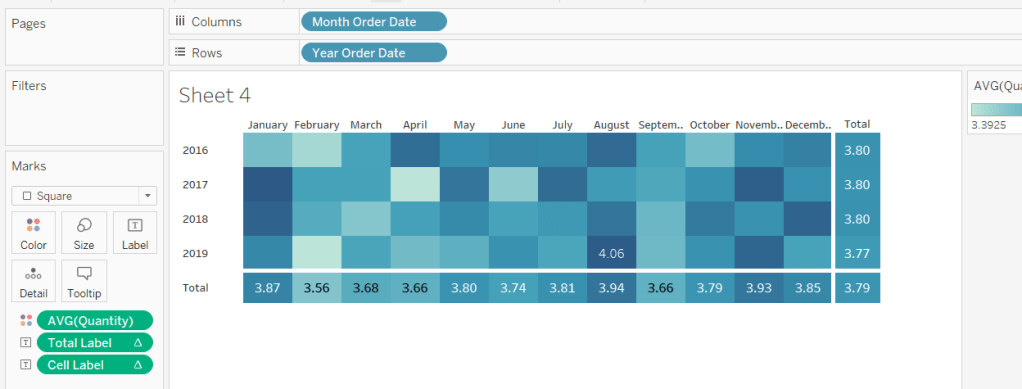
Add Month Order Date to Columns and Year Order Date to Rows, then drag Quantity onto Colour and change to AVG. You should have your basic heatmap.

From the Analysis -> Totals menu, select to shoe row & column grand totals. They will initially display as white cells, so you need to Edit Colours on the colour legend and select Include Totals/

Let’s sort some formatting out at this point.

Set the mark type to Square

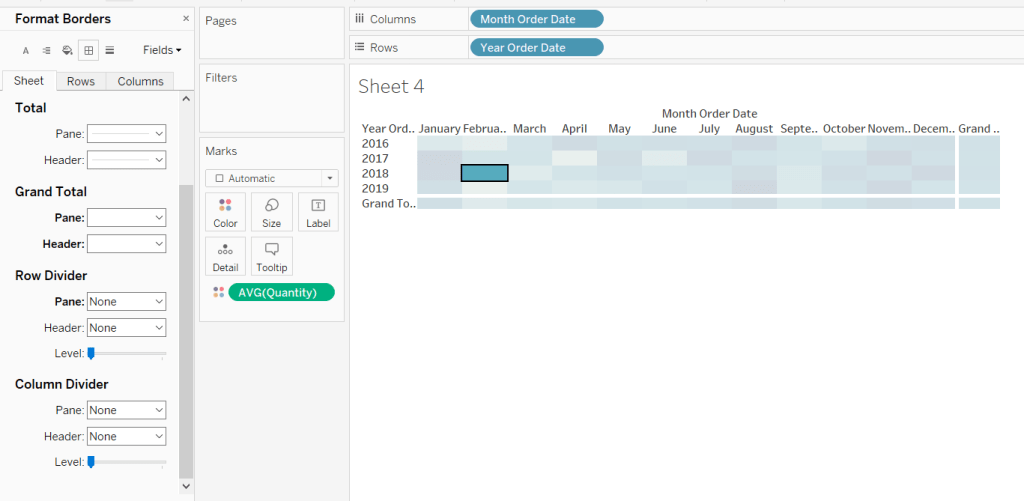
Format the borders by setting the row & column dividers to none, but setting the Grand Total pane & header to be thick, white lines

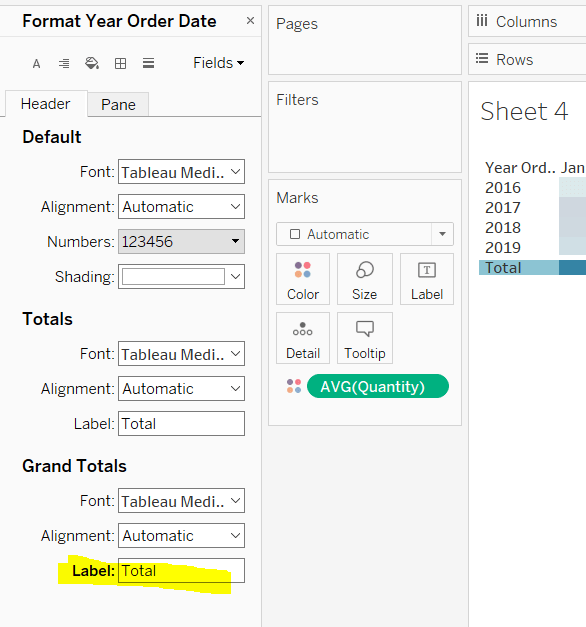
And change the word Grand Total, by right clicking -> format on each cell and changing the Grand Total label.

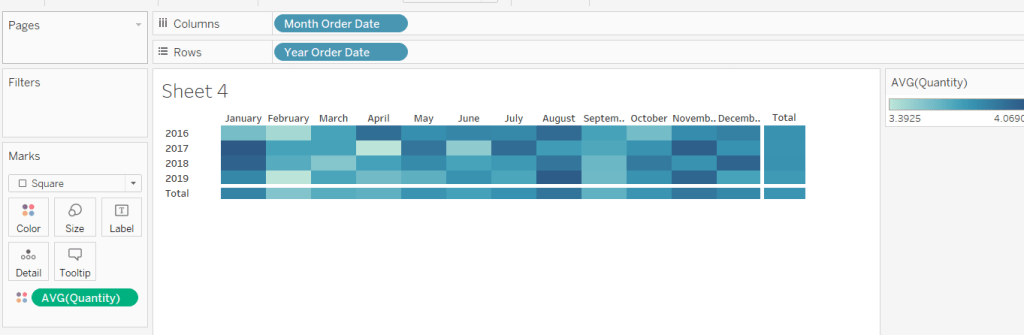
Adjust the size of the Month & Year labels and remove header labels from displaying and you have

Labelling the total cells

We need to permanently display the label on the total row/column, and only show the label on the cells ‘on hover’.

We need a way to identify when we’re on a total cell. Ivett gave a hint “What is the Size() of the totals and the cells?“. This is a trick I’ve read about and discussed here. Basically the size() of the grand total row or column will be 1, so this is what we’re going to base some logic on.

Size of Months

SIZE()

Size of Years

SIZE()

Total Label

IF [Size of Years]= 1 OR [Size of Months] = 1 THEN AVG([Quantity]) END

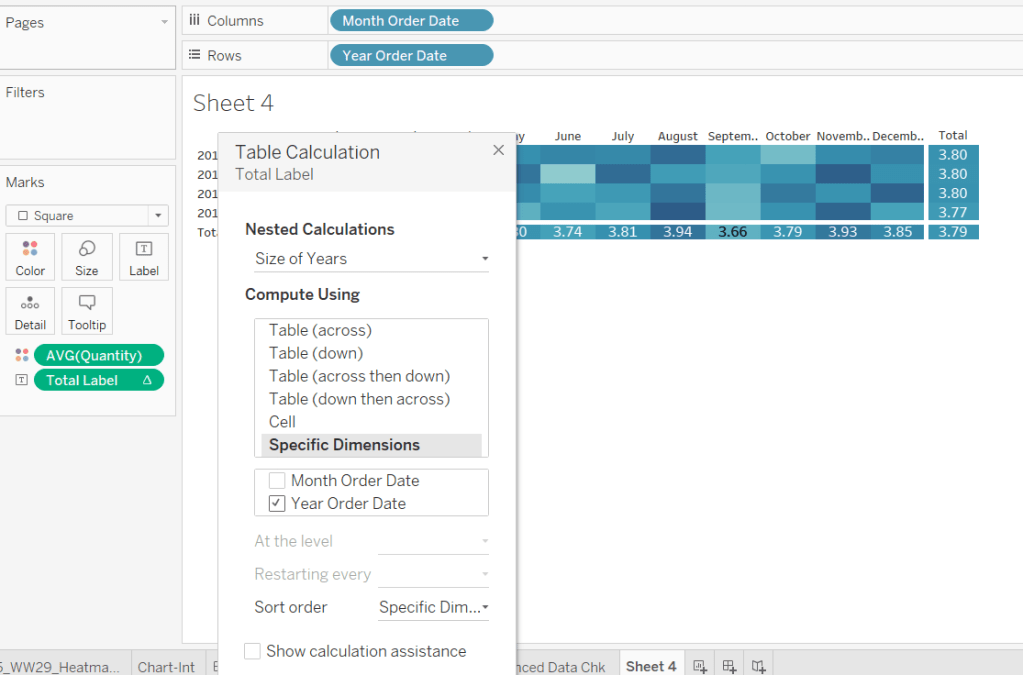
If we’re on a row or column grand total, then show the AVG(Quantity). Add this onto the Label shelf, and edit the table calculation so the Size of Years nested calc is computing by Year Order Date, and the Size of Months nested calc is computing by Month Order Date.

Labelling the central cells

We need to create some sets, as these are going to determine whether we are hovering on a cell or not. The dashboard action will add values to a set on hover.

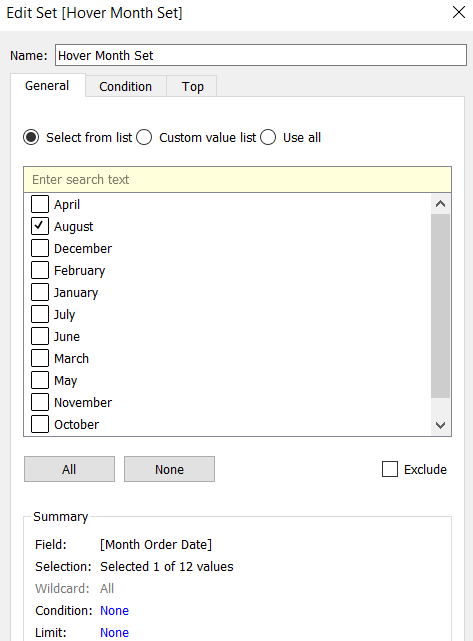
Right click on Month Order Date and Create Set, selecting an arbitrary month.

Hover Month Set

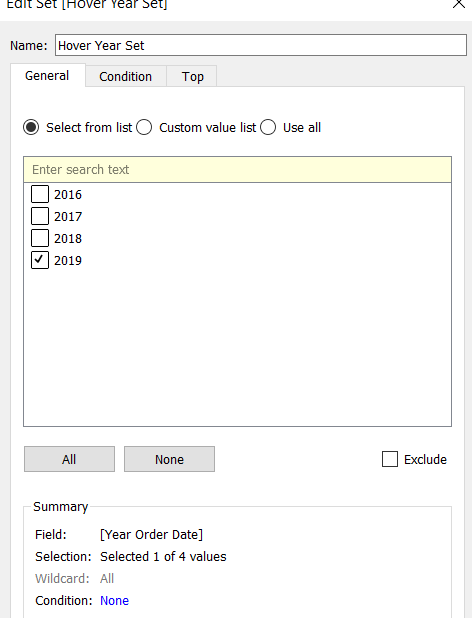
Do the same with Year Order Date

Hover Year Set

We then need a field to label the cell

Cell Label

IF ATTR([Hover Month Set]) AND ATTR([Hover Year Set]) AND [Size of Months]>1 AND [Size of Years]>1 THEN AVG([Quantity])
END

If something has been selected in the Hover Month Set and something has been selected in the Hover Year Set, and we’re not on a grand total row/column, then show the AVG(Quantity).

Add this to the Label shelf, and edit the table calculation settings as above.

Tooltip

The tooltip displays the Profit Ratio

SUM([Profit])/SUM([Sales])

so you’ll need to create this field, add to the tooltip and adjust the display accordingly.

Add the interactivity

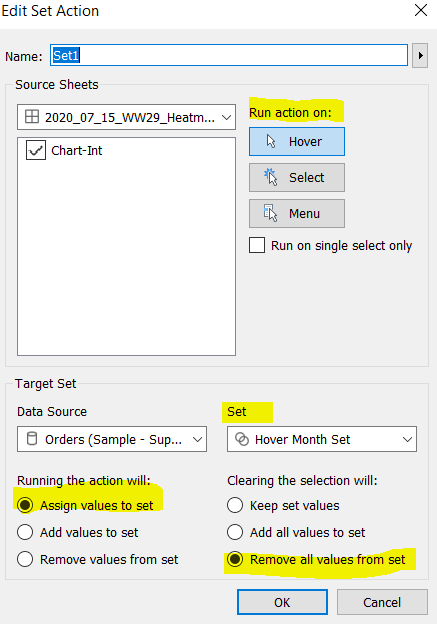
Add the above sheet onto a dashboard, then create a dashboard action to Change Set Values, which is set to

  • run on Hover
  • Target the Hover Month Set
  • Assign values to the set when run and remove values from the set when cleared

Repeat to create a set action to target the Hover Year Set.

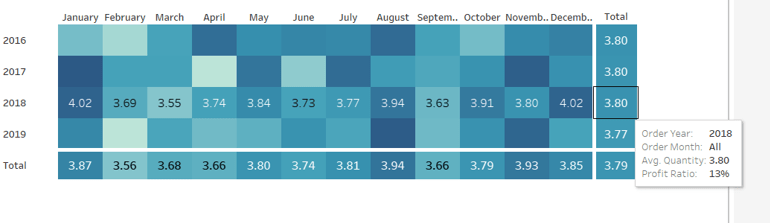
Test it out – hover your mouse over the cells. If you hover on a total, you should get the values displayed for all the values in the row or column

Advanced Version

As I stated in the intro, I didn’t end up with something I was entirely happy with. While writing this up, I’ve tried to rebuild using ideas from other published solutions, but I still have got anything ‘perfect’.

Ivett’s solution is obviously the closest to what we’re aiming for, since that is the challenge. The minor flaw I found in that though was that in some of the labelling logic there’s a step which compares the ‘average of the selected cell’ with the ‘average of the current cell’, and if they match, display the AVG(Quantity), otherwise show the difference. This logic is basically trying to work out ‘if current cell = selected cell’, but it doesn’t fully work, as there are other cells where the values match – it’s subtle as the displayed values are faded out with the cell highlighting, as I’ve shown in the example below.

Kyle Yetter has blogged his solution here, but if you click on a row or a column total in his solution, the values are all the same, and not showing a difference.

Rosario Guana has blogged her solution here. Rosario has adapted her solution slightly and displays both the average values and the difference ‘on select’, so the logic I was struggling with, isn’t being used in the same way here.

No doubt with a bit more time, I might finally crack this one, but for now, I need to ‘put it to bed’ 🙂

Happy vizzin’! Stay safe!

Donna