This week, Sean decided to revisit a challenge from 2017, week 12, which was originally posted by Emma Whyte, one of the #WorkoutWednesday founding coaches.
I’ve been completing the #WOW challenges since their inception, so had the original solution already published to my Tableau Public.
Back then, parameter actions didn’t exist, so I decided to build this latest version using them instead of the parameter dropdown list included in the original requirement.
Building the basic viz
Create a new parameter to capture the Sub-Category we want to highlight
pSubCat
string parameter defaulted to ‘Bookcases’.
(NOTE – if I wanted to use a drop down for the user selection, I would instead have set this parameter to be a list populated from the Sub-Category field when the workbook opens).
I can’t always recall quickly the positioning of all the fields I need to build a treemap, so I started by simply double clicking the fields I needed in turn : Category, Sub-Category, Sales to add them onto the canvas, and then selecting the TreeMap icon in the Show Me tab to reposition the fields as required.
Then move the Category field from Text to Detail.
Colouring the blocks
The requirement is to show the selected Sub-Category in one colour, but also show a graduated colour palette for the non selected Sub-Categories.
First, let’s identify the selected Sub-Category.
Show the pSubCat parameter on the canvas. Then create
Is Selected Sub Cat
[Sub-Category] = [pSubCat]
Change the Sales pill on the Colour shelf from continuous (green) to discrete (blue). This will result in a rainbow of colours
Then add Is Selected Sub Cat to the Detail shelf. Then click on the icon next to the pill that indicates it’s on the detail shelf, and change it to Colour, so 2 fields are now on the Colour shelf.
Move the Is Selected Sub Cat field on the colour shelf so it is listed above the Sales field on the colour shelf. The selected sub-Category should now be highlighted, and the other blocks are graduated.
However, the highlighted sub-category is ‘separated’ from the Category block it belongs in. To resolve this, change the Is Selected Sub Cat field on the colour shelf so it is an Attribute. By setting this, the treemap is now only dividing itself by the Dimension fields of Category and Sub-Category.
Format the Sales field to $ with 0dp, and update the Tooltip as required.
Create the sheet title
Create a new fields
Selected Sales
{FIXED:SUM(IF [Is Selected Sub Cat] THEN [Sales] END)}
format to $ with 0dp and add to the Detail shelf.
Update the title of the sheet to reference the pSubCat parameter and the Selected Sales field and format as desired.
Add the interactivity
Add the sheet to a dashboard ,then add a dashboard parameter action
Set Sub Cat
On select of the treemap sheet on the dashboard, set the pSubCat parameter, passing in the value from the Sub-Category field. When the selection is cleared, keep the current value
However, when the treemap is clicked, the selected block gets ‘highlighted’ and the rest fade. To prevent this, create a new field
HL
‘dummy’
and add to the Detail shelf of the Treemap sheet. Then create a new dashboard Highlight action
Deselect
On select of the Treemap sheet on the dashboard , target the same sheet with the HL field only
As all marks have this HL value set, this has the effect of actually highlighting all marks ‘on click’ rather than just the actual one clicked, so making it look like nothing is actually highlighted.
Sean set this challenge this week, to build a connected scatterplot to allow additional insights to be gained.
We need to show a circle per country related to the specified year, and then show the data for all years if a country is specified from the drop down, or ‘clicked on’ by the user; these data points are all then connected.
Let’s start by building up the various parameters and calculated fields needed to help with this.
Setting up the data
For the user inputs, I used parameters
pYear
Integer parameter, defaulted to 2000, displayed in a format so no thousand separators are shown. I populated the list using the values from the Year field.
pCountry
string parameter defaulted to All. I populated the list of entries by first adding values from the Country field. I then manually added an All entry to the bottom of the list and dragged it to the top. I could then set All as the default value.
On a new sheet, show these parameters.
We’re going to use a dual axis chart to display the viz, and for this, we’re going to get the relevant measures for the specific Year and for the specific Country.
To see what I’m aiming for, lets’ build out the data in a table. Add Country to Columns and Year to Rows. Display the values of Fertility Rate and Life Expectancy. This just gives us all the data points
But we only want the points related to the pYear (2000) or if pCountry if it’s not All (in this case Afghanistan).
So we create
Fertility Rate for Year
[Year] = [pYear] THEN [Fertility Rate] END
Life Expectancy for Year
IF [Year] = [pYear] THEN [Life Expectancy] END
format these to 1 dp and then add to the table. The fields only contain values for the specified pYear.
Create
Fertility Rate for Country
IF [Country] = [pCountry] THEN [Fertility Rate] END
Life Expectancy for Country
IF [Country] = [pCountry] THEN [Life Expectancy] END
format these to 1 dp and also add to the table. We now have these entries only existing for the selected pCountry.
If pCountry is set to All, the Fertility Rate for Country and Life Expectancy for Country are empty for every Country.
We now have the basics we need to build the viz.
Building the ScatterPlot
On a new sheet, show the parameters, then add Fertility Rate for Year to Columns and Life Expectancy for Year to Rows and Country to Detail. Change the mark type to circle. Adjust the Tooltip.
Create a new field
All Countries
[pCountry] = ‘All’
and add to the Colour shelf. Adjust the colours so when pCountry = All, the All Countries colour legend is True and displays a darker instance of a colour, as opposed to when pCountry is set to something else, and the All Countries colour legend is false.
Now add Fertility Rate for Country to Columns and Life Expectancy for Country to Rows. Change both fields to be Dimensions. On the 2nd marks card, add Year to Detail. and remove the All Countries field from the Colour shelf. Change the mark type to line and move Year to Path. Set the colour accordingly.
Then set both the Rows and Columns to be Dual Axis and synchronise both axis. Remove Measure Names from the colour shelf on the all marks card.
Adjust the Tooltip of the 2nd (line) marks card.
Add Year to the Label shelf of the 2nd marks card and update so it just displays for the Min & Max value. Adjust font size and style.
On the first marks card (the circle) add Country to Label and adjust so it only displays when selected.
Hide the right and top axis. Remove row & column dividers. Hide the null indicator and update the title of the axes. Name the sheet Scatterplot or similar.
Building the Dashboard
Add the sheet to a dashboard, and float the parameters into a suitable location. Add a floating text box that references the pYear parameter and position bottom left of the chart. Add a parameter action to update the pCountry parameter when a circle is clicked.
Click Country
On select of the Scatterplot Viz, set the pCountry parameter, passing in the value from the Country field. When cleared, set the parameter back to All.
Finally, if you click a circle to select a Country, you’ll find that the circles ‘fade out’ more than what you want – you want them to look the same as the colour when a country is selected via the dropdown. Essentially, you want all the circles to be ‘highlighted’ on click. To do this, create a new field
HL
“Highlight”
and add this to the Detail shelf on the scatterplot sheet. Then on the dashboard, add a Highlight action
HL marks on click
On select of the scatterplot viz, target itself, highlighting the HL selected field
Retro month continues, with Kyle setting this challenge to recreate Andy Kriebel’s WOW challenge from 2017. A lot has moved on with the product since 2017 and this is a great example of how it can be simplified.
I completed the original challenge (see here) and was having a look to refresh myself… boy! it took a LOT more effort – sometimes I surprise myself that I managed it!
Now that we have parameters and parameter actions, the solution is WAY more simpler.
So let’s crack on…
As alluded to above, we’re going to need a parameter which is going to store the name of the state ‘on click’
pSelectedState
string parameter defaulted to ” (ie empty string)
We also need to display either the name of a State or a City dependent on the value of this parameter
Display Name
IF [pSelectedState] = ” THEN [State] ELSE [City] END
Pop these into a tabular view with Sales and Profit and show the pSelectedState parameter so we can test things out.
When the pSelectedState is empty, a row is displayed per State
but when pSelectedState contains the name of a State (or any text to be honest), a row is displayed per City (note all Cities are displayed, at this point, not just those for the State).
To restrict the list of Cities just to those that match the State in the pSelectedState parameter, we need
Records to Filter
[pSelectedState] = ” OR [pSelectedState] = [State]
Add this to the Filter shelf and set to True. Now the list should be restricted to the Cities in the State.
So lets’ start to build the basic viz.
Set the pSelectedState parameter to empty, then add Sales to Columns, Profit to Rows and Display Name to Text. Add Records to Filter To Filter and set to True. Change the mark type to Circle.
Create a new field
Profit Ratio
SUM([Profit]) / SUM([Sales])
format to % with 1 dp and then add this to the Colour shelf.
Add this sheet to a dashboard, then add a dashboard parameter action
Set State
on select of a mark on the scatter plot chart, set the pSelectedState parameter with the value from the Display Name field.
If we now click on a state, the cities should be displayed instead – great! But if we now click a city, we don’t get what we want – boo! This is because the selection of a City has passed the name of the City which is stored in the Display Name field into the parameter, so the scatter is trying to display records relating to a State = City Name which doesn’t exist.
To resolve this, we need to pass a different field into the parameter action
Drill Value
IF [pSelectedState] = ” THEN [State] ELSE ” END
Add this to the Detail shelf of the Scatter plot viz, then update the dashboard action to pass this field into the pSelectedState parameter instead
Reset the pSelectedState parameter to empty string, and then test again – clicking on a state and then clicking on a city should get you back to the states.
And that’s the core functionality achieved with 1 parameter, and 2 calculated fields!
We just need some additional fields to provide the relevant display for the title & sub title
Title text
IF [pSelectedState] = ” THEN ‘by State’ ELSE ‘for ‘ + [pSelectedState] END
Subtitle
IF [pSelectedState] = ” THEN ‘Click a State to drill down to City level’ ELSE ‘Click a City to drill up to State level’ END
Add these to the Detail shelf of the scatter viz, and then update the title of the sheet to reference the fields
Update the Tooltip and adjust the size of the axis fonts, and tidy up the dashboard layout, and you should be good to go!. My published viz is here.
Erica set the challenge this week using a custom made dataset. The focus was to handle viewing different aggregations of the dates based on the date range selected, ie for short date ranges seeing the data at a day level, for medium ranges, view at the week level and then at a monthly level for larger ranges. This type of challenge has been set before, but the visual is typically a line chart rather than a heat map. The principles are similar though.
Determining the Date to Display
Each row in the data set has a Date associated to it. For this challenge we need to ‘truncate’ the date to the appropriate level depending on the date range and the date level selected by the user. By that I mean that if the level is deemed to be weekly, we need to ‘reset’ each date to be the 1st day of the week.
To start with, we need to set up some parameters which drives the initial user input.
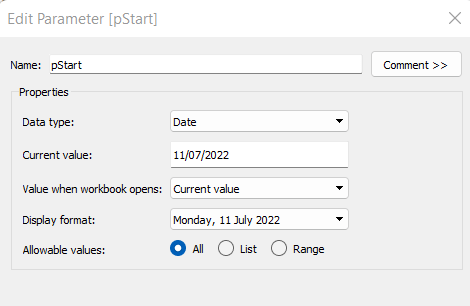
pStart
Date parameter defaulted to 11/07/2022 (11th July 2022), with a display format of <weekday>, <date>
pEnd
As above, but defaulted to 24/07/2022 (24th July 2022).
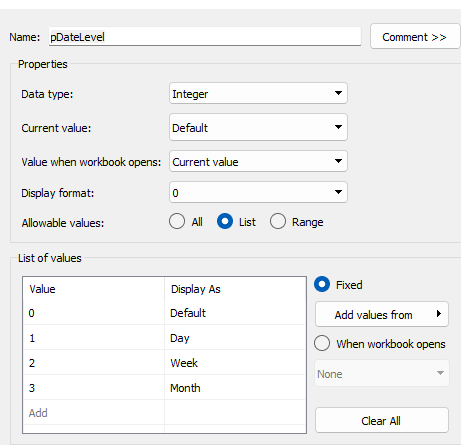
pDateLevel
integer with values 0-3 as listed below, with a text Display As. Defaulted to ‘Default’. Note, I am using integers as we will be referencing them in IF statements later, and integers are more performant than comparing strings.
With these parameters, we can then build
Date To Display
DATE( IF [pDateLevel] = 0 THEN IF DATEDIFF(‘day’, [pStart], [pEnd]) < 28 THEN DATETRUNC(‘day’,[Date]) ELSEIF DATEDIFF(‘day’, [pStart], [pEnd]) < 90 THEN DATETRUNC(‘week’, [Date]) ELSE DATETRUNC(‘month’, [Date]) END ELSEIF [pDateLevel] = 1 THEN DATETRUNC(‘day’,[Date]) ELSEIF [pDateLevel] = 2 THEN DATETRUNC(‘week’,[Date]) ELSE DATETRUNC(‘month’, [Date]) END )
If the pDateLevel is set to 0 (ie Default), then compare the difference between the dates entered and truncate to the ‘day’ level if the difference is less than 28 days, the ‘week’ level if the difference is less than 90 days, else truncate to the month level (which will return 1st of the month). Otherwise, if the pDateLevel is 1 (ie Day), truncate to the day level, if it’s 2 (ie Week), truncate to the week level, else use the month level.
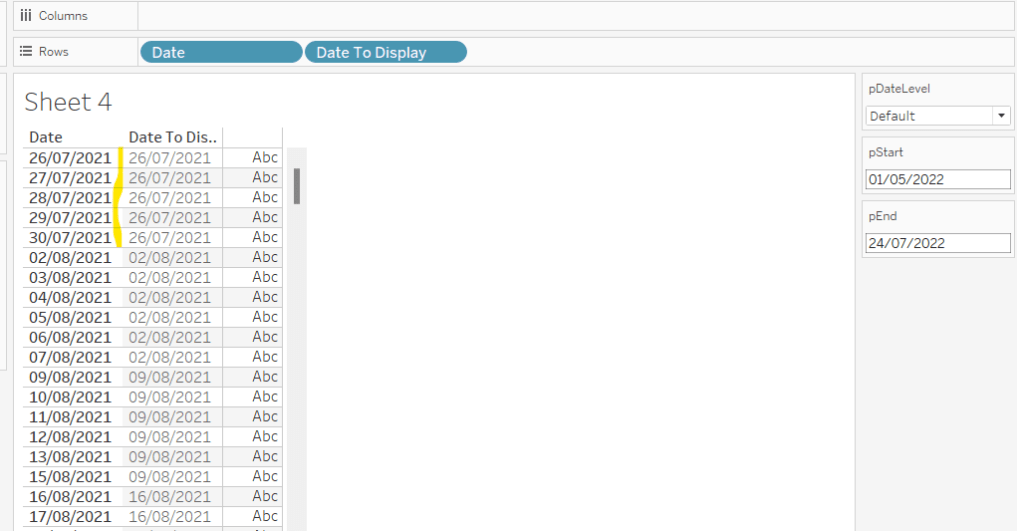
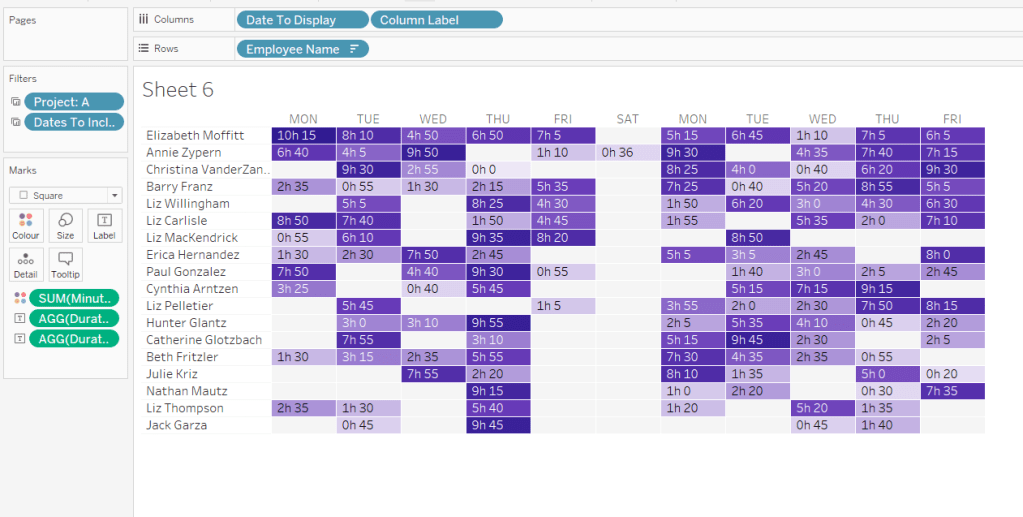
To see how this field is working, add Date and Date To Display to Rows, both as discrete exact dates (blue pills), display the parameter fields, and adjust the values. Below you can see that using the Default level, between 1st May and 24th July, the 1st day of the associated week against each date is displayed.
Building the Bar Chart
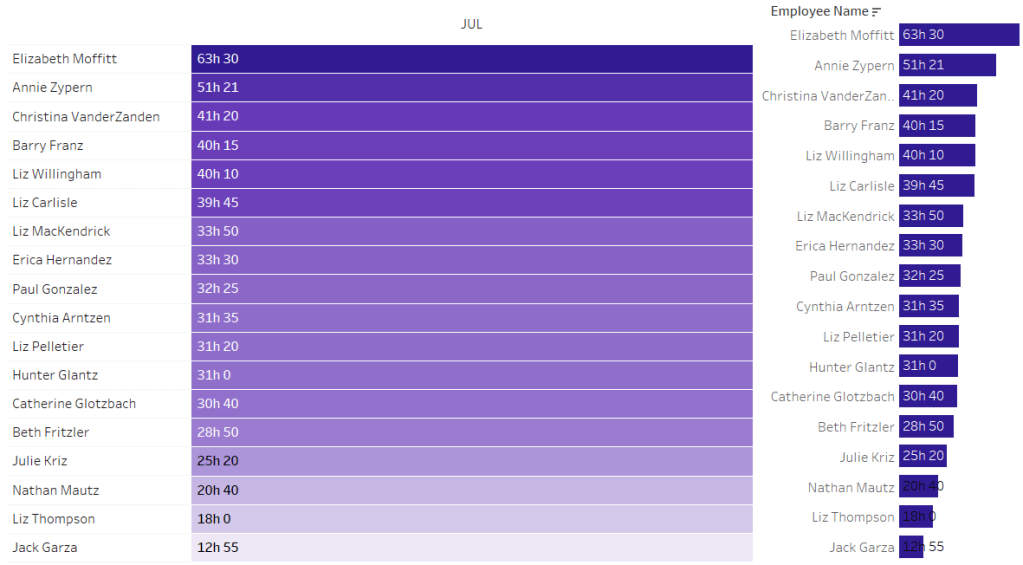
This is the simpler of the two charts to build, so we’ll start with this.
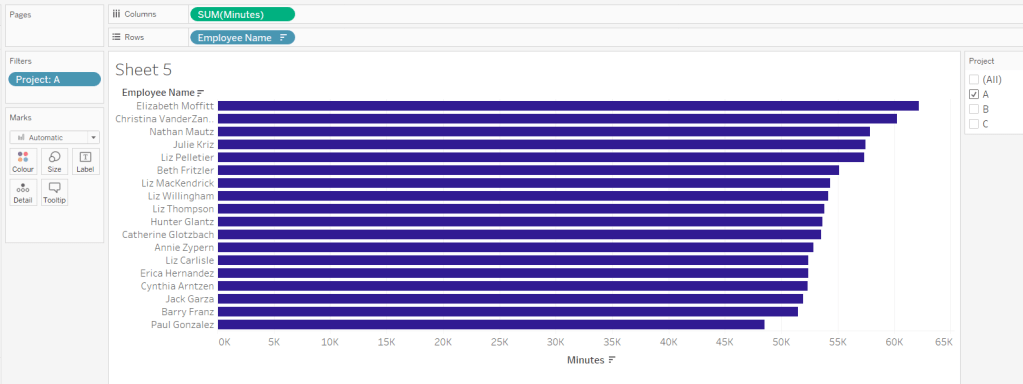
Add Employee Name to Rows, and Minutes to Columns. and sort by Minutes descending (just click the sort descending button in the toolbar). Add Project to Filter, select ‘A’ and then show the filter. Adjust the colour of the bars. I used #311b92
We need to restrict the data displayed based on the date range defined.
Dates to Include
[Date]>=[pStart] AND [Date]<=[pEnd]
Add this to the Filter shelf and set to True.
Now, we need to label the bars, and need new fields for this.
Duration (hrs)
FLOOR(SUM([Minutes])/60)
Using the FLOOR function means the value is always rounded down to the relevant whole number (eg 60.5 and above will still result in 60).
Format this field to be 0 decimal places with a ‘h’ suffix
Duration (mins)
SUM([Minutes])%60
Modulo (%) 60 means return the remainder when divided by 60. Format this to be 0 dp.
Add both these fields to the Label shelf, and adjust so the labels are displaying on the same line and are aligned to the left. You may need to increase the width of each row to see them.
Add Project to the Tooltip shelf and update, then remove all gridlines and the axis. Leave the Employee Name column visible for now. We’ll come back to this later.
Building the Heat Map
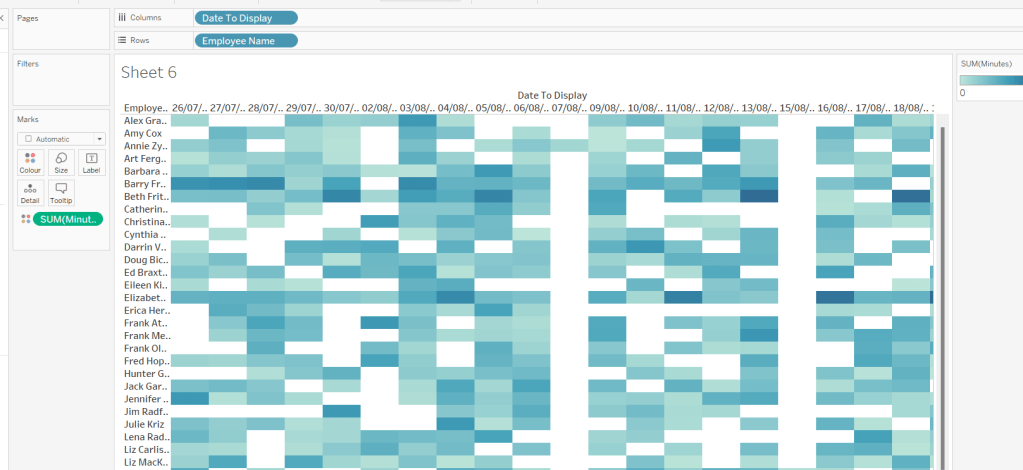
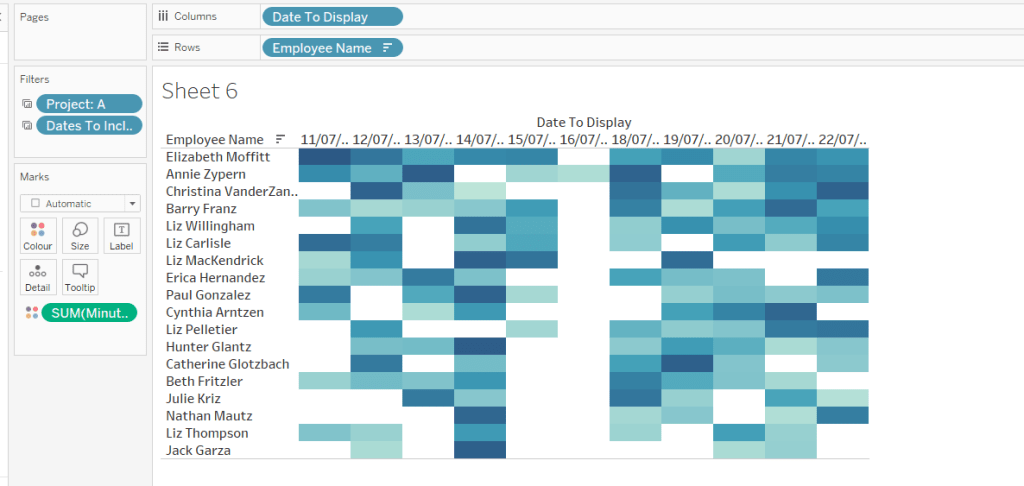
On a new sheet, add Employee Name to Rows and Date to Display as a discrete exact date (blue pill) to Columns. Add Minutes to Colour and a heat map should automatically display.
Go back to the bar sheet, and set both the Project and the Dates To Include filters to apply to the heat map worksheet as well (right click each pill on the filter shelf -> Apply to Worksheets -> Selected Worksheets and select the other one you’re building).
Then click the sort descending button in the toolbar, to order the data as per the bar.
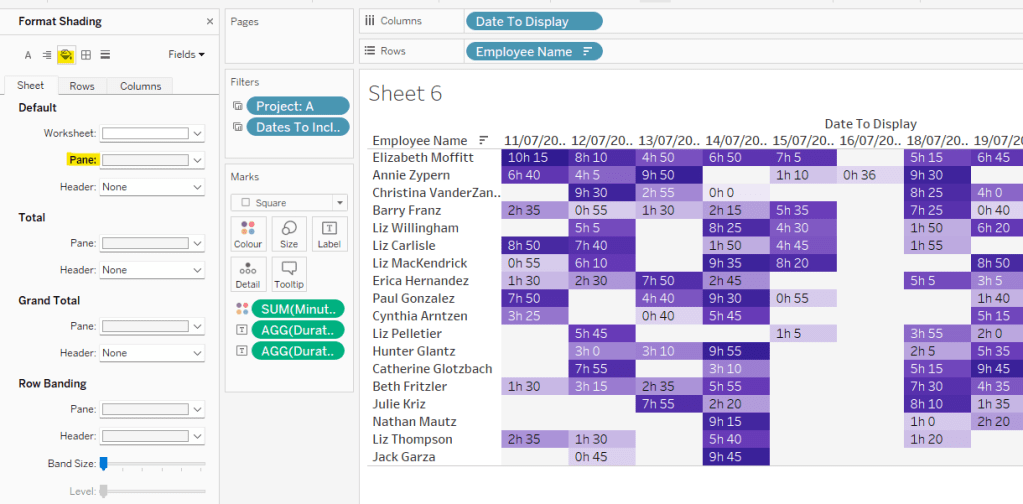
Add both Duration (hrs) and Duration (mins) to the Label shelf and change the mark type to Square. Adjust the label so it is on the same line and left aligned (I added a couple of spaces to the front of the text so it isn’t so squashed).
Edit the colours of the heat map – I used a colour palette I had installed called Material Design Deep Purple Seq which seemed to match, but may not be installed by default.
Format the main heat map section to have a light grey background by right clicking on the table -> format and setting the shading of the pane only to pale grey
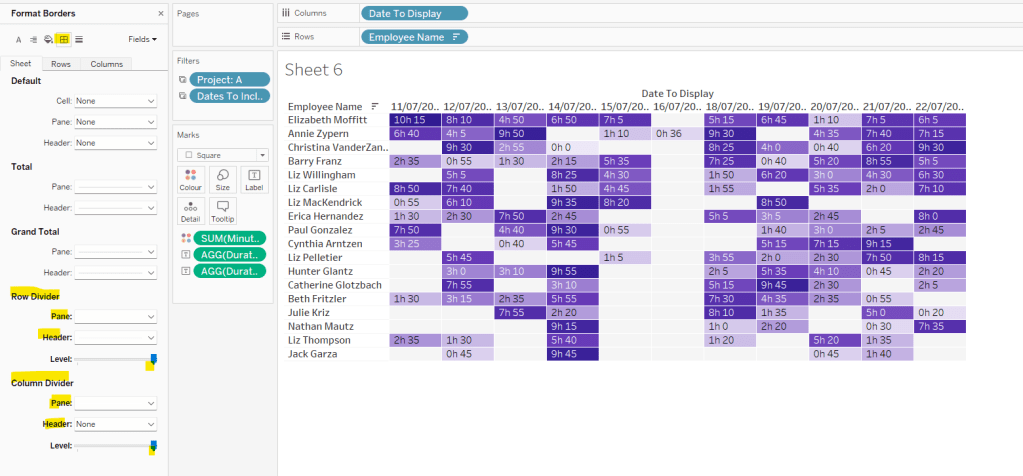
Then adjust the row dividers of the pane to be white, and the header to be pale grey (set the level to the max).
Adjust the column dividers similarly, setting the pane to be white, the header to none, and level to max
Next we want to deal with the column labels. By default they’re showing the date, but we want this to show something different depending on the date level being displayed.
Column Label
IF (([pDateLevel] = 1) OR (([pDateLevel] = 0) AND (DATEDIFF(‘day’, [pStart],[pEnd])<28))) THEN UPPER(LEFT([Weekday],3)) ELSEIF (([pDateLevel] = 2) OR (([pDateLevel] = 0) AND (DATEDIFF(‘day’, [pStart],[pEnd])<90))) THEN ‘w/c ‘ + IIF(LEN(STR(DATEPART(‘day’, [Date To Display])))=1,’0’+STR(DATEPART(‘day’, [Date To Display])), STR(DATEPART(‘day’, [Date To Display]))) + ‘-‘ + UPPER(LEFT(DATENAME(‘month’, [Date To Display]),3)) ELSE UPPER(LEFT(DATENAME(‘month’, [Date To Display]),3)) END
If the date level is ‘day’ or the date level is the default and the start & end are less than 28 days apart, then show the day of the week (1st 3 letters only in upper case).
Else if the date level is ‘week’ or the date level is the default and the start & end are less than 90 days apart, then show the text ‘w/c’ along with the day number (which should be 01 to 09 if the day is < 10) a dash (-) and then the 1st 3 letters of the month in upper case.
Else, we’re in monthly mode, so show the 1st 3 letters of the month in upper case.
Add this to the Columns shelf, then hide the Date To Display field (uncheck show header), hide field label for columns and hide field label for rows. Format the Employee Name field so its a different font (I changed to Tableau Book).
Again play around with the parameters and see the changes to the column label.
Finally, add Project to the Tooltip and update. You’ll need to adjust the formatting of the Date To Display field to get it into <day of week>, <date> format.
Adding to the Dashboard
When you add the two charts to the dashboard, you’ll need to set them side by side within a horizontal layout container. Remove the titles. They both need to be set to ‘fit entire view’, and the width of the heat map chart should be fixed (I set it to 870px), so it retains the space it stays in, even when you only have 1 month displayed.
Once you’re happy the order of the heat map employees matches the order of your bar chart, uncheck show header against the Employee Name field on the bar chart.
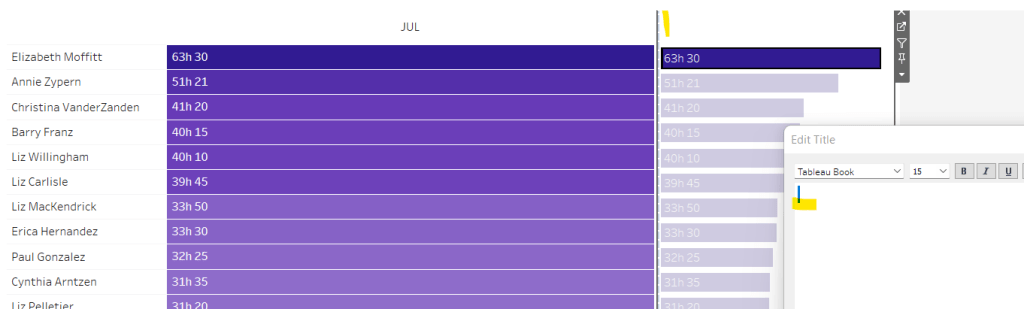
To get the bars to align with the heat map, I showed the title of the bar, removed the text and just entered a space. This dropped the bars so they just about aligned. You may need to tweak by increasing the size of the bars slightly.
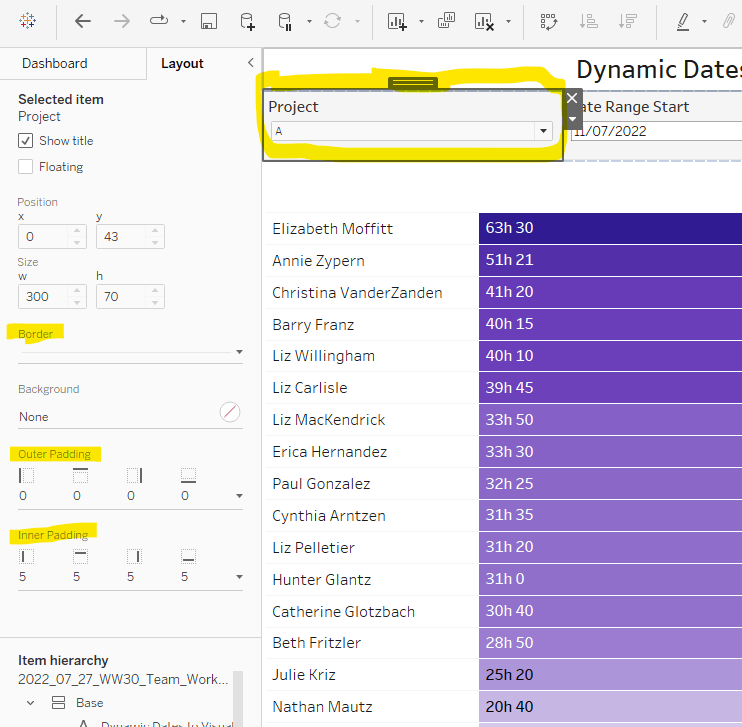
Finally, you need to move your parameters around. I placed them in a horizontal container, whose background colour was set to pale grey. I then set the objects within to be equally spaced by setting the container to Distribute Contents Evenly.
I then altered the padding of each of the parameter objects to have outer padding = 0 and inner padding = 5 and added a pale grey border surrounding each.
It was Sean Miller’s turn to set the challenge this week, where the primary focus was to find the highest number of consecutive months where the monthly sales value was higher than the previous month.
This was a table calculations based challenge, and I always tackle these by building out the data required in a tabular format. The challenge was also reminiscent of a previous challenge Sean has set, which I’ve blogged about here, and admit I used as a reference myself.
So let’s get started.
To start with, we need the month date, the Sub-Category, the Sales value and the difference in Sales from the previous month. For the month date, I like to define this explicitly
Order Date Month
DATE(DATETRUNC(‘month’,[Order Date]))
This aligns all Order Dates to the 1st of the relevant month.
Add Sales Category, Order Date Month (set to discrete exact date blue pill), and Sales into a view, then set a Quick Table Calculation of Difference on the Sales pill
Edit the table calculation to compute by Order Date Month only, so the previous calculation restarts at each Sub-Category.
Then drag this pill from the marks card into the left hand data pane to ‘bake’ the calculated field into the data model. Name the field Sales Diff. The re-add Sales back into the view too, so you can double check the figures.
Identify whether there is an increase with the field
Diff is +ve
IF [Sales Diff]>0 THEN 1 ELSE 0 END
Add this into the view too, and verify the calculation is computing by Order Date Month only again.
Now we need to work out if the row matches the previous value
Match Prev Value
LOOKUP([Diff Is +ve],-1) = [Diff Is +ve]
The LOOKUP is looking at the previous row (identified by the -1) and comparing to the current. If they match then it returns True else False.
Again add into the view, and again double check the table calc settings. In this case there is nested calculations so you need to double check the settings against each calc referenced in the drop down
Now we need to work out when there are consecutive increases, and how many of them there are
Increase Streak
IF (NOT([Match Prev Value])) AND ([Diff Is +ve] = 1) THEN 1 ELSEIF [Diff Is +ve] = 1 THEN ([Diff Is +ve]+PREVIOUS_VALUE([Diff Is +ve]))
END
If the current row has a +ve difference and the previous row wasn’t +ve, then we’re at the start of an increase streak, so set to 1. Else, if the current row has a +ve difference then we must be on a consecutive increase, so add to the previous row, and this becomes a recursive calculation, so builds up the values..
Add this onto the view, set the table calc settings, and you can see how this is working…
So now we’ve identified the streaks in each Sub-Category, we just want the maximum value.
Longest Streak
WINDOW_MAX([Increase Streak])
Add this and set the table calc setting again. You’ll see the max value is spread across every row per Sub-Category.
Finally we need to identify Sales values in the months when the streak is at its highest.
Sales of Month with Longest Streak
IF [Longest Streak]=[Increase Streak] THEN SUM([Sales]) END
Add this into the view again (don’t forget those table calc settings), and you’ll notice that for some Sub-Categorys there are multiple points with the same max streak
With all this we can now build the viz, which is relatively straight forward….
Add Order Date Month (exact date, continuous green pill) to Columns, Sub-Category to Rows and Sales to Rows. Edit the Sales axis to be independent, then change the line type of the Path to stepped
Add Sales of Month with Longest Streak to Rows and set to dual axis, and synchronise. Make sure the mark type of the 2nd axis is set to circle, and remove Measure Names from the colour shelf of both marks.
Manually set the colour of the line chart to grey. Add Longest Streak to the Colour shelf of the circle marks card. Adjust the colour to use the green palette, set to stepped of 5 value and ensure the range starts at 0 and ends at 5 (don’t forget to edit the table calc settings!).
Now add Longest Streak as a discrete blue pill to the view too.
This is all the core components. The last thing we need to do is sort the list. I wasn’t entirely sure how it had been sorted, apart from the largest Longest Streak at the top. I created a new field for this
Sort
[Longest Streak]*-1
and added this as a blue discrete pill in front of Sub-Category….
…, then hid the column.
Then just apply the tooltip and relevant formatting on the chart.
For the legend, I created a new field
Legend
CASE [Sub-Category] WHEN ‘Art’ THEN 0 WHEN ‘Chairs’ THEN 1 WHEN ‘Labels’ THEN 2 WHEN ‘Paper’ THEN 3 WHEN ‘Phones’ THEN 4 ELSE 5 END
and added this into a new sheet as below
The components then just need to be added to the dashboard. My published version is here.
For week 30, #WorkoutWednesday alumni Emma Whyte returned re-posting this challenge which was originally set in Week 41 of 2017 (see here). The idea behind this was to see how the challenge could be achieved using features that have been released since that challenge – in this case set actions.
I’ve been doing the #WorkoutWednesday challenges since they were first introduced, so I completed the original challenge, which is posted here.
Despite it being over 2 1/2 years ago, I had a strong recollection as to what was required to achieve this. So the challenge I set myself, was to recreate without looking at my own solution.
Building out the data
This is one of those challenges where we can build the data out into a table to check the functionality before building the actual viz. I always like to do this where possible, as I find it a good reference to make sure I’m getting the logic & the calculated fields I need right.
Start by adding State & City to Rows and add Sales & Profit via Measure Names on Columns .
As the challenge is to use Set Actions, then naturally, we’re going to need a Set. The Set we need is based on State with the idea being that when there is a State(s) in the set, then the City will display instead.
Selected State
Right click on State and Create -> Set. Select an option in the dialog, eg Alabama say
We will need to show the marks based on State or City depending on whether a State has been selected or not. We need a single field that we will use in the viz that displays the dimension we need to show
Display Value
IF [Selected State] THEN [City] ELSE [State] END
Add this onto the Rows and you’ll see how this is working
We can test the functionality of putting values into and out of the set without the need for the dashboard action at this point, by right-clicking on Selected State and selecting Show Set – the list of set values to select will display (a bit like a filter list).
We need a way to figure out what rows to show – how to identify whether there’s anything selected in the set.
Count States Selected
{FIXED : COUNTD(IF [Selected State] THEN [State] END)}
By being an LOD, this will set the count of the items in the set across all the rows in the data. Add to the sheet so you can see how this works
So we want to show information when either there isn’t anything in the set, or for the rows associated to the Selected States only
Records to Show
[Count States Selected] = 0 OR [Selected State]
Add this to Rows and test out… with no State in the set, all the rows are True
but with a State selected, only the rows associated to that State are True
But we seem to have too many marks showing when there’s nothing in the set….?
That’s fine.. just take City out of the view now, and if you deselect all States you should get the 48 rows we’re going to start with listed, and all are Records to Show = True. The Sales & Profit values will also now be aggregated to the appropriate level.
Building the Viz
Ensure your Selected States set is empty, and build out the scatter plot
Profit on Columns
Sales on Rows
Display Value on Detail & Label
Records to Show on Filter set to True
Mark Type = Shape set to x
Verify the functionality by clicking a State in the list, and the view should change to show the City.
We need to colour the marks based on Profit
-ve Profit?
SUM([Profit])<0
Add this to the Colour shelf and adjust colours accordingly.
Finally we need to look at how the title/subtitle changes based on which level we’re at.
Title
IF [Count States Selected] = 0 THEN ‘Sales vs. Profit by State’ ELSE ‘Sales vs. Profit for ‘ + [State] END
Subtitle
IF [Count States Selected] = 0 THEN ‘Select a state to drill down to city level’ ELSE ‘Double-click a city to drill up to state level’ END
Add these onto the Detail shelf, then they’ll be available to reference in the Title of the sheet.
And then adjust the Tooltip, and we’re pretty much ready to go.
Adding the Set Action
Create a dashboard and add the scatter plot sheet to it.
Add a dashboard action to Change Set Values which runs on the Select action, and assigns values to the Selected State. On clearing the selection, values are removed from the set.
And that should pretty much be it. My published version is here. I thoroughly enjoyed the ‘throwback’ to previous challenges, and would like to see this theme continue on occasion.






 Donna + DataViz