Retro month continues, with Kyle setting this challenge to recreate Andy Kriebel’s WOW challenge from 2017. A lot has moved on with the product since 2017 and this is a great example of how it can be simplified.
I completed the original challenge (see here) and was having a look to refresh myself… boy! it took a LOT more effort – sometimes I surprise myself that I managed it!
Now that we have parameters and parameter actions, the solution is WAY more simpler.
So let’s crack on…
As alluded to above, we’re going to need a parameter which is going to store the name of the state ‘on click’
pSelectedState
string parameter defaulted to ” (ie empty string)
We also need to display either the name of a State or a City dependent on the value of this parameter
Display Name
IF [pSelectedState] = ” THEN [State] ELSE [City] END
Pop these into a tabular view with Sales and Profit and show the pSelectedState parameter so we can test things out.
When the pSelectedState is empty, a row is displayed per State
but when pSelectedState contains the name of a State (or any text to be honest), a row is displayed per City (note all Cities are displayed, at this point, not just those for the State).
To restrict the list of Cities just to those that match the State in the pSelectedState parameter, we need
Records to Filter
[pSelectedState] = ” OR [pSelectedState] = [State]
Add this to the Filter shelf and set to True. Now the list should be restricted to the Cities in the State.
So lets’ start to build the basic viz.
Set the pSelectedState parameter to empty, then add Sales to Columns, Profit to Rows and Display Name to Text. Add Records to Filter To Filter and set to True. Change the mark type to Circle.
Create a new field
Profit Ratio
SUM([Profit]) / SUM([Sales])
format to % with 1 dp and then add this to the Colour shelf.
Add this sheet to a dashboard, then add a dashboard parameter action
Set State
on select of a mark on the scatter plot chart, set the pSelectedState parameter with the value from the Display Name field.
If we now click on a state, the cities should be displayed instead – great! But if we now click a city, we don’t get what we want – boo! This is because the selection of a City has passed the name of the City which is stored in the Display Name field into the parameter, so the scatter is trying to display records relating to a State = City Name which doesn’t exist.
To resolve this, we need to pass a different field into the parameter action
Drill Value
IF [pSelectedState] = ” THEN [State] ELSE ” END
Add this to the Detail shelf of the Scatter plot viz, then update the dashboard action to pass this field into the pSelectedState parameter instead
Reset the pSelectedState parameter to empty string, and then test again – clicking on a state and then clicking on a city should get you back to the states.
And that’s the core functionality achieved with 1 parameter, and 2 calculated fields!
We just need some additional fields to provide the relevant display for the title & sub title
Title text
IF [pSelectedState] = ” THEN ‘by State’ ELSE ‘for ‘ + [pSelectedState] END
Subtitle
IF [pSelectedState] = ” THEN ‘Click a State to drill down to City level’ ELSE ‘Click a City to drill up to State level’ END
Add these to the Detail shelf of the scatter viz, and then update the title of the sheet to reference the fields
Update the Tooltip and adjust the size of the axis fonts, and tidy up the dashboard layout, and you should be good to go!. My published viz is here.
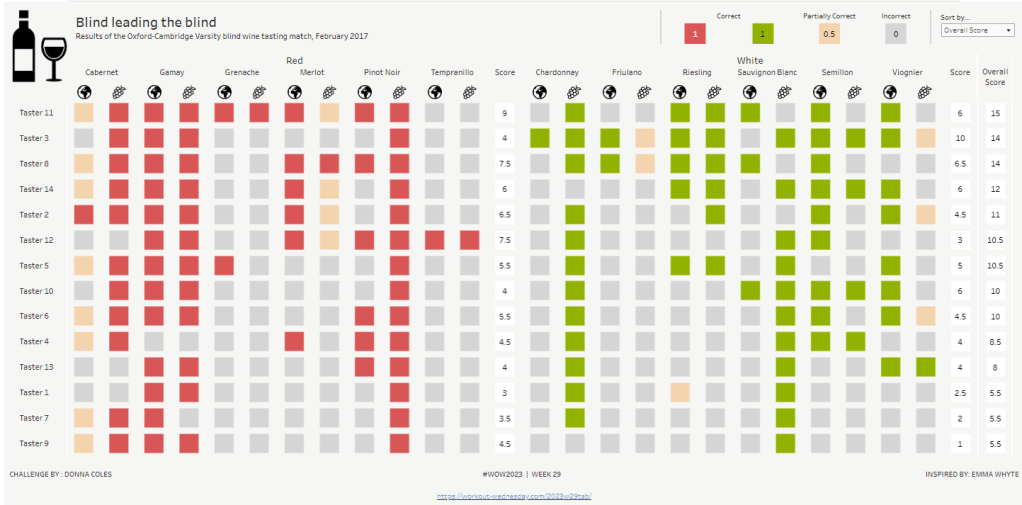
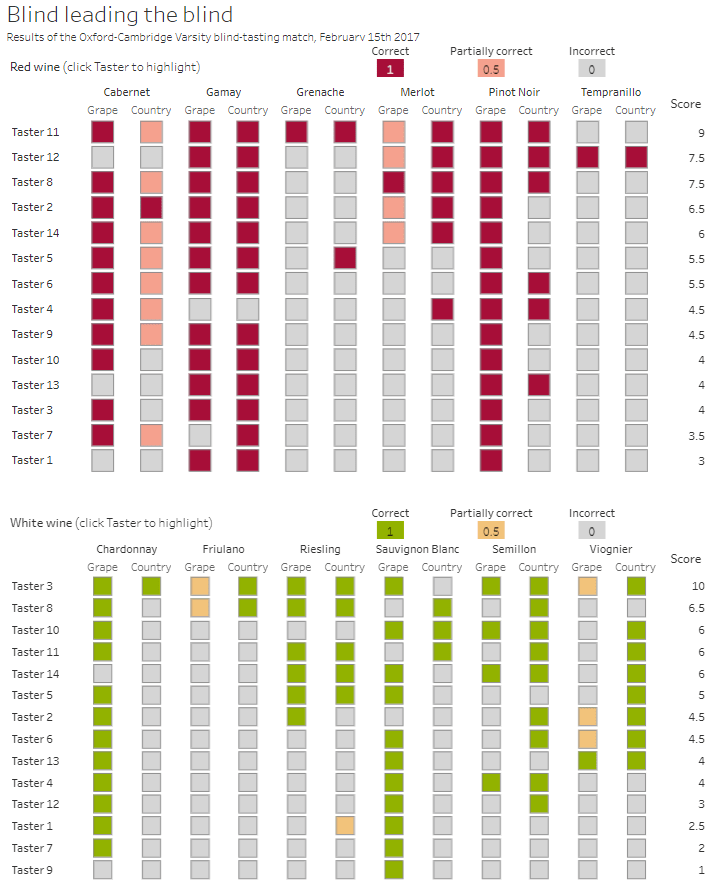
This week, it was my turn to set the #WOW2023 challenge for ‘retro’ month, and I chose to revisit a challenge from May 2017, that was originally set by one of the original ‘founders’ of WorkoutWednesday, Emma Whyte.
The original challenge looked like this :
As I said in the challenge post, I chose this I this challenge as it’s a different type of visual we don’t often see in WOW; it uses a different dataset that interests me – wine!; and as Emma’s website, where she hosted the original requirements for her challenges, is no longer active, it’s possible many won’t know of the existence of this challenge (it pre-dates the current WOW tracking data we have).
Building the core viz
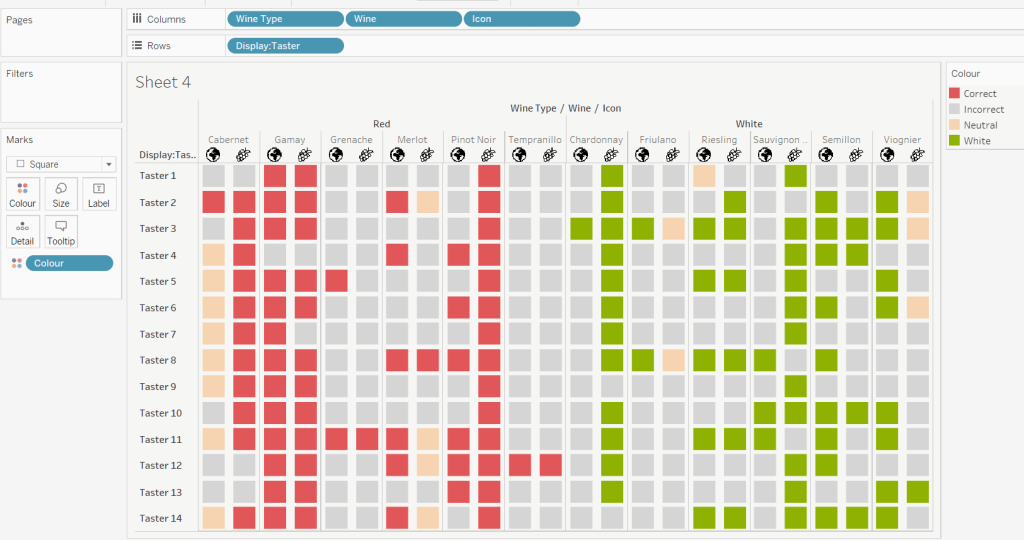
Firstly, we want to build out the basic grid. For that we need a couple of calculated fields
Right click on the Icon field and select Image Role > URL
Add Wine Type, Wine and Icon to Columns and Display:Taster to Rows
Change the mark type to square.
Here we’re making use of the image role functionality in the header of the table to display images stored on the web, without the need to download them locally.
Create a new field
Colour
IF [Score] = 1 THEN [Wine Type] ELSEIF Score = 0 THEN ‘Grey’ ELSE ‘Neutral’ END
Add this to the Colour shelf and adjust colours accordingly. Increase the size of the squares so they fill the space better, but still have separation between them.
Set the background colour of the worksheet to the grey/beige (#f6f6f4).
Note – I noticed later on that the colour legend in the screen shots has the words ‘correct’ and incorrect’ rather than ‘red’ and ‘grey’. This was due to an un-needed alias I had set against the field, so please ignore
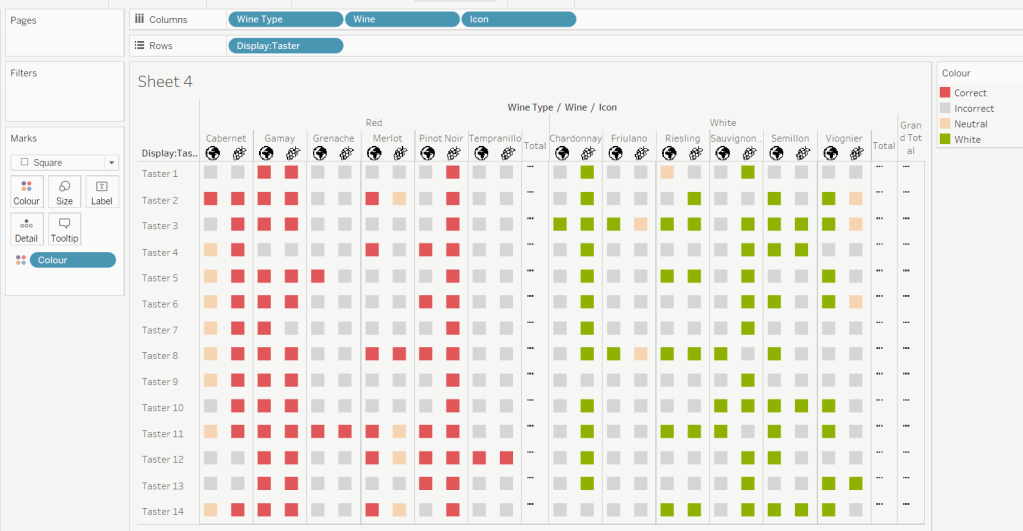
Via the Analysis -> Totals menu, add all subtotals & also show row grand totals. This will make the display look a bit odd initially.
Right-click on the Wine pill in the Columns and uncheck the Subtotals option. This should mean there are 3 additional columns only – a total for each wine type and the grand total.
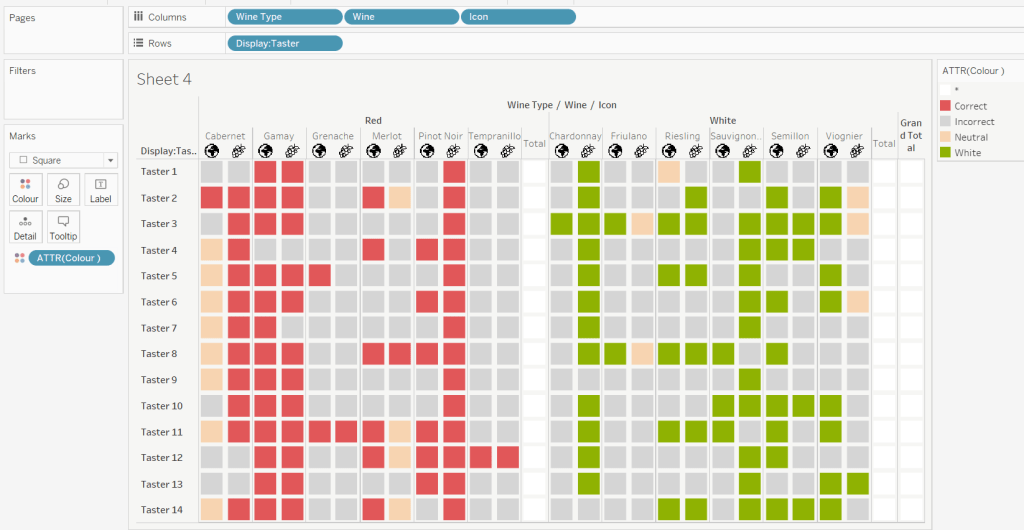
To get a single square to display in the totals columns, right-click on the Colour field in the marks card area, and change from a dimension to an attribute. The field will change from displaying Colour to ATTR(Colour) and an additional option for * will display in the colour legend – set this to be white
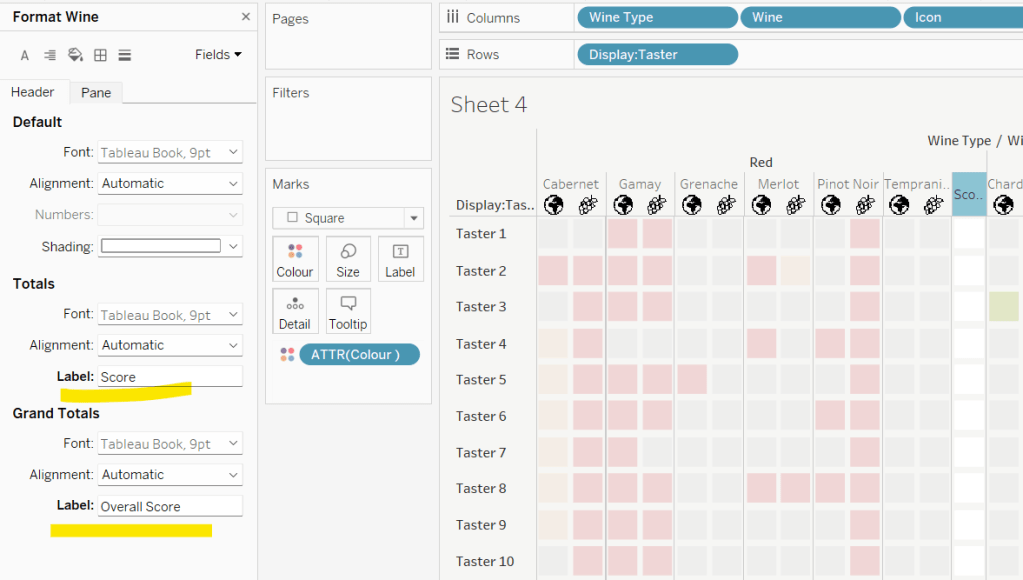
To change the word ‘Total’ in the heading to ‘Score’, right click on the word ‘Total’ and select format. In the left hand pane, change the Label of the Totals section to Score. Repeat for the ‘Grand Totals’ by right clicking on ‘Grand Totals’ in the table, selecting format and changing the label for that too to ‘Overall Score’.
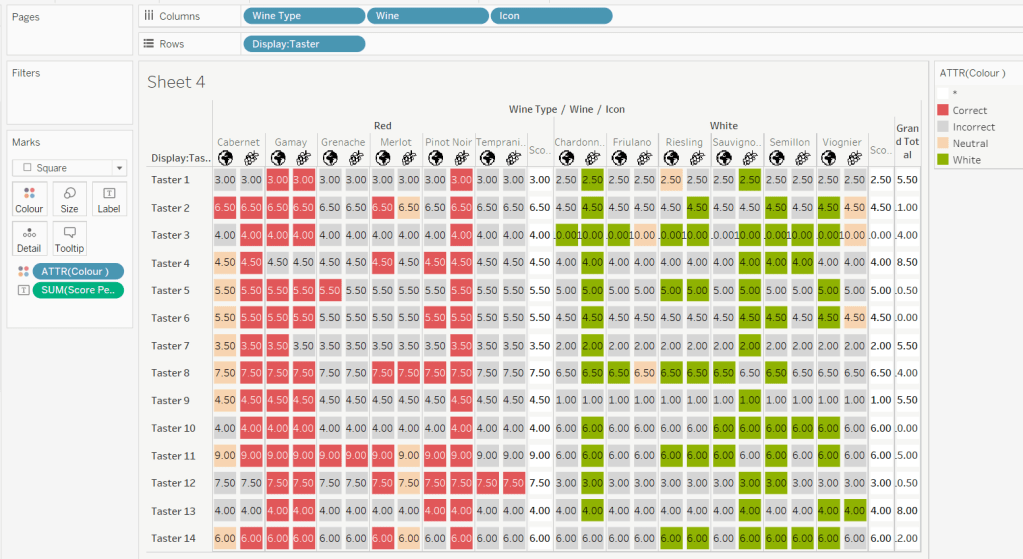
We need to label the totals with the score. For this we first need to get a score for each taster per wine
Score Per Taster
{FIXED [Taster], [Wine Type]:SUM([Score])}
If we just added this to the Label shelf, every square gets labelled with the total, which isn’t what we want.
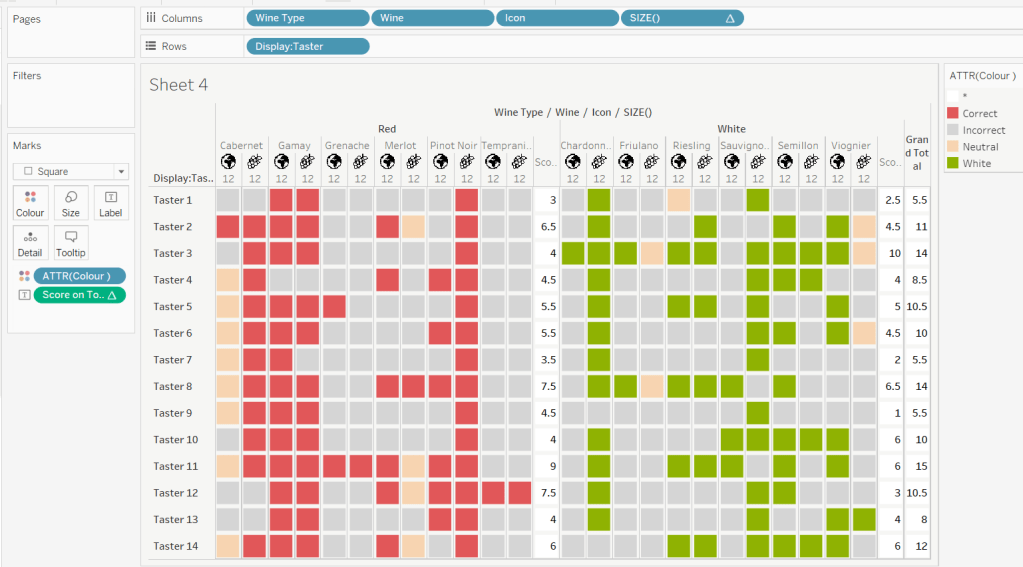
We need to work out a way to just show the label on the total columns only. For this we can make use of the SIZE() table calculation.
To see how we’re going to use this, double click into the Columns and type SIZE(), then change the field to be a blue discrete pill. Edit the table calculation and set the field to compute by Wine and Icon only.
You’ll see that the SIZE() field in the Columns has added the number 12 as part of the heading, which is the count of wines associated to the wine type (ie 12 red wines and 12 white wines). There is no SIZE() value displayed under the total columns, but these actually have a size of 1, so we’re going to exploit this to display the labels (note – this approach wouldn’t work if where was only 1 wine for one of the wine types).
Score on Total
IF SIZE() = 1 THEN SUM([Score Per Taster]) END
Set the default number format of this field to be Standard, which means the result will display either whole or decimal numbers.
Add this onto the Label shelf instead of the other field, and adjust the table calculation as described above to compute by Wine and Icon only.
You can now remove the SIZE() field from the Columns.
Align the scores centrally.
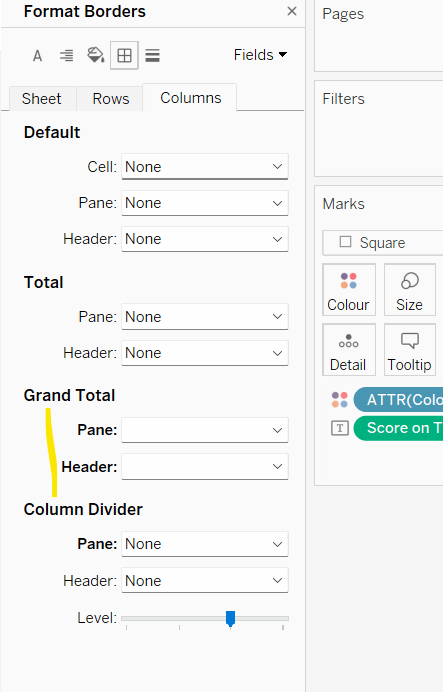
Remove row & column dividers from each cell, and the totals, but set a white column divider for both the pane & header of the Grand Total column.
Format the text for the Wine Type and Wine and Totals fields. Align the text for the Wine field to the Top.
Hide field labels for rows and columns.
Applying the Tooltip
The text when hovering over each square needs to display different wording depending on the score.
Tooltip – Score Text
IF [Score] = 1 THEN ‘correctly identified’ ELSEIF [Score] = 0.5 THEN ‘partially identified’ ELSE ‘was unable to identify’ END
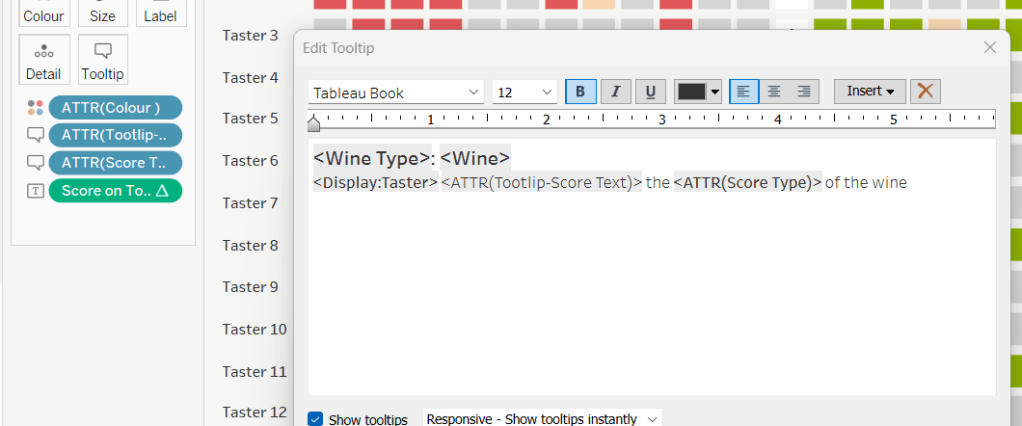
Add this to the Tooltip shelf along with the Score Type field. Modify the text accordingly
Applying the sort
To control the sorting, we need a parameter
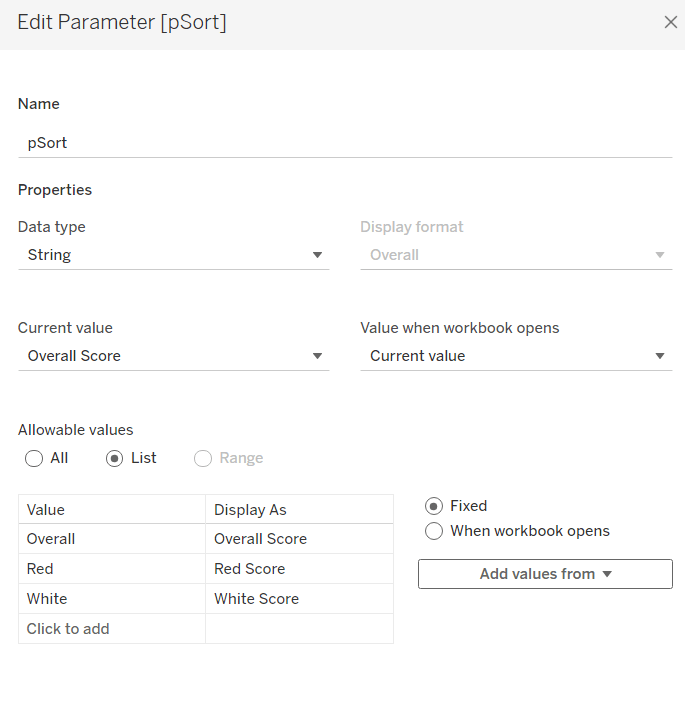
pSort
string parameter with list options, defaulted to ‘Overall Score’
and we also need fields to capture the different scores for each type of wine per taster
Red Score
{FIXED [Taster]:SUM( IF [Wine Type] = ‘Red’ THEN [Score] END)}
White Score
{FIXED [Taster]:SUM( IF [Wine Type] = ‘White’ THEN [Score] END)}
Overall Score
[White Score] + [Red Score]
Then we need a calculated field to drive sorting based on the option selected and the fields above
Sort By
CASE [pSort] WHEN ‘Overall’ THEN [Overall Score] WHEN ‘Red’ THEN [Red Score] ELSE [White Score] END
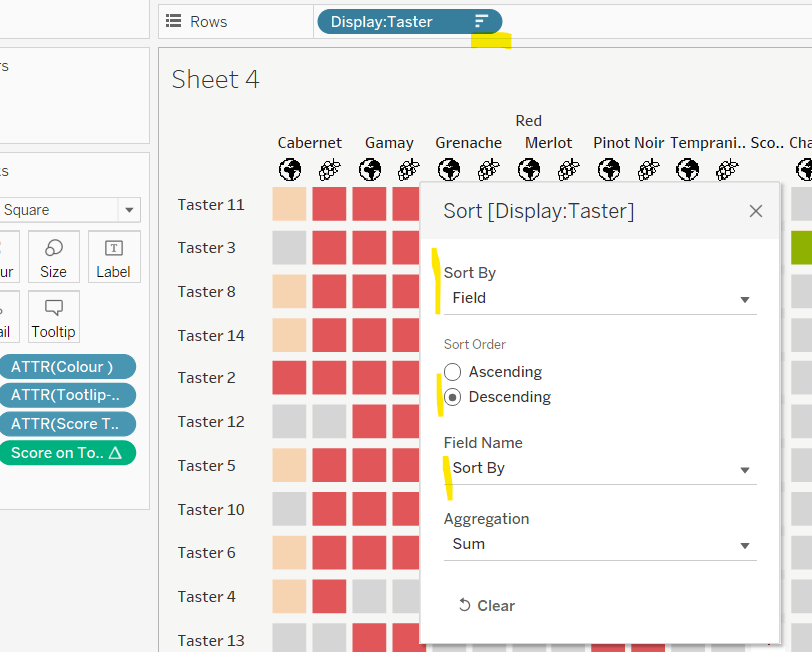
Then right click on the Display:Taster field on the Rows and select Sort, and amend the values to sort by field Sort By descending
Building the legend
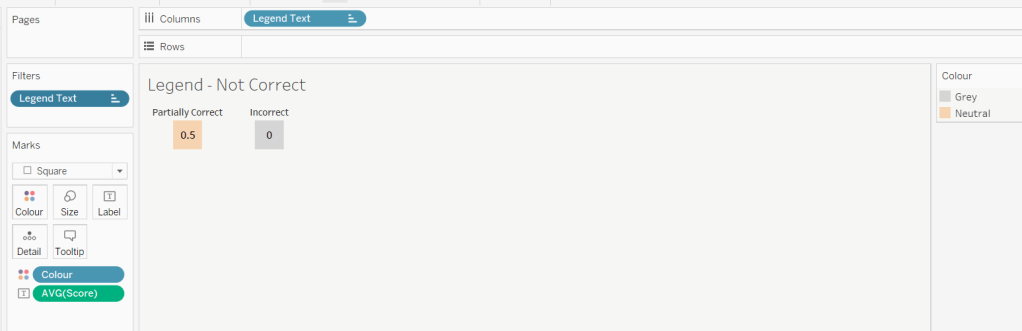
I did this using 2 sheets. First I created a new field
Legend Text
IF [Score] = 1 THEN ‘Correct’ ELSEIF Score = 0 THEN ‘Incorrect’ ELSE ‘Partially Correct’ END
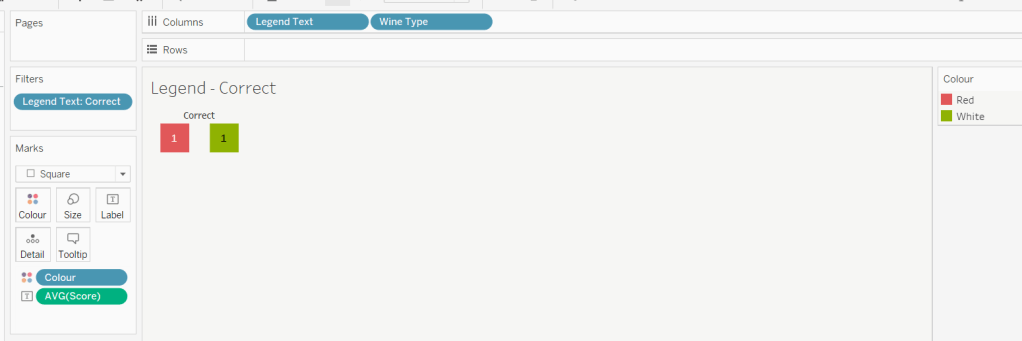
Then I create a viz as follows
Add Legend Text and Wine Type to Columns
Add Legend Text to Filter and set to ‘Correct’
Change Mark type to Square and increase size
Add Colour to Colour shelf
Add Score as AVG to Label and format to number standard. Align centrally
Uncheck show header against the Wine Type field , and hide field labels for columns against the ‘legend Text’ column heading.
Remove all column/row dividers and set the worksheet background colour.
Turn off tooltips
Duplicate the sheet, and edit the filter so it excludes Correct instead. Remove Wine Type from the columns shelf. Reorder the columns.
Building the dashboard
When building the dashboard, I just used a floating image object to add the bottle & glass image in the top left of the dashboard.
I set the background colour of the whole dashboard to match that I’d set on the worksheets too.
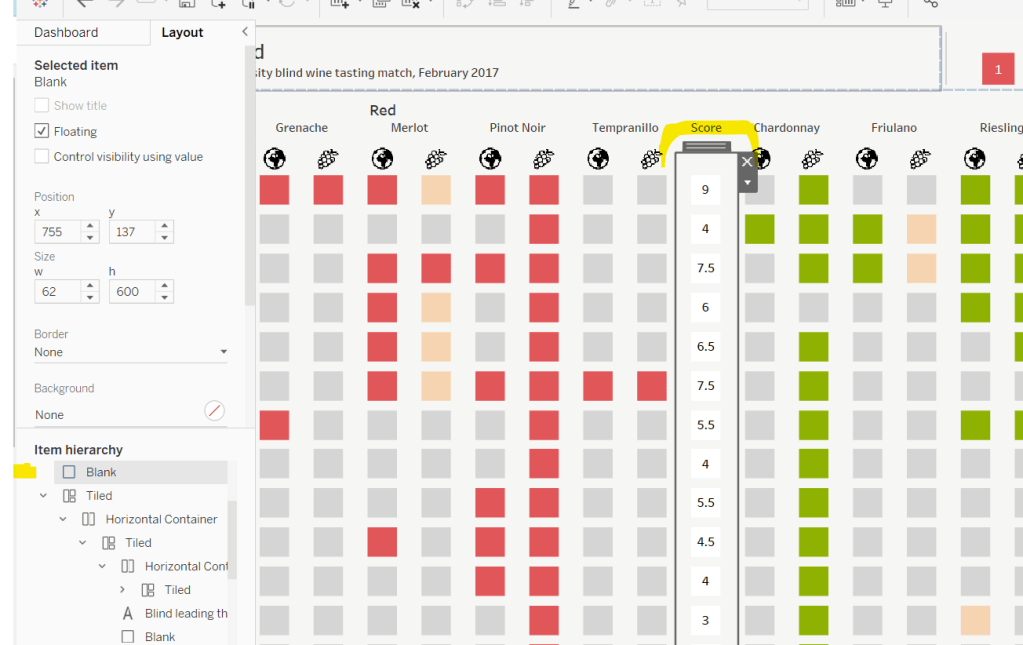
To stop the tooltips from displaying when hovering over the Scores, I simply placed floating blank objects over the score columns – this is a simple, but effective trick – you just need to be mindful of the placement if you ever revisit the dashboard and move objects around. I placed a floating blank over the legends too to stop them being clicked on.
Sean chose to revisit the first challenge he participated in as part of retro-month at WOW HQ. Since the original challenge in 2018, there have been a significant number of developments to the product which makes it simpler to fulfil the requirements. The latest challenge we’re building against is here.
Building the KPIs
This is a simple text display showing the values of the two measures, Sales and Profit. Both fields need to be formatted to $ with 0dp.
Add Measure Names to Columns
Add Measure Names to Filter and limit to just Sales and Profit
Add Measure Values and Measure Names to Text
Format the text so it is centrally aligned and styled apprpriately
Uncheck ‘show header’ to hide the column label headings
Remove row/column dividers
Uncheck ‘show tooltip’ so it doesn’t display
Building the map
The map needs to display a different measure depending on what is clicked on in the KPIs. We will capture this measure in a parameter
pMeasure
string parameter defaulted to Profit
Then we need to determine the actual measure to use based on this parameter
Measure to Display
If [pMeasure] = ‘Profit’ THEN SUM([Profit]) ELSE SUM([Sales]) END
format this to $ with 0 dp
Double click on State/Province to automatically generate a map with Longitude & Latitude fields. Add Measure to Display to Colour. Adjust Tooltips.
Remove the map background via the map ->background layers menu option, and setting the washout property to 0%. Hide the ‘unknown’ indicator.
Update the title of the sheet and reference the pMeasure parameter, so the title changes depending on what measure is selected.
Show the pMeasure parameter and test typing in Sales or Profit and see how the map changes
Building the bar chart
Add Sub-Category to Rows and Measure to Display to Columns. Sort descending. Adjust the tooltip.
Edit the axis so the title references the value from the pMeasure parameter, and also update the sheet title to be similar.
Building the dimension selector control
The simplest way of creating this type of control is to use a parameter containing the values ‘State’ and ‘Sub-Category’. But you are very limited as to how the parameter UI looks.
So instead, we need to be build something bespoke.
As we don’t have a field which contains values ‘State’ and ‘Sub-Category’, we’re going to use another field that is in the data set, but isn’t relevant to the rest of the dashboard, and alias some of it’s values. In this instance I’m using Region.
Right click on the Region field in the data pane and select Aliases. Alias Central -> State and East -> Sub-Category.
On a new sheet add Region to Rows and also to Filter and filter to State & Sub-Category. Manually type in MIN(0.0) into the Columns shelf. Add Region to the Label shelf and align right. Edit the axis to be fixed from -0.05 to 1, so the marks are shifted to the left of the display.
We will need to capture the ‘dimension’ selected, and we’ll store this in a parameter
pDimension
string parameter defaulted to Central
(note – although the fields are aliased, this is just for display – the values passed around are still the underlying core values).
To know capture which dimension has been set we need
State is Selected
[Region] = [pDimension]
Change the mark type to Shape and add State is Selected to the Shape shelf, adjusting so ‘true ‘ is represented by a filled circle, and ‘false’ by open circle. Set the colour to dark grey.
Change the background colour to grey, amend the text style, hide the Region column and the axis, remove all gridlines/row dividers.
Finally, we will need to stop the field from being ‘highlighted’ on selection. So create two fields
True
TRUE
False
FALSE
and add both of these to the Detail shelf. We’ll apply the required interactivity later.
Building the dashboard
You will need to make use of containers in order to build this dashboard. I use a vertical container as a ‘base’ which consists of the rows showing the title, then BANs, a horizontal container for the main body, and a footer horizontal container.
In the central horizontal container, the map and the bar chart should be displayed side by side. We need each to disappear depending on the dimension selected. For this we need
Show Map
[pDimension] = ‘Central’
and
Show Bar
[pDimension] = ‘East’
On the dashboard, select the Map object and then from the Layout tab, select the control visibility using value checkbox and select the Show Map field.
Do the same for the Bar chart but select the Show Bar field instead.
Select the colour legend that should be displayed and make it a floating object. Position where you want, and also use the Show Map field to select the control visibility using value checkbox.
Adding the interactivity
To select the different measure on click of the KPI, we need a parameter action
Set Measure
On select of the KPI chart, set the pMeasure parameter passing in the value from the Measure Names field.
And to select the dimension to allow the charts to be swapped, another parameter action
Set Dimension
On select of the Dimension Selector sheet, set the pDimension parameter, passing in the value from the Region field
Finally, to ensure the dimension selector sheet doesn’t stay ‘highlighted’, add a filter action
Unhighlight Dimension Selector
On select of the Dimension Selector sheet on the dashboard, target the Dimension Selector sheet directly, and pass values setting True = False
Hopefully this is everything you need to get the dashboard functioning. My published viz is here.
For the next few Workout Wednesdays, the coaches will be revisiting old challenges – retro month! Erica kicked the month off with this challenge, to recreate Ann Jackson’s challenge from 2018 Week 38. I completed this challenge at the time (see here), but the additions and changes to the visual display Erica incorporated meant I couldn’t just republish it 🙂
So I built it from scratch using the data source from the google drive Erica referenced in the requirements (which I believe may be why my summary KPIs didn’t actually match Erica’s).
There’s a heck of a lot going on in this challenge – it certainly took some time to complete, which may mean this blog becomes quite lengthy… I will endeavour to be as succinct as I can, which may mean I don’t explicitly state every step, or show lots of screen shots.
Setting up the parameters
I used parameters and subsequently dashboard parameter actions to build my solution. Erica mentions set actions, but I chose not use any sets.
As a result there’s lots of parameters that need creating
pAggregate
This is a string parameter that contains the list of possible dimensions to define the lowest level of detail to show on the scatter plot (ie what each dot represents). Default to Sub-Category. Note how the Display As field differs from the Value field.
pColour Dimension
This is a string parameter that will contain the value of the dimension used to split the display into rows (where each row is coloured). This will get set by a parameter action from interactivity on the dashboard, so no list of options is displayed. Default to Segment.
pSplit-Colour
boolean parameter to control whether the chart should be split with a row per ‘colour’ dimension, or just have a single row. The values are aliased to Yes/No
pSplit-Year
another boolean parameter to control whether the chart should be split with a column per year or just have a single column. The values are aliased to Yes/No (essentially similar to above)
pX-Axis
string parameter that contains the value of the measure to display on the x-axis. This will be set by a dashboard parameter action, so no list is required. Default to Sales.
pY-Axis
Similar to above, a string parameter that contains the value of the measure to display on the y-axis. This will be set by a dashboard parameter action, so no list is required. Default to Profit.
pSelectedDimensionValue
string parameter that contains the dimension value associated to the mark that a user clicks on when interacting with the scatter plot, and then causes other marks to be highlighted, or a line to be drawn to connect the marks. This will be set by a dashboard parameter action, so no list is required. Default to <nothing>/empty string.
Building the basic Scatter Plot
The scatter plot will display information based on the measures defined in the pX-Axis and pY-Axis parameters. We need to translate exactly what the measures will be based on the text strings
X-Axis
CASE [pX-Axis] WHEN ‘Profit’ THEN SUM([Profit]) WHEN ‘Sales’ THEN SUM([Sales]) WHEN ‘Quantity’ THEN SUM([Quantity]) END
Y-Axis
CASE [pY-Axis] WHEN ‘Profit’ THEN SUM([Profit]) WHEN ‘Sales’ THEN SUM([Sales]) WHEN ‘Quantity’ THEN SUM([Quantity]) END
We also need to define which field will control the lowest level of detail based on the pAggregate dimension
Dimension Detail
CASE [pAggregate] WHEN ‘Category’ THEN [Category] WHEN ‘Sub-Category’ THEN [Sub-Category] WHEN ‘Product’ THEN [Product Name] WHEN ‘Region’ THEN [Region] WHEN ‘State’ THEN [State] WHEN ‘City’ THEN [City] END
Similarly we need to know which field to split our rows by (the colour)
Dimension Row
CASE [pColour Dimension] WHEN ‘Segment’ THEN [Segment] WHEN ‘Category’ THEN [Category] WHEN ‘Region’ THEN [Region] WHEN ‘Ship Mode’ THEN [Ship Mode] END
but as we need different behaviour depending on whether the pSplit-Colour field is yes or no, we need
Row Display
IF [pSplit-Colour] THEN [Dimension Row] ELSEIF [pColour Dimension] = ‘Category’ THEN ‘All Categories’ ELSE ‘All ‘ + [pColour Dimension] + ‘s’ END
If the parameter is true, then just show the value from the Dimension Row, otherwise display as ‘All Categories’ or ‘All Segments’ or ‘All Regions’ etc.
Similarly, as the columns can be split by years or not, we need
Years
IF [pSplit-Year] THEN STR(YEAR([Order Date])) ELSE ” END
Add the fields to a sheet with
Years & X-Axis on Columns
Row Display & Y-Axis on Rows
Dimension Detail on Detail
Dimension Row on Colour
Set the mark type to circle and reduce colour opacity
Edit the axes, so the titles are sourced from the pX-Axis and pY-Axis parameters
Show all the parameters and manually edit the values/change the selections to test the functionality.
Highlighting corresponding marks
Show the pSelectedDimension parameter and hover over a mark in the scatter plot to read the value of the Dimension Detail field. Enter than value into the pSelectedDimension parameter (eg based on what is displayed above, each mark is a Sub-Category, so I’ll set the field to ‘Phones’).
We need to determine whether the value in the parameter matches the dimension in the detail
Highlight Mark
[pSelectedDimensionValue] = [Dimension Detail]
This returns True or False. Add this field to the Detail shelf, then add it as second field on the Colour shelf.
Adjust the default sorting of the Highlight Mark field, so the True is listed before False (sorted descending) – right click on the field > Default Properties > Sort. And ensure the colour fields on the shelf are listed so Dimension Row is above Highlight Mark. If all this is done, then the colour legend show look similar to below, where the Dimension Row is listed before the True/False, and the Trues are listed above the Falses, so the True is a darker shade of the colour.
Add Highlight Mark to the Size shelf and then edit the size legend to be reversed and adjust the sizes so the smaller ones aren’t too small, but you can differentiate (you may need to adjust the overall size slider on the size shelf too).
Making a connected dot plot
Add Order Date at the Year level (blue discrete pill) to the Detail shelf of the scatter plot.
To make the lines join up when the viz isn’t split by year, we need a field
Y-Axis Line
IF NOT [pSplit-Year] AND [pSelectedDimensionValue] = MIN([Dimension Detail]) THEN [Y-Axis] END
This will only return a value to plot on the Y-Axis if pSplit-Year = No and a user has clicked on a mark.
Set the pSplit-Year parameter to No, then add Y-Axis Line to Rows. On the Y-Axis Line marks card, remove Highlight Mark from colour and size and also remove Dimension Row from Colour. Add Order Date at the Year level (blue discrete pill) to Detail. Change the mark type to Line then add Year(Order Date) to Path instead of Detail.
Make the chart dual axis and synchronise the axis.
Play around changing the pSplit-Year parameter and the value in the pSelectedDimension parameter to test the functionality.
Tidy the scatter plot by adjusting font sizes, removing the right hand axis & the gridlines, lightening the row & column dividers, removing row & column label headings. Tidy up tooltips. Add a title that references the parameter values.
Building the Total Marks KPI
Create a new field
Count Marks
SIZE()
and a field
Index
INDEX()
Set this field to be a discrete dimension (right click > convert to discrete)
On a new sheet, add Dimension Row, Dimension Detail and Order Date (set to Year level as blue discrete pill) to the Detail shelf. Add Count Marks to Text. Adjust the table calculation setting of Count Marks so that all the fields are selected.
Add Index to the Filter shelf and select 1. Then adjust the table calculation setting of this field so it is also computing by all fields. Re-edit the filter, and adjust so only 1 is selected. This should leave you with 1 mark. Change the mark type to shape and set to use a transparent shape.
Adjust font size & style, set background colour of worksheet to grey, adjust title, hide tooltips.
Building the X-Axis KPI
For this we need
Total X-Axis
TOTAL([X-Axis ])
Min X-Axis
WINDOW_MIN([X-Axis ])
Max X-Axis
WINDOW_MAX([X-Axis ])
On a new sheet add Dimension Row, Dimension Detail, YEAR(Order Date) to Detail. Add pX-Axis, Total X-Axis, Min X-Axis & Max X-Axis to Text. Adjust all the table calcs of the Total, Min, Max fields to compute using all dimensions listed. Add Index to filter and again set to 1, then adjust the table calc and re-edit so it is just filtered to be 1. Set the mark type to shape and use a transparent shape. Adjust the layout & font of the text on the label. Set background colour of worksheet to grey, adjust title, hide tooltips.
Building the Y-Axis KPI
Repeat the steps above, creating equivalent Total, Min & Max fields referencing the Y-Axis.
Creating the Y-Axis ‘buttons’
We’ll start with creating a Profit button
Create a field
Label: Profit
“Profit”
and
Y-Axis is Profit
[pY-Axis] = ‘Profit’
We will also need the field below for later on
Y-Axis not Profit
[pY-Axis] <> ‘Profit’
On a new sheet double click on Columns and manually type in MIN(1). Add Label: Profit to Text and Y-Axis is Profit to Colour. Change the mark type to bar.
Set the Size of the bar to maximum, adjust the axis to be fixed from 0-1 and hide the axis. Remove all column/row banding, axis line, gridlines etc.
Show the pY-Axis parameter. If the colour legend is set to True (as pY-Axis contains Profit), then adjust the colour to a dark grey. Then change the value of the pY-Axis parameter, which should then display False in the colour legend. Adjust this to light grey. You may need to do this the other way round. Hide tooltips.
Repeat the same process to create separate sheets for Sales and Quantity with equivalent calculated fields (I found the easiest way was to duplicate the sheet and then swap out the fields).
Creating the X-Axis ‘buttons’
Again, just duplicate the above steps but reference the pX-Axis parameter instead.
You should end up with 6 sheets (1 per measure – Sales, Profit, Quantity – per axis), and 18 calculated fields (3 per measure & axis) as a result.
Creating the ‘Select Colour’ buttons
For the Category button, create
Label: Category
‘Category’
and
Colour is Category
[pColour Dimension] = ‘Category’
Build a ‘button’ as a bar chart, using the same principals as above. You will need to show the pColour Dimension parameter to test changing the value to set the different colours.
Repeat the same steps to build 3 further sheets for Region, Segment and Ship Mode.
Building the dashboard
You will need to use layout containers to arrange all the objects in. The main body of the dashboard consists of a horizontal layout container, which contains 3 objects: a vertical container (left column with configuration options), the scatter plot in the middle and then another vertical container (right column with KPIs).
The left hand ‘Configure Your Chart’ vertical container consists of text objects, parameters, the X-Axis ‘button’ sheets, the Y-Axis ‘button’ sheets and the Colour ‘button’ sheets.
For each of the X-Axis and Y-Axis button sheets, a parameter action needs to be created like below
Set Y-Axis to Profit
On select of the Y-Axis Profit sheet (or whatever you have named the sheet), set the pY-Axis parameter with the value from the Label:Profit field.
You should end up with 6 different parameter actions for these fields – 1 per measure per axis .
For each of the ‘Colour’ buttons, a similar parameter action is also required
Set Colour to Category
On select of the Colour-Category sheet (or whatever you have named the sheet), set the pColour Dimension parameter with the value from the Label:Category field.
You should end up with 4 parameter actions like this.
The Y-Axis and X-Axis buttons should only display 2 options at a time, so you can’t select the same measure for both axis.
Assuming Profit is currently selected on the Y-Axis, then select the object that displays the Profit X-Axis ‘button’ and from the Layout tab, set to control visibility using value and select the Y-Axis not Profit calculated field. As the Y-Axis is set to Profit, the Profit X-Axis button will disappear.
Repeat these steps for each of the X & Y Axis button sheets. Note, sometimes it’s easier to select the object via the Item Hierarchy section of the Layout tab.
For the scatter plot, the user needs the ability to select a mark and the others be highlighted/connected depending on the current settings. This needs another parameter action
Select Dimension Value
On select of the scatter plot, set the pSelectedDimensionValue parameter with the value from the Dimension Detail field.
For the right hand KPI nav, the vertical container consists of text objects, and the KPI sheets.
To make horizontal line separators, set the padding on a blank object to 0, the background colour to the colour you want, and then edit the height of the blank object to 2pt.
For the Info ‘button’, add a floating text box containing the relevant text and position it where you want it to display. Give the object a border and set the background to white. Then select the object and choose the Add Show/HideButton from the context menu. Edit the button to display an info icon when hidden. Ensure the button is also floating and position where you want.
I used additional floating text boxes to display some of the other text information on the dashboard.
No doubt you’ll need to spend some time adjusting padding and layout to get everything where you want, but this should get you the core functionality.
It was Luke’s turn to set the #WOW2023 challenge this week and he chose to focus on remaking a visualisation relating to the change in the Antarctic Sea Ice, inspired by charts created by Zach Labe.
The challenge involved the use of extensive calculations, which at times I found hard to validate due to the steps involved in reaching the final number, and only having visibility of the final number on hover on a point on the chart. If it didn’t match, it became a bit of a puzzle to figure out where in the process I’d gone wrong.
Getting the data for the faded yearly line charts was ok, but I ended up overthinking how the decade level darker line chart was calculating and couldn’t get matches. Anyway, after sleeping on it, I realised my error, and found I didn’t need half the calculations I’d been playing with.
So let’s step through this. As we’re working with moving averages, we’re looking at using table calculations, so the starting point is to build out the data and the calculations required into a tabular form first.
Setting up the calculations
I used the data stored in the Google sheet that was linked to in the challenge, which I saved down as a csv file. After connecting to the file, I had separate fields for Day, Month and Year which I changed to be discrete fields (right click on field and Convert to discrete).
We need to create two date fields from these fields. Firstly
Actual Date
MAKEDATE([Year],[Month],[Day])
basically combines the 3 separate fields into a proper date field. I formatted this to “14 March 2001” format.
Secondly, we’ll be plotting the data on an axis to span a single year. We can’t use the Actual Date field for that as it will generate an axis that runs from the earliest date to the latest. Instead we need a date field that is ‘normalised’ across a single year
Date Normalise
MAKEDATE({max([Year])}, [Month], [Day])
the {max([Year])} notation is a short cut for {FIXED: MAX([Year])} which is a level of detail (LoD) expression which returns the greatest value of the Year field in the data set. In this case it returns 2023. So the Date Normalise field only contains date for the year 2023. Ie if the Actual Date is 01 Jan 2018 or the Actual Date is 01 Jan 2020, the equivalent Date Normalise for both records will be 01 Jan 2023.
Let’s start to put some of this out into a table.
Put Year on Columns, and Date Normalise as a blue (discrete) exact date field on Rows. Add Area(10E6M2) to Text and change to be Average rather than Sum (in leap years, the 29 Feb seems to have been mapped to 01 March, so there are multiple entries for 01 March). This gives us the Area of the Ice for each date in each year.
We need to calculate the 7 day moving average of this value. The easiest was to do this is add a Moving Average Quick Table Calculation to the pill on the Text shelf.
Once done, edit the table calculation, and set so that is average across the previous 6 entries (including itself means 7 entries in total) and it computes down the table (or explicitly set to compute by Date Normalise).
It is best to create an explicit instance of this field, so if you click on the field and press ctrl while you drag and drop it into the data pane on the left hand side, you can then rename the field. I named mine
Moving Avg: Area
WINDOW_AVG(AVG([Area (10E6M2)]), -6, 0)
It should contain the above syntax as that’s what the table calculation automatically generates. If you’re struggling, just create manually and then add this into the table instead.
Add Area (10E6M2) back into the table too. You should have the below, and you should be able to validate the moving average is behaving as expected
Now we need to work out the data related to the ‘global’ average which is the average for all years across a single date.
Average for Date
{FIXED [Date Normalise]: AVG([Area (10E6M2)])}
for each Date Normalise value. return the average area.
Pop this into the table, and you should see that you have the same value for every year across each row.
We can then create a moving average off of this value, by repeating similar steps above. In this instance you should end up with
Moving Avg Date
WINDOW_AVG(SUM([Average For Date]), -6, 0)
Add into the table, and ensure the table calculation is computing by Date Normalise and again you should be able to validate the moving average is behaving as expected
Note – you can also filter out Years 1978 & 1979 as they’re not displayed in the charts
So now we have the moving average per date, and the global moving average, we can compute the delta
Ice Extent vs Normal
[Moving Avg: Area] -[Moving Avg Date]
Format this to 3 dp and add to the table. You should be able to do some spot check validation against the solution by hovering over some of the points on the faded lines and comparing to the equivalent date for the year in the table.
This is the data that will be used to plot the faded lines. For the bolder lines, we need
Decade
IF [Year] = {max([Year])} THEN STR([Year]) ELSE STR((FLOOR([Year]/10))*10) + ‘s’ END
and we don’t need any further calculations. To verify, simply duplicate the above sheet, and then replace the Year field on Columns with the Decade field. You should have the same values in the 2023 section as on the previous sheet, and you should be able to reconcile some of the values for each decade against marks on the thicker lines.
Basically, the ‘global’ values to compare the decade averages against are based on the average across each individual year, and not some aggregation of aggregated data (this is where I was overthinking things too much).
Building the viz
On a new sheet add Date Normalise as a green continuous exact date field to Columns, and Ice Extent vs Normal to Rows. Add Year to Detail and Decade to Colour. Adjust colours to suit and reduce to 30% opacity. Reduce the size to as small as possible. Add Decade to Filter and exclude 1970s. Ensure both the table calculations referenced within the Ice Extent vs Normal field are computing by Date Normalise only.
Add Actual Date to the Tooltip and and adjust the tooltip to display the date and the Ice Extent vs Normal field in MSM.
Now add a second instance of Ice Extent vs Normal to Rows. On the 2nd marks card that is created, remove Year from Detail and Actual Date from Tooltip. Increase the opacity back up to 100% and increase the Size of the line. Sort the colour legend to be data source order descending to ensure the lines for the more recent decades sit ‘on top’ of the earlier ones.
Modify the format of the Date Normalise field to be dd mmmm (ie no year). Adjust the Tooltip as below
Make the chart dual axis and synchronise the axis. Remove the right hand axis.
Edit the axis titles, remove row and column dividers and add row & column gridlines.
Adding the labels
We want the final point for date 18 June 2023 to be labelled with the actual Area of ice on that date and the difference compared to the average of that date (not the moving average). I create multiple calculated fields for this label, using conditional logic to ensure the value only returns for the maximum date in the data
Max Date
{max([Actual Date])}
Label:Date
IF MIN([Decade])=’2023′ AND MIN([Actual Date])=MIN([Max Date]) THEN MIN([Max Date]) END
Label: Area
IF MIN([Decade])=’2023′ AND MIN([Actual Date])=MIN([Max Date]) THEN AVG([Area (10E6M2)]) END
Label:Ice Extent v Avg for Date
IF MIN([Decade])=’2023′ AND MIN([Actual Date])=MIN([Max Date]) THEN AVG([Area (10E6M2)]) – SUM([Average For Date]) END
Label:unit of measure
IF MIN([Decade])=’2023′ AND MIN([Actual Date])=MIN([Max Date]) THEN ‘MSM’ END
Label: unit of measure v avg
IF MIN([Decade])=’2023′ AND MIN([Actual Date])=MIN([Max Date]) THEN ‘MSM vs. avg’ END
All these fields were then added to the Text shelf of the 2nd marks card and arranged as below, formattign each field accordingly
And this sheet can then be added to the dashboard. The legend needs be adjusted to arrange the items in a single row.
This week’s challenge, set by Lorna, made use of the newly released ‘dotted line’ format in v2023.2, so you’ll need that version in order to achieve the dotted line that spans the 2 marks being compared. If you don’t have this version, you can still recreate the challenge, but you’ll just have a continuous line.
Building the calculations
This challenge involves table calculations, so my preferred startig point is to build out all the fields I need in a tabular format.
So start by adding Category to Columns and Order Date at the discrete (blue) week level to Rows. Add Sales to Text (I formatted Sales to $ with 0 dp, just for completeness).
Apply a Moving Average Quick Table Calculation to the Sales pill, then edit the table calculation to it is averaging over the previous 5 values (including the current value – ie 6 weeks in total), and it is computing by Order Date only.
Add another instance of Sales back into the table, so you can check the values.
The ‘moving average’ Sales pill is what will be used to plot the main line chart.
But we need to identify 2 points on the chart to compare – the values associated to a start date determined by the user clicking on the chart, and the values associated to an end date determined by the user hovering on the chart. We’ll make use of parameters to store these dates
pDateClick
date parameter defaulted to 27th Dec 2020
pDateHover
date parameter defaulted to 28 Nov 2011
We can then determine what the moving average Sales values were at these two dates
Sales to Compare
IF DATETRUNC(‘week’, MIN([Order Date])) = [pDateClick] OR DATETRUNC(‘week’, MIN([Order Date])) = [pDateHover] THEN WINDOW_AVG(SUM([Sales]), -5, 0) END
Add this to the table, and the values for the moving average will only be populated for the two dates stored in the parameters
This is the field we will use to plot the points to draw the lines with.
But we also need to work out the difference between these values so we can display the labels.
If the date matches the pDateHover (end) date then return the moving average and then spread that value over every row.
Add these into the table, and you can see how the table calculations are working
The moving avg value for the start date is displayed in every row against the Sales to Compare Start column, while the moving avg for the end date is displayed in every row for the Sales to Compare End column.
With these values now displayed on the same row, we can calculate
Difference
[Sales to Compare End]-[Sales to Compare Start]
formatted to $ with 0 dp
and
% Difference
[Difference]/[Sales to Compare Start]
formatted to a custom number format of ▲0.0%;▼0.0%;0.0%
Popping these into the tables, the values populate over every row, but when it comes to the label, we only want to show data against the comparison date, so I created
Label Difference
IF DATETRUNC(‘week’, MIN([Order Date])) = [pDateHover] THEN [Difference] END
formatted to $ with 0 dp, and
Label Difference %
IF DATETRUNC(‘week’, MIN([Order Date])) = [pDateHover] THEN [% Difference] END
formatted to a custom number format of ▲0.0%;▼0.0%;0.0%
With all these fields, we can now build the chart
Building the viz
On a new sheet, add Order Date set to the continuous (green) week level to Columns and Category to Rows. Add Sales to Rows and apply the moving average quick tablecalculation discussed above, adjusting so it is computing over 5 previous weeks and by Order Date only
Add Category to Colour and adjust accordingly, then reduce the opacity to around 40%
Add pDateClick to Detail then add a reference line to the Order Date axis the references this field. Adjust the Label and Tooltip fields, and set the line format to be a thick grey line.
Format the reference line text so it is aligned top right.
Then add pDateHover to Detail and add another reference line, but this time set the line so it is formatted as a dashed line.
Next, add Sales to Compare to Rows. Adjust the colour of the associated marks cards so it is 100% opacity.
Right click on the Sales to Compare pill and Format. On the Pane tab on the left hand side, set the Marks property of the Special Values section to Hide (Connect Lines). Click on the Path shelf and choose the dashed display option.
Set the chart to be Dual axis and synchronise the axis. Remove Measure Names from the All marks card. Hide the right hand axis.
Add Label Difference and Label Difference % to the Label shelf. Set the font to match mark colour and adjust font size and positioning. I left aligned the font but added a couple of spaces so it wasn’t as close to the line. I also added a couple of extra carriage returns so the text shifted up too.
Finally adjust tooltips, remove column dividers and hide the Category column title. Adjust the axis titles.
Adding the interactivity
Add the sheet onto a dashboard, then add 2 parameter actions
Set Start on Click
On select of the Viz sheet, pass the Order Date (week) into the pDateClick parameter. Leave the current value when selection is cleared (ie when user clicks elsewhere in viz, but not on another mark).
and
Set Comparison on Hover
On select of the Viz sheet, pass the Order Date (week) into the pDateHover parameter. Leave the current value when selection is cleared (ie when user clicks elsewhere in viz, but not on another mark).
For week 24 of #WOW2023, Kyle set this challenge involving dynamic zone visibility to build a mobile friendly KPI visual.
The charts being displayed are relatively simple, and use techniques applied several times in other challenges. Let’s tackle the charts for each ‘page’ one by one.
The Home page
For the Sales KPI
Double click into Columns and type MIN(1)
Add Sales to Label.
Set to Entire View
Adjust the MIN(1) axis to be fixed from 0-1
Adjust the text in the Label dialog to include the word Sales and resize fonts.
Align the label middle centre
Increase the size to the maximum value
Adjust the colour
Format the Sales measure to be $ with 0 dp.
Uncheck the show tooltip option from the Tooltip dialog
Hide the Min(1) axis
Ensure no row/column divider lines are displayed and remove all gridlines, zero lines, axis ticks etc
Duplicate this sheet and create equivalent ones for Profit and Orders – you’ll need to create a field
Count Orders
COUNTD([Order ID])
for the orders KPI.
For the Sales Sparkline
Add Sales to Rows
Add Order Date as a continuous (green) pill set at the Month level.
Adjust the colour
Hide both the axis
Remove all gridlines, zero lines, axis lines, row/column dividers
Adjust the tooltip
Format the background of the worksheet to light grey (#f5f5f5).
Duplicate the sheet and create equivalent ones for Profit and Orders.
You should have 6 sheets for the home page.
The Category Page
The Category page is displaying values for the last 12 months based on ‘today’. If building this in a business environment, I would make use of the TODAY() function. But to ensure the viz doesn’t break in future, I’ll hardcode today within a parameter
pToday
date parameter defaulted to 14 June 2023
I then need a field to restrict the records to report over
Last 12 monthsonly
[Order Date]>= DATEADD(‘month’, -12, DATETRUNC(‘month’,[pToday])) AND [Order Date]<DATEADD(‘month’, 1,DATETRUNC(‘month’,[pToday]))
this will return true if the Order Date associated to the record is greater than or equal to the 1st of the month, 12 months ago, based on the pToday parameter, and the Order Date is less that the 1st of next month, based on pToday.
For the Category KPI sheet
Add Last 12 months only to the filter shelf and set to true
Add Category to Rows
Double click on Columns and type in MIN(1)
Add Sales and Category to Label
Set to Entire View
Adjust the MIN(1) axis to be fixed from 0-1
Adjust the text in the Label dialog and resize fonts.
Align the label middle centre
Increase the size to the maximum value
Adjust the colour
Uncheck the show tooltip option from the Tooltip dialog
Hide the Min(1) axis
Hide the Category column
Ensure no row/column divider lines are displayed and remove all gridlines, zero lines, axis ticks etc
For the Category trend
Add 12 months only to filter and set to true.
Add Category and Sales to Rows
Add Order Date as a continuous (green) pill set at the Month level.
Adjust the colour
Add Sales to Label and show the min & max labels for each Category pane
Hide both the axis
Remove all gridlines, zero lines, axis lines, column dividers
Adjust the tooltip
Format the background of the worksheet to light grey (#f5f5f5).
The Segment Page
Repeat the same steps as described above for the Category Page, but replace any reference to Category with Segment.
Sales by State Page
Add State/Province to Rows
Add Sales to Columns
Sort by Sales descending
Adjust the Colour
Click on the Label shelf and Show mark labels
Remove all gridlines, zero lines, axis lines, row/column dividers
Adjust the tooltip
Format the background of the worksheet to light grey (#f5f5f5).
Building the navigator
I went down a slightly longwinded route for this, but its still an acceptable method. I knew deep down it could be done in 1 sheet, but my brain just wasn’t quite wired up properly when I built it.
I basically ended up building 2 sheets per symbol.
Firstly, you’ll need to add the symbol images into your shapes palette.
Create a new field
Selection – Home
“Home”
Also create fields
True
TRUE
and
False
FALSE
Add Selection – Home to the Text shelf.
Change the mark type to Shape and select the ‘home’ shape from your custom shape palette.
Set to Entire View, then adjust the Label alignment to be bottom centre.
Uncheck the show tooltip option from the Tooltip dialog
Format the background of the worksheet to medium grey
Add True and False to the Detail shelf.
Name the sheet Home – Unselected or similar
Duplicate sheet and change the background colour to teal or similar. Name this sheet Home – Selected or similar.
Repeat the process building 2 sheets for each image – you’ll need to create a Selection– Category field, a Selection – Segment field and a Selection – State field.
Building the calcs for Dynamic Zone Visibility
In order to hide and show various content ‘on click’ we will be making use of dynamic zone visibility. For this we need several boolean fields created along with a parameter
pSelection
string parameter, defaulted to Home
We then need
Is Home Selected
[pSelection] =’Home’
Is Home Not Selected
[pSelection] <>’Home’
Is Category Selected
[pSelection] =’Category’
Is Category Not Selected
[pSelection] <>’Category’
Is Segement Selected
[pSelection] =’Segment’
Is Segement Not Selected
[pSelection] <>’Segment’
Is State Selected
[pSelection] =’State’
Is State Not Selected
[pSelection] <>’State’
Building the Dashboard
We need to make use of multiple (nested) containers in order to get all the content positioned in the right place. I’m not going to go through step by step which containers to place where, but just summarise the key points.
For the ‘navigator’ strip, all 8 sheets need to be placed side by side in a horizontal container, and should be ordered so the ‘home’ sheets are first, then the ‘category’ ones etc. I adjusted the padding around each object to be 1px, and obviously didn’t show the title.
For each sheet, determine whether it should display or not by using the control visibility using value option on the layout tab, and selecting the appropriate field based on which ‘page’ the sheet relates to , and whether it’s the ‘active’ / selected sheet or not.
Eg for the teal Home – Selected sheet, the control visibility using value option should be driven based on the value of the Is Home Selected field, while the grey Home – Unselected sheet should be based on the value of the Is Home Not Selected field.
If all these are set correctly, only 4 of the 8 sheets should be visible at any one time – 1 teal and 3 grey.
For the ‘pages’ ie the set of sheets visible based on the selection in the navigator, a Horizontal Container should be used which in turn consists of 1 vertical container (for the sheets relating to the Home page), 2 horizontal containers (1 containing the 2 sheets side by side for the Category page, and 1 containing the 2 sheets side by side for the Segment page), and finally the Sales by State sheet should be added to the main horizontal container.
The Sales by State sheet should be visible based on the Is State Selected field. Each of the other containers should be visible based on their relevant field.
When putting all this together, the dashboard might look crowded and disorganised, but once the settings have been applied, only 1 page’ should be visible and then you can tweak padding and positioning if need be.
Capturing the selection
We need parameter actions to determine which card should display
Select Home
This parameter action should be applied when the Home – Selected or Home- Unselected sheets are clicked on, and it should set the pSelection parameter, passing in the Selection – Home field.
Equivalent parameter actions should then be created for each of the other Selected/Unselected sheets, passing in the appropriate Selection – xxx field.
Finally to ensure the navigation options don’t remain ‘selected’ on click (the images look darker) we need to apply filter actions to set the true field to false on each of the navigation buttons – this means 8 filter actions, which should look similar to this…
The source sheet selected on the dashboard should target the actual sheet itself (not the one on the dashboard).
Add a title and any other content onto the dashboard. Finally to ensure the viz works properly on a mobile, delete the phone layout option that is automatically listed on the dashboard tab.
My published instance is here. Check out Kyle’s solution to see the 1-sheet navigator.
This week’s #WOW challenge is an extension of this challenge which I blogged about here. The premise is to mimic a real world scenario – a dashboard has been built and used, but now, a few months after use, additional functionality is required. I am going to be building on top of the solution I delivered for week 11. If you participated in that week, your solution may not have matched mine, so this guide may not be as coherent.
Identifying the selected states
In part 1, we captured the single state selected within a parameter pSelectedState via a parameter dashboard action. We now need to be able to capture multiple states. We’re still going to use the same parameter and a parameter action, but we need to adapt what will be stored within in it.
Instead of a single state being stored in the parameter, we’re now going use this parameter to build up a delimited list of the states selected. We can then interrogate that string to determine the first and the second state selected, and identify if any additional states have been selected.
When using delimited strings, you need to choose a character to separate the field values that isn’t going to appear within the field value itself; ie choose a character that won’t appear within a State name. In this instance I’m choosing | (pipe), and I’m going to build up the parameter as follows
Action
pSelectedState
No states selected
<empty string>
1 state selected eg Arizona
|Arizona|
2 states selected eg Arizona then Utah
|Arizona||Utah|
3 states selected eg Arizona, then Utah, then Colorado
|Arizona||Utah||Colorado|
Existing state is selected again (trigger to reset the view)
<empty string>
Based on the logic above, we need to modify the existing field
State for Param
IF CONTAINS([pSelectedState], [State]) THEN ” //selected state is already in the parameter, so reset back to ” ELSE [pSelectedState] + ‘|’ + [State] + ‘|’ //append current state selected to the existing parameter string END
To see how this is working, go the the dashboard and display the pSelectedState parameter. Click on states and see how the parameter is changing.
As we interact with the hex maps, we can see the list of states building up in the parameter. We’ve obviously lost some of the other functionality now, but that’s ok, we have more things to adapt.
We can now manipulate this string to identify the first two states selected
First Selected State
SPLIT([pSelectedState],’|’,2)
returns the string that comes before the 2nd instance of the ‘|’ (and after the 1st)
Second Selected State
SPLIT([pSelectedStateString],’|’,4)
returns the string that comes before the 4th instance of the ‘|’ (and after the 3rd).
We can then use these fields to set the colour for the map
State Colour
IF [State] = [First Selected State] THEN ‘First’ ELSEIF [State] = [Second Selected State] THEN ‘Second’ ELSE ‘Other’ END
Replace the Is Selected State field that is currently on the Colour shelf and the Shape shelf of the Column (2) marks card, with this new State Colour field. Ensure you have at least 2 states listed in the pSelectedState parameter, so you have options for First, Second, Other all listed in both the colour and shape legends.
Adjust the Shape legend and set the First and Second values to use the same hexagon shape used initially, but set the Other option to use a transparent shape.
Adjust the colours. Increase the opacity on this mark to 100% Set the colours as you wish – I used:
First – teal : #66b3c2
Second – light teal : #bce4d8
Other – pale grey : #d3d3d3
Click around on the dashboard. You should find as you click the first state it is coloured dark teal. Click a second, it is coloured light teal. Click either selected state again, and the map resets. Click more than 2 states, and only the first 2 are coloured, whilst the parameter continues to capture all the states being clicked.
Alerting if more than two states are selected
We will need a field to identify if more than 2 states have been selected.
More than 2 Values Selected?
SPLIT([pSelectedStateString], ‘|’, 6) <> ”
This is looking for a 3rd instance of a value within the delimited string, and returns true if there is one.
As this is a boolean field, we can use it to control the visibility of the message text box we want to display.
We also need to ensure that when the user clicks on the message, it disappears, and the hex map is re-set, ie the pSelectedState parameter gets set back to empty string. Another field will help us with this
State Reset
”
On a new sheet, add State Reset to Text. Then edit the text to the relevant message, and align centrally. Change the tooltip to say ‘click here to reset’. Set the background colour of the sheet to a pale grey. Name the sheet ‘Alert’ or similar.
On the dashboard, delete the contents of the pSelectedState parameter and remove it from the dashboard. Add the Alert sheet as a floating object. Set to fit entire view and remove the title. Add a border to the object.
Select the object, then in the Layout pane, set the Control visibility using value option to the More than 2 Values Selected field.
Then add a dashboard parameter action to reset the parameter when the message is clicked
Reset States
On select of the Alert object, set the pSelectedState parameter to the value stored in the State Reset field.
Click around, selecting more that 2 states and test the behaviour. Now we can move on the adapting the other charts.
Adapting the calculations
To sense check what is going on, on a new sheet, add State to Rows, Sales to Text and add Country/Region = United States to Filter. Add State Label to Rows, and show the pSelectedState parameter.
When only 1 state has been selected, we want to display the state against the selected row, otherwise we want to display the text ‘Other States (Avg)’ . When 2 states have been selected we just want the state names against the 2 relevant rows. Otherwise we want NULL to show. We need to adapt the State Label field as follows
State Label
IF [First Selected State] <> ” AND [Second Selected State] = ” THEN IF [State] = [First Selected State] THEN [State] ELSE ‘Other States (Avg)’ END ELSEIF [First Selected State] <> ” AND [Second Selected State] <> ” THEN IF [First Selected State] = [State] OR [Second Selected State] = [State] THEN [State] END END
Now we need to display a different value for the sales measure depending on whether we have 1 or 2 states selected. So we need to adapt the existing Sales To Display field
Sales To Display
IF CONTAINS([pSelectedState], MIN([State Label])) THEN SUM([Sales]) ELSE SUM([Sales])/COUNTD([State]) END
If the parameter string contains the State Label value, then use the sales, otherwise average the sales over the number of states that make up the sales. Format this to $ with 0dp.
Add this to the table, and remove State from the display
Add State Label to the Filter shelf and exclude NULL. Now remove the second state from the parameter and check the result
Adapting the bar chart
On the existing bar chart sheet, verify the pSelectedState parameter is displayed. Replace Is Selected State on the Colour shelf with the State Colour field and remove Is Selected State from the Rows shelf.
Add another state to compare against. Exclude the NULL values that display (add State Label to Filter and exclude Nulls)
We always want to make sure that the first state selected is listed first.
Sort- State Label
IF [State Label] = [First Selected State] THEN 1 ELSEIF [State Label] = [Second Selected State] THEN 2 ELSE 3 END
Add this field on to Rows as a discrete (blue) pill, between the existing two pills and then hide it.
Adapting the line chart
On the existing line chart sheet, verify the pSelectedState parameter is displayed
Add State Label to Filter and exclude null. Replace Is Selected State on the Colour shelf with the State Colour field.
Displaying the additional charts on click.
The display of the bar and line chart are based on the dynamic zone visibility functionality, and the field Show Viz (if you have downloaded my original solution workbook to build onto, you may need to unhide fields in the data pane for this field to be visible).
Amend Show Viz to
[First Selected State] <> ”
Amending the Chart Title sheet
On the Title sheet, replace the Is Selected State on the Filter shelf with Show Viz = TRUE.
Remove State Label from the Text shelf and add First Selected State and Second Selected State to Text. Additionally create a calculated field
Label:All State
IF [Second Selected State] = ” THEN ‘Other States (Avg)’ ELSE ” END
Add this to Text too.
Adjust the text as below and apply matching colour coding to the fonts. Align the text centrally.
Finally update the title and instructions on the dashboard.
It was Sean’s turn to set the challenge this week which included a lots of little details to provide a wealth of different ‘views’ on the same data within a single chart, specifically the change of measure and the change of date granularity.
Building a viz showing the timeline at different levels of granularity based on user selection, is something I’ve done several times in the past, both for other WOW challenges and also in real work situations. So I immediately headed down my ‘usual route’, creating a parameter to identify the level of the date to report at, and a calculated field to display the appropriate level based on the parameter. However, then I noticed that in Sean’s viz, if I changed the date level, the date axis display also changed, sometimes showing <Month Year> format, sometimes <Year Q> etc. Having the axis change like this isn’t something that would work with my ‘usual’ solution. I did ponder this for some time, and the only thought I had was multiple sheets – one for each date part. Sean hadn’t stated how many sheets were needed for the challenge, and it made me wonder if the omission was perhaps deliberate…
Building the Month chart
To start we need to define a parameter to identify the level of date to select
pDateGranularity
string parameter defaulted to ‘month’ with a list of options, which have an alternative display name
We also need to identify the measure we want to show. Before we can define this, we need
Profit Ratio
SUM([Profit])/SUM([Sales])
and
#Orders
COUNTD([Order ID])
We also need to be able to capture the selected measure in a parameter
pMeasure
string parameter, defaulted to PROFIT (note case). A list isn’t needed as the value will be set via an action on the dashboard
so we can then build
Measure to Display
CASE [pMeasure] WHEN ‘SALES’ THEN SUM([Sales]) WHEN ‘PROFIT’ THEN SUM([Profit]) WHEN ‘PROFIT RATIO’ THEN [Profit Ratio] WHEN ‘ORDERS’ THEN [#Orders] END
On a new sheet, add Order Date to Filters and set as a relative date filter to the last 4 years. Add Order Date to Columns as a continuous (green) pill set at the month level, and add Measure to Display to Rows.
Add the Order Date filter to ‘context’ (right click > Add to context) and set it to apply to worksheets > all using this data source. The context is necessary as when it comes to the option to select a date to highlight, only the dates within the timeframe selected should be visible. Show the pMeasure and pDateGranularity parameters.
Edit the Measure to Display axis to change the title to reference the pMeasure parameter instead (right click and edit axis).
Test the values change as expected by changing the text in the pMeasure parameter to SALES or ORDERS or PROFIT RATIO.
To identify a month to highlight, I created
Order Date – month
DATE(DATETRUNC(‘month’,[Order Date]))
and formatted this to a custom format of yyyy-mm
I then created a set off of this field (right click > create > set) and selected a single date 2021-11
Order Date – month Set
In order to make use of the set and its values, the set needs to be on the view. Add Order Date – month Set to the filter shelf. If it doesn’t happen by default, change the option on the pill to Show In/Out of set and then select both In and Out as the filter options (ie all possible values so nothing is actually being filtered).
Then click on the Order Date – month Set pill on the filter shelf and select show set. The list of values in the set should display.
Change the input type of the Set control to be a single value drop down, where the (All) option doesn’t show (via customise) and the option All values in Context is selected
We need to capture the value associated with the date selected
Month Measure to highlight
IF ATTR([Order Date – month Set]) THEN [Measure to Display] END
Add this to the Rows shelf, then make the chart dual axis and synchronise the axis. Adjust the colours of the Measure Names and then make the marktype of the Month Measure to Highlight marks card, a circle, and increase the size.
Hide the right hand axis, remove the title of the bottom axis and remove all row & column dividers. Right click on the nulls indicator and hide indicator.
Call this sheet month chart or similar.
Building the Quarter chart
Go through similar steps to build a chart to display the information at a quarterly level. The field on the Columns shelf should be Order Date set at the continuous (green) quarter level.
You will need a field
Order Date – quarter
DATE(DATETRUNC(‘quarter’,[Order Date]))
and format this to a custom format of yyyy-“Q”q
Use this to create a set off of this field (right click > create > set) and Order Date – quarter Set
You’ll also need
Quarter Measure to highlight
IF ATTR([Order Date – quarter Set]) THEN [Measure to Display] END
Building the week chart
Repeat again.
The field on the Columns shelf should be Order Date set at the continuous (green) week level.
You will need a field
Order Date – week
DATE(DATETRUNC(‘week’,[Order Date]))
and format this to a custom format of yyyy-“W”ww
Use this to create a set off of this field (right click > create > set) and Order Date – week Set
You’ll also need
Week Measure to highlight
IF ATTR([Order Date – week Set]) THEN [Measure to Display] END
Creating the BANs
To start with, we need to create some calculated fields to store the total values for each measure and the ‘highlighted’ vallues
Total Sales
{FIXED: SUM([Sales])}
format to $ with 0 dp
Total Profit
{FIXED: SUM([Profit])}
format to $ with 0dp
Total Profit Ratio
{FIXED: [Profit Ratio]}
format to % with 0 dp
Total Orders
{FIXED:COUNTD([Order ID])}
format to number with 0 dp
and we’ll also need values for the highlighted date
Highlighted Sales
IF ([pDateGranularity]=’quarter’ AND ([Order Date – quarter Set])) OR ([pDateGranularity] = ‘week’ AND ([Order Date – week Set])) OR ([pDateGranularity] = ‘month’ AND ([Order Date – month Set])) THEN ([Sales]) END
format to $ with 0dp
Highlighted Profit
IF ([pDateGranularity]=’quarter’ AND ([Order Date – quarter Set])) OR ([pDateGranularity] = ‘week’ AND ([Order Date – week Set])) OR ([pDateGranularity] = ‘month’ AND ([Order Date – month Set])) THEN ([Profit]) END
COUNTD(IF ([pDateGranularity]=’quarter’ AND ([Order Date – quarter Set])) OR ([pDateGranularity] = ‘week’ AND ([Order Date – week Set])) OR ([pDateGranularity] = ‘month’ AND ([Order Date – month Set])) THEN [Order ID] END)
format to number with 0 dp.
On a new sheet, double click into columns and manually type MIN(0.0). Repeat this 3 more times, so there are 4 instances of MIN(0.0) on the Columns shelf.
On the All marks card, add Measure Names to the Label shelf.
Now right click on Measure Names in the left hand data pane and select Aliases. Alias each of the MIN(0.0) measures to SALES, PROFIT, PROFIT RATIO, ORDERS
The labels on the viz should change
Create a new field
Sales Selected
[pMeasure] = ‘SALES’
On the 1st MIN(0.0) marks card, change the mark type to shape and add Sales Selected to the shape shelf. Use a transparent shape (see here for details) for the False value, and use the provided sparkline image (which you need to add to your shape palette) for the True value (change the pMeasure parameter to SALES for the True option to show). Increase the Size of the shape to around the 3/4 mark.
Add Total Sales and Highlighted Sales to the Label shelf, and then adjust the font position, size and colour accordingly. This is what my label dialog looked like – Measure Names is centred, while the other two fields are right aligned, and the overall alignment is right too.
Adjust the MIN(0.0) axis to be fixed from -0.2 to 1 to give the mark and the text enough space to breathe.
Now repeat the exercise for the other 3 marks cards. You will need the fields
Profit Selected
[pMeasure] = ‘PROFIT’
Profit Ratio Selected
[pMeasure] = ‘PROFIT RATIO’
Orders Selected
[pMeasure] = ‘ORDERS’
and you’ll need to change the value in the pMeasure parameter to get the relevant shape to show or not for each measure
Finally, create fields
True
TRUE
False
FALSE
and add these both to the Detail shelf of the All marks card. We’ll use these to stop the BANs from being ‘highlighted’ on click on the dashboard.
Then remove all row/column dividers and gridlines & zero lines
Building the dashboard
Create the dashboard, and arrange all the objects so the controls/filters are listed in a row at the top, and the 3 charts are arranged side by side underneath.
If you’ve got dates selected for your quarter & week, then in the data pane, right click on the relevant set, edit set and uncheck any option. This should then give you (None) in the dropdowns.
We will use dynamic zone visibility to control which charts & highlight date controls to display. For this we need fields
Show Monthly
[pDateGranularity] = ‘month’
Show Quarterly
[pDateGranularity] = ‘quarter’
Show Weekly
[pDateGranularity] = ‘week’
On the dashboard, select the monthly chart, and then from the Layout tab, select Control visibility using value and choose the Show Monthly field. Set the control visibility for the highlight a month object to also use the Show Monthly field.
Set the control visibility for the Quarterly chart and highlight a quarter object to use the Show Quarterly field, and set the control visibility for the Weekly chart and highlight a week object to use the Show Weekly field.
Create a dashboard parameter action to set the pMeasure parameter on click of the BANs sheet, passing in the Measure Names to the parameter
Set measure
Create a dashboard filter action to stop the BANs from being highlighted ‘on click’
Erica set this challenge this week, an extension of the classic actual vs target visual that is very common in business dashboards. She provided a customised data set based on Superstore Sales which included some target values.
Building the basic viz
Add Order Date to Filter shelf and restrict to the Year 2023 only. Then add Order Date to Columns and set to the discrete (blue) month level. Add Profit to Rows. Change the mark type to bar.
Add Target Profit to Rows. Change the mark type on the Target Profit marks card to Gantt Bar. Make the chart dual axis and synchronise the axis. Remove Measure Names from the All marks card. Adjust the colour of the gantt bar to grey.
Note – it is possible to add the Target Profit as a reference line. However the width of the line will span the whole width of the ‘space’ allowed for a single month, and can’t be adjusted. Putting Target Profit on its own axis means the width of the bars can differ from the width of the gantt bar which in turn differs from the profit tolerance area we’ll add next.
Adding the tolerance bands
Create a new parameter
pTolerance
Float value defaulted to 0.05 that is displayed as % to 0 dp. Set the range from 0 to 1 with 0.01 increments.
Then create
Target Tolerance Min
SUM([Target Profit]) * (1-[pTolerance])
and
Target Tolerance Max
SUM([Target Profit]) * (1+[pTolerance])
Add both these fields to the Detail shelf on the All marks card. Right click on the Profit axis and Add Reference Line. Add a reference band per cell, which gors from the Target Tolerance Min to the Target Tolerance Max field. Set all Labels & Tooltips to None. Fill the band with a light grey.
Colouring the bars
Create a calculated field
Colour – Bar
IF SUM([Profit]) < [Target Tolerance Min] THEN ‘red’ ELSEIF SUM([Profit]) > [Target Tolerance Max] THEN ‘blue’ ELSE ‘grey’ END
Add this the Colour shelf of the Profit marks card, and adjust the colours to suit. Reduce the opacity of the colour to 85%.
Reduce the Size of the bars slightly, so they are narrower than the Gantt lines.
format to % with 0 dp, and add this field to the Detail shelf of the All marks card.
In addition, format Profit and Profit Target to be $ with 0 dp.
Add Profit, Profit Target, Order Date as a discrete (blue) pill set to the Year level, to Detail too.
Adjust the Tooltip accordingly.
The right click on the right hand Target Profit axis and uncheck show header to hide the axis. Remove all column and row dividers. Remove the title from the Profit axis, and hide the Order Date header label (right click > hide field labels for columns).
Show the pTolerance parameter and test the functionality.
Building the legend
This is a sneaky way to build a legend using the data source available. It relies on using a field that isn’t in use, that has at least 3 dimensions. In this case I chose Region.
Add Region to Columns and exclude West. Right click on the Region field in the data pane and select Aliases. Add an alias for each of the other values to marry up to the legend names.
Manually resort the Regions on the sheet so they are listed in the correct order.
Double click into the Rows shelf and type MIN(1). Edit the axis to fix it to run from 0-1. Add Region to colour and adjust colours accordingly. Reduce opacity to 85% to.
Adjust the height and width of the display and you can see how it starts to look like the required legend.
Hide the axis and remove all gridlines. Adjust the font of the header labels. Hide the Region label heading and stop tooltips from displaying.
The final step is just the then add the two sheets onto a dashboard with the pTolerance parameter displayed too.