In his final challenge for 2022, Luke set this challenge asking us to recreate this pie chart. Although not mentioned in the challenge text, there was a hint on the splash page that map layers would be required.
I’ve only really used map layers in other #WOW challenges, and they actually involve maps. This challenge was obviously a bit different – utilising a functionality built for one purpose in an entirely different way. I remembered when map layers were first released there was a big buzz about the potential possibilities, and had seen some examples, but I’d never gotten round to trying out for myself, so this was the perfect opportunity (and one of the many plus points as to why I love doing #WOW challenges).
So where to start… good question. If you read up on the official Tableau KLs relating to map layers, it’s all about geography, and while the data source does have geographic data (State, City etc), they aren’t relevant in this case. In my ‘googling’ I found the following resources of use
The first 2 blogs helped me understand the need for the use of the MAKEPOINT function, Sam Parson’s Pies & Doughnuts viz helped me understand the calculation I’d need for the MAKEPOINT function, and the final blog post really helped with putting in all together.
Feel free to ignore the rest of this blog and use the above to help you out 🙂
Building the first map layer
The first step is to create the geometry field we need to base this off of.
Zero
MAKEPOINT(0,0)
Double click this field, and it will automatically add the point centrally onto a map with Longitude and Latitude fields automatically generated too.
This is a key step in getting things started and enabling the use of map layers which we’re going to utilise.
Add Segment to Colour and adjust the colours. Change the mark type to pie chart and add Sales to angle. Increase the size to be as large as possible.
However the size isn’t as big as we need. To increase further use Ctrl-Shift-B (windows) or Cmd-Shift-B (mac) to increase the size further (Ctrl-B / Cmd-B) to reduce. This trick I found in the Interworks blog above. All Tableau key shortcuts are listed here.
Add Segment to the Label shelf. This completes our lowest map layer.
Building the second map layer
Drag Zero onto the map canvas, and drop it over the Add a Marks layer section that displays. This will add a second marks card called Zero(2).
On the marks card that is named Zero, rename it to Outer Pie.
On the marks card named Zero (2) rename to White Circle. Change the mark type to Circle, change the Colour to white and increase the size to leave a narrow border of the coloured pie underneath.
Building the third map layer
Drag another instance of Zero onto the canvas and add another marks layer. Rename Zero (3) to Inner Pie. Change the mark type to Pie chart and add Segment to Colour and Sales to angle. Increase the Size so it’s just smaller than the white circle. Change the opacity of the colour to 70% and add a white border (Colour shelf).
Adding the labels in the pie chart
The simplest way to do this is just to label the inner pie chart with the required fields and then manually move the labels from outside the pie to the desired location. However if your data changed in some way, eg the proportion of the slices changed, the labels may not be where you wanted without further tweaks.
So instead I’ve added a 4th map layer.
Add Zero once again to the sheet and add a marks layer. Rename this marks card to Labels-Inner Pie. Change mark type to Pie chart and add Segment to Detail, Sales to Angle and Sales to Label. Create a new calculated field
Pct
SUM([Sales]) / TOTAL(SUM([Sales]))
Format to % with 0 dp and and add to Label. Adjust the fonts of the labels so the Sales value is larger.
Increase the size of the pie chart so the labels are positioned ‘nicely’ within the segments of the Inner pie
Reduce the opacity of the ‘label’ pie chart to 0% and set the mark layer to be disabled
Finishing up
Adjust the tooltips to display as required (you’ll need to add Pct to the Tooltip shelf on both the Outer and Inner Pie mark cards).
Then remove the map background via the Map menu -> Background Maps -> None. Hide all axis and remove all gridlines/zero lines/row/columns dividers. You should now be left with a ‘clean’ pie chart which can be added to a dashboard.
For this week’s #WorkoutWednesday challenge, Lorna revisited a challenge set by Ann Jackson in 2019 which I completed and blogged about here. In that challenge we were using new navigational features introduced in v2018.3. In this recreation, we’re making use of the dynamic zone visibility feature introduced in v2022.3 (so you’ll need at least that version of Tableau to progress).
I used 5 worksheets to build this viz and, as required, just 1 dashboard. 4 of the worksheets relate to the KPI blocks, and the other for the bar chart.
Building the KPI blocks
I started by creating new measures
Count Customers
CountD([Customer Name])
Count Orders
COUNTD([Order ID])
Count Cities
COUNTD([City])
Count Products
COUNTD([Product Name])
On a new sheet, add Count Customers to Text. Then add Measure Names to Filter and filter to just show the Count Customers measure. Then add Measure Values to Text and Measure Names to Text. Remove the original Count Customers from Text. Set the view to Entire View and then centre align and format the text. Set the mark type to Square and increase the Size as large as possible. Set the Colour to the relevant colour and adjust the font to match mark colour. Remove any tooltips from showing by unchecking show tooltips on the Tooltip shelf. Name the sheet Customers.
Repeat the process for creating sheets for City, Products and Orders. You may find you need to format some of the measures to have no decimal places.
Finally add Aliases to Measure Names to change the display of the measure from being Count XXXX to just XXXX (right click on Measure Names in the left hand data pane – > Aliases
Note you could possibly have named the measures just Orders, Cities etc to start with, though I think a measure called Orders already existed, so I chose this way to be consistent.
Building the bar chart
We’re going to use Dimension swapping for this chart – that is build a single chart but use a parameter to determine which dimension needs to be displayed.
pDimension
String parameter which is hardcoded initially to the word Customers.
Create a new field which will determine which dimension to show
Dimension to Display
CASE [pDimension] WHEN ‘Orders’ THEN [Order ID] WHEN ‘Customers’ THEN [Customer Name] WHEN ‘Products’ THEN [Product Name] WHEN ‘Cities’ THEN [City] END
Note the names in the CASE statement to be stored in the parameter need to match the aliases we defined above.
On a new sheet, add Dimension to Display to Rows and Sales to Columns and sort by Sales descending. Add both Dimension to Display and Sales to Label. Format the label as required and align left. You may need to widen the rows to see the text.
Add pDimension to Colour and set the colour for the Customers dimension. Set the font to match mark colour.
Remove all axis and header columns (uncheck show header), all gridlines and row/column dividers. Add a title to the chart which references the pDimension field.
Now update the pDimension parameter to the word Orders, and set the colour. Repeat for Cities and Products.
Building the dashboard
Add the objects on to the dashaboard in such a way that you have a Vertical container that contains a Horizontal container with Customers and Orders side by side, then another Horizontal container underneath (still within the Vertical container), with City and Products side by side, and then finally add the Bar chart underneath. Set the 4 KPI block sheets to fit entire view and the bar chart to fit width. Try not to be tempted to adjust and heights of widths of objects manually on the dashboard, as that can affect things when we try to collapse later. You’ve probably got something like this:
Add a parameter action to drive the setting of the pDimension parameter
Select KPI
On select of any of the KPI block sheets, update the pDiemsion parameter passing through Measure Names. When selection is cleared, set the value to <empty string>/nothing
If you manually set the pDimension parameter to empty, your display should look like
Remove the titles from displaying from the KPI block sheets.
Hiding and showing the relevant sheets
To achieve this, we’re making use of Dynamic zone visibility functionality. For this we need some boolean fields to be created.
Crate a new calculated field
Dimension Selected
[pDimension]<>””
Similarly, create a new calculated field
Dimension Not Selected
[pDimension]=””
Back on the dashboard, select the Customers KPI block sheet (easiest way is to click on the object in the Item hierarchy pane at the bottom of the layout tab on the left hand side, as you may have trouble selecting on the dashboard itself due to the interactivity added). Once the sheet is selected it will have a grey border around it. On the layout tab on the left, select the Control visibility using value checkbox and select the Dimension Not Selected field.
Repeat this against the other 3 KPI block sheets.
Then for the bar sheet, do the same, except this time, select the Dimension Selected field instead. As soon as you do this, the bar should disappear, but reappear once you click on a KPI.
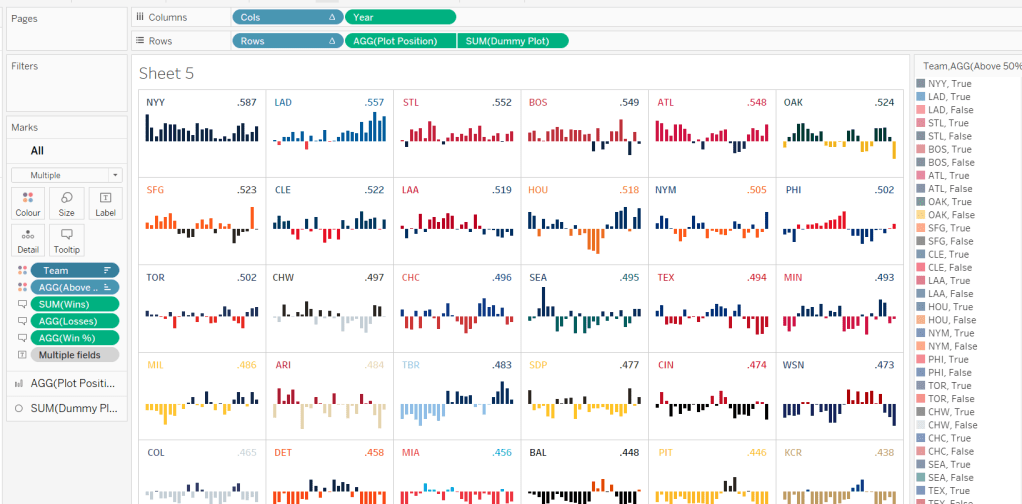
A colourful #WOW2022 challenge this week set by Kyle Yetter and using his favourite data – Baseball. Let’s jump straight in.
Building the required calculations
First up we need to calculate the core measure the viz is based on – % of wins
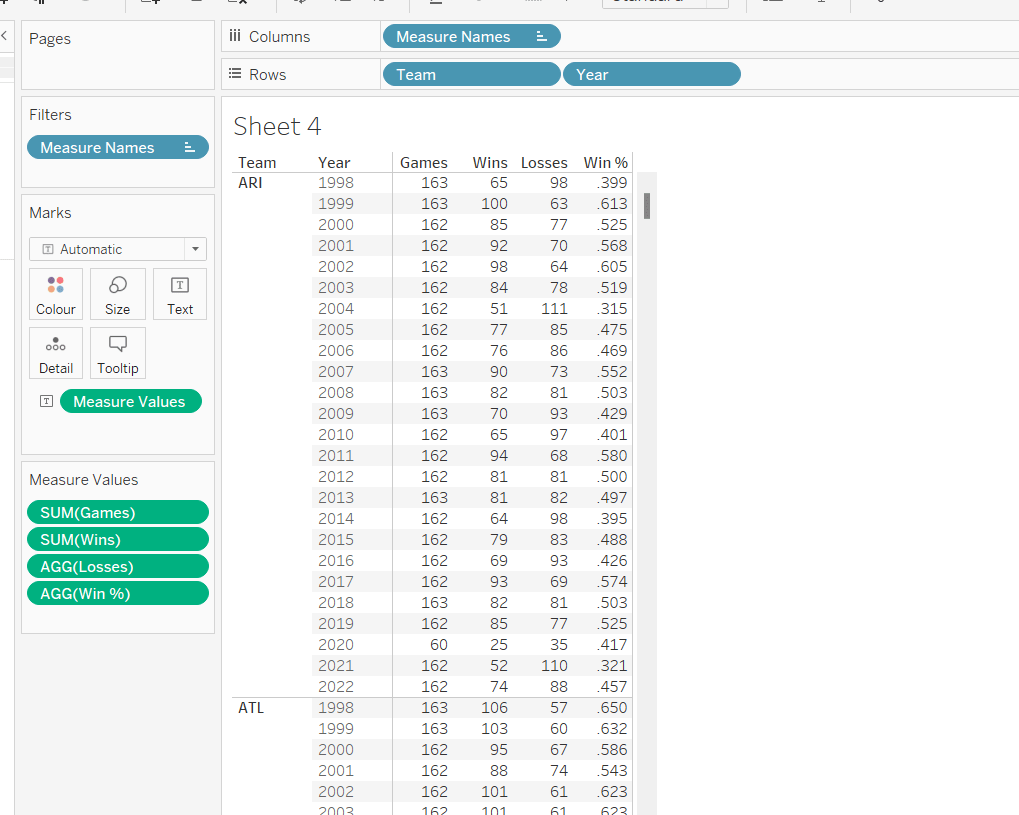
Win %
SUM([Wins])/SUM([Games])
I formatted this to 3 decimal places, then applied a custom number format to remove the leading 0 (custom number format looks like ,##.000;-#,##.000).
We also need to know the number of losses as this is part of the tooltip.
Losses
SUM([Games]) – SUM([Wins])
Let’s pop all these out into a table (I formatted all the whole numbers to display without any decimal places).
The viz however isn’t plotting the actual Win%, it’s plotting the difference from 50% (or 0.5), so values less than 50% are negative and those above are positive.
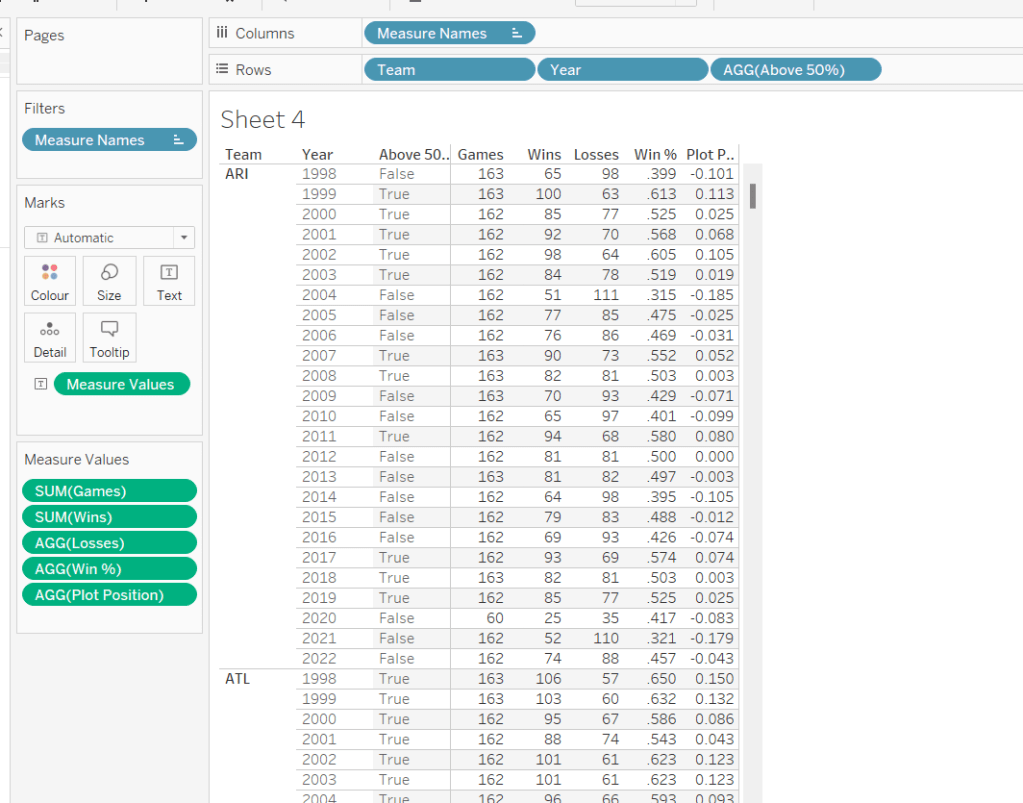
Plot Postion
[Win %] – 0.5
And we also need to know whether the Win% is above 50% or not
Above 50%
[Win %]>0.5
Pop these out onto the table too
The viz also displays the overall Win% for each team, and also uses this to sort the data. As it is used for sorting, we need to use an LoD calculation (rather than a table calculation).
for each team, get the total wins, and divide by the total games for the team. Format this to 3 dp with no leading 0 as before.
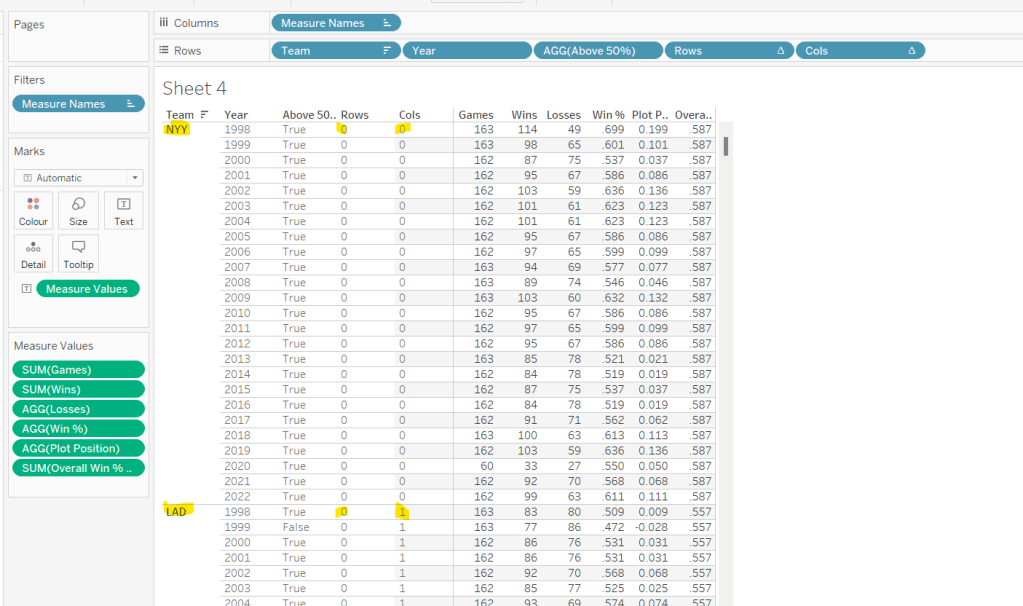
pop this into the view (you’ll see it’s the same value for each row for a single team), and then apply a Sort on the Team field to sort descending by the Overeall Win% LOD.
Now we have the data sorted, we can create the fields needed to build the trellis chart.
I have already blogged challenges relating to trellis charts / small multiples (see here) which in turn reference other blogs in the community, so I’m not going to go into all the details. We just need to build two calculated fields to identify which row and which column each Team will sit in. The table is fixed at 6 columns wide as the data wea re using is static. Some solutions work with a more dynamic layout depending on how many entities you need to display. We’re keeping things simpler.
Cols
FLOAT(INT((INDEX()-1)%6))
Rows
FLOAT(INT((INDEX()-1)/6))
Add both these fields to the table as discrete dimensions (blue pills), and as they are both table calculations, set them both to Compute Using – > Team.
Building the Core Viz
On a new sheet, add Cols to Columns as discrete dimension, Rows to Rows as discrete dimension and Team to Detail. Set both Rows and Cols to Compute Using Team.
Add Year as continuous (green) pill to Columns and Plot Position to Rows and change the mark type to Bar and reduce the size. Sort the Team field based on Overall Win% LOD descending.
Add Wins, Losses, and Win% to the Tooltip shelf and adjust the tooltip to display as required. Add Above 50% to the Colour shelf (you may need to readjust the size). Leave the colours as they are for now – we’ll deal with this later.
Adding the labels
Create a new calculated field
Dummy Plot
FLOAT(IF [Year]=2000 OR Year = 2020 THEN 0.35 END)
This is basically going to position a mark at height 0.35 but only if the year is either 2000 or 2020. These values were all just based on a bit of trial and error as to what worked to get the desired result.
Also create a field
LABEL:Team
IF [Year]=2000 THEN [Team] END
and
LABEL:Win%
IF [Year]=2020 THEN [Overall Win % LOD] END
format this to 3dp and exclude the leading 0.
Add DummyPlot onto Rows and change the mark type of this measure to circle. Amend the Tooltip of this marks card so it’s empty.
Add LABEL:TEAM and LABEL:Win% to the Label shelf, and adjust the label so both fields sit side by side (only 1 value will only ever actually display). Adjust the table calculation of both the Rows and Cols pills so they now compute using both the Team and the LABEL:Team fields.
Adjust the alignment of the labels so they are positioned bottom centre. Set the font colour to match mark colour and bold.
Then reduce the size of the circle mark to as small as possible, reduce the opacity of the mark colour to 0.
Now make the chart dual axis and synchronise the axis. Remove the Measure Names field that has automatically been added to the All marks card.
Hide all the headers and axis (uncheck Show Header), remove all grid lines, zero line, axis rulers.
Hide the null indicator (bottom right).
Colouring by Team
Copy the colour palette text Kyle provided into your preferences.tps file (usually located in the My Tableau Repository directory). For more information on working with custom colour palettes see this Tableau help article.
You’ll need to save your workbook and re-open for the new palette to be available for use.
In order to prevent having to manually set all the colours (and believe me you don’t want to do this!), perform the following steps in order
Add Team to also be on the Colour shelf. Click on the 3 dots (…) that are to the left of the Team pill on the All marks card, and change it to Colour. This means there are now 2 fields on colour. Move the Team field so it is listed above the Above 50% pill. This means your colour legend should be listed as <Team>, <True|False>
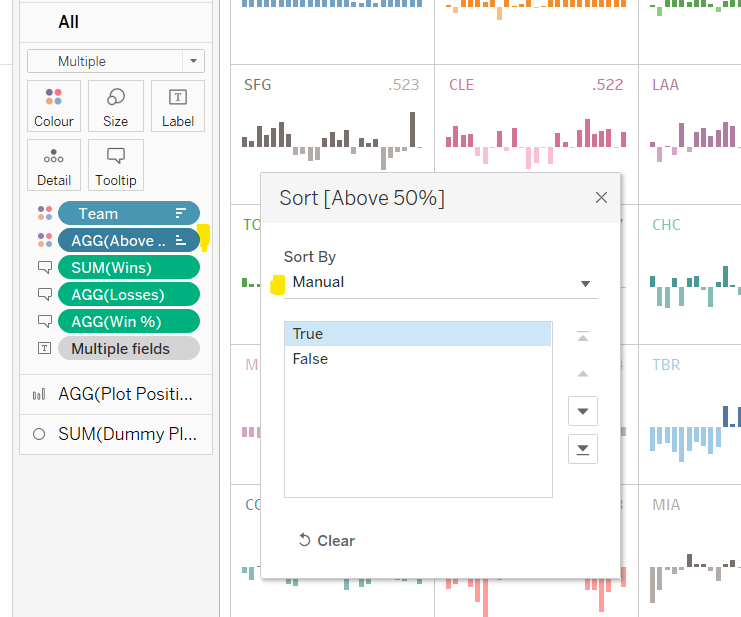
Adjust the Sort of the Above 50% pill, so it is manually sorted to list True before False.
Now change the Sort on the Team field so it is sorted alphabetically ascending instead. This will cause the viz to change its sort order, but don’t worry for now. It also changes the list on the colour legend, so ARI, True is listed first then ARI, False etc.
Now edit the Colour Legend and select the new MLB Team Colours palette we added. Click the Assign Palette button to automatically assign the colours. As we’ve made sure the entries listed are in the right order, they should get the correct colours.
Change the Sort on the Team field back to be based on Overall Win% LOD descending
And that should be it. You can now add the viz to a dashboard and publish. My published version is here.
In a break from the norm, this isn’t a #WorkoutWednesday solution guide, but it is a solution guide of sorts. This time I’m going to share how I put together the core section of my “My Tableau Journey” viz. This is a viz I put together to introduce myself at the virtual TUGs I’ve recently presented at. Rather than talk through a slide deck, I figured showcasing myself through a viz was much more appropriate.
The #datafam Tableau Community is all about sharing, supporting and inspiring others. Sarah Burnett’s CV viz heavily inspired my core layout, which I’ve attributed both on the viz itself (bottom left) and via the inspiration link on the Tableau Public page. Sarah even encouraged ‘stealing like an artist’, by providing a link to the Google Sheet she’d used to store the data for her viz. So that’s exactly what I did, I took her file from google, downloaded her dashboard, connected the two, then started modifying the data to meet my needs.
The data
Sarah’s Google Sheet contains multiple tabs, where each tab corresponds to a section of her viz. In my viz I made use of the following tabs only
Overview
Community
Roles
Contact
and I naturally changed to data to be relevant to me.
I also created a new sheet labelled Milestones which provides the data I need for the central part of my viz – the ‘dangling baubles’.
This contains the following fields
Milestone ID – just a unique identifier for each row
Start Date – the date the milestone started
End Date – the date the milestone ended, but in most cases this just the same as the start date
Type – just a classification I thought I might use, but didn’t
Milestone – short description of the milestone
Milestone Wrapped – To be displayed as the label on the viz, so the same text but just with some explicit carriage returns so the text wraps
Details – Further info that is displayed in a Viz in Tooltip. This also has explicit carriage returns in places so the text displays as I wanted.
URL – a link to a web page for further info, but again actually unused in the end
Random – used to determine where the ‘bauble’ will display. Nothing clever about this, simply a number entered via trial and error to provide a ‘nice’ looking display.
I’m not going to document the build of the whole viz. Instead I’m going to focus on the main section only – The ‘dangling baubles’.
This is actually split into 2 sheets – one to display the timeline of my job history, and the other to display the baubles.
Job History Timeline
This uses the Roles sheet as the data source.
Now, for the first 20 years of my career, I was at the same company, but Tableau only featured in the last 8 of it. So the Start Date I recorded in the data set against RM is based on the Tableau part of it. This meant that I didn’t have a long period of time with no milestone activity.
Add Start Date to Columns and set to the continuous Day level (green pill). This level of date granularity works for me as I set my milestone start dates to a day level which could be mid-month. If you set all your milestones to start on 1st of month, then a month level date granularity would probably work fine instead.
Add Role ID to Rows.
I created a parameter to use to control what date I want to use as the maximum end date in this viz. This is essentially a hardcoded value and as and when I add more milestones into the data, I’ll adjust the parameter. If I used TODAY() (or a calculation based off of that function) which I typically would do if I was developing a business dashboard, then this viz would eventually over time start to squash up and not look as I hoped.
pTimelineEnd
date parameter defaulted to 31 Dec 2022 (I chose this as the default based on the spread of the data I currently have in the data set I’m working with).
I’m obviously still at my current job, so I added a future end date into the source data set. I don’t want to use this value, so created
Revised End Date
IF [End Date]<= [pTimelineEnd] THEN [End Date] ELSE [pTimelineEnd] END
With this, I was then able to create
Duration
DATEDIFF(‘day’,[Start Date], [Revised End Date])
which I could then add to the Size shelf of my viz. I then manually changed the colour of the marks, set the border to none, and reduced the size to make the gantt bars thinner.
To add the circles, I added Revised End Date (set to the continuous Day level again) to Columns. Make the chart dual axis and synchronise the axis. Remove the Measure Names field from the All marks card, that was automatically added.
On the Revised End Date marks card, remove the Duration field from Size, and change the mark type to shape and manually increase the size of the mark. Add Current field to Shape.
While one of the default shape palettes does contain filled shapes, I also want to use an ‘open’ shape that doesn’t show the other mark underneath. As a result I ended up creating my own circle shapes and added as custom shapes to achieve this. The ‘open’ circle shape is actually a white filled circle with an aqua border.
Next I want to create a label for each row. Add Company to the Label shelf of the Start Date marks card. Expand the row height a bit to give a bit of room.
Now I want to show the label on top, and left aligned to the edge of the bar. Adjusting the label alignment doesn’t help. Left align and top puts it on the left hand side 😦 Left align also extends the left hand part of the time line to start from 2011.
I pondered about this for a bit. I was vaguely aware of ways I could achieve this, but then I just decided I could manually move the label. This isn’t something I do often, as usually I’m building a business dashboard where the data can change which in turn can change how the viz is displaying. In this instance, the data in this viz isn’t going to change without me controlling that change. So why spend the time building something complex when it isn’t needed….?
Make sure the label is right aligned (otherwise the left hand side of you date axis will extend further back than you might want), then just click on the label text you want to move and when the cursor changes to a crosshatch, click and drag the text to re-position (you may need to adjust the row height some more).
Hide the Row ID column and remove row & column dividers. Hide all tooltips. The final viz does make use of Viz in Tooltips but I won’t walkthrough that part at this point. I’m going to leave the axis on display for now. Name the sheet Jobs.
Milestones
This viz uses the Milestones sheet as its data source.
Add Start Date to Columns and set to the continuous Day level (green pill). Add Random to Rows. Change the mark type to Circle and change the colour and set the border to None..
Add another instance of Start Date to Columns and set to dual axis and synchronise the axis. Change the mark type to Bar, change the colour and set the border to None. Add Milestone ID to the Detail shelf of the All marks card to ensure we have 1 mark showing for every ‘row’ of data (some milestones happen on the same date).
Edit the Random y-xis, and check the Reversed checkbox to invert the axis.
The ‘dangling baubles’ are starting to come to life 🙂
Now when I add this to a dashboard, I will want the Jobs viz to display on top of this one, in such a way that the vertical lines look to connect to the horizontal lines on the jobs timeline. As a consequence, I need to add some extra ‘room’ at the top of this chart. so none of the baubles are too close to the 0 line.
Rather than adjust all the values in the data source, I created a parameter
pAdjustor
Integer parameter defaulted to 10
I then created
Random + Adjustor
[Random] + [pAdjustor]
and replaced the Random field on the viz with this new field. (I had to reinvert the axis again) By using the parameter I can easily move the marks down the viz.
Hide the Random + Adjustor field and remove all gridlines, zero lines, axis and row/column dividers. On the Circle marks card, add Milestone Wrapped to Label and align to the bottom. Remove all the tooltips for now.
It’s at this point where you may need to start fiddling with how the labels get wrapped, and what the value of the Random field should be for a particular entry. So this can all be a bit trial and error.
From both y-axis, remove the axis titles. We need the years on the top axis to show, and can’t hide the bottom axis without removing the top one too. Instead, edit the bottom axis and set tick marks to None
On the top axis, we also only want to show years every 5 years, so edit the axis, and set the tick marks to be fixed to start on 01 Jan 2012 and increment every 5 years.
Adjust the height of the axis to be as narrow as possible while displaying the years. Name the sheet milestones.
Putting the vizzes together
On the dashboard, add the Milestones sheet. Make sure it fits the entire view, the title is removed, and any left/right, top/bottom padding is applied to match the rest of your dashboard. In my case I set the top & bottom outer padding to 0 and the left & right padding to 10.
Now click the Floating button and then add the Jobs sheet onto the viz. Remove the title, set the view to fit entire view and manually set the width of the viz to be width of dashboard – (left padding + right padding of milestones viz). In my case the dashboard width is 900, and the padding totalled 20, so I set the width to 880. Set the x position to be the same as the left padding (in my case 10). Find the shape legend tile that has been added and remove if from the dashboard.
Ok it’s getting there, but still a bit to be done. One of the things you may notice is the timeline scales aren’t lining up. between the two vizzes, and one is scaling much more into the future than the other.
We ultimately don’t want to show any axis for the Jobs viz, but we do want to make sure it tallies closely with the Milestones one. I found the easiest way to do this was to ensure all the axis were set to be exactly the same, and had a fixed start & end date. Again this is something I can adjust as and when additional data gets added into the viz.
So first, go to the Milestones viz and fix the top axis to start 01 Oct 2011 and end on 01 March 2023.
Then, go to the Jobs sheet and
Remove the title from the bottom axis
Set the axis tick marks to None
Remove the title from the top axis
Fix the axis to start 01 Oct 2011 and end on 01 March 2023
Set the axis tick marks to start on 01 Jan 2012 and increment every 5 years
Looking back at the dashboard, we can see things are much more closely aligned. It’s still not perfect, but to be honest I’m not sure where the mis-alignment is now coming from. For the purposes of my viz, this is ‘good enough’.
We can now hide both the axis on the Jobs sheet. We also want to set the background on the worksheet from white to None, which makes this viz transparent.
Back on the dashboard, you should now see the Milestone viz showing through the Jobs viz. Make further adjustments to the Jobs object – reduce the height a bit, shift it up a bit (use the y position on the layout tab to help if need be).
Once you’re happy with the positioning of the objects, and the size of all the marks, then we want to hide the vertical ‘threads’ from the milestone chart that are appearing above the horizontal gantt bars on the job timeline.
I simply use carefully placed floating blank objects to do this. Again, another example of a technique I wouldn’t typically use if I was building a business dashboard. Place the blank objects, set the background to white, then change the floating order and ‘send backwards’ so they are behind the Jobs viz but in front of the Milestones viz.
Finally, I wanted to show that my time at RM extended before 2012, so I added a floating text box just containing … onto the viz.
And that’s it. With the exception of a couple of custom shapes which needed to be built in another tool (I tend to use drawing shapes in Powerpoint), the viz has all been built in Tableau, and there’s nothing overly complex in getting the desired display. I’m using several instances of ‘hard coding’ (fixing the axis, manually positioning labels, using floating blanks to hide stuff), that I wouldn’t advocate if I was building a business dashboard where the data could update without the viz being edited too. But for the purposes of a mainly ‘static’ viz, I see no need to complicate things.
Feel free to have a go yourself using your own data, but please remember to give me credit if you share and publish.
I referenced this Tableau blog post and downloaded the HexmapPlots excel file included. I then used a relationship to ‘join’ the Sample – Superstore excel file I was using with the HexmapPlots file, joining on State/Province= State
Since I had the other blog post already open, I then followed the steps included to start building the map.
Building the hex map
Add Column to Columns and aggregate to AVG, and add Row to Rows and also aggregate to AVG. Add State/Province to Detail. Edit the Rows axis and set to be Reversed.
Note – it’s possible you may have extra States showing. As I’m writing I’ve realised I’m rebuilding against an extracted data source that has a filter I originally applied as a global filter, which has now been included in the extract. So you may need to add State/Province to the Filter shelf, and set to exclude NULL and District of Colombia. This filter will need to be applied to all sheets you build.
Change the mark type to Shape and select a Hex shape. I already have a palette full of Hex shapes, but the blog post provides a shape to use and add as a custom shape if you haven’t got one. Increase the size of the marks.
Create a new field
Profit Ratio
SUM([Profit]) / Sum([Sales])
format this to % with 1 dp, and then add to the Colour shelf.
Now add a second instance of Row to the Rows shelf and set to AVG again. Set the mark type of this marks card to Map. Remove the Profit Ratio field from Colour on this card too. Assuming your Map location is set to USA, you should have State outlines depicted (Map -> Edit Location).
Set the chart to be dual axis and synchronise the axis. The State shape axis should now be inverted. Independently adjust the sizes of the Hex shape and the state shapes, so the states sit inside the hexagons.
Right click on the right axis and move marks to back. The adjust the Colour of the hex shapes so its around 85% transparent.
Now adjust the Tooltip on the hex marks to match the requirement.
To fill-out the available area, I also chose to fix both the axis (right click axis -> edit axis). The Column x-axis I set to range from 1 – 12, and the Row y-axis, I set to range from -0.9 – 9. Then hide all axis, and remove all row/column gridlines, divider lines, axis lines and zero lines. Hide the 10 unknown indicator, and set the background colour of the whole worksheet to a pale grey.
Building the Line Chart
This is super simple, Tableau 101 🙂
Add Order Date to Columns and set to be a continuous month (green pill showing month-year). Add Sales to Rows. Change the colour of the line to grey. Hide the x-axis and remove all gridlines, dividers, axis lines and zero lines. Set the background colour of the worksheet to None (ie transparent). Update the tooltip.
Building the Scatter Plot
Add Sales to Columns, and Profit to Rows. Add State/Province to Detail shelf and add Profit Ratio to Colour. Change the mark type to circle. Remove all gridlines, row column dividers and axis rulers. Only the zero lines should remain. Adjust the tooltip and set the worksheet background to None (transparent).
Putting it all together
Create a dashboard and set the size as stated. Set the background of the dashboard to pale grey (Dashboard – > Format).
Add the Hex map, and hide the title. Click on the Profit Ratio legend object and set to be floating. Then remove the right hand vertical container. Move the Profit Ratio legend to a suitable location.
Then add a text box as a floating object and use it to create the title. Add both the trend line and the scatter plot charts as floating objects without titles. Just position them as required. You can always use gridlines (Dashboard -> Show Grid) to help you line things up.
Finally add the interactivity.
Add a highlight dashboard action which highlights the hex map and the scatter plot when either of the other is selected ‘on hover’, and just targets the State/Province field.
Then add a Filter action which on hover of the Trend chart, targets the remaining charts.
And hopefully that’s it. My published viz is here.
Erica set this challenge this week to provide the ability to compare the average wait time for patients in a specific hour on a specific day, against the ‘overall average’ for the same day of week, month and hour.
As with most challenges, I’m going to first work out what calculations I need in a tabular form, and then I’ll build the charts.
Building the Calculations
Building the Wait Time Chart
Building the Patient Count Chart
Building the Calculations
The Date field contains the datetime the patient entered the hospital. The first step is to create a field that stores the day only
Date Day
DATE(DATETRUNC(‘day’,[Date]))
From this I could then create a parameter
Choose an Event Date
date parameter, defaulted to 6th April 2020, and custom formatted to display in dddd, d mmmm yyyy format. Values displayed were a list added from the Date Day field.
I also created several other fields based off of the Date field:
Month of Date
DATENAME(‘month’,[Date])
if the Date is Friday, 10 April 2020 16:53, then this field returns April.
Day of Date
DATENAME(‘weekday’,[Date])
if the Date is Friday, 10 April 2020 16:53, then this field returns Friday.
Hour of Date
DATEPART(‘hour’, [Date])
if the Date is Friday, 10 April 2020 16:53, then this field returns 16. I added this to the Dimensions (top half) of the data pane.
The viz being displayed only cares about data related to the day of the week and the month of the date the user selects, so we can also create
Records to Keep
DATENAME(‘weekday’, [Choose an Event Date]) = [Day Of Date] AND DATENAME(‘month’, [Choose an Event Date]) = [Month of Date]
On a new sheet, add this to the Filter shelf and set to True. When Choose an Event Date is Monday, 06 April 2020, then Records To Keep will ensure only rows in the data set relating to Mondays in April will display. Let’s build this.
Add Hour of Date, Day of Date, Month of Date to Rows, and then also add Date as a discrete exact date (blue pill).
You can see that all the records are for Monday and April. And by grouping by Hour of Date, you can see how many ‘admissions’ were made during each hour time frame. Remove Day of Date and Month of Date – these are superfluous and I just added so we could verify the data is as expected.
The measures we need are patient count and patient wait time. I created
Count Patients
COUNTD([Patient Id])
(although the count of the dataset will yield the same results).
Add Count Patients and Patient Waittime into the table.
This is the information that’s going to help us get the overall average for each hour (the line chart data). But we also need to get a handle on the data associated to the date the user wants to compare against (the bar chart).
Count Patients Selected Date
COUNTD(IF [Choose an Event Date] = [Date Day] THEN [Patient Id] END)
Wait Time Selected Date
IF [Choose an Event Date] = [Date Day] THEN [Patient Waittime] END
Add these onto the table – you’ll need to scroll down a bit to see values in these columns
So what we’re aiming for, using the hour from 23:00-00:00 as an example: There are 3 admissions on Mondays in April during this hour, 2 of which happen to be on the date we’re interested in. So the overall average is the sum of the Patient Waittime of these 3 records, divided by 3 (650.5 / 3 = 216.83), and the average for the actual date (6th April) in that hour is the sum of the Wait Time Selected Date for the 2 records, divided by 2 (509.5 / 2 = 254.75).
If we remove Date from the table now, we can see the values we need, that I’ve referenced above.
So let’s now create the average fields we need
Avg Wait Time
SUM([Patient Waittime])/[Count Patients]
Avg Wait Time Selected Date
SUM([Wait Time Selected Date]) / [Count Patients Selected Date]
Pop these into the table
This gives is the key measures we need to plot, but we need some additional fields to display on the tooltips.
Avg Wait Time hh:mm
[Avg Wait Time]/24/60
This converts the value we have in minutes as a proportion of the number of minutes in a day. Apply a custom number format of h”h” mm”mins”
Do the same for
Avg Wait Time Selected Datehh:mm
[Avg Wait Time Selected Date]/24/60
Apply a custom number format of h”h” mm”mins”
Add these to the table.
For the tooltip we need to show the hour start/end.
TOOLTIP: Hour of Date From
[Hour of Date]
custom format this to 00.00
TOOLTIP: Hour of Date To
IF [Hour of Date] =23 THEN 0 ELSE [Hour of Date]+1 END
custom format this to 00.00.
We can now start building the charts.
Building the Wait Time Chart
On a new sheet, add Records To Keep = True to the Filter shelf. Add Hour of Date as continuous dimension (green pill) to Columns and Avg Wait Time Selected Date to Rows. Change the mark type to Bar.
Then add Avg Wait Time to Rows and change the mark type of this measure to Line. Make the chart dual axis, synchronise the axis and adjust the colours of the Measure Names legend.
Add TOOLTIP: Hour of Date From and TOOLTIP: Hour of Date To and Avg Wait Time Selected Date hh:mm to the Tooltip of the bar marks card, and adjust the tooltip accordingly.
Add TOOLTIP: Hour of Date From, TOOLTIP: Hour of Date To, Avg Wait Time hh:mm, Day of Date and Month of Date to the Tooltip of the line marks card, and adjust the tooltip accordingly.
Remove the right hand axis. Remove the title of the bottom axis. Change the title on the left hand axis. Hide the ‘9 nulls’ indicator (right click). Remove column gridlines, all zero lines, all row and column dividers. Keep axis rulers. Format the numbers on the x-axis.
Change the data type of the Hour Of Date field to be a decimal, then edit the x-axis and fix to display from -0.9 to 23.9.
Amend the title of the chart to match the title on the dashboard.
Building the Patient Count Chart
On a new sheet, add Records To Keep = True to Filter, Hour of Date as continuous dimension to Columns and Count Patients Selected Date to Rows. Change Mark Type to Bar.
Right click on the y-axis and edit the axis. Remove the title, and check the Reversed checkbox to invert the axis. Edit the x-axis and fix from -0.9 to 23.9 as before.
Add TOOLTIP: Hour of Date From and TOOLTIP: Hour of Date To to the Tooltip and adjust accordingly.
Set the colour of the bars to match the same blue of the bars in the wait time chart, then adjust the opacity to 50%.
Remove all gridlines and zero lines. Retain axis ruler for both row and columns. Retain row divider against the pane only. Hide the x-axis.
We need to display a label for ‘Number of Patients’ on this chart. We will position it based on the highest value being displayed (rather than hardcoding a constant value). For this we create a new calculated field
Ref Line
WINDOW_MAX([Count Patients Selected Date]) +1
This returns the maximum value of the Count Patients Selected Date field, adds 1 and then ‘spreads’ that value across all the ‘rows’ of data.
Add this field to the Detail shelf. Then right click on the y-axis and Add Reference Line.
Add the reference line based on the average of the Ref Line field, and label it Number of Patients. Don’t show the tooltip, or display any line.
Once added, then format the reference line, and adjust the size and position of the text.
The sheets can now be added to a dashboard, placing them above each other. They should both be set to Fit Entire View. The width of the y-axis on the Patient Count chart will need to be manually adjusted so it is in line with the Wait time chart, and ensures the Hour columns are aligned..
Luke Stanke set the #WOW2022 challenge this week (see here) asking us to visualise the lifetime value of customers. I have to admit, I did struggle to really understand what was being requested, and to get the numbers to match Luke’s. I ended up referring to my own blog post on a similar challenge Ann Jackson set in week 2 of 2021 to get the calculations I needed 🙂
We first need to define the quarter that each customer made their first purchase.
The {FIXED LOD} calculation returns the minimum order date per customer, then truncates this to the first day of the quarter that date falls in.
We then need to determine the difference in quarters between the Customer First Order Quarter and the quarter associated to the Order Date of each order in the data set. The requirement indicated we needed to add 1 to the result. I split this into multiple calculated fields. Firstly,
Order Date Quarter
DATE(DATETRUNC(‘quarter’, [Order Date]))
gets me the quarter of each Order Date, then
Quarters Since First Purchase
DATEDIFF(‘quarter’, [Customer First Order Quarter], [Order Date Quarter])+1
Let’s pop these fields out into a table to check things are behaving as expected.
Add Customer First Order Quarter and Order Date Quarter to Rows as discrete exact dates (blue pills), and add Quarters Since First Purchase to the Text field, but set it to be a dimension, so it is disaggregated.
Now we need to count the number of distinct customers that made a purchase in each Customer First Order Quarter (the cohort)
Count Customers Per Cohort
{FIXED [Customer First Order Quarter]: COUNTD([Customer ID])}
Add this to to the sheet, along with Sales (I moved Quarters Since First Purchase to rows too)
As expected, we can see the same customer count for each Customer First Order Quarter cohort.
We’ve now got all the building blocks to move on the the next requirement, but I’m going to rearrange the table a bit, to start to reflect the data actually needed for the output.
The x-axis of the chart is going to be based on the Quarters Since First Purchase field, so move that to be the first column of data (1st entry in Rows). Then remove Customer First Order Quarter and Order Date Quarter, as we don’t need this level of information in the final viz.
We now have the sum of all the customers and the total sales, so we can now create the division reqiurement
Sales / Customer
SUM([Sales])/SUM([Count Customers Per Cohort])
I set this to currency $ with 0 dp.
Add this to the table
Then to make this a running total, create a RunningTotal quick table calculation off of this field (right click on field -> Quick Table Calculation -> Running Total). Add back in Sales/ Customer.
We’ve now got all the components needed to build the viz, but do require an additional calculation to be displayed in the tooltip, which is the difference between each row.
Right click the existing running total Sales / Customer pill (the one with the triangle) and choose to Edit Table Calculation. Tick the Add secondary calculation checkbox and choose the Difference From table calc to run down the table, making the calc relative to the previous row.
Re-add a Running Total quick table calc to the other Sales / Customer pill, and then add Sales / Customer back into the view (it’s annoying that Tableau won’t let you add multiple pills of the same measure name unless they have a different calculation against them).
The snag with this is that we need a value to display for the first row. We need to create a new field that can reference the data in the second table calculation. Click and drag the ‘difference’ table calculation field into the Data pane, and name the field Difference. It should look like below, but you shouldn’t have needed to type any of that.
IF FIRST()=0 THEN [Sales / Customers] ELSE [Difference] END
Set this to a customer number format of 1dp, prefixed by + (the data is always cumulative so is never going to have a -ve value, so this works).
Now we can build the viz.
On a new sheet add Quarters Since First Purchase to Columns as a continuous dimension (green pill), then add Sales / Customers to Rows and set to be a Running Total quick table calc. Change the mark type to be a Gantt Bar.
Create a new field
Size
[Tooltip:Difference]*-1
and add this to the Size shelf.
Add a second instance of the Sales / Customer running total calc (press ctrl and click and drag the existing pill in rows to create another next to it). Change the mark type of this to be bar. Remove the Size pill, and then click the Size shelf button, and set the Size to be fixed, aligned left.
Now make the charts dual axis and synchronise the axis. Set the colour of each mark type to the relevant palette, and set the mark borders to None. Hide the right hand axis.
On the All marks card, add the Tooltip:Difference and Count Customers Per Cohort fields to the Tooltip shelf, and amend the tooltip to match.
On the bar marks card, click the Label shelf button and tick the show mark labels checkbox. Align these left.
Remove the left hand axis, remove all gridlines and row/column dividers. Add column axis ruler and dark tick marks
Edit the x-axis and rename the title to Quarter of Order.
If you find you have the x-axis going from 0 to 18, then change the datatype of Quarters Since First Purchase from a whole number to decimal. (right click pill in data pane -> change data type -> Number(decimal).
Add the chart to a dashboard and boom! you’re done. My public viz is here. (note, I did notice some vertical dividers displaying in the area chart on public, but think this is a Tableau Public ‘bug’ as I’ve switched off all the lines I can think of, and Desktop displays fine….
Ann Jackson made a special guest appearance this week, setting this challenge to introduce the newly released 2022.3 feature of dynamic zone visibility. As a consequence, a pre-requisite to completing this challenge is to install v2022.3 🙂
I used 6 sheets to build my solution, and I’ll step through each one, and then what’s required to put it all together.
Building the Sub-Category Picker
Building the Sub-Category Counter
Building the Bar Chart
Building the Line Chart
Building the Viz in Tooltip
Building the Dot Plot
Hiding & Showing the Charts
Adding & Removing Sub-Categories
Building the Sub-Category Picker
On a new sheet, add Sub-Category to Rows and change the mark type to circle. Right click on the Sub-Category field in the Data pane, and Create -> Set. Select the entries from Accessories down to Copiers. This will create a new field in the data pane called Sub-Category Set. Add this field to the Colour shelf, and adjust colours according to whether the values are In or Out of the set.
Add a grey border around the circles (via the Colour shelf) and increase the size a bit. Format the text of the sub-categories so its larger and right aligned. Remove all row/column dividers and hide field labels for rows to remove the Sub-Category column title (right-click on the column title). Adjust the Tooltip. Add a title to the sheet and then name the sheet Sub Cat Picker or similar.
Building the Sub-Category Counter
Create a new calculated field
Count Sub Cats Selected
COUNTD(IF [Sub-Category Set] THEN [Sub-Category] END)
If the Sub-Category is in the set, the return the Sub-Category and count the number of distinct entries.
Then create
Count Total Sub Cats
COUNTD([Sub-Category])
This just counts them all.
On a new sheet, add both fields to the Text shelf, and adjust the text accordingly.
Remove the tooltip so it doesn’t display. Name the sheet Set Count Label or similar.
Building the Bar Chart
Create a new field
Profit Ratio
SUM([Profit])/SUM([Sales])
and format to a % with 0 dp.
On a new sheet, add Profit Ratio to Rows and Sub-Category Set to Columns and also to Colour.
Right click on the text ‘In’ either on the colour legend or at the bottom of the bar, and Edit Alias. Change the text to SELECTED. Do the same thing for the text ‘Out’ and change to OTHER.
Add a row grand total (Analysis menu -> Totals -> Show Row Grand Totals). Adjust the colour of the grand total bar. Right click on the text ‘Grand Total’ and select Format. In the pane on the left hand side, change the Grand Total Label to read ALL PRODUCTS.
Create a calculated field
Overall PR
{SUM([Profit])}/{SUM([Sales])}
The { } make this a FIXED Level of Detail (LoD) calculation, so calculates over the complete data set.
Then create
PR Difference from Overall
[Profit Ratio]-SUM([Overall PR])
and format this to a custom number format of +0.0%;-0.0%;
Adding the second semi-colon implies there is a format for +ve numbers, -ve numbers and zero. In this instance we want zero difference to be displayed as blank.
Add both these fields the the Label shelf and adjust the font/layout accordingly, and match mark colour. Adjust the tooltip too.
Remove the profit ratio axis, remove all gridlines and row/column dividers. Add an axis ruler to the columns. Adjust the colour/size of the column labels. Hide the In/Out of Sub-Category Set column label (hide field label for columns). Add a title to the sheet and name the sheet Bar Chart or similar.
Building the Line Chart
On a new sheet, and Order Date to Columns and set to be a continuous (green) pill at the Quarter-Year level. Add Profit Ratio to Rows and Sub-Category Set to Colour.
Make the chart dual axis and synchronise the axis. Remove Measure Names from the All marks card, and remove the In/Out Sub-Category Set pill from the colour shelf of the PR Per Quarter marks card. Manually adjust the colour of this line to the appropriate shade.
On the All marks card, click the Label shelf, and check the Show mark labels option and select line ends. Adjust the font of the labels to be smaller, bold and to match mark colour.
Right click on the PR Per Quarter axis on the right hand side and select move marks to back, the right click again and uncheck Show Header to hide that axis.
Right click on the bottom axis, and Edit Axis and remove the axis title. Edit the left hand axis and amend the title so its capitalised.
Format the font of both axis, so the text is smaller, and then remove all row/column dividers, and all gridlines and zero lines. Add axis rulers for both the rows and columns.
Then add a sheet title and subtitle and name the sheet Line Chart or similar. I use this site to get the circular symbols used in the subtitle.
Building the Viz in Tooltip
The line chart shows another chart on hover.
On a new sheet, add Order Date as a blue discrete pill set to the Quarter-Year level, to Rows then add Sub-Category Set to Rows too. On the Columns shelf, double click and manually type in MIN(1). Add Sub-Category Set to Colour, then edit the MIN(1) axis to fix it from 0 to 1.
Add subtotals (Analysis menu -> Totals -> Add all subtotals). This will add a Total row to each section. Manually adjust the colour of the Total bar if need be via the colour legend.
Right click on the text ‘Total’ in the chart, and format. Amend the Total label to read ‘ALL PRODUCTS’ instead.
Add Profit Ratio to the Label and ensure the font matches mark colour. You may need to adjust the font size and boldness, and expand the row height a bit to see the text.
Hide the Order Date column, adjust the font of the Sub-Category Set column to be darker/bolder and right aligned, and adjust the column width so all the text is displayed.
Hide the MIN(1) axis, remove all row/column dividers and hide the Sub-Category Set column label. Then set the sheet to Entire View, and name the sheet VIT or similar.
Return the Line Chart sheet, and on the Tooltip shelf of the All marks card, adjust the tooltip to display the Order Date and insert a reference to the VIT sheet via the Insert -> Sheets -> VIT option
Adjust the height and width to suit.
Building the Dot Plot
On a new sheet, add Sub-Category Set to Rows and Profit Ratio to Columns. Change the mark type to circle. Then add Product ID to the Detail shelf and Sub-Category Set to Colour. Add column grand totals and adjust the colour of the grand total if need be. Format the ‘Grand Total’ text so it reads ALL PRODUCTS.
To get a clearer idea of how many products there are, we are going to randomly spread the dots across a vertical y-axis. For this we create
Jitter
RANDOM()
This just returns a number between 0 and 1.
Add this field to Rows and change it to be a Dimension. Adjust the opacity of the Colour to 50%.
Hide the Jitter axis. Make the header column wider, so the text doesn’t wrap, and adjust the text to b bigger and bolder and right aligned. Hide the Sub-Category Set column heading. Adjust the size and title of the Profit Ratio axis. Remove all gridlines and column dividers.
Right click on the Profit Ratio axis and add a reference line, which is set per pane to the the Total of the Profit Ratio. Use the Value as label and set the line to be a dotted black line at 100% opacity.
Add Product Name to the Tooltip and adjust accordingly. Add a title and name the sheet Dot Plot or similar.
Hiding & Showing the Charts
We’re going to control which sheet displays by use of a parameter, so I created
pChartSelector
an integer list from 1-3 which are mapped to the 3 display values
Then create a dashboard sheet and using layout containers build out the dashboard. I used a horizontal container in the centre of my dashboard. Within that I used a vertical container to house the Sub-Category Picker and the Sub-Category Counter. Then the 3 charts (bar, line and dot plot) were arranged next to that. I fixed the width of the vertical container with the picker and counter. The pChartSelector parameter is then added at the top right. I made use of both inner and outer padding and background colours of pale grey and white to get the look as reqiured.
To make the hide/show functionality, I created the following fields
Show bar
[pChartSelector]=1
Show line
[pChartSelector]=2
Show dot plot
[pChartSelector]=3
I added Show bar to the Detail shelf of the bar chart sheet, Show line to the Detail shelf of the line chart sheet and Show dot plot to the Detail shelf of the dot plot sheet.
Then back on the dashboard, I selected the bar chart sheet (so it’s surrounded by a dark grey border), and on the Layout tab on the left hand side, I checked the Control visibility using value checkbox and selected the Show bar field
I then repeated this process, this time selecting the line chart sheet, and when I checked the Control visibility checkbox, I selected the show line field instead. this made the line chart disappear, since my parameter was set to ‘Compared to the Total’ which was equivalent to the parameter = 1 and not 2. Changing the parameter to ‘Over Time’ and my line chart showed and the bar disappeared.
Repeat the process again for the dot plot, selecting the show dot plot field instead. Now only 1 chart should display at a time.
Adding & Removing Sub-Categories
The final step is to add the interactivity to allow selection and removal of a sub-category when clicking on the circles of the Sub-Category Picker sheet.
First, you need to add a dashboard action which changes set values
Add Sub-Categories
Uses the Sub Cat Picker sheet as source and on Select targets the Sub-Category Set by Adding values to the set. The values are retained when the selection is cleared.
Then add another dashboard action to change set values. This one is called
REMOVE
Uses the Sub Cat Picker sheet as source and via the Menu targets the Sub-Category Set by Removing values from the set. The values are retained when the selection is cleared.
The title of REMOVE is what is then displayed in the text of the tooltip when a circle that has been added is the clicked again.
Phew!
Quite a lengthy post this week, but there’s a lot going on. My published viz is here.
It’s community month still for #WOW2022, and this week saw Samuel Epley set this challenge to visualise the home run trajectories of Aaron Judge.
I had a little mini-break to Rome this week, so was hoping I was going to be able to get this week’s challenge done and dusted on the Tuesday evening if it landed early enough, as I wasn’t going to be around.
It did land on the Tuesday for me, but wow! it was not going to be easy! I managed to build the KPIs & the scatter plots on the Tuesday evening, and knowing I didn’t have much time, just chose to use the Home Runs stats data set only. I knew these charts weren’t going to need any data densification, so found this approach simpler.
I’m afraid I’m still constrained by time at the moment, so this post isn’t going to be the detailed walkthrough you might usually expect – sorry! I’m just going to try to pull out key points from each chart.
KPIs
I built this on a single sheet, using Measure Names and Measure Values.
I used aliases on the Measure Names (right click -> Aliases) to change the label you can see displayed ie the Distance pill is aliased to ‘Average Distance’
I also custom formatted the various numbers and applied suffixes to display the unit of measure
Note – to To get the degree symbol, I typed Alt+ 0176
Scatter Plots
I built the Exit Velocity by Distance scatter plot first, and completed all the formatting & tooltips. Then I duplicated the sheet to form the basis of the other scatter plots, and just swapped the relevant pills as needed.
For the ball shape, I loaded the provided images as custom shapes into my shapes repository. I then just created the following calculated field to use as a discrete dimension I could add to the Shape shelf
Ball Shape
[HR Number]%9
It’s not as completely randomised as perhaps it should be, but it looks random enough on the display.
The Pitcher in the data is in the format <Surname>, <Forename>, but on the tooltip it needs to display as <Forename> <Surname>, so I just used a transformation on the Pitcher field to split the field based on the comma (right click Pitcher -> Transform -> Split). This automatically created 2 fields I could use on the Tooltip.
I also noticed a very subtle wording change in the tooltip based on whether the match was Home or Away. If Home, the tooltip read ‘New York Yankees vs. <Opposition>’ otherwise it read ‘New York Yankees at <Opposition>’. I used a calculated field for this logic
TOOLTIP: vs or at
IIF([Location]=’Home’,’vs.’, ‘at’)
The Trajectory Plot
OK, so this was the hardest part of this challenge, and mainly due to getting your head round the physics involved, as so many of the calculations are dependent on each other.
I’m generally pretty confident with my maths, but this was complex, especially with the force calculations for the y-axis. Samuel stated that both gravity and drag impacted the Y-axis calcs, but it wasn’t clear to me how both these forces should be applied (a bit of trial and error and I ended up adding them within the formula).
By the time I came to tackle this challenge, Samuel had already posted a video walkthrough, which can be viewed here and is another reason why I’m not going down to the nth degree in this post.
My suggestion is to watch Samuel’s video and/or feel free to download my workbook. I built my workbook independent of Samuel’s video, so there may be steps/calculations that differ.
However, I have tried to number my calculations in the order in which I created them, so you can hopefully follow the thought process. I have also left a CHK:Data sheet in the workbook, which I used to sense check what I was doing.
All the table calculations in the CHK:Data sheet are just set to the default ‘table down’ as I have filtered the sheet to a specific Home Run (HR Number = 1) only (ie I didn’t change any of the table calc settings as I added the pills to the sheet).
However, when you build the main trajectory chart, you have multiple HR Numbers in the view, so all the table calculations must be set so that calculations are only working for each HR Number. This means that any table calc (and any nested calculations) need to have all the fields except HR Number checked
When using the Pages shelf, which isn’t something I’ve ever really had to do before, you need to Show History and adjust the various settings to get the trail lines to show
To rotate the ball (the bonus option), you need another field to use on the Shape shelf. I had lost the will to live a bit by this point, so used the formula from my friend Rosario Gauna’s solution.
Rotation Shape
STR(IIF([14-Start Position Y m] <= 0, 0, (MIN([Time Interval]) * 1000 / 25) % 9))
Note – when you add this to the Shape shelf, and select your baseball palette, just then use the Assign Palette button to automatically assign a ball to a number – this will get them into the correct order, without you having to do it one by one.
Finally, when adding the reference average lines, be sure to set the scope to per pane rather than table, otherwise you’ll end up with the wrong figures.
I think I’ve pretty much covered all the ‘little’ points that I came across that may trip you up, aside from all the tricky calcs of course!
My published workbook is here. I hope what I’ve written is enough for you to build it yourself. I think I’d still be here next year if I tried to do anything more fully! I’m off for a lie down now!
Community month for the #WOW2022 team continued this week, with Liam Huffman setting this challenge to build a year on year comparison chart with twist.
Typically when building YoY charts you compare the month from last year with the same month this year, or a week from last year with this year (eg week 3 2021 v week 3 2022), or a specific date last year with this year (eg 4th March 2021 with 4th March 2022). However for this challenge, the focus was on being able to compare based on equivalent weekdays (at least that’s what I understood from reading). By this I mean if 10 October 2022 is a Monday, that needs to be compared with the equivalent weekday in the previous year. 10 October 2021 was a Sunday, so we actually need to compare Monday 10 Oct 2022 with Monday 11 Oct 2021.
So that’s the direction I took with this challenge, but in doing so couldn’t get the numbers to exactly match with Liam’s solution. Unfortunately I just couldn’t get my head around Liam’s approach even after looking at it. So I’m blogging this based on my interpretation of the requirement, which may be flawed.
Baselining the Dates
When building YoY charts like this which need to be flexible based on the date part selected, you need to ‘baseline’ the dates; well that’s the term I use, others might refer to it as normalising. Ultimately you need to get the dates that span multiple years to all align to the same year, so you have a single x-axis that just spans a single year.
Now based on what I talked about above, its not just a case of changing the year of every Order Date to match for all the records, we need to find the equivalent weekday from the previous year and align that.
To do this I first created a parameter
pToday
date parameter defaulted to 10 Oct 2022
This is simply to provide a constant end point. In a business scenario when the data changes, any reference to pToday would just use TODAY().
I then created
1st Day of Current Year
DATE(DATETRUNC(‘year’, [pToday]))
This returns 1st Jan 2002
I then worked out what weekday this was
Weekday of 1st Day Current Year
//determine the day of the week this year started on, based on todays date DATENAME(‘weekday’, [1st Day of Current Year])
This returns Saturday
I then wanted to find the date of the first Saturday in every year, but firstly I needed to determine the weekday for each Order Date
Weekday
DATENAME(‘weekday’, [Order Date])
Date of 1st weekday Per Year
//get the first date in each year which falls on the same weekday as the first day of the current year //ie 1st Jan 2022 is a Saturday. This is day 0 for 2022. We need to find day 0 for every other //year, which is the date of the first Saturday in that year
{FIXED YEAR([Order Date]): MIN(IF [Weekday]=[Weekday of 1st Day Current Year] THEN [Order Date] END)}
For each year, get all the dates which fall on a Saturday, then returned the earliest one of those.
Popping all this information out in a table, we can see that in 2019, the first Saturday in the year was 5th Jan 2019, so all the records for dates in 2019 are stamped with 5th Jan 2019.
This Date of 1st weekday Per Year is essentially day 0 for each year. We now need to record a number against each day in the year
Days From Date
//get the number of days from the date of 1st weekday per year DATEDIFF(‘day’, [Date of 1st weekday Per Year], [Order Date])
And with this number, we can now record the equivalent date in 2022 against each date
Baseline Date
//need to normalise all dates for every year to the current year, //ie Day 0 for every year = 01 Jan 2022
DATE(DATEADD(‘day’, [Days from Date], [1st Day of Current Year]))
Add these fields into the tabular view and you should hopefully see how this is working
Building the Line Chart
We need some additional parameters to help build the chart.
pDatePart
string parameter defaulted to Month, with 3 values listed as shown below
pStartDate
date parameter set to use the 1st Day of Current Year when the workbook opened, meaning current value was 1st Jan 2022
pEndDate
date parameter set to use the pToday parameter when the workbook opened, meaning current value was 10th Oct 2022
With the pDatePart field, we need to define the actual date we’re going to plot
Date to Plot
DATE(DATETRUNC([pDatePart], [Baseline Date]))
when this is set to week, the date for all days in the same week are set to the first date in the week. Similarly, when this is set to month, all dates in the same month are set to 1st of the month.
The data also needs to be filtered based on the start & end dates selected, so we need
Dates to Include
[Baseline Date]>= [pStartDate] AND [Baseline Date]<=[pEndDate]
Add this to the Filter shelf of the tabular view and set to True. Also add Date to Plot into the table, and show all the parameters. Change the dates and the date part field and familiarise yourself with how the parameters impact the data.
Now we’re happy we’ve got all the key fields we need, then create a new sheet, show the parameters and add Dates to Include = True to Filter.
Then add Date To Plot as an exact date continuous (green) pill to Columns and Sales to Rows.
Create
Order Date Year
YEAR([Order Date])
and add to Colour. Adjust the colours accordingly.
Format the Sales axis, so the numbers are displayed as numbers rolled up to thousands (k) with 0 dp. Edit the Date to Plot axis to remove the title, then format the dates displayed to be in dd mmm custom format. Remove all gridlines and zero lines. Only axis lines should be displayed. Update the title.
Add Date to Plot to Tooltip as a discrete attribute (blue pill). Add MIN(Order Date) to Tooltip too. Adjust tooltip wording to suit.
Building the bar chart
Add Order Date Year to Rows and Sales to Columns. Sort Order Date Year descending.
Add Order Date Year to Colour. Adjust the opacity to about 50% and add a border. Widen the rows. Add Sales to Label and format label to be $K to 1 dp.
Add another instance of Sales to Detail, then adjust to use a Quick Table Calculation of Percent Difference. Move this pill from Detail to Label. Adjust the table calculation so it is relative to Next rather than previous
Format the Sales field that has the table calc, so it is custom formatted to ↑ 0.0%; ↓ 0.0%
Modify the label so the % change is in ( ) .
Add MIN(0) to Columns (type directly in to the columns shelf). Remove the two Sales fields from the marks card, and add another instance of Order Date Year to the Label shelf. Adjust the Label so the font is larger, matches mark colour and is rotated.
Make the chart dual axis, and synchronise axis.
Turn off all tooltips, hide the Order Date Year column and both axis. Remove all gridlines and row & column borders. Add a title. Remove any instance of Measure Names that may have been added to the Colour shelf of either marks card.
And add Dates To Include = true to the Filter shelf.
Adding the interactivity
Add the sheets onto a dashboard and adjust the layout to match. I floated the parameters and positioned with some floating text boxes too, to get the desired display.
Add a highlight dashboard action
Highlight Trend
which on hover of the bar, highlights the trend line via the Order Date Year field only.
To manage the filtering of the bars, I decided to use a parameter action, by passing the date related to the point selected. For this I created
pDateHovered
I used a string parameter, so I had a value I could use to reset to
I then needed to create an additional field
Date to Plot String
STR([Date to Plot])
and I added this to the Detail shelf on the trend sheet. This needs to be set to be an attribute, so the lines remained joined up.
Additionally I needed
FilterOn Hover
[pDateHovered] = ” OR [Date to Plot] = DATE([pDateHovered])
which I added to the Filter shelf of the Bar chart sheet and set to true.
Then back to the dashboard, create a parameteraction
Filter Bars
which on hover on the trend chart, updates the pDateHovered parameter passing through the Date To Plot String field, and resets back to <empty string> when released.









 Donna + DataViz