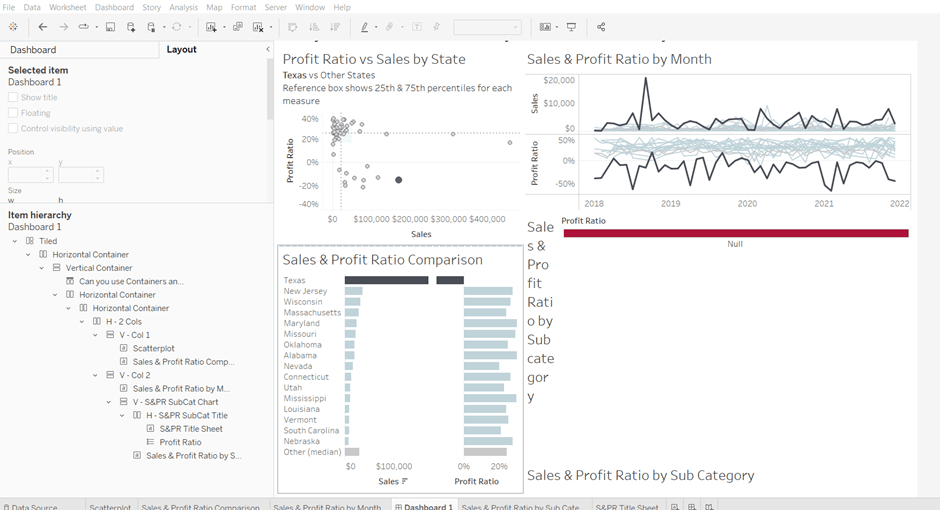
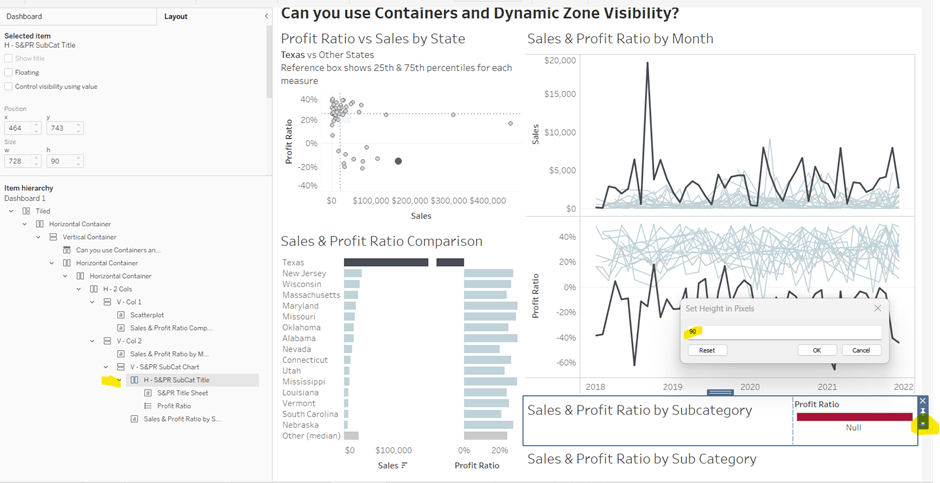
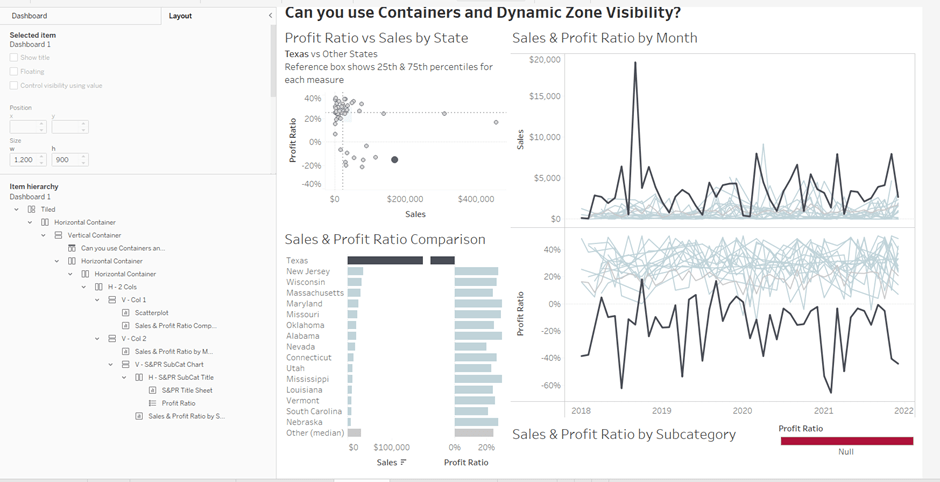
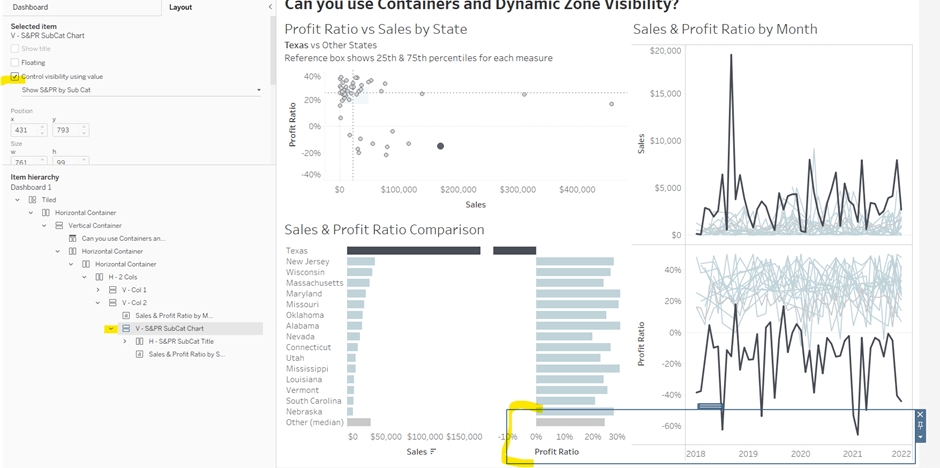
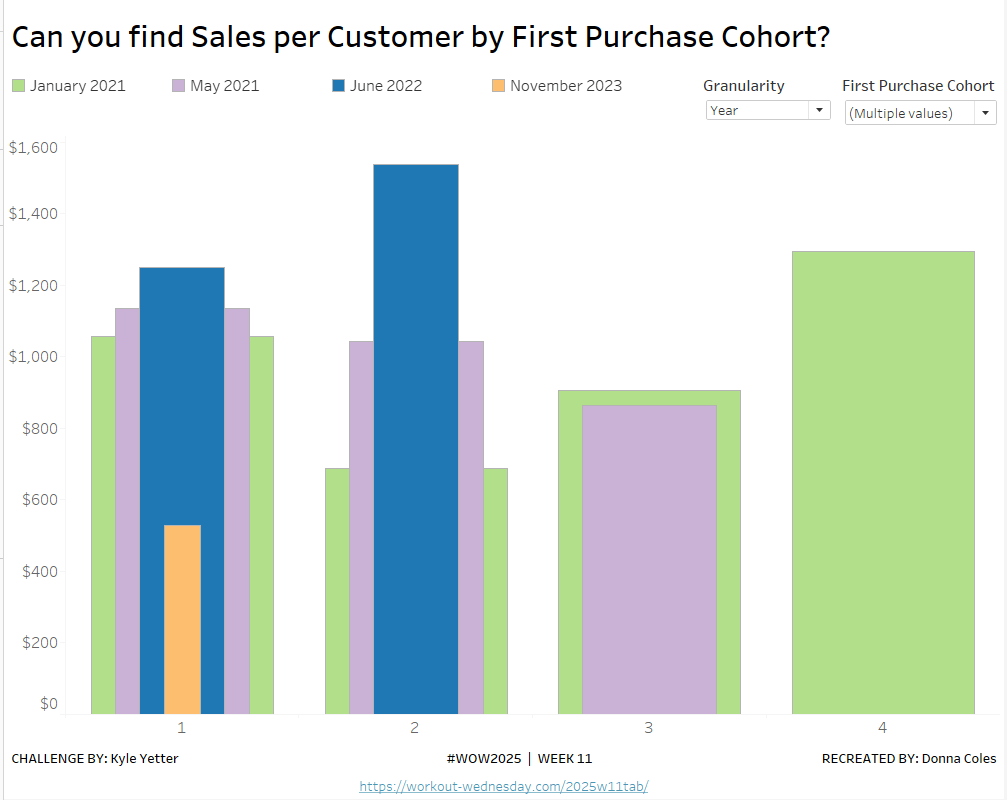
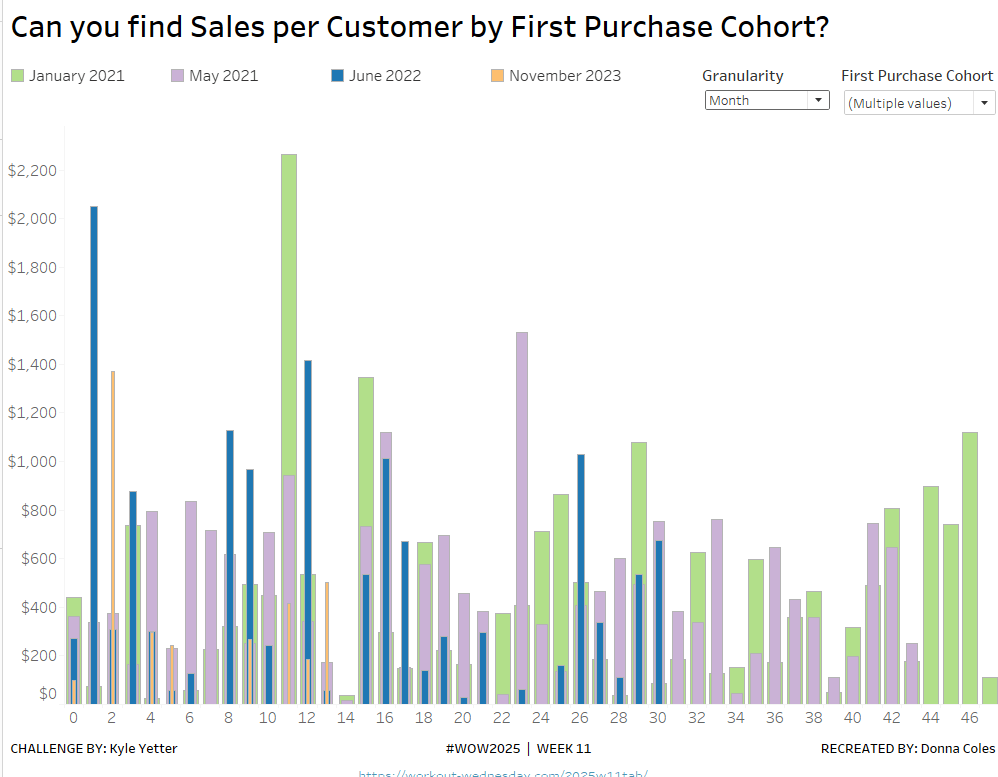
It was Yusuke’s turn for this week’s #WOW2025 challenge, posing a twist on a the creation of a highlight table.
Whenever I start a challenge, I take note of what’s going on – I interact with it, move my mouse around to see if there’s any clues. The main takeaway from this, is that I’d need a dual axis so I could have multiple marks cards to style differently – one to be coloured based on the Profit and one to be coloured based on whether the cell was selected or not. So we need to build a table using an axis.
Building the basic table
Add Order Date to Columns and then click the pill to expand the date hierarchy so Year and Quarter are displayed. Add Sub-Category to Rows.
Double click into Columns and manually type MIN(1.0) to create an axis. Change the mark type to bar, increase the size to as large as possible, and edit the axis to be fixed from 0 to 1. Add Profit to Colour and Profit to Label. Adjust the colour scheme as required (I used red-white-blue diverging and reduced the opacity to 70%). Adjust the label font to be grey text.
Widen each row; shrink each column and adjust the row and column dividers to be dashed grey lines. Update the font of the label headings. Adjust Tooltip to suit.
Storing the selected cells
To store the cells that have been selected, we’re going to use Sets. To build this set, click on a cell in the table, and then in the toolbar of the tooltip that displays, click the venn diagram symbol to create set
Name the set Cells Highlighted
Highlighting the selected cells
Each cell in the table we have built is a bar of length 1. We want to use a dual axis to create bars of length 1 only in the cells selected. So we need
Bar Length – Highlighted Cells
IF [Cells Highlighted] THEN 1 ELSE 0 END
We also only want the profit value to be displayed for these cells
Profit – Highlighted
IF [Cells Highlighted] THEN [Profit] END
Add Bar Length – Highlighted Cells to Columns to make a second axis, and a second marks card. Remove both existing Profit pills from this card. and instead change the Colour to black at 100% opacity, and add Profit – Highlighted to Label. Change colour of the Label text, and update the axis to be fixed from 0 to 1.
Make the chart dual axis and synchronise the axis.
Hide the axis (uncheck show header), and hide the Order Date label (right click -> hide field labels for columns)
Update the title of the sheet with the instructions and then add the sheet to a dashboard.
Adding the interactivity
On click, we want to add the cell (if unselected) to the set. For this we need a dashboard set action
Add to highlight
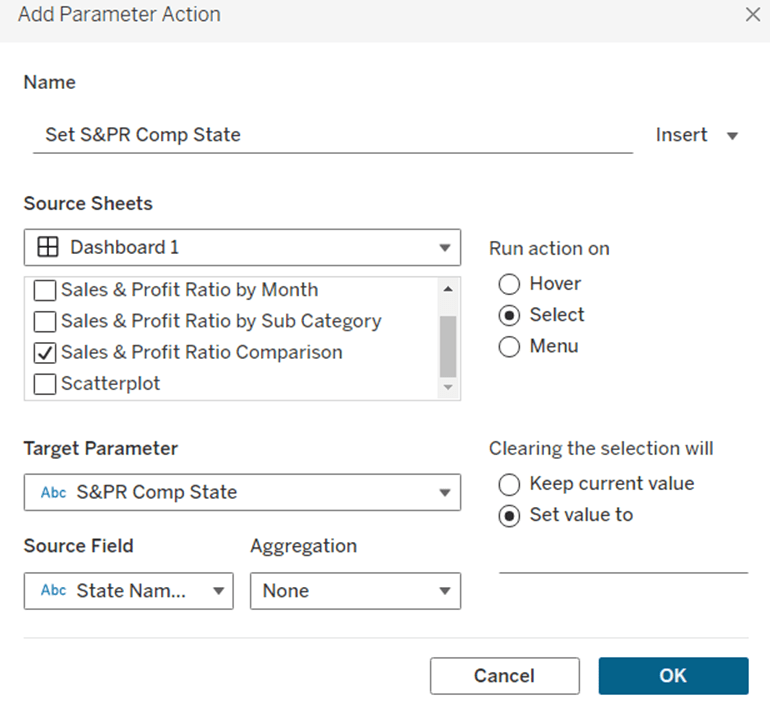
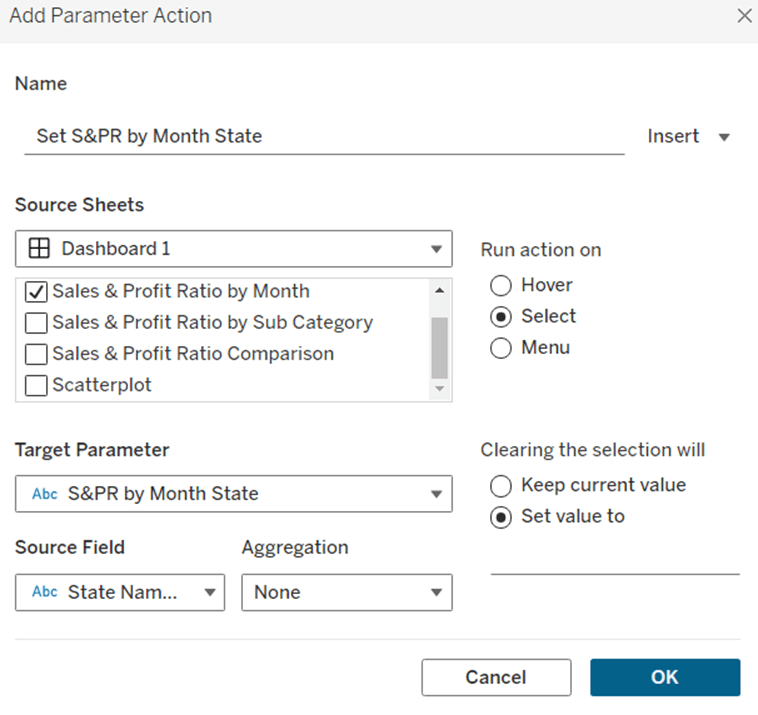
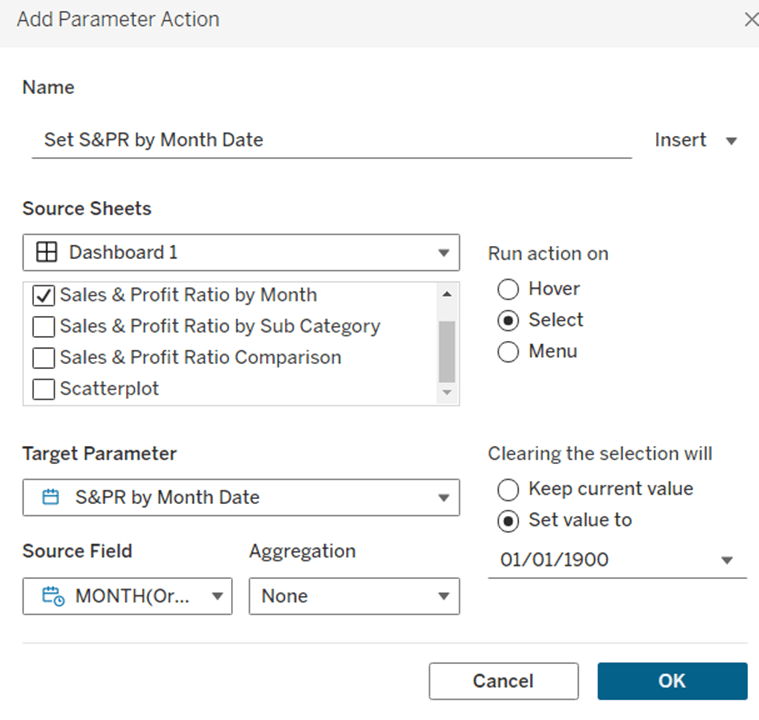
On select, target the Cells Highlighted set, adding values to the set on click, and keeping set values when cleared.
We also want to remove selected cells via a menu option, so create another dashboard set action
Remove from highlight
Display on the menu of the tooltip, and target the set Cells Highlighted by removing values from the set when the menu option is clicked, and keep values when selection cleared.
While these give us the functionality we need, it isn’t the best user experience – we have to click multiple times to get the display due to the ‘default’ behaviour of selected marks being automatically highlighted / non selected marks being faded out.
To resolve this, we need to utilise a couple of techniques blogged about here.
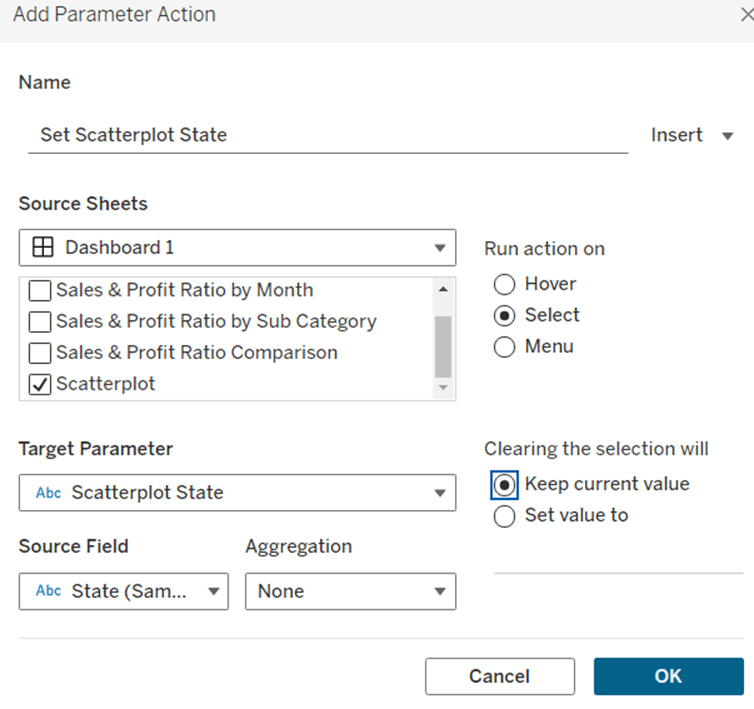
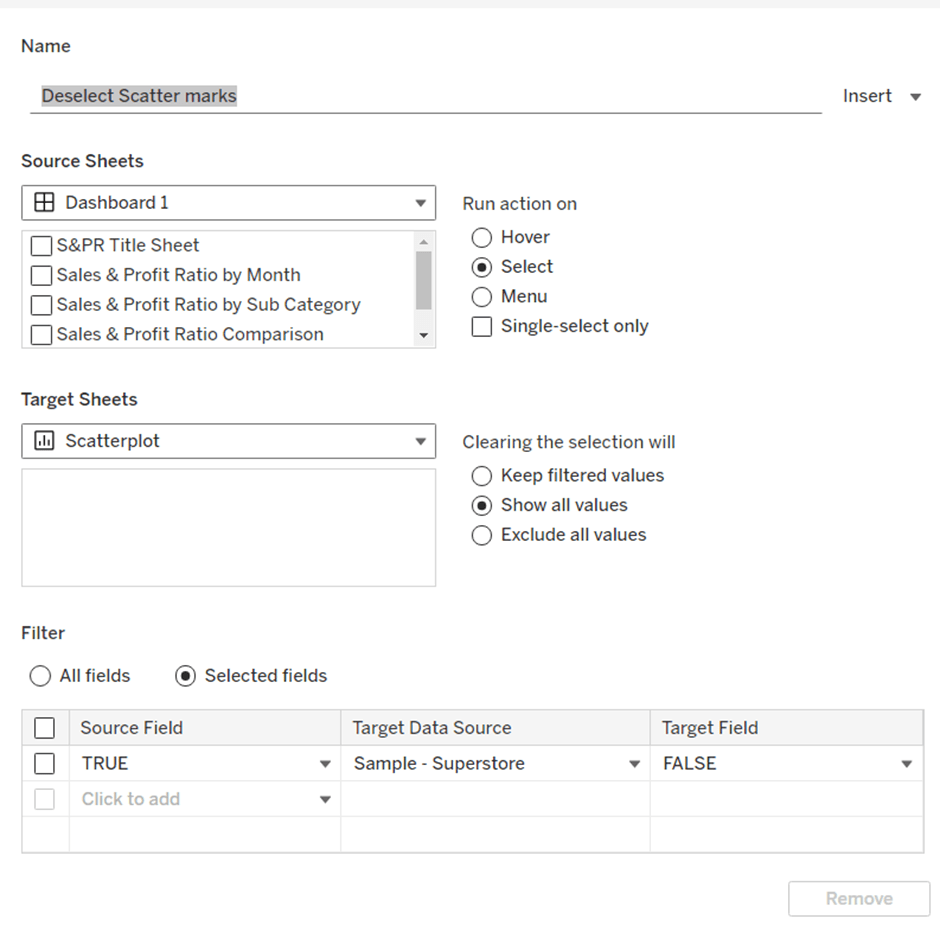
For the marks coloured by profit, we want to disable highlighting using a dashboard filter action and the true/false method.
Create calculated fields called
True
TRUE
False
FALSE
and add to the Detail shelf of the MIN(1.0) marks card only. Then on the dashboard add a dashboard filter action
Now if you click on an unhighlighted cell it should go black immediately. However, if you click on one of the black already highlighted cells, the other cells still fade.
Now we can’t apply the same method to that cell, as we then lose the hyperlink appearing on the tooltip on click. This is because the true/false method ultimately results in the cell being immediately deselected once selected, so the ‘click’ action, which results in the menu option showing, is cleared .
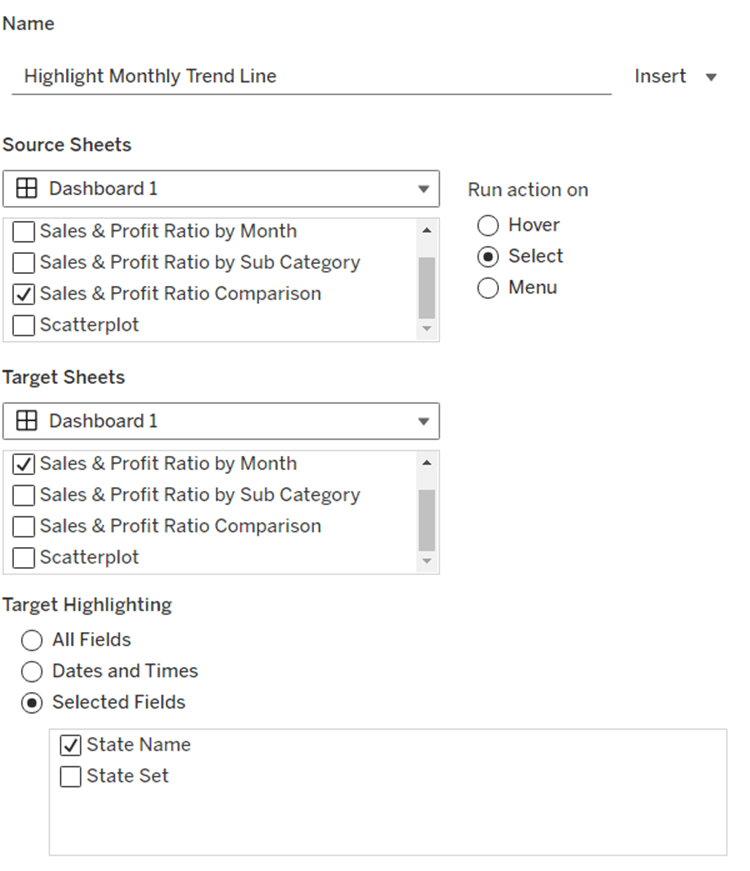
Instead we will use the dashboard highlight action technique also described in the blog.
Create a new field
Dummy
‘Dummy’
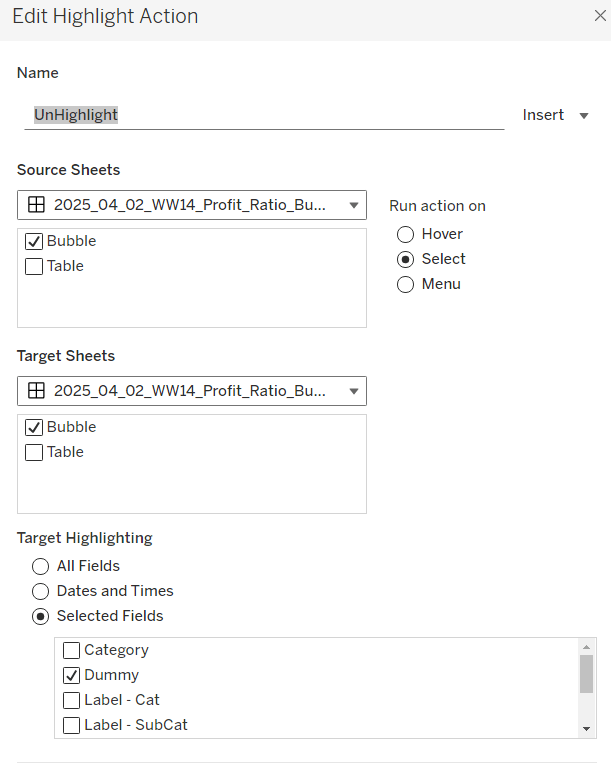
Add this to the Detail shelf of the All marks card (or add to both the MIN(1.0) and the Bar Length – Highlighted Cells marks cards). Then create a dashboard highlight action that just targets the Dummy field only, which as it exists in all cells, essentially selects them all.
Highlighting the word ‘colour’ in the title
I just did this by floating a blank object over the text which I set the background colour to black, and then set the object to move backwards. This did mean once I published to Tableau Public, I had to edit the viz online to ensure the object lined up to where I wanted.
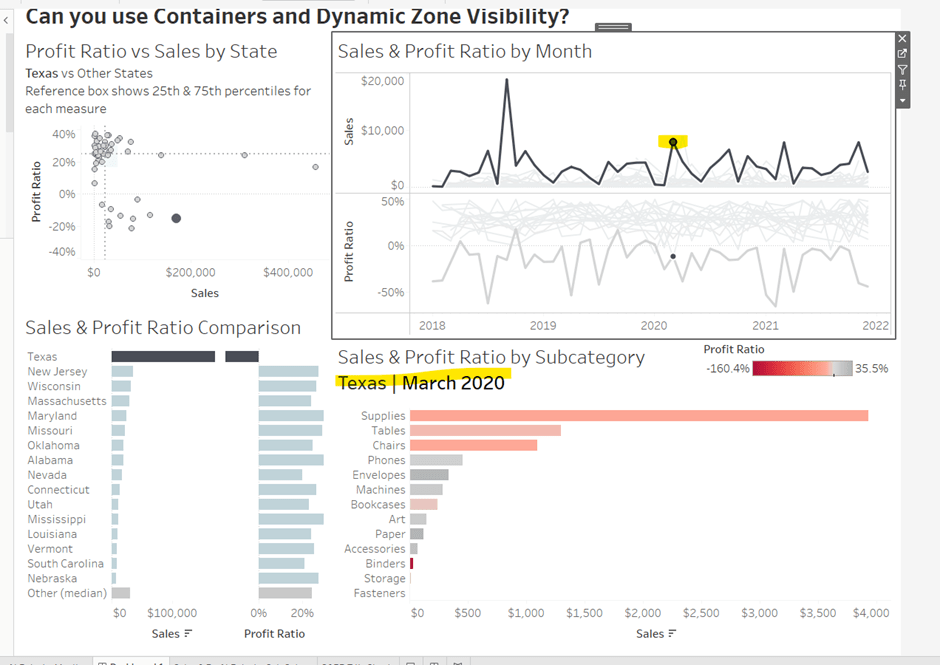
The focus of this week’s challenge, set by Yoshi, is showing “detail on demand” using filters.
Defining the calculations
We’re only concerned about current year and previous year, so to simplify this, after connecting to the data source, I added a data source filter based on Order Date to restrict the information to years 2023 and 2024 only.
I then created the following fields
Latest Year
{MAX(YEAR([Order Date]))}
Previous Year
[Latest Year]-1
Sales – LY
IF YEAR([Order Date]) = [Latest Year] THEN [Sales] END
Format to $ with 0 dp
Sales – PY
IF YEAR([Order Date]) = [Previous Year] THEN [Sales] END
On a new sheet, add Category to Columns, and Sales – LY and YoY to Text and format/layout the text as required. Adjust the formatting of the column headings too.
Add YoY to Colour too to match the solution (though personally, if I was doing this for a business need, I wouldn’t do this as some of the text becomes quite washed out).
Building the Sub Category Viz
On a a new sheet, add Category and Sales – LY to Columns and Sub-Category to Rows.
However, you can see that as not every Sub-Category exists in every Category, we get ‘blanks’ in the display, so we need use something on rows that exists for every Category. We can do this using the rank of Sales.
Add Sales -LY to Rows and change it to be a discrete (blue) dimension.
Move Sub-Category to Detail and then apply a quick table calculation of rank to the Sales – LY pill on Rows. Adjust the table calculation so it is computing explicitly by Sub-Category only.
Make the rows a little wider, move Sub-Category to Label. Add Sales -LY to label too. Adjust the format/layout of label and align middle right. Add YoY to Colour.
Add Sales – PY to Detail then add a Reference Line to the Sales – LY axis, that refers to Sales – PY per cell.
Add Latest Year to Tooltip and adjust the text to suit. Finally, hide the Sales – LY Rank row header and the Category column header (uncheck show header) and remove the title of the Sales – LY axis. Add a title.
Building the Product Viz
On a new sheet, add Product Name to Rows and Sales – LY to Columns. Sort by Sales – LY descending. Hide the null value indicator.
Add YoY to Colour. Add Sales – LY to Label. Add Sales – PY to Detail and add a Reference Line as described above. Add Sub-Category to Detail and add Latest Year to Tooltip and adjust. Remove the title of the Sales – LY axis, and hide the Product Name column header title (right click and hide field labels for rows). Add a title.
Filtering the display
The requirement is to be able to ‘filter’ the display based on the Category selected, and in the event not all categories are selected, the Product bar chart should show. Due to this second requirement, just using a standard ‘quick filter’ is a bit tricky – we need a way to understand what has been selected in the filter.
We can use a Set for this. Create a set of categories – right click Category > create > set
Category Set
Select all values
Add this to the Filter shelf of the KPI sheet, and then apply this same filter to the bar chart sheets too (right click the pill on the Filter shelf > apply to worksheets > selected worksheets > select the relevant sheets).
If you select show set, this then displays the input control to select which options are in or out of the set.
To manage the visibility of the Product bar chart, we need to know how many Categories there are in total, and how many Categories are selected. So create
Count Categories
{FIXED: COUNTD([Category])}
And
Count Set Members
{ COUNTD(IIF([Category Set], [Category],NULL))}
Both of these are LODs as we need to reference them in another boolean calculation that will be used to drive dynamic zone visibility.
Not all Categories Selected
{(SUM([Count Categories]) <> SUM([Count Set Members]))}
Building the dashboard
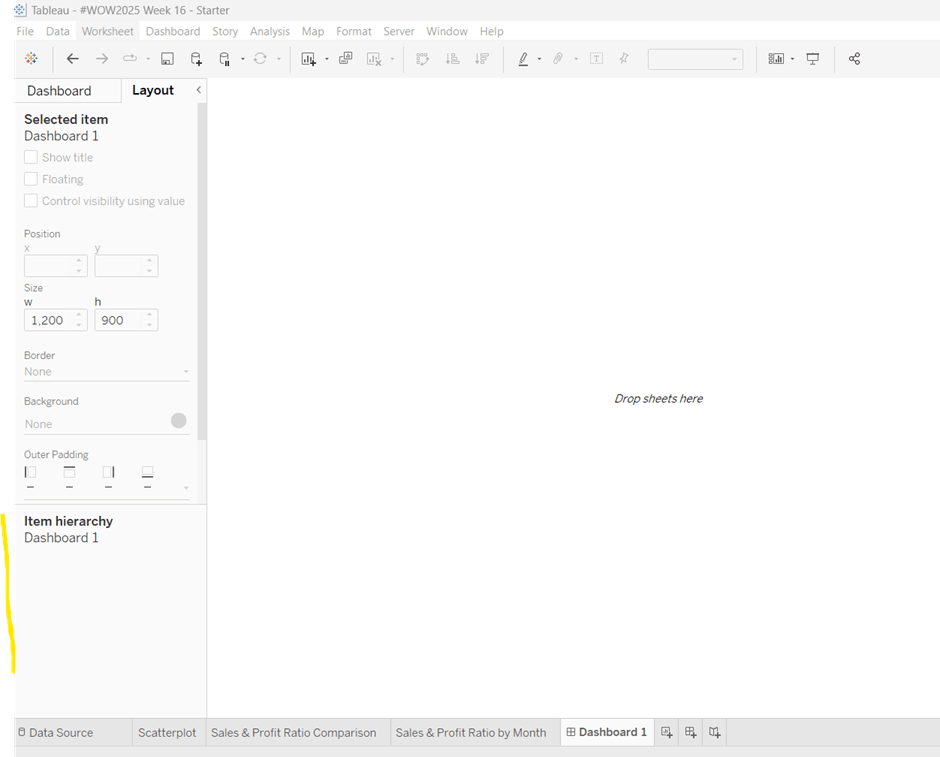
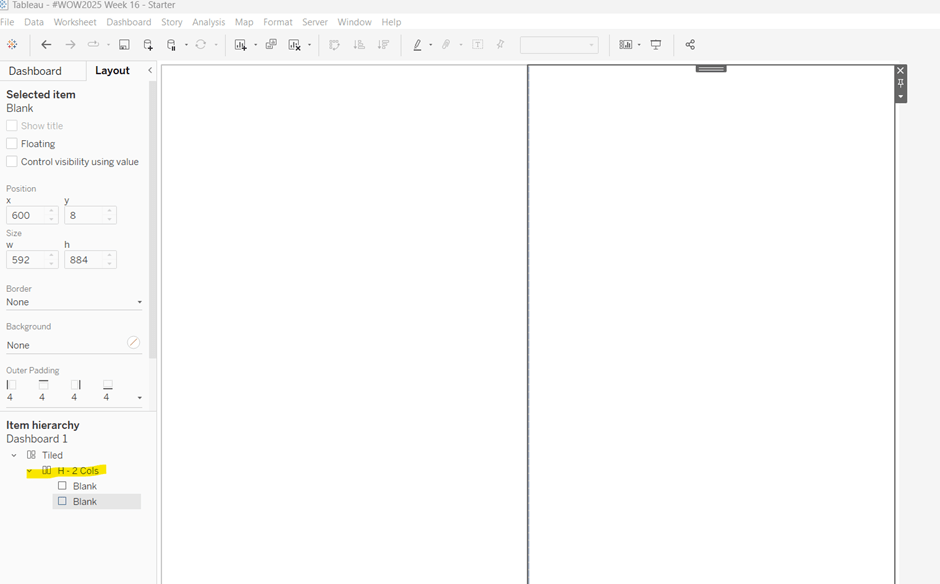
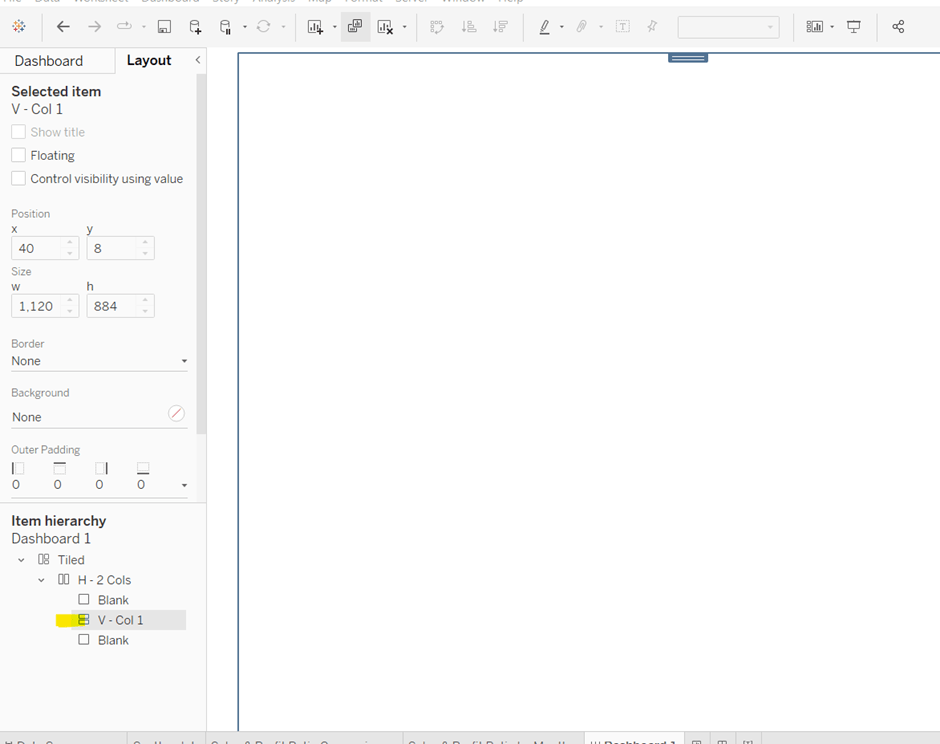
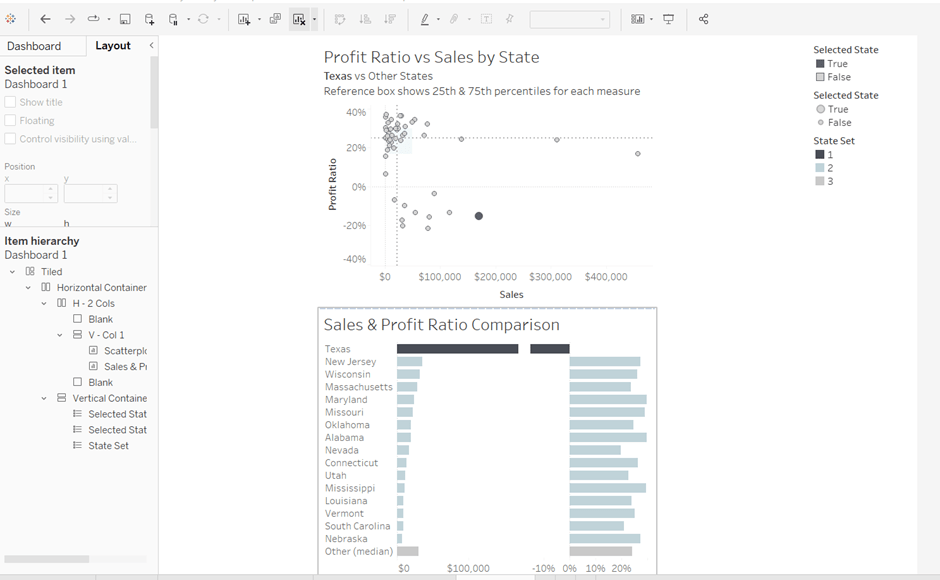
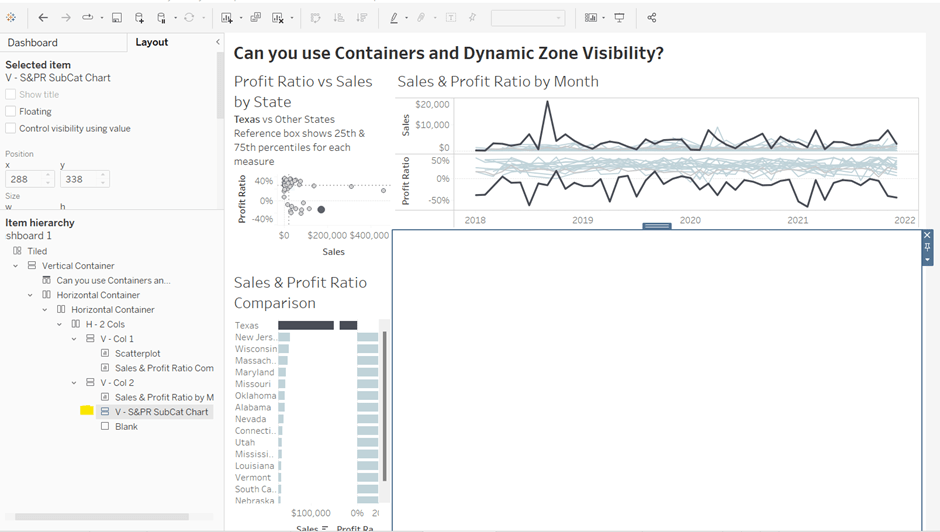
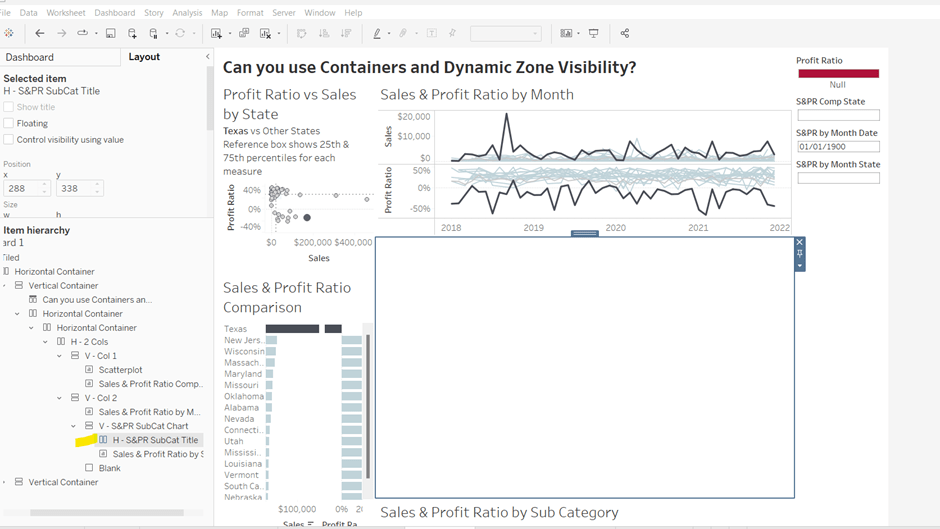
Create a dashboard. The three sheets should be arranged within layout containers. I used a horizontal container, where the left hand column contained a vertical container which in turn contained the KPI sheet on the top and the Sub Category bar chart underneath. The right hand column of the horizontal container contained the Product bar chart.
To control the visibility of the Product bar chart, select the object, then from the Layout tab on the left hand side, select the control visibility using value checkbox, and choose the Not All Categories Selected field.
The bar will initially disappear, but if you then deselect a value in the Category ‘filter’ control, it will reappear.
Added extra
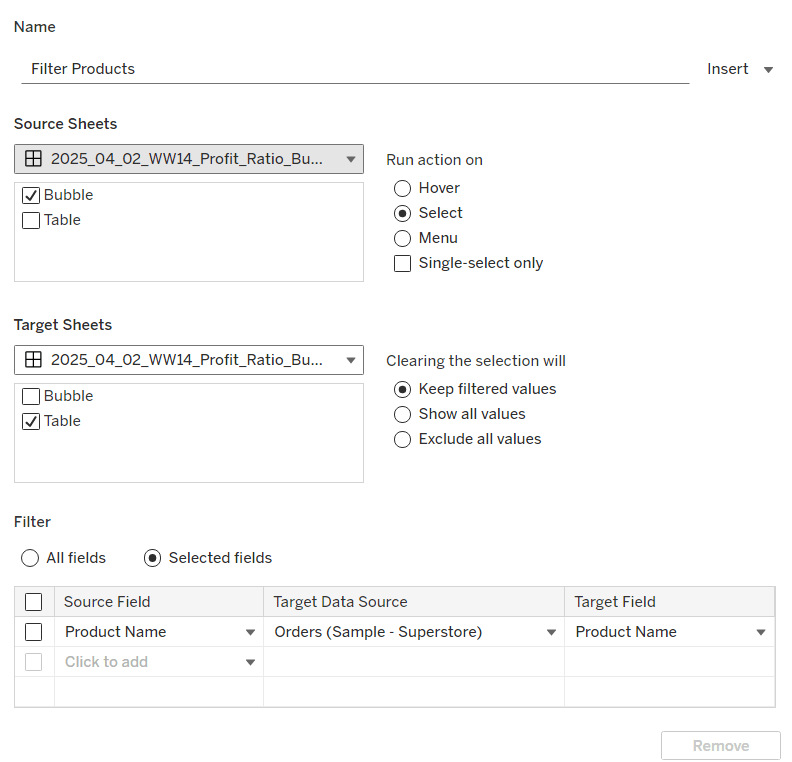
We can also set the Product bar chart to filter if a Sub-Category bar is clicked on. Create a dashboard filter action
Filter Products
On select of the Sub-Category bar chart sheet, target the Product Bar Chart sheet passing all values. Show all values when the selection is cleared.
This week, Kyle set the challenge to test our use of functionality released in 2024.3 – spatial parameters. I hadn’t used these before, so did have a watch of the video link posted in the challenge, which was really useful.
Accessing the data
Kyle provided two links to web pages for the data. You need to download the zipped Shapefile from each
Once downloaded, extract each zip file. There will be a SHP (shape) file in each set of unpackaged files. In Tableau desktop, you will need to create 2 connections to a spatial file, one to each shp file
Build the State Map
From the School_District_Characteristics data source, double click on Geometry to automatically create a map.
Add Lea Name to the Detail shelf and add Statename to the Filter shelf, and select Washington.
From the Map menu, select Background Maps > Dark to set the background.
Name the sheet State or similar.
Building the District Map
On a new sheet, double click on Geometry from the School_Neighbourhood_Poverty_Estimates data source to automatically create another map.
Add Name to Detail.
On the Map menu, select Background Layers, and then set the Style to dark and tick the Street,Highways etc option.
Name the sheet District or similar.
Create the spatial parameter and filter
Create a new parameter to store the geometric data
pLea
a spatial parameter, defaulted to Empty
In the School_Neighbourhood_Poverty_Estimates data source, create a calculated filed
Filter
INTERSECTS([pLea],[Geometry])
this will return true if the geometric data that represents the state(s) selected from the state map overlap with the geometric data that represents the schools.
Adding the interactivity
Create a dashboard, placing the State and the District sheets side by side in a horizontal layout container.
Create a dashboard parameter action
Set Lea
On select of the State sheet, set the pLea parameter passing in the value from the Geometry field. Set the value to Empty when the selection is cleared.
Click on the State map (which will populate the pLea parameter). Then navigate back to the District sheet and add the Filter calculation to the Filter shelf and select True, which will result in the District map being filtered
Return to the dashboard and click on the State map to see the District map change.
When no states are selected though, the District map is empty, which is the desired behaviour, but we want to fill the display with the State map (ie hide the space where the District map is).
To do this, create a calculated field (in either of the data sources)
State Selected
NOT ISNULL([pLea])
This will return True if there is something in the pLea parameter.
Back on the dashboard, select the District object on the dashboard, then from the Layout tab, check the Control visibility using value checkbox, and select the State Selected field
Remove the title from the District sheet on the dashboard, and now when all states are unselected the State sheet fills the view.
Finalise the dashboard by adding the title and any other information required. Set the background of the dashboard to dark grey and show the State parameter.
This week’s challenge by Lorna was to deliver some functionality without using LODs or table calculations. She hinted that parameters and parameter actions would be your friends.
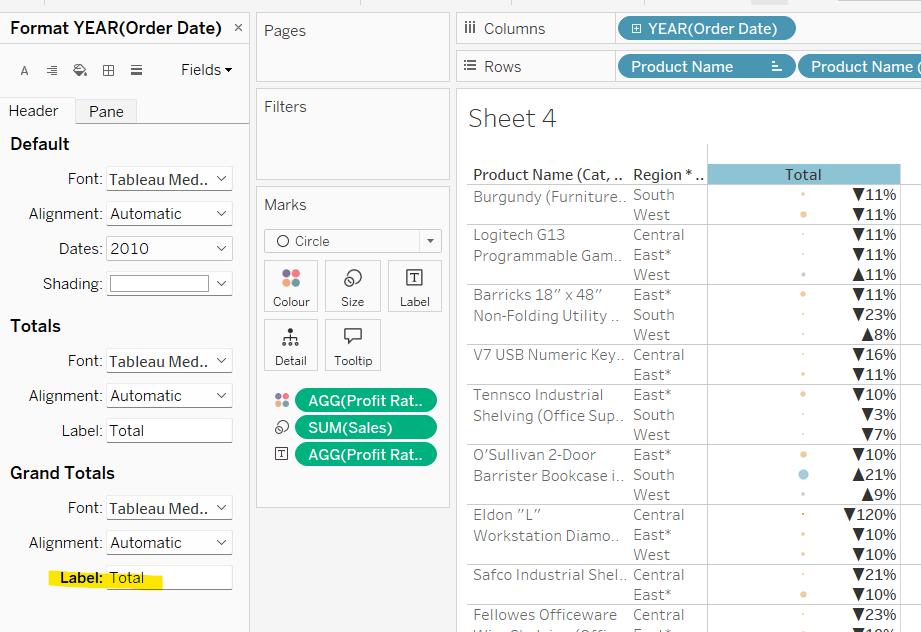
Setting up the parameters
Create a parameter to capture the month selected
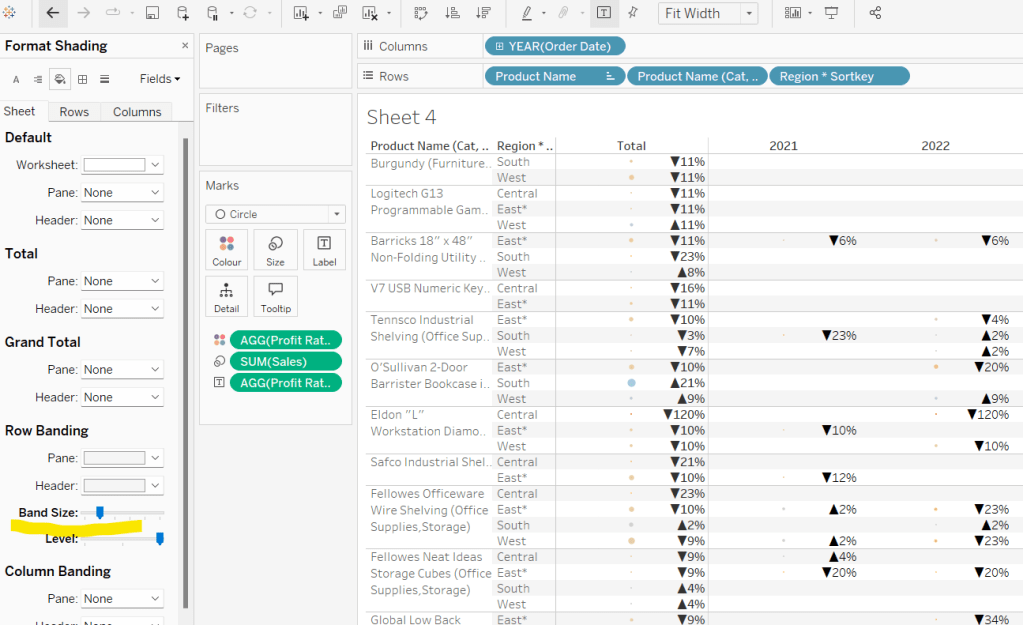
pMonth
date parameter defaulted to 01 April 2023
and then create one that will store the value associated to the month selected
pMonthSales
float parameter defaulted to 0
Building the Viz
On a new sheet add Order Date as a continuous (green) pill at the month-year level to Columns. Add Sales to Rows.
Create a new calculated field
Difference from Selected Sales
SUM([Sales]) – [pMonthSales]
and add this to Rows.
Change the mark type of this second marks card to bar and add Difference From Selected Sales to the Colour shelf. Adjust the colour to a diverging scale and centre at 0
Set the Size of the bars to be Manual rather than Fixed and adjust the slider to suit.
Add a reference line to the Order Date axis, that references the pMonth parameter.
Adjust the Tooltips, remove gridlines and add a title.
Adding the interactivity
Add the sheet to a dashboard. Add a dashboard parameter action
Set Date
On select of the viz, update the pMonth parameter with the value from the Month([Order Date]) field.
Add another dashboard action
Set Value
On select of the Viz, update the pMonthSales parameter with the value from the SUM(Sales) field that is aggregated at the SUM level.
Now if you click on a point on the line chart, the bottom bars should alter, but they’ll all appear ‘faded’ initially.
To resolve this, create a new calculated field
HL
“HL”
and add this to the Detail shelf of the All marks card. Then create a dashboard highlight action
Highlight
On select of the viz, highlight the HL field only
When you now click, the bottom marks aren’t faded as they essentially are all ‘highlighted’ too.
I set this week’s challenge and I tried to deliver something to hopefully suit everyone wherever they are on their Tableau journey. The primary focus for this challenge is on table calculations, but there’s a few other features/functionality included too.
I love football – all the family are involved in it in some way, so thought I’d see what I could get from a different data set this week. The data set contains the results of matches played in the English Premier League for the last five seasons – from the 2020-21 season to the current season 2024-25. Matches up to the end of 2024 only are included.
As I wrote the challenge in such a way that should allow it to be ‘built upon’ from the beginner challenge, I’m going to author this blog in the same way. I’ll describe how to build the beginner challenge first, then will adapt /add on to that solution. Obviously, as in most cases, this is just how I built my solution – there may well be other ways to achieve the same result.
Beginner Challenge
Modelling the data
The data set provided displays 1 row per match with the teams being displayed in the Home and the Away columns respectively, and the FTR (full time result) column indicating if the Home team won (H), the Away team won (A) or if the match was a draw (D).
The first thing we need to do is pivot this data so we have 2 rows per match, with a column displaying the Team and another indicating if the team is the Home or Away team. To do this, in the data source window, select the Home and the Away columns (Ctrl-Click to multi-select – they’ll be highlighted in blue), then from the context menu on either column, select the Pivot option.
This will duplicate the rows, and generate two new fields called Pivot Field Names and Pivot Field Values. Rename the fields by double-clicking into the field heading
Pivot Field Names to Homeor Away
Pivot Field Values to Team
Creating the points calculation
We need to determine how many points each team gained out of the match which is based on whether they won (3pts), lost (0pts) or drew (1pt). Create a calculated field
Pts
IF [Home or Away] = ‘Home’ AND [FTR] = ‘H’ THEN 3 ELSEIF [Home or Away] = ‘Away’ AND [FTR] = ‘A’ THEN 3 ELSEIF [FTR] = ‘D’ THEN 1 ELSE 0 END
Creating the cumulative points line chart
We want to create a line chart that displays the cumulative number of points each team has gained by each week in each season.
Start by adding Wk to Columns and Pts to Rows as these are the core 2 fields we want to plot. But we need to split this by Team and by season, so add Team and Season End Year to the Detail shelf.
This gives us all the data points we need, but at the moment, it’s currently just showing how many points each team gained per week in each season.
To get the cumulative value, we add a running total quick table calculation to the Pts field.
which gives us the display we need
While we can leave the SUM(Pts) field as is in the Rows, I tend to like to ‘bake’ this field into the data set, so I have a dedicated field representing the running total. I can create this field in 2 ways
Create a calculated field called Cumulative Points Per Season which contains the text RUNNING_SUM(SUM([Pts])). Add this field to Rows instead of just Pts.
Hold down Ctrl and then click on the SUM([Pts]) pill in Rows and drag into the left hand data pane and then release the mouse. This will automatically create a new field which you can rename to Cumulative Points Per Season. The field will already contain the text from the calculation used within the quick table calculation, and the field on Rows will automatically be updated.
Filtering the data
Add Team to the Filter shelf and when prompted just select a single entry eg Arsenal.
Show the Filter control. From the context menu, change the control to be a single value (list) display, and then select customise and uncheck the show all value option, so All can’t be selected.
Format the line
To make the line stepped, click the path button and select the step option
To identify the latest season without hardcoding, we can create
Is Latest Season
[Season End Year] = {MAX([Season End Year])}
The {MAX([Season End Year])} is a FIXED LOD (level of detail) calculation, and is a shortened notation for {FIXED: MAX([Season End Year])} which basically returns the latest value of Season End Year across every row in the data set. This calculation returns true if the Season End Year value of the row matches the overall value.
Add this field to the Colour shelf and adjust colours to suit. Also add the same field to the Size shelf
The line for the latest season is being displayed ‘behind’ the other seasons. To fix this, drag the True value in either the colour or size legend to be listed before the False value. Then edit the sizes from the context menu of the size legend, and check the reversed checkbox to make True the thicker line.
If the thick line seems too thick, adjust the mark size range to get it as you’d prefer
Label the line
Add Season End Year to the Label shelf. Align middle right. Allow labels to overlap marks. And match mark colour.
Create the Tooltip
We need an additional calculated field for this, as we want to display the season in the tooltip in the format 2024-2025 and not just the ending year of the season.
Season Start Year
[Season End Year]-1
Add this field to the Tooltip shelf, and then edit the Tooltip to build up the text in the required format. Use the Insert button on the tooltip to add referenced fields.
Final Formatting
To tidy up the display we want to
Change the axis titles
Right click on each axis and Edit Axis then adjust the title (or remove altogether if you don’t want a title to display)
Remove gridlines and axis ruler
Right click anywhere on the chart canvas, and select Format. In the left hand pane, select the format lines option and set grid Lines to None and axis rulers to None.
Set all text to dark purple
Select the Format menu option at the top of the screen and select Workbook. The under the All fonts section, change the colour to that required
Update the title to reference the selected team
double click in to the title of the sheet and amend accordingly, using the Insert option to add relevant fields.
Intermediate Challenge
For this part of the challenge we’re looking at using a dual axis to display another set of marks – these ones are circular and only up to 1 mark per season should display. As this now takes a bit more thought, and to help verify the calculations required, I’m going to build up the calculations I need in a tabular form first.
Defining the additional mark to plot
On a new sheet add Team, Season End Year and Wk to Rows. Set the latter 2 fields to be discrete (blue) pills. Add Cumulative Points Per Season to Text. Add Team to Filter and select Arsenal.
We need to identify the date of the last match played by each team, so we can use an LOD for this
Latest Date Per Team
{FIXED [Team] : MAX([Date])}
Add this to Rows as a discrete (blue pill) exact date. For Arsenal, the last match was on 27 Dec 2024, whereas for Chelsea it’s 22 Dec 2024.
With this, we can work out what the latest points are for each team in the current season.
Latest Points Per Team
WINDOW_MAX(IF MIN([Date]) = MIN([Latest Date Per Team]) THEN [Cumulative Points Per Season] END)
Breaking this down : the inner part of the statement says “if the date associated to the row matches the latest date, then return the points associated with that row”. Only 1 row in the table of data has a value at this point, all the rest of the rows are ‘nothing’. The WINDOW_MAX statement, then essentially ‘floods’ that value across every row in the data, because the ‘value’ returned by the inner statement is the maximum value (it’s higher than nothing). Add this field into the table.
We’re trying to identify the week in each season where the points are at least the same as the latest points. We’re going to capture the previous week’s points against every row.
Previous Points
LOOKUP([Cumulative Points Per Season],-1)
This is a table calculation that returns the value of the Cumulative Points Per Season from the previous row (-1). If we wanted the next row, the function parameter would be 1. 0 identifies the ‘current row’.
Add this to the table.
We can see the behaviour – The Previous Points associated to 2025 week 18 for Arsenal is 33, which is the value associated to Cumulative Points Per Season for week 17. But we can also see that week 38 from season 2024 is being reported as the previous points for week 1 of season 2025, which is wrong – we don’t want a previous value for this row.
To resolve, edit the table calculation of the Previous Points field and adjust so the calculation for Previous Points is just computing by the Wk field only.
With this we can identify the week in each season we want to ‘match’ against. In the case of the latest season, we just want the last row of data, but for previous seasons, we want to identify the first row where the number of points was at least the same as the latest points; the row where the points in the row are the same or greater than the latest points, and the points in the previous row are less.
Matching Week
//for latest season, just label latest record, otherwise find the week where the team had scored at least the same number of points as the current season so far IF MIN([Is Latest Season]) AND LAST()=0 THEN TRUE ELSE IF NOT(MIN([Is Latest Season])) AND [Cumulative Points Per Season]>= [Latest Points Per Team] AND [Previous Points] < [Latest Points Per Team] THEN TRUE ELSE FALSE END END
Add this to Rows and check the data. In the example below, in Season 2020-21, in week 26, Arsenal had 37 points. The previous week they had 34 points. Arsenal’s latest points are 36, so since 37 >=36 and 34 < 36, then week 26 is the matching week.
Looking at season 2023-24, in both week 15 and 16, Arsenal had 36 points. But only week 15 is highlighted as the match, as in week 14, Arsenal had 33 points so 36 >=36 and 33 <36, but for week 16, as the previous week was also 36, the 2nd half of the logic isn’t true : 36 is not less than 36.
So now we’ve identified the row in each season we want to display on the viz, we need to get the relevant points isolated in their own field too.
Matching Week Points
IF [Matching Week] THEN [Cumulative Points Per Season] END
Add this to the table
We now have data in a field we can plot.
Visualise the additional mark
If you want to retain your ‘Beginner’ solution, then the first step is to duplicate the Beginner worksheet, other wise, just build on what you have.
Add Matching Week Points to Rows to create an additional axis. By default only 1 mark may have displayed. Adjust the table calculation setting of the field, so the Latest Points Per Team calculation is computing by all fields except the Team field.
Change the mark type of the Matching Week Points marks card to Circle and remove Season End Year from the Label shelf (simply drag the pill against the T symbol off off the marks card)
Size the circles
We want the circles to be bigger, but if we adjust the Size, the lines change too, as the Size is being set based on the Is Latest Year pill on both marks cards. To resolve this, create a duplicate instance of Is Latest Year (right click pill and duplicate). This will automatically create Is Latest Season (copy) in the dimensions pane. Drag this onto the size shelf of the Matching Week Points marks card instead to make the sizing independent (you will probably find you need to readjust the table calculation for the Matching Week Points pill to include Is Latest Season (copy)). Then adjust the sizes as required.
Label the circles
Add Latest Points Per Team to the Label shelf of the Matching Week Points marks card. Adjust the table calculation setting, so the Latest Points Per Team calc is computing just by Wk only, so only the latest value displays.
Then format the Label so the text is aligned middle centre, is white & bold and slightly larger font.
Adjust the Tooltip text on the Matching Week Points mark, so it reads the same as on the line mark. You will need to reference the Matching Week Points value instead.
Then make the chart dual axis and synchronise the axis. Remove the Measure Names field that has automatically been added to the All marks card
Remove Label for Latest Season
We don’t want the season label to display for the current year, so create a new field
Label:Season
IF NOT([Is Latest Season]) THEN [Season End Year] END
Replace the Season End Year pill on the Label shelf of the Cumulative Points Per Season marks card, with this one instead.
Final Formatting
To tidy up
Remove right hand axis
right click on axis and uncheck show header
Remove 165 nulls indicator
right click on indicator and hide indicator
Remove row & column dividers
Right click on the canvas and Format. Select Format Borders and set Row and Column Divider values to None
Advanced Challenge
For the final part of the challenge we want to add some additional text to the tooltip and adjust the filter control. As before either duplicate the Intermediate challenge sheet or just build on.
We’ll start with the tooltip text.
Expand the Tooltip Text
For this, we’ll go back to the data table sheet we were working with to validate the calculations required.
We want to calculate the difference in the number of weeks between the latest week of the current season, and the week number of the matching record from previous seasons. So first, we want to identify the latest week of the current season, and ‘flood’ that over every row.
Latest Week Number Per Team
WINDOW_MAX(MAX(IF ([Date]) = ([Latest Date Per Team]) THEN [Wk] END))
This is the same logic we used above when getting the Latest Points Per Team, although as this time the Wk field isn’t already an aggregated field like Cumulative Points Per Season is, we have to wrap the conditional statement with an aggregation (eg MAX) before applying the WINDOW_MAX.
Add this to the table.
And then we need, the week number in each season where the match was found, but this needs to be spread across every row associated to that season.
Matching Week No Per Team and Season
WINDOW_MAX(IF [Matching Week] THEN MIN([Wk]) END)
Add to the table, but adjust the table calculation so the field is computing by all fields except the Season End Year.
Now we have these 2 fields, we can compute the difference
Week Difference
[Latest Week Number Per Team] – [Matching Week No Per Team and Season]
Add to the table. With this we can then define what this means for the text in the tooltip
Less/More
IF [Week Difference]<0 THEN ‘more’ ELSEIF [Week Difference]>0 then ‘less’ ELSE ” END
and also build the tooltip text completely
Tooltip- other seasons
IF NOT(MIN([Is Latest Season])) THEN IF [Week Difference] = 0 THEN ‘It took the same amount of weeks to accrue at least the same number of points as the current season’ ELSE ‘It took ‘ + STR(ABS([Week Difference])) + ‘ weeks ‘ + [Less/More] + ‘ to accrue at least the same number of points as the current season’ END END
Add this to the Tooltip shelf of the Matching Week Points marks card. Adjust the Tooltip to reference the field.
Adjust the Tooltip – other seasons table calculation, so the Latest Points Per Team nested calculation is computing for all fields except Team (this will make the circles reappear)
and also adjust the Latest Week Number Per Team nested calculation to compute by all fields except Team. This should make the text in the tooltip appear.
Filtering by teams in the current season only
We need to get a list of the teams in the current season only, which we can define by
Filter Team
IF {FIXED [Team]: MAX([Season End Year])} = {MAX([Season End Year])} THEN [Team] END
Breaking this down: {FIXED [Team]: MAX([Season End Year])} returns the maximum season for each team, which is compared against the maximum season in the data set. So if there is a match, then name of the team is returned. Listing this out in a table we get Null for all the teams whose latest season didn’t match the overall maximum
We can then build a set off of this field. Right click on the Filter Team field Create > Set and click the Null field and select Exclude
Then add this to the Filter shelf, and the list of teams displayed in the Team filter display will be reduced.
And with that the challenge is completed. My published viz is here.
This week’s challenge was set by Sean and was a recreation of a PowerBI WOW challenge set a few weeks ago. The data set just contains 2 pieces of information – a datetime field and a glucose measurement.
Creating the calculations
On a new sheet, add Device Timestamp to Rows as a discrete (blue) pill at the hour level.
Then create the following fields, which are aggregations of the glucose levels at each hourly time period.
Minimum
MIN([Glucose mg/dL])
5th Percentile
PERCENTILE([Glucose mg/dL],0.05)
25th Percentile
PERCENTILE([Glucose mg/dL],0.25)
Median
PERCENTILE([Glucose mg/dL],0.5)
75th percentile
PERCENTILE([Glucose mg/dL],0.75)
95th percentile
PERCENTILE([Glucose mg/dL],0.95)
Maximum
MAX([Glucose mg/dL])
Add all these fields to the table and then format the Hour field to use the 12hr format by default
Building the Viz
On a new sheet, add Device Timestamp as a continuous (green) pill at the hour level to Columns. Then add Median to Rows. Set the mark type to line and set the path to be a dashed line and colour black. Format the Device Timestamp pill so the default format on the pane is 12hr format (axis should remain as numeric).
Add Minimum to Rows to create a second marks card. Change the mark type to Area and set the colour to be 100% opacity.
Then drag 5th Percentile to the Minimum axis and drop when the ‘2 green column’ symbol appears.
This will automatically add Measure Values to Rows instead and Measure Names to Colour. Add 25th Percentile, 75th Percentile, 95th Percentile and Maximum to the axis too. Reorder the fields in the Measure Values section so the fields are listed in the appropriate order from Min to Max. Adjust the Colours accordingly. Unstack the marks (Analysis -> Stack Marks -> Off).
Add Measure Names to Label and align middle right. Allow labels to overlap marks.
Add Measure Names to the Label on the Median marks card. Also align middle right and format to be underlined.
Make the chart dual axis, synchronise the axis, and then right click on the right hand axis and move marks to back.
Hide the right hand axis (uncheck show header). Edit the Device Timestamp axis to fix from 0 to 26, set the axis to display a value every 3 hours and remove the title.
Add constant Reference Lines to the left hand axis for the values 80 and 180
Edit the left hand axis title. Remove row and column dividers. Add axis rulers. Add a title.
Add to a dashboard and then publish. My published version is here.
Note – the vertical grid lines that appear on the Tableau Public version are a nuance of Tableau Public. I originally recreated on Desktop thinking it was a requirement of the challenge, by adding multiple constant reference lines for each hour. But when I checked Sean’s solution after publishing, I found he didn’t have any and the intention was not to have any.
Erica kicked off the 1st year of #WOW2025 with a table calculation based challenge asking us not to just use quick tableau calculations, to avoid the use of the RUNNING_SUM table calculation and to just create 2 calculated fields.
Defining the calculations
On a new sheet, add Order Date to Rows as a discrete (blue) pill at the Month-Year format and add Sales to Text.
For the running total, we want
Running Total
SUM([Sales]) + PREVIOUS_VALUE(0)
which takes the Sales from the current row, and adds it to the value of the cumulative Sales (ie this calculation) in the previous row
For the moving average, we want
3 Month Moving Average
WINDOW_AVG(SUM([Sales]), -2, 0)
which averages the Sales for the current row plus the previous 2 rows (ie 3 rows in total)
Building the Viz
ON a new sheet add Order Date as a continuous (green) pill at the Month-Year format to Columns and Running Total to Rows.
Change the marktype to Area, and set the Colour to #a16eaf with a 25% Opacity.
Add Order Date to Tooltip, and set to the MIN aggregation. Format the pill on the Tooltip shelf to have the <month year> format when displayed on the pane.
Add another instance of Running Total to Rows. Set the Mark type to be Line and reset the opacity on the colour shelf to be 100%. Make the chart dual axis and synchronise the axis.
Add 3 Month Moving Average to Rows. Set the Colour to be #67c79c at 25% opacity.
The add another instance of 3 Month Moving Average to Rows. Set the colour to #67c79c and the mark type to line and increase opacity to 100%. Make dual axis and synchronise the axis.
Update the Tooltip on the All Marks card, referencing the MIN(Order Date) pill and adding $ before the values
Edit the Order Date axis, to start from 01 Jan 2021 and end on 31 Dec 2024. Remove the axis title.
Format the Order Date axis, and set the Dates on the scale to be formatted with the MMMMM notation to just show the first letter of the month
Add a reference line to the Order Date axis, set to be a constant value of 01 Jan 2021, with a custom label of 2021 and the line is formatted to be a white dashed line of 100%
Then format the reference line so the label is aligned top right
Repeat this step 3 more times, adding Reference Lines for 01 Jan 2022 (labelled 2022), 01 Jan 2023 (labelled 2023) and 01 Jan 2024 (labelled 2024).
Finally, hide the right hand axis (uncheck show header), remove column dividers, but show the axis rules on the rows.
And that should complete the challenge – just pop the viz onto a dashboard and publish. My published version is here.
Erica set the latest challenge, testing us on our ability to master tricky filter scenarios – in this case either show the info for one specific value of a field, or only show the other values, but allow them to be filtered themselves too. The challenge had two parts – the main challenge and a bonus option. I managed to complete both, so will blog both too.
Main challenge – Building the basic viz
On a new sheet add Region and Category to Rows and Sales to Columns. Add Region to Colour and adjust accordingly.
Sort Region by Sales descending
and then click the descended sort button on the toolbar to sort the Category field by Sales too.
Format Sales to be $ with 0 dp. Remove column dividers, and widen each row slightly.
Main challenge – Apply the filtering
Create a parameter
pRegionType
string parameter with 2 options : Not West and West, defaulted to Not West
Create a calculated field to determine whether to display the West Region only, or the other Regions
Filter Region West or Not v1
([pRegionType] = ‘West’ AND [Region] = ‘West’) OR ([pRegionType] = ‘Not West’ AND [Region] <> ‘West’)
Add this to the Filter shelf and set to True. This is essentially the ‘first level’ filter. Show the parameter and switch between the two values to see the behaviour
Now we need a ‘second’ filter, to allow the relevant Regions to be selected. For this, add Region to the Filter shelf, but select the Use all option
and then show the Region filter list on the canvas, and adjust the settings so only relevant values are displayed
This means when the pRegionType parameter is West, only West will be displayed in the Region filter, but when Not West is selected, all regions except West will display, and the filter can be interacted with in the normal manner.
Main challenge – Building the dashboard
Arrange the viz and the parameters on the dashboard as required, using layout containers, padding and background colours to help organise the content and display required.
We only want the Region selection filter to display when the pRegionType parameter is set to Not West. We can use dynamic zone visibility for this. Create a calculated field
DMZ – Display Filter Control
[pRegionType] = ‘Not West’
and then on the dashboard, select the Region filter and check the Control visibility using value option and select the DMZ – Display Filter Control field.
Bonus Challenge – Building the Viz
Recreate the viz as described above (or duplicate the sheet of the original viz, and remove all the pills from the Filter shelf.
Bonus challenge – Apply the filtering
Create a parameter
pSelectedRegion
string parameter, defaulted to <empty string>
This parameter is going to contain a string that can contain one or more Regions in a delimited format eg | East | or |East||South| etc. The contents of this string will determine how we filter the chart to mimic the required behaviour.
Firstly, we want the ‘1st level’ filter to determine whether we’re displaying just the West Region or all the other Regions.
Filter Region West or Not v2
(CONTAINS([pSelectedRegion],’West’) AND [Region] = ‘West’) OR (NOT CONTAINS([pSelectedRegion], ‘West’) AND [Region] <> ‘West’)
Add this to the Filter shelf and set to True. Show the pSelectedRegion parameter. With the parameter empty, the WestRegion should not display.
Type the word West into the parameter. Now the just the West Region should display.
And if you enter additional text alongside the word ‘West’, still the ‘West’ Region should display
But if you remove the ‘West’ text, all the Regions should display whatever the text is contained.
This behaviour is essentially simulating that of the ‘West’ | ‘Not West’ parameter selection in the previous version.
Now we want to control the 2nd level of filtering where the same parameter is used to drive which of the ‘other’ Regions display.
Filter Other Regions v2
CONTAINS([pSelectedRegion], ‘West’) OR NOT CONTAINS([pSelectedRegion],[Region])
Set the pSelectedRegion parameter to empty so all Regions are displayed. Add Filter Other Regions v2 to the Filter shelf and set to True.
Enter the text East into the parameter. The East option should disappear.
Add the text ‘South’. That too should disappear
Add the text ‘West’ and only the West Region will show
Play around entering multiple combinations of Regions. Ultimately if the text ‘West’ is present anywhere in the parameter string, only the West Region will display. If West is not present, then any other Region in the string will not be presented in the display. All sounds a bit backwards, but it works 🙂
So now we need to actually control how the pSelectedRegion parameter will get populated. And this will be via a parameter action fired from the selection made from a ‘custom’ legend sheet.
Bonus challenge – Building the filter control
On a new sheet, add Region to Rows and manually type in MIN(0.0) into Columns. Change the mark type to shape. Add Region to Label and show the labels (widen each row slightly). Edit the MIN(0.0) axis to be fixed from -0.1 to 0.5 which will shift the display to the left.
Sort the Region field by Sales descending.
Hide the axis, stop the Tooltip from displaying, hide the Region header, remove all gridlines/ axis rulers/ zero lines, row/column dividers. Set the background colour to light grey.
The Colour and the Shape (filled or unfilled) is determined based on the entries we have captured in the pSelectedRegion parameter, but the logic for each attribute is different.
Colour v2
If [pSelectedRegion] = ‘|West|’ THEN ‘West’ ELSE [Region] END
Show that parameter and make it empty. Add Colour v2 to the Colour shelf. Adjust colour to suit if not already set.
Then enter the text |West| – all the symbols should now all be Navy (or whatever colour you have chosen for West).
For the shape, create
Shape v2
IF CONTAINS([pSelectedRegion] , ‘West’) AND [Region] = ‘West’ THEN ‘Fill’ ELSEIF CONTAINS([pSelectedRegion], ‘West’) AND [Region] <> ‘West’ THEN ‘Empty’ ELSEIF ([Region] <> ‘West’) AND [pSelectedRegion]=” THEN ‘Fill’ ELSEIF ([Region] <> ‘West’) AND NOT CONTAINS([pSelectedRegion],[Region]) THEN ‘Fill’ ELSE ‘Empty’ END
and add to the Shape shelf. Note – this logic took a lot of trial and error to get the desired result.
Whenever the text West exists in the parameter, then the West Region should be a filled circle and all the other regions should be empty (the first 2 lines of the logic statement). If the parameter is empty, we want all the regions (except West) to be filled (so West will be empty). And if the parameter contains a Region(s) that isn’t West, we want that Region to be empty as well – only non-West Regions that aren’t in the parameter should be filled.
To control the text being passed into the pSelectedRegion parameter, we need a field
Region for Param
IF CONTAINS([pSelectedRegion],’West’) THEN ” //West has been selected again so reset parameter to empty ELSEIF CONTAINS([pSelectedRegion], [Region]) THEN REPLACE([pSelectedRegion], ‘|’ + [Region] + ‘|’ ,”) //selected region is already in the parameter, so remove it ” ELSE [pSelectedRegion]+ ‘|’ + [Region] + ‘|’ //append current region selected to the existing parameter string END
Add this to the Detail shelf.
Finally, we will want to ensure the marks aren’t highlighted on selection, so create fields
True
TRUE
False
FALSE
and add these to the Detail shelf too.
Bonus challenge – adding the interactivity
Build the dashboard again using layout containers and background colours and padding
Create a dashboard parameter action
Set Region
On selection of the Filter Control viz, set the pSelectedRegion parameter passing in the value from the Region for Param field. Set the field to <empty string> when deselected
Create a dashboard filter action
Deselect Marks
On select of the Filter Control viz on the dashboard, target the Filter Control sheet itself, passing in the specific fields of True = False.
And this should complete the required elements. My published viz is here.
To build anything Tableau, you need to connect to some data. I used Superstore as suggested by Kyle, and within my solution did actually utilise one of the data fields to help build each row.
The challenge relies on the use of some custom shapes that Kyle provided. Refer to this KB to understand how to store the shapes for use in Tableau Desktop.
Building the Star
Create calculated field
Dummy
‘dummy’
Add to the Detail shelf and change the mark type to shape. Select the star shape you have saved. Set the view to Entire View and the format the sheet and set the worksheet background colour to green. Remove the Tooltip.
Name the sheet Star or similar.
Building the Bauble sheets
Duplicate the star sheet. Change the shape to the bauble image. Add Customer ID to the Filter shelf and select 2 records only (doesn’t matter what IDs are selected). Then add Customer ID to Columns.
Uncheck Show Header from the Customer ID pill to hide the column header, then remove all row and column dividers. Name the sheet Bauble 2 or similar.
Then to create the other Bauble sheets, just duplicate the sheet again, and select another entry in the Customer ID filter, and rename the sheet.
Repeat this 6 more times, so you end up with 8 bauble sheets and 1 star sheet.
Building the Christmas Tree
On a dashboard sized to 1000 x 1200, add a vertical layout container, and add all the sheets in the correct order
Remove the title from each sheet and set the outer padding of each object to 0, so everything ‘butts up’ against each other
Add a blank object to the bottom (within the same layout container). Set the background colour to brown and remove all padding.
Select the vertical layout container, and then select the option to Distribute Contents Evenly which will adjust every row within the container to be the same height.
To make the sheet on each row narrower, we use padding for the left and right, with different values on each row. I did some calculations based on how wide the dashboard was (1000) and how wide each ‘image section’ should be – 9 baubles at the widest point, so each section was 1000/9 = 111 px wide.
So for the top row, the padding on each side I calculated to be (1000-111)/2 = 444px each. For the second row, the padding on each side I calculated to be (1000 – (2×111))/2 = 389px and so on.
I then added a title and footer, and my Christmas Tree was complete. My published viz is here.
This week’s #WOW2024 challenge was set by a guest poster, Robbin Vernooij, who wanted us to build a scatterplot with additional features to aid analysis. The main focus was on using Set Actions, so that’s what I used throughout the challenge, although parameters could be also be used.
Modelling the data
I took the simpler route when combining the data sources. After connecting to the Life Expectancy (lex.csv) data source, I deleted all the columns relating to the years except 2022 (Ctl Click to multi select the columns, and then right click and ‘hide’) . I then renamed the column from 2022 to Life Expectancy. The data source just contained 2 fields Country and Life Expectancy.
I then added the Co2 Pcap Cons.csv data source and related it via the Country field. Again I removed all the unnecessary year fields except the 2022 column, and renamed this to Co2 Pcap Cons.
Building the Scatter Plot
On a new sheet, add Co2 Pcap Cons to Columns and Life Expectancy to Rows. Add Country to Detail.
Hide the null indicator.
We need to identify a ‘selected’ country. We could use a parameter for this, but as mentioned above, I’ll use a set.
Selected Country Set
Right click on Country > Create > Set. Select a single country from the list (I chose Russia).
From this we need to determine the Life Expectancy and Co2 Pcap Con values for the selected country, but this value needs to be associated to every Country in the data set (ie every row of data), so we can use a FIXED LoD.
Selected Country Co2
{FIXED:SUM(IF [Selected Country Set] THEN [Co2 Pcap Cons] END)}
Selected Country Life Expectancy
{FIXED:SUM(IF [Selected Country Set] THEN [Life Expectancy] END)}
With these, we then want to define a min and max range for each measure so we can build the reference bands. The tolerance for this range wasn’t mentioned in the requirements, so I checked the solution to ensure I could validate other calculations later on.
Min Co2
[Selected Country Co2] – 1
Max Co2
[Selected Country Co2] + 1
Min Life Expectancy
[Selected Country Life Expectancy] – 4
Max Life Expectancy
[Selected Country Life Expectancy] + 4
Add all four fields to the Detail shelf.
Add a reference band to the Co2 Pcap Cons axis (right click axis > add reference line). Select band and set it to be from the Min Co2 field to the Mx Co2 field.
Repeat the steps for the Life Expectancy axis, to run from the Min Life Expectancy field to the Max Life Expectancy field.
In the example above, I have Russia as the selected country. We now want to identify all the countries that are falling within the bands.
[Life Expectancy]<= [Max Life Expectancy] AND [Life Expectancy] >= [Min Life Expectancy]
And with this, we create another set
Within Band Set
Select the Condition tab, and enter the formula
MIN([Within Co2 Band]) OR MIN([Within Life Expectancy Band])
Add Selected Country Set to Colour, to Size and to Shape. Adjust shape and size to suit. Then add Within Band Set to Detail and then adjust the icon to the left of the pill to the Colour icon, so 2 pills are now on the Colour shelf. Adjust the colours to suit.
Then create
Label – Country
IF [Selected Country Set] THEN [Country] END
And add to the Label shelf. Align bottom centre, and allow labels to overlap other marks.
Hide the Tooltip, Hide all the gridlines and row/column dividers. Format Co2 Pcap Cons and Life Expectancy to 1 dp. Name sheet Scatter or similar.
Building the Average Bar
On a new sheet, add Selected Country Set to Rows. Add Co2 Pcap Cons and Life Expectancy to Columns and change the aggregation of both from SUM to AVG. Manually reorder the In/Out header so Out is listed first. Show the labels. Add Selected Country Set to Colour on the All marks card and adjust accordingly.
Double click into Columns and type MIN(0.0), then move the pill so it’s the first one listed. Change the mark type of the MIN(0.0) marks card to shape. Add Selected Country Set to shape and adjust.
Create a new field
Header Label
IF [Selected Country Set] THEN [Country] ELSE ‘All others’ END
Add this to the Label shelf of the MIN(0.0) marks card. Align the label middle left.
Edit the MIN(0.0) axis to be fixed from -5 to 1 to shift the display to the right
Then remove the axis title, and set the tick marks to None so the axis for this section is hidden
Add Header Label to the Tooltip on the All marks card, and update the tooltip. Remove all gridlines, row & column dividers and hide the Selected Country Set pill on Rows (uncheck show header). Name the sheet Avg Bar or similar.
Building the Count Bar
On a new sheet, add Within Band Set to Columns and lex.csv(Count) to Rows. Add Within Band Set to Colour and Country to Detail. Adjust Colour and tooltip. Name the sheet Count Bar or similar.
Adding the interactivity
Add the sheets to a dashboard and arrange accordingly, Add a dashboard set action
Select Country
On hover of the Scatter chart, target the Selected Country Set. Only allow single selection. Assign values to the set on hover, and retain the values in the set when the selection is cleared.
And hopefully that should be it. My published viz is here.