Can you build a colour-coded filter?

Erica collaborated with Giulio D’Errico for this week’s #WOW2025 challenge, which contained lots of features, though the main challenge was to display filter on Region, which along with the Region name also displayed a KPI indicator that could change based on selection from other parameters.

Defining the parameters

We need 3 parameters for this challenge

pMeasure

strig parameter that lists the two options Profit and Sales; defaulted to Profit.

pProfitThreshold

integer parameter that lists the specified values, defaulted to 2,000

pSalesThreshold

integer parameter that lists the specified values, defaulted to 30,000

Building the core scatter plot

Add Sales to Columns and Profit to Rows and Sub-Category to Detail. Show the 3 parameters.

When pMeasure = Profit, we need to display horizontal reference lines against the Profit axis, and when Sales is selected we need to display vertical reference lines against the Sales axis. We need the following fields to return the user defined thresholds:

Ref – Profit Threshold

IF [pMeasure] = ‘Profit’ THEN [pProfitThreshold] END

Ref – Sales Threshold

IF [pMeasure] = ‘Sales’ THEN [pSalesThreshold] END

We also need to define the average per measure for each region:

Sales Avg Per Region

{FIXED [Region]: SUM([Sales])} / {FIXED: COUNTD([Sub-Category])}

Profit Avg Per Region

{FIXED [Region]: SUM([Profit])} / {FIXED: COUNTD([Sub-Category])}

and then we can create

Ref – Profit Avg

IF [pMeasure] = ‘Profit’ THEN [Profit Avg Per Region] END

Ref – Sales Avg

IF [pMeasure] = ‘Sales’ THEN [Sales Avg Per Region] END

Add the 4 Ref – XXX fields to the Detail shelf. Then add 2 reference lines to the Sales axis; one referencing Ref – Sales Avg (coloured as a purple dashed line at 100% opacity) and one referencing Ref – Sales Threshold (coloured as a black dashed line at 50% opacity). Display a custom label and then format the label to be aligned vertically and coloured based on the relevant line, and with a 0% shading. Set the pMeasure to Sales to make these display.

Then repeat, adding 2 reference lines to the Profit axis instead. Change pMeasure to Profit for these to appear.

Change the mark type to square. Each mark needs to be coloured whether it is above or below the average for the measure selected.

Colour

IF [pMeasure] = ‘Profit’ THEN
IIF(SUM([Profit]) >= SUM([Profit Avg Per Region]),1,0)
ELSE
IIF(SUM([Sales]) >= SUM([Sales Avg Per Region]),1,0)
END

Set this to be discrete and then add to the Colour shelf and adjust accordingly.

Creating the colour-coded filter

The viz needs to be filtered by Region, but the filter displayed needs to show the region name along with an indicator based on whether the average for the region is above the threshold or not. This took a bit of an effort, but I finally managed it.

We need a field to capture the ‘KPI indicator’ based on which measure was selected. It also needs to be computed per region. We need a FIXED LoD for this, and I made use of coloured unicode characters from this site.: https://unicode-explorer.com/ (large yellow circle and large green circle which you can just ‘copy and paste’ into the calculation)

Region Indicator

{FIXED [Region]: (

IF [pMeasure] = ‘Profit’ THEN
IIF(SUM([Profit Avg Per Region])>=[pProfitThreshold],’🟒’,’🟑’)
ELSE
IIF(SUM([Sales Avg Per Region])>=[pSalesThreshold],’🟒’,’🟑’)
END
)}

I then created

Filter – Region

[Region Indicator] + ‘ ‘ + [Region]

Add this to the Filter shelf, select all values and show the filter. If you change the pProfitMeasure to Profit and pProfitThreshold to 6,000, you’ll see the KPI indicators change.

Format the Tooltip

The tooltip requires several calculated fields to be created. Certain fields only need a value based on the pMeasure and others have conditional formatting (different colours) applied. For the tooltip, I created all these fields:

Tooltip – Measure Value

IIF([pMeasure]=’Profit’,[Profit],[Sales])

Tooltip -Threshold

IIF([pMeasure]=’Profit’, [pProfitThreshold], [pSalesThreshold])

Tooltip – Measure Value Above Avg

IF [Colour] = 1 THEN SUM([Tooltip – Measure Value]) END

Tooltip – Measure Value Below Avg

IF [Colour] = 0 THEN SUM([Tooltip – Measure Value]) END

Tooltip – Above text

IF [Colour] = 1 THEN ‘above’ END

Tooltip – Below text

IF [Colour] = 0 THEN ‘below’ END

Label – Region

IIF(COUNTD([Region])>1, ‘All regions’, MIN([Region]))

Add all these fields to the Tooltip. Update the Tooltip to reference the fields and the pMeasure parameter, colouring the text as required. Some of the fields will only display based on the filters selected, so they get places side by side with no spacing.

Finalise the viz by updating the title to reference the pMeasure and the Label – Region field. Remove all gridlines, axis rulers, zero lines etc. Colour the background of the sheet to pale blue.

Building the Overall Indicator

For the bonus challenge, we need to display an indicator that is green if all the regions are green and yellow if at least 1 region is yellow.

On a new sheet, add Region and Region Indicator to Rows and show the 3 parameters.

We’re going to create a field that will return 1 if the Region Indicator is yellow and 0 otherwise.

Region Indicator – Is Below

IIF( [Region Indicator] = ‘🟑’,1,0)

Set to be discrete and add to Rows. Change the pProfitThreshold to 6000 to see the flag change.

Create

Overall Region Indicator

IIF(WINDOW_MAX(MAX([Region Indicator – Is Below]))=1,’🟑’, ‘🟒’)

This says, if the maximum value of the rows ‘in the window’ is 1, then display a yellow indicator, else green. Add to Rows, and adjust the pProfitThreshold to see the behaviour.

Create a field

Filter – Index = 1

INDEX() = 1

Add to Filter shelf and set to True

Move Region to Detail. Remove Region Indicator and Region Indicator – Is Below. Adjust the table calculation setting of Overall Region Indicator to compute using Region only, and do the same for the tableau calculation on Filter – Index = 1 (re-edit the filter after changing, so only True is selected).

Note – originally I used a transparent shape mark type and displayed the indicator as a label, but after publishing to Tableau Public, the indicator became distorted, so I adjusted how this was built.

Set the mark type to circle and add Overall Region Indicator to Colour. Adjust to be green or yellow, depending on the colour of the KPI indicator (you’ll need to change the pProfitThreshold value to ensure you set the colour for both the yellow and green options).

Finally create

Tooltip – Overall Indicator

IIF([Overall Region Indicator]=’🟒’,’All regions meet the ‘ + [pMeasure] + ‘ target’, ‘At least one region does NOT meet the ‘ + [pMeasure] + ‘ target’)

Add this to Tooltip and then set the background colour to pale blue.

Building the dashboard & adding dynamic zone visibility

Using layout containers, add the viz to a dashboard. Use a horizontal layout container to arrange the parameters, the Region filter and the Overall Indicator sheet. I used a floating text object to display the ‘legend key’ again copying come unicode characters from the website referenced earlier.

Then create 2 new boolean calculated fields

Is Profit

[pMeasure] = ‘Profit’

Is Sales

[pMeasure] = ‘Sales’

Select the Sales Threshold parameter object, then update the visibility so it only displays if Is Sales is true (via the Layout > Control visibility using value option)

Repeat the same for the Profit Threshold object, but reference the Is Profit field instead.

Now as you switch the measure between Sales and Profit, the relevant threshold parameter will display. My published viz is here.

Happy vizzin!

Donna

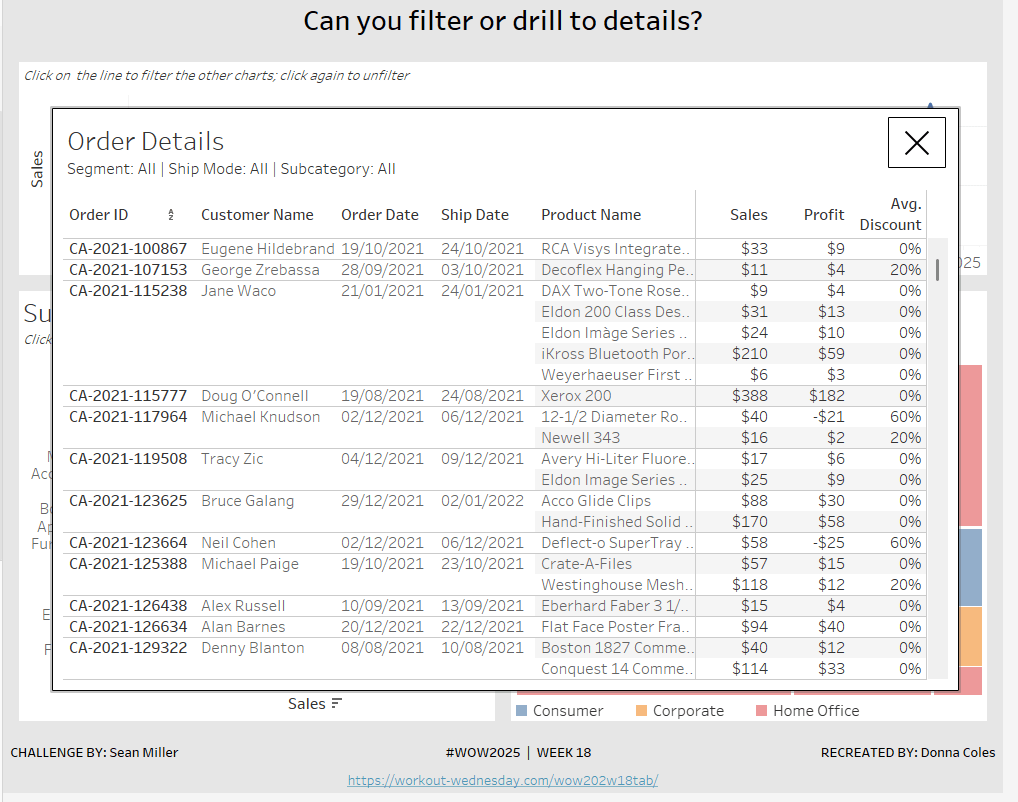
Can you filter or drill to details?

Sean set this week’s challenge to give an alternative solution to displaying a table of details rather than the traditional ‘pancake table’ (his words not mine πŸ™‚ ).

The main crux of the challenge relates to the dashboard actions and interactivity, so I’ll be brief(ish) in describing how to build the charts.

Creating the line chart

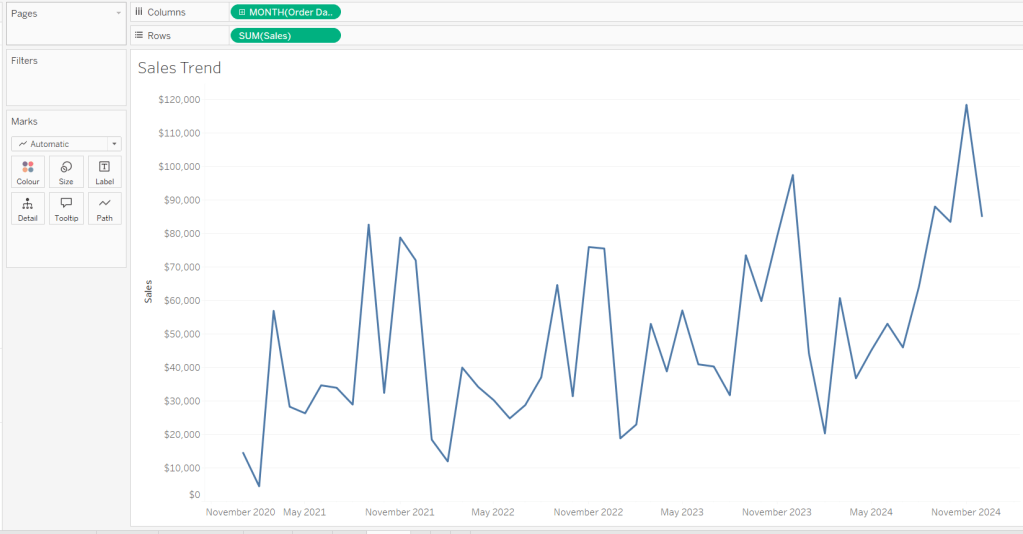
Add Order Date to Columns at the month-year continuous (green pill) level. Add Sales to Rows. Format Sales to $ with 0 dp. Remove the title on the Order Date axis. Update the Tooltip to give an instruction to ‘click the line to filter’. Rename the sheet Sales Trend or similar.

Creating the bar chart

Add Sub-Category to Rows and Sales to Columns. Sort by Sales descending. Hide the Sub-Category row heading label (right click > hide field labels for rows). Update the Tooltip to give an instruction to ‘click the bar to filter’. Rename the sheet Sales by Sub Bar or similar.

Creating the Tree Map

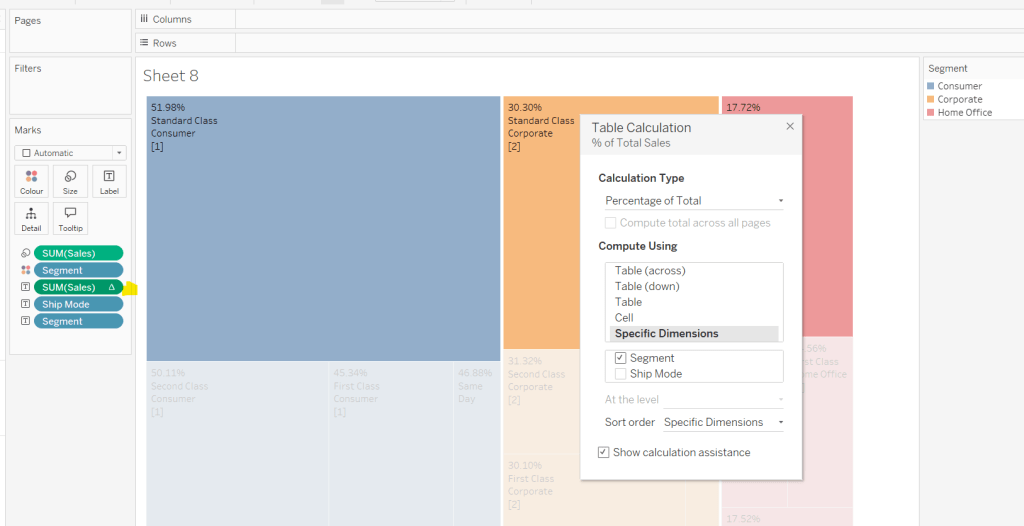
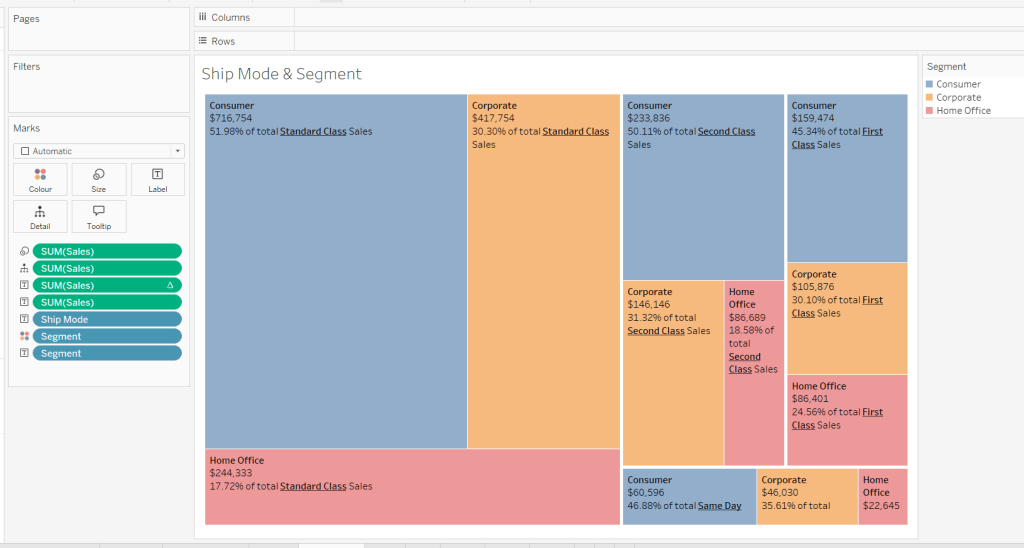
Add Segment and Ship Mode to Detail and Sales to Size. Move Segment to Colour and reduce opacity to about 60%. Move Ship Mode to Label and then add additional Segment and Sales pills to Label. Add a table calculation against the Sales pill on the Label shelf, so it is applying a percentage of Total by Segment only.

Add another instance of the Sales pill to Label and then update the layout of the label.

Move the Segment pills on the marks shelf so they are positioned below the Ship Mode to ensure the tree map is segmented based on the Ship Mode (there should be four blocks divided by the thicker white lines).

Update the Tooltip to give an instruction to ‘click the treemap to filter’. Rename the sheet Treemap or similar.

Build the Details table

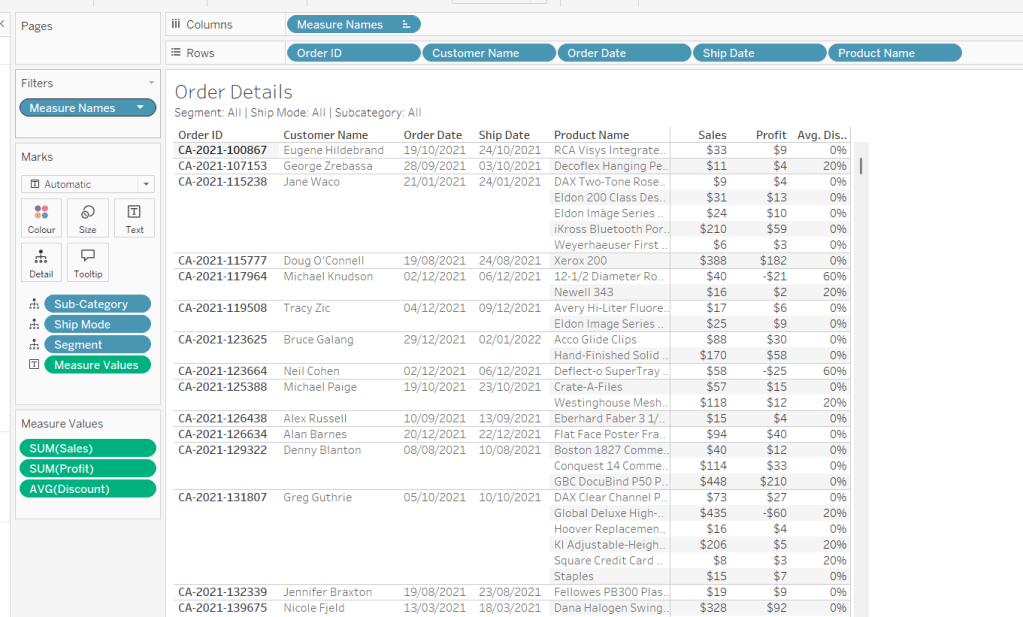
On a new sheet add Order ID, Customer Name, Order Date (as a discrete exact date – blue pill), Ship Date (as a discrete exact date – blue pill) and Product Name to Rows. Add Sales to Text. Format Profit to $ with 0 dp and drag onto the canvas over the columns of Sales numbers, and release the mouse when the Show Me option appears. Add Discount into the Measure Values section. Change the aggregation to Average and then format to be % to 0 dp. Rearrange the order of the pills in the Measure Values section as required. Add Segment, Sub-Category and Ship Mode to the Detail shelf. Update the title to reference these 3 pills. Hide the Tooltip. Rename the sheet Details or similar.

Building the additional calculations needed

In clicking around Sean’s solution, I was finding what I had initially built wasn’t quite doing what Sean did. If I clicked on the bar chart and then the tree map, the details were only filtered based on the tree map and vice versa. There were ways to solve this, but this then resulted in other issues, in that after closing the details table, the charts remained filtered, but it wasn’t obvious as nothing was highlighted. Basically what I’m trying to say, is the filtering seemed like it should be straightfoward, but wasn’t. I ended up using a combination of parameters and filter actions.

So we’ll start by dealing with the parameters we need.

Create the following parameters

pSelectedDate

date parameter defaulted to 01 Jan 1900

pSelectedSegment

string parameter defaulted to <emptystring>

pSelectedShipMode

string parameter defaulted to <emptystring>

pSelectedSubCat

string parameter defaulted to <emptystring>

Then create the following calculated fields

Filter: Date

[pSelectedDate] = #1900-01-01# OR [pSelectedDate]=DATETRUNC(‘month’,[Order Date])

add this to the Filter shelf on the bar chart, tree map and details sheets and set to True.

Filter: SubCat

[pSelectedSubCat]=” OR [pSelectedSubCat]=[Sub-Category]

add this to the filter shelf on the line chart, tree map and details sheets and set to True

Filter: Segment

[pSelectedSegment]=” OR [pSelectedSegment]=[Segment]

add this to the filter shelf on the line chart, bar chart and details sheets and set to True

Filter: Ship Mode

add this to the filter shelf on the line chart, bar chart and details sheets and set to True

We also need a parameter to capture when we want to show the details table.

pClickMade

boolean parameter defaulted to False.

and to supplement it, we need a calculated field to use to set this parameter to true

Click Made

TRUE

Add Click Made to the Detail shelf of the line chart, bar chart and tree map.

We’ll set these parameters later.

Building the Close icon

The ‘close’ cross when the details sheet is displayed is another sheet. On clicking on it, we will want to set the pClickMade parameter to False so the Details will no longer show. For this we will need

Close

FALSE

Add this field to the Detail shelf on a new sheet. Change the mark type to shape and change the shape to a X. Set the colour to black and set to fit entire view. Hide the Tooltip. Name the sheet Close or similar.

Building the dashboard and interactivity

Using layout containers, arrange the line chart, bar chart and tree map into a dashboard. Use padding and background colours to get the layout as desired.

The add the Details sheet as a floating object and position over the top of the other charts. Set the background to white and add a black border. Also float the Close sheet into position too. Hide the title and also add a black border.

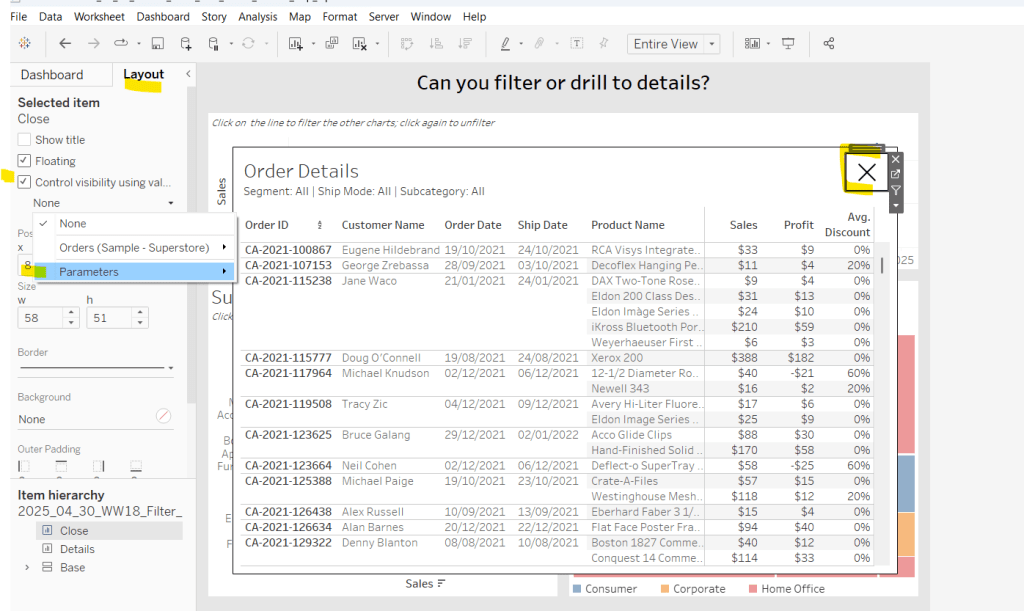
Select the Close sheet object, and then from the Layout tab in the left hand nav, check the Control visibility using value checkbox and select the pClickMade parameter

It should disappear if the parameter is still set to false. Repeat the same process with the Detail sheet object.

Now create the following dashboard parameter actions

Filter Month

On select of the Sales Trend sheet, target the pSelectedDate parameter, passing in the value from the Order Date. When the selection is cleared, reset to 01 Jan 1900.

Filter SubCat

On select of the Sales by Sub Bar sheet, target the pSelectedSubCat parameter, passing in the value from the Sub-Category. When the selection is cleared, reset to <emptystring>.

Filter Ship Mode

On select of the Treemap sheet, target the pSelectedShipMode parameter, passing in the value from the Ship Mode. When the selection is cleared, reset to <emptystring>.

Filter Segment

On select of the Treemap sheet, target the pSelectedSegment parameter, passing in the value from the Segment. When the selection is cleared, reset to <emptystring>.

Drill to Details

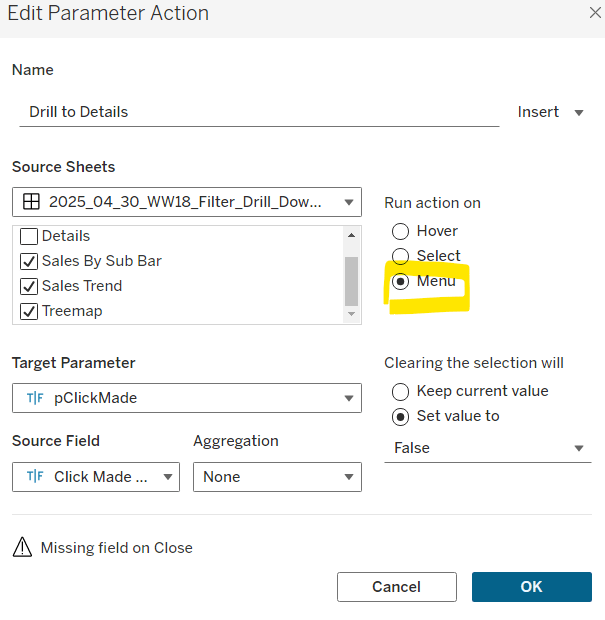
Via the menu of the Sales by Sub Bar, Sales Trend, and Treemap sheets, target the pClickMade parameter passing in the value from the Click Made field. When the selection is cleared, set the value to False.

Close Details

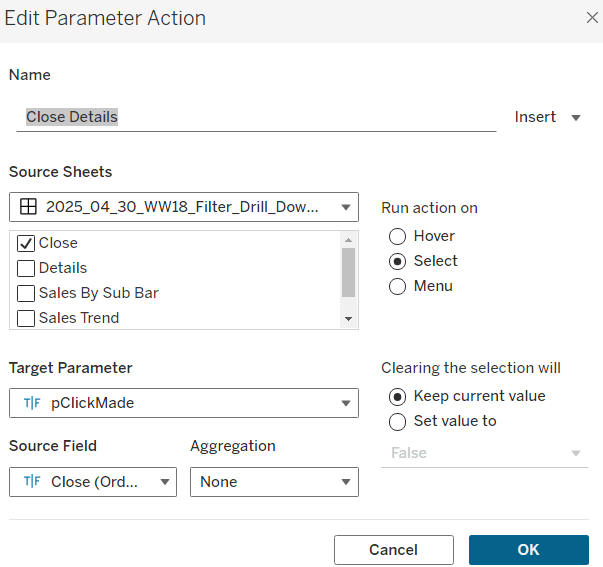
On select of the Close sheet, target the pClickMade parameter, passing in the value from the Close field. When the selection is cleared, keep the value.

If you start clicking around, you should find that all these actions do provide some level of filtering, but if you for example, click on the bar (to filter the line and treemap), and then click on a section in the tree map and use the ‘Drill down to details’ menu option, the details table has lost the filtering of the bar chart as the bar has become unselected when the treemap chart was clicked.

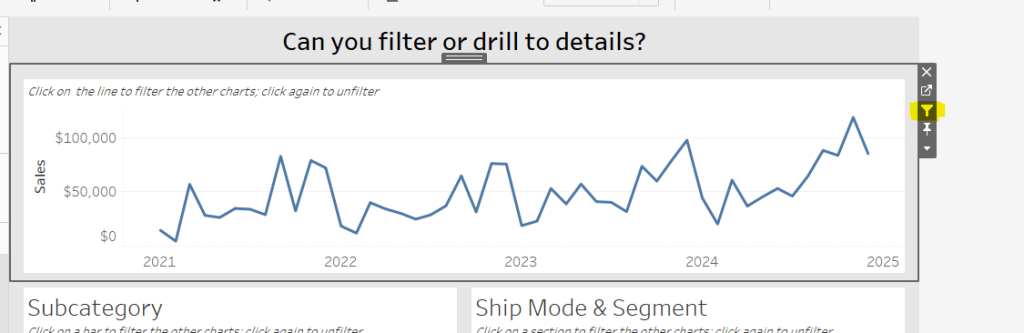
To resolve this, apply filter actions to the line chart, bar chart and tree map objects (the quickest way to do this is just select the object on the dashboard and click the ‘filter’ icon in the context menu.

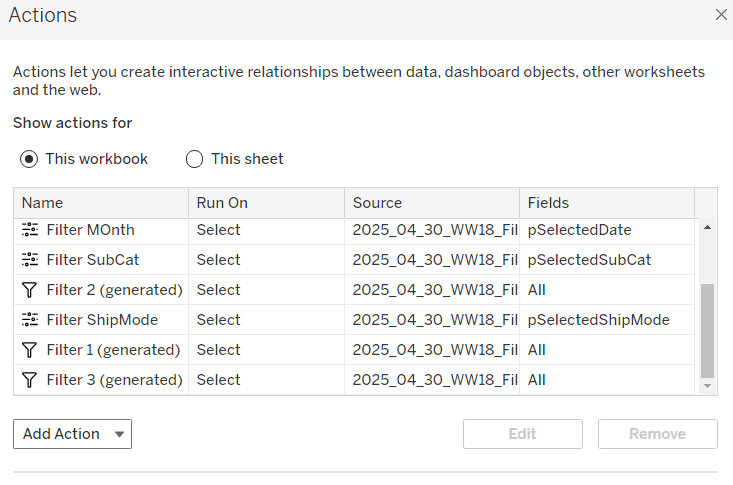
If you do this on all 3 sheets and then look at the list of dashboard actions you’ll see 3 ‘Filter x (generated)’ entries.

By applying this mix of filtering through ‘default’ dashboard filter actions in conjunction with parameters, I think you have a more complete and understandable experience. And you will have to explicitly unselect each of the marks you clicked on to remove that filter. I added instructions on the dashboard to aid with this.

My published viz is here.

Happy vizzin’!

Donna

Can you use containers and dynamic zone visibility?

This week’s #WOW2025 challenge was set live as part of TC25. Unfortunately, this year I couldn’t be there in person to meet everyone, which for the last 3 years has been my conference highlight 😦

Anyway, Kyle set the challenge, and conscious of time, provided a starting workbook, so the focus could be on the container and DZV functionality. For those who nailed this, he added some additional interactivity with dashboard actions.

So the first thing is to download the starter workbook from the challenge page.

I’m going to attempt to build this in the order of Kyle’s requirements.

Layout out the dashboard

So the requirement states that no floating objects are allowed. Typically when I build a dashboard for business purposes or where the layout is a little complicated, I always start by adding a floating container sized to the exact dashboard size and positioned 0,0. I then add tiled objects into it. Doing this means I don’t end up with Tiled container objects on my dashboard (or if any get added when legends/filters get automatically added, I just move any items I want to retain and then delete the Tiled container).

However, as Kyle says β€˜no floating’, I will build adding to the β€˜default’ dashboard which means there will be containers on there I don’t really want.

Now blogging about containers is usually very tricky as it’s hard to explain where things need to go. So I’ll be supplementing this with a lot of screen shots – fingers crossed following along works out ok!

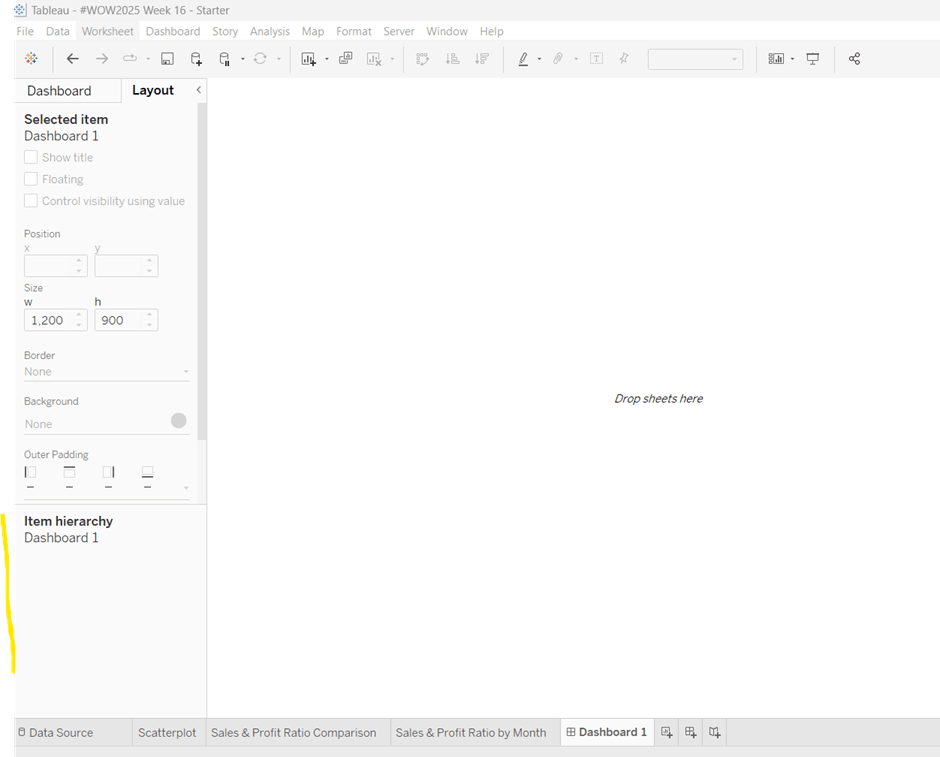
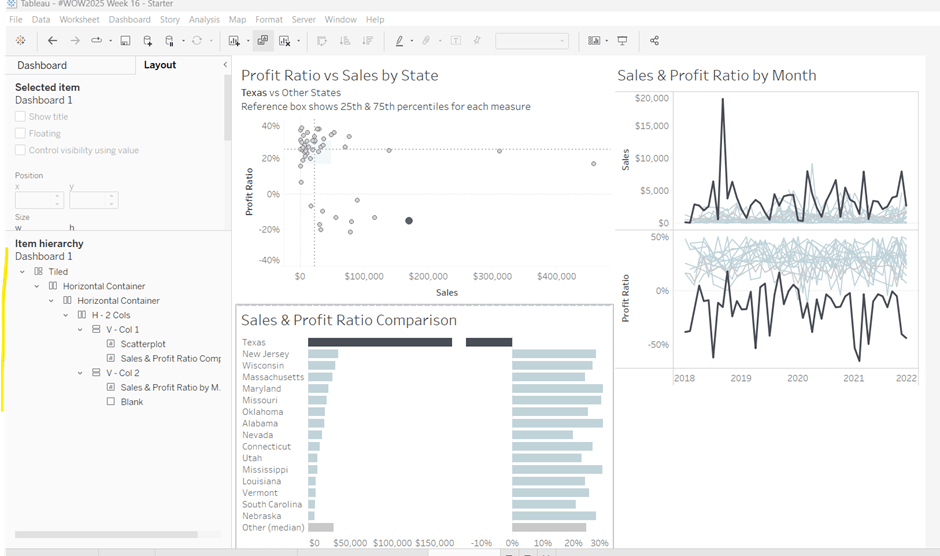
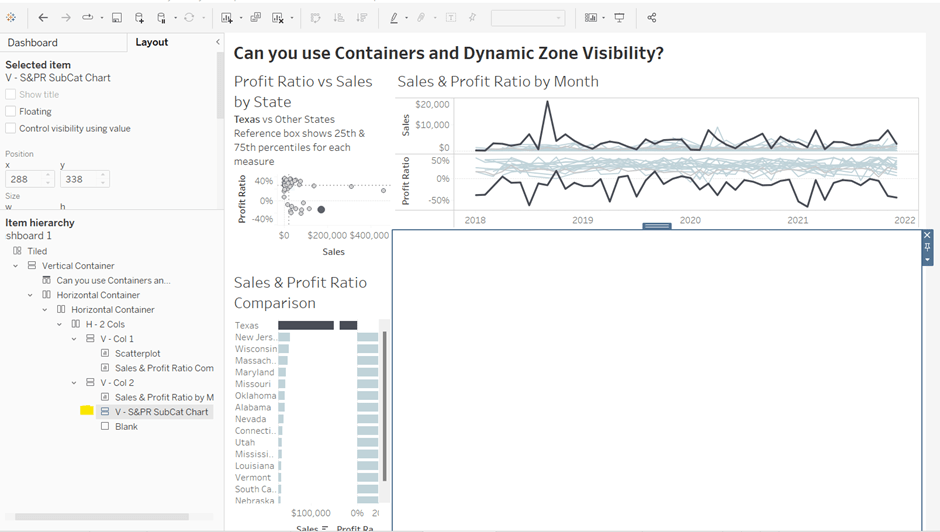
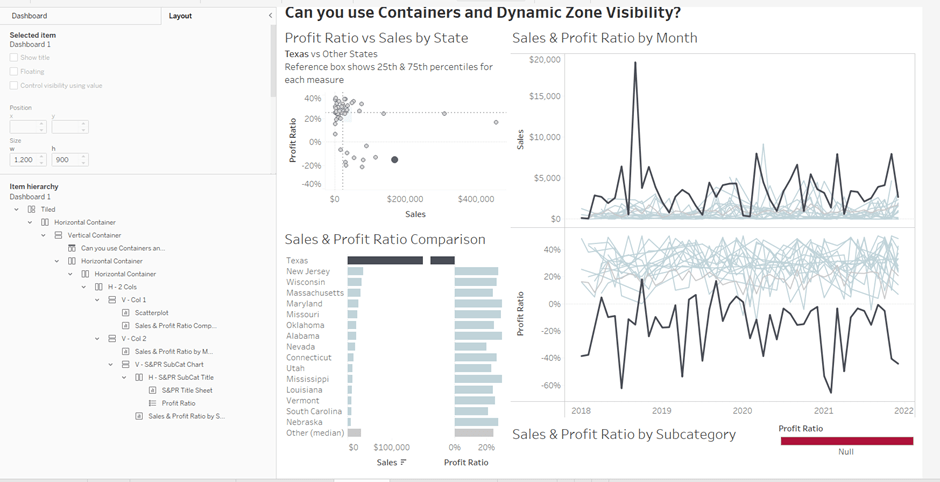
To start, create a dashboard sheet and resize to 1200 x 900 as required. Observe the item hierarchy section of the Layout pane as this is where you’ll see all the containers and objects as we add them to the dashboard.

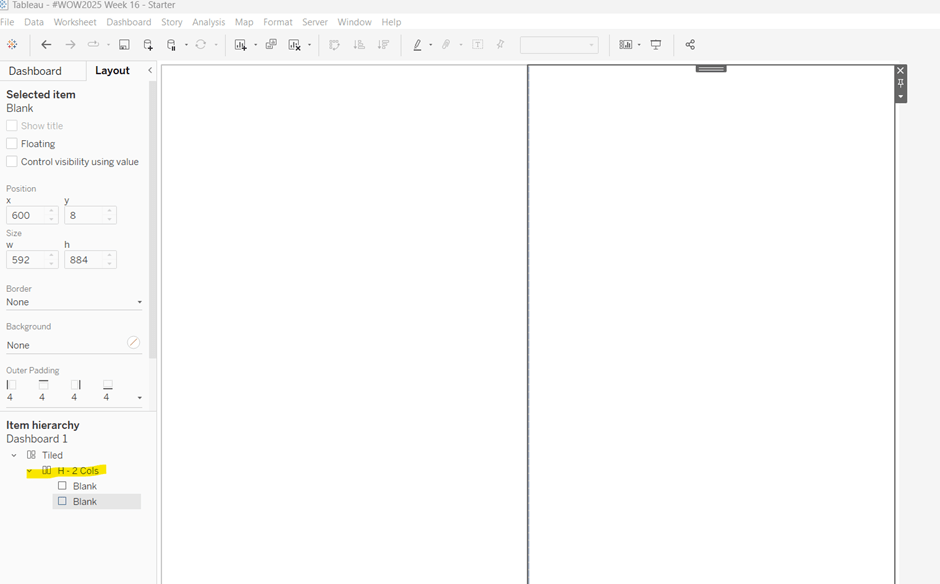
The main structure of the display is split into 2 columns, so start by adding a horizontal layout container to the dashboard. Once added, add 2 blank objects side by side to give the basic layout. Adding blank objects helps when positioning the required objects and is recommended when dealing with layout containers, especially if you’re new to them. They will ultimately be deleted as we go. Rename the horizontal container H – 2 cols or similar (right click on the container in the item hierarchy  > rename).

Notice how a Tiled container has now also appeared on the dashboard, even though we only added a horizontal container.

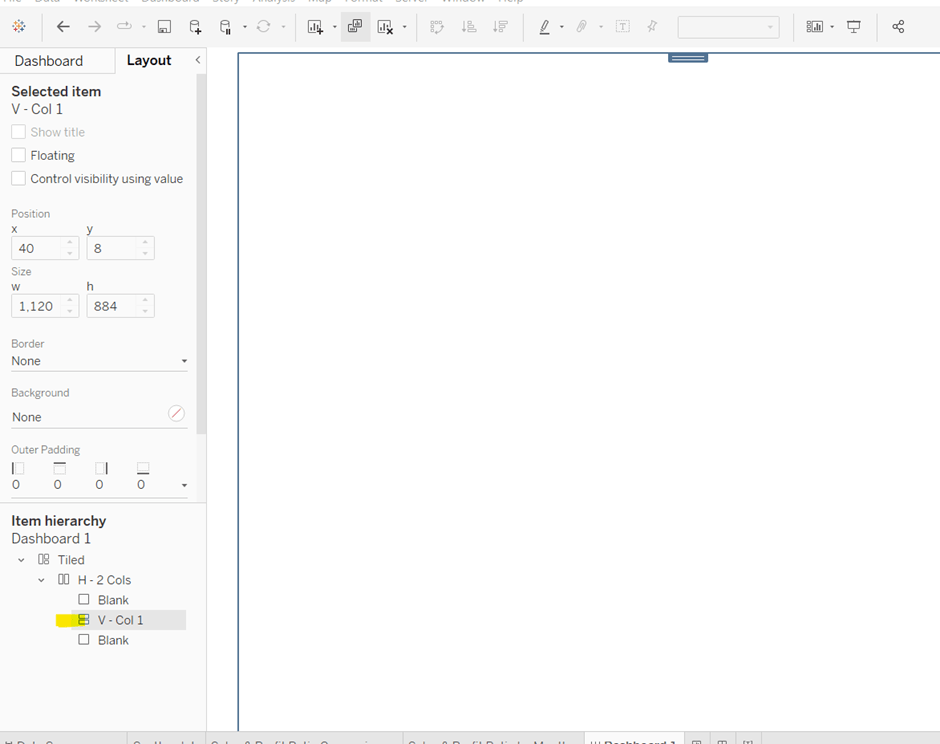
The first column of the dashboard contains 2 charts – the Scatterplot and the Sales & Profit Ratio Comparison sheets – stacked on top of each other. For this, add a vertical layout container between the two blank objects. Rename this V – Col 1.

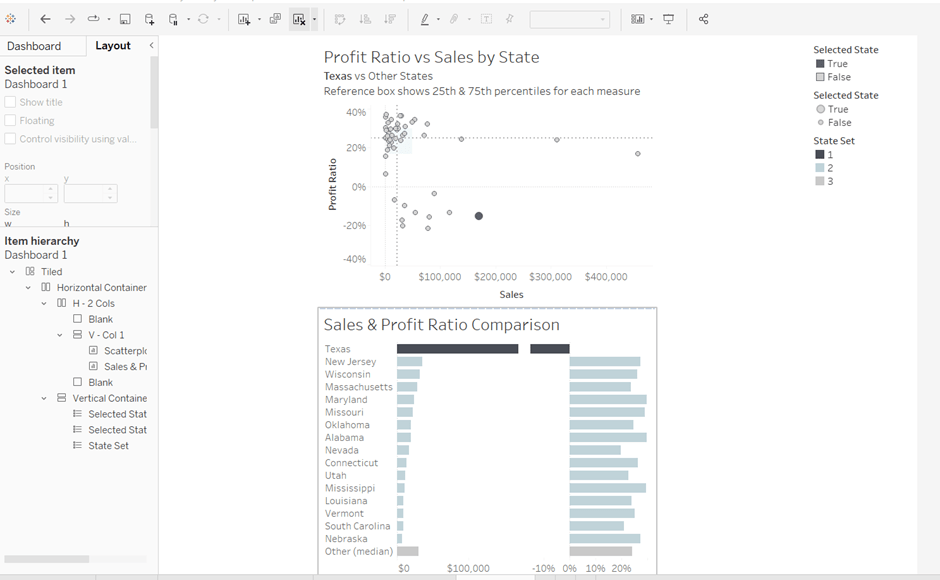
Add the Scatterplot sheet into the vertical container and then add Sales & Profit Comparison underneath it.

The various legends associated with these 2 sheets, automatically get added into their own vertical container on the right hand side. These aren’t required, so from the item hierarchy, select the Vertical container and then Remove from dashboard.

The right hand column of the display will show the Sales & Profit Ratio by Month sheet and another (hidden) chart that needs to be built.

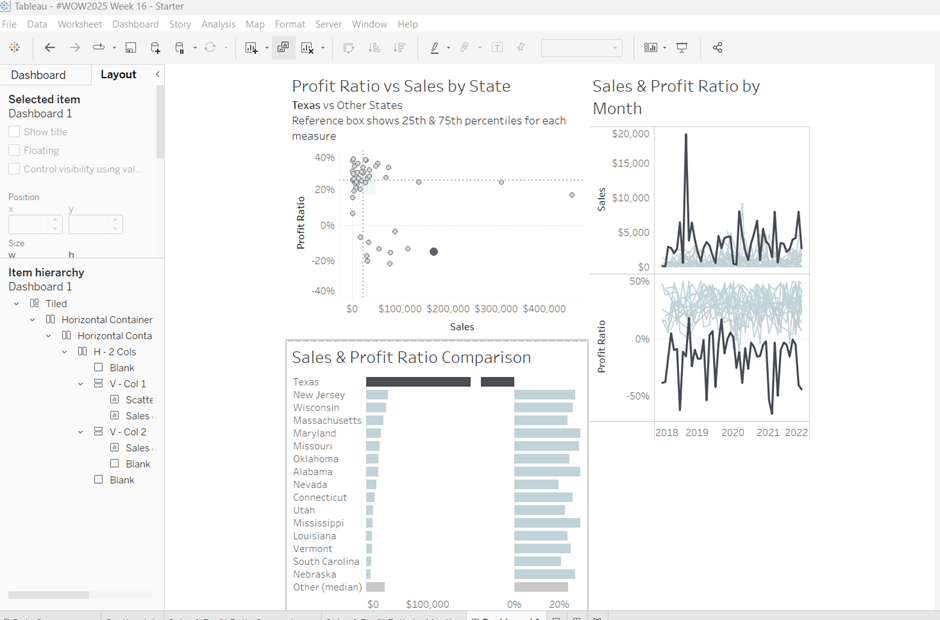
Add another vertical container between the V – Col 1 container and the right hand blank object. Name this V – Col 2, and add the Sales & Profit Ratio by Month sheet and then another blank object underneath it. Once again remove the right hand vertical container that is automatically added with all the legends/filters.

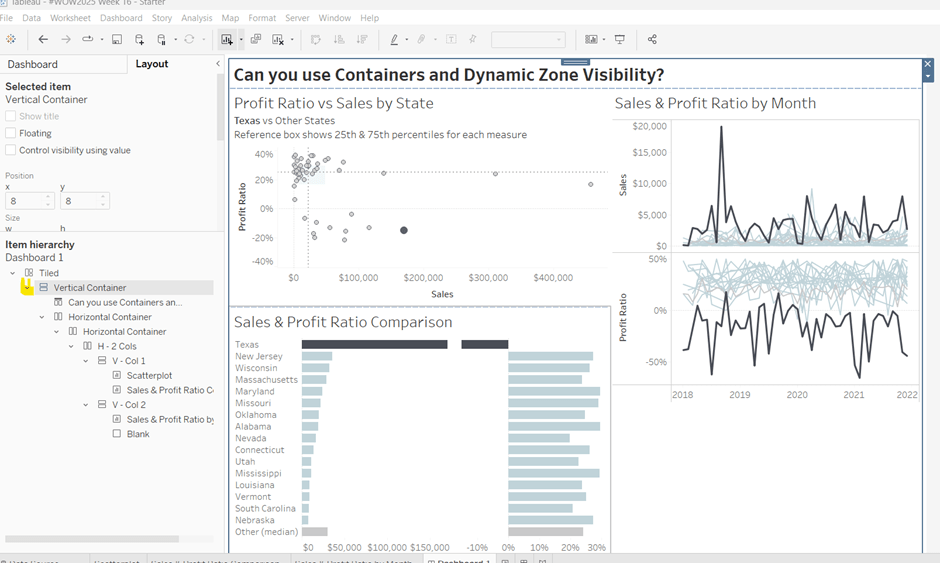
Now we have the β€˜core’ layout, the 2 blank objects we added to the horizontal container, H – 2 Cols, right at the start, can be removed, so hopefully you should have a layout organised as below.

Now add the dashboard title (Dashboard menu > Show Title, and then update the text). This will automatically add a vertical layout container around all the existing contents.

Building the Sales & Profit Ratio by Sub-Category bar chart

On a new sheet, add Sub-Category to Rows and Sales to Columns. Add Profit Ratio to Colour and adjust the colour legend to use the Red-Black Diverging colour palette. Hide the Sub-Category row label heading (right click > hide field labels for rows).

The bar chart needs to be filtered when a State in the Sales & Profit Ratio Comparison chart is clicked on, or when a Date is selected in the Sales & Profit Ratio by Month chart. However, I noticed when clicking around, that when clicking the Sales & Profit Ratio by Month chart, it filtered the above bar chart by both the State and Date. So based on this, create 3 parameters.

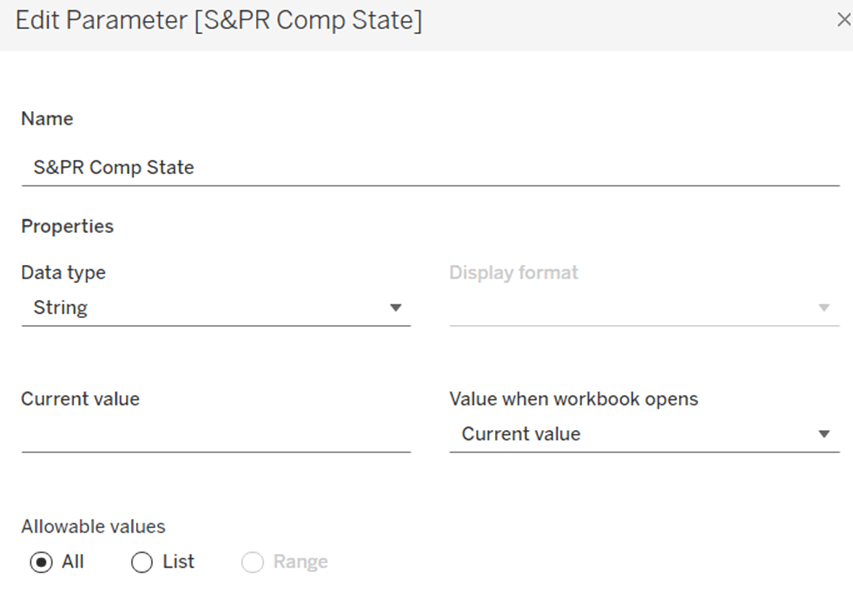
S&PR Comp State

String parameter defaulted to empty string

S&PR by Month State

String parameter defaulted to empty string

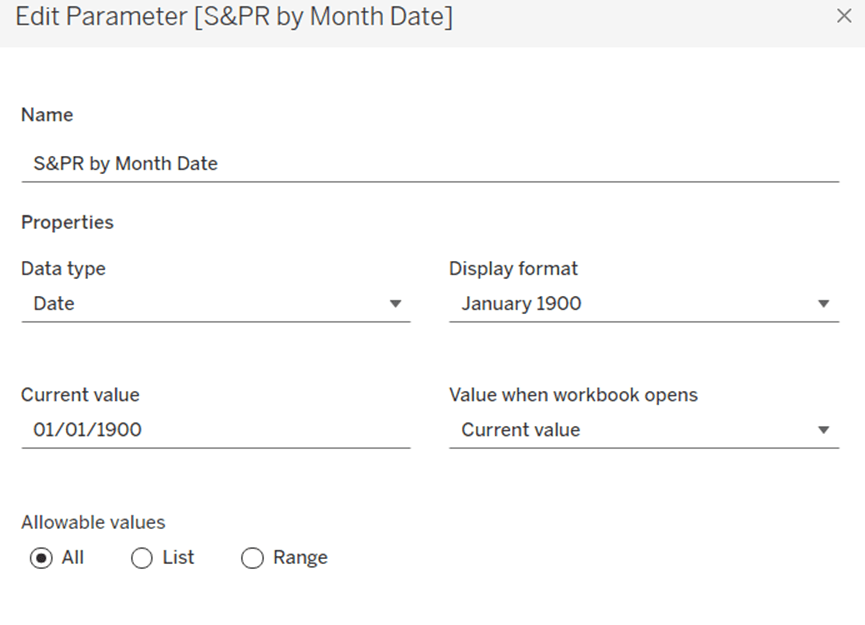
S&PR by Month Date

Date parameter defaulted to 01 Jan 1900 (essentially a null date)

Show these parameters on the sheet.

We want to filter the chart if the S&PR Comp State has a value and the S&PR by Month Date is the β€˜null’ date (which means we’ve interacted with the Sales & Profit Ratio Comparison chart), or if the S&PR Monthly State has a value AND the S&PR by Month Date has a value (which means we’ve interacted with the Sales & Profit Ratio by Month chart). So create

Filter – S&PR by SubCat

([State Name] = [S&PR Comp State] AND ([S&PR by Month Date]=#1900-01-01#))

OR

(([State Name] = [S&PR by Month State]) AND (DATETRUNC(‘month’, [Order Date]) = DATETRUNC(‘month’, [S&PR by Month Date])))

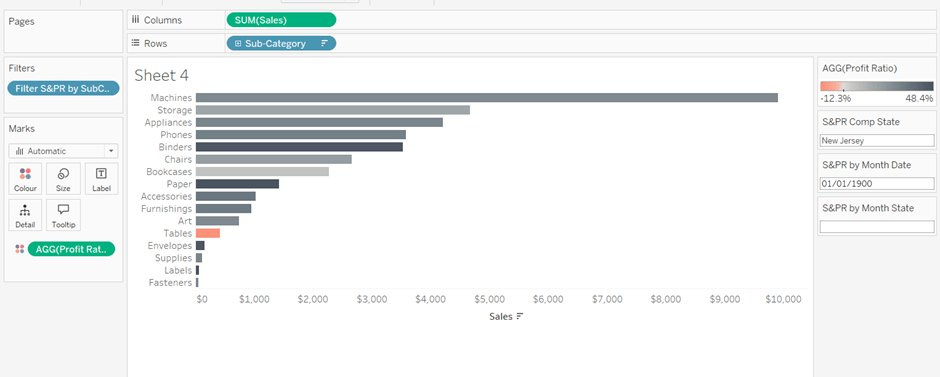
Enter a State name into the S&PR Comp State parameter (eg New Jersey), then add the Filter – S&PR by SubCat field to the Filter shelf and set to True. The chart should change.

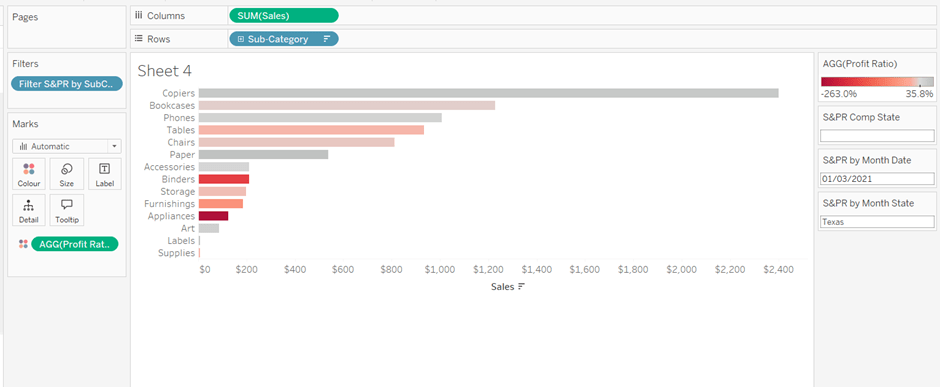
Verify the functionality by adding a state and date into the other parameters eg 01 March 2021 and Texas

Empty the state parameters and set the date back to 01 Jan 1900. Name the sheet Sales & Profit Ratio by SubCat. The chart contents will disappear.

Creating a dynamic title sheet

Originally I hoped to do this without using another sheet and just using the title of the bar chart, but I need the date to show nothing rather than Jan 1900 depending on the user interactivity, so a new sheet is required.

But for it, we need some additional calculated fields.

State for Title

IIF([S&PR by Month State]<>”,[S&PR by Month State], [S&PR Comp State])

We only want to show the name of the state once, and both parameters may have it set.

Date for Title

IF [S&PR by Month Date]=#1900-01-01# THEN ” ELSE DATENAME(‘month’,[S&PR by Month Date]) + ‘ ‘ + STR(YEAR([S&PR by Month Date])) END

Line

IF [S&PR by Month Date]<>#1900-01-01# THEN ‘|’ ELSE ” END

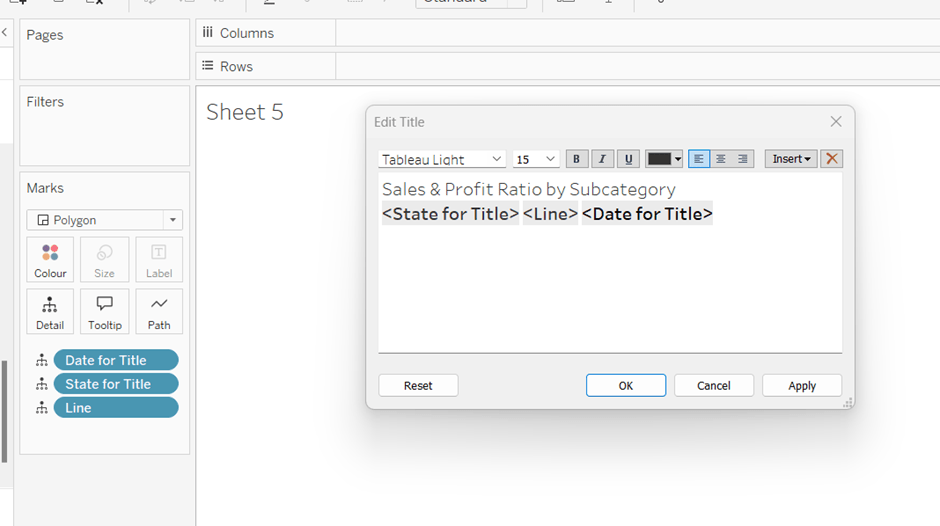
Add all 3 fields to the Detail shelf of a new sheet. Change the mark type to polygon. Update the sheet title as below

Name the sheet S&PR Title Sheet or similar

Adding the bar chart, title & legend to the dashboard

All 3 of these objects – the bar chart, the title sheet and the profit ratio legend need to show or hide based on interactivity. To do this in one step, we can encapsulate the 3 objects within containers within another ‘parent’ container and control the visibility on the ‘parent’ container.

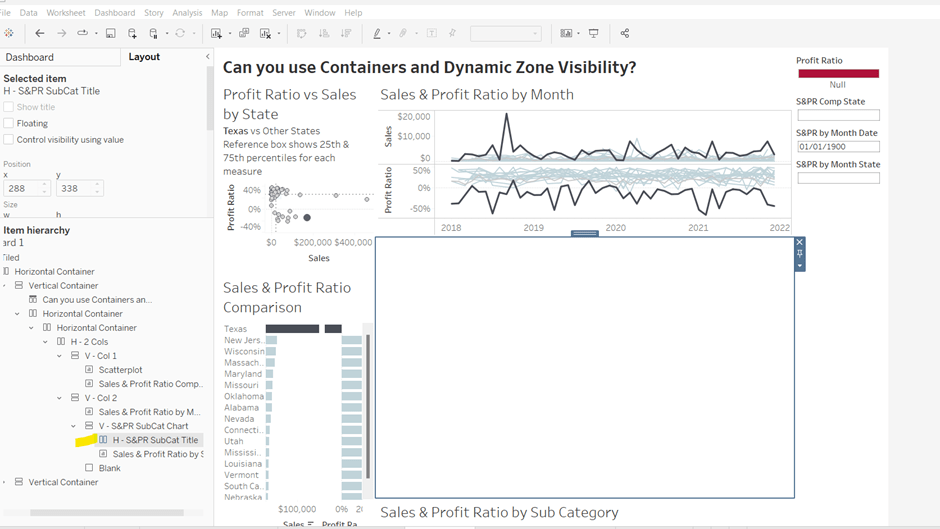
Add a vertical container between the Sales & Profit Ratio by Month chart and the blank object. Name this V – S&PR SubCat Chart

Add the Sales & Profit Ratio by SubCat sheet into this. Then add another horizontal container and place it above the Sales & Profit Ratio by Sub Cat chart (making sure it’s within the V – S&PR Sub Cat Chart container. Rename this H – S&PR Sub Cat Title.

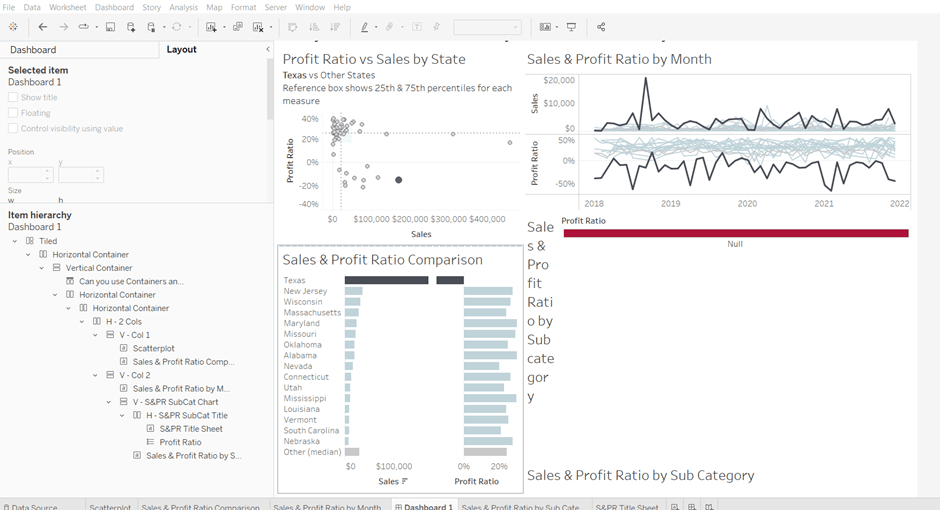
Add the S&PR by Title sheet into this horizontal container, and then click on the Profit Ratio legend on the right hand side and move this object to sit to the right of the title sheet. Then click on the right hand column containing all the remaining legends, and delete this container from the dashboard. Then remove the blank object that’s sitting beneath the Sales & Profit Ratio by SubCat sheet. You should have something like below…

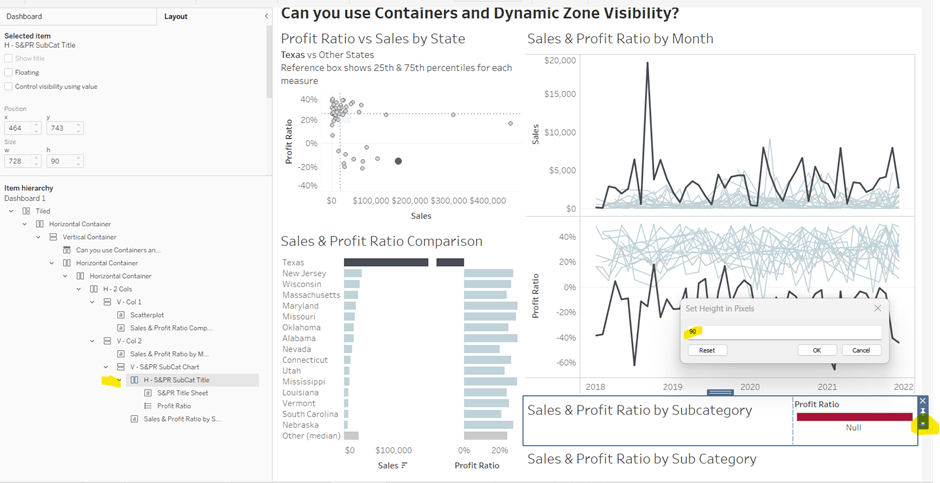
Adjust the width of the S&PR Title sheet so its wider. Set the sheet to Fit Entire View. Then select the H – S&PR SubCat Title container and edit the height to be 90 px.

Hide the title of the Sales & Profit Ratio by SubCat sheet.

Hiding and showing the Sales & Proft Ratio by Sub Category section

Create a new calculated field

Show S&PR by Sub Cat

[S&PR by Month State]<>” OR [S&PR Comp State]<>”

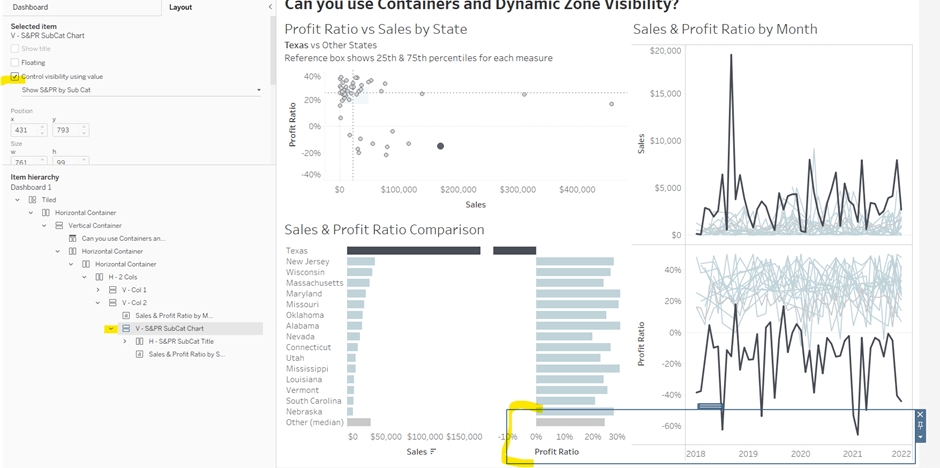
On the dashboard, select the V – S&PR SubCat Chart container and on the Layout pane, check the Control visibility using value checkbox, and select the Show S&PR by Sub Cat field. Assuming all the parameters are set to their default values, then the whole section should disappear, although the container will still be selected.

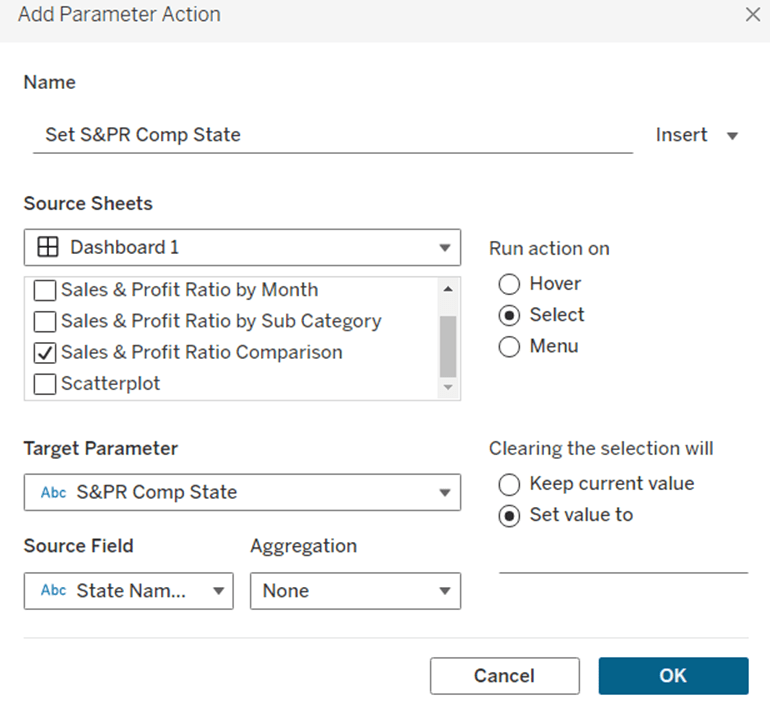
To make the section show, we need to set the parameters using dashboard parameter actions.

Set S&PR Comp State

On select of the Sales & Profit Ratio Comparison sheet, set the S&PR Comp State parameter passing in the value of the State Name field. When the selection is cleared, set the value back to <emptysrting>

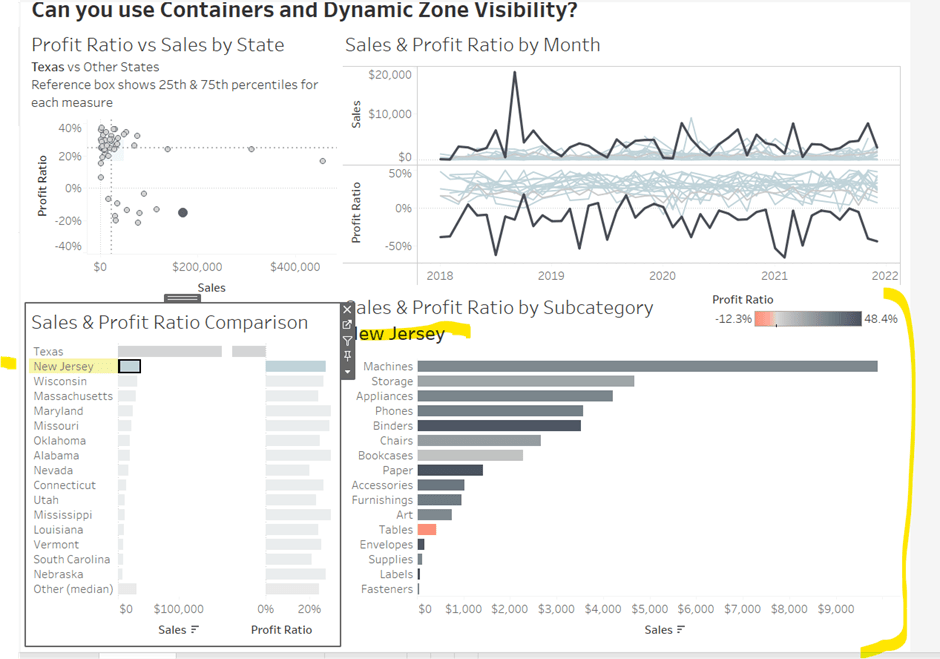
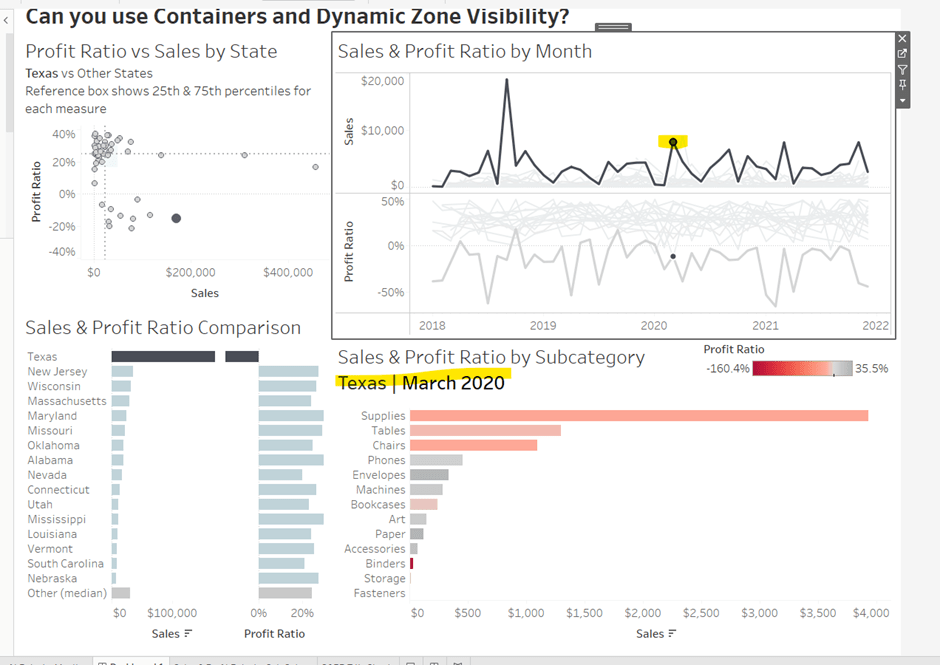
Click on a row in the Sales & Profit Ratio Comparison bar chart, and the Sales & Profit Ratio by SubCat chart should display, filtered to that State, with the selected state name in the title.

Click the state again, and the chart disappears.

Create 2 further dashboard parameter actions

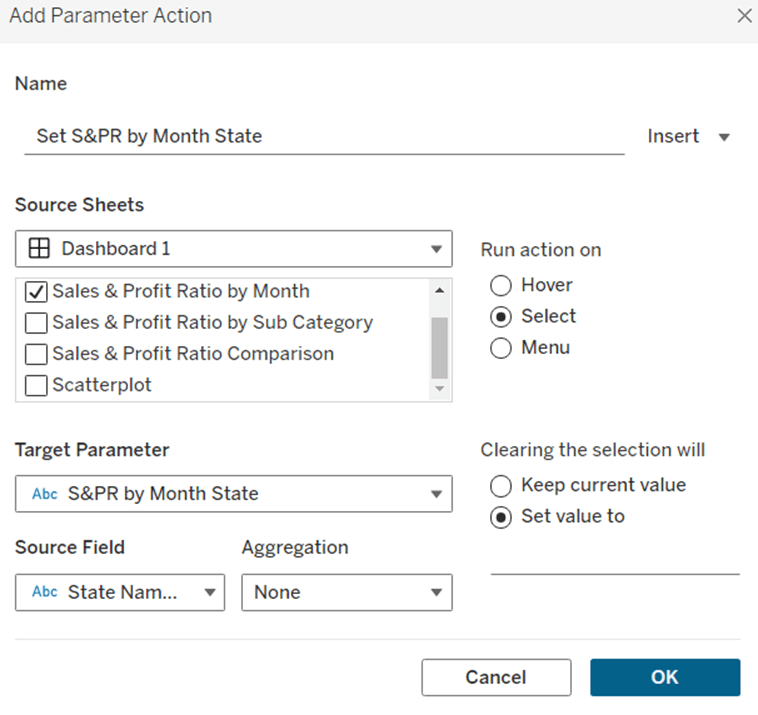
Set S&PR by Month State

On select of the Sales & Profit Ratio by Month sheet, set the S&PR by Month State parameter, passing in the value from the State Name field. When the selection is cleared, set it back to <emptystring>

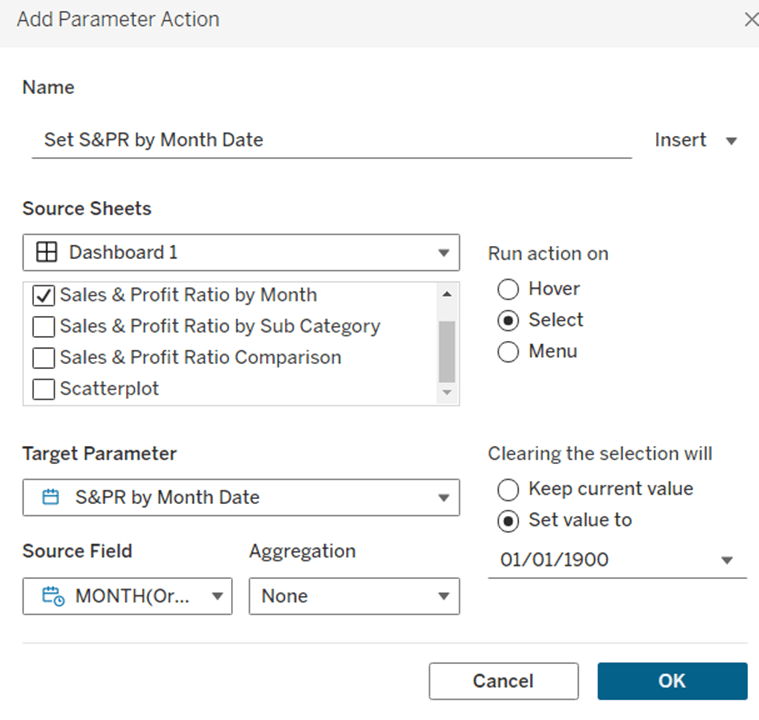
Set S&PR by Month Date

On select of the Sales & Profit Ratio by Month sheet, set the S&PR by Month Date parameter, passing in the value from the Month([Order Date]) field. When the selection is cleared, set it back to 01/01/1900

Now click on a point in the line chart, and the Sales & Profit Ratio by SubCat chart should display filtered to the relevant state and month

Adding the Additional Interactivity

When the Scatterplot is clicked, the State in the existing Scatterplot State parameter should be updated. Create a dashboard parameter action

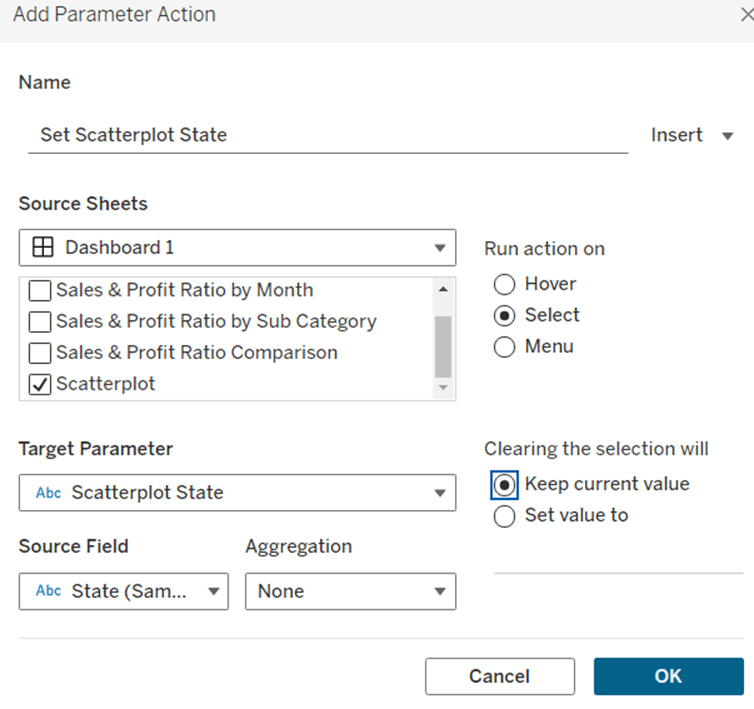
Set Scatterplot State

On select of the Scatterplot sheet, set the Scatterplot State parameter, passing in the value from the State field. When the selection is cleared, retain the value

If you click around the scatterplot, the Sales & Profit Ratio by Month line chart and Sales & Profit Ratio Comparison charts should update.

But we don’t want the other marks on the scatter plot to β€˜fade’. To solve this, create a dashboard filter action.

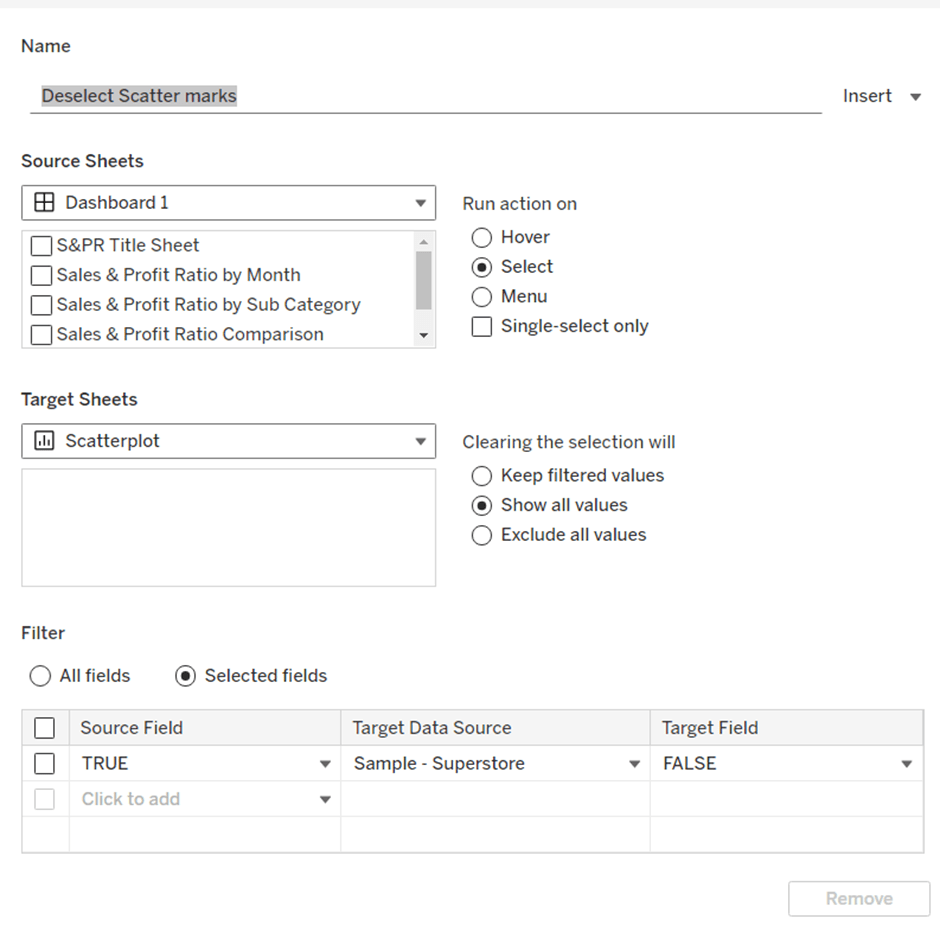
Deselect Scatter marks

On select of the Scatterplot sheet on the dashboard, target the Scatterplot sheet directly, setting the fields TRUE = FALSE. On clearing the selection, show all values.

Finally, the last requirement is to highlight the line in the Sales & Profit Ratio by Month chart associated to the State selected in the Sales & Profit Ratio Comparison chart. For this first create a dashboard set action to capture the selected state

Add State to Set

On select of the Sales & Profit Ratio Comparison sheet, target the State Name Set. Check the single-select only checkbox. Running the action should Assign value to set and clearing the selection should remove all values from set

Then add a dashboard highlight action

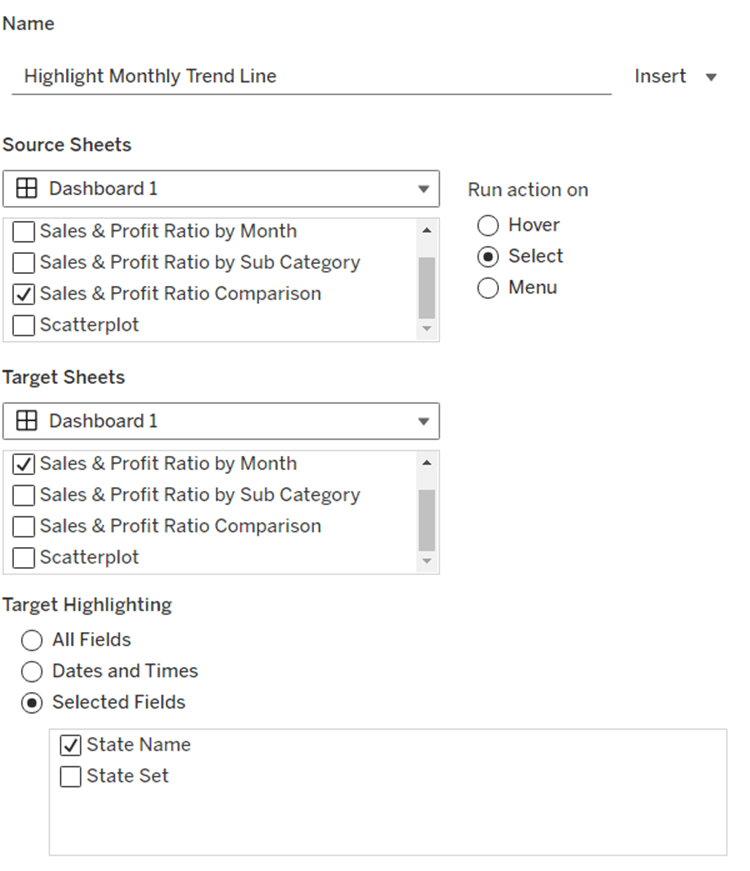
Highlight Monthly Trend Chart

On select of the Sales & Profit Ration Comparison sheet, target the Sales & Profit Ratio by Month sheet targeting the State Name field only

And hopefully, with all this, you should have a fully interactive dashboard. My published viz is here.

Happy vizzin!

Donna

Data Storytelling with Dynamic Zone Visibility

This week’s community challenge was set by Chiaki to showcase how to use dynamic zone visibility to tell a story. We’ll step through each chart and then how it’s all put together.

Building the line chart

Create a new field

Profit Ratio

SUM(Profit)/SUM(Sales)

and format to % with 1 dp.

Add Order Date to Filter and restrict to Years 2023 and 2024 only.

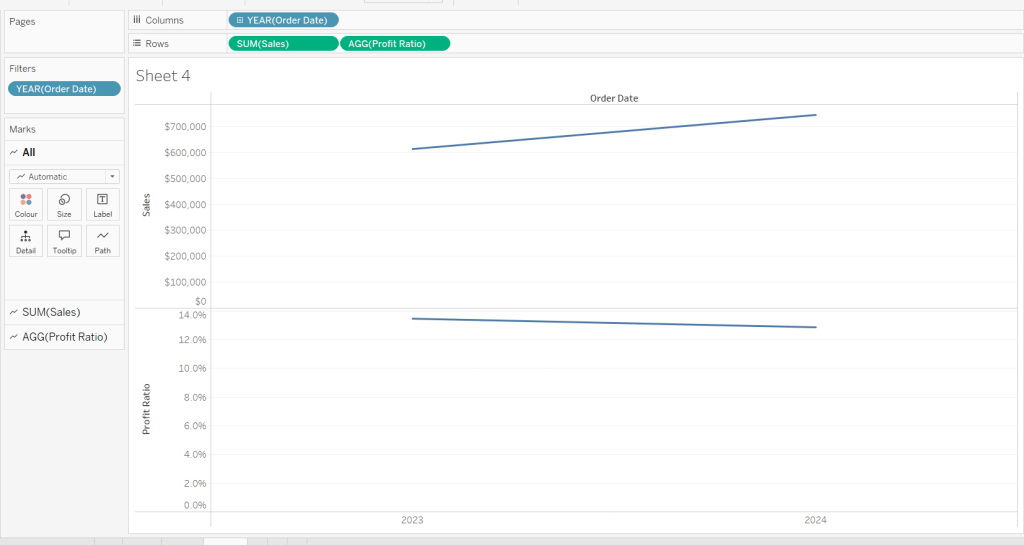
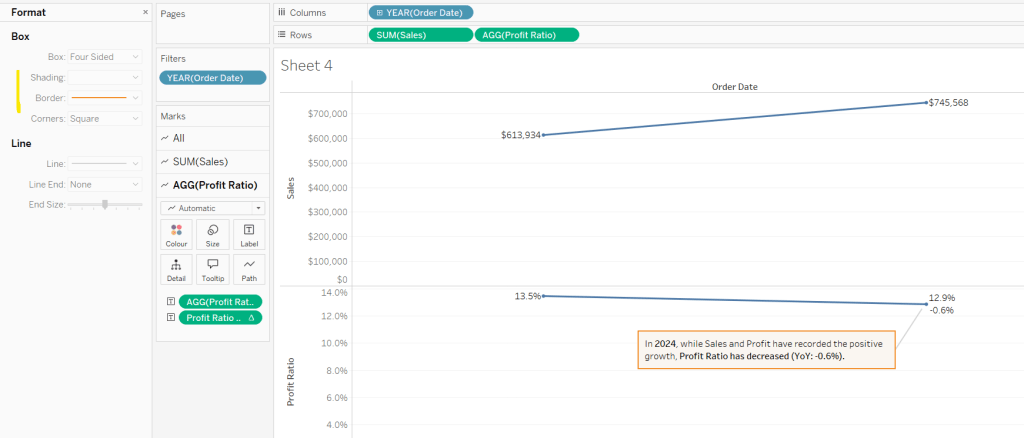
Add Order Date to Columns as a discrete (blue) pill at the year level. Add Sales to Rows and Profit Ratio to Rows. Format Sales to be $ with 0 dp. Set the screen to Fit Width.

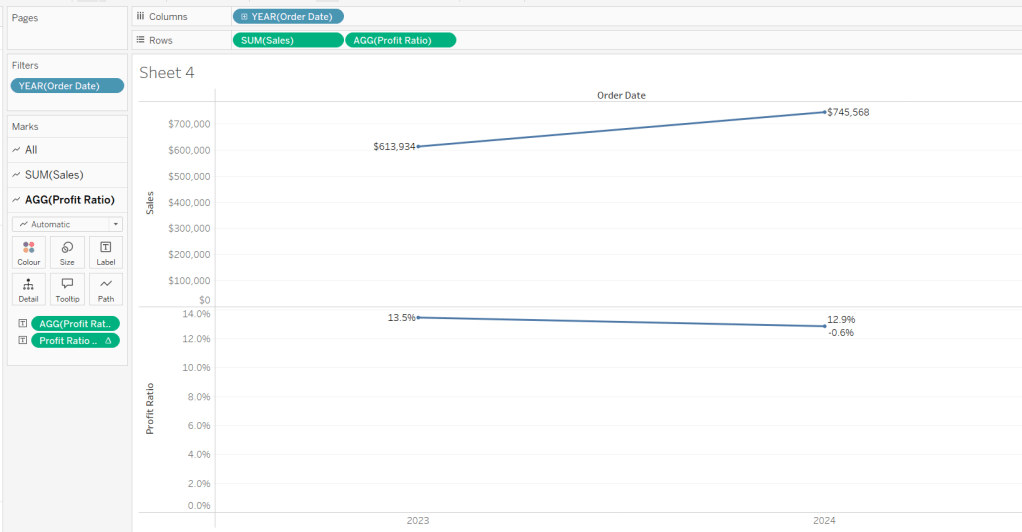
Add Sales to the Label shelf of the Sales marks card. Add Profit Ratio to the Label shelf of the Profit Ratio marks card.

Create a new field

Profit Ratio YoY

ZN([Profit Ratio]) – LOOKUP(ZN([Profit Ratio]), -1)

and format to % with 1 dp. Add to the label shelf of the Profit Ratio marks card

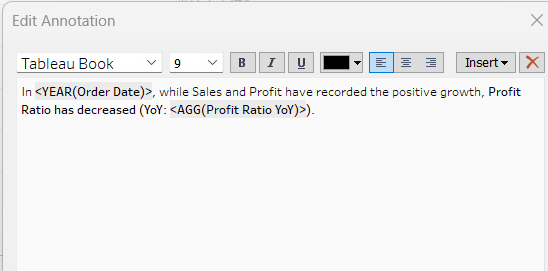
Right click on the 2024 Profit Ratio mark and select Annotate > Mark. Update the text as required and reference the value of Order Date year and the Profit Ratio YoY

Click and drag the annotation to reposition, and then right click on the annotation to format, and adjust the shading to pale orange and add a thick orange border.

Hide the Order Date column heading (right click > hide field names for columns). Add a title and name the sheet Line or similar.

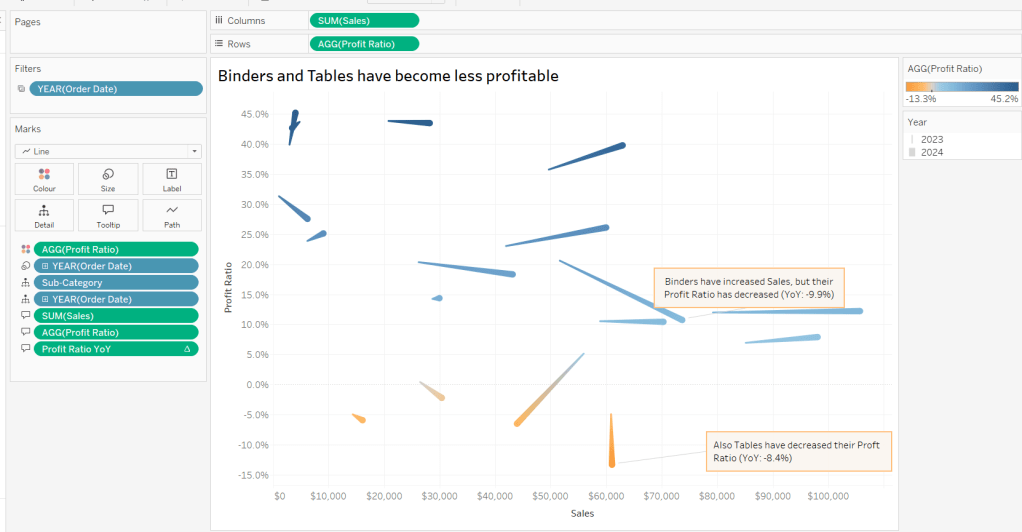
Building the comet chart

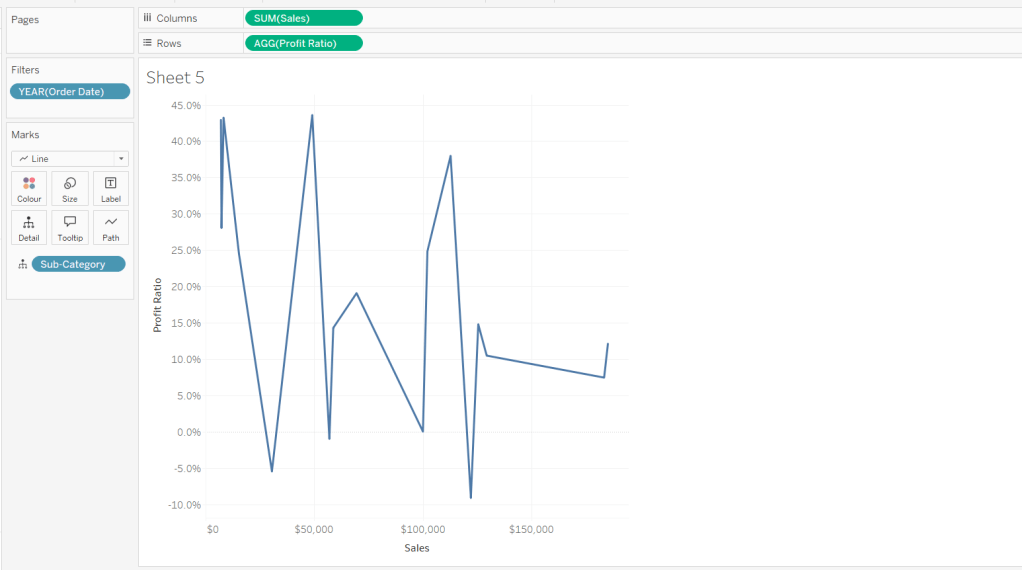
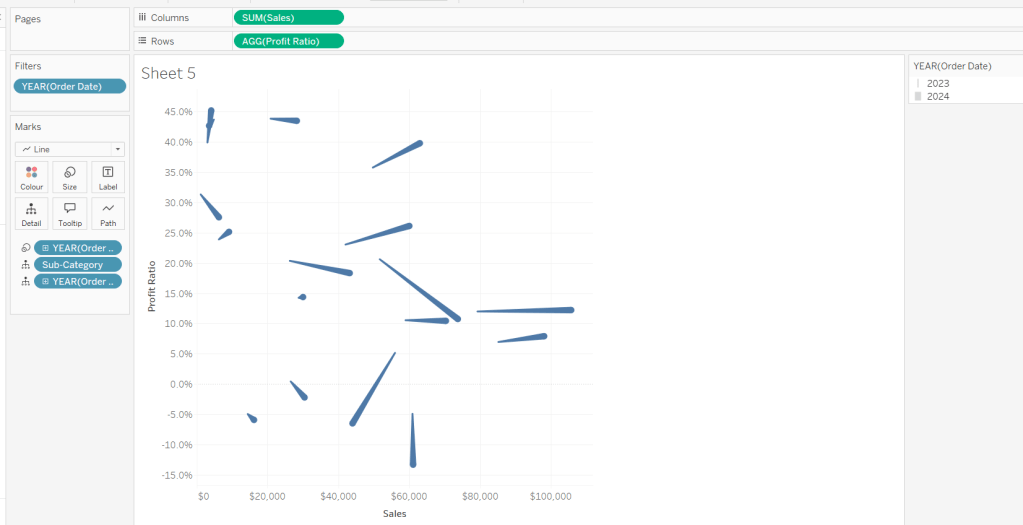
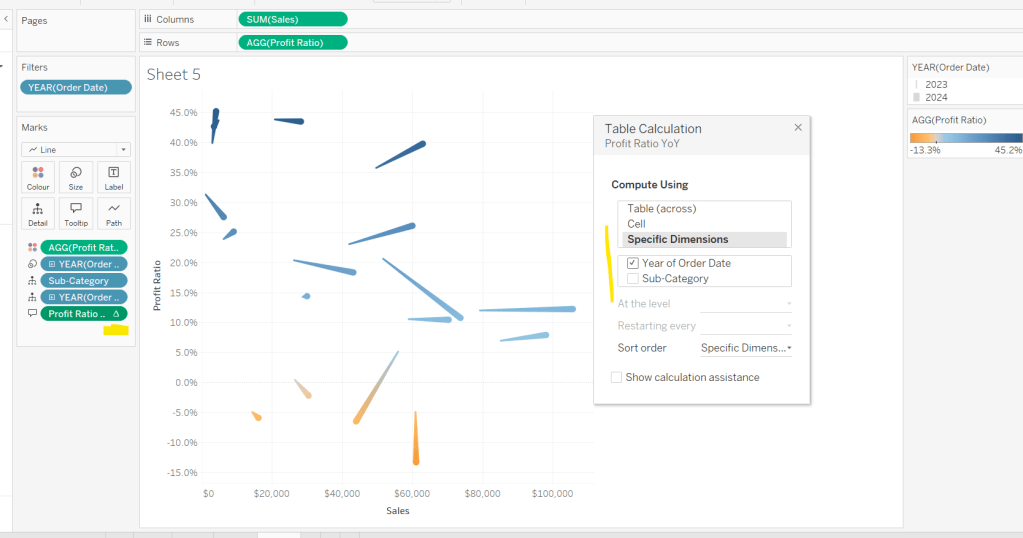
On a new sheet, add Sales to Columns and Profit Ratio to Rows. Add Order Date to Filter and restrict to years 2023 & 2024 only. Add Sub-Category to Detail and change the mark type to Line.

Add Order Date to Detail as a discrete (blue) pill at the Year level, and add another instance of Order Date at the Year level to Size.

Add Profit Ratio to Colour. Add Profit Ratio YoY to Tooltip and adjust the table calculation so it is computing by Year of Order Date only.

Update Tooltip as required and then add annotations to the required marks, again making references to the relevant variables. Format as before, add a title and name the sheet Comet or similar.

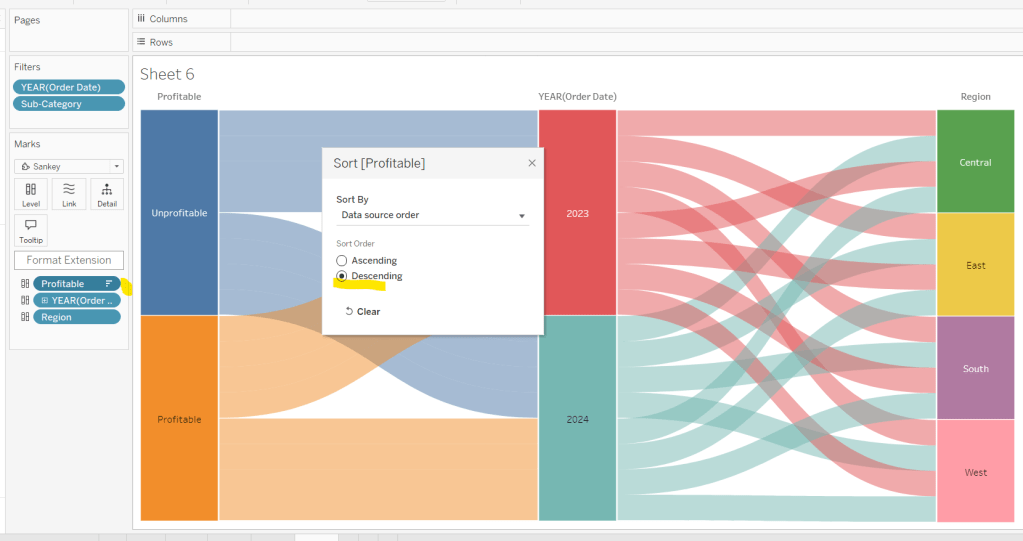
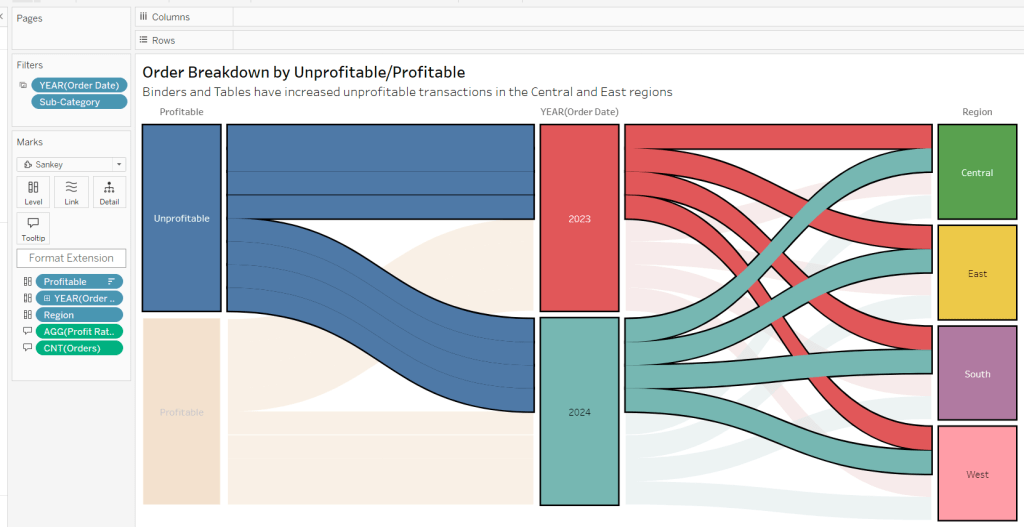
Building the Sankey chart

On a new sheet, add Order Date as a discrete (blue) pill to Filter and restrict to years 2023 and 20204. Add Sub-Category and restrict to Tables and Binders only.

Create a new field

Profitable

IF [Profit] >0 THEN ‘Profitable’ ELSE ‘Unprofitable’ END.

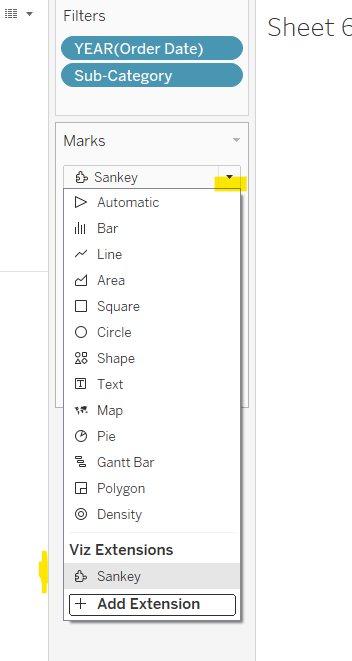
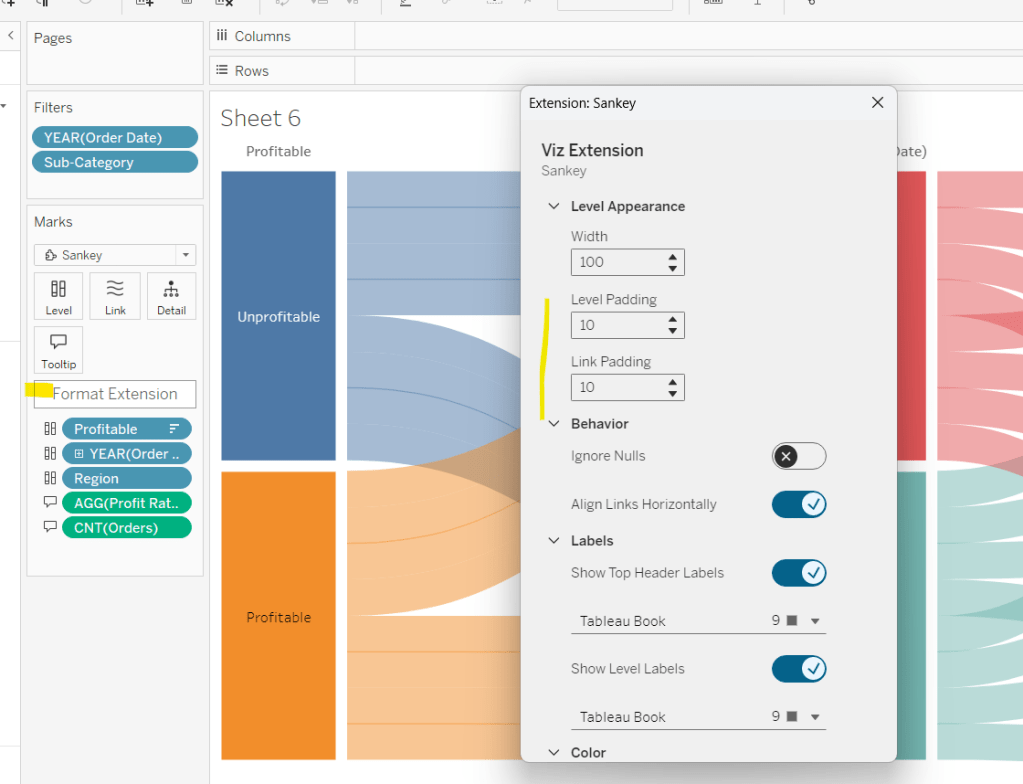
From the dropdown in the marks card, select Sankey

Then add Profitable, Order Date and Region to the Level shelf in that order. Adjust the Sort of the Profitable pill, so its sorted descending and Unprofitable is listed before Profitable.

Add Profit Ratio and Orders(Count) to the Tooltip and update accordingly. Click Format Extension and set the Level Padding and the Link Padding to 10 each.

Click on the Unprofitable box to highlight it and the subsequent flow. Add a title and name the sheet Sankey or similar.

Controlling the story

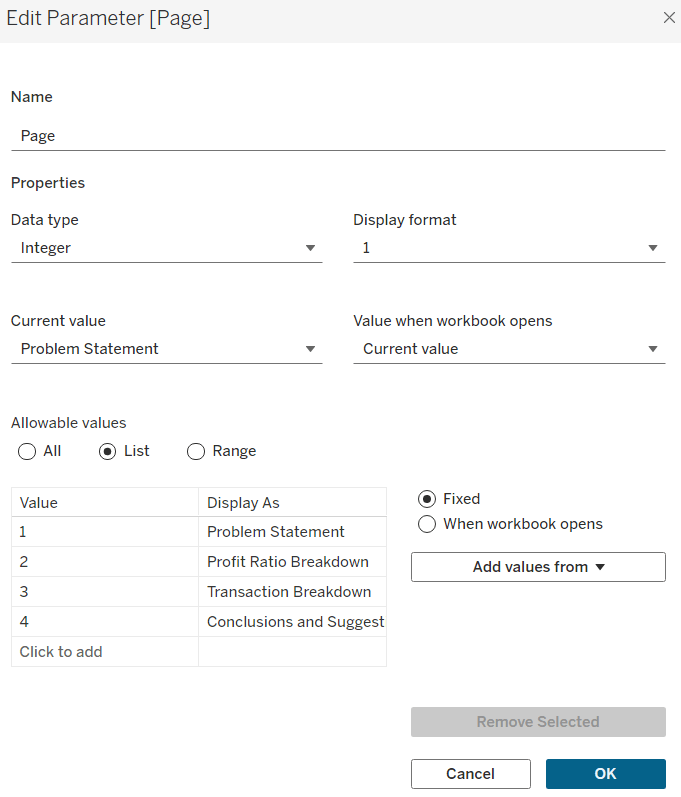
Create a parameter

Page

integer parameter from 1-4 where each number is mapped to the relevant text. Default to the text associated to 1.

Create boolean fields

Page >=2

[Page]>=2

Page >= 3

[Page]>=3

Page = 4

[Page]= 4

Building the dashboard

You need to use layout containers to build the dashboard. When using these, it’s often useful to add blank objects to help preserve the type of container you want as you add things in. These then get removed. It can be quite fiddly to get right.

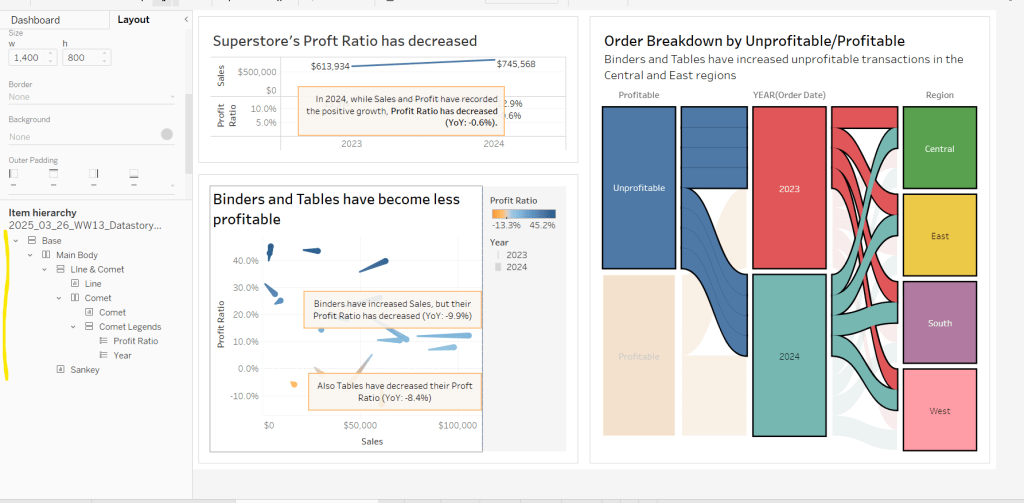
For the main body of the dashboard, the section with the charts in, I started with a horizontal container that then had a vertical container on the left and the Sankey on the right. The left hand vertical container then had the line chart on the top, and another horizontal container beneath it. That horizontal container then had the comet chart on the left and a vertical container on the right, which contained the colour and size legends.

I have a habit of renaming the layout containers in the item hierarchy section, to help me identify each section

The line chart object was formatted to have a grey border, outer padding of 10 and inner padding of 20. The vertical container around the comet chart and it’s legends, was also formatted the same. And the Sankey chart object was also formatted the same.

Add a title section, and show the Page parameter as a single value list. Format this with a grey background.

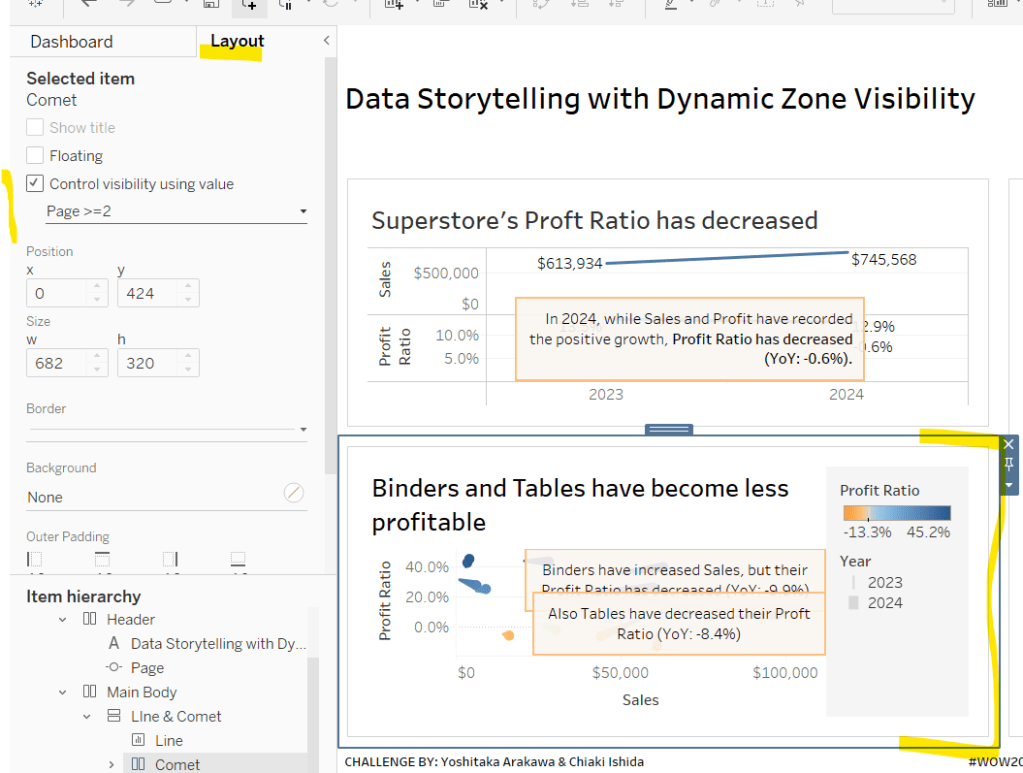
Click on the layout container that contains the comet chart and it’s legends, and then from the layout tab on the left hand side, check the control visibility using value and select the Page >=2 option.

If you page control is set to 1 (Problem Statement), then this section will now disappear. Set it to the next option for it to reappear.

Click on the Sankey object, and do the same, although this time select the Page >=3 option. Again changing through the page control options, the chart will appear and disappear.

With all three charts displaying, and once you’re happy with your layout, add a floating text box and resize to cover the main chart areas. Add the relevant text, set the background colour to grey with a 97% opacity, so the charts underneath can just be seen. Then set the visibility of this to use the Page =4 option.

Cycle through the page options and see how the display changes. My published viz is here.

Happy vizzin’!

Donna

Can You Adjust the Dashboard Design by Filter?

The focus of this week’s challenge, set by Yoshi, is showing β€œdetail on demand” using filters.

Defining the calculations

We’re only concerned about current year and previous year, so to simplify this, after connecting to the data source, I added a data source filter based on Order Date to restrict the information to years 2023 and 2024 only.

I then created the following fields

Latest Year

{MAX(YEAR([Order Date]))}

Previous Year

[Latest Year]-1

Sales – LY

IF YEAR([Order Date]) = [Latest Year] THEN [Sales] END

Format to $ with 0 dp

Sales – PY

IF YEAR([Order Date]) = [Previous Year] THEN [Sales] END

Format to $ with 0 dp

YoY

(SUM([Sales – LY]) – SUM([Sales – PY])) / SUM([Sales – PY])

Custom format to +0%;-0%;0%

Building the Sales KPIs

On a new sheet, add Category to Columns, and Sales – LY and YoY to Text and format/layout the text as required. Adjust the formatting of the column headings too.

Add YoY to Colour too to match the solution (though personally, if I was doing this for a business need, I wouldn’t do this as some of the text becomes quite washed out).

Building the Sub Category Viz

On a a new sheet, add Category and Sales – LY to Columns and Sub-Category to Rows.

However, you can see that as not every Sub-Category exists in every Category, we get β€˜blanks’ in the display, so we need use something on rows that exists for every Category.  We can do this using the rank of Sales.

Add Sales -LY to Rows and change it to be a discrete (blue) dimension.

Move Sub-Category to Detail and then apply a quick table calculation of rank to the Sales – LY pill on Rows. Adjust the table calculation so it is computing explicitly by Sub-Category only.

Make the rows a little wider, move Sub-Category to Label. Add Sales -LY to label too. Adjust the format/layout of label and align middle right. Add YoY to Colour.

Add Sales – PY to Detail then add a Reference Line to the Sales – LY axis, that refers to Sales – PY per cell.

Add Latest Year to Tooltip and adjust the text to suit. Finally, hide the Sales – LY Rank row header and the Category column header (uncheck show header) and remove the title of the Sales – LY axis. Add a title.

Building the Product Viz

On a new sheet, add Product Name to Rows and Sales – LY to Columns. Sort by Sales – LY descending. Hide the null value indicator.

Add YoY to Colour. Add Sales – LY to Label. Add Sales – PY to Detail and add a Reference Line as described above. Add Sub-Category to Detail and add Latest Year to Tooltip and adjust. Remove the title of the Sales – LY axis, and hide the Product Name column header title (right click and hide field labels for rows). Add a title.

Filtering the display

The requirement is to be able to β€˜filter’ the display based on the Category selected, and in the event not all categories are selected, the Product bar chart should show. Due to this second requirement, just using a standard β€˜quick filter’ is a bit tricky – we need a way to understand what has been selected in the filter.

We can use a Set for this. Create a set of categories – right click Category > create > set

Category Set

Select all values

Add this to the Filter shelf of the KPI sheet, and then apply this same filter to the bar chart sheets too (right click the pill on the Filter shelf > apply to worksheets > selected worksheets > select the relevant sheets).

If you select show set, this then displays the input control to select which options are in or out of the set.

To manage the visibility of the Product bar chart, we need to know how many Categories there are in total, and how many Categories are selected. So create

Count Categories

{FIXED: COUNTD([Category])}

And

Count Set Members

{ COUNTD(IIF([Category Set], [Category],NULL))}

Both of these are LODs as we need to reference them in another boolean calculation that will be used to drive dynamic zone visibility.

Not all Categories Selected

{(SUM([Count Categories]) <> SUM([Count Set Members]))}

Building the dashboard

Create a dashboard. The three sheets should be arranged within layout containers. I used a horizontal container, where the left hand column contained a vertical container which in turn contained the KPI sheet on the top andΒ  the Sub Category bar chart underneath. The right hand column of the horizontal container contained the Product bar chart.

To control the visibility of the Product bar chart, select the object, then from the Layout tab on the left hand side, select the control visibility using value checkbox, and choose the Not All Categories Selected field.

The bar will initially disappear, but if you then deselect a value in the Category β€˜filter’ control, it will reappear.

Added extra

We can also set the Product bar chart to filter if a Sub-Category bar is clicked on. Create a dashboard filter action

Filter Products

On select of the Sub-Category bar chart sheet, target the Product Bar Chart sheet passing all values. Show all values when the selection is cleared.

My published viz is here.

Happy vizzin’!

Donna

Filter for One Value OR All Others

Erica set the latest challenge, testing us on our ability to master tricky filter scenarios – in this case either show the info for one specific value of a field, or only show the other values, but allow them to be filtered themselves too. The challenge had two parts – the main challenge and a bonus option. I managed to complete both, so will blog both too.

Main challenge – Building the basic viz

On a new sheet add Region and Category to Rows and Sales to Columns. Add Region to Colour and adjust accordingly.

Sort Region by Sales descending

and then click the descended sort button on the toolbar to sort the Category field by Sales too.

Format Sales to be $ with 0 dp. Remove column dividers, and widen each row slightly.

Main challenge – Apply the filtering

Create a parameter

pRegionType

string parameter with 2 options : Not West and West, defaulted to Not West

Create a calculated field to determine whether to display the West Region only, or the other Regions

Filter Region West or Not v1

([pRegionType] = ‘West’ AND [Region] = ‘West’)
OR
([pRegionType] = ‘Not West’ AND [Region] <> ‘West’)

Add this to the Filter shelf and set to True. This is essentially the ‘first level’ filter. Show the parameter and switch between the two values to see the behaviour

Now we need a ‘second’ filter, to allow the relevant Regions to be selected. For this, add Region to the Filter shelf, but select the Use all option

and then show the Region filter list on the canvas, and adjust the settings so only relevant values are displayed

This means when the pRegionType parameter is West, only West will be displayed in the Region filter, but when Not West is selected, all regions except West will display, and the filter can be interacted with in the normal manner.

Main challenge – Building the dashboard

Arrange the viz and the parameters on the dashboard as required, using layout containers, padding and background colours to help organise the content and display required.

We only want the Region selection filter to display when the pRegionType parameter is set to Not West. We can use dynamic zone visibility for this. Create a calculated field

DMZ – Display Filter Control

[pRegionType] = ‘Not West’

and then on the dashboard, select the Region filter and check the Control visibility using value option and select the DMZ – Display Filter Control field.

Bonus Challenge – Building the Viz

Recreate the viz as described above (or duplicate the sheet of the original viz, and remove all the pills from the Filter shelf.

Bonus challenge – Apply the filtering

Create a parameter

pSelectedRegion

string parameter, defaulted to <empty string>

This parameter is going to contain a string that can contain one or more Regions in a delimited format eg | East | or |East||South| etc. The contents of this string will determine how we filter the chart to mimic the required behaviour.

Firstly, we want the ‘1st level’ filter to determine whether we’re displaying just the West Region or all the other Regions.

Filter Region West or Not v2

(CONTAINS([pSelectedRegion],’West’) AND [Region] = ‘West’)
OR
(NOT CONTAINS([pSelectedRegion], ‘West’) AND [Region] <> ‘West’)

Add this to the Filter shelf and set to True. Show the pSelectedRegion parameter. With the parameter empty, the West Region should not display.

Type the word West into the parameter. Now the just the West Region should display.

And if you enter additional text alongside the word ‘West’, still the ‘West’ Region should display

But if you remove the ‘West’ text, all the Regions should display whatever the text is contained.

This behaviour is essentially simulating that of the ‘West’ | ‘Not West’ parameter selection in the previous version.

Now we want to control the 2nd level of filtering where the same parameter is used to drive which of the ‘other’ Regions display.

Filter Other Regions v2

CONTAINS([pSelectedRegion], ‘West’) OR
NOT CONTAINS([pSelectedRegion],[Region])

Set the pSelectedRegion parameter to empty so all Regions are displayed. Add Filter Other Regions v2 to the Filter shelf and set to True.

Enter the text East into the parameter. The East option should disappear.

Add the text ‘South’. That too should disappear

Add the text ‘West’ and only the West Region will show

Play around entering multiple combinations of Regions. Ultimately if the text ‘West’ is present anywhere in the parameter string, only the West Region will display. If West is not present, then any other Region in the string will not be presented in the display. All sounds a bit backwards, but it works πŸ™‚

So now we need to actually control how the pSelectedRegion parameter will get populated. And this will be via a parameter action fired from the selection made from a ‘custom’ legend sheet.

Bonus challenge – Building the filter control

On a new sheet, add Region to Rows and manually type in MIN(0.0) into Columns. Change the mark type to shape. Add Region to Label and show the labels (widen each row slightly). Edit the MIN(0.0) axis to be fixed from -0.1 to 0.5 which will shift the display to the left.

Sort the Region field by Sales descending.

Hide the axis, stop the Tooltip from displaying, hide the Region header, remove all gridlines/ axis rulers/ zero lines, row/column dividers. Set the background colour to light grey.

The Colour and the Shape (filled or unfilled) is determined based on the entries we have captured in the pSelectedRegion parameter, but the logic for each attribute is different.

Colour v2

If [pSelectedRegion] = ‘|West|’ THEN ‘West’ ELSE [Region] END

Show that parameter and make it empty. Add Colour v2 to the Colour shelf. Adjust colour to suit if not already set.

Then enter the text |West| – all the symbols should now all be Navy (or whatever colour you have chosen for West).

For the shape, create

Shape v2

IF CONTAINS([pSelectedRegion] , ‘West’) AND [Region] = ‘West’ THEN ‘Fill’
ELSEIF CONTAINS([pSelectedRegion], ‘West’) AND [Region] <> ‘West’ THEN ‘Empty’
ELSEIF ([Region] <> ‘West’) AND [pSelectedRegion]=” THEN ‘Fill’
ELSEIF ([Region] <> ‘West’) AND NOT CONTAINS([pSelectedRegion],[Region]) THEN ‘Fill’
ELSE ‘Empty’
END

and add to the Shape shelf. Note – this logic took a lot of trial and error to get the desired result.

Whenever the text West exists in the parameter, then the West Region should be a filled circle and all the other regions should be empty (the first 2 lines of the logic statement). If the parameter is empty, we want all the regions (except West) to be filled (so West will be empty). And if the parameter contains a Region(s) that isn’t West, we want that Region to be empty as well – only non-West Regions that aren’t in the parameter should be filled.

To control the text being passed into the pSelectedRegion parameter, we need a field

Region for Param

IF CONTAINS([pSelectedRegion],’West’) THEN ” //West has been selected again so reset parameter to empty
ELSEIF CONTAINS([pSelectedRegion], [Region]) THEN REPLACE([pSelectedRegion], ‘|’ + [Region] + ‘|’ ,”) //selected region is already in the parameter, so remove it ”
ELSE [pSelectedRegion]+ ‘|’ + [Region] + ‘|’ //append current region selected to the existing parameter string
END

Add this to the Detail shelf.

Finally, we will want to ensure the marks aren’t highlighted on selection, so create fields

True

TRUE

False

FALSE

and add these to the Detail shelf too.

Bonus challenge – adding the interactivity

Build the dashboard again using layout containers and background colours and padding

Create a dashboard parameter action

Set Region

On selection of the Filter Control viz, set the pSelectedRegion parameter passing in the value from the Region for Param field. Set the field to <empty string> when deselected

Create a dashboard filter action

Deselect Marks

On select of the Filter Control viz on the dashboard, target the Filter Control sheet itself, passing in the specific fields of True = False.

And this should complete the required elements. My published viz is here.

Happy vizzin’!

Donna

Can you switch a dashboard theme?

This week’s #WOW2024 challenge was a guest post by Tomoki Goda. The main focus of the challenge was to be able to switch between light and dark mode, but there’s so much more going on, this blog could take a while!

I also have to admit, I didn’t manage to complete this without help and also looking at the solution workbook. It may be if I’d left it and come back to it another time I’d have figured it out, but time is so precious at the moment, it was more likely if I’d left it, I would have struggled to return to it, and then this blog wouldn’t have got written either. But I’ve learned something, so that’s the win in my book πŸ™‚

Setting up the parameters

There are 3 parameters required for this challenge.

pTheme

This parameter will control the mode to display and I set it as a boolean parameter defaulted to true and aliased as True = Light Theme and False = Dark Theme

pRegion

This parameter will capture the Region associated to the KPI the user has interacted with on the dashboard. This is a string parameter defaulted to <empty string>

pCategory

This parameter will capture the Category associated to the Category Sales bar chart that the user has interacted with on the dashboard. This is a string parameter defaulted to <empty string>.

Building the Region KPI chart

ON a new sheet ad Region to Rows and then double click into the Rows shelf manually type MIN(1.0) to create a fake axis. Increase the Size to the largest possible and set the view to Entire View.

Change the Mark Type to Bar. Add Region to the Label shelf. Format the Sales field to be $K to 1 dp and also add to the Label shelf. Adjust the font size and align middle centre. Edit the MIN(1.0) axis to be fixed from -0.2 to 1.2 to allow some spacing between the colour blocks.

Show the pRegion and pTheme parameters. Add Order Date to the Filter shelf and choose Years , then select all years, Show the Year filter and display as a single value list.

Create a new field

Is Selected Region

[Region] = [pRegion]

Add this to the Colour shelf.

Also create a new field

Show Light Theme

[pTheme]

Add this to the Detail shelf initially, then select the ‘hierarchy’ symbol to the left of the pill and change the symbol to the Colour one – this will add two pills to the colour shelf

Drag the Show Light Theme pill so it is listed above the Is Selected Region pill. Enter the name of a Region into the pRegion parameter (eg East), and then adjust the colours for when pTheme=Light Theme is selected

Now change the pTheme parameter so Dark Theme is selected and adjust the colours again

Hide the Region field and the axis (uncheck show header). Don’t show the Tooltip. Hide all row/column dividers, gridlines, zero lines, axis rulers and axis ticks. Set the border on the colour shelf to None, and most importantly, set the worksheet background colour to None (ie it’s transparent). This will become noticeable later when we add the content to the dashboard.

Finally we will need some additional fields which will help with the interactivity on the dashboard later, when we don’t want the marks that have not been selected to ‘fade’.

Region for Param

IIF( [pRegion]=[Region],””, [Region])

True

TRUE

False

FALSE

Add all 3 fields to the Detail shelf. Name the sheet Region Sales KPI.

Building the Category by Sales bar chart

On a new sheet add Category to Rows. Then go back to the Region Sales KPI sheet and set the Year(Order Date) filter to apply to worksheet > selected worksheets > and select the relevant sheet.

Now, I had a couple of attempts at building this. From what I could tell, the Category label wasn’t a usual ‘row heading’, as we needed to give it a specific coloured background on selection. It also had to be built within the same sheet, as the same technique was applied to the Sales by Sub-Category bar chart which was a scrollable section. I tried using a dual axis of Sales and Regional Sales in conjunction with a ‘fake’ axis for the header, but found the width of the fake axis had to match the width of the dual axis, so my header section was too wide. After a lot of trial and error, I ultimately had to ask my colleague, Sam Parsons, if he could figure it out, which he did in 5 minutes using dual axis and Measure Names.

Add Sales to Columns and sort descending. Show the pRegion, pCategory and pTheme parameters and ensure pRegion has a value (eg East).

Create a new field

Selected Region Sales

IF [Region] = [pRegion] THEN [Sales] END

format this to $k to 1dp, and then drag onto the canvas and drop on the Sales axis when the two ‘green column’ icon appears.

This will automatically add Measure Names and Measure Values into the view. Move Measure Names from Rows to the Colour shelf, and also add another instance of Measure Names to the Size shelf. Add Show Light Theme to the Detail shelf, and then set to be an additional field on the Colour shelf. Move it so it is listed above the Measure Names colour pill. Adjust colours of the bars for the light and dark them modes as before.

Reorder the measures in the Size legend box so Selected Region Sales is listed first and so is smaller. Manually increase the width of each row, and then adjust the sizes from the size legend so the difference between the bar widths is not so great.

Create a new field

Label Splitter

IF [pRegion] <> ” THEN ‘ / ‘ END

and add this, Sales and Selected Region Sales to the Label shelf. Arrange the pills as required, align middle left and ensure Allow labels to overlap other marks is selected

Set the pRegion parameter to <empty string> and verify the label displays as expected, Hide the Null indicator. Update the Tooltip as required.

For the header, we need another measure we can use which is on the same axis as the Measure Values, but is negative, so it sits to the left of the bars we already have.

Header Plot

Window_MAX(SUM([Sales])) * -0.25

This takes the maximum value of the Sales bar that is displayed in the chart and applies a proportion, so we don’t need to attempt to ‘fix’ the axis in anyway. Add this to Columns, set to dual axis and then synchronise axis. Set the mark type on the All marks card to bar. You’ll probably have something like…

On the Header Plot marks card, remove the three fields on the Label self, and add Category to the Label shelf instead.

Enter the name of a Category into the pCategory parameter (eg Technology). Create a new field

Is Selected Cat

[Category] = [pCategory]

and drag this and drop it directly onto the Measure Names pill that is on the Colour shelf of the Header Plot marks card. Adjust the colours as required, changing the pTheme parameter to dark mode too.

Delete the text from the Tooltip of the Header Plot marks card.

Hide the Category field and the axis (uncheck show header). Don’t show the Tooltip. Hide all row/column dividers, gridlines, zero lines, axis rulers and axis ticks. Set the border on the colour shelf to None, and once again, most importantly, set the worksheet background colour to None (ie it’s transparent).

The title of the sheet will also need to change colour when the mode differs, so create

Title Light

IIF([Show Light Theme],”Sales by Category”,””)

Also create

Show Dark Theme

NOT([pTheme])

and then

Title Dark

IIF([Show Dark Theme],”Sales by Category”,””)

Add Title Light and Title Dark to the Detail shelf of the All marks card and then update the title of the sheet so both pills are listed and coloured based on the mode – the text for Title Light should be black and the text for Title Dark should be white (though at this point you won’t see this show up when you change the mode).

Finally, as before, we will need some additional fields which will help with the interactivity on the dashboard later, when we don’t want the marks that have not been selected to ‘fade’.

Category for Param

IIF( [pCategory]=[Category],””, [Category])

Add this and True and False to the Detail shelf of the All marks card. Label the sheet Sales by Cat or similar.

Building the Sub-Category by Sales bar chart

The simplest way to build this sheet is to start by duplicating the Category by Sale bar chart sheet, and then drag Sub-Category and drop it directly on top of the Category pill on the Rows shelf. Re-sort by Sales descending.

On the Header Plot marks card, also drag Sub-Category and drop it directly onto the Category pill on the Text shelf.

Manually increase the width of each row and then hide the Sub-Category column (uncheck Show Header)

Create new fields

Title Light Sub Cat

IIF([Show Light Theme],”Sales by Sub-Category”,””)

and then

Title Dark Sub Cat

IIF([Show Dark Theme],”Sales by Sub-Category”,””)

and drag these to directly on top of the Title Light and Title Dark pills on the Detail shelf of the All marks card. Update the title of the sheet to reference these new pills.

Name the sheet Sales by Sub Cat or similar.

Building the rounded borders

The rounded borders displayed on the dashboard are based on utilising annotations on a β€˜dummy’ sheet, as described in these blog posts (here and here).

I created a new field

Dummy

β€œβ€

And added this to the Detail shelf on a new sheet. I set the background of the worksheet to none, the mark type to polygon and the sheet to entire view. I then added an annotation, resized it to be as large as possible, and set the properties so the shading was set to none, the corners to very rounded and a dark thin border was applied.

I named this sheet Rounded Edge Light 1. I then duplicated to create a 2nd one and named it Rounded Edge Light 2. I then duplicated again, but this time changed the shading of the annotation to be dark grey/ brown, and named this sheet Rounded Edge Dark 1

Duplicate this sheet again and name Rounded Edge Dark 2.

We now have all the components needed to build the dashboard.

Building the core dashboard

Start by creating the layout for the 3 core β€˜chart’ sheets and the parameter/filter controls. I used a combination of horizontal and vertical layout containers and adjusted padding to get the layout required. The image below shows how I laid out the display in the item hierarchy section. Note that all the background of all the containers and the objects on the dashboard are set to None (ie transparent).

Adding the rounded borders

With the theme set to Light Theme, set the option to be Floating and drag on the Rounded Edge Light 1 sheet and position it over the Sales by Category chart. Adjust the height and width until you’re happy, and remove the sheet title. From the context menu of the object, set the floating order so the border sheet is β€˜behind’ the bar chart (send backward). This allows the bars to still be clicked on and interacted with.

Then with the border object still selected, set the visibility to only show when Show Light Theme is true

Repeat the same process with the Rounded Edge Light 2 sheet, floating it over the top of the Sales by Sub-Category bar chart.

Then switch the theme to Dark Theme. The borders should disappear. Now repeat the above process with the two Rounded Edge Dark sheets, but this time when controlling the visibility of each sheet, select the Show Dark Theme field instead.

If you’ve followed the steps, you hopefully should have something that looks like

Setting the overall dark background

The final step to get the completely dark background is to float a blank object onto the dashboard. Resize the blank object to be positioned at 0,0 and sized 1000 x 800 (ie the same size as the dashboard)

Adjust the floating order of this object and this time set it to Send to Back so it is the very bottom β€˜layer’. Then set the background colour of the blank object to the relevant dark brown/grey colour, and then finally set the visibility to only display when Show Dark Theme is true.

Test the display by switching the theme in the parameter.

Adding the interactivity

We need multiple dashboard actions to control the behaviour of the dashboard.

Set Region

Parameter dashboard action that on select of the Region Sales KPI sheet only, sets the pRegion parameter with the value from the Region for Param field.

Set Category

Parameter dashboard action that on select of the Sales by Cat sheet only, sets the pCategory parameter with the value from the Category for Param field.

KPI Deselect

Dashboard filter action that on select of the Region Sales KPI sheet on the dashboard targets the Region Sales KPI sheet directly passing the fields that set True = False.

Set Category Deselect

Dashboard filter action that on select of the Sales by Cat sheet on the dashboard targets the Sales by Cat sheet directly passing the fields that set True = False.

Set Sub-Cat Deselect

Dashboard filter action that on select of the Sales by Sub  Cat sheet on the dashboard targets the Sales by Sub Cat sheet directly passing the fields that set True = False.

And with all this, hopefully you have a fully interactive workbook. My published viz is here.

Happy vizzin’!

Donna

How far would total steps from TC23 respondents take you?

As community month draws to a close, long term participant Deborah Simmonds set us a map based challenge based on TC23 data.

I chose to use the data that was associated to the solution workbook, rather than take the direct source, so bear that in mind if you’re following along.

Examining the data

As there were quite a few fields in the data set which were directly related to the solution, I just wanted to familiarise myself with what I was working with initially. Essentially we have a row per person (Names Full) with the hotel they stayed at (Label Hotels), and how many steps (Steps) they took each day (Date). The details of the convention centre (Label Convention Centre) exist against every row.

The LAT and LON fields contain the location details of the hotels, while Convention LAT and Convention LON contain the location details of the Mandalay Bay Convention Centre.

Names Full already had the logic applied to create names for users based on their User ID if the Name was NULL, so I didn’t need to do anything for that requirement.

We only want to consider records relating to those people who attended ‘In Person’ and who had provided a hotel. Consequently I added the following as data source filters (right click data source -> edit data source filters) to exclude unrequired records from the whole analysis.

  • Did you attend in person or virtual? : In person
  • Label Hotels : excludes NULL

Building the BANs

The BANs have 3 metrics – the number of attendees, the number of steps, and the distance in metres (based on the logic that 1 step = 0.75m).

Attendees

COUNTD([User ID])

Distance (m)

[Steps] * 0.75

On a new sheet add Date to Filter as a range of dates and show the filter control. Add Attendees, Steps and Distance (m) so the measures are displayed in a row.

Change the mark type to shape and add a transparent shape (see this blog for more details). Add Measure Names to Label too and then adjust label accordingly and align centrally.

Hide the header row (uncheck show header), remove row dividers and don’t show tooltips. Name the sheet BANs or similar. Adjust the date slider and the values should adjust.

Building the bar chart (viz in tooltip)

On a new sheet add Names Full to Rows and Steps to Columns. Apply the same Date filter (from the BANs worksheet, set the filter to apply to this new worksheet too).

The viz needs to display a reference line showing the overall average of the steps per person across the selected dates, regardless as to whether the records are filtered to a hotel or not.

What do I mean by this… well if I add a standard average reference line to the viz above, the average for the whole table is 78.2k steps.

If I now filter this by a Label Hotel, then the average changes, and I don’t want that – I still want to see 78.2k.

But the average does need to change if the date range changes

This took a bit of effort to get right, but I needed

Avg Steps

SUM({FIXED Date: SUM([Steps])})/SUM({FIXED:COUNTD([User ID])})

Format this as a number with 1dp set to the K (thousandths) level

and I also needed to add the Date field on the Filter shelf to context.

So reverting back to the initial view of the bar chart… right click on the Date filter and Add to Context. Add Avg Steps to the Detail shelf. Then add a reference line (right click the Steps axis > add reference line) that displays the Avg Steps with a dark dashed line with a custom label.

Format the reference line to position the label at the top and adjust the font style.

To colour the bars we need

Steps above average

SUM([Steps]) >=[Avg Steps]

Add this to the Colour shelf, change the colours and adjust the opacity to about 75%.

Hide the column heading, and adjust the font size of the names and the axis. Name the sheet Bars or similar.

Building the initial map

I decided to create 2 maps – one for the initial display of all the hotels and the convention centre, and then one for the selected location and buffer.

To plot the hotels on the map I created

Hotel Locations

MAKEPOINT([LAT],[LON])

On a new sheet, add this to the Detail shelf. A map will automatically generate with Latitude and Longitude fields. Change the Mark Type to Circle, then add Label Hotels to Label and align left middle. Edit the map Background Layers (via the map menu) to add Streets, Highways etc to the display

Add Steps, Attendees and Distance(m) to the Tooltip. Add Attendees to the Size shelf and adjust the size to vary by range

Apply the Date filter from the other worksheets to this sheet too. For the tooltip, We need to know about the min and max dates in the range selected. Create

Min Date

MIN([Date])

and custom format simply as dd (the day only)

Also create

Max Date

MAX([Date])

and custom form this as dd mmm yyyy

Add both of these fields to the Tooltip shelf. Adjust the text in the Tooltip and add a reference to the Bars sheet as a viz in tooltip (Insert > sheets > ). Adjust the height of the sheet to be 900.

The viz in tooltip should now display nicely on hover

To add the mark for the convention centre, we need

Conf Location

MAKEPOINT([Convention LAT], [Convention LON])

Drag this onto the map, and drop it when Add A Marks Layer displays

This will create a 2nd marks card. Change the mark type to shape and select the Tableau sparkle image if you have it stored. If not, just use another shape or circle (coloured differently).

Add Attendees to Size and add Label Convention Centre to Label and align left middle. Add Steps and Distance(m) to Tooltip and adjust to suit. Hide all the map options (map menu -> map options -> uncheck all the selections). Name the sheet Map – Initial or similar.

Building the ‘selected’ map

This will use parameters to identify what’s been selected – a hotel or the convention centre, so we need

pSelectedHotel

string parameter defaulted to empty string

and

pSelectedCentre

string parameter defaulted to empty string, just like above

The intention is that either both these parameters will be empty or only one will be populated.

To plot on a map we need

Selected Hotel Location

IF [pSelectedHotel] = [Label Hotels] AND [pSelectedCentre] =” THEN [Hotel Locations] END

and

Selected Centre Location

IF [pSelectedHotel] = ” AND [pSelectedCentre] =[Label Convention Centre] THEN [Conf Location] END

Duplicate the initial map sheet and name it Map – Selection. Show the two parameters and verify both are empty.

On the Hotel Locations marks card, drag the Selected Hotel Location field and drop it straight onto the Hotel Locations field. On the Conf Location marks card, drag Selected Centre Location and drop straight onto the Conf Locations field. Your map shouldn’t display anything…

Manually type ‘Luxor’ into the pSelectedHotel parameter. A mark should display. Adjust the Label of the Selected Hotel marks card so it is larger font, and aligned top middle. Set the colour to orange and remove the halo.

Remove the text from the pSelectedHotel parameter and manually type ‘Mandalay Bay Convention Centre’ into the pSelectedCentre parameter. A mark should display. Adjust the Label of the Selected Centre marks card so it is larger font, and aligned top middle. Remove the halo from the Colour shelf.

To create the buffer circle, we need to define the buffer radius, which is the attendee steps in metres.

Buffer Distance (m)

{FIXED : SUM(IF [pSelectedHotel] = [Label Hotels] OR [pSelectedCentre] = [Label Convention Centre] THEN [Steps] END)} * 0.75

and then we create

Buffer

IF [pSelectedHotel] <> ” THEN
BUFFER([Selected Hotel Location], [Buffer Distance (m)], ‘m’)
ELSEIF [pSelectedCentre] <> ” THEN
BUFFER([Selected Centre Location], [Buffer Distance (m)], ‘m’)
END

Add this as another marks layer.

Reduce the opacity on the colour shelf to 0% and set the border to be orange. We don’t want to allow any interactivity with the buffer, so disable selection of the layer, and also move down so it is listed at the bottom of the 3 map layers.

Show the Date filter control and adjust the dates to see the buffer adjusting. Test the behaviour with a hotel too (you may find you want to add some more detail to the background layers of the map).

We will use dynamic zone visibility on the dashboard to decide whether to display the initial or the selected map. To control this, we need

Show Initial Map

[pSelectedCentre]=” and [pSelectedHotel]=”

and

Show Selected Map

[pSelectedHotel]<>” OR [pSelectedCentre]<>”

Adding the interactivity

Create a dashboard, add the BANs and both the map sheets.

Create a dashboard parameter action

Set Hotel

On selection of the Initial Map set the pSelectedHotel parameter passing in the value from the Label Hotels field. When the selection is cleared, reset to ”.

and another parameter action

Set Conv Centre

On selection of the Initial Map set the pSelectedCentre parameter passing in the value from the Label Convention Centre field. When the selection is cleared, reset to ”.

Select the Initial Map object, and from the Layout tab, set the visibility to be controlled by the Show Initial Map field

Then select the Selected Map object, and set the visibility to be controlled by the Show Selected Map field. Only one of the maps should display based on the interactivity.

This is all the core functionality of the map, but Deborah threw in a couple of extra asks…

Building the Distance Legend

We’re using map layers again for this. Create a new field

Zero

MAKEPOINT(0,0)

Add it to the Detail shelf of a new worksheet to create the 1st map layer, then immediately add another map layer, by adding another instance of Zero to the sheet.

Switch the axis, and the map will disappear, and you’ll have axis displayed instead. Change the mark type of the first map layer to circle and colour orange.

Change the mark type of the 2nd map later to circle and colour pale grey with an orange border. Increase the Size of this circle so it appears as a ring around the filled orange circle. Move the 2nd marks layer down to the bottom and disable both marks from being selectable.

Hide the axis and gridlines/zero lines.

Right click on the central circle and annotate point. Don’t enter any text into the annotation box, just click OK. You should get the annotation box with a line.

Move the box so the connector line is horizontal, then format the annotation so the shading is set to none and the line is formatted to be a darker dashed line. Update the title of the sheet.

Building the Size Legend

Apply a similar process to that described above, but this time create 3 mark layers where the mark type is an open circle shape which is coloured blue, and for each layer, the size of the circle is slightly bigger. This time show the zero lines.

Set the background of both the legend sheets to be none (ie transparent), then add them as floating objects onto the dashboard. Use the control visibility feature to only display the Size legend when Show Initial Map is set, and only display the Distance legend when Show Selected Map is set. Set a background against each object of light grey, that is then set to 80% transparency.

With this you should have a completed challenge. My published version is here.

Happy vizzin’!

Donna

Playing with Stacks

For this week’s challenge, Sean Miller introduced multiple ways to get insight from a stacked bar chart. I managed this using 5 sheets and 1 dashboard.

Preparing the data

As the requirement stated only 2024 was to be considered, I chose to add a data source filter (right click data source -> Add Data Source Filter) where the Order Date Year = 2024.

Option 1 : The Analytics Pane

On a new sheet, add Order Date to Columns as a discrete month (blue pill) and Sales to Rows. Format Sales to $ with 0 dp. Change the mark type to bar and add Ship Mode to the Colour shelf.

Format MONTH(Order Date) to display the dates as Abbreviation. Manually move Ship Mode = Same Day in the colour legend so it is listed first. Hide the Order Date heading (right click -> hide field labels for columns).

Add a reference line (right click Sales axis -> add reference line) that sets a reference line per cell to the sum of Sales and displays the Value on the label.

Format the reference line (right click on one of the lines) and align the label top centre. Adjust the Tooltip if required. Add a white border around the bars (via the colour shelf).

Right click on the Ship Mode pill on the Colour shelf and check the Show Highlighter option to display the highlight input box. Test that selecting an option in the highlight box shows a recalculated reference line.

Name this sheet Option 1 or similar.

Option 2 – Dual Axis

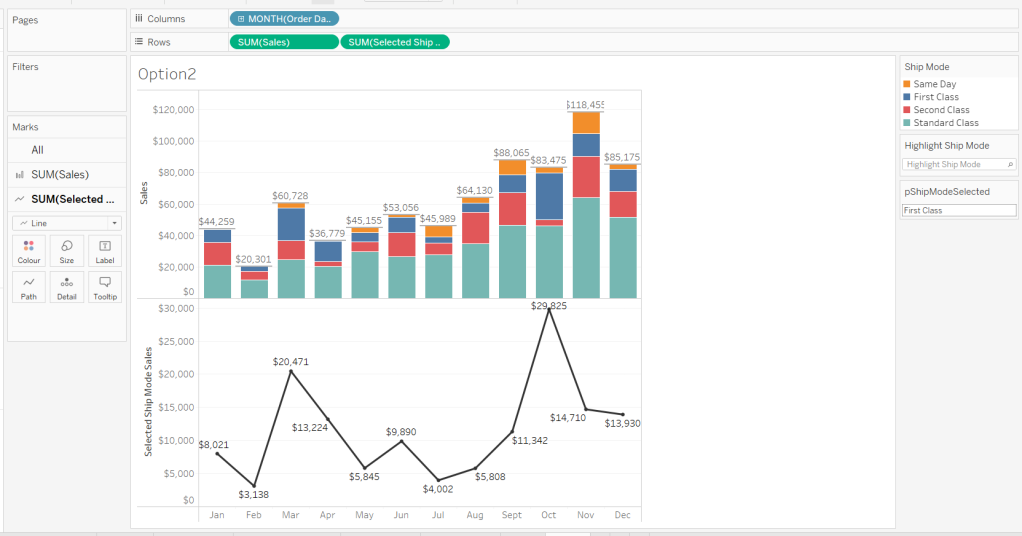
Duplicate the Option 1 sheet and rename to Option 2 or similar.

We will capture the selected ship mode in a parameter.

pShipModeSelected

string parameter defaulted to empty string.

Show the parameter and then enter the text ‘First Class’

Create a new calculated field

Selected Ship Mode Sales

IF [Ship Mode] = [pShipModeSelected] THEN [Sales] END

format this to $ with 0dp.

Add Selected Ship Mode Sales to Rows. Change the mark type on the associated marks card to line and remove Ship Mode from the Colour shelf. Adjust the colour of the line to a dark grey/black and show mark labels.

Make the chart dual axis and synchronise the axis. Hide the right hand axis (uncheck show header) and remove column and row dividers.

Change the text in the parameter to Same Day. You should now get a broken line. Right click on the Selected Ship Mode Sales pill and format. Set the marks for special values to Hide (Connect Lines).

Option 3 – Dynamic Stacks

Duplicate the Option1 sheet again and rename to Option3. Show the pShipModeSelected parameter and enter text ‘Same Day’.

Create a new calculated field

Sort

IIF([Ship Mode]=[pShipModeSelected],1,0)

and drag it into the ‘dimension’ section of the data pane (above the line).

Right click on the Ship Mode pill on the Colour shelf and select Sort.. Change the Sort By option to Field ascending and Field Name = Sort. This will push the bars related to Same Day to the bottom of the stacked bar.

Building the Ship Mode Selector

On a new sheet, add Ship Mode to Columns and then double click into Columns and manually type MIN(1). Change the mark type to bar and edit the MIN(1) axis to fix it from 0 to 1.

Add Ship Mode to Colour and to Label (you may have to widen the bars to make the label visible). Align the label middle centre and bold the font. Adjust the size to the largest possible.

Hide the axis and the Ship Mode headings (uncheck show header). Remove all column/row dividers. Hide the Tooltip from displaying. Name the sheet accordingly.

Building the Navigation selector

I chose to add all the sheets onto a single dashboard (rather than separate dashboards), so created a navigation sheet.

To help with this, I basically utilised the Segment field that wasn’t being used, and essentially translated the values to repurpose them for the navigation options.

Navigation

CASE [Segment]
WHEN ‘Consumer’ THEN ‘Option 1: The Analytics Pane’
WHEN ‘Corporate’ THEN ‘Option 2: Dual Axis’
ELSE ‘Option 3: Dynamic Stacks’
END

Add this field to Columns and type in a MIN(1) in Columns too. Change mark type to bar, fix the axis from 0-1. Make the Size as large as possible. Add Navigation to Label and align middle centre and set the font to white. Adjust the column divider to be a thick white line and remove row divider. Hide the axis and the Navigation headings.

Create a new parameter to capture the navigation selection.

pSelectedDisplay

string parameter defaulted to : Option 1: The Analytics Pane

Show the parameter. Create a new field

Is Selected Display

[Navigation] = [pSelectedDisplay]

and add to the Colour shelf. Adjust to suit. Adjust Tooltip as required and rename the sheet.

Building the Dashboard

Create a dashboard and arrange all the objects on the dashboard, with the different options placed above each other. Use containers if need be. You’ll have something like this – it’ll look a little messy but don’t worry.

We’ll be using Dynamic Zone Visibility to control which object displays based on which option from the Navigation sheet is selected.

First, let’s set the interactivity to control the navigation selection. Add a parameter action

Select Display

on select of the Navigation sheet, set the pSelectedDisplay parameter, passing in the value from the Navigation field. Keep current value when deselected.

Clicking on the different options in the Navigation control will now change the parameter value, but this won’t do anything yet. We need several calculated fields

Option 1 Selected

[pSelectedDisplay] = ‘Option 1: The Analytics Pane’

Option 2 Selected

[pSelectedDisplay] = ‘Option 2: Dual Axis’

Option 3 Selected

[pSelectedDisplay] = ‘Option 3: Dynamic Stacks’

Option 2 or 3 Selected

[pSelectedDisplay] <> ‘Option 1: The Analytics Pane’

All of these fields will return True if the condition is met, so we can use these to control which objects display.

Back on the dashboard, select the Highlight Ship Mode object, and from the Layout pane, check the Control visibility using value and choose the Option 1 Selected field.

Select the Option1 bar chart and apply the same settings.

Now select the Ship Mode Selection sheet, but this time, choose the Option 2 or 3 Selected field to control visibility. It’s likely this field will now disappear.

Select the Option2 bar chart and choose Option 2 Selected field. This will disappear.

Select the Option3 bar chart and choose Option 3 Selected field. This will disappear.

Now click on the different options in the Navigation control and the different charts should display.

(Note – I actually chose to contain the highlight selector and the option1 bar chart within their own layout container, which meant I could then just apply the setting to control visibility of the layout container rather than the individual objects).

Ensure either Option2 or 3 on the navigation bar is selected so the Ship Mode selector is displayed. Create another parameter action

Set Ship Mode

On select of the Option 2 & 3 Selector sheet, set the pShipModeSelected parameter, passing in the value from the Ship Mode field. When clearing the selection, set the value to <empty string>.

Clicking on a ship mode should now display the line or reorder the stack depending what Option you were on.

In clicking the nav or the ship mode selector, you will probably have noticed that the other options become ‘greyed out’ or ‘faded’ To stop this from happening, use a highlight dashboard action.

Create a new field, mine happened to be

True

TRUE

but it could just as easily be named anything containing any string. Add this field to the Detail shelf of the Navigation sheet and the Ship Mode Selection sheet.

Back on the dashboard create a new highlight dashboard action

Deselect Ship Mode Selector

On select of the Option 2&3 Selector sheet, target itself but using the selected field of True.

Create another highlight dashboard action apply the same principals for the Navigation sheet (for more information and worked examples on ‘deselecting marks’, see this blog.

And hopefully you should now have a working solution. My published workbook is here.

Happy vizzin’!

Donna

Excel at Tableau Interactivity with Dynamic Zone Visibility

Erica set the #WOW2024 challenge this week, asking us to recreate this ‘drillable’ functionality within a single dashboard.
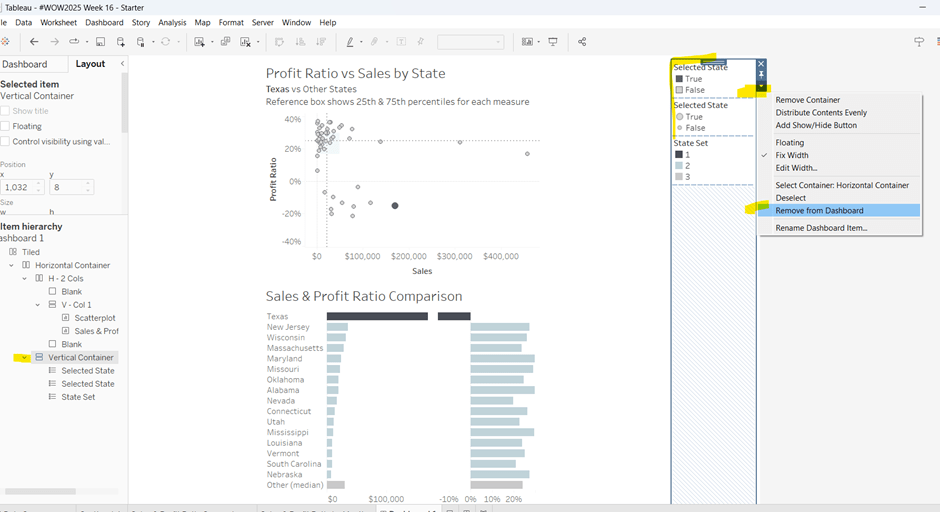
To achieve this, I used 4 sheets

  • A large map
  • A small map
  • A table of data
  • A navigational control

along with parameter actions to drive the interactivity, and dynamic zone visibility to control what displayed when.

Building the large map

On a new sheet, double click on State/Province to automatically generate a map of the United States – if this doesn’t display by default, then make sure the location of your map settings are referencing the USA (Map menu > Edit Locations). Hide the ‘unknown’ indicator displayed bottom right. Change the mark type to map to create a filled map. Change the colour to a grey (I used #c0c0c0). Add State/Province to the Filter shelf and select Arkansas. Show the filter.

Click on the Tooltip button, and delete all the text in the dialog.

Now drag City onto the map and drop it on the section that appears labelled Add a Marks Layer. On the ‘City’ marks card that now appears, change the mark type to circle. Move City to the Label shelf and then also add State/Province to Detail. Change the colour of the circles to dark grey (I used #767f8b).

Update the Tooltip on the City marks card. Turn off all the map options to stop the pan/zoom map control options from appearing (map menu -> map options -> deselect all the options). Remove all row/column dividers.

Name the sheet Map-Large or similar.

Building the Small Map

Duplicate the Map-Large sheet, and name the new sheet Map-Small. Remove all background layers so just the state outline remains (Map menu -> background layers -> set washout to 100%).

On the Label shelf of the City marks card, uncheck show mark layers so the name of the city is not displayed and click on the Tooltip shelf and uncheck show tooltips, so they aren’t displayed either.

On this map, we need to highlight a selected City. For this we need a parameter to capture the City, and a calculated field to identify which City has been selected. We will also need a parameter to capture the State/Province to ensure the interactivity works as required.

pSelectedState

string parameters defaulted to ” (ie empty string)

pSelectedCity

string parameter defaulted to ” (ie empty string)

Is Selected City

[City] = [pSelectedCity]

Add Is Selected City to the Colour shelf of the City marks card.

Show the pSelectedCity parameter and type in ‘Fayetteville’. The colour legend should display values for True & False. Adjust colours to suit.

Also add Is Selected City to the Size shelf and adjust the sizes accordingly.

Building the table

On a new sheet, add

  • State/Province to Filter and filter to ‘Arkansas’
  • Add Is Selected City to Filter and filter to True
  • Add Customer Name, Order ID and Product Name to Rows
  • Right-click on the State/Province field in the Filter shelf and apply to worksheets > selected worksheets and select the Large Map & Small Map sheets. This makes the filter shared between all those sheets.

Create a new field

Unit Price

SUM([Sales])/SUM([Quantity])

and add to Text.

Drag Quantity onto the canvas and drop on the ‘unit price’ column when you see show me appear. This will automatically add Measure Values to Columns and Measure Names to Filter.

Do the same for Sales. Reorder the pills in the Measure Values box so they are arranged as required.

Add subtotals (Analysis menu > Totals > Add all subtotals), then display at the top (Analysis menu > Totals > Column Totals to Top).

Right-click on the Customer Name pill in Rows and uncheck Subtotals from the context menu.

Format the table: set the worksheet background colour to light grey and set the total (pane & header) background colour to a shade darker.

Adjust the width and height of the columns and rows to suit.

Uncheck show tooltip from the Tooltip shelf, and name the sheet Table or similar.

Building the Navigation sheet

The ‘back to main map’ navigational display is actually a worksheet rather than a navigational object on a dashboard, as we need to apply parameter actions to it in order to reset some parameters.

On a new sheet, double click into the space on the marks card below the shelf buttons, and type ‘X’

Change the mark type to Text and move the X field to the Text shelf. Update the text to include the additional words, adjust the font size and then align middle centre. Uncheck Show tooltip.

Create the following fields

City – Reset

State – Reset

and add both to the Detail shelf. Name the sheet Navigation or similar.

Building the dashboard

Using horizontal and vertical layout containers, arrange all the objects on a dashboard. You will need to adjust the background colour of some objects and the padding to get everything looking as expected. This can be quite tricky and is very hard to explain in a blog. The item hierarchy in the image below will help give you an idea

To draw horizontal or vertical lines, add a blank object to the layout container, change the background colour, reduce the padding to 0 and then adjust the height or width of the object so it is very narrow.

These are the properties associated with the red ‘tab’ in the heading – the background colour is red, inner and outer padding is 0, width is 4px and the object is contained within a horizontal container

For the City/State title, reference the pSelectedState and pSelectedCity parameters, along with a unicode symbol which I copy and past from here.

Adding the interactivity

Add the following dashboard actions

Set State

on select of the Map-Large sheet, set the pSelectedState parameter passing in the value of the State/Province field. When the selection is cleared, retain that value.

Set City

on select of the Map-Large sheet, set the pSelectedCity parameter passing in the value of the City field. When the selection is cleared, retain that value.

Reset State

On select of the Navigation sheet, set the pSelectedState parameter passing in the value of the State – Reset field. When the selection is cleared, retain that value.

Reset City

On select of the Navigation sheet, set the pSelectedCity parameter passing in the value of the City- Reset field. When the selection is cleared, retain that value.

Click around on the dashboard and sense check the parameters appear to be behaving – ie if you click on a city on the large map sheet, the table and small map should update, and if you then click the navigation sheet, the table shouldn’t show anything, and the small map shouldn’t show anything highlighted.

Hide and show the objects

Finally, we need to only show the required objects depending on the actions taken. For this we need some additional calculated boolean fields. Go back to any sheet, and create the following calculated fields

City is Selected

[pSelectedCity]<>”

City Not Selected

[pSelectedCity]=”

Note, these fields just have to exist, they don’t need adding to any sheet.

Navigate back to the dashboard.

Click on the Map-Large object, and on the Layout tab, check the control visibility using value option, and choose the City Not Selected value.

This means that when City Not Selected is true (ie the pSelectedCity parameter is empty), this object will display. When City Not Selected is false (ie the pSelectedCity parameter has a value), this object will be hidden.

Depending on what you’ve been clicking, this object might disappear immediately.

Click on the Table object, and do the same steps, but this time choose the City is Selected field. This means the table will only show then the pSelectedCity parameter has a value.

Apply the same settings so the small map, the table title, and the navigation sheet only show when City is Selected. Note – depending on how you have built the dashboard, you may find you can apply the setting once against a container which contains all the objects you want to hide rather than against each individual object.

I also chose to only display the Select a State filter control when the City Not Selected was true.

And hopefully, that should be it. My published viz is here.

Happy vizzin’!

Donna