Can you visualise survey data?

It was Sean’s first challenge of 2023, and he asked us to recreate this chart . Sean referred to it in the requirements as a floating bar chart, others may refer to it as a diverging bar chart or likert chart.

Modelling the data

Fake survey data was provided which was structured with each question in a column

The first thing we need to do is to pivot the data, so we have 1 row per question, per respondent. On the data source tab in Tableau Desktop, multi-select the question columns (Ctrl-click), then click the context menu for one of the selected columns and select Pivot

Due to the width of the screen and the number of columns, you may have to do this in multiple steps. Just multi-select the next set of columns, and select Add Data to Pivot from the context menu instead.

Once complete you should have a data set with 3 columns

Rename Pivot Field Names to Question and Pivot Field Values to Response.

Building the calculations

All the questions have 5 options to respond to ranging from Strongly Disagree -> Disagree -> Neutral -> Agree – > Strongly Agree. Sean hinted we would need to group the questions based on their sentiment. Some questions were worded in a positive way, which meant ‘agree’ responses could be taken as a ‘good thing’. While other questions were worded in a negative way, meaning agree’ responses were actually a ‘bad thing’.

So the first thing to do was to group the questions. I used the group functionality (right click on Question -> Create -> Group).

Sentiment

All the questions where I deemed an ‘agree’ answer was a favourable response to the product I grouped under Positive.

All the question where I deemed an ‘agree’ answer was a non-favourable response to the product I grouped under Negative.

I then wanted to bucket the responses into 3 groups – Disagree, Neutral and Agree – based on the combination of the actual Response, and the Sentiment grouping.

Response Group

IF [Sentiment] = ‘Positive’ THEN
IF CONTAINS([Response],’Disagree’) THEN ‘Disagree’
ELSEIF CONTAINS([Response], ‘Agree’) THEN ‘Agree’
ELSE ‘Neutral’
END
ELSEIF [Sentiment] = ‘Negative’ THEN
IF CONTAINS([Response],’Disagree’) THEN ‘Agree’
ELSEIF CONTAINS([Response], ‘Agree’) THEN ‘Disagree’
ELSE ‘Neutral’
END
END

With this I am essentially swapping disagree responses against questions of a negative sentiment into the agree/positive grouping and vice versa.

Finally I need another couple of calculations just to sense check were we are

Count Respondents

COUNTD([Id])

Question – Display

TRIM( SPLIT( [Question], “-“, -1 ) )

This removes the text that precedes the ‘-‘ from the Question string. I actually created this field using the Split functionality. Right click on Question -> Transform -> Custom Split. Use the separator – and split off the Last 1 columns

This will generate the field int he dimensions pane which I then renamed.

If we put all these out into a table, we can see how the data is shaping up

The next step is to work out the NPS values. When I’ve dealt with NPS in the past, I’ve referred to terms such as Promoters and Detractors, with an NPS score being computed as (Number of Promoters – Number of Detractors)/Total No of Respondents.

In this case a Promoter is anyone who is in the agree bucket.

Promoters

IF [Response Group]=’Agree’ THEN 1 ELSE 0 END

while a Detractor is anyone who is in the disagree bucket

Detractors

IF [Response Group]=’Disagree’ THEN 1 ELSE 0 END

The total number of respondents is

Total Respondents

{FIXED:COUNTD([Id])}

So I can now calculate

NPS

(SUM([Promoters])-SUM([Detractors]))/[Count Respondents]

Format this to percentage with 0 dp.

Let’s put this into another table so we can validate the data.

Ok, so this gives us the data required to plot the circle marks.

But we need to work out what’s need to plot the bars. And for this we need to know the respondents who are neither Promoters or Detractors.

Neutrals

IF [Response Group] = ‘Neutral’ THEN 1 ELSE 0 END

We are going to plot 2 bars for each row. 1 bar that represents the proportion of respondents who are in the positive side and 1 bar to represent the proportion of respondents who are in the negative side. The positive side mainly consist of the promoters, while the negative is the detractors. However, we need to consider the neutrals too, and we do this by halving the number and making half positive and half negative. Let’s see what I mean

# Respondents – Positive

(SUM([Promoters]) + (SUM([Neutrals])/2))/SUM([Total Respondents])

format this to percentage with 0 dp.

Similarly

# Respondents – Negative

-1 * ((SUM([Detractors]) + (SUM([Neutrals])/2))/SUM([Total Respondents]))

format this to percentage with 0 dp.

In this case the result is multipled by -1 as we want the bar to be plotted on the negative side of the axis.

Let’s pop these into the table too.

Ok. So now we have the core building blocks required to start building the viz.

Building the Likert Chart

Add Question – Display to Rows and # Respondents – Positive to Columns.

Click and drag # Respondents – Negative onto the canvas and drop the pill on the bottom axis when you see the 2 green columns icon appear.

This will automatically add the pill onto the same axis, and the view will update to use Measure Names and Measure Values

Remove Measure Names from the Rows and the bars will all appear on the same row. Sort the Question – Display field by NPS descending.

Add Response Group to the Colour shelf and adjust colours accordingly (using the Nuriel Stone palette). I also set the transparency to about 70%. You may need to reorder the values of Response Group – just do this manually in the colour legend if need be.

Increase the width of each row a bit, expand the Question – Display column, and remove the tooltips from displaying. Format the Question – Display column so it is aligned left and the font is a bit bolder/darker. Remove the Question – Display column heading (right click label > hide field labels for rows).

Format the axis to display as percentages to 0 dp, then edit the axis and

  • remove the title
  • fix the axis from -1.05 to 1.05
  • fix the tick marks to display every 0.5

Adjust the row banding to show, and remove any column/row dividers. Remove all gridlines. Adjust the column axis rulers and tick marks to be a solid dark line. Set the zero line for the columns to be a wider solid white line – it should just about be visible through the viz.

Now we need to label the agree and the disagree sections only. For this we need additional fields

Label – Positive

If MIN([Response Group]) = ‘Agree’ THEN [# Respondents – Positive] END

and

Label – Negative

If MIN([Response Group]) = ‘Disagree’ THEN [# Respondents – Negative] END

Add both these fields to the Label shelf and arrange side by side. Manually adjust the colour of the font to a dark grey.

This is the core design of a likert chart. It could be bult using dual axis too, but that wasn’t an option in this instance, as we need to add the additional NPS circles to the chart.

Adding the NPS circles

Add NPS to Columns. On the NPS marks card, remove all the fields, and change the mark type to circle. Add NPS to the Colour shelf, and adjust the colours so they range from the same yellow/green to blue/teal colours already used. The easiest way to do this is to click on the coloured square at each of the edit colour dialog and use the pick screen colour option to select the colours already used.

Set the colour to be 100% opacity and add a white border around the circles (via the Colour shelf)

Set the chart to be dual axis and synchronise the axis. Change the mark types back to bar and circle accordingly if they changed.

Now we can see some of the labels on the bar chart are positioned where the circles are/very close to them. Manually move those affected – click on the section of the bar to highlight it, then click on the label and when the cursor changes to a crosshatch, drag the label to where you want. Note – this isn’t something I would typically do if the data was to change behind this viz without any manual involvement.

Hide the top axis (uncheck show header) and remove all row/column dividers.

Now we just need to label the circles. I need additional fields for this. Firstly, the NPS field is on the wrong format – it’s actually stored as a decimal, formatted to a percentage. Secondly, I ended up with two label fields, due to the colouring. Sometimes when you add a label to a mark, the colour of the text may display black or white depending on the contrast with the underlying colour. Tableau automatically does this, and it isn’t something you can really control. As soon as you start manually adjusting any colours, it can be hard to get back to the right state. I fiddled around trying to get things to work properly for a while using the auto colouring (which involved rebuilding by starting with the NPS dot plot and then adding the bars), but it still wasn’t a ‘cast-iron’ solution. So I ended up creating

Label -NPS-Black

IF [NPS] * 100 <=70 THEN [NPS] *100 END

Label-NPS-White

IF [NPS]*100 >70 THEN [NPS]*100 END

I just chose an arbitrary ‘cut off’ for when the colour might change.

Add both these fields to the Label shelf of the NPS marks card, and arrange them side by side. Edit to font so the Label-NPS-White field is coloured with white font, and the other black. Set the alignment of the text to be middle centre. Adjust the size of the circles if required. Verify tooltips don’t exist on any marks.

Stopping the chart from being clicked

In the solution, if you try to click on the bar chart, you get no interaction – nothing highlights, like it does if you click on the axis or the questions. On a dashboard, this is managed by adding a floating blank object and carefully placing it over the top of the section you don’t want to be clickable.

And that should be it! My published viz is here.

I have to admit I did have a few false starts when building this out, and its highly probable this could have been created without all the fields I ended up with. It’s sometimes just the path your brain follows, and there’s nothing wrong with that!

Happy vizzin’!

Donna

Dynamic Dates in a Heat Map

Erica set the challenge this week using a custom made dataset. The focus was to handle viewing different aggregations of the dates based on the date range selected, ie for short date ranges seeing the data at a day level, for medium ranges, view at the week level and then at a monthly level for larger ranges. This type of challenge has been set before, but the visual is typically a line chart rather than a heat map. The principles are similar though.

Determining the Date to Display

Each row in the data set has a Date associated to it. For this challenge we need to ‘truncate’ the date to the appropriate level depending on the date range and the date level selected by the user. By that I mean that if the level is deemed to be weekly, we need to ‘reset’ each date to be the 1st day of the week.

To start with, we need to set up some parameters which drives the initial user input.

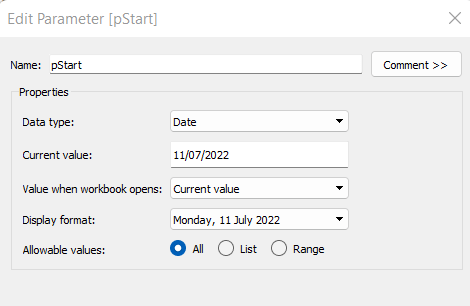
pStart

Date parameter defaulted to 11/07/2022 (11th July 2022), with a display format of <weekday>, <date>

pEnd

As above, but defaulted to 24/07/2022 (24th July 2022).

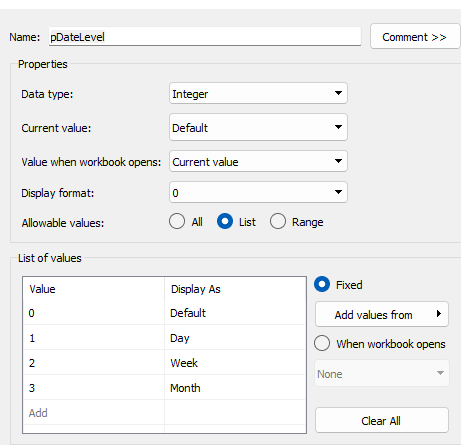
pDateLevel

integer with values 0-3 as listed below, with a text Display As. Defaulted to ‘Default’. Note, I am using integers as we will be referencing them in IF statements later, and integers are more performant than comparing strings.

With these parameters, we can then build

Date To Display

DATE(
IF [pDateLevel] = 0 THEN
IF DATEDIFF(‘day’, [pStart], [pEnd]) < 28 THEN DATETRUNC(‘day’,[Date])
ELSEIF DATEDIFF(‘day’, [pStart], [pEnd]) < 90 THEN DATETRUNC(‘week’, [Date])
ELSE DATETRUNC(‘month’, [Date])
END
ELSEIF [pDateLevel] = 1 THEN DATETRUNC(‘day’,[Date])
ELSEIF [pDateLevel] = 2 THEN DATETRUNC(‘week’,[Date])
ELSE DATETRUNC(‘month’, [Date])
END
)

If the pDateLevel is set to 0 (ie Default), then compare the difference between the dates entered and truncate to the ‘day’ level if the difference is less than 28 days, the ‘week’ level if the difference is less than 90 days, else truncate to the month level (which will return 1st of the month). Otherwise, if the pDateLevel is 1 (ie Day), truncate to the day level, if it’s 2 (ie Week), truncate to the week level, else use the month level.

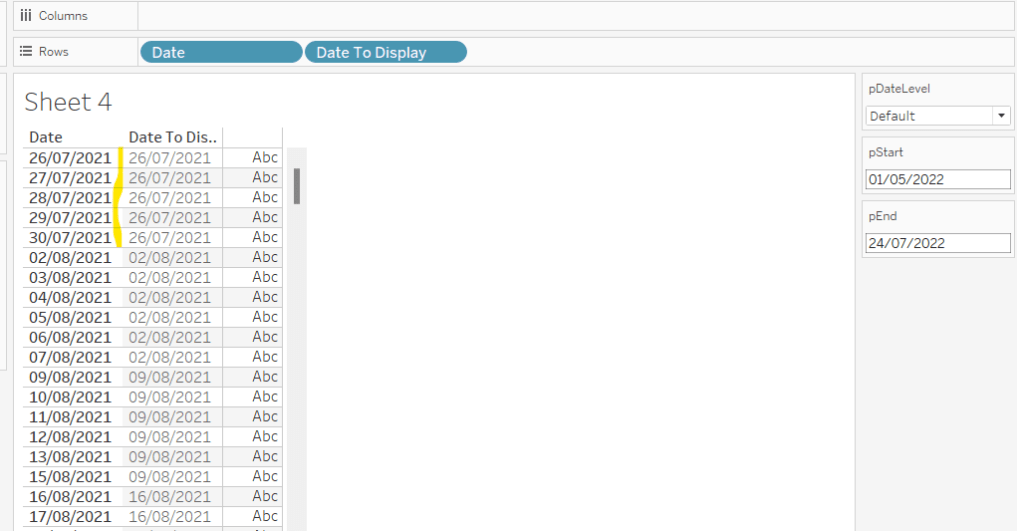
To see how this field is working, add Date and Date To Display to Rows, both as discrete exact dates (blue pills), display the parameter fields, and adjust the values. Below you can see that using the Default level, between 1st May and 24th July, the 1st day of the associated week against each date is displayed.

Building the Bar Chart

This is the simpler of the two charts to build, so we’ll start with this.

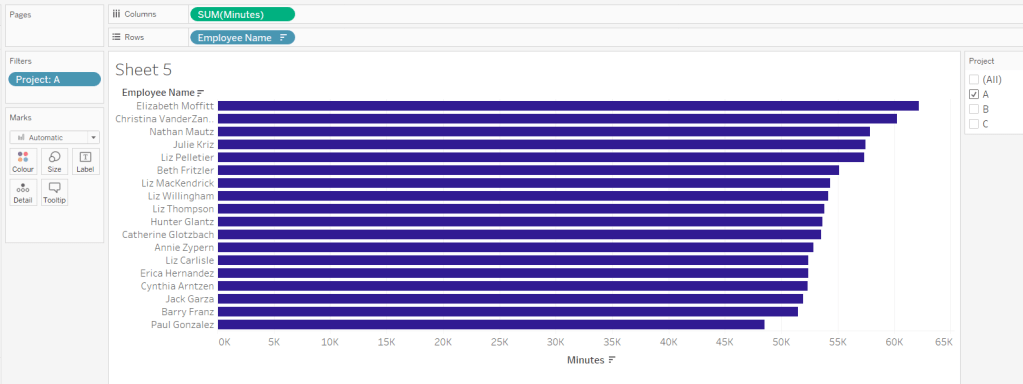
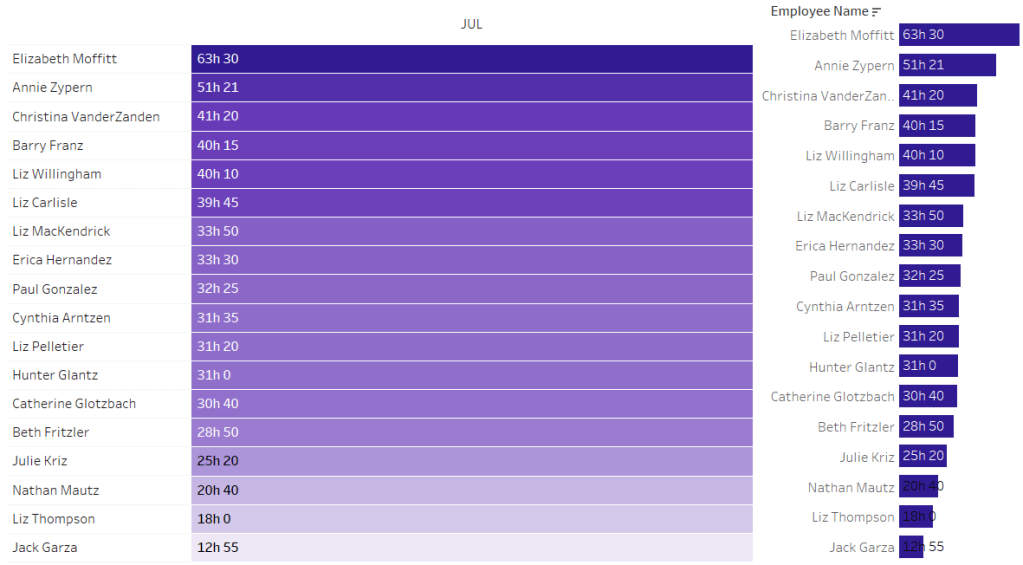
Add Employee Name to Rows, and Minutes to Columns. and sort by Minutes descending (just click the sort descending button in the toolbar). Add Project to Filter, select ‘A’ and then show the filter. Adjust the colour of the bars. I used #311b92

We need to restrict the data displayed based on the date range defined.

Dates to Include

[Date]>=[pStart] AND [Date]<=[pEnd]

Add this to the Filter shelf and set to True.

Now, we need to label the bars, and need new fields for this.

Duration (hrs)

FLOOR(SUM([Minutes])/60)

Using the FLOOR function means the value is always rounded down to the relevant whole number (eg 60.5 and above will still result in 60).

Format this field to be 0 decimal places with a ‘h’ suffix

Duration (mins)

SUM([Minutes])%60

Modulo (%) 60 means return the remainder when divided by 60. Format this to be 0 dp.

Add both these fields to the Label shelf, and adjust so the labels are displaying on the same line and are aligned to the left. You may need to increase the width of each row to see them.

Add Project to the Tooltip shelf and update, then remove all gridlines and the axis. Leave the Employee Name column visible for now. We’ll come back to this later.

Building the Heat Map

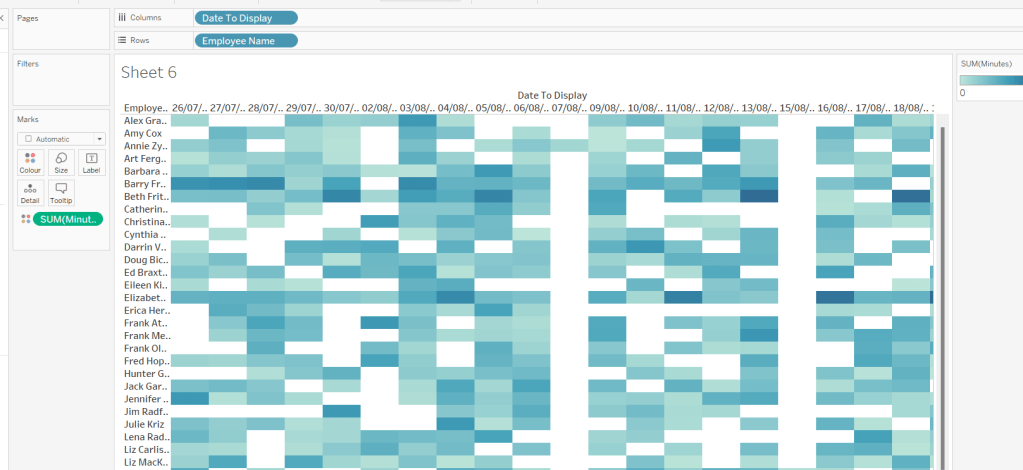
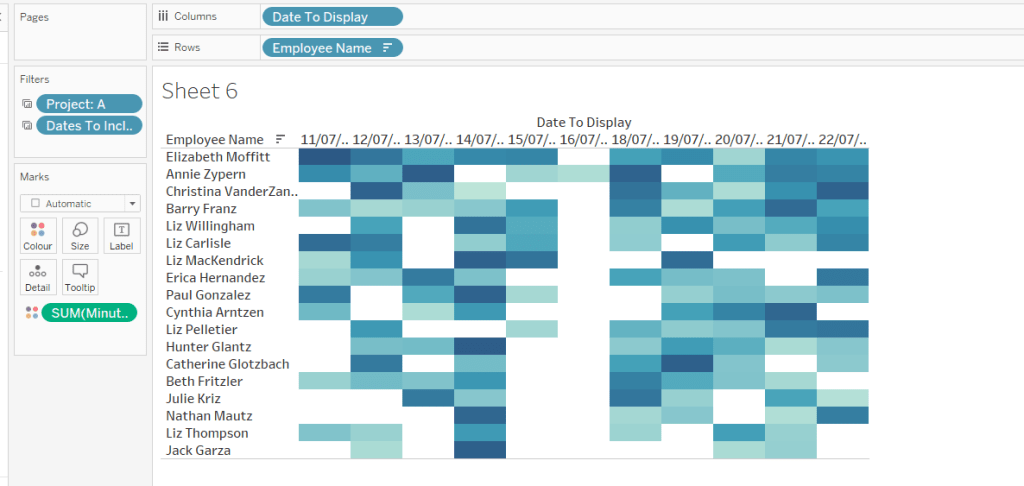
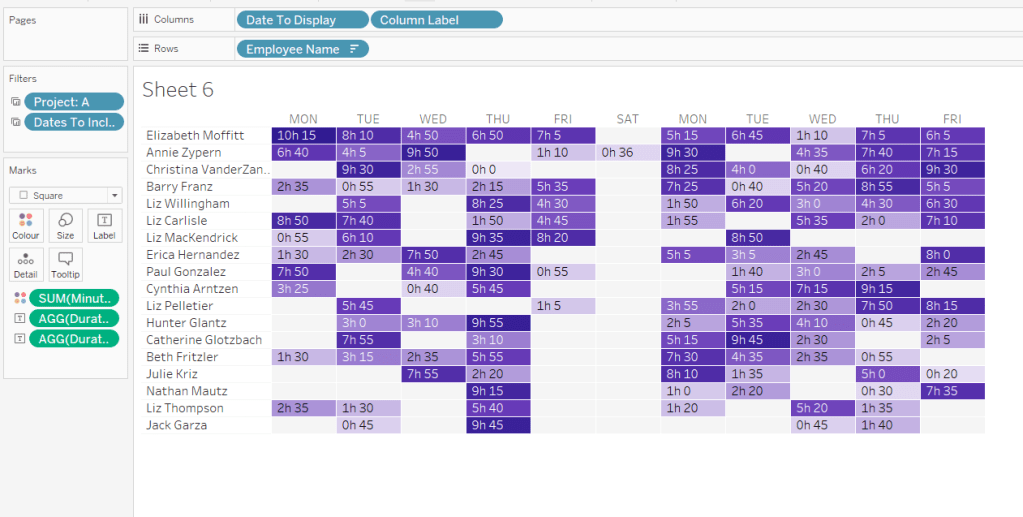
On a new sheet, add Employee Name to Rows and Date to Display as a discrete exact date (blue pill) to Columns. Add Minutes to Colour and a heat map should automatically display.

Go back to the bar sheet, and set both the Project and the Dates To Include filters to apply to the heat map worksheet as well (right click each pill on the filter shelf -> Apply to Worksheets -> Selected Worksheets and select the other one you’re building).

Then click the sort descending button in the toolbar, to order the data as per the bar.

Add both Duration (hrs) and Duration (mins) to the Label shelf and change the mark type to Square. Adjust the label so it is on the same line and left aligned (I added a couple of spaces to the front of the text so it isn’t so squashed).

Edit the colours of the heat map – I used a colour palette I had installed called Material Design Deep Purple Seq which seemed to match, but may not be installed by default.

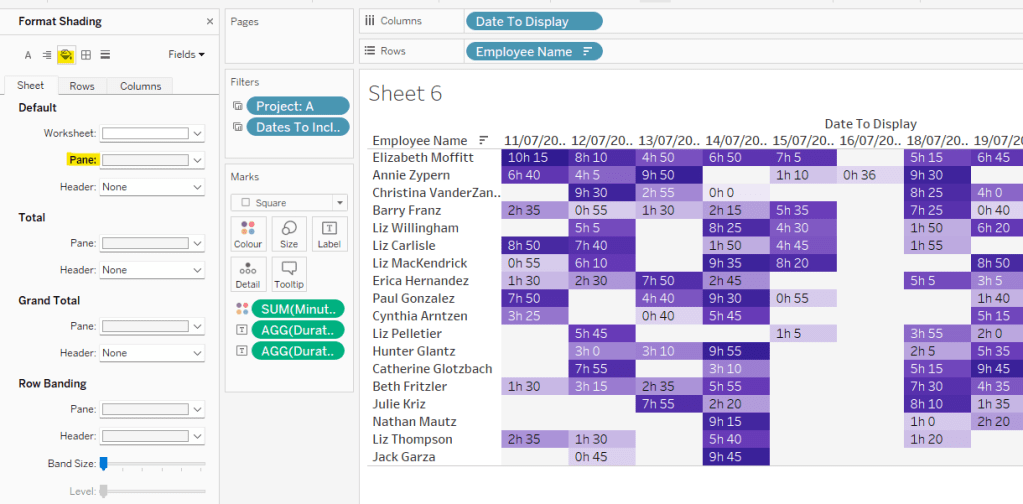
Format the main heat map section to have a light grey background by right clicking on the table -> format and setting the shading of the pane only to pale grey

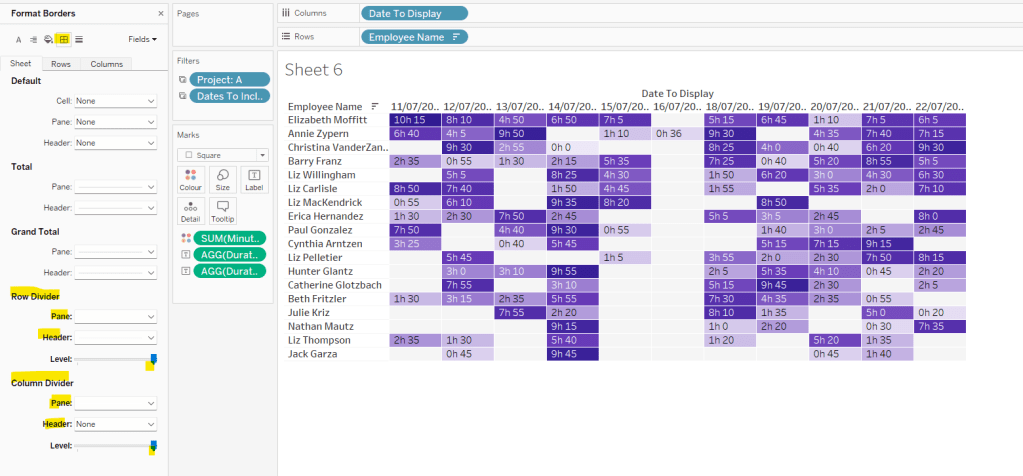
Then adjust the row dividers of the pane to be white, and the header to be pale grey (set the level to the max).

Adjust the column dividers similarly, setting the pane to be white, the header to none, and level to max

Next we want to deal with the column labels. By default they’re showing the date, but we want this to show something different depending on the date level being displayed.

Column Label

IF (([pDateLevel] = 1) OR (([pDateLevel] = 0) AND (DATEDIFF(‘day’, [pStart],[pEnd])<28))) THEN UPPER(LEFT([Weekday],3))
ELSEIF (([pDateLevel] = 2) OR (([pDateLevel] = 0) AND (DATEDIFF(‘day’, [pStart],[pEnd])<90))) THEN ‘w/c ‘ + IIF(LEN(STR(DATEPART(‘day’, [Date To Display])))=1,’0’+STR(DATEPART(‘day’, [Date To Display])), STR(DATEPART(‘day’, [Date To Display]))) + ‘-‘ + UPPER(LEFT(DATENAME(‘month’, [Date To Display]),3))
ELSE UPPER(LEFT(DATENAME(‘month’, [Date To Display]),3))
END

If the date level is ‘day’ or the date level is the default and the start & end are less than 28 days apart, then show the day of the week (1st 3 letters only in upper case).

Else if the date level is ‘week’ or the date level is the default and the start & end are less than 90 days apart, then show the text ‘w/c’ along with the day number (which should be 01 to 09 if the day is < 10) a dash (-) and then the 1st 3 letters of the month in upper case.

Else, we’re in monthly mode, so show the 1st 3 letters of the month in upper case.

Add this to the Columns shelf, then hide the Date To Display field (uncheck show header), hide field label for columns and hide field label for rows. Format the Employee Name field so its a different font (I changed to Tableau Book).

Again play around with the parameters and see the changes to the column label.

Finally, add Project to the Tooltip and update. You’ll need to adjust the formatting of the Date To Display field to get it into <day of week>, <date> format.

Adding to the Dashboard

When you add the two charts to the dashboard, you’ll need to set them side by side within a horizontal layout container. Remove the titles. They both need to be set to ‘fit entire view’, and the width of the heat map chart should be fixed (I set it to 870px), so it retains the space it stays in, even when you only have 1 month displayed.

Once you’re happy the order of the heat map employees matches the order of your bar chart, uncheck show header against the Employee Name field on the bar chart.

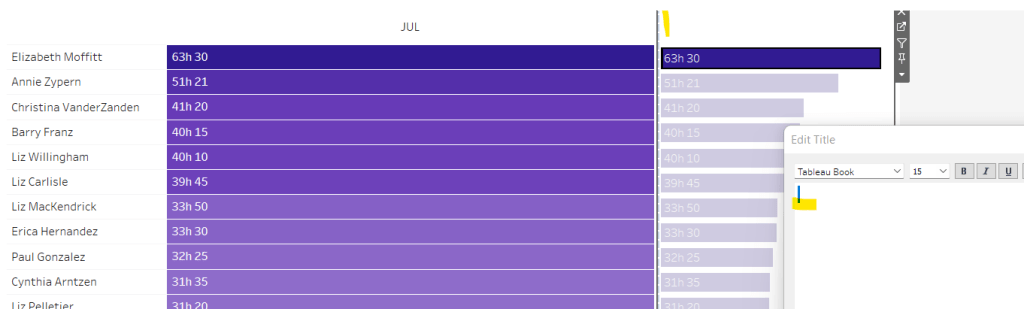
To get the bars to align with the heat map, I showed the title of the bar, removed the text and just entered a space. This dropped the bars so they just about aligned. You may need to tweak by increasing the size of the bars slightly.

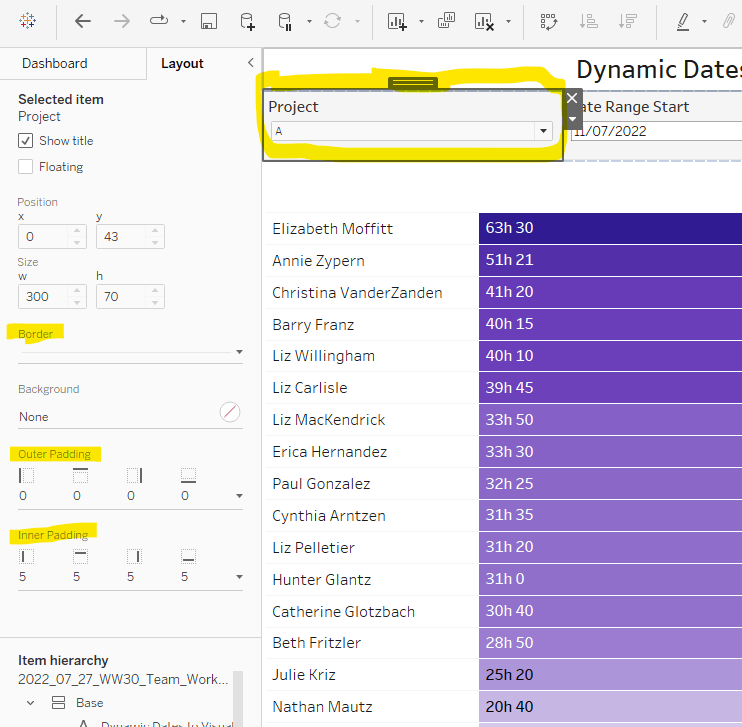
Finally, you need to move your parameters around. I placed them in a horizontal container, whose background colour was set to pale grey. I then set the objects within to be equally spaced by setting the container to Distribute Contents Evenly.

I then altered the padding of each of the parameter objects to have outer padding = 0 and inner padding = 5 and added a pale grey border surrounding each.

And that should be it. My published viz is here.

Happy vizzin’!

Donna

Monthly Sales vs Targets – the #data22 Vegas Edition

This week the whole #WOW2022 crew and myself were lucky enough to be able to attend #data22 – the Tableau Conference in Las Vegas. In the 10 years I’ve been involved in the Tableau Community, this was my very first US conference, and my first opportunity to meet some of the people I engage with on a weekly basis, in person. Meeting all those who have been involved in the WOW challenges over the years and my fellow regular participant, Rosario Gauna, was a big highlight for me.

Erica led the live #WOW2022 session at the conference on Thursday morning (not sure the organisers fully understood the title), with this challenge.

Erica walked through the challenge end-to-end in the session, but I attempted to build out my solution, just as I would at home, so let’s crack on.

Modelling the data

The viz compares actual sales vs target, and an additional data set was provided to store the target data. As a consequence this needs to be combined/joined/related with the actual sales data.

For this you need to download the two excel data sources provided in the challenge – SuperStore Sales and Superstore Category Monthly Sales Targets.

Connect to the Superstore Sales file and drag the Orders sheet into the canvas. The Add a new connection to the Superstore Category Monthly Sales Targets file and drag in the Sales Targets sheet to the right of the Orders object in the canvas.

This will try to create a relationship between the two objects, but can’t as it needs to be defined.

In the section at the bottom, relate the Category field from the Orders object to the Category field in the Sales Target object.

This creates a valid link between the two objects, but it’s not enough. We also need to relate on a date field. In the Sales Targets object there is a field Month which stores the date on the 1st of a month. So to relate the Orders data we need to

  • Click + to Add more fields
  • From the Select a field dropdown on the Orders side, select Create a Relationship calculation
  • In the calculation window type in DATE(DATETRUNC(‘month’, [Order Date])). This returns the 1st of the month related to each Order Date into a Date rather than Datetime datatype.
  • Select Month from the Sales Targets dropdown.

Building the bar in bar chart

You can build this type of chart using a dual axis chart, where both axis are set to use the bar mark type, but the sizes of the bars are different. However, if you go down this route you’ll struggle to get the labels right (as the labelling is the trickiest part of this challenge).

Instead for this challenge you need to build a combined axis chart, which is possible since both measures are represented by the same mark type, a bar.

First up, add Order Date to the Filter shelf and select to filter by the Year 2021.

Then add Order Date to Rows and set it to the discrete (blue pill) ‘month’ level (the ‘May’ option rather than the ‘May 2015’ option on the context menu). Add Sales to Columns and change the mark type to bar.

Then drag Sum Targets from the left hand pane onto the Sales axis, releasing the mouse when you see the ‘double column’ green icon appear.

This will result in a combined axis chart being created, and the fields Measure Names and Measure Values automatically added to the viz.

Move Measure Names from the Columns and place on Size. Additionally add another copy of Measure Names onto Colour and adjust accordingly.

On the Analysis menu, select Stack Marks -> Off so the bars both start from 0, rather than being placed on top of each other.

We now need to adjust the bar sizing. Edit the sizes via the Size legend on the right hand side, so the range between the sizes is less than that set.

We now need to work on colouring the Sales bars based on whether they met target or not. For this we first need to work out whether the Target is bigger or not.

Met Target?

SUM([Sales]) > SUM([Sum Targets])

This returns a boolean true/false result. We want this on the colour shelf in addition to the Measure Names field that is already there. If we just drag it onto colour, it will replace Measure Names. Instead, drag Met Target? onto the Detail shelf. Then click on the 3 dots immediately to the left of the Met Target? pill in the marks card, and select the Colour icon.

This has the effect of adding this as an additional colour field, so four options rather than two are now presented in the colour legend. Adjust the colours once again.

We’ve now got the core bar-in-bar chart. We can just add some final formatting to this section.

Format the month axis to set the dates to be abbreviated, and then rotate the labels.

Click the Order Date label at the top of the chart and Hide field labels for columns.

Edit the Value axis and rename the title to Sales ($).

Amend the number format of both the Sales and Sum Targets fields to be a number with 0dp and $ prefix. Add both fields to the Tooltip and adjust so that both values display when you hover over either the Sales bar or the Targets bar.

Labelling the bars

Labelling the bars to match Erica’s display is the trickiest part of this challenge. Bottom line – it shouldn’t be so tricksy but that’s just the way it is until Tableau see fit to fix it in the product.

Anyway, on examining Erica’s published solution before I started, I could see, by hovering my mouse over the viz, that there was a small mark highlighted above the bars that missed target. This provided a clue that there was a dual axis involved (hence the need for a combined axis to display the bars), with a mark plotted at some distance above the existing data…but where…?

Before working that out, I need to build a couple of fields

Difference

SUM([Sum Targets])- SUM([Sales])

which returns the difference between the Sales and Sum Targets for each month. But since I only want the values when the target hasn’t been met, I need

Missed Target Diff

IF NOT([Met Target?]) THEN [Difference] END

which is formatted to $ with 0dp.

I also needed some text to only display when the target was missed

Label Text Missed Target

IF NOT([Met Target?]) THEN ‘Target missed by’ END.

Now to figure out what measure to plot….

In Erica’s solution, she worked out an ‘uplift’ of the Sum Targets value to plot, but only when the target was missed. She did this using quite a complex looking nested LOD calculation (check out her solution for this).

After much deliberation, discussions, trial and error, I finally came up with a alternative that isn’t perfect, but is ‘good enough’ in my book.

Firstly, I needed another measure to plot

Target to plot

IF NOT([Met Target?]) THEN SUM([Sum Targets]) END

This plots the Targets value but only against the months where the target wasn’t month.

I then added this to the Columns shelf and I changed the mark type to circle on the Target to Plot marks card only.

I then made the chart dual axis and synchronised the axis.

Then, remove Measure Names from the Colour and Size shelf on the Target to Plot marks card, and also remove the Met Target? field from the Colour shelf too.

Adjust the Size of this mark to the smallest possible, and change the Opacity (via the Colour shelf) to 0%, so the circle mark becomes invisible except on hover.

Add Missed Target Diff to the Text shelf of the Target To Plot marks card. Edit the text in the label as below

I added a carriage return, formatted the text to 11pts and orangey/red and added 5 spaces to the front of the 2nd line.

I then changed the label alignment so the text was rotated and it was positioned top centre.

Next I added Label Text Missed Target to the Label shelf on the Measure Values marks card.

I edited the text as below, left aligning and again adding 5 spaces in front

Then I adjusted the alignment to be top left

Adding Category to the Filter shelf and testing with the different filters, suggested this technique seemed to work (at least on Desktop).

Last step is to remove the secondary axis, remove the row & column dividers, and hide the ‘nulls indicator’. Then add to a dashboard.

My published instance is here.

This challenge certainly raised questions over these formatting specifics. As I mentioned above, it shouldn’t be that hard to add a label that looks like this – left aligned and positioned above the bar. However the product doesn’t let you achieve this easily as yet, which is disappointing and certainly confusing to new users of the product – it seems such a straightforward requirement after all.

If I was doing this for my own work, I’d have kept with whatever options a single label allowed (where the text was all right aligned), or placed on a single line. The impact on performance of a complicated calculation along with the maintainability of a dashboard using it, are important considerations when deciding what’s ‘good enough’, and are arguments that should be made if a client/user insists. After all, what real benefit does this particular format provide over

or

Happy vizzin’!

Donna

Can you format the dashboard?

This week’s #WOW2022 challenge was focused on dashboard layout, specifically the use of containers and padding to give your charts room ‘to breathe’ and be aligned beautifully.

This has come at a great time for me, as now I’m spending more time in my role developing business dashboards, I’m trying to find a ‘go to’ style that works for me. I know things will often need to be adapted on a client by client basis, but having a consistent reference point for anything I develop personally, or just want to conceptualize will make my life easier (less decisions to be made). As a result I’m currently spending a lot of time figuring out what padding/background colours etc I want to use for my dashboards.

A note on the data

You may notice that my solution looks a bit different from Luke’s in terms of content. The requirements state to use Superstore v2021.4, but the excel file that ships with Tableau doesn’t actually contain a Manufacturer field which Luke uses. I thought I’d try to use the file linked in the requirements, but (at the time of writing), that actually linked to a 2019.4 version, so the numbers didn’t match up. I therefore chose to use the Superstore v2021.4 excel file I already had on my laptop, and built the table using the Product Name field instead. I think the Superstore.tds file that ships may contain Manufacturer, but I couldn’t see to find that either at the time.

I also chose to use a count distinct function when counting the Order IDs rather than a count, as this seemed more appropriate to me, which is why that KPI differs.

As the focus on the challenge was on the layout, I didn’t think it was necessary to get these points resolved before building my solution.

Building the KPIs

I managed to build the visuals required for the solution using 5 sheets – 1 sheet per KPI ‘card’ and 1 for the table. After I completed my solution, the requirements were updated and suggested 9 sheets were required, essentially 2 per KPI card – the measure and the bar chart. Personally I think having 1 sheet for each KPI is ‘cleaner’ so I left it as is.

In order to build each KPI in a single sheet, I need additional calculations to provide the ‘total’ measure value.

Total Sales

{FIXED: SUM([Sales])}

Count of Orders

COUNTD([Order ID])

Total Orders

{FIXED: [Count of Orders]}

Profit Ratio

SUM([Profit]) / SUM([Sales])

formatted to % with 1 dp

Total Profit Ratio

{FIXED: [Profit Ratio]}

formatted to % with 1 dp

Total Profit

{FIXED : SUM([Profit])}

Then create a bar chart by adding Order Date to Columns and setting to the Month (May) date part (blue discrete pill), and adding Sales to Rows. Add Total Sales to the Detail shelf. Change the mark type to Bar.

Change the Colour to #afaaf3 and reduce the Size. Edit the title of the chart to reference the Total Sales field and format as below with the SALES in 9pt and Total Sales in 15pt.

Modify the Tooltip then remove all gridlines/axis rulers etc, and hide the axis and the month headers.

Rename this sheet as Sales, then duplicate, and create one for Orders by replacing Sales with Count of Orders and Total Sales with Total Orders. You should be able to drop the replacement pill directly on top of the pill being replaced, and everything will update. Update the sheet title to change the word SALES to ORDERS. Rename this sheet Orders, then duplicate again and repeat the process to create the Profit Ratio and Profit sheets.

Building the table

On a new sheet add Product Name (or Manufacturer if you have the right data set) to Rows and add Sales, Profit, Count of Orders and Profit Ratio into the table so you end up with Measure Names on Columns and Measure Values on Text.

Remove all row banding, but add row dividers across each row. Widen each row and the header. Sort by Sales descending.

Change the mark type to Square then add another instance of Measure Values to the Colour shelf. Right click on the Measure Values pill and select Use separate legends.

This will display 4 colour legends, which you need to amend as follows :

Sales Legend

Edit the colour and select Purple sequential. The click on the coloured square at the right end of the range, and change this colour to #675CF3.

Then select the Stepped Colour checkbox and change the value to 8.

Profit Legend

Edit the colour and choose a Diverging colour palette. It doesn’t matter which one. Click on the coloured squares at each end and change them both to white. Set the number of steps to 2.

Count of Orders Legend

Do exactly as described above for the Profit Legend.

Profit Ratio Legend.

Edit the colours and choose a diverging colour palette. Change the colour on the left to #9A1500. Change the colour on the right to #777777. Set the number of steps to 8.

Building the dashboard

Now we have the charts, we need to start building the dashboard, and I’ll see if I can step through my approach to doing it, and if I’ll end up with the right result….

Firstly create a dashboard and set the size to 1100 by 850.

Now a habit I’ve got into when I want to be really precise about the formatting I’m applying (ie I’m building a business dashboard), is I start by adding a floating container to the dashboard, which is set to the exact dimensions of the dashboard. This was a tip I picked up from Curtis Harris here. The main reason for doing this, is that I feel I have more control as I don’t then use any Tiled container type that automatically gets added. If any do appear, I find the objects I want out of them and move them elsewhere, then delete the whole tiled section. In this instance I’m going to start by adding a Vertical floating container, and position it at 0,0 and 1100 wide and 850 high. Use the fields on the Layout pane to set these.

I also get into the habit of renaming the containers, to help me keep track of what is where and whether the objects are in the right place.

The next thing I always do when working with containers, is add a blank object. As we build out, this object will eventually be removed, but it’s a recommended step to help position other objects you add into the containers.

So on the Dashboard tab, change the selection to Tiled and then drag a blank object into the main canvas.

This ‘blank’ is now in the container and the ’tiled’ option means its anchored to that container, which means if you move the container, the objects within will move with it (unlike if the object was floating).

In the item hierarchy, you can see the blank nested in the Base container.

In the item hierarchy, click the Base container, so it is selected on the dashboard (it will be surrounded by a blue frame). Adjust the settings so the background is pale grey, the outer padding is 20px all round, and inner padding is 30px all round.

Add a Horizontal container above the blank object. This is going to be a header section for the title and the export options. Name the container Header in the item hierarchy. Add a blank object into the header container.

Add a Text object into the Header container to the left of the blank object, and enter the text for the title and strapline. I used Tableau Book 16pt bold for the main title and 9pt for the subtitle (there was no instruction for this). Set the outer padding of this text box to 0 all round.

Download the image files Luke provided.

Add a Download object to the right of the blank in the Header container. Edit the button and set to export to an image, use an image button style and select the relevant image.

The image will probably look incredibly large, but don’t worry. First, set the outer padding of this object to be 10 all round.

Then select the Header container and edit the height to be 55px (use the down arrow on the selected object to open the context menu and select Edit Height).

Add further download objects to the right of the existing one (making sure you’re in the Header container) – one to export to PDF and one to PowerPoint. Set the outer padding of the PDF one to 10 all round, and for the PowerPoint one, set the outer padding to 10 for left, top & bottom, but 0 for the right.

Now add another Horizontal container below the Header container and above the blank. Rename this to Main. Set the outer padding of the Main container so that it has 25px at the top. This padding (25) + height of header container (55) + inner padding of Base container (30) gives us the requirement that the height of the grey header to the components needs to be 110px. Add a blank object into the Main container.

You can now remove the blank object that is at the bottom of the Base container – the one underneath the Main container.

Note It’s worth saying at this point, that when I built my solution most of this was all bit trial and error / tweaking this & that to meet all the specific layout requirements Luke states. As I’m rebuilding my original solution as I write, I know what order I want to add objects to the dashboard and what all the settings need to be as I add each object.

The Main container is horizontal as it it will consist of 2 columns; 1 with the KPIs and 1 with the table. However both columns need to contain a Vertical container each. For the KPIs columns, this is to stack each KPI card on top of each other. For the table, this is because we have to add the purple bar on top of the table.

So, add a Vertical container into the Main container, to the right of the blank. Rename this container Table Column. Then add a blank into this container, and underneath that add the Table sheet.

If you look in the item hierarchy, you should see that a Tiled section has been automatically added to the dashboard – boo!! This contains all the colour legends associated to the table, and you can just make out where they are (top right) as they’re behind the floating Base container.

In fact, the Tiled container added actually contains lots of other containers.

We don’t need any of these legends to display or any of the containers that have been added, so remove (right click on the first Tiled container and Remove from Dashboard). You’ll get a warning message but just hit Delete to continue. The section will be removed and your item hierarchy looks nice and clean again 🙂

Now that’s sorted, we can focus back on the Table Column container and the objects within. Select the Blank object in the container. Change the background colour to #675cf3, set the outer padding to 0 all round, then edit the height to be 10 px. Rename the blank object in the item hierarchy to ‘purple bar’.

Now select the table sheet itself. Hide the sheet title. Set the outer padding to 0 all round and set the inner padding to 10 all round. Set the background colour to white. Set the sheet to Fit Width. Don’t worry at this point about the table looking cramped.

Now add another Vertical container into the Main container, this time to the left of the blank. Rename this container KPI Column and add a blank into it. You can now remove the blank that is sitting between the KPI Column container and the Table Column container. This will cause the table to expand.

Edit the width of the KPI Column container to be 300 px.

Now we’re ready to deal with the KPIs.

Each KPI ‘card’ consists of a purple vertical line and the KPI sheet itself. This means we need a horizontal container per card to manage this. WHAT! More containers……. Fun isn’t it 🙂

So add a Horizontal container into the KPI Column container, above the blank object. Name this container Sales KPI. Add a blank object into this container. Then add the Sales sheet into the Sales KPI container to the right of the blank. Hopefully you have something like below…

Select the blank object in the Sales KPI container and set the background colour to #675cf3, and the outer padding to 0 all round and edit the width to be 10 px. Rename this object to ‘purple bar’.

Then select the Sales sheet. Set the background to white, the outer padding to 0 all round and the inner padding to 10 all round.

Now select the Sales KPI container, and set the bottom and right outer padding to be 5px. The top and left should be 0.

Add another horizontal container to the KPI Column container directly below the Sales KPI container. Name this container Orders KPI. Set the outer padding on this container to be left 0, right, top & bottom all 5.

Add a blank object into the Orders KPI container, then add the Orders sheet to the right of this. As before, select the blank object and set the background colour to #675cf3, and the outer padding to 0 all round and edit the width to be 10 px. Rename this object to ‘purple bar’.

Now select the Orders sheet. Set the background to white, the outer padding to 0 all round and the inner padding to 10 all round.

Repeat this process to create the Profit Ratio and Profit sections. When you add the Profit KPI container, set the outer padding for the top and right to 5, and the bottom and left to 0.

Remove the blank object that should now be at the bottom of the KPI Column container. The click on the KPI Column container in the item hierarchy to select it, and use the context menu from the drop down at the top right of the object and Distribute Contents Evenly.

The final tweak to make is to add some left padding to the Table Column container. Select the container and set the left padding to 5 and the rest to 0.

And that should hopefully be it, and meet all the requirements. My full item hierarchy is visible below.

Granted there are more containers than Luke suggests, but hopefully you can see how it’s organised and much more maintainable.

Containers can be tricky beasts, but if you work methodically with them, they become easier to use. In summary, the steps I try to follow are

  • Start with a floating container sized accordingly, and add ’tiled’ (ie not floating) objects into that
  • Always add a blank object into any container you add. Add required objects, then remove the blank if no longer required.
  • Rename containers as you go.
  • Deal with any Tiled containers as they appear – if you need a legend/filter that gets added in it, select that object via the item hierarchy and move it to where you want it to be, then delete the complete tiled container.

My published solution can be viewed here.

It’s Tableau Conference next week, and I’m actually going to be attending in person for the very first time (I’m super super excited!). I’m not sure when next week’s challenge will actually land or when I’ll actually get a chance to complete, let alone blog. I might have to end up playing catch, so I apologise in advance for those who can’t attend and may be waiting for my guide to help them out. It will get published… I just don’t know when!

Happy vizzin’!

Donna

Sales Budget “Burndown” Chart

Erica Hughes had a table-calc-tastic challenge for us this week! I was using Tableau before LoDs were invented, so became very familiar with the ‘dark art’ of table calculations, and subconsciously often turn to these first when solving problems. Since the advent of LoDs, this functionality can get forgotten about, so this is a great challenge to help flex those table calc muscles and become a good reference point.

With any table calc challenge, I work out what I need in a tabular form before even attempting any visual, so that’s where we’ll start today.

I also tend to ‘build up’ the calculated fields I need, as this helps me validate the data I’m working with. It means I end up with more calculated fields than absolutely necessary, but it’s a good practice to get in as it eases troubleshooting in the long run.

In this example, we need to treat Sales as if it’s a budget that is then being ‘spent’ over the course of the following months. The first thing we need to define is the total budget

Total Sales

TOTAL(SUM([Sales]))

We then need to understand the cumulative (running sum) of Sales per month.

Running Sum Sales

RUNNING_SUM(SUM([Sales]))

Notethis calculation can be achieved by applying a Quick Table Calculation to the Sales pill once added to a view, but I will need to reference the values in other calculated fields, so created the field directly.

Let’s start building out our table of data to see what’s going on with these calculations.

Add Order Date to Rows and set so its displaying the date in the Month Year format

Then add Total Sales, Sales and Running Sum Sales

The Total Sales column will be the same for every row and match the same value in the last row of the Running Sum Sales column. The value in each Running Sum Sales row is the sum of the Sales value in the same and all preceding rows.

By default the table calculations are working ‘down’ the table which gives the desired result, but I tend to ‘fix’ the field the calculation is computing over, as when we build the viz we won’t be going ‘down’, but ‘across’, so fixing helps ensure we get all our settings just right.

So edit the table calculation of both the Total Sales and the Running Sum Sales fields to compute using Month of Order Date.

With these fields, we can calculate the ‘sales budget’ value being displayed as

Total Less Running Sum Sales

[Total Sales]- [Running Sum Sales]

Pop this on the view and verify the table calculation settings are set as above (this field contains nested calcs, so check each setting). You should be able to verify the value of this column is the result of the 1st column – 3rd column values

But there’s a twist.

The requirements state that “for dates in the future, the sales budget should remain constant”.

For this we need to work out what month ‘today’ is in. For this task, I have hard coded ‘today’ into a parameter called Today and set to 8th March 2022. If this was a ‘real’ production business dashboard, I’d just refer to the function TODAY() directly.

I can then work out

Current Month

DATETRUNC(‘month’, [Today])

which will return 01 March 2022 in this instance.

I then want to identify the record that matches the current month

Is Current Month?

DATETRUNC(‘month’, [Order Date]) = DATE([Current Month])

which just returns a boolean True/False.

And with this, I can then determine the value from the Total Less Running Sum Sales column that is associated to March 2022, and ‘spread’ that value across every row in the view.

Curr Month: Total Less Running Sum Sales

WINDOW_MAX(IF ATTR([Is Current Month]) THEN [Total Less Running Sum Sales] END)

If the month in the row is the current month, get the required value and ‘spread’ over every other row using WINDOW_MAX. Add this to the view, checking your table calc settings again.

Now we can work out the values needed for the Sales Budget line

Sales Budget

IF MIN(DATETRUNC(‘month’, [Order Date])) > MIN(DATE([Current Month])) THEN [Curr Month: Total Sales Less Running Sum Sales] ELSE [Total Less Running Sum Sales] END

Format this to $, Millions (M), 1dp.

If the month is later than the current month, use the value associated to the current month, otherwise use the Total Less Running Sum Sales value. Note here, the date functions are wrapped within a MIN function as the other fields are table calculations which means they’ve been aggregated, so all other fields referenced need to be aggregated to. The function MAX will have worked just as well.

Phew! we’ve finally got the data we need for the first line :-). As mentioned earlier, this can be achieved by combining some of the logic in the calcs, but I like to be methodical and verify my numbers give me what I expect at each stage.

In order to display the Estimated Budget line, we need to first work out how much of the total sales would be spent each month, if the same amount was spent each month – ie Total Sales divided by number of months.

Size (Count of Months)

SIZE()

I just chose to use the SIZE() table calculation to essentially count the number of rows in my view.

Estimated Budget Constant

//average the sales over the total months to get a constant budget
[Total Sales] / [Size (Count of Months)]

Add these into the view and adjust the table calc settings as before

essentially Total Sales (2,297,201) / Count of Months (48) = Estimated Budget Constant (47,858).

Like before, we need to compute running sum of this estimated budget

Running Sum Est Budget

RUNNING_SUM([Estimated Budget Constant])

and then we can calculate the Estimated Budget

Total Less Running Sum Est Budget

[Total Sales] – [Running Sum Est Budget]

This now gives us the data to plot the 2nd line.

The final calculation we need for the tooltip is the difference between the sales budget and estimated budget

Difference to Estimated

[Sales Budget]- [Total Less Estimated Running Sum]

format this using a custom format of +”$”#,##0,K;-“$”#,##0,K

Now we can build the viz! I tend to keep sheets like above in any workbook as a ‘check sheet’ if I need to do any troubleshooting later on.

So on a new sheet, add Order Date to Rows and set to be a continuous (green) month/year format this time. Add Sales Budget to Columns. Adjust the table calculation so all nested calculations are computing by Order Date.

Add Total Less Estimated Running Sum to Columns (set the table calc settings), then change to dual axis and synchronise axis.

Remove Measure Names from the All Marks card to remove the colours that have been set. Change the Colour of the Sales Budget line to purple, and set the markers to have circles.

From the Analytics tab, drag a Trend Line to the canvas and drop it as a linear trend on the Total Less Estimated Running Sum measure

This will add the ‘dotted’ line.

On the Total Less Estimated Running Sum marks card, set the Opacity of the Colour to 0%, so only the grey dotted trend line is visible.

Edit the trendline and uncheck Show recalculated line for highlighted or selected data points

Add Current Month to the Detail shelf of the All Marks card, and set to the month/year format. Then right click on the Order Date axis and Add Reference Line, setting the values as below

Right click on the reference line, and Format; adjust the alignment and font size & colour, so ‘Future’ is listed at the top.

Add Difference to Estimated onto the Tooltip of the Sales Budget card (adjust those table calc settings). The format the tooltip accordingly.

Add Curr Month: Total Sales Less Running Sum Sales to the Detail shelf of the All Marks Card (adjust those table calc settings). Edit the title of the viz

Finally tidy up the display by removing axis, row and column banding etc, and adjust the Sales Budget axis so it displays every 500,000.

And that should be it… my published viz is here.

Happy vizzin’!

Donna

Can you build a table with one measure?

For the final challenge of 2021, Luke set this challenge, to present a table containing both actual Sales values and % of Total Sales values using a single measure only.

The basic principal of this is explained within this Tableau KB article, although to get the exact display, will require a bit extra.

Building the table

Add Category & Sub-Category to Rows and Order Date to Columns. Change the Order Date so it is just displaying the month only. Add Sales to Text. Add Grand Totals and all Sub-Totals (Analysis > Totals menu). Set the totals to display at the top (Analysis > Totals menu again).

What we’re looking to do is change all the Total values in each Category section to be a % of Total instead, but just display the actual Sales value for all the other cells.

Custom Measure

IF [Size] = 1
THEN SUM(Sales)
ELSE SUM(Sales)/TOTAL(SUM(Sales))
END

Add this onto the Text shelf too and edit the table calculation so both the Custom Measure and Size nested calculations are computing by the Category field only. This should give you 0s in the Total fields for the Custom Measure value.

Remove Sales from the Text shelf, as we don’t need this now.

Format the Custom Measure

Click on the Custom Measure pill and select Format. The Format dialog should present on the left hand pane.

On the pane tab, set the default format to be $ 0dp, set the Totals format to be % 0 dp and set the Grand Totals format to be $ 0dp

Change the Total Labels

Right click on one one of the Categories (eg Furniture) and Format. On the left hand pane, change the Grand Total label to be Total.

The right click and format one of the Sub-Categories and change the Totals label to be % of Total.

Colouring the cells

Add Custom Measure to Colour (ensure the table calculation is set as described above) and change the mark type to square.

Edit the colour legend to use the green-blue-white diverging palette and set to include totals and full colour range. Set the centre of the range to be 0.

This doesn’t quite give us what we need, as the % of Totals aren’t coloured as we need.

The values for these although displaying as % are essentially the values between 0 and 1. But the ‘green’ will only display for values less than 0. So we can amend the Custom Measure to deal with this

Custom Measure

IF [Size] = 1
THEN SUM(Sales)
ELSE -SUM(Sales)/TOTAL(SUM(Sales))
END

We make the % of total to display as -ve, which now gives the colouring we need,

Finally, we need to ensure the -ve doesn’t display so we just need to re-custom format the Totals field of the Custom Measure to be 0%;0%

My published viz is here.

Happy vizzin’! Stay Safe!

Donna

Generation Population

For week 17 of #WOW2021, Sean Miller decided to challenge us with recreating a chart by Nathan Yau (see here for the original). The aim was to recreate within 1 sheet, which I managed to do. So how did I do it? Read on 🙂

  • The groundwork
  • Colouring the bars
  • Adding the year labels
  • Final formatting

The groundwork

The chart itself follows a straight forward structure of multiple blue dimension fields on Columns with a green measure on Rows similar to this view below based on Superstore Sales data – it’s just formatted a bit more creatively!

The data provided just contains 3 fields : SEX, AGE and 2019 Population. We want to present the 2019 Population measure for the Total SEX only by Year. We need to create the Year field, which is simply

Year

2019-[AGE]

I dragged this into the ‘dimensions’ section of the data pane (above the line).

This allows us to create the basic bar chart required

We now need to define the various fields that we will need to add as additional dimensions on the Columns shelf to create the ‘generation’ data panes.

Generation

IF [Year]<= 1927 THEN ‘Greatest
Generation’
ELSEIF [Year]<= 1945 THEN ‘Silent Generation’
ELSEIF [Year]<=1964 THEN ‘Baby Boomer’
ELSEIF [Year] <= 1980 THEN ‘Generation X’
ELSEIF [Year]<=1996 THEN ‘Millennials’
ELSEIF [Year]<=2012 THEN ‘Generation Z’
ELSE ‘Gen
Alpha’
END

NOTE – there is a deliberate carriage return in the condition for ‘Greatest Generation’ and ‘Gen Alpha’ which will force the field to ‘wrap’ when displayed.

Having defined the above, we need to determine

Total Population Per Generation

{FIXED [Generation], [SEX]: SUM([2019 Population])}

and then

% of Total Population

SUM([Total Population Per Generation]) / TOTAL(SUM([Total Population Per Generation]))

NOTE – to create this field, I originally created a ‘quick table calculation’ against the Total Population Per Generation field which I’d displayed on a view, and then dragged the resulting pill into the measures pane to create the new field with the desired calc.

Let’s put these in a table, so we can then check the values, and see that the 2nd and 3rd columns are the same value for each row associated to a particular generation, which is what we need.

Right, so now we need to determine the rank based on the Total Population Per Generation

Rank

RANK_DENSE(SUM([Total Population Per Generation]))

Format this to a custom number with 0 decimal places, but prefixed with #

When added to the table we get

The intention, is that Rank will be displayed as discrete ‘header’ pill rather than a measure, so let’s move Rank to be the 1st pill on the Rows shelf and change to be discrete.

But we need the Total Population Per Generation and % of Total Population fields to be combined into a single pill. So we need to do a bit of string manipulation/ number formatting for this

Total | Percent

STR(ROUND(SUM([Total Population Per Generation])/1000000,1)) + ‘M’ + ‘ | ‘ + STR(ROUND([% of Total Population] * 100,1)) +’%’

This looks complicated, but its because even though you may have applied the relevant display number formatting against the individual numeric measures of Total Population Per Generation and % of Total Population, the formatting is not preserved, when converted into a string field, which this field needs to be. So the relevant calculations need to be applied within the field itself.

This outputs the below

Now we need a way to sort the data so the ‘Greatest Generation’ associated to the earliest years is listed first. I did this by determining the minimum date within each Generation.

Min Year Per Generation

{FIXED [Generation], [SEX]: MIN([Year])}

Add this into the view as the first pill in Rows, and the data should automatically sort from lowest to highest

We can now build the viz – duplicate the table sheet, remove Total Population Per Generation and % of Total Population from the Measure Values section. Drag 2019 Population to Columns, then click the swap rows & columns button :

Colouring the bars

The bars are coloured based on each ‘Generation’ pane. You could hardcode this along the lines of ‘Generation = x OR Generation = y or Generation = z etc’ where x, y and z etc are generations of the same colour. This would return true or false, which you can then add to the colour shelf and adjust accordingly.

I decided to be a bit more dynamic, deciding I wanted to set the colour based on whether it was an odd or even pane.

For this I created another ‘rank’ field based on the field I’d used to ‘sort’ the data, the Min Year Per Generation field.

Sort Position

RANK_DENSE(MIN([Min Year per Generation]),’asc’)

If you add this into the data table, you’ll see each section is numbered 1 -7

From this, we can then determine if the number is even (or not)

Sort Position is even number

[Sort Position]%2=0

Add this onto the Colour shelf which will return True or False and colour accordingly.

Adding the year labels

The year labels are achieved by using a dual axis chart, to plot a point for each specific year (based on the Min Year Per Generation field) at some arbitrary value.

Point to Plot Year Label

IF [Year]=[Min Year per Generation] AND [Year]<>1919 THEN 4700000 END

For each ‘min year’ that isn’t 1919, plot a value at 4.7M.

Add this field to the Rows shelf, change mark type to circle, reduce size to as small as it can, and set the colour transparency to 0.

Add Min Year Per Generation to the Label shelf, then change the alignment to vertical.

Now you make the chart dual axis and synchronise the axis. Some of the colours/marks may change, so reset by removing Measure Names from the Colour shelf and changing the mark types bar to bar & circle.

Final formatting

So at this point all the main components are there. It’s now a case of formatting – removing right and bottom axes, removing gridlines. The vertical dashed lines, are column dividers, set at the pane level only.

The solid left hand axis is set via

The text is formatted using the fonts advised in the requirements and sizes adjusted to suit.

Add on a tooltip, and set the background colour of the worksheet and you should be done.

My published viz is here.

Happy vizzin’! Stay Safe!

Donna

Can you highlight profits with Measure Names?

Luke Stanke provided his last challenge of #WOW2020 for the year with this viz to utilise Measure Names & Measure Values. This plots Cost against Sales per Sub-Category (the circles), which are then bounded by a lozenge. The Sales circle and the lozenge are coloured based on profitability, and the lozenges are labelled by Profit, although the position of the label is also based on profitability.

Obviously as the title of the challenge suggests, using Measure Names & Measure Values is key to this. As usual I’ll try to just pull out the main points I think you might find most tricky.

  • Building the core chart
  • Aligning the Sub-Categories against a horizontal line
  • Colouring the circles & lozenge
  • Positioning the labels
  • Formatting the labels
  • Creating a border around the white Cost circle

Building the core chart

You’ll need to create a calculated field to store the cost

Cost

SUM([Sales]) – SUM([Profit])

Once done, then add Sub-Category to Rows and sort by descending by Profit. Add Measure Values to Columns and filter just to Sales and Cost. Change the mark type to circle.

Add a 2nd instance of Measure Values to Columns and change the mark type to Line. Add Measure Names to Path.

Then make this chart dual axis and synchronise the axis. This will give the base chart.

Aligning the Sub-Categories against a horizontal line

Whenever you add a blue discrete pill to the rows or columns, you’ll get a ‘header’ pane, which means the label for the pill is by default positioned in the centre of a row, as demonstrated below if I add row dividers to the chart

The requirement is to show the row label aligned with a horizontal line. To achieve this, we need to add a MIN(0) field the Rows. Adding this green pill, creates an axis which has a 0 horizontal 0 line, which is positioned exactly in alignment with the row label

Removing the row dividers, and uncheck Show Header on the MIN(0) pill, and the right aligning the row label, we get the desired result.

Colouring the circles & lozenge

The circles are either coloured white for Cost or dark red or green for Sales depending on the profitability of the Sub-Category.

So we need a new calculated field

Is Profitable?

SUM([Profit])>0

This returns true or false.

On the circles Measure Names mark card, add Is Profitable to the Colour shelf. If it’s not already there, then add Measure Names to the Detail shelf, then select the detail icon and choose the colour icon to also add Measure Names to the Colour shelf

This has the effect of giving you 4 colour combinations

which can then be edited to set the 2 combinations relating to Cost to white, Sales & True to dark green and Sales & False to dark red (at this point, you probably want to be setting the background colour of the whole worksheet to light grey (right click on sheet, format, select the Shading icon)

For the lozenge, you just need to add the Is Profitable field the the Colour shelf of the line Measure Names card, and adjust the size of the to make it slightly bigger than the circles (you may need to move marks to back to get the lozenge to sit behind the circles).

Positioning the labels

So the tricky thing about the labels is where they are positioned – they are to the right for the profitable sub-categories, and to the left for the non-profitable sub-categories. When you add a label, you can’t provide that sort of conditional logic to control the positioning. However, we happen to have 2 sets of marks cards (as dual axis), and so can use different fields to apply the labelling.

Label Profit is +ve

IF [Is Profitable] THEN SUM(Profit) END

This will only return a value for profitable sub-categories, otherwise the field will store blank.

Label Profit is -ve

IF NOT([Is Profitable]) THEN SUM(Profit) END

Conversely, this will only return a value for the non-profitable sub-categories.

Add the Label Profit is +ve field to the Label shelf of the Circle marks card. Adjust the positioning to be middle right, and adjust the settings as below (tbh this was just a bit of trial and error to find this worked :-)). You may want to additionally add a few <spaces> to the start of the label text to add a bit of breathing room.

Then on the Line marks card, add the Label Profit is -ve field to the Label shelf, but this time choose to Label Line Ends, and select Label end of line. Note – you can try to apply the same settings as above, but I found for some reason it increased the size of the mark around the line end… weird…

Formatting the labels

Right click on the Label Profit is +ve/-ve fields created and custom format with

+”$”#,##0;-“$”#,##0

Creating a border around the white Cost circle

Finally, a sneaky requirement was to add a border around the white circle that represented Cost only. This implied that using the formatting options on the Colour shelf that allows a border to be added to the mark wasn’t going to work, as this will apply to all marks and not just to the Cost circle.

I handled this by creating a 2nd instance of the Cost field (right click Cost and select duplicate).

I then added this Cost (copy) field to the Measure Values section of the chart on the left hand side. This doesn’t appear to do much, since the mark is directly on top of an existing mark, but you will see the Colour legend associated to the Circle marks card change and add 2 new entries.

I changed the colours of the 2 new entries in the Colour legend to a dark grey, then added Measure Names to the Size shelf of the Circles marks card. I then adjusted the range and size of the circles so that the Cost measure is slightly smaller than the Cost (copy) measure. Ultimately all 3 circles are slightly different sizes, but the range is so narrow, it’s hard to tell.

And that’s it. A lovely looking viz with a fair bit going on under the bonnet, but nothing too complex! My published version is here.

Happy vizzin’! Stay Safe!

Donna

Can you show the top 10 products for each state?

For this week’s #WOW2020 challenge, Sean Miller stripped things right back and went ‘back to basics’.

This blog should be brief as I’m only going to touch on the bits that I think some people might find a little tricky.

The Map Colours

Use the Red-Black Diverging colour palette, centred at 0 to ensure the colours match exactly (this is most noticeable on the Viz in Tooltip table if it’s not centred at 0).

Map Background

On the Map -> May Layers menu, ensure all the items under the Map Layers section are unchecked

Seaboard States

I used the MIN(1) on the Columns shelf and fixed the axis from 0-1 to fill it up.

Top 10 Products

Orders Count

I dragged Order ID into the ‘measures’ section (below the line on the left hand pane if you’re using later versions of Tableau), and chose the COUNTD aggregation. When I added this to the table, I then changed the alias of the field and called it ‘Orders’

Top 10

Add Product Name to the Filter shelf and select the Top tab.

Colouring the columns

This uses the Legend Per Measure functionality. Add Measure Values to the Colour shelf and select the Use Separate Legends option

This will add 3 colour legends onto the canvas. Set the colours of the Profit measure to the Red – Black diverging as with the map.

For the other 2 legends select any diverging colour palette, then click on the coloured square at each end, and select white from the palette displayed. Change the stepped colour to 2, and you’ll find that the measures now don’t look like they actually have a background colour.

Viz in Tooltip

When adding the sheet as a tooltip, I adjusted the size to 500×350

<Sheet name=”Top 10 Products” maxwidth=”500″ maxheight=”350″ filter=”<All Fields>”>

The size of the Top 10 Products sheet should be set to Entire View to ensure you don’t get a ‘View is too large to display’ message on the tooltip

Getting the Top 10 filtered properly

Once the viz has been added as a ‘viz in tooltip’ a State related filter pill will automatically be added to the Filter shelf of the the Top 10 Products sheet. To ensure the top 10 products gets filtered by the state BEFORE the top 10 products by sales are identified, the filter needs to be Added to Context

Arranging on the Dashboard

I managed to tile all the items, except for the ‘Eastern Seaboard States’ title which I floated.

My published viz is here.

Happy vizzin’! Stay Safe!

Donna

Can you build smart ranked lists?

It was Ann’s turn this week to post the weekly #WOW challenge. There’s a fair bit going on here, so let’s get cracking.

Building the main chart

There’s essentially 3 instances of this chart. I’ll walk through the steps to create the Sales version. All the fields just need to be duplicated to build the Orders & Quantity versions.

First up we need a parameter to store the date the user selects. This needs to be a date parameter that allows all dates and is set to 8th May 2019 by default: Order Date Parameter

Based on this parameter value, we need to work out the day of the week of the parameter date, the date 12 weeks ago, and then filter all the dates to just include the dates that match the day of the week. So we need

Day of Week

UPPER(DATENAME(‘weekday’,[Order Date Parameter],’Monday’))

(the UPPER is necessary for the display Ann has stated).

Dates to Include

[Order Date]>=DATEADD(‘day’,-84,[Order Date Parameter])
AND [Order Date]<= [Order Date Parameter]

This identifies the dates in the 12 week period we’re concerned with.

I played around with ‘week’ and ‘day’, as I noticed when playing with Ann’s published solution that sometimes there were 12 dates displayed, other times there were 13, but this is just down to how the number of days in a month fall, and whether there’s actually orders on the days.

Weekdays to Include

[Day of Week] = UPPER(DATENAME(‘weekday’,[Order Date],’Monday’))

This identifies all the dates that are on the same day of the week as the Order Date Parameter.

Add both Dates to Include and Weekdays to Include to the Filters shelf and set both to True.

Add Order Date to Rows and set to be a discrete exact date. Add Sales to Text. Sort Order Date by Sales DESC

The colouring of the cells is based on 4 conditions

  • being the max value
  • being above the average value
  • being the min value
  • being below the average value

I used table calcs to work this out, giving each condition a numeric value

Colour:Sales

IF SUM([Sales]) = WINDOW_MAX(SUM([Sales])) THEN 1
ELSEIF SUM([Sales]) = WINDOW_MIN(SUM([Sales])) THEN 4
ELSEIF SUM([Sales]) >= WINDOW_AVG(SUM([Sales])) THEN 2
ELSE 3
END

Add this to the Colour shelf and change it to be a continuous (green) pill, which will enable you to select a ‘range’ colour palette rather than a discrete one. Temperature Diverging won’t be available for selection unless the pill is green; on selection, the colours will automatically be set as per the requirement. Change the mark type to Square.

We also need to identify an above & below average split so create

Sales Header

UPPER(IF [COLOUR:Sales]<=2 THEN ‘Above
Average’
ELSE ‘Below
Average’
END)

Note the carriage return/line break, which is necessary to force the text across 2 lines.

Add this to the Rows shelf in front of Order Date, and format to rotate label

Finally we need to show a triangle indicator against the selected date.

Selected Date

IF [Order Date]=[Order Date Parameter] THEN ‘►’ ELSE ” END

I use this site to source the shapes I need.

Add this to Rows between Sales Header and Order Date

Format to remove all column & row lines, then add row banding set to the appropriate level, and a mid grey colour

Finally Hide Field Labels for Rows, format the font of the date and set the tooltip.

Now we need to set the title to include the rank of the selected date.

Selected Date Sales Rank

IF ATTR([Order Date])=[Order Date Parameter] THEN RANK_UNIQUE(SUM([Sales]))END

Add this to the Detail shelf, and the field will then be available to reference when you edit the title of the sheet

Name this sheet Sales Rank or similar.

You can now repeat the steps to build versions for Orders (COUNTD(Order ID)) and Quantities (SUM(Quantity)).

Dynamic Title

To build the title that will be displayed on the dashboard, create a new sheet, and add Order Date Parameter and Day of Week to the Text shelf. Then format the text to suit

Building the Dashboard

The ‘extra’ requirement Ann added to this challenge, was to display a ‘grey shadow’ beneath each of the rank tables. This is done using containers, setting background colours and applying padding. When building this took a bit of trial & error. Hopefully in documenting I’ll get the steps in the right order…. fingers crossed…

On a new dashboard, set the background colour to a pale grey.

Add a vertical container.

Add the Title sheet into the container, and remove the sheet title

Add a blank object into the container, beneath the Title sheet.

Add another blank object into the container, between the Title and the blank, set the background of this object to dark grey, reduce the padding to 0 and the edit the height to 2.

This will give the impression of a ‘line’ on the dashboard

Now add a horizontal container beneath the ‘line’ and the blank object at the bottom. You may need to adjust the heights of the objects

Set the outer padding of this object to 5.

Add a blank object into this horizontal container. Blank objects help when organising objects when working with containers, and will be removed later.

Add another horizontal container into this container next to the blank object. Set the background to a dark gray and set the outer padding to left 10, top 5, right 5, bottom 0.

Into this dark grey layout container add the Sales Rank sheet. Set the backgroud of this object to white, and the outer padding as left 0, top 0, right 0, bottom 4. Make sure the sales rank sheet is set to Fit Entire View.

Add another horizontal container to the right of the Sales Rank sheet, between that and the blank object. Set the background to the dark grey, and outer padding to left 5, top 5, right 5, bottom 0.

Add the Orders Rank sheet into this container, again set to Fit Entire View, set the background to white and outer padding to left 0, top 0, right 0, bottom 4.

Add another horizontal container, this time between the Order Rank sheet and the blank object. Set the background to dark grey, and outer padding to left 5, top 5, right 10, bottom 0.

Add the Qty Rank sheet into this container, again set to Fit Entire View, set the background to white and outer padding to left 0, top 0, right 0, bottom 4.

Now delete the blank object to the right, and delete the blank object at the bottom. Also delete the container in the right hand panel that has been automatically added and contains all the legends etc.

Set the dashboard to the required 700 x 450 size.

Select the ‘outer’ horizontal container that has all the charts in it, and Distribute Contents Evenly

You may need to adjust the widths of the columns within the ranking charts to get everything displayed in the right way.

But fingers crossed, you should have the desired display.

Calendar icon date selector

The final requirement, is to show the date selected on click of a calendar icon. This is managed using a floating container to store the Order Date Parameter, and using the Add Show/Hide Button option of the container menu.

Select Edit Button and under Item Hidden choose the calendar icon you can get off the site Ann provided a link for.

You’ll just then have to adjust the position of the container with the parameter and the button to suit.

Phew! all done. My published viz is here.

Note – I did find after publishing on Tableau Public, I had some erroneous horizontal white lines displaying across my ranking charts. I’m putting this down to an issue with rendering on Public, as I can’t see anything causing this, and it’s not visible on Desktop.

Happy vizzin’!

Donna