Can you create a dynamically zooming map?

Kyle challenged us this week with another take on zooming into maps, but this time not using spatial parameters.

Modelling the data

There are 4 sheets of data within the provided Excel workbook. The data needs to be related as follows:

  • start with free_bike_status
  • add vehicle_types and relate to free_bike_status on the Vehicle Type Id field
  • add station_info and relate to free_bike_status using a calculated field where1 =1
  • add station_status and relate to station_info on the Station Id field

Building the Core Map

We will be using map layers and spatial functions throughout this challenge. We start by defining the location of each bike and each station

Bike Location

MAKEPOINT([Lat],[Lon])

Station Location

MAKEPOINT([Lat (Station!Info)],[Lon (Station!Info)])

For the bikes, we need to know how much charge it has left

Charge %

SUM([Current Range Meters]) / SUM([Max Range Meters])

format this to % with 0 dp

Add Bike Location to a new sheet. Add Bike Id to Detail and change the mark type to circle. Add Charge % to Colour, and adjust the colour palette as required, and also edit so it is fixed to range from 0 to 1 (ie 0-100%).

Adjust the opacity of the colour to around 70% and add a pale grey border around the circles. Click on the 1 null indicator to the bottom left and select filter data to exclude that record from the display.

Select Map > Map Options from the menu and uncheck all the values to prevent the map from bing manually zoomed in/ changed. Then select Map >Background Layers from the menu, and set the Style to dark and click the Streets,Highways etc map option.

Drag Station Location onto the canvas and drop when the Add a Marks Layer option appears. Add Name the Detail shelf and Num Bikes Available to Colour. Change the mark type to square and adjust the colour palette as required and fix to range from 0 to 50.

Adjust the opacity of the colour to around 70% and add a pale grey border around the circles. Then move the stations marks card so it is listed below the bikes marks card. This means the bikes are displayed ‘on top’

Identifying the selected bike

Create 3 parameters

pSelectedBike

string parameter defaulted to <empty string>

pLat

float parameter, defaulted to 38.9358 (this is the central point mentioned in the requirements)

pLon

float parameter defaulted to -77.1069 (this is the central point mentioned in the requirements)

Note – originally I planned to just capture the ID of the selected bike then determine the lat & lon of that bike using a FIXED LOD to in turn determine the selected bike’s location, but that really hampered the performance, so I just used the parameter action to capture the required Lat & Lon directly

Show the 3 parameters on the sheet.

Update the 3 entries with a Bike Id and its associated Lat & Lon values (eg Bike Id =
8ec444bc696c2c8837ca0dcad39de819 , Lat = 38.8965 , Lon = -77.0334)

We need to identify the selected bike on the map

Is Selected Bike

[Bike Id]=[pSelectedBike]

Add this to the Size shelf on the bikes marks card. Adjust the sizes so True is listed before False and the sizes are therefore reversed. You may need to adjust the slider on the Size shelf too.

Zooming in to the selected bike

Create a new field

Selected Bike Location

MAKEPOINT([pLat],[pLon])

then create a buffer of 2000m around this (the requirements state 1000m, but I found that there were free bikes that were over 1000m from their nearest station, and if they were clicked on in the grid, the map didn’t display).

Selected Bike Buffer

BUFFER([Selected Bike Location],2000,’m’)

We want the map to ‘zoom’ into this buffer area if a bike has been selected, but show all bikes & stations so we need

Within 2000m

([pSelectedBike]=”) OR ((INTERSECTS([Bike Location],[Selected Bike Buffer])) AND (INTERSECTS([Station Location],[Selected Bike Buffer])))

Add this to the Filter shelf and select True

The map should zoom in, and the bike selected should be quite central to the display (the middle point of the buffer). To verify this, create

Buffer for Zoom

IF [pSelectedBike] <> ”
THEN [Selected Bike Buffer]
END

Add this to the map as another marks layer, and the circular buffer ‘zone’ will be displayed (we’ll keep this here for now for validation purposes).

Reset the pSelectedBike to <empty> and set pLat and pLon back to their default values – the buffer circle disappears.

Kyle hinted that we need to make sure that on ‘zooming out’ the display should be centred on the default values. To ensure this, we want to create a buffer around that central point that encapsulates all the stations and bikes. So we need

Default Location

MAKEPOINT(38.9358,-77.1069)

Default Buffer

BUFFER([Default Location],30,’km’)

Choosing a 30km buffer was just trial and error.

Now update the Buffer for Zoom field to

IF [pSelectedBike] = ” // then we’re in the default ‘show all’ view
THEN [Default Buffer]
ELSE [Selected Bike Buffer]
END

A buffer zone for the whole display is now shown

Ensure the buffer marks card is displayed at the bottom, reduce the opacity of the colour to 0 and remove any border to make the circle disappear. Then click on the eye symbol to the left of the marks card name to make the map layer disabled, so it doesn’t show up on hover.

Finally adjust the Tooltips on the relevant marks cards and then name the sheet Map or similar.

Building the Bike Selector Grid

To build this we will need to identify the closest station to each bike. First we need the distance between each bike and each station

Distance Bike to Station

DISTANCE([Bike Location], [Station Location],’m’)

and then we can create

Distance Bike to Closest Station

{FIXED [Bike Id]:MIN([Distance Bike to Station])}

On a new sheet add Bike Id to Detail and Distance Bike to Closet Station to Colour. Change the mark type to square. Sort the Bike Id by the field Distance Bike to Closet Station ascending.

Add Lat and Lon to the Detail shelf, and update the Tooltip as required. Name the sheet Bike Grid or similar.

Adding the interactivity

Add the two sheets onto a dahsboard, then create 3 dashboard parameter actions

Select Bike

On select of the Bike Grid sheet, set the pSelectedBike parameter with the value from the Bike Id field. When the selection is cleared, reset to <empty string>

Set Bike Lat

On select of the Bike Grid sheet, set the pLat parameter with the value from the Lat field. When the selection is cleared, reset to 38.9358

Set Bike Lon

On select of the Bike Grid sheet, set the pLon parameter with the value from the Lon field. When the selection is cleared, reset to -77.1069

And with that, hopefully the map should zoom in and out as required, albeit a bit slowly… (gif below recorded on Desktop)

My published viz is here.

Happy vizzin’!

Donna

Can you build a ranked heatmap tile?

Erica had a guest coach, Valerija Kirjackaja setting the challenge this week, asking us to use table calculations to build this heatmap table.

I built an initial version of the heatmap only, which I’ve published here, but I couldn’t get the display to match Valerija’s when I clicked on it. (Note – I wasn’t bothered about Viz in Tooltip part at this point). I used 2 dimensions to display the yellow header section, and you can see below, when clicking, this is noticeable. But Valerija’s solution treats the header as a single entity.

I couldn’t figure out how she’d managed this, so I had to have a look at the solution, and then I built my own instance, which is what I’ll now blog about.

Defining the core fields

Connect to the datasource and add a data source filter to restrict the data by the latest year (as I used Superstore 2025, I filtered to 2025). Doing this meant I didn’t have to worry about adding worksheet level filter fields.

On a new sheet add Category and Sub-Category to Rows and add Sales to Text and then sort descending so you can see the data we need to work with. Format Sales to be $ to 0 dp.

Create a new field

Sales by Cat Rank

RANK(SUM([Sales]))

change it to be discrete and then add to Rows. Adjust the setting of the table calculation so it is computing by Sub-Category only, so the ranking restarts for each Category

We will also need to display the Category in upper case, so create

Category Upper

UPPER([Category])

and add to Rows.

Having this tabular layout just lets us clarify how the table calculation will be working.

Building the Heatmap Table

On a new sheet, add Category to Columns and Sub-Category and Sales to Text and align centrally (Note – I originally put Category Upper on the columns, and then changed later after taking all the screen shots)

Add Sales by Cat Rank to Rows. Change it to a continuous (green) pill and edit the axis to be reversed. Adjust the table calculation so it is computing by Sub-Category only.

Create a new field

One

1

Change the mark type to gantt bar and add One to the Size shelf, setting the aggregation to Avg. Increase the size of the mark via the Size shelf to as large as possible. Add Sales to Colour then add a white border.

We need the axis numbers to be central to the ‘row’, so to fix this, double click into the Sales by Cat Rank pill and change it to subtract 0.5 ( [Sales by Cat Rank] -0.5 )

Re-edit the axis to reverse it again.

So our ‘table’ is now displaying data on a axis from 0.5 up to 9.5. To add the header, we’re going to plot another mark at -0.5, so we can display a section of the same size as the existing ones. For this, double click into Rows and type MIN(-0.5).

This has the effect of creating a second marks card

Remove Sales from Colour and Sub-Category from Label. Add Category Upper to Label. Adjust the label text alignment and formatting and change the Colour to yellow.

Make the chart dual axis and synchronise the axis and we now have the required display.

Tidy up by

  • Remove row & column dividers
  • Remove gridlines, zero lines & axis ticks
  • Hide the right hand axis (right click > uncheck show header)
  • Hide the Category Upper column labels (right click pill > uncheck show header)
  • Remove the left hand axis title
  • Fix the left hand axis from -0.5 to 9.5
  • Format the axis with a custom formatting of #,##0;-#,##0;TOTAL so that 0 is displayed as the word TOTAL (this is very sneaky by the way, and took me a while to work out)
  • Then format the font to be bold
  • Adjust the Tooltip on the Sales by Cat Rank marks card to display the Sub-Category and Sales value.
  • Delete the text from the Tooltip on the MIN(-0.5) marks card
  • Name the sheet Table or similar

Building the Viz in Tooltip

On a new sheet add Order Date to Columns at the discrete month level (blue pill) and add Sales to Rows. Add Sub-Category and Category to Detail. Format the date axis so the dates are just using First Letter.

Create a new parameter

pSubCat

string parameter defaulted to Bookcases

Then create a field

Is Selected SubCat

[Sub-Category] = [pSubCat]

and add to the Colour shelf. Adjust accordingly, then make sure True is listed first in the legend, so the line is ‘on top’

Create a new field

Label Line

IF [Is Selected SubCat] THEN [Sub-Category] END

and add to the Label shelf and update to allow marks to overlap. Hide the Order Date label heading (right click > hide field labels for columns). Title the chart Line or similar

Remove gridlines and row/column dividers

Go back to the Table sheet, and update the Tooltip of the Sales by Cat Rank marks card to reference the Line chart and update the filter to pass as just <Category>

Adding the final interactivity

Create a dashboard and add the Table sheet. Then add a parameter action

Set Sub Cat Param

On hover of the Table sheet, set the pSubCat parameter with the value from the Sub-Category field, setting the value to <empty string> when the selection is cleared.

If all has been applied, then the line chart should just display the lines associated to the Sub-Categories in the same Category

My published viz is here.

Happy vizzin’!

Donna

Dynamic Dimension Colouring

For this week’s challenge, Yusuke asked us to provide a solution to allow charts to be coloured by different dimension, but he sprinkled a few extras in just for good measure 🙂

Defining the parameter

The key driver here is going to be the use of a parameter to define the dimension we need to colour by.

pColourBy

string parameter defaulted to Order Date, listing the 4 options as below

We then need a field that uses this parameter to define the actual dimension we’ll colour by

Colour

CASE [pColourBy]
WHEN ‘Order Date’ THEN STR(YEAR([Order Date]))
WHEN ‘Region’ THEN [Region]
WHEN ‘Category’ THEN [Category]
WHEN ‘Segment’ THEN [Segment]
END

Building the Order Date chart

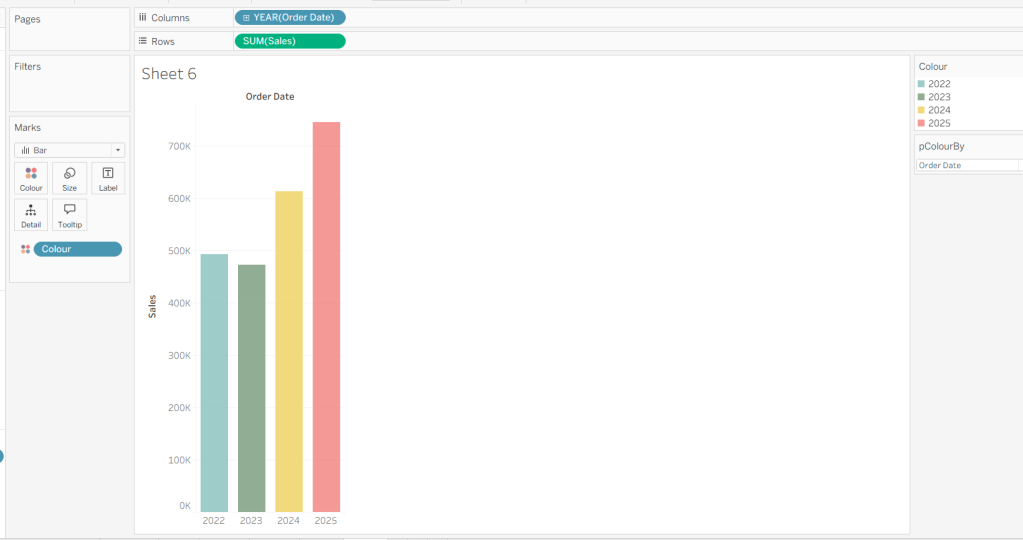
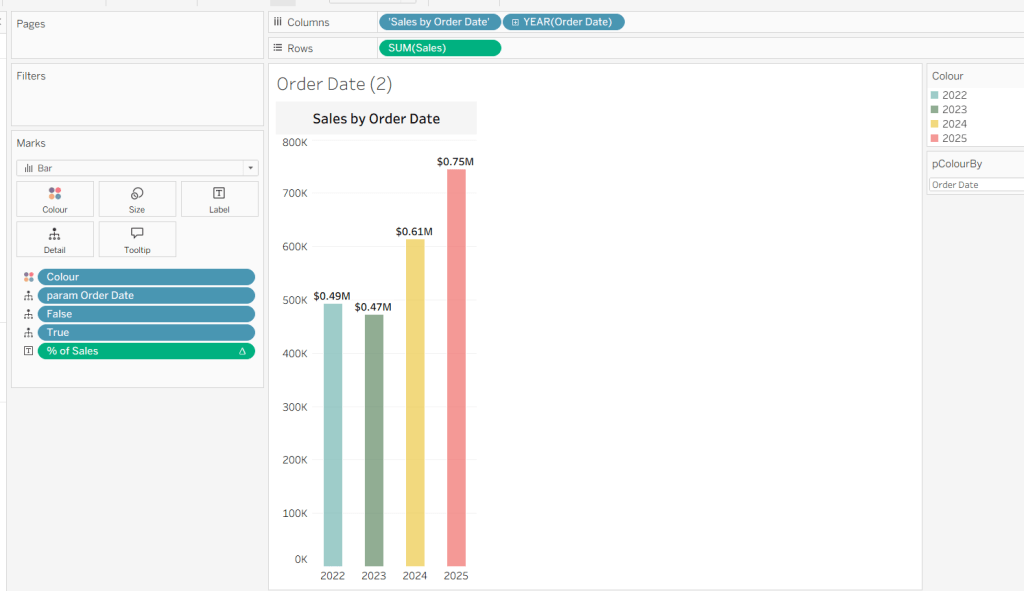
On a new sheet, add Order Date to Columns and Sales to Rows. Change the mark type to Bar and add Colour to the Colour shelf. Adjust the colours to suit, set the opacity to 70% and add a white border. Show the pColourBy parameter.

Change the options in the pColourBy parameter and each time readjust the colours as you wish.

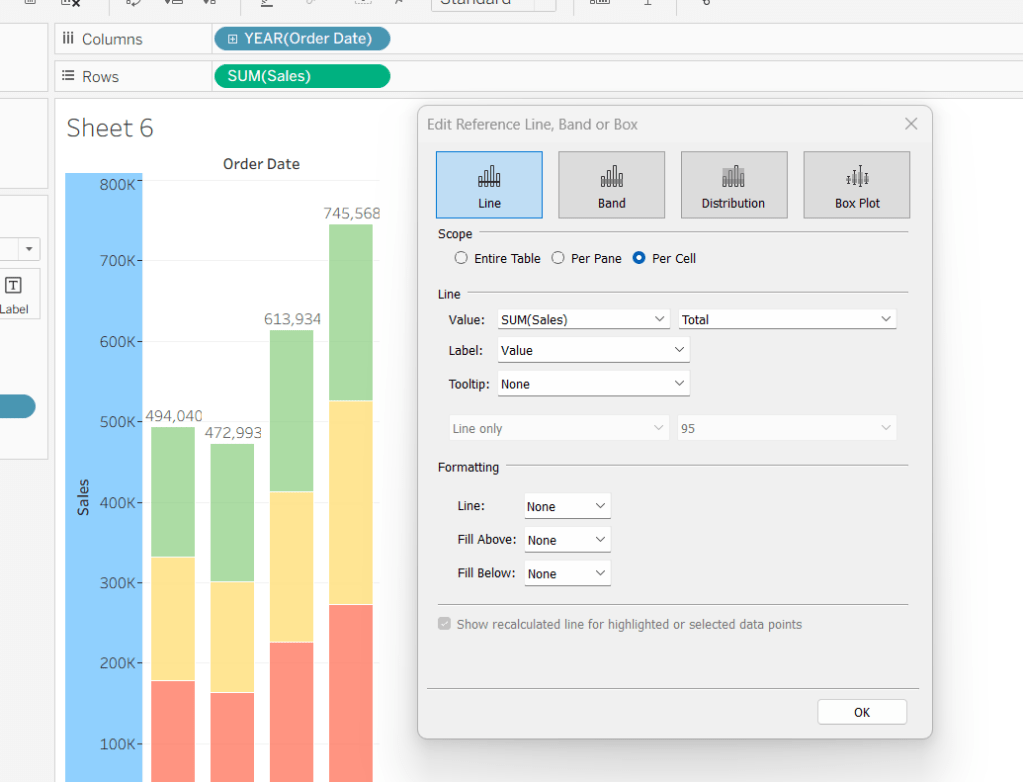
Add a reference line to the Sales axis that displays the value of Total Sales per cell

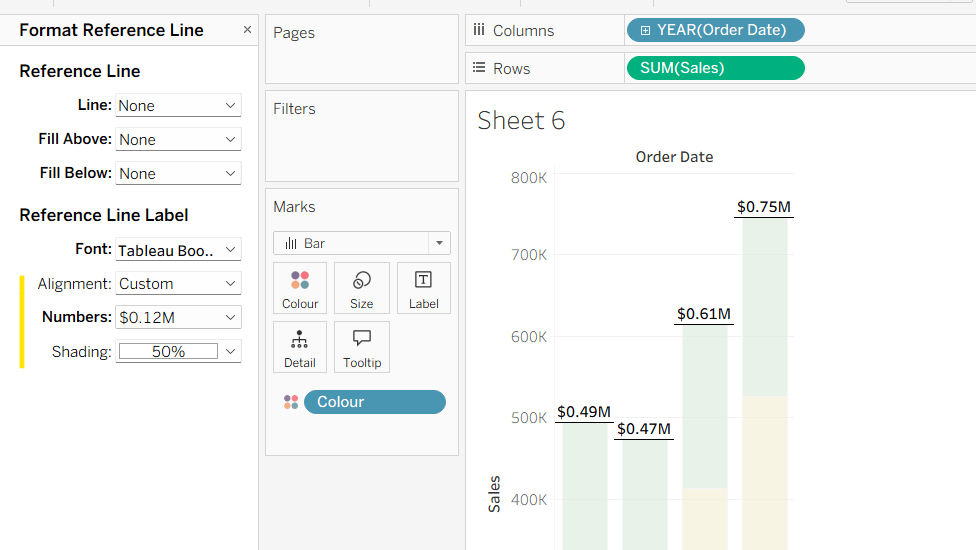
Format the reference line to format the displayed number in $M and bold font, and align top middle.

Create a new field

% of Sales

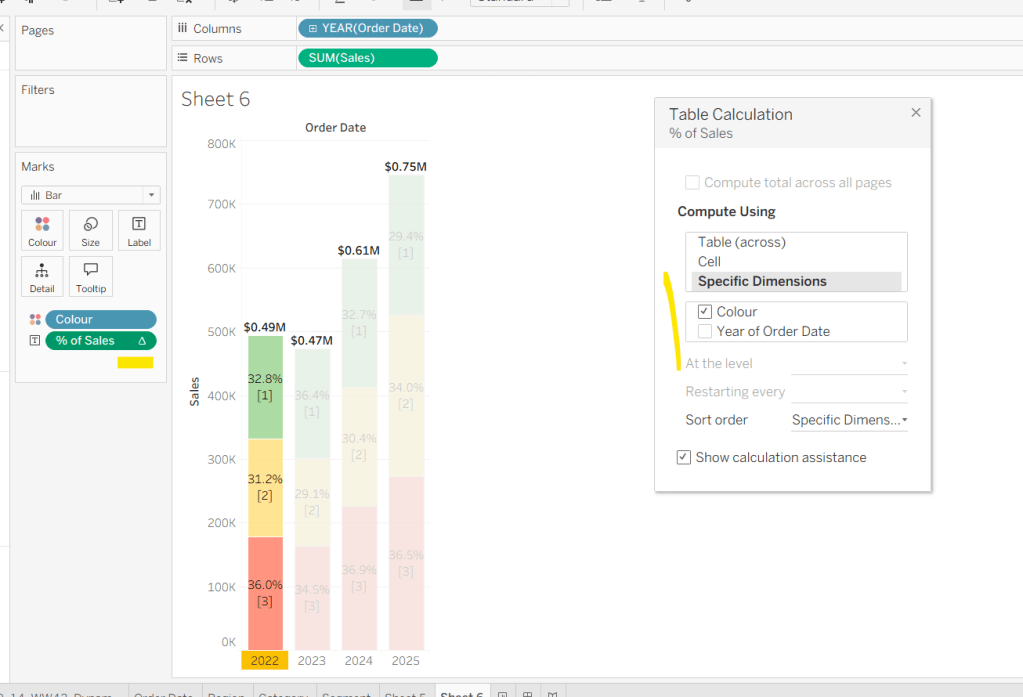
IF SUM([Sales]) / TOTAL(SUM([Sales])) <> 1 THEN SUM([Sales]) / TOTAL(SUM([Sales])) END

and format to % to 1dp. This will only display a value if its not 100%.

Add this to the Label. Adjust the table calculation setting so it is computing by the Colour field only.

Adjust the Label so the font is bold and the label only appears when Highlighted. Then update the Tooltip as required.

Although not explicitly called out in the requirements, I noted that if Yusuke clicked on the chart title, it reset the dimension to colour by. To deal with this we need to create

param Order Date

‘Order Date’

Add this to the Detail shelf.

We also need to ‘fake’ the title to be part of the chart itself (so it’s clickable). Double click into the Columns and manually type ‘Sales by Order Date’ and position the pill created before Order Date.

Right click on the column label (the text in darker font) and hide field labels for columns. Then right click on the column label to format – set the font to 12pt and bold, align left and shade the background to light grey. Increase the width of the column heading.

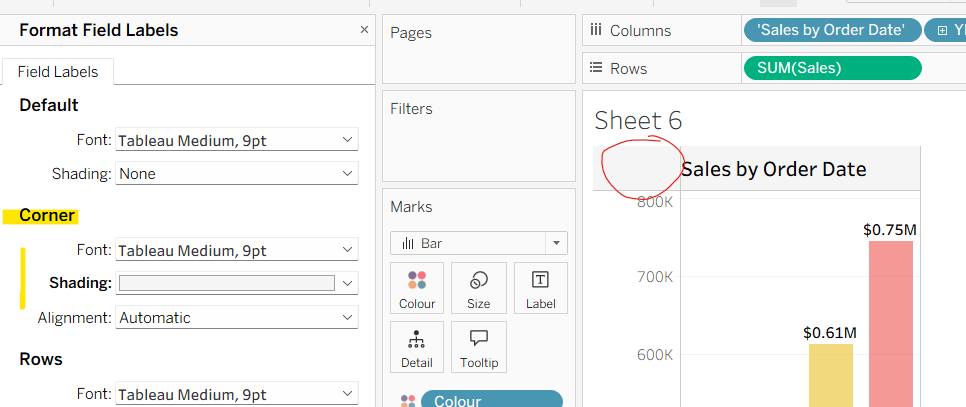
Then right click on the corner whitespace next to the heading just created, and format. Apply a light grey shading to the corner too.

If the ‘title’ is clicked, we don’t want it to be ‘highlighted’/’selected’. For this we will need fields

True

TRUE

False

FALSE

Add both of these to the Detail shelf.

Finally tidy up by removing the axis title, adjusting the font of the axis labels (I made them a bit darker), and removing row & column dividers. Name the sheet Order Date or similar.

Building the Region chart

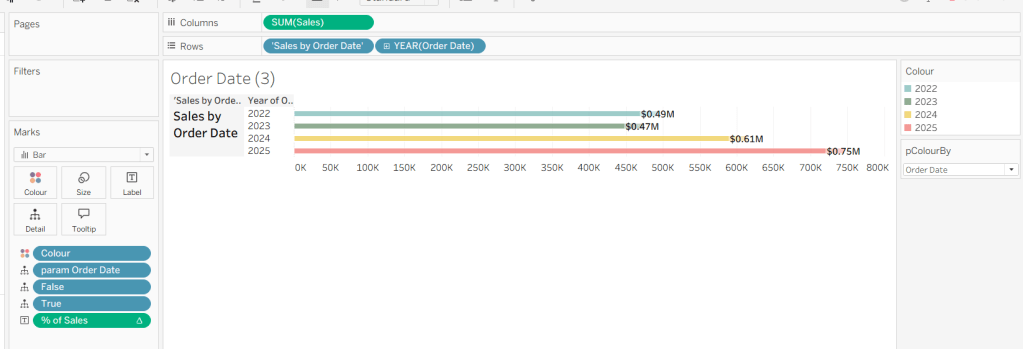
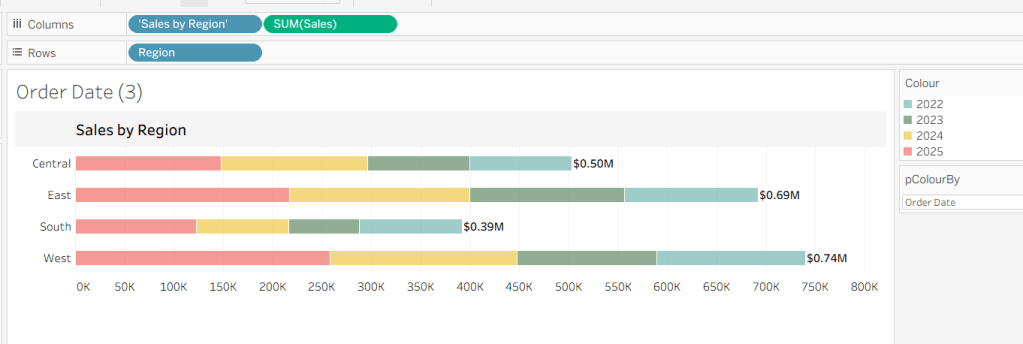
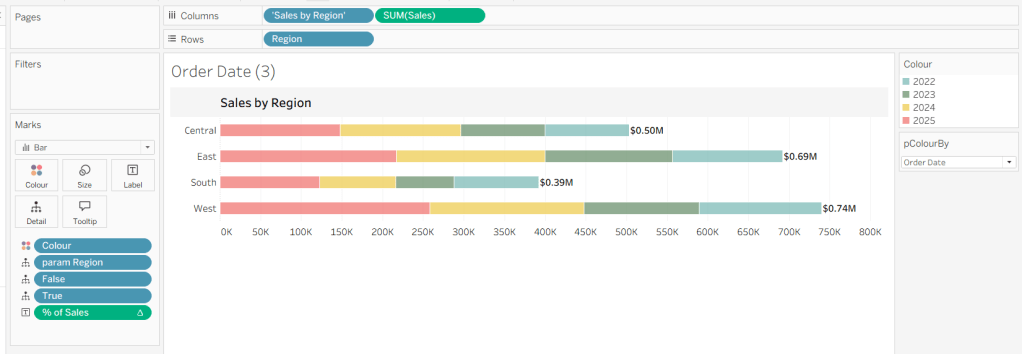
Duplicate the Order Date chart and then click the option in the menu to swap axis so we have a horizontal bar chart.

Move the ‘Sales by Order Date’ pill from Rows to Columns and update the text to become ‘Sales by Region’ instead. Drag the Region pill and drop it directly over the Order Date pill on the Rows so it replaces it and all references to the field are replaced too. Widen the rows.

Right click on the ‘Region’ text in the column heading and hide field labels for rows. Format the reference line to align middle right.

Create a new field

param Region

‘Region’

and add this to the Detail shelf instead of the param Order Date field. Name the sheet Region or similar

Building the Category Chart

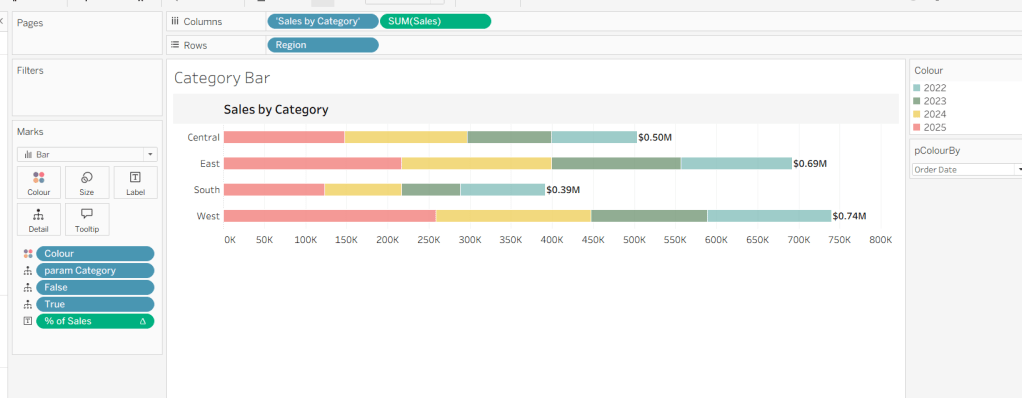
Duplicate the Region chart, and go through similar steps described above so the ‘title’ is Sales by Category and a new field

param Category

‘Category’

replaces param Region on the Detail shelf.

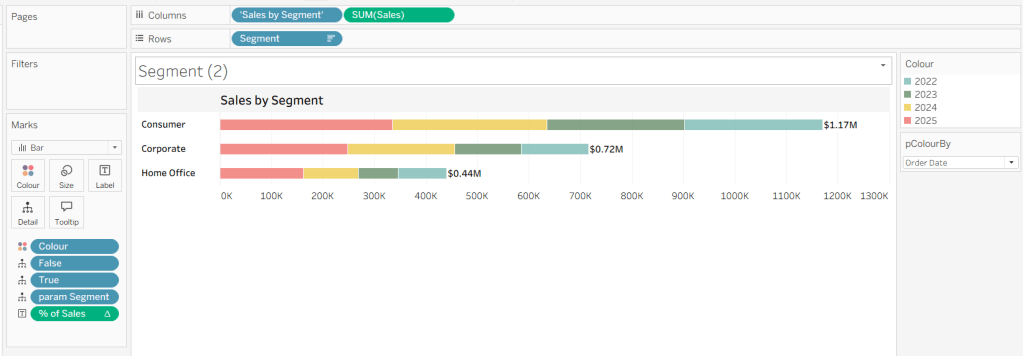
Building the Segment Chart

Repeat as above, this time setting the ‘title’ to Sales by Segment and a new field

param Segment

‘Segment’

replaces param Region on the Detail shelf.

Adding the interactivity

Add the sheets to a dashboard using layout containers and padding to organise as required. Then create the following dashboard actions

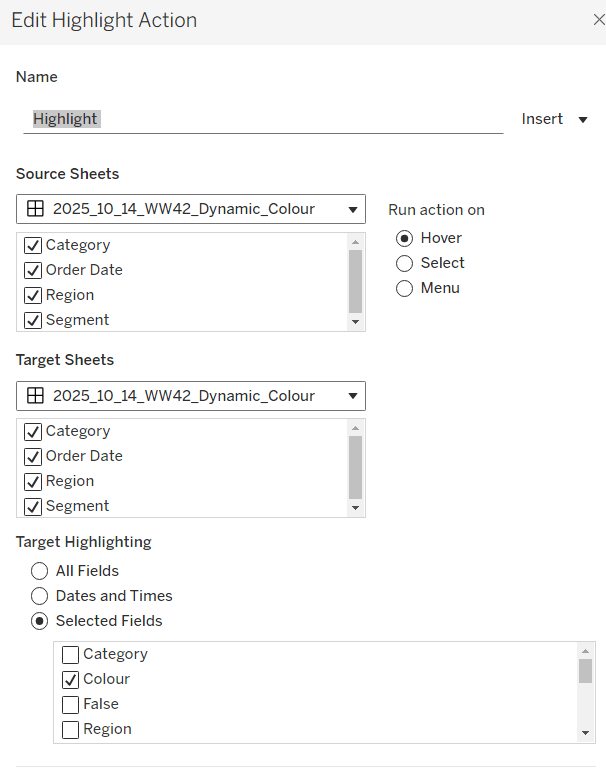
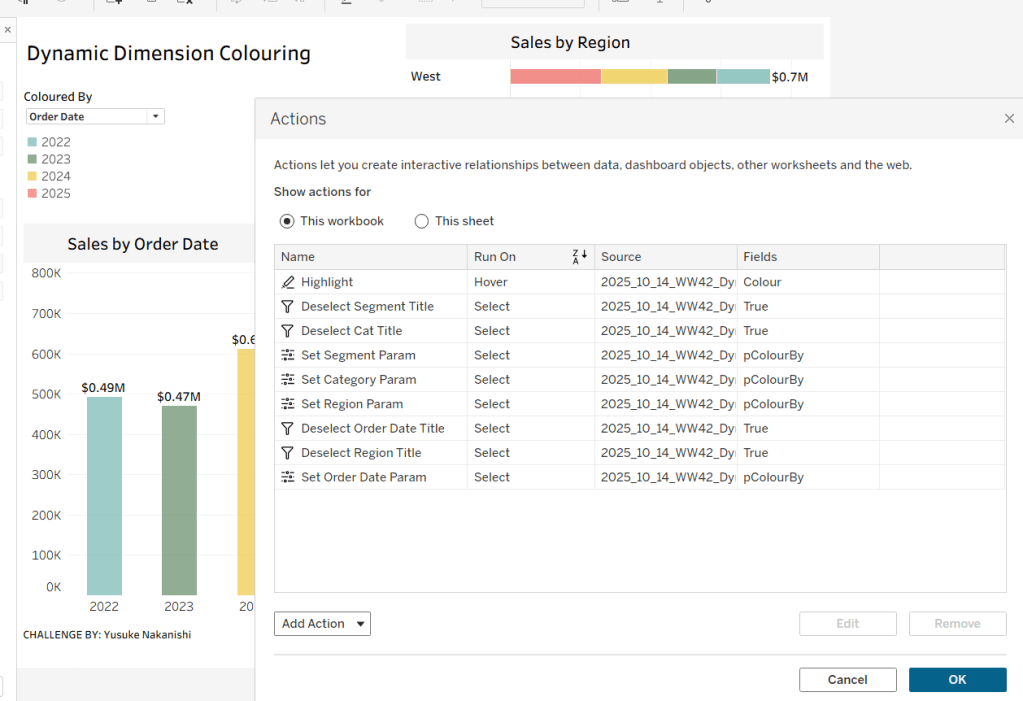
Highlight Action : Highlight

On hover of any of the charts on the dashboard, target all other charts, highlighting based on the Colour field only.

This action makes all the % labels appear when the mouse cursor is moved over the bars.

Parameter Action : Set Order Date Param

On Select of the Order Date sheet, set the pColourBy parameter with the value from the param Order Date field.

Parameter Action : Set Region Param

On Select of the Region sheet, set the pColourBy parameter with the value from the param Region field.

Parameter Action : Set Category Param

On Select of the Category sheet, set the pColourBy parameter with the value from the param Category field.

Parameter Action : Set Segment Param

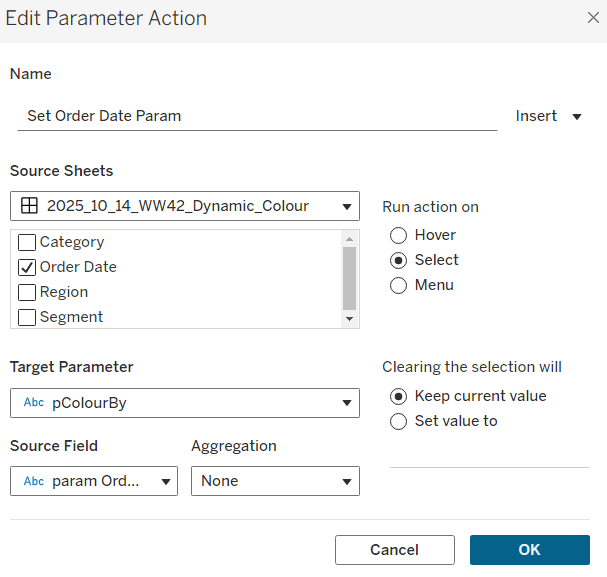
On Select of the Segment sheet, set the pColourBy parameter with the value from the param Segment field.

These actions change the value displayed in the pColourBy parameter when the ‘title’ of the charts is clicked on.

Filter Action: Deselect Order Date Title

On select of the Order Date sheet on the dashboard, target the Order Date worksheet directly, passing the selected values of True = False. Show all values when selection is cleared.

Filter Action: Deselect Region Title

On select of the Region sheet on the dashboard, target the Region worksheet directly, passing the selected values of True = False. Show all values when selection is cleared.

Filter Action: Deselect Category Title

On select of the Category sheet on the dashboard, target the Category worksheet directly, passing the selected values of True = False. Show all values when selection is cleared.

Filter Action: Deselect Segment Title

On select of the Segment sheet on the dashboard, target the Segment worksheet directly, passing the selected values of True = False. Show all values when selection is cleared.

And once these have all been applied, you should have a functioning dashboard. My published version is here.

Happy vizzin’!

Donna

Can you create this ‘zoom and reset’ scatter plot?

For this week’s #WOW challenge we’re focusing on parameter driven axes ranges.

Building the basic viz

After connecting to the dataset, add Sales to Columns and Profit to Rows. Add Customer Name to Detail and change the mark type to circle.

The chart is divided by reference lines which I chose to define as parameters (but these were additional to the ones mentioned in the challenge requirements).

pProfitRef

integer parameter defaulted to 0

pSalesRef

integer parameter defaulted to 5000

Add both parameters to the Detail shelf, the add a reference line on the Sales axis that refers to the pSalesRef value.

and then repeat and add a reference line to the Profit axis referencing the pProfitRef field.

To colour the 4 segments of the chart, create new fields

Sales per Customer

{FIXED [Customer Name]:SUM([Sales])}

and

Profit per Customer

{FIXED [Customer Name]: SUM([Profit])}

These capture the total sales / profit at the customer level, and we can then determine which quadrant each customer is in by

Cohort

IF [Sales per Customer]>=[pSalesRef] THEN
IF [Profit Per Customer]>=[pProfitRef] THEN ‘High Sales, High Profit’
ELSE ‘High Sales, Low Profit’
END
ELSE
IF [Profit Per Customer]>=[pProfitRef] THEN ‘Low Sales, High Profit’
ELSE ‘Low Sales, Low Profit’
END
END

Add this to the Colour shelf and adjust colours to suit. Then set the opacity to 50% and increase the size of the marks a bit.

To add matching coloured borders around the marks, add another instance of Profit to Rows. Change the mark type of the 2nd Profit marks card to Shape and change the shape to be an open circle. Set the opacity to 100%. Set the chart to dual axis and synchronise the axis.

Adjust the Tooltip and hide the right hand axis (uncheck show header).

Dynamically adjust the axis

The axes will change by adjusting them to refer to parameters. By default we need the axis to try to replicate what it gets set to automatically. For this we need to capture the maximum and minimum sales and profit values and add a ‘buffer’ to give the extra space. I played around with a few options for the buffer, so created a parameter to store this until I got the value that seemed to work best (again this was an additional parameter that I added to just help not having to change multiple calculated fields as I got the value I wanted.)

pBuffer

integer parameter defaulted to 2000

Then create 4 fields to define the max & min of the two measures +/- buffer

Min Sales + Buffer

{MIN([Sales per Customer]) – [pBuffer]}

Max Sales + Buffer

{MAX([Sales per Customer]) + [pBuffer]}

Min Profit + Buffer

{MIN([Profit Per Customer]) – [pBuffer]}

Max Profit + Buffer

{MAX([Profit Per Customer]) – [pBuffer]}

Then create 4 parameters which will define the values we ca use to set the axis

pX-Min

float parameter that is set to the Min Sales + Buffer field when workbook opens (selecting this will then populate the value)

Create further parameters

pX-Max

float parameter that is set to the Max Sales + Buffer field when workbook opens

pY-Min

float parameter that is set to the Min Profit + Buffer field when workbook opens

pY-Max

float parameter that is set to the Max Profit + Buffer field when workbook opens

Once all the parameters exist, edit the Sales Axis and change the axis to use a custom range that references the pX-Min and pX-Max parameters

Do the same for the Profit axis, but reference the pY-Min and pY-Max parameters instead.

Finally while we’re still on the workbook, create two new fields

True

TRUE

and

False

FALSE

and add these to the Detail shelf. We’ll need these later to stop marks highlighting when we click.

Name the sheet Scatter or similar.

Building the Reset button

This actually requires another sheet (even through the requirements says 1 sheet).

Create a new field

Reset Axis

‘Reset Axis’

Add this to the Text shelf of a new sheet. Change the mark type to shape and select a transparent shape (refer to this blog to understand how to create this).

Set the view to Entire View and align the font middle centre and increase the font size. Set the background of the whole worksheet to black. Adjust the tooltip. Add Min Sales + Buffer, Max Sales + Buffer, Min Profit + Buffer and Max Profit + Buffer to the Detail shelf, along with the True and False fields.

Name the sheet Reset or similar

Adding the interactivity

Add the Scatter and Reset sheets to a dashboard, removing any parameters/legends etc that get added. Create dashboard parameter actions to set the axis parameters when selections are made on the scatter plot:

Set X Max

On select of the Scatter sheet, set the pX-Max parameter, passing in the maximum value of the Sales field.

Set X Min

On select of the Scatter sheet, set the pX-Min parameter, passing in the minimum value of the Sales field.

Set Y Min

On select of the Scatter sheet, set the pY-Min parameter, passing in the minimum value of the Profit field.

Set Y Max

On select of the Scatter sheet, set the pY-Max parameter, passing in the maximum value of the Profit field.

Also create dashboard parameter actions to ‘reset’ the axis parameters when the Reset button is clicked:

Reset X Min

On select of the Reset sheet, set the pX-Min parameter, passing in the minimum value of the Min Sales + Buffer field.

Reset X Max

On select of the Reset sheet, set the pX-Max parameter, passing in the maximum value of the Max Sales + Buffer field.

Reset Y Min

On select of the Reset sheet, set the pY-Min parameter, passing in the minimum value of the Min Profit + Buffer field.

Reset Y Max

On select of the Reset sheet, set the pY-Max parameter, passing in the maximum value of the Max Profit + Buffer field.

All these 8 actions should now combine to drive the ‘zoom & reset’ functionality.

Finally, the last step to make the display ‘nicer’ is to deselect the marks from being highlighted when selected. Add a dashboard filter action

Deselect Scatter

on select of the scatter object on the dashboard, target the scatter sheet directly, passing the selected fields of True = False. Show all values when the selection is cleared.

Repeat an create a similar action for Deselect Reset.

And that should be it. My published viz is here.

Happy vizzin’!

Donna

Can you highlight a treemap?

This week, Sean decided to revisit a challenge from 2017, week 12, which was originally posted by Emma Whyte, one of the #WorkoutWednesday founding coaches.

I’ve been completing the #WOW challenges since their inception, so had the original solution already published to my Tableau Public.

Back then, parameter actions didn’t exist, so I decided to build this latest version using them instead of the parameter dropdown list included in the original requirement.

Building the basic viz

Create a new parameter to capture the Sub-Category we want to highlight

pSubCat

string parameter defaulted to ‘Bookcases’.

(NOTE – if I wanted to use a drop down for the user selection, I would instead have set this parameter to be a list populated from the Sub-Category field when the workbook opens).

I can’t always recall quickly the positioning of all the fields I need to build a treemap, so I started by simply double clicking the fields I needed in turn : Category, Sub-Category, Sales to add them onto the canvas, and then selecting the TreeMap icon in the Show Me tab to reposition the fields as required.

Then move the Category field from Text to Detail.

Colouring the blocks

The requirement is to show the selected Sub-Category in one colour, but also show a graduated colour palette for the non selected Sub-Categories.

First, let’s identify the selected Sub-Category.

Show the pSubCat parameter on the canvas. Then create

Is Selected Sub Cat

[Sub-Category] = [pSubCat]

Change the Sales pill on the Colour shelf from continuous (green) to discrete (blue). This will result in a rainbow of colours

Then add Is Selected Sub Cat to the Detail shelf. Then click on the icon next to the pill that indicates it’s on the detail shelf, and change it to Colour, so 2 fields are now on the Colour shelf.

Move the Is Selected Sub Cat field on the colour shelf so it is listed above the Sales field on the colour shelf. The selected sub-Category should now be highlighted, and the other blocks are graduated.

However, the highlighted sub-category is ‘separated’ from the Category block it belongs in. To resolve this, change the Is Selected Sub Cat field on the colour shelf so it is an Attribute. By setting this, the treemap is now only dividing itself by the Dimension fields of Category and Sub-Category.

Format the Sales field to $ with 0dp, and update the Tooltip as required.

Create the sheet title

Create a new fields

Selected Sales

{FIXED:SUM(IF [Is Selected Sub Cat] THEN [Sales] END)}

format to $ with 0dp and add to the Detail shelf.

Update the title of the sheet to reference the pSubCat parameter and the Selected Sales field and format as desired.

Add the interactivity

Add the sheet to a dashboard ,then add a dashboard parameter action

Set Sub Cat

On select of the treemap sheet on the dashboard, set the pSubCat parameter, passing in the value from the Sub-Category field. When the selection is cleared, keep the current value

However, when the treemap is clicked, the selected block gets ‘highlighted’ and the rest fade. To prevent this, create a new field

HL

‘dummy’

and add to the Detail shelf of the Treemap sheet. Then create a new dashboard Highlight action

Deselect

On select of the Treemap sheet on the dashboard , target the same sheet with the HL field only

As all marks have this HL value set, this has the effect of actually highlighting all marks ‘on click’ rather than just the actual one clicked, so making it look like nothing is actually highlighted.

And that should be it. My published viz is here.

Happy vizzin’!

Donna

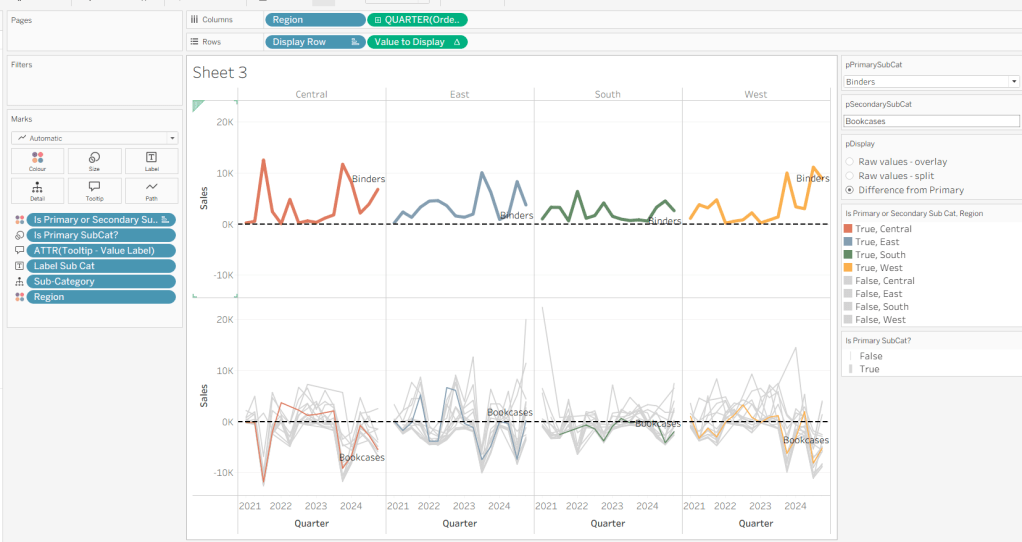
Competitor Comparison

Erica set this week’s challenge, focusing on the ability to compare specific entities against themselves and ‘the whole’ without resulting in a mess of coloured spaghetti. 3 levels of difficulty were provided. As it stated the levels didn’t necessarily follow on from each, I just built (and am therefore blogging about) level 3 – the advanced challenge.

Defining the core parameters

For the user to select the main element they want to analyse we need

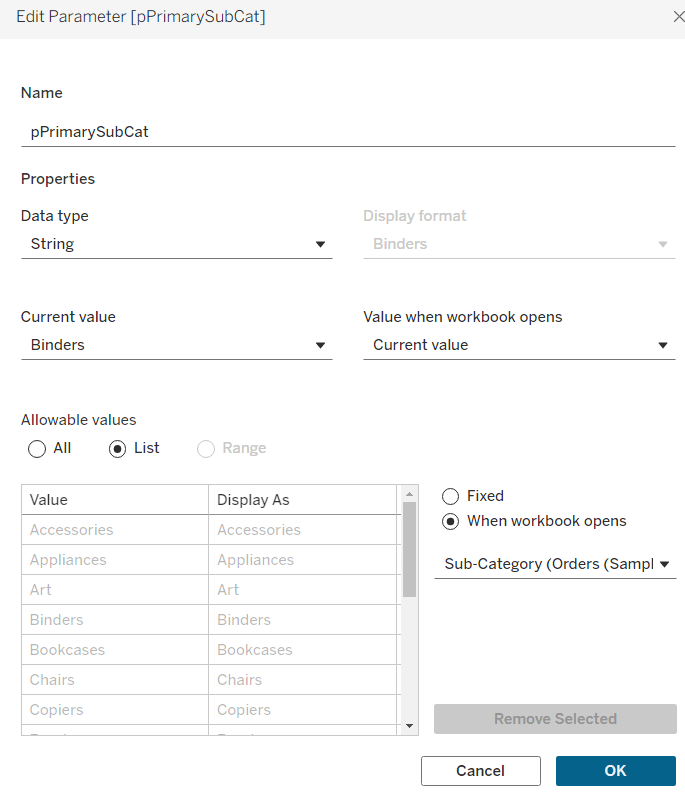
pPrimarySubCat

string parameter, that is sourced from a List based on the Sub-Category field when the workbook opens. Default to Binders.

This parameter will be visible to the user to select from a drop down list control.

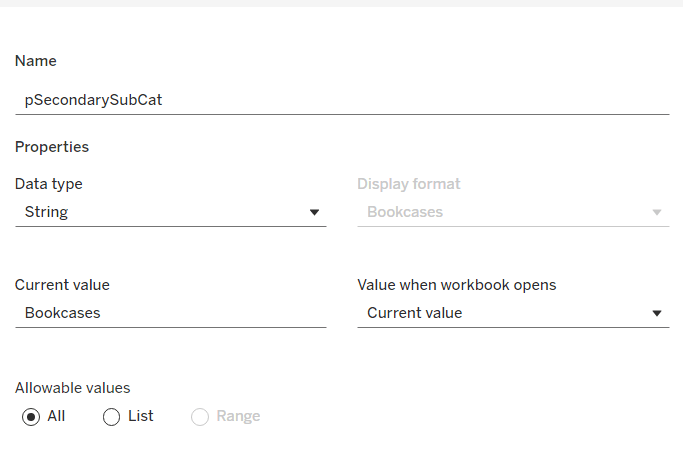
To capture the secondary element to compare against, we need

pSecondarySubCat

string parameter defaulted to Bookcases.

This is just a ‘type in’ field, that won’t ultimately be displayed to the user, but populated via a dashboard parameter action on select of a line in the chart.

To control the different type of display options, we need

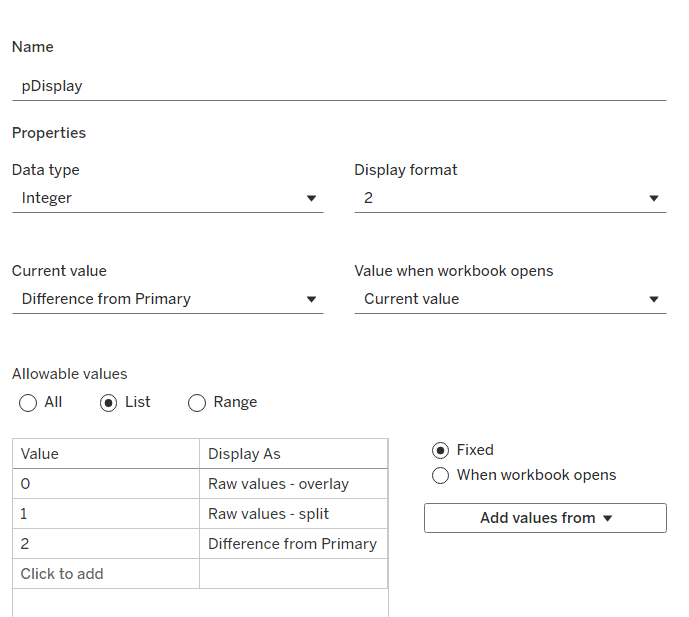
pDisplay

integer parameter sourced from a manual list which aliases the integer values for the displayed text strings. Defaulted to 2 (Difference from Primary)

Defining the additional calculations

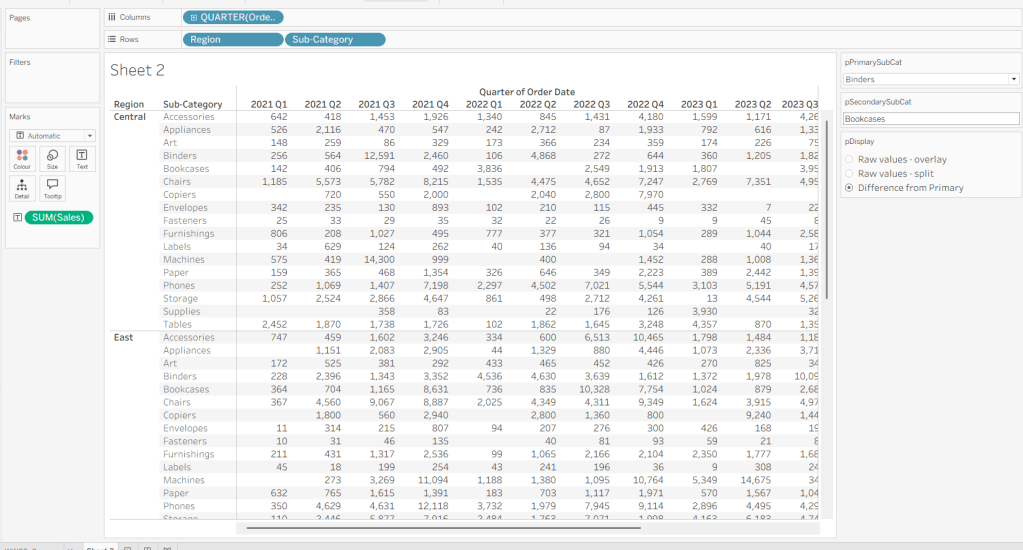
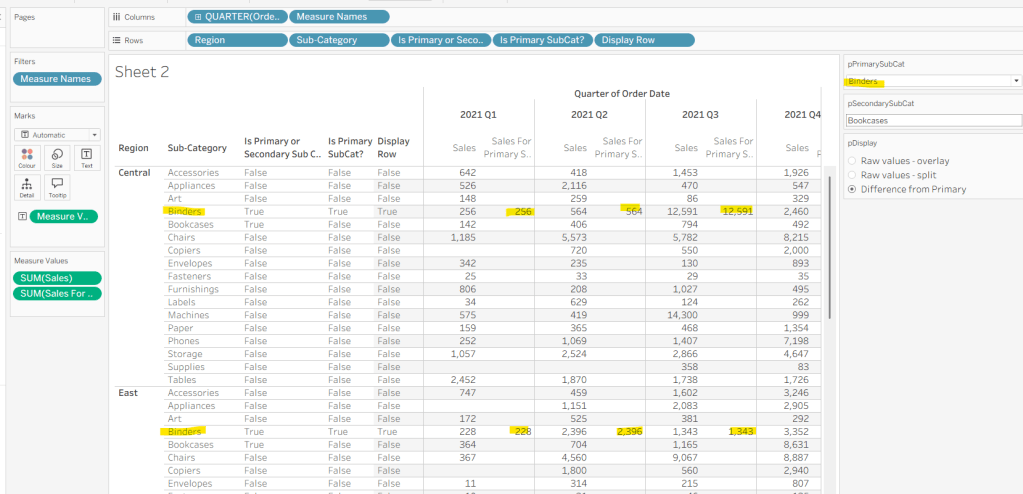
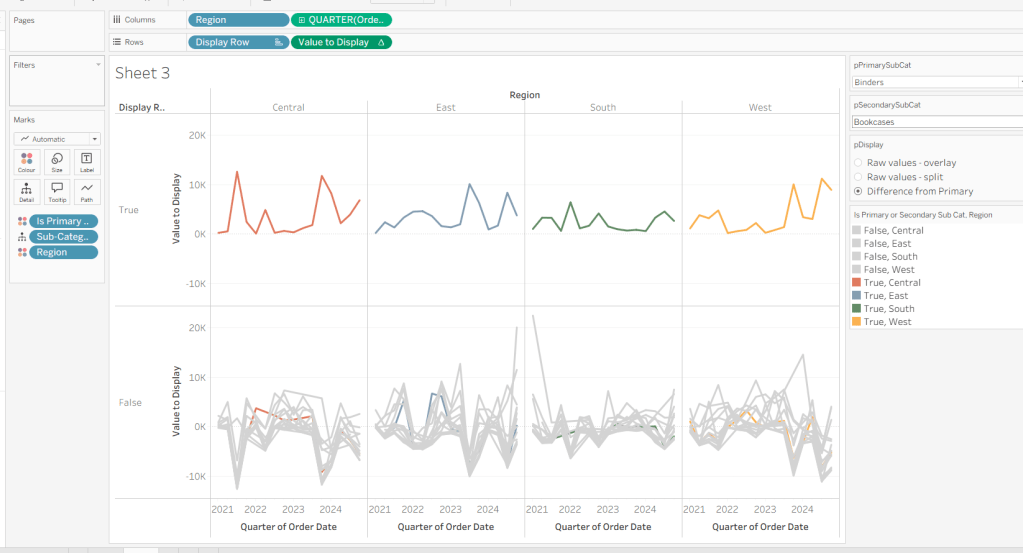
As I often do, we’ll build out a tabular display to determine all the calcs required. On a new sheet, add Region and Sub-Category to Rows, then add Order Date at the Quarter level as a discrete (blue) pill to Columns. Add Sales to Text. Show the 3 parameters created above.

We need to identify which Sub-Categories will be coloured. This is based on whether they are a primary or secondary Sub-Category.

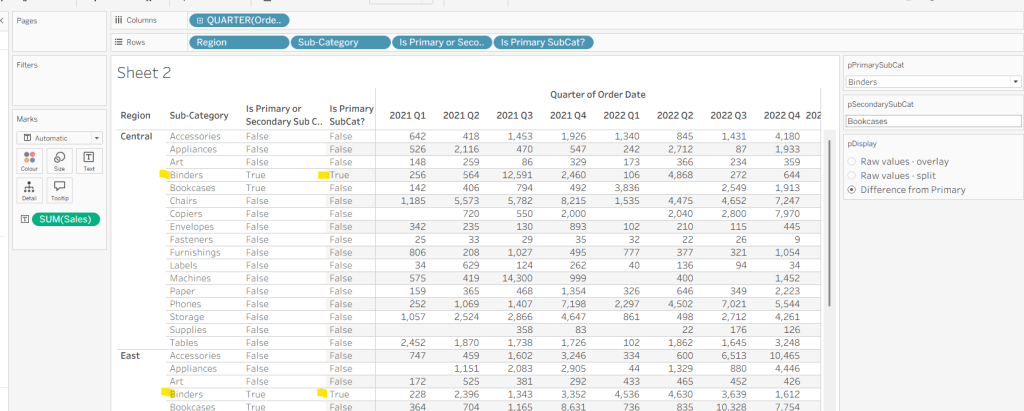
Is Primary or Secondary Sub Cat

[pPrimarySubCat] = [Sub-Category] OR [pSecondarySubCat] = [Sub-Category]

Add this to Rows. Based on existing selections, the rows for Binders and Bookcases should be set to True.

We will also need to identify which is the the Primary Sub-Category only to help determine how many rows are displayed, so create

Is Primary SubCat?

[pPrimarySubCat] = [Sub-Category]

Add to rows. In this case just Binders should be True at this point.

With this field, we can then work out how many ‘rows’ are going to be in our final viz display.

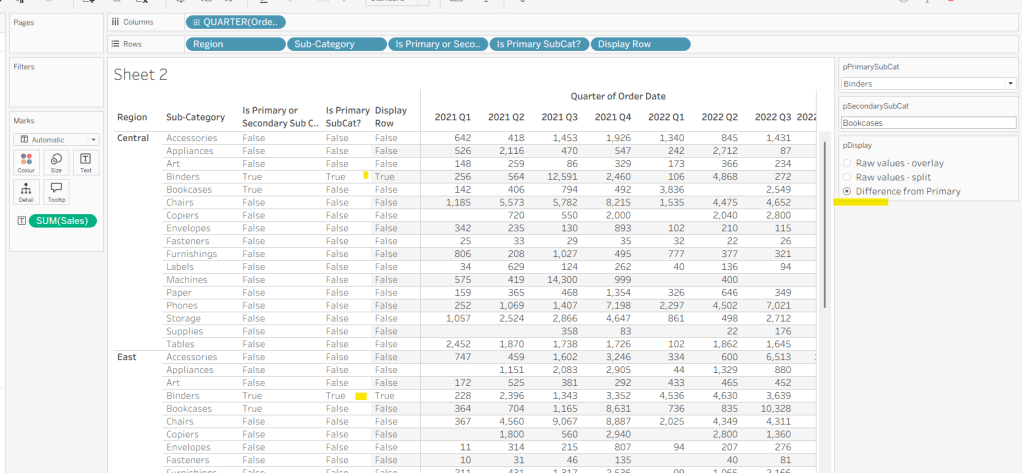
Display Row

IIF([pDisplay] = 0, TRUE, [Is Primary SubCat?])

ie, if the pDisplay parameter is ‘Raw values – overlay’ , then we’ll just display 1 row (so all rows set to True), otherwise there will be 2 rows, split based on whether the Sub-Category is the selected value in the pPrimarySubCat parameter or not.

Add this to Rows, and change the pDisplay parameter to see how this field changes.

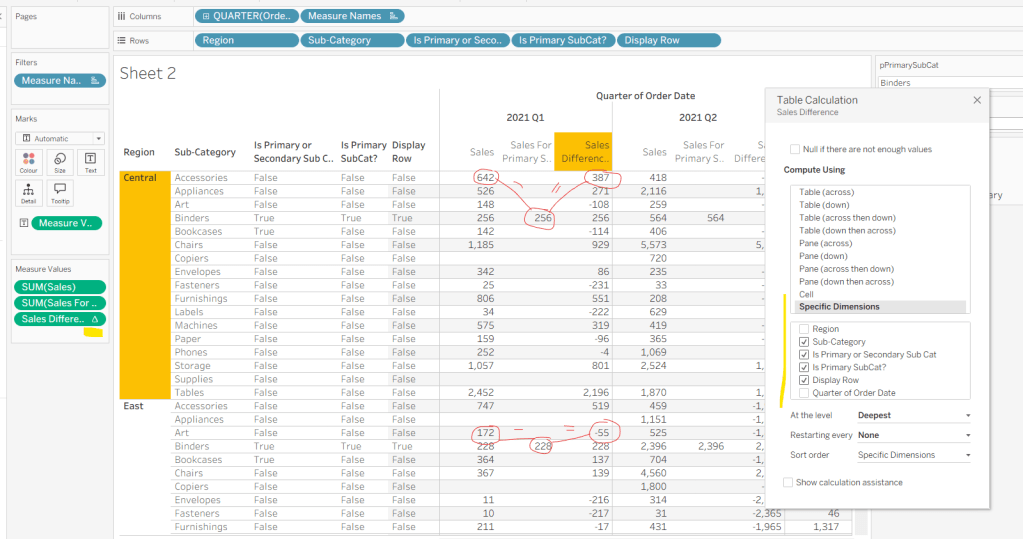
We also need to display different values depending on what pDisplay option is selected. When the ‘Difference from Primary’ option is selected, then we need to show the Sales value for the primary Sub Category, but the difference from this value for all others. For this we first need to capture just the sales for the primary Sub-Category

Sales For Primary Sub Cat

IF [Is Primary SubCat?] THEN [Sales] END

Add to the table and adjust Measure Names so it is displayed after the Order Date field. Rows for this column will only have values when the Sub-Category is the primary one selected.

Now we calculate the difference, but only if it’s not the primary Sub-Category; we want Sales in that instance

Sales Difference

IF MIN([Is Primary SubCat?]) THEN SUM([Sales])
ELSE SUM([Sales]) – WINDOW_MAX(SUM([Sales For Primary Sub Cat]))
END

Here we’re using a WINDOW_MAX table calc to essentially ‘spread’ the value in the Sales for Primary Sub Cat column across all rows associated to the Region. Add this to the table, and adjust the table calculation setting of the pill, so it is computing by all fields except Region and Order Date

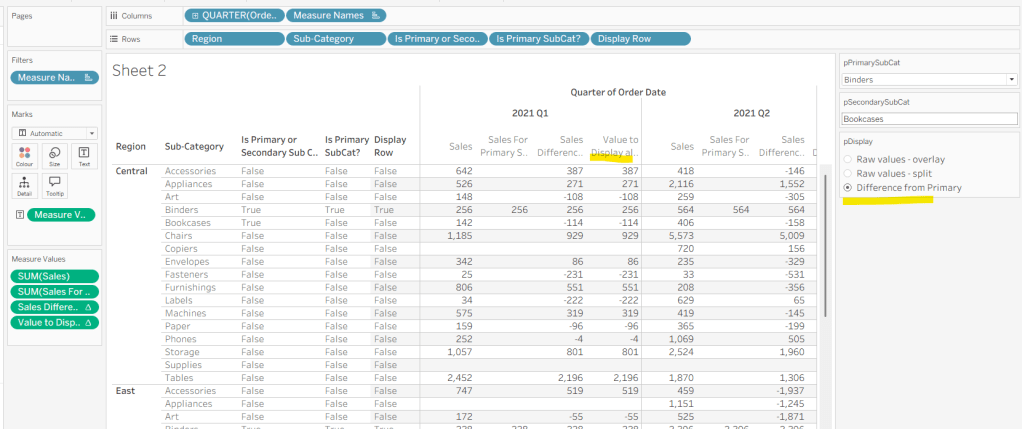
Finally, we need a field that will decide whether we’re displaying Sales or Sales Difference based on the pDisplay selection

Value to Display

IIF([pDisplay]=2, [Sales Difference ], SUM([Sales]))

Again, add to the table, adjust the table calc as above and then test the output of the field, as you adjust the pDisplay parameter.

While we’re here, we’ll just define another couple of calcs needed for the viz

Label Sub Cat

IF [Is Primary or Secondary Sub Cat] THEN [Sub-Category] END

Used to only display a label for either of the two selected Sub-Categories.

Tooltip – Value Label

IIF([pDisplay]=2 AND NOT([Is Primary SubCat?]), “Difference from ” + [pPrimarySubCat] + ” Sales”, “Sales”)

Will be used on the Tooltip to ensure the correct text is displayed depending on type of display selected.

Building the Viz

On a new sheet, show the 3 parameters and set them to the defaults (ie Binders, Bookcases and Difference from Primary).

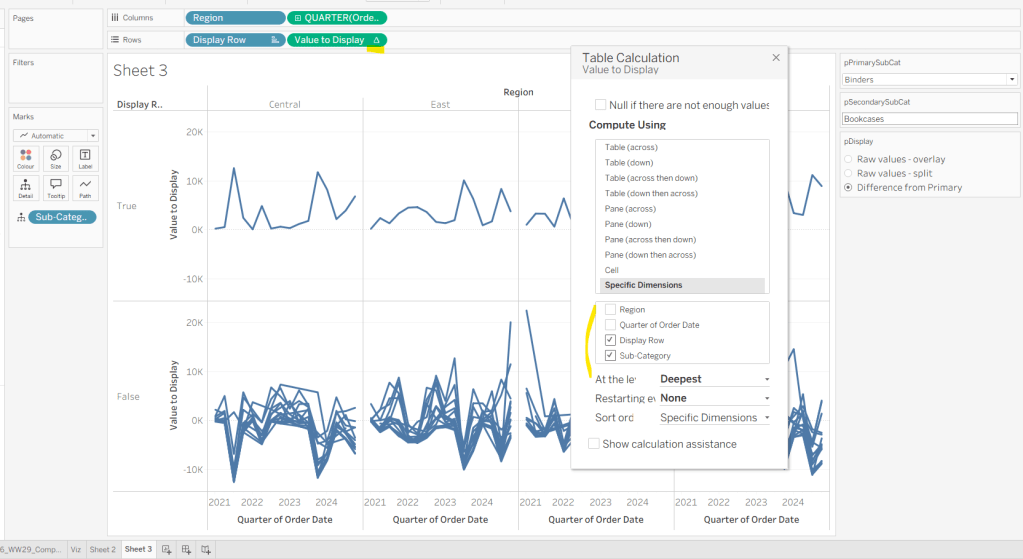
Add Region to Columns, then add Order Date at the Quarter level as a continuous (green) pill to Columns. Add Display Row to Rows and adjust the Sort on the pill to be a manual sort, where True is listed first. Add Sub-Category to Detail, then add Value to Display to Rows and adjust the table calc so all fields except from Region and Order Date are selected.

Add Is Primary or Secondary Sub Cat to Colour. Some lines will disappear, but don’t worry. Then add Region to Detail, and then select the ‘detail’ icon to the left of the pill on the marks shelf, and change it to Colour so 2 pills are now on the Colour shelf. Adjust the table calculation setting of the Value to Display pill to ensure the Is Primary or Secondary Sub Cat field is also now checked – this should make all the lines reappear.

Then adjust the colours in the colour legend so all the entries that start ‘False’ are grey and the others are as required.

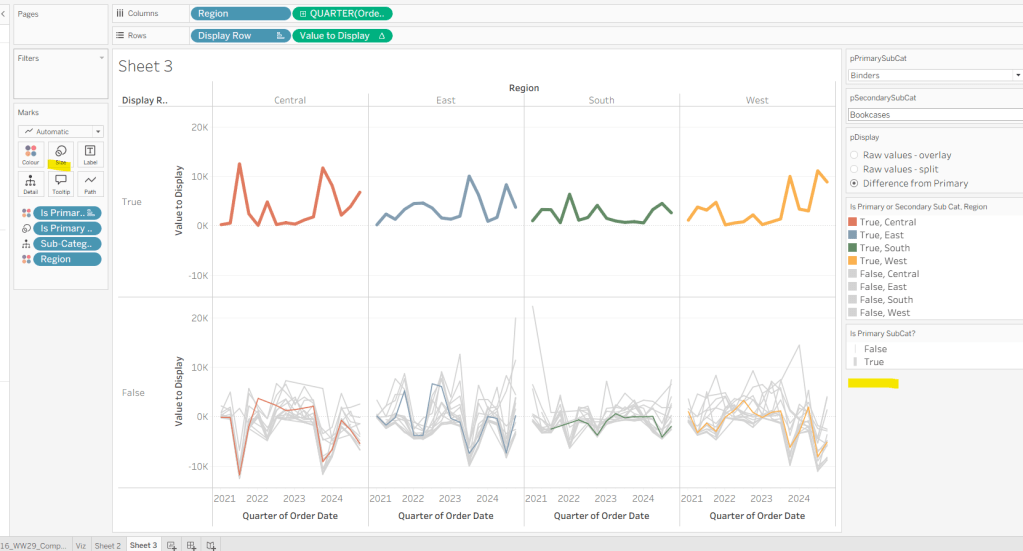
Adjust the sort on the Is Primary or Secondary Sub Cat pill on the marks card, so it is manually sorted with True first. This ensures the coloured lines are ‘on top’ and always visible. Add Is Primary SubCat? to Size shelf. Readjust the table calc on Value to Display again, and then adjust the Size so it is visibly thicker than the rest of the lines, which will probably be by adjusting both the range in the Size legend, and adjusting the slider on the Size shelf.

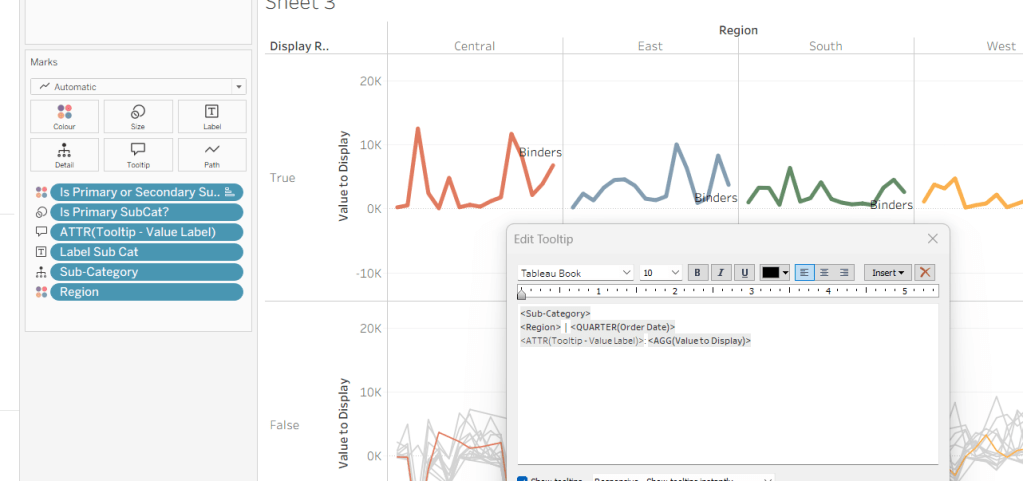
Add Label Sub Cat to the Label shelf (adjust table calc again), and set label to allow labels to overlap other marks. Add Tooltip – Value Label to tooltip and update the Tooltip as required

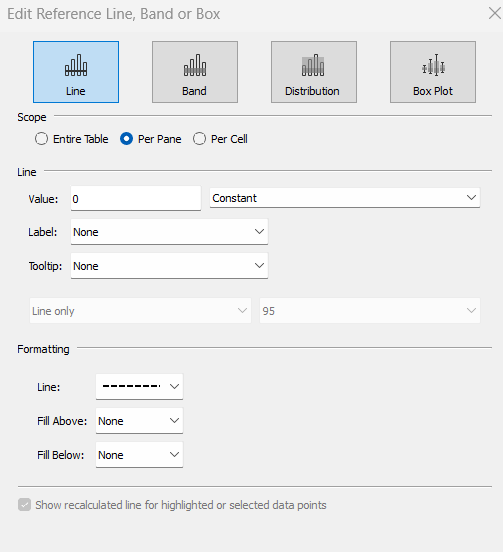
Add a reference line to the Value to Display axis, and set to be a constant of 0 displayed as a black dashed line

Edit both axis to update the axis titles on each, hide the Display Row pill (uncheck show header on the pill) and hide the Region column label (right click > hide field labels for columns).

Building the dashboard

Use layout containers to construct the dashboard as required

Create a dashboard parameter action to capture the value of the secondary Sub-Category

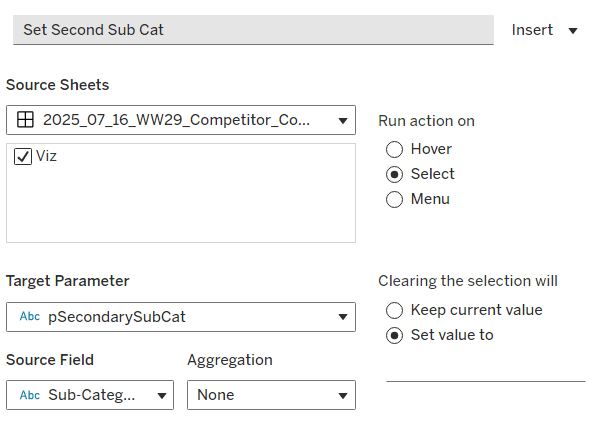
Set Second Sub Cat

On select of the Viz, set the pSecondarySubCat parameter with the value sourced from the Sub-Category field. When selection is cleared, set it <none>

Clicking one of the grey lines should now change the comparison Sub-Category. But you’ll notice the rest of the unselected lines are ‘faded’ and your selection is ‘highlighted’. We don’t want this to happen. To resolve, create new calculated field

HL

‘Dummy’

and add to the Detail shelf on the viz sheet itself.

Then add a dashboard highlight action

Un-Highlight

On selection of the Viz sheet on the dashboard, target the viz sheet on the dashboard, selecting the HL field only.

As all the marks have the HL ‘dummy’ field associated to them, they all become ‘highlighted’, giving the appearance of nothing actually being highlighted.

Finally, we need to make the title of the dashboard ‘dynamic’ and reflective of the selections made in the primary and secondary Sub-Category parameters. But the secondary one can be empty, so the text needs to handle this. An additional ‘ and ‘ needs to display if the secondary Sub-Category is set. I chose to use a parameter to help with this, as text objects on a dashboard can reference parameters.

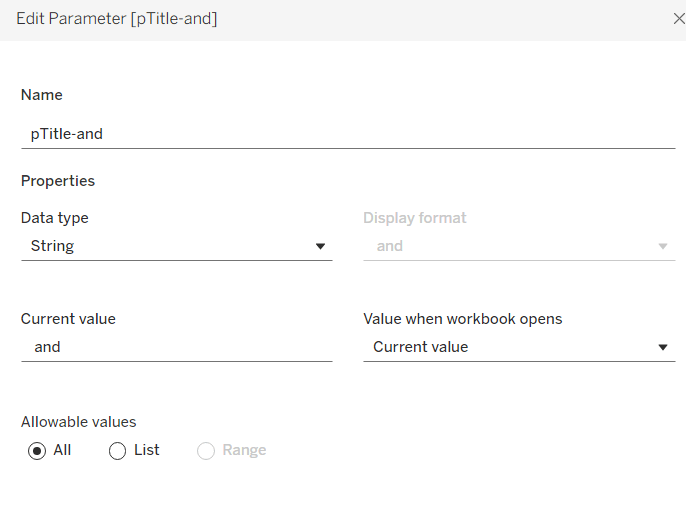
Create a new parameter

pTitle-and

string field defaulted to the text <space>and<space>

Create a calculated field

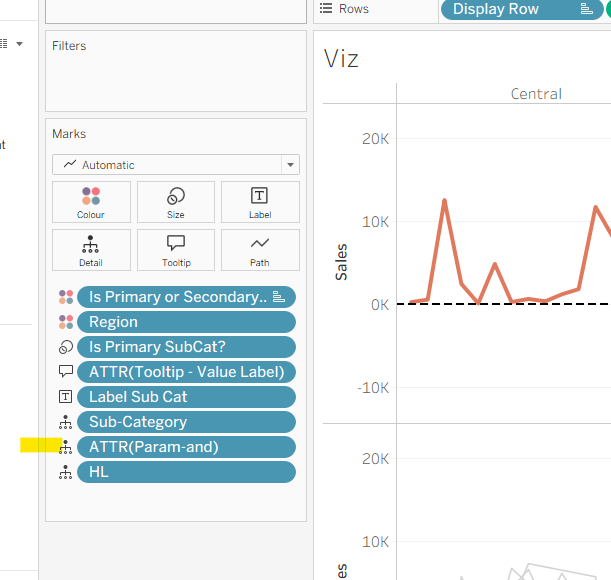
Param-and

‘ and ‘

and add to the Detail shelf on the viz. Set it to be an attribute (this won’t impact the table calc).

Back on the dashboard, create another dashboard parameter action

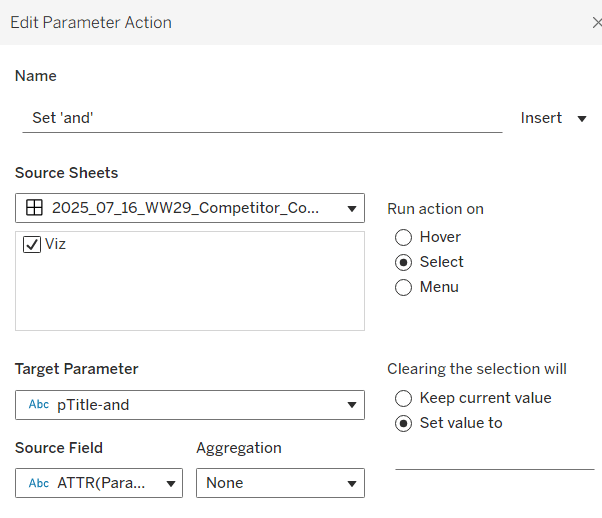
Set ‘and’

on select of the Viz, set the pTitle-and parameter passing in the value from the Param-and field. When the selection is cleared, set to <none>.

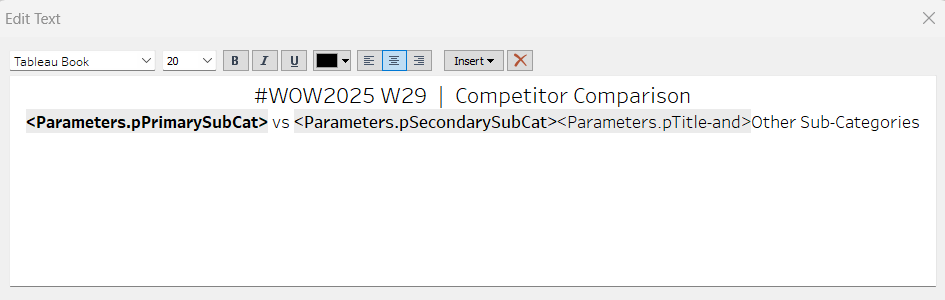
Then create (or adjust) the title text object so it references the relevant parameters (notice the spacing – or lack of – between some of the fields)

And that should be it. My published viz is here.

Happy vizzin’!

Donna

Can you use Dynamic Colour Ranges?

Yusuke set the challenge this week which allowed us to try out a new feature of Tableau – Dynamic Colour Ranges. As a consequence, you’ll need v2025.2 for this.

Setting up the Data for use in a Map

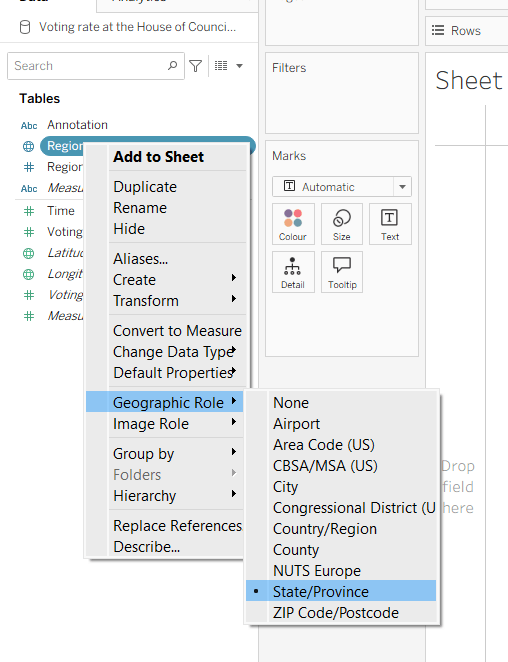
After connecting to the CSV file provided by Yusuke, I had to set the Region field to have a Geographic Role of State/Province

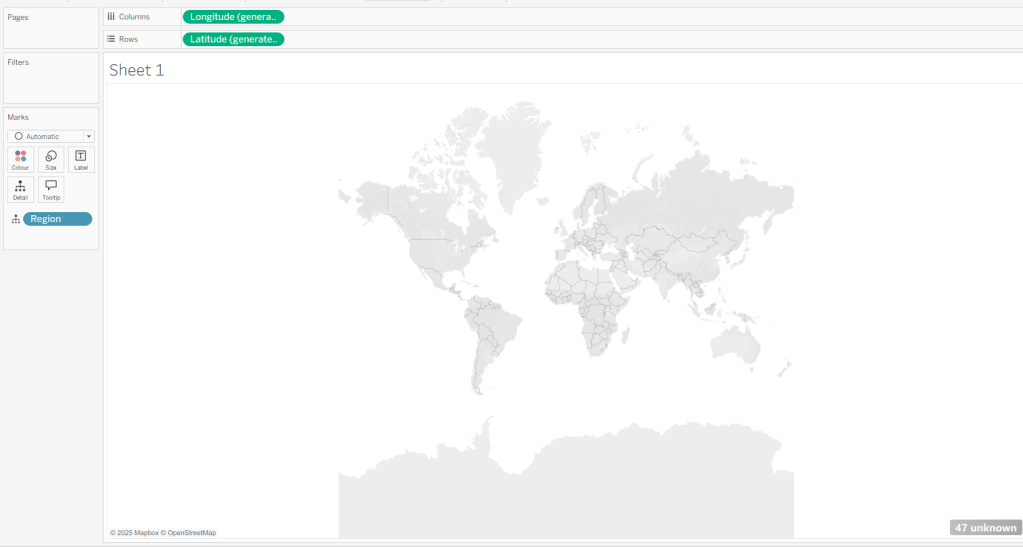
I then double-clicked on Region to generate the map, but due to my location settings, no information displayed.

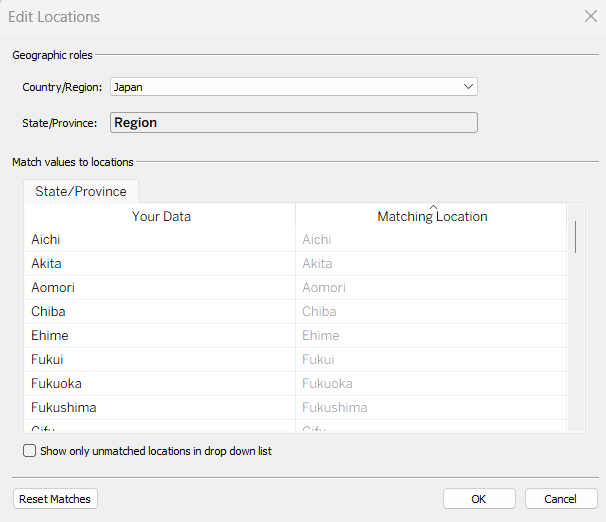
To resolve this, Edit Locations (via Map menu) and change Country/Region to Japan.

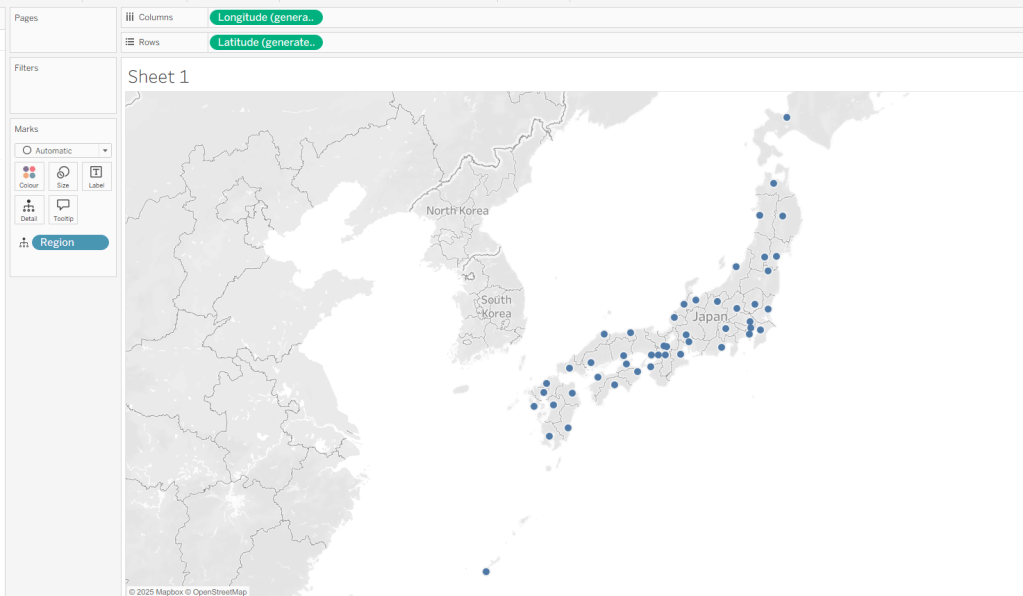
The Your Data – Matching Location fields should then match, and pressing OK presents a map.

Building the Basic Viz

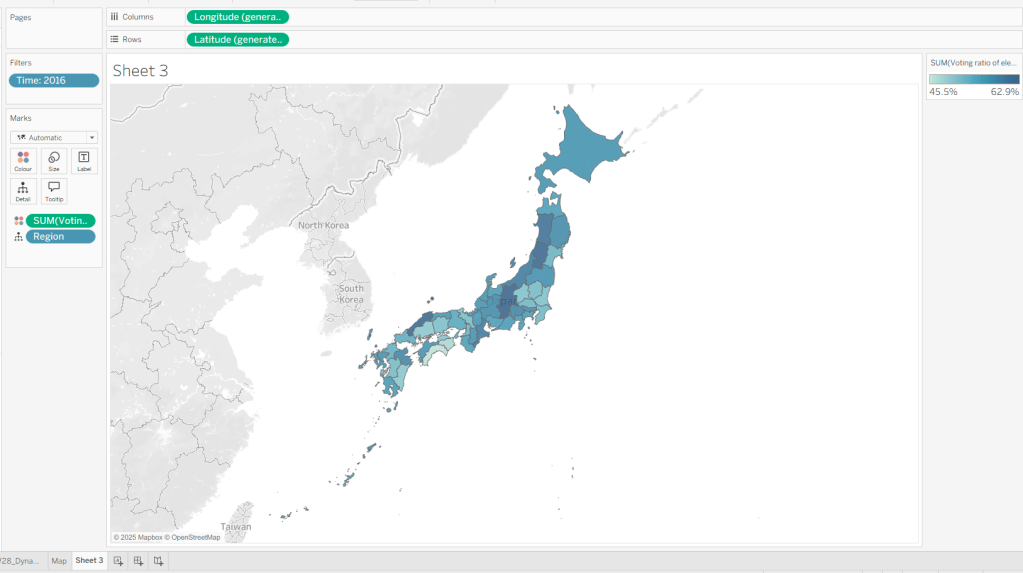
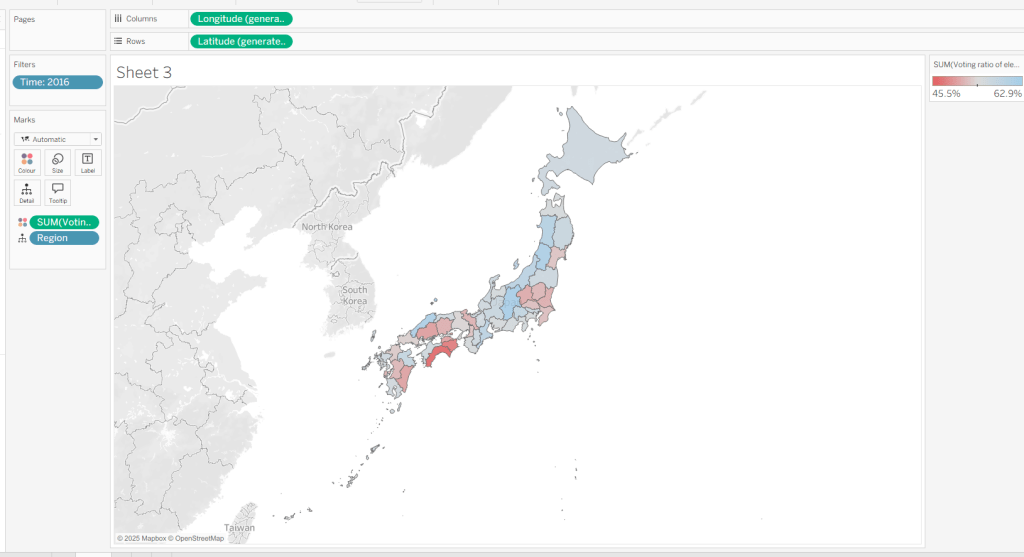
Move Time from the ‘Measures’ section of the Data pane into the ‘Dimension’ section (drag it to be above the line). Format the Time field to be a custom number with 0 dp and to not show ‘,’ as a thousand separator. Then add Time to Filter and select 2016. Add Voting Ratio of election… to Colour. Adjust the Tooltip.

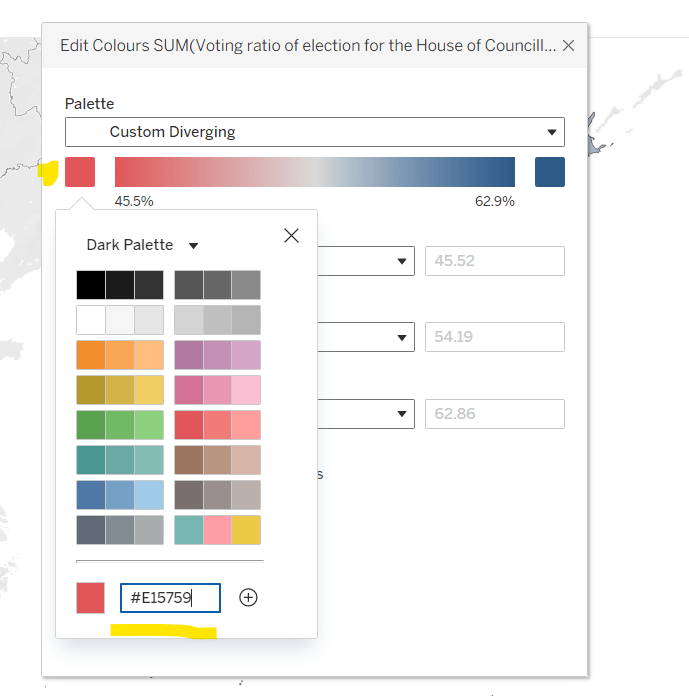
Edit the Colour Legend and choose a diverging colour palette (eg Red-Blue Diverging), then adjust the start and end colours as required

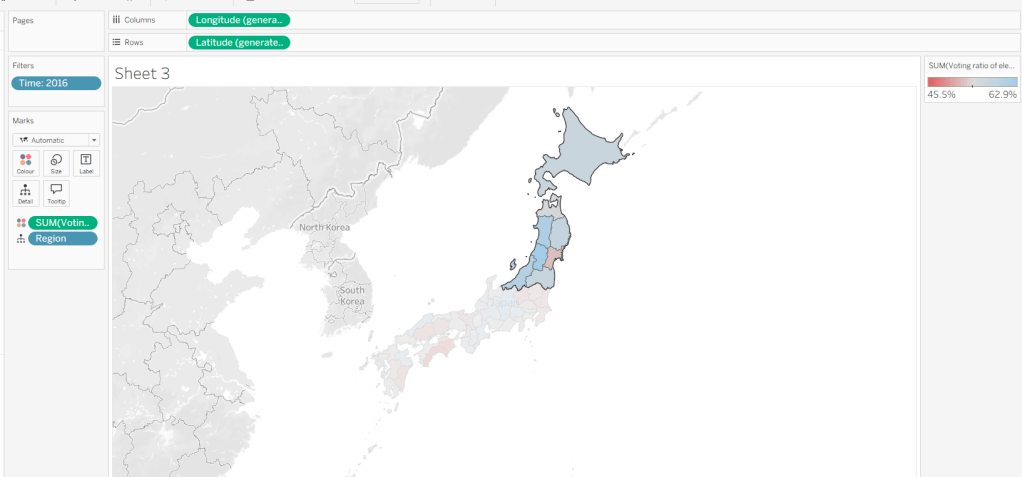
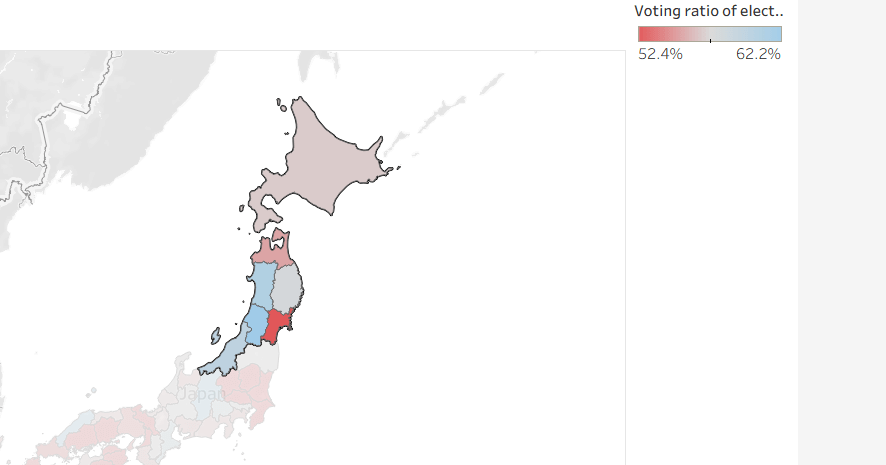
At this point, if you now make a selection on the map, the colours will remain as they are based on the current range

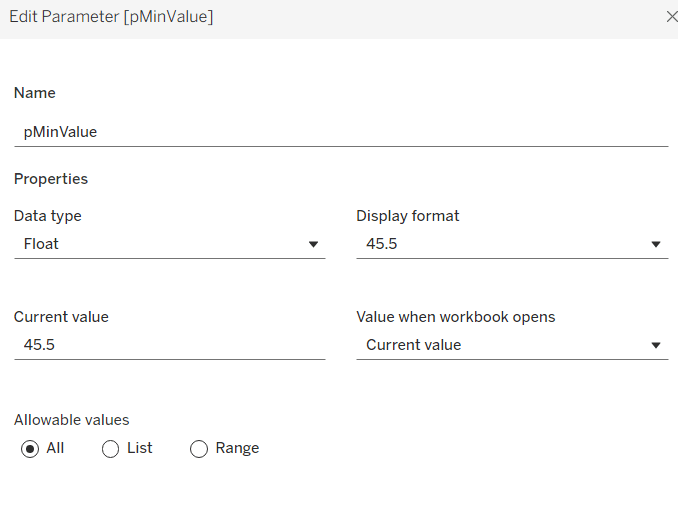
But what we want to happen, is for the colours to reflect a range based on just the selection (dynamic colour range). For this we need to create parameters

pMinValue

float defaulted to 45.5

pMaxValue

float defaulted to 62.9

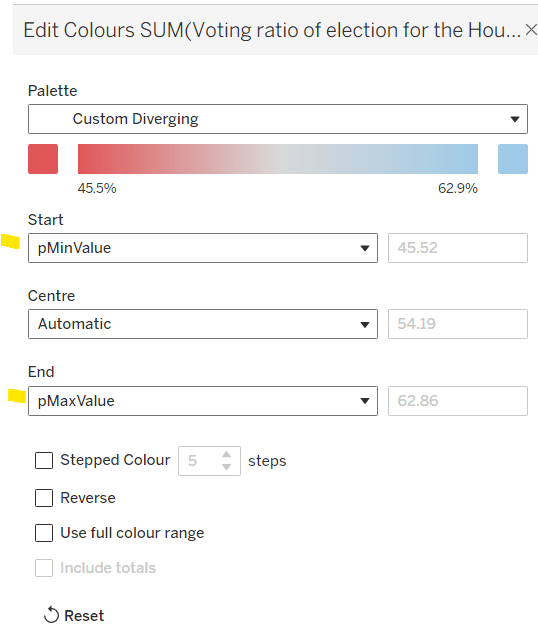
Edit the Colour Legend again, and this time set the Start and End fields to reference the pMinValue and pMaxValue parameters.

Add the sheet onto a dashboard. Add a dashboard parameter action

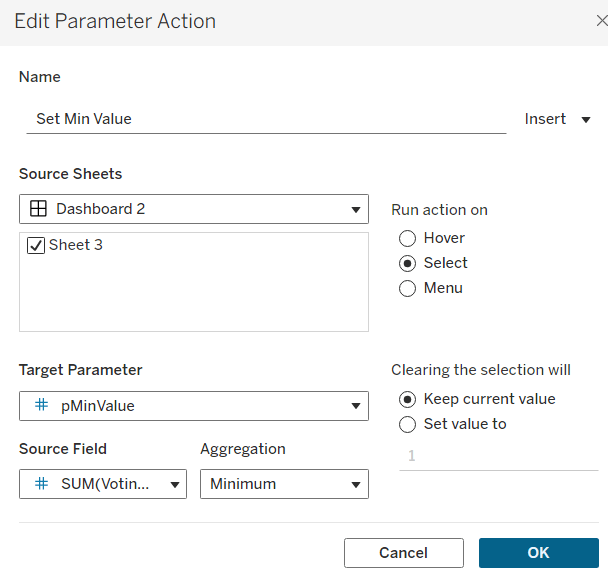
Set Min Value

on select of the sheet, set the target parameter pMinValue to the minimum value from the Voting Ratio of election..

Create another dashboard parameter action

Set Max Value

on select of the sheet, set the target parameter pMaxValue to the maximum value from the Voting Ratio of election..

With this you should now find that when making a selection, the colour range is defined by the minimum and maximum values of just the marks selected

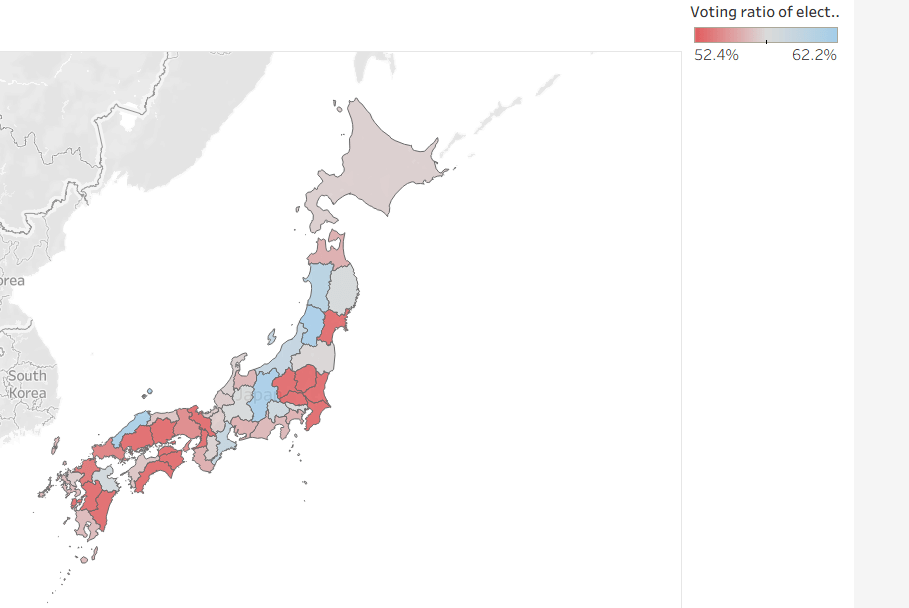
However the downside of this, is if you deselect the marks, the range doesn’t reset, and you then see the whole map coloured based on this more restricted range

Bonus – Building a ‘reset button’

On a new sheet, add Time to Text. Go back to the Map sheet, and set the Time filter to apply to ‘selected worksheets’, and select the new sheet you’re working on.

Change the mark type to Shape and choose a transparent shape (see here for details on how to set this up). Set the display to Entire View, then update the text in the Label (I sourced an arrow character from here). Align the text middle centre, set the background of the worksheet to blue and then update the font of the label text to white.

The intention is when the ‘button’ is clicked, we will set the pMinValue and pMaxValue parameters with the smallest and largest values associated to the year selected. His means we need to have some values on the ‘button’ sheet to pass to the parameters. So we need

Min Value for Year

{FIXED [Time]: MIN([Voting ratio of election for the House of Councillors (Single constituencies) %])}

and

Max Value for Year

{FIXED [Time]: MAX([Voting ratio of election for the House of Councillors (Single constituencies) %])}

Add both of these to the Detail shelf. Hide the Tooltip.

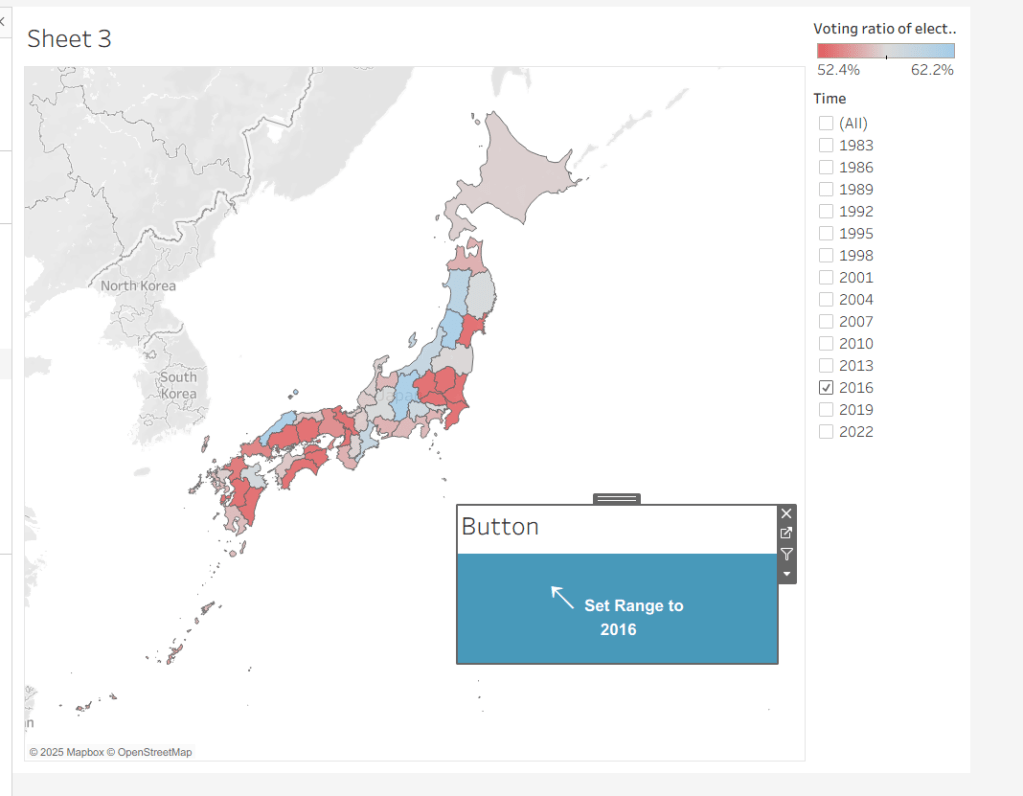
Add this sheet as a floating object to the dashboard. Show the Time filter from either the Map or Button sheets.

Add dashboard parameter actions, similar to the ones we did before

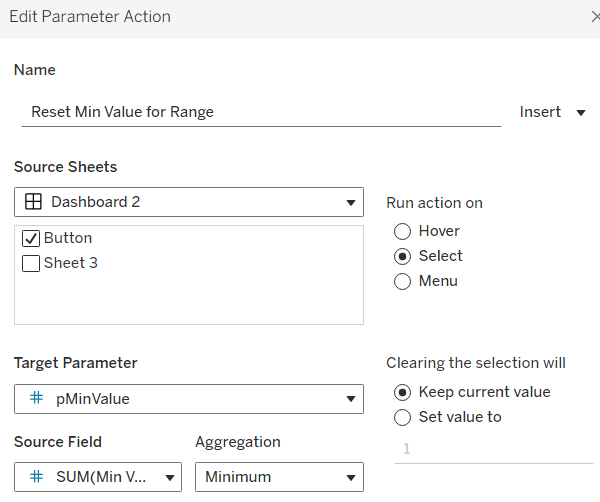
Reset Min Value for Range

on select of the Button sheet, set the target parameter pMinValue to the minimum value from the Min Value for Year field

Reset Max Value for Range

on select of the Button sheet, set the target parameter pMaxValue to the Maximum value from the Max Value for Year field.

Now if you ‘click’ the button sheet, the range should reset to the complete range for the relevant year.

Create the Label

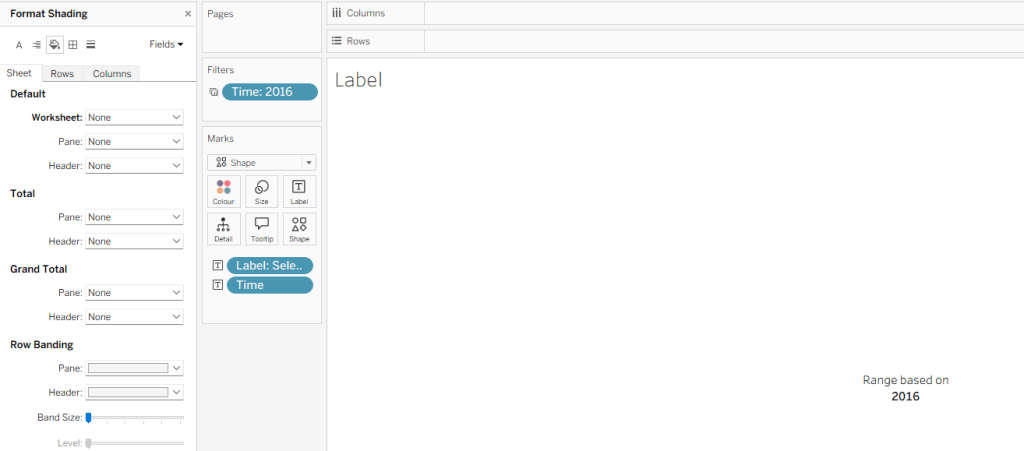
Create a new sheet and add Time to Text. As before set the Time filter from another sheet to apply to ‘selected worksheets’, and select the new sheet you’re working on. Change the mark type to Shape and choose a transparent shape. Set the display to Entire View, and align the text middle centre. Hide the Tooltip.

Create a parameter

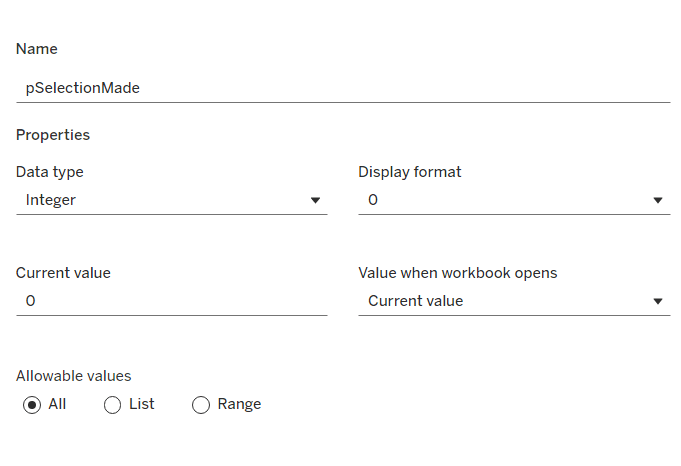
pSelectionMade

integer parameter, defaulted to 0

Create a field

Selection Made

1

and another field

Reset Selection

0

Move both fields into the Dimension section of the data pane.

On the Map sheet, add Selection Made to the Detail shelf.

On the Reset Button sheet, add Reset Selection to the Detail shelf.

Create a new field

Label: Selection Made

[pSelectionMade]=1 THEN ‘, Selected Prefecture(s)’ END

Add Label: Selection Made to the Label shelf and adjust the text. Set the background of the sheet to transparent (None)

Add the sheet to the dashboard and create the following dashboard parameter actions

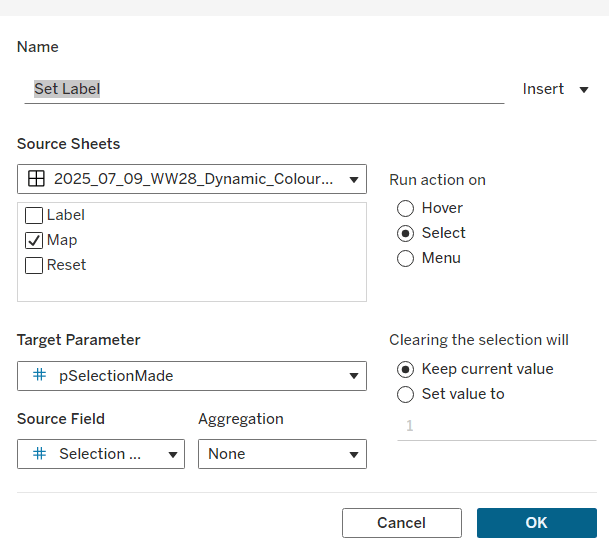
Set Label

on select of the Map sheet, set the target parameter pSelectionMade to the Selection Made field, with no aggregation.

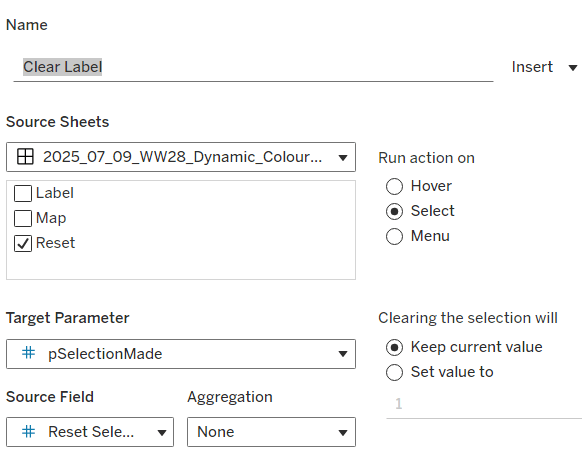
Clear Label

on select of the Reset Button sheet, set the target parameter pSelectionMade to the Reset Selection field, with no aggregation.

Final steps are to then arrange the dashboard as required using floating containers to store the filter, legend, ‘button’ and Label sheets. You’ll also need to change the filter to a single value list and customise so ‘All’ isn’t an option.

And that should be it. My published viz is here.

Note – I did find I needed to adjust the positioning of the floating objects via Tableau Public after publishing.

Happy vizzin’!

Donna

Can you make a drill down chart?

Yusuke set the #WOW2025 challenge this week, asking us to build a chart that was drill downable and drill uppable 🙂

I had a fair idea of how this was going to play out, knowing it would involve parameter actions and built the main table fairly quickly. Then it came to the parameter actions, and defining the logic to get them set to the right values. This was very tricky, and I confess I couldn’t completely manage it. The behaviour just wasn’t doing what I wanted 😦

So I looked at Yusuke’s solution, and even after using the exact same logic, field naming and parameter actions (including the names of these), it still wouldn’t quite do what Yusuke’s did. At the point the bars are expanded down to Manufacturer, if a Category is selected, Yusuke’s solution collapses back to the Category > Sub-Category level. Mine expands down to Manufacturer for the Sub-Category listed first (see below).

I spent a considerable amount of time trying to get this to work. Ultimately, I believe it’s something to do with the order in which the parameter actions get applied. In Yusuke’s solution, there are 4 parameter actions firing on each ‘click’, but they only affect 2 parameters. So one change it being applied before the other. But figuring out the order is tricky. From what I understand, actions of the same type (ie all parameter actions as opposed to filter actions, or set actions say), are applied based on alphabetical order. But, as I say, I tried naming my actions exactly like Yusuke’s (even copying and pasting from his solution), and I still couldn’t get his behaviour, and with all 4 actions applied, the drill-down from Sub-Category to Manufacturer didn’t work at all. I couldn’t get my actions to be displayed in the same order as Yusuke’s solution either, even by removing them and then adding them in the order listed, when I closed the dialog and re-opened, the order changed. So, as a result of this, my solution only has 3 actions and doesn’t quite behave exactly like Yusuke’s…. maybe I missed a tiny detail.. who knows, or maybe it’s just Tableau and some quirk in how things get applied…

Anyway, now I’ve said all that, let’s get on to the solution I did manage 🙂

Building out the calculations

For a challenge like this, I’m going to build out all my calculations into tabular form, so I can get the display and sorting as required, especially since table calculations are involved.

We need to capture the selections made ‘on click’ into parameters

pSelectedCategory

string parameter, defaulted to Furniture

pSelectedSubCat

string parameter, defaulted to Bookcases

The Sub-Category and Manufacturer to display will be based on the values in these parameters

Display – Sub Cat

IIF([pSelectedCategory] = [Category], [Sub-Category],”)

Display – Manufacturer

IIF([pSelectedSubCat] = [Sub-Category], [Manufacturer], ”)

On a sheet, add Category, Display – Sub Cat, and Display – Manufacturer to Rows and show the two parameters

If you change the values in the parameters, you’ll see how the display changes.

We want to get the total sales for each ‘level of the hierarchy’, so we can the compute the % sales, and apply sorting. We’ll used Fixed Level of Detail calculations for this.

Sales per Category

{FIXED [Category]: SUM([Sales])}

Sales per Sub-Category

{FIXED [Category], [Sub-Category]: SUM([Sales])}

Sales per Manufacturer

{FIXED [Category], [Sub-Category], [Manufacturer]: SUM([Sales])}

Format all these to $ with 0 dp, add into the table and note how the values are duplicated across each row, depending on what ‘level of the hierarchy’ we’re looking at

Adjust the sort on the Category pill, to sort by Sales per Category descending – this will move the Technology row to the top.

Sort the Display – Sub Cat pill to sort by Sales per Sub-Category descending and sort the Display – Manufacturer pill to sort by Sales per Manufacturer descending.

With these fields, we can calculate the % of sales

% Sales per Category

SUM([Sales per Category]) / SUM({FIXED:SUM([Sales])})

% Sales per Sub-Category

SUM([Sales per Sub-Category]) / SUM([Sales per Category])

% Sales per Manufacturer

SUM([Sales per Manufacturer]) / SUM([Sales per Sub-Category])

format all these to % with 1 dp and add into the table

For the final display, we don’t want values in every row. We need values displayed at the first row of every level of the hierarchy. I’m going to use the INDEX() tableau calculation to help with this.

Index – Category

INDEX()

Index – Sub-Category

INDEX()

Make both of these fields discrete (right click > convert to discrete).

Add Index – Category to Rows to the right of the Category pill. Adjust the table calculation on the pill so it is computing using Display – Sub Cat and Display – Manufacturer only. This should index the rows so that the numbering restarts when the Category changes.

Add Index – Sub-Category to Rows to the right of the Display – Sub Cat pill. Adjust the table calculation on the pill so it is computing using Display – Manufacturer only. This should index the rows so that the numbering restarts when the SubCategory changes.

We can then use this information to determine which rows need to display the % Sales values.

Display – % Sales per Category

IIF([Index – Category] = 1, [% Sales per Category],NULL)

Display – % Sales per Sub-Category

IIF([Index – Sub-Category] = 1 AND MIN([Category]) = [pSelectedCategory], [% Sales per Sub-Category],NULL)

Display – % Sales per Manufacturer

IIF(MIN([Sub-Category]) = [pSelectedSubCat], [% Sales per Manufacturer],NULL)

format all these to % with 1 dp, and add to the table (sense check that the table calculations for each field have the settings we applied to the Index fields above.

These 3 fields, are the core fields we need to use in the viz.

Building the Viz

On a new sheet, add Category, Display – Sub Cat, Display – Manufacturer to Rows and apply the sorting on each pill described above, and how the parameters.

Add Display – % Sales per Category to Columns and apply the table calculation settings described above. Add Display – % Sales per Sub-Category to Columns too, and again apply the table calc settings. Then add Display – % Sales per Manufacturer to Columns. Change the mark type on each of the 3 marks cards, specifically to use bar.

Add Category to the Colour shelf on the All marks card, and adjust accordingly.

On the Display – % Sales per Category marks card, add Category and Display – % Sales per Category to Label. Adjust the table calc settings of the % field as required. Adjust the layout of the label. Add Sales per Category to Tooltip and update the tooltip to suit.

On the Display – % Sales per Sub-Category marks card, add Display – Sub Cat and Display – % Sales per Sub-Category to Label. Adjust the table calc settings of the % field as required. Adjust the layout of the label. Add Sales per Sub-Category to Tooltip and update the tooltip to suit.

On the Display – % Sales per Manufacturer marks card, add Display – Manufacturer and Display – % Sales per Manufacturer to Label. Adjust the layout of the label. Add Sales per Manufacturer to Tooltip and update the tooltip to suit.

You may need to widen each row to see the labels displayed.

The axis titles on the top of the chart adjust based on the selections made. To present this within the chart itself (rather than using carefully positioned text fields on a dashboard), we need to make the chart dual axis using ‘fake axes’.

Double click into the space in Columns to the right of the last pill, and manually type MIN(0). Drag this field to sit between Display – % Sales per Sub-Category and Display – % Sales per Manufacturer.

Remove all pills from the MIN(0) marks card. Change the mark type to Shape and select a transparent shape for this (refer to this article to set this up – you can also use any other type of mark but set to very small, and 0% opacity on the colour to make it “invisible”, though a mark could appear on hover, which is why I prefer to use transparent shapes).

Click on the MIN(0) pill and set it to be dual axis, so 2nd column now has a MIN(0) axis heading.

Right click on this top axis, to Edit the axis – Change the Title to reference the pSelectedCategory parameter and set the tTck Marks to None

Repeat the process, creating another instance of MIN(0) to the right of the Display – % Sales by Manufacturer, but this time the axis title should reference the pSelectedSubCat field.

Tidy up the display formatting by

  • Add row banding with Band Size = 1 and Level = 0, so the whole of the Furniture block is coloured grey.
  • Remove column dividers
  • Remove gridlines and zero lines
  • Hide the 3 pills on the Rows (right click each pill and uncheck show header).
  • Hide the null indicator (right click > hide)
  • Edit the bottom 3 axis to remove the titles and hide the tick marks on all
  • Make the axis heading section narrower
  • Add a border around each of the bars, and make each bar narrower if required
  • Add some space to the start of each bar, by adjusting the bottom axis to be fixed from -0.1 to 1

Update the title of the sheet, and name the sheet.

Adding the interactivity

Add the sheet to a dashboard.

Firstly, we’re going to stop the bars from being ‘highlighted’ when clicked. we’ll use the True/False filter action technique described here. Create 2 calculated fields True = TRUE and False = FALSE and add to the Detail shelf on the All marks card of the viz. Add a dashboard filter action

Deselect Marks

On select of the the Viz sheet on the dashboard, target the Viz sheet directly, setting True = False.

Now we need to deal with the parameter values. As I discussed at the start of this blog, getting the calculations required and making the functionality work was pretty tricky, so I’m just going to document what I’ve ended up using, that seems to mostly work. Note the names of the parameter actions which both affect the pSelectedCategory param are pre-fixed with a number to force the order (I did test with them the other way round, and things broke).

Create fields

Category for Param_1

IF (([pSelectedCategory]<> [Category]) OR ([pSelectedCategory]=[Category] AND [pSelectedSubCat]=[Display – Sub Cat]) AND ISNULL([Display – Manufacturer])) THEN ‘ ! Please select a Category !’
ELSE [Category]
END

Category for Param_2

[Category]

SubCat for Param

IF (([pSelectedCategory]<> [Category]) OR([pSelectedSubCat]=[Display – Sub Cat])) AND NOT(ISNULL([Display – Manufacturer])) THEN ‘ ! Please select a Sub-Category !’
ELSE [Display – Sub Cat]
END

Then create 3 parameter actions

Set SubCategory

On select of the viz, set the pSelectedSubCat parameter passing in the value from the SubCat for Param field.

1. Set Category

On select of the viz, set the pSelectedCategory parameter passing in the value from the Category for Param_1 field.

2. Set Category

On select of the viz, set the pSelectedCategory parameter passing in the value from the Category for Param_2 field.

And fingers crossed, that should work, at least work the same as mine… my published viz is here. Note – when I uploaded to Tableau Public, the dynamic axes seemed to break, so I had to manually reset them on public…. or it may have broken before I published and didn’t realise.. the feature does seem to be a bit temperamental.

Happy vizzin’!

Donna

Can you filter or drill to details?

Sean set this week’s challenge to give an alternative solution to displaying a table of details rather than the traditional ‘pancake table’ (his words not mine 🙂 ).

The main crux of the challenge relates to the dashboard actions and interactivity, so I’ll be brief(ish) in describing how to build the charts.

Creating the line chart

Add Order Date to Columns at the month-year continuous (green pill) level. Add Sales to Rows. Format Sales to $ with 0 dp. Remove the title on the Order Date axis. Update the Tooltip to give an instruction to ‘click the line to filter’. Rename the sheet Sales Trend or similar.

Creating the bar chart

Add Sub-Category to Rows and Sales to Columns. Sort by Sales descending. Hide the Sub-Category row heading label (right click > hide field labels for rows). Update the Tooltip to give an instruction to ‘click the bar to filter’. Rename the sheet Sales by Sub Bar or similar.

Creating the Tree Map

Add Segment and Ship Mode to Detail and Sales to Size. Move Segment to Colour and reduce opacity to about 60%. Move Ship Mode to Label and then add additional Segment and Sales pills to Label. Add a table calculation against the Sales pill on the Label shelf, so it is applying a percentage of Total by Segment only.

Add another instance of the Sales pill to Label and then update the layout of the label.

Move the Segment pills on the marks shelf so they are positioned below the Ship Mode to ensure the tree map is segmented based on the Ship Mode (there should be four blocks divided by the thicker white lines).

Update the Tooltip to give an instruction to ‘click the treemap to filter’. Rename the sheet Treemap or similar.

Build the Details table

On a new sheet add Order ID, Customer Name, Order Date (as a discrete exact date – blue pill), Ship Date (as a discrete exact date – blue pill) and Product Name to Rows. Add Sales to Text. Format Profit to $ with 0 dp and drag onto the canvas over the columns of Sales numbers, and release the mouse when the Show Me option appears. Add Discount into the Measure Values section. Change the aggregation to Average and then format to be % to 0 dp. Rearrange the order of the pills in the Measure Values section as required. Add Segment, Sub-Category and Ship Mode to the Detail shelf. Update the title to reference these 3 pills. Hide the Tooltip. Rename the sheet Details or similar.

Building the additional calculations needed

In clicking around Sean’s solution, I was finding what I had initially built wasn’t quite doing what Sean did. If I clicked on the bar chart and then the tree map, the details were only filtered based on the tree map and vice versa. There were ways to solve this, but this then resulted in other issues, in that after closing the details table, the charts remained filtered, but it wasn’t obvious as nothing was highlighted. Basically what I’m trying to say, is the filtering seemed like it should be straightfoward, but wasn’t. I ended up using a combination of parameters and filter actions.

So we’ll start by dealing with the parameters we need.

Create the following parameters

pSelectedDate

date parameter defaulted to 01 Jan 1900

pSelectedSegment

string parameter defaulted to <emptystring>

pSelectedShipMode

string parameter defaulted to <emptystring>

pSelectedSubCat

string parameter defaulted to <emptystring>

Then create the following calculated fields

Filter: Date

[pSelectedDate] = #1900-01-01# OR [pSelectedDate]=DATETRUNC(‘month’,[Order Date])

add this to the Filter shelf on the bar chart, tree map and details sheets and set to True.

Filter: SubCat

[pSelectedSubCat]=” OR [pSelectedSubCat]=[Sub-Category]

add this to the filter shelf on the line chart, tree map and details sheets and set to True

Filter: Segment

[pSelectedSegment]=” OR [pSelectedSegment]=[Segment]

add this to the filter shelf on the line chart, bar chart and details sheets and set to True

Filter: Ship Mode

add this to the filter shelf on the line chart, bar chart and details sheets and set to True

We also need a parameter to capture when we want to show the details table.

pClickMade

boolean parameter defaulted to False.

and to supplement it, we need a calculated field to use to set this parameter to true

Click Made

TRUE

Add Click Made to the Detail shelf of the line chart, bar chart and tree map.

We’ll set these parameters later.

Building the Close icon

The ‘close’ cross when the details sheet is displayed is another sheet. On clicking on it, we will want to set the pClickMade parameter to False so the Details will no longer show. For this we will need

Close

FALSE

Add this field to the Detail shelf on a new sheet. Change the mark type to shape and change the shape to a X. Set the colour to black and set to fit entire view. Hide the Tooltip. Name the sheet Close or similar.

Building the dashboard and interactivity

Using layout containers, arrange the line chart, bar chart and tree map into a dashboard. Use padding and background colours to get the layout as desired.

The add the Details sheet as a floating object and position over the top of the other charts. Set the background to white and add a black border. Also float the Close sheet into position too. Hide the title and also add a black border.

Select the Close sheet object, and then from the Layout tab in the left hand nav, check the Control visibility using value checkbox and select the pClickMade parameter

It should disappear if the parameter is still set to false. Repeat the same process with the Detail sheet object.

Now create the following dashboard parameter actions

Filter Month

On select of the Sales Trend sheet, target the pSelectedDate parameter, passing in the value from the Order Date. When the selection is cleared, reset to 01 Jan 1900.

Filter SubCat

On select of the Sales by Sub Bar sheet, target the pSelectedSubCat parameter, passing in the value from the Sub-Category. When the selection is cleared, reset to <emptystring>.

Filter Ship Mode

On select of the Treemap sheet, target the pSelectedShipMode parameter, passing in the value from the Ship Mode. When the selection is cleared, reset to <emptystring>.

Filter Segment

On select of the Treemap sheet, target the pSelectedSegment parameter, passing in the value from the Segment. When the selection is cleared, reset to <emptystring>.

Drill to Details

Via the menu of the Sales by Sub Bar, Sales Trend, and Treemap sheets, target the pClickMade parameter passing in the value from the Click Made field. When the selection is cleared, set the value to False.

Close Details

On select of the Close sheet, target the pClickMade parameter, passing in the value from the Close field. When the selection is cleared, keep the value.

If you start clicking around, you should find that all these actions do provide some level of filtering, but if you for example, click on the bar (to filter the line and treemap), and then click on a section in the tree map and use the ‘Drill down to details’ menu option, the details table has lost the filtering of the bar chart as the bar has become unselected when the treemap chart was clicked.

To resolve this, apply filter actions to the line chart, bar chart and tree map objects (the quickest way to do this is just select the object on the dashboard and click the ‘filter’ icon in the context menu.

If you do this on all 3 sheets and then look at the list of dashboard actions you’ll see 3 ‘Filter x (generated)’ entries.

By applying this mix of filtering through ‘default’ dashboard filter actions in conjunction with parameters, I think you have a more complete and understandable experience. And you will have to explicitly unselect each of the marks you clicked on to remove that filter. I added instructions on the dashboard to aid with this.

My published viz is here.

Happy vizzin’!

Donna

Can you use containers and dynamic zone visibility?

This week’s #WOW2025 challenge was set live as part of TC25. Unfortunately, this year I couldn’t be there in person to meet everyone, which for the last 3 years has been my conference highlight 😦

Anyway, Kyle set the challenge, and conscious of time, provided a starting workbook, so the focus could be on the container and DZV functionality. For those who nailed this, he added some additional interactivity with dashboard actions.

So the first thing is to download the starter workbook from the challenge page.

I’m going to attempt to build this in the order of Kyle’s requirements.

Layout out the dashboard

So the requirement states that no floating objects are allowed. Typically when I build a dashboard for business purposes or where the layout is a little complicated, I always start by adding a floating container sized to the exact dashboard size and positioned 0,0. I then add tiled objects into it. Doing this means I don’t end up with Tiled container objects on my dashboard (or if any get added when legends/filters get automatically added, I just move any items I want to retain and then delete the Tiled container).

However, as Kyle says ‘no floating’, I will build adding to the ‘default’ dashboard which means there will be containers on there I don’t really want.

Now blogging about containers is usually very tricky as it’s hard to explain where things need to go. So I’ll be supplementing this with a lot of screen shots – fingers crossed following along works out ok!

To start, create a dashboard sheet and resize to 1200 x 900 as required. Observe the item hierarchy section of the Layout pane as this is where you’ll see all the containers and objects as we add them to the dashboard.

The main structure of the display is split into 2 columns, so start by adding a horizontal layout container to the dashboard. Once added, add 2 blank objects side by side to give the basic layout. Adding blank objects helps when positioning the required objects and is recommended when dealing with layout containers, especially if you’re new to them. They will ultimately be deleted as we go. Rename the horizontal container H – 2 cols or similar (right click on the container in the item hierarchy  > rename).

Notice how a Tiled container has now also appeared on the dashboard, even though we only added a horizontal container.

The first column of the dashboard contains 2 charts – the Scatterplot and the Sales & Profit Ratio Comparison sheets – stacked on top of each other. For this, add a vertical layout container between the two blank objects. Rename this V – Col 1.

Add the Scatterplot sheet into the vertical container and then add Sales & Profit Comparison underneath it.

The various legends associated with these 2 sheets, automatically get added into their own vertical container on the right hand side. These aren’t required, so from the item hierarchy, select the Vertical container and then Remove from dashboard.

The right hand column of the display will show the Sales & Profit Ratio by Month sheet and another (hidden) chart that needs to be built.

Add another vertical container between the V – Col 1 container and the right hand blank object. Name this V – Col 2, and add the Sales & Profit Ratio by Month sheet and then another blank object underneath it. Once again remove the right hand vertical container that is automatically added with all the legends/filters.

Now we have the ‘core’ layout, the 2 blank objects we added to the horizontal container, H – 2 Cols, right at the start, can be removed, so hopefully you should have a layout organised as below.

Now add the dashboard title (Dashboard menu > Show Title, and then update the text). This will automatically add a vertical layout container around all the existing contents.

Building the Sales & Profit Ratio by Sub-Category bar chart

On a new sheet, add Sub-Category to Rows and Sales to Columns. Add Profit Ratio to Colour and adjust the colour legend to use the Red-Black Diverging colour palette. Hide the Sub-Category row label heading (right click > hide field labels for rows).

The bar chart needs to be filtered when a State in the Sales & Profit Ratio Comparison chart is clicked on, or when a Date is selected in the Sales & Profit Ratio by Month chart. However, I noticed when clicking around, that when clicking the Sales & Profit Ratio by Month chart, it filtered the above bar chart by both the State and Date. So based on this, create 3 parameters.

S&PR Comp State

String parameter defaulted to empty string

S&PR by Month State

String parameter defaulted to empty string

S&PR by Month Date

Date parameter defaulted to 01 Jan 1900 (essentially a null date)

Show these parameters on the sheet.

We want to filter the chart if the S&PR Comp State has a value and the S&PR by Month Date is the ‘null’ date (which means we’ve interacted with the Sales & Profit Ratio Comparison chart), or if the S&PR Monthly State has a value AND the S&PR by Month Date has a value (which means we’ve interacted with the Sales & Profit Ratio by Month chart). So create

Filter – S&PR by SubCat

([State Name] = [S&PR Comp State] AND ([S&PR by Month Date]=#1900-01-01#))

OR

(([State Name] = [S&PR by Month State]) AND (DATETRUNC(‘month’, [Order Date]) = DATETRUNC(‘month’, [S&PR by Month Date])))

Enter a State name into the S&PR Comp State parameter (eg New Jersey), then add the Filter – S&PR by SubCat field to the Filter shelf and set to True. The chart should change.

Verify the functionality by adding a state and date into the other parameters eg 01 March 2021 and Texas

Empty the state parameters and set the date back to 01 Jan 1900. Name the sheet Sales & Profit Ratio by SubCat. The chart contents will disappear.

Creating a dynamic title sheet

Originally I hoped to do this without using another sheet and just using the title of the bar chart, but I need the date to show nothing rather than Jan 1900 depending on the user interactivity, so a new sheet is required.

But for it, we need some additional calculated fields.

State for Title

IIF([S&PR by Month State]<>”,[S&PR by Month State], [S&PR Comp State])

We only want to show the name of the state once, and both parameters may have it set.

Date for Title

IF [S&PR by Month Date]=#1900-01-01# THEN ” ELSE DATENAME(‘month’,[S&PR by Month Date]) + ‘ ‘ + STR(YEAR([S&PR by Month Date])) END

Line

IF [S&PR by Month Date]<>#1900-01-01# THEN ‘|’ ELSE ” END

Add all 3 fields to the Detail shelf of a new sheet. Change the mark type to polygon. Update the sheet title as below

Name the sheet S&PR Title Sheet or similar

Adding the bar chart, title & legend to the dashboard

All 3 of these objects – the bar chart, the title sheet and the profit ratio legend need to show or hide based on interactivity. To do this in one step, we can encapsulate the 3 objects within containers within another ‘parent’ container and control the visibility on the ‘parent’ container.

Add a vertical container between the Sales & Profit Ratio by Month chart and the blank object. Name this V – S&PR SubCat Chart

Add the Sales & Profit Ratio by SubCat sheet into this. Then add another horizontal container and place it above the Sales & Profit Ratio by Sub Cat chart (making sure it’s within the V – S&PR Sub Cat Chart container. Rename this H – S&PR Sub Cat Title.

Add the S&PR by Title sheet into this horizontal container, and then click on the Profit Ratio legend on the right hand side and move this object to sit to the right of the title sheet. Then click on the right hand column containing all the remaining legends, and delete this container from the dashboard. Then remove the blank object that’s sitting beneath the Sales & Profit Ratio by SubCat sheet. You should have something like below…

Adjust the width of the S&PR Title sheet so its wider. Set the sheet to Fit Entire View. Then select the H – S&PR SubCat Title container and edit the height to be 90 px.

Hide the title of the Sales & Profit Ratio by SubCat sheet.

Hiding and showing the Sales & Proft Ratio by Sub Category section

Create a new calculated field

Show S&PR by Sub Cat

[S&PR by Month State]<>” OR [S&PR Comp State]<>”

On the dashboard, select the V – S&PR SubCat Chart container and on the Layout pane, check the Control visibility using value checkbox, and select the Show S&PR by Sub Cat field. Assuming all the parameters are set to their default values, then the whole section should disappear, although the container will still be selected.

To make the section show, we need to set the parameters using dashboard parameter actions.

Set S&PR Comp State

On select of the Sales & Profit Ratio Comparison sheet, set the S&PR Comp State parameter passing in the value of the State Name field. When the selection is cleared, set the value back to <emptysrting>

Click on a row in the Sales & Profit Ratio Comparison bar chart, and the Sales & Profit Ratio by SubCat chart should display, filtered to that State, with the selected state name in the title.

Click the state again, and the chart disappears.

Create 2 further dashboard parameter actions

Set S&PR by Month State

On select of the Sales & Profit Ratio by Month sheet, set the S&PR by Month State parameter, passing in the value from the State Name field. When the selection is cleared, set it back to <emptystring>

Set S&PR by Month Date

On select of the Sales & Profit Ratio by Month sheet, set the S&PR by Month Date parameter, passing in the value from the Month([Order Date]) field. When the selection is cleared, set it back to 01/01/1900

Now click on a point in the line chart, and the Sales & Profit Ratio by SubCat chart should display filtered to the relevant state and month

Adding the Additional Interactivity

When the Scatterplot is clicked, the State in the existing Scatterplot State parameter should be updated. Create a dashboard parameter action

Set Scatterplot State

On select of the Scatterplot sheet, set the Scatterplot State parameter, passing in the value from the State field. When the selection is cleared, retain the value

If you click around the scatterplot, the Sales & Profit Ratio by Month line chart and Sales & Profit Ratio Comparison charts should update.

But we don’t want the other marks on the scatter plot to ‘fade’. To solve this, create a dashboard filter action.

Deselect Scatter marks

On select of the Scatterplot sheet on the dashboard, target the Scatterplot sheet directly, setting the fields TRUE = FALSE. On clearing the selection, show all values.

Finally, the last requirement is to highlight the line in the Sales & Profit Ratio by Month chart associated to the State selected in the Sales & Profit Ratio Comparison chart. For this first create a dashboard set action to capture the selected state

Add State to Set

On select of the Sales & Profit Ratio Comparison sheet, target the State Name Set. Check the single-select only checkbox. Running the action should Assign value to set and clearing the selection should remove all values from set

Then add a dashboard highlight action

Highlight Monthly Trend Chart

On select of the Sales & Profit Ration Comparison sheet, target the Sales & Profit Ratio by Month sheet targeting the State Name field only

And hopefully, with all this, you should have a fully interactive dashboard. My published viz is here.

Happy vizzin!

Donna