Can you swap measures?

It’s back to the EFL this week for my #WOW challenge. Once again I’ve tried to provide a multi-level challenge – a version that uses some core skills and features, and a version that just pushes the display a bit further, just for fun. I’ll start with the core build and then use that as the base for the bonus challenge.

Setting up the parameters

The main crux of this challenge is measure swapping, so for this we need a parameter

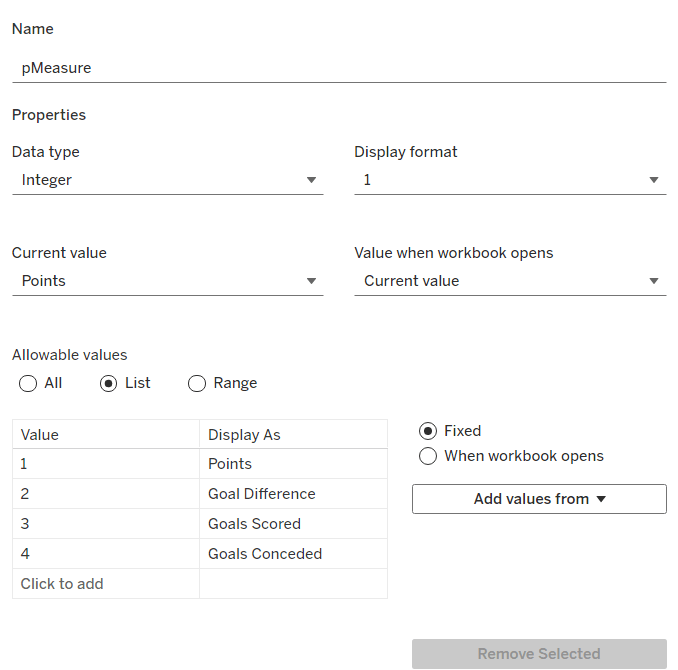
pMeasure

integer parameter listing values 1 to 4 which are aliased as per the screen shot below. Default value is 1 (Points).

Note – you can use a string parameter with the actual words. I just chose to use this method to demonstrate the aliasing ability. Also when referencing this parameter in a CASE statement (which we’ll do shortly), using integer values for comparisons is slightly more efficient than string comparisons.

We also need the user to have the ability to select the team they want to track

pSelectedTeam

string parameter defaulted to your preferred team (I chose Chelsea). This is a List parameter that is populated from the Team field via the Add values from button

Building the calculations

We need to determine the measure to display based on the parameter selection

Measure to Display

CASE [pMeasure]
WHEN 1 THEN SUM([Cumulative Points])
WHEN 2 THEN SUM([Cumulative Goal Difference])
WHEn 3 THEN SUM([Cumulative Goals For])
WHEN 4 THEN SUM([Cumulative Goals Against])
END

We also will need to colour the bars based on the selected team

Is Selected Team

[Team]=[pSelectedTeam]

and we need to sort the data based on best to worst, but need to consider that for Goals Conceded, the higher the value the worse the team is.

Sort Measure

IF [pMeasure] = 4 THEN [Measure to Display]*-1 ELSE [Measure to Display] END

We only want to show teams once they start participating in a Season. For this, we need to identify the team’s 1st season in the EFL

1st Season per Team

{FIXED [Team]: MIN(IF [Cumulative Points] > 0 THEN [Season End Year] END)}

and then we can create a field we can filter on, based on this

Show Team

[Season End Year]>=[1st Season per Team]

We only want to show a label against the 1st team and the selected team, so create

Label to display

IF MIN([Is Selected Team]) OR FIRST()=0 THEN [Measure to Display] END

and finally, we need to display the value of the current season’s measure on the tooltip, as well as the cumulative value, so we need another case statement

Tootltip Measure

CASE [pMeasure]
WHEN 1 THEN SUM([Points])
WHEN 2 THEN SUM([Goal Difference])
WHEn 3 THEN SUM([Goals For])
WHEN 4 THEN SUM([Goals Against])
END

Building the core bar chart

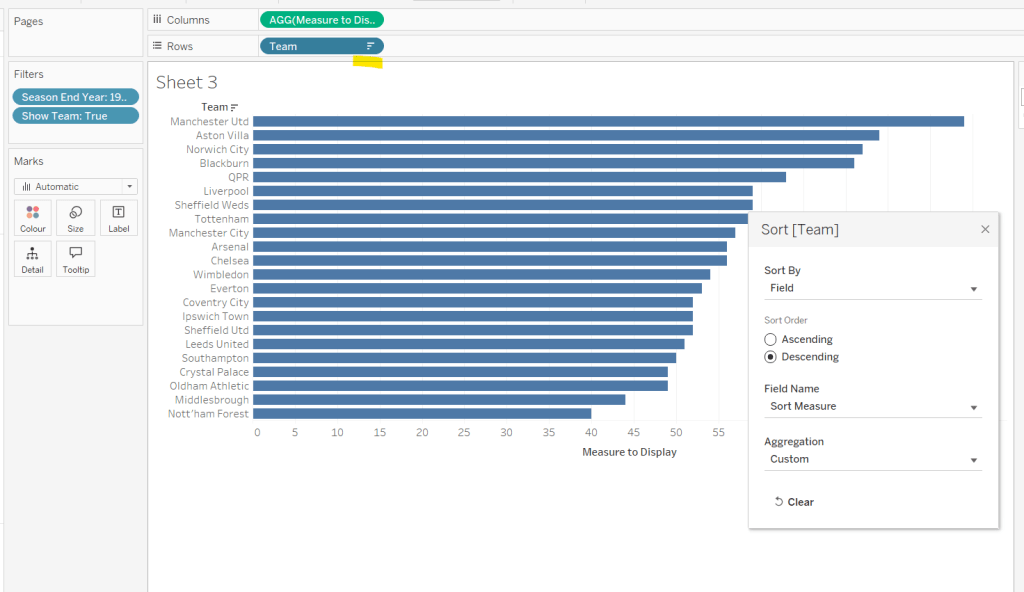
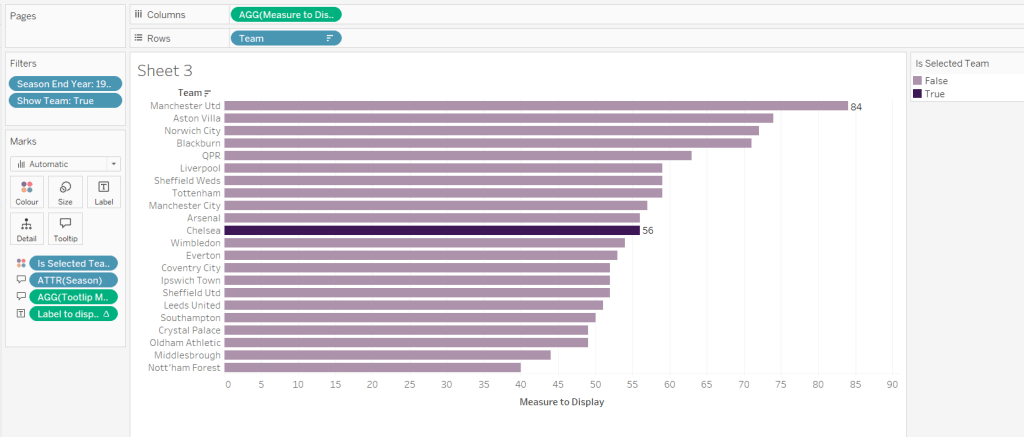
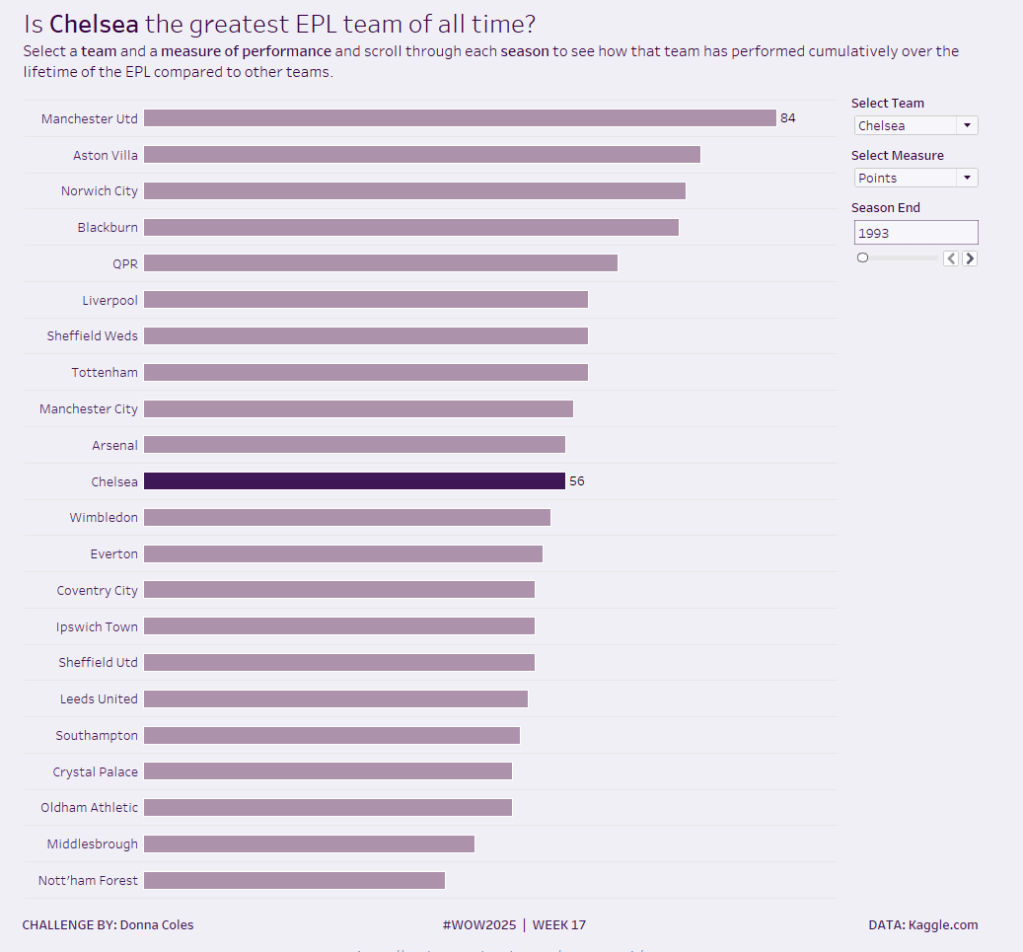
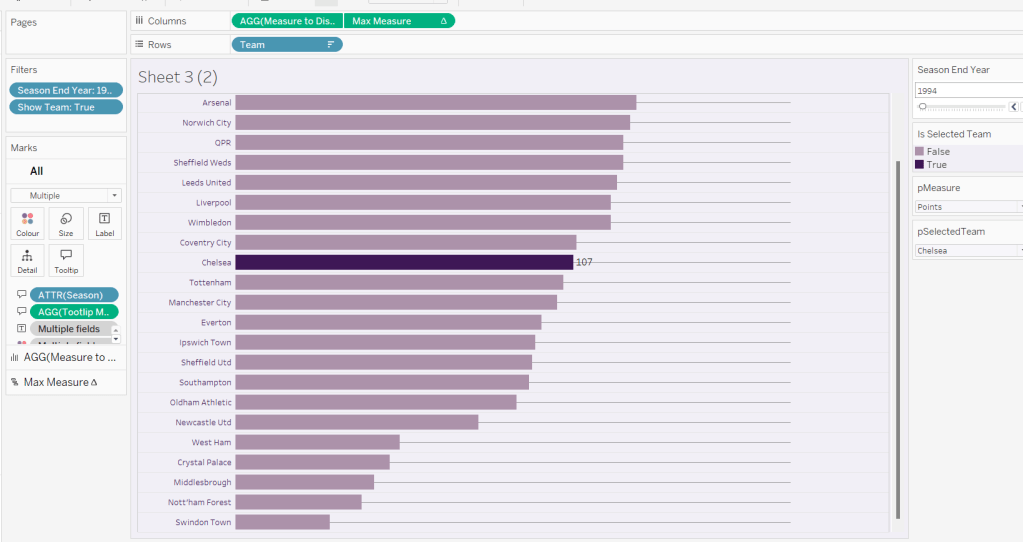
On a new sheet, add Team to Rows and Measure to Display to Columns. Add Season End Year to Filter and select 1993. Add Show Team to Filter and select True. Apply a sort to the Team field to sort by the field Sort Measure descending.

Add Is Selected Team to Colour and adjust accordingly. Add Label to display to Label. Add Season and Tooltip Measure to Tooltip and update accordingly,

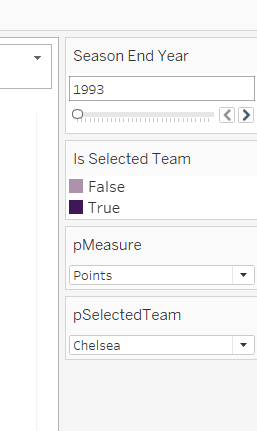
Show the pMeasure and pSelectedTeam parameters and the Season End Year Filter. Adjust the Season End Year filter control so that the All option isn’t available and it displays as a single value slider control.

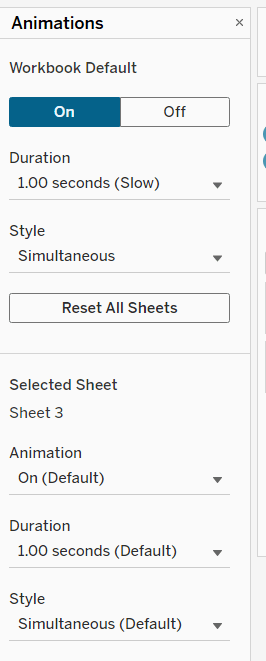
Move the Season End Year filter control on by one value and notice how the chart transitions. Adjust the Animations settings (Format menu > Animations) to be sequential and slow

Finally tidy up the display by

  • hiding the Measure to Display axis (right click > uncheck show header)
  • hiding the Team row label (right click > hide field labels for rows)
  • widen each row a bit
  • hide gridlines, zero lines, axis rulers and axis ticks
  • add pale grey row dividers
  • set the background colour of the worksheet
  • adjust the font of the row labels – I used Tableau Book 8pt in colour #3e1756 (dark purple)

Name the sheet Core or similar and add to a dashboard setting it to Fit Entire View

Add a title to the dashboard that references the pSelectedTeam parameter.

My core viz is here.

Building the bonus viz

Start by duplicating the core viz sheet.

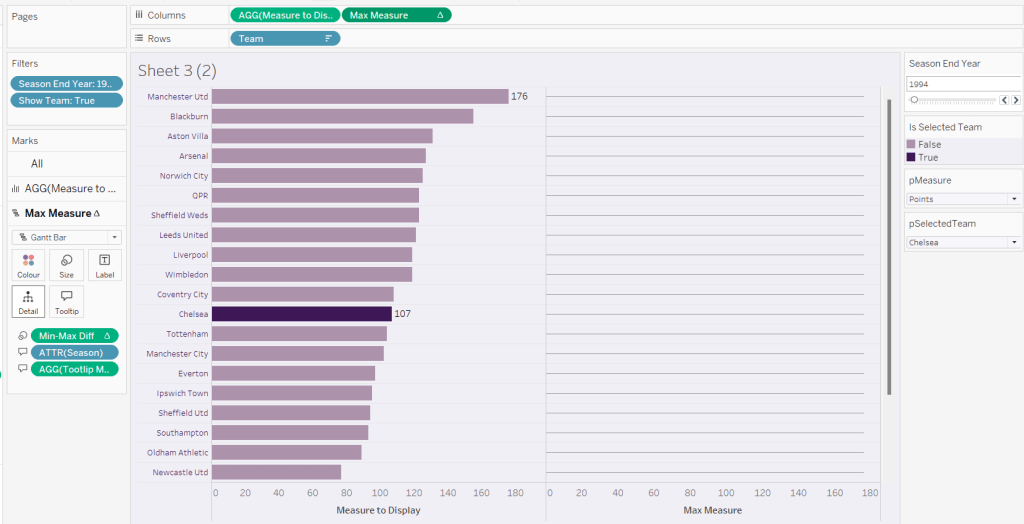
We’re going to use a gantt bar to simulate a central line for each row. This bar needs to extend to the largest measure in the table for every row, so this is the point we’ll plt

Max Measure

WINDOW_MAX([Measure to Display])

Add this to the Columns shelf, and on the Ma Measure markls card that gets added, remove the Is Selected Team from the Colour shelf, and change the mark type to gantt bar.

The bar needs to extend to the 0 or the minimum value in the window (if its less than 0), so we need a field to show the difference between the max and the minimum of 0 or the ‘window min’, but we need to multiple by -1 so the size extends in the right direction.

Max-Min Diff

([Max Measure] – MIN(WINDOW_MIN([Measure to Display]),0)) * -1

Add this to the Size shelf, and then update the size to be as small as possible. Remove Label to Display from the marks card and add a border the same colour as the background to the Gantt bar (via the Colour shelf) to make the line very narrow.

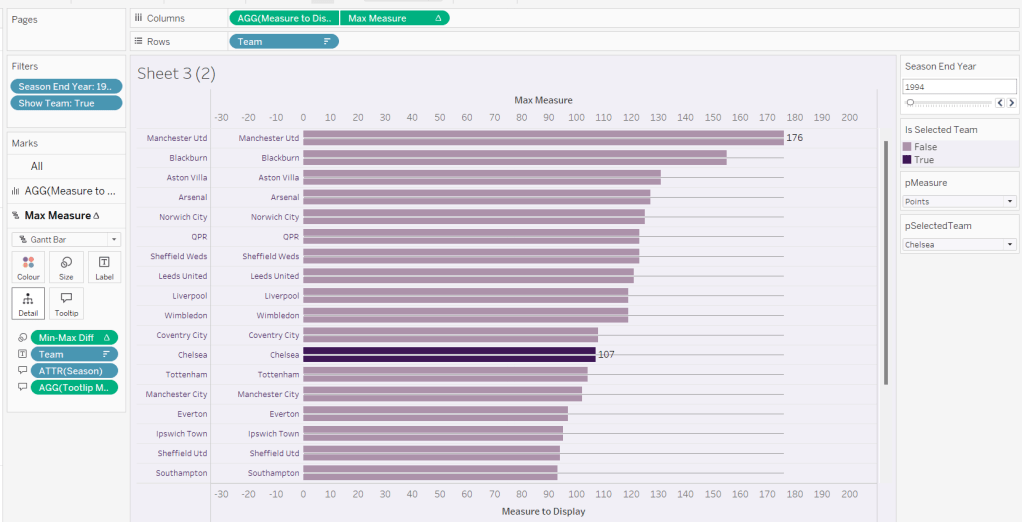
Add Team to the Label shelf and align centre left. Format the label text to be 8pt and dark purple. Then make the chart dual axis and synchronise the axis.

Right click the top axis and select move marks to back. Then hide both axis (right click, uncheck show header) and hide the Team pill on Rows too (again uncheck show header)

Verify the Tooltip on the gantt bar displays the same as on the main bar. If not add the relevant fields and adjust to match.

Tidy up the formatting by removing the row and column dividers. If need be adjust the colour of the Gantt bar to be a paler grey.

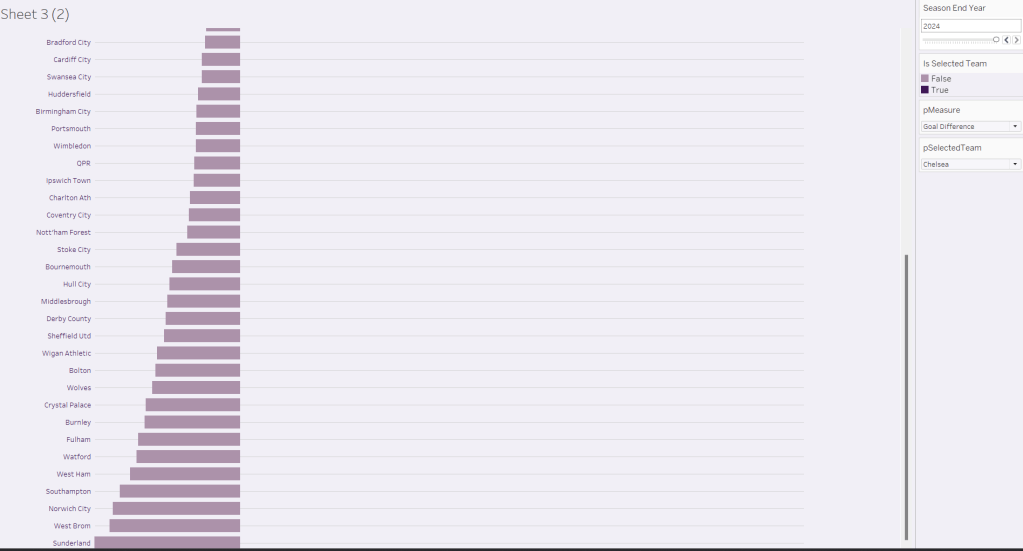
Change the measure value to Goal Difference and adjust the year to 2024 and check the display looks as expected, especially at the bottom – the gap between the label of the team at the bottom and the bar is minimal.

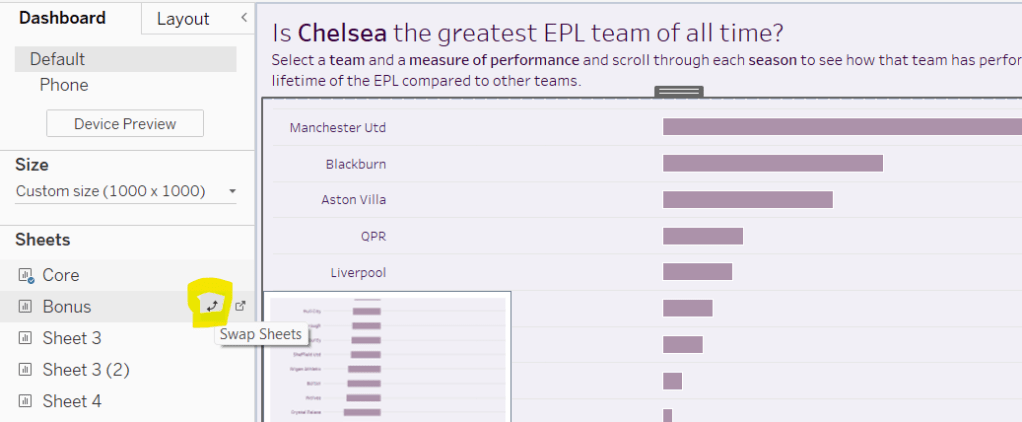
Add the chart to a dashboard – the simplest way is to duplicate the core dashboard and then use the swap sheets feature to quickly swap the main vizzes.

My published viz is here

Happy vizzin’!

Donna

Can you rank by multiple measures?

This week’s challenge once again has 3 levels, so I will blog the first solution and then build on/adapt from there. The main requirement is focused on working out how to rank the football teams based on multiple measures, and this is relevant for all the levels. Once again, we’re looking at data related to football teams in the English Premier league, and where they finished each season.

Defining the calculation to rank by

A team’s finishing position is based on a combination of points scored, goal difference and goals scored. But on rare occasions, a team is deducted points in the season, so we need to account for that.

Adjusted Points

SUM([Points]) – ZN(SUM([Points Deducted]))

Putting the key measures (Adjusted Points, Goal Difference and Goals For) per Team into a tabular view for just a single Season (eg 1993), we can see multiple instances of teams ending on the same number of Adjusted Points

Just ranking on this field, won’t necessarily order the teams in the correct order as Goal Difference and Goals For also need to be taken into consideration. We need to create a field we can rank based on a combination of all three fields, and to do this we’ll ‘weight’ each field by multiplying each field by a suitable proportion based on precedence. In the example shared via the community forum post the leading indicator was multiplied by 1000. In my case I’m going to divide.

Adj Points | GD | GF

[Adjusted Points] + (SUM([Goal Difference])/100) + (SUM([Goals For])/10000)

Add this field into the table, and sort by it descending. You can see that for the 3 teams with 52 points, two of those teams have the same Goal Difference too, but are being correctly ordered based on the Goals For due to the result of the Adj Points | GD | GF calculation

Now we’ve got the core calculation nailed, we can start to build the viz.

Building the Beginner viz

On a new sheet, add Team to Rows and Season End Year to Columns.

We want to be more specific about the season, so create

Label Season

STR([Season End Year]-1) + ‘-‘ + RIGHT(STR([Season End Year]),2)

and add to Columns too.

To make the ‘squares’ rather than use the square mark type which can sometimes be a bit fiddly to get the size just right, I’m going to use a fake axis and a bar mark type.

Double click into Columns and type MIN(1.0) and change the Mark type to Bar. Adjust the Size to be as big as possible. Edit the axis to be fixed from 0-1.

Hide the Season End Year (right click the pill and uncheck Show Header). Rotate the Label Season (right click on the actual label and Rotate Label). Then make each column narrower and widen each row until you’re happy with the sizing.

We want to the Teams to remain listed in alphabetical order, but we want to know the position the team finished in the season, so we create

Rank Desc

RANK([Adj Points | GD | GF], ‘desc’)

Initially add this to Label, and then adjust the table calculation so it is explicitly computing by Team only.

You can verify the number associated to the teams in the 1993 season with the sorted table you made earlier.

But we’re not going to show the rank for every square, so move the Rank Desc from Label to Tooltip.

We do want to label just the team in first though so create

Is First

IF [Rank Desc] = 1 THEN ‘1st’ END

and add this to the Label shelf instead. Again adjust the table calculation as described above.

For the Tooltip we need to create

Tooltip Rank Suffix

IF [Rank Desc] = 1 OR [Rank Desc] = 21 THEN ‘st’
ELSEIF [Rank Desc] = 2 OR [Rank Desc] = 22 THEN ‘nd’
ELSEIF [Rank Desc] = 3 OR [Rank Desc] = 23 THEN ‘rd’
ELSE ‘th’
END

add this to the Tooltip shelf, adjust the table calculation as required. Also create

Tooltip – Note

IF ZN([Points Deducted])<>0 THEN ‘Additionally the team was deducted ‘ + STR([Points Deducted]) + ‘ points due to ‘ + [Notes] END

And then add Adjusted Points and Tooltip – Note to the Tooltip too. Adjust the Tooltip as required.

Finally adjust the look and feel by

  • Set the background colour of the worksheet to pale lilac (#f1eff6)
  • Set the mark colour to purple (#938bc1) and add a pale grey border
  • Set row and column dividers to a thin solid pale grey line (#e6e6e6)
  • Adjust the font colour of the row and column labels to black
  • Hide the Team row heading label (right click > hide field labels for rows).
  • Hide the Label Season column heading label ((right click > hide field labels for columns).
  • Hide the MIN(1.0) axis (right click pill – uncheck show header)
  • Make the mark label bold and centred
  • Set the sheet to fit width
  • Add a title
  • Name the sheet Beginner or similar

Building the Intermediate Viz

The requirement here, is we now need to highlight the teams that won and those that were relegated each season.

For this, we’re going to create another ranking field, but this time ranking in the other direction

Rand Asc

RANK([Adj Points | GD | GF], ‘asc’)

and then determine the team’s position in the season, giving consideration to the fact that in the 1994-95 season, 4 teams were relegated instead of the usual 3.

Position

IF [Rank Desc] = 1 THEN ‘C’
ELSEIF (MIN([Season End Year]) =1995 AND [Rank Asc] <=4) OR ([Rank Asc] <=3) THEN ‘R’
END

Duplicate the Beginner viz. Remove Is First from Label and add Position instead. Add Position to Colour and adjust accordingly.

Building the Advanced Viz

Now we want to extend the colouring, so the teams who were not the champions and who weren’t relegated, are coloured based on their league position.

For this duplicate the Intermediate sheet. Add Rank Desc to the Detail shelf, verifying the table calc is computing by Team only. Change it to be a discrete (blue) pill, and the change the pill so it is also on the Colour shelf, by updating the ‘detail’ icon to the left of the pill.

This will result in 2 pills on the Colour shelf and the Colour Legend listing all the permutations.

Adjust the colour legend, so all the R’s are red, the C is yellow, and the Nulls are set from automatically assigning the BuPu 3 Color Seq Palette. Use ctrl (windows) to select multiple entries in the colour legend, rather than assigning one by one.

Note if you don’t already have the BuPu 3 Color Seq Palette in your preferences file, you will need to add and then reload Tableau. For further information see here.

And that should complete all levels of the challenge. My published viz is here.

Happy vizzin’!

Donna

Can you replicate quick table calcs?

Erica kicked off the 1st year of #WOW2025 with a table calculation based challenge asking us not to just use quick tableau calculations, to avoid the use of the RUNNING_SUM table calculation and to just create 2 calculated fields.

Defining the calculations

On a new sheet, add Order Date to Rows as a discrete (blue) pill at the Month-Year format and add Sales to Text.

For the running total, we want

Running Total

SUM([Sales]) + PREVIOUS_VALUE(0)

which takes the Sales from the current row, and adds it to the value of the cumulative Sales (ie this calculation) in the previous row

For the moving average, we want

3 Month Moving Average

WINDOW_AVG(SUM([Sales]), -2, 0)

which averages the Sales for the current row plus the previous 2 rows (ie 3 rows in total)

Building the Viz

ON a new sheet add Order Date as a continuous (green) pill at the Month-Year format to Columns and Running Total to Rows.

Change the mark type to Area, and set the Colour to #a16eaf with a 25% Opacity.

Add Order Date to Tooltip, and set to the MIN aggregation. Format the pill on the Tooltip shelf to have the <month year> format when displayed on the pane.

Add another instance of Running Total to Rows. Set the Mark type to be Line and reset the opacity on the colour shelf to be 100%. Make the chart dual axis and synchronise the axis.

Add 3 Month Moving Average to Rows. Set the Colour to be #67c79c at 25% opacity.

The add another instance of 3 Month Moving Average to Rows. Set the colour to #67c79c and the mark type to line and increase opacity to 100%. Make dual axis and synchronise the axis.

Update the Tooltip on the All Marks card, referencing the MIN(Order Date) pill and adding $ before the values

Edit the Order Date axis, to start from 01 Jan 2021 and end on 31 Dec 2024. Remove the axis title.

Format the Order Date axis, and set the Dates on the scale to be formatted with the MMMMM notation to just show the first letter of the month

Add a reference line to the Order Date axis, set to be a constant value of 01 Jan 2021, with a custom label of 2021 and the line is formatted to be a white dashed line of 100%

Then format the reference line so the label is aligned top right

Repeat this step 3 more times, adding Reference Lines for 01 Jan 2022 (labelled 2022), 01 Jan 2023 (labelled 2023) and 01 Jan 2024 (labelled 2024).

Finally, hide the right hand axis (uncheck show header), remove column dividers, but show the axis rules on the rows.

And that should complete the challenge – just pop the viz onto a dashboard and publish. My published version is here.

Happy vizzin’!

Donna

Datafam Europe Live: London’s Top Attractions

This week’s #WOW2024 challenge was run live at the #Datafam Europe event in London and was a combo with the #PreppinData crew. If you want to have a go at shaping the data required for this challenge yourself, then check out the PreppinData challenge here. Otherwise, you can use the data provided in the excel workbook from the link in the #WOW2024 challenge (I’m building based on this).

Modelling the data

There are 3 data sources for this challenge which we need to relate together. We have

  • Attraction Locations – a list of attractions in London with their lat and long coordinates
  • Tube Locations – a list of tube stations in London with their lat & long coordinates
  • Attraction Footfall – a list of attractions with their annual footfall

Connect to the Excel file and add Attraction Locations to the canvas. Then add Tube Locations and then create a relationship calculation of 1=1 to essentially map every attraction to every tube station.

Then add Attraction Footfall to the canvas and relate it to Attraction Locations by setting Attraction Name = Attraction

Finally, in the viz we have to understand the distance between a selected attraction (the start point) and other attractions (the end point), so we need to have an additional instance of Attraction Locations to be able to generate the information we will need between the start and end. So add another instance of Attraction Locations and set the relationship as Attraction Name <> Attraction Name

To make things a bit easier for reference purposes, rename Attraction Locations to Selected Attraction and Attraction Locations1 to Other Attractions (just right click on the data connection in the canvas to do this).

Building the Footfall Bar Chart

On a new sheet add Attraction Name (from Selected Attraction) to Rows and add 5 Year Avg Footfall to Columns. Change this from SUM to AVG (as the data consists of multiple rows per year and this value is the same for each row associated to an attraction). Sort the chart descending.

Click on the 2 nulls indicator and select to filter the data which will remove the bottom two rows and automatically add 5 Year Avg Footfall to the Filter shelf.

Manually increase the width of each row. Set the format of the 5 Year Avg Footfall to be in millions (M) to 2dp, and then show mark labels and align middle left.

Create a parameter to capture the selected attraction

pSelectedAttraction

string parameter defaulted to St Paul’s Cathedral

show the parameter on the screen.

We need to identify which attraction has been selected, so create

Is Selected Attraction

[Attraction Name]=[pSelectedAttraction]

and then add this to the Colour shelf. Adjust the colours accordingly and set an orange border. Then add Attraction Rank to Rows. Set it to be a discrete dimension (blue pill) and move it to be in front of Attraction Name.

Set the font of the row labels to be navy, hide the row label names (hide field labels for rows), hide the axis (uncheck show header), don’t show tooltips, and remove all row/column dividers, gridlines and zero/axis lines. Set the background of the worksheet to be None (ie transparent). Update the title of the sheet and then name the sheet Footfall or similar.

Building the map

We’re going to use map layers for this, and will build 4 layers

  • the selected attraction
  • the other attractions
  • the tube stations
  • the buffer circle

When using map layers we want to work with spatial data, so we’ll start by creating a point for the selected attraction

Selected Attraction Point

MAKEPOINT([Attraction Latitude], [Attraction Longitude])

Double click on this and it will automatically generate a map. Add Is Selected Attraction to the Filter shelf and set to True so only 1 mark should display, Add Attraction Name to Detail. Show the pSelectedAttraction parameter. Change the mark type to shape and select a filled star. Set the Colour of the shape to navy and add an orange halo. Update the Tooltip.

For the buffer, we need another parameter

pDistance(miles)

float parameter defaulted to 1 that ranges from 0.5 to 2 with a step size of 0.5

Then create

Buffer Attraction (x miles)

BUFFER([Selected Attraction Point], [pDistance(miles)],’mi’)

And drag this onto the canvas and drop when the Add Marks Layer option appears

This will create a new marks layer, which we can rename to Buffer. Reduce the opacity of the colour to 0%. Move the marks layer so it is at the bottom (below the other marks card) , and set the disable selection option so when you move the cursor over the map the buffer circle does not highlight.

Adjust the background layers of the map so only the Postcode Boundaries are visible.

To add the tube stations, we first need to create

Tube Station Point

MAKEPOINT([Station Latitude],[Station Longitude])

Then drag this onto the canvas to create a new marks layer. Add Station to the Detail shelf of this new marks card, and move the marks card so it is below the Selected Attraction marks card.

We don’t want all the stations to display. We just need to show those up to 1.5x the buffer distance, so we need

Distance to Tube Station

DISTANCE([Selected Attraction Point], [Tube Station Point], ‘mi’)

format to a number with 2 dp and then create

Tube Station Within Range

[Distance to Tube Station]<= 1.5 * [pDistance(miles)]

Add this to the Filter shelf and set to True.

We want the size of the displayed stations to differ depending on whether they’re inside the buffer or not, so create

Tube Station Within Buffer

[Distance to Tube Station] <= [pDistance(miles)]

and add this to Size. Change the mark type to circle, then adjust the size as required. Change the colour to orange and add a white border. Add Distance to Tube Station to Tooltip and update. You may want to adjust the size of the shape on the Selected Attraction marks card too, so it’s bigger than the tube stations.

The stations need to be labelled based on the closest x number of stations that are within the buffer. For this we need a parameter

pTop

integer parameter defaulted to 5 that ranges from 5 to 20 with a step size of 1.

We need to rank the stations based on the distance, so create

Station Rank

RANK(SUM([Distance to Tube Station]), ‘asc’)

We’re also going to label the stations with a letter based on their rank

Rank Stations as Letters

CHAR([Station Rank] + 64)

but we only want to show labels for the ‘top’ ranked stations, so create

Label Stations

IF MIN([Tube Station Within Buffer]) AND [Station Rank]<=[pTop] THEN [Rank Stations as Letters] END

and add this to the Label shelf. Adjust the table calculation settings, so the calculation is computing by both Station and Tube Station Within Buffer.

Set the labels to be aligned middle centre, and allow labels to overlap other marks. If things are working as expected, then if you increase the buffer distance to 1.5 miles and the pTop parameter to 20, you should see that not all stations within the buffer circle are labelled

To add the other attractions, we need to create

Other Attraction Point

MAKEPOINT([Attraction Latitude (Attraction Locations1)],[Attraction Longitude (Attraction Locations1)])

and drag this onto the canvas to Add a marks layer. Move this layer so it is beneath the Selected Attraction marks card, and add Attraction Name (from the Other Attractions) section to Detail

Once again, we want to limit what attractions display, so need

Distance to Other Attraction

DISTANCE([Selected Attraction Point], [Other Attraction Point], ‘mi’)

and then

Other Attraction Within Range

[Distance to Other Attraction]<= 1.5 * [pDistance(miles)]

and add this to the Filter shelf and set to True.

Add Distance to Other Attraction to the Tooltip shelf and update. Change the mark type to shape. The shape needs to differ whether it’s within the top x closest attractions that’s inside the buffer or not. So we need

Rank Other Attractions

RANK(SUM([Distance to Other Attraction]), ‘asc’)

and then

Top X Attraction in Buffer

IF [Rank Other Attractions] <= [pTop] AND MIN([Other Attraction within Buffer]) THEN MIN([Attraction Name (Attraction Locations1)])
ELSE ‘Not Top X’
END

Add this to the Shape shelf. Set the table calculation so it is computing explicitly by both Attraction Name and Other Attraction Within Buffer. Setting the specific shape for each of the named attractions that could show is fiddly, so I just chose to leave as per the default values listed. The only shape I explicitly set was the Not Top X which I set to a filled circle. I set the colour of the shapes to dark grey and added a halo of the same colour to make the shape more prominent. The shapes also need to differ in size based on whether they are in the buffer or not, so need

Other Attraction Within Buffer

[Distance to Other Attraction] <= [pDistance(miles)]

Add to the Size shelf and then adjust sizes to suit.

Set the background of the worksheet to None, remove all row/column dividers and name the sheet Map or similar. Finally remove all the Map Options (Map > Map Options > uncheck all selections) to prevent to toolbar from displaying on hover. Test the map functionality by changing the various parameters and entering a new starting location.

Note – in subsequent testing I found that for some attractions where there were either no tube stations or other attractions within the range, the map would disappear. If I get time I’m going to try to work on a solution for this, but I’ll leave as is for now (Lorna’s published solution has the same issue).

Building the Tube Station Rank Bar

On a new sheet add Station to Rows and Distance to Tube Station to Columns. Add Is Selected Attraction to Filter and set to True. Sort the chart ascending, so closet is listed first.

We only want to display the stations that are within the buffer, so add Tube Station Within Buffer to Filter and set to True.

We also want to restrict this list to just those that are the closest ‘x’ to the attraction based on the pTop parameter. Add Station to the Filter shelf and on the General tab, select Use all and then select the Top tab and add the condition to display the bottom pTop by Distance to Tube Station.

However, this doesn’t quite show the correct results, as the Top n filtering has been applied BEFORE the other filters on the shelf. To resolve this we need to add Is Selected Attraction and Tube Station Within Buffer to context (right click each pill on the filter shelf).

Add Station and Distance to Tube Station to the Label shelf, and adjust the label to display the text as required and align middle left. Change the mark type to bar and manually widen the width of each row so the labels are readable. Adjust the colour of the bars.

For the circle labels, we need a ‘fake’ axis – double click into Columns and manually type MIN(-0.05). Move the pill that is created to be in front of the Distance to Tube Station pill.

Change the mark type of the MIN(-0.05) pill to circle and remove the fields from the Label shelf. Add Rank Stations as Letters to the Label shelf instead and adjust the table calculation so it is explicitly computing by Station. Format the label and align middle centre.

Make the chart dual axis and synchronise the axis. Remove Measure Names from the All marks card.

Don’t show the Tooltip, remove all row/column dividers, hide the axis and the Station column. Hide all gridlines, axis lines, zero lines. Format the background of the workbook to be None (ie transparent).

Update the title of the sheet referencing the parameters as required, and name the sheet Tube Station Rank Bar or similar.

Building the Tube Station Rank Bar

On a new sheet add Attraction Name (from the Other Attractions data set) to Rows and Distance to Other Attraction to Columns. Add Is Selected Attraction to Filter and set to True. Sort the chart ascending, so closet is listed first.

We only want to display the other attractions that are within the buffer, so add Other Attraction Within Buffer to Filter and set to True.

We also want to restrict this list to just those that are the closest ‘x’ to the attraction based on the pTop parameter. Add Attraction Name to the Filter shelf, on the General tab, select Use all and then select the Top tab and add the condition to display the bottom pTop by Distance to Other Attraction.

Add Is Selected Attraction and Other Attraction Within Range to context.

Add Attraction Name (from the Other Attractions data set) and Distance to Other Attraction to the Label shelf, and adjust the label to display the text as required and align middle left. Change the mark type to bar and manually widen the width of each row so the labels are readable. Adjust the colour of the bars.

Double click into Columns and manually type MIN(-0.1). Move the pill that is created to be in front of the Distance to Other Attraction pill.

Change the mark type of the MIN(-0.1) pill to shape and remove the fields from the Label shelf. Add Attraction Name to the Shape shelf. Set the colour of the shape. Edit the shape for each Attraction so it matches the shapes assigned to the attractions on the Map sheet. Unfortunately, this is a bit fiddly and just a case of trial and error which involves changing the parameters to try to ensure all the options are presented at least once of each of the charts. There is probably a better way, but I’d have to rebuild something so sorry!

Make the chart dual axis and synchronise the axis. Remove Measure Names from the All marks card.

Don’t show the Tooltip, remove all row/column dividers, hide the axis and the Attraction Name column. Hide all gridlines, axis lines, zero lines. Format the background of the workbook to be None (ie transparent).

Update the title of the sheet referencing the parameters as required, and name the sheet Tube Attraction Rank Bar or similar.

Adding the interactivity

Add the sheets onto the dashboard making use of layout containers to get the objects positioned where required. Format the dashboard to set the background to the light peach colour. How I’ve organised the content is show by the item hierarchy below

Create a parameter dashboard action

Select attraction

On select of the footfall bar chart, set the pSelectedAttraction parameter with the value from the Attraction Name field. Keep the value when the mark is deselected.

And at this point, you should hopefully now have a functioning dashboard. My published version is here.

Happy vizzin!

Donna

People Resource Planning

This week’s #WOW2024 challenge was a guest post from Dan Wade using an alternative custom data set focused on staff resource planning.

Creating the parameters

We need 3 parameters for this challenge

pMeasure

string parameter containing a list of 3 options: Budget, Demand, Supply and defaulted to Supply.

pAttrition_Actual

string parameter containing a list of 2 options: Actuals and Attrition and defaulted to Attrition

pRate

a float parameter containing a list of values from 0.05 to 0.12, defaulted to 0.06 and formatted as % with 0 dp.

Building out the calculations

On a new sheet add Forecast Date as a discrete (blue) pill at the month-year level to Rows and add Budget FTE, Demand FTE and Supply FTE and Actuals FTE to Columns vis Measure Names/Measure Values, so you have a tabular display. Show the 3 parameters.

The first 3 measures will be plotted as 3 of the lines on the chart. The 4th line – the Actuals/Attrition line is a calculation based on the parameter selections.

If the pAttrition_Actual parameter displays ‘Actuals’ then we need to show the Actuals FTE as a constant value across every row. From the above, we can see it’s only set against Jan 2024. We will make use of a FIXED LOD calculation to ‘spread’ this value across every row.

However if the pAttrition_Actual displays ‘Attrition’ then we want to calculate a value which is initially a proportion of the Actual FTE, but then is a proportion of the value calculated against the previous month. The requirements also state the rate in the pRate parameter is an annual attrition rate, so we need to apply 1/12 of this value against each month (assuming a linear decline). The calculation we end up with is

Actuals/Attrition FTE

IF [pAttrition_Actual] = ‘Actuals’ THEN SUM({MAX([Actuals FTE])})
ELSE
IF FIRST()=0 THEN SUM([Actuals FTE])
ELSE PREVIOUS_VALUE(0) * (1-([pRate]/12))
END
END

{MAX([Actuals FTE])} is the Fixed LOD which spreads the Actuals FTE value across every row. FIRST() is a table calculation which identifies the first row in the table. PREVIOUS_VALUE(0) looks at the previous value compared to the current row we’re on, and then is reducing it by 1/12 of the pRate parameter. Format this to a number with 2 decimal places.

Add this field to the table and explicitly set the table calculation to compute by Forecast Date.

Adjust the values of the pAttrition_Actual and pRate parameters to see the behaviour of the calculation.

Next we need to calculate the actual difference between this value and the value of the measure selected in the pMeasure parameter. To start we need

Selected Measure

CASE [pMeasure]
WHEN ‘Supply’ THEN SUM([Supply FTE])
WHEN ‘Demand’ THEN SUM([Demand FTE])
WHEN ‘Budget’ THEN SUM([Budget FTE])
END

and then we can create

FTE Difference

[Selected Measure] – [Actuals / Attrition]

Add this to the table. Verify the setting of the table calculation. Adjust the pMeasure value to see the changes.

In order to colour the bars on the viz, we need to know the % difference

% FTE Difference

[FTE Difference]/[Selected Measure]

format this to % with 2 dp and then create

% Diff > 20%

IF [% FTE Difference] > 0.2 THEN ‘Outside 20% range’ ELSE ‘Within range’ END

Add this to Rows and verify the output.

Building the Viz

On a new sheet add Forecast Date as a continuous (green) pill at the month/year level to Columns. Add Budget FTE, Demand FTE and Supply FTE to the same axis, using Measure Values/Measure Names. Adjust colours accordingly. Edit the y-axis and uncheck Include zero and change the axis title.

Add Actuals/Attrition FTE to the Measure Values section and ensure the table calculation is set to compute by Forecast Date. Adjust colour.

Add Measure Names to the Label shelf. Adjust to align right and central and set the font to match mark colour. Edit the date axis, adjust the axis title, then set the axis to have a fixed end of 31 Jul 2027. This gives some space for the labels to display.

Adjust the Tooltip to suit.

Then add Actuals/Attrition FTE to Rows, making sure the table calculation is set as it should. Change the mark type to Gantt Bar. Remove Measure Names from the Label and Colour shelf of this marks card.

Add FTE Difference to the Size shelf, adjusting the table calc setting. Then add % Diff > 20% to the colour shelf. Set the colours accordingly, and reduce the opacity to 25%.

Add Budget FTE, Demand FTE and Supply FTE to the Tooltip shelf then adjust the tooltip as required, making reference to the parameters to make the tooltip ‘dynamic’

Make the chart dual axis and synchronise the axis.

Show the parameters and adjust to see how the chart behaves with the different settings. Hide the right hand axis, remove row/column dividers, but make the axis lines slightly more prominent than the gridlines. Update the title and again reference the parameters so the text is dynamic.

Then add the chart to a dashboard and edit the parameter/legend titles as required.

My published viz is here.

Happy vizzin’!

Donna

Can you make a page navigator?

Yoshi set this week’s challenge to build a page navigator, but there was so much more in it too, so this could be a bit lengthy 🙂

Note, I’m blogging based on the full ‘advanced’ challenge, to include an ‘apply all’ button as well. I built the following sheets to build this via and I’ll talk through the basics of each of them in turn

  • List of State names
  • Bar chart of total State sales
  • Line chart of monthly State sales
  • Jitter plot of State sales by order
  • Navigation page number buttons
  • Back arrow
  • Forward arrow
  • Filter summary
  • Apply button

Preparing the data

The data being presented is only applicable to the states of the US. In the latest versions of Superstore, information for both Canada and the US is included, so I started by adding a data source filter to include only Country/Region = United States (right click data source -> Add Data Source Filter).

Building the list of State names

Add State/Province to Rows, and apply a sort to sort by the field Sales descending

Add State/Province to Text and to Colour. Adjust font to be bold and widen each row.

Create a new field

Index

INDEX()

and add to Rows before State/Province. Set the table calculation to be explicitly computing by State/Province. Index is essentially ranking each State from 1 to 49, as we’ve already sorted the listing of the states.

The requirement is to show up to 7 states on a page, so create

Page No

INT(((INDEX()-1) /7)) +1

Set to be a discrete field and add to Rows in front of Index. Again explicitly set the table calculation to compute by State/Province. This shows us which states are on which page.

We’re going to identify the page we’re on based on a parameter

pPageSelected

integer parameter defaulted to 1

Show the parameter, then create a new field

Is Selected Page

[pPageSelected] = [Page No]

Add to the Filter shelf. Initially select All. Then adjust/verify the table calculation is explicitly set to compute using State/Province. Then edit the filter to just show values that are True.

Adjust the pPageSelected parameter to test the functionality.

Hide the Page No, Index, and State/Province field from Rows (uncheck show header). Remove column dividers and don’t show the tooltip. Name this sheet States.

Building the bar chart

Note – to get the labelling and the spacing between the bars, this isn’t a ‘standard bar chart’. This is a technique that has been included in previous WOW challenges.

On a new sheet, add State/Province to Rows and sort by Sales descending. Add Sales to Columns and Add State/Province to Colour. Add a grey border to the bars (via Colour shelf).

Double click into Rows and manually type MIN(1.0) and change the Mark Type to bar. Add Sales to Size, then click on the Size button and adjust the size from Manual to Fixed and align right.

Add Sales to Label and align top left. Adjust the Tooltip. Add Index to the front of Rows and adjust the table calculation to be computing by State/Province.

Add Page No to the front of Rows and adjust to computing by State/Province.

Set the page to Fit Width. Show the pPageSelected parameter and add Is Selected Page to the Filter shelf and set to True. Verify the table calculation is set to compute using State/Province. If not adjust, and then recheck the filter is just showing True value.

Change the parameter to show page 2. You’ll notice the axis has now adjusted from 0 – $80,000 whereas on page 1 it went up to $450,000. We want to retain the axis scale across the pages. For this, create

Max Sales

WINDOW_MAX(SUM([Sales]))

Add this to the Detail shelf and ensure the table calculation is computing by State/Province.

Add a reference line to the bottom Sales axis (right click axis > add reference line) and set it to cover the entire table, using the average Max Sales value. Don’t show any label., tooltip or line

The axis will now have readjusted and display up to 450,000 regardless of the page you’re on.

Adjust the Min(1.0) axis to be fixed from -0.5 to 2 to add some white space around the bars.

Hide both axis, the Page No, Index and State/Province fields in Rows. Remove all gridlines, zero lines, axis rulers & tick marks. Remove column dividers. Add Row Banding.

Name the sheet Total Sales.

Building the line chart

On a new sheet, add State/Province to Rows and sort by Sales descending. Add Index and Page No to Rows too and adjust both table calcs to be explicitly computing by State/Province.

Add Order Date to Columns and adjust to be at the continuous Month/Year level (green pill ). You’ll notice the page numbering & indexes start to look odd – ie multiple states have same index.

Adjust the Order Date field to Show Missing Values, and our numbers are all aligned again.

If we just add Sales to Rows though, the indexes all mess up again due to the there being no values for some points.

To fix this create

Sales to Plot

ZN(LOOKUP(SUM([Sales]),0))

This returns 0 if there is no value for the date / state combination. Add this to Rows instead and adjust the table calculation so it is computing by both State/Province and Month Order Date.

Edit the Sales to Plot axis, so it is displays an independent axis range for each row or column – this makes the records near the bottom show peaks, rather than just a straight line.

Add Is Selected Page to the Filter shelf and set to True. Verify the table calculation is set to compute using State/Province. If not adjust, and then recheck the filter is just showing True value.

Add State/Province to Colour. Adjust Tooltip. Reduce the Size of the line.

Hide both axis, the Page No, Index and State/Province fields in Rows. Remove all gridlines, zero lines, axis rulers & tick marks. Remove column dividers. Add Row Banding.

Building the Jitter Plot

On a new sheet, add State/Province to Rows and sort by Sales descending. Add Index and Page No to Rows too and adjust both table calcs to be explicitly computing by State/Province. Add Sales to Columns and Order ID to Detail. Change mark type to circle.

Readjust the table calc settings of Page No& Index to also include Order ID, but also set the leval at State/Province.

Add State/Province to Colour, and reduce the opacity.

To get the marks to not overlap so much, create a new field

Jitter

RANDOM()

add add to Rows as a dimension. Again adjust the table calcs so Jitter is also included in the settings.

Add Max Sales to Detail and adjust the table calc settings to be computing over all 3 fields – State/Province, Jitter & Order ID.

Add a Reference line to the Sales axis across the entire table, using the average of Max Sales and don’t display any label/tooltip or line.

Add Is Selected Page to the Filter shelf and set to True. Verify the table calculation is set to compute using all fields and at the level of State/Province. If not adjust, and then recheck the filter is just showing True value.

Adjust the Tooltip. Hide both axis, the Page No, Index and State/Province fields in Rows. Remove all gridlines, zero lines, axis rulers & tick marks. Remove column dividers. Add Row Banding.

Name the sheet Sales by Order.

Building the Navigation Number Buttons

On a new sheet add State/Province to Rows and sort by Sales descending. Add Index to Rows and set the table calc to compute by State/Province. Move Index to Columns and State/Province to Detail.

Change the mark type to square and add Index to Label, aligning middle centre.

Create a new field

Colour – Page No

[Index] = [pPageSelected]

and add to the Colour shelf. Verify table calc is set to compute by State/Province. Adjust colours to suit and add a dark border.

We only want to show the indexes relating to the number of pages we have, which in turn is going to be based on what the data has been filtered by. So firstly we want to understand what the maximum number of pages is

Max Pages

IF SIZE()%7 = 0 THEN INT(SIZE()/7) ELSE INT(SIZE()/7)+1 END

If the number of results (ie number of states after filtering has occurred – the SIZE()) is exactly divisible by 7 (%7 = 0) then divide the results by 7 to get the max number of pages, otherwise, increment this value by 1. Eg if 14 results, it’ll be 2 pages, but 15 results will require 3 pages.

Now we know that, we can create

Pages to Show

INDEX() <= [Max Pages]

Add this to the Filter shelf. Set the True, Then adjust the table calc settings to be explicitly computing by State/Province for all nested calcs too.

Re-edit the filter to ensure it just shows True results.

Hide the Index from Rows and don’t show row/column dividers. Don’t show the tooltip. Name the sheet Page Nos.

Building the back arrow

On a new sheet, show the pPageSelected parameter, and change the mark type to Shape.

Create a new field

Show Page Back

[pPageSelected]>1

Add to the Shape shelf. If pPageSelected = 1, then False should display and adjust the shape to use a transparent shape (refer to this blog on how to set this up). Change the pPageSelected parameter to 2 and adjust the shape of the True option to be a filled arrow. Change colour to black.

On the dashboard ,we will need to define what page is being navigated to on click, so we need

Page Back

IF [pPageSelected]>1 THEN [pPageSelected]-1 END

Add this to the Detail shelf as a dimension.

Name the sheet Page Back.

Building the Forward Arrow

This is slightly more tricky than the back arrow, as we need to know how many pages are being displayed to know when we no longer need to show the arrow.

On a new sheet, add State/Province to Detail and sort by Sales descending. Remove the Lat/Long fields that automatically get added and change the mark type to shape. Create a new field

Show Page Forward

[pPageSelected]<[Max Pages]

and add to the Shape shelf. Set the table calc to be computing by State/Province explicitly. Set the mark type for ‘True’ to be a filled arrow and adjust colour to black.

Show the pPageSelected parameter and set to 7. Adjust the ‘False’ option to be a transparent shape.

Once again, on the dashboard, we will need to define what page is being navigated to on click, so we need

Page Forward

IF [pPageSelected]<[Max Pages] THEN [pPageSelected]+1 END

Add this to the Detail shelf as a dimension, and verify table calc is set to compute by State/Province explicitly.

We only want 1 arrow to show at most, so add Index to filter. Set to 1, then adjust table calc so it is set to compute by State/Province explicitly, and then re-edit filter to just select 1 again. Name the sheet Page Forward

Building the Filter Summary

On a new sheet add Category, Segment and Ship Mode to the Detail shelf and change the mark type to polygon..

Edit the Title of sheet and update as required

Name the sheet Filter Summary

Building the Apply Button

The basic outline for this is documented in this Tableau KB article here.

Create a calculated field

Apply

‘Apply Filters’

and add to Rows on a new sheet.

Add Category, Segment and Ship Mode to the Detail shelf and to the Filter shelf (set to All for each). Change the mark type to polygon. Right click the work ‘Apply’ in the column header and select hide field labels for rows.

Right click on the words ‘Apply Filters’ and select Format – set the shading of the header to teal.

As well as applying filters when the button is clicked, the page needs to reset to the first page. For this create

Reset Page 1

1

Add this to the Detail shelf as a dimension.

Adjust the size and colour of the font. Remove row dividers. Set the background of the worksheet to light grey. Remove the Tooltip. Name the sheet Apply Button.

Creating the dashboard

Now we have all the components, we can arrange the objects on a dashboard.

I added the 4 sheets making up the main viz int a horizontal container. All the sheets had the titles hidden, were set to fit entire view and had 0 padding, which gives the illusion of them all being a single viz. I added some outer padding to the container itself.

I used another horizontal container positioned above this one to add text boxes to give the viz headings.

Another horizontal container was placed above the title one. IN the left hand side I placed the Filter Summary viz., and in the right, I added a vertical container.

The vertical container had a blank and then a horizontal container underneath the blank object. The horizontal container then stored the page back, the page nos and the page forward sheets.

Another horizontal container was place above all this and I add the Apply Button sheet. I then moved the 3 filter objects automatically added to the sheet into this horizontal container too. I set the background of this container to light grey

Adding the interactivity

Multiple dashboard actions are needed to get the page to function as required. Now, I did have issues getting somethings to behave as I wanted, and I believe it was something to do with the order in which the actions were added. I can’t prove this… all I know is that I spent a long time trying to figure out why the filters I selected were getting reset when I pressed a page number, but removing all actions and adding again worked…

You need these actions

Apply Filters

Filter action that on select of the Apply Button sheet, targets all other sheets. Clearing the selection keeps filtered values. Category, Segment and Ship Mode should be passed through as selected fields.

Set Page No from Square

Parameter action that on select of the Page Nos sheet, sets the pPageSelected parameter passing in the value from the Index field that is not aggregated. Clearing the selection, keeps the current value.

Reset to Page 1

Parameter action that on select of the Page Nos sheet, sets the pPageSelected parameter passing in the value from the Reset Page 1 field that is not aggregated. Clearing the selection, keeps the current value.

Prev Page From Arrow

Parameter action that on select of the Page Back sheet, sets the pPageSelected parameter passing in the value from the Page Back field that is not aggregated. Clearing the selection, keeps the current value.

Next Page From Arrow

Parameter action that on select of the Page Forward sheet, sets the pPageSelected parameter passing in the value from the Page Forward field that is not aggregated. Clearing the selection, keeps the current value.

With these actions, you should be able to test the functionality, but you will find some fields become greyed out/ need clicking twice. We need to automatically ‘deselect’ them on click. For this I applied the basic principles discussed here.

Create new calculated fields

True

TRUE

False

FALSE

Add both these fields to the Detail shelf of the Page Back, Page Forward, Page Nos, and Apply Button sheets. Then add a dashboard filter action for each sheet.

Deselect Apply

On select of the Apply Button sheet on the dashboard, target the Apply Button sheet itself (ie not the object on the dashboard), passing the selected fields of True = False. Show all values when the selection is cleared.

Repeat the above for the Page Back, Page Forward and Page Nos sheets.

Hopefully with all this you have a fully functioning dashboard. My published viz is here.

Happy vizzin’!

Donna

Can you expand this segmented bar chart?

For this week’s challenge I expanded on my challenge from week 13. So for this solution guide, I’ll be starting with the workbook I built for week 13 and adjusting as required. You can either build on your own solution if you took part, start with my workbook, or rebuild from scratch (my solution guide to week 13 is here).

Based on the hint I provided in the challenge, I’m going to build this with 3 sheets; one sheet to display the bar charts per year for the specific Sub-Category, then one sheet to display the segmented bars up to the selected Sub-Category and one sheet to display the segmented bars below the selected Sub-Category.

For this we need to assign an index to each row of data.

Sub-Cat Index

INDEX()

Make this discrete and add it to Rows in front of Sub-Category and adjust the table calculation so that it computes using Sub-Category only. Each row should be numbered from 1 – 17.

Creating the top & bottom bar chart

We will need to be able to identify the name of the Sub-Category selected and the associated index value. We’ll use parameters to store this information

pSelectedSubCat

string parameter defaulted to ” <empty string>

and

pIndex

integer parameter defaulted to a very large number, in this case I chose 10,000 (basically a number higher than the number of dimensions listed.

Show the parameters, and manually type into pSelectedSubCat the word ‘Copiers’ and into the pIndex type 8 (the index associated with Copiers).

We want to display an arrow indicator based on whether a Sub-Category is selected or not. We need

Arrow Indicator

IF [pSelectedSubCat] = [Sub-Category] THEN ‘▼’ ELSE ‘►’ END

Add this onto the Rows after the Sub-Category pill. Readjust the table calculation of the Sub-Cat Index so it is computing by Arrow Indicator as well.

We only want to show up to the selected Sub-Category

Show Top

[Sub-Cat Index]<=[pIndex]

Add this to the Filter shelf and set to True. Verify the table calculation is also computing by Sub-Category and Arrow Indicator only. Hide the Sub-Cat Index column and format the arrows so they are coloured brown and aligned top centre. Name this sheet Top or similar

Duplicate the sheet.

To show the bottom half of the chart create

Show Bottom

[Sub-Cat Index]>[pIndex]

Remove Show Top from Filter and add Show Bottom instead. Set to True. Again verify the table calculation is computing by Sub-Category and Arrow Indicator only. Call this sheet Bottom or similar.

Building the year bar chart

On a new sheet add Order Date to Rows and Sales to Columns. Change mark type to bar. Adjust Colour and size

Create a new field

Is Selected Sub-Cat

[Sub-Category] = [pSelectedSubCat]

Add to Filter and set to True.

Add another copy of Sales to Columns, then double click into the pill, and manually wrap the text with WINDOW_MAX(….. )

On the Window_Max marsk card, reduce the size to as small as possible and add a white border (via the Colour shelf). Add Sales to the Label shelf and adjust the font to be smaller and coloured brown.

Make the chart dual axis and synchronise the axis. Remove measure Names from the All marks card, and right click on the top axis and move marks to back. Hide both axes, remove row/column dividers and gridlines/zero lines. Adjust the font colour and size of the row labels, and remove the row header.

Add Sales to the Tooltip shelf of the All marks card, and add a quick table calculation of percent of total. Format to 1 dp. Add Sub-Category to the Tooltip shelf too, and then adjust the Tooltip of the All marks card to suit. Name the sheet Years or similar.

Building the dashboard

On the existing dashboard, add a vertical container, and then add the Top, Years and Bottom charts within it.

Remove the chart titles.

You’ll notice that the bar for bookcases in the bottom chart is longer than the bar for copiers in the top chart. We don’t want this. To correct we need

Max Sales Axis

{MAX({FIXED [Sub-Category]:SUM([Sales])})}

Navigate to the Top sheet and add Max Sales Axis to the Detail shelf of the All marks card

Create a new parameter

pMaxAxis

float parameter defaulted to 500,000

On the Bottom sheet, show the Sales axis, then edit the axis and adjust so the axis range is Custom from 0 to pMaxAxis

Hide the Sales axis again

Adding the Interactivity

We will use parameter actions to set the various parameters on click, but we need to ensure the viz will ‘expand’ but also fully ‘collapse’. So we need

Sub-Cat to Pass

IF [Is Selected Sub-Cat] THEN ” ELSE [Sub-Category] END

Index to Pass

IF MIN([Is Selected Sub-Cat]) THEN 10000 ELSE [Sub-Cat Index] END

ie if we’re selecting the Sub-Category that’s already been selected then we need to ‘reset’ back to the start state.

Add both of these fields to the Detail shelf of the All marks card on both the Top and Bottom sheets.

Change Sub-Cat to Pass to be an Attribute so that it doesn’t impact the existing table calc settings, and verify Index to Pass is computing by Sub-Category and Arrow Indicator.

Back to the dashboard, and add the following dashboard action

Select SubCategory

On select of the Top or Bottom sheets, set the pSelectedSubCat parameter, passing in the value from the Sub-Cat To Pass field. When clearing the selection, reset to ” <empty string>

Set Index

On select of the Top or Bottom sheets, set the pIndex parameter, passing in the value from the Index To Pass field aggregated at the minimum level. When clearing the selection, reset to 10,000

Set Axis

On select of the Top sheet, set the pMaxAxis parameter passing in the value from the Max Sales for Axis field. When cleared reset to 50,000

You should now have a functioning chart. You may need to adjust padding of the objects and modify width of headers on the charts to get the alignment as required. Update the chart title as required as well.

My published viz is here.

Happy vizzin’!

Donna

Sleep Survey Marimekko

Week 18 2024, was the #Data24 TC edition, which we shared live during our session at TC. It was so wonderful to see so many people at our session, and to be able to meet one of our new coaches, Yusuke Nakanishi, in person.

Sean set the challenge to recreate a Marimekko chart based on some sleep survey data.

Let’s dive in…

Setting up the data

The data provided contained a row per respondent indicating the hours slept and their responses to 4 questions. For this viz, we only care about the data associated to the Wake Up Well Rested and Sleep Hours fields.

The hours of sleep is grouped into custom bins

Hours Bin

IF [Sleep Hours] <= 4 THEN “<= 4” ELSEIF [Sleep Hours] >= 10 THEN “10+”
ELSE STR([Sleep Hours])
END

On a new sheet add Hours Bin to Rows and Wake up Well rested to Columns and Sleep Survey.csv (Count) to Text. Manually adjust the ordering of the Hours Bin field, so it is displayed in the correct sequence. This gives us the number of respondents per bin per response.

For the y-axis, we’re looking to display the % of total of respondents for each bin

% of Total

COUNT([Sleep Survey.csv]) / TOTAL(COUNT([Sleep Survey.csv]))

Add this into the table, and adjust the table calculation to ensure it is computing by Wake up Well rested only

This should mean each row adds up to 100% (you can check by displaying row grand totals).

Now for the x-axis, we need to plot a point based on how wide each bar needs to be. This width is based on the total number of respondents in each Hours Bin

Count People per Bin

{FIXED [Hours Bin]: COUNT([Sleep Survey.csv])}

Add to the table, and you should see the values are the same for each Hours Bin regardless of the response column.

But if we plotted at these points, we won’t get the points in the right place, we need a further step… we need to plot at the cumulative values. So add a Running Total Quick Table Calculation to the Count People per Bin field, that is set to compute by the Hours Bin only.

We now have the core fields we need to build the chart.

Building the Marimekko chart

On a new sheet, add Hours Bin to Detail. Add % of Total to Rows and Count People per Bin to Rows. Manually sort the Hours Bin field so that it is logically ordered.

Add Wake up Well Rested to Colour and adjust accordingly, and manually reorder the values in the colour legend.

Adjust the table calculation of the % of Total field, so that is computing by Wake up Well rested only – all the bars should extend to 100%

Then adjust the table calculation of the Count People per Bin Running Total so that its is computing by Hours Bin only – the bars should shift, into their expected logical position based on the Hours Bin ordering – ie <=4 is the first bar and 10+ is the last.

Now to get the bars to be wider, add Count People per Bin to the Size shelf, then as we have measures (green pills) on both the rows and column shelves, we can set the size to be Fixed and Right aligned, to get the display we require

Hide the Tooltips, hide the bottom axis, and remove the title of the y-axis, and you should have the required display.

When I added to the dashboard, I just used text boxes carefully positioned to simulate the labelling of the x-axis, and then I floated text boxes on top of the chart to label the sections.

My published viz is here.

Happy vizzin’!

Donna

Can you build a trellis of Profit Ratio Gauges?

It’s Community Month at #WOW2024 HQ, and for the first challenge, Jack Hineman (a long time participant of WOW) asked us to create gauge charts using map layers. Not only that, he wanted them displayed in a trellis format, with a specific requirement to ensure the number of columns was always >= number of rows displayed. Errr…..

This was tough! I tried to start the challenge one evening and after pouring through Ken Flerlages’s blog post that was referenced, reading the hints, and looking at Jessica Moon’s Tableau Public page referenced, I was none the wiser. The blog post did not mention map layers at all in building a gauge, and was purely mentioned as inspiration for the design of the gauge.

I happen to have some time off work, so reattempted the challenge the next day. After several hours, I got there, somehow! I did another google : “Gauge charts in Tableau” and hit upon this blog, which gave me a few pointers, although most of the time it really was a lot of trial and error based on Jack’s hints, and to be honest I surprised myself that I actually hit all the requirements, except one, without the need to look at the solution.

The one thing I had to look at was the calculations required to get the trellis to always have more columns than rows. My ‘go to’ formula didn’t work. More on that later.

As for my solution… well it’s a solution…. how elegant/efficient it is – who knows. It was something built very much in stages as I tried to get my head around what was being asked. As I rebuild as part of the process I go through when writing this blog, I may find ways of improving what I did to start with. I will do my best to explain what I think is going on, what my thought process was, but apologise in advance if you get to the end of all this, and still don’t have a ‘scooby’ 😦

Strap yourself in! This is going to be a long one!!!!

Modelling the data

Connect to the provided data source and create relationship calculations to relate Manufacturers to Gauge_Definition with 1=1 and Gauge_Definition to Gauge_Points with 1=1 as well.

Understanding the data

Let’s start by looking at the data provided. Jack provided 3 data sets:

Manufacturers

A simplified instance of Superstore just listing Manufacturers with Sales & Profit data.

Gauge Definition

A data set of 1 row essentially containing some ‘constants’ to be referenced within the challenge

  • Gauge Success Amount = 0.15
    • Profit Ratios >= to 0.15 (15%) are deemed successful. This is essentially the Goal indicator value.
  • Gauge Concern Amount = 0
    • Profit Ratios >=0 (but < 0.15) are deemed a concern
  • Gauge Start Profit Ratio = -0.3
    • The left hand point on the semi-circular gauge should indicate a -30% profit ratio
  • Gauge End Profit Ration = 0.3
    • The right hand point on the semi-circular gauge should indicate a 30% profit ratio
  • Gauge Success Pct of Gauge = 0.75
    • 15% Profit Ratio represents 75% of the gauge displayed (ie 0% of gauge = -30% Profit Ratio and 100% of gauge = 30% profit ratio)
  • Gauge Concern Pct of Gauge = 0.5
    • 0% Profit Ratio represents 50% of the gauge displayed.

Gauge Points

This is essentially a template/scaffold to help build the gauge and the various features on the gauge. It defines all the points that need to be plotted and in most cases then connected to create the various ‘shapes’ displayed eg the gauge semi circle for the actual profit ratio and the legend indicator; the small angled rectangle that represents the goal ‘reference line’; the positions for the 3 labels.

To start getting an understanding, let’s just focus on Point Type = Actual and Point Segment ID = Background

This is the data to build the complete grey semi circle of the main gauge. 50 rows represent points on the inner arc of the semi circle (Point Arc = In). They all have a Point Radius = 0.43 (ie the distance from the 0,0 centre position of a circle to the bottom edge of the gauge is 0.43). The other 50 rows represent points on the outer arc of the semi circle (Point Arc = Out). They all have a Point Radius = 0.58 (ie the distance from the 0,0 centre position of a circle to the top edge of the gauge is 0.58). Point Angle Rads defines the angle in radians (rather than degrees) from the circle centre to edge of the circle. The Point ID defines the order to ‘join the dots’ when the points are made into a polygon.

Here’s a diagram to help try and explain the maths we’re going to need to use based on the data we have

For each point on the circle, we will need to identify the x & y position of where the radius intersects the edge of the circle. We know the angle, and we know the radius, so we can use trigonometry to work that out, and then use the MAKEPOINT() function in Tableau to covert that into a spatial/geometric field to use on a map.

Let’s do this in Tableau.

Create field

X

[Point Radius] *SIN([Point Angle Rads])

Y

[Point Radius] * COS([Point Angle Rads])

Note – based on my diagram above, X = a and would be derived from the Cosine of the angle, while Y = o and be based on the Sine of the angle. However, Jack gave hints based on the above calcs which hold true if you adjust the diagram and assume the angle is positioned between the y-axis and the radius, rather than the x-axis and the radius.

Now create the point

Geo

MAKEPOINT([X],[Y])

On a sheet, add Point Type to Filter and set to Actual, and add Point Segment ID to Filter and set to Background.

Double click on Geo to automatically add Longitude and Latitude fields to the sheet.

We have the basics of a semi-circle… not in the right direction, but it’s something… Add Point ID to Detail, then click the Swap Axis button and hey presto…

It appears a bit more ‘ovel’ than circular as the axis aren’t aligned, so don’t worry about this – set the display to Entire View will help. Then change the mark type to Line, move Point ID to Path and then change mark type to Polygon.

We now have a filled semi circle. We’re not going to use this sheet, but hopefully, this has helped a bit with some fundamental understanding.

When building we’re going to be using map layers (and at this point, we can’t add a layer to this sheet). We’ll also be defining calculations based on which feature of the viz we’re focussed on, as we can’t apply filters to the sheet (if you remove the ones applied, it will look a little crazy!). But if you change the Point Segment ID filter to Goal, you’ll get the shape of the goal indicator ‘reference line’.

You might want to play around with the filters to examine the behaviour.

Are you still with me…? Take a break, grab a cuppa, we haven’t even started building yet, but I’ll still be here when you get back 🙂

Setting up the map layers

Using Jack’s hints, create a field to help ‘initialise’ the map layers

Zero

MAKEPOINT(0,0)

Double click this to create a basic ‘map’ with a single point.

Then drag another instance of Zero onto the canvas and drop on the Add a Marks Layer section that appears

You’ll now have 2 marks layers, which means whatever we now do, we can always add more.

Building the Gauge Background & Legend layer

Note – in building I ended up with more mark layers than Jack suggested. I’ve subsequently seen other versions but am sticking to what I managed for now.

The first layer I’m going to build is the ‘grey’ semi circle of the main gauge and the coloured legend ‘inner’ semi circle.

I want to identify those points only.

Geo: BG-Legend Layer

IF [Point Type] <> ‘Label’ AND [Point Segment ID] IN (‘Background’, ‘Concern’, ‘Failure’, ‘Success’) THEN [Geo] END

On the Zero marks card, drop this field directly on top of the COLLECT(Zero) to replace it. Add Point ID to Detail, then flip the axis using the switch axis button. Add Point Segment ID to Colour and adjust the colours of the Background, Failure, Concern and Success values to suit.

Change the mark type to polygon, and move Point ID to Path. Name this layer BG & Legend

Building the Actual Layer

Create a new field

Profit Ratio

{FIXED [Manufacturer]: SUM([Profit])/SUM([Sales])}

and format to % with 1 dp.

We need to understand where on the gauge, the Profit Ratio for each Manufacturer falls. We know that the gauge starts at -30% Profit Ratio (ie 0% of the gauge is equivalent to -30% Profit Ratio) and the gauge ends at +30% Profit Ratio (ie 100% of the gauge is equivalent to +30% Profit Ratio). Therefore if the Manufacturer’s Profit Ratio >= 30% it fills 100% of the gauge, anything less needs to be partially through. We can calculate this (using one of Jack’s hints) with

PR % of Gauge

([Profit Ratio] + [Gauge End Profit Ratio]) / ([Gauge End Profit Ratio]- [Gauge Start Profit Ratio])

To then determine the angle in degrees (and again using Jack’s hints), we want to find the proportion of 180 degrees that the PR % of Gauge represents, and then take off 90 degrees based on the gauge rotation.

PR Angle (Degrees)

([PR % of Gauge] * 180)-90

We can then convert this to radians

PR Angle Rads

RADIANS([PR Angle (Degrees)])

This gives us information to help determine a singular point on the gauge we need to ‘draw’ up to. But I want to ‘draw’ a polygon that goes from the left end (-30% mark) to this point, and for this, I need to know all the other points up to that point.

The way I came up with isn’t what Jack did. My result means I don’t get an exactly accurate marker, but it is so close to it’s position, and is ‘good enough’ for the viz type and how it’s being displayed.

To understand what I did, build out a tabular sheet that is filtered to Manufacturer = Hon and Point Type = Actual, and shows Manufacturer, Point Segment ID and Point ID on Rows with Point Angle Rads, Profit Ratio and PR Angle Rads as measures.

The Profit Ratio for the Manufacturer =Hon is 6.4% which is at an angle of 0.34 radians around the semi circle.

You can also see that while we have values for the Point Angle Radians field associated to the Point Segment ID = Background, we don’t have any for the Point Segment ID = Actual, as this is what we’re trying to find out.

Given that I know that all the Point Angle Radians values associated to the Point Segment ID = Background build a complete semi circle, I figured, to display up to my ‘actual’ Profit Ratio, I just want to get all the points associated to background which are less than the PR Angle Rads value.

PR Point Angle Radians

IF [Point Angle Rads] <= [PR Angle Rads] THEN [Point Angle Rads] END

Pop this into the table, and when you scroll down, you’ll see I’ve only got values in my new field up to where the PR Angle Rads is less

Using this field, I’ll create some new X & Y fields which I can make make into a spatial field

X (actual)

[Point Radius] *SIN([PR Point Angle Radians])

Y (actual)

[Point Radius] * COS([PR Point Angle Radians])

Geo – Actual

IF [Point Type] = ‘Actual’ AND [Point Segment ID] = ‘Background’ THEN
MAKEPOINT([X (actual)], [Y (actual)])
END

On the Zero(2) marks card, Replace the COLLECT(Zero) pill with the Geo – Actual pill by dragging the latter and dropping it directly on the former. Add Point ID to Detail.

It’s drawing the points for a complete semi-circle, as every Manufacturer is being included. To help get the rest of the display right, for the various permutations, add Manufacturer to filter and filter to Hon, Bush, Logitech and Xerox. Add Manufacturer to Columns too. You should now see the marks stop at various positions around the arc. The filters will be adjusted later when we tackle the trellis.

Change the mark type to polygon and move Point ID to Path. Rename the layer to Actual.

For the colouring, we need to determine the RAG status of each Profit Ratio – where does the PR % of Gauge sit in comparison the constants we know

Actual RAG

IF [PR % of Gauge] <= [Gauge Concern Pct of Gauge] THEN ‘Failure’
ELSEIF [PR % of Gauge] <= [Gauge Success Pct of Gauge] THEN ‘Concern’
ELSE ‘Success’ END

Add this to the Colour shelf and adjust accordingly.

Building the Goal Indicator Layer

Create a new spatial field

Geo: Goal Layer

IF [Point Type] = ‘Actual’ AND [Point Segment ID] = ‘Goal’ THEN [Geo] END

and then drag this onto the canvas and drop on the Add A Marks Layer option.

Change the mark Type to Polygon and add Point ID to path. Add Point Segment ID to Colour and adjust the colour of the Goal value to suit. Rename the layer to Goal.

Building the Label layer

Create a new spatial field

Geo: Labels

IF [Point Type] = ‘Label’ THEN [Geo] END

and then drag this onto the canvas and drop on the Add A Marks Layer option. Add Point Segment ID to Detail. 3 marks should now displayed in the positions we need them

This bit took a bit of time to get right, as I had 3 requirements I wanted to satisfy: 1 – display a text or a numeric field as a label depending on what label I wanted to display (I attempted to have a single ‘label’ field converting numbers to strings with the relevant formatting, but the Profit Ratio % just wouldn’t show how I wanted when converted to string); 2 – adjust the colour of (some) of the labels depending on the RAG status of the profit ratio value; 3 – adjust the size of the Profit Ratio label based on how many gauges were displayed.

I needed several label fields

Label: Goal

IF [Point Segment ID] = ‘Goal’ THEN [Gauge Success Amt] END

formatted to % with 0 dp.

Label: Manufacturer-Fail

IF [Point Segment ID] = ‘Manufacturer’ AND [PR % of Gauge]<=[Gauge Concern Pct of Gauge] THEN [Manufacturer] END

Label: Manufacturer-Concern

IF [Point Segment ID] = ‘Manufacturer’ AND ([PR % of Gauge]<=[Gauge Success Pct of Gauge] AND [PR % of Gauge]>[Gauge Concern Pct of Gauge]) THEN [Manufacturer] END

Label: Manufacturer-Success

IF [Point Segment ID] = ‘Manufacturer’ AND [PR % of Gauge]>[Gauge Success Pct of Gauge] THEN [Manufacturer] END

Label: PR-Fail

IF [Point Segment ID] = ‘BAN’ AND [PR % of Gauge]<=[Gauge Concern Pct of Gauge] THEN [Profit Ratio] END

formatted to % with 1 dp

Label: PR-Concern

IF [Point Segment ID] = ‘BAN’ AND [PR % of Gauge]>[Gauge Concern Pct of Gauge] AND [PR % of Gauge]<= [Gauge Success Pct of Gauge] THEN [Profit Ratio] END

formatted to % with 1 dp

Label: PR-Success

IF [Point Segment ID] = ‘BAN’ AND [PR % of Gauge]>[Gauge Success Pct of Gauge] THEN [Profit Ratio] END

formatted to % with 1 dp

Add all these fields to the Label shelf, and adjust the label so that all are positioned on the same line, with no spaces, and add a carriage return beneath the text. Colour each field accordingly (DO NOT ADJUST THE FONT SIZE).

Change the mark type to text and align the label top centre. Rename the mark type to Labels and Disable Selection

To adjust the size of the labels, create a new parameter which we’ll need for the trellis.

pShowTop

integer parameter, defaulted to 7 which is a range from 5 to 81 with a step size of 1.

Show the parameter.

Create a new field

Label: Size

IF [Point Segment ID] = ‘BAN’ THEN [pShowTop]
ELSEIF [Point Segment ID] = ‘Manufacturer’ THEN 60
ELSE 80 END

We want the size of the BAN label to decrease as the number of manufacturers displayed increases.

Add this filed to the Size shelf as a continuous dimension (green pill, not aggregated).

Edit the Size legend so that sizes vary by range, the range is reversed, and the range starts from 1 to 81. Adjust the mark size range slider to a suitable start and spread.

As you change the value of the pShowTop parameter, the Profit Ratio BAN should adjust in size.

Format Sales and Profit to be $ with 0dp and to display as () when negative, then on all marks cards, add Manufacturer to Detail and Sales, Profit, Profit Ratio and Actual RAG to Tooltip, and adjust Tooltip on all the layers to suit.

Finally remove all gridlines/zero lines/axis ticks and hide the longitude & latitude axis. Hide the null indicator.

Building the Trellis

So now we’ve got the core viz nailed, we need to address the layout, which is to show a gauge for each of the top n manufacturers based on Sales. This means we need to have the gauges indexed/ranked from 1 to n based on total Sales, and then arrange in a grid so that top left is the manufacturer with the highest sales, and bottom right is the manufacturer with the lowest sales. For this we need to assign a row and column number against each manufacturer.

There are multiple blog posts about creating trellis charts. My go to post has always been this one by Chris Love, especially when the requirement is for the trellis to be dynamic (the number of rows/columns can vary) depending on the number of items to be displayed.

However in this instance, using the calculations referenced in the blog doesn’t meet the requirement of ensuring there are more columns than rows. This was an area that got me stumped. As a result, I finished the viz with a version that utilises my ‘go to’ calculations (published here), before then looking at Jack’s solution to get the calculations, which are

Cols Count

//If Rounded value = Value without Round then no remainder, use that number
if SIZE()/round(SQRT(SIZE()),0) = int(SIZE()/round(SQRT(SIZE()),0)) THEN SIZE()/round(SQRT(SIZE()),0)
//Otherwise add 1 to the number of columns
ELSE int(SIZE()/round(SQRT(SIZE()),0)) + 1
END

Size() is reflective of the number of items (in this case Manufacturers) to be displayed… as I write this down, for this specific instance, you could probably replace SIZE() with the parameter pShowTop.

Rowsv2

//For Each Manufacturer, what Row should it be in the Trellis?
//Rank the Manufacturer, Find the Integer portion when dividing by # of Columns
int((INDEX()-1)/ [Cols Count])

Colsv2

//For Each Manufacturer, what Column should it be in the Trellis?
//Rank the Manufacturer, Find the Remainder when dividing by # of Columns
int((INDEX()-1) % [Cols Count])

Make both Rowsv2 and Colsv2 discrete.

Add Rowsv2 to Rows and Colsv2 to Columns. Remove Manufacturer from Columns. It’ll look a bit odd, but be patient.

Edit the Manufacturer pill on the Filter shelf. On the General tab, select None, to remove everything from the filter, then on the Top tab adjust to be based on the top pShowTop by Sales

Now edit the table calculation associated to the Rowsv2 pill, so that it computes by specific dimensions and every field except Point ID is selected. Ensure Manufacturer and Point Segment ID are listed at the top in that order. Set the level to be Manufacturer and apply a custom sort based on Sum of Sales descending

As this is a nested table calculation, select the drop down arrow at the top and apply the same settings to the nested Cols Count field.

Then do exactly the same again for the Colsv2 table calculation settings. If all has been applied successfully, then you should get a grid

where you can then adjust the pShowTop parameter

Hide the Rowsv2 and ColsV2 fields from displaying (uncheck show header). Show the Longitude axis, and fix it to start at 0 but end ‘automatic’. Then hide the axis again (this ensures the arc lands on the row divider).

Then add the viz to a dashboard. My published version based on the trellis using Jack’s calculations is published here.

If you’ve made it to the end – well done! It was a bit of a marathon to do the challenge and another to write this blog. I’m sure it’s been quite an effort to read too, but hopefully you’ve learnt something, and I’ll certainly be referencing this again when a map layer and/or gauge based scenario occurs again.

Happy vizzin’!

Donna
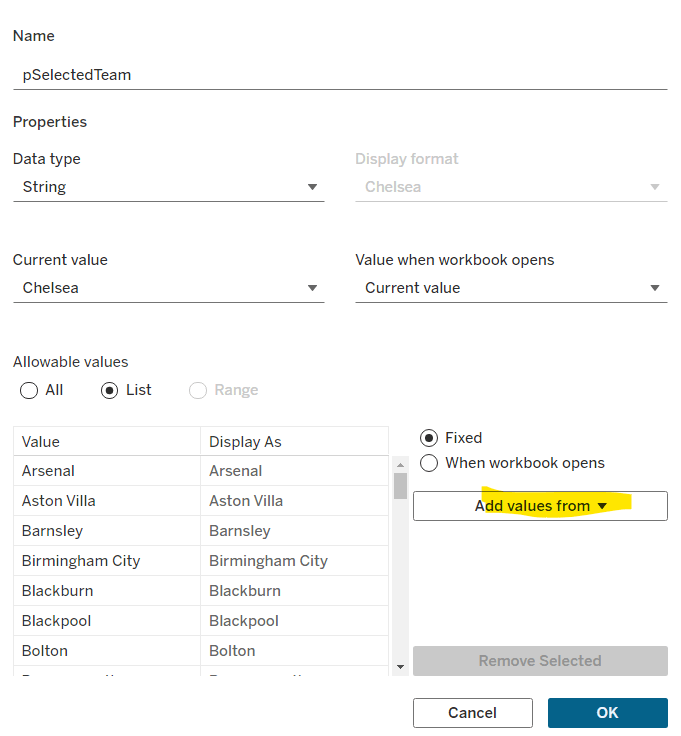
Can you build this segmented bar chart?

My #WOW2024 challenge this week, was to recreate this bar chart which displayed the total value in conjunction with the values split by another dimension, in this instance year. It was inspired by Sam Parsons’ film franchises viz.

The viz is built on a single sheet, and only uses 3 fields from the data set, the Order Date the Sub-Category and the Sales value.

Let’s build…

On a new sheet, add Sub-Category to Rows and Sales to Columns and sort by Sales descending. Add Order Date to Colour to build a basic stacked bar chart.

We need to be able to show two bars directly ‘side by side’, but with different properties, so we need to end up with 2 marks cards. The ‘heights’ of the bars need to differ, so we’re going to create a ‘fake axis’ on Rows to help.

Double click into the Rows shelf and manually type MIN(0.5)

Change the mark type to bar. Each bar is now positioned based on it’s specific value (ie not stacked).

To get the bars to be positioned where we want them, apply a Running Total Quick Table Calculation to the Sales pill in the Columns shelf. Then edit the table calculation so that is computes by Year of Order Date only.

Add Sales to the Size shelf, and edit the size to be Fixed and aligned Right. You should now have a stacked bar effect.

Add Sales to Tooltip, then add a Percentage of Total quick table calculation. Edit the calculation so it is computing by Year of Order Date.

Adjust the Tooltip to reference the relevant details (note in the above gif, and my original published version, at some point the labelling went awry and the label was showing the cumulative sales value, and not the value for that year).

So now we’ve managed to build a segmented bar chart in a ‘different way’ by using an axis and the size field. We build on this to get the total bar. As this bar needs to be wider than the segmented bar, double click into the Rows shelf and type MIN(1.5), then from the MIN(1.5) marks card, remove the Order Date field from Colour. We now have 2 bars – 1 segmented and 1 not.

Make the chart dual axis and synchronise the axis, then right click on the right hand axis and move marks to back.

On the Min(0.5) marks card, move Order Date from Colour to Detail. Then on the All marks card, click on the Colour shelf and adjust the colour to suit (I set to #dec7b6) and add a white border.

Adjust the Tooltips on both marks cards so the MIN(1.5) is just showing the Sub-Category and Sales value, while the MIN(0.5) card is showing the Order Date year and % of sales value as well.

Narrow the width of the rows. Hide the right hand and the bottom axis (uncheck show header).

We want to make each pair of bars more distinctive, by providing more space between them. Edit the axis to fix the axis from -0.3 to 1.5.

Now hide the axis, and the Sub-Category column heading (right click label and hide field label for rows). Remove all row/column divider lines, zero lines and gridlines. Set the worksheet background colour (I used #fefaf1). Adjust the colour/style of the Sub-Category labels (I used bold, brown) and align top right.

And ta-dah! this should be your finished viz. My published version is here.

We’re going to building on this in a later challenge (I felt putting it all together in a single challenge might be a bit much), so look out for Part 2 in a few weeks time.

Happy vizzin’!

Donna