Can you maintain rank?

Kyle set a challenge this week inspired by a chart Ann Jackson demoed at #data22 as part of her Advanced Speed Tips session with Lorna Brown. This was both an in person presentation and available virtually (hence the link to the video above). I couldn’t attend the in person session due to a clash, but I had already watched the session prior to this challenge being set, so I attempted to build from memory without referring back. To find out what to do, you can either watch Ann herself demonstrate via the link above, or read on 🙂

Building the WAR chart

Build a basic bar chart by adding Name to Rows and WAR to Columns

Whilst we could sort the data at this point, we’re going to leave for now, as we want the ‘ranking’ field to define the sort.

Now rather than use the RANK table calculation option, the essence of this being included in a tipping session, is to utilise the INDEX table calculation instead. By using INDEX, we don’t need to create as many fields as if we used RANK. We can reuse the INDEX across all the charts.

So, let’s create that field

Index

INDEX()

Format this to be a number with 0dp and prefixed by #

The INDEX() table calculation simply lists your rows or columns of data from 1 to however many entries there are. The Index can span the whole width/length of the table or can restart at intervals depending how you choose to partition/structure your table. You can also control how the data will be indexed based on how you want it sorted.

Add Index to Rows, then change it to be discrete (blue), and position in front of Name. Edit the table calculation setting so that it is computing using Name and is sorted by WAR descending.

We need to capture the name of a player, so we’ll create a parameter for this

pSelectedPlayer

String parameter defaulted to Ken Giffey Jr.

Show this parameter on the view.

We also need a field to identify whether the row matches the parameter

Is Selected Player?

[pSelectedPlayer] = [Name]

Add this to the Colour shelf and adjust accordingly.

Then re-edit the table calculation so it is computing by Is Selected Player as well.

Note – to prevent having to change the table calculation, the alternative is to make the Is Selected Player field on the Colour shelf an Attribute (just choose this setting from the context menu when you click on the pill).

Additionally add Is Selected Player to Rows before Index., the manually sort that field so True is listed first. This will move the relevant record to the top of the scree, but the rank number will be preserved.

Hide the Is Selected Player field (uncheck Show Header), and Hide Field Labels for Rows.

Adjust row dividers, so the divider is at level 1, and the header is dotted line, while the pane is solid.

Remove column gridlines, but add a column axis ruler.

Show mark labels, set them to be left aligned and the colour to match mark colour. You may need to widen the rows to see the labels display.

Add a border to the bars via the Colour shelf.

Format the Index and Name fields displayed – I used Tableau Regular font size 12, and right aligned the Index field.

Update the tooltip and add a header.

The final step, which we’ll do now, is to add a couple of fields to stop the rows from being highlighted when selected on the dashboard.

Create a field True = TRUE and False = FALSE, and add these fields to the Detail shelf.

Building the Batting Average chart

Create a basic bar chart with Name on Rows and BA on Columns. Add Is Selected Player to Colour and apply border.

Format the BA field using custom formatting of .000;-.000 then show mark labels, and left align and format as you did above.

Add Index to Rows, make discrete and move to be in front on Name. Adjust the table calculation to compute by Name and Is Selected Player and this time adjust the sort to use BA descending.

We now need to filter the data to only show the 5 rows above & below the selected index. First we need to identify them.

Selected Player Index

WINDOW_MAX(IF ATTR([Is Selected Player]) THEN INDEX() END)

The inner IF statement returns the index associated to the selected player. The WINDOW_MAX function then ‘spreads’ this value across all the rows in the data. So we can then identify the records we need

Records to Keep

[Index] >= [Selected Player Index]-5 AND
[Index] <= [Selected Player Index]+ 5

Add this to the Filter shelf and initially select all the values.

Now edit the table calculation settings of this field. It will now contain nested calculations – one related to Index and one related to Selected Player Index. Ensure both are computing by Name and Is Selected Player and both are sorting by BA descending.

Then edit the filter and just select True.

Now apply the tooltip, set the heading and format the headers, remove gridlines, row dividers etc.

Then follow the same steps to create similar charts of the OPS and HR measures, remembering to apply the sorts on the table calculations to the relevant field.

Adding the interaction

Once you have all four sheets built, add to a dashboard. Then create a parameter action to select the player from the WAR sheet.

Select Player

On select of the WAR sheet, set the pSelectedPlayer parameter passing in the Name field.

Then create a filter action to prevent the selection on the WAR sheet from remaining highlighted.

Unhighlight WAR

On selection of the WAR sheet on the dashboard, target the WAR sheet directly and use Selected fields, setting True = False.

Fingers crossed and you should now have a working dashboard. My published version is here.

Happy vizzin’!

Donna

Let’s build a trellis chart!

It only seems like yesterday I was writing a solution guide, and I’m back at it again. This week Sean asked us to recreate this challenge to build a small multiple / trellis chart using table calculations only.

A note on the data

After downloading and connecting to the provided data source, I found the dates weren’t coming through as intended – they’d been transposed from dd/mm/yyyy to a mm/dd/yyyy so consequently the only dates I was getting were for the first 12 days in January for every year. Rather than trying to solve this at source, I just created a new field which transposed the Date field back so it behaved as I expected

Date Corrected

(MAKEDATE(YEAR([Date]), DAY([Date]),MONTH([Date])))

You may not need to do this if the data pulls in correctly.

Filters

There are two filters that should be applied, which can either be added as data source filters (right click data source > Edit data source filters) or can be applied to the Filter shelf on any sheets created. Ultimately, this challenge only requires 1 sheet, but when building and verifying logic, I tend to have additional ‘check sheets’. I therefore added the filters below to the Filter shelf of the first sheet I started working with, but set them to apply to all worksheets using the data source (right click pill once it’s on the filter shelf -> Apply to Worksheets -> All using this data source).

Gender : All

Date Corrected : starting date = 01 Jan 2012

Setting up the data

As is good practice when working with table calculations, I start by building out the calculations I need and validating them in a tabular format before I build any vizzes. So let’s do that.

All the countries are displayed in capital letters, so we need

Country UPPER

UPPER([Country Name])

Add this to Rows

Additionally, for the purpose of validation and performance only, add this field to the Filter shelf too and just filter to Australia and Austria.

If you haven’t already added them as data source filters, apply the filters mentioned in the section above to this sheet too and set to apply to all worksheets using the data source.

Add Date Corrected to Rows as a discrete (blue pill) exact date. Format the date so it displays in month year format.

Add Unemployment Rate to Text. Format this number to 1 decimal place and add a % as a suffix.

Now for the table calcs

Median

WINDOW_MEDIAN(SUM([Unemployment Rate]))

Format this to display as a % using the same option as above. Add this to the table and set to compute using Date Corrected

You should find that your median value only differs by country.

Now we work out

Variance

SUM([Unemployment Rate]) – [Median]

Format this to display as a % and add to the table, setting the table calc to compute by Date Corrected again. This is the measure that will be used to plot the trend line against.

We also need to display the range of Unemployment rates for each country – ie we need to work out the minimum and maximum values.

Max Unemployment Rate

WINDOW_MAX(MAX([Unemployment Rate]))

Min Unemployment Rate

WINDOW_MIN(MIN([Unemployment Rate]))

Format both of these to display as 5 with 1dp, and add to the table, verifying the calculations are computing by Date Corrected once again. Verify you get the same values for all the rows associated to a single country.

Now we know the calculations are as expected, we can start to build out the viz.

Building the core chart

To start with we’ll just focus on getting the line chart with the associated text displayed for the two countries Australia & Austria. So on a new sheet add Country (UPPER) to Filter and filter to these selections. The other filters should automatically add.

Add Country UPPER and Date Corrected (green continuous exact date) to Columns and Variance to Rows. Set Variance to Compute By Date Corrected.

Add Unemployment Rate to the Tooltip and adjust the text to match.

To add the country title and other displayed text, we’re going to use a ‘fake axis’ and plot a mark at a central date. On hovering over the solution, October 2016 seems to be the appropriate date selected. So we need

Title Position to Plot

IF [Date Corrected] = #2016-10-01# THEN 1 END

Add this to Rows in front of the existing pill. Change the mark type of this measure only to a circle and re-Size to make it as small as possible and adjust the Colour Opacity to 0%. This will make the mark ‘disappear’.

Add Country UPPER, Median, Max Unemployment Rate and Min Unemployment Rate to the Label shelf of this marks card. Ensure all the table calculation fields are set to compute by Date Corrected. Adjust the text as required, and align centre. Ensure the Tooltip is blank for this marks card.

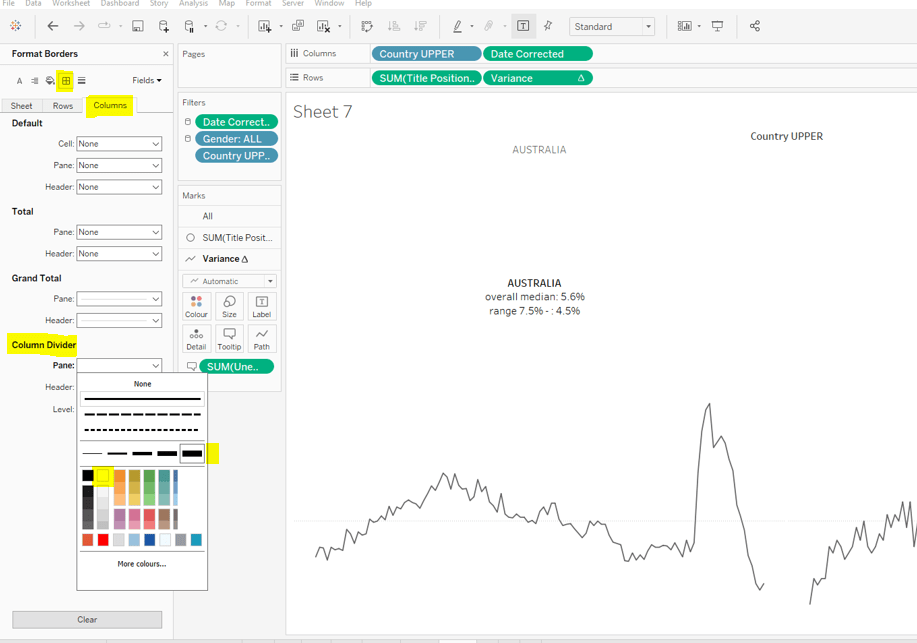
Change the colour of the variance line to grey, then remove all gridlines, row dividers and axis. Set the Column Dividers to be a thick white line (this will help provide a separator between the small multiples later).

Creating the trellis

There are multiple blog posts about creating trellis charts. My go to post has always been this one by Chris Love. It’s a more complex solution that dynamically flexes the number of rows and columns based on the number of members in the dimension you’re visualising. There have also been other Workout Wednesday challenges involving trellis charts, which I’ve blogged about too (see here).

Ultimately we’re aiming to determine a ‘grid position’ for each member of our dimension. In this case the dimension is Country UPPER and its a static list of 36 values, which we can display in a 6 x 6 grid. So Australia needs to be in row 1 column 1, Austria in row 1 column 2….. Costa Rica in row 2 column 1… USA in row 6 column.

As our members are static, the calculations we can use for this can be a bit simpler than those in Chris’ blog.

Firstly, let’s get our data in a tabular layout so we can ‘see’ the values as we go.

Duplicate the data sheet we built up, then move Measure Name and Date Corrected from Rows/Columns to the Detail shelf. Remove the Country UPPER field from the Filter shelf. You should have something like below, showing 1 row per country

Double click into the Rows shelf and type in INDEX(), then change the resulting pill to discrete (blue). You will see that index numbers every row. It’s a table calculation and although working as expected, let’s explicitly set it to compute using County UPPER.

Let’s now create our grid position values.

Cols

FLOAT(INT((INDEX()-1)%6))

This takes the Index value and subtracts 1, and returns the remainder when divided by 6 (%6=modulus of 6 – ie 6%6=0, 7%6=1). 6 is the number of columns we want.

Rows

FLOAT(INT((INDEX()-1)/6))

This takes the Index value and subtracts 1, and returns the integer part of the value when divided by 6. Again we’re using 6 as this is the number of rows we want to display.

Add these to the table, set to be discrete (blue) and compute using Country UPPER.

You can see that the first 6 countries are all in the same row (row 0) but different columns (0-5).

Now that’s understood, we can create the small multiples on the viz.

Duplicate the sheet we created further above which displays the trend graph for Australia & Austria. As we’re now going to make the changes to create the charts for every country, if things go a bit screwy, you can always get back to this one to try again :-).

Add Cols to Columns. Set to discrete and compute using Country UPPER. Add Rows to Rows and do the same thing. Move Country UPPER from Columns to the Detail shelf on the All marks card. Then remove Country UPPER from the Filter shelf.

Hopefully everything worked as expected and you have

Final step is to uncheck Show Header against the Cols and Rows pills so they don’t display and you can add to a dashboard.

My published viz is here.

Happy vizzin’!

Donna

Sales Budget “Burndown” Chart

Erica Hughes had a table-calc-tastic challenge for us this week! I was using Tableau before LoDs were invented, so became very familiar with the ‘dark art’ of table calculations, and subconsciously often turn to these first when solving problems. Since the advent of LoDs, this functionality can get forgotten about, so this is a great challenge to help flex those table calc muscles and become a good reference point.

With any table calc challenge, I work out what I need in a tabular form before even attempting any visual, so that’s where we’ll start today.

I also tend to ‘build up’ the calculated fields I need, as this helps me validate the data I’m working with. It means I end up with more calculated fields than absolutely necessary, but it’s a good practice to get in as it eases troubleshooting in the long run.

In this example, we need to treat Sales as if it’s a budget that is then being ‘spent’ over the course of the following months. The first thing we need to define is the total budget

Total Sales

TOTAL(SUM([Sales]))

We then need to understand the cumulative (running sum) of Sales per month.

Running Sum Sales

RUNNING_SUM(SUM([Sales]))

Notethis calculation can be achieved by applying a Quick Table Calculation to the Sales pill once added to a view, but I will need to reference the values in other calculated fields, so created the field directly.

Let’s start building out our table of data to see what’s going on with these calculations.

Add Order Date to Rows and set so its displaying the date in the Month Year format

Then add Total Sales, Sales and Running Sum Sales

The Total Sales column will be the same for every row and match the same value in the last row of the Running Sum Sales column. The value in each Running Sum Sales row is the sum of the Sales value in the same and all preceding rows.

By default the table calculations are working ‘down’ the table which gives the desired result, but I tend to ‘fix’ the field the calculation is computing over, as when we build the viz we won’t be going ‘down’, but ‘across’, so fixing helps ensure we get all our settings just right.

So edit the table calculation of both the Total Sales and the Running Sum Sales fields to compute using Month of Order Date.

With these fields, we can calculate the ‘sales budget’ value being displayed as

Total Less Running Sum Sales

[Total Sales]- [Running Sum Sales]

Pop this on the view and verify the table calculation settings are set as above (this field contains nested calcs, so check each setting). You should be able to verify the value of this column is the result of the 1st column – 3rd column values

But there’s a twist.

The requirements state that “for dates in the future, the sales budget should remain constant”.

For this we need to work out what month ‘today’ is in. For this task, I have hard coded ‘today’ into a parameter called Today and set to 8th March 2022. If this was a ‘real’ production business dashboard, I’d just refer to the function TODAY() directly.

I can then work out

Current Month

DATETRUNC(‘month’, [Today])

which will return 01 March 2022 in this instance.

I then want to identify the record that matches the current month

Is Current Month?

DATETRUNC(‘month’, [Order Date]) = DATE([Current Month])

which just returns a boolean True/False.

And with this, I can then determine the value from the Total Less Running Sum Sales column that is associated to March 2022, and ‘spread’ that value across every row in the view.

Curr Month: Total Less Running Sum Sales

WINDOW_MAX(IF ATTR([Is Current Month]) THEN [Total Less Running Sum Sales] END)

If the month in the row is the current month, get the required value and ‘spread’ over every other row using WINDOW_MAX. Add this to the view, checking your table calc settings again.

Now we can work out the values needed for the Sales Budget line

Sales Budget

IF MIN(DATETRUNC(‘month’, [Order Date])) > MIN(DATE([Current Month])) THEN [Curr Month: Total Sales Less Running Sum Sales] ELSE [Total Less Running Sum Sales] END

Format this to $, Millions (M), 1dp.

If the month is later than the current month, use the value associated to the current month, otherwise use the Total Less Running Sum Sales value. Note here, the date functions are wrapped within a MIN function as the other fields are table calculations which means they’ve been aggregated, so all other fields referenced need to be aggregated to. The function MAX will have worked just as well.

Phew! we’ve finally got the data we need for the first line :-). As mentioned earlier, this can be achieved by combining some of the logic in the calcs, but I like to be methodical and verify my numbers give me what I expect at each stage.

In order to display the Estimated Budget line, we need to first work out how much of the total sales would be spent each month, if the same amount was spent each month – ie Total Sales divided by number of months.

Size (Count of Months)

SIZE()

I just chose to use the SIZE() table calculation to essentially count the number of rows in my view.

Estimated Budget Constant

//average the sales over the total months to get a constant budget
[Total Sales] / [Size (Count of Months)]

Add these into the view and adjust the table calc settings as before

essentially Total Sales (2,297,201) / Count of Months (48) = Estimated Budget Constant (47,858).

Like before, we need to compute running sum of this estimated budget

Running Sum Est Budget

RUNNING_SUM([Estimated Budget Constant])

and then we can calculate the Estimated Budget

Total Less Running Sum Est Budget

[Total Sales] – [Running Sum Est Budget]

This now gives us the data to plot the 2nd line.

The final calculation we need for the tooltip is the difference between the sales budget and estimated budget

Difference to Estimated

[Sales Budget]- [Total Less Estimated Running Sum]

format this using a custom format of +”$”#,##0,K;-“$”#,##0,K

Now we can build the viz! I tend to keep sheets like above in any workbook as a ‘check sheet’ if I need to do any troubleshooting later on.

So on a new sheet, add Order Date to Rows and set to be a continuous (green) month/year format this time. Add Sales Budget to Columns. Adjust the table calculation so all nested calculations are computing by Order Date.

Add Total Less Estimated Running Sum to Columns (set the table calc settings), then change to dual axis and synchronise axis.

Remove Measure Names from the All Marks card to remove the colours that have been set. Change the Colour of the Sales Budget line to purple, and set the markers to have circles.

From the Analytics tab, drag a Trend Line to the canvas and drop it as a linear trend on the Total Less Estimated Running Sum measure

This will add the ‘dotted’ line.

On the Total Less Estimated Running Sum marks card, set the Opacity of the Colour to 0%, so only the grey dotted trend line is visible.

Edit the trendline and uncheck Show recalculated line for highlighted or selected data points

Add Current Month to the Detail shelf of the All Marks card, and set to the month/year format. Then right click on the Order Date axis and Add Reference Line, setting the values as below

Right click on the reference line, and Format; adjust the alignment and font size & colour, so ‘Future’ is listed at the top.

Add Difference to Estimated onto the Tooltip of the Sales Budget card (adjust those table calc settings). The format the tooltip accordingly.

Add Curr Month: Total Sales Less Running Sum Sales to the Detail shelf of the All Marks Card (adjust those table calc settings). Edit the title of the viz

Finally tidy up the display by removing axis, row and column banding etc, and adjust the Sales Budget axis so it displays every 500,000.

And that should be it… my published viz is here.

Happy vizzin’!

Donna

Can you visualise percent difference from a selected date?

Lorna Brown returned this week with her first challenge of 2022 which was aimed at practising tableau calculations, although when I completed the build, I realised I actually didn’t use any – oops! I’d ended up using an LoD based solution instead. As is often the case in Tableau, there can be multiple ways to solve a problem, so I created another solution involving table calcs. As I blog I will endeavour to provide both sets of calculations used and make it obvious when I do so. Hopefully, it’ll all make sense 🙂

Building the calculated fields

After connecting to the data, the first step I did was to create a parameter to store the ‘selected date’. I hard coded/defaulted this to 1st Nov 2020.

pSelectedDate

Date parameter defaulted to 01 Nov 2020

Show this on the worksheet, so you can test what happens when you manually change it later.

As I typically do, I’m going to work in a tabular format to sense check all the calculations we’re going to need before I start visualising the information graphically.

To start add Company then Date (set to exact date & discrete) to Rows then add Close to Text and change the aggregation to AVG.

I now want to work out what the value of the average Close is on the selected date (in this case 01 Nov 2020) for each company, and I want this value to be displayed against every row associated to that company.

Close on Selected Date per Company

LOD Option

{FIXED [Company]: AVG(IF [pSelectedDate]=DATETRUNC(‘month’,[Date]) THEN [Close] END)}

Table Calc Option

WINDOW_MAX(AVG(IF [pSelectedDate]=DATETRUNC(‘month’,[Date]) THEN [Close] END))

Drag this field onto the table. If you’re using the LoD option, change the aggregation to AVG (although as we’re working with the data at the lowest granularity, SUM gives the same value, it just makes ‘more sense’ to me). If you’re using the Table Calc option, change the table calculation so that it is computing by Date only. In the below screen shot, I have included both versions of the calculation which match each other. Scrolling down, you should be able to verify that the value displayed in the new field(s) for all rows for a specific company, matches the value in the first column for the selected date. Test by entering different dates in the parameter (though make sure you’re just entering 1st of month each time, as that is what our Date field contains).

Now that for each row we have an average Close value and the average Close value on a specific date, we can work out the percentage difference for each row.

% Diff from Selected Date

LOD option

(AVG([Close])-AVG([Close on Selected Date per Company]))/AVG([Close on Selected Date per Company])

Table Calc option

(AVG([Close])-[Close on Selected Date per Company])/[Close on Selected Date per Company]

There is a slight difference in the syntax as the table calc option is referring to a field that is a table calculation and which is already aggregated, so there’s no need to aggregate again (ie wrap in an AVG…. Tableau will error if you try to do this).

Format this to a Percentage with 0 dp.

Once again I am choosing to show both versions on the screenshot below. Again if you’re using the table calc version, you need to verify the calculation is set to compute by Date only.

So now we have the core fields we need to start building the viz.

I am now just going to refer to the calculated field names I’ve mentioned above and not differentiate between LoD or table calc version. The only thing to remember is when adding the table calc fields, set the compute by, and if you’re using the LoDs, set the aggregation to AVG (although SUM will work too due to the level of aggregation we’re at).

Building the viz

On a new sheet add Date to Columns and set to the continuous Month level or exact date (either will work in this instance, since we only have 1 date per month in the data set). Add % Diff from Selected Date to Rows. Add Company to Colour and adjust to suit (use the hue circle colour palette).

Add Company to the Label shelf and also add % Diff from Selected Date to the Label shelf.

Adjust the Label settings, so the labels only display at the end of the line.

To make the text match the mark colour, click Label >then expand the Font dialog by clicking the arrow to the right, and select Match Mark Colour.

To format the % value displayed, right-click on the % Diff from Selected Date pill on the Text shelf, and select format. In the formatting pane that appears on the left hand side, change the number formatting to custom â–²0.0%;â–¼0.0% ( I use this site to get the shapes I need – just copy and paste)

Now rearrange the text on the label so that company is displayed first.

To format the Date field within the tooltip and the axis, right click on the Date pill in Columns and select format. On the Format Date pane on the left hand side, set the Dates value on the Pane tab, in the Default section, to custom : mmm yy. Then click on the Axis tab and set the Dates value in the Scale section to the same custom mmm yy value.

The Tooltip

We need quite a few fields on the Tooltip to get the information required.

Add Close and Close on Selected Date per Company to Tooltip. We also need a couple more calculated fields

TOOLTIP – Selected Date

[pSelectedDate]

format this field to custom mmm yy

TOOLTIP – % Diff

[% Diff from Selected Date]

Format this to % with 0 dp.

Add both these to the Tooltip too, then adjust the wording on the tooltip as required.

The Reference Line

Add pSelectedDate to the Detail shelf. Then right click the date axis and Add Reference Line. Adjust the settings so there is a Line for the Entire Table, which references the pSelectedDate value and has a custom Label of Reference Date: <Value>. Set the tooltip to None and the Line to be dotted

Format the pSelectedDate value displayed, by right clicking on the pill on the Detail shelf and set the Dates format on the Pane tab to mmm yy.

The right click on the Reference Date: Nov 20 label itself and select Format, and change the alignment to the top.

Finally, remove the axes titles, remove the gridlines and all axes rulers and change the worksheet background colour. Again, format the reference line label, so there is 0 transparency.

Test the visualisation by manually changing the date of the parameter to the 1st of another month and seeing how the viz updates.

Building the interactivity

Add the sheet to a dashboard, then create a parameter action, the runs on select of a mark on your sheet. It should change (target) the pSelectedDate parameter passing in the Date field

The only problem with this, is that when selecting a mark, the line relating to the mark is highlighted while the others ‘fade’ into the background. To prevent this from happening :

  • Create a new calculated field called True which contains the value True
  • Create a new calculated field called False which contains the value False
  • Add both these fields to the Detail shelf on the line chart.
  • Add a Dashboard Filter action, which runs on select, and has the sheet on the dashboard as it’s source, and the sheet in the workbook as it’s target. Set to show all values when selection is cleared, and filter by selected fields, setting True = False.
And with that, you should have a functioning solution – there just may be a few further formatting tweaks to apply.

My published vizzes are here

Happy vizzin’! Stay Safe!

Donna

Can you create a moving average chart with a focus on selected subcategories?

Following the #WOW survey where practice in table calculations was the most requested feature, Lorna continues with the theme in this challenge, where the focus is on the moving average table calculation, plus a couple of extra features thrown in.

Moving average

This is based on the values of data points before and after the ‘current’ point, as defied by the parameters which will need to be created.

pPrior

Integer parameter ranging from 1 to 6 and defaulted to 3. You need to explicitly set the Step size to 1 to ensure the step control slider appears when you add the parameter to the dashboard. This will be used to define the number of data points prior to the current to use in the calculation.

Create an identical parameter pPost to define the number of data points to use after the current one.

With these parameters, we can now create the core calculation

Moving Avg

WINDOW_AVG(SUM([Sales]), (-1*[pPrior])+1, [pPost])

As the requirement states that the ‘prior’ parameter needs to include the ‘current’ value, then we need to adjust the calculation – ie if the parameter is 3, we actually only want to include 2 prior data points, as the 3rd will be the current point itself. This is what the +1 is doing in the 2nd argument of the function.

Lorna has stated that 3 Sub-Categories are grouped to form a Misc category, so we need to create a group off of Sub-Category (right click Sub-Category -> Create -> Group).

Multi-select the 4 options that need to be grouped (hold down Ctrl as you select), and then group, and rename the group Misc.

Now we can check what the calculation is doing. If you add the fields onto the view as below, and set the Moving Avg table calculation to compute using Month of Order Date only (see further below), you should be able to see that each month’s moving avg value is calculated based on the sales value of the set of previous & post months as defined by your parameters. In the image below the Moving Avg for Accessories in June 2018, is the average of the Sales values from April 2018 – Sept 2018.

With this you can start the beginnings of the viz – don’t forget to set the table calc as above.

Colouring the lines

This will be managed by using a set.

Right click on the Sub-Category (group) field -> Create -> Set. Initially select all values. Add this field to the Colour shelf. Additionally, click the Detail symbol (…) to the left of the Sub-Category (group), and select the Colour symbol, so this field is also added to the Colour shelf.

The resulting colour legend will look something like this
Edit the colour legend, then choose Hue Circle and select Assign Palette to randomly assign colours to all the options

To show the set values, click on the context menu of the Sub-Category (Group) field on the Colour shelf, and Show Set.

This will add the list of options for selection

Uncheck All so none are selected, which will change the colour legend to read ‘Out, xxx’. Edit the colour legend again, and control-click to multi select all options, then set to a single grey

Now if you select a few options, the ones selected will be coloured, while the others remain grey

Additionally add the set field onto the Size shelf and make the In option bigger than the Out.

Shading the background

For this we need to create an unstacked area chart with one measure representing the maximum moving average value for the month, and the other representing the minimum moving average value for the month. We’ll need new calculated fields for this:

Window Max Avg

WINDOW_MAX([Moving Avg])

Window Min Avg

WINDOW_MIN([Moving Avg])

If you’ve still got your data sheet available, then move Sub-Category (Group) onto Rows, then add the two newly created fields.

In this case there are ‘nested’ table calcs. You need to ensure the setting related to the Moving Avg is computing by Month Order Date only, but the setting related to the Window Max Avg (or Window Min Avg) is computing by Sub-Category (Group).

If set properly, you should see that for each month the max / min values are displayed against every row.

Back to your chart viz sheet, and add Window Max Avg to Rows. Set the table calc settings as described above, then remove the Sub-Category (group) Set field from the Colour shelf of this measure, and change the Sub-Category (group) to be on the Detail rather than Colour shelf.

Change the mark type to Area, set the Opacity of the colour to 100% and set stack Marks to be Off (Analysis Menu -> Stack Marks -> Off).

Now drag Window Min Avg onto the Window Max Avg axis and drop it when the ‘2 columns’ image appears.

This will change the view so Measure Values is now on the Rows shelf and Window Min Avg is now displayed in the Measure Values section on the left hand side.

Adjust the table calc setting of Window Min Avg to be similar to how we set the Max field. And now drag the fields so Window Min Avg is listed before Window Max Avg. Measure Names will now be on the Colour shelf of this marks card, so adjust so Window Min Avg is white and Window Max Avg is pale grey.

Now make the chart dual axes, synchronise the axes, and set the Measure Values axis to the ‘back’.

Everything else is now just formatting and adding onto a dashboard. My published viz is here.

Happy vizzin’! Stay Safe!

Donna

Let’s go streaking!

It was Sean Miller’s turn to set the challenge this week, where the primary focus was to find the highest number of consecutive months where the monthly sales value was higher than the previous month.

This was a table calculations based challenge, and I always tackle these by building out the data required in a tabular format. The challenge was also reminiscent of a previous challenge Sean has set, which I’ve blogged about here, and admit I used as a reference myself.

So let’s get started.

To start with, we need the month date, the Sub-Category, the Sales value and the difference in Sales from the previous month. For the month date, I like to define this explicitly

Order Date Month

DATE(DATETRUNC(‘month’,[Order Date]))

This aligns all Order Dates to the 1st of the relevant month.

Add Sales Category, Order Date Month (set to discrete exact date blue pill), and Sales into a view, then set a Quick Table Calculation of Difference on the Sales pill

Edit the table calculation to compute by Order Date Month only, so the previous calculation restarts at each Sub-Category.

Then drag this pill from the marks card into the left hand data pane to ‘bake’ the calculated field into the data model. Name the field Sales Diff. The re-add Sales back into the view too, so you can double check the figures.

Identify whether there is an increase with the field

Diff is +ve

IF [Sales Diff]>0 THEN 1 ELSE 0 END

Add this into the view too, and verify the calculation is computing by Order Date Month only again.

Now we need to work out if the row matches the previous value

Match Prev Value

LOOKUP([Diff Is +ve],-1) = [Diff Is +ve]

The LOOKUP is looking at the previous row (identified by the -1) and comparing to the current. If they match then it returns True else False.

Again add into the view, and again double check the table calc settings. In this case there is nested calculations so you need to double check the settings against each calc referenced in the drop down

Now we need to work out when there are consecutive increases, and how many of them there are

Increase Streak

IF (NOT([Match Prev Value])) AND ([Diff Is +ve] = 1) THEN 1
ELSEIF [Diff Is +ve] = 1 THEN ([Diff Is +ve]+PREVIOUS_VALUE([Diff Is +ve]))

END

If the current row has a +ve difference and the previous row wasn’t +ve, then we’re at the start of an increase streak, so set to 1. Else, if the current row has a +ve difference then we must be on a consecutive increase, so add to the previous row, and this becomes a recursive calculation, so builds up the values..

Add this onto the view, set the table calc settings, and you can see how this is working…

So now we’ve identified the streaks in each Sub-Category, we just want the maximum value.

Longest Streak

WINDOW_MAX([Increase Streak])

Add this and set the table calc setting again. You’ll see the max value is spread across every row per Sub-Category.

Finally we need to identify Sales values in the months when the streak is at its highest.

Sales of Month with Longest Streak

IF [Longest Streak]=[Increase Streak] THEN SUM([Sales]) END

Add this into the view again (don’t forget those table calc settings), and you’ll notice that for some Sub-Categorys there are multiple points with the same max streak

With all this we can now build the viz, which is relatively straight forward….

Add Order Date Month (exact date, continuous green pill) to Columns, Sub-Category to Rows and Sales to Rows. Edit the Sales axis to be independent, then change the line type of the Path to stepped

Add Sales of Month with Longest Streak to Rows and set to dual axis, and synchronise. Make sure the mark type of the 2nd axis is set to circle, and remove Measure Names from the colour shelf of both marks.

Manually set the colour of the line chart to grey. Add Longest Streak to the Colour shelf of the circle marks card. Adjust the colour to use the green palette, set to stepped of 5 value and ensure the range starts at 0 and ends at 5 (don’t forget to edit the table calc settings!).

Now add Longest Streak as a discrete blue pill to the view too.

This is all the core components. The last thing we need to do is sort the list. I wasn’t entirely sure how it had been sorted, apart from the largest Longest Streak at the top. I created a new field for this

Sort

[Longest Streak]*-1

and added this as a blue discrete pill in front of Sub-Category….

…, then hid the column.

Then just apply the tooltip and relevant formatting on the chart.

For the legend, I created a new field

Legend

CASE [Sub-Category]
WHEN ‘Art’ THEN 0
WHEN ‘Chairs’ THEN 1
WHEN ‘Labels’ THEN 2
WHEN ‘Paper’ THEN 3
WHEN ‘Phones’ THEN 4
ELSE 5 END

and added this into a new sheet as below

The components then just need to be added to the dashboard. My published version is here.

Happy vizzin’! Stay Safe!

Donna

Profitability with Dual Axis Charts

Luke Stanke returned for this week’s challenge, to build a pareto chart & bar chart on an unsynchronised dual axis. The crux of this challenge is table calculations, so as with any challenge like this, I’m going to build out what I need in tabular form first, so I can thoroughly validate I’m getting the right values. Once that is done, I’ll build the chart, then finally I’ll look at how to get the measures needed for the subtitle text.

  • Defining the core calculations
  • Building the chart
  • Working out the measures for the subtitle

Defining the core calculations

For the pareto, we need to plot % of orders against cumulative profit, so we need to build up some fields to get to these.

Add Order ID to Rows and Profit to Text and sort by Profit descending.

For the cumulative profit, we can add a Running Total Quick Table Calculation to the Profit pill

Add another Profit pill back into the view, and you can see how the table calculation is adding up the values of the Profit from the previous rows.

The triangle symbol indicates the field is a table calculation. By default, if you edit the table calculation, the calculation is computing down the table. I always choose to ‘fix’ how my calculations are computing, so that the values don’t inadvertently change if I move the pill elsewhere. So I recommend you set the table calc to Compute Using Order ID

I also want to ‘bake’ this table calculation into the data model (ie create a dedicated calculated field) that I can pick up and reuse. The simplest way to do this is to press Ctrl, then drag the field into the left hand data field pane (this will effectively copy the field rather than remove it from the view). Name the field and then you can verify it’s contents.

Cumulative Profit

RUNNING_SUM(SUM([Profit]))

So that’s one of the measures we need. Onto the next.

First of all we need to get a cumulative count of the number of orders.

Count Orders

COUNTD([Order ID])

Add this to the measures and it will display the value 1 per row (since each row is an order). Add a Running Total Quick Table Calculation to this field too, and again set to Compute Using Order ID. ‘Bake’ this into the data model too, by dragging the field as described above, and create a new field

Cumulative Order Count

RUNNING_SUM([Count Orders])

Now we need to get a handle on the total number of orders. I could do this with a LoD, but will stick with table calcs

Total Order Count

WINDOW_SUM([Count Orders])

Add to the view, and compute using Order ID again.

Now we can calculate the cumulative % of total orders

Cumulative % of Total Orders

[Cumulative Order Count]/[Total Order Count]

Format this to a % with 2 dp.

Add to the view and again compute using Order ID. You should see the values increase until 100%.

NOTE – I could have got this value by adding a Running Total table calculation to the Order Count field, and then editing that table calculation and adding a secondary table calculation to get to the % of total. However, I want to be able to reference the output of this field later on, so having a dedicated calculated field is the better option.

Ok, so now we have the 2 measures we need to plot the basic chart – Cumulative Profit and Cumulative % of Total Orders.

Building the chart

I typically start by duplicating the data sheet and then moving pills around

  • Duplicate Sheet
  • Remove Cumulative Order Count and Total Order Count
  • Move Order ID to the Detail shelf. Reset the sort on this pill to sort by Profit Descending
  • Remove Measure Names
  • Move Cumulative Profit to Rows
  • Move Cumulative % of Total Orders to Columns
  • Move Profit to Tooltip
  • Change mark type to Line
  • Add Sales to Tooltip and adjust tooltip accordingly

The chart needs to be coloured based on whether the marks has a profit > 0 or not. So for this we need

Profit is +ve

SUM([Profit]) >0

Add this to the Colour shelf and adjust accordingly.

Now we can add the second axis by adding Sales to the Rows shelf, then

  • Change mark type of the Sales marks card to bar
  • Remove the Profit is +ve field from the Colour shelf
  • Change the size to the smallest value
  • Adjust the tooltip
  • Make dual axis
  • Bring the Cumulative Profit axis to the front (right click on the axis > move marks to front)

Now the chart just needs to be formatted

  • remove column and row borders
  • edit the axis titles
  • format all the axes to to 8pt, and change the font of the axis title to Times New Roman
  • format the % of Total Orders axis to be 0dp

Working out the measures for the subtitle

For this, we are going to revert back to the tabular view.

We need to identify the point at which the Profit value starts to become negative. Let’s add the Profit is +ve field to Rows.

We’re looking for the row highlighted, which is the row where the previous value is true, while itself is false, which is achieved by

Profitable Marker

LOOKUP([Profit is +ve],-1) AND NOT([Profit is +ve])

Let’s add this now (ensuring the compute using Order ID)

We need to get a handle on the Cumulative % of Total Orders value for this row, but spread it across all the rows in data set, which we can do by

% of Total Profitable

WINDOW_MAX(IF [Profitable Marker] THEN [Cumulative % of Total Orders] END)

Add this on, compute by Order ID, and you can see the value for the ‘true’ line is displayed against every row. Format this field to % 0 dp.

For the potential profitability decrease, we need to get the Cumulative Profit value for the Profitable Marker row, along with the final (total) Cumulative Profit value.

Total Cumulative Profit

WINDOW_MAX(IF LAST()=0 THEN [Cumulative Profit] END)

This takes the value from the very last row in the data and again spreads across the all the rows.

With this, we can now work out the potential decrease

Potential Profitability Decrease

WINDOW_MAX(IF [Profitable Marker] THEN ([Cumulative Profit]-[Total Cumulative Profit])/[Cumulative Profit] END)

of the profitable marker row, take the difference between the ‘current’ cumulative profit and the final cumulative profit, as a proportion of the current value. Spread this across every row. Format to % of 0dp.

Now, as we have worked out these 2 values, % of Total Profitable and Potential Profitability Decrease to be the same across every row, you can add them to the Detail shelf of the All marks card on the chart viz, and reference them in the Title of the viz. (Don’t forget to ensure all table calc fields are set to compute using Order ID).

My published viz is here.

Happy vizzin’! Stay Safe!

Donna

Can you do Comparative Quantity Analysis?

For this week’s challenge, Sean wanted to test us on a particular aspect of Tableau – the use of INCLUDE & EXCLUDE LOD expressions, although he then finished off the challenge intro with the statement “You can complete this challenge however you like but just DON’T USE A FIXED LOD”.

Like many, I am pretty comfortable using a straightforward FIXED LoD, but rarely get INCLUDE & EXCLUDE ‘out of my toolbox’. I usually end up using them because I’ve followed an example online to achieve a specific task. With this challenge, I had every intention of trying to make use of these ‘lesser used’ LoDs when I started out.

However I did struggle. I got to a point where I knew what I’d do with table calculations, but however I tried with various LoD statements, I couldn’t get the behaviour I desired. And at this point, I had a working solution that hadn’t used FIXED LoDs either, so based on Sean’s closing statement, I had achieved a result. When doing these challenges, I do have to consider how much of my time to devote to them (although COVID restrictions does mean my home/family/social life if not as busy at the moment), so I chose to publish so I could feel content I had completed the challenge. However, there was a niggle, that I hadn’t managed to apply the functions the challenge was really testing for.

A twitter post the next day from a fellow #WOW participant Nik Eveleigh, calling out how helpful Tim Ngwena‘s Include LoD YouTube video was, piqued my interest, and that evening I set about watching the video, and subsequently managing to create another solution using the required INCLUDE & EXCLUDE LoDs, without any table calculations either.

So for this blog, you’re gonna get two solutions 🙂 I’ll explain the various fields required for each solution, and build out a tabular view to demonstrate. Building the view is then pretty much the same.

  • Getting Started
  • The Table Calculation Solution
  • The LoD Solution
  • Building the Viz
  • Adding the dashboard interactivity

Getting Started

First up, just a note about the data set. You need to use the Superstore dataset, but need a version that includes the Manufacturer field. This doesn’t seem to exist by default in the excel file included as part of Tableau’s install. So I used the data provided by Sean on data.world.

Secondly, once connected to the data source, we’re going to need a parameter that is ultimately going to be used to drive the dashboard interactivity later on. The parameter needs to store the value of the Sub-Category the user has selected on the chart. The parameter is required regardless of which solution you choose to follow.

pSelectedSubCat

This is a string parameter that contains the text Fasteners by default. Create this and then show it on the view.

The Table Calculation Solution

The first measure being displayed on the viz is the average Quantity by Manufacturer for each Sub-Category; that is for the total quantity of goods sold against each sub-category, how much on average did each manufacturer order?

Count Manufacturer

COUNTD([Manufacturer])

Identifies the distinct number of manufacturers

Avg Qty

SUM([Quantity])/[Count Manufacturer]

Lets put these fields out into a table, so we can see the values. I’ve sorted the rows by Avg Qty descending, and you can see the values match the required output.

Now we need to identify the Avg Qty associated to the selected Sub-Category.

Selected Avg

IF [pSelectedSubCat]=MIN([Sub-Category]) THEN [Avg Qty] ELSE 0 END

This will return the value we want for the row that matches the value of the parameter, and 0 otherwise. The Sub-Category dimension is wrapped in MIN as Avg Qty is an aggregated value, so the dimensions also need to be aggregated. MAX or ATTR will work as well.

Pop this field onto the table.

For the next step, we need to find a way to ‘replicate’ this 152 value across all the rows displayed. When building, I knew exactly what I would do next with a table calc, but I thought this is where the LoD needed to be used, and despite my best efforts I just couldn’t figure it, but more on that later. For now, we’re going to use a table calculation to replicate the value across the whole ‘window’.

Avg of Selected Sub Cat

WINDOW_MAX([Selected Avg])

This is basically looking for the maximum value of the Selected Avg field, which is 152 (as all the other values are 0).

Add this to the view, and set the table calculation to compute using Sub-Category. This is just good practice when using table calcs, as it means wherever the pill gets moved to in the view, it will retain the same computation.

Variance

[Avg Qty]-[Avg of Selected Sub Cat]

Add this onto the table, and again set the table calculation to compute by Sub-Category.

If you change the value in the pSelectedSubCat parameter, you’ll see the last 3 columns change.

So now we’ve just got a few more fields to create that we’ll need on the viz.

We need to be able to identify the selected Sub-Category which will be used to colour the bars.

Is Selected Sub Cat?

[Sub-Category]=[pSelectedSubCat]

The tooltip also shows the text ‘more’ or ‘less’ when describing the display, so we need a field for this

TOOLTIP: more or less

IF [Variance] <= 0 THEN ‘less’ ELSE ‘more’ END

And finally, the tooltip displays the variance as an absolute number, so we need a field for this too

TOOLTIP:Variance

ABS([Variance])

So this is all the core fields you’ll need to build the solution, so if you’re not interested in the LoD route, skip over the next bit 🙂

The LoD Solution

After watching Tableau Tim’s video, I realised why I had struggled to get an LoD solution to work. I needed to revisit my approach to calculating the average quantity, a step I hadn’t originally considered.

Now in the interest of time, I’m not going to write out why the calculation below works in detail when Tim demonstrates it so eloquently in his video 🙂

Qty Inc Manufacturer

{INCLUDE [Manufacturer] : SUM([Quantity])}

This field is going to help us get our ‘average quantity’ value.

Add Sub-Category, Quantity and Qty Inc Manufacturer into a tabular view, and change the aggregation of the Qty Inc Manufacturer pill from SUM to AVG. Order by this field descending, and you can see we have the same values as the Avg Qty field I created in the above solution.

This time, I’m going to start with the field to identify the selected Sub Category.

Is Selected Sub Cat

[pSelectedSubCat]=[Sub-Category]

Then we need to identify the value associated to the selected sub category, and will do this with two fields

Selected Qty

IF [Is Selected SubCat] THEN [Quantity] END

Selected Qty Inc Manufacturer

{INCLUDE [Manufacturer] :SUM([Selected Qty])}

Add these onto the view, and you can see the behaviour. Note this time I chose not to bother with an ‘Else 0’ statement (it wasn’t necessary for the above either).

Now we want to be able to ‘spread’ this value across all rows, and the Comparative Sales Analysis example in this Tableau blog post helps here (and I’ve just seen that Tableau Tim has produced an EXCLUDE LoD video too, which I’m sure will explain things very well).

Overall Selected Qty Inc Manufacturer

{EXCLUDE [Sub-Category], [Is Selected SubCat]: AVG([Selected Qty Inc Manufacturer])}

Note – I found I needed to add the Is Selected SubCat dimension into the statement, to get the tooltips working on both the bar charts.

And once again, we can now compute the variance, and the variance required for the tooltip, and the more or less values:

Variance

AVG([Qty Inc Manufacturer]) – MIN([Overall Selected Qty Inc Manufacturer])

TOOLTIP:Variance

ABS([Variance])

TOOLTIP : more or less

IF [Variance] <= 0 THEN ‘less’ ELSE ‘more’ END

Building the Viz

To build the viz

  • Add Sub-Category to Rows
  • Add Avg Qty (or Qty Inc Manufacturer set to AVG) to Columns. Sort by the field descending.
  • Add Variance to Columns
  • On the Avg Qty marks card, add Is Selected Sub Cat to the Colour shelf and adjust accordingly
  • On the Variance marks card, add Variance to the Colour shelf, and notch down the transparency to about 75%
  • Add TOOLTIP:Variance and TOOLTIP:more or less to the Tooltip shelf of the All marks card
Then it’s just a case of formatting the display and the tooltips.

Remember – if you’re working with the table calc solution, make sure all the table calculation fields in the display (those with the triangle symbol) have all been set to compute by Sub-Category.

Adding the dashboard interactivity

When you click on a Sub-Category, the variance needs to change. This is managed via a Parameter Dashboard Action. Once the viz has been added to a dashboard then add a dashboard action that on select of the viz, sets the pSelectedSubCat parameter, with the value of the field from the Sub-Category dimension.

There’s also an additional feature in this dashboard that stops the selected field from being highlighted on click. To stop this from happening, create 2 new fields

True

True

False

False

Add both of these to the Detail shelf on the All marks card of the chart viz.

Then on the dashboard, add a dashboard filter action, which on select targets the chart sheet, and maps True to False. As this is never a match ie ‘true’, the filter doesn’t apply.

Hopefully I’ve covered everything. My published vizzes are here

Happy vizzin’! Stay Safe!

Donna

Can you use the Brush Filter Extension?

For this week’s challenge, Sean Miller decided to continue with the theme of dashboard extensions, introducing the brush filter extension. The whole of the top section is the extension, so there’s actually only a single chart that needs to be built for this challenge. The main areas of focus for this blog are

  • The basic chart
  • Colouring the chart
  • Identifying the date range
  • Adding the extension

The basic chart

The chart needs to plot the number of rat sightings vs the Created Date by Borough. The number of sightings is based on the automatically generated field that is related to the name of your data source. To simplify, I created a new field based on this:

# of Sightings

COUNT([2021_02_24_WW08_Rat_Sightings.csv])

and then created the chart as follows

  • Borough on Columns
  • Month(Created Date) on Columns as green continuous date pill, formatted to mmm yy
  • # of Sightings on Rows
  • Borough on Filter, excluding the value Unspecified

The Boroughs were then manually sorted into the required order.

Colouring the chart

Each Borough needs to be coloured based on the difference between the start & end points. So we need to identify what these are for each Borough. I used table calculations for this

Start Count

WINDOW_MAX(IF FIRST()=0 THEN [# of Sightings] END)

If we’re at the first point in the partition, then record the number of sightings. All the other values in that partition will be NULL. The WINDOW_MAX statement then takes that value and ‘spreads’ it across all the data points/rows in that partition, as shown below. In this instance the partition is the Borough.

When Start Count is added to the view, the table calculation is set to compute by the Created Date.

We create a similar field for the end point, this time using the LAST() table calculation

End Count

WINDOW_MAX(IF LAST()=0 THEN [# of Sightings] END)

With these two calculated fields, we can now create

Change

IF [End Count]-[Start Count]>0 THEN ‘INCREASE’
ELSEIF [End Count]-[Start Count]< 0 THEN ‘DECREASE’
ELSE ‘NO CHANGE’
END

To be honest, I outputted the words, as I thought I’d be using these in a legend somewhere, but I didn’t. Outputting as values 1, 0 , -1 or similar will have been more efficient.

This field can now be added to the Colour shelf with the table calculation setting applied to compute by Created Date

Identifying the Date Range

As part of the chart title, we need to identify the date range, ie the earliest month and the latest month within the whole window (whole chart). Again we can use table calculations for this

Start Month

WINDOW_MAX(IF FIRST()=0 THEN MIN([Created Date]) END)

If we’re at the first point in the partition (this time the partition is the whole table), then get the Created Date (this is wrapped within a MIN, as the field needs to be an aggregate; using MAX would have worked just as well). The WINDOW_MAX statement once again ‘spreads’ this value across all the rows. This field is formatted to mmmm yyyy

Similarly we have

End Month

WINDOW_MAX(IF LAST()=0 THEN MIN([Created Date]) END)

also formatted to mmmm yyyy.

Both these fields can then be added to the Detail shelf, but this time the table calculation is set as table across. Once on the Detail shelf, the fields can be referenced in the chart title.

Adding the Brush Filter Extension

This challenge makes use of the Brush Filter extension, which you need to download from this link and save the .trex file somewhere appropriate on your machine.

Create a dashboard and add the chart you’ve already built, then add the Extension object to the dashboard. When prompted select My Extensions and browse to the Brush Filter .trex file you’ve saved.

You’ll then be prompted to configure the extension as below, selecting the name of the sheet containing your chart, the Created Date field that will be filtered, and the relevant measure to display. You can then adjust the colours of the ‘filter’ control, and scroll down to save.

As well as a new sightings by month profile chart being displayed, this will have the effect of adding the Created Date to the Filter shelf on your worksheet. The ‘grey’ box over the chart, can then be adjusted by dragging in the ends, or moving the whole box, to apply the required filter.

And apart from formatting adjustments to the chart, that’s all there is to it for today. My published viz is here.

Happy Vizzin’! Stay Safe!

Donna

Can you predict the future?

Continuing on from last week’s challenge, Candra Mcrae set this #WOW2021 challenge to introduce another new feature of v2020.4 (so you’re going to need this version as a minimum to complete this challenge). Predictive modelling isn’t something I use at all, so I was quite reliant on the help documentation Candra referenced. I’m also not overly familiar with the various different models, and when they should be used, so this isn’t something I’m likely to use personally, without careful consideration and thought – it’s worth reiterating Candra’s warning :

Viz Responsibly: While predictive analysis in Tableau has never been easier, we encourage you to be intentional in how you use this powerful feature because not doing so (e.g., selecting a model type not appropriate for your data) could lead to inaccurate results.  

The focus of this blog will be

  • Building the main chart
  • Creating the tooltips
  • Determining the data for the title
  • Building the measure selector
  • Adding the measure selector interactivity

Building the main chart

The data provided has some records related to years before 1993, but the requirement is just to use data from 1993 onwards, so the first thing I did was to set a data source filter (right click on data source -> Edit Data Source Filters) to restrict the whole data source to Year 1 >=1993

Next I created the measures we need to display

Total Enrollment

[Total enrollment 2 All students]

simply references the existing measure.

% Black Students

SUM([Total enrollment 2 Black students]) / SUM([Total Enrollment])

% Non-Black Students

1- [% Black Students]

These 3 measures need to be displayed on a single chart where the actual measure displayed is determined by user selection. This selection will be driven by the use of a parameter, that will be set by a parameter action. For now, we just need to establish the parameter.

pSelect_Measure

This is simply a string parameter which will store the value of Total Enrollment by default.

Using this parameter, we can now decide which value we’re going to plot on the chart

Actual Value

CASE [pSelect_Measure]
WHEN ‘Total Enrollment’ THEN SUM([Total Enrollment])
WHEN ‘% Black Students’ THEN [% Black Students]
ELSE [% Non-Black Students]
END

Add this to a view by placing

  • Year 1 as continuous (green) pill on Columns
  • Actual Value on Rows

and you get the basic shape, although it’s not as ‘peaky’. This is resolved by editing the Actual Value axis (right click axis -> edit) and unchecking the Include zero checkbox.

Now change the text in the pSelect_Measure input parameter that’s displayed to % Black Students, and the chart will change. Verify it changes with the text % Non-Black Students too.

In reading through the Tableau KB documentation about Predictive Modeling Functions in Time Series Visualizations, I came to learn of the feature to Extend Date Range, something I’ve never come across before, and I’m not sure what version it first appeared in. Anyway, for this, you need to be working with a field which is a date datatype. The Year 1 field provided is an int.

I’m not entirely sure what I’ve done next is the optimum method, but it worked for me… some of it involved a bit trial and error when I came to defining and invoking the modelling feature later on. In writing this up, I’m essentially helping you to avoid the ‘back and forth’ steps I took in getting it all to work.

Anyway, I needed a date field to represent the year

Year

MAKEDATE([Year 1],1,1)

This resolves to a field containing 1st Jan YYYY for each Year in the data set.

Replace Year 1 on the chart with this field, and changing it to the ‘continuous’ instance of the date by choosing the second ‘Year’ option from the context menu

This changes the pill to green and then the option to Extend Date Range is visible on the menu. Set this to 5 years using the custom option

After doing this you’ll get a 5 nulls indicator displayed, which is basically saying there’s some years without any data. This what we expect for now.

Now onto the modelling part. We need a new calculated field to contain the predicted value using the Gaussian process regression.

Predicted Value

MODEL_QUANTILE(‘model=gp’, 0.5,[Actual Value],ATTR(DATETRUNC(‘year’,[Year])))

again, this took a bit of trial and error to get the date field in the required format.

Add this to the Rows and again edit the axis to ‘exclude zero’. You should now see the data extending for the predicted value beyond 2018. You can now hide the 5 nulls indicator (right click -> hide indicator)

You can now combine to be a dual axis chart (don’t forget to synchronise axis), and apply the relevant formatting to change the marks, apply relevant colours, hide axis & gridlines etc. Note, I set the area chart to 25% opacity, rather than the 75% stated in the requirement, as this gave me the colour most similar to the solution.

Creating the tooltips

Hovering over the chart, the tooltips display the Actual, Predicted and Residual (Actual-Predicted) value for each point. But depending on the measure selected, the format differs – Total Enrollment is in K and the others are in %.

We can’t use the number formatting feature of a field to resolve this, so we need to be a bit more creative. I confess I started creating individual fields for each measure (Actual, Predicted, Residual) based on the measure type selected (Total Enrollment, % Black Students, % Non-Black Students), but this meant I was creating loads of calculated fields, which just seemed a bit unnecessary.

So after a bit of a think, I realised there was a better way.

First up, let’s get our residual

Prediction Residual

[Actual Value]-[Predicted Value]

Now, if we put the values in a tabular form, you can see what the precision of the values are depending on the measure stated

We need to format appropriately. Both displays required the values to be formatted to 1 decimal place, and both have a suffix, either a K or a %.

To get the value in the required display format

Tooltip – Actual Value

IF [pSelect_Measure]=’Total Enrollment’ THEN [Actual Value]/1000
ELSE [Actual Value] * 100
END

Format this to 1 dp.

Create a similar field for the predicted value, which should also be formatted to 1 dp.

Tooltip – Predicted Value

IF [pSelect_Measure] = ‘Total Enrollment’ THEN [Predicted Value]/1000
ELSE [Predicted Value] * 100
END

And finally Tooltip – Residual

[Tooltip – Actual Value] – [Tooltip – Predicted Value]

This needs to be custom formatted to +#,##0.0;-#,##0.0 which ensures a + symbol is always displayed for positive values.

Pop these onto the tabular display we built earlier, and you can see the values are now displaying in the way we need

Finally we need to create a field to store the required suffix

Tooltip – Value Suffix

IF [pSelect_Measure] = ‘Total Enrollment’ THEN ‘K’
ELSE ‘%’
END

We can now add these 4 fields onto the Tooltip shelf of the ‘All’ marks card, and create the tooltip as required

Determining the data for the title

As we need to only use 2 sheets to build this solution, and 1 sheet will be required for the measure selection, we have to incorporate the summary data displayed at the top of the dashboard as part of the title of the chart viz.

In the title, we need to display the following :

  • The latest year in the provided data set (ie 2018)
  • The latest year including the extended date range (ie 2023 – 5 years later)
  • The actual value from 2018 based on the selected measure
  • The predicted value from 2023 based on the selected measure
  • An indicator to show whether the values were likely to increase or decrease

The requirement was to ensure there was no ‘hardcoding’. And as we’re working on getting information related to a specific row (ie year) in a set of data that consists of multiple rows (years), then we’re going to need to make use of table calculations for this.

Let’s start with the ‘easier’ bits first. We want the Year of the latest in the actual data set, and we want this value to be essentially stored against every row in the data

Latest Year

{FIXED: MAX([Year])}

This returns the value of 2018.

Latest Year + 5

DATE(DATEADD(‘year’,5,[Latest Year]))

This simply adds 5 years to the Latest Year, so returns 2023.

Now when I’m using table calculations, I often prefer to see what the data is doing in the table itself, so I can be sure I’m doing things correctly. With the ‘extended year’ stuff, it’s a bit fiddly creating the table from scratch, so I simply started by duplicating the chart sheet ‘as crosstab’ (right click on the sheet name tab, -> Duplicate as Crosstab). Rearrange the fields so Measure Names is on Columns and Year is on Rows and the ‘Tooltip’ named fields are visible. Add Latest Year and Latest Year+5 to Rows, and you can see how these fields show the same value against every row.

Now, remove these fields, as by adding them, we’ve lost the additional ‘extended dates’ rows (ie the ‘fake’ rows that don’t actually exist in the data). Ok, so now we want to get the Actual Value associated to 2018, but then perpetuate this across every row in the data.

Latest Year – Actual

WINDOW_MAX(IF MIN([Year]) = MIN([Latest Year]) THEN [Tooltip – Actual Value] END)

If the Year is the same as Latest Year, then display the value from the Tooltip – Actual Value field. The WINDOW_MAX table calc, then spreads this same value across all rows displayed. Format to 1dp and add this to the table.

We need to do something similar to get the Predicted Value for 2023

Latest Year +5 – Predicted

WINDOW_MAX(IF LAST()=0 THEN [Tooltip – Predicted Value] END)

If we’re at the last row in the data, then display the value from the Tooltip – Predicted Value field. Again the WINDOW_MAX spreads the value across all the rows. Set this to 1 dp and add to the table.

And now we just need to get the increase/decrease indicator

Increase | Decrease

IF ([Latest Year – Actual])-[Latest Year +5 – Predicted]>0 THEN ‘decrease’ ELSE ‘increase’ END

So now we know we’ve got the correct values we need, we can add these fields to the Detail shelf of the chart sheet, so we can reference them in the Title of the chart.

We also need the Latest Year and Latest Year +5 fields added to the Detail shelf, but when you add these, you’ll notice that you lose the ‘extended years’. You can fix this by wrapping the fields in an ATTR function. Double click on the field, which will allow you to ‘type in’ to the field.

You should now be able to create the text in the chart title

Building the measure selector

Phew! Are you still with me… there’s a fair bit going on already, and now we’ve got to build the chart that will drive the user selection.

On a separate sheet, add

  • Measure Names to Rows
  • Measure Values to Detail
  • Measure Names to Text
  • Measure Names to Filter, and restricted to the 3 original measures – Total Enrollment, % Black Students, %Non-Black Students

Uncheck Show Header on the pill on the Rows, then format

  • Set background colour of the pane to a navy blue
  • Set row & column borders to be white
  • Set the text label to be white text, centred, and increase the font
  • Turn off the tooltip

Adding the measure selector interactivity

Create the dashboard and add both the charts. To add the interactivity so that on click of a row in the Measure Selection sheet, it changes the measure being displayed, we need to add a dashboard action, that changes a parameter (Dashboard menu -> Actions -> Add Action -> Change Parameter). Set the action to run on Select when the Measure Select sheet is clicked. The target parameter is pSelect_Measure and the Measure Names field should be passed into this.

And with all that, you should hopefully now have a working solution. My published viz is here (note, my Measure Selection sheet is slightly different from what I’ve described above). The above is a bit simpler I think.

Happy vizzin’! Stay Safe!

Donna