Can you build a Premier League table?

Luke provided this fun challenge this week. It was nice to see an English sport that I’m very familiar with feature, even if I had to keep retyping the word ‘Draw’ for ‘Tie’ 🙂

This blog will cover

  • Re-modelling the data
  • Building the table & bar chart
  • Building the Last 5 matches chart
  • Getting the data for the Last 5 matches chart tooltip

Re-modelling the data

Sometimes the #WOW challenges are set with a very specific direction in mind eg no LODs, use 1 sheet only, no data modelling etc. This challenge had no real restrictions, and there were minimal clues. The Latest Challenges page indicated they’d be table calculations involved

and Luke’s tweet introducing the challenge suggested there was a ‘trick’ that would make this a lot simpler to solve…. hmmmm???

I looked at the data referenced to get a feel of the shape and layout – it showed 1 row per game, with the home & away team for each game stored in different columns. Trying to count the number of games a specific team played was likely to be complicated in this format. Given Luke had suggested a ‘trick’, I decided I was going to pivot the data to expand the data to give me 1 row per game per team, hoping this was the ‘trick’ he implied, and there was no requirement to state that data modelling wasn’t allowed.

I did this in Tableau itself, in the data source pane. After connecting to the data, highlight the columns Home Team and Away Team, right click and select Pivot.

This has the effect of duplicating the rows of data and adding 2 additional columns to the end Pivot Field Names containing the column names that had been pivoted, and Pivot Field Values containing the values of those fields.

I then simply renamed Pivot Field Names to Home or Away and Pivot Field Values to Team.

With the data structured this way it was very simple to calculate the various measures required :

Win-Loss-Draw

IF [Home or Away] = ‘Home Team’ AND FTR = ‘H’ THEN ‘W’
ELSEIF [Home or Away] = ‘Away Team’ AND FTR = ‘A’ THEN ‘W’
ELSEIF FTR = ‘D’ THEN ‘T’
ELSE ‘L’
END

FTR in the data set stands for full-time result and indicated whether it was the Home (H) or the Away (A) team that won, or whether it was a Draw (D). So this field indicates whether the Team in each row won, lost or drew (tied) the match.

From this we can then work out the points the Team gained in the match.

Points

IF [Win-Loss-Draw] = ‘W’ THEN 3
ELSEIF [Win-Loss-Draw] = ‘T’ THEN 1
ELSE 0
END

To determine the total number of Wins for each team I created

Wins

FIXED [Team]: SUM(IF [Win-Loss-Draw] = ‘W’ THEN 1 ELSE 0 END)}

and then repeated this similarly to get a Losses and Ties measure.

Finally I determined the total number of games each team played by using the provided tablename (count) field that is now added in more recent versions of v2020 (supersedes the Number of Records field).

Matches Played

{FIXED [Team]: (COUNT([2020_11_11_WW46_EPL.csv]))}

Building the table & bar charts

In my initial built, I created one sheet to show both the table summary with the bar chart, and a separate sheet to show the last 5 matches, with the intention the charts would be lined up side by side on the dashboard, removing padding to make the charts look to be one.

But with the table and bar on the same chart, I couldn’t get the labels of each column and the ‘Total Points’ to be aligned in the way displayed. So I ended up using 3 different sheets.

Table

Given we’ve already got all the measures, this was a very simple table, with the Team field sorted descending by the Points measure.

Bar Chart

Again this is a pretty basic chart with Team on Rows,(which is then hidden) and Points on Columns, and Win-Lose-Draw on Colour.

To label the end of the chart with the total points, I created an additional measure

Total Points

{FIXED [Team]: SUM([Points])}

which I added to Columns and made dual axis, with the Total Points being a Gantt type, and the mark being labelled.

Building the last 5 matches chart

This chart is slightly more complex, and where the table calculations clue comes into play.

In the data, a match for each Team is identified by the Date, but we can’t use Date to plot against as not everyone has their matches on the same date. We just want to number each match played by each team in order of the date played.

We can use a field Index = INDEX() to number our matches per team – you’ll see that some teams have played 8 matches while others 7.

But we only want the last 5 matches, which for some teams will be matches 3-7 and others 4-8.

To do this, we need to determine the number of matches played. In hindsight I should have realised, I’ve already got this in a variable, but as my head was in ‘table calc’ mode, I created a field Size = SIZE()

As you can see, this returns the number of rows for each team against every row for that team.

I then created another calculated field

Last 5 matches only

[Index] > [Size]-5

Adding this into the table, and verifying the table calc settings for both the nested table calcs are set as above, you can see the last 5 rows of each team are set to True

This can then be added to the Filter shelf to reduce the rows shown.

However, as some teams have played less matches than others, the Index values shown aren’t consistent for every team, and we need this.

So another field is required

Index to Plot

//want a value from 1 to 5 based on the index
[Index] – ([Size]-5)

This gives us the 1-5 sequence for each row we need to build the chart

The layout below is the basic premise.

The circles need to be coloured based on the Win-Loss-Draw field, and the labelled with the same field which is set to match mark colour. Reducing the transparency of the colour will fade the circle colour and make the label stand out.

Getting the data for the Last 5 matches chart tooltip

So just by pivoting the data, I was able to crack through the measures and the charts pretty quickly, and felt happy that I’d worked out Luke’s trick.

But then I came to adding the tooltip to the circle chart which needs information about the opposition, and the score.

The score is always displayed on the tooltip as

Team ‘s score – Opposition score.

For example when Arsenal played Sheffield United at Home where Arsenal won 2-1, the score is displayed on the tooltip as 2-1.

And when Arsenal played Manchester City Away, where Manchester City won 1-0, the score for Arsenal is displayed on the tooltip as 0-1.

So to get the team’s score I created

Team Score

IF [Home or Away]=’Home Team’ THEN [Fthg] ELSE [Ftag] END

Where FTHG is Full Time Home Goals and FTAG is Full Time Away Goals. So if the team is listed as the Home team, their score is identified by FTHG, but if they are the Away team, their score is identified by FTAG.

Correspondingly, we need

Opposition Score

IF [Home or Away]=’Away Team’ THEN [Fthg] ELSE [Ftag] END

If the team we’re interested in is listed as the Away Team, then the opposition will be the Home team, so FTHG identifies the goals they scored, otherwise the opposition is the Away team, so FTAG is the goals they scored.

Both of these fields may sound complicated, but it was retrievable in the data I had.

However the actual name of the Opposition team wasn’t – this was lost once I pivoted the data – the Opposition is now located on a completely different row of data and as we have no ‘match id’ or similar in the data, I can’t actually identify who the opposition might have been, since multiple matches can play on the same date.

This is where I started to question whether ‘my trick’ was the right one…

I had a bit of a think, and came up with a solution, but it was a bit ‘off piste’ for a #WOW challenge as it required blending… typically when blending is required they’d be some mention of it in the requirements, but since there was nothing stated to say it couldn’t be used, I went with it.

I added the original unpivoted data set to my workbook as an additional data source. I renamed this with the word ‘Home‘ on the end.

When I work with blending, I try to be specific which fields the data sources are going to be linked/blended with.

So in the pivoted data source I’d been working with for most of the challenge, I create a new field

BLEND – Team

[Team]

Then in the Home data source I’d added, I also created a field with the same name, but it contained a different field.

BLEND – Team

[Home Team]

I then added another instance of the original unpivoted data source to my workbook, this time renaming it with the word Away on the end. In this data source I created

BLEND – Team

[Away Team]

so from the 3 data sources, I could now build up a table to verify I could get to the data I needed:

  • Pivoted Data.Team
  • Pivoted Data.Date
  • Home Data.Away Team
  • Away Data.Home Team

and when blended to the secondary data sources, the links for both BLEND – Team and Date fields are enabled

From this data, we can see that either the Home Team column or the Away Team column is populated, and provides the name of the opposition. So this means we can then create in the primary data source (the pivoted data source)

Opposition

IF ISNULL(ATTR([2020_11_11_WW46_EPL – Home].[Away Team])) THEN ATTR([2020_11_11_WW46_EPL – Away].[Home Team])
ELSE ATTR([2020_11_11_WW46_EPL – Home].[Away Team])
END

If the Away Team is NULL, then store the Home Team value, else store the Away Team value

And from this we now have all the building blocks we need to finalise the Last 5 matches chart.

Just make sure that as you add fields to the chart, you may need to alter the various table calculations to ensure they are still computing correctly (typically all the fields other than Team should be selected in the table calc dialog). And also keep an eye on the fields being blended – BLEND – Team and Date should always be selected for both.

After I posted my solution up, I did indicate I thought I might have done something a bit ‘out of the ordinary’, but apparently my approach match Luke’s! That was a real surprise.

My published version is here.

Happy vizzin’! Stay Safe!

Donna

Can you show the top 10 products for each state?

For this week’s #WOW2020 challenge, Sean Miller stripped things right back and went ‘back to basics’.

This blog should be brief as I’m only going to touch on the bits that I think some people might find a little tricky.

The Map Colours

Use the Red-Black Diverging colour palette, centred at 0 to ensure the colours match exactly (this is most noticeable on the Viz in Tooltip table if it’s not centred at 0).

Map Background

On the Map -> May Layers menu, ensure all the items under the Map Layers section are unchecked

Seaboard States

I used the MIN(1) on the Columns shelf and fixed the axis from 0-1 to fill it up.

Top 10 Products

Orders Count

I dragged Order ID into the ‘measures’ section (below the line on the left hand pane if you’re using later versions of Tableau), and chose the COUNTD aggregation. When I added this to the table, I then changed the alias of the field and called it ‘Orders’

Top 10

Add Product Name to the Filter shelf and select the Top tab.

Colouring the columns

This uses the Legend Per Measure functionality. Add Measure Values to the Colour shelf and select the Use Separate Legends option

This will add 3 colour legends onto the canvas. Set the colours of the Profit measure to the Red – Black diverging as with the map.

For the other 2 legends select any diverging colour palette, then click on the coloured square at each end, and select white from the palette displayed. Change the stepped colour to 2, and you’ll find that the measures now don’t look like they actually have a background colour.

Viz in Tooltip

When adding the sheet as a tooltip, I adjusted the size to 500×350

<Sheet name=”Top 10 Products” maxwidth=”500″ maxheight=”350″ filter=”<All Fields>”>

The size of the Top 10 Products sheet should be set to Entire View to ensure you don’t get a ‘View is too large to display’ message on the tooltip

Getting the Top 10 filtered properly

Once the viz has been added as a ‘viz in tooltip’ a State related filter pill will automatically be added to the Filter shelf of the the Top 10 Products sheet. To ensure the top 10 products gets filtered by the state BEFORE the top 10 products by sales are identified, the filter needs to be Added to Context

Arranging on the Dashboard

I managed to tile all the items, except for the ‘Eastern Seaboard States’ title which I floated.

My published viz is here.

Happy vizzin’! Stay Safe!

Donna

Can you create a small multiple waterfall chart?

For this week’s #WOW2020 challenge, Lorna Brown asked us to recreate a waterfall chart – a chart style that hasn’t featured in many previous challenges (if at all), and is always a useful one to know how to build.

I’m familiar with these, and this challenge didn’t cause me too many issues, so this blog is going to be brief.

  • Building the waterfall
  • Small multiple / grid layout
  • Adding the month label

Building the waterfall

So I’d built out the basic waterfall for each month and day by plotting Year(Order Date), Month(Order Date) and Day(Order Date) on Columns. The Day(Order Date) field was set to Show Missing Values so each day without an order was still plotted, and I was trying to figure out how to get the additional ‘long’ bar at the end.

I worked out it was essentially a ‘total’ bar and when I duplicated my data as crosstab and played round with the data in a tabular form, I got the subtotals I needed displayed.

But I seemed to be having issues displaying these on the chart view. So I turned to my usual route, Google, and had a search, and came across this blog from Tim Ryan at The Data School, which gives you the complete guide to building the waterfall, so there’s no need for me to repeat it all – thanks Tim! 🙂

My issue was I had a green continuous Day(Order Date) field rather than a blue discrete one – doh!

The only couple of things you need to make note of – you need to ensure you have 0 displayed for the missing dates

Actual Profit

ZN(SUM([Profit]))

and the gantt bars should be coloured red for negative profit, blue for positive and grey for the missing days

Colour

IF SUM([Profit])<0 THEN ‘Red’ ELSEIF SUM([Profit]) > 0 THEN ‘Blue’
ELSE ‘Grey’
END

Small multiple / grid layout

For this you need fields to add to the Rows and Columns shelf that position the month in the appropriate cell.

The Quarter(Order Date) (blue discrete) on Rows, is just used to define the row a month lands in.

You then need

Cols

IF MONTH([Order Date])%3 = 0 THEN 3
ELSE MONTH([Order Date])%3
END

which assigns each month a value of 1,2 or 3. You’ll need this on the Columns shelf.

Adding the month label

The label shows the month and the total profit in the month, so I created an LOD for this

Profit for Month

{FIXED YEAR([Order Date]),MONTH([Order Date]): SUM([Profit])}

From this I wanted the maximum value of all the monthly profits

Max Monthly Profit in Year

{FIXED Year([Order Date]): MAX([Profit for Month])}

I then used a dual axis to plot this field on the Rows, set the mark type to a line and set the opacity of the line colour to 0%, so it disappears.

The month and value were then added to the Label shelf and the label set to Label start of line only and also right aligned to get the required positioning.

And that’s it. I said this would be brief 🙂 My published viz is here.

Happy vizzin’! Stay Safe!

Donna

Designing KPIs for Mobile

Luke Stanke returned for week 43 of #WOW2020 with a challenge focussed on building KPIs for mobile consumption.

In general this looked to be (and was) less taxing than some from previous weeks, but Luke did throw in some very specific requirements which did prove to be a bit tricksy.

To deliver this solution I built 8 sheets, 1 for each KPI heading and 1 for each bar chart. The dashboard then uses a vertical layout container to arrange the 8 objects in. A filter control on each bar chart determines whether the bar chart should ‘show’ or not. When a particular bar chart is displayed it fills up the space, which makes the display look to ‘expand’. Parameter actions are used to drive the ‘expand/collapse’ functionality.

The areas of focus for this blog are

  • Building the KPI chart
  • Formatting the Bar chart
  • Expand / Collapse function
  • Ensuring the KPI isn’t highlighted on selection
  • Making the display work for mobile

Building the KPI Chart

Because we have text on the left and the right, then I built this as a dual axis chart.

I’m going to build the Sales KPI.

I used MIN(1) on Columns, with Mark Type of bar, and fixed the axis to range from 0 to 1. SUM(Sales) is then added to Label, right aligned and formatted appropriately.

For the 2nd axis, we’re going to use MIN(0) positioned alongside MIN(1) on Columns, and this time, set the Mark Type to Gantt. I type the word ‘SALES’ into the Label field.

We also need to display a + or – icon on this label too. This will rely on a parameter that is going to be set.

Create a string parameter Selected Measure which is just empty.

For the icon, then create

Sales – Icon

IF [Selected Measure] = ‘SALES’ THEN ‘â–¬’ ELSE ‘✚’ END

I use this site to get the characters I use for these types of things.

Add Sales – Icon to the Label shelf of the MIN(0) axis, and position in front of the ‘SALES’ text.

If you show the Selected Measure parameter on the screen, and enter the word SALES, you’ll see the shape change to ‘-‘. Make this a dual axis chart and synchronise axis, and you should have the basis of the KPI (once all the axis have been hidden of course).

We also need to add an additional field onto the chart that we’ll need to use with the parameter action later.

Sales – String to pass

IF [Selected Measure] <> ‘SALES’ THEN ‘SALES’ ELSE ” END

When the Selected Measure parameter is empty (or contains another value), then this field will contain ‘SALES’ otherwise it’ll be blank.

Add this onto the Detail shelf of the ‘All’ Marks card (ie it needs to exist on both axes).

You essentially need to duplicate this sheet and build instances of the calculated fields for for Profit, Margin (SUM(Profit)/SUM(Sales)), and Customers (COUNTD(Customer ID)).

Formatting the Bar chart

Luke is very specific in his requirements that the axis tick for the bars displayed needs to be centred. This means there needs to be a continuous (green) pill on the date axis.

This very tiny requirement gave me a lot of grief 😦

I initially used MONTH(Order Date) (which will return numbers 1-12), but when I formatted the axis to First Letter, I get a D (for 0) and J (for 13) at each end.

Fixing the axis to start from 1-12 doesn’t work, as this chops off part of the first and last bars.

I tried a variety of mechanisms but to no avail. A chat with my fellow #WOW participant Rosario Gauna, who was also mulling over the issue eventually provided a solution, courtesy of Annabelle Rincon.

We need to use an ‘undocumented’ formatting option of mmmmm, which is the formatting for first letter. However, this doesn’t work with the above. I need to change the axis to use an actual date field (which was one of the mechanisms I’d already tried).

Baseline Date

DATETRUNC(‘month’,MAKEDATE(2019,MONTH([Order Date]), DAY([Order Date])))

This is taking every date in the data set, and ‘baselining’ it to all be on the same year (I chose 2019, but this could be any year you choose). The DATETRUNC is then setting all dates within the same month to be reported as being the 1st of the month.

Adding this to Columns instead as an exact date, and then formatting the axis and changing the Dates option to mmmmm will display the 1st letter

There is also a requirement to just show a label and tick mark for every other month, starting in Feb. You need to edit the axis, and on the Tick Marks tab

  • Set Major Ticked Marks to Fixed
  • Set the Tick Origin to 01 Dec 2018, and the interval to every 2 months (2 months after 1st Dec 2018 is 1st Feb 2019, so the F displays while the J for Jan doesn’t)
  • Set Minor Tick Marks to None

An additional ‘formatting’ setting I used on the bar charts was to fix the vertical axis to a number high enough to ensure the label always displayed after the bar and not in it. What this needs to be set to will vary and is only really noticeable once added to the dashboard, so may require some tweaking to get it correct.

Once again, you’ll need an instance of this bar chart for each of the measures Sales, Profit, Margin & Customers.

Expand / Collapse Function

On the dashboard, you need to use a vertical layout container, and place all the sheets in order underneath each other, so you have KPI, bar, KPI, bar etc.

Each bar chart needs a filter which will determine whether it shows any data or not. Create a calculated field

FILTER : Selected Measure

[Selected Measure]

On the Sales bar chart, make sure the Selected Measure parameter contains the value ‘SALES’, then add the Filter: Selected Measure to the Filter shelf and select the value SALES (it’ll be the only option available)

Then go to the Profit bar chart, and change the Selected Measure parameter to PROFIT. Now add the FILTER : Selected Measure to the Filter shelf and select the value PROFIT. If you switch back to the Sales bar, you’ll find the display is empty. Repeat this for the MARGIN and CUSTOMERS bar charts.

If you return to the dashboard you should find you probably have the 4 KPIs displayed and 1 bar chart showing. The final step is to add parameter actions.

For each KPI sheet, create a parameter action that targets the Selected Measure parameter by passing the relevant <Measure> – String to Pass field.

Ensuring the KPI isn’t highlighted on selection

I’ve used the True = False concept which I’ve applied multiple times to previous challenges.

Create a calculated field called True that just stores the value of True and and a calculated field called False that stores the value False. Add both of these to the Detail shelf of teach KPI viz.

Then on the dashboard, add a Filter action for each KPI sheet that goes from the KPI object on the dashboard to the sheet itself, passing the values Source: True = Target: False

Making the display work for mobile

This frustrated me no end. When I click on the Phone layout option (right image below), the layout container just doesn’t behave as it does on the Default view – the space for the bar charts is retained even when there’s no data.

I tried all sorts of combinations of containers to try to resolve this, and just couldn’t get it, and I struggled to find anything online that would help. I published to Tableau Public to test what the result would actually look like on my mobile, in the vain hope it might ‘just work’ but it didn’t 😦

When Sam Epley posted his solution, and I found it worked on mobile, I had to look. and found that you could just ‘delete’ the phone layout.

A couple of gems in this one that I need to store away for future! My published viz is here.

Happy vizzin’! Stay Safe!

Donna

Can you build a Strava workout calendar?

For 2020 Week 42, the #WoW founder, Andy Kriebel, returned with a challenge to reproduce the Strava training calendar. Compared to some challenges recently, this looked to be quite straight forward; Andy threw in some specific requirements to test certain features – ie no data modelling and no LoDs.

I’ve been doing #WorkoutWednesday challenges since they first started, so I know that Andy is a stickler for formatting and layout – points not necessarily listed as a requirement, just expected as part of the challenge to reproduce. I kept my fingers tightly crossed when I published that I’d got all the finer details, but alas, Andy still found fault – my month summaries weren’t right aligned (my bad – missed that little nuance completely), and my bars had borders on them… Andy must have eyes like Superman to have seen that, as it wasn’t obvious. It also wasn’t a setting I’d intentionally added. I later found out that adding a particular type of pill to the Detail shelf caused borders to automagically be added… There’s always something to learn when Andy’s about!

So onto the challenge – as with previous weeks, I’m going to try to focus on the areas that may be a bit trickier / newer to some rather than detail the complete build step by step.

  • Using the data sets – blending
  • Building the calendar grid
  • Ensuring a 0 measure value is displayed for missing days
  • Adding the monthly hours summary
  • Building the BANs
  • Year Filter control
  • Remove highlighting
  • Setting the colour of the Calendar chart background

Using the data sets – blending

Andy was very specific that the 2 data sets provided should be used separately and not joined in any via the data pane.

This meant the data sources would need to be blended (further detail on this is here). Blending used to be one of the only ways within Tableau you could combine data together.

When blending, the number of rows in your output will never be more than the number of rows in your primary* data source. If there are multiple matching rows in the secondary data source, then the results will be aggregated in the display.

* whatever data source the first pill you add to your canvas comes from, will be the primary, and is denoted by a small blue icon by your data source. Secondary data sources are denoted by a small orange icon.

In the case of this challenge, we had a data set containing a list of dates (1 row per day from 01 Jan 2014 up to 31 Dec 2021), along with Andy’s Strava activity, containing a row for each activity recorded, which included the date time the activity occurred. This data could vary in that there could be multiple activities on the same day, and equally days when no activity occurred at all.

So the Calendar data set is our primary data source, as we need to show a bar on the calendar chart for every day of the year, regardless if there’s any activity. The Activity data set is our secondary data source. The number of hours, number of activities etc can all be aggregated from this data set.

When blending data sources, especially on dates, I prefer to create explicit calculated fields that define the fields I want to blend on. So in the Calendar data source I created

BLEND: Date

[Date]

essentially just a duplicate of the existing Date field, and in the Activity data source, I also created

BLEND: Date

DATE([Date Time])

Note the fields are spelled exactly the same, so Tableau automatically uses them as the linking fields when the view is built.

If you now do the following

  • Add the Calendar.BLEND: Date field to the Filter shelf, and select the Year = 2020,
  • Add Calendar.BLEND: Date as an exact date to Rows
  • Add Activity.BLEND: Date as an exact date to Rows
  • Add Activity.Seconds to Text

You can see that fields from the secondary data source have an orange icon by them; and that there are Null/missing values for the records from the secondary data source as these were the days when there was no activity recorded. You can also see a red link icon against the BLEND: Date field in the left hand data source pane, as this identifies how the two data sets are being matched.

Building the calendar grid

The calendar is essentially a ‘small multiple’ layout with each month being positioned in a particular row or column. To build out this layout we need to define the row number and the column number. There are many ways to build a dynamic small multiple grid which can flex based on the number of items you might be trying to organise, but for the purpose of this exercise, we can keep it simple. We’re working with 12 months that are to be displayed in a 4 x 3 grid layout. Create the following calculated fields in the Calendar data source.

Rows

IF MONTH([Date])<=4 THEN 0
ELSEIF MONTH([Date]) <=8 THEN 1
ELSE 2
END

Cols

(MONTH([Date])-1)%4

I make both of these to be dimensions rather than measures by dragging them above the line on the left hand data source pane. If you build out the view as below, you can see how these calcs are working

As we want to show a mark for every day in the month, we need to add the day of the month from the Calendar data source to Columns. Drag Calendar.BLEND: Date to Columns, then select the drop down to change to the Day date part

We need to show the amount of time in hours rather than seconds. In the Activity data source, create the field

Hours

([Seconds]/60)/60

and drag this onto the Rows, and change the mark type to bar. If need be re-add the YEAR(BLEND: Date) = 2020 to the Filter shelf. Now add Calendar.BLEND: Date as an exact date to the Detail shelf. You should now have

where you can see the gaps in the days where no activities took place, and if you hover vertically, you should find that the days of the month are vertically aligned – ie 30th Jan aligns with 30th May etc.

Ensuring a 0 measure value is displayed for missing days

With the above we displayed the Activity.Hours field, but if you hover over the day when there is no activity, nothing displays on the tooltip rather then 0.

To fix this, create a calculated field in the primary Calendar data source

Hours

ZN(SUM([Sheet1 (Activities Summary)].[Hours]))

This is basically just referencing the field in the secondary blended data source, but wrapping in a ZN() function means it will display 0 when no match can be found

Use this field from the primary data source instead on the calendar viz.

Adding the monthly hours summary

The requirements meant Andy expected the summary to be displayed within the same sheet as the daily calendar viz.

For this I used an old friend MIN(0) to create another axis, which is placed on the Rows in front of the Hours measure.

What I now plan to do is set this axis to be Text and plot the month, monthly hours, and the word ‘hours’ at a specific point to the right of the each cell – I’m choosing day 28 – you might want to experiment and choose a different day.

First up though, I need to build some fields to plot.

Month Name Abbrev

IF DAY([Date]) = 28 THEN
UPPER(LEFT(DATENAME(‘month’,[Date]),3))
END

Hours in Month

IF MIN(DAY([Date])) = 28 THEN
WINDOW_SUM([Hours])
END

LABEL: Hours

IF DAY([Date]) = 28 THEN ‘HOURS’ END

Month

DATE(DATETRUNC(‘month’,[Date]))

Add Month as an exact discrete date to Detail and the other 3 fields to the Text shelf of the Min(0) marks card (change the mark type to Text if you haven’t already done so). Alter the table calculation setting of the Hours in Month field to compute by all fields except Month

Building the BANs

These use a similar concept as above, by using 3 instances of MIN(0) placed side by side on the Columns shelf and set to the Text mark type. This creates 3 marks cards which you can then add the relevant measures and text on.

The measures are all coming from fields in the primary data source that reference measures in the seconday data source ie

# Activities (in Activity data source)

COUNT([Activity ID])

# Activities (in Calendar data source)

ZN([Sheet1 (Activities Summary)].[# Activities])

#Miles (in Calendar data source)

ZN(SUM([Sheet1 (Activities Summary)].[Miles]))

Year Filter Control

All the sheets you are building need to be filtered by the same BLEND: Date field from the Calendar data source (set the filter to Apply to all worksheets).

When this field is added to the dashboard, you can customise it so the All values does not show and the slider control also doesn’t display

Remove highlighting

To stop items on the dashboard from highlighting when they are clicked on, I use a trick that has been probably been the ‘most used trick of #WOW2020’ 🙂

In the primary data source, create a field called True which contains the value TRUE and a field False containing the value FALSE. Add both these fields to the Detail shelf of each sheet you don’t want highlighting on.

On the dashboard, create a Filter URL action for the each sheet that goes from the sheet on the dashboard to the sheet itself, and passes selected fields setting true = false. As this condition will never be true, then there is nothing to ‘filter’ so the marks don’t highlight. This needs to be repeated for each sheet on the dashboard, so I had 3 filter dashboard actions.

NOTE – a consequence of adding the True and False fields to the Detail shelf on the bar sheets, was that it caused a border to be added around the bars.

This wasn’t something I noticed, as it isn’t at all obvious, but Andy called it out!

Setting the colour of the Calendar chart background

You need to format the sheet and set the fill colour of the Pane rather than the whole sheet to grey.

There’s obviously a lot of other formatting settings to apply to get rid of all the row/column borders and gridlines etc, but this was a slight difference that I wanted to call out, as ended up with a ‘border’ on my dashboard that wasn’t required when I set the whole worksheet background.

Right, I think that’s about it for this week! Thanks for the fun challenge Andy – great to have you back!

My published viz is here.

Happy vizzin’! Stay Safe!

Donna

Can you create a reference line for each dimension?

Ann Jackson returned this week with a challenge primarily focussed on formatting.

The core requirement this week was to be able to present different measures on a chart, based on a user selection, but where the values displayed were of differing numerical formats

  • Sales per order in $ to 0 decimal places, formatted to show a ‘,’ every 1,000.
  • Profit Ratio as a % to 1 decimal place
  • Items per order as a numerical value to 2 decimal places

My focus points this week are

  • Measure swapping
  • Adding the line labels
  • Labelling the y-axis
  • Adding the reference lines
  • Building the blocks

Measure Swapping

This is technique that should be in everyone’s arsenal, as it’s a great way to present multiple views of the data without the need for multiple instances of the chart – it saves space and clutter but continues to allow flexibility.

The 3 measures required needed to be defined through calculated fields

Profit Ratio

SUM([Profit])/SUM([Sales])

Sales per Order

SUM([Sales])/COUNTD([Order ID])

Items per Order

SUM([Quantity])/COUNTD([Order ID])

A parameter is also required to allow the user selection. I chose to use a string parameter with the various measures displayed as below

SELECT A MEASURE

Then to pull this altogether, I needed to build a calculated field to store the relevant value based on the parameter value selected

Display Measure

CASE [SELECT A MEASURE]
WHEN ‘Profit Ratio’ THEN ROUND([Profit Ratio]*100,1)
WHEN ‘Sales Per Order’ THEN ROUND([Sales Per Order],0)
WHEN ‘Items Per Order’ THEN ROUND([Items Per Order],2)
END

It’s within this field I chose to define the number formatting I wanted to display, and by then setting the number format of the field to Number Standard, it seemed to show what I intended on hover. Add Display Measure to Rows and plot against QUARTER(Order Date) coloured by Category to get the display below.

Adding the line labels

However while the numeric format is what’s required, I haven’t got the $ or % symbol, and I can’t apply that as part of the default formatting.

Instead I created explicit prefix & suffix fields

$ Label Prefix

IF [SELECT A MEASURE] = ‘Sales Per Order’ THEN ‘$’ END

% Label Suffix

IF [SELECT A MEASURE] = ‘Profit Ratio’ THEN ‘%’ END

Adding these 2 fields to the Detail shelf, they can then be referenced in both the Tooltip and the Label as follows

<$ Label Prefix><AGG(Display Measure)><% Label Suffix>

Based on the logic, either both fields will be NULL/blank else, only one will be populated, so you’ll never get $1,000% displayed!

Labelling the y-axis

Amend the y-axis to delete the Display Measure title, then add the SELECT A MEASURE parameter to the Rows shelf. Rotate and format accordingly.

Adding the Reference Lines

Adding a reference line – simples, surely! But why would Ann be making a challenge if it was that easy….hmmmmm! So what were the challenges posed here

  1. If you add an ‘Average’ reference line, you don’t get a value per line (even if you select the ‘per cell’ option) – you just get one average line. If the chart was split so there was a row per category, you’d be able to get this.

2.The lines displayed can’t be created via a ‘dual’ axis chart where the 2nd axis is showing the average, because the line format is a finely dotted line, and we can’t format a line mark this way. Proper reference lines can be formatted though, so I concluded the lines had to be true reference lines.

3. However, the labelling of a reference line is quite limited, and while I can show the value, I can’t use other calculated fields (ie the Prefix/Suffix fields) on the reference line label…

I came up with the following solution : create separate fields to store the AVG values for each Category, so that I could add 3 separate reference lines to the main chart; then create a dual axis line chart which also showed the average per category, label the line accordingly, and reduce the opacity of the line to 0%.

Ref Line Per Category

WINDOW_AVG([Display Measure])

Stores the average of the data displayed, and can be varied based on the table calc settings.

Ref Line – Tech

IF MIN([Category]) = ‘Technology’ THEN [Ref Line per Category] END

Only stores the average for the Technology data. I created equivalent ones of these for Ref Line – Office and Ref Line – Furniture

All 3 fields were added to the Detail shelf, then added as 3 different reference lines, coloured and formatted as a dotted line accordingly

To make the labels, I added Ref Line per Category to the Rows shelf to create a secondary axis. The table calculation was set as below

This produces a straight line for each category on a second chart, which I duly labelled by choosing to label the start of line, and aligning top left

I then set the opacity of the line colour to 0%, which makes the line disappear

I then set the chart to be dual axis, and synchronised the axis.

Building the blocks

For the block chart, I started by building a Tree Map (using Show Me) based on Category and the Ref Line Per Category fields.

I created a Rank field as

RANK([Ref Line per Category])

which I added to the Tooltip. I also then filtered the chart to Rank=1 to give me the main block. I then duplicated this sheet, and changed the rank filter to Rank=2, and repeated again for Rank=3. This gave me 3 sheets I could then organise onto the dashboard, as just using the tree map view directly, I couldn’t control how the different sections would display.

This was a fun challenge this week, slightly less taking than the previous weeks! My published viz is here.

Happy vizzin’! Stay Safe!

Donna

Table Enhancements for #SportsVizSunday and Pro Football Focus

Community month continues for #WOW2020, with this week’s challenge being set by Spencer Baucke.

This week the challenge focuses on 3 techniques for enhancing a tabular display

  • Drill Down / Expand to show the breakdown by Year
  • Custom Header to control sorting
  • Page Control

I managed this challenge, but it wasn’t without help – I did my research using my friend, Google, and found tutorials to help, so this blog is briefer as you’ll need to read the blogs I reference too 🙂

Drill Down / Expand

There was a similar challenge last year which I blogged about here… or rather I referenced Rosario Guana’s excellent blog here.

The slight difference between this and the current challenge is that on expand/drill down, the Season is being shown in a separate column, rather than within the same one as above. The need for ‘data duplication’ which is referenced in Rosario’s blog isn’t required in this case. The key fields I used to resolve this part of the challenge are

pSelected Player ID

An integer parameter, defaulted to 0

pLevel

An integer parameter, defaulted to 2

Max Level

IIF([pLevel]=1,2,1)

If pLevel is 1 then we’ve already ‘drilled down’, so the max level on display is 2, otherwise we’ve yet to drill down, so the max level on display is 1.

DD Level

IIF([Max Level]=2 AND [Player Id]=[pSelected Player ID],2,1)

If we’ve already drilled down somewhere and you’re on the player we drilled down to, then the drill down level is 2, otherwise it’s 1.

Player ID Arrow

IF [pSelected Player ID] = [Player Id] AND [Max Level]= 2 THEN ‘â–¼’
ELSE ‘â–º’
END

If we’ve already drilled down somewhere and you’re on the player we drilled down to, then we want to display the down arrow. I use this site to get the geometric shapes required.

Season Display

IF [pSelected Player ID] = [Player Id] AND [Max Level]=2 THEN STR([Season])
ELSE ”
END

If we’ve already drilled down somewhere and you’re on the player we drilled down to, then we want to display the Season otherwise it needs to be blank.

Player ID Display

Player ID

This is just a duplicate field.

The fields are then arranged along with the measures as below

Player ID is hidden (it will used for the sort later). DD Level is added to the Detail shelf, so it can be referenced by the parameter actions.

NOTE – I had to ask as it wasn’t obvious to me, but the Carries measure is essentially the number of records or count of the table, so Avg YPC becomes SUM([Yards])/[Carries].

To complete the drill down, when added to the dashboard, the following parameter actions are required

Selected Player

passes the value from the Player ID field into the pSelected Player ID parameter

Set Level

Passes the DD Level field into the pLevel parameter

Custom Header to Control Sorting

I followed Tessellation’s blog post, Ultimate Guide to Tables : Headers pretty much verbatim to build the header sheet. Here’s just a few pointers below on how my solution matches with the blog.

For the Measure Rows field referenced, I used the Position field as a field in the data set that contained at least 3 values :

IF [Position] = ‘FB’ THEN -1
ELSEIF [Position] = ‘H’ THEN 0
ELSEIF [Position] = ‘P’ THEN 1
END

I created parameters

pHeader MeasureNames (which is the equivalent of MN Parameter referenced in the blog).

and pHeader Position which is the equivalent of the Category Parameter mentioned

The parameter actions were then set as

Header – Set Sort Measure

passes Measure Names to the pHeader MeasureNames parameter

and

Header – Set Sort Direction

passes the Position field into the pHeader Position parameter

When defining the other variables referenced in the blog, I had an issue with the Measure1 TF field; my version looks like

IF [pHeader MeasureNames ] = ‘Measure1’
AND [pHeader Position] = [Position]
THEN TRUE
ELSE FALSE
END

For the sorting, I created

Sort Measure Value

CASE [pHeader MeasureNames ]
WHEN ‘Measure1’ THEN [Carries]
WHEN ‘Measure2’ THEN SUM([Yards])
WHEN ‘Measure3’ THEN [Avg YPC]
WHEN ‘Measure4’ THEN SUM([TDs])
END

and then Sort

IF [pHeader Position] = ‘P’
//up arrow selected, sort ascending
THEN -1 * [Sort Measure Value]
ELSE [Sort Measure Value]
END

Note – I chose my up and down arrows to behave different from how they are described in the blog. To me clicking ‘up’ suggests a sort ‘upwards’ ie ascending from small to large.

The Sort field is then used to apply the sort to the Player ID field on the table

Page Control

Again I followed a blog by Tessellation – Ultimate Guide to Tables in Tableau : Pagination

The exception, was at Step 5 Build the page navigator, I simply created a new sheet called ‘Curr Page’. This referenced 2 calculated fields

Current Page No

[pPage No]

where pPage No is the equivalent of the page number parameter referenced in the blog.

Total Pages

FLOOR({COUNTD([Player Id])}/[pRows Per Page])+1

where pRows Per Page is the equivalent of the rows to show parameter referenced in the blog.

The only other slight addition required to this challenge, was to reset the page control to page 1 if the sorting was changed. This was done by creating a new calculated field

First Page No

1

adding this field to the Detail shelf on the header/sort controls sheet, then adding a parameter action

Reset to Page 1

which passes the First Page No to the pPage No parameter

Fingers crossed, I think I’ve covered the main points for this challenge and highlighted where the blogs might differ. My published viz is here.

This has given some great ideas of how to ‘pimp’ a table. I highly recommend you check out some of Tessellation’s other blog posts on tables :

Happy Vizzin’! Stay Safe!

Donna

Can you build a mobile calendar picker?

It was Natalia Miteva‘s turn to post the #WOW2020 challenge this week. It’s a parameter actions based challenge, inspired by a date range picker viz originally posted by Ludovic Tavernier.

Once again, I found this week tough! I understand the concept of parameter actions, and can use them for the ‘basics’, but the funky stuff people come up with to bend them to their will, is really beyond me.

I started the challenge with good intentions as always, ‘relating’ the Dates data to the Superstore data set matching the Date field to the Order Date field, built out the calendar view, but got stuck trying to figure out how to set the parameter action into an ‘End Date’ parameter, when I was already setting a ‘Start Date’ parameter. After staring at the screen for some time, I figured I’d try to work it all out from Ludovic’s viz instead.

There’s A LOT going on in this challenge, so I’ll do my best to explain.

  • Building the Calendar Picker
  • Building the Next / Previous control
  • Building the Year/Month control
  • Building the KPI & Trend Chart

Building the Calendar Picker

The calendar will only show 1 month, so let’s deal with that to start with.

A parameter will be used to store a date related to the month to show.

pMonthSelected

This is a date parameter that I chose to default to 01 June 2019.

Month Date

DATE(DATETRUNC(‘month’,[Date]))

This is truncating every Date in the dataset to the 1st of the relevant month

Month To Show

[pMonthSelected] = [Month Date]

Add this to the Filter shelf and set to True will limit the data to a single month, June 2019 by default.

To display the days of the month in the ‘grid’ layout, we need to know the day of the week each day falls on (so we know what column to position the day in), and we need to know what week in the year the day falls in, as this will dictate which row to position the day in.

Day of Week (Abbrev)

LEFT(DATENAME(‘weekday’, [Date]),3)

The basic calendar layout can then be built by

  • Month To Show = True on Filter
  • Day of Week (Abbrev) on Columns
  • WEEK(Date) on Rows
  • DAY(Date) on Text

The WEEK(Date) field is then hidden.

We’re going to need to represent each day by a ‘square’ block. I achieve this by adding MIN(1) to Columns, changing the mark type to Bar, fixing the axis from 0-1, then hiding the axis.

So now the basic calendar layout is achieved, we need to figure out how to select a start & end, and colour accordingly.

We’re going to use a single string parameter to store both the selected start & end dates, using a | to act as a delimiter allowing us to identify & so separate the 2 dates.

pSelectedDates

String parameter set to empty string by default

Show the parameter on the viz, and I will attempt to walk through the steps, showing how the values in the parameter influence other fields and what is displayed on the viz.

We need another field, that is going to be used in conjunction with the parameter. I’m going to build up what this field needs to store as we go through, so hoping it will all make sense.

Date Control

IF [pSelectedDates]=”” THEN STR([Date]) END

If the parameter is empty, then set Date Control to be the date.

Let’s add this to the Text so you can see what happens to this field.

So the first action we expect the user to take is to click on a single date displayed. This value stored in the Date Control field will be passed via the parameter action into the pSelectedDates field (I’ll show you how this works later). For now let’s assume the user has clicked on the 5th June, so type 2019-06-05 into the pSelectedDates field.

This is now the start date, and we need the Date Control field to change to reflect this

Date Control

IF [pSelectedDates]=”” THEN STR([Date])
ELSEIF [Date]<=DATE([pSelectedDates]) THEN STR([Date])
ELSE [pSelectedDates]+”|”+STR([Date]) END // else store start & end date

If the Date displayed is before that stored in the parameter, then Date Control will continue just to store the date, otherwise it will append | followed by the date onto the existing parameter value.

So when a date is clicked again, the value of the Date Control will once again be passed to the pSelectedDates parameter.

If the date clicked is earlier than the one already stored, eg let’s say 04 June was clicked, the Date Control value of 04 June is passed to the parameter, and is now the ‘start date’. Type 2019-06-04 into the pSelectedDates field.

But if a later date is selected, say 18th June, the Date Control value of 2019-06-04|2019-06-18 is passed into the pSelectedDates parameter, and we now need another step with our Date Control field :

Date Control

IF [pSelectedDates]=”” THEN STR([Date])
ELSEIF CONTAINS([pSelectedDates],”|”) THEN STR([Date])
ELSEIF [Date]<=DATE([pSelectedDates]) THEN STR([Date])
ELSE [pSelectedDates]+”|”+STR([Date]) END

The 2nd statement is now looking for the | character and if it finds it, we know a start & end dates has been selected, so we need to ‘reset’ this control field to how it was originally – just it’s own date.

Type in 2019-06-04|2019-06-18 into the pSelectedDates field to see this.

Ok, so now we can see how the pSelectedDates field is working with the Date Control field, we now need to define some additional fields to help us identify the start & end of the dates selected, so we can work out what to colour.

Date Selection Start

DATE(LEFT([pSelectedDates],FIND([pSelectedDates],”|”)-1))

This is looking for the position of the | field and taking everything from the first character in the pSelectedDates string up to the character before the |.

Note I originally used DATE(SPLIT([pSelectedDates], “|”,1)), but after extracting the data set, this calculation caused errors. I don’t know why, but the above workaround sufficed.

Date Selected End

DATE(MID([pSelectedDates], FIND([pSelectedDates],”|”)+1,10))

Find the position of the | and take all the characters starting at the position after the | and ending at the character 10 characters later (the date format is 10 characters so this can be easily hardcoded)

COLOUR: Date

IF [Date]= [Date Selection Start] OR [Date] = [Date Selection End] THEN ‘Hot Pink’
ELSEIF [Date] > [Date Selection Start] AND [Date] < [Date Selection End] THEN ‘Pink’
ELSE ‘White’
END

Add this onto the Colour shelf, and adjust accordingly

We can remove the Date Control from Text now, but it needs to remain in the view, so it can be referenced when we build the parameter action. Add it onto Detail shelf instead.

Finally add this viz onto a dashboard, then add the parameter action, setting the Target Parameter to pSelectedDates and the Field to pass as Date Control.

As you play around selecting values on the dashboard, you’ll notice the dates appear ‘greyed out’, as the ‘on click’ action is essentially highlighting what you’ve selected. To stop this from happening create a calculated field called True that just stores the value of True and and a calculated field called False that stores the value False. Add both of these to the Detail shelf of the calendar viz.

Then on the dashboard, add a Filter action that goes from the dashboard to the sheet itself, passing the values Source: True = Target: False

Building the Next / Previous Control

We need to store the value of the next month related to the Date unless we’re already in the last month of the data set, in which case we’ll just keep the same month (ie if the month is 01 Nov 2019, next month will be 01 Dec 2019, but if the month is 01 Dec 2019 which is the last month in the data set, the next month will also be 01 Dec 2019. This stops the next control from moving forward when we reach the end.

Next Month

IF [Month Date] = {MAX([Month Date])} THEN [Month Date] ELSE
DATE(DATEADD(‘month’, 1, [Month Date]))
END

Change the mark type to Shape and select an appropriate arrow. If need be reduce the transparency of the shape colour (I chose 50% which changed a black arrow to look like a grey arrow).

On a new sheet, Add Month To Show = True to the Filter shelf, and Next Month to the Detail shelf.

If you recall, right at the start, we created a pMonthSelected parameter, and this will be used to change the month displayed.

Add the viz to the dashboard, and add a parameter action that on select, targets the pMonthSelected parameter, passing in the Next Month field

For the Previous Month control, we need apply similar steps, but using the field below instead.

Prev Month

IF [Month Date] = {MIN([Month Date])} THEN [Month Date] ELSE
DATE(DATEADD(‘month’, -1, [Month Date]))
End

Building the Year/Month control

When building the Year selector, we need to filter the data to just the month name already selected/in view, which is based on the pMonthSelected parameter. Ie if the month selected is 01 June 2019, we want the data related to June 2016, June 2017, June 2018, June 2019

Filter Month

DATENAME(‘month’,[pMonthSelected])=DATENAME(‘month’,[Date])

Add this to the Filter shelf, set to true, then build out the view as below, fixing the axes between 0-1 again, and then hiding. You can see the values of the Month(Date)) displayed, and it’s this field that will be passed via a parameter action. It can be moved to Detail.

COLOUR:Selected Year

YEAR([pMonthSelected])=YEAR([Date])

Add this to the Colour shelf and adjust accordingly.

When added to the dashboard, the associated parameter action required is :

When building the month selector, we need a similar filter to ensure the months shown are all associated to a single year

Filter Year

YEAR([pMonthSelected]) = YEAR([Date])

Add this to the Filter shelf set to True.

The layout of the Months, requires some additional fields to determine which row and column the month should be positioned in.

Month Cols

IF (DATEPART(‘month’,[Date]) %4) =0 THEN 4
ELSE (DATEPART(‘month’,[Date]) %4)
END

DATEPART returns the integer value of the month, ie a number between 1-12, so this calculation is using the modulo (%) function to position based on the remainder when dividing the month number by 4.

Month Row

IF DATEPART(‘month’,[Date]) <=4 THEN 1
ELSEIF DATEPART(‘month’,[Date]) <= 8 THEN 2
ELSE 3 END

Adding these to the view as follows gives us a grid

Note the blue Month(Date) on the Text shelf is showing just the month name ie ‘January’, and has been formatted to it’s abbreviation. The green Month(Date) on the Detail shelf is storing the full month year ie January 2019.

COLOUR:Selected Month

[pMonthSelected]=[Month Date]

Add to the colour shelf and adjust accordingly.

You can then hide the Month Col & Month Row fields from displaying.

When added to the dashboard, the associated parameter action required is

Note You will need to apply the same ‘true=false’ trick described earlier to both these views using filter actions to prevent them from highlighting on selection.

Hiding the year/month selector

On the dashboard add a vertical container, then place the Year Selector sheet and the Month Selector inside.

Remove the chart titles, set the background of the container to white, then set the container to be floating and select the container option to Add Show/Hide Button.

You’ll need to spend some time adjusting the size and the position of the floating container once you have the layout of all the other objects finalised.

Building the KPI & Trend Chart

I’m going to try to be brief with this section. The above is A LOT to take in and write!

Selected Period

This is simply using the Date Selection Start & Date Selection End fields to display in a text field

KPI BANs

We need to be able to filter the data being displayed based on the selection

Dates to Show

[Date]>= [Date Selection Start] AND [Date]<= [Date Selection End]

This is added to the Filter shelf and set to True.

After that we’re just building a simple Text based viz utilising Measure Names & Measure Values as shown below

And finally the trend chart, again needs to be filtered by Dates To Show = True, and is a simple line chart plotting Date against the measures required as below

When added to the dashboard, these 2 sheets should be placed side by side in a horizontal container, both set to fit entire view. The right padding should be set to 0 for the KPI chart and the left padding set to 0 for the trend chart. This will have the effect of the horizontal lines for each chart joining together to make it look like a single chart.

Phew! I’m beat! My published viz is here. Keeping fingers crossed for a challenge that is easier to blog about next week 🙂

Happy vizzin’! Stay Safe!

Donna

Can you visualise daily and weekly sales in the same view?

This week, another guest poster, Jami Delagrange, provided the #WOW2020 challenge. And I’m not gonna lie, I found this pretty tough.

The challenge suggests you can build the data model yourself, and I thought about doing this, but then figured I’d solve the visualisation challenge itself before looking back at the data model… and I’m glad I did, because it took some time to get through the challenge (and I haven’t attempted to build the model – I’ll wait for Jami’s solution for that).

So what were the areas I struggled with….

Initially it was the mark type, and how to get the ‘bars on bars’, in such a way that the fat weekly bar was sat in the middle of the thin daily bar. I tried a variety of things and spent a lot of time, with no success, before I gave up and had to look at Rosario Guana‘s solution. The answer Gantt bars. But I’d already attempted them, and hadn’t made much progress, and even after trying again having seen that Gantt;s were needed, I was still puzzled. So I had to have another look, and realised that my problem was that I was trying to plot a measure to make a vertical axes (ie put a measure on the rows), and that wasn’t needed.

So now armed with those 2 bits of information – I needed Gantt bars and set the measures for the dual axis on the Columns – I could start figuring out all the pieces I needed.

Within this blog, I’ll focus on

  • Calcs required for plotting the Weekly Sales data
  • Calcs required for plotting the Daily Sales data
  • Building the Gantt chart
  • Comparison filter
  • Event Group filter

Weekly Sales data

There isn’t a single ‘launch date’, across all the events, but the charts all start at the ‘same point’, so we can’t be plotting the date on the axis. Instead we need to calculate the week no relative to the launch date per event, using

Week of Launch Date

DATE(DATETRUNC(‘week’,[Launch Date],’Monday’))

(the requirements state the week should start on a Monday)

Week of Actual Date

DATE(DATETRUNC(‘week’,[Actual Date],’Monday’))

Week No From Launch

DATEDIFF(‘week’, [Week of Launch Date], [Week of Actual Date]) + 1

This returns an integer starting from 1, and is essentially counting the weeks from launch up until the week of the Event itself.

For the weekly data, we also need the ticket sales for the week, the cumulative weekly ticket sales (both displayed on the tooltip), the total sales and the % of sales per week (used to colour the mark, and displayed on the tooltip).

Ticket Sales

ZN([Sold Amount])

by wrapping this in ZN the field will return 0 in the event there are no tickets sales in a week. This means a mark will exist for every week.

For the cumulative ticket sales, I just used a Running Sum quick table calculation on Ticket Sales, so didn’t create a dedicated field, but if I had if would have been RUNNING_SUM(SUM([Ticket Sales])).

Total Sales Per Event

TOTAL(SUM([Sold Amount]))

% Total Sales

RUNNING_SUM(SUM([Ticket Sales])) / ([Total Sales Per Event])

This is formatted to a percentage with 1 dp.

If we put this all out into a table as follows, then you can see how the data all holds together

  • Event Description (Dim Event) &Week No From Launch (blue discrete pill) on Rows
  • Measure Names on Columns/ Measure Values on Text, filtered to measures : Ticket Sales, Ticket Sales (running sum table calc), Total Sales Per Event, & % Total Sales.. All table calcs are set to compute using Week No from Launch.

Daily Sales Data

For each week of sales, we need to plot 7 marks for each day of sales. Again we can’t plot using the actual date of sale. Instead we need to ‘index’ each day in the week – ie number each day from 1 – 7.

The data set already has a Day of Week field associated to Actual Date, but this returns 1 for a Sunday and 7 for a Saturday, but we need 1 to be associated to a Monday, so we just need to translate this field

Day No of Week

IF [Day of Week] = 1 THEN 7
ELSE [Day of Week] – 1
END

The days plotted are also coloured based on which ‘type of day’ they are

Type of Day

IF [Actual Date] = [Launch Date] THEN ‘Launch Date’
ELSEIF [Actual Date] = [Event Date (Dim Event)] THEN ‘Event Date’
ELSE ‘Regular’
End

Once again let’s plot the info we need into a table, so you can see what’s going on:

Put Event Description (Dim Date), Actual Date (exact date, discrete blue pill), Week No from Launch, Day Of Week Abbrev, Day No of Week, Type of Day on Rows and Ticket Sales on Text.

So these are the basic building blocks we need.

Building the Gantt Chart

For the ‘daily’ view, we need

  • Event Description (DimEvent) on Rows
  • Week No from Launch (discrete, blue bill) on Columns
  • Day No of Week (Continuous, dimension, green pill) on Columns

By just placing these 3 pills in these locations, the mark type is ‘automatic’ but has immediately selected the ‘gantt bar’ type. Change it to be specific.

You can now add Type of Day to Colour and format the marks appropriately (change the colour, set a border around each mark).

For the ‘weekly’ view, we just need a way of creating a mark that ‘spans’ the 7 days, as we’ve already ‘segmented’ the display by Week No From Launch. I typed in MIN(0) to Columns for this

I then ‘typed’ in Min(1) on the Marks shelf and added it to the Size shelf

Editing the MIN(0) axis to fix it from 0 to 1, fills the space, and then adjust the Size of this mark to make it narrower.

If you now make this ‘dual axis’, you’ve got the view you need

And now it’s just a case of formatting the colours, the Tooltips for each mark, hiding axis headers etc.

Comparison Filter

This filter changes the order in which the rows are displayed.

This is driven by a Parameter which contains the values ‘Event Year’ and ‘YoY Event’ and a calculated field

Display

IF [Comparison] = ‘Event Year’ THEN LEFT([Event Description (DimEvent)],4)
ELSE RIGHT([Event Description (DimEvent)],2)
END

Add the Display to the Rows in front of the Event Description (DimEvent) field and hide it.

Event Group Filter

Another parameter Event Group is created which I’ve set to store integers but display as a string

I also then created

Event Group Filter

([Event Group] = 1 AND QUARTER([Event Date (Dim Event)])<=2) OR ([Event Group] =2 AND QUARTER([Event Date (Dim Event)])>2)
OR [Event Group]=0

which is added to the Filter shelf and set to true.

And hopefully that should be all you need to get this challenge sorted. My published viz is here, and if you download, I also have other sheets which try to breakdown some of the information.

Happy vizzin’! Stay safe!

Donna

Can you show the Year-on-Year Trend?

It’s Community Month over at #WOW HQ this month, which means guest posters, and Kyle Yetter kicked it all off with this challenge. Having completed numerous YoY related workbooks both through work and previous #WOW challenges, this looked like it might be relatively straight forward on the surface. But Kyle threw in some curve balls, which I’ll try to explain within this blog. The points I’ll be focussing on

  • YoY % calculation for colouring the map
  • Displaying the circles on the map
  • Restricting the Date parameter to 1st Jan – 14th July only
  • Showing Daily or Weekly dates on the viz in tooltip
  • Restricting to full weeks only (in weekly view)

YoY % calculation

The data provided includes dates from 1st Jan 2019 to 21st July 2020. We need to be able to show Current Year (CY) values alongside Previous Year (PY) values and the YoY% difference. I built up the following calculations for all this

Today

#2020-07-15#

This is just hardcoded based on the requirement. In a business scenario where the data changes, you may use the TODAY() function to get the current date.

Current Year

YEAR([Today])

simply returns 2020, which I could have hardcoded as well, but I prefer to build solutions as if the data were more dynamic.

CY

IF YEAR([Subscription Date]) = [Current Year] THEN [Subscription] END

stores the value of the Subscription field but only for records associated to 2020

PY

IF YEAR([Subscription Date]) = [Current Year]-1 THEN [Subscription] END

stores the value of the Subscription field but only for records associated to 2019 (ie 2020-1)

YoY%

(SUM([CY])- SUM([PY]))/SUM([PY])

format this to a percentage with 0 decimal places. This ultimately is the measure used to colour the map. CY, PY & YoY% are also referenced on the Tooltip.

Displaying circles on the map

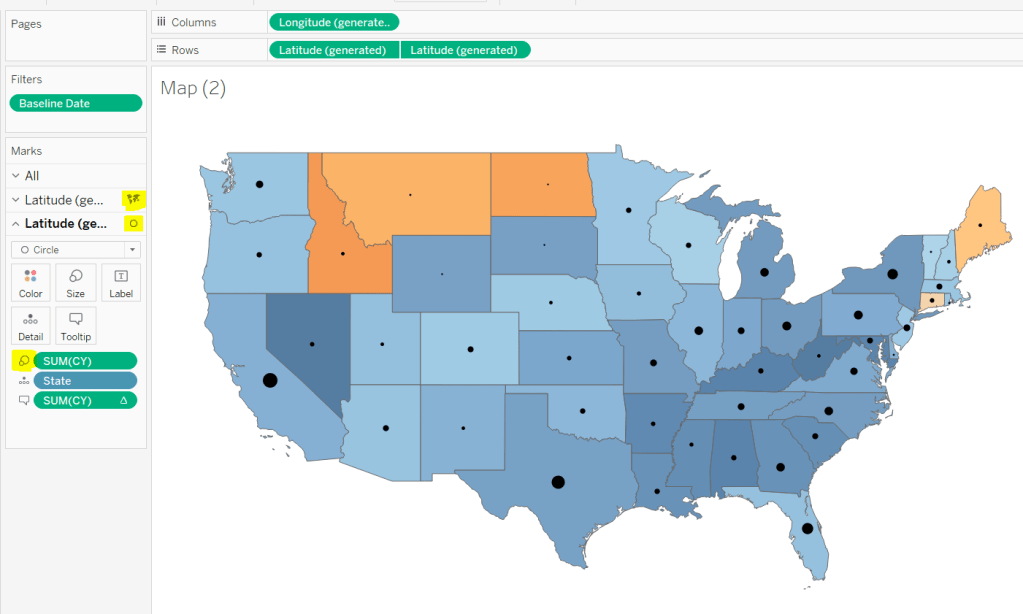
This is achieved using a dual axis map (via a second instance of the Latitude pill on Rows). One ‘axis’ is a map mark type coloured by the YoY% and the other is a circle mark type, sized by CY, explicitly coloured black.

The Tooltip for the circle mark type also shows the % of Total subscriptions for the current year, which is a Percent of Total Quick Table Calculation

Restricting the Date parameter to 1st Jan – 14th July only

As mentioned the Subscription Date contains dates from 01 Jan 2019 to 21 July 2020, but we can’t simply add a filter restricting this date to 01 Jan 20 to 14 Jul 20 as that would remove all the rows associated to the 2019 data which we need available to provide the PY and YoY% values.

So to solve this we need a new date field, and we need to baseline / normalise the dates in the data set to all align to the same year.

Baseline Date

//set all dates to be based on current year
MAKEDATE([Current Year], MONTH([Subscription Date]), DAY([Subscription Date]))

So if the Subscription Date is 01 Jan 2019, the equivalent Baseline Date associated will be 01 Jan 2020. The Subscription Date of 01 Jan 2020 will also have a Baseline Date of 01 Jan 2020.

We also want to ensure we don’t have dates beyond ‘today’

Include Dates < Today

[Baseline Date]< [Today]

Add Include Dates < Today to the Filter shelf, and set to True.

Add Baseline Date to the Filter shelf, choose Range of Dates , and by default the dates 01 Jan 2020 to 14 Jul 2020 should be displayed

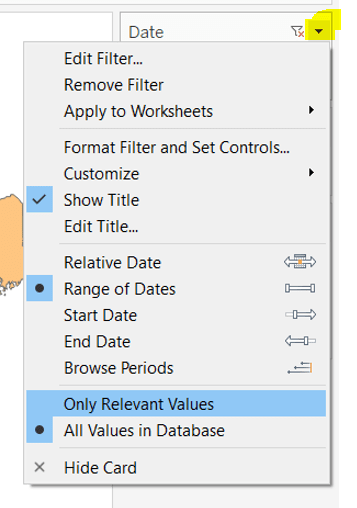
Select to Show Filter, and when the filter displays, select the drop down arrow (top right) and change to Only Relevant Values

Whilst you can edit the start and end dates in the filter to be before/after the specific dates, this won’t actually use those dates, and the filter control slider can only be moved between the range we want.

The Baseline Date field should then be custom formatted to mmmm dd to display the dates in the January 01 format.

Showing Daily or Weekly dates on the viz in tooltip

The requirements state that if the date range selected is <=30 days, the trend chart shown on the Viz in Tooltip should display daily data, otherwise it should be weekly figures, where the week ‘starts’ on the minimum date selected in the range.

There’s a lot going on to meet this requirement.

First up we need to be able to identify the min & max dates selected by the user via the Baseline Date filter.

This did cause me some trouble. I knew what I wanted, but struggled. A FIXED LOD always gave me the 1st Jan 2020 for the Min Date, regardless of where I moved the slider, whereas a WINDOW_MIN() table calculation function caused issues as it required the data displayed to be at a level of detail that I didn’t want.

A peak at Kyle’s solution and I found he’d added the date filters to context. This means a FIXED LOD would then return the min & max dates I was after.

Min Date

{MIN([Baseline Date])}

Note this is a shortened notation for {FIXED : MIN([Baseline Date])}

Max Date

{MAX([Baseline Date])}

With these, we can work out

Days between Min & Max

DATEDIFF(‘day’,[Min Date], [Max Date])

which in turn we can categorise

Daily | Weekly

IF [Days between Min & Max]<=30 THEN ‘Daily’ ELSE ‘Weekly’ END

We also need to understand the day the weeks will start on.

Day of Week Min Date

DATEPART(‘weekday’,[Min Date])

This returns a number from 1 (Sunday) to 7 (Saturday) based on the Min Date selected.

Using this we can essentially ‘categorise’ and therefore ‘group’ the Baseline Date into the appropriate week.

Baseline Date Week

CASE [Day of Week Min Date]
WHEN 1 THEN DATETRUNC(‘week’,([Baseline Date]),’Sunday’)
WHEN 2 THEN DATETRUNC(‘week’,([Baseline Date]),’Monday’)
WHEN 3 THEN DATETRUNC(‘week’,([Baseline Date]),’Tuesday’)
WHEN 4 THEN DATETRUNC(‘week’,([Baseline Date]),’Wednesday’)
WHEN 5 THEN DATETRUNC(‘week’,([Baseline Date]),’Thursday’)
WHEN 6 THEN DATETRUNC(‘week’,([Baseline Date]),’Friday’)
WHEN 7 THEN DATETRUNC(‘week’,([Baseline Date]),’Saturday’)
END

Ideally we want to simplify this using something like DATETRUNC(‘week’, [Baseline Date], DATEPART(‘weekday’, [Min Date])), but unfortunately, at this point, Tableau won’t accept a function as the 3rd parameter of the DATETRUNC function.

Let’s just have a look at what we’ve got so far

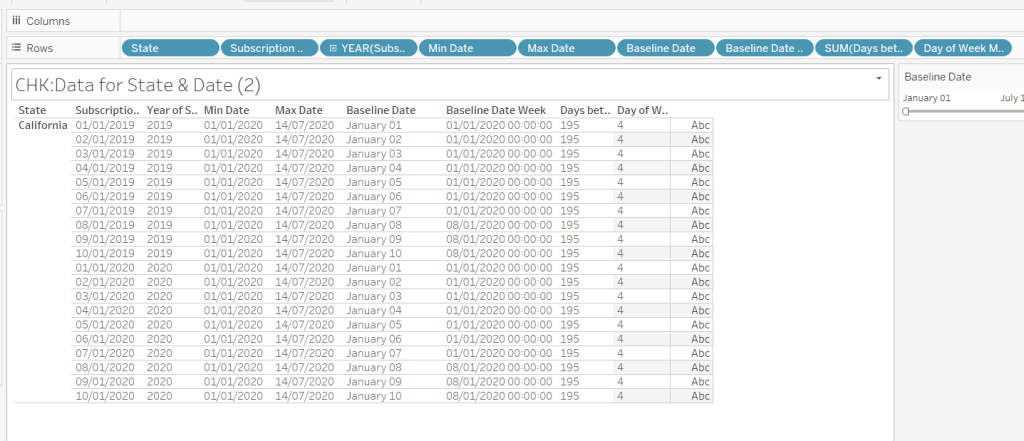
Rows for California only showing the Subscription Dates from 01 Jan 2019 – 10 Jan 2019 and 01 Jan 2020 to 10 Jan 2020. Min & Max date for all rows are identical and matches the values in the filter. The Baseline Date field for both 01 Jan 2019 and 01 Jan 2020 is January 01. The Baseline Date Week for 01 Jan 2019 – 07 Jan 2019 AND 01 Jan 2020 – 07 Jan 2020 is 01 Jan 2020. The other dates are associated with the week starting 08 Jan 20202.

So now we have all this information, we need yet another date field that will be plotted on the date axis of the Viz in Tooltip.

Date to Plot

IF [Days between Min & Max] <=30 THEN ([Baseline Date]) ELSE [Baseline Date Week] END

If you add this field to the tabular display I built out above, you can see how the value changes as you move the filter dates to be within 30 days of each other and out again.

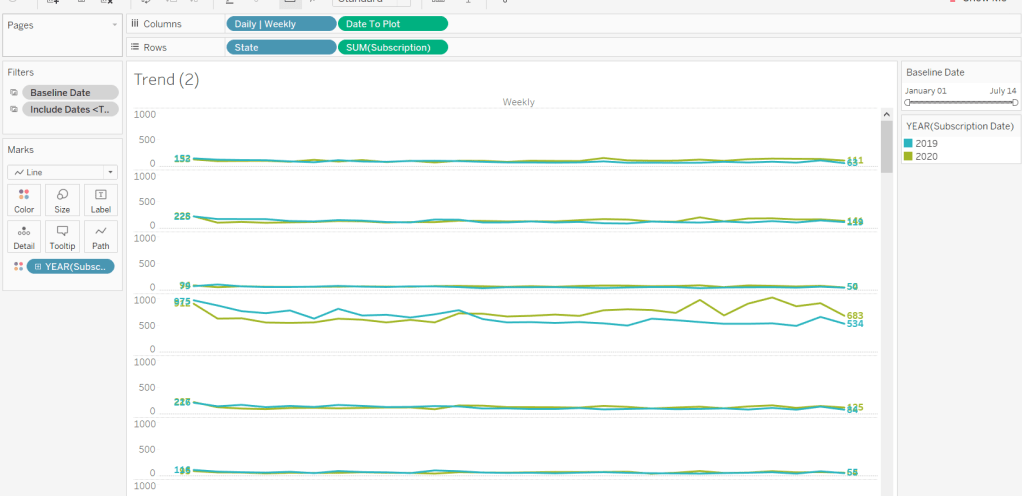
When added to the actual viz, this field is formatted to dd mmm ie 01 Jan, and then is plotted as a continuous, exact date (green pill) field on the Columns alongside the Daily | Weekly field, with State & Subscription on Rows. The YEAR(Subscription Date) provides the separation of the data into 2 lines.

Restricting to full weeks only (in weekly view)

The requirements state only full weeks (ie 7 days of data) should be included when the data is plotted at a weekly level. For this we need to ascertain the ‘week’ the maximum date falls in

Max Date Week

CASE [Day of Week Min Date]
WHEN 1 THEN DATETRUNC(‘week’,([Max Date]),’Sunday’)
WHEN 2 THEN DATETRUNC(‘week’,([Max Date]),’Monday’)
WHEN 3 THEN DATETRUNC(‘week’,([Max Date]),’Tuesday’)
WHEN 4 THEN DATETRUNC(‘week’,([Max Date]),’Wednesday’)
WHEN 5 THEN DATETRUNC(‘week’,([Max Date]),’Thursday’)
WHEN 6 THEN DATETRUNC(‘week’,([Max Date]),’Friday’)
WHEN 7 THEN DATETRUNC(‘week’,([Max Date]),’Saturday’)
END

so if the maximum date selected is a Thursday (eg Thurs 11th June 2020) but the minimum date happens to be a Tuesday, then the week starts on a Tuesday, and this field will return the previous Tuesday date (eg Tues 9th June 2020).

And then to restrict to complete weeks only…

Full Weeks Only

IF [Daily | Weekly]=’Weekly’ THEN
[Date To Plot]< [Max Date Week]
ELSE TRUE
END

If we’re in the ‘weekly’ mode, the Date To Plot field will be storing dates related to the start of the week, so will return true for all records where the field is less than the week of the max date. Otherwise if we’re in ‘daily’ mode we just want all records.

This field is added to the Filter shelf and set to true.

Hopefully that covers off all the complicated bits you need to know to complete this challenge. My published solution is here.

Happy vizzin’! Stay Safe!

Donna