Can you create a normalised jitter plot?

Continuing the theme of alternative chart types, Kyle decided to challenge us to recreate this jitter plot inspired by an example from The Big Book of Dashboards.

I’ve built jitter plots in the past for #WorkoutWednesday challenges (the hidden RANDOM() function is your friend in this), but I wanted to see how far I could get without having to peak at my previous solutions.

So I connected to the baseball data provided, and cracked on, building the jitter in a single sheet using Measure Names on the columns. But then I got stuck when it came to labelling the tooltips…. surely this didn’t need a sheet per measure did it…

…maybe it did… so I proceeded to recreate as 4 separate sheets, and felt quite smug that I’d managed to make use of the ‘little used’ worksheet caption to provide the summary detail at the bottom of each measure. When I’d finished, I checked Kyle’s solution, as the summary values for the SLG & OPS measures seemed to be mixed up…. and what did I find…. he had managed to build the jitter within a single sheet as he had pivoted the data first! Argggghhhh! It just hadn’t crossed my mind, and Kyle had chosen not to drop that hint in the requirements…. hey ho! c’est la vie! I may well recreate with a pivoted version at a later date, but for now, I am blogging what I did…

My solution has ended up with a lot of calculated fields as a result, as equivalent fields needed to be created for every measure. Most of this was managed via duplicating and editing existing fields, so it actually wasn’t too onerous.

Building the calculated fields

We’ll start as usual by building out the fields required, and will focus on the BA measure initially.

Add Name and BA into a tabular view and Sort descending. Format the BA measure to be a number with 3 decimal places.

We need to know the rank of each player. Create a calculated field

Rank BA

RANK(SUM([BA]))

Add this to the view, and we should get the player rankings displayed from 1 downwards.

Now the requirement wants us to normalise the measures so they can be displayed on the same axis (or in my case, since it’s not a single chart I’m building), within the same axis range.

What this means is we want to plot the measure on a scale between 0 and 1 where 0 represents the lowest measure value, and 1 the highest. for this we need

Min BA

{FIXED :MIN([BA])}

and

Max BA

{FIXED :MAX([BA])}

The normalised value then becomes

Normalise BA

([BA] – [Min BA])/([Max BA]-[Min BA])

The difference between the current value and the lowest value, as a proportion of the range (ie the difference between the highest and lowest values).

Adding this to the table, you should see that the Normalise BA value for the highest ranked player is 1 and that for the lowest ranked is 0.

As part of the information displayed, we also need to know the percentile each player is in.

Percentile BA

RANK_PERCENTILE(SUM([BA]))

Format this to a percentage with 0 dp and add into the table.

Next we need to identify the player selected, so we’re going to create a parameter based off of the Name.

Select a Player

Right click Name -> create -> Parameter. This will open the parameter dialog and auto populate the list of options with the values from the Name field. Default the parameter to Julio Rodriguez.

We can then create a field to identify if the player is the one selected

Is Selected Player?

[Name] = [Select a Player]

Add this into the table, on the Rows before Name and sort so True is listed at the top (just easier to check the results).

So now we need to identify the rank and percentile of the selected player only

Selected Player BA Rank

WINDOW_MAX(IF ATTR([Is Selected Player]) THEN [Rank BA] END)

format this to a number with 0 dp

Selected Player BA Percentile

WINDOW_MAX(IF ATTR([Is Selected Player]) THEN [Percentile BA] END)

format this to a percentage with 0 dp.

The window_max function has the effect of ‘spreading’ the result over all the rows.

Finally we need to get a count of all the players

Count Players

{FIXED:COUNTD([Name])}

format this to a number with 0 dp.

Building the Jitter Plot

To build a jitter plot, we need to plot each mark against 2 axes. The Normalise BA measure is one axis, but we need to create ‘something’ for the other. This is the value to make the ‘jitter’ which is essentially an arbitrary value between 0 and 1 that we can plot the mark against, and means the marks don’t all end up in a single line on top of each other, and we can get a better ‘feel’ for the volume of data being represented.

Jitter

RANDOM()

The random() function is a ‘hidden’ function that will, as it’s name suggests, generate a random number. It is ‘hidden’ as it only works with some data sources. Excel for example is fine, but if you were connected to a Snowflake database, you can’t use it.

The nature of random, also means that you can’t guarantee the value it produces, and it will regenerate on data refresh, so if you’re looking to compare your solution directly, your dots will not be positioned exactly the same.

On a new sheet add Jitter to Columns and Normalise BA to Rows. Add Name to Detail and change the mark type to Circle.

Add Is Selected Player to Colour, adjust accordingly and add a border to the circle. I dropped the opacity to 70%. Order the colour legend, so True is listed first, to ensure this circle is always ‘on top’.

Then add Is Selected Player to Size. Edit the sizes so they are reversed and adjust the sizes until you’re happy.

To label just the selected player mark

Label:BA

IF [Is Selected Player] THEN [BA] END

format this with a custom number font ,##.000;-#,##.000

Add this to the Label shelf and adjust the font colour, and align centrally

Add Rank BA and BA to the Tooltip shelf and adjust tooltip to suit. You will need to adjust the table calculation setting of the Rank BA field so that it is computing by all the fields.

Add Selected Player BA Rank and Selected Player BA Percentile and Count Players to the Detail shelf. Adjust the table calculations as above (including any nested calcs), then show the worksheet caption (Worksheet -> Show Caption), and edit the caption to display the relevant text.

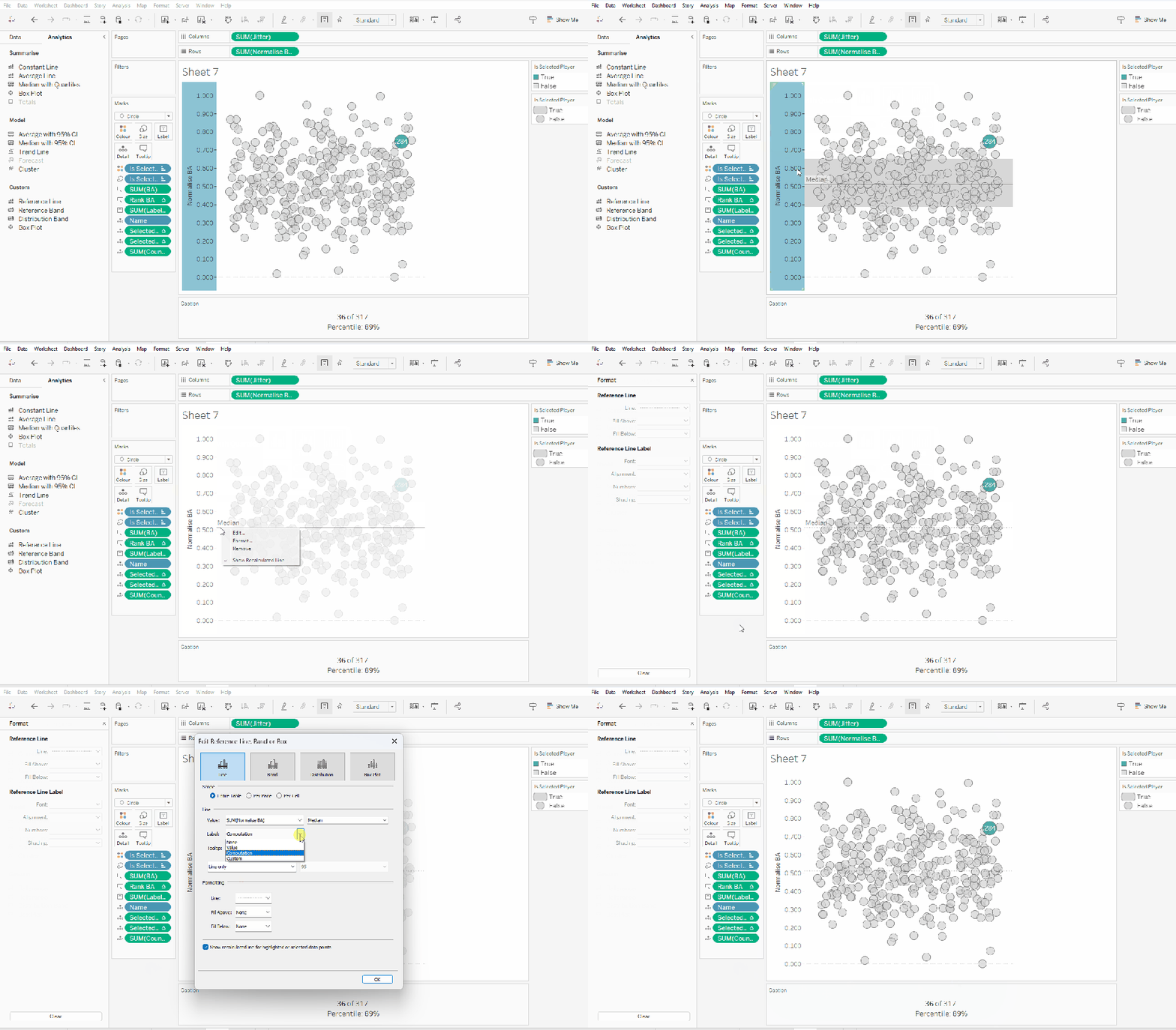
From the analytics pane, drag the Median with Quartiles option onto the canvas and drop it on the table / Normalise BA axis option. Remove the quartile reference lines (right cick axis -> remove reference line), and edit the median reference line to be a dashed line with no label.

Finally remove all gridlines/dividers/axes lines and hide the axes. Title the sheet as per the measure ie BA, and align centrally.

Format the Caption and the Title to have a light grey background and a slightly darker thin border.

Now, repeat all that for the other measures πŸ™‚ This isn’t that bad. All the fields above labelled BA, need duplicating, renaming and updated to reference the next measure eg OBP.

Once done, duplicate the BA jitter plot sheet, and replace all the ‘BA’ related fields with the equivalent ones, by dragging the equivalent field and dropping it directly on top. Sense check the table calculation settings are all ok. You may need to update the text in the caption, as that seems to lose anything to do with the table calculation fields referenced when they get touched.

Ultimately you should end up with 4 sheets.

Putting it all together

On a dashboard, use a horizontal container to position all 4 sheets in side by side. Show the worksheet caption for each sheet. Reduce the outer padding for each sheet to 0, and add a thin border around each sheet.

Add a parameter action to drive the interactivity ‘on click’ of a circle

Select Player

On select of any of the source sheets, update the Select a Player parameter with the value from the Name field. Retain the selected value on ‘unclick’

To prevent the selection on click from being ‘highlighted’, and al the other marks ‘fading’, we need one final step.

Create new calculated fields

True

TRUE

False

FALSE

Add both these fields to the Detail shelf of each of the 4 sheets.

Then add a dashboard filter action for each sheet which on select, goes from the sheet on the dashboard to the worksheet itself, passing the selected fields of True = False. Show all values when unselected.

My published viz is here. Kyle’s solution with a lot less calculated fields, and only 2 sheets (1 for the jitter and 1 for the summary section at the bottom) is here. You will need to pivot the data via the data source pane first through πŸ™‚ Next time, when I really feel something should be able to be done in 1 sheet, I’ll try to think a little longer…. upshot though, I impressed myself at the use of the caption for the summary – something I must consider using more often!

Happy vizzin’!

Donna

Can you use Image Role & Dynamic Zone Visibility?

New year means only one thing – a change to the WorkoutWednesday hashtag! We’re now #WOW2023, and it was Lorna’s turn to kick the next year of challenges off with a focus on the latest Tableau features. This challenge uses the image role function introduced in 2022.4 and the dynamic role visibility feature introduced in 2022.3 (so you need to make sure you’re using at least 2022.4 to complete this).

Setting up the data source

Lorna provided an excel based data sheet which I downloaded. It contains several tabs, but the two you need to relate are Player Stats and Player Positions, relating as Lorna describes on both the Game ID and the Player Name

The data needs to be filtered to just the men’s competition, so I did this by adding a data source filter (right click on the data source -> Edit Data Source Filter) where Comp = Rugby League World Cup. Doing this meant I didn’t have to worry about adding fields to the Filter shelf at all.

Building the scatter plot

For the basic chart, simply add All Run Metres to Columns and Passes to Rows, then add Game ID and Name to the Detail shelf.

We need to identify which player and game is selected when a user clicks, so we need parameters to capture these.

pSelectedGameID

integer parameter defaulted to 0

pSelectedPlayer

string parameter defaulted to nothing/empty string/ ”

Show these parameters on the canvas, and then manually enter Brandon Smith and 21.

We now need calculated fields to reference the parameter values

Is Selected Player

[Name] = [pSelectedPlayer]

Is Selected Game

[Game ID] = [pSelectedGameID]

Both return a boolean True / False value, and we can then determine which combination of player/game each mark represents, which we need in order to colour the marks.

Colour : Scatter

IF [Is Selected Game] AND [Is Selected Player] THEN ‘Both’
ELSEIF [Is Selected Player] THEN ‘Player’
ELSEIF [Is Selected Game] THEN ‘Game’
ELSE ‘Neither’
END

Add this field to the Colour shelf, change the mark type to Circle and adjust the colours accordingly. Manually sort the order of the values so that the light grey ‘Neither’ option is listed last (which means it will always be underneath any other mark).

While not stated in the requirements, the marks for the selected player are larger than the others, so add Is Selected Player to the Size shelf, and adjust the size range to suit.

Adjust the tooltip and name the sheet Scatter.

Building the Bar Chart

On a new sheet, add Player Image and Game ID to Rows and All Run Metres and Passes to Columns. Add Is Selected Player to Filter and set to True. Edit the title of the sheet so it references the pSelectedPlayer parameter, and align centre.

Set the Player Image field to use the actual image of the player stored at the URL, by clicking on the ABC datatype icon to the left of the field in the data pane, and selecting Image Role -> URL

This will change the data type icon and update the view to show the actual player image

Add Is Selected Game to the Colour shelf on the All marks card and adjust accordingly. Remove the tooltips.

We need to show the axis titles at the top, rather than bottom. To do this add another instance of the All Run Metres field to the right of the existing one. Make dual axis and synchronise axis. Repeat with the Passes field by adding another instance to the right of the existing one and making dual axis again.

Set the mark type on the All marks card back to bar.

Right click on the All Run Metres bottom axis, remove the title, and set the tick marks to none. Repeat for the Passes bottom axis.

Right click on the All Run Metres top axis, and just set the tick marks to none. Again repeat for the Passes top axis.

Adjust the font of both axis title (right click axis -> format; I just set to Tableau Book) and then manually decrease the height of the axis.

Finally click the Label button on the All marks card and check the Show mark labels check box.

Then remove all column and row divider lines.

Adding the interactivity

On a dashboard, add a Vertical Layout Container, then add the bar chart into it and then add the scatter plot underneath. Remove the container that contains all the legends and parameters – we don’t need to show any of these. Hide the title of the scatter plot.

Add a dashboard parameter action to set the pSelectedPlayer parameter on select of a circle on the scatter plot. Set this parameter to pass the Name field into the parameter, and when clearing the selection, set the value to empty string/ nothing / ”

Select Player

Add another similar dashboard parameter action, which sets the pSelectedGame parameter in a similar way. This time, the Game ID field is passed into the parameter which is then set to 0 when the selection is cleared.

Select Game

If you test clicking on the scatter plot, you should now see the bar chart data disappear (although some white space about the height of the title remains) and you’ll also see that the circle selected is ‘highlighted’ compared to all the others.

To resolve the highlighting issue, navigate back to the scatter plot sheet, create a new calculated field called Dummy which just contains the string ‘Dummy’. Add this field to the Detail shelf.

Navigate back to the dashboard, and add a dashboard highlight action, that on select on the scatter plot, targets the same sheet on the same dashboard, but only focus on the Dummy field.

Deselect Marks

To make the whole section where the player bar chart is displayed, completely collapse, we need another parameter

pShowPlayerDetail

boolean parameter defaulted to false

We also need a boolean calculated field called

Show Player Detail

TRUE

Add this to the Detail shelf of the Scatter plot sheet.

Then navigate back to the dashboard, and create another parameter dashboard action, which on select of a circle on the scatter plot, sets the pShowPlayerDetail parameter based on the value from the Show Player Detail field. When the selection is cleared, reset the parameter to False.

Show Player Detail

Finally select the bar chart on the dashboard, then click the Layout tab on the left and side, and tick the Control visibility using value check box, and in the drop down select Parameters – > pShowPlayerDetail.

Now when a circle is clicked on, the bar chart section will completely disappear and the scatter plot will fill up the whole space.

Finalise the dashboard by adding the title and legend. My published viz is here.

Happy vizzin’!

Donna

Let’s make a dynamic relative date filter!

Sean set the challenge this week to build a custom relative date filter. He uttered the words “this week is pretty straightforward” which always makes me a bit nervous…

The premise was to essentially replicate the out of the box relative date filter. I had a good play with Sean’s solution, hovering my mouse over various fields, to see if there were any clues to get me started. I deduced the filter box, was a floating container, which stored multiple other worksheets and some parameters used to drive the behaviour.

I worked out that I think I’d need to build at least 4 sheets – 1 for the main chart, 1 to manage the date part ‘tabbed’ selector at the top of the relative date control, 1 to manage the radio button selections within the relative date control, and 1 to display the date range.

So let’s crack on.

Building the initial chart

I used the Superstore data from v2022.1, so my dates went up to 31 Dec 2022.

We need to create a line chart that shows the dates at a user defined date level – we need a parameter to control this selection

pDateLevel

string parameter containing the relevant date parts in a list, and defaulted to ‘Week’. Notice the Value fields are all lower case, while the Display As as all proper case. The lower case values is important, as this parameter will be fed into date functions, which expect the string values to be lower case.

Then we need a new date field to show the dates at the level specified

Display Date

DATE(DATETRUNC([pDateLevel], [Order Date]))

Then add this field onto Columns as a continuous exact date (green pill) and add Sales to Rows. Show the pDateLevel parameter and test the chart changes as the parameter does.

Name this sheet Chart or similar. We’ll come back to it later, as we need to ensure this data gets filtered based on the selections made in the relative date control.

Setting up a scaffold data source

So there were no additional data source files provided, and also no ‘you must do it this way’ type instructions, so I decided to create my own ‘scaffold’ data source to help with building the relative date control. Doing this means the concept should be portable if I wanted to add the same control into any other dashboards.

I created an Excel file (RelativeDate_ControlSheet.xslx) which had the following sheets

DateParts

A single column headed Datepart containing the values Year, Quarter, Month, Week, Day

Relative Options

3 columns Option ID (containing values 1-6), Option Type (containing values date part, n periods, to date) and Option Text (containing values Last, This, Next, to date)

I added both of these sheets as new data sources to my workbook (so I have 3 data sources listed in my data pane in total).

Building the Date Part Selector

From the DateParts data source, add the Datepart field to both the Rows and Text fields. Manually re-sort by dragging the values to be in the required order.

Manually type in MIN(1) into the Rows shelf and edit the axis to be fixed from 0-1. Align the text centrally.

We’re going to need another parameter to capture the date part that will be clicked.

pDatePartSelected

string parameter defaulted to ‘quarter’ (note case)

We also need a new calculated field to store the value of the date parts in lower case

Datepart Lower

LOWER([Datepart])

and then we can use these fields to work out which date part has been selected on the viz

Selected Date Part

[pDatePartSelected] = [Datepart Lower]

Add this to the Colour shelf, and adjust colours accordingly (False is white).

Remove headers, column/row dividers, gridlines and axis, and don’t show tooltips.

Finally, we’re going to need to ensure that when a value is clicked on in the dashboard, it doesn’t remain ‘highlighted’ as we’re using the colouring already applied to define the selection made.

In the DateParts data source, create new calculated fields

True

TRUE

False

FALSE

and add both these fields to the Detail shelf, along with the Datepart Lower field. We’ll refer to all these later when we get to the dashboard.

Building the Relative Date Radio Button Selector

In the Relative Options data source, create the following fields

Row

IF ([Option ID] %3) = 0 THEN 3
ELSE ([Option ID] %3)
END

Column

INT([Option ID]<=3)

These fields will be used to define where each entry in our scaffold data source will be positioned in the tabular display.

We then need to get all the text displayed as is expected, but firstly we need to define the parameter that will capture n number of days, which is incorporated into the label displayed

pSelectPeriods

integer parameter

We can now create

Option Label

IF [pDatePartSelected] = ‘day’ THEN
IF [Option ID]=1 THEN ‘Yesterday’
ELSEIF [Option ID] =2 THEN ‘Today’
ELSEIF [Option ID] = 3 THEN ‘Tomorrow’
ELSEIF [Option Type] = ‘n periods’ THEN [Option Text] + ‘ ‘ + STR([pSelectPeriods]) + ‘ ‘ + [pDatePartSelected] +’s’
ELSE UPPER(LEFT([pDatePartSelected],1)) + MID([pDatePartSelected],2) + ‘ ‘ + [Option Text]
END
ELSE
IF [Option Type] = ‘date part’ THEN [Option Text] + ‘ ‘ + [pDatePartSelected]
ELSEIF [Option Type] = ‘n periods’ THEN [Option Text] + ‘ ‘ + STR([pSelectPeriods]) + ‘ ‘ + [pDatePartSelected] +’s’
ELSE UPPER(LEFT([pDatePartSelected],1)) + MID([pDatePartSelected],2) + ‘ ‘ + [Option Text]
END
END

This looks a bit convoluted and could possibly be simplified… it grew organically as I was building, and special cases had to be added for the ‘yesterday’/’today’/’tomorrow’ options. I could have added more detail to the the scaffold to help with all this, but ‘que sera’…

Add Column to Columns and Row to Rows. Add Option ID to Detail and Option Label to Text. Manually re-sort the columns so they are reversed

We’re going to need to identify which of the options has been selected. This will be captured in a parameter

pOptionSelected

integer parameter defaulted to 2

and then we need to know if the row of data matches that selected, so create a calculated field

Selected Relative Date Option

[Option ID] = [pOptionSelected]

Manually type in to columns Min(0.0), then change the mark type to shape and add Selected Relative Date Option to the Shape shelf, and amend the shapes to be an open and filled circle. Change the colour to grey.

As before, remove all headers, axis, gridlines, row/column dividers and don’t show the tooltip. Also we’ll need those True and False fields on this viz too – you’ll need to create new calculated fields in this data source, just like you did above, and then add them to the Detail shelf.

Restricting the dates displayed

Now we need to work on getting the line chart to change based on the selections being made that get captured into parameters. But first we need one more parameter

pAnchorDate

date parameter, defaulted to 31 Dec 2022

From playing with Sean’s solution, what date is actually used when filtering can vary based on the date part that is selected. Eg if you choose Month, next 2 months, anchor date of 15 Dec 2022 and choose to display data at the day level, you’ll see all the data for the whole of December rather than just up to 15 Dec (there is no Jan 23 data to display – so you actually only see 1 month’s worth of data). Based on these observations, I created another calculated field to run the filtering against.

In the Superstore data source, create

Compare Date

DATE(DATETRUNC([pDatePartSelected],[pAnchorDate]))

Then from this, I created

Dates To Show

CASE [pOptionSelected]
WHEN 1 THEN ([Order Date] >= DATEADD([pDatePartSelected],-1,[Compare Date]) AND [Order Date]< [Compare Date])

WHEN 2 THEN ([Order Date]>= [Compare Date] AND [Order Date] < DATEADD([pDatePartSelected], 1, [Compare Date]))

WHEN 3 THEN ([Order Date]>= DATEADD([pDatePartSelected],1,[Compare Date]) AND [Order Date] < DATEADD([pDatePartSelected],2,[Compare Date]))

WHEN 4 THEN ([Order Date]> DATEADD([pDatePartSelected],-1*[pSelectPeriods],[Compare Date]) AND [Order Date]<= [Compare Date])

WHEN 5 THEN ([Order Date] >= [Compare Date] AND [Order Date]< DATEADD([pDatePartSelected],[pSelectPeriods],[Compare Date]))

WHEN 6 THEN ([Order Date] >= [Compare Date] AND [Order Date]<= [pAnchorDate])
ELSE FALSE
END

This returns a boolean true or false. Add this field to the Filter shelf of the line chart and set to True.

If you show all the parameters on the view, you can play around manually altering the values to see how the line chart changes

Building the data range display

On a new sheet, add Dates To Show to the Filter shelf and set to True. Then add Order Date as a discrete exact date (blue pill) to Text and change the aggregation to Min. Repeat adding another instance of Order Date and change the aggregation to Max. Format the text accordingly.

Note at this point, I have reset everything back to be based on the original defaults I set in all the parameters.

Finally, there’s one additional sheet to build – something to display the ‘value’ of the option selected in the relative date filter control.

On a new sheet, using the Relative Options datasource, add Selected Relative Date Option to Filter and set to True. Then add Option Label to Text. Add row and column dividers, so it looks like a box.

Putting it all together

On a dashboard, add the Chart sheet (without title). Position the pDateLevel parameter above the chart, and add the input display box we built last, next to it (remove the title). Add a title to the whole dashboard at the top. Then remove the container that contains all the other parameters etc which don’t want to display.

You should have something similar to the below.

Change the title of the pDateLevel parameter and then adjust the input box so it looks to be in line – this can be fiddly, and there’s no guarantee that it’ll be aligned when it gets published to server. You may have to adjust again once published. You can try using padding – ultimately this is a bit of trial and error.

Now add a floating vertical container onto the sheet (click the Floating button at the bottom of the Dashboard panel on the left and drag a vertical object onto the canvas). Resize and position where you think it should be. Add a dark border to the container and set the background to white.

Now click the Tiled button at the bottom of the dashboard panel on the left, and add the Date Part Selector sheet into the container. Remove the title, and also remove any legend that automatically gets added.

Now add a line : add a blank object beneath the date part selector. Edit the outer padding of this object to be 10 px on the left and right and 0 px on the top and bottom. Change the background colour to grey, then edit the height of the object to 1px.

Now add the radio button chart beneath the line (fit entire view)., and again delete any additional legend, parameters added

Now add a Horizontal container beneath the radio button chart. Then click on the context menu of the radio button chart and select parameter > pAnchorDate to display the anchor date on the sheet. Hopefully this should land in the horizontal container, but if it doesn’t, you’ll have to move it. Add the pSelectPeriods parameter this way too.

Change the titles of these parameters as required, then add another line blank object using the technique described above, although delay changing the height for now.

Add the Date range sheet below, and fit to entire view, and now you can edit the height of the line blank object to size 1px.

Next select the container object (it will have a blue border when selected like below) and use the context menu to select Add Show/Hide Button

This will generate a little X show/hide floating object. Use the context menu of this object to Edit Button

I used powerpoint to create the up/down triangle images, which I then saved and referenced via the ‘choose an image’ option

I then added a border to this option and positioned it (through trial and error) where I wanted it to be.

Adding the interactivity

The final step is to now add all the required dashboard action controls.

At least, this is the final step based on how I’ve authored this post. In reality, when I built this originally, I added the objects to the dashboard quite early to test the functionality in the various calculated fields I’d written, so it’s possible you may have already done some of this already πŸ™‚

We need to set which date part has been selected on the control. This is a parameter action

Set Date Part

On select of the Date Part Selector sheet, set the pDatePartSelected parameter, passing through the value of the associated Datepart Lower field.

Add another parameter to capture which radio button has been selected

Select Relative Date Option

On select of the Relative Date Selector sheet, set the pOptionSelected parameter, passing through the value of the associated Option ID field (ensuring aggregation is set to None).

Then we need to add dashboard filter actions to stop the selected options from being highlighted when clicked. Create a filter action

Deselect Dale Part Selecteor

on select of the Date Part Selector view on the dashboard, target the Date Part Selector sheet directly, passing the fields True = False, and show all values when the selection is cleared

Apply a second filter action using the same principals but with the Relative Date radio button selector sheet instead.

And with all that, the dashboard should now be built and functioning as required.

My published solution is here.

Happy vizzin’!

Donna

Let’s switch those measures!

It was time for Lorna to add her iteration to the dashboard challenge that’s been set over the last few weeks. The challenge this week was to incorporate a measure swap control which allows the user to select which measures they want to compare.

Lorna gave the option to build out either your own or an already published solution, or to build a simpler brand new viz that just demonstrates the technique.

By incorporating this measure swap control into an existing solution, existing calculated fields and other objects will need to be adjusted/renamed. I started to build against my own solution, but that already had multiple instances of calculated fields where I’d chosen to change from a table calculation version in week 5 to an LoD based solution in week 6. I decided instead to use Kyle’s solution from week 7, which is published here.

However, for the purposes of this blog, I will build out the simple solution, so the focus is on what you need to do to build the control.

Building the Measure Selector

So to start, I simply copied the text for the secondary data source off the challenge page

I then opened Tableau Desktop, connected to the Orders sheet of the relevant Superstore Sales excel spreadsheet, then on the Data menu, selected Paste, which added a ‘clipboard’ data source and presented the data on a sheet.

To start with I chose to Alias the Number field (right click > Aliases) to map the numbers in the data source to the names of the measures we want, as below

The values selected are going to be captured within a parameter, so I then set these up

pMeasureX

Integer parameter defaulted to 1 (ie Sales)

I created a similar pMeasureY too, this one defaulted to 3 (ie Profit Margin).

For the selector control, we need to indicate which measure has been selected, so we need

X Selected?

[pMeasureX]=[Number]

and

Y Selected?

[pMeasureY]=[Number]

I then added Number to Rows and created 3 MIN(1) fields on the Columns shelf

On the first MIN(1) marks card, I changed the mark type to Shape, then added X Selected? to the Shape shelf. I adjusted the shape using options from the Ratings shape palette, and adjusted the size to suit.

On the 2nd MIN(1) marks card, I changed the mark type to Circle, reduced the size to as small as possible, and changed the colour to be completely transparent (Opacity = 0%). I then added Number to the Label shelf, changed the alignment to be Middle Centre, and adjusted the height of the rows, so all the text labels are visible.

On the 3rd MIN(1) marks card, I repeated the steps taken for the 1st marks card, but added Y Selected? to the Shape shelf instead.

I then hid the axes and the Number pill (uncheck Show Header), and removed all row/column borders and gridlines/zero lines.

When this sheet is added to the dashboard, we’re going to need to add parameter actions to pass information from this sheet into the pMeasureX and pMeasureY parameters. For this I found I needed to create copies of the Number field, as using the same field to control both selectors caused me some issues. So I created

Number (X)

[Number]

and added this to the Detail shelf of the 1st MIN(1) marks card.

And then

Number (Y)

[Number]

which was added to the Detail shelf of the 3rd MIN(1) marks card.

Another feature of this sheet when added to the dashboard, is we don’t want the circle selected to be highlighted/remain selected, so we’ll use a filter action to solve that. But again we need some additional fields on the sheet to help us with that. Create calculated fields

True

TRUE

False

FALSE

And add both of these to the Detail shelf of the All Marks card.

Finally adjust the title of the sheet to contain the text ‘X Select a Measure Y’. You’ll need to play around with the number of spaces to use. It’s best to wait until the sheet is on the dashboard to get it right.

Building the Scatter Plot

On a new sheet, the first thing needed for this challenge is to create

Profit Ratio

SUM([Profit])/SUM([Sales])

Now we need to define fields that will determine what measure to display based on the value stored in the relevant parameter

X Measure

CASE [pMeasureX]
WHEN 1 THEN SUM([Sales])
WHEN 2 THEN SUM([Profit])
WHEN 3 THEN [Profit Ratio]
WHEN 4 THEN SUM([Quantity])
END

Y Measure

CASE [pMeasureY]
WHEN 1 THEN SUM([Sales])
WHEN 2 THEN SUM([Profit])
WHEN 3 THEN [Profit Ratio]
WHEN 4 THEN SUM([Quantity])
END

Add X Measure to Columns and Y Measure to Rows, and add State to Detail.

We need to label the X & Y axis based on the name of the selected measure, so we need

X Dimension

CASE [pMeasureX]
WHEN 1 THEN ‘Sales’
WHEN 2 THEN ‘Profit’
WHEN 3 THEN ‘Profit Ratio’
WHEN 4 THEN ‘Quantity’
END

Add this to the Columns shelf

Y Dimension

CASE [pMeasureY]
WHEN 1 THEN ‘Sales’
WHEN 2 THEN ‘Profit’
WHEN 3 THEN ‘Profit Ratio’
WHEN 4 THEN ‘Quantity’
END

Add this to the Rows shelf

Edit both axes and remove the title from both. Right click on the word ‘Profit Ratio’ and Rotate Label. Right click on ‘X Dimension’ at the top and select hide field labels for columns. Right click on ‘Y Dimension’ on the left and select hide field labels for rows. Format to remove the row and column gridlines.

The State a user clicks on/selects needs to be captured within a parameter

pSelectedState

String parameter defaulted to New Jersey

We then need to determine if the State matches that selected

Is Selected State?

[State]= [pSelectedState]

Change the mark type to Circle, then add Is Selected State? to the Colour shelf and adjust to suit. Add a border to the mark too. Drag the ‘True’ value on the colour legend so its listed above ‘False’.

Add Is Selected State? to the Size shelf too, and adjust so the sizes are reversed, and alter the range.

Use the slider on the Size shelf too to make all the circles smaller too if need be.

Adjust the Tooltip so the text will be dynamic based on the measure selections too.

Then, modify the title of the sheet, so it too is dynamic.

Finally, this sheet too also needs to ensure the State circle clicked on doesn’t remain ‘selected’ so as above, create a True = TRUE and a False = FALSE calculated fields, and add these to the Detail shelf.

Adding the interactivity

Add both the sheets to a dashboard.

Create the following dashboard actions:

Set X Measure

A parameter action, that runs on Select of the Measure Selector sheet and passes Number (X) into the pMeasureX parameter.

Create a similar parameter action called Set Y Measure that passes Number (Y) into the pMeasureY parameter.

Create a dashboard filter action Selector Sheet – Unhighlight which on select of the Measure Selector sheet on the dashboard, targets the Measure Selector sheet directly, passing True = False into the filter. All values should show when the selection is cleared.

With these 3 actions, you should be able to test what happens when you click the different combinations.

Now we need 2 further dashboard actions

Set Selected State

A parameter action that on select of the Scatterplot passes the State field into the pSelectedState parameter.

Add finally, add another dashboard filter action, Scatter – Unhighlight that on select of the Scatter sheet on the dashboard, targets the scatter sheet directly, passing the fields True = False as the filter.

Hiding the Measure Selector

On the dashboard, select the Measure Selector sheet and select the Add Show/Hide Button from the context menu.

This will create a X button that can then be moved and positioned where required.

On the context menu of the X button, select Hide and the measure selector sheet will disappear, and the X will be replaced by a different image

Select Show from the context menu of this button, and the sheet will reappear. Test the functionality in presentation mode where simply clicking the button will invoke the show/hide behaviour.

And this should be the core functionality to demonstrate this measure swapping feature. My published viz based on this more basic solution is here.

If you’re aiming to build on the viz you’ve built over the last 3 weeks, then you need to replace any references you had to SUM([Sales]) and [Profit Ratio] in the various calculations with the X Measure and Y Measure fields accordingly. You’ll also need to adjust tooltips and titles of the various sheets using the X Dimension and Y Dimension fields as appropriate. My adapted solution built on from Kyle’s week 7 solution is here.

Happy vizzin’! Stay Safe!

Donna

Can you visualise percent difference from a selected date?

Lorna Brown returned this week with her first challenge of 2022 which was aimed at practising tableau calculations, although when I completed the build, I realised I actually didn’t use any – oops! I’d ended up using an LoD based solution instead. As is often the case in Tableau, there can be multiple ways to solve a problem, so I created another solution involving table calcs. As I blog I will endeavour to provide both sets of calculations used and make it obvious when I do so. Hopefully, it’ll all make sense πŸ™‚

Building the calculated fields

After connecting to the data, the first step I did was to create a parameter to store the ‘selected date’. I hard coded/defaulted this to 1st Nov 2020.

pSelectedDate

Date parameter defaulted to 01 Nov 2020

Show this on the worksheet, so you can test what happens when you manually change it later.

As I typically do, I’m going to work in a tabular format to sense check all the calculations we’re going to need before I start visualising the information graphically.

To start add Company then Date (set to exact date & discrete) to Rows then add Close to Text and change the aggregation to AVG.

I now want to work out what the value of the average Close is on the selected date (in this case 01 Nov 2020) for each company, and I want this value to be displayed against every row associated to that company.

Close on Selected Date per Company

LOD Option

{FIXED [Company]: AVG(IF [pSelectedDate]=DATETRUNC(‘month’,[Date]) THEN [Close] END)}

Table Calc Option

WINDOW_MAX(AVG(IF [pSelectedDate]=DATETRUNC(‘month’,[Date]) THEN [Close] END))

Drag this field onto the table. If you’re using the LoD option, change the aggregation to AVG (although as we’re working with the data at the lowest granularity, SUM gives the same value, it just makes ‘more sense’ to me). If you’re using the Table Calc option, change the table calculation so that it is computing by Date only. In the below screen shot, I have included both versions of the calculation which match each other. Scrolling down, you should be able to verify that the value displayed in the new field(s) for all rows for a specific company, matches the value in the first column for the selected date. Test by entering different dates in the parameter (though make sure you’re just entering 1st of month each time, as that is what our Date field contains).

Now that for each row we have an average Close value and the average Close value on a specific date, we can work out the percentage difference for each row.

% Diff from Selected Date

LOD option

(AVG([Close])-AVG([Close on Selected Date per Company]))/AVG([Close on Selected Date per Company])

Table Calc option

(AVG([Close])-[Close on Selected Date per Company])/[Close on Selected Date per Company]

There is a slight difference in the syntax as the table calc option is referring to a field that is a table calculation and which is already aggregated, so there’s no need to aggregate again (ie wrap in an AVG…. Tableau will error if you try to do this).

Format this to a Percentage with 0 dp.

Once again I am choosing to show both versions on the screenshot below. Again if you’re using the table calc version, you need to verify the calculation is set to compute by Date only.

So now we have the core fields we need to start building the viz.

I am now just going to refer to the calculated field names I’ve mentioned above and not differentiate between LoD or table calc version. The only thing to remember is when adding the table calc fields, set the compute by, and if you’re using the LoDs, set the aggregation to AVG (although SUM will work too due to the level of aggregation we’re at).

Building the viz

On a new sheet add Date to Columns and set to the continuous Month level or exact date (either will work in this instance, since we only have 1 date per month in the data set). Add % Diff from Selected Date to Rows. Add Company to Colour and adjust to suit (use the hue circle colour palette).

Add Company to the Label shelf and also add % Diff from Selected Date to the Label shelf.

Adjust the Label settings, so the labels only display at the end of the line.

To make the text match the mark colour, click Label >then expand the Font dialog by clicking the arrow to the right, and select Match Mark Colour.

To format the % value displayed, right-click on the % Diff from Selected Date pill on the Text shelf, and select format. In the formatting pane that appears on the left hand side, change the number formatting to custom β–²0.0%;β–Ό0.0% ( I use this site to get the shapes I need – just copy and paste)

Now rearrange the text on the label so that company is displayed first.

To format the Date field within the tooltip and the axis, right click on the Date pill in Columns and select format. On the Format Date pane on the left hand side, set the Dates value on the Pane tab, in the Default section, to custom : mmm yy. Then click on the Axis tab and set the Dates value in the Scale section to the same custom mmm yy value.

The Tooltip

We need quite a few fields on the Tooltip to get the information required.

Add Close and Close on Selected Date per Company to Tooltip. We also need a couple more calculated fields

TOOLTIP – Selected Date

[pSelectedDate]

format this field to custom mmm yy

TOOLTIP – % Diff

[% Diff from Selected Date]

Format this to % with 0 dp.

Add both these to the Tooltip too, then adjust the wording on the tooltip as required.

The Reference Line

Add pSelectedDate to the Detail shelf. Then right click the date axis and Add Reference Line. Adjust the settings so there is a Line for the Entire Table, which references the pSelectedDate value and has a custom Label of Reference Date: <Value>. Set the tooltip to None and the Line to be dotted

Format the pSelectedDate value displayed, by right clicking on the pill on the Detail shelf and set the Dates format on the Pane tab to mmm yy.

The right click on the Reference Date: Nov 20 label itself and select Format, and change the alignment to the top.

Finally, remove the axes titles, remove the gridlines and all axes rulers and change the worksheet background colour. Again, format the reference line label, so there is 0 transparency.

Test the visualisation by manually changing the date of the parameter to the 1st of another month and seeing how the viz updates.

Building the interactivity

Add the sheet to a dashboard, then create a parameter action, the runs on select of a mark on your sheet. It should change (target) the pSelectedDate parameter passing in the Date field

The only problem with this, is that when selecting a mark, the line relating to the mark is highlighted while the others ‘fade’ into the background. To prevent this from happening :

  • Create a new calculated field called True which contains the value True
  • Create a new calculated field called False which contains the value False
  • Add both these fields to the Detail shelf on the line chart.
  • Add a Dashboard Filter action, which runs on select, and has the sheet on the dashboard as it’s source, and the sheet in the workbook as it’s target. Set to show all values when selection is cleared, and filter by selected fields, setting True = False.
And with that, you should have a functioning solution – there just may be a few further formatting tweaks to apply.

My published vizzes are here

Happy vizzin’! Stay Safe!

Donna

Can you make stacked bar charts easier to compare?

Candra McRae was back to set the challenge this week. I found it relatively straightforward, so if you’re relatively new to Tableau, this is quite a good challenge to start with. In this we’ll cover

  • Grouping the states
  • Applying the sort
  • Adding the total value
  • Adding the interactivity

Grouping the states

The states need to be grouped based on the initial letter. Candra stated she wasn’t expecting a large IF STARTWITH… type formula. I did it by making use of the fact characters can be converted into ASCII which provides a numerical representation of a letter, which we can then utilise. So we need

State Initial ASCII

ASCII(UPPER(LEFT([State],1)))

This takes the 1st letter of the State, ensures it is uppercase, and converts to ASCII. You can see below what this looks does

With this knowledge, we can then create

State Group

IF [State Initial ASCII] <=77 THEN ‘A-M’
ELSE ‘N-Z’ END

and you can now easily create the stacked bar chart (note, I’ve already removed the various gridlines etc)

Applying the Sort

The ultimate intention is to capture the Category a user clicks on into a parameter, so we need to define that parameter

pSelectedCategory

A string parameter defaulted to Office Supplies

Show this parameter on your sheet, so you can manually test how the sort will work by manually changing the values.

Create a new calculated field to define the sort

Sort

IF [pSelectedCategory]=[Category] THEN 0 ELSE 1 END

Then edit the sort property of the Category field that’s on the Colour shelf as below

Now change the value in the parameter box to Technology and see how the chart changes.

Adding the total value

Create a new field to store the total values

Total Sales by State Group

{FIXED [State Group]: SUM([Sales])}

Add this onto the Detail shelf, then add a reference line per line as below

Adding the interactivity

Once you’ve added the chart onto a dashboard, you need to add a parameter action which will set the pSelectedCategory parameter with the value from the Category field on select.

To prevent the selected category from ‘remaining selected’ on click, I applied the ‘true=false’ trick I use a lot.

Create a field True = true and a field False = false, then add both to the Detail shelf of the chart viz. On the dashboard add a new filter action which on select passes selected fields only setting true = false. As this condition can never be true, the filter doesn’t apply and this clears the highlight action.

And that is it for this week – short & sweet, but covers a handful of bite-size concepts. My published viz is here.

Happy vizzin’! Stay Safe!

Donna

Can you quickly tell the net change between two dates?

Continuing with ‘Community Challenge’ month, it was the turn of Will Perkins to set the challenge for this week; a challenge inspired by Google’s stock tracker.

By interacting with the published solution and reading the requirements, I deduced that I was likely to need 3 sheets – 1 for the Region headings & KPIs, 1 for the trend line chart, and 1 to drive the timeframe selections. The trend line chart looked like it was going to involve a dual axis combining a line and and area chart, along with ‘filled’ reference bands, although exactly how it would work I wasn’t entirely sure initially. Finally, there was going to be some ‘parameter actions’ action along with the ‘true = false’ trick to ensure selected marks didn’t remain highlighted.

But before we can tackle the actual chart build, we need to nail some of the calculations involved.

Identifying the date range to highlight

The intention of the chart is that on initial load, it has highlighted the timeframe for the last 14 days up to ‘today’. As this chart is being built with a static data set, which only has data up to the end of 2021, I chose to ‘hardcode’ my ‘today’ value into a parameter. This is so that in a year’s time when I might look at this again, I won’t be presented with a broken looking viz.

pToday

Date parameter defaulted to 20 Sept 2021

The user also has the ability to highlight/select dates on the chart itself, which will define a start and end date range. So we also need some additional parameters to capture this information.

pStartRange

Date parameter defaulted to 01 Jan 1900

Similarly you’ll need a pEndRange parameter too, also defaulted to 01 Jan 1900.

Later on we’ll define parameter actions which will ‘set’ these values based on user interaction.

With these fields, we can then define calculated fields to store the start and end dates depending on whether we’re using the defaults due to initial load (ie 14 days to today), or a user selected range.

Selected Range Start Date

IF [pStartRange] = #1900-01-01# THEN DATE(DATEADD(‘day’,-14,[pToday]))
ELSE DATE([pStartRange])
END

Selected Range End Date

IF [pEndRange] = #1900-01-01# THEN DATE([pToday])
ELSE DATE([pEndRange])
END

We’re going to be plotting Order Date on our axis at the day level, and so to simplify things IMO, I created

Order Date Day

DATE(DATETRUNC(‘day’,[Order Date]))

which I then reference in the following calculated field, which is just to capture all the days within the range selected

Selected Dates To Plot

IF [Order Date Day]>= [Selected Range Start Date] AND [Order Date Day]<=[Selected Range End Date] THEN [Order Date Day] END

We can now start to build out the basic chart

Plotting Order Date Day and Selected Dates to Plot side by side you can see the date axis differ, with only the dates from 06 Sep – 20 Sep 21 displaying on the right hand side. The marks type for Selected Date to Plot is set to Area, and to get the marks to join up, you need to turn Stack Marks Off (Analysis -> Stack Marks -> Off menu).

Defining the Timeframe to Display

We’re going to use another parameter to store the timeframe value

pTimeframe

String parameter defaulted to 6 MONTHS (note the case – it’s simpler to match it to the display format that’s going to be used)

We then need a calculated field to tell us what to do with this value

Timeframe to Display

CASE [pTimeframe]
WHEN ‘1 MONTH’ THEN [Order Date Day]>=DATEADD(‘month’,-1,[pToday]) AND [Order Date Day]<= [pToday]

WHEN ‘6 MONTHS’ THEN [Order Date Day]>=DATEADD(‘month’, -6, [pToday]) AND [Order Date Day]<= [pToday]

WHEN ‘YTD’ THEN [Order Date Day]>=DATETRUNC(‘year’,[pToday]) AND [Order Date Day]<= [pToday] WHEN ‘1 YEAR’ THEN [Order Date Day]>= DATEADD(‘year’,-1,[pToday]) AND [Order Date Day]<= [pToday]
ELSE [Order Date Day] <= [pToday]
END

This field will return true for all the dates that fall within each statement and false otherwise.

Add this field to the Filter shelf and select True.

You can test how the left hand side of the chart is affected by manually typing the different values into the parameter

Colouring the chart

The line and area charts are coloured based on whether dates fall in the selected range and whether the difference between the sales values at the start and end of the selected range is positive or not. We need several more calculated fields to work this out.

We firstly need to capture the min and max dates of the selected area for each region. Now, you initially might think that the Selected Range Start Date and Selected Range End Date fields already have these values. However there isn’t always a sale in every region for these dates. You could argue, that in that case, the sales value for that date should be 0 (ie there were no sales on that day), but to match the solution (and it was easier), we just get the min and max dates within the selected range that have a sales value for each region.

Min Selected Date Per Region

{FIXED [Region]: MIN([Selected Dates to Plot])}

Max Selected Date Per Region

{FIXED [Region]: MAX([Selected Dates to Plot])}

Pop these out into a quick view, and you can see how the dates differ per region compared to the default start & end date values

Now we want to work out the sales value on these dates

Min Date Sales

{FIXED [Region]: SUM(IF [Order Date Day]=[Min Selected Date Per Region] THEN [Sales] END)}

Max Date Sales

{FIXED [Region]: SUM(IF [Order Date Day]=[Max Selected Date Per Region] THEN [Sales] END)}

and then we can work out the difference and the % difference

Range Sales Diff

SUM([Max Date Sales])-SUM([Min Date Sales])

custom formatted to +”$”#,##0.00;-“$”#,##0.00 to show a ‘+’ prefix for positive values

Range Sales % Diff

[Range Sales Diff]/SUM([Min Date Sales])

custom formatted to β–²0.0%;β–Ό0.0%

Now we can compute a field to use to colour the line/area chart

Colour – Trend

IF MIN([Order Date Day]) >= [Selected Range Start Date] AND MIN([Order Date Day])<= [Selected Range End Date] THEN

IF [Range Sales Diff]>= 0 THEN 1 ELSE -1 END
ELSE 0
END

If we’re within the selected date range, then test to see if the value is positive (set to 1) or negative (set to -1), otherwise we’re outside the selected date range, so set to 0

Go back to the trend chart and add this field to the Colour shelf of the All Marks card (so it gets added to both sets of marks). Change it to be a discrete (blue) pill and the adjust the colours accordingly. At this point you may want to change the background colour if you’re using a white line. I’m just setting it to a light grey at this point, but eventually it’ll get set to black.

Adding the highlight band

This took a lot of thinking. I knew I’d need a reference band, but it took some time to figure out how to get the backgrounds coloured differently, since you only have the option to fill between the band with one colour.

The trick is to make use of the two date axes we have and to apply a band per pane.

But we need some more fields to make this happen.

Ref Line Start Date -ve

IF [Range Sales Diff]<0 THEN [Selected Range Start Date] END

Ref Line End Date -ve

IF [Range Sales Diff]<0 THEN [Selected Range End Date] END

Add these fields to the Detail shelf of the Order Date Day card and set to be continuous (green). Then add a reference band to this axis, applying the settings as below (note, the Line is a white dotted line, so isn’t showing up in the field setting, though you can see it on the viz).

Because the reference band has been set at the pane level, and the reference line dates are only relevant if the difference is negative, then the band is just showing on one row.

We then do something very similar, but this time we get some dates only if the difference is positive.

Ref Line Start Date +ve

IF [Range Sales Diff]>=0 THEN [Selected Range Start Date] END

Ref Line End Date +ve

IF [Range Sales Diff]>=0 THEN [Selected Range End Date] END

Add these as continuous pills on the Detail shelf of the Selected Dates to Plot card, and add another reference band to this axis instead.

Now you can set the chart to be a dual axis, synchronising the axes, and removing the Measure Names field from the All Marks card which will have automatically been added

This is the core viz, that will need further formatting before its ready to put on the dashboard – remove gridlines, borders etc, set background, remove headers. NOTE– You’ll need to manually re-sort the Regions before the field is hidden.

The KPI table

We need to build a ‘fake table’ for this, by putting Region on Rows and typing MIN(0) on Columns, then adding the Range Sales Diff and Range Sales % Diff fields to the Text shelf. We need an additional field to colour the text though.

Colour – KPI

[Range Sales Diff]>=0

Finally, I capitalised the Region values by using Aliases. This is a quick method when there aren’t many values, but otherwise I would usually create a field with UPPER([Region}).

Once again don’t forget to sort the Regions, and the apply relevant formatting.

The Timeframe Selector

Will states you can use a separate data source for this, so create the list in Excel

and then copy and paste (via the Data > Paste) menu into your workbook

On a new sheet add Date Range to Columns and Date Range to Text. The size and colour of the text differs based on which one has been selected. So create a field

Timeframe Selected

[Date Range] = [pTimeframe]

and add this field to both the Size and Colour shelves. You’ll need to adjust the settings, and hide headers, remove gridlines etc. Try to avoid touching the Text formatting directly, as you might find the Size then doesn’t adjust.

Adding the interactivity

You’ll need to use layout containers to organise all the objects on the dashboard. Then you can add the various dashboard parameter actions needed

Selecting the timeframe

Add a parameter action that on select passes the Date Range field into the pTimeframe parameter

Selecting the date range to highlight

You’ll need 2 parameter actions for this, one that passes the minimum Order Date Day selected into the pStartRange parameter, and the other that passes the maximum Order Date Day selected into the pEndRange parameter.

Deselecting the highlighted marks

By default when you click on a mark/select marks in Tableau, they are highlighted/selected and the other marks are faded, until you ‘click’ again. To stop this from happening I use a ‘true = false’ trick, that has become very common in #WOW challenges, and I’ve blogged many times before.

Create calculated fields

True

True

and

False

False

and add these to the Detail shelf of the All Marks card on the trend line chart.

Then on the dashboard add a Filter action that on select targets the sheet directly, mapping the true field to the false field. As this can never be ‘true’ the filter doesn’t apply, and the marks become unselected.

Repeat the same on the Timeframe Selector sheet.

Hopefully that’s covered all the core points. My published viz is here.

Happy vizzin’! Stay Safe!

Donna

Can you build an app to visualise wildfires?

Ann Jackson’s husband Josh (@VizJosh) set the challenge this week, to build an ‘application’ to help visualise the scale of wildfires; that is when a fire is said to be 5000 acres, you can use the app to view how that compares to an area of the world you may know, so you can really appreciate just how large (or small) the fire is.

I have to hold my hand up here, and say that after reading the requirements several times, I was absolutely stumped as to where to start. We were provided with some ‘data’ to copy which consisted of 5 rows, which I duly copied and pasted into Desktop, but I then like ‘what now….?’ I knew I needed something geographic to build a map, but couldn’t understand the relevance of the 5 rows… I’ve said before I don’t use maps that often, so was unsure whether there was something I needed to do with this data. After staring at the screen for what seemed like an age, I ended up looking at the solution.

The data is just ‘dummy’ data and is just something to allow you to ‘connect’ Tableau to. You can’t build anything in Tableau without a data source. It could just have been 1 row with a column headed ‘Dummy’ and a value of 0. If it had been that, it might have been more obvious to me πŸ™‚

  • Defining the parameters
  • Building the map
  • Apply button
  • Dashboard Actions

Defining the parameters

Ultimately the ‘data’ being used to build the viz is driven by parameters – the Location selector and the Latitude & Longitude inputs.

pLocation

An integer list parameter that stores values, but displays worded locations – wherever you choose. I opted for my hometown of Didcot in the UK alongside locations Josh had used, mainly so I could validate how the rest of the ‘app’ would work when I came to build it.

pLongitude

Float input, defaulted to the longitude of location 1 (ie Didcot) above.

I just googled Didcot Latitude and Longitude to find the relevant values

Note – Longitude W means an input of -1 * value. Similarly for Latitude S needs to be a negative input.

Then I created

pLatitude

Since we’re talking about parameters, there’s a couple more required, so lets create them now

Acres

Integer parameter defaulted to 5000

pZoom

Integer, list parameter with the values below, defaulted to 2.

Building the map

Now we have some lat & long values (in the pLatitude and pLongitude parameters), we can create some geographic data needed to build a map.

Location

MAKEPOINT([pLatitude], [pLongtitude])

This gives us the centre point which we want to build the ‘fire size’ buffer around. For this we need the calculation JOsh kindly provided :

Acres to Feet

SQRT(([Acres]*43560)/PI())

and then we can create the buffer

Fire Size

BUFFER([Location],[Acres to Feet],’ft’)

Double click on this field and it should automatically create you a ‘map’

Adjust the map ‘format’ via the Map > Map Layers menu option. I chose to set it to the dark style at 20% washout, then ticked various selections to give the details I needed (I added and removed options as I was testing against Josh’s version). I also set the colour of the mark via the Colour shelf to be pale red.

Also, as per the requirement, turn off the map options via Map > Map Options menu, and unchecking all the selections.

So this is the basic map, and you can input different lats & longs into the parameters to test things out.

Now we need to deal with the zoom requirement.

I wasn’t entirely sure about this, so had a bit of a search and found Jeffrey Shaffer’s blog post How to create a map zoom with buffer calculation in Tableau – bingo!

The zoom had to be x times the size of the circle on the map, so achieved by

Zoom

BUFFER([Location],[pZoom] * [Acres to Feet],’ft’)

Add this a map layer (drag field onto the map and drop onto the Add a Marks Layer section that displays)

This has generated a 2nd circle and consequently caused the background map to zoom out. We don’t want this circle to show, nor to be selected, so on the Colour shelf, set the Opacity to 0%, and the Border and Halo to None. To prevent the circle from showing when you hover your mouse on the map, you need to Disable Selection of the Zoom marks card

Apply Button

On a separate sheet, double click into the space below the Marks card, and type ‘Apply’ into the resulting ‘text pill’ that displays, and then press return.

This will create a blue pill, which you can then add to the Label/Text shelf. Align the text to be middle centre

This view is essentially going to act as your ‘Apply’ button on the dashboard. When it is clicked on, we want it to take the Lat & Long values associated to the place listed in the pLocation parameter, and update the pLatitude & pLongitude parameter values.

For this, we need a couple of extra calculated fields

Location Lat

CASE [pLocation]
WHEN 1 THEN 51.6080
WHEN 2 THEN 40.7812
WHEN 3 THEN 51.5007
WHEN 4 THEN 48.8584
END

Note – as before, all these values were worked out via Google as shown above.

Location Long

CASE [pLocation]
WHEN 1 THEN -1.2448
WHEN 2 THEN -73.9665
WHEN 3 THEN 0.1246
WHEN 4 THEN 2.2945
END

Add both these fields to the Detail shelf of the Apply sheet.

Dashboard Actions

When you add the 2 sheets to the dashboard, you then need to add parameter actions to set the values of the pLongitude & pLatitude parameters on click of the Apply button

Set Lat

A parameter action that runs on Select of the Apply sheet, setting the pLatitude parameter with the value from the Location Lat field.

You need another action Set Long which does a similar thing by passing the Location Long field into the pLongitude variable.

Finally, you don’t want the ‘Apply’ button to look ‘selected’ (ie highlighted pale blue) once clicked. Create calculated fields True = True and False = False and add both of these to the Detail shelf on your Apply button sheet.

Then add a dashboard filter action that uses Selected Fields and maps True to False

Hopefully, this should provide you with all the core features to get the functionality working as required. Ultimately once I got out of the starting blocks, it wasn’t too bad…

My published viz is here.

Happy vizzin’! Stay Safe!

Donna

Can you do Comparative Quantity Analysis?

For this week’s challenge, Sean wanted to test us on a particular aspect of Tableau – the use of INCLUDE & EXCLUDE LOD expressions, although he then finished off the challenge intro with the statement “You can complete this challenge however you like but just DON’T USE A FIXED LOD”.

Like many, I am pretty comfortable using a straightforward FIXED LoD, but rarely get INCLUDE & EXCLUDE ‘out of my toolbox’. I usually end up using them because I’ve followed an example online to achieve a specific task. With this challenge, I had every intention of trying to make use of these ‘lesser used’ LoDs when I started out.

However I did struggle. I got to a point where I knew what I’d do with table calculations, but however I tried with various LoD statements, I couldn’t get the behaviour I desired. And at this point, I had a working solution that hadn’t used FIXED LoDs either, so based on Sean’s closing statement, I had achieved a result. When doing these challenges, I do have to consider how much of my time to devote to them (although COVID restrictions does mean my home/family/social life if not as busy at the moment), so I chose to publish so I could feel content I had completed the challenge. However, there was a niggle, that I hadn’t managed to apply the functions the challenge was really testing for.

A twitter post the next day from a fellow #WOW participant Nik Eveleigh, calling out how helpful Tim Ngwena‘s Include LoD YouTube video was, piqued my interest, and that evening I set about watching the video, and subsequently managing to create another solution using the required INCLUDE & EXCLUDE LoDs, without any table calculations either.

So for this blog, you’re gonna get two solutions πŸ™‚ I’ll explain the various fields required for each solution, and build out a tabular view to demonstrate. Building the view is then pretty much the same.

  • Getting Started
  • The Table Calculation Solution
  • The LoD Solution
  • Building the Viz
  • Adding the dashboard interactivity

Getting Started

First up, just a note about the data set. You need to use the Superstore dataset, but need a version that includes the Manufacturer field. This doesn’t seem to exist by default in the excel file included as part of Tableau’s install. So I used the data provided by Sean on data.world.

Secondly, once connected to the data source, we’re going to need a parameter that is ultimately going to be used to drive the dashboard interactivity later on. The parameter needs to store the value of the Sub-Category the user has selected on the chart. The parameter is required regardless of which solution you choose to follow.

pSelectedSubCat

This is a string parameter that contains the text Fasteners by default. Create this and then show it on the view.

The Table Calculation Solution

The first measure being displayed on the viz is the average Quantity by Manufacturer for each Sub-Category; that is for the total quantity of goods sold against each sub-category, how much on average did each manufacturer order?

Count Manufacturer

COUNTD([Manufacturer])

Identifies the distinct number of manufacturers

Avg Qty

SUM([Quantity])/[Count Manufacturer]

Lets put these fields out into a table, so we can see the values. I’ve sorted the rows by Avg Qty descending, and you can see the values match the required output.

Now we need to identify the Avg Qty associated to the selected Sub-Category.

Selected Avg

IF [pSelectedSubCat]=MIN([Sub-Category]) THEN [Avg Qty] ELSE 0 END

This will return the value we want for the row that matches the value of the parameter, and 0 otherwise. The Sub-Category dimension is wrapped in MIN as Avg Qty is an aggregated value, so the dimensions also need to be aggregated. MAX or ATTR will work as well.

Pop this field onto the table.

For the next step, we need to find a way to ‘replicate’ this 152 value across all the rows displayed. When building, I knew exactly what I would do next with a table calc, but I thought this is where the LoD needed to be used, and despite my best efforts I just couldn’t figure it, but more on that later. For now, we’re going to use a table calculation to replicate the value across the whole ‘window’.

Avg of Selected Sub Cat

WINDOW_MAX([Selected Avg])

This is basically looking for the maximum value of the Selected Avg field, which is 152 (as all the other values are 0).

Add this to the view, and set the table calculation to compute using Sub-Category. This is just good practice when using table calcs, as it means wherever the pill gets moved to in the view, it will retain the same computation.

Variance

[Avg Qty]-[Avg of Selected Sub Cat]

Add this onto the table, and again set the table calculation to compute by Sub-Category.

If you change the value in the pSelectedSubCat parameter, you’ll see the last 3 columns change.

So now we’ve just got a few more fields to create that we’ll need on the viz.

We need to be able to identify the selected Sub-Category which will be used to colour the bars.

Is Selected Sub Cat?

[Sub-Category]=[pSelectedSubCat]

The tooltip also shows the text ‘more’ or ‘less’ when describing the display, so we need a field for this

TOOLTIP: more or less

IF [Variance] <= 0 THEN ‘less’ ELSE ‘more’ END

And finally, the tooltip displays the variance as an absolute number, so we need a field for this too

TOOLTIP:Variance

ABS([Variance])

So this is all the core fields you’ll need to build the solution, so if you’re not interested in the LoD route, skip over the next bit πŸ™‚

The LoD Solution

After watching Tableau Tim’s video, I realised why I had struggled to get an LoD solution to work. I needed to revisit my approach to calculating the average quantity, a step I hadn’t originally considered.

Now in the interest of time, I’m not going to write out why the calculation below works in detail when Tim demonstrates it so eloquently in his video πŸ™‚

Qty Inc Manufacturer

{INCLUDE [Manufacturer] : SUM([Quantity])}

This field is going to help us get our ‘average quantity’ value.

Add Sub-Category, Quantity and Qty Inc Manufacturer into a tabular view, and change the aggregation of the Qty Inc Manufacturer pill from SUM to AVG. Order by this field descending, and you can see we have the same values as the Avg Qty field I created in the above solution.

This time, I’m going to start with the field to identify the selected Sub Category.

Is Selected Sub Cat

[pSelectedSubCat]=[Sub-Category]

Then we need to identify the value associated to the selected sub category, and will do this with two fields

Selected Qty

IF [Is Selected SubCat] THEN [Quantity] END

Selected Qty Inc Manufacturer

{INCLUDE [Manufacturer] :SUM([Selected Qty])}

Add these onto the view, and you can see the behaviour. Note this time I chose not to bother with an ‘Else 0’ statement (it wasn’t necessary for the above either).

Now we want to be able to ‘spread’ this value across all rows, and the Comparative Sales Analysis example in this Tableau blog post helps here (and I’ve just seen that Tableau Tim has produced an EXCLUDE LoD video too, which I’m sure will explain things very well).

Overall Selected Qty Inc Manufacturer

{EXCLUDE [Sub-Category], [Is Selected SubCat]: AVG([Selected Qty Inc Manufacturer])}

Note – I found I needed to add the Is Selected SubCat dimension into the statement, to get the tooltips working on both the bar charts.

And once again, we can now compute the variance, and the variance required for the tooltip, and the more or less values:

Variance

AVG([Qty Inc Manufacturer]) – MIN([Overall Selected Qty Inc Manufacturer])

TOOLTIP:Variance

ABS([Variance])

TOOLTIP : more or less

IF [Variance] <= 0 THEN ‘less’ ELSE ‘more’ END

Building the Viz

To build the viz

  • Add Sub-Category to Rows
  • Add Avg Qty (or Qty Inc Manufacturer set to AVG) to Columns. Sort by the field descending.
  • Add Variance to Columns
  • On the Avg Qty marks card, add Is Selected Sub Cat to the Colour shelf and adjust accordingly
  • On the Variance marks card, add Variance to the Colour shelf, and notch down the transparency to about 75%
  • Add TOOLTIP:Variance and TOOLTIP:more or less to the Tooltip shelf of the All marks card
Then it’s just a case of formatting the display and the tooltips.

Remember – if you’re working with the table calc solution, make sure all the table calculation fields in the display (those with the triangle symbol) have all been set to compute by Sub-Category.

Adding the dashboard interactivity

When you click on a Sub-Category, the variance needs to change. This is managed via a Parameter Dashboard Action. Once the viz has been added to a dashboard then add a dashboard action that on select of the viz, sets the pSelectedSubCat parameter, with the value of the field from the Sub-Category dimension.

There’s also an additional feature in this dashboard that stops the selected field from being highlighted on click. To stop this from happening, create 2 new fields

True

True

False

False

Add both of these to the Detail shelf on the All marks card of the chart viz.

Then on the dashboard, add a dashboard filter action, which on select targets the chart sheet, and maps True to False. As this is never a match ie ‘true’, the filter doesn’t apply.

Hopefully I’ve covered everything. My published vizzes are here

Happy vizzin’! Stay Safe!

Donna

Can you build a mobile calendar picker?

It was Natalia Miteva‘s turn to post the #WOW2020 challenge this week. It’s a parameter actions based challenge, inspired by a date range picker viz originally posted by Ludovic Tavernier.

Once again, I found this week tough! I understand the concept of parameter actions, and can use them for the ‘basics’, but the funky stuff people come up with to bend them to their will, is really beyond me.

I started the challenge with good intentions as always, ‘relating’ the Dates data to the Superstore data set matching the Date field to the Order Date field, built out the calendar view, but got stuck trying to figure out how to set the parameter action into an ‘End Date’ parameter, when I was already setting a ‘Start Date’ parameter. After staring at the screen for some time, I figured I’d try to work it all out from Ludovic’s viz instead.

There’s A LOT going on in this challenge, so I’ll do my best to explain.

  • Building the Calendar Picker
  • Building the Next / Previous control
  • Building the Year/Month control
  • Building the KPI & Trend Chart

Building the Calendar Picker

The calendar will only show 1 month, so let’s deal with that to start with.

A parameter will be used to store a date related to the month to show.

pMonthSelected

This is a date parameter that I chose to default to 01 June 2019.

Month Date

DATE(DATETRUNC(‘month’,[Date]))

This is truncating every Date in the dataset to the 1st of the relevant month

Month To Show

[pMonthSelected] = [Month Date]

Add this to the Filter shelf and set to True will limit the data to a single month, June 2019 by default.

To display the days of the month in the ‘grid’ layout, we need to know the day of the week each day falls on (so we know what column to position the day in), and we need to know what week in the year the day falls in, as this will dictate which row to position the day in.

Day of Week (Abbrev)

LEFT(DATENAME(‘weekday’, [Date]),3)

The basic calendar layout can then be built by

  • Month To Show = True on Filter
  • Day of Week (Abbrev) on Columns
  • WEEK(Date) on Rows
  • DAY(Date) on Text

The WEEK(Date) field is then hidden.

We’re going to need to represent each day by a ‘square’ block. I achieve this by adding MIN(1) to Columns, changing the mark type to Bar, fixing the axis from 0-1, then hiding the axis.

So now the basic calendar layout is achieved, we need to figure out how to select a start & end, and colour accordingly.

We’re going to use a single string parameter to store both the selected start & end dates, using a | to act as a delimiter allowing us to identify & so separate the 2 dates.

pSelectedDates

String parameter set to empty string by default

Show the parameter on the viz, and I will attempt to walk through the steps, showing how the values in the parameter influence other fields and what is displayed on the viz.

We need another field, that is going to be used in conjunction with the parameter. I’m going to build up what this field needs to store as we go through, so hoping it will all make sense.

Date Control

IF [pSelectedDates]=”” THEN STR([Date]) END

If the parameter is empty, then set Date Control to be the date.

Let’s add this to the Text so you can see what happens to this field.

So the first action we expect the user to take is to click on a single date displayed. This value stored in the Date Control field will be passed via the parameter action into the pSelectedDates field (I’ll show you how this works later). For now let’s assume the user has clicked on the 5th June, so type 2019-06-05 into the pSelectedDates field.

This is now the start date, and we need the Date Control field to change to reflect this

Date Control

IF [pSelectedDates]=”” THEN STR([Date])
ELSEIF [Date]<=DATE([pSelectedDates]) THEN STR([Date])
ELSE [pSelectedDates]+”|”+STR([Date]) END // else store start & end date

If the Date displayed is before that stored in the parameter, then Date Control will continue just to store the date, otherwise it will append | followed by the date onto the existing parameter value.

So when a date is clicked again, the value of the Date Control will once again be passed to the pSelectedDates parameter.

If the date clicked is earlier than the one already stored, eg let’s say 04 June was clicked, the Date Control value of 04 June is passed to the parameter, and is now the ‘start date’. Type 2019-06-04 into the pSelectedDates field.

But if a later date is selected, say 18th June, the Date Control value of 2019-06-04|2019-06-18 is passed into the pSelectedDates parameter, and we now need another step with our Date Control field :

Date Control

IF [pSelectedDates]=”” THEN STR([Date])
ELSEIF CONTAINS([pSelectedDates],”|”) THEN STR([Date])
ELSEIF [Date]<=DATE([pSelectedDates]) THEN STR([Date])
ELSE [pSelectedDates]+”|”+STR([Date]) END

The 2nd statement is now looking for the | character and if it finds it, we know a start & end dates has been selected, so we need to ‘reset’ this control field to how it was originally – just it’s own date.

Type in 2019-06-04|2019-06-18 into the pSelectedDates field to see this.

Ok, so now we can see how the pSelectedDates field is working with the Date Control field, we now need to define some additional fields to help us identify the start & end of the dates selected, so we can work out what to colour.

Date Selection Start

DATE(LEFT([pSelectedDates],FIND([pSelectedDates],”|”)-1))

This is looking for the position of the | field and taking everything from the first character in the pSelectedDates string up to the character before the |.

Note I originally used DATE(SPLIT([pSelectedDates], “|”,1)), but after extracting the data set, this calculation caused errors. I don’t know why, but the above workaround sufficed.

Date Selected End

DATE(MID([pSelectedDates], FIND([pSelectedDates],”|”)+1,10))

Find the position of the | and take all the characters starting at the position after the | and ending at the character 10 characters later (the date format is 10 characters so this can be easily hardcoded)

COLOUR: Date

IF [Date]= [Date Selection Start] OR [Date] = [Date Selection End] THEN ‘Hot Pink’
ELSEIF [Date] > [Date Selection Start] AND [Date] < [Date Selection End] THEN ‘Pink’
ELSE ‘White’
END

Add this onto the Colour shelf, and adjust accordingly

We can remove the Date Control from Text now, but it needs to remain in the view, so it can be referenced when we build the parameter action. Add it onto Detail shelf instead.

Finally add this viz onto a dashboard, then add the parameter action, setting the Target Parameter to pSelectedDates and the Field to pass as Date Control.

As you play around selecting values on the dashboard, you’ll notice the dates appear ‘greyed out’, as the ‘on click’ action is essentially highlighting what you’ve selected. To stop this from happening create a calculated field called True that just stores the value of True and and a calculated field called False that stores the value False. Add both of these to the Detail shelf of the calendar viz.

Then on the dashboard, add a Filter action that goes from the dashboard to the sheet itself, passing the values Source: True = Target: False

Building the Next / Previous Control

We need to store the value of the next month related to the Date unless we’re already in the last month of the data set, in which case we’ll just keep the same month (ie if the month is 01 Nov 2019, next month will be 01 Dec 2019, but if the month is 01 Dec 2019 which is the last month in the data set, the next month will also be 01 Dec 2019. This stops the next control from moving forward when we reach the end.

Next Month

IF [Month Date] = {MAX([Month Date])} THEN [Month Date] ELSE
DATE(DATEADD(‘month’, 1, [Month Date]))
END

Change the mark type to Shape and select an appropriate arrow. If need be reduce the transparency of the shape colour (I chose 50% which changed a black arrow to look like a grey arrow).

On a new sheet, Add Month To Show = True to the Filter shelf, and Next Month to the Detail shelf.

If you recall, right at the start, we created a pMonthSelected parameter, and this will be used to change the month displayed.

Add the viz to the dashboard, and add a parameter action that on select, targets the pMonthSelected parameter, passing in the Next Month field

For the Previous Month control, we need apply similar steps, but using the field below instead.

Prev Month

IF [Month Date] = {MIN([Month Date])} THEN [Month Date] ELSE
DATE(DATEADD(‘month’, -1, [Month Date]))
End

Building the Year/Month control

When building the Year selector, we need to filter the data to just the month name already selected/in view, which is based on the pMonthSelected parameter. Ie if the month selected is 01 June 2019, we want the data related to June 2016, June 2017, June 2018, June 2019

Filter Month

DATENAME(‘month’,[pMonthSelected])=DATENAME(‘month’,[Date])

Add this to the Filter shelf, set to true, then build out the view as below, fixing the axes between 0-1 again, and then hiding. You can see the values of the Month(Date)) displayed, and it’s this field that will be passed via a parameter action. It can be moved to Detail.

COLOUR:Selected Year

YEAR([pMonthSelected])=YEAR([Date])

Add this to the Colour shelf and adjust accordingly.

When added to the dashboard, the associated parameter action required is :

When building the month selector, we need a similar filter to ensure the months shown are all associated to a single year

Filter Year

YEAR([pMonthSelected]) = YEAR([Date])

Add this to the Filter shelf set to True.

The layout of the Months, requires some additional fields to determine which row and column the month should be positioned in.

Month Cols

IF (DATEPART(‘month’,[Date]) %4) =0 THEN 4
ELSE (DATEPART(‘month’,[Date]) %4)
END

DATEPART returns the integer value of the month, ie a number between 1-12, so this calculation is using the modulo (%) function to position based on the remainder when dividing the month number by 4.

Month Row

IF DATEPART(‘month’,[Date]) <=4 THEN 1
ELSEIF DATEPART(‘month’,[Date]) <= 8 THEN 2
ELSE 3 END

Adding these to the view as follows gives us a grid

Note the blue Month(Date) on the Text shelf is showing just the month name ie ‘January’, and has been formatted to it’s abbreviation. The green Month(Date) on the Detail shelf is storing the full month year ie January 2019.

COLOUR:Selected Month

[pMonthSelected]=[Month Date]

Add to the colour shelf and adjust accordingly.

You can then hide the Month Col & Month Row fields from displaying.

When added to the dashboard, the associated parameter action required is

Note You will need to apply the same ‘true=false’ trick described earlier to both these views using filter actions to prevent them from highlighting on selection.

Hiding the year/month selector

On the dashboard add a vertical container, then place the Year Selector sheet and the Month Selector inside.

Remove the chart titles, set the background of the container to white, then set the container to be floating and select the container option toΒ Add Show/Hide Button.

You’ll need to spend some time adjusting the size and the position of the floating container once you have the layout of all the other objects finalised.

Building the KPI & Trend Chart

I’m going to try to be brief with this section. The above is A LOT to take in and write!

Selected Period

This is simply using the Date Selection Start & Date Selection End fields to display in a text field

KPI BANs

We need to be able to filter the data being displayed based on the selection

Dates to Show

[Date]>= [Date Selection Start] AND [Date]<= [Date Selection End]

This is added to the Filter shelf and set to True.

After that we’re just building a simple Text based viz utilising Measure Names & Measure Values as shown below

And finally the trend chart, again needs to be filtered by Dates To Show = True, and is a simple line chart plotting Date against the measures required as below

When added to the dashboard, these 2 sheets should be placed side by side in a horizontal container, both set to fit entire view. The right padding should be set to 0 for the KPI chart and the left padding set to 0 for the trend chart. This will have the effect of the horizontal lines for each chart joining together to make it look like a single chart.

Phew! I’m beat! My published viz is here. Keeping fingers crossed for a challenge that is easier to blog about next week πŸ™‚

Happy vizzin’! Stay Safe!

Donna