Can you create a jitterfly chart?

This week it’s the Tableau Conference edition – and as I was at #data23, I’m a bit delayed in getting the challenge and solution posted – too much going on and too much sleep to catch up on over the weekend 🙂

It was great to catch up with the #WOW crew in person and to meet so many participants at the social nights out and at the hands on live session too. And thank you for all those who complimented me on this blog – it really does make the time and effort I put into it worthwhile, when I get to hear how much it has helped you all!

Here’s a few pics from the Tableau Conference, and a massive shout out to Chris McClellan, who made me a custom WOW t-shirt!

Ok, enough of the pre-amble, onto the challenge and solution. Lorna set this challenge to recreate what she referred to as a ‘jitterfly’ chart.

Modelling the data

The data needs to be downloaded from data world. This contains multiple files and it was expected to connect to the central_trend_2017_base.xslx file. This file contains multiple sheets. The Population – Females and Population – Males sheets need to be unioned together in the data source canvas.

Drag Population – Females onto the canvas, then drag Population- Males on too, and drop it when the Union option appears beneath the Population – Females

You’ll know you’ve done it right, if you only have a single object in the canvas and the union symbol is displayed

The data displays all years in separate columns – we need to transpose this, so we have a column for Year and a column for the population value.

Click on the first year column (2011), then scroll across to the last year column (2050). Hold down shift and click the last column, and all the columns in between should be highlighted/selected. Right-click on any of the selected columns and select Pivot.

Rename the Pivot Field Names column to Year and rename Pivot Field Values to Population.

To tidy things up a bit, hide the following fields (right click on column and hide) : Sheet, Table Name, Gss Code, Component. Also, change the data type of the Year field to be a number rather than a string. This should leave you with 5 columns

Navigate to Sheet 1 and in the left hand data pane, drag Age from the lower ‘measures’ section to above the line and into the dimensions section. Age isn’t going to be something we aggregate (sum/avg) etc – it is simply a categorical property of the record. This step isn’t critical, but I just like things to be neat :-).

Finally, though it isn’t stated in the requirements, the data relating to District = London needs to be excluded, as it is a summarised total of the other rows. To handle this I added this exclusion as a Data Source Filter, so once applied, I didn’t have to worry about it when I built the chart. Right click on the data source listed on the top left, and select Edit Data Source Filters, then add a condition to exclude the London District.

Creating the calculations

The chart requires a user to select two years to compare – I’ll refer to these as the Primary and Secondary year. We’ll create parameters to enable the selections.

pPrimaryYear

Integer parameter, defaulted to 2033 and displayed in ‘2033’ format (ie no commas). It should allow all other years to be selected (easiest way to get this populated is to right-click on the Year field in the data pane, and Create > Parameter). If you don’t do this, then use the Add values from button to select the Year field to populate the list.

pSecondaryYear

as above, but default to 2023 (the easiest way to create this parameter is to duplicate the first and just amend the name and default value).

With these parameters, we can then create the calculated fields needed to present the relevant values for each year and gender (as hinted by Lorna).

Population – Primary Male

IF [Year] = [pPrimaryYear] AND [Sex] = ‘male’ THEN [Population] END

format this to K with 1 dp

Population – Primary Female

IF [Year] = [pPrimaryYear] AND [Sex] = ‘female’ THEN [Population] END

format this to K with 1 dp

Population – Secondary Male

IF [Year] = [pSecondaryYear] AND [Sex] = ‘male’ THEN [Population] END

format this to K with 1 dp

Population – Secondary Female

IF [Year] = [pSecondaryYear] AND [Sex] = ‘female’ THEN [Population] END

format this to K with 1 dp

popping these into a table as below, you can see the results

The final calculation we need is for the age banding. We can’t use the in-built ‘bins’ function as the final ‘bin’ contains the ‘rest’ and not just 10 values. Also if we used ‘bins’ the ‘labels’ would be based on the data values and not a custom display as we have here.

Age Bracket

IF [Age] <= 10 THEN ‘<=10’
ELSEIF [Age] <=20 THEN ’11-20′
ELSEIF [Age] <=30 THEN ’21-30′
ELSEIF [Age] <=40 THEN ’31-40′
ELSEIF [Age]<=50 THEN ’41-50′
ELSEIF [Age]<=60 THEN ’51-60′
ELSEIF [Age]<=70 THEN ’61-70′
ELSEIF [Age]<=80 THEN ’71-80′
ELSE ’80+’
END

Note – I altered the calculation and label to be <=10 rather than just <10 as is shown in the solution

Building the Viz

On a new sheet, add Age Bracket to Rows, Population Primary Male to Columns and District to Detail. Change the mark type to circle. Manually re-sort the Age Bracket values so <=10 is listed at the top (just drag the value from the bottom to the top).

Drag Population Primary Female onto the canvas and drop it on the Population Primary Male axis when the double green column symbol appears

This will make the values for both male & female display on the same axis, and Measure Names and Measure Values automatically gets added to the viz. But the values are all displaying in the same direction (the positive axis).

To resolve this, double click into the Population Primary Female pill that is in the Measure Values box underneath the marks card and type in *-1 to the end of the pill and press return

The female values will then be displayed in the opposite direction. Adjust the colours of the Measure Names legend to suit.

To make the dots ‘jitter’, that is appear in a random vertical position, we need a measure (green pill) on the Rows so we generate a y-axis.

Now typically when I am creating jitter plots I use the undocumented RANDOM() function which generates a random number between 0 and 1. The function is undocumented, as it only works for some data sources (excel being one). Using RANDOM() was something I mentioned to several attendees of the Live WOW session at Tableau Conference.

However, due to a later requirement, you’ll need to use a different function instead – in this case INDEX(). For clarity I created an explicit calculated field for this

Jitter

INDEX()

INDEX()is a table calculation that creates a unique sequence number from 1 to n for each record in the table partition. In this case the partition is each Age Bracket. Add Jitter to Rows and adjust the table calculation setting so it is computing by District only. Set the fit of the chart to Fit Width to ensure you can see the display better.

Adjust the colour of the marks to 50% opacity.

To handle the detail displayed on the Tooltip we need to create some additional fields for the population values, these ones not split based on gender.

Population – Primary Year

IF [Year] = [pPrimaryYear] THEN [Population] END

format to K with 1 dp

Population – Secondary Year

IF [Year] = [pSecondaryYear] THEN [Population] END

format to K with 1 dp

Then

Population Change

(SUM([Population – Primary Year]) – SUM([Population – Secondary Year]))/SUM([Population – Primary Year])

custom format this as â–²0.0%;â–¼0.0%;0.0%

Add Sex, Population – Secondary Year, Population – Primary Year and Population Change to the Tooltip and adjust accordingly.

The coloured bands are based on the average for the ‘primary’ year and sex. Add Population Primary Female and Population Primary Male to the Detail shelf. Double click on Population Primary Female and type in *-1 to ensure you get the relevant negative value.

Right click on the ‘value’ x-axis and Add Reference Line.

Change the option to be a reference band per pane, and set a band to go from Population Primary Female *-1 : Average to a Constant of 0. Ensure no labels/tooltips display, and set the fill colour of the band accordingly.

Add another reference band for the which goes from constant 0 to the Average of Population Primary Male. Adjust fill colour to suit.

Add Population Secondary Male and Population Secondary Female to the Detail shelf. Double click into the Population Secondary Female pill and add *-1 to the end.

Right click on the ‘value’ x-axis and Add Reference Line.

Add a reference line that is the Average of the Population Secondary Female * -1 field. Adjust colour and thickness of line to suit (I used the middle thickness and line coloured at 80% transparency).

Repeat the same to add an average reference line for the Population Secondary Male field.

The final step is to add the age banding label into the centre of the viz.

Double click into the Columns shelf and type MIN(0). This will create a secondary axis with a new marks card. Remove all the pills except District from the MIN(0) marks card. Add Age Bracket to the Label shelf. Adjust the label properties as below – to label the Min/Max per pane; at the District field level, and label the maximum value only.

This positions the label in the same place on each age banding. This works because we have used INDEX() to control the jittering which means the maximum value is always the same for each bracket. If we had used RANDOM() to define the jittering, there would be no guarantee the same maximum value would have existed for every banding.

Reduce the opacity to 0% and size of the circle to be as small as possible on the MIN(0) marks card, and then make the chart dual axis and synchronise the axis.

Finally format the chart by

  • Hide the Age Bracket column (uncheck show header)
  • Hide the Jitter axis (uncheck show header)
  • Hide the MIN(0) axis (again uncheck show header)
  • Format the Value axis so the title is Population, and the scale is in 0K format and positive in both directions (custom format ,##0,”K”;#,##0,”K”) NOTE wrapping the K in “” ensures the display is retained when publishing to Tableau Public – thank you Deborah for the tip!)
  • Hide the nulls indicator (right click – hide indicator)
  • Remove all gridlines, zero line, axis ticks etc
  • Remove column dividers
  • Set Row dividers to white with the widest thickness
  • Set the chart to fit entire view

Add the sheet to a dashboard. Use a text object to display the title and sub-tile which should reference the pPrimaryYear and pSecondaryYear parameters. Float the parameter controls and resize to give the appearance of just the drop down option – this will take a bit of tweaking to get just right, and you may need to edit via Tableau Public to get the positioning right.

My published viz is here.

Happy vizzin’!

Donna

Can you create a jittered bar chart?

The theme of alternative chart types continued with Lorna setting this challenge to create a jittered bar chart. We needed to use the same fake survey data set used in week 4, so initially some data remodelling was required. I’ve already blogged that here, so please refer to the modelling the data section if you need help.

The questions all need to be grouped based on the text that preceded the question, so I created

Question Group

TRIM( SPLIT( [Question], “-“, 1 ) )

which split off the text in front of the first ‘-‘. I actually created this by right-clicking on the Question field > Transform > Custom Split and selecting to to split off the first 1 column using the – separator.

I also created a field to number the responses

Response No

CASE [Response]
WHEN ‘Strongly Disagree’ THEN 1
WHEN ‘Disagree’ THEN 2
WHEN ‘Neutral’ THEn 3
WHEN ‘Agree’ THEN 4
ELSE 5
END

Once I’d done that I was able to ratify the numbers by building a simple table with Response No and Response on Columns, Question Group on Rows, and CNT(Id) on Text.

Eyeballing these numbers against where the ‘bars’ in Lorna’s viz stopped and I figured that was on the right track. However then I wasn’t particularly sure what to do next.

Lorna’s instructions were very brief. I figured I’d need to use a jitter (ie RANDOM()) somewhere, and as I’d need to add Id to the Detail shelf at some point, to generate 1 dot per respondent, I deduced I’d also need

Total Respondents

{FIXED [Response], [Question Group]:COUNT([Id])}

Adding this into by table above and I got the same values as CNT(Id) which is what I expected.

After scratching my head a bit, I decided that Lorna was possibly being vague, as there was probably help ‘out there’. So I googled, and immediately stumbled upon this very useful blog post, which pointed me in the right direction for the additional calculations required.

I created

Columns

RANDOM()

Jitter

RANDOM()

note – due to the way RANDOM() works, Jitter and Columns won’t contain the same value.

Rows

[Jitter] * [Total Respondents]

And with these I could build out the viz

Add Response No, Response and Columns to Columns. Change Columns to be a dimension.

Add Question Group and Rows to Rows. Change Rows to be a dimension. Add Id to Detail.

Change the mark type to circle, reduce the size and add Question Group to Colour and adjust accordingly.

Finally add Question to Tooltip and adjust the tooltip. Then remove all gridlines, hide the Columns axis, change the title of the Rows axis, and remove the row and column titles (hide field labels for rows / columns).

A pretty short blog today! My published viz is here.

Happy vizzin’!

Donna

Can you create a normalised jitter plot?

Continuing the theme of alternative chart types, Kyle decided to challenge us to recreate this jitter plot inspired by an example from The Big Book of Dashboards.

I’ve built jitter plots in the past for #WorkoutWednesday challenges (the hidden RANDOM() function is your friend in this), but I wanted to see how far I could get without having to peak at my previous solutions.

So I connected to the baseball data provided, and cracked on, building the jitter in a single sheet using Measure Names on the columns. But then I got stuck when it came to labelling the tooltips…. surely this didn’t need a sheet per measure did it…

…maybe it did… so I proceeded to recreate as 4 separate sheets, and felt quite smug that I’d managed to make use of the ‘little used’ worksheet caption to provide the summary detail at the bottom of each measure. When I’d finished, I checked Kyle’s solution, as the summary values for the SLG & OPS measures seemed to be mixed up…. and what did I find…. he had managed to build the jitter within a single sheet as he had pivoted the data first! Argggghhhh! It just hadn’t crossed my mind, and Kyle had chosen not to drop that hint in the requirements…. hey ho! c’est la vie! I may well recreate with a pivoted version at a later date, but for now, I am blogging what I did…

My solution has ended up with a lot of calculated fields as a result, as equivalent fields needed to be created for every measure. Most of this was managed via duplicating and editing existing fields, so it actually wasn’t too onerous.

Building the calculated fields

We’ll start as usual by building out the fields required, and will focus on the BA measure initially.

Add Name and BA into a tabular view and Sort descending. Format the BA measure to be a number with 3 decimal places.

We need to know the rank of each player. Create a calculated field

Rank BA

RANK(SUM([BA]))

Add this to the view, and we should get the player rankings displayed from 1 downwards.

Now the requirement wants us to normalise the measures so they can be displayed on the same axis (or in my case, since it’s not a single chart I’m building), within the same axis range.

What this means is we want to plot the measure on a scale between 0 and 1 where 0 represents the lowest measure value, and 1 the highest. for this we need

Min BA

{FIXED :MIN([BA])}

and

Max BA

{FIXED :MAX([BA])}

The normalised value then becomes

Normalise BA

([BA] – [Min BA])/([Max BA]-[Min BA])

The difference between the current value and the lowest value, as a proportion of the range (ie the difference between the highest and lowest values).

Adding this to the table, you should see that the Normalise BA value for the highest ranked player is 1 and that for the lowest ranked is 0.

As part of the information displayed, we also need to know the percentile each player is in.

Percentile BA

RANK_PERCENTILE(SUM([BA]))

Format this to a percentage with 0 dp and add into the table.

Next we need to identify the player selected, so we’re going to create a parameter based off of the Name.

Select a Player

Right click Name -> create -> Parameter. This will open the parameter dialog and auto populate the list of options with the values from the Name field. Default the parameter to Julio Rodriguez.

We can then create a field to identify if the player is the one selected

Is Selected Player?

[Name] = [Select a Player]

Add this into the table, on the Rows before Name and sort so True is listed at the top (just easier to check the results).

So now we need to identify the rank and percentile of the selected player only

Selected Player BA Rank

WINDOW_MAX(IF ATTR([Is Selected Player]) THEN [Rank BA] END)

format this to a number with 0 dp

Selected Player BA Percentile

WINDOW_MAX(IF ATTR([Is Selected Player]) THEN [Percentile BA] END)

format this to a percentage with 0 dp.

The window_max function has the effect of ‘spreading’ the result over all the rows.

Finally we need to get a count of all the players

Count Players

{FIXED:COUNTD([Name])}

format this to a number with 0 dp.

Building the Jitter Plot

To build a jitter plot, we need to plot each mark against 2 axes. The Normalise BA measure is one axis, but we need to create ‘something’ for the other. This is the value to make the ‘jitter’ which is essentially an arbitrary value between 0 and 1 that we can plot the mark against, and means the marks don’t all end up in a single line on top of each other, and we can get a better ‘feel’ for the volume of data being represented.

Jitter

RANDOM()

The random() function is a ‘hidden’ function that will, as it’s name suggests, generate a random number. It is ‘hidden’ as it only works with some data sources. Excel for example is fine, but if you were connected to a Snowflake database, you can’t use it.

The nature of random, also means that you can’t guarantee the value it produces, and it will regenerate on data refresh, so if you’re looking to compare your solution directly, your dots will not be positioned exactly the same.

On a new sheet add Jitter to Columns and Normalise BA to Rows. Add Name to Detail and change the mark type to Circle.

Add Is Selected Player to Colour, adjust accordingly and add a border to the circle. I dropped the opacity to 70%. Order the colour legend, so True is listed first, to ensure this circle is always ‘on top’.

Then add Is Selected Player to Size. Edit the sizes so they are reversed and adjust the sizes until you’re happy.

To label just the selected player mark

Label:BA

IF [Is Selected Player] THEN [BA] END

format this with a custom number font ,##.000;-#,##.000

Add this to the Label shelf and adjust the font colour, and align centrally

Add Rank BA and BA to the Tooltip shelf and adjust tooltip to suit. You will need to adjust the table calculation setting of the Rank BA field so that it is computing by all the fields.

Add Selected Player BA Rank and Selected Player BA Percentile and Count Players to the Detail shelf. Adjust the table calculations as above (including any nested calcs), then show the worksheet caption (Worksheet -> Show Caption), and edit the caption to display the relevant text.

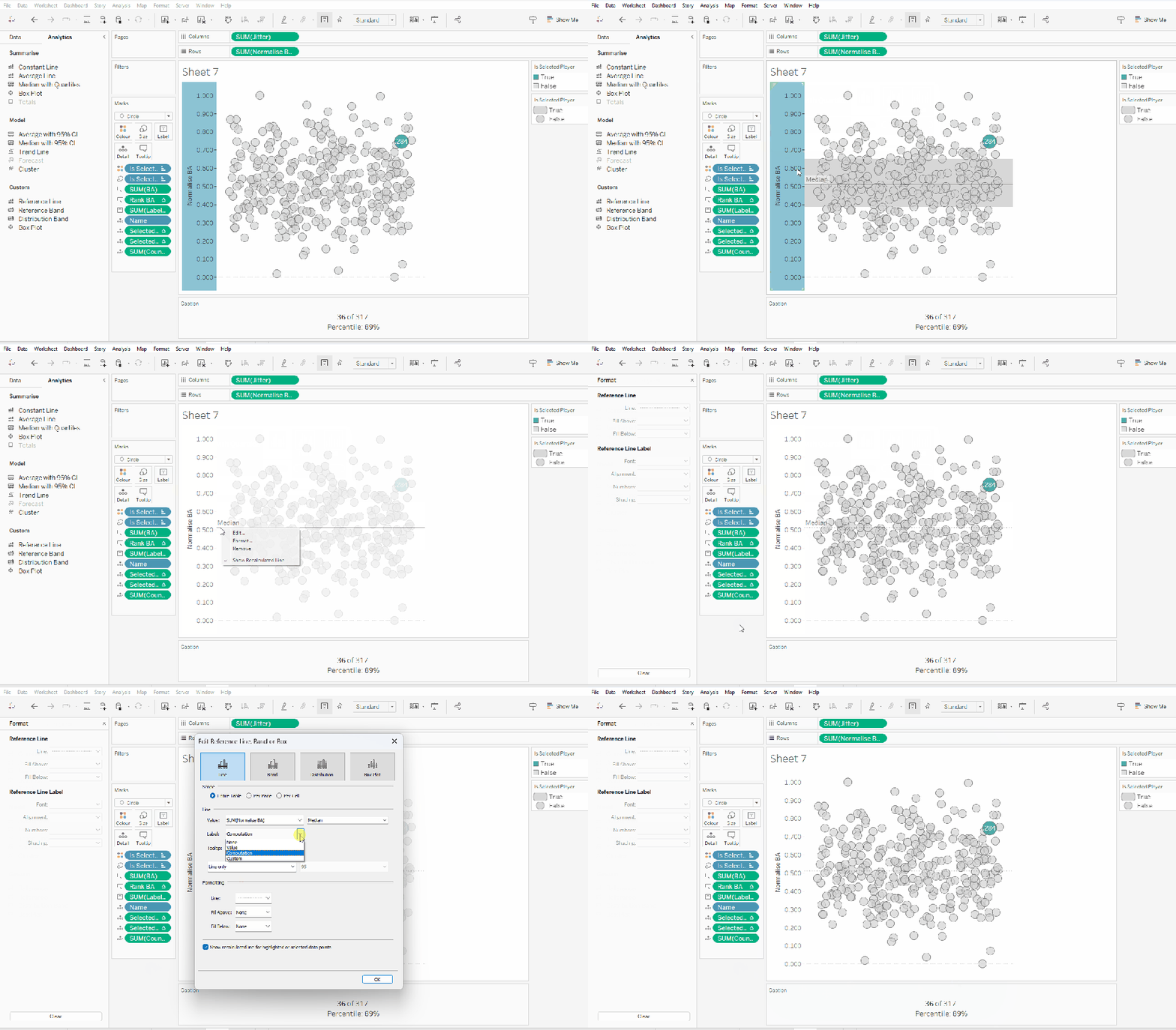
From the analytics pane, drag the Median with Quartiles option onto the canvas and drop it on the table / Normalise BA axis option. Remove the quartile reference lines (right cick axis -> remove reference line), and edit the median reference line to be a dashed line with no label.

Finally remove all gridlines/dividers/axes lines and hide the axes. Title the sheet as per the measure ie BA, and align centrally.

Format the Caption and the Title to have a light grey background and a slightly darker thin border.

Now, repeat all that for the other measures 🙂 This isn’t that bad. All the fields above labelled BA, need duplicating, renaming and updated to reference the next measure eg OBP.

Once done, duplicate the BA jitter plot sheet, and replace all the ‘BA’ related fields with the equivalent ones, by dragging the equivalent field and dropping it directly on top. Sense check the table calculation settings are all ok. You may need to update the text in the caption, as that seems to lose anything to do with the table calculation fields referenced when they get touched.

Ultimately you should end up with 4 sheets.

Putting it all together

On a dashboard, use a horizontal container to position all 4 sheets in side by side. Show the worksheet caption for each sheet. Reduce the outer padding for each sheet to 0, and add a thin border around each sheet.

Add a parameter action to drive the interactivity ‘on click’ of a circle

Select Player

On select of any of the source sheets, update the Select a Player parameter with the value from the Name field. Retain the selected value on ‘unclick’

To prevent the selection on click from being ‘highlighted’, and al the other marks ‘fading’, we need one final step.

Create new calculated fields

True

TRUE

False

FALSE

Add both these fields to the Detail shelf of each of the 4 sheets.

Then add a dashboard filter action for each sheet which on select, goes from the sheet on the dashboard to the worksheet itself, passing the selected fields of True = False. Show all values when unselected.

My published viz is here. Kyle’s solution with a lot less calculated fields, and only 2 sheets (1 for the jitter and 1 for the summary section at the bottom) is here. You will need to pivot the data via the data source pane first through 🙂 Next time, when I really feel something should be able to be done in 1 sheet, I’ll try to think a little longer…. upshot though, I impressed myself at the use of the caption for the summary – something I must consider using more often!

Happy vizzin’!

Donna
Can you create a jittered box plot?

It was Kyle’s turn to set this jittered box plot challenge this week. While it may sound complicated, this is quite a straightforward challenge this week, made more so as Kyle very kindly provides references to other blogs which help you.

So let’s build…

Firstly you need to download the 2 excel files Kyle provides, then relate them via the Team field (this should happen automatically).

On a new sheet add Team to Columns, Age to Rows and Player Code to Detail. Change the mark type to circle, and reduce the Size slightly.

From the Analytics pane, drag box plot onto the sheet and drop onto the Cell image that displays.

Create a new field which is the key field for the jittering functionality

Jitter

RANDOM()

This just generates a random number between 0 and 1.

Add this to Columns and change the view to Entire View so its not all squashed up.

We’ve got our jittered box plot. Now we just have to add in the additional functionality required.

Drag the Playoffs field so that it’s above the line in the data pane on the right hand side (ie change it from a measure to a dimension). Then right click > Aliases to alias to 0 and 1 values to the labels required

Add this field to the Columns in front of the Team field. Re-order so ‘Playoff Teams’ is listed first (I just click on the field name and drag it to the left).

We also need to sort the data based on the median value per team. We need a new field for this.

Median Age per Team

{FIXED [Team]:MEDIAN([Age])}

Add a sort to the Team field, so it sorts by the Median Age per Team descending

Add League to the Filter shelf and set to AL.

Format the worksheet and set the Column Banding to be level 0 and band size 1 to shade the sections as required.

Then adjust the format of the gridlines to remove all row and column gridlines.

Finally, add Name to the Tooltip and adjust accordingly. Then hide the Jitter axes (uncheck Show Header) and adjust the Age axis so it is fixed to start at 18.

You can now add this to a dashboard and you’re done! My published viz is here.

Happy vizzin!

Donna

High Level Dashboard with Explain Data

One of the main reasons I like to partake in the weekly #WorkoutWednesday challenges, is to get the chance to try out the newer features of Tableau that I can’t use at work, due to the version we’re using (we’re never in a position to react to upgrades at the same speed as Tableau releases).

This week, Lorna provided a challenge to introduce Explain Data which is a feature Tableau released as part of v2019.3, so to complete this challenge, you’ll need this version of Tableau Desktop.

The challenge itself isn’t that taxing, so I’m going to attempt not to make this blog that lengthy (which is a challenge in itself… 🙂 ).

Having not used Explain Data before, then the first thing I did was google it, and I watched & read the info Tableau had published here. There’s absolutely nothing wrong in using online resources to help you complete these challenges :-).

So with that understood, I built the basic vizzes required:

Sales by Quarter

Straightforward line graph….

This Year vs Last Year

A few calculated fields needed for this one:

Latest Year

{FIXED : MAX(YEAR([Order Date]))}

Previous Year

[Latest Year]-1

Sales This Year

IF YEAR([Order Date]) = [Latest Year] THEN [Sales] END

Sales Last Year

IF YEAR([Order Date]) = [Previous Year] THEN [Sales] END

The [Sales This Year] is then plotted against [Sub-Category] with [Sales Last Year] added to the Detail shelf and displayed as a reference line against each cell.

The [Sub-Category] field is hidden, so the row labels aren’t duplicated when displayed next to each other on the dashboard.

Sales by Order ID

This is a dot plot that has then been ‘jittered’ to spread the marks out vertically in a random manner.

Without the jitter, you’d just get…

…where all the circle marks are arranged on the same horizontal line, and subsequently, the majority all appear on top of each other.

To make the jitter effect, I make use of a hidden function in Tableau called Random() which assigns a random no between 0 and 1 to each mark on the row.

Jitter

Random()

Then adding Jitter to the rows (and disaggregating), a new axis gets added and the marks get spread vertically, giving a much better sense of the volume of marks that are around the same values.

Hide the axis to get the desired display. The vertical dotted line is a reference line set to be the average sales for each row.

For further reading on creating jitter plots using Random() or Index() please check out :

So with the 3 charts built, these can be added side by side on a dashboard, and with all set to Fit Entire View, you can guarantee each row will line up. You can adjust the padding of each object to make it look like the row divider lines actually continue as a single line (I forgot to do this on my published version :-)).

Explain Data

So having read the information on Explain Data, I switched to my dot plot, selected a mark, and used the ‘lightbulb’ in the command toolbar to view the Explain Data information. I then saved each of the suggested explanation visuals as it’s own sheet, which I added side by side on another dashboard.

The text at the bottom of each worksheet, is simply the caption text that is automatically generated, and can be exposed on the dashboard by enabling the caption to show.

And that’s it for this week. A relatively straight-forward challenge, but providing some good learning opportunities. My published viz is here.

Happy vizzin!

Donna