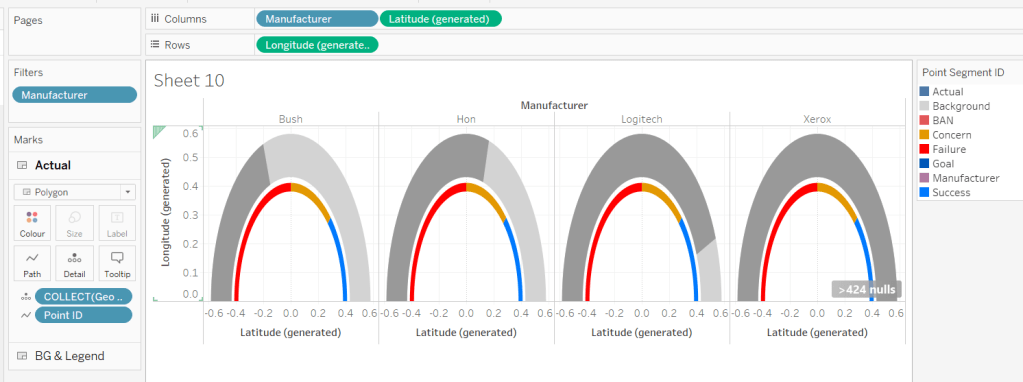
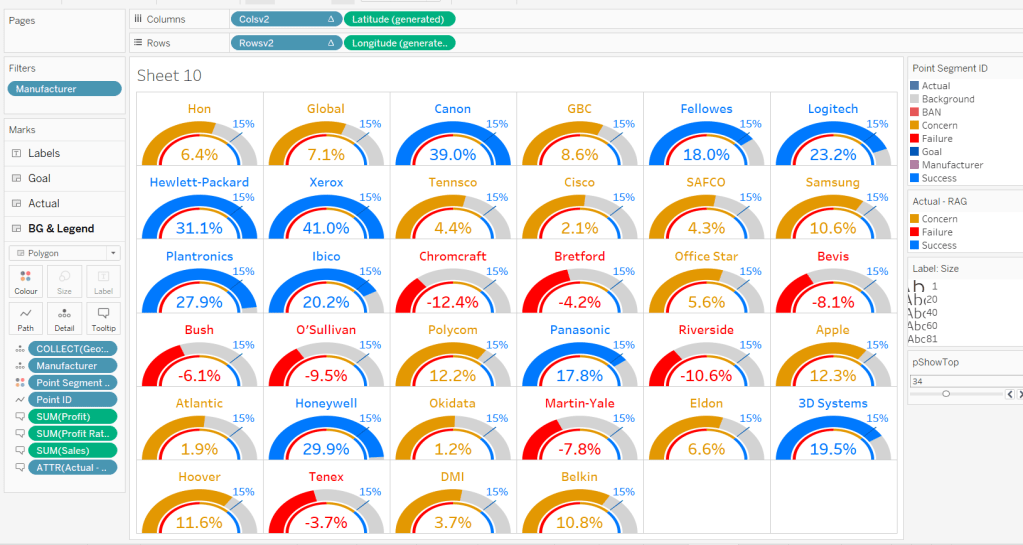
Can you make dynamic indexed bars & measures?

For this week’s #WOW2023 challenge, guest poster Ervin Vinzon asked us to rebuild this visualisation based on data from his home country, The Philippines.

I have to admit, I did find this a bit tough this week – there was a lot going on and maps don’t come naturally to me. I actually wasn’t sure initially whether both the files were needed, as the requirements were a little bit sparse, and I managed to build pretty much the whole solution not using the zip file. I just couldn’t get the map label annotation to work, so ended up having to had to revisit and start again.

Modelling the data

You will need to download both the excel file and the zip file from the Ervin’s shared area.

In the data pane, connect to the Ph Pop 2020 excel file and add the Philippine Population sheet to the canvas.

Then add a connection to a spatial file and point to the zip file. Tableau will automatically identify the file it can use. Add the Provinces file to the canvas.

Create a relation that uses relationship calculations that maps from the Philippine Population sheet :

IIF([Province] = “Maguindanao del Norte” OR [Province] = “Maguindanao del Sur”, “Maguindanao”, [Province])

to the the Provinces sheet

IIF([ADM1_EN] = “National Capital Region”, “Metro Manila”, [ADM2_EN])

Thanks to Rosario Gauna for helping me with this logic, as I couldn’t figure out how the data needed to be related. I think this really needed to be included in the requirements… (Note the logic has been adjusted since I took the image below)

Building the Measure Selector

We can’t use a parameter directly for this, as the design of the ‘radio button’ is more fancy than just what you get with the basic parameter selection functionality.

So we need to ‘fake’ the selection and can use existing fields in our data set to help with this. The Island Group field contains 3 values, so we’re going to draw on these and build

Measure Selector

CASE [Island group]
WHEN ‘Luzon’ THEN ‘By Population’
WHEN ‘Mindarao’ THEN ‘By Population Density’
ELSE ‘By Area’
END

Add to Columns and manually reorder. In the Rows shelf, double click and manually type MIN(0)Change the mark type to circle and add Measure Selector to the Label shelf. Resize the circles, and adjust the label to be aligned middle right. Change the view to Fit Width to see all the labels.

Create a parameter to capture the selected measure when this view is interacted with

pMeasureSelected

string parameter defaulted to By Population

Show the parameter on the sheet. Then create a calculated field

Is Selected Measure

[pMeasureSelected] = [Measure Selector]

and add to the Colour shelf. Adjust the colours to suit and add a grey border on the circles (via the colour shelf).

Stop the Tooltip from showing, hide the MIN(0) axis and the Measure Selector header and remove all gridlines/zero lines and any dividers. Name the sheet Measure Selection.

Building the bar chart

Firstly, we need to determine which measure we’re going to be displaying, so need

Measure to Display

CASE [pMeasureSelected]
WHEN ‘By Population’ THEN SUM([Population])
WHEN ‘By Population Density’ THEN SUM([Density])
ELSE SUM([Area (sq km)])
END

Show the pMeasureSelected parameter on a new sheet, then add Island Group and Province to Rows and Measure to Display to Text. Sort the data descending.

Create a new calculated field

Measure Rank

RANK_UNIQUE([Measure to Display])

Change the Measure Rank field in the left hand data pane to be discrete. Add to the Rows and adjust the table calculation so it is computing by Province only. The Measure Rank should show sequential numbers from 1 upwards, but restart at the next Island Group.

Add another instance of Measure Rank to the Filter shelf. Select All intially to select all the numbers. Then adjust the table calculation to compute by Province only as above. Then re-edit the filter and just select numbers 1-10.

The bar visual displays the actual value in a coloured bar, along with the maximum value for the measure in a grey bar. So we need

Max Value

WINDOW_MAX([Measure to Display])

Add this to the table and adjust the table calculation to compute by Province.

Finally, we need some information to help with the labels

Label Strapline

CASE [pMeasureSelected]
WHEN ‘By Population’ THEN ”
WHEN ‘By Population Density’ THEN ‘persons per sq km’
ELSE ‘sq km’
END

Add this to Rows and then test the behaviour by adjusting the value of the pMeasureSelected parameter.

We now have the data needed to build the bars.

Move Island Group to Columns and manually reorder to be Luzon, Visayas, Mindanao. Move Province and Label strapline to Text. Move Measure to Display and Max Value to Columns. Set sheet to fit Entire View. Reduce the size of the bar to be relatively thin.

On the Measure to Display marks card, add Island Group to Colour and adjust to suit.

Set the colour of the bar on the Max Value marks card to be pale grey and remove the bar border. Remove the Label Strapline field and move the Province from label to Detail.

Make the chart dual axis and synchronise the axis. Adjust the axis (right click > edit axis) to be independent axis ranges for each row or column.

On the Measure to Display marks card, add Measure Rank and Measure To Display to the Label shelf. adjust the table calculation settings of the Measure Rank field to compute by Province only.

Adjust the label to be aligned top left, and then format the label text box, so the label is laid out as required (I used bold 8pt font). To make the label sit ‘above’ the bar, add carriage returns after the text in the label edit box (thanks to Sam Parsons for spotting this sneaky method – my original build was using a much more complex method to get the text sitting on top of the bars!).

Finally hide the axis and the Measure Rank and Island Group fields. Remove all gridlines/zero lines/axis & row and column dividers. Stop the tooltips from showing. Name the sheet Bars.

Building the Bar Header

On a new sheet, add Island Group to Columns and manually re-order. Then double click in Columns and manually type MIN(0.1). Set the mark type to Bar and set the view to fit Entire View. Add Island Group to Colour. Reduce the Size of the bar. Edit the axis and fix to end at 0.7. Add Island Group to the Label shelf, and align bottom left. Adjust the size of the font to be larger and then add multiple carriage returns above the label text to shift the label to sit under the bar.

Remove all headers/axis and row/column dividers and gridlines. Stop the tooltip from showing.

Adjust the title of the sheet to reference the pMeasureSelected parameter.

Name the sheet Bar Header.

Building the map

We will need another parameter to store the selected Province value.

pSelectedProvince

string parameter defaulted to nothing

On. a new sheet, double click on the Geometry field. This will automatically display a map of the Philippines. Remove all the unnecessary detail via Map > Background Layers and unchecking all the options.

Add Province to the Detail shelf and Region and Island Group to the Tooltip. Adjust the Tooltip.

Show the pSelectedProvince parameter and manually enter the province Leyte.

Create a new field

Is Selected Province

[pSelectedProvince] = [Province]

and then add to the Colour shelf. Adjust the colours to suit (set the NULL field to the same as False).

We need to capture the ‘geometry’ of the selected Province

Selected Province Location

MAKEPOINT((IIF([Is Selected Province],[Latitude],NULL)),(IIF([Is Selected Province],[Longitude],NULL)))

Drag this field onto the canvas and drop it on the Add a marks layer section that displays. This will create a second marks card. Change the mark type to Circle and adjust the colour as required. Add pSelectedProvince to the Detail shelf.

Select the circle mark, and add an annotation against the mark (right click > Annotate > Mark). Reference the parameter pSelectedProvince in the dialog window.

Providing the pSelectedProvince is on the Detail shelf and is referenced in the Annotation, then changing the value of the pSelectedProvince parameter to Samar or any other province, should retain the annotation. Once again, thanks to Sam for figuring this out as I could just not see it, even when I looked at the solution.

Remove row & column dividers. Stop the map options from displaying (Map > Map Options and uncheck all selections). Update the title of the sheet, and then name the sheet Map.

Adding the interactivity

Add the sheets to a dashboard using horizontal and vertical layout containers to arrange the objects.

Update the title of the Measure Selection sheet and the Bar Header sheet to match the text being displayed.

Create a dashboard parameter action to define the measure selection on click

Set Measure

On selection of the Measure Selection sheet, set the pMeasureSelected parameter, passing through the value from the Measure Selector field.

Create another action for the Province

Select Province

On selection of the Bars sheet, set the pSelectedProvince parameter, passing through the value from the Province field. When the selection is cleared, reset to nothing.

To stop the Bar Heading sheet from being clicked on, just float a blank object over the top.

To prevent the other bars and the measure selections from all fading when clicked on, create a new field

HL

‘HL’

and add to the Detail shelf of the Bars sheet and the Measure Selection sheet.

Then back on the dashboard add a dashboard highlight action

Unhighlight

On selection of the Bars sheet and the Measure Selection sheet, target the Bars and the Measure Selection sheets using the HL selected field only.

Now when a bar is clicked, it will look ‘selected’ (has a black bar around it), but the other bars won’t become faded/greyed out. Similarly when a measure is selected, the other circles won’t fade.

Phew! That should be it. There’s a fair amount going on here and lots of tricky ‘gotchas’. My published viz is here .

Happy vizzin’!

Donna

Can you make a pie chart?

In his final challenge for 2022, Luke set this challenge asking us to recreate this pie chart. Although not mentioned in the challenge text, there was a hint on the splash page that map layers would be required.

I’ve only really used map layers in other #WOW challenges, and they actually involve maps. This challenge was obviously a bit different – utilising a functionality built for one purpose in an entirely different way. I remembered when map layers were first released there was a big buzz about the potential possibilities, and had seen some examples, but I’d never gotten round to trying out for myself, so this was the perfect opportunity (and one of the many plus points as to why I love doing #WOW challenges).

So where to start… good question. If you read up on the official Tableau KLs relating to map layers, it’s all about geography, and while the data source does have geographic data (State, City etc), they aren’t relevant in this case. In my ‘googling’ I found the following resources of use

The first 2 blogs helped me understand the need for the use of the MAKEPOINT function, Sam Parson’s Pies & Doughnuts viz helped me understand the calculation I’d need for the MAKEPOINT function, and the final blog post really helped with putting in all together.

Feel free to ignore the rest of this blog and use the above to help you out 🙂

Building the first map layer

The first step is to create the geometry field we need to base this off of.

Zero

MAKEPOINT(0,0)

Double click this field, and it will automatically add the point centrally onto a map with Longitude and Latitude fields automatically generated too.

This is a key step in getting things started and enabling the use of map layers which we’re going to utilise.

Add Segment to Colour and adjust the colours. Change the mark type to pie chart and add Sales to angle. Increase the size to be as large as possible.

However the size isn’t as big as we need. To increase further use Ctrl-Shift-B (windows) or Cmd-Shift-B (mac) to increase the size further (Ctrl-B / Cmd-B) to reduce. This trick I found in the Interworks blog above. All Tableau key shortcuts are listed here.

Add Segment to the Label shelf. This completes our lowest map layer.

Building the second map layer

Drag Zero onto the map canvas, and drop it over the Add a Marks layer section that displays. This will add a second marks card called Zero(2).

On the marks card that is named Zero, rename it to Outer Pie.

On the marks card named Zero (2) rename to White Circle. Change the mark type to Circle, change the Colour to white and increase the size to leave a narrow border of the coloured pie underneath.

Building the third map layer

Drag another instance of Zero onto the canvas and add another marks layer. Rename Zero (3) to Inner Pie. Change the mark type to Pie chart and add Segment to Colour and Sales to angle. Increase the Size so it’s just smaller than the white circle. Change the opacity of the colour to 70% and add a white border (Colour shelf).

Adding the labels in the pie chart

The simplest way to do this is just to label the inner pie chart with the required fields and then manually move the labels from outside the pie to the desired location. However if your data changed in some way, eg the proportion of the slices changed, the labels may not be where you wanted without further tweaks.

So instead I’ve added a 4th map layer.

Add Zero once again to the sheet and add a marks layer. Rename this marks card to Labels -Inner Pie. Change mark type to Pie chart and add Segment to Detail, Sales to Angle and Sales to Label. Create a new calculated field

Pct

SUM([Sales]) / TOTAL(SUM([Sales]))

Format to % with 0 dp and and add to Label. Adjust the fonts of the labels so the Sales value is larger.

Increase the size of the pie chart so the labels are positioned ‘nicely’ within the segments of the Inner pie

Reduce the opacity of the ‘label’ pie chart to 0% and set the mark layer to be disabled

Finishing up

Adjust the tooltips to display as required (you’ll need to add Pct to the Tooltip shelf on both the Outer and Inner Pie mark cards).

Then remove the map background via the Map menu -> Background Maps -> None. Hide all axis and remove all gridlines/zero lines/row/columns dividers. You should now be left with a ‘clean’ pie chart which can be added to a dashboard.

My published viz is here.

Happy vizzin’!

Donna

Where were COVID-19 cases most active?

In this week’s #WOW2022 instalment, Luke set this map-based challenge to visualise COVID-19 cases across the continental US states on 30 December 2021.

Each ‘pyramid’ on the map represents a county within a state, with the height and colour of the pyramid indicating the volume of cases recorded.

Luke provided a workbook with some pre-modelled data as a starting point, so I used that.

To familiarise myself with the data I built out a basic table, focusing on the State of Idaho (ID) only.

Clat10 and Clon10 are the latitude and longitude positions of the County and metrics.caseDensity is the key measure used to indicate the volume of cases.

To draw the pyramid, we need to plot 3 marks for each County, 1 for each point in the triangle. This means we need to densify the data so we have multiple rows for each County. If we add Point as a discrete dimension (blue pill) to the table, we can see we can generate up to 20 rows per County.

This is obviously excessive – we only need Points 1-3, so for simplicity, we can add Point to Filter and limit to just 1, 2 and 3. I added the filter by duplicating the Point pill from Rows (hold ctrl and then click and drag the pill from Rows to Filter – this added the filter as a discrete dimension and I could just select options 1, 2, 3).

With only 3 points, we can now build the lat and long coordinates for each point. I am assuming point 1 is the bottom left point, 2 is the top point, 3 is the bottom right.

Triangle Long

CASE [Point]
WHEN 1 THEN [Clon10] – 0.1
WHEN 2 THEN [Clon10]
WHEN 3 THEN [Clon10] + 0.1
END

As the requirements stated the base of pyramid was 0.2 longitude points wide, then the bottom left and bottom right points need to be 0.1 points to the left or right of the County longitude, while the peak is aligned centrally.

Triangle Lat

CASE [Point]
WHEN 1 THEN [Clat10]
WHEN 2 THEN [Clat10] + ([metrics.caseDensity]/60)
WHEN 3 THEN [Clat10]
END

The latitude of the left and right bottom points are aligned with the County latitude, while the height is an additional 1/60 of the metrics.caseDensity value above the County longitude.

Change both the Triangle Lat and Triangle Long fields to be of the Geographic role type of Latitude or Longitude accordingly (right click field -> Geographic Role -> Latitude/Longitude).

Adding these into the table, we can see how the coordinates are forming

So with this, we can now build the map

Add State to Filter and exclude AK, HI, PR (Alaska, Hawaii, Puerto Rico).

Double click Triangle Lat then double click Triangle Long to add them to the sheet – a map should automatically be presented.

Add County to Detail, and a mark should appear for every County.

Add Point to Detail and change to a dimension – there should now be 3 marks per County forming triangles. Zoom in to really see this.

Change the mark type to line and the points all join up to form the pyramid.

Add metrics.caseDensity to Colour, then edit the colour. Choose the red-gold colour palette, then click the Advanced button, and first change the centre to 75, then set the start & end value to 0 and 200.

Modify the Tooltip and reduce the Size of the line. Zoom back out

Finally amend the map background ( Map menu -> Background Layers). Uncheck base and land cover, check terrain and coastline. Uncheck Country/Region Names and State/Province Names.

Hide the null indicator and then place on a dashboard. Done!

My published viz is here.

Happy vizzin’!

Donna

Can you make a hexbin map?

Sean Miller was back this week to set this challenge to recreate a ‘rat sighting’ map using hexbins. I’ve only used hexbins in other #WOW challenges, so needed a bit of a refresher (the previous challenges pre-dated my own blog, so I couldn’t use myself as a reference). A quick google for ‘tableau hexbins’ and I found a variety of articles that provided the refresher needed.

Sean also used the opportunity to apply some other crucial skills – adding custom shapes and custom colour palettes, which I recommend is the first step you do in completing this challenge.

Adding custom shapes

Download the hexagon shape provided by Sean, and then save it into a folder in your …My Tableau Repository\Shapes directory. I have a folder called ‘Custom’ where I place random shapes I need. This post will help you out if you’re having difficulty with any of this.

Adding custom colour palette

Open a text editor such as Notepad, then open the preferences.tps file that is located in your .. My Tableau Repository directory. Copy & paste the block of code provided by Sean between the opening and closing <preferences> tag. Save the file and close the text editor. This post will help if you’re having trouble.

Building the map

The provided rat sighting data set contains a Longitude and Latitude value for every rat sighting since 2010.

Hexbins provide a way to group (bin) these Lat & Long values together. The size of the bin is typically determined by a parameter, so lets first set this up

pRatio

integer or float parameter which I set to a default value of 250 (Sean didn’t specify the value he’d used, but trial and error suggested to me this looked ‘about right’).

Now we can build the bins

HexbinX

(HEXBINX([Longitude]*[pRatio], [Latitude]*[pRatio])) / [pRatio]

Edit the geographic role of this field to be mapped to Longitude (right click on field -> Geographic Role).

HexbinY

(HEXBINY([Longitude]*[pRatio], [Latitude]*[pRatio])) / [pRatio]

Edit the geographic role of this field to be mapped to Latitude.

Add HexbinX to Columns and HexbinY to Rows. Modify each field so that it is a continuous dimension.

Change the mark type to Shape and select the hexagon shape you saved earlier.

Add the auto generated ‘count of dataset’ (Count of Rows) field to Colour, and adjust the colour to use the OrRd-5 palette you added earlier. Ensure to set the palette to Reversed.

Set the Tooltip so it doesn’t display anything on hover, and add Borough to the Detail shelf (this is needed for the interactivity later). Hide the nulls indicator that displays in the bottom left (right click -> hide).

On the Map menu, select Map Layers, and set the background style to dark.

Using the map controls, zoom in and pan to the left slightly, so the coloured area is mainly central and there’s less ‘sea’ at the bottom. It’s likely that you may need to adjust further once you’ve placed the map on the dashboard. But before publishing, we want to turn the map controls off, to prevent a user from shifting the display (Map -> Map Options -> uncheck all options).

Building the Bar Chart

On a new sheet, add Borough to Rows and Count of Rows to Columns. Add Borough to Filter and exclude Null and Unspecified. Sort the rows descending. Adjust the colour to suit.

Show mark labels, but only display the max & min values. Format the Count of Rows pill so the labels are displayed in K to 2 dp.

Hide the axes, right align the row label headings, adjust the tooltip. Hide the column heading. Remove zero lines and axis rulers. Set the background colour of the worksheet to ‘None’ (ie transparent).

Further formatting is required, but this is best done after the sheet is added to the dashboard, as you’ll lose visibility of the text at this point.

Creating the dashboard

Add the map to a dashboard, and remove all the additional containers/legends etc that are added, and the sheet title. Then add the bar as a floating object and position bottom left. Fit to entire view. Edit the title so it contains the ‘on hover’ instruction and format in light grey font.

Now you can format the row labels, the row headings and the gridlines to be appropriate colours – light grey rather than white.

Add a dashboard highlight action that on hover of the bar chart, highlights data in the Map

Then add floating text boxes and add the title and description. I ended up adding a text box just containing the OH, and then another position just below containing RATS! and then the description, as otherwise the carriage return between OH & RATS! made the spacing too wide. I used the controls on the layout tab to ensure both text boxes were positioned at the same x-coordinate.

Hopefully, you should now have a beautiful looking viz. My published version is here.

Side note – When I first started building this I tried from memory, and didn’t quite get things right. I then adjusted various fields as described above, but when I then tried to add the Count of Rows to Colour, I was only ever getting a value of 1 against each bin. I double & triple checked all the calcs and couldn’t see any issues. It was very weird. I simply ended up closing down my workbook and starting again from scratch and all was fine. I’m just letting you know this in case you too come across any oddities during your build, and things don’t behave as expected. It meant, what was ultimately quite a straight forward build (once I got the calcs right), ended up involving more time and head-scratching than really required 😦

Happy vizzin’!

Donna

Can you use multiple mark layers?

Lorna Brown provided a refresher on map layers and spatial calculations for the #WOW2022 challenge this week. You’ll need Tableau Desktop v2020.4 or later to complete this due to the functionality incorporated.

The data set provided contains rows of origin & destination airports including the latitude and longitude values for each.

I found there were some fields in the provided data set which I don’t think should have been there. It meant when I came to naming some of my fields, I had to be more creative due to the existing ones.

We’ll start off by setting up the calculations required.

Firstly we need to create a spatial object out of our Origin and Destination airports.

Origin

MAKEPOINT([Origin Latitude],[Origin Longitude])

Destination

MAKEPOINT([Destination Latitude],[Destination Longitude])

Next we’re going to need to have a line to connect these

Origin-Dest Line

MAKELINE([Origin],[Destination])

We’re going to need ‘buffer’ to define the circle displayed. The size of this is to be defined by the user, so we’ll need a parameter

pBufferSize

integer parameter defaulted to 1000

and with this, we can then define the buffer

Buffer from Origin

BUFFER([Origin],[pBufferSize], ‘miles’)

Finally we need to determine whether the destination airport is within the buffer ‘zone’.

Within Buffer

[Distance (Miles)]<=[pBufferSize]

Note: Distance (Miles) already existed within the downloaded data set. I was expecting to have to calculate the distance myself, given the nature of the challenge. If I had had to create it, I would have used the calculation DISTANCE([Origin], [Destination], ‘miles’)

This is all we need to build the viz. I’m going to start from the top – down ie Origin airport -> Destination airport -> Lines – >Buffer.

On a new sheet, add Origin Airport to Filter and set to LAS. Also add Within Buffer to the Filter shelf and set to True.

Then drag Origin onto the main canvas area and drop it when you see ‘Show Me’ displayed on the cursor. This will automatically add all the required fields into the relevant locations

Change the mark to a circle, increase the size and set the colour to black. Add Origin Airport to Label and Origin Name to Tooltip, and adjust the tooltip accordingly.

This is the first map layer.

Now drag Destination onto the canvas and drop it on the ‘stacked layer’ icon when you get the Add a Marks Layer option appear

This will create a new marks card on the left, and is the 2nd marks layer.

Add Destination Name to the Detail shelf, then change the mark type to square. Add Destination Airport, Origin Airport and Distance (Miles) to Tooltip and adjust tooltip to match.

Finally move the Destination marks card so it is below the Origin marks card. Click on the Destination card and drag to below the Origin card and drop when you see the orange line appear

Now drag Origin-Dest Line onto the canvas and drop it on the ‘stacked layer’ icon when you get the Add a Marks Layer option appear to create the 3rd marks layer. This will add all the ‘spokes’.

Change the colour to grey. Add Destination City to the Detail shelf. Add Origin Name, Origin Airport, Distance (Miles) and Destination Airport to the Tooltip and adjust accordingly. Finally, drag this marks card so that it is now below the Destination marks card.

Final layer now – the buffer zone.

Drag Buffer from Origin onto the canvas and drop it on the ‘stacked layer’ icon when you get the Add a Marks Layer option appear to create the 4th marks layer. Adjust the colour to light grey, and reduce the opacity to suit. Then move this marks card to the bottom, so its beneath the Origin-Dest Line marks card.

And that’s it. Add the sheet onto a dashboard, and show the Origin Airport filter as a Single Value dropdown so only 1 origin airport can be selected at a time. I also customised the control so the All option did not display either. Add the pBufferSize parameter to the display too, and test the viz by changing the size and the airport.

My published version of the viz is here.

Happy vizzin’!

Donna

Can you build an app to visualise wildfires?

Ann Jackson’s husband Josh (@VizJosh) set the challenge this week, to build an ‘application’ to help visualise the scale of wildfires; that is when a fire is said to be 5000 acres, you can use the app to view how that compares to an area of the world you may know, so you can really appreciate just how large (or small) the fire is.

I have to hold my hand up here, and say that after reading the requirements several times, I was absolutely stumped as to where to start. We were provided with some ‘data’ to copy which consisted of 5 rows, which I duly copied and pasted into Desktop, but I then like ‘what now….?’ I knew I needed something geographic to build a map, but couldn’t understand the relevance of the 5 rows… I’ve said before I don’t use maps that often, so was unsure whether there was something I needed to do with this data. After staring at the screen for what seemed like an age, I ended up looking at the solution.

The data is just ‘dummy’ data and is just something to allow you to ‘connect’ Tableau to. You can’t build anything in Tableau without a data source. It could just have been 1 row with a column headed ‘Dummy’ and a value of 0. If it had been that, it might have been more obvious to me 🙂

  • Defining the parameters
  • Building the map
  • Apply button
  • Dashboard Actions

Defining the parameters

Ultimately the ‘data’ being used to build the viz is driven by parameters – the Location selector and the Latitude & Longitude inputs.

pLocation

An integer list parameter that stores values, but displays worded locations – wherever you choose. I opted for my hometown of Didcot in the UK alongside locations Josh had used, mainly so I could validate how the rest of the ‘app’ would work when I came to build it.

pLongitude

Float input, defaulted to the longitude of location 1 (ie Didcot) above.

I just googled Didcot Latitude and Longitude to find the relevant values

Note – Longitude W means an input of -1 * value. Similarly for Latitude S needs to be a negative input.

Then I created

pLatitude

Since we’re talking about parameters, there’s a couple more required, so lets create them now

Acres

Integer parameter defaulted to 5000

pZoom

Integer, list parameter with the values below, defaulted to 2.

Building the map

Now we have some lat & long values (in the pLatitude and pLongitude parameters), we can create some geographic data needed to build a map.

Location

MAKEPOINT([pLatitude], [pLongtitude])

This gives us the centre point which we want to build the ‘fire size’ buffer around. For this we need the calculation JOsh kindly provided :

Acres to Feet

SQRT(([Acres]*43560)/PI())

and then we can create the buffer

Fire Size

BUFFER([Location],[Acres to Feet],’ft’)

Double click on this field and it should automatically create you a ‘map’

Adjust the map ‘format’ via the Map > Map Layers menu option. I chose to set it to the dark style at 20% washout, then ticked various selections to give the details I needed (I added and removed options as I was testing against Josh’s version). I also set the colour of the mark via the Colour shelf to be pale red.

Also, as per the requirement, turn off the map options via Map > Map Options menu, and unchecking all the selections.

So this is the basic map, and you can input different lats & longs into the parameters to test things out.

Now we need to deal with the zoom requirement.

I wasn’t entirely sure about this, so had a bit of a search and found Jeffrey Shaffer’s blog post How to create a map zoom with buffer calculation in Tableau – bingo!

The zoom had to be x times the size of the circle on the map, so achieved by

Zoom

BUFFER([Location],[pZoom] * [Acres to Feet],’ft’)

Add this a map layer (drag field onto the map and drop onto the Add a Marks Layer section that displays)

This has generated a 2nd circle and consequently caused the background map to zoom out. We don’t want this circle to show, nor to be selected, so on the Colour shelf, set the Opacity to 0%, and the Border and Halo to None. To prevent the circle from showing when you hover your mouse on the map, you need to Disable Selection of the Zoom marks card

Apply Button

On a separate sheet, double click into the space below the Marks card, and type ‘Apply’ into the resulting ‘text pill’ that displays, and then press return.

This will create a blue pill, which you can then add to the Label/Text shelf. Align the text to be middle centre

This view is essentially going to act as your ‘Apply’ button on the dashboard. When it is clicked on, we want it to take the Lat & Long values associated to the place listed in the pLocation parameter, and update the pLatitude & pLongitude parameter values.

For this, we need a couple of extra calculated fields

Location Lat

CASE [pLocation]
WHEN 1 THEN 51.6080
WHEN 2 THEN 40.7812
WHEN 3 THEN 51.5007
WHEN 4 THEN 48.8584
END

Note – as before, all these values were worked out via Google as shown above.

Location Long

CASE [pLocation]
WHEN 1 THEN -1.2448
WHEN 2 THEN -73.9665
WHEN 3 THEN 0.1246
WHEN 4 THEN 2.2945
END

Add both these fields to the Detail shelf of the Apply sheet.

Dashboard Actions

When you add the 2 sheets to the dashboard, you then need to add parameter actions to set the values of the pLongitude & pLatitude parameters on click of the Apply button

Set Lat

A parameter action that runs on Select of the Apply sheet, setting the pLatitude parameter with the value from the Location Lat field.

You need another action Set Long which does a similar thing by passing the Location Long field into the pLongitude variable.

Finally, you don’t want the ‘Apply’ button to look ‘selected’ (ie highlighted pale blue) once clicked. Create calculated fields True = True and False = False and add both of these to the Detail shelf on your Apply button sheet.

Then add a dashboard filter action that uses Selected Fields and maps True to False

Hopefully, this should provide you with all the core features to get the functionality working as required. Ultimately once I got out of the starting blocks, it wasn’t too bad…

My published viz is here.

Happy vizzin’! Stay Safe!

Donna

Can you visualise the Cholera Outbreak?

Lorna delivered an exciting map based challenge this week, to recreate one of the most famous visualisations ever created. If you’re part of the data viz community and never heard of John Snow and his cholera map, then I suggest you go and google now 🙂

While I love map based challenges, as its an area I don’t get to use regularly, they’re also the ones that can give me the most frustrations/take the longest to complete, as the functions and concepts I need to use don’t come as readily as with other challenges. I had to refer back to my own blogs on previous map based challenges (specifically this one and this one), to help me out. However these were written before map layers were introduced, so not everything was applicable.

  • Modelling the data
  • Building the Avg Distance to Pump bar chart
  • Building the Total Deaths within Avg Distance bar chart
  • Building Map
  • Adding the dashboard interactivity

Modelling the data

3 sets of data was provided

  • Pumps – 1 row per pump with its location
  • Deaths – 1 row per death and its location (can be multiple rows for the same location)
  • Deaths aggregated – 1 row per location where at least 1 death was recorded, including the count of deaths at that location

This all needed to be ‘combined’ so we can work across all 3 sets of data and compare the locations. I used relationship calculations to create a relationship of 1=1 between the related data sets, which means all the aggregated deaths are mapped to each pump, and all the individual deaths are mapped to each pump too.

Building the Avg Distance to Pump bar chart

I chose to start building the bar charts first so I could get better acquainted with how the data was working together, and I knew the maps would take more effort.

To start we need to figure out the distance from each pump to each death, so we need to get the location of each pump, and the location of each death

Pump Location

MAKEPOINT([Pump Lat],[Pump Lon])

Individual Death Location

MAKEPOINT([Death Lat],[Death Lon])

These will both create calculated fields of a geographic data type as indicated by the globe icon to the left of the field.

And with these fields, we can then work out the distance between them in metres

Distance Pump to Death

DISTANCE([Pump Location], [Individual Death Location],’m’)

Now we want the average distance per pump

Avg Distance

{FIXED [Pump ID]: AVG([Distance Pump to Death])}

I formatted this to 0 dp and added a suffix of ‘m’

And with this, we can build the first bar chart – Pump ID on Rows and Avg Distance on Columns. You need to apply formatting

  • Change the font – I set the font to Times New Roman at the Workbook level, to make life easier (Format menu > Workbook).
  • Set the worksheet background colour. I used #f5f1f0
  • Add a black border to each bar (via the Colour shelf)
  • Show labels on bars (via Label shelf)
  • Hide Avg Distance axis (uncheck show header on the Avg Distance pill)
  • Remove all row & column borders
  • Set the Axes Ruler on Rows to black
  • Set the Tooltips

A parameter is needed to store the selected pump

pSelectedPump – an integer defaulted to 1

With this, we can then create a field to indicate which pump is selected

Is Selected Pump?

[Pump ID]=[pSelectedPump]

Add this field to the Colour shelf and set the True option to black and the false option to match the background colour you used.

Building the Total Deaths within Avg Distance bar chart

We now need to identify if the death occurred within the average distance that has been calculated.

Number Deaths within Avg Distance

SUM(INT([Distance Pump to Death] <= [Avg Distance]))

This is a bit of short hand instead of writing IF [Distance Pump to Death] <= [Avg Distance] THEN 1 ELSE 0, and summing up the result. It relies on the the fact that the equation [Distance Pump to Death] <= [Avg Distance] returns a boolean of true or false, which can be converted to an integer as true =1 and 0 = false.

At a row level, the field just returns 1 or 0, but just plot this field against Pump ID, you get the desired count

And the easiest way to build this bar chart, is to duplicate the one created above (on the worksheet tab, right click & duplicate sheet), then replace the Avg Distance pill with the Number Deaths within Avg Distance pill (simply drag the latter from the data pane and drop directly onto the former in the columns shelf). Then adjust tooltips etc to suit. Doing it this way preserves (most of) the formatting.

Building the Map

We’re going to use 4 layers in creating the map, and I’m documenting from the bottom upwards (although this isn’t the order in which I actually built the viz in practice – I shuffled things round afterwards).

We’ll start with the density layer – the blue coloured area on the map.

On a new sheet, add Individual Death Location and Death ID to the Detail shelf. This should automatically create a map view with the auto generated lat & long fields. Then

  • Change the mark type to Density
  • Change the colour to Density Blue-Teal Light
  • Alter the Intensity to 75%, the Opacity to 60%
  • Increase the Size to maximum
  • Delete the info in the tooltip

We need to set the background map

Via the Map > Map Layers menu option, set the Style to Normal and uncheck all options and set Streets, Highways, Routes

Then set the worksheet background to the colour we’ve used before

Onto Layer 2 – the pump buffer circle.

We’ve already identified the selected pump, but now we need to get it’s location, and for that we need the lat and long of the selected pump.

Selected Pump Lat

{FIXED: MIN(IIF([Is Selected Pump?],[Pump Lat],NULL))}

This essentially gets the latitude of the selected pump and sets that value across all the rows in the data.

Selected Pump Long

{FIXED: MIN(IIF([Is Selected Pump?],[Pump Lon],NULL))}

And with these we can get

Selected Pump Location

MAKEPOINT([Selected Pump Lat],[Selected Pump Long])

We also need to get the average distance of the selected pump spread across every row

Selected Pump Avg Distance

{FIXED :SUM( IF [Is Selected Pump?] THEN [Avg Distance] END)}

Now we have this, we can build the buffer field

Pump Buffer

BUFFER([Selected Pump Location],[Selected Pump Avg Distance],’m’)

Drag this Pump Buffer field onto the map and drop it onto the ‘Add a Marks Layer’ section that should appear. This will create an additional marks card.

Set the colour to the same background colour previously used, and drop the opacity to around 5%. Add Pump ID to Detail and Selected Pump Avg Distance to the Tooltip shelf. Adjust tooltip to match.

Onto Layer 3 – the pumps

Drag Pump Location onto the map and Add a Marks Layer.

Add Pump ID to Text and Location to Tooltip to the relevant marks card. Change mark type to circle, increase the size and change colour to red and add a dark grey border. Adjust text to be centred, and set the tooltips accordingly.

Onto the final layer now, the aggregated death locations. We need a further location field

Death Location

MAKEPOINT([DeathLat (deaths aggregate.csv)], [DeathLon (deaths aggregate.csv)])

Drag this onto the map to Add a Marks Layer then on the subsequent marks card add Loc ID to the Detail shelf. Change the mark type to circle, and add Deaths to the Size shelf – adjust accordingly. Change the colour to black with a white border. Adjust tooltip.

Adding the dashboard interactivity

Add the 3 sheets onto a new dashboard sheet. Create a new dashboard action to Change Parameter, that runs on select of any of the 3 charts, and targets the pSelectedPump parameter by setting it with the value from the Pump ID field.

Now if you select a pump on the map, or a bar on either of the bar charts, all the charts will reflect the selection made.

The other interactvity you may notice, is that on click, of the bars, or the pumps, the other data ‘fades’ (or the selected data is highlighted). We don’t want this.

To resolve, create a calculated field

True

True

and another

False

False

Add both these fields to the Detail shelf on both bar chart sheets and to the Detail shelf on the Pumps marks card.

Then on the dashboard, create a dashboard filter action which filters on selected fields setting True = False (see below). You’ll need to create one of these actions for each of the 3 sheets.

And hopefully, you now have a working viz. My published version is here.

Happy vizzin’! Stay Safe!

Donna

Can you structure the unstructured?

As soon as I saw that Candra’s challenge for this week was going to involve Regular Expressions (RegEx), I gave a little groan. RegEx just isn’t my thing 😦 I only ever seem to use them for these challenges, and not in my working life, so have minimal experience. I always think I should focus some time on learning them properly, but other things just end up taking priority. Ho Hum…

So most of my time was spent trying to wrangle the info I needed to identify ‘how many bedrooms’ each property had. I did a bit of googling to try to find the right expressions I think I needed, used the regex101 site to test my expression to find certain patterns of text against some of the data in the Description field, and then tried to plug that into a calculated field in Tableau to extract the data I needed.

But I couldn’t get it to work 😦 I could find matching text using the REGEXP_MATCH function, but when I then tried to use the REXP_EXTRACT functions I couldn’t get anything out…

So I ended up having to look at the solutions that had already been published by the time I started, Candra’s, Lorna Brown’s and Sam Epley’s. I just needed to get my head round what I was obviously doing wrong and give me some pointers. All 3 had slightly different approaches. I absorbed, then closed their workbooks and attempted again from memory. With a lot more trial and error I got somewhere… it isn’t perfect and has some mismatches from the others (but they don’t all match each other either…).

Once I’d got a grouping for each property, the actual Tableau stuff was quite straightforward…

  • Identifying the ‘Number of Bedrooms’
  • Building the Histogram
  • Adding the Average Price
  • Building the Map
  • Adding the Interactivity

Identifying the Number of Bedrooms

So the way I approached this, was to try to identify all the various permutations that represented the word ‘bedroom’ and replace it with the word ‘Bedroom’. But one of the options was BR or br, and the Description field contained html markup with the term <br />. I didn’t want all these to become ‘bedroom’, so I got rid of them all first,

Desc with Bedroom

REGEXP_REPLACE(LOWER(REPLACE([Description],'<br />’, ‘ ‘)),’bedroom|br |bdrm|bed|bd|br, |br/|rooms’,’ Bedroom’)

Firstly, replace any occurence of <br /> with a space, then replace any occurrence of the text bedroom or br<space> or bdrm or bed or bd or br<comma> or br<forward slash> or rooms with the word Bedroom.

I basically added more options to the or statement (identified by the | separator), as I went on examining the descriptions that were left. Using the LOWER function meant that bedroom or Bedroom or BedRoom etc would all be covered with one option.

Then I attempted to extract the number of bedrooms or identify as a studio

Studio | Beds

IF CONTAINS(LOWER([Desc with Bedroom]), ‘studio’) THEN ‘Studio’
ELSEIF REGEXP_MATCH(LOWER([Desc with Bedroom]),’\d bedroom’) THEN REGEXP_EXTRACT(LOWER([Desc with Bedroom]),'(\d+) bedroom’)
ELSEIF CONTAINS(LOWER([Desc with Bedroom]), ‘six bedroom’) THEN ‘6’
END

If the revised description contains the word ‘studio’ then assume its a Studio.

Else if the revised description contains a number (\d) followed by 2 spaces then the word ‘bedroom’ then extract the numbers (\d+) that occur before the word bedroom. The brackets around the \d+ is what is used to identify what bit of the matching pattern to extract… this is the bit that I didn’t really know about and why I couldn’t get things to work.

Else if the revised description contains a number (\d) followed by 3 spaces then the word ‘bedroom’ then extract the numbers (\d+) that occur before the word bedroom. This just happened to be another pattern that occurred and meant some records didn’t get picked up by the prior statement. There’s probably a better way of doing this in one statement…

Finally, if the revised description contains the text ‘six bedroom’ then assume the property has 6 rooms.

This logic seemed to get a match against every record although it’s not 100% accurate, but it was close enough given my struggles.

I then wanted to get the rooms grouped

Room Grouping

CASE [Studio | Beds]
WHEN ‘Studio’ THEN ‘Studio’
WHEN ‘1’ THEN ‘1 Bedroom’
WHEN ‘2’ THEN ‘2 Bedrooms’
WHEN ‘3’ THEN ‘3 Bedrooms’
WHEN ‘4’ THEN ‘4 Bedrooms’
ELSE ‘5 or more Bedrooms’
END

I planned to use this field as my filter, but in doing so the value listed alphabetically, so Studio ended up at the bottom of the list.

To resolve this I created a parameter which meant I could define the order I wanted :

pBedroomSelector

And then I created a new field to use for the filter

Filter Room

[pBedroomSelector] = ‘All’ OR
[pBedroomSelector] = [Room Grouping]

I could then add this onto the filter shelf of the sheets I needed to build, setting the value to True.

Building the Histogram

For this chart, we need to ‘bin’ the Price of each property into groups of $100 ranges. However if we use the built in ‘bin’ function, the field created can’t be referenced in other calculations, and I needed to do this. So instead I determined the ‘lower’ value of the range by

Price per Night Min

FLOOR([Price]/100) *100

Divide the price by 100, round down to the nearest whole integer (so 1.9 will round down to 1), then multiply the result by 100.

And given that, I can then calculate

Price per Night Max

[Price per Night Min]+100

I also created a ‘friendlier’ field to store the number of properties

# of Listings

COUNT([listings copy_listings copy])

which is just a reference to the auto generated field created when you connect to the data source.

With these I can plot the histogram

  • Price per Night Min on Columns (set to discrete, continuous)
  • # of Listings on Rows
  • Mark type of Bar
  • Size set to be Fixed with a width of 100
  • Filter Room on the Filter shelf, set to True.
  • Adjust the colour via the Colour shelf and set a white border
  • Show the pBedroomSelector parameter
  • Add Price per Night Max to the Tooltip shelf and set to be an attribute.
  • Set the Tooltip accordingly and format gridlines, axes labels etc

Adding the Average Price

I wasn’t entirely sure what the average price on Candra’s solution represented, so I chose to go for the average price of the properties in the filtered selection; that is of all the 2-bedroom properties for example, find the average price per night, based on the total price per night of all the properties divided by the number of properties. ie I was looking for these values in the 3rd column.

But I couldn’t simply add the Price field aggregated to Avg to the bar chart. Doing so gave me different values per Price per Night Min grouping.

I just want the value on the grand total line spread across the all the data in the chart. So I created

Window Avg Price

WINDOW_SUM(SUM([Price])) / WINDOW_SUM([# of Listings])

This table calculation, set to compute by Price per Night Min gives the value I want across all rows of data

Add Window Avg Price to the Detail shelf of the histogram, set the calc to compute as above. Then you can add a reference line to the Price per Night Min axis.

Building the Map

To build maps you need fields that are geographic data types. For me, the Longitude field was already set, but I had to manually set the Latitude field (right click -> Geographic Role -> Latitude).

Once done, the map could be quickly built by double-clicking the Longitude field, then double clicking the Latitude field, then adding Name and Listing URL to the Detail shelf, and Price to the Tooltip shelf. Finally set Filter Room = True to the Filter shelf.

I then adjusted the colour of the circles, reduced the opacity to 50% and added a border (all via the Colour shelf).

I also added Area Code Boundaries via the Map -> Map Layers menu to get the map style Candra had used.

Adding the Interactivity

Add the 2 sheets to a dashboard. Each chart can be used to filter each other. This functionality can easily be added by clicking on the context menu of the dashboard object, and selecting Use as Filter. A filter dashboard action will automatically be added. Do this for both charts.

The final requirement, is for a link to the actual listing to be available from the map tooltip. This is a dashboard URL Action (Dashboard -> Actions -> Add Action -> Go to URL). Set as below

The words in the Name field will what is displayed on the tooltip.

The layout requires use of containers, background colours and a bit of padding. This is typically a bit of trial and error to get this right. You can check out my published version here.

Happy vizzin’! Stay Safe!

Donna

Regional Sales Readout

The challenge this week from Ann Jackson was all about map layers, a feature introduced in v 2020.4. As an extra twist Ann specified that you couldn’t use table calculations or LoDs, and that the viz should all be on a single sheet.

The key features of this challenge are

  • display the map segmented by region
  • colour the borders of each region with different colours
  • display the cities sized by sales
  • display sales per region
  • on hover of a city, display city sales, city name and % of regional sales

Display the map segmented by region

Maps work with geographic data types, so to split map by Region, the field needs to be converted to this type. To do this, right click on Region > Geographic Role > Create From > State

Double clicking on Region should automatically create a map visual. Change the mark type to filled map, and you’ll see the region boundaries.

Strip off all the background & labels etc via the Map > Map Layers menu. Uncheck all the options on the right hand side.

Set the colour of the map to grey (via the Colour shelf), then set the background of the worksheet to a darker grey/black. Remove row & column dividers.

Colour the borders of each region with different colours

On the colour shelf, you can set a border colour, but this is a fixed single colour, not one that can be associated to a field. This is where the map layers start to come in.

We need to create a layer per region.

To start we need a calculated field

West Region

IF [Region]=’West’ THEN [Region] END

This should still be a geographic role (if it hasn’t got a globe symbol next to it, then make it geographic as you did above).

Drag this field onto the map, and drop it on the Add a Marks Layer symbol that displays. A new West Region marks card will display. Change the mark type to filled map.

Now on the Colour shelf, reduce the opacity to 0. Change the border colour to #7ec886, and the halo to None.

Finally, and this is the really sneaky bit that took me some time to figure out, right click on the Null on the legend on the right hand side, and Hide. Only the West region now has the coloured border.

Repeat these same steps for the Central (#82d7d6), East (#b6b6dd) and South (#fd8b59) regions.

A final step at this point is to turn off tooltips across all 5 layers. Also, we don’t want the regions ‘highlighting’ as you hover the mouse over the map, so on each layer, disable selection

Display the cities sized by sales

Drag the City field onto the map, and drop it to create another layer. Drag State onto the Detail shelf of the City marks card (as there are some cities that are associated to different states).

Add Sales to Size and adjust accordingly.

Add Region to Colour, and reduce the Opacity to suit. Remove tooltips from displaying.

Display sales per region

Add another layer by dragging Region onto the map again. Change the mark type to Text. Add Sales to the Text shelf. Format appropriately. Set Disable Selection on the layer.

Good practice, rename the layer to Sales Text or similar.

On hover of a city, display city sales, city name and % of regional sales

For this we need to store a selected city, and we’ll use sets to do this. I did this by right-clicking on one of the cities in the viz, and choosing Create Set. Rename the set Selected City.

We can now work out the value of the Sales for this city, and the % of sales.

Selected City Sales

IF [Selected City] THEN [Sales] END

format to $ 0dp

% Total Sales

SUM([Selected City Sales])/SUM([Sales])

format to % 1dp.

Add these onto the Text shelf of the Sales Text marks card and format.

Now we want to add the City Name, some other additional text.

Selected City Name

IF [Selected City] THEN [City] END

However, if you add this field to the Text shelf, the marks move and things go a bit crazy.

I had to ponder about this for a long time, and I can’t explain why it does it. However it didn’t happen when I added measures (green pills) to the Text shelf. So I converted the field to a measure by editing the field and changing it to

Selected City Name

MIN(IF [Selected City] THEN [City] END)

Adding this to the Text shelf and the text stayed where it was.

A further calculated field is required, which is simply

Selected City Sub Text

MIN(IF [Selected City] THEN ‘OF REGION TOTAL’ END)

Add this and adjust the text.

So now we have the text showing, we need to make it change based on hover.

Add the map to a dashboard, then add a set action (Dashboard > Action > Add Action > Change Set Values)

Set the properties as below, and then test the interactivity by hovering over different cities.

Hopefully that’s everything you need to complete this challenge. The borders and the ‘moving marks’ certainly caused me sometime of puzzlement, but it is a very satisfying feeling when you get that ‘lightbulb’ moment. My published viz is here.

Happy vizzin’! Stay Safe!

Donna

Can you hide a chart in map layers?

Candra set the challenge this week to use the new map layers to build a map display which, on click of a country, filtered the display to that country and additionally displayed a donut chart indicating the percentage of urban dwellers in that country.

If map layers are very new to you, then the webinar by Adam McCann referenced in the challenge, has some VERY useful pointers for this challenge (the workbook for that can be downloaded from here, as I found some things needed closer inspection).

I think this challenge is going to be best described by walking through the steps.

Building the 1st map layer

Double-Click on Country/Region to load a map, and change the mark type to (filled) Map. Add Region to the Colour shelf and assign the appropriate colours. Adjust the map background via the Map -> Map Layers menu and set the Style to dark, and remove all the selections against the Map Layers list

The intention is when a country is selected the map will ‘drill into’ /filter that country, and display additional information. We will drive this by a parameter, which will get set via a parameter action, but for now we’ll manually set the value.

Create a new string parameter, that is default to nothing/empty string/ ”, and then show this on your sheet.

pSelectedCountry

We need the 1st layer of the map to display, when there is no value in the parameter. We need a calculated field to help drive this.

All Countries

IF [pSelectedCountry]=” THEN [Country/Region] END

By default this will create a field of type ‘string’ but we need it to be a geographic data type. so change this as below.

Add this field to the Detail shelf of the map, and remove the Country/Region field that was automatically added when we first built the map.

Enter the name of a country, eg China, into the parameter. The map should essentially go blank (black screen).

Building the 2nd map layer

We need the country to display, if it’s entered into the parameter. For this, we need another calculated field

Selected Country

IF [pSelectedCountry]=[Country/Region] THEN [Country/Region] END

Once again change this to a geographic role data type of type County/Region.

Next click and drag this field onto the map, and drop it onto the Add Marks Layer option that displays. This will create a new Selected Country marks card, although nothing will obviously change on the map display itself.

Move the Selected Country pill to be on the Detail shelf instead, and add Region onto the Colour shelf. Change the mark type from circle to Map.

Now if you enter a county into the parameter, eg China, the display should ‘filter’ & ‘zoom in’ on China.

So what we have is the 1st layer only showing when no countries have been selected, and vice versa, the 2nd layer only showing when a country has been selected.

We need to now add further layers for the donut chart, which only want to show the country has been selected as well.

Building the 3rd map layer

A donut chart, in the past, is traditionally created by building a pie chart, then using a dual axis to add a circle, sized smaller that the pie chart, on top (see this Tableau KB for info). Rather than a dual axis, we’re going to use map layers – 1 layer for the pie chart, and then another layer for the central circle.

Keeping a country selected (so we can see what we’re building), drag Selected Country onto the map again to create another map layer. Change the mark type to Pie and increase the Size to as large as possible. Move Selected Country to Detail.

In the data set we have a field called Population Urban which stores the ‘percentage’ value of urban dwellers eg 0.17 is 17%. To create the angles for the pie chart, we need to know

Population Non-Urban

1-[Population Urban]

Drag Measure Values onto the Angle shelf. This will automatically add Measure Names to the Filter shelf. Edit the filter to just select the Population Urban and Population Non-Urban measures. Drag the Measure Names field that was also automatically added to the Detail shelf, to the Colour shelf. Adjust colours accordingly, and set the border of the pie chart to white (under the Colour shelf options).

Verify that if you set the parameter to empty again, the whole world map displays, and you can’t see any pie charts.

Building the 4th map layer

Now we need to make the donut hole. Once again, ensure a country is selected, so your pie chart is visible, then drag Selected Country onto the map again, and drop to add another map layer.

This time, move the Selected Country field onto the Detail shelf, add Region to the Colour shelf, and adjust the size of the circle, so its smaller than the pie. Set the border of the circle to be white again too,

Add Population Urban onto the Label shelf, and format to a percentage with 0 dp. The best way to do this, is to format the Population Urban measure in the data pane (right click->default properties -> number format).

At this point you’ll notice the number is huge… we need to add Year to the Filter shelf, and select 2012.

Align the label to be middle centre, and adjust the font to be much bigger text. Add ‘urban dwellers’ underneath.

Once again, verify you get the expected behaviour as you change the values in the parameter from nothing to Russia or China etc.

The final step on this sheet is to add text to the Tooltips. Unlike when working with dual axis, you don’t have an All marks card, so you’ll need to add the required fields (Country/Region, Region, Population Total (formatted to Millions with 0dp), Population Urban to the Tooltip shelf on each of the relevant layers.

Setting the parameter interactively

Create a dashboard sheet, and add the map sheet you’ve built. Then create a dashboard action which sets the pSelectedCountry parameter, impacting the All Countries field, and that when the selection is cleared, the value is reset to ”.

My published viz is available here. Enjoy!

Happy vizzin’! Stay Safe!

Donna