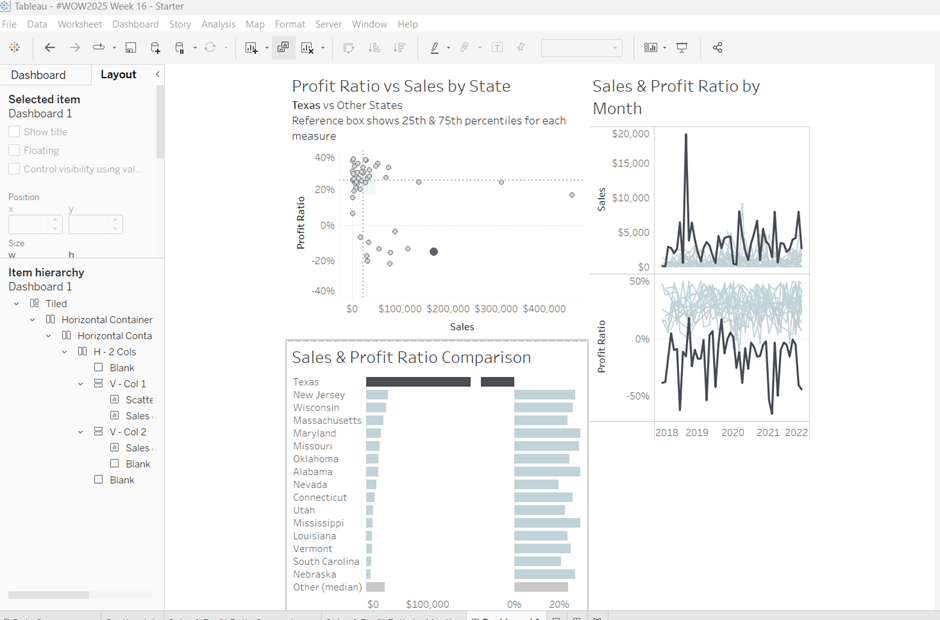
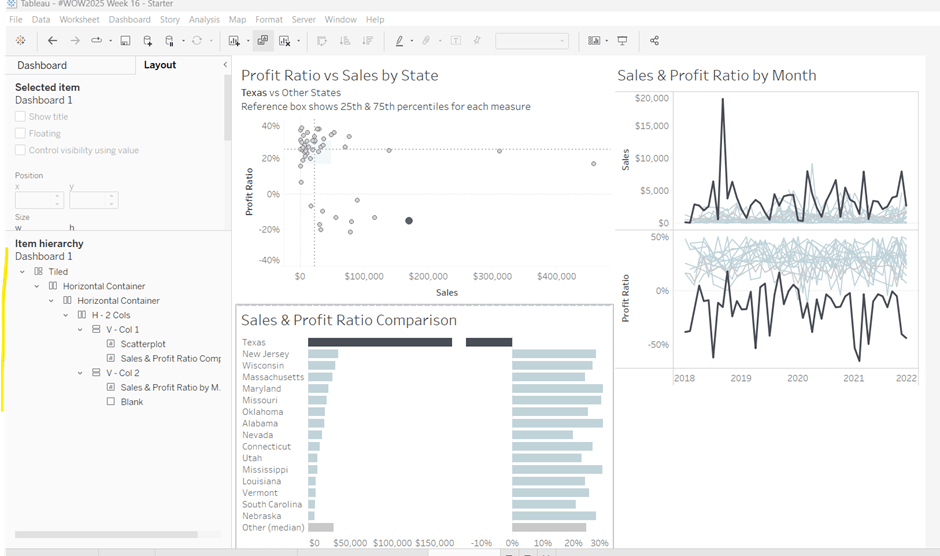
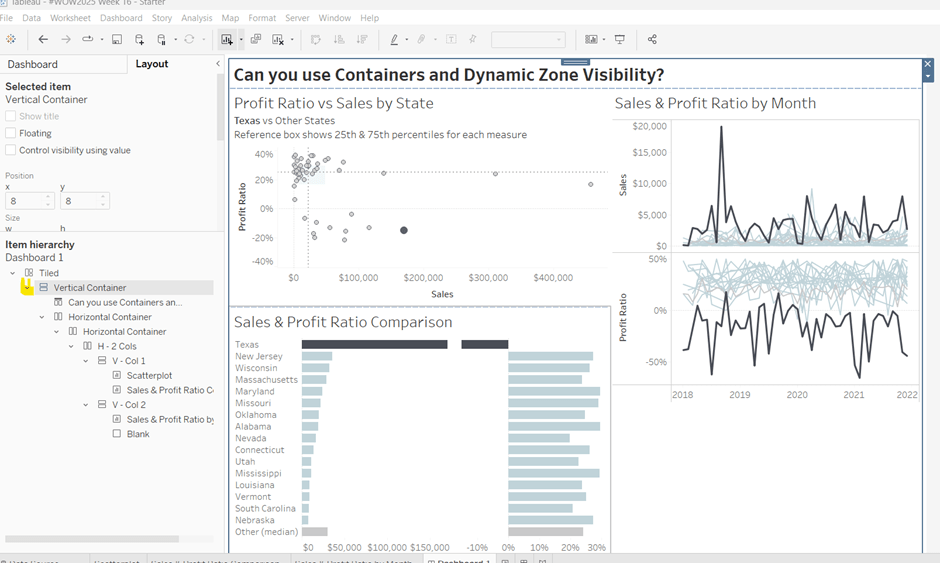
This week’s challenge was a guest post by Felicia Styer, who wanted us to make multiple selections using just a single parameter, rather than any groupings or sets.
We’ll start by focusing on the initial requirement, which was to bucket into Sub-Categories selected and those not.
Setting up the parameter
The main functionality is controlled via a single string parameter which will just contain a string of 0s and 1s. 0 indicates the Sub-Category is not selected, 1 indicates it is. The position of the 1 or 0 in the string represents the associated Sub-Category. There are 17 Sub-Categories in the data set, so we need to create a parameter of 17 characters. Arbitrarily set some entries to 1 and the rest to 0.
Binary Parameter
string parameter containing the string 01000101000010000
Building the Sales by Subcategory viz
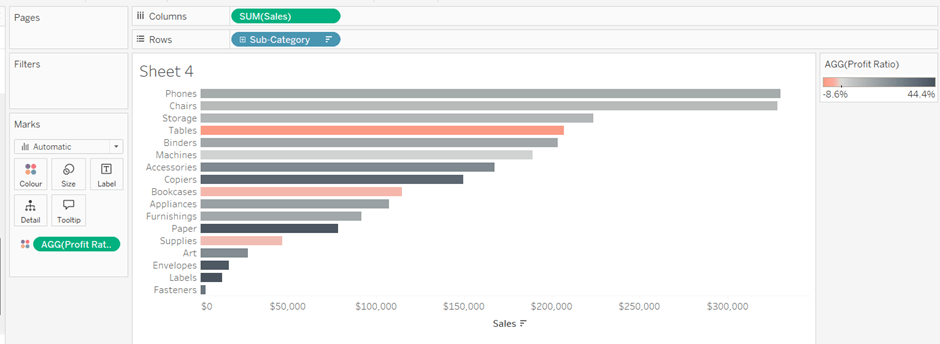
Add Sub-Category to Rows and Sales to Columns. Sort by Sales descending.
We want to assign a number for each row. We can use Index() or Rank the rows based on Sales. I chose to to the latter
Sub Cat Rank
RANK_UNIQUE(SUM(Sales), ‘desc’)
Format this to a number with 0dp but prefixed with #
Add this to Rows, change to discrete (blue pill) and then move to be listed before Sub-Category.
We want to colour the bars based on the ‘bucket’ they’re in according to the Binary Parameter.
Bucket
MID([Binary Parameter],[Sub Cat Rank],1)
This returns the character that is in the nth position in the string – ie Tables is ranked fourth, so this calculation will return the 4th character in the Binary Parameter string.
Add this to Colour and adjust accordingly. Show the Binary Parameter on the sheet, and then adjust the values between 1 and 0 to see the bars change colour.
When a bar is clicked, we want to update the parameter. We will use a dashboard parameter action to drive this functionality, but we need to pass a value into the parameter. This value needs to be a 17 character string of 1s or 0s, where only the character at the nth position based on the rank needs to differ.
For example, the string 01000101000010000 indicates Phones is selected – it’s ranked 2nd in the list and the 2nd character of the string is a 1. When Phones is clicked, we want it to become unselected. So the character in the 2nd position needs to change to a 0, while all the other characters remain the same.
Value for Param
IF [Bucket] = “0” THEN LEFT([Binary Parameter],[Sub Cat Rank]-1) + “1” + MID([Binary Parameter],[Sub Cat Rank]+1) ELSE LEFT([Binary Parameter],[Sub Cat Rank]-1) + “0” + MID([Binary Parameter],[Sub Cat Rank]+1) END
If the row is currently in Bucket 0, then get the portion of the Binary Parameter string before the nth term, concatenate it to 1 and then concatenate that with the portion of the Binary Parameter string after the nth term, otherwise, the row is associated to Bucket 1, so concatenate the preceding and following string with a 0 instead.
Add this to the Detail shelf.
Finalise the display by adding Sales to the Label, removing row & column dividers, updating the Tooltip, hiding the column headers and adjusting the font size.
Adding the selection interactivity
Add the sheet to a dashboard. Add a dashboard parameter action
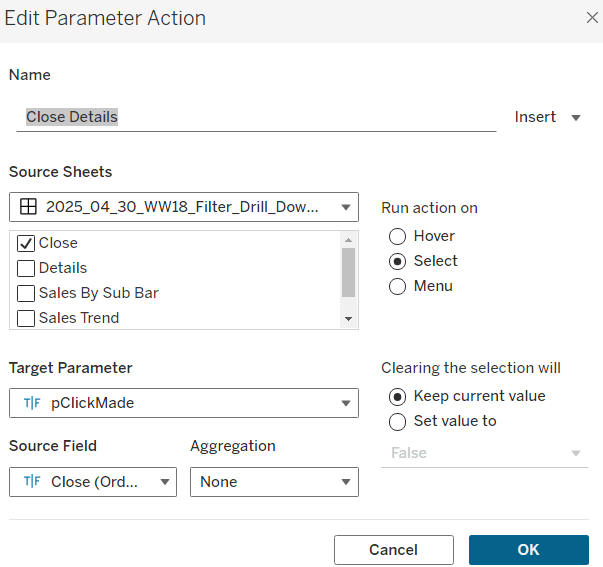
Set Bucket
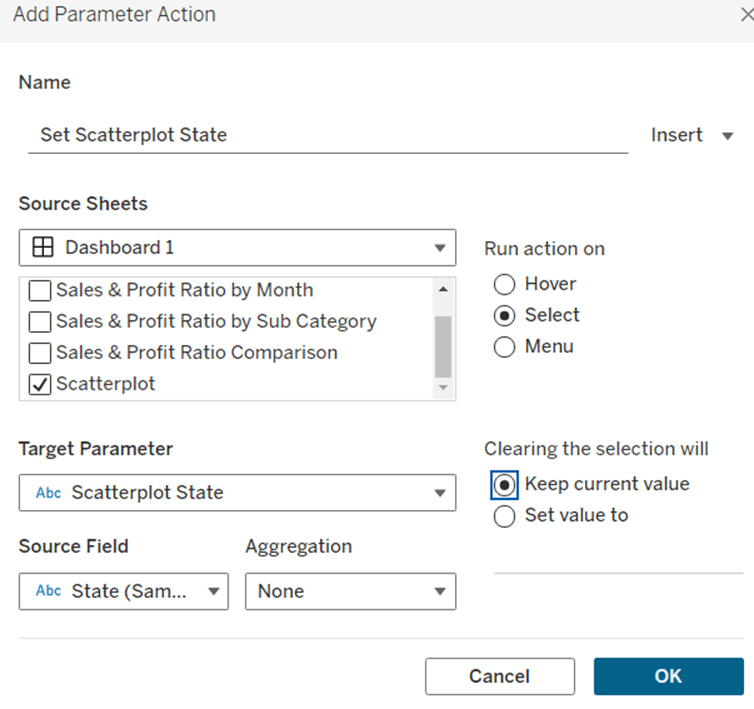
On selection of the sheet, set the Binary Parameter parameter passing the value of the Value for Param field. Leave the parameter with the current value when selection is cleared.
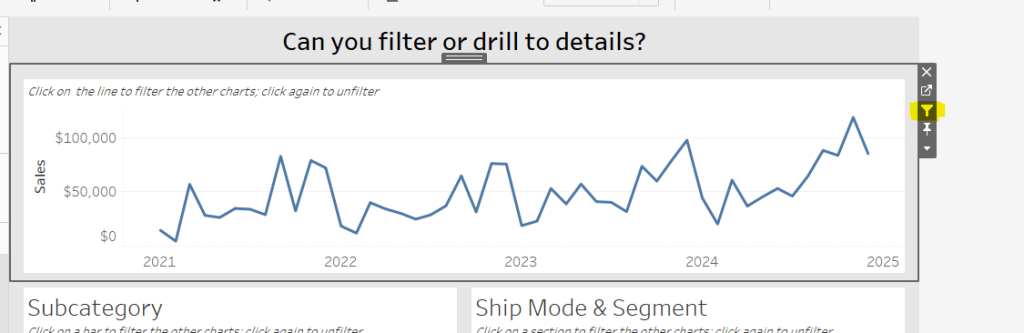
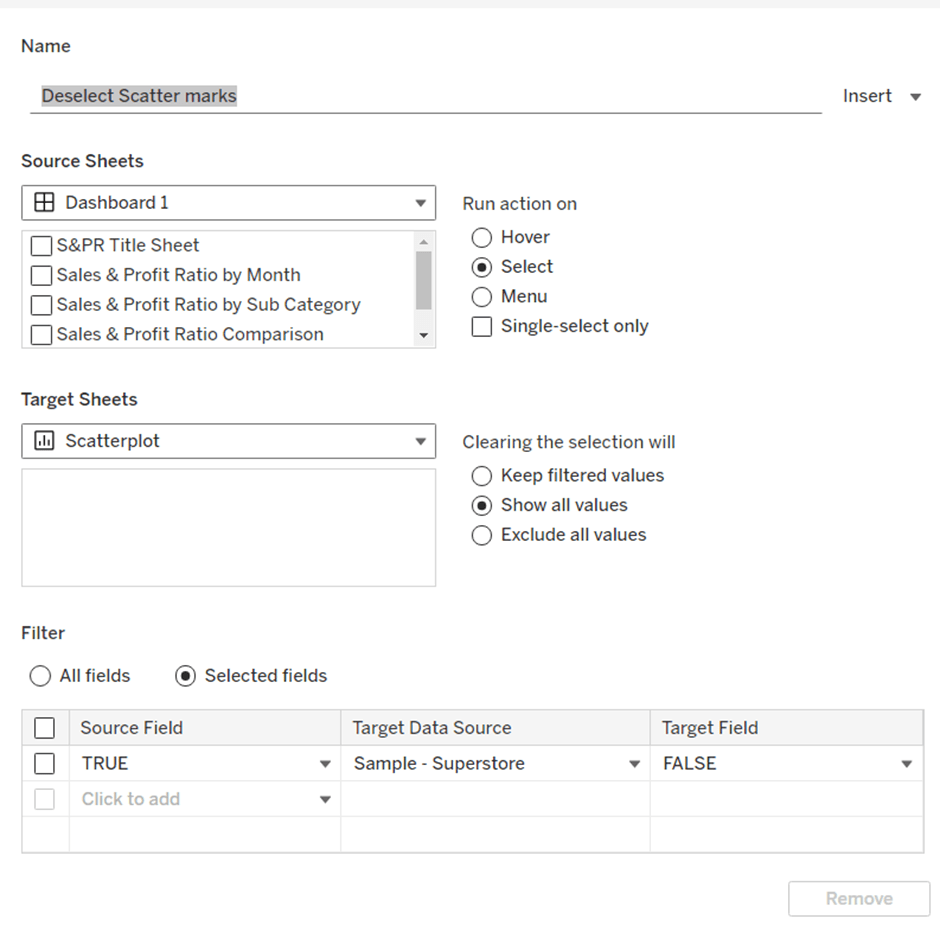
Click a bar to test the functionality. The bars should be changing colour. However, on click, Tableau automatically highlights the selected bar and the others ‘fade’. We’re already using colour to identify what’s been selected, so don’t want this to happen. To resolve this we will apply the True/False method to deselect the marks which is documented here.
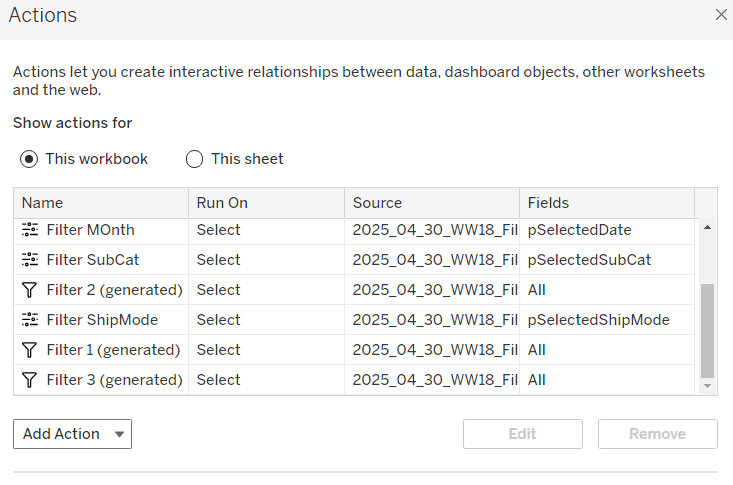
You will need to create True and False calculated fields, and add them to the Detail shelf of the viz sheet. Then add a dashboard filter action as below.
Now when you click, the bars immediately change to the right colour with a single click of the mouse.
Building the Sales by Bucket bar chart
On a new sheet, add Sales to Columns, Bucket to Rows and Sub-Category to Detail. Adjust the table calculation setting of the Bucket pill so it is computing explicitly by Sub-Category.
Add Bucket to Colour and again adjust the table calculation as above. When you hover over the bar, you will see it is actually a stacked bar of each Sub-Category. We want these ordered so those with the smallest sales are on the left. Apply a Sort to the Sub-Category field on the Detail shelf to sort by Sales Descending
Widen each row. Add Sales to Label and set the Label to only show when selected (so they only appear when the segment of the bar is clicked on)
Add a Reference line to the Sales axis that shows the Sum of Sales per cell, and displays the Value. Don’t show any line or tooltip, and ensure the reference line isn’t recalculated when the bar chart is clicked.
Format the reference line label so it is positioned right middle, and adjust the font size.
Once again remove any row/column dividers and row headings and adjust the font sizes.
Arrange this chart onto the dashboard with the other chart using layout containers as required.
For the bonus challenge to use more than 2 buckets, there was no example actually published. So I interpreted it as each click added it to the next bucket until you reached the maximum number of buckets allowed, at which point the Sub-Category would become deselected.
For this I created a parameter
# of Buckets
integer parameter from 1 to 5
The expectation in this instance was that rather than a string of 1s and 0s in the parameter, the parameter could contain any number from 0 up to # of Buckets – 1.
So the Value for Parameter field just had to change to become
IF [Bucket] = “0” THEN //we’ve clicked once so move it to 1st bucket LEFT([Binary Parameter],[Sub Cat Rank]-1) + “1” + MID([Binary Parameter],[Sub Cat Rank]+1) ELSEIF [Bucket] = STR([# of Buckets]) THEN //we’re already at the end, so reset to the starting position of 0 LEFT([Binary Parameter],[Sub Cat Rank]-1) + “0” + MID([Binary Parameter],[Sub Cat Rank]+1) ELSE // need to move to the next bucket LEFT([Binary Parameter],[Sub Cat Rank]-1) + STR(INT([Bucket])+1) + MID([Binary Parameter],[Sub Cat Rank]+1) END
The Colours associated to the Bucket field also then need to be updated to handle however many buckets you have, which you can set initially by manually updating the Binary Parameter parameter.
Note – as I have both versions in my workbook, I have fields suffixed with ‘bonus’ to represent the calculated fields/parameters needed.
This week’s challenge by Lorna was to deliver some functionality without using LODs or table calculations. She hinted that parameters and parameter actions would be your friends.
Setting up the parameters
Create a parameter to capture the month selected
pMonth
date parameter defaulted to 01 April 2023
and then create one that will store the value associated to the month selected
pMonthSales
float parameter defaulted to 0
Building the Viz
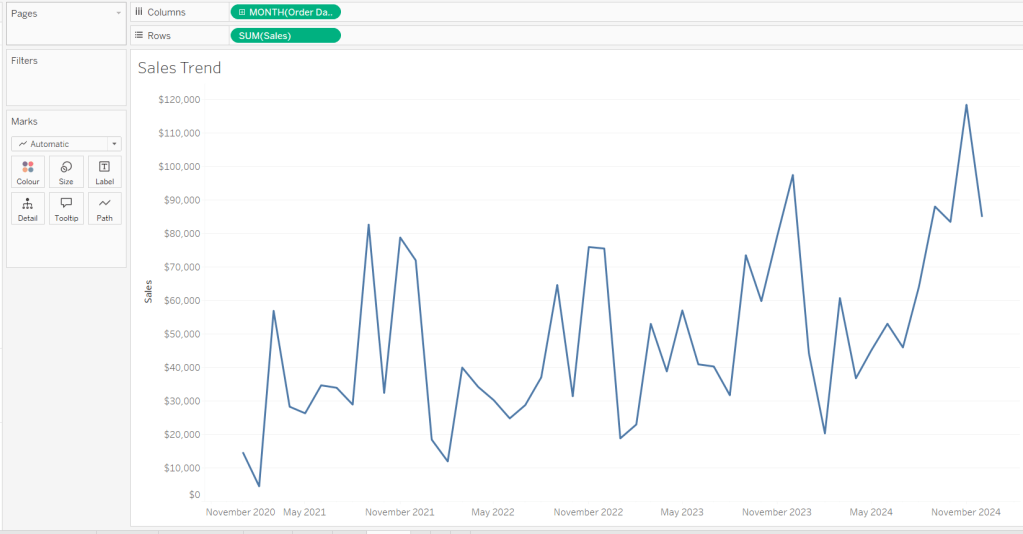
On a new sheet add Order Date as a continuous (green) pill at the month-year level to Columns. Add Sales to Rows.
Create a new calculated field
Difference from Selected Sales
SUM([Sales]) – [pMonthSales]
and add this to Rows.
Change the mark type of this second marks card to bar and add Difference From Selected Sales to the Colour shelf. Adjust the colour to a diverging scale and centre at 0
Set the Size of the bars to be Manual rather than Fixed and adjust the slider to suit.
Add a reference line to the Order Date axis, that references the pMonth parameter.
Adjust the Tooltips, remove gridlines and add a title.
Adding the interactivity
Add the sheet to a dashboard. Add a dashboard parameter action
Set Date
On select of the viz, update the pMonth parameter with the value from the Month([Order Date]) field.
Add another dashboard action
Set Value
On select of the Viz, update the pMonthSales parameter with the value from the SUM(Sales) field that is aggregated at the SUM level.
Now if you click on a point on the line chart, the bottom bars should alter, but they’ll all appear ‘faded’ initially.
To resolve this, create a new calculated field
HL
“HL”
and add this to the Detail shelf of the All marks card. Then create a dashboard highlight action
Highlight
On select of the viz, highlight the HL field only
When you now click, the bottom marks aren’t faded as they essentially are all ‘highlighted’ too.
Erica set the latest challenge, testing us on our ability to master tricky filter scenarios – in this case either show the info for one specific value of a field, or only show the other values, but allow them to be filtered themselves too. The challenge had two parts – the main challenge and a bonus option. I managed to complete both, so will blog both too.
Main challenge – Building the basic viz
On a new sheet add Region and Category to Rows and Sales to Columns. Add Region to Colour and adjust accordingly.
Sort Region by Sales descending
and then click the descended sort button on the toolbar to sort the Category field by Sales too.
Format Sales to be $ with 0 dp. Remove column dividers, and widen each row slightly.
Main challenge – Apply the filtering
Create a parameter
pRegionType
string parameter with 2 options : Not West and West, defaulted to Not West
Create a calculated field to determine whether to display the West Region only, or the other Regions
Filter Region West or Not v1
([pRegionType] = ‘West’ AND [Region] = ‘West’) OR ([pRegionType] = ‘Not West’ AND [Region] <> ‘West’)
Add this to the Filter shelf and set to True. This is essentially the ‘first level’ filter. Show the parameter and switch between the two values to see the behaviour
Now we need a ‘second’ filter, to allow the relevant Regions to be selected. For this, add Region to the Filter shelf, but select the Use all option
and then show the Region filter list on the canvas, and adjust the settings so only relevant values are displayed
This means when the pRegionType parameter is West, only West will be displayed in the Region filter, but when Not West is selected, all regions except West will display, and the filter can be interacted with in the normal manner.
Main challenge – Building the dashboard
Arrange the viz and the parameters on the dashboard as required, using layout containers, padding and background colours to help organise the content and display required.
We only want the Region selection filter to display when the pRegionType parameter is set to Not West. We can use dynamic zone visibility for this. Create a calculated field
DMZ – Display Filter Control
[pRegionType] = ‘Not West’
and then on the dashboard, select the Region filter and check the Control visibility using value option and select the DMZ – Display Filter Control field.
Bonus Challenge – Building the Viz
Recreate the viz as described above (or duplicate the sheet of the original viz, and remove all the pills from the Filter shelf.
Bonus challenge – Apply the filtering
Create a parameter
pSelectedRegion
string parameter, defaulted to <empty string>
This parameter is going to contain a string that can contain one or more Regions in a delimited format eg | East | or |East||South| etc. The contents of this string will determine how we filter the chart to mimic the required behaviour.
Firstly, we want the ‘1st level’ filter to determine whether we’re displaying just the West Region or all the other Regions.
Filter Region West or Not v2
(CONTAINS([pSelectedRegion],’West’) AND [Region] = ‘West’) OR (NOT CONTAINS([pSelectedRegion], ‘West’) AND [Region] <> ‘West’)
Add this to the Filter shelf and set to True. Show the pSelectedRegion parameter. With the parameter empty, the WestRegion should not display.
Type the word West into the parameter. Now the just the West Region should display.
And if you enter additional text alongside the word ‘West’, still the ‘West’ Region should display
But if you remove the ‘West’ text, all the Regions should display whatever the text is contained.
This behaviour is essentially simulating that of the ‘West’ | ‘Not West’ parameter selection in the previous version.
Now we want to control the 2nd level of filtering where the same parameter is used to drive which of the ‘other’ Regions display.
Filter Other Regions v2
CONTAINS([pSelectedRegion], ‘West’) OR NOT CONTAINS([pSelectedRegion],[Region])
Set the pSelectedRegion parameter to empty so all Regions are displayed. Add Filter Other Regions v2 to the Filter shelf and set to True.
Enter the text East into the parameter. The East option should disappear.
Add the text ‘South’. That too should disappear
Add the text ‘West’ and only the West Region will show
Play around entering multiple combinations of Regions. Ultimately if the text ‘West’ is present anywhere in the parameter string, only the West Region will display. If West is not present, then any other Region in the string will not be presented in the display. All sounds a bit backwards, but it works 🙂
So now we need to actually control how the pSelectedRegion parameter will get populated. And this will be via a parameter action fired from the selection made from a ‘custom’ legend sheet.
Bonus challenge – Building the filter control
On a new sheet, add Region to Rows and manually type in MIN(0.0) into Columns. Change the mark type to shape. Add Region to Label and show the labels (widen each row slightly). Edit the MIN(0.0) axis to be fixed from -0.1 to 0.5 which will shift the display to the left.
Sort the Region field by Sales descending.
Hide the axis, stop the Tooltip from displaying, hide the Region header, remove all gridlines/ axis rulers/ zero lines, row/column dividers. Set the background colour to light grey.
The Colour and the Shape (filled or unfilled) is determined based on the entries we have captured in the pSelectedRegion parameter, but the logic for each attribute is different.
Colour v2
If [pSelectedRegion] = ‘|West|’ THEN ‘West’ ELSE [Region] END
Show that parameter and make it empty. Add Colour v2 to the Colour shelf. Adjust colour to suit if not already set.
Then enter the text |West| – all the symbols should now all be Navy (or whatever colour you have chosen for West).
For the shape, create
Shape v2
IF CONTAINS([pSelectedRegion] , ‘West’) AND [Region] = ‘West’ THEN ‘Fill’ ELSEIF CONTAINS([pSelectedRegion], ‘West’) AND [Region] <> ‘West’ THEN ‘Empty’ ELSEIF ([Region] <> ‘West’) AND [pSelectedRegion]=” THEN ‘Fill’ ELSEIF ([Region] <> ‘West’) AND NOT CONTAINS([pSelectedRegion],[Region]) THEN ‘Fill’ ELSE ‘Empty’ END
and add to the Shape shelf. Note – this logic took a lot of trial and error to get the desired result.
Whenever the text West exists in the parameter, then the West Region should be a filled circle and all the other regions should be empty (the first 2 lines of the logic statement). If the parameter is empty, we want all the regions (except West) to be filled (so West will be empty). And if the parameter contains a Region(s) that isn’t West, we want that Region to be empty as well – only non-West Regions that aren’t in the parameter should be filled.
To control the text being passed into the pSelectedRegion parameter, we need a field
Region for Param
IF CONTAINS([pSelectedRegion],’West’) THEN ” //West has been selected again so reset parameter to empty ELSEIF CONTAINS([pSelectedRegion], [Region]) THEN REPLACE([pSelectedRegion], ‘|’ + [Region] + ‘|’ ,”) //selected region is already in the parameter, so remove it ” ELSE [pSelectedRegion]+ ‘|’ + [Region] + ‘|’ //append current region selected to the existing parameter string END
Add this to the Detail shelf.
Finally, we will want to ensure the marks aren’t highlighted on selection, so create fields
True
TRUE
False
FALSE
and add these to the Detail shelf too.
Bonus challenge – adding the interactivity
Build the dashboard again using layout containers and background colours and padding
Create a dashboard parameter action
Set Region
On selection of the Filter Control viz, set the pSelectedRegion parameter passing in the value from the Region for Param field. Set the field to <empty string> when deselected
Create a dashboard filter action
Deselect Marks
On select of the Filter Control viz on the dashboard, target the Filter Control sheet itself, passing in the specific fields of True = False.
And this should complete the required elements. My published viz is here.
Erica set this week’s challenge and provided multiple levels specifically aimed a newer users of Tableau. My solution is for Level 3.
Setting up the calculations
First, create a parameter to capture the Sub-Category we care about
pSelectedSubCat
string parameter defaulted to Tables
Create a new field
Is Selected SubCat
[pSelectedSubCat]= [Sub-Category]
then create another field
Product to Display – Step 1
IIF([Is Selected SubCat], [Product Name], ”)
On a new sheet add Sub-Category and Product to Display – Step 1 to Rows. Show the pSelectedSubCat parameter. You will see that the Product rows only show for the Sub Category entered in the pSelectedSubCat parameter
We want to show the average of the product sales for each Sub-Category, so we can create
Add this to Text. By default it will aggregate this value to SUM, change it to AVG. For the rows associated to the selected Sub-Category the value of this field is the same whether its SUM or AVG, as it has been calculated at the level of detail being displayed on the row (Sub-Category and Product Name). For the other rows, by changing the aggregation to AVG we are getting the required value, which is essentially the sum of all sales associated to the Sub-Category divided by the number of distinct products. Sort the Sub-Category pill by the Average of the Sales by Sub Cat & Product field descending
Additionally, sort the Product to Display – Step 1 field the same way
We need to identify the top 5 records for the products associated to the selected Sub-Category. We will use a set for this. Right click on Product to Display – Step 1 > Create > Set
Product to Display Set
Select the Top tab and select the top 5 by formula
AVG(IF [Is Selected SubCat] THEN [Sales by Sub Cat & Product] END)
Add this to Rows and you should get In displayed against the product rows with the highest values
With this we can start to think about the ‘other’ text we need to display, but for this we need a handle on the number of products in each Sub-Category. Create
Count Products Per Sub-Category
{FIXED [Sub-Category]: COUNTD([Product Name])}
Add to Text so you can see the value, and then subsequently we can create
Product to Display – Step 2
IF NOT([Is Selected SubCat]) THEN ” ELSEIF [Product to Display Set] THEN [Product Name] ELSE ‘Other: ‘ + STR([Count Products Per Sub-Category] – 5) + ‘ Products’ END
Add to Rows to see the behaviour
The viz also needs to show an index value against the top 5 rows, so create
Index to Display
IF MIN([Is Selected SubCat]) AND MIN([Product to Display Set]) THEN STR(INDEX()) ELSE ” END
Add this to Rows as a blue discrete pill in front of the Product to Display – Step 2 field. Adjust the table calculation setting so the Sub-Category field is unchecked.
Next, we’re going to need to display a reference line that is the overall average product sales for the Sub-Category. This may sound like it’s what we already have, but that field is at the Sub-Category and Product Name level of detail, and we need to aggregate this back up to be at the Sub-Category level, so we create
Avg Sales by Sub Cat and Product
{FIXED [Sub-Category]: AVG([Sales by Sub Cat & Product])}
which is the average of the field we previous created but per Sub-Category. Pop this into the table to see what is happening. For the rows where the Products aren’t showing, the values match, but for the rows where the Products are displayed, you get the overall average, which is the same for all the rows.
If we now remove Product to Display – Step 1 from Rows (and amend the Index to Display table calc so it is not longer computing by this field too), we should have the data we expect. Format the Sales by Sub Cat & Product field to be $ with 0 dp.
Building the Viz
On a new sheet add Sub-Category, Product to Display Set, Index to Display and Product to Display – Step 2 to Rows and Sales by Sub Cat & Product to Columns and aggregate to AVG.
Sort the Sub-Category pill by the Average of the Sales by Sub Cat & Product field descending and apply the same sort to the Product to Display – Step 2 field. Edit the table calculation of the Index to Display field so it is not computing by Sub-Category.
Create a new field
Colour
IF [Is Selected SubCat] AND [Product to Display Set] THEN ‘Dark’ ELSEIF [Is Selected SubCat] THEN ‘Light’ ELSE ‘Grey’ END
Add this to Colour shelf and adjust accordingly.
Add Avg Sales by Sub Cat & Product to the Detail shelf, then add a reference line based on the Average of this field
Widen each row and from the Label shelf check Show mark labels. From the Tooltip shelf uncheck Show tooltips.
Hide the In/Out Product to Display Set field in Rows (uncheck show header). Format the font and style of the header columns, then hide the header field labels and hide the axis. Adjust the row banding and set all gridlines, zero lines, axis rulers and column dividers to none. Change the title of the sheet.
Test the behaviour by manually changing the value of the parameter.
Adding the interactivity
Add the sheet to a dashboard, then create a parameter dashboard action
Set SubCat
On select of the viz, update the pSelectedSubCat parameter passing in the value from the Sub-Category field.
This week’s #WOW2024 challenge was run live at the #Datafam Europe event in London and was a combo with the #PreppinData crew. If you want to have a go at shaping the data required for this challenge yourself, then check out the PreppinData challenge here. Otherwise, you can use the data provided in the excel workbook from the link in the #WOW2024 challenge (I’m building based on this).
Modelling the data
There are 3 data sources for this challenge which we need to relate together. We have
Attraction Locations – a list of attractions in London with their lat and long coordinates
Tube Locations – a list of tube stations in London with their lat & long coordinates
Attraction Footfall – a list of attractions with their annual footfall
Connect to the Excel file and add Attraction Locations to the canvas. Then add Tube Locations and then create a relationship calculation of 1=1 to essentially map every attraction to every tube station.
Then add Attraction Footfall to the canvas and relate it to Attraction Locations by setting Attraction Name = Attraction
Finally, in the viz we have to understand the distance between a selected attraction (the start point) and other attractions (the end point), so we need to have an additional instance of Attraction Locations to be able to generate the information we will need between the start and end. So add another instance of Attraction Locations and set the relationship as Attraction Name <> Attraction Name
To make things a bit easier for reference purposes, rename Attraction Locations to Selected Attraction and Attraction Locations1 to Other Attractions (just right click on the data connection in the canvas to do this).
Building the Footfall Bar Chart
On a new sheet add Attraction Name (from Selected Attraction) to Rows and add 5 Year Avg Footfall to Columns. Change this from SUM to AVG (as the data consists of multiple rows per year and this value is the same for each row associated to an attraction). Sort the chart descending.
Click on the 2 nulls indicator and select to filter the data which will remove the bottom two rows and automatically add 5 Year Avg Footfall to the Filter shelf.
Manually increase the width of each row. Set the format of the 5 Year Avg Footfall to be in millions (M) to 2dp, and then show mark labels and align middle left.
Create a parameter to capture the selected attraction
pSelectedAttraction
string parameter defaulted to St Paul’s Cathedral
show the parameter on the screen.
We need to identify which attraction has been selected, so create
Is Selected Attraction
[Attraction Name]=[pSelectedAttraction]
and then add this to the Colour shelf. Adjust the colours accordingly and set an orange border. Then add Attraction Rank to Rows. Set it to be a discrete dimension (blue pill) and move it to be in front of Attraction Name.
Set the font of the row labels to be navy, hide the row label names (hide field labels for rows), hide the axis (uncheck show header), don’t show tooltips, and remove all row/column dividers, gridlines and zero/axis lines. Set the background of the worksheet to be None (ie transparent). Update the title of the sheet and then name the sheet Footfall or similar.
Building the map
We’re going to use map layers for this, and will build 4 layers
the selected attraction
the other attractions
the tube stations
the buffer circle
When using map layers we want to work with spatial data, so we’ll start by creating a point for the selected attraction
Double click on this and it will automatically generate a map. Add Is Selected Attraction to the Filter shelf and set to True so only 1 mark should display, Add Attraction Name to Detail. Show the pSelectedAttraction parameter. Change the mark type to shape and select a filled star. Set the Colour of the shape to navy and add an orange halo. Update the Tooltip.
For the buffer, we need another parameter
pDistance(miles)
float parameter defaulted to 1 that ranges from 0.5 to 2 with a step size of 0.5
And drag this onto the canvas and drop when the Add Marks Layer option appears
This will create a new marks layer, which we can rename to Buffer. Reduce the opacity of the colour to 0%. Move the marks layer so it is at the bottom (below the other marks card) , and set the disable selection option so when you move the cursor over the map the buffer circle does not highlight.
Adjust the background layers of the map so only the Postcode Boundaries are visible.
To add the tube stations, we first need to create
Tube Station Point
MAKEPOINT([Station Latitude],[Station Longitude])
Then drag this onto the canvas to create a new marks layer. Add Station to the Detail shelf of this new marks card, and move the marks card so it is below the Selected Attraction marks card.
We don’t want all the stations to display. We just need to show those up to 1.5x the buffer distance, so we need
Distance to Tube Station
DISTANCE([Selected Attraction Point], [Tube Station Point], ‘mi’)
format to a number with 2 dp and then create
Tube Station Within Range
[Distance to Tube Station]<= 1.5 * [pDistance(miles)]
Add this to the Filter shelf and set to True.
We want the size of the displayed stations to differ depending on whether they’re inside the buffer or not, so create
Tube Station Within Buffer
[Distance to Tube Station] <= [pDistance(miles)]
and add this to Size. Change the mark type to circle, then adjust the size as required. Change the colour to orange and add a white border. Add Distance to Tube Station to Tooltip and update. You may want to adjust the size of the shape on the Selected Attraction marks card too, so it’s bigger than the tube stations.
The stations need to be labelled based on the closest x number of stations that are within the buffer. For this we need a parameter
pTop
integer parameter defaulted to 5 that ranges from 5 to 20 with a step size of 1.
We need to rank the stations based on the distance, so create
Station Rank
RANK(SUM([Distance to Tube Station]), ‘asc’)
We’re also going to label the stations with a letter based on their rank
Rank Stations as Letters
CHAR([Station Rank] + 64)
but we only want to show labels for the ‘top’ ranked stations, so create
Label Stations
IF MIN([Tube Station Within Buffer]) AND [Station Rank]<=[pTop] THEN [Rank Stations as Letters] END
and add this to the Label shelf. Adjust the table calculation settings, so the calculation is computing by both Station and Tube Station Within Buffer.
Set the labels to be aligned middle centre, and allow labels to overlap other marks. If things are working as expected, then if you increase the buffer distance to 1.5 miles and the pTop parameter to 20, you should see that not all stations within the buffer circle are labelled
To add the other attractions, we need to create
Other Attraction Point
MAKEPOINT([Attraction Latitude (Attraction Locations1)],[Attraction Longitude (Attraction Locations1)])
and drag this onto the canvas to Add a marks layer. Move this layer so it is beneath the Selected Attraction marks card, and add Attraction Name (from the Other Attractions) section to Detail
Once again, we want to limit what attractions display, so need
[Distance to Other Attraction]<= 1.5 * [pDistance(miles)]
and add this to the Filter shelf and set to True.
Add Distance to Other Attraction to the Tooltip shelf and update. Change the mark type to shape. The shape needs to differ whether it’s within the top x closest attractions that’s inside the buffer or not. So we need
Rank Other Attractions
RANK(SUM([Distance to Other Attraction]), ‘asc’)
and then
Top X Attraction in Buffer
IF [Rank Other Attractions] <= [pTop] AND MIN([Other Attraction within Buffer]) THEN MIN([Attraction Name (Attraction Locations1)]) ELSE ‘Not Top X’ END
Add this to the Shape shelf. Set the table calculation so it is computing explicitly by both Attraction Name and Other Attraction Within Buffer. Setting the specific shape for each of the named attractions that could show is fiddly, so I just chose to leave as per the default values listed. The only shape I explicitly set was the Not Top X which I set to a filled circle. I set the colour of the shapes to dark grey and added a halo of the same colour to make the shape more prominent. The shapes also need to differ in size based on whether they are in the buffer or not, so need
Other Attraction Within Buffer
[Distance to Other Attraction] <= [pDistance(miles)]
Add to the Size shelf and then adjust sizes to suit.
Set the background of the worksheet to None, remove all row/column dividers and name the sheet Map or similar. Finally remove all the Map Options (Map > Map Options > uncheck all selections) to prevent to toolbar from displaying on hover. Test the map functionality by changing the various parameters and entering a new starting location.
Note– in subsequent testing I found that for some attractions where there were either no tube stations or other attractions within the range, the map would disappear. If I get time I’m going to try to work on a solution for this, but I’ll leave as is for now (Lorna’s published solution has the same issue).
Building the Tube Station Rank Bar
On a new sheet add Station to Rows and Distance to Tube Station to Columns. Add Is Selected Attraction to Filter and set to True. Sort the chart ascending, so closet is listed first.
We only want to display the stations that are within the buffer, so add Tube Station Within Buffer to Filter and set to True.
We also want to restrict this list to just those that are the closest ‘x’ to the attraction based on the pTop parameter. Add Station to the Filter shelf and on the General tab, select Use all and then select the Top tab and add the condition to display the bottompTop by Distance to Tube Station.
However, this doesn’t quite show the correct results, as the Top n filtering has been applied BEFORE the other filters on the shelf. To resolve this we need to add Is Selected Attraction and Tube Station Within Buffer to context (right click each pill on the filter shelf).
Add Station and Distance to Tube Station to the Label shelf, and adjust the label to display the text as required and align middle left. Change the mark type to bar and manually widen the width of each row so the labels are readable. Adjust the colour of the bars.
For the circle labels, we need a ‘fake’ axis – double click into Columns and manually type MIN(-0.05). Move the pill that is created to be in front of the Distance to Tube Station pill.
Change the mark type of the MIN(-0.05) pill to circle and remove the fields from the Label shelf. Add Rank Stations as Letters to the Label shelf instead and adjust the table calculation so it is explicitly computing by Station. Format the label and align middle centre.
Make the chart dual axis and synchronise the axis. Remove Measure Names from the All marks card.
Don’t show the Tooltip, remove all row/column dividers, hide the axis and the Station column. Hide all gridlines, axis lines, zero lines. Format the background of the workbook to be None (ie transparent).
Update the title of the sheet referencing the parameters as required, and name the sheet Tube Station Rank Bar or similar.
Building the Tube Station Rank Bar
On a new sheet add Attraction Name (from the Other Attractions data set) to Rows and Distance to Other Attraction to Columns. Add Is Selected Attraction to Filter and set to True. Sort the chart ascending, so closet is listed first.
We only want to display the other attractions that are within the buffer, so add Other Attraction Within Buffer to Filter and set to True.
We also want to restrict this list to just those that are the closest ‘x’ to the attraction based on the pTop parameter. Add Attraction Name to the Filter shelf, on the General tab, select Use all and then select the Top tab and add the condition to display the bottompTop by Distance to Other Attraction.
Add Is Selected Attraction and Other Attraction Within Range to context.
Add Attraction Name (from the Other Attractions data set) and Distance to Other Attraction to the Label shelf, and adjust the label to display the text as required and align middle left. Change the mark type to bar and manually widen the width of each row so the labels are readable. Adjust the colour of the bars.
Double click into Columns and manually type MIN(-0.1). Move the pill that is created to be in front of the Distance to Other Attraction pill.
Change the mark type of the MIN(-0.1) pill to shape and remove the fields from the Label shelf. Add Attraction Name to the Shape shelf. Set the colour of the shape. Edit the shape for each Attraction so it matches the shapes assigned to the attractions on the Map sheet. Unfortunately, this is a bit fiddly and just a case of trial and error which involves changing the parameters to try to ensure all the options are presented at least once of each of the charts. There is probably a better way, but I’d have to rebuild something so sorry!
Make the chart dual axis and synchronise the axis. Remove Measure Names from the All marks card.
Don’t show the Tooltip, remove all row/column dividers, hide the axis and the Attraction Name column. Hide all gridlines, axis lines, zero lines. Format the background of the workbook to be None (ie transparent).
Update the title of the sheet referencing the parameters as required, and name the sheet Tube Attraction Rank Bar or similar.
Adding the interactivity
Add the sheets onto the dashboard making use of layout containers to get the objects positioned where required. Format the dashboard to set the background to the light peach colour. How I’ve organised the content is show by the item hierarchy below
Create a parameter dashboard action
Select attraction
On select of the footfall bar chart, set the pSelectedAttraction parameter with the value from the Attraction Name field. Keep the value when the mark is deselected.
And at this point, you should hopefully now have a functioning dashboard. My published version is here.
This week’s #WOW2024 challenge was a guest post by Tomoki Goda. The main focus of the challenge was to be able to switch between light and dark mode, but there’s so much more going on, this blog could take a while!
I also have to admit, I didn’t manage to complete this without help and also looking at the solution workbook. It may be if I’d left it and come back to it another time I’d have figured it out, but time is so precious at the moment, it was more likely if I’d left it, I would have struggled to return to it, and then this blog wouldn’t have got written either. But I’ve learned something, so that’s the win in my book 🙂
Setting up the parameters
There are 3 parameters required for this challenge.
pTheme
This parameter will control the mode to display and I set it as a boolean parameter defaulted to true and aliased as True = Light Theme and False = Dark Theme
pRegion
This parameter will capture the Region associated to the KPI the user has interacted with on the dashboard. This is a string parameter defaulted to <empty string>
pCategory
This parameter will capture the Category associated to the Category Sales bar chart that the user has interacted with on the dashboard. This is a string parameter defaulted to <empty string>.
Building the Region KPI chart
ON a new sheet ad Region to Rows and then double click into the Rows shelf manually type MIN(1.0) to create a fake axis. Increase the Size to the largest possible and set the view to Entire View.
Change the Mark Type to Bar. Add Region to the Label shelf. Format the Sales field to be $K to 1 dp and also add to the Label shelf. Adjust the font size and align middle centre. Edit the MIN(1.0) axis to be fixed from -0.2 to 1.2 to allow some spacing between the colour blocks.
Show the pRegion and pTheme parameters. Add Order Date to the Filter shelf and choose Years , then select all years, Show the Year filter and display as a single value list.
Create a new field
Is Selected Region
[Region] = [pRegion]
Add this to the Colour shelf.
Also create a new field
Show Light Theme
[pTheme]
Add this to the Detail shelf initially, then select the ‘hierarchy’ symbol to the left of the pill and change the symbol to the Colour one – this will add two pills to the colour shelf
Drag the Show Light Theme pill so it is listed above the Is Selected Region pill. Enter the name of a Region into the pRegion parameter (eg East), and then adjust the colours for when pTheme=Light Theme is selected
Now change the pTheme parameter so Dark Theme is selected and adjust the colours again
Hide the Region field and the axis (uncheck show header). Don’t show the Tooltip. Hide all row/column dividers, gridlines, zero lines, axis rulers and axis ticks. Set the border on the colour shelf to None, and most importantly, set the worksheet background colour to None (ie it’s transparent). This will become noticeable later when we add the content to the dashboard.
Finally we will need some additional fields which will help with the interactivity on the dashboard later, when we don’t want the marks that have not been selected to ‘fade’.
Region for Param
IIF( [pRegion]=[Region],””, [Region])
True
TRUE
False
FALSE
Add all 3 fields to the Detail shelf. Name the sheet Region Sales KPI.
Building the Category by Sales bar chart
On a new sheet add Category to Rows. Then go back to the Region Sales KPI sheet and set the Year(Order Date) filter to apply to worksheet > selected worksheets > and select the relevant sheet.
Now, I had a couple of attempts at building this. From what I could tell, the Category label wasn’t a usual ‘row heading’, as we needed to give it a specific coloured background on selection. It also had to be built within the same sheet, as the same technique was applied to the Sales by Sub-Category bar chart which was a scrollable section. I tried using a dual axis of Sales and Regional Sales in conjunction with a ‘fake’ axis for the header, but found the width of the fake axis had to match the width of the dual axis, so my header section was too wide. After a lot of trial and error, I ultimately had to ask my colleague, Sam Parsons, if he could figure it out, which he did in 5 minutes using dual axis and Measure Names.
Add Sales to Columns and sort descending. Show the pRegion, pCategory and pTheme parameters and ensure pRegion has a value (eg East).
Create a new field
Selected Region Sales
IF [Region] = [pRegion] THEN [Sales] END
format this to $k to 1dp, and then drag onto the canvas and drop on the Sales axis when the two ‘green column’ icon appears.
This will automatically add Measure Names and Measure Values into the view. Move Measure Names from Rows to the Colour shelf, and also add another instance of Measure Names to the Size shelf. Add Show Light Theme to the Detail shelf, and then set to be an additional field on the Colour shelf. Move it so it is listed above the Measure Names colour pill. Adjust colours of the bars for the light and dark them modes as before.
Reorder the measures in the Size legend box so Selected Region Sales is listed first and so is smaller. Manually increase the width of each row, and then adjust the sizes from the size legend so the difference between the bar widths is not so great.
Create a new field
Label Splitter
IF [pRegion] <> ” THEN ‘ / ‘ END
and add this, Sales and Selected Region Sales to the Label shelf. Arrange the pills as required, align middle left and ensure Allow labels to overlap other marks is selected
Set the pRegion parameter to <empty string> and verify the label displays as expected, Hide the Null indicator. Update the Tooltip as required.
For the header, we need another measure we can use which is on the same axis as the Measure Values, but is negative, so it sits to the left of the bars we already have.
Header Plot
Window_MAX(SUM([Sales])) * -0.25
This takes the maximum value of the Sales bar that is displayed in the chart and applies a proportion, so we don’t need to attempt to ‘fix’ the axis in anyway. Add this to Columns, set to dual axis and then synchronise axis. Set the mark type on the All marks card to bar. You’ll probably have something like…
On the Header Plot marks card, remove the three fields on the Label self, and add Category to the Label shelf instead.
Enter the name of a Category into the pCategory parameter (eg Technology). Create a new field
Is Selected Cat
[Category] = [pCategory]
and drag this and drop it directly onto the Measure Names pill that is on the Colour shelf of the Header Plot marks card. Adjust the colours as required, changing the pTheme parameter to dark mode too.
Delete the text from the Tooltip of the Header Plot marks card.
Hide the Category field and the axis (uncheck show header). Don’t show the Tooltip. Hide all row/column dividers, gridlines, zero lines, axis rulers and axis ticks. Set the border on the colour shelf to None, and once again, most importantly, set the worksheet background colour to None (ie it’s transparent).
The title of the sheet will also need to change colour when the mode differs, so create
Title Light
IIF([Show Light Theme],”Sales by Category”,””)
Also create
Show Dark Theme
NOT([pTheme])
and then
Title Dark
IIF([Show Dark Theme],”Sales by Category”,””)
Add Title Light and Title Dark to the Detail shelf of the All marks card and then update the title of the sheet so both pills are listed and coloured based on the mode – the text for Title Light should be blackand the text for Title Dark should be white (though at this point you won’t see this show up when you change the mode).
Finally, as before, we will need some additional fields which will help with the interactivity on the dashboard later, when we don’t want the marks that have not been selected to ‘fade’.
Category for Param
IIF( [pCategory]=[Category],””, [Category])
Add this and True and False to the Detail shelf of the All marks card. Label the sheet Sales by Cat or similar.
Building the Sub-Category by Sales bar chart
The simplest way to build this sheet is to start by duplicating the Category by Sale bar chart sheet, and then drag Sub-Category and drop it directly on top of the Category pill on the Rows shelf. Re-sort by Sales descending.
On the Header Plot marks card, also drag Sub-Category and drop it directly onto the Category pill on the Text shelf.
Manually increase the width of each row and then hide the Sub-Category column (uncheck Show Header)
Create new fields
Title Light Sub Cat
IIF([Show Light Theme],”Sales by Sub-Category”,””)
and then
Title Dark Sub Cat
IIF([Show Dark Theme],”Sales by Sub-Category”,””)
and drag these to directly on top of the Title Light and Title Dark pills on the Detail shelf of the All marks card. Update the title of the sheet to reference these new pills.
Name the sheet Sales by Sub Cat or similar.
Building the rounded borders
The rounded borders displayed on the dashboard are based on utilising annotations on a ‘dummy’ sheet, as described in these blog posts (here and here).
I created a new field
Dummy
“”
And added this to the Detail shelf on a new sheet. I set the background of the worksheet to none, the mark type to polygon and the sheet to entire view. I then added an annotation, resized it to be as large as possible, and set the properties so the shading was set to none, the corners to very rounded and a dark thin border was applied.
I named this sheet Rounded Edge Light 1. I then duplicated to create a 2nd one and named it Rounded Edge Light 2. I then duplicated again, but this time changed the shading of the annotation to be dark grey/ brown, and named this sheet Rounded Edge Dark 1
Duplicate this sheet again and name Rounded Edge Dark 2.
We now have all the components needed to build the dashboard.
Building the core dashboard
Start by creating the layout for the 3 core ‘chart’ sheets and the parameter/filter controls. I used a combination of horizontal and vertical layout containers and adjusted padding to get the layout required. The image below shows how I laid out the display in the item hierarchy section. Note that all the background of all the containers and the objects on the dashboard are set to None (ie transparent).
Adding the rounded borders
With the theme set to Light Theme, set the option to be Floating and drag on the Rounded Edge Light 1 sheet and position it over the Sales by Category chart. Adjust the height and width until you’re happy, and remove the sheet title. From the context menu of the object, set the floating order so the border sheet is ‘behind’ the bar chart (send backward). This allows the bars to still be clicked on and interacted with.
Then with the border object still selected, set the visibility to only show when Show Light Theme is true
Repeat the same process with the Rounded Edge Light 2 sheet, floating it over the top of the Sales by Sub-Category bar chart.
Then switch the theme to Dark Theme. The borders should disappear. Now repeat the above process with the two Rounded Edge Dark sheets, but this time when controlling the visibility of each sheet, select the Show Dark Theme field instead.
If you’ve followed the steps, you hopefully should have something that looks like
Setting the overall dark background
The final step to get the completely dark background is to float a blank object onto the dashboard. Resize the blank object to be positioned at 0,0 and sized 1000 x 800 (ie the same size as the dashboard)
Adjust the floating order of this object and this time set it to Send to Back so it is the very bottom ‘layer’. Then set the background colour of the blank object to the relevant dark brown/grey colour, and then finally set the visibility to only display when Show Dark Theme is true.
Test the display by switching the theme in the parameter.
Adding the interactivity
We need multiple dashboard actions to control the behaviour of the dashboard.
Set Region
Parameter dashboard action that on select of the Region Sales KPI sheet only, sets the pRegion parameter with the value from the Region for Param field.
Set Category
Parameter dashboard action that on select of the Sales by Cat sheet only, sets the pCategory parameter with the value from the Category for Param field.
KPI Deselect
Dashboard filter action that on select of the Region Sales KPI sheet on the dashboard targets the Region Sales KPI sheet directly passing the fields that set True = False.
Set Category Deselect
Dashboard filter action that on select of the Sales by Cat sheet on the dashboard targets the Sales by Cat sheet directly passing the fields that set True = False.
Set Sub-Cat Deselect
Dashboard filter action that on select of the Sales by Sub Cat sheet on the dashboard targets the Sales by Sub Cat sheet directly passing the fields that set True = False.
And with all this, hopefully you have a fully interactive workbook. My published viz is here.
For this week’s #WOW2024 challenge, Kyle simulated a real-world challenge he’s faced at work where he wanted the ability to select multiple parameters as he was sourcing data from multiple data sources, so using traditional filters didn’t work.
Connecting to the data
The challenge required connecting to the Superstore data twice but applying a data source filter to each connection to restrict the Order Date to Year 2023 or 2024.
After making the 1st connection and filtering to 2023, I renamed the data source and appended 2023.
I then added a data source and made the 2nd connection to Superstore, this time adding a data source filter to 2024. I then renamed this data source and appended 2024. So I ended up with 2 data sources at the top of the data pane window.
Building the line charts
Starting with the Superstore – 2023 data source, put Order Date on columns and change to be the continuous (green) Week number option. Add Sales to Rows.
Then
format Sales to be $ with 0 dp
format Order Date to be mmm dd custom date format
to match the solution, set the Date Property of the data source to start a week on Sunday (right click data source > date properties)
Remove the titles against both axis
adjust the Tooltip
Remove all gridlines, zero lines, axis rulers & axis ticks
Name the sheet 2023 Sales
Create a new sheet, and the repeat all the steps but source the fields from the Superstore 2024 data source.
Building the Category Selection
On a new sheet, manually type MIN(1) into the Columns and add Category from the Superstore 2023 data source to Rows. Amend the axis to fix it from 0 to 1. Set to Entire View. Increase the Size to 100%. Add Category to Label. Adjust the font and align centrally. Hide the Category headers and the Min(1) axis. Remove the Tooltip.
To build the multi-select parameters, we’re going to use a sheet to capture the interactions the user makes into a parameter that will store a delimited string of selected values. This is using the same principles discussed in a previous challenge I created and blogged about here.
We need a parameter
pSelectedCategories
string parameter defaulted to empty string
We’ll use a parameter action to capture the user selection and add it into the pSelectedCategories parameter.
When using delimited strings, you need to choose a character to separate the field values that isn’t going to appear within the field value itself; ie choose a character that won’t appear within a Category name. In this instance I’m choosing | (pipe), and I’m going to build up the parameter as follows
Action
pSelectedCategories
Display
Initial state
<empty string>
All Categories selected – coloured green
1 category selected eg Furniture
|Furniture|
Furniture is green, others categories grey
2 categories selected eg Furniture then Office Supplies
|Furniture||Office Supplies|
Furniture & Office Supplies are green, Technology is grey
3 categories selected eg Furniture, then Office Supplies, then Technology
|Furniture||Office Supplies||Technology|
All Categories selected – coloured green
Existing category is selected again eg Office Supplies
|Furniture||Technology|
Furniture & Technology are green, Office Supplies is grey
We need a calculated field to populate the parameter, which will get modified by comparing what’s already in the parameter with the Category being selected.
In the Superstore 2023 data source create
Category for Param
IF CONTAINS([pSelectedCategories], [Category]) THEN REPLACE([pSelectedCategories],’|’ + [Category] + ‘|’, ”) //selected category is already in the parameter, so remove it ELSE [pSelectedCategories] + ‘|’ + [Category] + ‘|’ //append current category selected to the existing parameter string END
Add Category for Param to the Detail shelf.
We need to set the colour of the bars. Show the pSelectedCategories parameter and manually type in |Furniture|
Then create
Category is Selected
[pSelectedCategories] = ” OR CONTAINS([pSelectedCategories], [Category])
Add this to the colour shelf, and adjust the colours accordingly
Remove the text from the pSelectedCategories parameter, and all the bars should be green.
Format the bars so there is a light grey thick row divider, and set the background of the worksheet to the same light grey. Reduce the Size slightly, so there is a noticeable gap between the bars.
When added to the dashboard, we won’t want the unselected bars to ‘fade’, so we’ll use the True/False trick, which means we’ll need to create
True
TRUE
False
FALSE
and add both these fields to the Detail shelf.
Name the sheet Category.
Building the Region and Ship Mode Selections
Basically repeat the above steps on a separate sheet for each selector. You may find it easier to duplicate the Category sheet and then replace the various fields.
You’ll need to create a pSelectedRegions and a pSelectedShipModes parameter, and calculated Region for Param, Region Is Selected and Ship Mode for Param and ShipMode Is Selected calculated fields.
Name the new sheets Region and Ship Mode.
Filtering the line charts
On the 2023 Sales sheet, add Category Is Selected, Region Is Selected and Ship Mode Is Selected to the Filter shelf, and set all to be True.
Switch to the 2024 Sales sheet.
Recreate the 3 ‘Is Selected’ fields in the Superstore 2024 data source. You can either do this manually, or select the fields in the Superstore 2023 data source (ctl-click to multi-select), the right click and Copy
then switch to the 2024 Sales sheet, and right-click anywhere in the right hand data pane and paste.
Then add each of the fields to the filter shelf and set to True.
Adding the interactivity
Make sure all the parameters are empty, then add all the objects to a dashboard. I used a vertical layout container to place the Selector objects, as I could then set them to be distributed evenly. I also set the background of the layout container to the same light grey as the worksheet, and centrally aligned all the sheet titles.
6 dashboard actions are required, 2 for each selector.
Select Categories
Parameter action that on select of the Category sheet, sets the pSelectedCategories parameter with the value from the Category for Param field.
Deselect Categories
Filter dashboard action that on select of the Category sheet on the dashboard, targets the actual Category sheet, passing the values of True = False.
Create a version of each of these dashboard actions for the Region sheet and the Ship Mode sheet, and that should complete the challenge.
Sean’s #WOW2024 challenge this week was to visualise the comparisons between different entities within a limited space, by using a Viz In Tooltip (VIT) to provide additional information on hover.
Building the Treemap
Add Sales to Size, Category to Colour and Sub-Category to Detail to create the basic tree map. Tableau will automatically define the layout based on the space available, and you can’t control this, so don’t worry if it doesn’t match the final output.
Move Sub-Category from Detail to Label and add Sales to Label too. Format Sales to to be $ at 0dp, then adjust the Label as required.
Crete a new field
Rank
RANK(SUM([Sales]))
Format the field so it is formatted to be a whole number with a suffix of .)
Convert to discrete and add to the Detail shelf. Adjust the table calculation and verify it is computing by both Category and Sub-Category – this ranks every cell from 1 to 17 based on the Sales.
Adjust the Tooltip to just show the Category, Sub-Category and Sales data.
Name the sheet TreeMap.
Building the bar chart (the VIT)
On a new sheet add Sub-Category to Rows and Sales to Columns. Sort by Sales descending. Add Category to Colour and adjust the opacity to around 30%. Manually widen each row.
Add Sales and Sub-Category to Label and adjust to get the correct layout and then align left middle.
Add Rank to Rows after Sub-Category. Hide the Sub-Category field (uncheck show header).
We need to identify a row that has been ‘selected’ by the user. For this we need a parameter
pSelectedRank
Integer parameter defaulted to 0
Show the parameter on the page. We need to indicate which row is selected.
Selected Rank Indicator
IF [Rank] = [pSelectedRank] THEN ‘●’ ELSE ” END
Add this field to Rows before Rank, then update the pSelectedRank parameter to a valid number, eg 5.
Hide field labels for rows, make the Selected Rank Indicator and Rank columns narrower. Adjust alignment of columns and increase the font size of the Selected Rank Indicator column.
Hide the Sales axis, remove all gridlines, zero lines and row & column dividers. Format the Row Axis Ruler to be a black line.
We only want a subset of the rows to show – those that are 2 below and 2 above the selected rank. Create a new field
Rank in Range
([Rank] >= [pSelectedRank]-2) AND ([Rank]<= [pSelectedRank]+2)
Add this to Rows in front of Sub-Category. The bar chart will split.
We only want to see the ‘True’ rows. You can do this in 2 ways.
1 – Click on the word True and select Keep Only from the dialog box displayed. This will add Rank in Rangeto the Filter shelf
or
2 – right click on the section with the False records and select Hide from the context menu. The rows associated to False will disappear but won’t actually be filtered out of the view (this is what I did)
Hide the Rank in Range column from showing (uncheck show header). Name this sheet VIT or similar.
On the TreeMap sheet, update the Tooltip to show the VIT worksheet (via Insert > Sheets). Adjust the code snipped inserted so the filter property = “” (ie no filters are passed and the complete viz is displayed).
If you test it from the worksheet, and still have the pSelectedRank set to 5, you should see the same set of bars regardless of which part of the TreeMap you hover on.
Applying the filter
Create a dashboard of the required size and add the TreeMap sheet. Set the viz to fit entire view. It’s likely it will now rearrange itself to (nearly) match the solution.
Add a parameter dashboard action to set the selected rank
Set Rank
On hover of the TreeMap sheet, set the pSelectedRank parameter by passing in the value from the Rank field aggregated to nothing. When the selection is cleared, set to 0.
Hovering over the dashboard should now update the display in the VIT to ‘focus’ on whichever Sub-Category has been selected on the TreeMap.
For this week’s challenge, Erica wanted us to be able to set a discount value for a Sub-Category which once set, overwrote the value displayed in the table and applied the discount to the other visuals. She added an additional complexity to display the input field aligned with the selected Sub-Category. She alluded to the fact this last requirement was likely to be tricky, and she wasn’t wrong. I managed to build a solution, and I’ll walk through the principles, but there will be a bit of trial and error involved….
Building the table
We will need to capture the discount value to apply in a parameter, so create
pDiscount
integer parameter defaulted to 5
and we also need capture the Sub-Category to apply the discount to
pSubCat
string parameter defaulted to Art
The discount to display will need to be adjusted for the selected Sub-Category
Discount to Display
IF [Sub-Category] = [pSubCat] THEN [pDiscount]/100 ELSE [Discount] END
format this to % with 1 dp.
Add Category and Sub-Category to Rows. Double-click into rows and manually type in MIN(1). Change the mark type to shape and change the shape to be a transparent shape (see this blog for more details). Add Discount to Display to the Label shelf, and change the aggregation to Average. Align middle centre. You should see that the value associated to Art is 5%.
Note – you may be wondering why this is not being displayed in a standard table – why the need for the fake axis? I can’t recall exactly why I ended up with this, but it will have been borne out of later steps, and the need to try and get the input parameter aligned – by all means feel free to try without and see how it goes 🙂
Hide the MIN(1) axis, remove column dividers and gridlines / zero lines, axis rulers etc. Add subtotals (Analysis menu > Totals > Add all subtotals). Stop the Tooltip from displaying. Adjust the height and width of the cells so you can see all the rows on the screen. Show the parameters, and test the functionality by manually changing the parameters.
Create a new field
Index
INDEX()
Set this to be a discrete field and add to Rows after Sub-Category. Adjust the table calculation so it is set to compute using both Category and Sub-Category, and you show see the rows numbered from 1 to 17 (except for the total rows).
In order to help us position the input parameter, we will need to capture the index of the selected Sub-Category, so create a parameter
pIndex
integer parameter defaulted to 6 (the value associated to Art)
For now, we’ll leave the index displaying in the table. But we will hide it eventually. Name this sheet Table.
Building the line chart
The line chart needs to show the actual Sales and the sales as they would be if the revised discount was applied for the selected Sub-Category. The value stored in the Sales field will already account for the original value stored in the existing Discount field. So to work out what the adjusted Sales will be, we need to determine the full sale price (Sales / (1 – Discount)) and then apply the inputted discount value from pDiscount (multiply by (1- (pDiscount/100))
Adjusted Sales
IF [Sub-Category] = [pSubCat] THEN ([Sales] / (1-[Discount])) * (1- ([pDiscount]/100)) ELSE [Sales] END
format this and the Sales fields to $ with 0do
On a new sheet add Order Date at the continuous Month/Year level (green pill) to Columns. Add Sales to Rows, and then drag Adjusted Sales and drop it on the Sales axis when the green ‘2 column’ icon appears. This will automatically add Measure Values to Rows and Measure Names to Filter and Colour.
Calculate the difference as
Difference
IF [pSubCat]<>” THEN (SUM([Adjusted Sales]) -SUM([Sales])) / SUM([Sales]) END
and apply a custom number format of ▲0.00%;▼0.00%;0%
Format the date axis to display dates as custom format mmm yy, and edit the axis to change the title to Month.
Add Sales, Adjusted Sales and Difference to the Tooltip and update to suit. Show the pDiscount parameter and update it to a really large value, say 10,000. The 2 lines will show more prominently and the Sales axis will adjust its scale.
The requirement is to ensure the grey line (the original sales) doesn’t move, so edit the value axis, adjust the title to Sales and then fix the start from 0, but end ‘automatic’
This will push the Adjusted Sales off the chart. Reset the pDiscount to something more reasonable like 5.
Remove row/column dividers and gridlines, but retain axis rulers. Name the sheet Line.
Building the KPI card
On a new sheet, add Sales to Text. Change the Mark type to shape and select a transparent shape. Align the text middle centre, and set the display to Entire View.
We want to only show the Adjusted Sales if a Sub-Category has been selected, but we need to line chart to display a blue line all the time, so we need another field
Label Sales
IF [pSubCat]<>” THEN [Adjusted Sales] END
format this to $ with 0dp and add to the Label shelf.
Adjust the layout and display of the text as required. Hide the Tooltip. Name the sheet KPI.
Right, we’ve got the key components. Let’s get these all on a dashboard first.
Building the dashboard
Getting all the objects you want on the dashboard (including titles, footers etc) positioned exactly where you want them, with the appropriate padding set is crucial to getting the method I’m going to use to reposition the input parameter. It’s also quite fiddly and I can’t guarantee that even if you follow the steps, you’ll get things looking right…
Anyway, let’s start with the dashboard.
I set the dashboard size to 1100 x 650, then I added a floating vertical container which I positioned 0,0 and sized 1100 x 650. I formatted the dashboard and set the background colour to light grey.
I then switched to Tiled and added a text box for my title. I set the background of this to white, outer padding to 0 and inner padding to 5.
I then added another text box beneath for the instructions. I set the outer padding to 0 and inner padding to 5. I then fixed the height to 70.
Next I added a horizontal container beneath the instructions. I add a blank object to it as a placeholder. Ensuring the horizontal container was selected (blue border), I set the outer padding to 5.
I then added another horizontal container beneath this, and added my standard footer (created by, recreated by etc). I set the outer padding of this container to have 5px on the left and right, and 0 on top and bottom. All the text boxes within I set to have 0 outer padding and 0 inner padding.
I then added another text box beneath to add in the link to the challenge, also part of my ‘standard footer. I set the outer padding for this text box to 0.
I then calculated how high all the ‘rows’ of objects were on the dashboard (the height of the title + the height of the instructions + height of my standard footer and challenge link), and then subtracted this from 650. I then fixed the height of the central horizontal container based on this value
Add the Table sheet into the left side of this container. Remove the title. Set the background to white. Adjust the outer padding to 0. Set the sheet to Fit Width. Very carefully, adjust the width of a row, so the table fills as much of the vertical space as possible without there being a scroll bar. This is really fiddly to do.
The addition of the table will have automatically added some parameters and a Tiled object to the layout. We’ll deal with these shortly, but leave them be for now.
Add a Vertical container to the right hand side. Add the KPI sheet and then then Line sheet underneath. Remove the blank object that was the placeholder. Widen the vertical container so the vizzes have more space. For both the KPI and the Line objects, remove the title, set the background to white, set the outer padding to 0. Set the inner padding of the KPI chart to 20, and the inner padding of the line chart to 10. Adjust the height of the KPI chart so its visible.
If all is well, you should have something like
Adding the interactivity
Create a parameter action
Set Sub Cat
On select of the Table chart, set the pSubCat parameter, passing in the value from the Sub-Category field. Reset to ” when unselected.
Set Index
On select of the Table chart, set the pIndex parameter, passing in the value from the Index field aggregated to None. Reset to 0 when unselected.
If you click different Sub-Categorys, the KPI and line chart will change. Once unselected, no adjusted sales or discount will display.
Getting the parameter to move
Duplicate the Table sheet, and remove all subtotals. On this sheet, we’re only going to display the rows up to the row before the selected Sub–Category. For this we need
Show Top Rows
[pIndex]=0 OR [Index]<[pIndex]
Add this to the Filter shelf and set to True. Verify the table calculation is computing by both Category and Sub-Category. If need be adjust, then recheck the filter is just displaying True still. Show the pIndex parameter and just test the filter is working, by changing the value. Here, with the parameter set to 6, it is showing rows up to 5.
What we’re trying to do is just display the rows necessary so that the parameter input can be added beneath this sheet on the dashboard. The reason we have removed the subtotals, is that if the index is set to 2, we only want to display 1 row above; that for Bookcases. With subtotals included we’d get a row for Bookcases and a Total row. However once we get to a new Category as we have above, we need to show an additional row to accommodate for the subtotal displayed within the original table.
So we need to force additional rows to show in some circumstances but not others.
To help with this I have made use of the Region field. I checked that for two regions, Central & East, there were Sales in both Regions for every Sub-Category.
Add Region to the Filter shelf and set to Central & East only. Add Region to the Detail shelf. Remove Discountto Display from the Label shelf. Create
Extra Row
IF LAST()=0 THEN STR(ATTR([Region]) )
ELSE ''
END
Add this to Rows after Index. Adjust the table calculation so that it is computing by Sub-Category only. With pIndex set to 0, this should just display the two Regions against the last Sub-Categorys in each Category, simulating the subtotal rows.
But set the index to 6 and we just get the additional rows for the Furniture Category
and set to 2 and we just the row for Bookcases
Hide the Category column (uncheck show header). Name the sheet Top. Set the pIndex back to 0, and let’s start seeing how this works on the dashboard.
Add a vertical container between the existing table and the kpi/line chart. Reduce the width. Add the Top sheet into this container. Remove the title and set the inner and outer padding to 0. Set the sheet to fit width. If you’re lucky, all the rows should align. If not you may need to tweak again.
Select a Sub-Category in the original table, and the 2nd table should shrink.
From the Tiled section on the layout item hierarchy, navigate through until you find the pDiscount parameter. Click it to select it on the dashboard, then move that object to sit beneath the shortened table. Then select the Tiled section on the item hierarchy, and right click and remove from dashboard, which will remove all the unnecessary parameters/legends that were being displayed.
For the pDiscount object, remove the title, set the background to white and set the outer padding to 0. Set the background of the vertical container to white too. We only want this discount parameter to show when a Sub-Category has been selected. To manage this, we need
Show pDiscount
[pSubCat]<>”
Select the pDiscount object on the dashboard, and then from the Layout tab, check the Control visibility using value and choose the Show pDiscount field
Unselecting the Sub-Category and the field won’t display
So now we’ve got the basics of what we’re trying to do, we obviously don’t actually want any of the table to be visible. But if we hide all the fields (uncheck show header), we lose the column headings which was helping with the positioning, as we can see below – the input box is no longer aligned with Art.
To fix this, create a new field
Dummy Header
”
and add to the Columns of the Top sheet. If you haven’t already, uncheck show header against all the other blue pills (Category, Sub-Category, Index and Extra Row). The sheet should look like below, and what the Dummy Header has done is create an extra spacing at the bottom of the page, which compensates for the heading we don’t have at the top… and this is the reason for creating a table using a fake axis 🙂
Back on the dashboard, everything is aligned again.
… except when we select Bookcases … argghhh!
Add a blank object above the parameter. Set the padding to 0, and adjust the height to about 18 px – enough to bring the parameter in line. Create a new field
Show Blank
[pIndex]=1
and use this to control the visibility of the blank object – ie we only want the blank object to come into play when Bookcases is selected, and nothing else.
Click around every Sub-Category and hopefully the parameter box is aligned each time.
Final touches
On the Top sheet, remove row dividers, so the sheet just always looks empty.
On the Table sheet, hide the Index field (uncheck show header).
Add left outer padding of 10px to the vertical container that contains the Top sheet and the pDiscount parameter. This should mean some grey spacing appears between the table and the input field.
Adjust the width of the objects to suit BUT DON’T fiddle with the heights at all!
To stop the other discounts from ‘fading’ when a Sub-Category is clicked, create a new field
HL
‘HL’
and add to the Detail shelf on the Table sheet. Then on the dashboard, add a highlight dashboard action that on select of the Table sheet, targets the Table sheet with the HL field only. This essentially has the effect of highlighting all the fields, since the HL field is applicable to every row.
Phew! This took some time and a lot of fiddling to get right, and even then I know there’s every chance that you can’t quite get things to align just right, or publishing to Tableau Public and it all seems to shift … My published viz is here. Fingers crossed you’re successful!
Yoshi set this week’s challenge to build a page navigator, but there was so much more in it too, so this could be a bit lengthy 🙂
Note, I’m blogging based on the full ‘advanced’ challenge, to include an ‘apply all’ button as well. I built the following sheets to build this via and I’ll talk through the basics of each of them in turn
List of State names
Bar chart of total State sales
Line chart of monthly State sales
Jitter plot of State sales by order
Navigation page number buttons
Back arrow
Forward arrow
Filter summary
Apply button
Preparing the data
The data being presented is only applicable to the states of the US. In the latest versions of Superstore, information for both Canada and the US is included, so I started by adding a data source filter to include only Country/Region = United States (right click data source -> Add Data Source Filter).
Building the list of State names
Add State/Province to Rows, and apply a sort to sort by the field Salesdescending
Add State/Province to Text and to Colour. Adjust font to be bold and widen each row.
Create a new field
Index
INDEX()
and add to Rows before State/Province. Set the table calculation to be explicitly computing by State/Province. Index is essentially ranking each State from 1 to 49, as we’ve already sorted the listing of the states.
The requirement is to show up to 7 states on a page, so create
Page No
INT(((INDEX()-1) /7)) +1
Set to be a discrete field and add to Rows in front of Index. Again explicitly set the table calculation to compute by State/Province. This shows us which states are on which page.
We’re going to identify the page we’re on based on a parameter
pPageSelected
integer parameter defaulted to 1
Show the parameter, then create a new field
Is Selected Page
[pPageSelected] = [Page No]
Add to the Filter shelf. Initially select All. Then adjust/verify the table calculation is explicitly set to compute using State/Province. Then edit the filter to just show values that are True.
Adjust the pPageSelected parameter to test the functionality.
Hide the Page No, Index, and State/Province field from Rows (uncheck show header). Remove column dividers and don’t show the tooltip. Name this sheet States.
Building the bar chart
Note – to get the labelling and the spacing between the bars, this isn’t a ‘standard bar chart’. This is a technique that has been included in previous WOW challenges.
On a new sheet, add State/Province to Rows and sort by Sales descending. Add Sales to Columns and Add State/Province to Colour. Add a grey border to the bars (via Colour shelf).
Double click into Rows and manually type MIN(1.0) and change the Mark Type to bar. Add Sales to Size, then click on the Size button and adjust the size from Manual to Fixed and align right.
Add Sales to Label and align top left. Adjust the Tooltip. Add Index to the front of Rows and adjust the table calculation to be computing by State/Province.
Add Page No to the front of Rows and adjust to computing by State/Province.
Set the page to Fit Width. Show the pPageSelected parameter and add Is Selected Page to the Filter shelf and set to True. Verify the table calculation is set to compute using State/Province. If not adjust, and then recheck the filter is just showing True value.
Change the parameter to show page 2. You’ll notice the axis has now adjusted from 0 – $80,000 whereas on page 1 it went up to $450,000. We want to retain the axis scale across the pages. For this, create
Max Sales
WINDOW_MAX(SUM([Sales]))
Add this to the Detail shelf and ensure the table calculation is computing by State/Province.
Add a reference line to the bottom Sales axis (right click axis > add reference line) and set it to cover the entire table, using the average Max Sales value. Don’t show any label., tooltip or line
The axis will now have readjusted and display up to 450,000 regardless of the page you’re on.
Adjust the Min(1.0) axis to be fixed from -0.5 to 2 to add some white space around the bars.
Hide both axis, the Page No, Index and State/Province fields in Rows. Remove all gridlines, zero lines, axis rulers & tick marks. Remove column dividers. Add Row Banding.
Name the sheet Total Sales.
Building the line chart
On a new sheet, add State/Province to Rows and sort by Sales descending. Add Index and Page No to Rows too and adjust both table calcs to be explicitly computing by State/Province.
Add Order Date to Columns and adjust to be at the continuous Month/Year level (green pill ). You’ll notice the page numbering & indexes start to look odd – ie multiple states have same index.
Adjust the Order Date field to Show Missing Values, and our numbers are all aligned again.
If we just add Sales to Rows though, the indexes all mess up again due to the there being no values for some points.
To fix this create
Sales to Plot
ZN(LOOKUP(SUM([Sales]),0))
This returns 0 if there is no value for the date / state combination. Add this to Rows instead and adjust the table calculation so it is computing by both State/Province and Month Order Date.
Edit the Sales to Plot axis, so it is displays an independent axis range for each row or column – this makes the records near the bottom show peaks, rather than just a straight line.
Add Is Selected Page to the Filter shelf and set to True. Verify the table calculation is set to compute using State/Province. If not adjust, and then recheck the filter is just showing True value.
Add State/Province to Colour. Adjust Tooltip. Reduce the Size of the line.
Hide both axis, the Page No, Index and State/Province fields in Rows. Remove all gridlines, zero lines, axis rulers & tick marks. Remove column dividers. Add Row Banding.
Building the Jitter Plot
On a new sheet, add State/Province to Rows and sort by Sales descending. Add Index and Page No to Rows too and adjust both table calcs to be explicitly computing by State/Province. Add Sales to Columns and Order ID to Detail. Change mark type to circle.
Readjust the table calc settings of Page No& Index to also include Order ID, but also set the leval at State/Province.
Add State/Province to Colour, and reduce the opacity.
To get the marks to not overlap so much, create a new field
Jitter
RANDOM()
add add to Rows as a dimension. Again adjust the table calcs so Jitter is also included in the settings.
Add Max Sales to Detail and adjust the table calc settings to be computing over all 3 fields – State/Province, Jitter & Order ID.
Add a Reference line to the Sales axis across the entire table, using the average of Max Sales and don’t display any label/tooltip or line.
Add Is Selected Page to the Filter shelf and set to True. Verify the table calculation is set to compute using all fields and at the level of State/Province. If not adjust, and then recheck the filter is just showing True value.
Adjust the Tooltip. Hide both axis, the Page No, Index and State/Province fields in Rows. Remove all gridlines, zero lines, axis rulers & tick marks. Remove column dividers. Add Row Banding.
Name the sheet Sales by Order.
Building the Navigation Number Buttons
On a new sheet add State/Province to Rows and sort by Sales descending. Add Index to Rows and set the table calc to compute by State/Province. Move Index to Columns and State/Province to Detail.
Change the mark type to square and add Index to Label, aligning middle centre.
Create a new field
Colour – Page No
[Index] = [pPageSelected]
and add to the Colour shelf. Verify table calc is set to compute by State/Province. Adjust colours to suit and add a dark border.
We only want to show the indexes relating to the number of pages we have, which in turn is going to be based on what the data has been filtered by. So firstly we want to understand what the maximum number of pages is
Max Pages
IF SIZE()%7 = 0 THEN INT(SIZE()/7) ELSE INT(SIZE()/7)+1 END
If the number of results (ie number of states after filtering has occurred – the SIZE()) is exactly divisible by 7 (%7 = 0) then divide the results by 7 to get the max number of pages, otherwise, increment this value by 1. Eg if 14 results, it’ll be 2 pages, but 15 results will require 3 pages.
Now we know that, we can create
Pages to Show
INDEX() <= [Max Pages]
Add this to the Filter shelf.Set the True, Then adjust the table calc settings to be explicitly computing by State/Province for all nested calcs too.
Re-edit the filter to ensure it just shows True results.
Hide the Index from Rows and don’t show row/column dividers. Don’t show the tooltip. Name the sheet Page Nos.
Building the back arrow
On a new sheet, show the pPageSelected parameter, and change the mark type to Shape.
Create a new field
Show Page Back
[pPageSelected]>1
Add to the Shape shelf. If pPageSelected = 1, then False should display and adjust the shape to use a transparent shape (refer to this blog on how to set this up). Change the pPageSelected parameter to 2 and adjust the shape of the True option to be a filled arrow. Change colour to black.
On the dashboard ,we will need to define what page is being navigated to on click, so we need
Page Back
IF [pPageSelected]>1 THEN [pPageSelected]-1 END
Add this to the Detail shelf as a dimension.
Name the sheet Page Back.
Building the Forward Arrow
This is slightly more tricky than the back arrow, as we need to know how many pages are being displayed to know when we no longer need to show the arrow.
On a new sheet, add State/Province to Detail and sort by Sales descending. Remove the Lat/Long fields that automatically get added and change the mark type to shape. Create a new field
Show Page Forward
[pPageSelected]<[Max Pages]
and add to the Shape shelf. Set the table calc to be computing by State/Province explicitly. Set the mark type for ‘True’ to be a filled arrow and adjust colour to black.
Show the pPageSelected parameter and set to 7. Adjust the ‘False’ option to be a transparent shape.
Once again, on the dashboard, we will need to define what page is being navigated to on click, so we need
Page Forward
IF [pPageSelected]<[Max Pages] THEN [pPageSelected]+1 END
Add this to the Detail shelf as a dimension, and verify table calc is set to compute by State/Province explicitly.
We only want 1 arrow to show at most, so add Index to filter. Set to 1, then adjust table calc so it is set to compute by State/Province explicitly, and then re-edit filter to just select 1 again. Name the sheet Page Forward
Building the Filter Summary
On a new sheet add Category, Segment and Ship Mode to the Detail shelf and change the mark type to polygon..
Edit the Title of sheet and update as required
Name the sheet Filter Summary
Building the Apply Button
The basic outline for this is documented in this Tableau KB article here.
Create a calculated field
Apply
‘Apply Filters’
and add to Rows on a new sheet.
Add Category, Segment and Ship Mode to the Detail shelf and to the Filter shelf (set to All for each). Change the mark type to polygon. Right click the work ‘Apply’ in the column header and select hide field labels for rows.
Right click on the words ‘Apply Filters’ and select Format – set the shading of the header to teal.
As well as applying filters when the button is clicked, the page needs to reset to the first page. For this create
Reset Page 1
1
Add this to the Detail shelf as a dimension.
Adjust the size and colour of the font. Remove row dividers. Set the background of the worksheet to light grey. Remove the Tooltip. Name the sheet Apply Button.
Creating the dashboard
Now we have all the components, we can arrange the objects on a dashboard.
I added the 4 sheets making up the main viz int a horizontal container. All the sheets had the titles hidden, were set to fit entire view and had 0 padding, which gives the illusion of them all being a single viz. I added some outer padding to the container itself.
I used another horizontal container positioned above this one to add text boxes to give the viz headings.
Another horizontal container was placed above the title one. IN the left hand side I placed the Filter Summary viz., and in the right, I added a vertical container.
The vertical container had a blank and then a horizontal container underneath the blank object. The horizontal container then stored the page back, the page nos and the page forward sheets.
Another horizontal container was place above all this and I add the Apply Button sheet. I then moved the 3 filter objects automatically added to the sheet into this horizontal container too. I set the background of this container to light grey
Adding the interactivity
Multiple dashboard actions are needed to get the page to function as required. Now, I did have issues getting somethings to behave as I wanted, and I believe it was something to do with the order in which the actions were added. I can’t prove this… all I know is that I spent a long time trying to figure out why the filters I selected were getting reset when I pressed a page number, but removing all actions and adding again worked…
You need these actions
Apply Filters
Filter action that on select of the Apply Button sheet, targets all other sheets. Clearing the selection keeps filtered values. Category, Segment and Ship Mode should be passed through as selected fields.
Set Page No from Square
Parameter action that on select of the Page Nos sheet, sets the pPageSelected parameter passing in the value from the Index field that is not aggregated. Clearing the selection, keeps the current value.
Reset to Page 1
Parameter action that on select of the Page Nos sheet, sets the pPageSelected parameter passing in the value from the Reset Page 1 field that is not aggregated. Clearing the selection, keeps the current value.
Prev Page From Arrow
Parameter action that on select of the Page Back sheet, sets the pPageSelected parameter passing in the value from the Page Back field that is not aggregated. Clearing the selection, keeps the current value.
Next Page From Arrow
Parameter action that on select of the Page Forward sheet, sets the pPageSelected parameter passing in the value from the Page Forward field that is not aggregated. Clearing the selection, keeps the current value.
With these actions, you should be able to test the functionality, but you will find some fields become greyed out/ need clicking twice. We need to automatically ‘deselect’ them on click. For this I applied the basic principles discussed here.
Create new calculated fields
True
TRUE
False
FALSE
Add both these fields to the Detail shelf of the Page Back, Page Forward, Page Nos, and Apply Button sheets. Then add a dashboard filter action for each sheet.
Deselect Apply
On select of the Apply Button sheet on the dashboard, target the Apply Button sheet itself (ie not the object on the dashboard), passing the selected fields of True = False. Show all values when the selection is cleared.
Repeat the above for the Page Back, Page Forward and Page Nos sheets.
Hopefully with all this you have a fully functioning dashboard. My published viz is here.