For this week’s challenge I expanded on my challenge from week 13. So for this solution guide, I’ll be starting with the workbook I built for week 13 and adjusting as required. You can either build on your own solution if you took part, start with my workbook, or rebuild from scratch (my solution guide to week 13 is here).
Based on the hint I provided in the challenge, I’m going to build this with 3 sheets; one sheet to display the bar charts per year for the specific Sub-Category, then one sheet to display the segmented bars up to the selected Sub-Category and one sheet to display the segmented bars below the selected Sub-Category.
For this we need to assign an index to each row of data.
Sub-Cat Index
INDEX()
Make this discrete and add it to Rows in front of Sub-Category and adjust the table calculation so that it computes using Sub-Category only. Each row should be numbered from 1 – 17.
Creating the top & bottom bar chart
We will need to be able to identify the name of the Sub-Category selected and the associated index value. We’ll use parameters to store this information
pSelectedSubCat
string parameter defaulted to ” <empty string>
and
pIndex
integer parameter defaulted to a very large number, in this case I chose 10,000 (basically a number higher than the number of dimensions listed.
Show the parameters, and manually type into pSelectedSubCat the word ‘Copiers’ and into the pIndex type 8 (the index associated with Copiers).
We want to display an arrow indicator based on whether a Sub-Category is selected or not. We need
Arrow Indicator
IF [pSelectedSubCat] = [Sub-Category] THEN ‘▼’ ELSE ‘►’ END
Add this onto the Rows after the Sub-Category pill. Readjust the table calculation of the Sub-Cat Index so it is computing by Arrow Indicator as well.
We only want to show up to the selected Sub-Category
Show Top
[Sub-Cat Index]<=[pIndex]
Add this to the Filter shelf and set to True. Verify the table calculation is also computing by Sub-Category and Arrow Indicator only. Hide the Sub-Cat Index column and format the arrows so they are coloured brown and aligned top centre. Name this sheet Top or similar
Duplicate the sheet.
To show the bottom half of the chart create
Show Bottom
[Sub-Cat Index]>[pIndex]
Remove Show Top from Filter and add Show Bottom instead. Set to True. Again verify the table calculation is computing by Sub-Category and Arrow Indicator only. Call this sheet Bottom or similar.
Building the year bar chart
On a new sheet add Order Date to Rows and Sales to Columns. Change mark type to bar. Adjust Colour and size
Create a new field
Is Selected Sub-Cat
[Sub-Category] = [pSelectedSubCat]
Add to Filter and set to True.
Add another copy of Sales to Columns, then double click into the pill, and manually wrap the text with WINDOW_MAX(….. )
On the Window_Max marsk card, reduce the size to as small as possible and add a white border (via the Colour shelf). Add Sales to the Label shelf and adjust the font to be smaller and coloured brown.
Make the chart dual axis and synchronise the axis. Remove measure Names from the All marks card, and right click on the top axis and move marks to back. Hide both axes, remove row/column dividers and gridlines/zero lines. Adjust the font colour and size of the row labels, and remove the row header.
Add Sales to the Tooltip shelf of the All marks card, and add a quick table calculation of percent of total. Format to 1 dp. Add Sub-Category to the Tooltip shelf too, and then adjust the Tooltip of the All marks card to suit. Name the sheet Years or similar.
Building the dashboard
On the existing dashboard, add a vertical container, and then add the Top, Years and Bottom charts within it.
Remove the chart titles.
You’ll notice that the bar for bookcases in the bottom chart is longer than the bar for copiers in the top chart. We don’t want this. To correct we need
Max Sales Axis
{MAX({FIXED [Sub-Category]:SUM([Sales])})}
Navigate to the Top sheet and add Max Sales Axis to the Detail shelf of the All marks card
Create a new parameter
pMaxAxis
float parameter defaulted to 500,000
On the Bottom sheet, show the Sales axis, then edit the axis and adjust so the axis range is Custom from 0 to pMaxAxis
Hide the Sales axis again
Adding the Interactivity
We will use parameter actions to set the various parameters on click, but we need to ensure the viz will ‘expand’ but also fully ‘collapse’. So we need
Sub-Cat to Pass
IF [Is Selected Sub-Cat] THEN ” ELSE [Sub-Category] END
Index to Pass
IF MIN([Is Selected Sub-Cat]) THEN 10000 ELSE [Sub-Cat Index] END
ie if we’re selecting the Sub-Category that’s already been selected then we need to ‘reset’ back to the start state.
Add both of these fields to the Detail shelf of the All marks card on both the Top and Bottom sheets.
Change Sub-Cat to Pass to be an Attribute so that it doesn’t impact the existing table calc settings, and verify Index to Pass is computing by Sub-Category and Arrow Indicator.
Back to the dashboard, and add the following dashboard action
Select SubCategory
On select of the Top or Bottom sheets, set the pSelectedSubCat parameter, passing in the value from the Sub-Cat To Pass field. When clearing the selection, reset to ” <empty string>
Set Index
On select of the Top or Bottom sheets, set the pIndex parameter, passing in the value from the Index To Pass field aggregated at the minimum level. When clearing the selection, reset to 10,000
Set Axis
On select of the Top sheet, set the pMaxAxis parameter passing in the value from the Max Sales for Axis field. When cleared reset to 50,000
You should now have a functioning chart. You may need to adjust padding of the objects and modify width of headers on the charts to get the alignment as required. Update the chart title as required as well.
Week 18 2024, was the #Data24 TC edition, which we shared live during our session at TC. It was so wonderful to see so many people at our session, and to be able to meet one of our new coaches, Yusuke Nakanishi, in person.
The data provided contained a row per respondent indicating the hours slept and their responses to 4 questions. For this viz, we only care about the data associated to the Wake Up Well Rested and Sleep Hours fields.
The hours of sleep is grouped into custom bins
Hours Bin
IF [Sleep Hours] <= 4 THEN “<= 4” ELSEIF [Sleep Hours] >= 10 THEN “10+” ELSE STR([Sleep Hours]) END
On a new sheet add Hours Bin to Rows and Wake up Well rested to Columns and Sleep Survey.csv (Count) to Text. Manually adjust the ordering of the Hours Bin field, so it is displayed in the correct sequence. This gives us the number of respondents per bin per response.
For the y-axis, we’re looking to display the % of total of respondents for each bin
Add this into the table, and adjust the table calculation to ensure it is computing by Wake up Well rested only
This should mean each row adds up to 100% (you can check by displaying row grand totals).
Now for the x-axis, we need to plot a point based on how wide each bar needs to be. This width is based on the total number of respondents in each Hours Bin
Count People per Bin
{FIXED [Hours Bin]: COUNT([Sleep Survey.csv])}
Add to the table, and you should see the values are the same for each Hours Bin regardless of the response column.
But if we plotted at these points, we won’t get the points in the right place, we need a further step… we need to plot at the cumulative values. So add a Running Total Quick Table Calculation to the Count People per Bin field, that is set to compute by the Hours Bin only.
We now have the core fields we need to build the chart.
Building the Marimekko chart
On a new sheet, add Hours Bin to Detail. Add % of Total to Rows and Count People per Bin to Rows. Manually sort the Hours Bin field so that it is logically ordered.
Add Wake up Well Rested to Colour and adjust accordingly, and manually reorder the values in the colour legend.
Adjust the table calculation of the % of Total field, so that is computing by Wake up Well rested only – all the bars should extend to 100%
Then adjust the table calculation of the Count People per Bin Running Total so that its is computing by Hours Bin only – the bars should shift, into their expected logical position based on the Hours Bin ordering – ie <=4 is the first bar and 10+ is the last.
Now to get the bars to be wider, add Count People per Bin to the Size shelf, then as we have measures (green pills) on both the rows and column shelves, we can set the size to be Fixed and Right aligned, to get the display we require
Hide the Tooltips, hide the bottom axis, and remove the title of the y-axis, and you should have the required display.
When I added to the dashboard, I just used text boxes carefully positioned to simulate the labelling of the x-axis, and then I floated text boxes on top of the chart to label the sections.
As community month draws to a close, long term participant Deborah Simmonds set us a map based challenge based on TC23 data.
I chose to use the data that was associated to the solution workbook, rather than take the direct source, so bear that in mind if you’re following along.
Examining the data
As there were quite a few fields in the data set which were directly related to the solution, I just wanted to familiarise myself with what I was working with initially. Essentially we have a row per person (Names Full) with the hotel they stayed at (Label Hotels), and how many steps (Steps) they took each day (Date). The details of the convention centre (Label Convention Centre) exist against every row.
The LAT and LON fields contain the location details of the hotels, while Convention LAT and Convention LON contain the location details of the Mandalay Bay Convention Centre.
Names Full already had the logic applied to create names for users based on their User ID if the Name was NULL, so I didn’t need to do anything for that requirement.
We only want to consider records relating to those people who attended ‘In Person’ and who had provided a hotel. Consequently I added the following as data source filters (right click data source -> edit data source filters) to exclude unrequired records from the whole analysis.
Did you attend in person or virtual? : In person
Label Hotels : excludes NULL
Building the BANs
The BANs have 3 metrics – the number of attendees, the number of steps, and the distance in metres (based on the logic that 1 step = 0.75m).
Attendees
COUNTD([User ID])
Distance (m)
[Steps] * 0.75
On a new sheet add Date to Filter as a range of dates and show the filter control. Add Attendees, Steps and Distance (m) so the measures are displayed in a row.
Change the mark type to shape and add a transparent shape (see this blog for more details). Add Measure Names to Label too and then adjust label accordingly and align centrally.
Hide the header row (uncheck show header), remove row dividers and don’t show tooltips. Name the sheet BANs or similar. Adjust the date slider and the values should adjust.
Building the bar chart (viz in tooltip)
On a new sheet add Names Full to Rows and Steps to Columns. Apply the same Date filter (from the BANs worksheet, set the filter to apply to this new worksheet too).
The viz needs to display a reference line showing the overall average of the steps per person across the selected dates, regardless as to whether the records are filtered to a hotel or not.
What do I mean by this… well if I add a standard average reference line to the viz above, the average for the whole table is 78.2k steps.
If I now filter this by a Label Hotel, then the average changes, and I don’t want that – I still want to see 78.2k.
But the average does need to change if the date range changes
This took a bit of effort to get right, but I needed
Format this as a number with 1dp set to the K (thousandths) level
and I also needed to add the Date field on the Filter shelf to context.
So reverting back to the initial view of the bar chart… right click on the Date filter and Add to Context. Add Avg Steps to the Detail shelf. Then add a reference line (right click the Steps axis > add reference line) that displays the Avg Steps with a dark dashed line with a custom label.
Format the reference line to position the label at the top and adjust the font style.
To colour the bars we need
Steps above average
SUM([Steps]) >=[Avg Steps]
Add this to the Colour shelf, change the colours and adjust the opacity to about 75%.
Hide the column heading, and adjust the font size of the names and the axis. Name the sheet Bars or similar.
Building the initial map
I decided to create 2 maps – one for the initial display of all the hotels and the convention centre, and then one for the selected location and buffer.
To plot the hotels on the map I created
Hotel Locations
MAKEPOINT([LAT],[LON])
On a new sheet, add this to the Detail shelf. A map will automatically generate with Latitude and Longitude fields. Change the Mark Type to Circle, then add Label Hotels to Label and align left middle. Edit the map Background Layers (via the map menu) to add Streets, Highways etc to the display
Add Steps, Attendees and Distance(m) to the Tooltip. Add Attendees to the Size shelf and adjust the size to vary by range
Apply the Date filter from the other worksheets to this sheet too. For the tooltip, We need to know about the min and max dates in the range selected. Create
Min Date
MIN([Date])
and custom format simply as dd (the day only)
Also create
Max Date
MAX([Date])
and custom form this as dd mmm yyyy
Add both of these fields to the Tooltip shelf. Adjust the text in the Tooltip and add a reference to the Bars sheet as a viz in tooltip (Insert > sheets > ). Adjust the height of the sheet to be 900.
The viz in tooltip should now display nicely on hover
To add the mark for the convention centre, we need
Conf Location
MAKEPOINT([Convention LAT], [Convention LON])
Drag this onto the map, and drop it when Add A Marks Layer displays
This will create a 2nd marks card. Change the mark type to shape and select the Tableau sparkle image if you have it stored. If not, just use another shape or circle (coloured differently).
Add Attendees to Size and add Label Convention Centre to Label and align left middle. Add Steps and Distance(m) to Tooltip and adjust to suit. Hide all the map options (map menu -> map options -> uncheck all the selections). Name the sheet Map – Initial or similar.
Building the ‘selected’ map
This will use parameters to identify what’s been selected – a hotel or the convention centre, so we need
pSelectedHotel
string parameter defaulted to empty string
and
pSelectedCentre
string parameter defaulted to empty string, just like above
The intention is that either both these parameters will be empty or only one will be populated.
To plot on a map we need
Selected Hotel Location
IF [pSelectedHotel] = [Label Hotels] AND [pSelectedCentre] =” THEN [Hotel Locations] END
and
Selected Centre Location
IF [pSelectedHotel] = ” AND [pSelectedCentre] =[Label Convention Centre] THEN [Conf Location] END
Duplicate the initial map sheet and name it Map – Selection. Show the two parameters and verify both are empty.
On the Hotel Locations marks card, drag the Selected Hotel Location field and drop it straight onto the Hotel Locations field. On the Conf Location marks card, drag Selected Centre Location and drop straight onto the Conf Locations field. Your map shouldn’t display anything…
Manually type ‘Luxor’ into the pSelectedHotel parameter. A mark should display. Adjust the Label of the Selected Hotel marks card so it is larger font, and aligned top middle. Set the colour to orange and remove the halo.
Remove the text from the pSelectedHotel parameter and manually type ‘Mandalay Bay Convention Centre’ into the pSelectedCentre parameter. A mark should display. Adjust the Label of the Selected Centre marks card so it is larger font, and aligned top middle. Remove the halo from the Colour shelf.
To create the buffer circle, we need to define the buffer radius, which is the attendee steps in metres.
Buffer Distance (m)
{FIXED : SUM(IF [pSelectedHotel] = [Label Hotels] OR [pSelectedCentre] = [Label Convention Centre] THEN [Steps] END)} * 0.75
and then we create
Buffer
IF [pSelectedHotel] <> ” THEN BUFFER([Selected Hotel Location], [Buffer Distance (m)], ‘m’) ELSEIF [pSelectedCentre] <> ” THEN BUFFER([Selected Centre Location], [Buffer Distance (m)], ‘m’) END
Add this as another marks layer.
Reduce the opacity on the colour shelf to 0% and set the border to be orange. We don’t want to allow any interactivity with the buffer, so disable selection of the layer, and also move down so it is listed at the bottom of the 3 map layers.
Show the Date filter control and adjust the dates to see the buffer adjusting. Test the behaviour with a hotel too (you may find you want to add some more detail to the background layers of the map).
We will use dynamic zone visibility on the dashboard to decide whether to display the initial or the selected map. To control this, we need
Show Initial Map
[pSelectedCentre]=” and [pSelectedHotel]=”
and
Show Selected Map
[pSelectedHotel]<>” OR [pSelectedCentre]<>”
Adding the interactivity
Create a dashboard, add the BANs and both the map sheets.
Create a dashboard parameter action
Set Hotel
On selection of the Initial Map set the pSelectedHotel parameter passing in the value from the Label Hotels field. When the selection is cleared, reset to ”.
and another parameter action
Set Conv Centre
On selection of the Initial Map set the pSelectedCentre parameter passing in the value from the Label Convention Centre field. When the selection is cleared, reset to ”.
Select the Initial Map object, and from the Layout tab, set the visibility to be controlled by the Show Initial Map field
Then select the Selected Map object, and set the visibility to be controlled by the Show Selected Map field. Only one of the maps should display based on the interactivity.
This is all the core functionality of the map, but Deborah threw in a couple of extra asks…
Building the Distance Legend
We’re using map layers again for this. Create a new field
Zero
MAKEPOINT(0,0)
Add it to the Detail shelf of a new worksheet to create the 1st map layer, then immediately add another map layer, by adding another instance of Zero to the sheet.
Switch the axis, and the map will disappear, and you’ll have axis displayed instead. Change the mark type of the first map layer to circle and colour orange.
Change the mark type of the 2nd map later to circle and colour pale grey with an orange border. Increase the Size of this circle so it appears as a ring around the filled orange circle. Move the 2nd marks layer down to the bottom and disable both marks from being selectable.
Hide the axis and gridlines/zero lines.
Right click on the central circle and annotate point. Don’t enter any text into the annotation box, just click OK. You should get the annotation box with a line.
Move the box so the connector line is horizontal, then format the annotation so the shading is set to none and the line is formatted to be a darker dashed line. Update the title of the sheet.
Building the Size Legend
Apply a similar process to that described above, but this time create 3 mark layers where the mark type is an open circle shape which is coloured blue, and for each layer, the size of the circle is slightly bigger. This time show the zero lines.
Set the background of both the legend sheets to be none (ie transparent), then add them as floating objects onto the dashboard. Use the control visibility feature to only display the Size legend when Show Initial Map is set, and only display the Distance legend when Show Selected Map is set. Set a background against each object of light grey, that is then set to 80% transparency.
With this you should have a completed challenge. My published version is here.
Community Month continues and this week Hideaki Yamamoto provided us with this 1 sheet view. He very kindly posted requirements aimed at different levels, but I’m writing the solution for the Level 1 version.
Identifying the Current & Previous FY
The dashboard is all focused on reporting over financial years, and Tableau very kindly allows us to set the start month of the FY, in this case April. Right click on Order Date -> Default Properties -> Fiscal Year Start
If you now double click on Order Date to add it to a new sheet, you automatically get the discrete YEAR part of the Order Date displayed with the relevant FY label.
Expand the field to show the quarter & month, then create an explicit field
Year Order Date
YEAR([Order Date])
convert to discrete, and format as a number with 0dp and no thousand separators.
Add this to the display too and you can see how the dates behave…. every FY start with the month of April, but the FY label is based on the year of the last month (ie March), so FY2024 contains data from April 2023 to March 2024.
Throughout the challenge though, the FY is displayed in the FYXXXX-XX format, and there doesn’t seem to be a way to get a handle on the formatting Tableau applies when the fiscal year is set. So I had to come up with a calculated field to get the FY to display as I wanted.
FY Display
IF MONTH([Order Date])>=4 THEN “FY” + STR(YEAR([Order Date])) + “-” + RIGHT(STR(YEAR([Order Date])+1),2) ELSE “FY” + STR(YEAR([Order Date])-1) + “-” + RIGHT(STR(YEAR([Order Date])),2) END
Add this to the display (remove the quarter field too).
With this we can identify the maximum FY display (as there’s a requirement not to hardcode anything).
Max FY
{MAX([FY Display])}
Add this to the table
Now we can create a parameter which will display the values of FY Display and automatically show the latest/maximum value by default. Right click on FY Display -> Create -> Parameter
pSelectedFY
string parameter that sets the value to Max FY when workbook opened and lists the value when the workbook opens from the FY Display field.
To identify what records relate to the current or previous year, we create
FY End Year
INT(RIGHT([FY Display],2))
which returns the last two numbers of the FY Display string. Make this a dimension. Then we can get whether the row is related to the FY selected in the parameter by
Is Current Year
INT(RIGHT([pSelectedFY],2)) = [FY End Year]
and
Is Previous Year
INT(RIGHT([pSelectedFY],2))-1 = [FY End Year]
Add the fields onto the table, and show the pSelectedFY parameter
Adjust the parameter to see how the values change. We can now create a field that we can use to filter the data to the rows we’ll need – ie just those for the current year or the previous year
Dates to Display
[Is Current Year] OR [Is Previous Year]
It feels like I created a lot of fields just to get to this point…. there’s probably a more efficient route, but that’s just where my logical next step went to as I built out what I thought I’d need…
Building the basic chart
On a new sheet, add Dates to Display to Filter and set to True.
Add Order Date to Columns and set to the discrete Month level (blue pill). Add Sales to Rows. Add Is Current Year to Colour and adjust accordingly. Re-order so True is listed first.
We need to split the chart by Region, but the headings need to be adjusted based on which region is going to be selected. The selected Region will be stored in a parameter
pSelectedRegion
string parameter defaulted to ‘East’
Show this parameter on the sheet and then create a new field
Region to Display
IF [Region] = [pSelectedRegion] THEN ‘▼’ + [Region] ELSE ‘►’ + [Region] END
Add this field in front of MONTH(Order Date) on Columns and Sort based on Region ascending.
We need to show the cumulative sales. We can do this with a quick table calculation on the Sales pill, but sometimes like to create an explicit field, so I know exactly what pill is what
Running Sum Sales
RUNNING_SUM(SUM([Sales]))
This is the same code that a quick table calculation will generate. Format to $ with 0 dp.
Replace the Sales field on Rows with Running Sum Sales and adjust the table calculation setting, so it is computing by Month of Order Date only. Add Order Date to Detail too.
Now, the required solution at Level 3 shows the line (above), the area underneath coloured, and circular markers on the line where the end point is larger than the rest. This ‘feels’ like 3 different marks – line, area and circle, but we can’t do more than 2 mark types with dual axis….
…but we can ‘fake’ it. Now getting the large circle to display was actually part of the challenge that got me stumped, and that I ended up applying at the end after mulling it over with my colleague, Sam Parsons. For the purposes of this blog though, it’s easier to add the relevant logic now.
We want to identify the value associated to the last point for the current year
Last Sales Value
IF LAST() = 0 AND ATTR([Is Current Year]) THEN RUNNING_SUM(SUM([Sales])) END
Drag this onto the Running Sum Sales axis, and drop it when the two green columns appear
This will automatically add Measure Names and Measure Values to the sheet. Move Measure Names from Columns to Detail. Change the mark type explicitly to line. Adjust the table calculation settings of the Last Sales Value field so it is computing by Month of Order Date only. You should notice the end of each ‘current year’ line has a little circle. It’s still a line mark type, but as it’s only 1 point it has no other points to join up to, so looks lie a circle.
We want it to be more prominent though, so move Measure Names from Detail to Size. Reorder the size the fields on the size legend, so the Last Sales Value is bigger. Then from the Colour shelf, add markers to lines
Add another instance of Running Sum Sales to the Rows shelf. This will create a 2nd marks card. Change the mark type of this to Area. Remove Measure Names from this marks card, and adjust the Colour to have an opacity of around 30%. Turn stack marks off (Analysis Menu ->Stack Marks -> off). Set the chart to dual axis and synchronise axis.
Hide the right hand axis, and rename the title of the left hand axis. Format the axis to be $ with 0 dp.
On the bottom half of the chart, we want to display the current year sales as bars with previous year as a reference line, so we need
Sales – CY
IF [Is Current Year] THEN [Sales] END
and
Sales – PY
IF [Is Previous Year] THEN [Sales] END
Format both to $ with 0dp.
Add Sales – CY to Rows which will add a 3rd marks card. Change the mark type to Bar.
Add Sales – PY to Detail. The right click on the Sales – CY axis and Add Reference Line.
Set the reference line to be per cell based on the Sales-PY field, formatted as a line and with a fill below of light grey to give the appearance of a bar.
Change the title of the Sales – CY axis. Remove all gridlines and zero lines. Format the MONTH(Order Date) to use 1st letter only. Hide the null indicator.
Adding the ‘headers’
We need to have 4 rows of headers at the top – currently we’ve got 1 – the Region.
Below Region we want to split the data by Category if its the selected region, so we need
Category to Display
IIF([Region]=[pSelectedRegion], [Category],”)
Add this on to Columns after Region to Display. The visuals should automatically adapt. Adjust the value of the pSelectedRegion parameter to see how the viz changes.
Now double click into the Columns shelf and manually type ‘Total Sales’ (including the quotes). This will create a ‘dummy’ header pill. Move it to be after Category To Display.
Finally, create a new field
Current Year Sales
{FIXED [Region], [Category To Display]: SUM([Sales – CY])}
change this to be a dimension and format to $ with 0dp. Add this field to Columns after Total Sales, and we now have all the header fields we need.
Change the formatting as follows
Region To Display : Shading navy, font white, size 12, Tableau Medium Bold
Category to Display : font black, Tableau Medium size 12
Current Year Sales : font dark teal, Tableau Medium size 14 bold
Adjust the width of each header row to give a bit more ‘breathing room’.
Format the column dividers so the Header level is set to a thick white line, and set the row divider so the header level is set to None
Hide the ‘Region To Display / Category To Display / ‘Total Sales’/… etc heading label (right click and hide field labels for columns). Adjust the font of both axis to be smaller (I set to 8pt).
Adding the Tooltips
Add FY Display, Year Order Date, Region, Sales and Category To Display to the Tooltip shelf of the All marks card.
We need another couple of fields to get the required display.
Month Order Date
MONTH([Order Date])
convert to a dimension and custom format as 00
Tooltip |
IF [Category To Display] <> ” THEN ‘|’ END
Add these fields to the Tooltip shelf too of the All marks card and adjust the tooltip
Adding the sheet title
For the sheet title, we need to display the FY of the previous year
Add this to the Detail shelf of the All marks card. Then adjust the title of the sheet so its referencing the pSelectedFY parameter and the FY Display Prev Year field.
Adding the interactivity
Add the sheet onto a dashboard. I floated the pSelectedFY parameter and displayed it as a slider but customised to not show the slider.
Create a single dashboard parameter action to select the Region
Set Region
On select of the viz, set the pSelectedRegion parameter passing in the Region field. Set the value to empty when selection is cleared.
And with that, you should have a completed solution. My published viz is here.
It’s Community Month at #WOW2024 HQ, and for the first challenge, Jack Hineman (a long time participant of WOW) asked us to create gauge charts using map layers. Not only that, he wanted them displayed in a trellis format, with a specific requirement to ensure the number of columns was always >= number of rows displayed. Errr…..
This was tough! I tried to start the challenge one evening and after pouring through Ken Flerlages’s blog post that was referenced, reading the hints, and looking at Jessica Moon’s Tableau Public page referenced, I was none the wiser. The blog post did not mention map layers at all in building a gauge, and was purely mentioned as inspiration for the design of the gauge.
I happen to have some time off work, so reattempted the challenge the next day. After several hours, I got there, somehow! I did another google : “Gauge charts in Tableau” and hit upon this blog, which gave me a few pointers, although most of the time it really was a lot of trial and error based on Jack’s hints, and to be honest I surprised myself that I actually hit all the requirements, except one, without the need to look at the solution.
The one thing I had to look at was the calculations required to get the trellis to always have more columns than rows. My ‘go to’ formula didn’t work. More on that later.
As for my solution… well it’s a solution…. how elegant/efficient it is – who knows. It was something built very much in stages as I tried to get my head around what was being asked. As I rebuild as part of the process I go through when writing this blog, I may find ways of improving what I did to start with. I will do my best to explain what I think is going on, what my thought process was, but apologise in advance if you get to the end of all this, and still don’t have a ‘scooby’ 😦
Strap yourself in! This is going to be a long one!!!!
Modelling the data
Connect to the provided data source and create relationship calculations to relate Manufacturers to Gauge_Definition with 1=1 and Gauge_Definition to Gauge_Points with 1=1 as well.
Understanding the data
Let’s start by looking at the data provided. Jack provided 3 data sets:
Manufacturers
A simplified instance of Superstore just listing Manufacturers with Sales & Profit data.
Gauge Definition
A data set of 1 row essentially containing some ‘constants’ to be referenced within the challenge
Gauge Success Amount = 0.15
Profit Ratios >= to 0.15 (15%) are deemed successful. This is essentially the Goal indicator value.
Gauge Concern Amount = 0
Profit Ratios >=0 (but < 0.15) are deemed a concern
Gauge Start Profit Ratio = -0.3
The left hand point on the semi-circular gauge should indicate a -30% profit ratio
Gauge End Profit Ration = 0.3
The right hand point on the semi-circular gauge should indicate a 30% profit ratio
Gauge Success Pct of Gauge = 0.75
15% Profit Ratio represents 75% of the gauge displayed (ie 0% of gauge = -30% Profit Ratio and 100% of gauge = 30% profit ratio)
Gauge Concern Pct of Gauge = 0.5
0% Profit Ratio represents 50% of the gauge displayed.
Gauge Points
This is essentially a template/scaffold to help build the gauge and the various features on the gauge. It defines all the points that need to be plotted and in most cases then connected to create the various ‘shapes’ displayed eg the gauge semi circle for the actual profit ratio and the legend indicator; the small angled rectangle that represents the goal ‘reference line’; the positions for the 3 labels.
To start getting an understanding, let’s just focus on Point Type = Actual and Point Segment ID = Background
This is the data to build the complete grey semi circle of the main gauge. 50 rows represent points on the inner arc of the semi circle (Point Arc = In). They all have a Point Radius = 0.43 (ie the distance from the 0,0 centre position of a circle to the bottom edge of the gauge is 0.43). The other 50 rows represent points on the outer arc of the semi circle (Point Arc = Out). They all have a Point Radius = 0.58 (ie the distance from the 0,0 centre position of a circle to the top edge of the gauge is 0.58). Point Angle Rads defines the angle in radians (rather than degrees) from the circle centre to edge of the circle. The Point ID defines the order to ‘join the dots’ when the points are made into a polygon.
Here’s a diagram to help try and explain the maths we’re going to need to use based on the data we have
For each point on the circle, we will need to identify the x & y position of where the radius intersects the edge of the circle. We know the angle, and we know the radius, so we can use trigonometry to work that out, and then use the MAKEPOINT() function in Tableau to covert that into a spatial/geometric field to use on a map.
Let’s do this in Tableau.
Create field
X
[Point Radius] *SIN([Point Angle Rads])
Y
[Point Radius] * COS([Point Angle Rads])
Note – based on my diagram above, X = a and would be derived from the Cosine of the angle, while Y = o and be based on the Sine of the angle. However, Jack gave hints based on the above calcs which hold true if you adjust the diagram and assume the angle is positioned between the y-axis and the radius, rather than the x-axis and the radius.
Now create the point
Geo
MAKEPOINT([X],[Y])
On a sheet, add Point Type to Filter and set to Actual, and add Point Segment ID to Filter and set to Background.
Double click on Geo to automatically add Longitude and Latitude fields to the sheet.
We have the basics of a semi-circle… not in the right direction, but it’s something… Add Point ID to Detail, then click the Swap Axis button and hey presto…
It appears a bit more ‘ovel’ than circular as the axis aren’t aligned, so don’t worry about this – set the display to Entire View will help. Then change the mark type to Line, move Point ID to Path and then change mark type to Polygon.
We now have a filled semi circle. We’re not going to use this sheet, but hopefully, this has helped a bit with some fundamental understanding.
When building we’re going to be using map layers (and at this point, we can’t add a layer to this sheet). We’ll also be defining calculations based on which feature of the viz we’re focussed on, as we can’t apply filters to the sheet (if you remove the ones applied, it will look a little crazy!). But if you change the Point Segment ID filter to Goal, you’ll get the shape of the goal indicator ‘reference line’.
You might want to play around with the filters to examine the behaviour.
Are you still with me…? Take a break, grab a cuppa, we haven’t even started building yet, but I’ll still be here when you get back 🙂
Setting up the map layers
Using Jack’s hints, create a field to help ‘initialise’ the map layers
Zero
MAKEPOINT(0,0)
Double click this to create a basic ‘map’ with a single point.
Then drag another instance of Zero onto the canvas and drop on the Add a Marks Layer section that appears
You’ll now have 2 marks layers, which means whatever we now do, we can always add more.
Building the Gauge Background & Legend layer
Note – in building I ended up with more mark layers than Jack suggested. I’ve subsequently seen other versions but am sticking to what I managed for now.
The first layer I’m going to build is the ‘grey’ semi circle of the main gauge and the coloured legend ‘inner’ semi circle.
I want to identify those points only.
Geo: BG-Legend Layer
IF [Point Type] <> ‘Label’ AND [Point Segment ID] IN (‘Background’, ‘Concern’, ‘Failure’, ‘Success’) THEN [Geo] END
On the Zero marks card, drop this field directly on top of the COLLECT(Zero) to replace it. Add Point ID to Detail, then flip the axis using the switch axis button. Add Point Segment ID to Colour and adjust the colours of the Background, Failure, Concern and Success values to suit.
Change the mark type to polygon, and move Point ID to Path. Name this layer BG & Legend
We need to understand where on the gauge, the Profit Ratio for each Manufacturer falls. We know that the gauge starts at -30% Profit Ratio (ie 0% of the gauge is equivalent to -30% Profit Ratio) and the gauge ends at +30% Profit Ratio (ie 100% of the gauge is equivalent to +30% Profit Ratio). Therefore if the Manufacturer’s Profit Ratio >= 30% it fills 100% of the gauge, anything less needs to be partially through. We can calculate this (using one of Jack’s hints) with
PR % of Gauge
([Profit Ratio] + [Gauge End Profit Ratio]) / ([Gauge End Profit Ratio]- [Gauge Start Profit Ratio])
To then determine the angle in degrees (and again using Jack’s hints), we want to find the proportion of 180 degrees that the PR % of Gauge represents, and then take off 90 degrees based on the gauge rotation.
PR Angle (Degrees)
([PR % of Gauge] * 180)-90
We can then convert this to radians
PR Angle Rads
RADIANS([PR Angle (Degrees)])
This gives us information to help determine a singular point on the gauge we need to ‘draw’ up to. But I want to ‘draw’ a polygon that goes from the left end (-30% mark) to this point, and for this, I need to know all the other points up to that point.
The way I came up with isn’t what Jack did. My result means I don’t get an exactly accurate marker, but it is so close to it’s position, and is ‘good enough’ for the viz type and how it’s being displayed.
To understand what I did, build out a tabular sheet that is filtered to Manufacturer = Honand Point Type = Actual, and shows Manufacturer, Point Segment ID and Point ID on Rows with Point Angle Rads,Profit Ratio and PR Angle Rads as measures.
The Profit Ratio for the Manufacturer =Hon is 6.4% which is at an angle of 0.34 radians around the semi circle.
You can also see that while we have values for the Point Angle Radians field associated to the Point Segment ID = Background, we don’t have any for the Point Segment ID = Actual, as this is what we’re trying to find out.
Given that I know that all the Point Angle Radians values associated to the Point Segment ID = Background build a complete semi circle, I figured, to display up to my ‘actual’ Profit Ratio, I just want to get all the points associated to background which are less than the PR Angle Rads value.
PR Point Angle Radians
IF [Point Angle Rads] <= [PR Angle Rads] THEN [Point Angle Rads] END
Pop this into the table, and when you scroll down, you’ll see I’ve only got values in my new field up to where the PR Angle Rads is less
Using this field, I’ll create some new X & Y fields which I can make make into a spatial field
X (actual)
[Point Radius] *SIN([PR Point Angle Radians])
Y (actual)
[Point Radius] * COS([PR Point Angle Radians])
Geo – Actual
IF [Point Type] = ‘Actual’ AND [Point Segment ID] = ‘Background’ THEN MAKEPOINT([X (actual)], [Y (actual)]) END
On the Zero(2) marks card, Replace the COLLECT(Zero) pill with the Geo – Actual pill by dragging the latter and dropping it directly on the former. Add Point ID to Detail.
It’s drawing the points for a complete semi-circle, as every Manufacturer is being included. To help get the rest of the display right, for the various permutations, add Manufacturer to filter and filter to Hon, Bush, Logitech and Xerox. Add Manufacturer to Columns too. You should now see the marks stop at various positions around the arc. The filters will be adjusted later when we tackle the trellis.
Change the mark type to polygon and move Point ID to Path. Rename the layer to Actual.
For the colouring, we need to determine the RAG status of each Profit Ratio – where does the PR % of Gauge sit in comparison the constants we know
Actual RAG
IF [PR % of Gauge] <= [Gauge Concern Pct of Gauge] THEN ‘Failure’ ELSEIF [PR % of Gauge] <= [Gauge Success Pct of Gauge] THEN ‘Concern’ ELSE ‘Success’ END
Add this to the Colour shelf and adjust accordingly.
Building the Goal Indicator Layer
Create a new spatial field
Geo: Goal Layer
IF [Point Type] = ‘Actual’ AND [Point Segment ID] = ‘Goal’ THEN [Geo] END
and then drag this onto the canvas and drop on the Add A Marks Layer option.
Change the mark Type to Polygon and add Point ID to path. Add Point Segment ID to Colour and adjust the colour of the Goal value to suit. Rename the layer to Goal.
Building the Label layer
Create a new spatial field
Geo: Labels
IF [Point Type] = ‘Label’ THEN [Geo] END
and then drag this onto the canvas and drop on the Add A Marks Layer option. Add Point Segment ID to Detail. 3 marks should now displayed in the positions we need them
This bit took a bit of time to get right, as I had 3 requirements I wanted to satisfy: 1 – display a text or a numeric field as a label depending on what label I wanted to display (I attempted to have a single ‘label’ field converting numbers to strings with the relevant formatting, but the Profit Ratio % just wouldn’t show how I wanted when converted to string); 2 – adjust the colour of (some) of the labels depending on the RAG status of the profit ratio value; 3 – adjust the size of the Profit Ratio label based on how many gauges were displayed.
I needed several label fields
Label: Goal
IF [Point Segment ID] = ‘Goal’ THEN [Gauge Success Amt] END
formatted to % with 0 dp.
Label: Manufacturer-Fail
IF [Point Segment ID] = ‘Manufacturer’ AND [PR % of Gauge]<=[Gauge Concern Pct of Gauge] THEN [Manufacturer] END
Label: Manufacturer-Concern
IF [Point Segment ID] = ‘Manufacturer’ AND ([PR % of Gauge]<=[Gauge Success Pct of Gauge] AND [PR % of Gauge]>[Gauge Concern Pct of Gauge]) THEN [Manufacturer] END
Label: Manufacturer-Success
IF [Point Segment ID] = ‘Manufacturer’ AND [PR % of Gauge]>[Gauge Success Pct of Gauge] THEN [Manufacturer] END
Label: PR-Fail
IF [Point Segment ID] = ‘BAN’ AND [PR % of Gauge]<=[Gauge Concern Pct of Gauge] THEN [Profit Ratio] END
formatted to % with 1 dp
Label: PR-Concern
IF [Point Segment ID] = ‘BAN’ AND [PR % of Gauge]>[Gauge Concern Pct of Gauge] AND [PR % of Gauge]<= [Gauge Success Pct of Gauge] THEN [Profit Ratio] END
formatted to % with 1 dp
Label: PR-Success
IF [Point Segment ID] = ‘BAN’ AND [PR % of Gauge]>[Gauge Success Pct of Gauge] THEN [Profit Ratio] END
formatted to % with 1 dp
Add all these fields to the Label shelf, and adjust the label so that all are positioned on the same line, with no spaces, and add a carriage return beneath the text. Colour each field accordingly (DO NOT ADJUST THE FONT SIZE).
Change the mark type to text and align the label top centre. Rename the mark type to Labels and Disable Selection
To adjust the size of the labels, create a new parameter which we’ll need for the trellis.
pShowTop
integer parameter, defaulted to 7 which is a range from 5 to 81 with a step size of 1.
Show the parameter.
Create a new field
Label: Size
IF [Point Segment ID] = ‘BAN’ THEN [pShowTop] ELSEIF [Point Segment ID] = ‘Manufacturer’ THEN 60 ELSE 80 END
We want the size of the BAN label to decrease as the number of manufacturers displayed increases.
Add this filed to the Size shelf as a continuous dimension (green pill, not aggregated).
Edit the Size legend so that sizes varyby range, the range is reversed, and the range starts from 1 to 81. Adjust the mark size range slider to a suitable start and spread.
As you change the value of the pShowTop parameter, the Profit Ratio BAN should adjust in size.
Format Sales and Profit to be $ with 0dp and to display as () when negative, then on all marks cards, add Manufacturer to Detail and Sales, Profit, Profit Ratio and Actual RAG to Tooltip, and adjust Tooltip on all the layers to suit.
Finally remove all gridlines/zero lines/axis ticks and hide the longitude & latitude axis. Hide the null indicator.
Building the Trellis
So now we’ve got the core viz nailed, we need to address the layout, which is to show a gauge for each of the top n manufacturers based on Sales. This means we need to have the gauges indexed/ranked from 1 to n based on total Sales, and then arrange in a grid so that top left is the manufacturer with the highest sales, and bottom right is the manufacturer with the lowest sales. For this we need to assign a row and column number against each manufacturer.
There are multiple blog posts about creating trellis charts. My go to post has always been this one by Chris Love, especially when the requirement is for the trellis to be dynamic (the number of rows/columns can vary) depending on the number of items to be displayed.
However in this instance, using the calculations referenced in the blog doesn’t meet the requirement of ensuring there are more columns than rows. This was an area that got me stumped. As a result, I finished the viz with a version that utilises my ‘go to’ calculations (published here), before then looking at Jack’s solution to get the calculations, which are
Cols Count
//If Rounded value = Value without Round then no remainder, use that number if SIZE()/round(SQRT(SIZE()),0) = int(SIZE()/round(SQRT(SIZE()),0)) THEN SIZE()/round(SQRT(SIZE()),0) //Otherwise add 1 to the number of columns ELSE int(SIZE()/round(SQRT(SIZE()),0)) + 1 END
Size() is reflective of the number of items (in this case Manufacturers) to be displayed… as I write this down, for this specific instance, you could probably replace SIZE() with the parameter pShowTop.
Rowsv2
//For Each Manufacturer, what Row should it be in the Trellis? //Rank the Manufacturer, Find the Integer portion when dividing by # of Columns int((INDEX()-1)/ [Cols Count])
Colsv2
//For Each Manufacturer, what Column should it be in the Trellis? //Rank the Manufacturer, Find the Remainder when dividing by # of Columns int((INDEX()-1) % [Cols Count])
Make both Rowsv2 and Colsv2 discrete.
Add Rowsv2 to Rows and Colsv2 to Columns. Remove Manufacturer from Columns. It’ll look a bit odd, but be patient.
Edit the Manufacturer pill on the Filter shelf. On the General tab, select None, to remove everything from the filter, then on the Top tab adjust to be based on the top pShowTop by Sales
Now edit the table calculation associated to the Rowsv2 pill, so that it computes by specific dimensions and every field except Point ID is selected. Ensure Manufacturer and Point Segment ID are listed at the top in that order. Set the level to be Manufacturer and apply a custom sort based on Sum of Sales descending
As this is a nested table calculation, select the drop down arrow at the top and apply the same settings to the nested Cols Count field.
Then do exactly the same again for the Colsv2 table calculation settings. If all has been applied successfully, then you should get a grid
where you can then adjust the pShowTop parameter
Hide the Rowsv2 and ColsV2 fields from displaying (uncheck show header). Show the Longitude axis, and fix it to start at 0 but end ‘automatic’. Then hide the axis again (this ensures the arc lands on the row divider).
Then add the viz to a dashboard. My published version based on the trellis using Jack’s calculations is published here.
If you’ve made it to the end – well done! It was a bit of a marathon to do the challenge and another to write this blog. I’m sure it’s been quite an effort to read too, but hopefully you’ve learnt something, and I’ll certainly be referencing this again when a map layer and/or gauge based scenario occurs again.
My #WOW2024 challenge this week, was to recreate this bar chart which displayed the total value in conjunction with the values split by another dimension, in this instance year. It was inspired by Sam Parsons’film franchises viz.
The viz is built on a single sheet, and only uses 3 fields from the data set, the Order Date the Sub-Category and the Sales value.
Let’s build…
On a new sheet, add Sub-Category to Rows and Sales to Columns and sort by Sales descending. Add Order Date to Colour to build a basic stacked bar chart.
We need to be able to show two bars directly ‘side by side’, but with different properties, so we need to end up with 2 marks cards. The ‘heights’ of the bars need to differ, so we’re going to create a ‘fake axis’ on Rows to help.
Double click into the Rows shelf and manually type MIN(0.5)
Change the mark type to bar. Each bar is now positioned based on it’s specific value (ie not stacked).
To get the bars to be positioned where we want them, apply a Running Total Quick Table Calculation to the Sales pill in the Columns shelf. Then edit the table calculation so that is computes by Year of Order Date only.
Add Sales to the Size shelf, and edit the size to be Fixed and aligned Right. You should now have a stacked bar effect.
Add Sales to Tooltip, then add a Percentage of Total quick table calculation. Edit the calculation so it is computing by Year of Order Date.
Adjust the Tooltip to reference the relevant details (note in the above gif, and my original published version, at some point the labelling went awry and the label was showing the cumulative sales value, and not the value for that year).
So now we’ve managed to build a segmented bar chart in a ‘different way’ by using an axis and the size field. We build on this to get the total bar. As this bar needs to be wider than the segmented bar, double click into the Rows shelf and type MIN(1.5), then from the MIN(1.5) marks card, remove the Order Date field from Colour. We now have 2 bars – 1 segmented and 1 not.
Make the chart dual axis and synchronise the axis, then right click on the right hand axis and move marks to back.
On the Min(0.5) marks card, move Order Date from Colour to Detail. Then on the All marks card, click on the Colour shelf and adjust the colour to suit (I set to #dec7b6) and add a white border.
Adjust the Tooltips on both marks cards so the MIN(1.5) is just showing the Sub-Category and Sales value, while the MIN(0.5) card is showing the Order Date year and % of sales value as well.
Narrow the width of the rows. Hide the right hand and the bottom axis (uncheck show header).
We want to make each pair of bars more distinctive, by providing more space between them. Edit the axis to fix the axis from -0.3 to 1.5.
Now hide the axis, and the Sub-Category column heading (right click label and hide field label for rows). Remove all row/column divider lines, zero lines and gridlines. Set the worksheet background colour (I used #fefaf1). Adjust the colour/style of the Sub-Category labels (I used bold, brown) and align top right.
And ta-dah! this should be your finished viz. My published version is here.
We’re going to building on this in a later challenge (I felt putting it all together in a single challenge might be a bit much), so look out for Part 2 in a few weeks time.
For this week’s challenge, Sean Miller introduced multiple ways to get insight from a stacked bar chart. I managed this using 5 sheets and 1 dashboard.
Preparing the data
As the requirement stated only 2024 was to be considered, I chose to add a data source filter (right click data source -> Add Data Source Filter) where the Order Date Year = 2024.
Option 1 : The Analytics Pane
On a new sheet, add Order Date to Columns as a discrete month (blue pill) and Sales to Rows. Format Sales to $ with 0 dp. Change the mark type to bar and add Ship Mode to the Colour shelf.
Format MONTH(Order Date) to display the dates as Abbreviation. Manually move Ship Mode = Same Day in the colour legend so it is listed first. Hide the Order Date heading (right click -> hide field labels for columns).
Add a reference line (right click Sales axis -> add reference line) that sets a reference line per cell to the sum of Sales and displays the Value on the label.
Format the reference line (right click on one of the lines) and align the label top centre. Adjust the Tooltip if required. Add a white border around the bars (via the colour shelf).
Right click on the Ship Mode pill on the Colour shelf and check the Show Highlighter option to display the highlight input box. Test that selecting an option in the highlight box shows a recalculated reference line.
Name this sheet Option 1 or similar.
Option 2 – Dual Axis
Duplicate the Option 1 sheet and rename to Option 2 or similar.
We will capture the selected ship mode in a parameter.
pShipModeSelected
string parameter defaulted to empty string.
Show the parameter and then enter the text ‘First Class’
Create a new calculated field
Selected Ship Mode Sales
IF [Ship Mode] = [pShipModeSelected] THEN [Sales] END
format this to $ with 0dp.
Add Selected Ship Mode Sales to Rows. Change the mark type on the associated marks card to line and remove Ship Mode from the Colour shelf. Adjust the colour of the line to a dark grey/black and show mark labels.
Make the chart dual axis and synchronise the axis. Hide the right hand axis (uncheck show header) and remove column and row dividers.
Change the text in the parameter to Same Day. You should now get a broken line. Right click on the Selected Ship Mode Sales pill and format. Set the marks for special values to Hide (Connect Lines).
Option 3 – Dynamic Stacks
Duplicate the Option1 sheet again and rename to Option3. Show the pShipModeSelected parameter and enter text ‘Same Day’.
Create a new calculated field
Sort
IIF([Ship Mode]=[pShipModeSelected],1,0)
and drag it into the ‘dimension’ section of the data pane (above the line).
Right click on the Ship Mode pill on the Colour shelf and select Sort.. Change the Sort By option to Field ascending and Field Name = Sort. This will push the bars related to Same Day to the bottom of the stacked bar.
Building the Ship Mode Selector
On a new sheet, add Ship Mode to Columns and then double click into Columns and manually type MIN(1). Change the mark type to bar and edit the MIN(1) axis to fix it from 0 to 1.
Add Ship Mode to Colour and to Label (you may have to widen the bars to make the label visible). Align the label middle centre and bold the font. Adjust the size to the largest possible.
Hide the axis and the Ship Mode headings (uncheck show header). Remove all column/row dividers. Hide the Tooltip from displaying. Name the sheet accordingly.
Building the Navigation selector
I chose to add all the sheets onto a single dashboard (rather than separate dashboards), so created a navigation sheet.
To help with this, I basically utilised the Segment field that wasn’t being used, and essentially translated the values to repurpose them for the navigation options.
Navigation
CASE [Segment] WHEN ‘Consumer’ THEN ‘Option 1: The Analytics Pane’ WHEN ‘Corporate’ THEN ‘Option 2: Dual Axis’ ELSE ‘Option 3: Dynamic Stacks’ END
Add this field to Columns and type in a MIN(1) in Columns too. Change mark type to bar, fix the axis from 0-1. Make the Size as large as possible. Add Navigation to Label and align middle centre and set the font to white. Adjust the column divider to be a thick white line and remove row divider. Hide the axis and the Navigation headings.
Create a new parameter to capture the navigation selection.
pSelectedDisplay
string parameter defaulted to : Option 1: The Analytics Pane
Show the parameter. Create a new field
Is Selected Display
[Navigation] = [pSelectedDisplay]
and add to the Colour shelf. Adjust to suit. Adjust Tooltip as required and rename the sheet.
Building the Dashboard
Create a dashboard and arrange all the objects on the dashboard, with the different options placed above each other. Use containers if need be. You’ll have something like this – it’ll look a little messy but don’t worry.
We’ll be using Dynamic Zone Visibility to control which object displays based on which option from the Navigation sheet is selected.
First, let’s set the interactivity to control the navigation selection. Add a parameter action
Select Display
on select of the Navigation sheet, set the pSelectedDisplay parameter, passing in the value from the Navigation field. Keep current value when deselected.
Clicking on the different options in the Navigation control will now change the parameter value, but this won’t do anything yet. We need several calculated fields
Option 1 Selected
[pSelectedDisplay] = ‘Option 1: The Analytics Pane’
Option 2 Selected
[pSelectedDisplay] = ‘Option 2: Dual Axis’
Option 3 Selected
[pSelectedDisplay] = ‘Option 3: Dynamic Stacks’
Option 2 or 3 Selected
[pSelectedDisplay] <> ‘Option 1: The Analytics Pane’
All of these fields will return True if the condition is met, so we can use these to control which objects display.
Back on the dashboard, select the Highlight Ship Mode object, and from the Layout pane, check the Control visibility using value and choose the Option 1 Selected field.
Select the Option1 bar chart and apply the same settings.
Now select the Ship Mode Selection sheet, but this time, choose the Option 2 or 3 Selected field to control visibility. It’s likely this field will now disappear.
Select the Option2 bar chart and choose Option 2 Selected field. This will disappear.
Select the Option3 bar chart and choose Option 3 Selected field. This will disappear.
Now click on the different options in the Navigation control and the different charts should display.
(Note – I actually chose to contain the highlight selector and the option1 bar chart within their own layout container, which meant I could then just apply the setting to control visibility of the layout container rather than the individual objects).
Ensure either Option2 or 3 on the navigation bar is selected so the Ship Mode selector is displayed. Create another parameter action
Set Ship Mode
On select of the Option 2 & 3 Selector sheet, set the pShipModeSelected parameter, passing in the value from the Ship Mode field. When clearing the selection, set the value to <empty string>.
Clicking on a ship mode should now display the line or reorder the stack depending what Option you were on.
In clicking the nav or the ship mode selector, you will probably have noticed that the other options become ‘greyed out’ or ‘faded’ To stop this from happening, use a highlight dashboard action.
Create a new field, mine happened to be
True
TRUE
but it could just as easily be named anything containing any string. Add this field to the Detail shelf of the Navigation sheet and the Ship Mode Selection sheet.
Back on the dashboard create a new highlight dashboard action
Deselect Ship Mode Selector
On select of the Option 2&3 Selector sheet, target itself but using the selected field of True.
Create another highlight dashboard action apply the same principals for the Navigation sheet (for more information and worked examples on ‘deselecting marks’, see this blog.
And hopefully you should now have a working solution. My published workbook is here.
Erica set the challenge this week, and I’m not gonna lie, I found this tough. On the face of it, it looks like something I felt I should be ok at, but nuances cropped up as I was building that meant I often had to change tact and try something different.
My intention was to build each version – Beginner, Intermediate then Advanced, adding to my solution each time, but decisions I made early on, then caused me grief later. For example, I did choose to utilise a lot of table calcs, but that meant when it came to applying the sorting mechanism that I wanted, I couldn’t reference the sort field I needed, as it contained a table calc. So I had to unpick the logic and build with LODs instead which took me a while to get right. Getting single lines to display in each ‘state’ cell also proved tricky at times, and that was even before I’d got to the requirement to pad out the ‘missing values’ with 0s. I also seemed to find that some things only seemed to work if I added pills and applied settings in a particular order. All in all, quite a challenge, and while I did get there in the end, I did have to peek at the solution at times to figure out if I was going nuts, but I found trying to scale back Erica’s solution to the beginner/intermediate version also suffered the same issues I was experiencing. I built with Desktop v2024.1 and there were times I was wondering if something had “broken” in that version, although having finally reached the end, I’ve yet to test that theory.
So, I’m blogging this guide with several caveats – Going from beginner to intermediate is ‘okay’, but when it gets to advanced I had to start again(ish). Some of the calcs I provide will just be ‘as is’. I will do my best to explain what’s going on, but there are times that I just don’t get it, and it’s just been trial and error that got me the results I needed – sorry!
So with all that in mind, let’s get building.
Initial steps
After connecting to the provided hyper file, I found I did have to create the modified sales value
Sales Modified
IF SUM([Sales])<5000 THEN SUM([Sales])*10 ELSE SUM([Sales]) END
I also decided to add a data source filter (right click data source > edit data source filters) to restrict the data to just Country/Region = USA.
The later versions of superstore have Canadian Provinces included too, and I don’t think these were listed in Erica’s solution. It just felt easier all round to exclude these records from source.
Beginner challenge
When building a trellis chart, we need to determine which Row and which Column our specific dimensions (in this case State/Province) will sit in. As the requirements already stated it was to be a 3 column grid, our calculations for this didn’t need to be so complex.
Cols
(INDEX()-1)%3
INDEX() returns an incremental number starting at 1 for whatever dimension or set of dimensions we’re counting over. In this case we’re counting the number of State/Provinces. %3 returns the remainder when the index is divided by 3, so we get values of 0, 1 and 2.
Change this field to be discrete (right click -> convert to discrete)
Add State/Province to Rows then add Cols to Rows. Edit the table calculation so the field is computing by State/Province. You can see that the first 3 rows will be positioned in columns 0, 1,2 respectively and so on.
Create a new field
Rows
INT((INDEX()-1) / 3)
This takes the index value (minus 1), divides by 3 and ’rounds’ to a whole number. Make this discrete too and add to Rows, setting the table calculation as described above. Now we can see the first 3 rows will all actually be in the same row (row 0), then next 3 rows in row 1 and so on.
Shift the pills around so Cols is on Columns, Rows is on Rows and State/Province is on Detail. Add Sales Modified to Rows.
Create a new field
Quarter Date
DATE(DATETRUNC(‘quarter’, [Order Date]))
and add this to Columns setting it as a continuous exact date (green pill). We’ve got a bit of unexpected ‘spaghetti’ going on…
To fix it, do the following ..
Add Quarter Date to Detail as a discrete exact date (blue pill). Change Quarter Date on Columns to be a continuous attribute (green pill – first change to attribute, then change to continuous). Edit the table calculation settings for both the Rows and the Cols fields to be computing by both State/Province and Quarter Date at the level of State/Province.
I had to reference previous challenges and blog posts I’d written to manage this… maybe there is something simpler, as this is pretty taxing for the ‘beginner’ part of the challenge.
Add another instance of ATTR(Quarter Date) to Columns and make dual axis and synchronise the axis. This will create an axis at the top of the chart as well as the bottom.
Format the ATTR(Quarter Date) pill so the axis format is custom formatted to “Q”q “‘”yy
Edit all the axis (top/bottom and left) and update the title. Adjust the Tooltip. Hide the Cols and Rows fields (right click and uncheck show header). Change the Colour of the line to grey.
This should be the Beginner solution. I have published this here.
Intermediate challenge
For this part of the challenge, we need to set up lots of new calculations, so let’s do this first. As usual, I’ll manage this in a tabular format. So on a new sheet, add State/Province and Quarter Date as a discrete exact date (blue pill) to Rows. Add Sales Modified to Text.
We need to get the threshold value for each State/Province, which is the average of the numbers all listed above, multiplied by 2. We’ll use LODs for this
working inside out… get the value of the Sales Modified value for each State/Province and Quarter Date (which is the same as the values you see listed above) and then average this at the State/Province level and multiple the final result by 2. Add this to the table. This is the field we’ll be using for the horizontal reference line.
Next we need to identify the rows where the Sales Modified value exceeds the threshold, and then return the Sales Modified values for only these rows. I’ll do this in 2 stages
Is Above Threshold?
INT([Sales Modified] > SUM([Threshold]))
This returns a 1 or 0 depending on whether the statement is True or False. Using actual numeric values rather than boolean helps later on. Set this field to be discrete and add to the table.
Above Threshold Sales
IF [Is Above Threshold?]=1 THEN [Sales Modified] END
Add this to the table too. For the rows where we have 1’s, a value is displayed. This is the field we’ll be using for the red circles.
Finally we need to determine some fields to help us define a reference band. These need to be dates as they’ll be applied to the date axis, but the band doesn’t stretch to the previous/next quarter, and is only present if the last value is over the threshold.
Again using LODs let’s get the final date in the quarter
Max Quarter Per State
{FIXED [State/Province]: MAX([Quarter Date])}
Add this to the table as a discrete exact date (blue pill).
Now we need to know if the value associated with the final quarter is above the threshold or not
Final Quarter Above Threshold
INT(MIN([Quarter Date]) = MIN([Max Quarter per State]) AND [Is Above Threshold?]=1)
Again this will return a 1 or 0. Change to discrete and pop that into the table too. We can see Colorado is the first state listed where this is true.
Now we want to ‘spread’ that value across every row associated to the state
For each State/Province and Quarter Date, get the Final Quarter Above Threshold value and then get the maximum value of this for each State/Province. This is where having the values as 1’s and 0s helps.
Make discrete and add this to the table. Every row for Colorado has this set to 1
Now we can work out some dates
Ref Band Min
DATE(IF [State Has Final Quarter Above Threshold] = 1 THEN DATEADD(‘month’, -1, [Max Quarter per State]) END)
If the State/Province is over the threshold for it’s final quarter, then get a date and set it to be 1 month less than the final quarter for that state.
Similarly
Ref Band Max
DATE(IF [State Has Final Quarter Above Threshold] = 1 THEN DATEADD(‘month’, 1, [Max Quarter per State]) END)
If the State/Province is over the threshold for it’s final quarter, then get a date and set it to be 1 month more than the final quarter for that state.
Add both of these of the table as discrete exact dates (blue pills).
Now we have all the building blocks to build the next bit of the challenge.
Start by duplicating the Beginner viz.
Add Above Threshold Sales to Rows and make Dual axis and synchronise the axis.. Remove the 2nd instance of the Quarter Date from Columns, so we now have marks cards relating to the 2 measures rather than the 2 dates. Remove Measure Names from the All marks card.
Change the mark type on the Above Threshold Sales marks card to circle and change the colour to red. Adjust size to suit.
Add Threshold to the Detail shelf of the All marks card. Right click on the Sales axis and add reference line. Set it to be per pane and use the Threshold field. Display the value as the Label. Don’t show a Tooltip. Display a dotted black line.
Update the Tooltip to now have a reference to the threshold value too.
Add Ref Band Max and Ref Band Min to the Detail shelf of the All marks card. Set them both to be continuous attributes (green pills).
Right click on the Quarter Date axis and add reference line. Set it to be a bandper pane that goes from the Ref Band Min to the Ref Band Max. Don’t display labels or tooltips or a line. Fill with a pale shade ot red/pink.
Add back in the additional Quarter Date dual axis as described in the Beginner section to get the dates listed the top again.
Hide the right hand axis (uncheck show header) and hide the NULL indicator.
This completes the Intermediate challenge. My version is published here.
Advanced challenge
Go back to the tabular sheet we were using to check the calculations needed for the Intermediate challenge, as we’ll build on this.
Firstly the sorting. We need to sort the states based on whether the final quarter was above the threshold or not, and then by the number of times the state was above the threshold. Let’s get the count to start with
For each State/Province and Quarter Date, get the Is Above Threshold? value and then sum these up for each State/Province. This is where again having the values as 1’s and 0s helps.
Make this discrete and add to the table
then create a field we’ll use for the sort. This is going to be a numeric field
Sort
IF [State Has Final Quarter Above Threshold] = 1 THEN 100000 + [Above Threshold Count Per State] ELSE [Above Threshold Count Per State] END
We’re just using a very large arbitrary number to force those states where the final quarter is over the threshold to be higher in the list. Make this discrete and add to the table too.
We can now apply a Sort to the State/Province field to sort by the Sort field descending
This results in Colorado moving to the top of the list followed by Minnesota, which also has 3 quarters above the threshold, including the last quarter, but alphabetically falls after Colorado so is listed 2nd.
To filter the data, I created another field, just for ease
Filter
IIF([State Has Final Quarter Above Threshold]=1,’Urgent’,’Non-Urgent’)
Add this to the Filter shelf and set to Urgent. The states should now be restricted to just those where the final quarter is above threshold.
For the final requirement of this challenge, we’ll build out another table on another sheet to demonstrate, as we need to work with a different instance of the quarter date.
On a new sheet, add State/Province to Rows and add Order Date at the Quarter (month year) level as a discrete field (blue pill) to Rows. Add Sales Modified to Text
For Alabama, we don’t have a 2020 Q3 or a 2023 Q3. Click on the Quarter(Order Date) pill and select Show Missing Values. These quarters appear but with no Sales Modified value.
We’ve had to use this different way to define the date quarter as if we tried to ‘show missing values’ against the Quarter Date field that is set to ‘exact date’, we send up getting every day that is missing, not just the dates relating to the quarter. Also, the ATTR(Quarter Date) field we’ve used on the previous vizzes, doesn’t allow the Show Missing Dates option.
Anyway, we need to get 0s in to these dates.
Show Modified with 0
ZN(LOOKUP([Sales Modified],0))
Apart from the Rows/Cols calcs needed for the trellis, this is the only table calculation I ended up using. It’s basically looking up it’s own row (LOOKUP([field],0)) and if it can’t find a value (as it’s missing) it’s returning 0 (the ZN() function). Add that to the table.
Ok so now we have the components needed, let’s build the viz. We can use the Intermediate version as a starting point, but will need to reapply some of the features.
Duplicate the Intermediate viz.
Remove the 2nd instance of the ATTR(Quarter Date) pill on Columns. Drag the Sales Modified with 0 pill and drop it directly over the Sales Modified pill so it replaces it. Hopefully the chart should still look the same.
Right click the Order Date field from the left hand data pane, and drag it directly onto the ATTR(Quarter Date) pill. Release the mouse and select the continuous quarter/year option from the dialog that displays.
Things will start to look a bit odd… you’ve lost your lines… Remove the Quarter Date pill from the Detail shelf on the All marks card. Fix the Rows and Cols table calc fields by just updating them to compute by State/Province only. Adjust the table calc of the Sales Modified With 0 field to compute by Quarter of Order Date and State/Province in that order.
Things still look crazy…. but just one more step… Show Missing Values on the Quarter(Order Date) pill.
Now every cell should be associated to a single State/Province with no broken lines, and Wyoming, right at the bottom, should show more than a single dot. This was A LOT of trial and error to fathom all this out.
Add back in the reference band following the instructions above (you should find the reference line for the threshold value will just then appear) and re-update the Tooltip.
Add another instance of Order Date at the quarter/year continuous level (green pill) to Columns and make dual axis and synchronise the axis. Edit the axis titles, and format them to the “Q”q “‘”yy custom format.
Apply the sort to the State/Province field on the Detail shelf so it is sorting by Sort Descending. Add Filter to the Filter shelf and select Urgent.
Add this to a dashboard, and that should be the completed Advanced challenge which I’ve published here.
There really was some black magic going on here at times. Tough one this week!
It was Yoshi’s first challenge as a #WOW coach this week, and it provided us with an opportunity to develop our data densification and date calculation skills. I will admit, this certainly was a challenge that made me have to think a lot and reference other content where I’d done similar things before.
Modelling the data
Yoshi provided us with an adapted data set of patient waiting times, based on the Healthcare dataset from the Real World Fake Data (#RWFD) site. This provides 1 row per patient with a wait start time and end time. The requirement was to understand how many patients were waiting in each 30 min time slot in a 24hr period, so if a patient waited over 30 mins, or the start & wait time spanned a 30 min time slot, then the data needed to be densified appropriately. Yoshi therefore provided an additional data set to use for this densification, and I have to be honest, it wasn’t quite what I was expecting.
So the first challenge was to understand how to relate the two sets of data together, and this took some testing before I got it right. Yoshi provided hints about using a DATEDIFF calculation to find the time difference between the wait start time (rounded to 30 mins) and the wait end time (rounded to 30 mins).
To work out the calculation required, I actually first connected to the Hospital ER data set and then spent time working out the various parts of the formula required. I wanted to work out what the waiting start time was ’rounded down’ to the previous 30 min time slot, and what the waiting end time was ’rounded up’ to the next 30 min time slot.
If the minute of Date Start is between 0 and 29, then return the date at the hour mark, otherwise (if the minute of Date Start is between 30-59) then find the date at the hour mark, and add on 30 minutes. So if Date Start is 23/04/2019 13:23:00 then return 23/04/2019 13:00:00, but if DateStart is 23/04/2019 13:47, then return 23/04/2019 13:30:00.
If the minute of Date End is between 0 and 29, then find the date at the hour mark, and add on 30 minutes, otherwise (if the minute of Date End is between 30-59) then find the date at the hour mark, and add on 1 hour. So if Date End is 23/04/2019 13:23:00 then return 23/04/2019 13:30:00, but if DateEnd is 23/04/2019 13:47, then return 23/04/2019 14:00:00.
With this, I was then able to relate the Hospital ER data set to the dummy by 30 min data set by adding a relationship calculation to the Hospital ER data set of
(which returns the difference in minutes between the ’rounded down’ Date Start and the ’rounded up’ Date End – you can’t reference calculated fields in the relationship, so you have to recreate)
and set this to be >= to Range End from the dummy by 30 min data set
Let’s see what this has done to the data.
On a sheet add Patient ID. Date Start (as discrete exact date – blue pill), Date End(as discrete exact date – blue pill), Date Start Round (as discrete exact date – blue pill), Date End Round(as discrete exact date – blue pill) and Index (as discrete dimension – blue pill) to Rows and add Patient Waittime to Text.
Looking at the data for Patient Id 899-89-7946 : they started waiting at 06:18 and ended at 07:17. This meant they spanned three 30 min time slots: 06:00-06:30, 06:30-07:00 and 07:00-07:30, and consequently there are 3 rows displayed, and the ’rounded’ start & end dates go from 06:00 to 07:30.
Identifying the axis to plot the 24hr time period against
Having ‘densified’ the data, we now need to get a date against each row related to the 30 min time slot it represents. ie, for the example above we need to capture a date with the 06:00 time slot, the 06:30 time slot and the 07:00 time slot.
But, as the chart we want to display is depicted over a 24hr timeframe, we need to align all the dates to the exact same day, while retaining the time period associated to each record. This technique to shift the dates to the same date, is described in this Tableau Knowledge Base article.
Add this into the table, you can see what this data all looks like – note, I’m just choosing a arbitrary date of 01 Jan 1990, so my baseline dates are all on this date, but the time portions reflect that of the Date Start Round field.
With the day all aligned, we now want to get a time reflective of each 30 min timeslot. The logic took a bit of trial and error to get right, and there may well be a much better method than what I came up with. It became tricky as I had to handle what happens if the time is after 11pm (23:00) as I needed to make sure I didn’t end up returning dates on a different day (ie 2nd Jan 1990). I’ll describe my logic first.
If the Index is 0 then we just want the date time we’ve already adjusted – ie Date Start Baseline
If the Index is 1, then we need to shift the Date Start Baseline by 30 minutes. However, if Date Start Baseline is already 23:30, then we need to hardcode the date to be 01 Jan 1990 00:00:00, as ‘adding’ 30 mins will result in 02 Jan 1990 00:00:00.
If the Index is 2, then we need to shift the Date Start Baseline by 1 hour. However, if Date Start Baseline is already 23:30, then we need to hardcode the date to be 01 Jan 1990 00:30:00, as ‘adding’ 1 hour will result in 02 Jan 1990 00:30:00. Similarly, if Date Start Baseline is already 23:00, then we need to hardcode the date to 01 Jan 1990 00:00:00, otherwise we’ll end up with 02 Jan 1990 00:00:00.
As the relationship didn’t result in any instances of Index > 2, I stopped my logic there. This is all encapsulated within the calculation
Date to Plot
CASE [Index] WHEN 0 THEN [Date Start Baseline ] WHEN 1 THEN IIF(DATEPART(‘hour’, [Date Start Baseline ])=23 AND DATEPART(‘minute’, [Date Start Baseline ])=30, #1990-01-01 00:00:00#, DATEADD(‘minute’, 30, [Date Start Baseline ])) WHEN 2 THEN IIF(DATEPART(‘hour’, [Date Start Baseline ])=23 AND DATEPART(‘minute’, [Date Start Baseline ])=30, #1990-01-01 00:30:00#, IIF(DATEPART(‘hour’, [Date Start Baseline ])=23 AND DATEPART(‘minute’, [Date Start Baseline ])=0, #1990-01-01 00:00:00#, DATEADD(‘hour’, 1, [Date Start Baseline ]))) END
Phew!
Add this to the table as a discrete exact date (blue pill), and you can see what’s happening.
For Patient Id 899-89-7946, we have the 3 timeslots we wanted: 06:00 (representing 06:00-06:30), 06:30 (representing 06:30 -07:00) and 07:00 (representing 07:00-07:30).
On a new sheet, add Date To Plot as a discrete exact date (blue pill) and then create
Count Patients
COUNT([Patient Id])
and add to Text and you have a list of the 48 30 min time slots that exist within a 24hr period, with the patient counts.
We need to be able to filter this based on a quarter, so create
Date Start Quarter
DATE(DATETRUNC(‘quarter’,[Date Start]))
and custom format this to yyyy-“Q”q
Add to the Filter shelf selecting individual dates and filter to 2019-Q2, and the results will adjust, and you should be able to reconcile against the solution.
Building the 30 minute time slot bar chart
On a new sheet, add Date Start Quarter to the Filter shelf and set to 2019-Q2. Then add Date to Plot as a continuous exact date (green pill) to Columns and Count Patients to Rows. Change the mark type to a bar and show mark labels.
Custom format Date To Plot to hh:nn.
We need to identify a selected bar in a different colour. We’ll use a parameter to capture the selected bar.
pSelectTimePeriod
date parameter defaulted to 01 Jan 1990 14:00 with a display format of hh:nn
Then create a calculated field
Is Selected Time Period
[Date to Plot] = [pSelectTimePeriod]
and add to the Colour shelf, adjusting colours to suit and setting the font on the labels to match mark colour.
A ‘bonus’ requirement is to make each bar ’30 mins’ wide. For this we need
Size – 30 Mins
//number of seconds in 30 mins divided by number of seconds in a day (24hrs) (30 * 60) / 86400
Add this to the Size shelf, change it to be a dimension (so no longer aggregated to SUM), then click on the Size shelf, and set it to be fixed width, left aligned.
Via the Colour shelf, change the border of the mark to white.
Next, we need to get the tooltip to reflect the ‘current’ time slot, as well as the next time slot. For this I created
Next Time Period
IIF(LAST()=0, #1990-01-01 00:00:00#, LOOKUP(MIN([Date to Plot]),1))
This is a table calculation. If it’s the last record (ie 01 Jan 1990 23:30), then set the time slot to be 1st Jan 1990 00:00, otherwise return the next time slot (lookup the next (+1) record). Custom format this to hh:nn and add to the Tooltip shelf. Set the table calculation to compute by Date to Plot and Is Selected Time Period.
Update the Tooltip as required.
The final part of this bar chart is another ‘bonus’ requirement – to add 2 hr time interval ‘bandings’. For this I created another calculated field
2hr Time Period to Plot
IIF(DATEPART(‘hour’, MIN([Date to Plot]))%4 = 0 AND DATEPART(‘minute’, MIN([Date to Plot]))=0,WINDOW_MAX([Count Patients])*1.1,NULL)
If the hour part of the date is divisible by 4 (ie 0, 4, 8,12,16, 20), and we’re at the hour mark (minute of date is 0), then get the value of highest patient count displayed in the chart, and uplift it by 10%, otherwise return nothing.
Add this to Rows. On the 2nd marks card created, remove Is Selected Time Period from Colour and Next Time Period from Tooltip. Adjust the table calculation of the 2hr Time Period to Plot to compute by Date to Plot only. Remove labels from displaying.
The bars are currently showing all at the same height (as required) but at a width of 30 minutes. We want this to be 2 hrs instead, so create
Size – 2 Hrs
//number of seconds in 2hrs / number of seconds in a day (24 hrs) (60*60*2)/86400
Add this to the Size shelf instead (fixing it to left again). Adjust the colour to a pale grey, and delete all the text from the Tooltip.
Hide the nulls indicator. Make the chart dual axis and synchronise the axis. Right click on the 2hr Time Period Plot axis (the right hand axis) and move marks to back.
Tidy up the chart by removing row & column dividers, hiding the right hand axis, removing the titles from the other axes. Update the title accordingly.
Building the Patient Detail bar chart
On a new sheet, add Is Selected Time Period to Filter and set to True. Then go back to the other bar chart, and set the Date Start QuarterFilter to Apply to Worksheets -> Selected Worksheets and select the new one being built.
Add Department Referral, Patient Id, Date Start (as discrete exact date – blue pill) and Date End(as discrete exact date – blue pill) to Rows and Patient Waittime to Columns. Manually drag the NoneDepartment Referral option to the top of the chart. Add Patient Waittime to Colour and adjust to use the grey colour palette. Remove column dividers.
The title of this chart needs to display the number of patients in the selection, as well as the timeframe of the 30 min period. We already have the start of this captured in the parameter pSelectTimePeriod. We can use parameters to capture the other values too.
pNumberPatients
integer parameter defaulted to 0
pNextTimePeriod
date parameter, defaulted to 01 Jan 1990 14:30:00, with a custom display format of hh:nn
Update the title of the Patient Detail bar chart to reference these parameters (don’t worry about the count not being right at this point).
Capturing the selections
Add the sheets onto a dashboard. Then create the following dashboard parameter actions.
Set Selected Start
On select of the 30 Min bar chart, set the pSelectTimePeriod parameter passing in the value from the Date To Plot field.
Set Selected End
On select of the 30 Min bar chart, set the pNextTimePeriod parameter passing in the value from the Next Time Period field.
Set Count of Patients
On select of the 30 Min bar chart, set the pNumberPatients parameter passing in the value from the Count Patients field, aggregated at the SUM level.
With these all set, you should find you can click on a bar in the 30 minute chart and filter the list of patients below, with the title reflecting the bar chosen.
The basic viz itself wasn’t overly tricky, once you get over the hurdle of the calculations needed for the relationship and identifying the relevant 30 min time periods.
Lorna set a table calculation filled challenge this week to recreate some KPI cards using an aggregated and amended version of the Superstore data set.
Lorna purposefully used a string Period field to define the timeframe to encourage the use of table calculations. No doubt, there are ways you could use string functions/regex to extract the relevant year and month number to come up with a different solution, but I’m going to head down the intended route.
And as with any table calculation based challenge, I find it best to always build out all the calculations I need into a tabular display to start with before building the viz. So let’s get started…
Building out the Calculations
We need to have a handle on more of the data than just that associated to the Period we’re interested in, so we can’t use a simple Quick Filter on the Period field to restrict the data, otherwise we can’t ‘access’ data for the previous period. So to manage which Period we want to focus on, I created a parameter
pSelectedPeriod
string field that uses a list where the values are added from the Period field. Default to P12 Y2022/23
On a new sheet, add Period to Rows and then add the Sales , Profit and Quantity measures to Text. Show the pSelectedPeriod parameter
What we’re going to do is get the values for each measure that is associated to the pSelectedPeriod, and display that value over every row.
Curr Sales
WINDOW_MAX(SUM(IF [Period] = [pSelectedPeriod] THEN [Sales] END))
If the Period matches that in the parameter, then get the Sales value and then use Window_MAX to ‘spread’ that value over every row
Add this to the table, and edit the table calculation to ensure the value is being computed by Period.
Repeat the same for Profit and Quantity
Curr Profit
WINDOW_MAX(SUM(IF [Period] = [pSelectedPeriod] THEN [Profit] END))
Curr Qty
WINDOW_MAX(SUM(IF [Period] = [pSelectedPeriod] THEN [Quantity] END))
If you change the parameter, you should see all the values in the last 3 columns changing to reflect the value from the first 3 columns of the relevant row.
Now we need to get the value from the previous period, ie the data from the previous row
Prev Sales
WINDOW_MAX(IF MIN([Period]) = [pSelectedPeriod] THEN LOOKUP(SUM([Sales]),-1) END)
The LOOKUP function is taking the Sales value from the previous 1 row (-1), and then WINDOW_MAX is once again ‘spreading’ this value across every row. We also need
Prev Profit
WINDOW_MAX(IF MIN([Period]) = [pSelectedPeriod] THEN LOOKUP(SUM([Profit]),-1) END)
Prev Qty
WINDOW_MAX(IF MIN([Period]) = [pSelectedPeriod] THEN LOOKUP(SUM([Quantity]),-1) END)
Add these to the table, and again adjust the table calc settings for every field to compute by Period.
Now we have the current and previous values for each measure, we can work out the % difference
Diff Sales %
([Curr Sales]-[Prev Sales])/[Prev Sales]
Format this to a % with 1 dp
Diff Profit %
([Curr Profit]-[Prev Profit])/[Prev Profit]
Diff Qty %
([Curr Qty]-[Prev Qty])/[Prev Qty]
Add all these onto the sheet, and remember the table calc settings (for these, there are nested table calcs, so make sure both are set properly).
We now need an arrow indicator to display up or down depending on the % value, and this needs to display as a different colour, so we need two fields per measure.
Add these to the sheet if you wish too (apply the table calc settings), but you’ll only get a value for one or the other field depending on whether the difference was +ve or -ve. Below I’ve just added the two Sales indicators
The Tooltip displays the value of the two Periods being compared. One of these is in the parameter, but we need to capture the other
Previous Period
WINDOW_MAX(IF [pSelectedPeriod] = MIN([Period]) THEN LOOKUP(MIN([Period]),-1) END)
So now we have all the values we need for the KPIs captured against every row in the dataset. So now we want to just show a single row. It could be the first, it could be the last… based on Lorna’s hint, let’s filter to just show the row related to the pSelectedPeriod value.
Filter Selected Period
[pSelectedPeriod] = LOOKUP(MIN([Period]),0)
Using the offset of 0 with the LOOKUP, returns the value for the row you’re on, so adding this to the FIlter shelf and selecting True, filters the display to the row where the Period matches the parameter. NOTE if you adjust the table calc settings of this field after adding to the filter shelf, you’ll need to reselect the option to filter to True.
As this is a table calculation, the ‘filter’ is applied later in the order of operations, so information about the other rows in the table can be referenced. Filtering just by Period as a quick filter, is essentially a dimension filter and that happens earlier on in the process, meaning the data about the other rows would be inaccessible.
So we have all the fields, now build the cards.
Building the KPI Cards
On a new sheet, double click into Columns and type in MIN(0). Repeat this 2 more times. This gives us 3 axis to build each of the 3 cards.
On the All marks card, add Period to the Detail shelf. Show the pSelectedPeriod parameter. Add the Filter Selected Period to the Filter shelf and set to true (adjusting the table calc and resetting the filter value as required).
Change the mark type of the All marks card to shape and select a transparent shape (see here for more details).
On the first MIN(0) marks card, add Curr Sales, Prev Sales, Diff Sales %, Diff Sales Indicator +ve and Diff Sales Indicator -ve to the Label shelf. Remember to apply the table calc settings for all of the fields!
Adjust the text within the label, so it is formatted and positioned as required and then align middle centre.
On the middle MIN(0) marks card, do similar by adding the equivalent profit fields onto the Label shelf, and then repeat again for the bottom MIN(0) marks card, adding the quantity fields to the Label shelf.
On the All marks card, add Previous Period, Curr Sales, Curr Profit, Curr Qty Prev Sales, Prev Profit, Prov Qty, Diff Sales %, Diff Profit % and Diff Qty % to the Tooltip shelf (remember to set those table calc settings!) Then adjust the Tooltip to display the text as required. I used the ruler to shift the starting position, along with tabs (the tab keyboard button) to ‘try’ to get everything to align, and it works for most circumstances….
Finally format the KPI card
Set the worksheet background colour to light grey
Remove all gridlines, zero line, axis lines
Set the column divider to be a thick white line
Set the row divider to be a thick white line
Hide the axis
Add the sheet onto a dashboard, and you should be done.


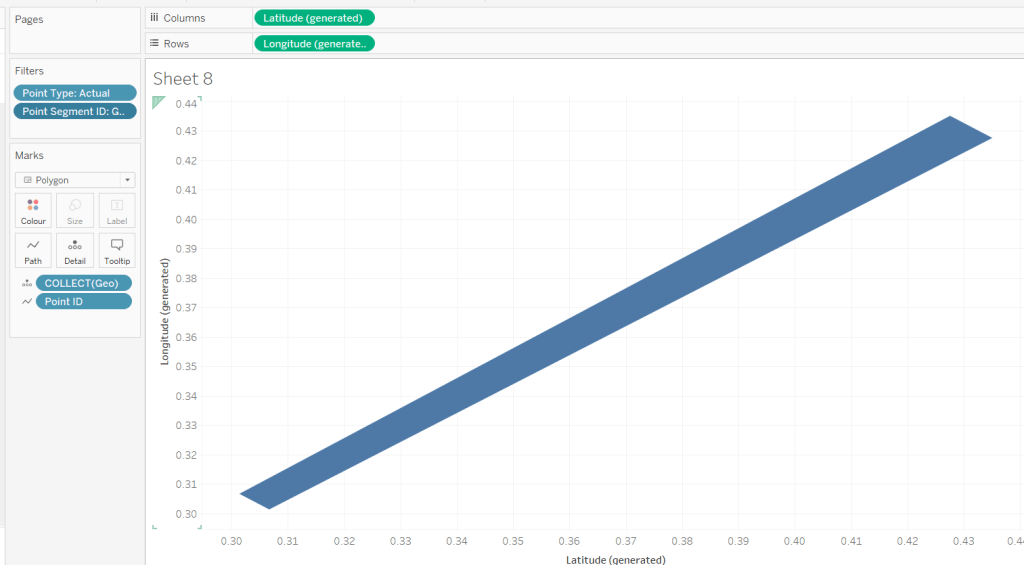


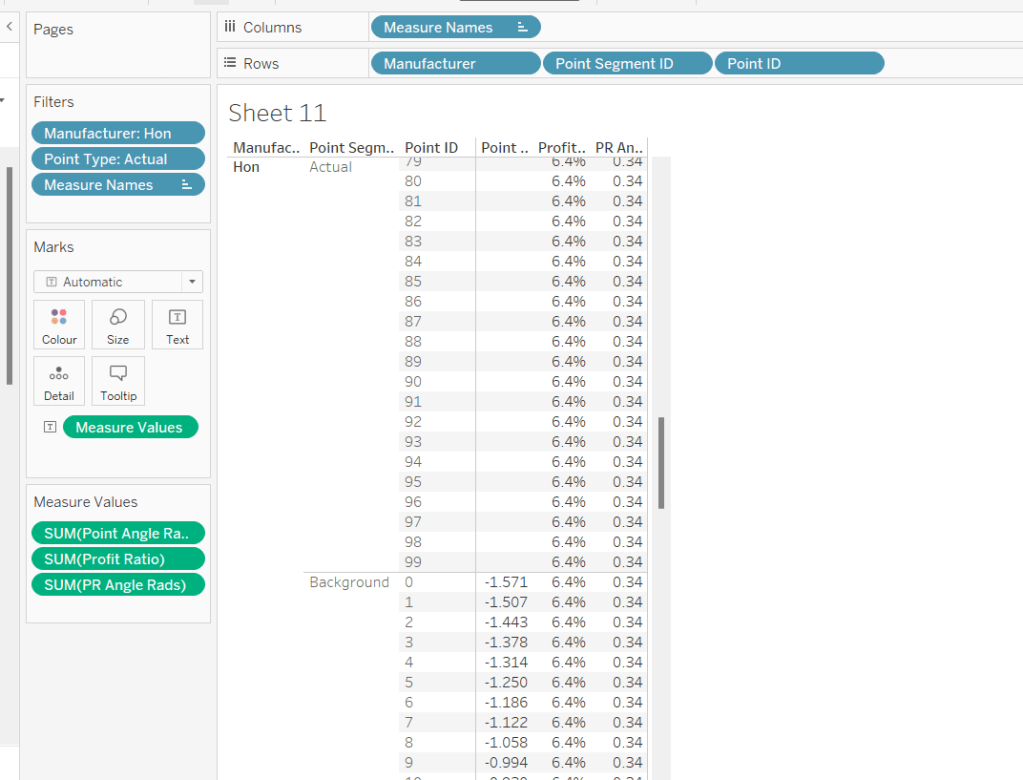
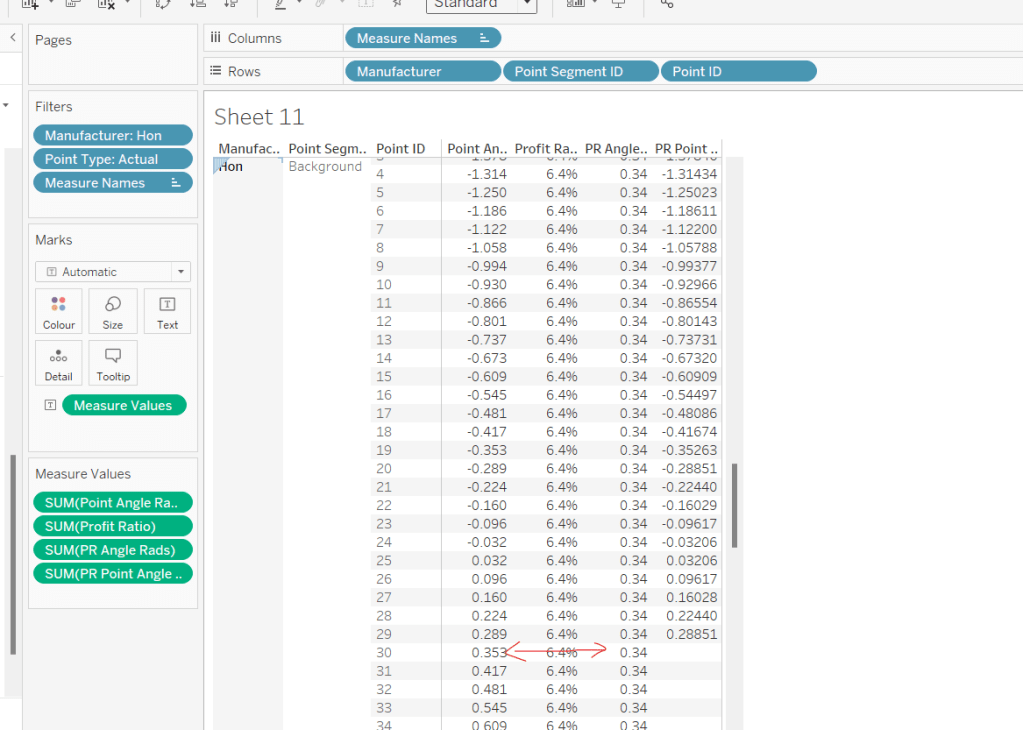
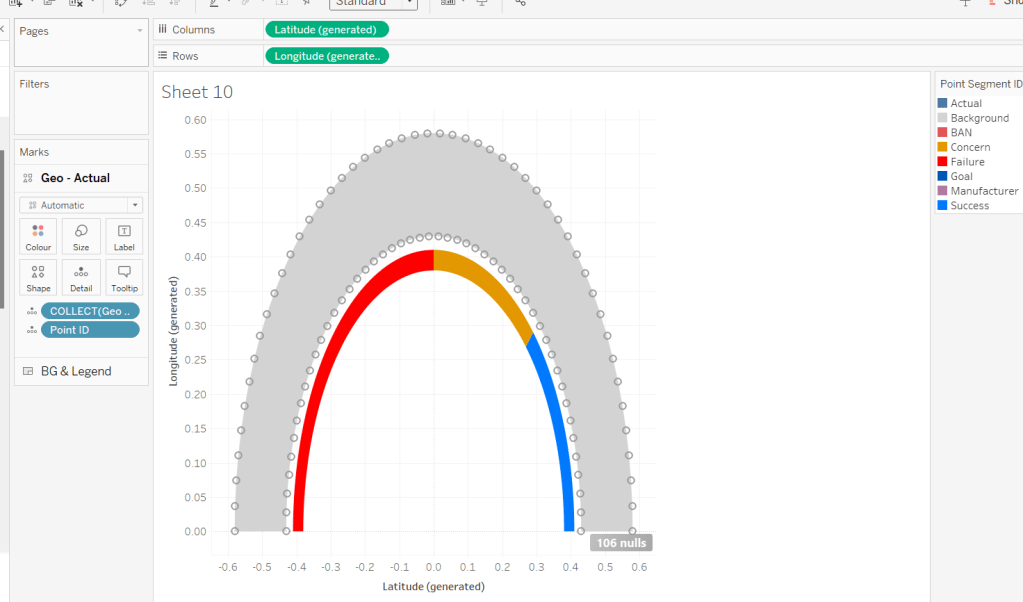

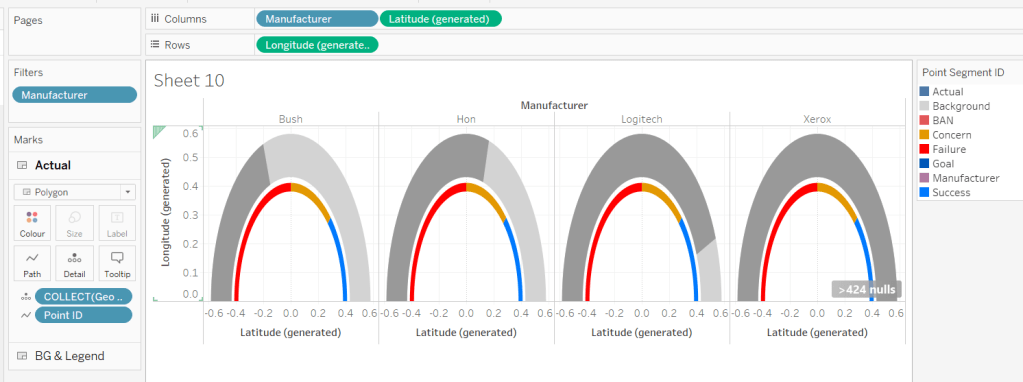


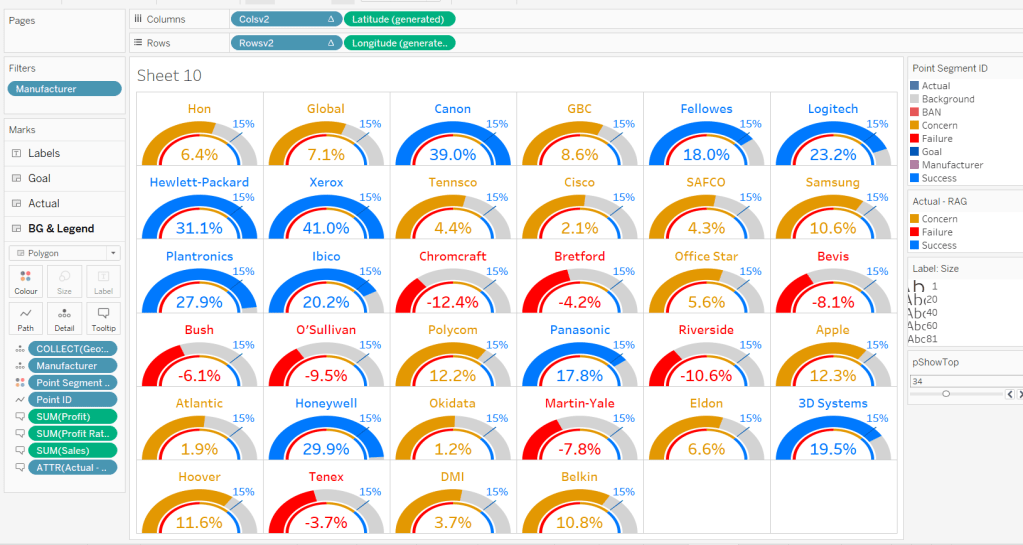


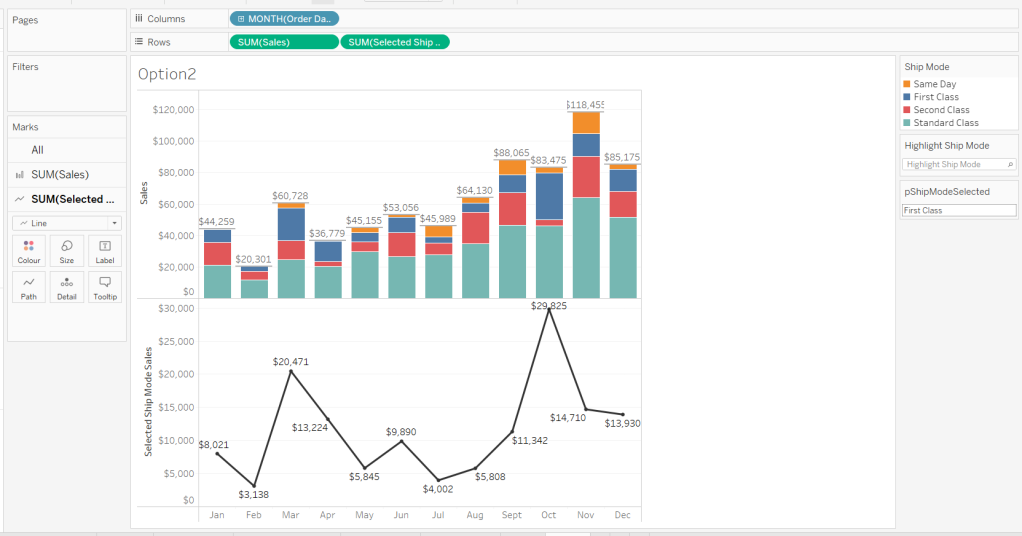


 Donna + DataViz