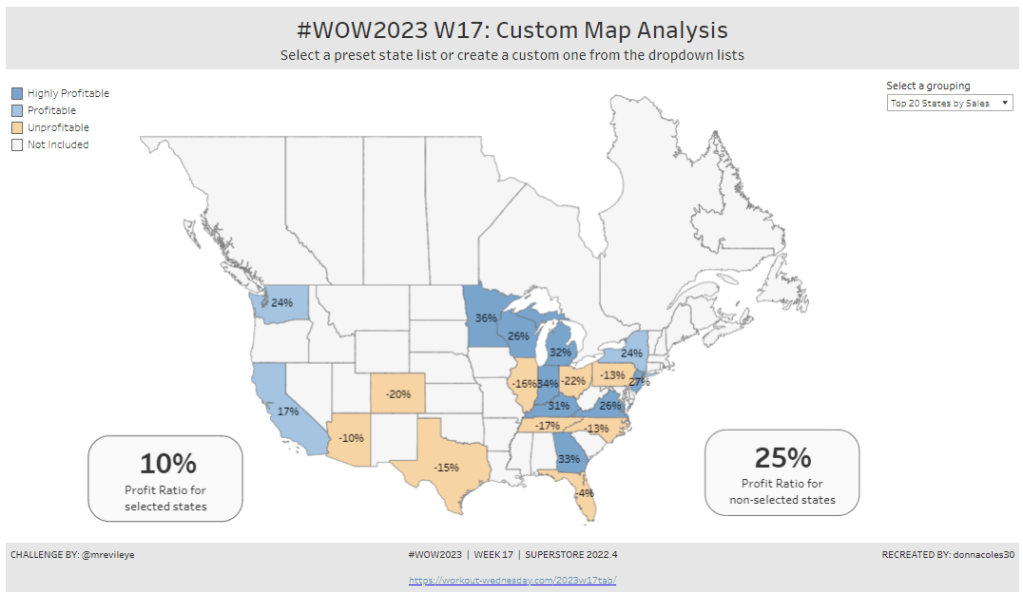
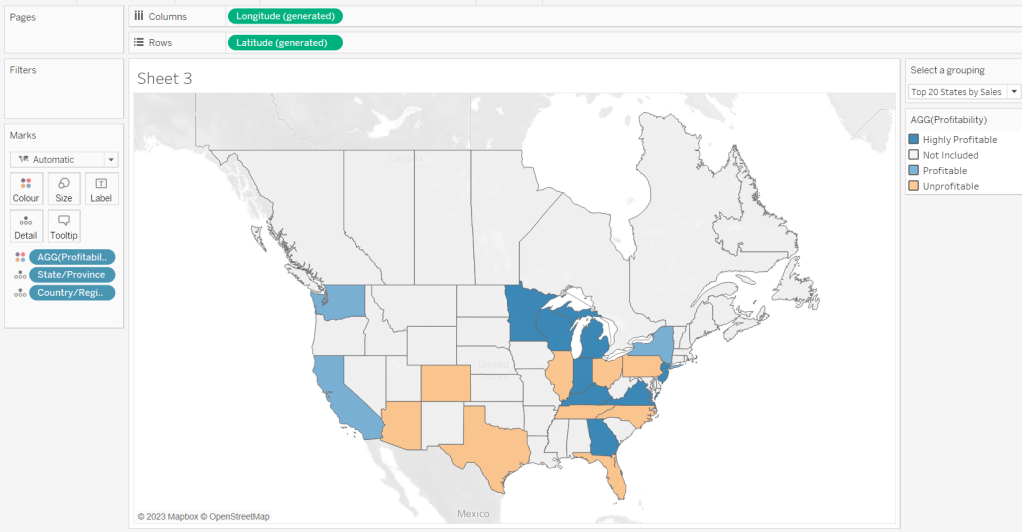
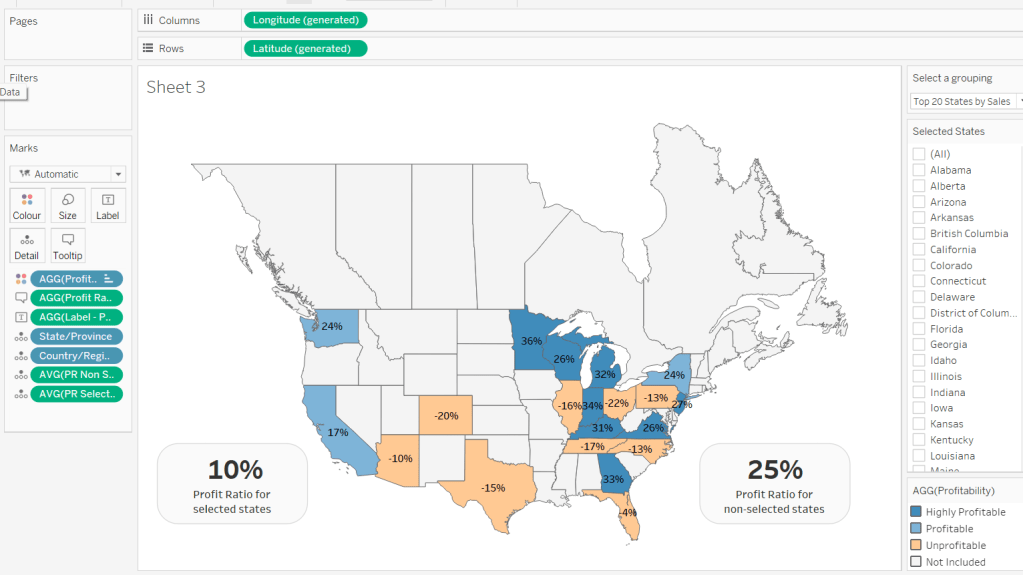
Custom Map Analysis

For the final week of Community Month, my colleague, Nik Eveleigh, posed this challenge to apply some tricky filters to a map. Let’s dive straight in!

Identifying the States and Profitability

The core functionality of the map display is driven by a parameter allowing the user to select which set of states they want to analyse, so let’s set this up first.

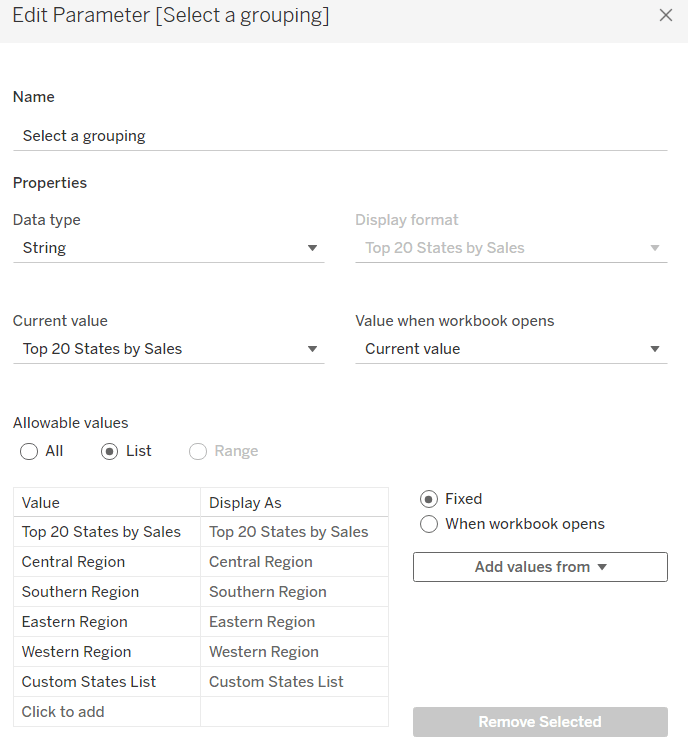
Select a grouping

string parameter containing 6 entries in the list and defaulted to ‘Top 20 States by Sales’

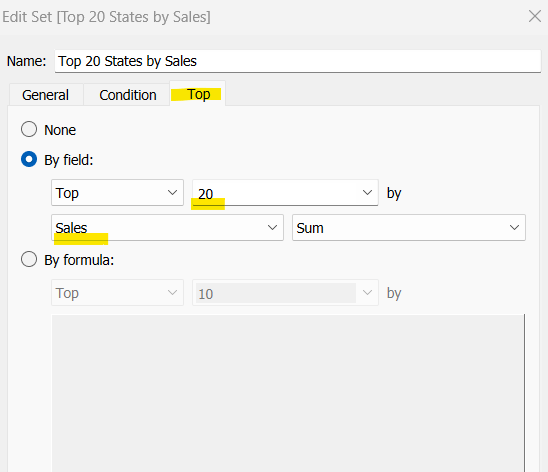
To identify the top 20 States by Sales, we need to create a Set. Right click on State/Province > Create > Set and use the ‘Top’ option to create the set based on top 20 sum of Sales.

Top 20 States by Sales

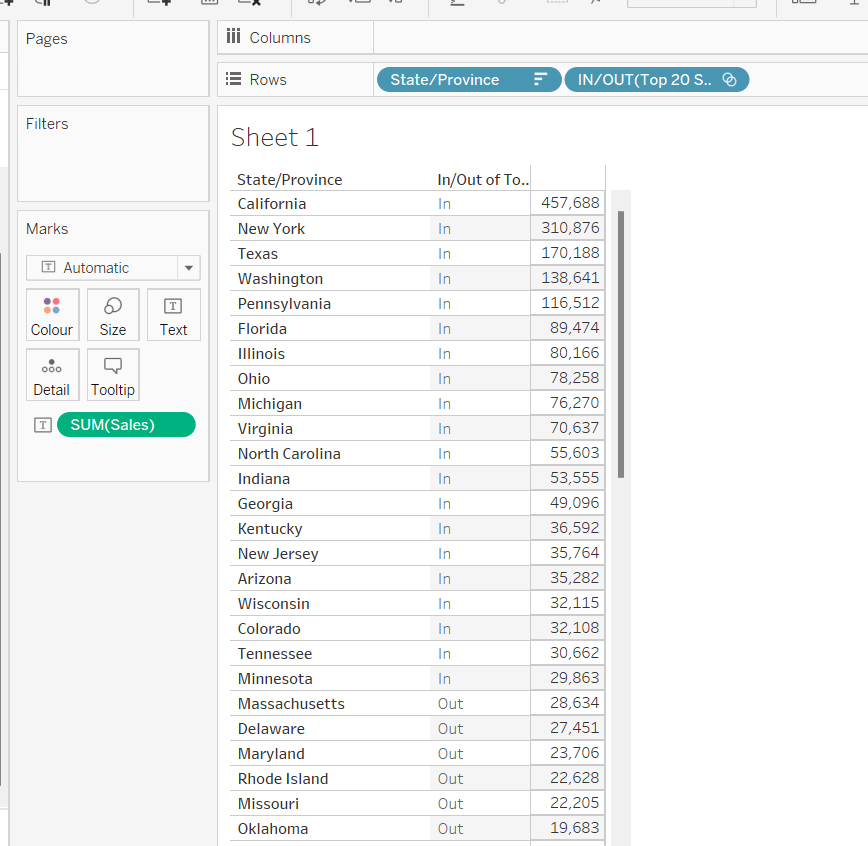
To verify this is working as expected, add State/Province to Rows, Sales to Text and sort descending. The add Top 20 States by Sales to Rows and you should see the first 20 rows with In and the rest listed as Out.

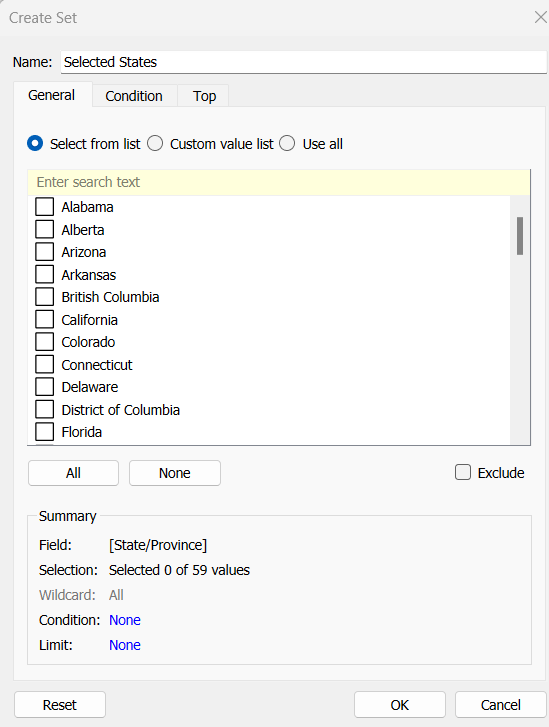
To identify the states selected when the ‘Custom States List’ option is selected, we’ll also need another set to store the selections. Right click on State/Province > Create > Set, leave the list of states all unselected and rename the set

Selected States

To verify this is working, on a new sheet add State/Province to Rows and Selected States to Rows too. Then on the context menu of the Selected States pill, choose Show Set to get the list of States displayed. Select the first couple in the list and see the value in the table change from Out to In.

It is this set control filter list that will be used to provide the selection when the appropriate value in the Select a grouping parameter is chosen.

While the sets display In or Out when shown in the table, they are actually booleans with the equivalent of a True or False. We now need to build a boolean field which will encapsulate all the relevant states included based on the parameter option selected.

Filter States

CASE [Select a grouping]
WHEN ‘Top 20 States by Sales’ THEN [Top 20 States by Sales]
WHEN ‘Central Region’ THEN IF [Region] = ‘Central’ THEN TRUE ELSE FALSE END
WHEN ‘Southern Region’ THEN IF [Region] = ‘South’ THEN TRUE ELSE FALSE END
WHEN ‘Eastern Region’ THEN IF [Region] = ‘East’ THEN TRUE ELSE FALSE END
WHEN ‘Western Region’ THEN IF [Region] = ‘West’ THEN TRUE ELSE FALSE END
WHEN ‘Custom States List’ THEN [Selected States]
END

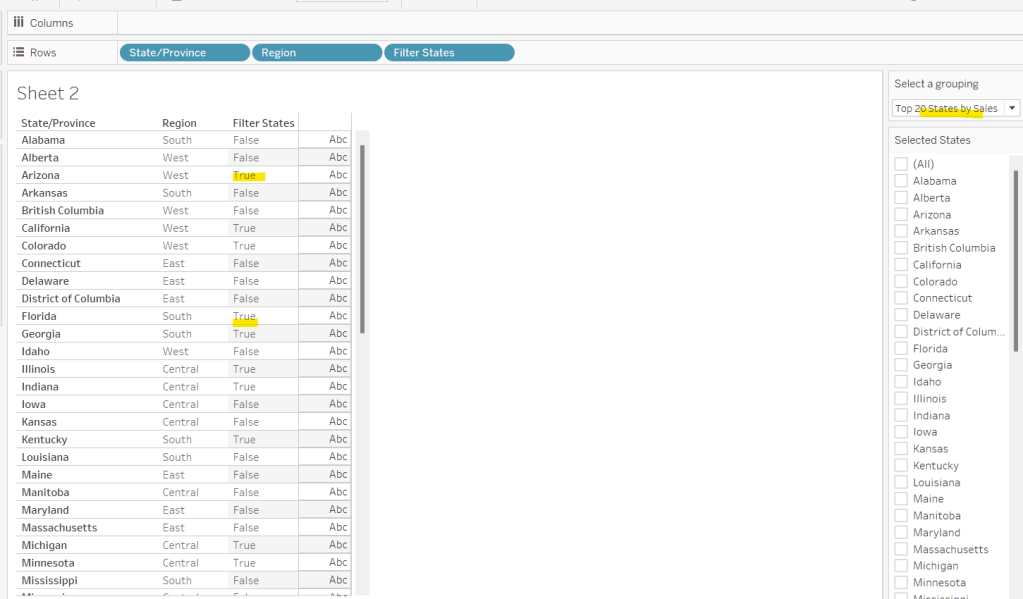
Let’s sense check the workings of this too. On a sheet add State/Province, Region and Filter States to Rows. Show the Select a grouping parameter. Also click on the Selected States field in the left hand data pane and Show Set, so the list of states shows. Ensure all are unchecked. Depending on the option selected in the Select a grouping parameter, then Filter States column should display true or false.

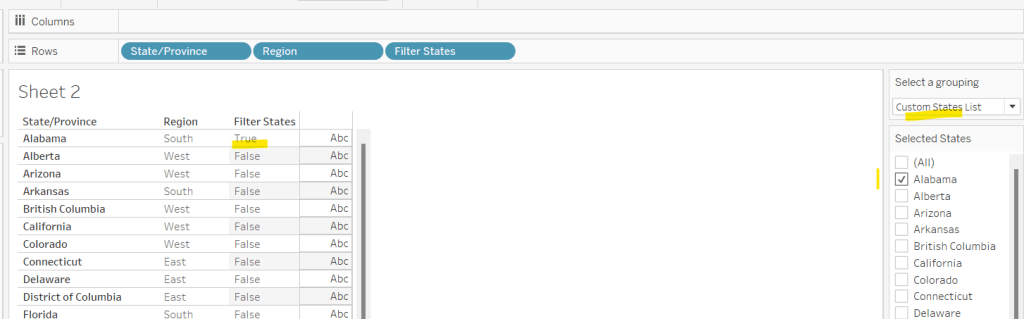
If you select a state from the list, this should only present as True when the Custom States List option is selected

Right, now we know how to identify the states we want, we can start to look at understanding their profitability. Firstly we need to get the profit ration

Profit Ratio

SUM([Profit])/SUM([Sales])

format this to % with 0 dp.

Profitability

IF ATTR([Filter States]) THEN

IF [Profit Ratio] < -0.25 THEN ‘Highly Unprofitable’

ELSEIF [Profit Ratio] >= -0.25 And [Profit Ratio] < 0 THEN ‘Unprofitable’

ELSEIF [Profit Ratio] >=0 AND [Profit Ratio] < 0.25 THEN ‘Profitable’

ELSE ‘Highly Profitable’

END

ELSE ‘Not Included’
END

If the states is one of the filtered ones then work out isn’t profitability ‘bracket’ otherwise report as ‘Not Included’.

Building the Map

On a new sheet double-click on State/Province to automatically generate the map. If the map doesn’t display with US and Canada Edit Locations (via the Map menu) and ensure your settings are as below

Display the Show a grouping parameter and have it set to Top 20 States by Sales. Add Profitability to Colour and adjust colours accordingly.

Click on the Selected States field in the left hand data pane and Show Set, so the list of states shows, then test changing the values in the Select a grouping parameter and see the display change.

Clean the map up by clicking Map -> Background Layers, and then unchecking all the options in the Background Map Layers section displayed on the left hand side.

To label the highlighted state we need

Label – PR

IF ATTR([Filter States]) THEN [Profit Ratio] END

format to % with 0 dp and then add to the Label shelf and set the font to bold.

Add Profit Ratio to the Tooltip shelf and adjust the tooltip.

To display the summary Profit Ratio values for all the filtered states vs those not selected, we need

PR by Filter State

{FIXED [Filter States]: [Profit Ratio]}

and then

PR Selected States

ZN({FIXED:AVG(IF [Filter States] THEN [PR by Filter State] END)})

Custom format this with 0%;-0%;–

This formatting with show values with 0dp for positive and negative values and — when no values exists.

Repeat the process to create

PR Non Selected States

ZN({FIXED:AVG(IF NOT([Filter States]) THEN [PR by Filter State] END)})

and apply the same formatting above.

Add both PR Selected States and PR Non Selected States to the Detail shelf and change the aggregation to Average.

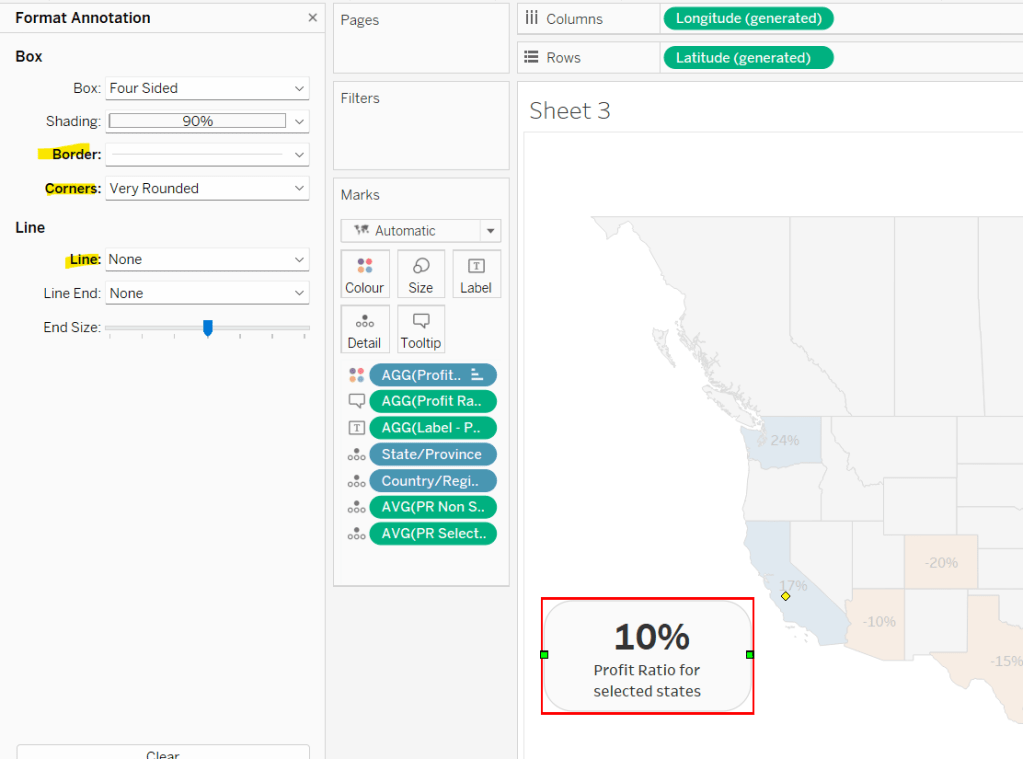
Then click on a state on the bottom left of the map (I chose California) and select Annotate > Mark. Add the reference to the PR Selected States and supporting text into the annotation dialog. The when completed, manually move the annotation to the space to the left of the map. Format the annotation to add a border, round the edges and remove the line. You many need to re-edit the annotation to rec-centre the text.

Repeat a similar process, by annotating a state on the right hand side and referencing the PR Non Selected States field instead.

Finally remove all row & column dividers and hide the map options (Map -> Map Options -> uncheck all selections)

Hiding the Selected States control

In order to control visibility of the Selected States list, we need a boolean field

Custom States Selected

[Select a grouping] = ‘Custom States List’

Once all objects have been added to the dashboard and arranged where you want, click on the Selected States control, so it is selected via a grey border, then on the left hand Layout pane, select the Control visibility using value checkbox and choose the Custom States Selected field

The State list will now only display when the Select a grouping parameter contains the ‘Custom States List’ value.

And that should be it. My published viz is here.

Happy vizzin’!

Can you build an insightful text table?

Regular #WOW participant, Caroline Swiger, set the guest challenge for community month this week, to recreate a visual table in a single sheet. She was heavily inspired by this Super Advanced Tables viz built by my colleague Sam Parsons which he discusses in this YouTube video. This was a concept I’d been meaning to try for a while, so having this set was ideal, as I now get to try it out and blog about it 🙂

I think the easiest way to approach this blog is simply column by column. When I tackled this initially, I ticked off as much as I could remember to do initially, and then referenced Sam’s video when it came to building the bars. As a consequence of that, I did then have to add a field that meant I had to adjust all the existing columns I’d made. If you follow this blog from start to finish, you shouldn’t need to do that.

This table revolves around utilising what I refer to as ‘fake axis’ to allow you to use different mark types other than text within each cell of the table. All of the columns in this table make use of a MIN(0) measure to act as the ‘fake axis’. Whilst we can just type MIN(0) into the Columns shelf each time, we’ll give these measures a specific name relating to the data being presented in each column, so we can easily find them on the Marks card if ever we need to make an adjustment.

Initial Set Up

Create a new field

Y-Axis Position

MIN(0.5)

Add Sub-Category to Rows and add Y-Axis Position to Rows as well. Having a measure on the Rows shelf is necessary for when we come to build the bar chart columns, and I’ll explain why in that section. Edit the Y-Axis Position axis to be fixed from -1 to 2.

Sales Rank Column

The main focus of the data is for the latest year values. So we need to identify various measures relating to just this year.

Latest Year

{MAX(YEAR([Order Date]))}

For the data I’m working with, this returns the year 2023, and from this we can then determine

Current Sales

IF YEAR([Order Date]) = [Latest Year] THEN [Sales] END

Format this to $ with 0 dp.

Apply a Sort to the Sub-Category pill on Rows based on this field.

Create a new field

Sales Rank

RANK(SUM([Current Sales]))

and a field for the ‘axis’

Sales Rank Axis

MIN(0)

Add Sales Rank Axis to Columns. Change the mark type to circle, increase the size a bit. Change the Colour to dark grey.

Add Sales Rank to the Label shelf and edit the table calculation so that it is computing by Sub-Category. Align the text middle centre and bold the text.

Current Sales Bar

Create a new field

Current Sales Axis

MIN(0)

and add to the Column shelf. Change the mark type of this to a bar. Remove Sales Rank from the Label shelf, and replace with Current Sales. Change the alignment of the label to be top left, and ‘un-bold’ the font. Add Current Sales to the Size shelf, then click on the Size shelf button, and change the size from Manual to Fixed, aligned left. This action will make the bars look like proper horizontal bars, with the same starting position, and a length proportionate to the value of Current Sales.

The manual vs fixed sizing option only becomes available when there is a measure (green pill) on both the Rows and the Columns, which is why we needed to create the Y-Axis Position field. Without this, we would only have had a slider size option which wouldn’t have achieved the desired result. The ‘height’ or depth of the bar is based around the position on the Y-Axis (ie 0.5) and the scale of the axis. Fixing the axis from -1 to 2 as mentioned at the start, positions the bar roughly central to where we want it and with a relatively narrow height. If you adjust the axes, you will see how this impacts the bar chart.

YoY Sales Column

For this column, we need to know what the previous year’s sales were, the % YoY difference and whether that difference was positve, negative or didn’t change

PY Sales

IF YEAR([Order Date]) = [Latest Year]-1 THEN [Sales] END

YoY Sales Diff

(SUM([Current Sales]) – SUM([PY Sales]) ) / SUM([PY Sales])

format this to a % with 0 dp

YoY Sales

SIGN(ROUND([YoY Sales Diff],2))

The SIGN() function is a more efficient way than saying IF value is >0 THEN… ELSEIF value < 0 THEN…. ELSE … END. SIGN() returns +1, 0 , -1 depending whether difference is positive, negative or the same.

We also need

YoY Sales Axis

MIN(0)

Add this field to the Columns shelf. Change the mark type to shape and add YoY Sales as a blue discrete pill to the Shape shelf. Use the arrow shapes and assign to the 1, 0 -1 values accordingly. The arrow shapes are available on the challenge page if they’re not already available for you (you might find them in the Arrows shape palette if that exists). Refer to this blog to understand how to add custom shapes.

Add YoY Sales as a discrete blue pill to the Colour shelf and adjust the colours using the blue, red and light grey options referenced in the requirements.

Add YoY Sales Diff to the Label shelf and align middle right. Unbold the text.

Profit Rank Column

Create new fields

Profit Rank Axis

MIN(0)

and

Current Profit

IF YEAR([Order Date]) = [Latest Year] THEN [Profit] END

formatted to $ with 0dp, and then create

Profit Rank

RANK(SUM([Current Profit]))

Add Profit Rank Axis to Columns and then add Profit Rank to the Label shelf. The mark type should already be set to a circle and coloured correctly to dark grey. Align the label middle centre (if it’s not already), and adjust the table calculation so it is computing by Sub-Category.

Current Profit Column

Create

Current Profit Axis

MIN(0)

Add to Columns and change the mark type to square. Add Current Profit to the Label shelf – align middle centre and un-bold. Add Current Profit to Colour. Edit the diverging colour legend. Click on the dark orange coloured square at the left side of the colour scale and change the colour to match the red hex code provided. Similarly click on the blue colour square at the right side and change the colour to match the blue provided. Tick the Use Full Colour Range option.

Create a new field

Current Profit – Size

MIN(1)

and add to the Size shelf, then increase the Size slider to as large as possible.

Change in Profit Columns

The positive and negatives values indicating the change in profit from the previous year is built as two separate columns. So we need

Change in Profit Neg Axis

MIN(0)

Change in Profit Pos Axis

MIN(0)

We need to determine the profit for the previous year

PY Profit

IF YEAR([Order Date]) = [Latest Year]-1 THEN [Profit] END

and with this we can work out the change

Change in Profit

SUM([Current Profit]) – SUM([PY Profit])

We then also need to explicit fields to plot on each axis.

Profit Change -ve

IF SIGN([Change in Profit]) = -1 THEN [Change in Profit] END

This field will only contain a value if the Change in Profit field is negative. Format this to $ with 0dp

Profit Change +ve

IF SIGN([Change in Profit]) = 1 THEN [Change in Profit] END

This field will only contain a value if the Change in Profit field is positive. Format this to $ with 0dp

Add Change in Profit Neg Axis to Columns and change the mark type to bar. Add Profit Change -ve to the Size shelf, and adjust the Size so it is Fixed and left aligned. Add Profit Change -ve to the Label shelf and align top right and un-bold. Add Change in Profit to the Colour shelf, and adjust the diverging colour legend exactly as described above.

Now repeat. Add Change in Profit Pos Axis to Columns and change the mark type to bar. Add Profit Change +ve to the Size shelf, and adjust the Size so it is Fixed and left aligned. Add Profit Change +ve to the Label shelf and align top right and un-bold. Add Change in Profit to the Colour shelf, and adjust the diverging colour legend exactly as described above.

Then right click on the Change in Profit Pos Axis and Add Reference Line. Create a Constant reference line of 0 value. This line won’t be that visible at this point, but once we remove all the other formatting, it will display.

Profit Ratio Column

Create the field

Profit Ratio Axis

MIN(0)

and

Current Profit Ratio

SUM([Current Profit])/SUM([Current Sales])

format this to % with 1 dp.

and

Profit Ratio – Colour

SIGN([Current Profit Ratio])

Add Profit Ratio Axis to Columns and change the mark type to Shape. Select the rounded shape from the shape palette (again this is provided on the requirements page and needs to be added as a custom shape).

Add Profit Ratio – Colour to the Colour shelf as a blue discrete pill and adjust accordingly to use the red and light grey options provided. Increase the Size of the shape as necessary, and then add Current Profit Ratio to the Label shelf.

Tidying up

So we’ve built the table, just need to clean it up by

  • Right click the y-axis and uncheck show header
  • Right click one of the x-axis and uncheck show header
  • Right click on the Sub-Category label at the top of the column and select hide field labels for rows
  • Format the chart and remove all column dividers
  • Remove all grid lines, zero line, axis rulers and axis ticks.
  • Select the All Marks card and click on the Tooltip button and uncheck show tooltips

The sheet can now be added to a dashboard. Use a horizonal container positioned above the chart and add text objects to create the column labels. My published viz is here.

Happy vizzin’!

Donna

Can you create digital signage in Tableau?

Community Challenge month continues this week, and Yusuke Nakanishi set this challenge where the concept is to engage the audience by providing some automated highlighting of the dimensions in the viz.

This challenge did take a bit of thinking, and what I document below is ultimately what you’ll need to build it as I did; however it took me a bit of ‘back and forth’ to get there.

Modelling the data

The viz essentially ‘ranks’ the Sub-Categories based on their Sales in 2023 (Note – I used the version of Superstore shipped with v2023.1, so I filtered to 2023 to get the same data as presented in the solution). The page control cycles through the rankings, highlighting the Sub-Category with the matching rank. Adding pills to the Page shelf essentially applies a filter to the data, so I couldn’t use the ranking calculation I created, as that would filter out all other data. I therefore created a ‘scaffold’ data source in Excel, which contained a single column called Number and contained a row for each number from 1 to 50 (I didn’t want to limit it to the number of Sub-Categories I knew existed, so I could demonstrate a more ‘generic’ solution).

I then related the Superstore data set to the excel sheet using a calculated relationship of 1=1

Creating the core calculations

We’ll work against a tabular view of the data to start with, so add Order Date to Filter and filter to the latest year in the data set you’re using (for me this was 2023, but it might be 2022 for you). Then add Category and Sub-Category to Rows and Sales to Text. Sort by Sales descending. Format Sales to $ with 0 dp.

We need to calculate two different rankings. One is the overall rank of each Sub-Category and is used in the highlighting via the page shelf. The other is the rank of each Sub-Category per Category and is needed so the bars can be displayed in the right places.

Overall Rank

RANK(SUM([Sales]))

Add this to the table, and set the table calculation properties to compute using both Category and Sub-Category, so the ranking runs from 1 to 17

Rank by Category

RANK(SUM([Sales]))

Add this to the sheet, and while this is the same calculation as the overall rank, apply the table calculation to compute by Sub-Category only. This means the ranking will restart for each Category

We need to capture the total number of Sub-Categories

Total Sub Cats

{FIXED Year([Order Date]): COUNTD([Sub-Category])}

Add this to the table.

At this point, the only data we’ve referred to in the calculations is the data from the Superstore data set. If we now add Number to Rows, we get every row duplicated 50 times. We need the Number to help with the paging, but we only want to page through 17 items (the number of Sub-Categories). To restrict this we need

Index to Include

[Number]<=[Total Sub Cats]

Add this to the Filter shelf and set to True. This will limit the duplicate rows to 17.

Now add Number to the Pages shelf. The page control will automatically be set to 1, and you’ll see all the data not related to Number =1 disappear.

We need to be able to identify/highlight the Sub-Category whose overall rank matches the value in the page control.

Rank to Highlight

[Overall Rank] = SUM([Number])

Add this to Rows and verify the table calculation is set to compute by Category & Sub-Category only. There should only be 1 row that is True per Sub-Category, and only 1 row in all the data that has Rank to Highlight = True and has data displayed in the other columns.

Move Rank to Highlight to the Colour shelf and remove the Number field from Rows. You should now only have 1 row per Sub-Category and as you cycle through the page control, the relevant row is highlighted in a different colour.

The above calculations are enough for us to build the bar chart, but we also need to be able to identify the selected Category to highlight on the BANs.

Category to Highlight

MIN([Category]) = WINDOW_MAX(IF [Rank to Highlight] THEN MIN([Category]) END)

Breaking this down: If the row is the rank we want to highlight, then return the Category associated to this row, and ‘spread’ it across all other rows (via the WINDOW_MAX function). If the Category for the row, matches this value, then return True.

To see how this is working, add the field the the Tooltip shelf of the table of data, and set the table calculations to compute by Category and Sub-Category (note there are two nested calculations within this calculation and both need setting).

If you hover over any row that has the same Category as the row that is highlighted, the Category to Highlight value will be True, but hovering over rows in the other Categories, will return False.

Building the Bar Chart

On a new sheet add Category to Columns, Sales to Columns and Sub-Category to Detail. Then add Rank By Category as a blue discrete pill to Rows. Verify the table calculation is set to compute by Sub-Category only.

Add Order Date to Filter and restrict to the latest year. Add Index to Include to Filter and set to True.

Double click into the Columns shelf and manually type MIN(0) to create another axis.

Change the mark of the MIN(0) marks card to be Gantt Bar and set the Size to be as small as possible. Add Sub-Category and Sales to the Label shelf of the MIN(0) marks card, and adjust the label so the text is arranged as required. Add Measure Names to the Rows shelf to create a row per Measure.

Make the chart Dual Axis and Synchronise the axis. Change the mark type of the Sales marks card back to a bar, and remove Measure Names from the All marks card.

Add Number to the Pages shelf, then add Rank to Highlight to the Colour shelf of the All marks card. Adjust the table calculation so it is computing by both Category and Sub-Category, then adjust the colours to suit.

Edit the Label of the MIN(0) marks card, so the font is bigger/bolder (I used Tableau Medium Bold 10pt) and set the font to match mark colour.

Hide the MIN(0) top axis, the Category headings and the Measure Names column (uncheck show header). Edit the Sales axis: remove the title, fix the axis from 0 to 199,000, and fix the axis ticks every 100,000. Format the Sales axis, so the tick marks are labelled in $k format. Format the Rank by Category column so the text is bolder and larger (I used Tableau Medium 12pt). Hide the column label (hide field labels for rows), and make the column narrower

Format the sheet, so the background is grey, remove all row dividers, set the column dividers to be thicker, to not apply to the header, and to be at Level 2

Adjust the colour of the column grid lines so they show up on the grey background. Adjust the formatting of the Sales axis labels. Remove all tooltips. Scroll through the page control and verify the highlighted dimensions change.

Building the BANs

On a new sheet, add Category to Columns and Sub-Category to rows. Add Order Date to Filter and restrict to the latest year. Add Index to Include to filter and set to True. Create a new field

Sales per Category

{FIXED YEAR([Order Date]), [Category]: SUM([Sales])}

format to $ with 0dp and add to Text.

Add Rank By Category as a blue discrete pill to the Rows shelf, and move Sub-Category to Detail. Verify the Rank by Category table calculation is set to compute by Sub-Category only.

Add Number to the Pages shelf, and then add Category to Highlight to the Colour shelf. Verify both the nested table calculations are set to compute by Category and Sub-Category only, then adjust the colour accordingly.

Move the Rank by Category field from the Rows shelf to the Filter shelf and set to filter to 1, so only the first row displays. Add Category to the Text shelf, and adjust the text positioning and size as required, and align centrally. If you wish, change the mark type to Shape and set to use a transparent shape. (this just gives a nicer user experience when clicking/hovering on the text – see this post for information). If you do this, you’ll need to adjust the Label to match mark colour. Hide the Category header, remove row dividers and format the background to be light grey. Remove the tooltip and update the title.

Building the Summary Ranking

While the requirements suggested the viz should be built using 2 sheets, I couldn’t manage this (I was hoping to use the Caption feature on the bar chart, but as I used table calculations, the values wouldn’t retain). So I built this section with a 3rd sheet, and checking the solution after posting, found that it also had 3 sheets.

On a new sheet, add Order Date to Filter and set to the latest year, and add Index to Include to filter and set to True. Add Sub-Category to Detail, Number to the Pages shelf and then add Rank to Highlight to Filter and set to True. Verify the table calculation is set to compute by Sub-Category only, and if adjusted, recheck the filter is set to just True. You should have 1 mark displayed, and on hover, it should list the Sub-Category with the rank that matches the number of the page.

Add Overall Rank (set to compute by Sub-Category only), Total Sub Cats and Sub-Category to the Text shelf. Adjust the size and format of the text and align centrally. Again if preferred, change the mark to Shape and use a transparent shape.

Set the background to light grey, hide the tooltip, and verify the display changes as you cycle through the pages.

Now arrange all the sheets onto a dashboard using padding if required to provide some spacing.

My published viz is here.

Happy vizzin’!

Donna

How short are baseball games in 2023?

It’s time for Community Month at #WOW2023 Towers, and this week, Spencer Baucke teamed up with Luke to provide this baseball related challenge.

Sourcing the data

Instructions were provided to get the data from this site , select ‘Share & Export’ then ‘Export as CSV’. I couldn’t find an actual ‘export as CSV’ option. In stead I selected the ‘Get table as CSV (for Excel)’ option under the ‘Share & Export’ menu, and then copied the text displayed into notepad. I then save this as a csv file.

Building the Calculated Fields

There aren’t that many fields needed for this viz.

Firstly, we need to organise the years into rows on the viz, based on the decade

Decade

STR(FLOOR([Year]/10) * 10) + ‘s’

This takes the Year eg 1968, divides by 10 to get 196.8, applies the FLOOR function which rounds down to the nearest whole number ie 196, then multiples that by 10 to get 1960.

We also need to a counter for each year in the decade to organise the data into the columns. I just used

Index

INDEX()

Let’s see what we’ve got so far

Add Year (as a blue discrete field) and Decade to Rows. Then add Index to Rows as a blue discrete field. Adjust the table calculation settings, so the Index is computing by Year only.

We also need to convert the Time/9I field into a duration in minutes

Duration (mins)

(DATEPART(‘hour’,[Time/9I]) * 60) + DATEPART(‘minute’, [Time/9I])

take the hour part of the date field and multiply by 60 to get the total number of minutes for the hours the game took, then add on the minute part of the date field.

Add this field to the Text shelf, and additionally add Year to the Filter shelf, and set so that it is filtered to be at least 1960.

This gives us the measure we’ll be plotting on the bar chart, but we also need to plot a reference line based on the time for the year 2023.

2023 is the last value in our data, so we can get the value against that year by the following

Latest Duration

WINDOW_MAX(IF LAST()=0 THEN SUM([Duration (mins)]) END)

As 2023 is the last value, then the Duration(mins) value is returned for this point only – the value is null/empty for all other years. The Window_Max function then ‘spreads’ that value across every other row in the data set.

Add this onto the sheet, and verify the table calculation is set to compute by both Year and Decade

The final piece of information we need is to determine whether the duration for each year is bigger or smaller than the latest years’ value

Duration > Latest

SUM([Duration (mins)]) >= [Latest Duration]

Add this to the Rows and the values will be True or False depending on how the data compares.

Building the Viz

On a new sheet, add Decade to Rows, Index to Columns and Year to Detail (discrete blue pill). Adjust the table calculation setting of Index to compute by Year only. Add Year to filter and set to at least 1960.

Add Duration(mins) to Rows and Duration > Latest to Colour. Modify the table calculation setting so it is computing by both Year and Decade then adjust the colour accordingly.

Add Time/9I and Year to the Label shelf. Modify the Time/9I field so that it is using Exact Date and set to be a discrete Attribute rather than a measure.

Also, apply a custom date format to the Time/9I field so that is displays as h:nn

Adjust the text on the Label shelf, so that the Year is above the Time/9I, the font colour is black and the label is aligned bottom centre

Add Latest Duration to the Detail shelf, and adjust the table calculation setting so that it is computing by both the Year and the Decade.

Add a Reference Line to the Duration(mins) axis that works by pane and references the Latest Duration average value. Manually set the Label to the text to 2:38 in 2023. Don’t show a tooltip.

The format the reference line, so the text is aligned top right.

To add a bit of ‘breathing space’ between each row, add another reference line. This time set it to use a Distribution that is 150% of the average Latest Duration. Don’t show any labels, tooltips or lines or fill.

Finalise the viz by hiding the Duration(mins) axis and the Index headings (uncheck show header). Remove all gridlines, and column dividers. Hide the Decade column label (right click label and Hide Field labels for Rows). Click the Tooltip shelf and uncheck Show Tooltips.

Add the viz to a dashboard, add title and publish. My published viz is here.

Happy vizzin’!

Donna

Can you use dynamic axis titles?

Lorna used this week’s challenge to showcase a new feature in Tableau v2023.1 – dynamic axis titles. As you can expect, you’ll therefore need this version of Desktop (or later if you’re reading this in the future ;-)) to complete the challenge.

Modelling the data

Download the file Lorna provided and connect to the 2023 sheet. Lorna hinted that a pivot would help, so in the data source canvas, multi-select all the measures (ctrl-click each column – there are several) then right-click and Pivot.

Rename Pivot Field Names to Measure and rename Pivot Field Values to Value.

Building the Basic Scatter Plot

We need 2 parameters to control the selection of the measures we want to display in the scatter plot. Right click on Measure > Create > Parameter

pMeasure1

string parameter defaulted to Metres, and all the possible other values should be listed

Repeat the steps again to create pMeasure2 which is defaulted to Tackles

To determine the value to plot on the axes based on the selections from the parameters we need

X-Axis Value

IF [pMeasure1] = [Measure] THEN
IF [Value] <> 0 THEN [Value] END
END

Note – the additional nested IF was added as I discovered while playing with the Lorna’s solution that marks didn’t display when the value was zero.

Similarly we need

Y-Axis Value

IF [pMeasure2] = [Measure] THEN
IF [Value] <> 0 THEN [Value]END
END

Add X-Axis to Columns, Y-Axis to Rows, Team Name to Rows and Name to Detail. This will give a basic scatter plot.

Change the mark type to circle, adjust the colour, and reduce the opacity to around 70%. Add a grey border to the circles.

The size is based on the number of games the player has played, so we need

Count Games

COUNTD([Game ID])

Add this to the Size shelf.

Adjust the Tooltip so it references the parameters and the other relevant fields

To change the axis titles, edit the x-axis (right click axis > edit axis) and from the menu arrow next to the word ‘custom’, select the pMeasure1 option.

Repeat the same for the y-axis, but select pMeasure2 instead.

Making the small multiples

For this we need to define which row and column each Team Name should sit in. As we’ve only got 12 teams to work with, and that number is static, and we know we’re working with a 3×4 grid, I’m going to ‘hardcode’ this a bit rather than use more dynamic calculations.

To see what’s going on, on a new sheet add Team Name to Rows. Then create a new field

INDEX

INDEX()

and add this to Rows and convert to discrete. It should provider a counter from 1 to 12 for each Team Name.

Based off this INDEX value we’ll work out which row and colum each team will sit.

Column

(INDEX()-1) % 3

Row

IF [INDEX]<=3 THEN 1
ELSEIF [INDEX]<=6 THEN 2
ELSEIF [INDEX]<=9 THEN 3
ELSE 4
END

Add these to the table as blue discrete pills

Back onto the scatter plot sheet, add Row to Rows as a blue discrete pill, add Column to Columns as a discrete pill, and move Team Name to Detail. Modify the table calculation settings of both the Row and the Column pill so that the calculation is computed using Team Name and Name (in that order) and at the level of Team Name

Hide the Column and Row pills (uncheck Show Header)

Adding the Team Name title

Create a new field

Ref Line

WINDOW_MAX(SUM([Y-Axis Value])) * 1.1

and add this to the Rows. This will create a second marks card. Set the table calcuation of the Ref Line pill to compute using Name and Team Name (in that order).

On the Ref Line marks card, remove the pill from the Size shelf, change the mark type to gantt bar, and reduce the size to the smallest possible, set the opacity to 0%, and border to none.

Add Team Name to the Label shelf, then set to label min/max values, by the X-Axis Value field and Label Minimum value only.

Each team name should only be displayed once. Edit the text of the label and add a few spaces to shift the label across and align it better.

Edit the Tooltip of this marks card, and delete all the text. Now make the chart dual axis and synchronise the axis. Then remove Measure Names from the All marks card, and hide the right hand axis.

Finally remove the 0 lines from displaying, and hide the nulls indicator (right click). Add the chart to a dashboard, and position the parameters as floating objects within the text of the title. I just used spaces within the text to leave room for where I wanted to place the parameterss.

And that should be it. My published viz is here.

Happy vizzin’!

Donna

Can you build a dashboard using containers?

For this week’s challenge, Kyle got us to look at dashboard layout, specially using containers to arrange the charts and KPIs. He added in a sprinkling of interactivity to make the challenge more complete.

The charts aren’t overly complex, so I won’t go into too much detail on building them all out. I used the latest version of Superstore, v2023.1.

Building the KPIs

When I first did this, I built the KPIs on a single sheet, then realised that wouldn’t work to get the layout required, so I ended up with 3 sheets.

  • Rename Sales to SALES and format to $ with 0 dp.
  • Add Measure Names to Filter and select SALES only.
  • Add Measure Names and Measure Values to the Text shelf.
  • Align centrally and format the text (I used font size 12pt and 20pt).
  • Add Category to the Filter shelf, and select all. Set the filter to apply to worksheets > all using this data source
  • Add Order Date to Filter and select Range of Dates. The Order Date pill will be ‘green’. Click on the context menu of the pill and select the Month (May 2015) option, so the range of dates will change at monthly intervals rather than daily. Set the filter to apply to worksheets > all using this data source
  • Create a field called True containing the value TRUE and False containing the value FALSE and add both these fields to the Detail shelf. These will be needed later to stop the sheet from remaining highlighted on selection.
  • Stop the Tooltip from displaying.
  • Name the sheet Sales

Repeat the steps for the Profit Ratio measure – if this doesn’t exist, create the field

PROFIT RATIO

SUM([Profit])/SUM([Sales])

and format this to % with 1 dp.

For the Orders measure create

ORDERS

COUNTD([Order ID])

If need be, you can simply duplicate the Sales sheet and just change the Measure Names filter to the appropriate measure.

Creating the Line Chart

Create a parameter to store the name of the selected measure.

pSelectedKPI

string parameter defaulted to the word ‘ORDERS’

Create a field to store the measure to display based on the value of the parameter

Measure to Display

CASE [pSelectedKPI]
WHEN ‘ORDERS’ THEN [ORDERS]
WHEN ‘SALES’ THEN SUM([SALES])
WHEN ‘PROFIT RATIO’ THEN [PROFIT RATIO]
END

On a new sheet, add Order Date to Columns and set to be a green (continuous) month level and Measure to Display to Rows.

I wanted to make my tooltips and labels reflect the measure selected (this isn’t actually part of the challenge). I created

Label – Orders

IF [pSelectedKPI] = ‘ORDERS’ THEN [ORDERS] END

format this to a number with 0 dp.

Label – Profit Ratio

IF [pSelectedKPI] = ‘PROFIT RATIO’ THEN [PROFIT RATIO] END

format this to % with 1 dp

Label – Sales

IF [pSelectedKPI] = ‘SALES’ THEN SUM([SALES]) END

format this to $ with 0 dp.

Add all 3 fields to the Tooltip shelf.

Also create

Chart Label

PROPER([pSelectedKPI])

this is a new function introduced in v2023.1 and will convert ‘ORDERS’ to ‘Orders’ and ‘PROFIT RATIO’ to ‘Profit Ratio’ etc. Add this to Tooltip too.

Modify the Tooltip as below – the 3 Label fields should be directly side by side with no spacing. Only one field will have a value at any time.

Remove the titles from the axes, and remove all gridlines. Name the sheet Line.

Building the Bar Chart

Add Category to Rows and Measure to Display to Columns. Sort descending. Add the 3 Label fields to the Label shelf, and arrange side by side.

Add Chart Label to Tooltip and adjust the tooltip.

Hide the axes, remove all gridlines/axis rulers etc and hide the Category label. Adjust the formatting of the fonts as required. Name the sheet Bar.

Building the dashboard

Describing using layout containers can be quite tricky – objects move around as you place things in. I’m going to do my best to describe the set up/structure I have and hope that it gets you what you need.

My preference is to always start with a floating container sized as per the dashboard. I then add tiled objects into that. I also have a habit of trying to rename my containers in the navigation layout pane to help me find the right section.

So let’s start. Create a new dashboard and set it to to 1200 x 900px.

Click the Floating button at the bottom of the left hand pane, and add a Horizontal container. Set the x & y position to be 0,0 and the width to 1200px and height to 900px. Rename the container to Base.

From the Objects list on the Dashboard pane, click Tiled and add a Text object. Enter the text for the dashboard title. Add a blank object beneath the text object.

When working with containers, it’s always good to add blank objects as a ‘starting point’ These all then get removed.

Now add a vertical container between the Title and Blank object. Name this container Main Body. Add a blank object into that container.

Add a vertical container to the left of the blank object in the Main Body container. Name this container Left Nav. Add a Text object into the Left Nav container and enter the instructional text. Add a blank object above the instructional text.

Add another vertical container to the right of the Left Nav container within the Main Body container. Add the Bar and the Line chart into this container, one above the other. Call this container Charts.

At this point a Tiled container object will have been automatically added containing the parameter.

Leave this for now – we’ll address this shortly.

We can remove some of the blanks now too. Remove the blank within the Main Body container, that is to the right of the Charts container. You can select the object on the item hierarchy layout, right click and remove from Dashboard.

You can also remove the blank object at the bottom of the Base container, below the Main Body container. Your item hierarchy should look something like

Now add another Horizontal container to the charts container, above the bar chart. Add the 3 KPI sheets into this container, position side by side. Name the container KPIs. Select the KPIs container, and use the context menu to Distribute Contents Evenly.

If they haven’t already appeared, the select one of the charts/KPIs and from the context menu select Filters > Category and then Filters > Month of Order Date to get the filter controls visible on the dashboard. They should appear on the right hand side, within that Tiled container (underneath the viz).

From the item hierarchy section, expand the Tiled container until you find the controls listed (see how many containers that got automatically added!).

Select the Category filter (easiest to do this by clicking on the object in the item hierarchy), and then move that object and position it above the blank object in the Left Nav container. Then delete the blank object. Select the Month of Order Date filer object and do the same.

Now we’ve got everything we want , we can remove the Tiled container and all of the objects it contains from the dashboard. Just right click on the first Tiled container in the item hierarchy and Remove From Dashboard (say yes/ok to any prompt that appears). You should have something that looks a bit like this – not the item hierarchy layout.

Now you’ve got everything needed on the dashboard in the right containers, we need to tidy it all up.

  • Fix the width of the Left Nav container to around 205 px.
  • Change the Category filter to single value dropdown, defaulted to All
  • Fix the height of the KPIs container to around 175 px
  • Remove the titles from all the KPI objects, and ensure all set to fit entire view
  • Amend the titles of the bar and line charts to reference the Chart Label field.
  • Fix the height of the bar chart to around 340px and set to fit entire view.

  • Set the background colour of the whole dashboard to grey (Format menu -> Dashboard – Dashboard Shading)
  • Set the background colour of the bar and line chart to White and add a grey border (slightly darker than the background colour)
  • Add borders round the 3 KPI charts too.
  • Set padding around all the objects – I tend to use both inner and outer padding. The key is consistency to ensure the spaces between the objects are the same. I typically start with 10 px outer padding all round, and then adjust as required. Sometimes you may add padding to the container and not to the objects themselves, other times you may set the container padding to 0 and apply to the objects, or a combination of both.

Adding the Interactivity

To set the category bar chart to work as a filter, simply select the object and from the context menu select use as filter. Then go to the Actions list (Dashboard > Actions) and edit the ‘Filter 1 (generated)’ action and rename it to something more useful eg Filter bu Category.

For the bar & line chart to update ‘on click’ of a KPI, add a parameter action

Select KPI

On selection of the Orders, Profit Ratio or Sales sheet, set the pSelected KPI parameter, passing the value from the Measure Names field. Keep current value when selection is cleared.

Finally to prevent the KPIs from remaining highlighted in blue on selection, add 3 filter actions (1 per KPI) set up as follows

Deselect Sales KPI

On selection of the Sales sheet on the dashboard, target the Sales sheet directly, and set the fields as Source = True to Target = False.

Finally, to collapse the left hand nav section, select the Left Nav container and from the context menu, select add Show/hide button. A X button will appear which is floating by default. Move this to where you choose (you might need to add some additional left padding to the title to make space.

Load the dashboard in presentation mode to easily test the hide/show functionality.

And hopefully that should be it! Phew!

My published viz is here.

Once you’ve grasped the concept of containers, they really are the best way of controlling the behaviour and layout of objects on your dashboard. When I’m building something formal, I personally never want to have a Tiled container on my dashboard – this is an object that gets automatically added, and you can see from above, how many nested containers it ended up adding through a single action I took. If you’re not careful, you can end up with such a nest of containers, that it can get really hard to unpick.

Happy vizzin’!

Donna

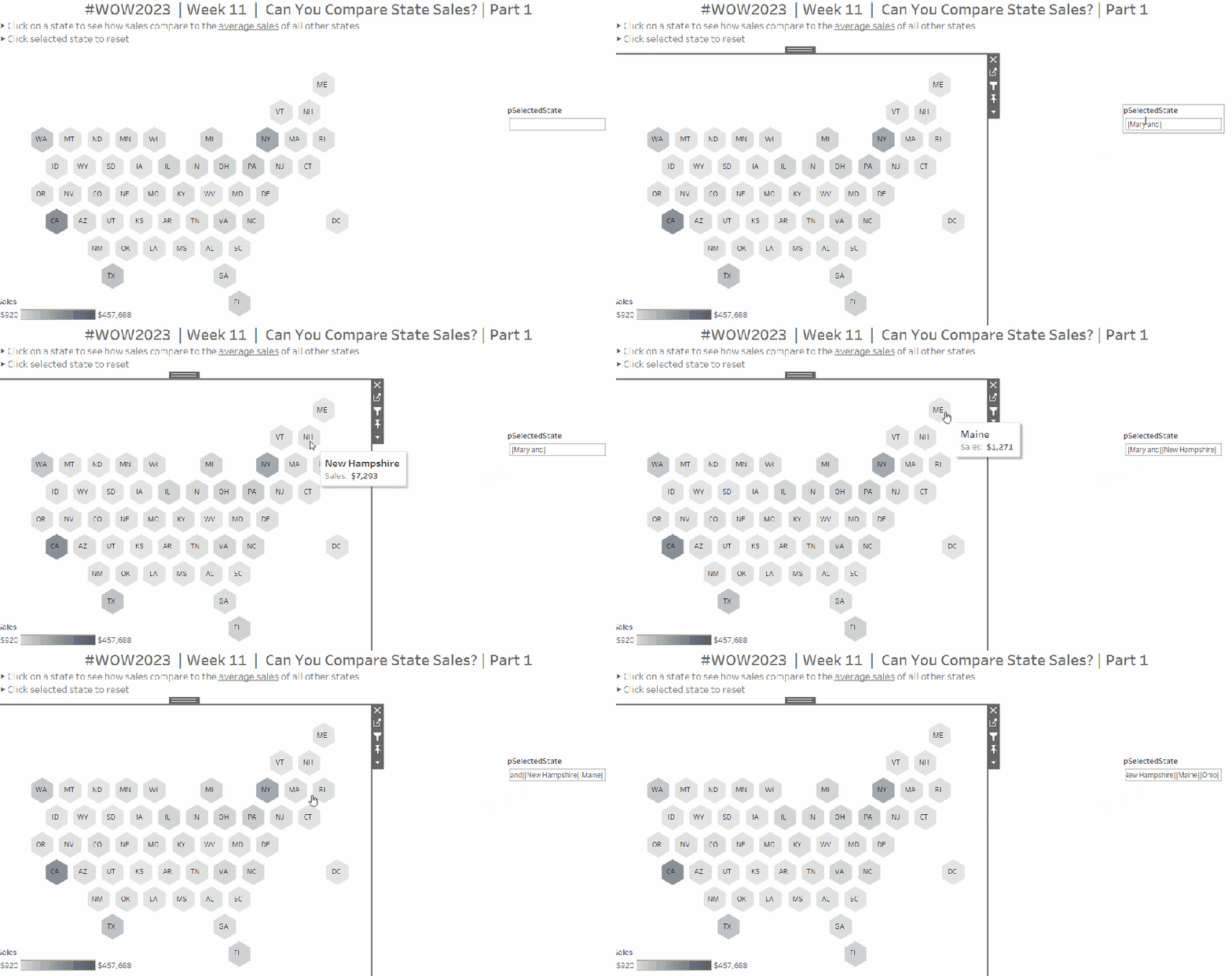
Can You Compare State Sales? Part 1

This week’s #WOW challenge was set by me and born out of a client requirement to compare store locations via selections from a map. I adapted it to use our favourite Superstore dataset (v2022.4).

The core requirement is to be able to make a selection on the map and see how sales compare to the average of all the other states. There is more to this challenge, but it was too much for one week, so I’ve broken it into 2 parts. This is part 1. In a few weeks time, I’ll be building on this solution for a part 2.

Building the basic hex map

The requirements provide a link to here to get the relevant files needed to complete this challenge and build the hex map – this includes the 2022.4 version of Superstore, the Hex map template, the hexagon shape file and a transparent shape file (more on that one later).

Using the hex map template sheet provided, relate the Orders Superstore data to the hex map sheet, relating State/Province to State.

Then on a new sheet add Column to Column, Row to Row and State to Detail. Edit the Row axis, and reverse the scale.

Change the shape of the mark to be a hexagon (use the provided shape if need be and add to a custom shape palette), and increase the size of the marks. Add Sales to Colour and change to use the Grey sequential colour palette, and adjust the opacity to 80%. Add Country/Region to the Filter shelf and select United States. This will remove Alaska and Hawaii that don’t have any sales and aren’t in the Superstore data set.

Add Abbreviation to the Label shelf and align centrally, Adjust the font size if need be.

Identifying the selected state

We need to be able to capture the state that has been selected ‘on click’. This will be driven by a dashboard action.

When I first built this concept for a client, the natural first step was to utilise sets and set actions; that is capture the selected state in a set, and then colour the map, build the other charts and logic based on the existence in the set. However this method does caused some issues when I tried to prevent the highlighting later, so I chose to use a parameter and parameter actions instead.

Firstly we need a parameter that will be used to capture the state selected ‘on click’

pSelectedState

string parameter defaulted to <empty string>

We can then create

Is Selected State

[State] = [pSelectedState]

As we want to retain the colour by sales on the existing map, we need to make a dual axis. Show the pSelectedState parameter and type in ‘Florida’.

Add another instance of Column to Columns. Remove the Abbreviation label from the second marks card, and replace the Sales field on the Colour shelf with the Is Selected State field. Increase the opacity on this mark to 100% Set the colours as follows :

  • True- teal : #66b3c2
  • False- pale grey : #d3d3d3

Additionally, add Is Selected State to the Shape shelf of the second marks card. Set the True value to use the same hexagon shape, but set the False option to use a transparent shape (a transparent shape file is provided in the g-drive, and needs to be added as a custom shape).

This should make all the other states look like they disappear.

Make the chart dual axis, and synchronise the axis.

Format the Sales to be $ with 0dp, then add to the Tooltip shelf of the second marks card and adjust the tooltip. Remove all gridlines/row & column dividers and hide the axes.

Adding the Interactivity

Create a dashboard sized 1000 x 600.

Add a vertical container and add a text field to create the title. Below the title, add a horizontal container. Add the hexmap sheet into the horizontal container, then add a blank object to the right of it. Remove any legends etc that automatically get added. Set the width of the hexmap object to be fixed to 600 px

and set the height of the horizontal container the hex map sits within to 445px

Show the colour legend and set it to floating, and position bottom left.

Add a parameter action to set the selected state on click

Set Selected State

On selection of the Hexmap sheet, pass the State field into the pSelectedState parameter. Set the value to <empty string> when the selection is cleared.

If we click around on the dashboard page, we can see the colours being set, but everything is fading out on selection. To prevent this, create 2 calculated fields

True

TRUE

False

FALSE

Add these to the Detail shelf of the All Marks card of the hex map sheet. Then back on the dashboard, add a filter dashboard action

Deselect Map Marks

On select of the hex map object on the dashboard, target the hex map sheet itself, setting selected fields such that True = False. Show all values where selection cleared.

Now if we click on the dashboard, the shapes shouldn’t fade into the background. However we can’t ‘unselect’ the state and get back to its original state. This is because the filter action we added to stop the marks from fading actually unselected the mark, so when we click again, we’re not undoing any selection.

To resolve this, we need another calculated field.

State for Param

IF [State] = [pSelectedState] THEN ”
ELSE [State] END

If the state being clicked is the one already captured in the parameter, then set the field to <empty string>, else set the fields to the state being clicked.

Add this to the Detail shelf of the All marks card on the hexmap sheet, and then update the Set Selected State parameter action to pass the State For Param field into the parameter instead of the original State field..

Now when the map is first loaded, the State For Param field contains the name of the state, so that is passed into the parameter on click. As the parameter now has a value, the State For Param field changes for the selected state to be <empty string>, so if the same state is clicked, <empty string> is then passed into the parameter and the view resets.

Building the calculations for the other charts

On a new sheet, add State to Rows, Sales to Text and add Country/Region = United States to Filter.

When a state has been selected, we want to display the state against the selected row, otherwise we want to display the text ‘Other States (Avg)’ .

State Label

IF [Is Selected State] THEN [State] ELSE ‘Other States (Avg)’ END

Now we need to display a different value for the sales measure depending on whether its the selected state or not.

Sales To Display

IF ATTR([Is Selected State]) THEN SUM([Sales])
ELSE SUM([Sales])/COUNTD([State])
END

If the state is the selected one, then use the sales, otherwise average the total sales over the number of states that make up the sales. Format this to $ with 0dp.

Note – in hindsight, this could have just been SUM([Sales])/COUNTD([State]) even for the single state, as since the count of state will be 1, this would just equate to the SUM([Sales]) itself.

Add this to the table, and remove State from the display

Building the bar chart

Duplicate this sheet (as we want to retain the filters), then move Sales To Display to Columns, and add Category to Rows in front of State Label. Add Is Selected State to the Colour shelf.

To ensure the Selected State is always listed first, even if alphabetically it comes after ‘Other States (Avg)’, add Is Selected State to the Rows shelf between Category and State Label. Manually sort it so True is always listed before False, then hide the column (uncheck show header).

Reduce the Size of the bars, remove gridlines and column dividers. Lighten the row dividers. Adjust font sizes. Hide the column labels (hide field labels for rows) and hide the axis.

Remove Sales from the Text shelf, and check Show mark labels instead. Update the Tooltip.

Building the line chart

On a new sheet add Country/Region to Filter and set to United States. Add Order Date to Columns and set to the continuous month level (eg May 2021). Add Sales To Display to Rows, State Label to Detail and Is Selected State to Colour. Manually move the values in the colour legend so that True is listed first. Adjust the tooltip

Remove the axis titles, adjust the axis fonts. Remove row/column dividers and zero lines and axis rulers.

Putting it all together

On the dashboard, add a vertical container between the hexmap and the blank object. Add the line chart and bar chart on top of each other. Remove the title for the bar chart, and update the title of the line chart to reference the pSelectedState parameter.

Remove the blank object to the right of the bar/line charts.

We need to control when the bar and line charts display, so we’ll use dynamic zone visibility for this, and for this we need another boolean field

Show Viz

{FIXED: MAX(IF [Is Selected State] THEN TRUE ELSE FALSE END)}

Is Selected State is a boolean field which essentially is 1 for True and 0 for False. If there is a state selected, the maximum value across all the data records, will be 1, so the field returns true, otherwise its 0, so false.

Use this to control visibility using value for the line and bar chart objects.

Make any further adjustments to the layout required -the size of the hex shapes may need tweaking for example. Then interact with the viz to check all is working as expected.

My published viz is here.

Happy vizzin’!

Donna

Let’s practice using the Device Designer

Inspired by a discussion on Twitter that resulted in this blog post from Kevin Flerlage, Sean challenged us this week to build a viz that should adapt for different devices.

This makes use of the dashboard layout feature in Tableau (see here for further information). The focus on this week is really on the layouts, the charts are relatively straightforward, so I’m just going to summarise each one fairly quickly.

Note on the data

In the requirements, Sean talked about filtering the date to 2023 and assuming a YTD value where ‘today’ was 8th March 2023. The data set linked in the requirements didn’t contain that information. I chose instead just to use the 2022.4 version of Superstore I had. As this challenge wasn’t going to contain any complicated table calcs/LODs I wasn’t worried that my numbers might not match.

Filtering the data

To restrict the information based on Sean’s requirements, I created a parameter to represent ‘today’

pToday

date parameter defaulted to 8 March 2022

I then created a field to use to ensure I only counted data up to that date.

Dates to Include

[Order Date] <= [pToday]

I added this to the Filter shelf and set to True. In addition I added Order Date to the Filter shelf, and selected Years > 2022. Both these fields I set to apply to all worksheets using this datasource.

Building the KPIs

Format Sales and Profit to be $ with 0 dp. If it doesn’t exist, create

Profit Ratio

SUM([Profit])/SUM([Sales])

and format this to % to 1 dp.

Add Measure Names to Filter and filter to the three measures (Sales, Profit and Profit Ratio). Add Measure Names to Columns and Measure Values to Text. Re-order as required. Add Measure Names to Text too and format the Text as required, Remove row dividers and hide the column headers.

Building the bar chart

Add Sub-Category to Rows and Profit Ratio to Columns and sort descending, Add Sales to Colour and add Profit to Tooltip. Adjust tooltip. Hide the Sub-Category column heading from displaying (right click > Hide field labels for Rows). Change the title of the viz.

Building the Map

Double click State/Province to automatically generate a map of the USA (if it doesn’t display, check the location is set to USA – Map menu > Edit Locations).

Add Profit Ratio to Colour and add Sales and Profit to Tooltip. Adjust tooltip.

Remove all the background map layers by selecting Background Layers from the Map menu, and unchecking all the options listed on the menu that displays on the left hand side.

Hide the ‘unknown’ indicator if its displaying (right click > hide indicator).

Stop the map options (that allow zoom & pan etc) from displaying by selecting Map Options from the Map menu and unchecking all the options that are presented.

Remove row and column dividers and change the title of the viz.

Building the Scatter Plot

Add Sales to Columns and Profit to Rows. Add Order ID to Detail and Profit Ratio to Colour. Make the zero lines slightly more prominent and title the viz.

On a new sheet, add Customer Name and Product Name to Rows. Add Measure Names to Columns and Measure Values to Text. Add Measure Names to Filter and restrict to Quantity, Sales and Profit. Reorder the measures as required.

Add subtotals -from the Analysis menu select Totals > Add all Subtotals.

Set the row banding to none. Centre align the Customer Name column. Name the sheet Order Details or similar

Back on the scatter plot sheet, adjust the Tooltip and add a reference to the Order Details sheet by using the Insert > Sheets > select sheet

How well the viz in tooltip displays can often be a bit of trial and error. You may need to adjust the width and height properties on the referenced sheet in the tooltip. Also, sometimes setting the Fit property of the Order Details sheet may help too.

Building the default dashboard

Create a dashboard sized Generic Desktop. Set the background of the dashboard to grey (Format menu > Dashboard) Arrange the four vizzes on the dashboard. You may need to use horizontal and vertical containers to help you align everything where you want. Add padding around all the viz objects (I set mine to 10). Hide the title of the KPI viz. For the other 3 vizzes, set the background to white, so the title is also in white.

Set filter actions on both the bar chart and map, by selecting the object and then choosing Use as Filter from the context menu.

Click on the bar and check the other vizzes all filter. Do the same with the map. Now we’re ready to apply the different device layouts.

Creating the Tablet layout

The dashboard initially created is the Default dashboard, and we can tell this by looking at the left hand pane.

To add a new layout for a generic tablet, click the Device Preview button.

A Device Preview bar will appear at the top of the dashboard, Scroll through the Device type options until Tablet is displayed. By default the model should already be Generic Tablet. A border will display over the dashboard which indicates the boundaries of the dashboard based on the dimensions of the device. Click the Add Tablet Layout button.

The dashboard will immediately be resized to fit the boundary. Some of the vizzes are squashed up. Manually readjust so everything is displayed as required. A Tablet option will have appeared on the left hand side, and you can now toggle between Default and Tablet (click on the words in the left hand pane) and see the dashboard adjusting.

Creating the phone layout

Click on the Phone option (top left under Tablet), or scroll through and select Device Type = Phone.

By default, everything on the default dashboard is displayed on the Phone layout, which is obviously a portrait layout, optimised for scrolling down.

We don’t want the title, or the Scatter plot on this layout. To remove them, click the locked padlock icon and it will change to an unlocked icon, and the dashboard will be editable..

Remove the title object and the scatter plot object. In my case I also removed my footer information. Adjust the bar chart so its a bit longer, so the bars and labels are readable. It doesn’t matter that it will extend outside the bounds.

And that’s it – you now have 3 layouts for a single dashboard. Publish the viz to Tableau Public, then test out by accessing the viz from a tablet and/or your phone. Tableau will detect the type of device you’re accessing from, and show the most suitable display. Below are images of my viz accessed from my laptop, and on my mobile.

My published viz is accessible here.

Happy vizzin’!

Donna

A tricky filter

In this week’s challenge, Erica set us the task of building a filter that only contained a subset of the dimension values – ie a set of core values always had to remain in the view, and weren’t available to be filtered out.

Erica advised there were hints available, and that she had solved the problem herself via an existing Tableau Knowledge Base article.

The requirements stated Sets were involved and so I attempted down this path, creating a set to store the ‘core’ cities (as per the requirements), and then using a combined set of all cities and ‘core’ cities to just display the values not in ‘core’. However I couldn’t get things working, so I checked out the hints.

The first hint alluded to 2 sheets, which initially I thought one for the ‘core’ cities and one for the rest, but quickly realised this would only work if there hadn’t been the additional ‘bonus’ requirement to sort the data based on the sales (ie the core cities and the rest could become interspersed in the viz).

So after further fiddling, and unsuccessful ideas, I ended up referencing the KB article and built out a solution. After publishing, my good friend and fellow #WOW participant Rosario Gauna, published her solution which she managed in a single sheet, and in a manner that was much more elegant. So it’s a double solution guide today – what I did based on the KB article and a recreation of Rosario’s solution (so I have this to reference and remind myself if ever I have the need to recreate).

Solution 1 – The 2 sheet solution

Firstly, create a set called Key Cities (right click on City > Create > Set) and select the 5 cities listed in the requirements.

Key Cities

On a new sheet, add State/Province to the Filter shelf and choose Ohio, then add City to Rows and Sales to Columns and sort descending. Add Key Cities to Colour and adjust accordingly.

Call this sheet Sales by City

On a new sheet, add State/Province to Filter and select Ohio, then add City to Rows. Call this sheet Filter Sheet.

Duplicate the City field (right click field in the data pane and select Duplicate). This will create a new field called City (copy) in the data pane.

Add City (copy) to the Filter shelf of the Filter Sheet sheet, select the 5 core cities and then check the Exclude checkbox.

Add the original City field to the Filter shelf as well and select All. Show the filter on the sheet, and adjust so it displays Only Relevant Values

The list of options in the filter list should only show the cities in Ohio that aren’t one of the five key states.

Set the City filter to Apply to Worksheets > Selected worksheets and select the Sales by City worksheet

Customise the City filter in the Filter Sheet sheet so that the All option does not display. From the context menu of the City filter control, select Customise and ensure Show ‘All’ Value is unchecked.

Navigate back to the Sales by City sheet and show the City filter values, ensuring all are displayed. This list will include the key cities, but don’t worry. Uncheck a value that isn’t in the list of key cities eg Bowling Green. The city will disappear from the viz, but if you navigate to the Filter Sheet, you should also see the value is unselected in that list too.

This is the filtering behaviour we’re after – selections made to the City filter on the Filter Sheet affect the values in the City filter on the Sales by City sheet.

Now we need to address the sorting.

Again I think I ended up doing something a bit more complicated than needed – check out the sorting described in the 2nd solution, as that would apply here too – it just isn’t what I did at the time.

Firstly, we need a parameter to determine which sort selection to use

pSort

string parameter containing two list entries Key Cities and Sales, defaulted to Key Cities

I decided I wanted to sort by a number, which for Sales was fine, but when Key Cities was selected, I needed to ensure the values for the Key Cities were always greater than the maximum value for the non key cities. For this I needed to get a handle on the value of sales for the non key city that had the largest sales.

Max Non Key Sales

{FIXED : MAX(IF NOT [Key Cities] THEN ({FIXED [State/Province], [City] : SUM ([Sales])})END)}

If the city is not a key city, then get the total sales for each State & City (potential that a city can exist in multiple states, hence the need to declare the State), and then return the max of those.

To see what this is doing, on a new sheet, add State/Province to Filter and select Ohio, then add Key Cities and City to Rows and Sales to Text and sort by Sales descending

We’re looking for the value 8203 as this is the largest sales for the cities not tagged as a Key City.

Add Max Sales Non Key City to the view…. the value doesn’t match what we expected.

This is because a FIXED level of detail (LOD) calculation works across the entire data set, so the fact we’ve filtered by Ohio is being disregarded. To resolve this, set the State/Province field on the Filter shelf so it is Add To Context

This pill will change to grey, and the values should update, as now the LOD is being applied after the context filter has been applied.

With this we can work out a sort field

Sort

CASE [pSort]
WHEN ‘Sales’ THEN SUM([Sales]) * -1
ELSE
(IF ATTR([Key Cities]) THEN SUM([Sales]) + SUM([Max Sales Non Key]) ELSE SUM([Sales]) END) * -1

END

If we’re sorting by Sales then use the total Sales value * -1, otherwise, if we’re sorting by Key Cities then, if the City is a key city, then add the total sales to the max sales value, otherwise just use the total sales value. Multiple the result by -1. By adding this value, it ensures the values for the Key Cities are always larger than those for the non key cities. The -1 means the sort will be descending.

Test this out, by adding the Sort field as a discrete (blue) field to the Rows of the test sheet we’ve been using above. Ensure the Sort field is listed first, and move the Key Cities field to be third. Show the parameter control, and test switching between the options. The values in the Sort field are always in an ascending order, but the displayed Sales values will be ordered depending on the sort option chosen

Back on the Sales by City sheet, add the Sort pill to the Rows before the City pill, and add the State/Province filter to context.

Hide the Sort field.

The labels need to be displayed inside the bars, so for this we need a dual axis.

Add another copy of Sales to the Columns. On the second Sales marks card, set the option to Show mark labels from the Label shelf. We need the text of the label to be different to the existing bars, so create a duplicate of the Key Cities field, so we have Key Cities (copy) and add this to the Colour shelf of the second marks card. Adjust the colours accordingly to white and black.

Change the mark type of the 2nd marks card to Gantt bar, reduce the opacity of the Colour to 0% and reduce the Size to as small as possible. Adjust the alignment of the Label to left middle, and set the font to be bold and match mark colour.

Make the chart dual axis and synchronise the axis. Set the mark type of the first marks card back to a bar if it changes.

Remove all row and column dividers, and hide the top axis. Hide the City column label too. Edit the bottom axis, and fix to start from 0 and end automatic. Adjust the tick marks to display every 5000 values.

Add this sheet to a dashboard. Remove the colour legends that automatically get added and remove the City filter control too. Leave the sort parameter.

Then add the Filter Sheet as a Floating object and position bottom right. The City filter for this sheet should also automatically display. If it doesn’t show it (click the context menu of the Filter Sheet object > Filters > City).

Change the City filter to be a multiple values dropdown control and set it to be fixed (unselect the Floating option on the context menu).

Now hide the title on the Filter Sheet object and resize to make it teeny tiny, so you can’t see anything

Now you have the core objects needed for a functional dashboard – you’ll just want to take some time moving them into place, and excluding other Cities.

My workbook that matches this solution is here.

Solution 2 – the 1 sheet solution

So shout out again to Rosario Gauna, as this is actually her solution!

We’ll build this out in a table first, so we can see what’s going on.

On a new sheet add State/Province to Filter and select Ohio, then add City and Key Cities (the set created above) to Rows. Add Sales to Text.

What we’re going to do is create another set which will just contain the cities not identified as key cities. For this, we need to store against every row (including the key cities) the name of a City that isn’t a key city. For those that already aren’t a key city, that is just its own City name, but for those that are key cities, we want to store a non key city…. sounds confusing right…. let’s build this up.

Firstly, let’s just get those non key cities

Non Key City

IF NOT [Key Cities] THEN [City] END

Add this to the sheet. It shows NULL against all the Key Cities and the City value for all the others

We’re going to use this to set a ‘default; value against the key cities.

Min Non Key City

{FIXED: MIN([Non Key City ])}

Theis returns the value from the Non Key City field which is alphabetically first. Using MAX would work just as well. When we add this to the sheet, we also need to set the State/Province filter to be Add to Context, otherwise we get a City from the whole data set, and not just Ohio.

We can now create a field that will just contain a distinct list of the non key cities

Other Cities

IF NOT [Key Cities] THEN [City] ELSE [Min Non Key City] END

Add this to the sheet

For every City, the Other Cities field contains a non key city value. Now we have this, we can create a set from this field

Other Cities Set

Ensure all values are selected – don’t worry that you can see cities that aren’t relevant at this stage

Add Other Cities Set to the Filter shelf and also add to the Rows shelf next to the Key Cities field. From the context menu of the Other Cities Set on the Filter shelf, select Show Set. The list of non key cities should be displayed. If there’s more than you expect, ensure the control is set to All Values in Context.

If you uncheck Bowling Green from the list, all the key cities and Bowling Green will disappear, but we don’t want this. We only want the row where City=Bowling Green to disappear. For this we need

Records to Keep

[Key Cities] OR [Other Cities Set]

Add this to the Filter shelf and set to True. Remove the Other Cities Set from the Filter shelf (the list should remain). Now if you remove Bowling Green, only that row should disappear, and if you uncheck all, so no city is selected, the key cities should remain

Adjust the display so the rows are sorted by Sales descending (either use the Sort button in the toolbar, or set the sort on the City field).

Then create a field

Sort Order

CASE [pSort]
WHEN ‘Key Cities’ THEN [Key Cities]
ELSE TRUE
END

Add this to the Rows in front of City, and show the pSort parameter (see above for details if you haven’t created this yet). When pSort is set to Key Cities, manually change the order of the values displayed so True is listed before False. The rows are displayed in descending Sales value for each Sort Order Value. When Sales is selected to sort by, the Sort Order is true for all rows.

Now we’ve got all the components needed to build the viz, and you should be able to adapt the steps above to get it to work. The key difference is using the Records To Keep field on the Filter shelf, displaying the members of the Other Cities Set to control the filtering, and managing the sort using the Sort Order field instead.

My workbook showing this solution is published here.

Happy vizzin’!

Donna

Can you build a comet chart as an alternative to a side by side bar chart?

In the final week of ‘alternative charts month’, Luke set this challenge as different way of presenting data that you might typically see in a side-by-side bar chart.

Luke had indicated on the #WOW splash screen, that this challenge was ‘easy’, but that’s always dependent on your level of Tableau. He also added a note in the requirements that if you wanted to be ‘advanced’ to solve it with Table Calcs only.

I figured I’d just start and see what I ended up with (sometimes, my natural brain thinking takes me down a table calc route..)

In a change to my usual starting point, I started trying to remember what I needed to do to get the comet… I felt pretty sure that path would be involved somewhere.

So, I added Order Date to the Filter shelf and filtered to years 2021 and 2022 only.

Then I added Sub-Category to Rows, Sales to Columns and Order Date (which defaulted to YEAR(Order Date)) to Detail. I changed the mark type to circle initially.

Ok – I had what I was expecting – 2 circles per row, one for each year.

So then I change the mark type to line and moved YEAR([Order Date]) from Detail to Path. This meant my lines were joined.

I then added Order Date to Size, and reset Order Date to be at the YEAR level. Hey presto! My comet shapes appeared.

I now wanted to show a white circle mark just for the 2022 sales, so I created

Max Year Sales LOD

{FIXED [Sub-Category]:SUM(IF YEAR([Order Date]) = {FIXED:MAX(YEAR([Order Date]))} THEN [Sales] END)}

this looks a bit long-winded ( I do usually break this up)… so let’s review what’s going on…

{FIXED:MAX(YEAR([Order Date]))} returns the latest year in the data set (ie 2022) and spreads that across every row of data. So the formula is comparing each row, and if the Order Date year matches 2022, the value of the Sales is returned. This is then all aggregated and totalled for each Sub-Category.

Add this field to Columns, make dual axis and synchronise axis.

Remove Measure Names from the All marks card and change the mark type of the Max Years Sales LOD card to circle. Colour white.

Remove the YEAR([Order Date]) pill from the Size shelf of the Max Years Sales LOD card, so the size of the comet (the Sales card) and the circle can be adjusted independently. Adjust the sizes enough so the comet is visible around the circle.

Sort the Sub-Category field by Max Year Sales LOD descending

Next we need to colour the comets based on whether Sales increased or decreased.

Prev Year Sales LOD

{FIXED [Sub-Category]: SUM( IF YEAR([Order Date]) = {FIXED:MAX(YEAR([Order Date]))} -1 THEN [Sales] END)}

is doing similar to the above calculation, but {FIXED:MAX(YEAR([Order Date]))} -1 returns 2021 instead.

and with this we can created

Sales Increased? LOD

[Max Year Sales LOD] > [Prev Year Sales LOD]

Add this to the Colour shelf of the Sales marks card, and adjust accordingly.

To label the comets, check the show mark labels checkbox on the Label shelf dialog, and set to line ends and label end of line. You may need to check the allow labels to overlap option too if you’re not seeing all the labels.

The dashboard shows a circular size legend which is related to the circle mark, so I created

Order Date (Years)

YEAR([Order Date])

and added this to the Size shelf of the Max Year Sales LOD marks card.

Add Sales to the Tooltip shelf of the Max Year Sales LOD marks card too and adjust the tooltips.

Add row dividers, and remove all column dividers, gridlines and axis. Adjust the formatting of the Sub-Category row labels and hide the column title. Set the background of the worksheet to a grey colour.

And so that ended up being the LOD version of the chart, which is accessible from here.

But I had time, so I figured I’d see if I could crack the Table calcs version…

Building the Table Calculation Solution

This starts by repeating the intial steps above to get a basic single axis comet chart for Sales, split by Year.

We now need to get the sales for 2022 only. For starters, let’s identify the latest year

Latest Year

WINDOW_MAX(MAX(YEAR([Order Date])))

and let’s build up a table, so we can start to sense check what’s going on, as table calcs can be pesky!

Our Latest Year table calc is returning 2022 for every row in our table. To get the sales just for 2022

Window Max Year Sales

WINDOW_MAX(IF MIN(YEAR([Order Date]))=[Latest Year] THEN SUM([Sales]) END)

if the order date year is 2022, then return Sales (otherwise null) and spread the maximum value across the rows. When we add this into the table, we need to set the table calculation to compute using Year or Order Date, so that it is calculating the WINDOW_MAX for each Sub-Category

Add this field to Columns on the comet chart, and adjust the table calculation so Window Max Year Sales is computing by Year of Order Date only, and Latest Year by both fields (see the Nested Calculations dropdown)

Make the chart dual axis, and synchronise the axis. Make the adjustments to the mark types and sizes as described above.

We can’t sort the Sub-Category field in the way we did above, as table calculation fields aren’t accessible in the sort dialog. Instead add Window Max Year Sales to Rows and change it to be discrete (blue pill) and move it to be in front of Sub_Category. Adjust the table calc settings to match that described above. This should make the chart sort ascending.

To reverse, double click into the blue Window Max Year Sales pill on Rows and add * -1 to the end

Annoyingly this will revert it back to a measure, so reapply the steps above, and you should end up with a correctly sorted display. Hide the Window Max Year Sales blue pill.

Now to colour the comet.

Back to the tabular view. Add a Difference quick table calculation to the Sales pill and edit the table calculation to compute using Year(Order Date) only.

Drag the Sales pill with the difference table calc from the Measure Values section and drop into the left hand data pane. This will create a dedicated instance of the calculation. Rename it to

Sales Diff – TC

ZN(SUM([Sales])) – LOOKUP(ZN(SUM([Sales])), -1)

If you examine it, it should contain the above calculation.

With this we can then work out if sales have increased or not

Sales Increased? TC

WINDOW_MAX(IF [Sales Diff – TC] > 0 THEN 1 ELSE 0 END)

Adding this into the table, and setting the nested table calcs to both compute by Year Order Date, you can see that the values for each Sub-Category are either 1 or 0.

Add this to the Colour shelf of the Sales marks card. Make sure the field is discrete and the table calcs are set to compute by Year Order Date. Adjust the colours.

Finally make adjustments for the tooltip and adjust the formatting to clean up the chart. My table calc version of the viz is here.

Happy vizzin’!

Donna