Help me choose my wine!

As we continue global recognition month for #WOW2023, Flavio Matos introduced this challenge which displays a unit chart of wines by type.

An added twist was to provide the ability for the user to switch between English (UK) and Portuguese (Brazil) languages, and the excel data set provided a sheet with the data per language.

After completing my solution, I checked out Flavio, and found he built the chart for each language (and so data source) in 2 separate sheets, added to 2 different dashboards and used navigation button with a flag image to switch between 2 dashboards. I chose to go a different route, one that didn’t mean duplicating the viz. This means that if I had to alter the viz in future for some reason, I’m only doing it once.

Modelling the data

To build in a single sheet, I needed to have the data for two languages combined into one table. Connect to the excel workbook and add the Wine sheet to the canvas, then add a relation to the Vinho sheet and set the relationship to match on the Wine field from each sheet.

Building the Viz

We need a parameter to manage the language selection

pCountry

string parameter defaulted to ‘UK’

This parameter is then used to determine which of the fields we need to use on the viz, and these are determined through calculated fields.

Country to Display

IIF([pCountry]=’UK’, [Category],[Family])

Add this to Rows then add Abreviation to the Detail shelf. Sort the Country To Display field by the count of the Abbreviation field descending.

Change the Mark type to Square then add Abreviation to the Label shelf. Adjust the sheet to Entire View and then align the label to be middle centre.

Create a parameter to store the list of English options that can be selected

pOptions-UK

string parameter containing the list of options (taken from the requirements page), with All listed first. Default to All.

Then create a version to store the Portuguese options

pOptions-Portuguese

string parameter containing the list of options (taken from the requirements page), with Todos listed first. Default to Todos.

To flag the wines that are related to the options selected, we need

Wine has Tag

IF [pCountry] = ‘UK’ THEN
IF [pOptions-UK] = ‘All’ THEN TRUE
ELSEIF CONTAINS([Tags],[pOptions-UK]) THEN TRUE
ELSE FALSE
END
ELSE
IF [pOptions-Portuguese]=’Todos’ THEN TRUE
ELSEIF CONTAINS([Tags (Vinho)],[pOptions-Portuguese]) THEN TRUE
ELSE FALSE
END
END

This returns true or false based on what country has been selected, and in turn what country specific option has been selected. If the wine is tagged with that option, or all wines have been selected then true is returned, otherwise false.

And then using this field we can determine how to colour the squares.

Colour

IF [Wine has Tag] THEN
IF [pCountry]=’UK’ THEN [Type]
ELSE
IF [Type] = ‘Red’ THEN ‘Tinto’
ELSEIF [Type] = ‘Sparkling’ THEN ‘Espumante’
ELSEIF [Type] = ‘White’ THEN ‘Branco’
ELSE [Type]
END
END
ELSE
IIF([pCountry]=’UK’, ‘No Highlight’,’Nao Harmoniza’)
END

This is slightly more detailed as the Type field in each of the excel sheets are both stored in English, but the legend in the viz shows the types in Portuguese when that language is selected. Ideally the Type should have just come straight from the data source.

Add the 3 parameters to the view, and then add Colour to the Colour shelf. Set the pCountry parameter to UK, and choose Appetizers from the pOptions-UK parameter. Adjust the colours to suit. Manually sort the colour legend options, so the colours are listed Red > Rose > Sparkling > White > No Highlight.

Then clear the pCountry parameter (or set it to any value other than UK) and set the pOptions-Portuguese parameter to Aperitivos. Once again adjust colours as required and re-order.

The tooltips need to be language specific, and only display for the wines that match the options chosen. For these we need the following calculated fields

Tooltip – Wine

IF [Wine has Tag] THEN [Wine (Wine)] ELSE ” END

Tooltip – Food Pairing

IF [Wine has Tag] THEN
IIF([pCountry]=’UK’,[Food pairing],[Food pairing (Vinho)])
ELSE ”
END

Tooltip – Food Pairing Label

IF [Wine has Tag] THEN
IIF([pCountry]=’UK’,’Food pairing:’, ‘Harmoniza com:’)
ELSE ”
END

Tooltip – Notes

IF [Wine has Tag] THEN
IIF([pCountry]=’UK’,[Notes],[Notes (Vinho)])
ELSE ”
END

Add all four of these fields to the Tooltip shelf and adjust accordingly

Finally tidy up the formatting by removing row dividers and hiding the Country to Display column heading (hide field labels for rows).

Building the Country Selector

For this I needed to add the UK and Brazilian flags a custom shapes to my Tableau repository. I just sourced some images via my favourite search engine and added them to my repository as per the instructions here.

On a new sheet I then added Abreviation to Columns and also to Filter and just filtered to the first 2 options Ab and Ag. I changed the mark type to shape. I then created the field

Country Selector

IIF([Abreviation]=’Ab’,’UK’,’Brazil’)

and added this to the Shape shelf, and selected the two flags.

Remove the row dividers and hide the header (uncheck show header on the Abreviation pill).

Building the dashboard

Add the sheets to your dashboard and display both the options parameter and the colour legend. I used layout containers for most of the arrangement, but floated the colour selector viz. I then added the title in English and Portuguese in two separate text boxes. I also hid the title of the colour legend, and add 2 different text boxes with the colour legend title in English and Portuguese. My layout looked like

To only show the sections based on the language selected, we need the following fields

Country is UK

[pCountry]=’UK’

Country is Brazil

[pCountry]<>’UK’

On the dashboard, select the text box which contains the English title, then on the Layout tab, select the Control visibility using value checkbox, and choose the Country is UK field.

Repeat this for all the other objects – the other title, the food selector parameters and the colour legend titles, choosing the Country is UK or the Country is Brazil option as appropriate.

To switch the language, we need to add a dashboard parameter action

Select Country

On selection of the Country Selector viz, set the pCountry parameter by passing in the value from the Country Selectior field.

The final step is to stop the country flags from being ”greyed out’ ‘highlighted’ when one is selected (ie the other flag ‘greying out’).

Create a fields

True

TRUE

False

FALSE

and add these 2 fields to the Detail shelf of the Country Selector worksheet.

The back on the dashboard, add a dashboard filter action

Country Selector – Unhighlight

on selection of the Country Selector sheet on the dashboard, target the Country selector sheet directly, passing the fields True = False. Show all values if the selection is cleared.

And with that, the viz should be complete. My published version is here.

Happy vizzin’!

Donna

Can you build a flexible tabular display?

The challenge this week was to provide a balance between the user requesting ‘all the numbers’ and the visualisation designer trying to encourage ‘best practice’. It was inspired by Sam Parsons‘ viz here, which he discusses in this video.

We’re going to use 2 sheets to build this, one to display the text and one to display the bars. But first we need to define some parameters for the user to drive the display

pDisplayType

string parameter containing a list of two options, and defaulted to ‘Bars’

pShowExpanded

boolean parameter, defaulted to False

The measures we’ll be displaying are the Sales in 1000s and the Profit Ratio percentage, so we’ll need

Sales (k)

[Sales]/1000

format to 1 dp

and

Profit Ratio %

(SUM([Profit])/SUM([Sales]))*100

custom format this to ▲ #,##0.0;▼ #,##0.0 (you can use this site to copy & paste the symbols required).

Let’s start to build out the tabular view.

Add Category and Sub-Category to Rows. Add Region and Order Date (as a blue, discrete pill, at the YEAR level) to Columns. Add Measure Names to Filter and filter to Sales (k) and Profit Ratio %. Add Measure Values to Text. Add Measure Names to Columns in front of the Order Date field. Swap the order of the pills in the Measure Values box.

Add subtotals (Analysis > Add all Subtotals) and set Row Totals to Left and Column Totals to Top. Add Column Grand Totals (Analysis > Show Column Grand Totals).

Set the totals, so they are displaying the average values (Analysis > Totals > Total All Using > Average)

Right click on the label ‘Grand Total’ in the table, and format. In the left hand pane, change the label from ‘Grand Total’ to ‘All Categories’

Right click on the ‘Total’ label in the columns and format and change the Totals label to ‘Avg per Yr’

Now we have the content of the table, we need to add the functionality to expand/collapse (hide or show) the Year columns based on the pShowExpanded parameter. For this we need

Show / Hide Columns

IF [pShowExpanded] THEN ‘Show’ ELSE ‘Hide’ END

Add pShowExpanded to the view, and add Show/Hide Columns to Rows.

You should see that the value for Show/Hide Columns is only visible against the Year columns and not against the sub totals. With pShowExpanded set to False the value displayed is ‘Hide’

Now right click on the text ‘Hide’ and select the Hide option from the context menu

The Year columns will disappear. Change pShowExpanded to True, and voila! the columns are displayed. Uncheck Show Header against the Show/Hide Columns so the text ‘Show’ is not visible when expanded.

The ‘hide’ option is a really sneaky trick, but so very effective at not displaying specific rows/columns without filtering them out. It isn’t obvious it’s been applied though (there’s no clues in the canvas), so as a top tip, I recommend always adding a note to the worksheet caption to remind your future self (or a colleague who needs to maintain the workbook), that this has been applied.

Formatting the table

Now the functionality has been nailed, we need to apply the formatting & styling to the table.

I set the fonts to Tableau Medium, colour #7d4e47 throughout. The ‘All Categories’ Grand Total label was 11pt, the Category labels 9pt and the Sub-Category labels 8pt. The Region labels were 11pt, the Measure Names labels were 9pt and the ‘Avg per Yr’ and YEAR(Order Date) labels all 8pt. The Text of the numbers in the main body of the table were all set to 8pt too.

The background of the workbook was set to cream: #fefaf1

and then the total and grand total rows were coloured #faf4e7 and #f5eddc accordingly

To colour the font, add Measure Values to Colour, and right click and select Use Separate Legends

This will then give you two colour legends.

Adjust the Sales (k) colour legend – select any diverging colour palette, set Stepped Colour to 2 steps, and check Include Totals, and then click on the colours at each end and set both to the same brown (#7d4e47).

Repeat similar steps for the Profit Ratio % colour legend, but this time also set the range to be centred at 0, and apply different colours to the ends (#ff6f6a and #7d4e47).

Remove the Category & Sub-Category and Region/Order Date labels from displaying (hide field labels for columns/rows), and adjust the width and height of the cells to give a bit more spacing. Hide the tooltips from showing.

Create the bar table

Duplicate the sheet. Add Measure Values to Columns, and the click on the Label shelf and uncheck Show Mark Labels. Click on the Colour shelf and change the opacity to 35%. Reduce the Size of the bar to suit, then hide the Measure Values axis (uncheck Show Header).

Click on the Tooltip shelf and enable tooltips, then adjust accordingly.

Re-apply any of the formatting to the text that may have been lost – for some reason I lost all the Tableau Medium style fonts…???

Swapping the sheets on the dashboard

Create a dashboard, add a vertical layout container and add both sheets.

We will make use of dynamic zone visibility to only display the sheet we want based on the value of pDisplayType. To do this, we need some more calculated fields

Show Bar

[pDisplayType] = ‘Bars’

Show Numbers

[pDisplayType] = ‘Numbers’

Go back to the dashboard. Add the pDisplayType parameter. Click on the Bar sheet so it is selected (grey box) and on the Layout tab, check the Control visibility using.. checkbox and choose the Show Bar field.

Repeat the same steps for the Text table, but select the Show Numbers field instead. Depending what value is displayed in the pDisplayType parameter, one of the sheets should disappear, and changing the pDisplayType value should swap between them.

Now, style the dashboard as required.

My published viz is here.

Happy vizzin’!

Donna

Can you build a dashboard for pre-aggregated metrics?

For the challenge this week, Kyle asked us to recreate the visualisation above using an adapted version of Superstore which had a customer count metric for 3 dimensions (Category, Segment and Region) along with ‘no’ dimension (null) pre-aggregated at a Yearly or Monthly Level.

By this I mean that, at a Yearly level, when the date was 1st Jan 2019 say, a row of data existed for the (distinct) customer count of all the combinations of the 3 dimensions and null. In total 80 rows for the one date.

As the data was pre-aggregated, it made no sense to say the customer count for Technology is the sum of all the rows where Category = Technology and this would mean data was being double counted.

Pivoting the data also wouldn’t yield the desired result. So the aim of this challenge was to be able to identify the relevant rows of data that needed to be displayed based on the options selected by the user.

Building the calculations

Parameters will be driving the user selections, so these need to be set up

pDateGrain

string parameter with a list of 2 options: Monthly and Yearly. Defaulted to Monthly.

pColour

string parameter with a list of 4 options : Category, Region, Segment, None. Defaulted to Segment

Similarly, create pXAxis and pYAxis parameters similar to above, but default both to None.

On a new sheet build a tabular view with

  • Table Names, Category, Segment and Region on Rows
  • Order Date set to discrete (blue pill) exact date on Columns
  • Customer Count on Text
  • Show all 4 parameters created

The rows of data need to be filtered by Table Name (as defined by the pDateGrain parameter) and a combination of Category, Segment and Region based on the options selected in the other 3 parameters.

To filter by the Table Name we need

Filter – Date Grain

[pDateGrain] = [Table Names]

Add this to the Filter shelf and set to True.

Change the pDateGrain parameter to Yearly as there is less data to see/check.

Based on the options selected in any of the other 3 parameters, we need to find matching rows.

For example, if pColour is Segment and the other parameters are None, we are looking for the rows where the Segment column is not null, but the Region and Category columns are (we would be after the same rows if pXAxis was set to Segment, and the other parameters were None or, if pYAxis is Segment and the other parameters were None).

In this case, we’re looking for 3 rows of data – those highlighted below

If instead any two of the parameters were set to Segment and Category and the other None, then we’d be looking for rows where Segment is not null, Category is not null and Region is null. This would be 9 rows in total (a snippet of which is shown below).

We also need to deal with scenarios where all three parameters were set to something different, or all set to None as well as handle if multiple parameters are set to the same thing.

Now to do this, I ended up building a single field to use as filter that contains all the scenarios. As I was building it up, I figured there should be a slicker way, and there is (check out Kyle’s solution), but if your brain is wired the same way as mine, then you’ll end up with this

Filter Rows to Include

IF [pColour] = ‘None’ AND [pXAxis] = ‘None’ AND [pYAxis] = ‘None’ THEN
//no options selected
IF ISNULL([Region]) AND ISNULL([Category]) AND ISNULL([Segment]) THEN TRUE END
ELSEIF (([pColour] <> ‘None’ AND [pXAxis] = ‘None’ AND [pYAxis] = ‘None’) OR
([pColour] = ‘None’ AND [pXAxis] <> ‘None’ AND [pYAxis] = ‘None’) OR
([pColour] = ‘None’ AND [pXAxis] = ‘None’ AND [pYAxis] <> ‘None’)) THEN
// one of the 3 options selected, so work out which dimension
IF [pColour] = ‘Category’ OR [pXAxis] = ‘Category’ OR [pYAxis] = ‘Category’ THEN
IF ISNULL([Region]) AND ISNULL([Segment]) AND NOT ISNULL([Category]) THEN TRUE END
ELSEIF [pColour] = ‘Segment’ OR [pXAxis] = ‘Segment’ OR [pYAxis] = ‘Segment’ THEN
IF ISNULL([Region]) AND NOT ISNULL([Segment]) AND ISNULL([Category]) THEN TRUE END
ELSEIF [pColour] = ‘Region’ OR [pXAxis] = ‘Region’ OR [pYAxis] = ‘Region’ THEN
IF NOT ISNULL([Region]) AND ISNULL([Segment]) AND ISNULL([Category]) THEN TRUE END
END
ELSEIF (([pColour] <> ‘None’ AND [pXAxis] <> ‘None’ AND [pYAxis] = ‘None’) OR
([pColour] <> ‘None’ AND [pXAxis] = ‘None’ AND [pYAxis] <> ‘None’) OR
([pColour] = ‘None’ AND [pXAxis] <> ‘None’ AND [pYAxis] <> ‘None’)) THEN
// two options selected, so work out which dimensions we need
IF ([pColour] = ‘Category’ OR [pXAxis] = ‘Category’ OR [pYAxis] = ‘Category’) AND ([pColour] = ‘Segment’ OR [pXAxis] = ‘Segment’ OR [pYAxis] = ‘Segment’) THEN
IF ISNULL([Region]) AND NOT ISNULL([Segment]) AND NOT ISNULL([Category]) THEN TRUE END
ELSEIF ([pColour] = ‘Category’ OR [pXAxis] = ‘Category’ OR [pYAxis] = ‘Category’) AND ([pColour] = ‘Region’ OR [pXAxis] = ‘Region’ OR [pYAxis] = ‘Region’) THEN
IF NOT ISNULL([Region]) AND ISNULL([Segment]) AND NOT ISNULL([Category]) THEN TRUE END
ELSEIF ([pColour] = ‘Segment’ OR [pXAxis] = ‘Segment’ OR [pYAxis] = ‘Segment’) AND ([pColour] = ‘Region’ OR [pXAxis] = ‘Region’ OR [pYAxis] = ‘Region’) THEN
IF NOT ISNULL([Region]) AND NOT ISNULL([Segment]) AND ISNULL([Category]) THEN TRUE END
//or the two options selected are the same dimension
ELSEIF ([pColour] = ‘Category’ OR [pXAxis] = ‘Category’ OR [pYAxis] = ‘Category’) AND ([pColour] = ‘Category’ OR [pXAxis] = ‘Category’ OR [pYAxis] = ‘Category’) THEN
IF ISNULL([Region]) AND ISNULL([Segment]) AND NOT ISNULL([Category]) THEN TRUE END
ELSEIF ([pColour] = ‘Segment’ OR [pXAxis] = ‘Segment’ OR [pYAxis] = ‘Segment’) AND ([pColour] = ‘Segment’ OR [pXAxis] = ‘Segment’ OR [pYAxis] = ‘Segment’) THEN
IF ISNULL([Region]) AND NOT ISNULL([Segment]) AND ISNULL([Category]) THEN TRUE END
ELSEIF ([pColour] = ‘Region’ OR [pXAxis] = ‘Region’ OR [pYAxis] = ‘Region’) AND ([pColour] = ‘Region’ OR [pXAxis] = ‘Region’ OR [pYAxis] = ‘Region’) THEN
IF NOT ISNULL([Region]) AND ISNULL([Segment]) AND ISNULL([Category]) THEN TRUE END
END
ELSE //all three selected, but they could be all the same dimension or 2 of the three the same
IF ([pColour] = ‘Category’ OR [pXAxis] = ‘Category’ OR [pYAxis] = ‘Category’) AND ([pColour] = ‘Segment’ OR [pXAxis] = ‘Segment’ OR [pYAxis] = ‘Segment’) AND ([pColour] = ‘Region’ OR [pXAxis] = ‘Region’ OR [pYAxis] = ‘Region’) THEN
//all three different
IF NOT ISNULL([Region]) AND NOT ISNULL([Segment]) AND NOT ISNULL([Category]) THEN TRUE END
ELSEIF ([pColour] = ‘Category’ OR [pXAxis] = ‘Category’ OR [pYAxis] = ‘Category’) AND ([pColour] = ‘Region’ OR [pXAxis] = ‘Region’ OR [pYAxis] = ‘Region’) THEN
IF NOT ISNULL([Region]) AND ISNULL([Segment]) AND NOT ISNULL([Category]) THEN TRUE END
ELSEIF ([pColour] = ‘Category’ OR [pXAxis] = ‘Category’ OR [pYAxis] = ‘Category’) AND ([pColour] = ‘Segment’ OR [pXAxis] = ‘Segment’ OR [pYAxis] = ‘Segment’) THEN
IF ISNULL([Region]) AND NOT ISNULL([Segment]) AND NOT ISNULL([Category]) THEN TRUE END
ELSEIF ([pColour] = ‘Region’OR [pXAxis] = ‘Region’ OR [pYAxis] = ‘Region’) AND ([pColour] = ‘Segment’ OR [pXAxis] = ‘Segment’ OR [pYAxis] = ‘Segment’) THEN
IF NOT ISNULL([Region]) AND NOT ISNULL([Segment]) AND ISNULL([Category]) THEN TRUE END
ELSEIF [pColour] = ‘Category’ OR [pXAxis] = ‘Category’ OR [pYAxis] = ‘Category’ THEN
IF ISNULL([Region]) AND ISNULL([Segment]) AND NOT ISNULL([Category]) THEN TRUE END
ELSEIF [pColour] = ‘Segment’ OR [pXAxis] = ‘Segment’ OR [pYAxis] = ‘Segment’ THEN
IF ISNULL([Region]) AND NOT ISNULL([Segment]) AND ISNULL([Category]) THEN TRUE END
ELSEIF [pColour] = ‘Region’ OR [pXAxis] = ‘Region’ OR [pYAxis] = ‘Region’ THEN
IF NOT ISNULL([Region]) AND ISNULL([Segment]) AND ISNULL([Category]) THEN TRUE END
END

END

Blimey! A bit monolithic I know, but it just grew organically as I tried out the different scenarios step by step. Unfortunately the above doesn’t copy over the formatting nicely, as there are nested (tabbed) IF statements which makes it (a bit) easier to read.

Suffice to say, I’m not going to walk through step by step, but it’s checking for all the different permutations are discussed above, and marking the relevant rows as True. This field can then be added to the Filter shelf and set to True.

Kyle’s solution, essentially replaces this one calculated field, with 3 calculated fields – 1 per parameter – which are all then added to the filter shelf. It’s much neater 🙂

So now we’ve identified the rows we want based on parameters, but there is also the ability to filter the rows further based on the values of the Category, Segment or Region.

Add each of the 3 fields to the Filter shelf and select the All option, then show the filters on the view. For each of the Category, Segment and Region filters, set the option to show Only Relevant Values. This will prevent the NULLs from showing as an option when the relevant dimension is listed as one of the parameter selections

As you can see from the above image though, Region is only showing Null, and this is because in the example above, Region isn’t selected as an option for the pColour, pXAxis or pYAxis parameters. When it comes to the dashboard, we don’t want the Region filter to be visible in this case. To help with this, we need 3 further calculated fields.

Show Filter – Region

[pColour] = ‘Region’ OR [pXAxis] = ‘Region’ OR [pYAxis] = ‘Region’

This returns True if one of the 3 parameters contains the value ‘Region’. Similarly, create Show Filter – Category and Show Filter – Segment fields.

The final calculated fields we need are to help build the ‘cross tab’ view.

X-Axis

CASE [pXAxis]
WHEN ‘Category’ THEN [Category]
WHEN ‘Region’ THEN [Region]
WHEN ‘Segment’ THEN [Segment]
ELSE ”
END

Y-Axis

CASE [pYAxis]
WHEN ‘Category’ THEN [Category]
WHEN ‘Region’ THEN [Region]
WHEN ‘Segment’ THEN [Segment]
ELSE ”
END

Colour

CASE [pColour]
WHEN ‘Category’ THEN [Category]
WHEN ‘Region’ THEN [Region]
WHEN ‘Segment’ THEN [Segment]
ELSE ”
END

Now we’ve got all the fields needed to build the viz.

Building the viz

The quickest way is to duplicate the sheet we’ve built, as all the filters need to apply, so

  • Duplicate the sheet
  • Remove all the fields from Rows
  • Change the Order Date field on Columns to be continuous (green pill)
  • Add X-Axis to Columns
  • Add Y-Axis to Rows
  • Move Customer Count to Rows
  • Add Colour to the Colour shelf.
    • Adjust the colours to suit.
    • Change the value of the option in the pColour parameter, and readjust the colours. Repeat so that colours are set for Category, Segment and Region.
  • Add Colour to the Label shelf

Remove all gridlines, axis and zero lines. Remove the Y-Axis and X-Axis row/column labels by right clicking the text and selecting Hide field labels for rows/columns. Edit the Order Date axis (right click axis -> Edit) and remove the axis title.

Add Order Date to Tooltip and format it to the ‘March 2001’ date format. Adjust the tooltip as below

Hiding the filters

Add the viz to a dashboard and arrange the parameters and filter controls in the relevant location. I used layout containers to help with the organisation.

Select the Category filter and on the Layout tab, select the Control visibility using value checkbox and select the Show Filter – Category field.

Repat the same steps for the Region and Segment filters, selecting the equivalent calculated fields.

And that should be it. My published viz is here.

Happy vizzin’!

Donna

Can you hide & show legends?

Sean chose to revisit the first challenge he participated in as part of retro-month at WOW HQ. Since the original challenge in 2018, there have been a significant number of developments to the product which makes it simpler to fulfil the requirements. The latest challenge we’re building against is here.

Building the KPIs

This is a simple text display showing the values of the two measures, Sales and Profit. Both fields need to be formatted to $ with 0dp.

  • Add Measure Names to Columns
  • Add Measure Names to Filter and limit to just Sales and Profit
  • Add Measure Values and Measure Names to Text
  • Format the text so it is centrally aligned and styled apprpriately
  • Uncheck ‘show header’ to hide the column label headings
  • Remove row/column dividers
  • Uncheck ‘show tooltip’ so it doesn’t display

Building the map

The map needs to display a different measure depending on what is clicked on in the KPIs. We will capture this measure in a parameter

pMeasure

string parameter defaulted to Profit

Then we need to determine the actual measure to use based on this parameter

Measure to Display

If [pMeasure] = ‘Profit’ THEN SUM([Profit]) ELSE SUM([Sales]) END

format this to $ with 0 dp

Double click on State/Province to automatically generate a map with Longitude & Latitude fields. Add Measure to Display to Colour. Adjust Tooltips.

Remove the map background via the map ->background layers menu option, and setting the washout property to 0%. Hide the ‘unknown’ indicator.

Update the title of the sheet and reference the pMeasure parameter, so the title changes depending on what measure is selected.

Show the pMeasure parameter and test typing in Sales or Profit and see how the map changes

Building the bar chart

Add Sub-Category to Rows and Measure to Display to Columns. Sort descending. Adjust the tooltip.

Edit the axis so the title references the value from the pMeasure parameter, and also update the sheet title to be similar.

Building the dimension selector control

The simplest way of creating this type of control is to use a parameter containing the values ‘State’ and ‘Sub-Category’. But you are very limited as to how the parameter UI looks.

So instead, we need to be build something bespoke.

As we don’t have a field which contains values ‘State’ and ‘Sub-Category’, we’re going to use another field that is in the data set, but isn’t relevant to the rest of the dashboard, and alias some of it’s values. In this instance I’m using Region.

Right click on the Region field in the data pane and select Aliases. Alias Central -> State and East -> Sub-Category.

On a new sheet add Region to Rows and also to Filter and filter to State & Sub-Category. Manually type in MIN(0.0) into the Columns shelf. Add Region to the Label shelf and align right. Edit the axis to be fixed from -0.05 to 1, so the marks are shifted to the left of the display.

We will need to capture the ‘dimension’ selected, and we’ll store this in a parameter

pDimension

string parameter defaulted to Central

(note – although the fields are aliased, this is just for display – the values passed around are still the underlying core values).

To know capture which dimension has been set we need

State is Selected

[Region] = [pDimension]

Change the mark type to Shape and add State is Selected to the Shape shelf, adjusting so ‘true ‘ is represented by a filled circle, and ‘false’ by open circle. Set the colour to dark grey.

Change the background colour to grey, amend the text style, hide the Region column and the axis, remove all gridlines/row dividers.

Finally, we will need to stop the field from being ‘highlighted’ on selection. So create two fields

True

TRUE

False

FALSE

and add both of these to the Detail shelf. We’ll apply the required interactivity later.

Building the dashboard

You will need to make use of containers in order to build this dashboard. I use a vertical container as a ‘base’ which consists of the rows showing the title, then BANs, a horizontal container for the main body, and a footer horizontal container.

In the central horizontal container, the map and the bar chart should be displayed side by side. We need each to disappear depending on the dimension selected. For this we need

Show Map

[pDimension] = ‘Central’

and

Show Bar

[pDimension] = ‘East’

On the dashboard, select the Map object and then from the Layout tab, select the control visibility using value checkbox and select the Show Map field.

Do the same for the Bar chart but select the Show Bar field instead.

Select the colour legend that should be displayed and make it a floating object. Position where you want, and also use the Show Map field to select the control visibility using value checkbox.

Adding the interactivity

To select the different measure on click of the KPI, we need a parameter action

Set Measure

On select of the KPI chart, set the pMeasure parameter passing in the value from the Measure Names field.

And to select the dimension to allow the charts to be swapped, another parameter action

Set Dimension

On select of the Dimension Selector sheet, set the pDimension parameter, passing in the value from the Region field

Finally, to ensure the dimension selector sheet doesn’t stay ‘highlighted’, add a filter action

Unhighlight Dimension Selector

On select of the Dimension Selector sheet on the dashboard, target the Dimension Selector sheet directly, and pass values setting True = False

Hopefully this is everything you need to get the dashboard functioning. My published viz is here.

Happy vizzin’!

Donna

Re-viz: Discovery Dashboard

For the next few Workout Wednesdays, the coaches will be revisiting old challenges – retro month! Erica kicked the month off with this challenge, to recreate Ann Jackson’s challenge from 2018 Week 38. I completed this challenge at the time (see here), but the additions and changes to the visual display Erica incorporated meant I couldn’t just republish it 🙂

So I built it from scratch using the data source from the google drive Erica referenced in the requirements (which I believe may be why my summary KPIs didn’t actually match Erica’s).

There’s a heck of a lot going on in this challenge – it certainly took some time to complete, which may mean this blog becomes quite lengthy… I will endeavour to be as succinct as I can, which may mean I don’t explicitly state every step, or show lots of screen shots.

Setting up the parameters

I used parameters and subsequently dashboard parameter actions to build my solution. Erica mentions set actions, but I chose not use any sets.

As a result there’s lots of parameters that need creating

pAggregate

This is a string parameter that contains the list of possible dimensions to define the lowest level of detail to show on the scatter plot (ie what each dot represents). Default to Sub-Category. Note how the Display As field differs from the Value field.

pColour Dimension

This is a string parameter that will contain the value of the dimension used to split the display into rows (where each row is coloured). This will get set by a parameter action from interactivity on the dashboard, so no list of options is displayed. Default to Segment.

pSplit-Colour

boolean parameter to control whether the chart should be split with a row per ‘colour’ dimension, or just have a single row. The values are aliased to Yes/No

pSplit-Year

another boolean parameter to control whether the chart should be split with a column per year or just have a single column. The values are aliased to Yes/No (essentially similar to above)

pX-Axis

string parameter that contains the value of the measure to display on the x-axis. This will be set by a dashboard parameter action, so no list is required. Default to Sales.

pY-Axis

Similar to above, a string parameter that contains the value of the measure to display on the y-axis. This will be set by a dashboard parameter action, so no list is required. Default to Profit.

pSelectedDimensionValue

string parameter that contains the dimension value associated to the mark that a user clicks on when interacting with the scatter plot, and then causes other marks to be highlighted, or a line to be drawn to connect the marks. This will be set by a dashboard parameter action, so no list is required. Default to <nothing>/empty string.

Building the basic Scatter Plot

The scatter plot will display information based on the measures defined in the pX-Axis and pY-Axis parameters. We need to translate exactly what the measures will be based on the text strings

X-Axis

CASE [pX-Axis]
WHEN ‘Profit’ THEN SUM([Profit])
WHEN ‘Sales’ THEN SUM([Sales])
WHEN ‘Quantity’ THEN SUM([Quantity])
END

Y-Axis

CASE [pY-Axis]
WHEN ‘Profit’ THEN SUM([Profit])
WHEN ‘Sales’ THEN SUM([Sales])
WHEN ‘Quantity’ THEN SUM([Quantity])
END

We also need to define which field will control the lowest level of detail based on the pAggregate dimension

Dimension Detail

CASE [pAggregate]
WHEN ‘Category’ THEN [Category]
WHEN ‘Sub-Category’ THEN [Sub-Category]
WHEN ‘Product’ THEN [Product Name]
WHEN ‘Region’ THEN [Region]
WHEN ‘State’ THEN [State]
WHEN ‘City’ THEN [City]
END

Similarly we need to know which field to split our rows by (the colour)

Dimension Row

CASE [pColour Dimension]
WHEN ‘Segment’ THEN [Segment]
WHEN ‘Category’ THEN [Category]
WHEN ‘Region’ THEN [Region]
WHEN ‘Ship Mode’ THEN [Ship Mode]
END

but as we need different behaviour depending on whether the pSplit-Colour field is yes or no, we need

Row Display

IF [pSplit-Colour] THEN [Dimension Row]
ELSEIF [pColour Dimension] = ‘Category’ THEN ‘All Categories’
ELSE ‘All ‘ + [pColour Dimension] + ‘s’
END

If the parameter is true, then just show the value from the Dimension Row, otherwise display as ‘All Categories’ or ‘All Segments’ or ‘All Regions’ etc.

Similarly, as the columns can be split by years or not, we need

Years

IF [pSplit-Year] THEN STR(YEAR([Order Date])) ELSE ” END

Add the fields to a sheet with

  • Years & X-Axis on Columns
  • Row Display & Y-Axis on Rows
  • Dimension Detail on Detail
  • Dimension Row on Colour
  • Set the mark type to circle and reduce colour opacity
  • Edit the axes, so the titles are sourced from the pX-Axis and pY-Axis parameters
  • Show all the parameters and manually edit the values/change the selections to test the functionality.

Highlighting corresponding marks

Show the pSelectedDimension parameter and hover over a mark in the scatter plot to read the value of the Dimension Detail field. Enter than value into the pSelectedDimension parameter (eg based on what is displayed above, each mark is a Sub-Category, so I’ll set the field to ‘Phones’).

We need to determine whether the value in the parameter matches the dimension in the detail

Highlight Mark

[pSelectedDimensionValue] = [Dimension Detail]

This returns True or False. Add this field to the Detail shelf, then add it as second field on the Colour shelf.

Adjust the default sorting of the Highlight Mark field, so the True is listed before False (sorted descending) – right click on the field > Default Properties > Sort. And ensure the colour fields on the shelf are listed so Dimension Row is above Highlight Mark. If all this is done, then the colour legend show look similar to below, where the Dimension Row is listed before the True/False, and the Trues are listed above the Falses, so the True is a darker shade of the colour.

Add Highlight Mark to the Size shelf and then edit the size legend to be reversed and adjust the sizes so the smaller ones aren’t too small, but you can differentiate (you may need to adjust the overall size slider on the size shelf too).

Making a connected dot plot

Add Order Date at the Year level (blue discrete pill) to the Detail shelf of the scatter plot.

To make the lines join up when the viz isn’t split by year, we need a field

Y-Axis Line

IF NOT [pSplit-Year] AND [pSelectedDimensionValue] = MIN([Dimension Detail]) THEN [Y-Axis] END

This will only return a value to plot on the Y-Axis if pSplit-Year = No and a user has clicked on a mark.

Set the pSplit-Year parameter to No, then add Y-Axis Line to Rows. On the Y-Axis Line marks card, remove Highlight Mark from colour and size and also remove Dimension Row from Colour. Add Order Date at the Year level (blue discrete pill) to Detail. Change the mark type to Line then add Year(Order Date) to Path instead of Detail.

Make the chart dual axis and synchronise the axis.

Play around changing the pSplit-Year parameter and the value in the pSelectedDimension parameter to test the functionality.

Tidy the scatter plot by adjusting font sizes, removing the right hand axis & the gridlines, lightening the row & column dividers, removing row & column label headings. Tidy up tooltips. Add a title that references the parameter values.

Building the Total Marks KPI

Create a new field

Count Marks

SIZE()

and a field

Index

INDEX()

Set this field to be a discrete dimension (right click > convert to discrete)

On a new sheet, add Dimension Row, Dimension Detail and Order Date (set to Year level as blue discrete pill) to the Detail shelf. Add Count Marks to Text. Adjust the table calculation setting of Count Marks so that all the fields are selected.

Add Index to the Filter shelf and select 1. Then adjust the table calculation setting of this field so it is also computing by all fields. Re-edit the filter, and adjust so only 1 is selected. This should leave you with 1 mark. Change the mark type to shape and set to use a transparent shape.

Adjust font size & style, set background colour of worksheet to grey, adjust title, hide tooltips.

Building the X-Axis KPI

For this we need

Total X-Axis

TOTAL([X-Axis ])

Min X-Axis

WINDOW_MIN([X-Axis ])

Max X-Axis

WINDOW_MAX([X-Axis ])

On a new sheet add Dimension Row, Dimension Detail, YEAR(Order Date) to Detail. Add pX-Axis, Total X-Axis, Min X-Axis & Max X-Axis to Text. Adjust all the table calcs of the Total, Min, Max fields to compute using all dimensions listed. Add Index to filter and again set to 1, then adjust the table calc and re-edit so it is just filtered to be 1. Set the mark type to shape and use a transparent shape. Adjust the layout & font of the text on the label. Set background colour of worksheet to grey, adjust title, hide tooltips.

Building the Y-Axis KPI

Repeat the steps above, creating equivalent Total, Min & Max fields referencing the Y-Axis.

Creating the Y-Axis ‘buttons’

We’ll start with creating a Profit button

Create a field

Label: Profit

“Profit”

and

Y-Axis is Profit

[pY-Axis] = ‘Profit’

We will also need the field below for later on

Y-Axis not Profit

[pY-Axis] <> ‘Profit’

On a new sheet double click on Columns and manually type in MIN(1). Add Label: Profit to Text and Y-Axis is Profit to Colour. Change the mark type to bar.

Set the Size of the bar to maximum, adjust the axis to be fixed from 0-1 and hide the axis. Remove all column/row banding, axis line, gridlines etc.

Show the pY-Axis parameter. If the colour legend is set to True (as pY-Axis contains Profit), then adjust the colour to a dark grey. Then change the value of the pY-Axis parameter, which should then display False in the colour legend. Adjust this to light grey. You may need to do this the other way round. Hide tooltips.

Repeat the same process to create separate sheets for Sales and Quantity with equivalent calculated fields (I found the easiest way was to duplicate the sheet and then swap out the fields).

Creating the X-Axis ‘buttons’

Again, just duplicate the above steps but reference the pX-Axis parameter instead.

You should end up with 6 sheets (1 per measure – Sales, Profit, Quantity – per axis), and 18 calculated fields (3 per measure & axis) as a result.

Creating the ‘Select Colour’ buttons

For the Category button, create

Label: Category

‘Category’

and

Colour is Category

[pColour Dimension] = ‘Category’

Build a ‘button’ as a bar chart, using the same principals as above. You will need to show the pColour Dimension parameter to test changing the value to set the different colours.

Repeat the same steps to build 3 further sheets for Region, Segment and Ship Mode.

Building the dashboard

You will need to use layout containers to arrange all the objects in. The main body of the dashboard consists of a horizontal layout container, which contains 3 objects: a vertical container (left column with configuration options), the scatter plot in the middle and then another vertical container (right column with KPIs).

The left hand ‘Configure Your Chart’ vertical container consists of text objects, parameters, the X-Axis ‘button’ sheets, the Y-Axis ‘button’ sheets and the Colour ‘button’ sheets.

For each of the X-Axis and Y-Axis button sheets, a parameter action needs to be created like below

Set Y-Axis to Profit

On select of the Y-Axis Profit sheet (or whatever you have named the sheet), set the pY-Axis parameter with the value from the Label:Profit field.

You should end up with 6 different parameter actions for these fields – 1 per measure per axis .

For each of the ‘Colour’ buttons, a similar parameter action is also required

Set Colour to Category

On select of the Colour-Category sheet (or whatever you have named the sheet), set the pColour Dimension parameter with the value from the Label:Category field.

You should end up with 4 parameter actions like this.

The Y-Axis and X-Axis buttons should only display 2 options at a time, so you can’t select the same measure for both axis.

Assuming Profit is currently selected on the Y-Axis, then select the object that displays the Profit X-Axis ‘button’ and from the Layout tab, set to control visibility using value and select the Y-Axis not Profit calculated field. As the Y-Axis is set to Profit, the Profit X-Axis button will disappear.

Repeat these steps for each of the X & Y Axis button sheets. Note, sometimes it’s easier to select the object via the Item Hierarchy section of the Layout tab.

For the scatter plot, the user needs the ability to select a mark and the others be highlighted/connected depending on the current settings. This needs another parameter action

Select Dimension Value

On select of the scatter plot, set the pSelectedDimensionValue parameter with the value from the Dimension Detail field.

For the right hand KPI nav, the vertical container consists of text objects, and the KPI sheets.

To make horizontal line separators, set the padding on a blank object to 0, the background colour to the colour you want, and then edit the height of the blank object to 2pt.

For the Info ‘button’, add a floating text box containing the relevant text and position it where you want it to display. Give the object a border and set the background to white. Then select the object and choose the Add Show/Hide Button from the context menu. Edit the button to display an info icon when hidden. Ensure the button is also floating and position where you want.

I used additional floating text boxes to display some of the other text information on the dashboard.

No doubt you’ll need to spend some time adjusting padding and layout to get everything where you want, but this should get you the core functionality.

My published viz is here. Phew! that was epic!

Happy vizzin’!

Donna

Can you build a mobile KPI app?

For week 24 of #WOW2023, Kyle set this challenge involving dynamic zone visibility to build a mobile friendly KPI visual.

The charts being displayed are relatively simple, and use techniques applied several times in other challenges. Let’s tackle the charts for each ‘page’ one by one.

The Home page

For the Sales KPI

  • Double click into Columns and type MIN(1)
  • Add Sales to Label.
  • Set to Entire View
  • Adjust the MIN(1) axis to be fixed from 0-1
  • Adjust the text in the Label dialog to include the word Sales and resize fonts.
  • Align the label middle centre
  • Increase the size to the maximum value
  • Adjust the colour
  • Format the Sales measure to be $ with 0 dp.
  • Uncheck the show tooltip option from the Tooltip dialog
  • Hide the Min(1) axis
  • Ensure no row/column divider lines are displayed and remove all gridlines, zero lines, axis ticks etc

Duplicate this sheet and create equivalent ones for Profit and Orders – you’ll need to create a field

Count Orders

COUNTD([Order ID])

for the orders KPI.

For the Sales Sparkline

  • Add Sales to Rows
  • Add Order Date as a continuous (green) pill set at the Month level.
  • Adjust the colour
  • Hide both the axis
  • Remove all gridlines, zero lines, axis lines, row/column dividers
  • Adjust the tooltip
  • Format the background of the worksheet to light grey (#f5f5f5).

Duplicate the sheet and create equivalent ones for Profit and Orders.

You should have 6 sheets for the home page.

The Category Page

The Category page is displaying values for the last 12 months based on ‘today’. If building this in a business environment, I would make use of the TODAY() function. But to ensure the viz doesn’t break in future, I’ll hardcode today within a parameter

pToday

date parameter defaulted to 14 June 2023

I then need a field to restrict the records to report over

Last 12 months only

[Order Date]>= DATEADD(‘month’, -12, DATETRUNC(‘month’,[pToday])) AND
[Order Date]<DATEADD(‘month’, 1,DATETRUNC(‘month’,[pToday]))

this will return true if the Order Date associated to the record is greater than or equal to the 1st of the month, 12 months ago, based on the pToday parameter, and the Order Date is less that the 1st of next month, based on pToday.

For the Category KPI sheet

  • Add Last 12 months only to the filter shelf and set to true
  • Add Category to Rows
  • Double click on Columns and type in MIN(1)
  • Add Sales and Category to Label
  • Set to Entire View
  • Adjust the MIN(1) axis to be fixed from 0-1
  • Adjust the text in the Label dialog and resize fonts.
  • Align the label middle centre
  • Increase the size to the maximum value
  • Adjust the colour
  • Uncheck the show tooltip option from the Tooltip dialog
  • Hide the Min(1) axis
  • Hide the Category column
  • Ensure no row/column divider lines are displayed and remove all gridlines, zero lines, axis ticks etc

For the Category trend

  • Add 12 months only to filter and set to true.
  • Add Category and Sales to Rows
  • Add Order Date as a continuous (green) pill set at the Month level.
  • Adjust the colour
  • Add Sales to Label and show the min & max labels for each Category pane
  • Hide both the axis
  • Remove all gridlines, zero lines, axis lines, column dividers
  • Adjust the tooltip
  • Format the background of the worksheet to light grey (#f5f5f5).

The Segment Page

Repeat the same steps as described above for the Category Page, but replace any reference to Category with Segment.

Sales by State Page

  • Add State/Province to Rows
  • Add Sales to Columns
  • Sort by Sales descending
  • Adjust the Colour
  • Click on the Label shelf and Show mark labels
  • Remove all gridlines, zero lines, axis lines, row/column dividers
  • Adjust the tooltip
  • Format the background of the worksheet to light grey (#f5f5f5).

Building the navigator

I went down a slightly longwinded route for this, but its still an acceptable method. I knew deep down it could be done in 1 sheet, but my brain just wasn’t quite wired up properly when I built it.

I basically ended up building 2 sheets per symbol.

Firstly, you’ll need to add the symbol images into your shapes palette.

Create a new field

Selection – Home

“Home”

Also create fields

True

TRUE

and

False

FALSE

  • Add Selection – Home to the Text shelf.
  • Change the mark type to Shape and select the ‘home’ shape from your custom shape palette.
  • Set to Entire View, then adjust the Label alignment to be bottom centre.
  • Uncheck the show tooltip option from the Tooltip dialog
  • Format the background of the worksheet to medium grey
  • Add True and False to the Detail shelf.
  • Name the sheet Home – Unselected or similar

Duplicate sheet and change the background colour to teal or similar. Name this sheet Home – Selected or similar.

Repeat the process building 2 sheets for each image – you’ll need to create a SelectionCategory field, a Selection – Segment field and a Selection – State field.

Building the calcs for Dynamic Zone Visibility

In order to hide and show various content ‘on click’ we will be making use of dynamic zone visibility. For this we need several boolean fields created along with a parameter

pSelection

string parameter, defaulted to Home

We then need

Is Home Selected

[pSelection] =’Home’

Is Home Not Selected

[pSelection] <>’Home’

Is Category Selected

[pSelection] =’Category’

Is Category Not Selected

[pSelection] <>’Category’

Is Segement Selected

[pSelection] =’Segment’

Is Segement Not Selected

[pSelection] <>’Segment’

Is State Selected

[pSelection] =’State’

Is State Not Selected

[pSelection] <>’State’

Building the Dashboard

We need to make use of multiple (nested) containers in order to get all the content positioned in the right place. I’m not going to go through step by step which containers to place where, but just summarise the key points.

For the ‘navigator’ strip, all 8 sheets need to be placed side by side in a horizontal container, and should be ordered so the ‘home’ sheets are first, then the ‘category’ ones etc. I adjusted the padding around each object to be 1px, and obviously didn’t show the title.

For each sheet, determine whether it should display or not by using the control visibility using value option on the layout tab, and selecting the appropriate field based on which ‘page’ the sheet relates to , and whether it’s the ‘active’ / selected sheet or not.

Eg for the teal Home – Selected sheet, the control visibility using value option should be driven based on the value of the Is Home Selected field, while the grey Home – Unselected sheet should be based on the value of the Is Home Not Selected field.

If all these are set correctly, only 4 of the 8 sheets should be visible at any one time – 1 teal and 3 grey.

For the ‘pages’ ie the set of sheets visible based on the selection in the navigator, a Horizontal Container should be used which in turn consists of 1 vertical container (for the sheets relating to the Home page), 2 horizontal containers (1 containing the 2 sheets side by side for the Category page, and 1 containing the 2 sheets side by side for the Segment page), and finally the Sales by State sheet should be added to the main horizontal container.

The Sales by State sheet should be visible based on the Is State Selected field. Each of the other containers should be visible based on their relevant field.

When putting all this together, the dashboard might look crowded and disorganised, but once the settings have been applied, only 1 page’ should be visible and then you can tweak padding and positioning if need be.

Capturing the selection

We need parameter actions to determine which card should display

Select Home

This parameter action should be applied when the Home – Selected or Home- Unselected sheets are clicked on, and it should set the pSelection parameter, passing in the Selection – Home field.

Equivalent parameter actions should then be created for each of the other Selected/Unselected sheets, passing in the appropriate Selection – xxx field.

Finally to ensure the navigation options don’t remain ‘selected’ on click (the images look darker) we need to apply filter actions to set the true field to false on each of the navigation buttons – this means 8 filter actions, which should look similar to this…

The source sheet selected on the dashboard should target the actual sheet itself (not the one on the dashboard).

Add a title and any other content onto the dashboard. Finally to ensure the viz works properly on a mobile, delete the phone layout option that is automatically listed on the dashboard tab.

My published instance is here. Check out Kyle’s solution to see the 1-sheet navigator.

Happy vizzin’!

Donna

Can you compare state sales – Part 2?

This week’s #WOW challenge is an extension of this challenge which I blogged about here. The premise is to mimic a real world scenario – a dashboard has been built and used, but now, a few months after use, additional functionality is required. I am going to be building on top of the solution I delivered for week 11. If you participated in that week, your solution may not have matched mine, so this guide may not be as coherent.

Identifying the selected states

In part 1, we captured the single state selected within a parameter pSelectedState via a parameter dashboard action. We now need to be able to capture multiple states. We’re still going to use the same parameter and a parameter action, but we need to adapt what will be stored within in it.

Instead of a single state being stored in the parameter, we’re now going use this parameter to build up a delimited list of the states selected. We can then interrogate that string to determine the first and the second state selected, and identify if any additional states have been selected.

When using delimited strings, you need to choose a character to separate the field values that isn’t going to appear within the field value itself; ie choose a character that won’t appear within a State name. In this instance I’m choosing | (pipe), and I’m going to build up the parameter as follows

ActionpSelectedState
No states selected<empty string>
1 state selected eg Arizona|Arizona|
2 states selected eg Arizona then Utah|Arizona||Utah|
3 states selected eg Arizona, then Utah, then Colorado|Arizona||Utah||Colorado|
Existing state is selected again (trigger to reset the view)<empty string>

Based on the logic above, we need to modify the existing field

State for Param

IF CONTAINS([pSelectedState], [State]) THEN ” //selected state is already in the parameter, so reset back to ”
ELSE [pSelectedState] + ‘|’ + [State] + ‘|’ //append current state selected to the existing parameter string
END

To see how this is working, go the the dashboard and display the pSelectedState parameter. Click on states and see how the parameter is changing.

As we interact with the hex maps, we can see the list of states building up in the parameter. We’ve obviously lost some of the other functionality now, but that’s ok, we have more things to adapt.

We can now manipulate this string to identify the first two states selected

First Selected State

SPLIT([pSelectedState],’|’,2)

returns the string that comes before the 2nd instance of the ‘|’ (and after the 1st)

Second Selected State

SPLIT([pSelectedStateString],’|’,4)

returns the string that comes before the 4th instance of the ‘|’ (and after the 3rd).

We can then use these fields to set the colour for the map

State Colour

IF [State] = [First Selected State] THEN ‘First’
ELSEIF [State] = [Second Selected State] THEN ‘Second’
ELSE ‘Other’
END

Replace the Is Selected State field that is currently on the Colour shelf and the Shape shelf of the Column (2) marks card, with this new State Colour field. Ensure you have at least 2 states listed in the pSelectedState parameter, so you have options for First, Second, Other all listed in both the colour and shape legends.

Adjust the Shape legend and set the First and Second values to use the same hexagon shape used initially, but set the Other option to use a transparent shape.

Adjust the colours. Increase the opacity on this mark to 100% Set the colours as you wish – I used:

  • First – teal : #66b3c2
  • Second – light teal : #bce4d8
  • Other – pale grey : #d3d3d3

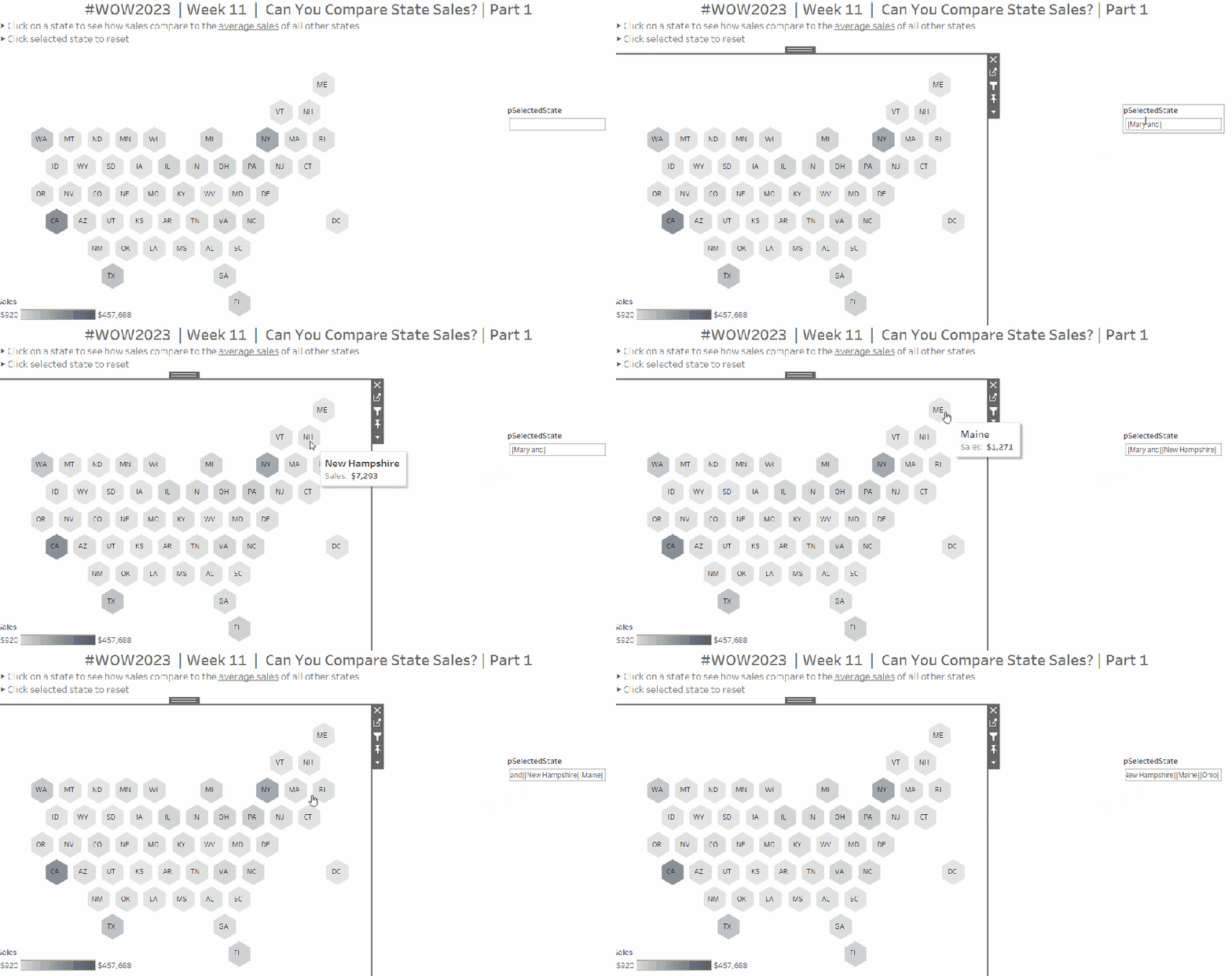
Click around on the dashboard. You should find as you click the first state it is coloured dark teal. Click a second, it is coloured light teal. Click either selected state again, and the map resets. Click more than 2 states, and only the first 2 are coloured, whilst the parameter continues to capture all the states being clicked.

Alerting if more than two states are selected

We will need a field to identify if more than 2 states have been selected.

More than 2 Values Selected?

SPLIT([pSelectedStateString], ‘|’, 6) <> ”

This is looking for a 3rd instance of a value within the delimited string, and returns true if there is one.

As this is a boolean field, we can use it to control the visibility of the message text box we want to display.

We also need to ensure that when the user clicks on the message, it disappears, and the hex map is re-set, ie the pSelectedState parameter gets set back to empty string. Another field will help us with this

State Reset

On a new sheet, add State Reset to Text. Then edit the text to the relevant message, and align centrally. Change the tooltip to say ‘click here to reset’. Set the background colour of the sheet to a pale grey. Name the sheet ‘Alert’ or similar.

On the dashboard, delete the contents of the pSelectedState parameter and remove it from the dashboard. Add the Alert sheet as a floating object. Set to fit entire view and remove the title. Add a border to the object.

Select the object, then in the Layout pane, set the Control visibility using value option to the More than 2 Values Selected field.

Then add a dashboard parameter action to reset the parameter when the message is clicked

Reset States

On select of the Alert object, set the pSelectedState parameter to the value stored in the State Reset field.

Click around, selecting more that 2 states and test the behaviour. Now we can move on the adapting the other charts.

Adapting the calculations

To sense check what is going on, on a new sheet, add State to Rows, Sales to Text and add Country/Region = United States to Filter. Add State Label to Rows, and show the pSelectedState parameter.

When only 1 state has been selected, we want to display the state against the selected row, otherwise we want to display the text ‘Other States (Avg)’ . When 2 states have been selected we just want the state names against the 2 relevant rows. Otherwise we want NULL to show. We need to adapt the State Label field as follows

State Label

IF [First Selected State] <> ” AND [Second Selected State] = ” THEN
IF [State] = [First Selected State] THEN [State] ELSE ‘Other States (Avg)’ END
ELSEIF [First Selected State] <> ” AND [Second Selected State] <> ” THEN
IF [First Selected State] = [State] OR [Second Selected State] = [State] THEN [State] END
END

Now we need to display a different value for the sales measure depending on whether we have 1 or 2 states selected. So we need to adapt the existing Sales To Display field

Sales To Display

IF CONTAINS([pSelectedState], MIN([State Label])) THEN SUM([Sales])
ELSE SUM([Sales])/COUNTD([State])
END

If the parameter string contains the State Label value, then use the sales, otherwise average the sales over the number of states that make up the sales. Format this to $ with 0dp.

Add this to the table, and remove State from the display

Add State Label to the Filter shelf and exclude NULL. Now remove the second state from the parameter and check the result

Adapting the bar chart

On the existing bar chart sheet, verify the pSelectedState parameter is displayed. Replace Is Selected State on the Colour shelf with the State Colour field and remove Is Selected State from the Rows shelf.

Add another state to compare against. Exclude the NULL values that display (add State Label to Filter and exclude Nulls)

We always want to make sure that the first state selected is listed first.

Sort- State Label

IF [State Label] = [First Selected State] THEN 1
ELSEIF [State Label] = [Second Selected State] THEN 2
ELSE 3
END

Add this field on to Rows as a discrete (blue) pill, between the existing two pills and then hide it.

Adapting the line chart

On the existing line chart sheet, verify the pSelectedState parameter is displayed

Add State Label to Filter and exclude null. Replace Is Selected State on the Colour shelf with the State Colour field.

Displaying the additional charts on click.

The display of the bar and line chart are based on the dynamic zone visibility functionality, and the field Show Viz (if you have downloaded my original solution workbook to build onto, you may need to unhide fields in the data pane for this field to be visible).

Amend Show Viz to

[First Selected State] <> ”

Amending the Chart Title sheet

On the Title sheet, replace the Is Selected State on the Filter shelf with Show Viz = TRUE.

Remove State Label from the Text shelf and add First Selected State and Second Selected State to Text. Additionally create a calculated field

Label:All State

IF [Second Selected State] = ” THEN ‘Other States (Avg)’ ELSE ” END

Add this to Text too.

Adjust the text as below and apply matching colour coding to the fonts. Align the text centrally.

Finally update the title and instructions on the dashboard.

My published viz is here.

Happy vizzin’!

Donna

Filtering and Highlighting

It was Sean’s turn to set the challenge this week which included a lots of little details to provide a wealth of different ‘views’ on the same data within a single chart, specifically the change of measure and the change of date granularity.

Building a viz showing the timeline at different levels of granularity based on user selection, is something I’ve done several times in the past, both for other WOW challenges and also in real work situations. So I immediately headed down my ‘usual route’, creating a parameter to identify the level of the date to report at, and a calculated field to display the appropriate level based on the parameter. However, then I noticed that in Sean’s viz, if I changed the date level, the date axis display also changed, sometimes showing <Month Year> format, sometimes <Year Q> etc. Having the axis change like this isn’t something that would work with my ‘usual’ solution. I did ponder this for some time, and the only thought I had was multiple sheets – one for each date part. Sean hadn’t stated how many sheets were needed for the challenge, and it made me wonder if the omission was perhaps deliberate…

Building the Month chart

To start we need to define a parameter to identify the level of date to select

pDateGranularity

string parameter defaulted to ‘month’ with a list of options, which have an alternative display name

We also need to identify the measure we want to show. Before we can define this, we need

Profit Ratio

SUM([Profit])/SUM([Sales])

and

#Orders

COUNTD([Order ID])

We also need to be able to capture the selected measure in a parameter

pMeasure

string parameter, defaulted to PROFIT (note case). A list isn’t needed as the value will be set via an action on the dashboard

so we can then build

Measure to Display

CASE [pMeasure]
WHEN ‘SALES’ THEN SUM([Sales])
WHEN ‘PROFIT’ THEN SUM([Profit])
WHEN ‘PROFIT RATIO’ THEN [Profit Ratio]
WHEN ‘ORDERS’ THEN [#Orders]
END

On a new sheet, add Order Date to Filters and set as a relative date filter to the last 4 years. Add Order Date to Columns as a continuous (green) pill set at the month level, and add Measure to Display to Rows.

Add the Order Date filter to ‘context’ (right click > Add to context) and set it to apply to worksheets > all using this data source. The context is necessary as when it comes to the option to select a date to highlight, only the dates within the timeframe selected should be visible. Show the pMeasure and pDateGranularity parameters.

Edit the Measure to Display axis to change the title to reference the pMeasure parameter instead (right click and edit axis).

Test the values change as expected by changing the text in the pMeasure parameter to SALES or ORDERS or PROFIT RATIO.

To identify a month to highlight, I created

Order Date – month

DATE(DATETRUNC(‘month’,[Order Date]))

and formatted this to a custom format of yyyy-mm

I then created a set off of this field (right click > create > set) and selected a single date 2021-11

Order Date – month Set

In order to make use of the set and its values, the set needs to be on the view. Add Order Date – month Set to the filter shelf. If it doesn’t happen by default, change the option on the pill to Show In/Out of set and then select both In and Out as the filter options (ie all possible values so nothing is actually being filtered).

Then click on the Order Date – month Set pill on the filter shelf and select show set. The list of values in the set should display.

Change the input type of the Set control to be a single value drop down, where the (All) option doesn’t show (via customise) and the option All values in Context is selected

We need to capture the value associated with the date selected

Month Measure to highlight

IF ATTR([Order Date – month Set]) THEN [Measure to Display] END

Add this to the Rows shelf, then make the chart dual axis and synchronise the axis. Adjust the colours of the Measure Names and then make the mark type of the Month Measure to Highlight marks card, a circle, and increase the size.

Hide the right hand axis, remove the title of the bottom axis and remove all row & column dividers. Right click on the nulls indicator and hide indicator.

Call this sheet month chart or similar.

Building the Quarter chart

Go through similar steps to build a chart to display the information at a quarterly level. The field on the Columns shelf should be Order Date set at the continuous (green) quarter level.

You will need a field

Order Date – quarter

DATE(DATETRUNC(‘quarter’,[Order Date]))

and format this to a custom format of yyyy-“Q”q

Use this to create a set off of this field (right click > create > set) and Order Date – quarter Set

You’ll also need

Quarter Measure to highlight

IF ATTR([Order Date – quarter Set]) THEN [Measure to Display] END

Building the week chart

Repeat again.

The field on the Columns shelf should be Order Date set at the continuous (green) week level.

You will need a field

Order Date – week

DATE(DATETRUNC(‘week’,[Order Date]))

and format this to a custom format of yyyy-“W”ww

Use this to create a set off of this field (right click > create > set) and Order Date – week Set

You’ll also need

Week Measure to highlight

IF ATTR([Order Date – week Set]) THEN [Measure to Display] END

Creating the BANs

To start with, we need to create some calculated fields to store the total values for each measure and the ‘highlighted’ vallues

Total Sales

{FIXED: SUM([Sales])}

format to $ with 0 dp

Total Profit

{FIXED: SUM([Profit])}

format to $ with 0dp

Total Profit Ratio

{FIXED: [Profit Ratio]}

format to % with 0 dp

Total Orders

{FIXED:COUNTD([Order ID])}

format to number with 0 dp

and we’ll also need values for the highlighted date

Highlighted Sales

IF ([pDateGranularity]=’quarter’ AND ([Order Date – quarter Set])) OR
([pDateGranularity] = ‘week’ AND ([Order Date – week Set])) OR
([pDateGranularity] = ‘month’ AND ([Order Date – month Set]))
THEN ([Sales])
END

format to $ with 0dp

Highlighted Profit

IF ([pDateGranularity]=’quarter’ AND ([Order Date – quarter Set])) OR
([pDateGranularity] = ‘week’ AND ([Order Date – week Set])) OR
([pDateGranularity] = ‘month’ AND ([Order Date – month Set]))
THEN ([Profit])
END

format to $ with 0 dp

Highlighed Profit Ratio

SUM([Highlighted Profit])/SUM([Highlighted Sales])

format to % with 0 dp

Highlighted Orders

COUNTD(IF ([pDateGranularity]=’quarter’ AND ([Order Date – quarter Set])) OR
([pDateGranularity] = ‘week’ AND ([Order Date – week Set])) OR
([pDateGranularity] = ‘month’ AND ([Order Date – month Set]))
THEN [Order ID]
END)

format to number with 0 dp.

On a new sheet, double click into columns and manually type MIN(0.0). Repeat this 3 more times, so there are 4 instances of MIN(0.0) on the Columns shelf.

On the All marks card, add Measure Names to the Label shelf.

Now right click on Measure Names in the left hand data pane and select Aliases. Alias each of the MIN(0.0) measures to SALES, PROFIT, PROFIT RATIO, ORDERS

The labels on the viz should change

Create a new field

Sales Selected

[pMeasure] = ‘SALES’

On the 1st MIN(0.0) marks card, change the mark type to shape and add Sales Selected to the shape shelf. Use a transparent shape (see here for details) for the False value, and use the provided sparkline image (which you need to add to your shape palette) for the True value (change the pMeasure parameter to SALES for the True option to show). Increase the Size of the shape to around the 3/4 mark.

Add Total Sales and Highlighted Sales to the Label shelf, and then adjust the font position, size and colour accordingly. This is what my label dialog looked like – Measure Names is centred, while the other two fields are right aligned, and the overall alignment is right too.

Adjust the MIN(0.0) axis to be fixed from -0.2 to 1 to give the mark and the text enough space to breathe.

Now repeat the exercise for the other 3 marks cards. You will need the fields

Profit Selected

[pMeasure] = ‘PROFIT’

Profit Ratio Selected

[pMeasure] = ‘PROFIT RATIO’

Orders Selected

[pMeasure] = ‘ORDERS’

and you’ll need to change the value in the pMeasure parameter to get the relevant shape to show or not for each measure

Finally, create fields

True

TRUE

False

FALSE

and add these both to the Detail shelf of the All marks card. We’ll use these to stop the BANs from being ‘highlighted’ on click on the dashboard.

Then remove all row/column dividers and gridlines & zero lines

Building the dashboard

Create the dashboard, and arrange all the objects so the controls/filters are listed in a row at the top, and the 3 charts are arranged side by side underneath.

If you’ve got dates selected for your quarter & week, then in the data pane, right click on the relevant set, edit set and uncheck any option. This should then give you (None) in the dropdowns.

We will use dynamic zone visibility to control which charts & highlight date controls to display. For this we need fields

Show Monthly

[pDateGranularity] = ‘month’

Show Quarterly

[pDateGranularity] = ‘quarter’

Show Weekly

[pDateGranularity] = ‘week’

On the dashboard, select the monthly chart, and then from the Layout tab, select Control visibility using value and choose the Show Monthly field. Set the control visibility for the highlight a month object to also use the Show Monthly field.

Set the control visibility for the Quarterly chart and highlight a quarter object to use the Show Quarterly field, and set the control visibility for the Weekly chart and highlight a week object to use the Show Weekly field.

Create a dashboard parameter action to set the pMeasure parameter on click of the BANs sheet, passing in the Measure Names to the parameter

Set measure

Create a dashboard filter action to stop the BANs from being highlighted ‘on click’

Deselect BANs

And that should be it. My published viz is here.

Happy vizzin’!

Donna

Can you combine relative and custom date filters?

For this week’s challenge, Kyle revisited a previous challenge from 2020, but remade it over utilising some of the newer features of Tableau, specifically Dynamic Zone Visibility. I blogged my solution to the original challenge here, so this blog will lift some of the techniques (and documentation) I employed directly.

Define the parameters

The first step in this challenge is to define all the parameters needed, these being :

pDateSelector

A string parameter just set to contain the value Last 30 Days

This parameter will be set via a Parameter Action, so there is no need to define this a list with all the options.

pDays

An integer parameter defaulted to 120

pStartDate

A date parameter defaulted to 01 Jan 2023

pEndDate

Another date parameter defaulted to 01 Aug 2023

The chart needs to adjust based on a measure selected, so we need to capture the measure option selected

pSelectedMeasure

string parameter defaulted to Sales

This parameter will be set by a parameter action, so again there is no need to actually list the possible values.

Finally, I also created a parameter

pToday

Date parameter defaulted to 02 May 2023.

The requirements indicate the information displayed should be restricted to ‘today’, using the TODAY() function. However given the data set is static, if I use TODAY() and look at this in a year’s time, nothing will show. So instead I have ‘hardcoded’ ‘today’ using this parameter.

Using this parameter I then created

Order Date < Today

[Order Date] <= [pToday]

and added this as a data source filter set to True. This ensures that all the sheets I build is then automatically ignoring and data where the Order Date is 3rd May 2023 onwards.

Building the time-series chart

We need to determine which measure to show based on the selection made by the user and stored in the pSelectedMeasure parameter. This will be Sales, Profit or a count of the number of orders. First we need to create

Count Orders

COUNTD([Order ID])

and then we can create

Measure to Display

CASE [pSelectedMeasure]
WHEN ‘Sales’ THEN SUM([Sales])
WHEN ‘Profit’ THEN SUM([Profit])
WHEN ‘Orders’ THEN [Count Orders]
END

Add Order Date set to the continuous day level (green pill) to Columns and Measure to Display to Rows. This gives us all data from the earliest day in the data set up to 2nd May 2023.

We need to restrict this based on the ‘date selector’, so create

In Timeframe

CASE [pDateSelector]
WHEN ‘Last 30 Days’ THEN [Order Date]>DATEADD(‘day’,-30,[pToday])
WHEN ‘Last N Days’ THEN [Order Date]>DATEADD(‘day’,-1*[pDays],[pToday])
ELSE [Order Date]>=[pStartDate] AND [Order Date]<=[pEndDate]
END

If ‘last 30 days’, get the data that is greater than 30 days ago; if ‘last n days’, get the data that is greater than the last ‘n’ days ago, otherwise get the data between the start & end dates specified.

Add this to the Filter shelf and set to True.

Add another instance of Measure to Display to Rows, make dual axis and synchronise axes. Change the mark type of the first marks card to be Area and set the other to explicitly be a line.

Add pSelectedMeasure to the Colour shelf of the All marks card. Adjust the colour of the ‘Sales’ value accordingly.

If you’re not already displaying it, show the pSelectedMeasure parameter input, and manually change the value by typing in ‘Profit’. The chart will change colour, so again adjust accordingly. Repeat the process by typing in ‘Orders’.

Set the parameter back to ‘Sales’.

The tooltip needs to display different formatted values, so we need a couple of fields to handle this

Tooltip- Sales or Profit

IF [pSelectedMeasure] <> ‘Orders’ THEN [Measure to Display] END

Format this to $ with 0 dp, and set to use ( ) when value is negative.

Tooltip – Orders

IF [pSelectedMeasure] = ‘Orders’ THEN [Measure to Display] END

Format this to a number with 0 dp.

Add both these fields to the Tooltip shelf of the All marks card, and adjust the tooltip accordingly, positioning the two ‘Tooltip’ fields directly adjacent to each other

Hide the right hand axis (right click, uncheck show header), and edit the left hand axis to set the axis title to be sourced from the pSelectedMeasure parameter

Remove all gridlines, zero line, axis ticks etc and row/column dividers, and edit the date axis to remove the axis title. Name the sheet ‘Chart’ or similar.

Building the BANs

  1. Add Measure Names to Columns
  2. Add Measure Names and Measure Values to the Text shelf
  3. Add Measure Names to the Filter shelf and select just the 3 measures we’re interested in.
  4. Reorder the columns to match the requirement

  1. (Optional) Change the mark type to shape and set the shape to be a transparent shape (see this blog post for more details)
  2. Change the formatting of the Measure Names and Measure Values on the Text shelf to set the size of the font to suit, and align middle, centre
  3. Format the Sales and Profit measures to be $ with 0 dp and ( ) for neg values.
  4. Add Measure Names to the Colour shelf and adjust colours to match the ones used on the line chart. (If you’ve used the transparent shape, edit the label to set the font to match mark colour).
  5. Format the display to remove the row lines
  6. Hide the Measure Names heading (right-click the Measure Names pill on the Columns shelf and unselect Show Header).
  7. Add In Timeframe = True to the Filter shelf to restrict the data.
  8. Uncheck the show tooltip option from the Tooltip shelf to stop the tooltip from displaying.
  9. Name the sheet ‘BANs’ or similar

Building the Date Selector

On a new sheet, double click into the Columns shelf and type in MIN(0.0) Change the mark type to Shape.Create a new field

Label: Last 30 Days

‘Last 30 Days’

And add this to the Label shelf.

Create a new field

Is Selected Date Option – Last 30 Day

[pDateSelector] = [Label:Last 30 Days]

And add this to the Shape shelf. Adjust the shape for the ‘True’ value to be a filled circle.

Show the pDateSelector parameter and change the text in some way. This should change the ‘shape’ to ‘False’. Set this shape value to be an open circle.

Change the colour to be a dark grey, and increase the font size. Uncheck ‘Show Tooltip’.

Now type in another instance of MIN(0.0) to Columns. Create the following fields

Label:Last N Days

‘Last N Days’

and

Is Selected Date Option – Last N Days

[pDateSelector] = [Label:Last N Days]

ON the 2nd MIN(0.0) marks card, replace the fields on the shape and label shelves with these ones.

By default, the ‘last n days’ shape should be set to false, so make sure it’s an open circle. Change the value in the pDateSelector parameter to ‘Last N Days’ and the shape should now be ‘true’ – set to a closed circle.

Create a 3rd instance of MIN(0.0) on Columns and create

Label:Custom Dates

‘Custom Dates’

and

Is Selected Date Option – Custom Dates

[pDateSelector] = [Label:Custom Dates]

and repeat the process above

Edit the axis of each to be fixed from -0.2 to 2. This has the effect of ‘left aligning’ the marks.

Hide the axis, and remove the row & column dividers, all gridlines and zero lines and axis lines.

Add Measure Names to the Detail shelf of the All marks card. The right click on Measure Names in the left hand data pane and select Alias. In the dialog box that presents, alias the 3 MIN(0.0) fields as per the 3 date selector options.

This step is the key to enabling the parameter action that will be set up to pass the appropriate ‘value’ into the pDateSelector parameter

Finally format the background of the whole worksheet to be grey.

Controlling the visibility of the selections

On the dashboard, I used a vertical layout container to add my title, the BANs and the Chart. Between the title and BANs, I added a horizontal container. On the left side of that I added the Date Selector sheet. On the right I then had another vertical container which contained other containers to display the start & end data parameters. It took a bit of ‘twiddling’ to get everything where I wanted.

I added the pDays parameter as a floating object and positioned it below the Last N Days option. I used the control visibility using value option to set this to display based on the value of the Is Selected Date Option – Last N Days calculated field.

Similarly, for the date input fields, I had the section all within a single container, so I set the visibility at the container level, rather than the object level (although you could repeat the step against all the objects you need to hide individually). For the container, I used the control visibility using value option to set this to display based on the value of the Is Selected Date Option – Custom Dates calculated field.

Adding the interactivity

To change the timeframe displayed in the BANs and chart, create a dashboard parameter action

Set Date Selection

On select of the Date Selector sheet, target the pDateSelector parameter, passing though Measure Names. When the selection is cleared, reset to ‘Last 30 Days’.

To change the measure displayed in the chart, create a dashboard parameter action

Select Measure

On select of the BANs sheet, target the pSelectedMeasurew parameter, passing through Measure Names. When the selection is cleared, reset to ‘Sales’.

Prevent the BANs and Selected Date option from being selected/highlighted

By default, clicking on one of the BAN numbers, or selecting an option in the date selector, will leave the option chosen ‘highlighted’ or ‘selected’ while the other options are ‘faded out’. To

Create two calculated fields

True

TRUE

False

FALSE

Add both these fields to the Detail shelf of the BANs sheet and the All marks card on the Date Selector sheet.

Then on the dashboard, create a dashboard filter action

Deselect BANs

On select of the BANs sheet on the dashboard, target the BANs sheet directly, passing through selected fields where True = False. Show all Values when the selection is cleared.

Repeat the exact process for the Date Selector sheet, creating a dashboard filter action called Deselect Date Selector.

You should now have a complete dashboard. My published viz is here.

Happy vizzin’!

Donna

Can You Compare State Sales? Part 1

This week’s #WOW challenge was set by me and born out of a client requirement to compare store locations via selections from a map. I adapted it to use our favourite Superstore dataset (v2022.4).

The core requirement is to be able to make a selection on the map and see how sales compare to the average of all the other states. There is more to this challenge, but it was too much for one week, so I’ve broken it into 2 parts. This is part 1. In a few weeks time, I’ll be building on this solution for a part 2.

Building the basic hex map

The requirements provide a link to here to get the relevant files needed to complete this challenge and build the hex map – this includes the 2022.4 version of Superstore, the Hex map template, the hexagon shape file and a transparent shape file (more on that one later).

Using the hex map template sheet provided, relate the Orders Superstore data to the hex map sheet, relating State/Province to State.

Then on a new sheet add Column to Column, Row to Row and State to Detail. Edit the Row axis, and reverse the scale.

Change the shape of the mark to be a hexagon (use the provided shape if need be and add to a custom shape palette), and increase the size of the marks. Add Sales to Colour and change to use the Grey sequential colour palette, and adjust the opacity to 80%. Add Country/Region to the Filter shelf and select United States. This will remove Alaska and Hawaii that don’t have any sales and aren’t in the Superstore data set.

Add Abbreviation to the Label shelf and align centrally, Adjust the font size if need be.

Identifying the selected state

We need to be able to capture the state that has been selected ‘on click’. This will be driven by a dashboard action.

When I first built this concept for a client, the natural first step was to utilise sets and set actions; that is capture the selected state in a set, and then colour the map, build the other charts and logic based on the existence in the set. However this method does caused some issues when I tried to prevent the highlighting later, so I chose to use a parameter and parameter actions instead.

Firstly we need a parameter that will be used to capture the state selected ‘on click’

pSelectedState

string parameter defaulted to <empty string>

We can then create

Is Selected State

[State] = [pSelectedState]

As we want to retain the colour by sales on the existing map, we need to make a dual axis. Show the pSelectedState parameter and type in ‘Florida’.

Add another instance of Column to Columns. Remove the Abbreviation label from the second marks card, and replace the Sales field on the Colour shelf with the Is Selected State field. Increase the opacity on this mark to 100% Set the colours as follows :

  • True- teal : #66b3c2
  • False- pale grey : #d3d3d3

Additionally, add Is Selected State to the Shape shelf of the second marks card. Set the True value to use the same hexagon shape, but set the False option to use a transparent shape (a transparent shape file is provided in the g-drive, and needs to be added as a custom shape).

This should make all the other states look like they disappear.

Make the chart dual axis, and synchronise the axis.

Format the Sales to be $ with 0dp, then add to the Tooltip shelf of the second marks card and adjust the tooltip. Remove all gridlines/row & column dividers and hide the axes.

Adding the Interactivity

Create a dashboard sized 1000 x 600.

Add a vertical container and add a text field to create the title. Below the title, add a horizontal container. Add the hexmap sheet into the horizontal container, then add a blank object to the right of it. Remove any legends etc that automatically get added. Set the width of the hexmap object to be fixed to 600 px

and set the height of the horizontal container the hex map sits within to 445px

Show the colour legend and set it to floating, and position bottom left.

Add a parameter action to set the selected state on click

Set Selected State

On selection of the Hexmap sheet, pass the State field into the pSelectedState parameter. Set the value to <empty string> when the selection is cleared.

If we click around on the dashboard page, we can see the colours being set, but everything is fading out on selection. To prevent this, create 2 calculated fields

True

TRUE

False

FALSE

Add these to the Detail shelf of the All Marks card of the hex map sheet. Then back on the dashboard, add a filter dashboard action

Deselect Map Marks

On select of the hex map object on the dashboard, target the hex map sheet itself, setting selected fields such that True = False. Show all values where selection cleared.

Now if we click on the dashboard, the shapes shouldn’t fade into the background. However we can’t ‘unselect’ the state and get back to its original state. This is because the filter action we added to stop the marks from fading actually unselected the mark, so when we click again, we’re not undoing any selection.

To resolve this, we need another calculated field.

State for Param

IF [State] = [pSelectedState] THEN ”
ELSE [State] END

If the state being clicked is the one already captured in the parameter, then set the field to <empty string>, else set the fields to the state being clicked.

Add this to the Detail shelf of the All marks card on the hexmap sheet, and then update the Set Selected State parameter action to pass the State For Param field into the parameter instead of the original State field..

Now when the map is first loaded, the State For Param field contains the name of the state, so that is passed into the parameter on click. As the parameter now has a value, the State For Param field changes for the selected state to be <empty string>, so if the same state is clicked, <empty string> is then passed into the parameter and the view resets.

Building the calculations for the other charts

On a new sheet, add State to Rows, Sales to Text and add Country/Region = United States to Filter.

When a state has been selected, we want to display the state against the selected row, otherwise we want to display the text ‘Other States (Avg)’ .

State Label

IF [Is Selected State] THEN [State] ELSE ‘Other States (Avg)’ END

Now we need to display a different value for the sales measure depending on whether its the selected state or not.

Sales To Display

IF ATTR([Is Selected State]) THEN SUM([Sales])
ELSE SUM([Sales])/COUNTD([State])
END

If the state is the selected one, then use the sales, otherwise average the total sales over the number of states that make up the sales. Format this to $ with 0dp.

Note – in hindsight, this could have just been SUM([Sales])/COUNTD([State]) even for the single state, as since the count of state will be 1, this would just equate to the SUM([Sales]) itself.

Add this to the table, and remove State from the display

Building the bar chart

Duplicate this sheet (as we want to retain the filters), then move Sales To Display to Columns, and add Category to Rows in front of State Label. Add Is Selected State to the Colour shelf.

To ensure the Selected State is always listed first, even if alphabetically it comes after ‘Other States (Avg)’, add Is Selected State to the Rows shelf between Category and State Label. Manually sort it so True is always listed before False, then hide the column (uncheck show header).

Reduce the Size of the bars, remove gridlines and column dividers. Lighten the row dividers. Adjust font sizes. Hide the column labels (hide field labels for rows) and hide the axis.

Remove Sales from the Text shelf, and check Show mark labels instead. Update the Tooltip.

Building the line chart

On a new sheet add Country/Region to Filter and set to United States. Add Order Date to Columns and set to the continuous month level (eg May 2021). Add Sales To Display to Rows, State Label to Detail and Is Selected State to Colour. Manually move the values in the colour legend so that True is listed first. Adjust the tooltip

Remove the axis titles, adjust the axis fonts. Remove row/column dividers and zero lines and axis rulers.

Putting it all together

On the dashboard, add a vertical container between the hexmap and the blank object. Add the line chart and bar chart on top of each other. Remove the title for the bar chart, and update the title of the line chart to reference the pSelectedState parameter.

Remove the blank object to the right of the bar/line charts.

We need to control when the bar and line charts display, so we’ll use dynamic zone visibility for this, and for this we need another boolean field

Show Viz

{FIXED: MAX(IF [Is Selected State] THEN TRUE ELSE FALSE END)}

Is Selected State is a boolean field which essentially is 1 for True and 0 for False. If there is a state selected, the maximum value across all the data records, will be 1, so the field returns true, otherwise its 0, so false.

Use this to control visibility using value for the line and bar chart objects.

Make any further adjustments to the layout required -the size of the hex shapes may need tweaking for example. Then interact with the viz to check all is working as expected.

My published viz is here.

Happy vizzin’!

Donna