Can you build a heat map with bathymetry lines?

What??? That was the first thought that went through my mind when Luke set this challenge. Bathy..huh… ??? What’s that all about. Well read the challenge to find out more 🙂

The what?? was quickly followed by errr…..? The indicator on the challenge overview page said ‘hard’ and this was a Luke challenge after all, so certainly not for the faint hearted! I wasn’t sure how this was going to go, so just started with a basic tabular view and went from there. (hint – it might be worth reading the blog to the end before you start building.. it could save some time 😉 )

I quickly built a basic heat map. I added Order Date at the discrete (blue) month level to Columns and Sub-Category to Rows. I added Sales to Colour and changed the mark type to square then added Sales to Label.

We ultimately need the cumulative Percent of Total Sales per Sub-Category, to display as the label. Click on the Sales pill on the Label shelf and Add Table Calculation. From the dialog window, choose Running Total and verify the calculation is computing Table (across) (or amend and select Specific Dimensions and ensure Month Order Date is selected). Then check Add secondary calculation and in the secondary calc dialog, select Percent of Total, again ensuring Table (across).

If applied correctly, the values in the December column should all be 100%.

I wanted to ensure this calculation was stored so I could reuse, so while pressing shift key, I dragged the Sales pill from the label shelf into the data pane, and renamed the calculation

Cumulative % of Total

RUNNING_SUM(SUM([Sales])) / TOTAL(SUM([Sales]))

Format the field to be % with 0 dp

Editing the field should show the details above. Of course, you can just create the calculated field manually and type in the syntax. If you do that, then replace the Sales field on the label field, with this one. Centre align the text.

With this field, we can create the calculation Luke provides for the colouring

Colour

ROUND([Cumulative % of Total]*50, -1)

Replace the Sales field on the Colour shelf with this field, and adjust the colour to use the Blue sequential colour palette. You should now have the basic structure and colouring of the heat map.

Adjust the font style and alignment of the Sub-Category and Order Date Month label headings, and change the month labels to be abbreviated. Hide the Order Date column label and the Sub-Category title (right click hide field labels for columns/rows). Remove all gridlines, row/column dividers etc.

Looking good.. but what next.. how to get those divider lines…. I wasn’t too sure at this point, but I knew I had to identify the cells when a ‘change in colour’ happened both horizontally and vertically.

So the first thing I did was to duplicate the above sheet into a basic crosstab (right click sheet > duplicate as crosstab), and I removed Cumulative % of Total from the display, so I just had the values used for the colour.

I decided I wanted to flag each cell with a 1 or 0 depending on whether the next cell was different or not. I started horizontally. So for each row, and starting with January, I wanted to compare the colour value for Jan with the colour value for Feb. If they were the same, I wanted to record 0 against Jan. If they were different I wanted to record 1 against Jan. I used the following calculation

Horizontal – Next Value Diff

IF ([Colour] = LOOKUP([Colour],1) OR LAST()=0) THEN 0 ELSE 0.99 END

If the Colour value for the current cell (eg Jan) matches the Colour value of the next cell (eg Feb) OR, the current cell is the last month (ie Dec), then return 0 otherwise there is a mismatch so return 0.99. Originally I used 1, but later found I had to adjust the calc to make the line show as I wanted.

Add this field to the tabular display and verify the table calculations used within the field are running Table (across).

You can see that for Accessories, the Colour value for Feb is not equal to the Colour value for Mar, and so the Horizontal – Next Value Diff value for Feb is 0.99. Whereas as the Colour value for Apr matches May, the Horizontal – Next Value Diff for Apr is 0.

I created a similar calculation to test the vertical settings

Vertical – Next Value Diff

IF ([Colour] = LOOKUP([Colour],1) OR LAST()=0) THEN 0 ELSE 1 END

This is essentially exactly the same calculation, but when added to the tabular view, the table calculation for the Vertical – Next Value Diff calc should be set to Table (down) instead

You can see that in Feb, the Colour value for Paper is equal to the Colour value for Phones, so the Vertical – Next Value Diff calc for Paper is 0. But in Mar, the Colour value for Storage is different from the Colour value for Supplies, and so the Vertical – Next Value Diff calc for Storage is 1.

Using these markers, I now want to ‘plot’ them on a viz.

So back to the heat map sheet we built above, we need some axis.

Double click into the Columns shelf and type MIN(1.0) and change the mark type to bar.

You can see a hole has appeared. To fix this, on the Analysis menu, select Infer Properties from Missing Values. The cell will populate.

Confession – I didn’t get this bit initially. I had the chart built with the lines in the correct places, but with a hole. I’d tried all sorts of combinations of ZN, and LOOKUP(expression,0) in calculations to try to make the number appear, but couldn’t get anything to work. I showed my colleague Sam Parsons, who mentioned the above setting. I have honestly never ever used it and was completely unaware of it’s existence. But it solved the problem, so massive hi-five to Sam 🙂

Double click into the Rows shelf and again type MIN(1.0). Having an axis on both rows and columns, means we can now fix the Size of the bar. Click on the Size shelf and select Fixed, width in axis units to 1 and alignment right.

Now we have both an x and y axis, we can add additional detail to get the white bar dividers displaying.

First, adjust the label so it is aligned middle centre.

Add Horizontal – Next Value Diff to Columns. Ensure the table calc settings are Table (across).

Remove both the Colour and the Cumulative % of Total fields from the marks card, and then add Horizontal – Next Value Diff as a discrete (blue) pill to Colour. Remove all gridlines, zero lines, axis ticks and row/column dividers. Change the Size to be Manual and reduce size. Make the chart dual axis and synchronise the axis.

You should have something similar to the above, assuming the colours for the Horizontal – Next Value Diff are distinguishable enough.

I adjusted the colours to set 0 to be a transparent colour (refer to this blog to learn how to add a transparent colour hex code into your custom colour palette, and then 0.99 to be white. Edit the x-axis and fix to be from 0 to 1. The white dividers between the relevant months should now be noticeable.

To set the dividers between the Sub-Category, I decided I just needed to use a constant 0 reference line. For this I needed

Vertical Ref Line

IF [Vertical – Next Value Diff] = 1 THEN 0 END

Add this to the Detail shelf on the All marks card, and verify the table calc setting for the Vertical – Next Value Diff calc is set to Table (down).

Right click on the y-axis and Add Reference Line. Set it per cell using the Vertical Ref Line field, with no label or tooltip displaying. Set the Line properties to be white, 100% opacity and a thick width.

Then edit the y-axis to also be fixed between 0 and 1. The lines separating the Sub-Category should now be prominent.

Then it’s just a case of tidying up – hide the axis, stop tooltips from displaying, and then add to the dashboard, setting as fit to entire view.

If need be you may want to tweak either the size of the bar on the Horizontal – Next Value Diff marks card, or change the thickness of the reference line to get similar sizes.

I have no idea when I’d ever need to use this type of display, but I enjoyed the puzzle and discovered something new which is what I love about using Tableau!

This version of my published viz is here.

BUT….

after writing all this up, and stepping away for a bit, I suddenly realised I’d over-complicated things! I didn’t need a dual axis after all. I could just use a reference line to show the dividers between the months, exactly like I did for the 0 constant reference line – doh! So I made some adjustments..

Amend

Horizontal – Next Value Diff

IF ([Colour] = LOOKUP([Colour],1) OR LAST()=0) THEN 0 ELSE 1 END

Then create

Horizontal Ref Line

IF [Horizontal – Next Value Diff] = 1 THEN 1 END

Then remove the Horizontal – Next Value Diff field from the Rows shelf, so there is no longer a dual axis. Add Horizontal Ref Line to Detail , and display the x-axis MIN(1.0) axis, and add a reference line per cell which references Horizontal Ref Line. Apply the same settings to the reference line as detailed above.

And this resulted in a much simpler looking viz

I know I could reduce the number of calcs used, but I like to have ‘building blocks’ to follow my thought process. I have published the simpler version within the same workbook on a separate tab, here.

Happy vizzin’!

Donna

Can you create digital signage in Tableau?

Community Challenge month continues this week, and Yusuke Nakanishi set this challenge where the concept is to engage the audience by providing some automated highlighting of the dimensions in the viz.

This challenge did take a bit of thinking, and what I document below is ultimately what you’ll need to build it as I did; however it took me a bit of ‘back and forth’ to get there.

Modelling the data

The viz essentially ‘ranks’ the Sub-Categories based on their Sales in 2023 (Note – I used the version of Superstore shipped with v2023.1, so I filtered to 2023 to get the same data as presented in the solution). The page control cycles through the rankings, highlighting the Sub-Category with the matching rank. Adding pills to the Page shelf essentially applies a filter to the data, so I couldn’t use the ranking calculation I created, as that would filter out all other data. I therefore created a ‘scaffold’ data source in Excel, which contained a single column called Number and contained a row for each number from 1 to 50 (I didn’t want to limit it to the number of Sub-Categories I knew existed, so I could demonstrate a more ‘generic’ solution).

I then related the Superstore data set to the excel sheet using a calculated relationship of 1=1

Creating the core calculations

We’ll work against a tabular view of the data to start with, so add Order Date to Filter and filter to the latest year in the data set you’re using (for me this was 2023, but it might be 2022 for you). Then add Category and Sub-Category to Rows and Sales to Text. Sort by Sales descending. Format Sales to $ with 0 dp.

We need to calculate two different rankings. One is the overall rank of each Sub-Category and is used in the highlighting via the page shelf. The other is the rank of each Sub-Category per Category and is needed so the bars can be displayed in the right places.

Overall Rank

RANK(SUM([Sales]))

Add this to the table, and set the table calculation properties to compute using both Category and Sub-Category, so the ranking runs from 1 to 17

Rank by Category

RANK(SUM([Sales]))

Add this to the sheet, and while this is the same calculation as the overall rank, apply the table calculation to compute by Sub-Category only. This means the ranking will restart for each Category

We need to capture the total number of Sub-Categories

Total Sub Cats

{FIXED Year([Order Date]): COUNTD([Sub-Category])}

Add this to the table.

At this point, the only data we’ve referred to in the calculations is the data from the Superstore data set. If we now add Number to Rows, we get every row duplicated 50 times. We need the Number to help with the paging, but we only want to page through 17 items (the number of Sub-Categories). To restrict this we need

Index to Include

[Number]<=[Total Sub Cats]

Add this to the Filter shelf and set to True. This will limit the duplicate rows to 17.

Now add Number to the Pages shelf. The page control will automatically be set to 1, and you’ll see all the data not related to Number =1 disappear.

We need to be able to identify/highlight the Sub-Category whose overall rank matches the value in the page control.

Rank to Highlight

[Overall Rank] = SUM([Number])

Add this to Rows and verify the table calculation is set to compute by Category & Sub-Category only. There should only be 1 row that is True per Sub-Category, and only 1 row in all the data that has Rank to Highlight = True and has data displayed in the other columns.

Move Rank to Highlight to the Colour shelf and remove the Number field from Rows. You should now only have 1 row per Sub-Category and as you cycle through the page control, the relevant row is highlighted in a different colour.

The above calculations are enough for us to build the bar chart, but we also need to be able to identify the selected Category to highlight on the BANs.

Category to Highlight

MIN([Category]) = WINDOW_MAX(IF [Rank to Highlight] THEN MIN([Category]) END)

Breaking this down: If the row is the rank we want to highlight, then return the Category associated to this row, and ‘spread’ it across all other rows (via the WINDOW_MAX function). If the Category for the row, matches this value, then return True.

To see how this is working, add the field the the Tooltip shelf of the table of data, and set the table calculations to compute by Category and Sub-Category (note there are two nested calculations within this calculation and both need setting).

If you hover over any row that has the same Category as the row that is highlighted, the Category to Highlight value will be True, but hovering over rows in the other Categories, will return False.

Building the Bar Chart

On a new sheet add Category to Columns, Sales to Columns and Sub-Category to Detail. Then add Rank By Category as a blue discrete pill to Rows. Verify the table calculation is set to compute by Sub-Category only.

Add Order Date to Filter and restrict to the latest year. Add Index to Include to Filter and set to True.

Double click into the Columns shelf and manually type MIN(0) to create another axis.

Change the mark of the MIN(0) marks card to be Gantt Bar and set the Size to be as small as possible. Add Sub-Category and Sales to the Label shelf of the MIN(0) marks card, and adjust the label so the text is arranged as required. Add Measure Names to the Rows shelf to create a row per Measure.

Make the chart Dual Axis and Synchronise the axis. Change the mark type of the Sales marks card back to a bar, and remove Measure Names from the All marks card.

Add Number to the Pages shelf, then add Rank to Highlight to the Colour shelf of the All marks card. Adjust the table calculation so it is computing by both Category and Sub-Category, then adjust the colours to suit.

Edit the Label of the MIN(0) marks card, so the font is bigger/bolder (I used Tableau Medium Bold 10pt) and set the font to match mark colour.

Hide the MIN(0) top axis, the Category headings and the Measure Names column (uncheck show header). Edit the Sales axis: remove the title, fix the axis from 0 to 199,000, and fix the axis ticks every 100,000. Format the Sales axis, so the tick marks are labelled in $k format. Format the Rank by Category column so the text is bolder and larger (I used Tableau Medium 12pt). Hide the column label (hide field labels for rows), and make the column narrower

Format the sheet, so the background is grey, remove all row dividers, set the column dividers to be thicker, to not apply to the header, and to be at Level 2

Adjust the colour of the column grid lines so they show up on the grey background. Adjust the formatting of the Sales axis labels. Remove all tooltips. Scroll through the page control and verify the highlighted dimensions change.

Building the BANs

On a new sheet, add Category to Columns and Sub-Category to rows. Add Order Date to Filter and restrict to the latest year. Add Index to Include to filter and set to True. Create a new field

Sales per Category

{FIXED YEAR([Order Date]), [Category]: SUM([Sales])}

format to $ with 0dp and add to Text.

Add Rank By Category as a blue discrete pill to the Rows shelf, and move Sub-Category to Detail. Verify the Rank by Category table calculation is set to compute by Sub-Category only.

Add Number to the Pages shelf, and then add Category to Highlight to the Colour shelf. Verify both the nested table calculations are set to compute by Category and Sub-Category only, then adjust the colour accordingly.

Move the Rank by Category field from the Rows shelf to the Filter shelf and set to filter to 1, so only the first row displays. Add Category to the Text shelf, and adjust the text positioning and size as required, and align centrally. If you wish, change the mark type to Shape and set to use a transparent shape. (this just gives a nicer user experience when clicking/hovering on the text – see this post for information). If you do this, you’ll need to adjust the Label to match mark colour. Hide the Category header, remove row dividers and format the background to be light grey. Remove the tooltip and update the title.

Building the Summary Ranking

While the requirements suggested the viz should be built using 2 sheets, I couldn’t manage this (I was hoping to use the Caption feature on the bar chart, but as I used table calculations, the values wouldn’t retain). So I built this section with a 3rd sheet, and checking the solution after posting, found that it also had 3 sheets.

On a new sheet, add Order Date to Filter and set to the latest year, and add Index to Include to filter and set to True. Add Sub-Category to Detail, Number to the Pages shelf and then add Rank to Highlight to Filter and set to True. Verify the table calculation is set to compute by Sub-Category only, and if adjusted, recheck the filter is set to just True. You should have 1 mark displayed, and on hover, it should list the Sub-Category with the rank that matches the number of the page.

Add Overall Rank (set to compute by Sub-Category only), Total Sub Cats and Sub-Category to the Text shelf. Adjust the size and format of the text and align centrally. Again if preferred, change the mark to Shape and use a transparent shape.

Set the background to light grey, hide the tooltip, and verify the display changes as you cycle through the pages.

Now arrange all the sheets onto a dashboard using padding if required to provide some spacing.

My published viz is here.

Happy vizzin’!

Donna

How short are baseball games in 2023?

It’s time for Community Month at #WOW2023 Towers, and this week, Spencer Baucke teamed up with Luke to provide this baseball related challenge.

Sourcing the data

Instructions were provided to get the data from this site , select ‘Share & Export’ then ‘Export as CSV’. I couldn’t find an actual ‘export as CSV’ option. In stead I selected the ‘Get table as CSV (for Excel)’ option under the ‘Share & Export’ menu, and then copied the text displayed into notepad. I then save this as a csv file.

Building the Calculated Fields

There aren’t that many fields needed for this viz.

Firstly, we need to organise the years into rows on the viz, based on the decade

Decade

STR(FLOOR([Year]/10) * 10) + ‘s’

This takes the Year eg 1968, divides by 10 to get 196.8, applies the FLOOR function which rounds down to the nearest whole number ie 196, then multiples that by 10 to get 1960.

We also need to a counter for each year in the decade to organise the data into the columns. I just used

Index

INDEX()

Let’s see what we’ve got so far

Add Year (as a blue discrete field) and Decade to Rows. Then add Index to Rows as a blue discrete field. Adjust the table calculation settings, so the Index is computing by Year only.

We also need to convert the Time/9I field into a duration in minutes

Duration (mins)

(DATEPART(‘hour’,[Time/9I]) * 60) + DATEPART(‘minute’, [Time/9I])

take the hour part of the date field and multiply by 60 to get the total number of minutes for the hours the game took, then add on the minute part of the date field.

Add this field to the Text shelf, and additionally add Year to the Filter shelf, and set so that it is filtered to be at least 1960.

This gives us the measure we’ll be plotting on the bar chart, but we also need to plot a reference line based on the time for the year 2023.

2023 is the last value in our data, so we can get the value against that year by the following

Latest Duration

WINDOW_MAX(IF LAST()=0 THEN SUM([Duration (mins)]) END)

As 2023 is the last value, then the Duration(mins) value is returned for this point only – the value is null/empty for all other years. The Window_Max function then ‘spreads’ that value across every other row in the data set.

Add this onto the sheet, and verify the table calculation is set to compute by both Year and Decade

The final piece of information we need is to determine whether the duration for each year is bigger or smaller than the latest years’ value

Duration > Latest

SUM([Duration (mins)]) >= [Latest Duration]

Add this to the Rows and the values will be True or False depending on how the data compares.

Building the Viz

On a new sheet, add Decade to Rows, Index to Columns and Year to Detail (discrete blue pill). Adjust the table calculation setting of Index to compute by Year only. Add Year to filter and set to at least 1960.

Add Duration(mins) to Rows and Duration > Latest to Colour. Modify the table calculation setting so it is computing by both Year and Decade then adjust the colour accordingly.

Add Time/9I and Year to the Label shelf. Modify the Time/9I field so that it is using Exact Date and set to be a discrete Attribute rather than a measure.

Also, apply a custom date format to the Time/9I field so that is displays as h:nn

Adjust the text on the Label shelf, so that the Year is above the Time/9I, the font colour is black and the label is aligned bottom centre

Add Latest Duration to the Detail shelf, and adjust the table calculation setting so that it is computing by both the Year and the Decade.

Add a Reference Line to the Duration(mins) axis that works by pane and references the Latest Duration average value. Manually set the Label to the text to 2:38 in 2023. Don’t show a tooltip.

The format the reference line, so the text is aligned top right.

To add a bit of ‘breathing space’ between each row, add another reference line. This time set it to use a Distribution that is 150% of the average Latest Duration. Don’t show any labels, tooltips or lines or fill.

Finalise the viz by hiding the Duration(mins) axis and the Index headings (uncheck show header). Remove all gridlines, and column dividers. Hide the Decade column label (right click label and Hide Field labels for Rows). Click the Tooltip shelf and uncheck Show Tooltips.

Add the viz to a dashboard, add title and publish. My published viz is here.

Happy vizzin’!

Donna

Can you build a comet chart as an alternative to a side by side bar chart?

In the final week of ‘alternative charts month’, Luke set this challenge as different way of presenting data that you might typically see in a side-by-side bar chart.

Luke had indicated on the #WOW splash screen, that this challenge was ‘easy’, but that’s always dependent on your level of Tableau. He also added a note in the requirements that if you wanted to be ‘advanced’ to solve it with Table Calcs only.

I figured I’d just start and see what I ended up with (sometimes, my natural brain thinking takes me down a table calc route..)

In a change to my usual starting point, I started trying to remember what I needed to do to get the comet… I felt pretty sure that path would be involved somewhere.

So, I added Order Date to the Filter shelf and filtered to years 2021 and 2022 only.

Then I added Sub-Category to Rows, Sales to Columns and Order Date (which defaulted to YEAR(Order Date)) to Detail. I changed the mark type to circle initially.

Ok – I had what I was expecting – 2 circles per row, one for each year.

So then I change the mark type to line and moved YEAR([Order Date]) from Detail to Path. This meant my lines were joined.

I then added Order Date to Size, and reset Order Date to be at the YEAR level. Hey presto! My comet shapes appeared.

I now wanted to show a white circle mark just for the 2022 sales, so I created

Max Year Sales LOD

{FIXED [Sub-Category]:SUM(IF YEAR([Order Date]) = {FIXED:MAX(YEAR([Order Date]))} THEN [Sales] END)}

this looks a bit long-winded ( I do usually break this up)… so let’s review what’s going on…

{FIXED:MAX(YEAR([Order Date]))} returns the latest year in the data set (ie 2022) and spreads that across every row of data. So the formula is comparing each row, and if the Order Date year matches 2022, the value of the Sales is returned. This is then all aggregated and totalled for each Sub-Category.

Add this field to Columns, make dual axis and synchronise axis.

Remove Measure Names from the All marks card and change the mark type of the Max Years Sales LOD card to circle. Colour white.

Remove the YEAR([Order Date]) pill from the Size shelf of the Max Years Sales LOD card, so the size of the comet (the Sales card) and the circle can be adjusted independently. Adjust the sizes enough so the comet is visible around the circle.

Sort the Sub-Category field by Max Year Sales LOD descending

Next we need to colour the comets based on whether Sales increased or decreased.

Prev Year Sales LOD

{FIXED [Sub-Category]: SUM( IF YEAR([Order Date]) = {FIXED:MAX(YEAR([Order Date]))} -1 THEN [Sales] END)}

is doing similar to the above calculation, but {FIXED:MAX(YEAR([Order Date]))} -1 returns 2021 instead.

and with this we can created

Sales Increased? LOD

[Max Year Sales LOD] > [Prev Year Sales LOD]

Add this to the Colour shelf of the Sales marks card, and adjust accordingly.

To label the comets, check the show mark labels checkbox on the Label shelf dialog, and set to line ends and label end of line. You may need to check the allow labels to overlap option too if you’re not seeing all the labels.

The dashboard shows a circular size legend which is related to the circle mark, so I created

Order Date (Years)

YEAR([Order Date])

and added this to the Size shelf of the Max Year Sales LOD marks card.

Add Sales to the Tooltip shelf of the Max Year Sales LOD marks card too and adjust the tooltips.

Add row dividers, and remove all column dividers, gridlines and axis. Adjust the formatting of the Sub-Category row labels and hide the column title. Set the background of the worksheet to a grey colour.

And so that ended up being the LOD version of the chart, which is accessible from here.

But I had time, so I figured I’d see if I could crack the Table calcs version…

Building the Table Calculation Solution

This starts by repeating the intial steps above to get a basic single axis comet chart for Sales, split by Year.

We now need to get the sales for 2022 only. For starters, let’s identify the latest year

Latest Year

WINDOW_MAX(MAX(YEAR([Order Date])))

and let’s build up a table, so we can start to sense check what’s going on, as table calcs can be pesky!

Our Latest Year table calc is returning 2022 for every row in our table. To get the sales just for 2022

Window Max Year Sales

WINDOW_MAX(IF MIN(YEAR([Order Date]))=[Latest Year] THEN SUM([Sales]) END)

if the order date year is 2022, then return Sales (otherwise null) and spread the maximum value across the rows. When we add this into the table, we need to set the table calculation to compute using Year or Order Date, so that it is calculating the WINDOW_MAX for each Sub-Category

Add this field to Columns on the comet chart, and adjust the table calculation so Window Max Year Sales is computing by Year of Order Date only, and Latest Year by both fields (see the Nested Calculations dropdown)

Make the chart dual axis, and synchronise the axis. Make the adjustments to the mark types and sizes as described above.

We can’t sort the Sub-Category field in the way we did above, as table calculation fields aren’t accessible in the sort dialog. Instead add Window Max Year Sales to Rows and change it to be discrete (blue pill) and move it to be in front of Sub_Category. Adjust the table calc settings to match that described above. This should make the chart sort ascending.

To reverse, double click into the blue Window Max Year Sales pill on Rows and add * -1 to the end

Annoyingly this will revert it back to a measure, so reapply the steps above, and you should end up with a correctly sorted display. Hide the Window Max Year Sales blue pill.

Now to colour the comet.

Back to the tabular view. Add a Difference quick table calculation to the Sales pill and edit the table calculation to compute using Year(Order Date) only.

Drag the Sales pill with the difference table calc from the Measure Values section and drop into the left hand data pane. This will create a dedicated instance of the calculation. Rename it to

Sales Diff – TC

ZN(SUM([Sales])) – LOOKUP(ZN(SUM([Sales])), -1)

If you examine it, it should contain the above calculation.

With this we can then work out if sales have increased or not

Sales Increased? TC

WINDOW_MAX(IF [Sales Diff – TC] > 0 THEN 1 ELSE 0 END)

Adding this into the table, and setting the nested table calcs to both compute by Year Order Date, you can see that the values for each Sub-Category are either 1 or 0.

Add this to the Colour shelf of the Sales marks card. Make sure the field is discrete and the table calcs are set to compute by Year Order Date. Adjust the colours.

Finally make adjustments for the tooltip and adjust the formatting to clean up the chart. My table calc version of the viz is here.

Happy vizzin’!

Donna

Can you create a normalised jitter plot?

Continuing the theme of alternative chart types, Kyle decided to challenge us to recreate this jitter plot inspired by an example from The Big Book of Dashboards.

I’ve built jitter plots in the past for #WorkoutWednesday challenges (the hidden RANDOM() function is your friend in this), but I wanted to see how far I could get without having to peak at my previous solutions.

So I connected to the baseball data provided, and cracked on, building the jitter in a single sheet using Measure Names on the columns. But then I got stuck when it came to labelling the tooltips…. surely this didn’t need a sheet per measure did it…

…maybe it did… so I proceeded to recreate as 4 separate sheets, and felt quite smug that I’d managed to make use of the ‘little used’ worksheet caption to provide the summary detail at the bottom of each measure. When I’d finished, I checked Kyle’s solution, as the summary values for the SLG & OPS measures seemed to be mixed up…. and what did I find…. he had managed to build the jitter within a single sheet as he had pivoted the data first! Argggghhhh! It just hadn’t crossed my mind, and Kyle had chosen not to drop that hint in the requirements…. hey ho! c’est la vie! I may well recreate with a pivoted version at a later date, but for now, I am blogging what I did…

My solution has ended up with a lot of calculated fields as a result, as equivalent fields needed to be created for every measure. Most of this was managed via duplicating and editing existing fields, so it actually wasn’t too onerous.

Building the calculated fields

We’ll start as usual by building out the fields required, and will focus on the BA measure initially.

Add Name and BA into a tabular view and Sort descending. Format the BA measure to be a number with 3 decimal places.

We need to know the rank of each player. Create a calculated field

Rank BA

RANK(SUM([BA]))

Add this to the view, and we should get the player rankings displayed from 1 downwards.

Now the requirement wants us to normalise the measures so they can be displayed on the same axis (or in my case, since it’s not a single chart I’m building), within the same axis range.

What this means is we want to plot the measure on a scale between 0 and 1 where 0 represents the lowest measure value, and 1 the highest. for this we need

Min BA

{FIXED :MIN([BA])}

and

Max BA

{FIXED :MAX([BA])}

The normalised value then becomes

Normalise BA

([BA] – [Min BA])/([Max BA]-[Min BA])

The difference between the current value and the lowest value, as a proportion of the range (ie the difference between the highest and lowest values).

Adding this to the table, you should see that the Normalise BA value for the highest ranked player is 1 and that for the lowest ranked is 0.

As part of the information displayed, we also need to know the percentile each player is in.

Percentile BA

RANK_PERCENTILE(SUM([BA]))

Format this to a percentage with 0 dp and add into the table.

Next we need to identify the player selected, so we’re going to create a parameter based off of the Name.

Select a Player

Right click Name -> create -> Parameter. This will open the parameter dialog and auto populate the list of options with the values from the Name field. Default the parameter to Julio Rodriguez.

We can then create a field to identify if the player is the one selected

Is Selected Player?

[Name] = [Select a Player]

Add this into the table, on the Rows before Name and sort so True is listed at the top (just easier to check the results).

So now we need to identify the rank and percentile of the selected player only

Selected Player BA Rank

WINDOW_MAX(IF ATTR([Is Selected Player]) THEN [Rank BA] END)

format this to a number with 0 dp

Selected Player BA Percentile

WINDOW_MAX(IF ATTR([Is Selected Player]) THEN [Percentile BA] END)

format this to a percentage with 0 dp.

The window_max function has the effect of ‘spreading’ the result over all the rows.

Finally we need to get a count of all the players

Count Players

{FIXED:COUNTD([Name])}

format this to a number with 0 dp.

Building the Jitter Plot

To build a jitter plot, we need to plot each mark against 2 axes. The Normalise BA measure is one axis, but we need to create ‘something’ for the other. This is the value to make the ‘jitter’ which is essentially an arbitrary value between 0 and 1 that we can plot the mark against, and means the marks don’t all end up in a single line on top of each other, and we can get a better ‘feel’ for the volume of data being represented.

Jitter

RANDOM()

The random() function is a ‘hidden’ function that will, as it’s name suggests, generate a random number. It is ‘hidden’ as it only works with some data sources. Excel for example is fine, but if you were connected to a Snowflake database, you can’t use it.

The nature of random, also means that you can’t guarantee the value it produces, and it will regenerate on data refresh, so if you’re looking to compare your solution directly, your dots will not be positioned exactly the same.

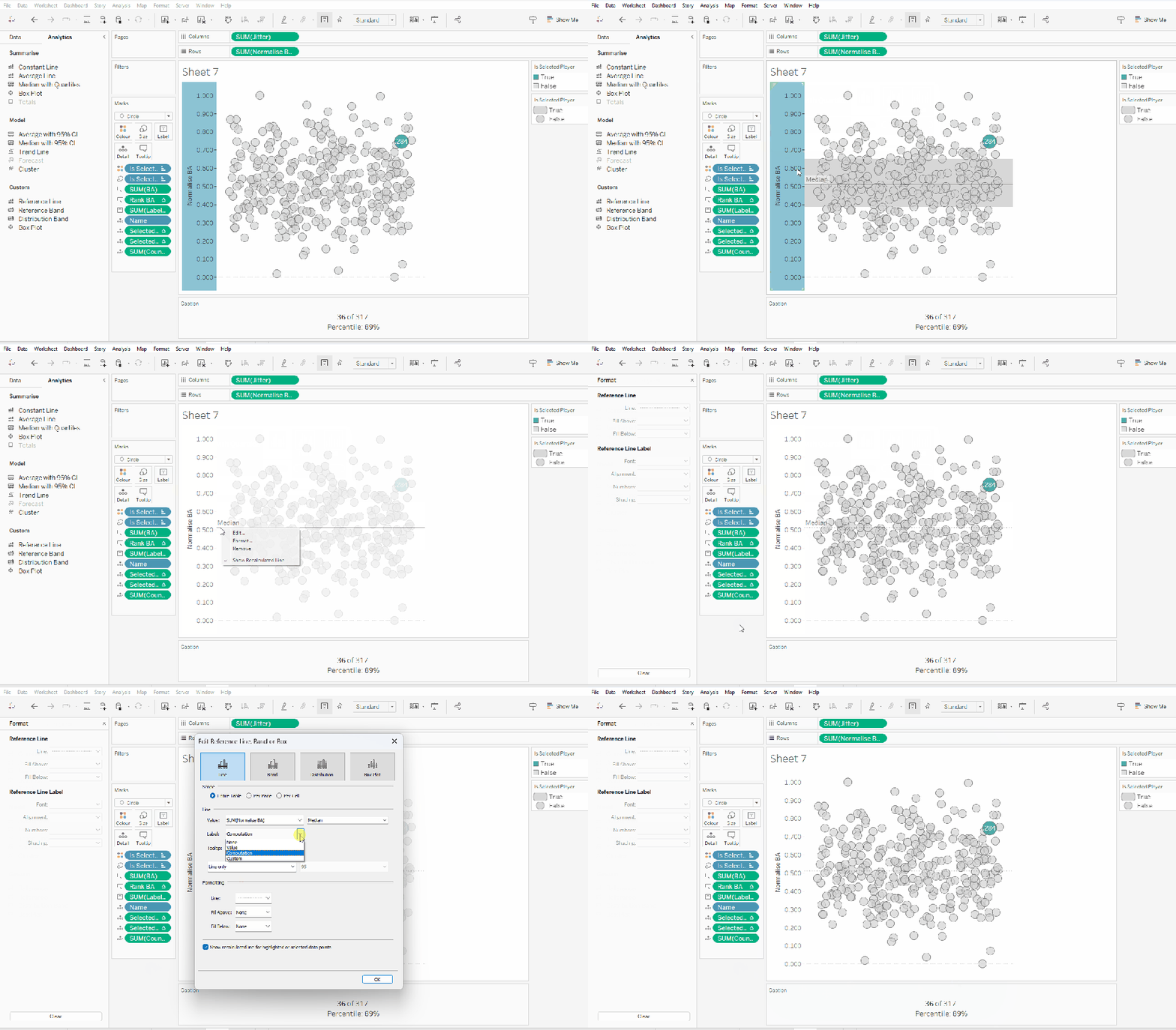
On a new sheet add Jitter to Columns and Normalise BA to Rows. Add Name to Detail and change the mark type to Circle.

Add Is Selected Player to Colour, adjust accordingly and add a border to the circle. I dropped the opacity to 70%. Order the colour legend, so True is listed first, to ensure this circle is always ‘on top’.

Then add Is Selected Player to Size. Edit the sizes so they are reversed and adjust the sizes until you’re happy.

To label just the selected player mark

Label:BA

IF [Is Selected Player] THEN [BA] END

format this with a custom number font ,##.000;-#,##.000

Add this to the Label shelf and adjust the font colour, and align centrally

Add Rank BA and BA to the Tooltip shelf and adjust tooltip to suit. You will need to adjust the table calculation setting of the Rank BA field so that it is computing by all the fields.

Add Selected Player BA Rank and Selected Player BA Percentile and Count Players to the Detail shelf. Adjust the table calculations as above (including any nested calcs), then show the worksheet caption (Worksheet -> Show Caption), and edit the caption to display the relevant text.

From the analytics pane, drag the Median with Quartiles option onto the canvas and drop it on the table / Normalise BA axis option. Remove the quartile reference lines (right cick axis -> remove reference line), and edit the median reference line to be a dashed line with no label.

Finally remove all gridlines/dividers/axes lines and hide the axes. Title the sheet as per the measure ie BA, and align centrally.

Format the Caption and the Title to have a light grey background and a slightly darker thin border.

Now, repeat all that for the other measures 🙂 This isn’t that bad. All the fields above labelled BA, need duplicating, renaming and updated to reference the next measure eg OBP.

Once done, duplicate the BA jitter plot sheet, and replace all the ‘BA’ related fields with the equivalent ones, by dragging the equivalent field and dropping it directly on top. Sense check the table calculation settings are all ok. You may need to update the text in the caption, as that seems to lose anything to do with the table calculation fields referenced when they get touched.

Ultimately you should end up with 4 sheets.

Putting it all together

On a dashboard, use a horizontal container to position all 4 sheets in side by side. Show the worksheet caption for each sheet. Reduce the outer padding for each sheet to 0, and add a thin border around each sheet.

Add a parameter action to drive the interactivity ‘on click’ of a circle

Select Player

On select of any of the source sheets, update the Select a Player parameter with the value from the Name field. Retain the selected value on ‘unclick’

To prevent the selection on click from being ‘highlighted’, and al the other marks ‘fading’, we need one final step.

Create new calculated fields

True

TRUE

False

FALSE

Add both these fields to the Detail shelf of each of the 4 sheets.

Then add a dashboard filter action for each sheet which on select, goes from the sheet on the dashboard to the worksheet itself, passing the selected fields of True = False. Show all values when unselected.

My published viz is here. Kyle’s solution with a lot less calculated fields, and only 2 sheets (1 for the jitter and 1 for the summary section at the bottom) is here. You will need to pivot the data via the data source pane first through 🙂 Next time, when I really feel something should be able to be done in 1 sheet, I’ll try to think a little longer…. upshot though, I impressed myself at the use of the caption for the summary – something I must consider using more often!

Happy vizzin’!

Donna

Interactive Proportional Brushing

For her final challenge of #WOW2022, Erica set this interesting challenge; to show how the sales of the top n Products within each Sub-Category compared against the total sales. An added twist was to flip the display between actual sales, and % of total.

It did take me a short while to get my starting point. When I’ve worked with the concept of proportional brushing before, it’s typically involved set actions and one viz driving the interactivity on another viz via a dashboard action. I didn’t have this. I’ve obviously come up with a solution, but I’m not sure if it’s overly complicated… it doesn’t seem it, but for some reason I feel it could have been simpler than I’ve made it. Only time will tell as I check out other solutions.

My solution involves table calcs, so as I do with many challenges, I’ll start by building out all the data I need in tabular form.

Defining the calculated fields

Start off by adding Sub-Category to Rows, Product Name to Rows and Sales into Text and sort descending. We want to identify the Product Names in the top n, so lets first rank the products per sub-category. Create a calculated field

Sales Rank

RANK_UNIQUE(SUM([Sales]))

Make it a discrete field, then add it to Rows between Sub-Category and Product Name. Set the table calculation to compute using Product Name.

The rows should be numbered from 1 upwards, and restart at 1 when the Sub-Category changes

We want to get the sum of the sales for all those products in the top n. We’ll use a parameter to identify the n

pTop

Integer parameter defaulted to 10

Then we’ll use another table calculation to get the sum of the sales in that top n

Sales in Top n

WINDOW_SUM(IF [Sales Rank]<=[pTop] THEN SUM([Sales]) END)

If the Sales Rank is less than or equal to the top parameter, then get the Sales for that row, then sum all the sales values up together.

Show the parameter on screen, and add Sales in Top n into the table, setting the table calc to once again compute using by Product Name.

You should see that the sum of the sales for the rows marked 1-10 should equate to the value in the Sales in Top n column for the Sub-Category

We also need to get the total sales for each Sub-Category, which we can do with

Sub Cat Sales

{FIXED [Sub-Category]: SUM([Sales])}

Format to $ with 0 dp and displayed in k.

With this , we can also determine the proportion of sales

Top n % of Total

[Sales in Top n]/SUM([Sub Cat Sales])

Format this to a % with 0 dp.

Add both these fields to the table, making sure the table calcs are set to compute using Product Name.

So now we’ve got the base fields that form the building blocks for the viz. But we have this added functionality where we want to show either actual values (ie Sales in Top n and Sub Cat Sales), or we want to show the Top n % of Total compared to the ‘whole’ ie 1.

To manage this, we first need the parameter to control the decision

pView

integer list parameter set to 0 or 1, with appropriate display values. and defaulted to Sales Value

We can then build

Measure 1 to Display

CASE [pView]
WHEN 0 THEN [Sub Cat Sales]
ELSE 1
END

and

Measure 2 to Display

CASE [pView]
WHEN 0 THEN [Sales in Top n]
ELSE [Top n % of Total]
END

Pop these into the table and show the pView parameter. Test changing the parameter and see the results. Don’t worry that the % shows 0.. you can format the Measure 2 to Display field to show 2 dp if you want to see the data really changing.

Building the bar chart

On a new sheet, add Sub-Category to Rows, Product Name to Detail and Measure 1 to Display to Columns.

Drag the Measure 2 to Display field onto the Measue 1 to Display axis, and release when the 2 green columns symbol appears

Set the Measure 2 to Display field to compute using Product Name, then move Measure Names from Rows to Colour, and adjust the colours. Ensure Measure 2 to Display is listed first in the colour legend, so the marks are on top. Set stack marks to off (Analysis menu -> Stack marks -> off) to make the bars a single block, rather than being split per Product.

Switch the view parameter to change the display and verify it behaves as expected

Add the Top n % of Total field to Rows and change to be discrete (blue). Ensure the field is set to compute by Product Name still.

Create a new field

Label to Display

CASE [pView]
WHEN 0 THEN [Sub Cat Sales]
ELSE NULL
END

Format this to $ with 0 dp and displayed in k. Add this to the Label shelf

Add Sub Cat Sales to the Tooltip shelf and then adjust the tooltip to match.

The final step (other than formatting) is to apply the sorting. Create a new field

Sort

CASE [pView]
WHEN 0 THEN SUM([Sub Cat Sales]) * -1

ELSE [Top n % of Total] *-1
END

Make this field discrete and then add to Rows in front of the Sub-Category pill. You should now find the bars are being sorted descended depending on the view being displayed

Finally, tidy everything up – Uncheck show header on both the Sort and Measure Values pills. Hide field labels for rows to remove the column headings. Change the font size/format of the first two columns, and adjust the colour of the bar label. Remove all gridlines, column banding etc.

Finally add to a dashboard. I used a horizontal container, text boxes and padding to build up the parameter selections at the top. My published viz is here.

Happy vizzin’!

Donna

Average Patient Wait Times

Erica set this challenge this week to provide the ability to compare the average wait time for patients in a specific hour on a specific day, against the ‘overall average’ for the same day of week, month and hour.

As with most challenges, I’m going to first work out what calculations I need in a tabular form, and then I’ll build the charts.

  • Building the Calculations
  • Building the Wait Time Chart
  • Building the Patient Count Chart

Building the Calculations

The Date field contains the datetime the patient entered the hospital. The first step is to create a field that stores the day only

Date Day

DATE(DATETRUNC(‘day’,[Date]))

From this I could then create a parameter

Choose an Event Date

date parameter, defaulted to 6th April 2020, and custom formatted to display in dddd, d mmmm yyyy format. Values displayed were a list added from the Date Day field.

I also created several other fields based off of the Date field:

Month of Date

DATENAME(‘month’,[Date])

if the Date is Friday, 10 April 2020 16:53, then this field returns April.

Day of Date

DATENAME(‘weekday’,[Date])

if the Date is Friday, 10 April 2020 16:53, then this field returns Friday.

Hour of Date

DATEPART(‘hour’, [Date])

if the Date is Friday, 10 April 2020 16:53, then this field returns 16. I added this to the Dimensions (top half) of the data pane.

The viz being displayed only cares about data related to the day of the week and the month of the date the user selects, so we can also create

Records to Keep

DATENAME(‘weekday’, [Choose an Event Date]) = [Day Of Date]
AND
DATENAME(‘month’, [Choose an Event Date]) = [Month of Date]

On a new sheet, add this to the Filter shelf and set to True. When Choose an Event Date is Monday, 06 April 2020, then Records To Keep will ensure only rows in the data set relating to Mondays in April will display. Let’s build this.

Add Hour of Date, Day of Date, Month of Date to Rows, and then also add Date as a discrete exact date (blue pill).

You can see that all the records are for Monday and April. And by grouping by Hour of Date, you can see how many ‘admissions’ were made during each hour time frame. Remove Day of Date and Month of Date – these are superfluous and I just added so we could verify the data is as expected.

The measures we need are patient count and patient wait time. I created

Count Patients

COUNTD([Patient Id])

(although the count of the dataset will yield the same results).

Add Count Patients and Patient Waittime into the table.

This is the information that’s going to help us get the overall average for each hour (the line chart data). But we also need to get a handle on the data associated to the date the user wants to compare against (the bar chart).

Count Patients Selected Date

COUNTD(IF [Choose an Event Date] = [Date Day] THEN [Patient Id] END)

Wait Time Selected Date

IF [Choose an Event Date] = [Date Day] THEN [Patient Waittime] END

Add these onto the table – you’ll need to scroll down a bit to see values in these columns

So what we’re aiming for, using the hour from 23:00-00:00 as an example: There are 3 admissions on Mondays in April during this hour, 2 of which happen to be on the date we’re interested in. So the overall average is the sum of the Patient Waittime of these 3 records, divided by 3 (650.5 / 3 = 216.83), and the average for the actual date (6th April) in that hour is the sum of the Wait Time Selected Date for the 2 records, divided by 2 (509.5 / 2 = 254.75).

If we remove Date from the table now, we can see the values we need, that I’ve referenced above.

So let’s now create the average fields we need

Avg Wait Time

SUM([Patient Waittime])/[Count Patients]

Avg Wait Time Selected Date

SUM([Wait Time Selected Date]) / [Count Patients Selected Date]

Pop these into the table

This gives is the key measures we need to plot, but we need some additional fields to display on the tooltips.

Avg Wait Time hh:mm

[Avg Wait Time]/24/60

This converts the value we have in minutes as a proportion of the number of minutes in a day. Apply a custom number format of h”h” mm”mins”

Do the same for

Avg Wait Time Selected Date hh:mm

[Avg Wait Time Selected Date]/24/60

Apply a custom number format of h”h” mm”mins”

Add these to the table.

For the tooltip we need to show the hour start/end.

TOOLTIP: Hour of Date From

[Hour of Date]

custom format this to 00.00

TOOLTIP: Hour of Date To

IF [Hour of Date] =23 THEN 0
ELSE [Hour of Date]+1
END

custom format this to 00.00.

We can now start building the charts.

Building the Wait Time Chart

On a new sheet, add Records To Keep = True to the Filter shelf. Add Hour of Date as continuous dimension (green pill) to Columns and Avg Wait Time Selected Date to Rows. Change the mark type to Bar.

Then add Avg Wait Time to Rows and change the mark type of this measure to Line. Make the chart dual axis, synchronise the axis and adjust the colours of the Measure Names legend.

Add TOOLTIP: Hour of Date From and TOOLTIP: Hour of Date To and Avg Wait Time Selected Date hh:mm to the Tooltip of the bar marks card, and adjust the tooltip accordingly.

Add TOOLTIP: Hour of Date From, TOOLTIP: Hour of Date To, Avg Wait Time hh:mm, Day of Date and Month of Date to the Tooltip of the line marks card, and adjust the tooltip accordingly.

Remove the right hand axis. Remove the title of the bottom axis. Change the title on the left hand axis. Hide the ‘9 nulls’ indicator (right click). Remove column gridlines, all zero lines, all row and column dividers. Keep axis rulers. Format the numbers on the x-axis.

Change the data type of the Hour Of Date field to be a decimal, then edit the x-axis and fix to display from -0.9 to 23.9.

Amend the title of the chart to match the title on the dashboard.

Building the Patient Count Chart

On a new sheet, add Records To Keep = True to Filter, Hour of Date as continuous dimension to Columns and Count Patients Selected Date to Rows. Change Mark Type to Bar.

Right click on the y-axis and edit the axis. Remove the title, and check the Reversed checkbox to invert the axis. Edit the x-axis and fix from -0.9 to 23.9 as before.

Add TOOLTIP: Hour of Date From and TOOLTIP: Hour of Date To to the Tooltip and adjust accordingly.

Set the colour of the bars to match the same blue of the bars in the wait time chart, then adjust the opacity to 50%.

Remove all gridlines and zero lines. Retain axis ruler for both row and columns. Retain row divider against the pane only. Hide the x-axis.

We need to display a label for ‘Number of Patients’ on this chart. We will position it based on the highest value being displayed (rather than hardcoding a constant value). For this we create a new calculated field

Ref Line

WINDOW_MAX([Count Patients Selected Date]) +1

This returns the maximum value of the Count Patients Selected Date field, adds 1 and then ‘spreads’ that value across all the ‘rows’ of data.

Add this field to the Detail shelf. Then right click on the y-axis and Add Reference Line.

Add the reference line based on the average of the Ref Line field, and label it Number of Patients. Don’t show the tooltip, or display any line.

Once added, then format the reference line, and adjust the size and position of the text.

The sheets can now be added to a dashboard, placing them above each other. They should both be set to Fit Entire View. The width of the y-axis on the Patient Count chart will need to be manually adjusted so it is in line with the Wait time chart, and ensures the Hour columns are aligned..

My published viz is here.

Happy vizzin’!

Donna

What is the lifetime value of customers?

Luke Stanke set the #WOW2022 challenge this week (see here) asking us to visualise the lifetime value of customers. I have to admit, I did struggle to really understand what was being requested, and to get the numbers to match Luke’s. I ended up referring to my own blog post on a similar challenge Ann Jackson set in week 2 of 2021 to get the calculations I needed 🙂

We first need to define the quarter that each customer made their first purchase.

Customer First Order Quarter

DATE(DATETRUNC(‘quarter’, {FIXED [Customer ID]:MIN([Order Date])}))

The {FIXED LOD} calculation returns the minimum order date per customer, then truncates this to the first day of the quarter that date falls in.

We then need to determine the difference in quarters between the Customer First Order Quarter and the quarter associated to the Order Date of each order in the data set. The requirement indicated we needed to add 1 to the result. I split this into multiple calculated fields. Firstly,

Order Date Quarter

DATE(DATETRUNC(‘quarter’, [Order Date]))

gets me the quarter of each Order Date, then

Quarters Since First Purchase

DATEDIFF(‘quarter’, [Customer First Order Quarter], [Order Date Quarter])+1

Let’s pop these fields out into a table to check things are behaving as expected.

Add Customer First Order Quarter and Order Date Quarter to Rows as discrete exact dates (blue pills), and add Quarters Since First Purchase to the Text field, but set it to be a dimension, so it is disaggregated.

Now we need to count the number of distinct customers that made a purchase in each Customer First Order Quarter (the cohort)

Count Customers Per Cohort

{FIXED [Customer First Order Quarter]: COUNTD([Customer ID])}

Add this to to the sheet, along with Sales (I moved Quarters Since First Purchase to rows too)

As expected, we can see the same customer count for each Customer First Order Quarter cohort.

We’ve now got all the building blocks to move on the the next requirement, but I’m going to rearrange the table a bit, to start to reflect the data actually needed for the output.

The x-axis of the chart is going to be based on the Quarters Since First Purchase field, so move that to be the first column of data (1st entry in Rows). Then remove Customer First Order Quarter and Order Date Quarter, as we don’t need this level of information in the final viz.

We now have the sum of all the customers and the total sales, so we can now create the division reqiurement

Sales / Customer

SUM([Sales])/SUM([Count Customers Per Cohort])

I set this to currency $ with 0 dp.

Add this to the table

Then to make this a running total, create a Running Total quick table calculation off of this field (right click on field -> Quick Table Calculation -> Running Total). Add back in Sales/ Customer.

We’ve now got all the components needed to build the viz, but do require an additional calculation to be displayed in the tooltip, which is the difference between each row.

Right click the existing running total Sales / Customer pill (the one with the triangle) and choose to Edit Table Calculation. Tick the Add secondary calculation checkbox and choose the Difference From table calc to run down the table, making the calc relative to the previous row.

Re-add a Running Total quick table calc to the other Sales / Customer pill, and then add Sales / Customer back into the view (it’s annoying that Tableau won’t let you add multiple pills of the same measure name unless they have a different calculation against them).

The snag with this is that we need a value to display for the first row. We need to create a new field that can reference the data in the second table calculation. Click and drag the ‘difference’ table calculation field into the Data pane, and name the field Difference. It should look like below, but you shouldn’t have needed to type any of that.

Difference

ZN(RUNNING_SUM([Sales / Customers])) – LOOKUP(ZN(RUNNING_SUM([Sales / Customers])), -1)

Now create a new calculated field

Tooltip:Difference

IF FIRST()=0 THEN [Sales / Customers] ELSE [Difference] END

Set this to a customer number format of 1dp, prefixed by + (the data is always cumulative so is never going to have a -ve value, so this works).

Now we can build the viz.

On a new sheet add Quarters Since First Purchase to Columns as a continuous dimension (green pill), then add Sales / Customers to Rows and set to be a Running Total quick table calc. Change the mark type to be a Gantt Bar.

Create a new field

Size

[Tooltip:Difference]*-1

and add this to the Size shelf.

Add a second instance of the Sales / Customer running total calc (press ctrl and click and drag the existing pill in rows to create another next to it). Change the mark type of this to be bar. Remove the Size pill, and then click the Size shelf button, and set the Size to be fixed, aligned left.

Now make the charts dual axis and synchronise the axis. Set the colour of each mark type to the relevant palette, and set the mark borders to None. Hide the right hand axis.

On the All marks card, add the Tooltip:Difference and Count Customers Per Cohort fields to the Tooltip shelf, and amend the tooltip to match.

On the bar marks card, click the Label shelf button and tick the show mark labels checkbox. Align these left.

Remove the left hand axis, remove all gridlines and row/column dividers. Add column axis ruler and dark tick marks

Edit the x-axis and rename the title to Quarter of Order.

If you find you have the x-axis going from 0 to 18, then change the datatype of Quarters Since First Purchase from a whole number to decimal. (right click pill in data pane -> change data type -> Number(decimal).

Add the chart to a dashboard and boom! you’re done. My public viz is here. (note, I did notice some vertical dividers displaying in the area chart on public, but think this is a Tableau Public ‘bug’ as I’ve switched off all the lines I can think of, and Desktop displays fine….

Happy vizzin’!

Donna

Can you use Tableau to estimate Aaron Judge’s home run trajectories?

It’s community month still for #WOW2022, and this week saw Samuel Epley set this challenge to visualise the home run trajectories of Aaron Judge.

I had a little mini-break to Rome this week, so was hoping I was going to be able to get this week’s challenge done and dusted on the Tuesday evening if it landed early enough, as I wasn’t going to be around.

It did land on the Tuesday for me, but wow! it was not going to be easy! I managed to build the KPIs & the scatter plots on the Tuesday evening, and knowing I didn’t have much time, just chose to use the Home Runs stats data set only. I knew these charts weren’t going to need any data densification, so found this approach simpler.

I’m afraid I’m still constrained by time at the moment, so this post isn’t going to be the detailed walkthrough you might usually expect – sorry! I’m just going to try to pull out key points from each chart.

KPIs

I built this on a single sheet, using Measure Names and Measure Values.

I used aliases on the Measure Names (right click -> Aliases) to change the label you can see displayed ie the Distance pill is aliased to ‘Average Distance’

I also custom formatted the various numbers and applied suffixes to display the unit of measure

Note – to To get the degree symbol, I typed Alt+ 0176

Scatter Plots

I built the Exit Velocity by Distance scatter plot first, and completed all the formatting & tooltips. Then I duplicated the sheet to form the basis of the other scatter plots, and just swapped the relevant pills as needed.

For the ball shape, I loaded the provided images as custom shapes into my shapes repository. I then just created the following calculated field to use as a discrete dimension I could add to the Shape shelf

Ball Shape

[HR Number]%9

It’s not as completely randomised as perhaps it should be, but it looks random enough on the display.

The Pitcher in the data is in the format <Surname>, <Forename>, but on the tooltip it needs to display as <Forename> <Surname>, so I just used a transformation on the Pitcher field to split the field based on the comma (right click Pitcher -> Transform -> Split). This automatically created 2 fields I could use on the Tooltip.

I also noticed a very subtle wording change in the tooltip based on whether the match was Home or Away. If Home, the tooltip read ‘New York Yankees vs. <Opposition>’ otherwise it read ‘New York Yankees at <Opposition>’. I used a calculated field for this logic

TOOLTIP: vs or at

IIF([Location]=’Home’,’vs.’, ‘at’)

The Trajectory Plot

OK, so this was the hardest part of this challenge, and mainly due to getting your head round the physics involved, as so many of the calculations are dependent on each other.

I’m generally pretty confident with my maths, but this was complex, especially with the force calculations for the y-axis. Samuel stated that both gravity and drag impacted the Y-axis calcs, but it wasn’t clear to me how both these forces should be applied (a bit of trial and error and I ended up adding them within the formula).

By the time I came to tackle this challenge, Samuel had already posted a video walkthrough, which can be viewed here and is another reason why I’m not going down to the nth degree in this post.

My suggestion is to watch Samuel’s video and/or feel free to download my workbook. I built my workbook independent of Samuel’s video, so there may be steps/calculations that differ.

However, I have tried to number my calculations in the order in which I created them, so you can hopefully follow the thought process. I have also left a CHK:Data sheet in the workbook, which I used to sense check what I was doing.

All the table calculations in the CHK:Data sheet are just set to the default ‘table down’ as I have filtered the sheet to a specific Home Run (HR Number = 1) only (ie I didn’t change any of the table calc settings as I added the pills to the sheet).

However, when you build the main trajectory chart, you have multiple HR Numbers in the view, so all the table calculations must be set so that calculations are only working for each HR Number. This means that any table calc (and any nested calculations) need to have all the fields except HR Number checked

When using the Pages shelf, which isn’t something I’ve ever really had to do before, you need to Show History and adjust the various settings to get the trail lines to show

To rotate the ball (the bonus option), you need another field to use on the Shape shelf. I had lost the will to live a bit by this point, so used the formula from my friend Rosario Gauna’s solution.

Rotation Shape

STR(IIF([14-Start Position Y m] <= 0, 0,
(MIN([Time Interval]) * 1000 / 25) % 9))

Note – when you add this to the Shape shelf, and select your baseball palette, just then use the Assign Palette button to automatically assign a ball to a number – this will get them into the correct order, without you having to do it one by one.

Finally, when adding the reference average lines, be sure to set the scope to per pane rather than table, otherwise you’ll end up with the wrong figures.

I think I’ve pretty much covered all the ‘little’ points that I came across that may trip you up, aside from all the tricky calcs of course!

My published workbook is here. I hope what I’ve written is enough for you to build it yourself. I think I’d still be here next year if I tried to do anything more fully! I’m off for a lie down now!

Happy vizzin’!

Donna

Can you do YoY comparisons?

Community month for the #WOW2022 team continued this week, with Liam Huffman setting this challenge to build a year on year comparison chart with twist.

Typically when building YoY charts you compare the month from last year with the same month this year, or a week from last year with this year (eg week 3 2021 v week 3 2022), or a specific date last year with this year (eg 4th March 2021 with 4th March 2022). However for this challenge, the focus was on being able to compare based on equivalent weekdays (at least that’s what I understood from reading). By this I mean if 10 October 2022 is a Monday, that needs to be compared with the equivalent weekday in the previous year. 10 October 2021 was a Sunday, so we actually need to compare Monday 10 Oct 2022 with Monday 11 Oct 2021.

So that’s the direction I took with this challenge, but in doing so couldn’t get the numbers to exactly match with Liam’s solution. Unfortunately I just couldn’t get my head around Liam’s approach even after looking at it. So I’m blogging this based on my interpretation of the requirement, which may be flawed.

Baselining the Dates

When building YoY charts like this which need to be flexible based on the date part selected, you need to ‘baseline’ the dates; well that’s the term I use, others might refer to it as normalising. Ultimately you need to get the dates that span multiple years to all align to the same year, so you have a single x-axis that just spans a single year.

Now based on what I talked about above, its not just a case of changing the year of every Order Date to match for all the records, we need to find the equivalent weekday from the previous year and align that.

To do this I first created a parameter

pToday

date parameter defaulted to 10 Oct 2022

This is simply to provide a constant end point. In a business scenario when the data changes, any reference to pToday would just use TODAY().

I then created

1st Day of Current Year

DATE(DATETRUNC(‘year’, [pToday]))

This returns 1st Jan 2002

I then worked out what weekday this was

Weekday of 1st Day Current Year

//determine the day of the week this year started on, based on todays date
DATENAME(‘weekday’, [1st Day of Current Year])

This returns Saturday

I then wanted to find the date of the first Saturday in every year, but firstly I needed to determine the weekday for each Order Date

Weekday

DATENAME(‘weekday’, [Order Date])

Date of 1st weekday Per Year

//get the first date in each year which falls on the same weekday as the first day of the current year
//ie 1st Jan 2022 is a Saturday. This is day 0 for 2022. We need to find day 0 for every other
//year, which is the date of the first Saturday in that year

{FIXED YEAR([Order Date]): MIN(IF [Weekday]=[Weekday of 1st Day Current Year] THEN [Order Date] END)}

For each year, get all the dates which fall on a Saturday, then returned the earliest one of those.

Popping all this information out in a table, we can see that in 2019, the first Saturday in the year was 5th Jan 2019, so all the records for dates in 2019 are stamped with 5th Jan 2019.

This Date of 1st weekday Per Year is essentially day 0 for each year. We now need to record a number against each day in the year

Days From Date

//get the number of days from the date of 1st weekday per year
DATEDIFF(‘day’, [Date of 1st weekday Per Year], [Order Date])

And with this number, we can now record the equivalent date in 2022 against each date

Baseline Date

//need to normalise all dates for every year to the current year,
//ie Day 0 for every year = 01 Jan 2022

DATE(DATEADD(‘day’, [Days from Date], [1st Day of Current Year]))

Add these fields into the tabular view and you should hopefully see how this is working

Building the Line Chart

We need some additional parameters to help build the chart.

pDatePart

string parameter defaulted to Month, with 3 values listed as shown below

pStartDate

date parameter set to use the 1st Day of Current Year when the workbook opened, meaning current value was 1st Jan 2022

pEndDate

date parameter set to use the pToday parameter when the workbook opened, meaning current value was 10th Oct 2022

With the pDatePart field, we need to define the actual date we’re going to plot

Date to Plot

DATE(DATETRUNC([pDatePart], [Baseline Date]))

when this is set to week, the date for all days in the same week are set to the first date in the week. Similarly, when this is set to month, all dates in the same month are set to 1st of the month.

The data also needs to be filtered based on the start & end dates selected, so we need

Dates to Include

[Baseline Date]>= [pStartDate] AND [Baseline Date]<=[pEndDate]

Add this to the Filter shelf of the tabular view and set to True. Also add Date to Plot into the table, and show all the parameters. Change the dates and the date part field and familiarise yourself with how the parameters impact the data.

Now we’re happy we’ve got all the key fields we need, then create a new sheet, show the parameters and add Dates to Include = True to Filter.

Then add Date To Plot as an exact date continuous (green) pill to Columns and Sales to Rows.

Create

Order Date Year

YEAR([Order Date])

and add to Colour. Adjust the colours accordingly.

Format the Sales axis, so the numbers are displayed as numbers rolled up to thousands (k) with 0 dp. Edit the Date to Plot axis to remove the title, then format the dates displayed to be in dd mmm custom format. Remove all gridlines and zero lines. Only axis lines should be displayed. Update the title.

Add Date to Plot to Tooltip as a discrete attribute (blue pill). Add MIN(Order Date) to Tooltip too. Adjust tooltip wording to suit.

Building the bar chart

Add Order Date Year to Rows and Sales to Columns. Sort Order Date Year descending.

Add Order Date Year to Colour. Adjust the opacity to about 50% and add a border. Widen the rows. Add Sales to Label and format label to be $K to 1 dp.

Add another instance of Sales to Detail, then adjust to use a Quick Table Calculation of Percent Difference. Move this pill from Detail to Label. Adjust the table calculation so it is relative to Next rather than previous

Format the Sales field that has the table calc, so it is custom formatted to ↑ 0.0%; ↓ 0.0%

Modify the label so the % change is in ( ) .

Add MIN(0) to Columns (type directly in to the columns shelf). Remove the two Sales fields from the marks card, and add another instance of Order Date Year to the Label shelf. Adjust the Label so the font is larger, matches mark colour and is rotated.

Make the chart dual axis, and synchronise axis.

Turn off all tooltips, hide the Order Date Year column and both axis. Remove all gridlines and row & column borders. Add a title. Remove any instance of Measure Names that may have been added to the Colour shelf of either marks card.

And add Dates To Include = true to the Filter shelf.

Adding the interactivity

Add the sheets onto a dashboard and adjust the layout to match. I floated the parameters and positioned with some floating text boxes too, to get the desired display.

Add a highlight dashboard action

Highlight Trend

which on hover of the bar, highlights the trend line via the Order Date Year field only.

To manage the filtering of the bars, I decided to use a parameter action, by passing the date related to the point selected. For this I created

pDateHovered

I used a string parameter, so I had a value I could use to reset to

I then needed to create an additional field

Date to Plot String

STR([Date to Plot])

and I added this to the Detail shelf on the trend sheet. This needs to be set to be an attribute, so the lines remained joined up.

Additionally I needed

Filter On Hover

[pDateHovered] = ” OR [Date to Plot] = DATE([pDateHovered])

which I added to the Filter shelf of the Bar chart sheet and set to true.

Then back to the dashboard, create a parameter action

Filter Bars

which on hover on the trend chart, updates the pDateHovered parameter passing through the Date To Plot String field, and resets back to <empty string> when released.

And that should be it… my published viz is here.

Happy vizzin’!

Donna