Can you create an area chart tile map?

This week, Kyle set the challenge of recreating area charts combined with a tile map / small multiple. He’d been inspired by a viz he uses at work, which he then realised had actually been inspired by a previous #WorkoutWednesday challenge from 2020 which I actually blogged about here.

So some of the steps for this solution guide, I’ll lift from my existing blog :-), but there are no table calcs in this instance.

Building the basic tile map

As per Kyle’s instructions, I started by building a new field that I could then format to millions

Pop

[Population (Population)] * 1000

I formatted this to be a custom number with 2 dp and displayed with Millions unit.

Put this into a table where State and Date on Rows and Pop on Text, just so we can validate what we’re up to…

We need to standardise/normalise the display, so the population for each State is ranging from 0 to 1. For this we need to determine

Min Pop Per State

{FIXED [State]:MIN([Pop])}

Max Pop Per State

{FIXED [State]:MAX([Pop])}

and we can then work out

Standardised Pop

(SUM([Pop]) – SUM([Min Pop per State]))/(SUM([Max Pop per State]) – SUM([Min Pop per State]))

Format this to display as a number with 2 dp. Add all 3 fields to the table. For each state the Standardised Pop should have a year when then value is 0 (equivalent to when the population is lowest for the state) and a year when the value is 1 (equivalent to when the population is highest for the state).

For the tile map, we also need fields Rows and Cols which are calculations that map each State to a number (and can be copied straight from the challenge sheet).

On a new sheet, add Rows to Rows (as a discrete dimension) and Cols to Columns (also as a discrete dimension). Add State to Detail. Your initial ‘map’ layout should start to take shape.

Add Date to Columns and set to be a the continuous Year level (green pill) and add Standardised Pop to Rows. Set the display to Entire View, so all the tiles are visible.

Change mark type to Area and add Pop to the Tooltip. Update the Tooltip as required.

Adding the State label and max value

For this we’re going to plot a single point that will be at the centre of the Date axis and slightly higher than 1. For this we need

Centre Date

DATE(DATEADD(‘year’,
FLOOR((YEAR({FIXED:MAX([Date])}) – YEAR({FIXED:MIN([Date])}))/2),
{FIXED:MIN([Date])}
))

This looks a bit complex, so I’ll break it down. What we’re doing is finding the number of years between the minimum year in the whole data set (1900) and the maximum year in the data set (2023). This is

YEAR({FIXED:MAX([Date])}) – YEAR({FIXED:MIN([Date])})

We’re then halving this value ( /2) and rounding it down to the nearest whole number (FLOOR).

We then add this number of years to the minimum date in the data set (DATEADD), to get our central year – 1961.

Now we need a point where we can plot a mark against that date. It needs to be above the maximum value in the area chart (which is 1). Based on what I did before, I decided 1.75 worked

Plot State Label

IF YEAR([Date]) = YEAR([Centre Date]) THEN 1.75 END

Add Plot State Label to Rows between Rows and Standardised Pop. Change the mark type of this axis to shape and use a transparent shape (see here for info). Note you can use a circle and reduce size to smallest and opacity to 0% if you wish. However, this will show a small dot when hovering, which you don’t get with a transparent shape.

Add Max Pop per State to Label and change State from Detail to Label. Adjust the Label accordingly

Remove all text from the Tooltip dialog of the Plot State Label marks card, and hide the Nulls indicator label. Make the chart dual axis and synchronise the axis. Remove Measure Names from the All marks card.

Then remove all gridlines, zero lines, axis lines and row/column dividers. Hide all the axis and the Cols and Rows pills (uncheck show header).

Building the bar chart

Create a new field

Latest Pop per State

IF [Date] = {FIXED [State]:MAX([Date])} THEN [Pop] END

If the date is the maximum date for the state, then get the population. Format this to be 2dp in Millions.

Add State to Rows and Latest Pop for State to Columns and sort descending. Adjust the colour to suit. Show mark labels, and remove all gridlines etc and row/column dividers and hide the axis. Adjust the Tooltip.

Creating the highlight action

Add the two sheets to a dashboard. Add a dashboard highlight action

Highlight State

On hover of the bar chart, target the map, via the State field only.

And that should be it! My published viz is here.

Happy vizzin’!

Donna

Can you include and exclude options with a custom control?

It was my turn this week to set the challenge which I based on an example of a viz that I’d seen at work.

I built the viz using 3 sheets and using techniques similar to that described in a previous challenge documented here where I used parameter actions. It’s likely set actions can be used too, although I haven’t tested this out.

Building the bar chart

Format Sales to $ with 0dp, then add State/Province to Rows and Sales to Columns and sort descending. Add State/Province to Filter and filter by Top 5 based on Sales.

Double click on the Columns shelf and manually type MIN(0) to create a second axis. Make the chart dual axis and synchronise the axis. Change the mark type of the Sales marks card to Bar and the mark type of the MIN(0) axis to Gantt. Add Measure Names to Rows.

Remove Measure Names from the Colour shelf of both marks cards. Then add State/Province and Sales the Label shelf of the MIN(0) marks card. Arrange the text to match.

Reduce the size of the MIN(0) gantt bar to as small as possible, and reduce the opacity of the mark (via the Colour shelf) to 0%.

Update the Tooltip on the Sales marks card to match, but delete all text from the Tooltip of the MIN(0) marks card.

Add State/Province to the Colour shelf of the Sales marks card, and adjust accordingly. I chose to set the opacity to 50% based on the colours I chose.

Hide both axis, and both row heading (uncheck show header). Remove all gridlines, row/column dividers, axis ruler etc.

Name the sheet Bar or similar. We’ll come back to this later.

Building the trend line

On a new sheet, add Order Date to Columns set to a continuous monthly level (green pill) and Sales to Rows. Add State/Province to Colour (and reduce opacity if need be).

Go back to the bar chart sheet, and apply the State/Province filter to the trend line sheet too (right click on the pill in the filter shelf > apply to worksheets > selected worksheets).

Add a Running Total quick table calculation to the Sales pill (right click > quick table calculation > running total).

Add State/Province to the Label shelf, and set the font of the label to match mark colour. Adjust the text in the Tooltip. Format the Running Total Sales pill on the Rows shelf to be in $k with 0 dp. Delete the titles of both axis, and reduce the font size on the axis. Remove axis rulers/tick marks, zero lines, row/column dividers. Name the sheet Trend or similar.

Now, we need to be able to capture which States are being excluded. We need a parameter for this.

pUnselectedStates

string parameter defaulted to empty string/nothing

Show the parameter and manually type ‘Texas’ into the field. Based on what is in this parameter, will determine whether the state is unselected or not.

State is unselected

CONTAINS([pUnSelectedStates], [State/Province])

This returns True if the associated State/Province is listed in the parameter (so shouldn’t be visible) and False if it’s not listed (so should display).

Add State is unselected to the Filter shelf and set to False. The line for Texas will now disappear

Experiment by typing multiple states into the parameter eg Texas California

Building the selection control

On a new sheet add State/Province to Rows and sort by the Sales descending

Set the State/Province filter from another sheet to also apply to this sheet.

Double click into Columns and type MIN(0). Add State/Province to Colour (and apply opacity if required – I set this to 75%). Set the mark type to Shape and add State is unselected to shape. Use the Ratings shape palette to set the options.

We want the Tooltip to say something different, depending on whether the State/Province is selected or not.

Tooltip Include/Exclude

IF [State is unselected] THEN ‘include’ ELSE ‘exclude’ END

Add this to the Tooltip shelf, then update the text

We want to align this sheet with the bar chart, so we need to add another instance of MIN(0) to Columns. Make the chart dual axis and synchronise the axis. Remove Measure Names from the Colour shelf of both marks cards. Add Measure Names to the Rows shelf.

On the first MIN(0) marks card, remove all the fields from the card, reduce the size to as small as possible, and the opacity to 0%. Set the Shape to be a transparent shape (see this post for more details).

Now, we need a way to populate the pUnSelectedStates parameter with values from the selector sheet itself. Given the set of ‘unselected’ states can ‘build’ up, we can’t just pass in a single state from the State/Province field itself. We need to capture a delimited list of the states as they are unselected & reselected. We will use the | character as the delimiter, and will modify the string as follows

ActionpUnSelectedStates
All states selected<empty string>
1 state unselected eg Texas|Texas|
2 states unselected eg Texas then California|Texas||California|
1 state then reselected eg Texas then California unselected, Texas reselected|California|
1 state reselected again eg Texas then California unselected, Texas reselected, then California reselected<empty string>

This is captured within this logic

States for Param

IF CONTAINS([pUnSelectedStates], [State/Province]) THEN
//state already in parameter, so remove it
REPLACE([pUnSelectedStates],’|’ + [State/Province]+ ‘|’,”)
ELSE
//add state to string
[pUnSelectedStates] + ‘|’ + [State/Province] + ‘|’
END

If the State is already stored in the parameter, then remove it, by replacing the text with ” (empty string), otherwise append the state to the existing text in the parameter.

Add this field to the Detail shelf of the first MIN(0) marks card.

Hide all the axis and the row headings. Remove all row/column dividers, gridlines, zero lines, axis rulers etc. Reset the parameter back to an empty string.

Name the sheet Selector or similar.

Identifying if the bars are selected or not

Before we build the dashboard, we can now tweak the bar chart, so the colour of the bars reflects whether the State/Province is selected or not.

Back onto the bar chart sheet, add State is unselected to the Detail shelf of the Sales marks card. Then use the icon next to the pill and change it from Detail to Colour to add a secondary pill to the Colour shelf

Swap the pills around, so the State is unselected pill is above the State/Province pill, and the colour legend should list entries as False, <State>. Readjust the colours if need be.

Now enter ‘Texas’ into the pUnselectedStates parameter. The legend will update so that True,Texas is now listed. Adjust the colour of this option to white, and set a light grey border (via the Colour shelf), so the outline of the bar is visible.

Go through each listed State/Province adding it to the parameter and the adjusting the True, < State> colour legend to white each time.

Once done, set the pUnselectedStates parameter back to empty string.

Building the dashboard and adding the interactivity

Using containers, add the objects to a dashboard. I used a horizontal container to store the 3 charts, but the selector and the bar chart were also then contained within their own horizontal container. All charts were set to fit entire view. This allows for a border to be set around both objects. If everything is set right, you should be able to get the selector circles aligned with the bars.

I also used background colours and padding to get everything displayed as required.

Add a dashboard parameter action to capture the user interactivity

Unselect State

on select of the Selector sheet, update the pUnselectedStates parameter by passing the value of the States for Param field. Keep current value when unselected.

Finally to prevent the selected option from remaining ‘highlighted’ and all the other options becoming ‘faded’ out’, we can use the True/False trick described here.

My published viz is here.

Happy vizzin’!

Donna

Top & Bottom Variance

For #WOW2024 Week 6, Sean challenged us to create a viz depicting the top and bottom entries based on a variable set by the user. He instructed that no LoDs (level of detail calculations) should be used, and then also added a bonus to complete the challenge without using sets either (and so hinting that sets would solve the problem). I built both, and will provide the solution for both.

Setting up the common fields

Regardless of the solution, various calculated fields and parameters are required.

pTop

integer parameter defaulted to 12, which is used to drive how many entities to display in our top & bottom cohorts.

For the user to select a month, I first created a new field

Month of Order Date

DATE(DATETRUNC(‘month’, [Order Date]))

and I changed the default sort order of this field to descending (right click the field > default properties > sort > choose descending in the disalog box).

I then created a parameter

pSelectedMonth

date field that selects from a list that is populated when the workbook opens from the Month of Order Date field. Default to July 2021 and format the display to a custom format of mmmm yyyy – having defined the sort order to be descending, the most recent month will be at the top (this wasn’t in the requirements, but is just a useful trick to know).

Now we have a handle on the month we want to report over, we can create

Selected Month Sales

ZN(IF [Month of Order Date] = [pSelectedMonth] THEN [Sales] END)

Return the sales only if the month is that selected, otherwise return 0 (this is what the ZN function will do)

Format this to $ with 0dp.

Previous Month Sales

ZN(IF [Month of Order Date] = DATEADD(‘month’, -1, [pSelectedMonth]) THEN [Sales] END)

Return the sales only if the month matches the previous month to that selected, otherwise return 0.

Format this to $ with 0dp.

and with these, we can then create

Difference in Sales

SUM([Selected Month Sales]) – SUM([Previous Month Sales])

Format this to $ with 0dp too.

And we can also create

Colour – Diff > 0

[Difference in Sales] > 0

Pop all these into a table sorted by Difference in Sales ascending to see what it all looks like.

Solution 1 – Using sets

Right click on the State/Province field and create > set

Top States

using the Top condition to get the Top n States where n is the value from the pTop parameter, based on the Difference in Sales field.

and then create another set

Bottom States

using the Top condition to get the Bottom n States where n is the value from the pTop parameter, based on the Difference in Sales field.

Then right click on one of these states and create combined set

Top & Bottom

shows all members in both the Top States and the Bottom States sets

Add Top & Bottom to the Filter shelf. By default only the records ‘in’ either of the sets will display. Modify the pTop parameter to see the list change.

To build the viz

  • add State/Province to Rows
  • Add Difference in Sales to Columns and sort ascending
  • Add Top & Bottom to Filter
  • Add Colour – Dff > 0 to Colour and adjust accordingly.
  • Add Selected Month Sales to Tooltip and adjust
  • Show the pTop and pSelectedMonth parameters

To display the name of the month selected as a column header, create

Selected Month

[pSelectedMonth]

and add to Columns as a discrete (blue) pill at the month-year level. Hide field labels for rows and columns, remove all row/column dividers, zero lines, axis rules & tick marks.

Solution 2 – not using sets

This solution involves using the Rank table calculation

Create a new field

Asc

RANK_UNIQUE([Difference in Sales],’asc’)

and another called

Desc

RANK_UNIQUE([Difference in Sales],’desc’)

Revert back to the data table we built and remove the Top & Bottom set filter. Now add Asc and Desc to the output.

There are now two fields indexing each row; one which starts at 1 and increments, and the other that decrements so the last row is 1. We can now use these to filter just to the records we want

Records to Include

[Asc]<= [pTop] OR [Desc]<=[pTop]

Add this to the Filter shelf and set to True, and we can now see our top 12 and bottom 12 listed

Build the viz exactly as described above, but this time, add the Records to Include field onto the Filter shelf instead.

Pop these onto a dashboard and job done!

My published viz is here : Set Solution | Rank Solution

Happy vizzin’!

Donna

Excel at Tableau Interactivity with Dynamic Zone Visibility

Erica set the #WOW2024 challenge this week, asking us to recreate this ‘drillable’ functionality within a single dashboard.

To achieve this, I used 4 sheets

  • A large map
  • A small map
  • A table of data
  • A navigational control

along with parameter actions to drive the interactivity, and dynamic zone visibility to control what displayed when.

Building the large map

On a new sheet, double click on State/Province to automatically generate a map of the United States – if this doesn’t display by default, then make sure the location of your map settings are referencing the USA (Map menu > Edit Locations). Hide the ‘unknown’ indicator displayed bottom right. Change the mark type to map to create a filled map. Change the colour to a grey (I used #c0c0c0). Add State/Province to the Filter shelf and select Arkansas. Show the filter.

Click on the Tooltip button, and delete all the text in the dialog.

Now drag City onto the map and drop it on the section that appears labelled Add a Marks Layer. On the ‘City’ marks card that now appears, change the mark type to circle. Move City to the Label shelf and then also add State/Province to Detail. Change the colour of the circles to dark grey (I used #767f8b).

Update the Tooltip on the City marks card. Turn off all the map options to stop the pan/zoom map control options from appearing (map menu -> map options -> deselect all the options). Remove all row/column dividers.

Name the sheet Map-Large or similar.

Building the Small Map

Duplicate the Map-Large sheet, and name the new sheet Map-Small. Remove all background layers so just the state outline remains (Map menu -> background layers -> set washout to 100%).

On the Label shelf of the City marks card, uncheck show mark layers so the name of the city is not displayed and click on the Tooltip shelf and uncheck show tooltips, so they aren’t displayed either.

On this map, we need to highlight a selected City. For this we need a parameter to capture the City, and a calculated field to identify which City has been selected. We will also need a parameter to capture the State/Province to ensure the interactivity works as required.

pSelectedState

string parameters defaulted to ” (ie empty string)

pSelectedCity

string parameter defaulted to ” (ie empty string)

Is Selected City

[City] = [pSelectedCity]

Add Is Selected City to the Colour shelf of the City marks card.

Show the pSelectedCity parameter and type in ‘Fayetteville’. The colour legend should display values for True & False. Adjust colours to suit.

Also add Is Selected City to the Size shelf and adjust the sizes accordingly.

Building the table

On a new sheet, add

  • State/Province to Filter and filter to ‘Arkansas’
  • Add Is Selected City to Filter and filter to True
  • Add Customer Name, Order ID and Product Name to Rows
  • Right-click on the State/Province field in the Filter shelf and apply to worksheets > selected worksheets and select the Large Map & Small Map sheets. This makes the filter shared between all those sheets.

Create a new field

Unit Price

SUM([Sales])/SUM([Quantity])

and add to Text.

Drag Quantity onto the canvas and drop on the ‘unit price’ column when you see show me appear. This will automatically add Measure Values to Columns and Measure Names to Filter.

Do the same for Sales. Reorder the pills in the Measure Values box so they are arranged as required.

Add subtotals (Analysis menu > Totals > Add all subtotals), then display at the top (Analysis menu > Totals > Column Totals to Top).

Right-click on the Customer Name pill in Rows and uncheck Subtotals from the context menu.

Format the table: set the worksheet background colour to light grey and set the total (pane & header) background colour to a shade darker.

Adjust the width and height of the columns and rows to suit.

Uncheck show tooltip from the Tooltip shelf, and name the sheet Table or similar.

Building the Navigation sheet

The ‘back to main map’ navigational display is actually a worksheet rather than a navigational object on a dashboard, as we need to apply parameter actions to it in order to reset some parameters.

On a new sheet, double click into the space on the marks card below the shelf buttons, and type ‘X’

Change the mark type to Text and move the X field to the Text shelf. Update the text to include the additional words, adjust the font size and then align middle centre. Uncheck Show tooltip.

Create the following fields

City – Reset

State – Reset

and add both to the Detail shelf. Name the sheet Navigation or similar.

Building the dashboard

Using horizontal and vertical layout containers, arrange all the objects on a dashboard. You will need to adjust the background colour of some objects and the padding to get everything looking as expected. This can be quite tricky and is very hard to explain in a blog. The item hierarchy in the image below will help give you an idea

To draw horizontal or vertical lines, add a blank object to the layout container, change the background colour, reduce the padding to 0 and then adjust the height or width of the object so it is very narrow.

These are the properties associated with the red ‘tab’ in the heading – the background colour is red, inner and outer padding is 0, width is 4px and the object is contained within a horizontal container

For the City/State title, reference the pSelectedState and pSelectedCity parameters, along with a unicode symbol which I copy and past from here.

Adding the interactivity

Add the following dashboard actions

Set State

on select of the Map-Large sheet, set the pSelectedState parameter passing in the value of the State/Province field. When the selection is cleared, retain that value.

Set City

on select of the Map-Large sheet, set the pSelectedCity parameter passing in the value of the City field. When the selection is cleared, retain that value.

Reset State

On select of the Navigation sheet, set the pSelectedState parameter passing in the value of the State – Reset field. When the selection is cleared, retain that value.

Reset City

On select of the Navigation sheet, set the pSelectedCity parameter passing in the value of the City- Reset field. When the selection is cleared, retain that value.

Click around on the dashboard and sense check the parameters appear to be behaving – ie if you click on a city on the large map sheet, the table and small map should update, and if you then click the navigation sheet, the table shouldn’t show anything, and the small map shouldn’t show anything highlighted.

Hide and show the objects

Finally, we need to only show the required objects depending on the actions taken. For this we need some additional calculated boolean fields. Go back to any sheet, and create the following calculated fields

City is Selected

[pSelectedCity]<>”

City Not Selected

[pSelectedCity]=”

Note, these fields just have to exist, they don’t need adding to any sheet.

Navigate back to the dashboard.

Click on the Map-Large object, and on the Layout tab, check the control visibility using value option, and choose the City Not Selected value.

This means that when City Not Selected is true (ie the pSelectedCity parameter is empty), this object will display. When City Not Selected is false (ie the pSelectedCity parameter has a value), this object will be hidden.

Depending on what you’ve been clicking, this object might disappear immediately.

Click on the Table object, and do the same steps, but this time choose the City is Selected field. This means the table will only show then the pSelectedCity parameter has a value.

Apply the same settings so the small map, the table title, and the navigation sheet only show when City is Selected. Note – depending on how you have built the dashboard, you may find you can apply the setting once against a container which contains all the objects you want to hide rather than against each individual object.

I also chose to only display the Select a State filter control when the City Not Selected was true.

And hopefully, that should be it. My published viz is here.

Happy vizzin’!

Donna

Can you create donut charts exceeding 100%?

In 2024 the #WOW coaching crew has extended to include Yusuke Nakanishi (@YusukeNakanish3) and Yoshitaka Arakawa (@yoshi_dataviz) from the Japanese #datafam. This week Yusuke set this challenge asking us to build donut charts that represented when percentages were > 100%.

Building out the calculations

In the data set provided the Self-sufficiency ratio for food in calorie base [%] is a number that represents the actual % value ie 90 means 90%, 196 means 196%. To help me remember that, I formatted the field to be a number with 0 decimal places which had a % suffix.

But building the donut charts we need to ‘normalise’ the figures to represent a percentage out of 100. ie, if the value is 90%, we want 90%, but if the value is 196%, we want 96%. So I created

Self Sufficient %

([Self-sufficiency ratio for food in calorie base 【%】] %100) / 100

and then formatted this to a % with 0 dp.

but I can’t build a donut chart with just this value, I need to know the non self sufficient % too

Not Self Sufficient %

1-[Self Sufficient %]

and formatted this to be a % with 0 dp too.

Let’s put these into a tabular view. Add Prefecture to Rows and Measure Names to Columns. Add Measure Values to Text. Add Measure Names to Filter and restrict to the fields Self-sufficiency ratio for food in calorie base [%], Self Sufficient % and Not Self Sufficient %. Add Fiscal Year to Filters and restrict to FY2018. Sort the data by Self-sufficiency ratio for food in calorie base [%] descending.

You can see those rows where the Self-sufficiency ratio for food in calorie base [%], Self Sufficient % and Not Self Sufficient % is over 100% have a different value for the Self Sufficient %.

Showing the Fiscal Year as a filter the user can select, I can change to FY2019 and also see how these fields are behaving; ie when Self-sufficiency ratio for food in calorie base [%] is also over 200%, I’m getting the ‘remainder’ over 200 displayed ie 216% has a Self Sufficient % of 16%, which is what is needed for the ‘bonus’ challenge.

However, due to the way I’m building, I’m going to able to get the display working for the top & bottom 7 records regardless of year (making the build of the bonus challenge a bit easier).

So with this in mind, I now what to categorise the Self-sufficiency ratio for food in calorie base [%] based on what percentage range the values fall into.

% Bracket

FLOOR([Self-sufficiency ratio for food in calorie base 【%】] / 100)

This gives me values of 0, 1 and 2. By default this field will be created within the ‘measures’ section of the data pane (ie below the line). Drag it into the top section to convert it to a discrete dimension. Alias the values (right click -> Aliases) and set as below:

Then add to Rows.

and with the filter still set for FY2019, we can see the rows are categorised into 3 brackets.

Set the filter back to 2018. Now we want to restrict to the top and bottom 7 records only. For this I use Sets.

Create a set against Prefecture (right click the field > create > set).

Top 7

Top 7 records by Sum of Self-sufficiency ratio for food in calorie base [%]

Then create another set, this time for the bottom 7

Bottom 7

Bottom 7 records by Sum of Self-sufficiency ratio for food in calorie base [%]

Then create a Combined set (right click on one of the sets > create Combined set), that includes all values from both sets

Records to Include

Add this to the Filter shelf. By default it will show the records ‘in’ the set. However based on how the order of operations in Tableau works, this will apply the conditions based on the set first before it considers the year being filtered. Ie it will get the top and bottom 7 records based on the total sum of the Self-sufficiency ratio for food in calorie base [%] field for all the data in the data set, then filter to 2018. It means it could show some records that were in the top 7 overall, but not in the top 7 for 2018. To resolve this, and to ensure the data gets filtered by the Fiscal Year first, we need to add the Fiscal Year pill on the Filter shelf to context (right click pill and Add to Context). The pill will go grey.

Next we need a way to ‘categorise’ which rows are the top and which are the bottom. Add Top 7 to Rows which will split the rows into In or Out. Alias these values so In displays as Top 7 and Out displays as Bottom 7 (right click the text > Edit Alias).

Finally, when we build the viz, we need to ensure the 7 entries for each section align with each other. For this create

Top | Bottom Index

INDEX()

and convert the field to Discrete, then add to Rows before the Prefecture pill. Edit the table calculation so that it is computing based on the Prefecture and % Bracket pills only. This gives us an index from 1-7 for each set.

Building the Top & Bottom 7 Donut chart

On a new sheet, add Fiscal Year to Filter and set to 2018. Add the pill to context. Show the filter. Also add Records to Include to Filter.

Add Top 7 to Rows, then double click into rows and manually type MIN(0) to create a ‘fake axis’. Change the mark type to Pie.

Add Prefecture to Detail and Measure Values to Angle. Ensure only Self Sufficient % and Not Self Sufficient % are the only measures displayed (remove any others by dragging them out of the Measure Values box). Add Measure Names to Colour.

Add Top | Bottom Index to Columns and edit the table calculation so it is just computing by Prefecture. This should now give 7 columns of pie charts.

Add a Sort to the Prefecture pill on the Detail shelf, so it is sorting by the Self-sufficiency ratio for food in calorie base [%] field descending.

Add % Bracket to the Detail shelf, then click on the 3 dot icon to the left, and select the colour icon to add this pill to the Colour shelf as well as the Measure Names pill.

Re-edit the table calculation associated to the Top | Bottom Index pill so it is now also computing by the % Bracket field, so you get back to your correct top & bottom 7.

Adjust the order of the pills on the Colour shelf so that the % Bracket pill is listed before the Measure Names pill. Also adjust the order of the pills in the Measure Values box so Self Sufficient % is listed before Not Self Sufficient %.

Then adjust the colours on the colour legend as below and add a dark border to the marks (via the colour shelf).

Change the year filter to FY2019, and you can adjust the colours for the 200% entries too.

To make the ‘hole’ in the donut, double click into the Rows and add another instance of MIN(0). This will create a 2nd MIN(0) marks card.

On that marks card, move Prefecture from Detail to Label. Remove % Bracket, Measure Names and Measure Values. Add Self-sufficiency ratio for food in calorie base [%] to Label. Change the mark type to circle. Set the Colour of the circle to white. Align the label middle centre, and adjust the format/font to suit.

Set the chart to be dual axis and synchronise the axis. Adjust the Size of the pie chart mark independently from the size of the circle mark, so one is slightly larger than the other.

Finally tidy up the display by hiding the axis (uncheck show header), and the Top | Bottom Index field. Remove all gridlines, zero lines, axis lines/ticks and row/column dividers. Hide the In/Out Top 7 field label heading (right click label and hide field labels for rows. Update the title of the sheet so it references the Fiscal Year field. Change the filter back to 2018. Hide all tooltips.

Building the Legend

On a new sheet double click into Columns and type MIN(0.0). Add % Bracket to Rows. Change the mark type to square and add % Bracket to Colour and Label. Adjust colours to suit and add dark border to shape.

From the donut chart sheet, click on the Fiscal Year pill in the Filter shelf and set to apply to worksheets > selected worksheets and select the sheet you’re building the legend on. This will add the pill to this sheet too and changing the value on one sheet will impact the other.

Edit the axis so it is fixed to start at -0.1 and end at 1. This will shift the display to the left.

Hide the axis, and the % Bracket header column; remove all gridlines, zero lines, row/column dividers. Hide the tooltips.

Both the legend and the donut can now be added to a dashboard, and you’ve completed the main challenge. I chose to add the Fiscal Year filter to the display so the user could switch years if they wished.

The bonus challenge – Building the trellis chart

Because of how I’ve built the above, we’ve already done the hard work to handle the 200%+ data. The challenge here now is just to display all the 47 Prefectures for a given year in a 10 x 5 grid – a trellis.

So to build this, I started with the donut chart already built and duplicated the sheet.

When creating trellis charts, we need to create fields that represent which row and which column each Prefecture should sit in. There’s lots of blogs on creating trellis charts. As we know the number of rows and columns we need, I created

Cols

INT((INDEX()-1)%10)

Take the index of each Prefecture, decrement by 1 and find the remainder when divided by 10. This means the Prefecture with the highest % value at at position (rank) 1 will be positioned in column (1-0)%10 = 0. The Prefecture at position 11 will also be positioned in column (11-1)%10 = 0.

We also need

Rows

INT((INDEX()-1)/10)

Take the index of each Prefecture, decrement by 1 and divide by 10.

Convert both fields to be Discrete.

From the duplicated sheet, remove Top | Bottom Index from Columns and In/Out Top 7 from Rows. Remove Records to Include from Filter. Don’t panic if things look odd!

Add Cols to Columns. Adjust the table calculation to compute by both %Bracket and Prefecture. Specify the sort order to be a custom sort on the field Self-sufficiency ratio for food in calorie base [%] descending.

Now add Rows to Rows and apply the same settings on the table calculation. If all is well, you should have all 47 donuts displaying in the correct order.

Hide the Cols and Rows headings, and you can then add this to another dashboard.

My published viz is here: Top & Bottom 7 | Trellis

Happy vizzin’!

Donna

Can you dynamically zoom into a clustered area?

For this week’s #WOW2024 challenge, Lorna revisited an old #WOW2021 challenge based on Hans Rosling’s chart used in his famous TED talk.

Modelling the data

The first part of the challenge involves modelling the data. Since I’d blogged a solution guide to the original 2021 challenge here, I thought I’d refer myself to my own blog. Re-reading it though, I found I originally had some issues getting all the data sources pivoted in the way I needed, and ended up having to create the csv files as extracted hyper files separately before putting them together. I encountered the same issues again (I was hoping that ‘maybe’ it had been a version problem).

However, I then watched the solution guide that was posted on the old blog page that Lorna had provided, and I found where the problem was.

When I was trying to add connections to the additional data sources into Tableau, I was using the Add option, browsing for the file, and then dragging it into the pane, where I was then unable to pivot it

However, as the csv files I needed are all located in the same directory, the files were already listed on the left hand pane, and dragging from there allowed me to do what I needed, and I’ll talk through that now. Why, adding via the Add button does not work, I don’t know….

The data provided consists of 4 files

  1. Life Expectancy csv
  2. Population csv
  3. Income csv
  4. Geographies (Region Mapping) excel file

The first 3 files are stored as a matrix of Country (rows) by Year (columns) with the appropriate measure in the intersection. This isn’t the ideal format for Tableau so the data needs to pivoted to show 3 columns – Country, Year and the relevant measure (life expectancy, population or income depending on which file is referenced).

In Tableau Desktop, connect to the Life Expectancy file and check the Use Data Interpreter checkbox, so the top row of the file is understood to be the column headings.

Now we need to pivot this data; click on the 1800 column, then scroll across to the end, press shift and click on the final column to select all the year columns. While highlighted, right-click and select Pivot. Your data will be reshaped into 3 columns.

I then renamed each column as

  • Country
  • Year
  • Life Expectancy

Change the datatype of the Year column to be a number (whole), as we’ll need to relate the data on this field later, and working with numeric data is more efficient than strings.

Now from the left hand Files pane, drag in the Population file. By default it will pick up a relationship based on the Country field in each file

Once again, multi-select the columns from 1800 across to 2100, and pivot. Rename the fields to Year – Population and Population and change the datatype of the Year – Population field to a whole number. Add an additional relationship on Year = Year – Population

Next, drag in the Income file from the left hand pane and link to the Life Expectancy file. By default it should pick up a relationship based on the Country field in each file (if not add it). Once again pivot the date fields, and rename the fields Year – Income and Income. Change the data type of the Year – Income field to a whole number, and add an additional relationship on the Year fields.

Finally, using the Add option, add a connection to the Geographies/Region excel file and drag the list-of-countries-etc sheet onto the canvas and link to the Life Expectancy file. Add a relationship from County to Name.

Now the data is modelled, we can build out the viz.

Building the Scatter Plot

We only need to show information for the years up to the ‘current’ year. I created a parameter to represent ‘Today’, essentially hard coding a date.

pToday

date parameter defaulted to 16 Jan 2024

I then created a field

Year <= Current Year

[Year] <= YEAR([pToday])

and added this to the Filter shelf of a new worksheet and set the value to True.

Change the Year field to be discrete (right click > convert to discrete),then add to the Filter shelf, select All Values and then select 2024 from the list. Show the filter on the canvas, and change to a single value (dropdown) that displays only relevant values. Also Customise so the ‘All’ value does not show. Only options from 1800 – 2024 should be listed.

Create a new field to get the regions in the correct format

Region

UPPER(REPLACE([Eight Regions],’_’, ‘ ‘))

Now add Income to Columns and Life Expectancy to Rows and add Country to Detail and Region to Colour and adjust accordingly. Change the mark type to circle. Add Population to Size and adjust. Set the opacity of the colour to around 70%.

If you examine the Income axis on the solution, you’ll see the scale isn’t uniform. This is because it’s using a logarithmic scale instead, which you can set by right-clicking on the Income axis -> Edit Axis and selecting the relevant checkbox. Also, untick the Include zero checkbox, and the display should now start looking more like what’s expected.

Add Year to the Tooltip shelf and update the tooltip. Format the Year field so it’s a number with 0dp that does not include the thousand separators.

Also format the Population field to be a number with 1dp displayed in millions, and format the Life Expectancy field to be a number to 1dp.

Adjust the display of the Life Expectancy axis so that it is displayed without the decimal place. Right click on the axis > format, and on the axis tab on the left hand side, format the numbers to be Number standard

We need to be able to adjust the axis based on selection, so need to set the axis to be able to adjust. For this we will need parameters.

pIncomeMin

integer parameter defaulted to 500

pIncomeMax

integer parameter defaulted to 100,000

pLifeExpectancyMin

integer parameter defaulted to 0

pLifeExpectancyMax

integer parameter defaulted to 100

Right click on the Income axis and edit and set the range to be custom, selecting the pIncomeMin and pIncomeMax parameters

Do the same for the Life Expectancy axis, selecting the relevant parameters.

Hide the null indicator and name the sheet Scatter or similar.

Building the Viz in Tooltip

On a new sheet, add the Year <= Current Year field to Filter and set to True.

Then add Year as a continuous dimension field (green pill) to Columns and Country, Income, Life Expectancy and Population to rows. Add Region to Colour.

Edit each of the Income, Life Expectancy and Population axis in turn and select the Independent axis range for each row or column option.

Hide the Country column (uncheck show header) and remove all gridlines, zero lines, axis lines. Set the display to Entire View and name the sheet VIT or similar.

Back on the Scatter worksheet, edit the Tooltip and add a reference to VIT sheet, adjusting the height and width of the sheet to suit (after a bit of trial and error I used 700 x 450) and setting the filter to Country.

When you hover over a mark, the VIT chart should also be displayed, filtered to the country related to the mark hovered on.

Building the Legend

Create a simple ‘table’ with Region on Columns, Colour and Text. Hide the column heading (uncheck show header) and remove all row & column dividers. Align the text centrally and adjust the font to suit.

Name the sheet Regions or similar.

Adding the interactivity

Arrange the sheets on a dashboard and ensure the Year filter is displayed as a single value drop down that only shows relevant values and doesn’t show the All option.

To filter the chart by the Region, add a filter dasboard action

Filter Region

On select of the Region sheet on the dashboard, target the Scatter sheet on the dashboard, passing the selected fields of Region only. Show all values when the region is unselected.

To allow the chart to zoom in, we need to set the parameters referenced in the axis by using parameter actions.

Income-MinSelected

On selection of marks on the Scatter sheet, update the pIncomeMin parameter using the Minimum value of the Income field. When the selection is cleared, reset the field to 500.

Income-Max Selected

On selection of marks on the Scatter sheet, update the pIncomeMax parameter using the Maximum value of the Income field. When the selection is cleared, reset the field to 100,000.

Create 2 further parameter actions similar to above but referencing the pLifeExpectancyMin and Max parameters and resetting to their defaults of 0 and 100 accordingly.

Once done, the viz should be complete. My published version is here.

Note I found that after publishing from Desktop to Tableau Public, the ‘zoom’ interactivity was lost, and when I edited my viz on Tableau Public the axis had lost their references to the parameters. I updated and republished the viz from Tableau Public. I don’t know why this happened, and whether it’s a known issue, but thought worth noting in case you encountered the same issue.

Happy vizzin’!

Donna

Can you create a time-focused Gantt chart?

It was Kyle’s turn to set the challenge this week, and took inspiration from a work based scenario he had encountered. As a result 3 fictitious data sets were provided, and a viz was required to be built against each of them.

Building the Marketing Campaigns Gantt chart

All 3 vizzes are tied together by 2 parameters – the highlight date and number of days, so lets’ start with defining those

pHighlightDate

date parameter defaulted to 01 Dec 2023

and

pDays

integer parameter defaulted to 120

On a new sheet, show both of these parameters.

Using the Campaign data source, add Campaign to Rows and Start Date to Columns as a continuous exact date (green pill).

To define the width of each mark, we need

Duration

DATEDIFF(‘day’, [Start Date], [End Date])

Add this to the Size shelf, then add Category to the Colour shelf and adjust accordingly.

Add Start Date as a discrete exact date (blue pill) to Rows and position in front of the Campaign pill. This will order each row based on the Start Date ascending.

Hide the Start Date pill on Rows (uncheck Show Header). Add End Date as a continuous attribute to Tooltip, and amend the tooltip as required.

Add pHighlightDate to Detail, then right click on the Start Date axis and Add Reference Line. Add a dotted line for the entire table based on the pHighlightDate field.

Remove all row and column dividers; delete the axis title (right click > edit axis) and hide the Campaign column heading (right click > hide field labels for rows). Format the Campaign numbers so they are aligned right.

Update the title of the sheet, and include the details for the legend title within

Finally, we need to filter the rows shown based on whether the campaign was running within the window based on the number of days before/after the highlight date. We need

Window Start

DATE(DATEADD(‘day’, [pDays]*-1, [pHighlightDate]))

Window End

DATE(DATEADD(‘day’, [pDays], [pHighlightDate]))

and then

Campaigns to Include

[End Date] > [Window Start] AND [Start Date] < [Window End]

Add Campaigns to Include to the Filter shelf and set to True. Test the viz changes as the parameters are changed.

Building the Experiments Gantt Chart

This is built in very much the same way as the above using the Experiments data source instead. In this case, Start Time and Experiment ID will be on Rows, Start Time on Columns and Status on Colour,

A Duration field should be on Size, but the calculation needs to be slightly different to handle those records where there is a start but not an end. In this case, we assume the experiment is still ongoing, so set the end to ‘today’.

Duration

DATEDIFF(‘day’, [Start Time], IFNULL([End Time], TODAY()))

A Window Start and Window End field will need to added to this data source too, and then

Experiments to Include

IFNULL([End Time], TODAY()) > [Window Start] AND [Start Time] < [Window End]

should be added to the Filter shelf, and set to True – at this point all the experiments that didn’t have a start date either will disappear. Add a title and the reference line and format as before

Building the Emails bar chart

On a new sheet, using the CRM data source, add Date as a continuous exact date (green pill) to Columns and Sent to Rows. Change the mark type to bar chart. Click on the Size button, and change to be Fixed.

Add Email Type to Colour and adjust. Update the Tooltip.

Create fields Window Start and Window End as before, then create

Emails to Include

[Date] > [Window Start] AND [Date] < [Window End]

and add to the Filter shelf, set to True.

Add pHighlightDate to the Detail shelf, and add a reference line as before.

Remove all row/column dividers, gridlines & axis lines; delete the axis titles; add a sheet title including the legends.

The add all 3 sheets to a dashboard – I placed them all in their own vertical container, so I could then distribute contents evenly.

And that should be it! My published viz is here.

Happy vizzin’!

Donna

Can you compare salaries to the median?

For the first WOW challenge of 2024, I set the task of completing a viz related to HR salary data.

Creating the calculations

To start, we’ll build out all the necessary calculations required, and display them in tabular form. First create

Employee

[Forename] + ‘ ‘ + [Surname]

then add Employee ID and Employee to Rows, along with Department and Job Title. Add Pay Level as a discrete dimension (blue pill) to Rows too, then format Salary to £ with 0 dp, and add to Text.

We want to compare each employee’s salary with the median salary of all the employees in the same pay level. For this we need

Median Salary per Pay Level

{FIXED [Pay Level]: MEDIAN([Salary])}

Add this to the view too. You should see that the value is the same for those rows where the Pay Level is the same.

We need to compute the difference between these numbers (to draw a line from the median to the salary)

Difference From Median

SUM([Salary])- SUM([Median Salary per Pay Level])

and we also need to understand the salary as a proportion of the median

Salary / Median %

SUM([Salary])/SUM([Median Salary per Pay Level])

format this to % with 0 dp and add both these fields to the table

Each employee is given a scale value based on the proportion

Salary Scale

IF [Salary / Median %] > 1.2 THEN 6
ELSEIF [Salary / Median %] >1.1 AND [Salary / Median %] <=1.2 THEN 5

ELSEIF [Salary / Median %] >1 AND [Salary / Median %] <= 1.1 THEN 4

ELSEIF [Salary / Median %] > 0.9 AND [Salary / Median %] <= 1 THEN 3

ELSEIF [Salary / Median %] > 0.8 AND [Salary / Median %] <=0.9 THEN 2
ELSE 1
END

Set this to be discrete, then add to the view on Rows.

Finally we need the markers for the 80%, 90% etc of the median salary

80% Median

0.8 * [Median Salary per Pay Level]

90% Median

0.9 * [Median Salary per Pay Level]

110% Median

1.1 * [Median Salary per Pay Level]

120% Median

1.2 * [Median Salary per Pay Level]

Building the Viz

On a new sheet, add Employee ID, Employee, Department and Job Title to Rows. Add Salary to Columns and set the mark type to Circle. Set the Colour of the circle to suit (or use #64cdcc).

Add Median Salary per Pay Level, 80% Median, 90% Median, 100% Median, 120% Median to the Detail shelf. Add Pay Level, Salary Scale and Salary / Median % to Tooltip.

Format the axis (right click) and set the scale to be at £k with 0dp

This will also change the formatting of the salary on the tooltip, but we want it to be more detailed so create

Tooltip-Salary

[Salary]

and format this to £ with 0 dp. Add this to Tooltip too and adjust tooltip to match.

Add a reference line to the axis (right click axis > add reference line) for the Median Salary per Pay Level. Set it to be per cell and display a dashed line with no labels/tooltips displaying.

Add another reference line. This time set it to be a band at the cell level which ranges from the 80% Median to the 90% Median. Don’t display any labels or tooltips or lines and fill the band with the appropriate colour.

Repeat the above process, adding a reference band from 90% – 110% of the median, and a further band from 110% – 120% of the median.

Add another instance of Salary to Columns. Change the mark type of the 2nd Salary marks card to gantt and adjust the colour. Add Difference From Median to Size and decrease the size as small as possible. Double click into the Difference From Median pill on the size shelf and manually type in * -1 to the end.

Now make the chart dual axis and synchronise the axis. Right click on the top axis and move marks to back.

We want the user to be able to filter the chart, so add Department, Pay Level (select All values) and Salary Scale to the Filter shelf.

Finally, format the chart – make each row a bit wider; set the background colour of the worksheet to #f9f8f7; remove column dividers; set row dividers to a thick white line; remove all gridlines, zero lines and axis rulers. Reduce the size of the axis values and increase the width of the initial 3 columns so the text doesn’t wrap as much. Test your filters.

If all working, then add the sheet to a dashboard.

Building the Legend

To build the legend, I simply duplicated the core sheet, then filtered to a specific Employee ID and hid the Employee ID, Employee, Department and Job Title fields. I then edited the reference lines to add custom labels to label each line band, formatting the text to display to the top or bottom. I added an annotation to the Salary circle mark to label that as ‘Employee Salary’ which I then manually moved into position.

When I added this to the dashboard, I then floated a blank object over the top so the legend could not be interacted with.

My published viz is here.

Happy vizzin’!

Donna

Elf Economics

For the penultimate challenge of 2023, Erica set this fun Christmas themed challenge to visualise the toy production in Santa’s workshop. It was a collaboration with the #PreppinData crew, where you were encouraged to complete their challenge to prep the data for this one. I did do that, but to ensure no discrepancies or field name differences, I used the outputs from the challenge itself as the source for my viz.

Building the Line Chart

This needs to show the quota vs the cumulative number of toys produced for each production manager/toy and uses the data from the Output 1 of the Prep challenge.

Add Week to Columns and change to exact date. Format the Week pill on the Columns to show as custom format yyyy on the axis

then edit the axis and set the tick marks to be fixed from 01 Jan 2023 with an interval of 1 year. This will result in just 2 axis labels displayed, one for 2023 and one for 2024

Add Production Manager and Toy to Rows and then add Quota to Rows too. Then drag Toys Produced onto the Quota axis and drop it when the double green column icon appears.

This will convert the viz to have Measure Values on the Rows instead, and the Quota and Toys Produced pills sitting in the Measure Values section on the left.

Add a Running Total quick table calculation against the Toys Produced pill. Then edit the Value axis, so that the axis are independent axis ranges for each row & column.

The colour of the running total line needs to change based on whether the overall value is above or below the quota. Erica asked us not to use LODs in this challenge, so to determine this, we need

Colour – Over | Under

IF WINDOW_MAX(RUNNING_SUM(SUM([Toys Produced]))) > WINDOW_MAX(SUM([Quota])) THEN ‘Over’ ELSE ‘Under’ END

The WINDOW_MAX function is taking the highest value of the measure and essentially ‘spreads’ that across every row of data being plotted (in this case every week).

Add this field to the Detail shelf and then click on the 3 dot symbol to the left of the pill and change it to the Colour symbol. This allows multiple pills to be on the Colour shelf – Measure Names and Colour – Over | Under, resulting in 4 different colours in the colour legend.

Adjust the legend colours, so the two relating to the Quota are the same colour and the others coloured based on whether the value is Over or Under.

On the Label shelf, check the show mark labels option, and then select most recent. Adjust the font to be bold and match mark colour. Format both the pills sitting in the Measure Values section to be Millions with 1 dp.

Add Week to the Tooltip shelf and format to be in the <day of week>, <day> <month> <year> style. Adjust the tooltip accordingly.

Hide the Production Manager and Toy fields (uncheck show header). Edit the title of the Value axis and the Week axis. Remove all gridlines, zero lines, row & column dividers, but ensure the axis are displayed. Change the worksheet background colour.

Update the Title of the sheet to reference the Toy, then name the sheet Line or similar.

Building the KPIs

We’re still using the data from Output 1. We’re going to do this in 2 sheets, as we want to format the text of the PM name differently. To start, we need some additional calculated fields.

Rate of Production

AVG([Toys Produced])

Then we need to work out for those Production Managers who were under their quota, how far off they were and how long, based on their production rate, it would take for them to fulfil that difference. So first we need

Difference

AVG([Quota]) – SUM([Toys Produced])

This gives us how far under (or over) the PM was from their target quota.

We can then calculate

Weeks Needed to Meet Quota

IF MIN([Over or Under Quota?]) = ‘Over’ THEN 0 ELSE
CEILING([Difference] /[Rate of Production])
END

If the PM has exceeded their quota, then 0, as there’s nothing to build, otherwise determine the number of whole weeks. The CEILING function ensures even if the result is only a fraction over a number, the result is ’rounded up’ the next whole number so 12.1 weeks and 12.9 weeks are both reported as 13 weeks.

Add Production Manager and the 2 fields above onto a new sheet and display in tabular form.

Set the sheet to Entire View and adjust the text to be larger (I used bold 18pt font). Format the column headings to be larger too (I used 12pt). Stop the tooltips from displaying, remove row/column dividers and row banding. Set the background colour of the worksheet and hide the Production Manager column (uncheck show header).

Name this sheet KPI or similar.

On a new sheet, add Production Manager to Rows and add Production Manager to the Text shelf too. Double click in to the Columns shelf and type ‘Production Manager’ to create a heading for the text column.

Set the sheet to Entire View, then adjust the font of the Text shelf. I chose a handwriting script font and set to 18pt and bold. The hide the Production Manager field on Rows, and hide the ‘Production Manager’ column label heading (right click – hide field labels for columns). Adjust the font of the column heading and remove all row/column dividers and row banding, Set the background colour. Hide the tooltip.

Name the sheet PM Name or similar.

Building the bar chart

For this, we’re now using the data from Output 2.

We’re plotting 2 measures for the bars – the amount under or over the quota which is a +ve (over) or -ve (under) number which will be plotted either side of a zero line as you would expect. The Toys Over/Under Quota field has this value.

We also need to plot the amount of toys produced, but while this is a positive number, it is displayed on the bar chart on the negative side of the zero line. So to enable this we need

Toys Produced to Plot

-1 * [Toys Produced]

ON a new sheet, add List and Toy to Rows. Then add Toys Produced to Plot to Columns, and then drag Toys Over/Under Quota onto the axis and drop when the 2 green column icon appears. This will result in the following display where Measure Names and Measure Values are automatically added.

Move Measure Names from Rows onto Colour, then change the order of the pills listed in the Measure Values section, so Toys Produced to Plot is listed first.

Create a new field

Colour – Over | Under

IF [Toys Over/Under Quota] < 0 THEN ‘under’ ELSE ‘over’ END

and add to the Detail shelf, then adjust the symbol to add this field to the Colour shelf as well to give you 4 colours on the legend. Adjust accordingly. Add Quota, Toys Produced and Toys Over/Under Quota to Tooltip and adjust.

For the label to display against each bar, we need to plot another measure, which is either 0 for those which were under production, or the value of the over production.

Label Value to Plot

IF SUM([Toys Over/Under Quota]) < 0 THEN 0 ELSE SUM([Toys Over/Under Quota]) END

Add this to Columns. On the Label Value to Plot marks card, change the mark type to circle and remove Measure Names from colour.

Create a new field

% Difference

SUM([Toys Over/Under Quota]) / SUM([Quota])

and apply a custom number format of 0%;0% which means -ve numbers will display as +ve.

Add this to the Label shelf along with Colour – Over | Under. Adjust the label text so the labels are displayed on a single line, are aligned middle right and the font matches mark colour and is bold. Make the chart dual axis and synchronise the axis (set the mark type of Measure Values to a bar if the display changes). On the Label Value to Plot marks card, reduce the opacity of the circle colour to 0% and reduce the size to the smallest possible. Remove all the text from the Tooltip.

To ensure the label text doesn’t overlap the bars, we can extend the axis by creating

Ref Line

WINDOW_MAX([Label Value to Plot]) *2

Add this to the Detail shelf of the Label Value to Plot marks card. Then right click on the top axis and Add Reference Line that refers to the maximum of the Ref Line field. Apply settings as below so the line is invisible.

Finally hide both axis, remove all gridlines, zero lines, axis and column dividers. Adjust the row dividers to be thick grey dashed lines. Update the title of the sheet.

Name the sheet Bar or similar.

Adding the interactivity

Using layout containers, add the sheets to a dashboard so they are arranged in the format required. Then add a dashboard filter action

Select PM

on select of the Bar sheet, target the KPI, Line and PM Name sheets. When the selection is cleared, keep filtered values Only allow 1 selection to be made at a time.

Click the bar against Barbie Doll to set the other charts to filter just to that toy, then unclick the bar again. The remaining charts should stay filtered.

And that should be it. Obviously you can add imagery as you wish but I didn’t go down that route – I just chose to set coloured borders on the layout containers.

My published viz is here.

Happy vizzin’! and enjoy the festive season.

Donna
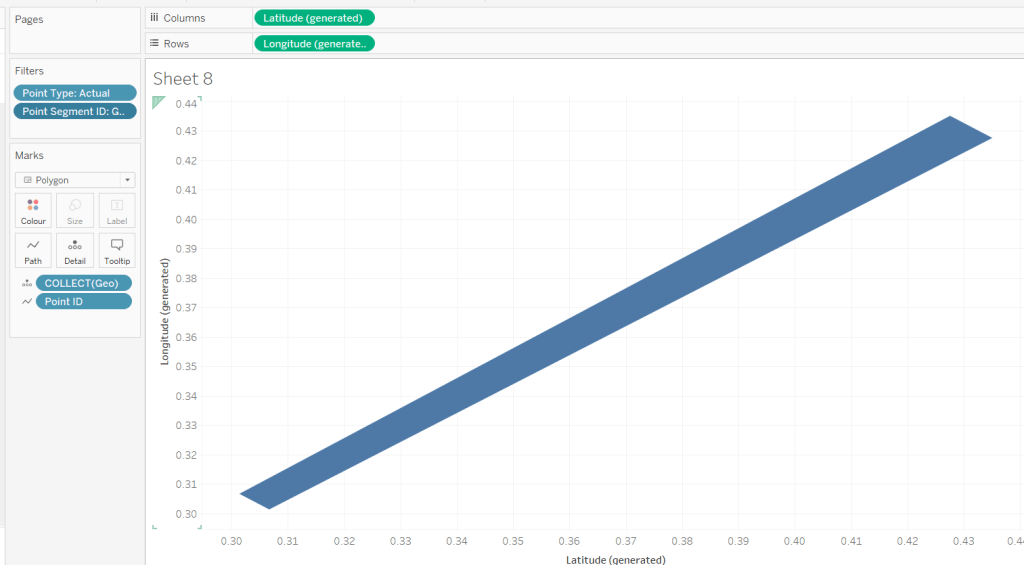
Can you build this simple KPI card?

For this week’s challenge, Luke asked us to recreate this KPI card on a single sheet.

We needed to display data for the last 2 years up to the latest complete month. If this was being built for a business situation, we’d make use of the TODAY() function to get a handle on the current date. Since this is being built with a static dataset which includes data up until 31st Dec 2023, I am using a parameter to ‘hardcode’ the ‘today’ date, as I want this viz to still present the relevant data on my public profile if it’s accessed in a year’s+ time.

pToday

date parameter defaulted to 12th Dec 2023

With this I can the define the data I want to include within the viz

Records to Include

[Order Date] < DATETRUNC(‘month’, [pToday]) AND [Order Date] >= DATEADD(‘year’,-2,DATETRUNC(‘month’, [pToday]))

based on pToday = 12th Dec 2023, this includes records where the Order Date is less than 01 Dec 2023 and greater or equal to 01 Dec 2021.

Add this to the Filter shelf and set to True. Then add Order Date set to the Continuous Month level (green pill) to Columns and Sales to Rows.

The add another instance of Sales to Rows and change the Mark type on the ‘Sales 2’ marks card to Area. Make the chart dual axis and synchronise the axis. Adjust the opacity of the area chart via the Colour shelf as required, and amend the Tooltip on the All marks card to display the month and sales value in the relevant format.

This has formed the basis of the sparkline. Now we need to determine the calculations we need which are displayed in the text.

The text displays information related to the month the user ‘selects’ by hovering over the sparkline. By default the information for the latest full month (in this case Nov 2023) is displayed. We need to capture this latest month in a field

Latest Month

DATE(DATEADD(‘month’, -1, DATETRUNC(‘month’, [pToday])))

We also need to capture the month the user selects via the hover into a parameter.

pSelectedMonth

date parameter defaulted to 01 Jan 1900 (think of this as a ‘null’ date)

With this we can then create

SelectedMonth

IF [pSelectedMonth] = #1900-01-01# THEN [Latest Month]
ELSE [pSelectedMonth]
END

format this to the <month year> format ie November 2023

and then also create

Selected Month Sales

{SUM(IF DATETRUNC(‘month’, [Order Date]) = [Selected Month] THEN [Sales] END)}

notice the function is wrapped in { } which makes it a Level of Detail (LOD) calculation, so the value is fixed across every row in the data set.

We also need to work out the sales from the same month in the previous year

Select Month Sales -PY

{SUM(IF DATETRUNC(‘month’, [Order Date]) = DATEADD(‘year’, -1, [Selected Month]) THEN [Sales] END)}

and subsequencty we can work out the change in sales

Change from PY

(SUM([Selected Month Sales]) – SUM([Selected Month Sales – PY ]))/SUM([Selected Month Sales – PY ])

To sense check what we’ve got, on a new sheet display the pSelectedMonth parameter then build a sheet as below

with the parameter set to 01 Nov 2023 we can see the values for Nov 2023 and Nov 2022 and captured in the relevant fields, and then the % change between the two also reflected.

But the % change is displayed on the KPI in different coloured text depending on whether the field is +ve or -ve. FOr this we need

Change from PY +ve

IF [Change from PY] >=0 THEN [Change from PY] END

and

Change from PY -ve

IF [Change from PY] <0 THEN [Change from PY] END

apply a custom number format to both fields of ↑0%;↓0% and add both fields to the sheet. Only 1 of these columns will ever be populated. If you change the parameter to 01 Aug 2022, you’ll see a negative change.

Now we have these fields, we can start to add the text element to the sparkline chart.

We’re going to plot a ‘mark’ against the first point in the x-axis, in this instance the point associated to the 1st Dec 2021. But we don’t want to ‘hardcode’ this date, so we can use

Dummy Y-Axis

IF FIRST() = 0 THEN 1 END

where FIRST() is a table calculation that is 0 for the first point on the month axis.

Add this to Rows before the Sales pills.

We have a single mark plotted for 1st Dec 2021 on a second Y-axis at position 1 on the axis. But no other marks. Change this mark type to shape and use a transparent shape (see this blog for details on how to do this).

Add Selected Month as an exact date to the Label shelf, along with Selected Month Sales, Change from PY +ve and Change from PY -ve. We also need

Previous Year

YEAR(DATEADD(‘year’,-1,[Selected Month]))

convert this to a dimension (drag to be above the line in the left hand data pane) and then add to Label too. Adjust the layout of the label as below and align top left. Note I added some spaces to the front on each line of text.

You should have something that looks similar to

To get the vertical line to display on hover, we need to create

Ref Line

IF [pSelectedMonth]<>#1900-01-01# THEN [pSelectedMonth] END

Add this to the Detail shelf of the Area chart sales marks card and set to be exact date (green pill). The right click on the date axis and Add Reference Line

Changing the pSelectedMonth parameter the line will display

Finally clean up the chart by hiding all the axis, removing all row & column dividers, gridlines, axis lines and zero lines. Hide the ‘null’ indicator.

Add the sheet to a dashboard, then create a parameter action

Select Month

on hover of the KPI card, update the pSelectedMonth parameter with the value from the Month(Order Date) field. When the selection is cleared, set the value to 01 Jan 1900.

Note – you may find that based on the size of the dashboard, you don’t get the text part to display. This is an annoyance in Desktop, that it isn’t completely WYSIWIG (what you see is what you get). I spent time adjusting font sizes etc to make the text display in Desktop, but once published to Tableau Public, it all looked too small. After setting it all back to the sizes I wanted in Desktop and re-publishing, I found it did actually display ok on Public. So you may find you just need to play around a bit to get the display as you want.

My published viz is here.

Happy vizzin’!

Donna